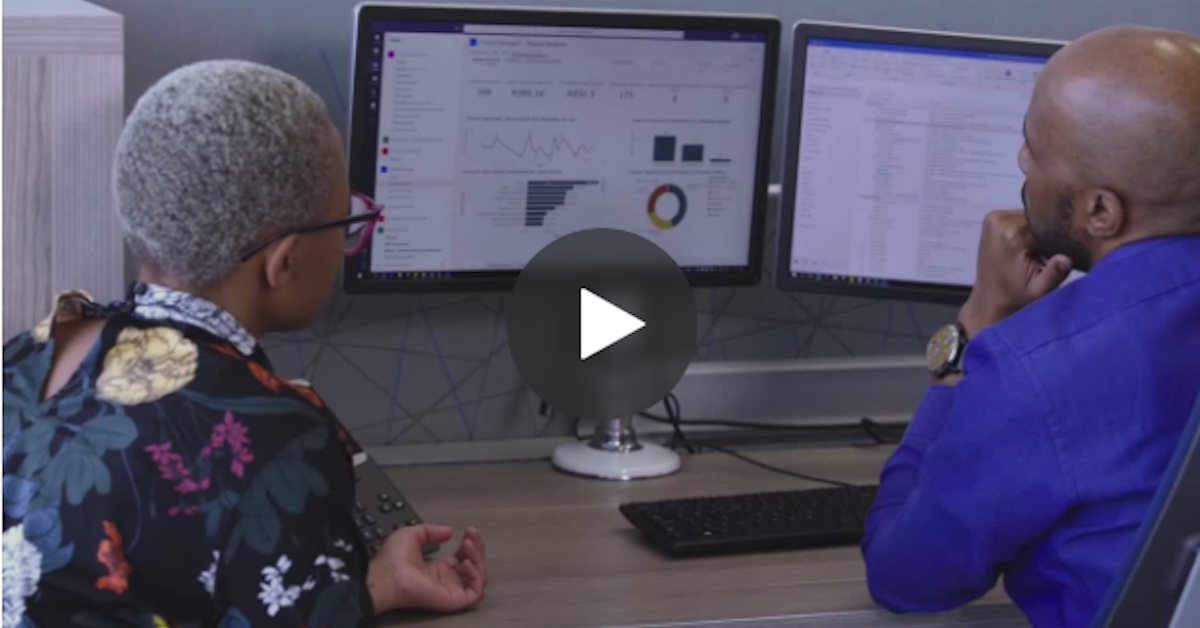
With over 150 years of history and experience in the legal market, Webber Wentzel has become one of South Africa’s most prominent law firms, operating at the forefront of legal services and home to the country’s longest-standing pro bono practices. The firm aims to act as a beacon of innovation for the industry. In this video, see how Webber Wentzel has taken advantage of the capabilities of Office 365 to create a more efficient and collaborative workplace for its teams, while facilitating and securing client interactions.
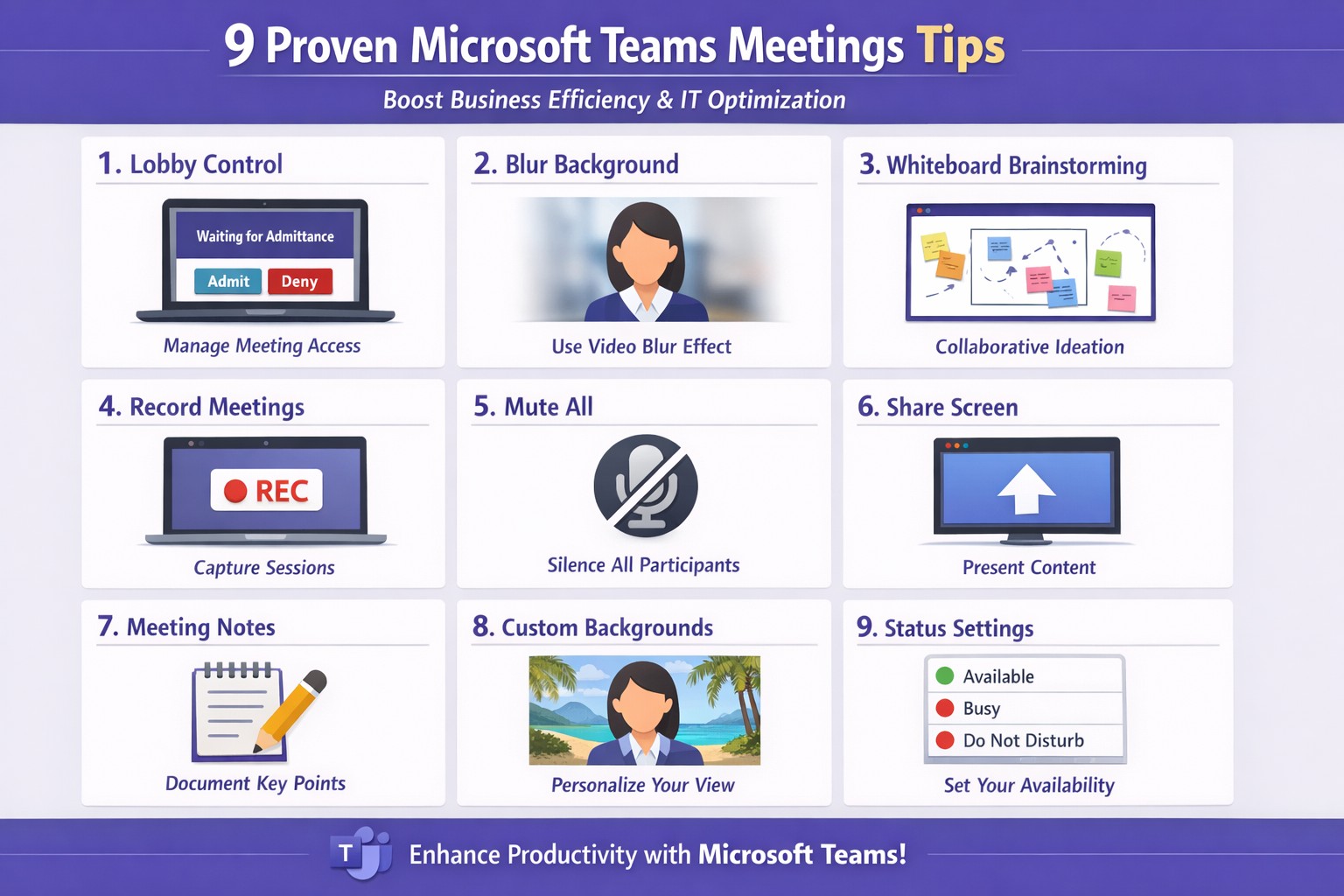
Apply these 9 Microsoft Teams meetings tips to enhance productivity and secure client calls
Ineffective meetings drain time and productivity. Mastering Microsoft Teams meetings ensures seamless collaboration, especially for remote teams in accounting, healthcare, or charity sectors where compliance and client trust matter.
Actionable Setup Steps
Business owners and IT departments can implement these steps for optimal Teams performance.
Verify hardware and network: Upgrade to Teams-certified devices like HD webcams and headsets; ensure 1.5 Mbps upload/download speeds per user. IT: Run network assessments via Teams admin center.
Configure meeting policies: In Teams admin center, enable lobby for external guests, restrict presentations to organizers, and auto-mute participants. Test via a pilot meeting.
Pre-load apps and integrations: Install Whiteboard, Planner, and OneNote; share agendas/files 24 hours ahead using channel posts.
These steps cut setup time by 30-50% based on Microsoft benchmarks.
9 Key Tips for High-Impact Meetings
Apply these practical tips, drawn from Microsoft and expert sources, to run concise, engaging sessions.
Control access with lobby: Require approval for entrants; mute all on join to minimize disruptions.
Mandate video with blur: Turn on cameras for face-to-face feel; use background blur to focus on faces.
Share selectively: Present specific windows/apps, not full desktop; request control for annotations.
Brainstorm via Whiteboard: Co-edit in real-time; save sessions automatically for follow-up.
Assign roles: Designate leader for flow, admin for tech (muting, lobby); use chat for side notes.
Leverage transcripts: Enable live captions/transcripts for accuracy, accessibility.
Keep short with breaks: Target 15-30 min huddles; park off-topic items.
Record and review: Auto-transcribe; search keywords post-meeting for action items.
Tip Category
Benefit
IT Action
Access Control
Reduces chaos
Set policies in admin center
Video/Sharing
Boosts engagement
Test bandwidth tools
Collaboration Tools
Enhances output
Integrate apps pre-rollout
FAQs for Client Inquiries
Q: How do we handle external clients securely? A: Use guest access with lobby approval and end-to-end encryption; review compliance in Teams settings.
Q: What if bandwidth lags? A: Lower video to 720p, disable HD; IT can prioritize QoS on routers.
Q: Can non-Teams users join? A: Yes, via browser link—no install needed; limit to view-only if sensitive.
Q: How to track action items? A: Assign in chat/Whiteboard; use Planner integration for tasks.
How Farmhouse Networking Helps
Farmhouse Networking specializes in tailored Microsoft 365 setups for accounting, healthcare, and charity businesses. We audit your Teams environment, implement these tips via custom policies, and optimize for SEO-driven branding—driving organic traffic and B2B leads. Our IT experts handle migrations, training, and 24/7 support to convert visitors into clients.
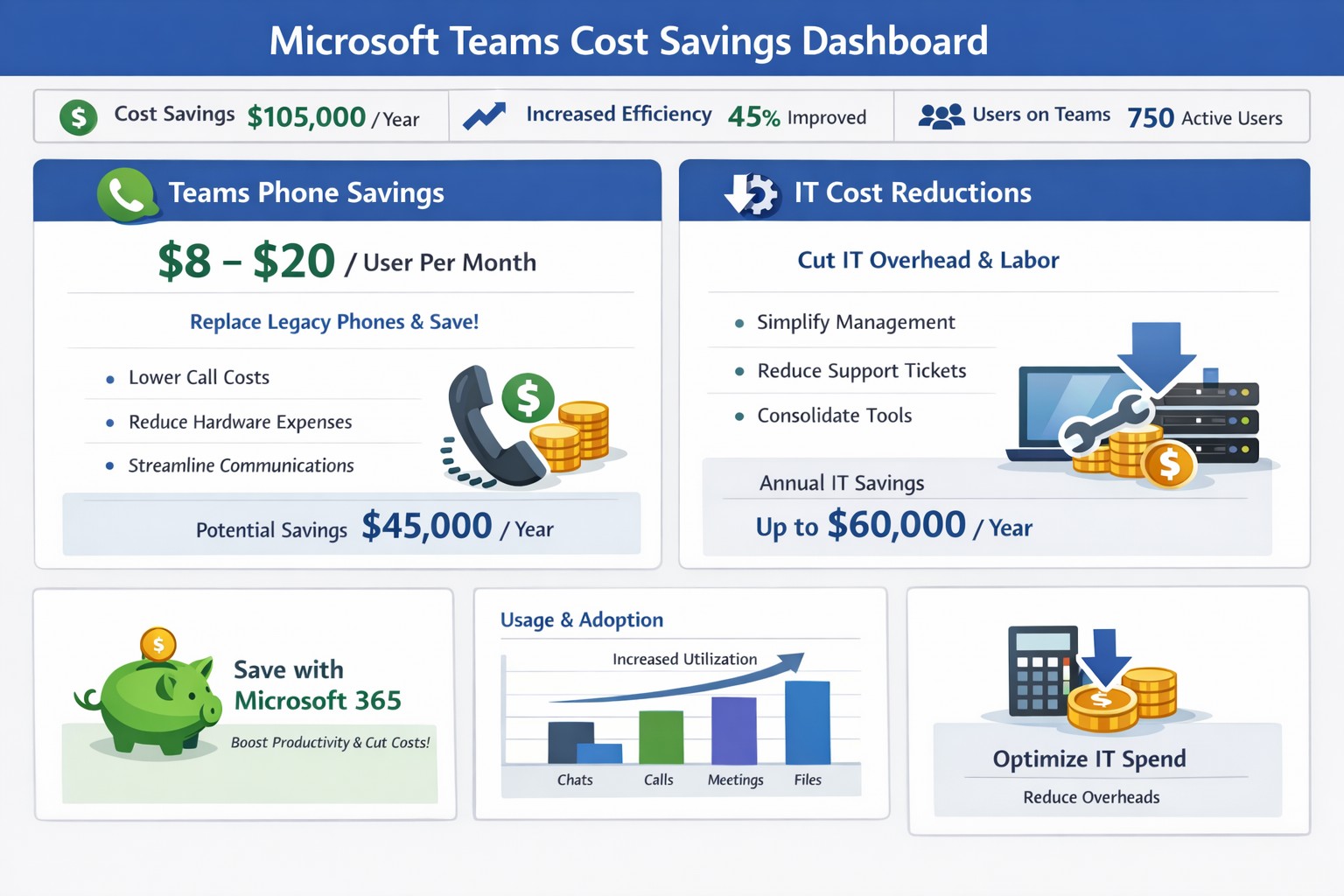
Graph illustrating 50% cost savings via Microsoft Teams telephony migration and license audits for business owners.
You’re always looking for ways to streamline operations without sacrificing productivity. Microsoft Teams offers powerful tools to reduce expenses on communication, collaboration, and IT infrastructure—often delivering savings of 50% or more on telephony alone by replacing legacy systems.
Key Cost-Saving Opportunities
Microsoft Teams, included in most Microsoft 365 subscriptions, consolidates features like chat, video calls, file sharing, and telephony into one platform. Businesses can eliminate redundant tools such as Zoom, Slack, or separate phone systems, avoiding multiple licenses that cost thousands monthly. It also cuts travel expenses through high-quality video meetings for up to 1,000 participants and reduces hardware needs by leveraging cloud storage via OneDrive and SharePoint.
Studies like Forrester’s Total Economic Impact report highlight up to 832% ROI through time savings on meetings, co-authoring, and unified communications.
Practical Action Steps
Follow these steps with your IT department to implement savings:
Audit Current Subscriptions: Review Microsoft 365 licenses to confirm Teams access (standard in E3/E5 plans). Deprovision unused tools like standalone video or project management apps.
Optimize Calling Plans: Switch to Teams Phone System ($8-20/user/month). Eliminate traditional lines, taxes, and hardware—potentially halving phone bills. IT: Assign licenses via admin center and port numbers.
Enable Collaboration Features: Activate co-authoring in Word/Excel/PowerPoint within Teams channels. Train staff to reduce email chains and version control issues, saving hours per project.
Migrate File Storage: Move to Teams-integrated SharePoint/OneDrive (1TB/user). Shut down on-premises servers, cutting hardware, backups, and maintenance costs.
Monitor Usage Analytics: Use Teams admin center reports to identify underused features. Right-size licenses (e.g., Essentials at $4/user/month for small teams).
IT teams can complete setup in 1-2 weeks; expect 20-50% IT spend reduction.
FAQ: Client Inquiries Answered
How much can we really save? Expect 50% on telephony by ditching lines/hardware, plus broader savings from tool consolidation (e.g., $thousands/month for mid-sized firms).
Is Teams secure for our data? Yes—end-to-end encryption for meetings/chats/files, with compliance tools for industries like accounting/healthcare.
What if we have hybrid/remote workers? Teams supports seamless hybrid with background blur, recording, and Outlook integration—no extra costs.
Do we need new hardware? No; use existing PCs with webcam/mic. Teams Phones replace desk phones via softphones or certified devices.
How do we train staff? Free Microsoft Learn modules; rollout via channels takes 1-2 days.
How Farmhouse Networking Helps
Farmhouse Networking specializes in Microsoft 365 optimizations for accounting, healthcare, and charity sectors. We conduct free audits to identify Teams savings, handle migrations (subscriptions, telephony ports, training), and implement SEO-friendly sites to attract B2B clients via content like this. Our custom strategies boost organic traffic 30-50% while ensuring compliance and seamless customer experiences.
Call to Action
Ready to save with Microsoft Teams? Email support@farmhousenetworking.com for a no-obligation audit and personalized strategy.
Microsoft Teams provides virtual solutions in response to an unexpected crisis.
For three generations, the Bianchini family has been creating exceptional wines on their idyllic estate, maintaining the traditions of a historic estate while staying one step ahead of the latest developments in the world of wine. With the recent COVID-19 pandemic and trade shows postponed and international travel impossible, everything changed. The Ciacci winery responded by turning to Microsoft Teams. To keep the business thriving, they moved quickly to replace in-person gatherings with virtual wine tastings using Teams meetings. Family members also used Teams to work together and connect with partners and suppliers, making the adjustment a perfect balance of tradition and technology.
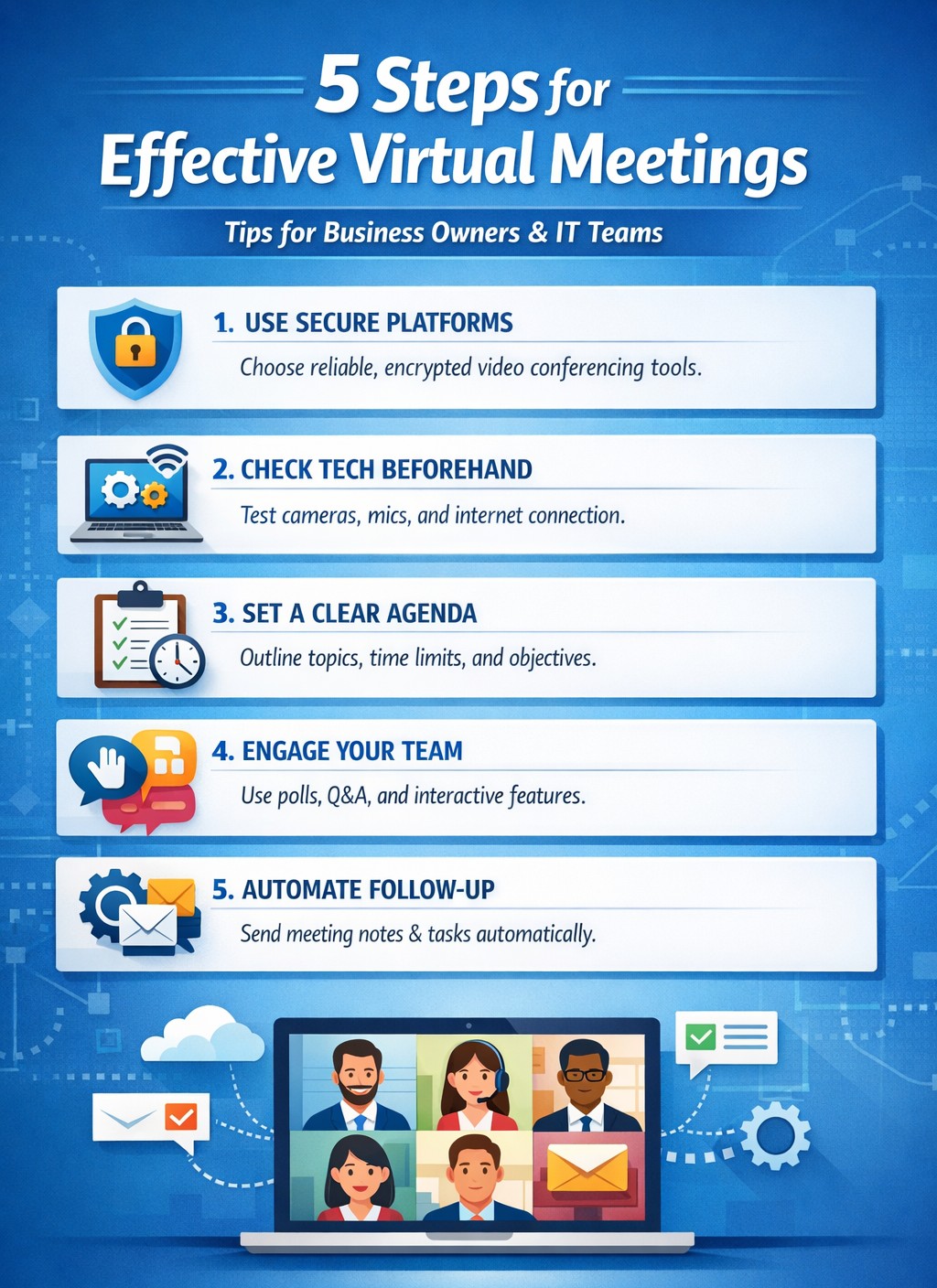
IT-backed strategies for business owners: standardize platforms and automate follow-ups for productive remote team meetings.
Wasted virtual meetings cost small businesses thousands in lost productivity annually. As a business owner managing remote teams, you need IT-backed strategies that deliver results fast. This post reveals five practical, tech-focused steps—tailored for you and your IT department—to transform chaotic calls into high-impact sessions that drive growth.
Standardize Your Meeting Platform
Choose one secure, scalable platform like Microsoft Teams or Zoom Enterprise to eliminate tool-switching chaos. IT teams should evaluate bandwidth needs, enable end-to-end encryption, and integrate with calendars/CRMs for seamless scheduling.
Business owners: Mandate platform use in your remote work policy.
IT steps: Deploy single sign-on (SSO), test integrations with tools like Slack or Google Workspace, and set up auto-updates to prevent vulnerabilities. This cuts setup time by 40% and boosts attendance reliability.
Pre-Meeting Tech Checks and Training
Technical glitches derail 30% of virtual meetings. Require all participants—including yourself—to test audio, video, and internet 15 minutes prior using platform diagnostics.
Business owners: Schedule mandatory quarterly training sessions.
IT steps: Roll out a “tech readiness checklist” via email automation, monitor network performance with tools like Wireshark, and provide on-call support during peak hours. Result: Fewer dropouts, higher engagement.
Create Structured Agendas with Role Assignments
Vague agendas lead to rambling; detailed ones keep teams focused. Share agendas 24 hours ahead via the platform, assigning roles like facilitator, note-taker, and timekeeper.
Business owners: Approve agendas before distribution to align with goals.
IT steps: Use platform features for polls, timers, and shared docs; integrate with project tools like Asana for real-time action item tracking. This ensures decisions stick post-meeting.
Enforce Engagement Tools and Moderation
Remote teams disengage twice as fast without visuals. Activate cameras, use polls/reactions, and designate an IT-trained moderator to manage chat and mute distractions.
Business owners: Set ground rules like “cameras on for key discussions.”
IT steps: Configure breakout rooms for sub-teams, enable AI transcription for recaps, and monitor for security breaches. Keeps meetings interactive and inclusive.
Post-Meeting Follow-Up Automation
Meetings fail without accountability. Send automated recaps with action items, recordings, and feedback surveys within 30 minutes.
Business owners: Review metrics like completion rates weekly.
IT steps: Automate via platform APIs (e.g., Zapier integrations), archive securely, and analyze attendance data for trends. Drives 25% better follow-through.
Common Questions from Business Owners
Q: How do we secure meetings against hacks? A: IT should enable waiting rooms, passcodes, and regular firmware updates; avoid free tiers prone to breaches.
Q: What if team internet varies by location? A: IT assesses remote setups, recommends VPNs or QoS routing, and offers audio-only fallbacks.
Q: How to measure meeting ROI? A: Track via platform analytics: engagement scores, task completion rates, and time saved.
How Farmhouse Networking Helps
Farmhouse Networking specializes in IT infrastructure for remote teams in accounting, healthcare, and nonprofits. We audit your setup, deploy secure platforms, train staff, and monitor 24/7—ensuring zero downtime. Our clients see 35% productivity gains from optimized virtual collaboration.
Call to Action
Ready to supercharge your virtual meetings? Email support@farmhousenetworking.com for a free IT assessment tailored to your business.
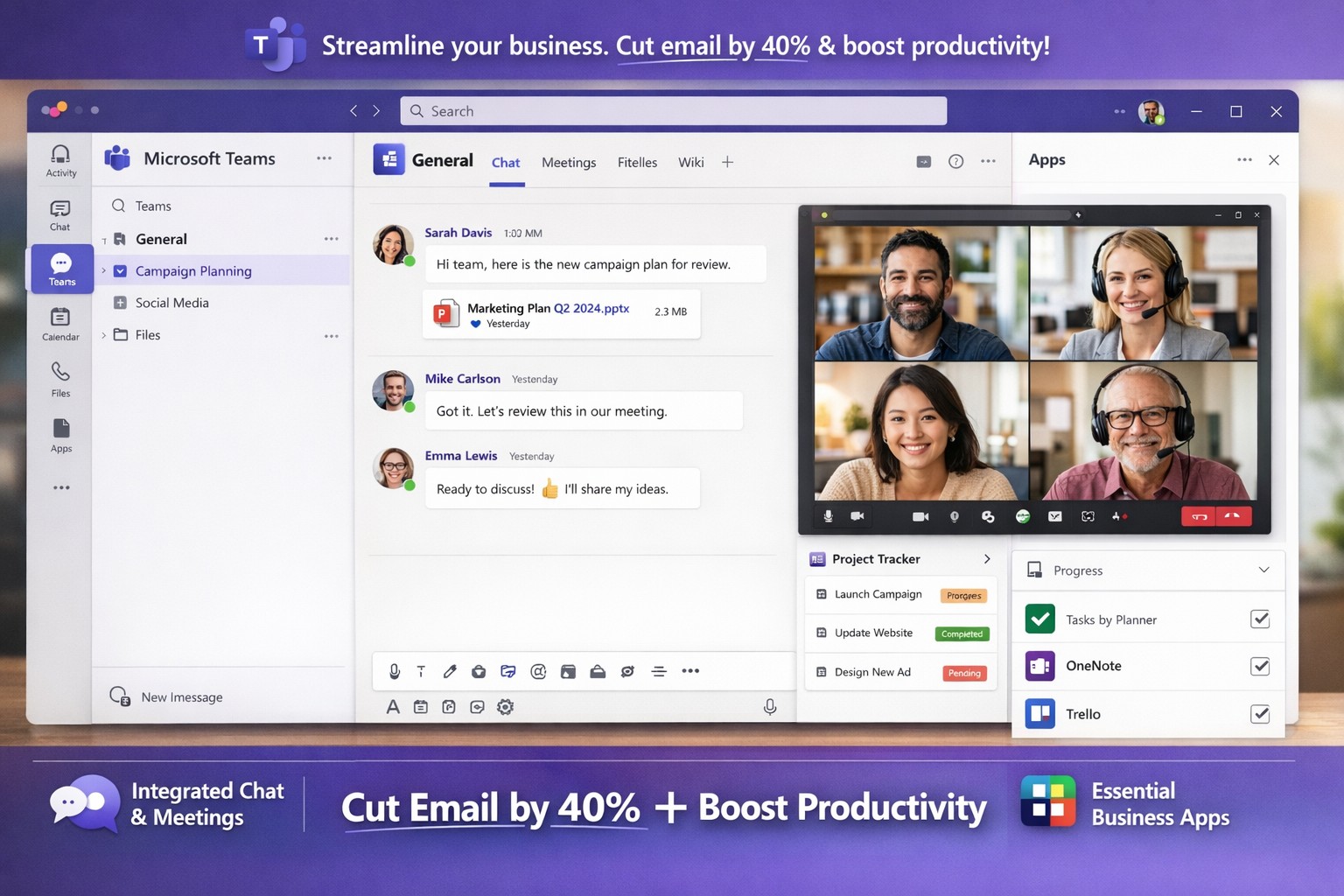
Microsoft Teams interface helping business owners streamline communication, collaboration, and workflows seamlessly.
You’re juggling endless tasks while keeping your team aligned amid remote and hybrid work. Microsoft Teams streamlines communication, collaboration, and workflows into one secure platform, slashing email overload and boosting productivity by up to 40% for similar clients.
Key Benefits for Business Owners
Microsoft Teams integrates chat, video meetings, file sharing, and project tools, ideal for accounting firms tracking audits, healthcare providers ensuring HIPAA compliance, or charities managing donor campaigns. It supports real-time co-editing via OneDrive/SharePoint, channels for department-specific discussions, and 1,000+ app integrations like Salesforce or Zoom. This setup reduces silos, enables secure guest access for clients, and scales with growth without heavy IT overhead.
Practical Implementation Steps
Follow these actionable steps with your IT department for a smooth rollout.
Assess Needs and Licenses: Audit current Microsoft 365 licenses (most include Teams) or select SMB plans like Teams Essentials. Define teams/channels by department (e.g., “Accounting-Audits”, “Healthcare-PatientBilling”).
Prepare Network and Governance: Optimize bandwidth for video; use Teams Admin Center to set policies on guest access, app approvals, and data retention. Enable MFA and compliance for regulated industries.
Install and Configure: Deploy desktop/mobile apps and web access. Create naming conventions (e.g., [Project-Client-YYYY]) for SEO-like internal search. Integrate tools via Power Automate for workflows.
Train and Pilot: Run a one-department pilot with hands-on sessions. Use AI recaps and polls to track adoption; gather feedback via Forms.
Monitor and Optimize: Leverage analytics for usage; automate backups and provide ongoing support to hit ROI in weeks.
FAQs: Client Inquiries Answered
How secure is Teams for sensitive data like patient records or financials? Teams offers enterprise-grade encryption, DLP policies, and audit logs compliant with HIPAA/GDPR. Admins control retention and eDiscovery.
What about user adoption—our team resists new tools? Pilot small, highlight wins like 30% less email time. Provide bite-sized training and champions; we’ve seen 90% uptake in 30 days.
Can it handle hybrid/remote teams across time zones? Yes—async channels, meeting recordings, and live captions keep everyone synced. Mobile access ensures productivity anywhere.
Does it integrate with our existing CRM or accounting software? Over 1,000 connectors (e.g., QuickBooks, Salesforce) plus custom Power Automate flows streamline ops without rip-and-replace.
What’s the cost for small businesses? Starts free/basic; Essentials at low per-user/monthly. Bundled in M365 Business plans scales affordably.
How Farmhouse Networking Helps
Farmhouse Networking, your Grants Pass-based IT experts since 2015, specializes in Microsoft 365/Teams deployments for accounting, healthcare, and charity sectors. We conduct custom audits, handle governance/IT setups, deliver SEO-optimized channel structures (e.g., keyword-rich for fast internal finds), staff training, and 24/7 monitoring—cutting deployment from months to weeks.
Our proactive support ensures compliance, 40% productivity gains, and seamless scaling, as proven with local clients.
For the 2018 racing season, NASCAR imposed new regulations on competitors, including limiting the number of team members allowed on the track during races. For legendary race team Hendrick Motorsports, this meant that many of the race-day crew would now need to perform their critical duties remotely from the team headquarters in Concord, NC. Hendrick Motorsports adjusted to the new regulations with technology, by making Microsoft Teams their new hub for all race communications and decision making.
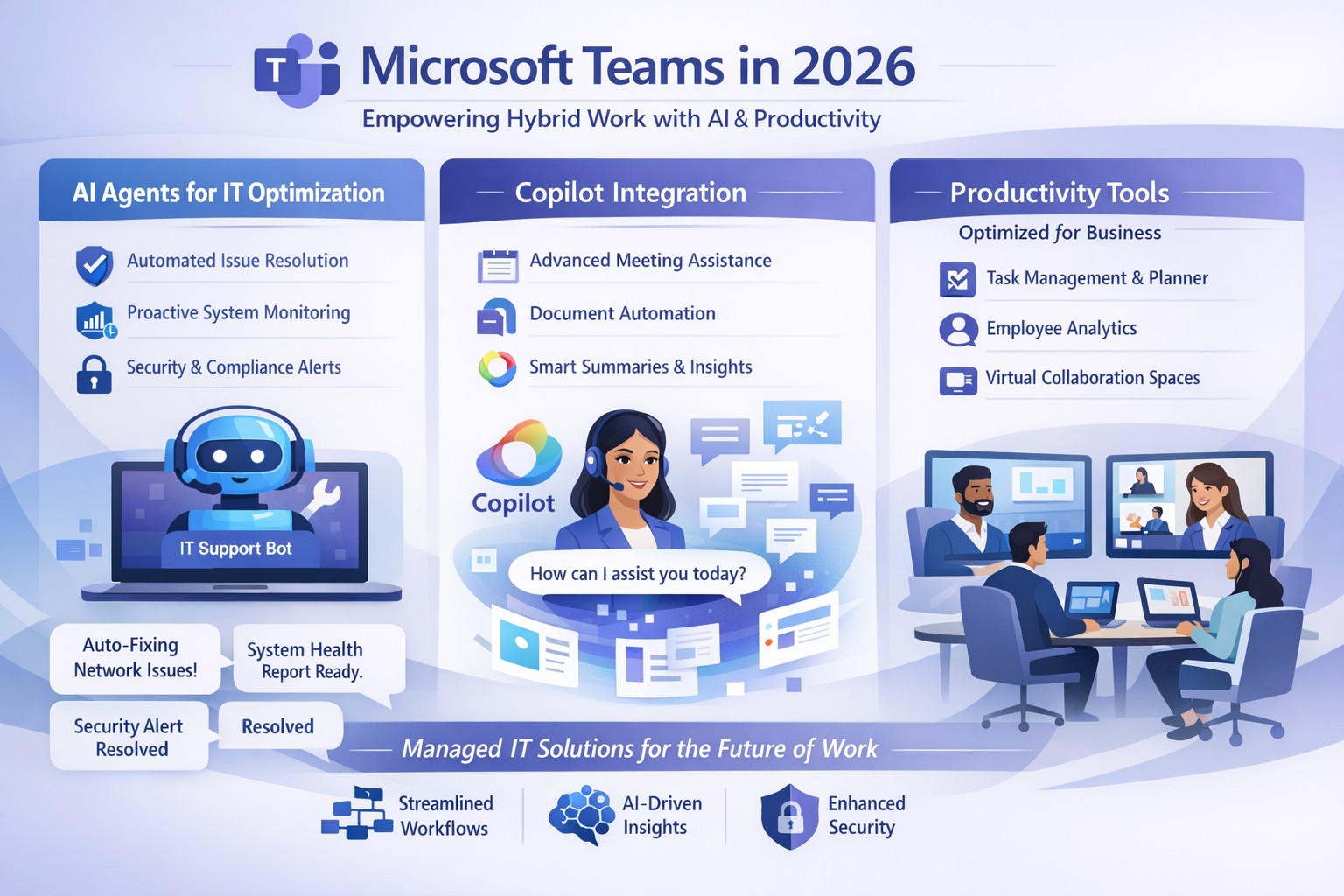
Microsoft Teams 2026 AI-powered features like intelligent agents and screen-aware Copilot transforming business collaboration.
Staying ahead of Microsoft Teams’ rapid evolution is critical for team productivity and competitive edge. 2026 brings AI-powered updates like intelligent agents, screen-aware Copilot, and smarter recaps that transform Teams from a chat tool into a strategic hub—directly impacting your bottom line through reduced meeting time and better decisions.
Key Future Features in Teams 2026
Microsoft Teams’ 2026 roadmap emphasizes AI integration via Copilot, making collaboration proactive. Highlights include AI agents joining meetings to answer questions and track agendas in real-time; Copilot analyzing shared screens for context-aware insights; enhanced chat summaries extracting decisions from threads; and meeting recaps auto-posting to SharePoint for searchable knowledge bases. Interactive annotations let all participants mark up shared content, boosting hybrid brainstorming. These features cut manual work by 30-50%, per early adopter reports, freeing teams for high-value tasks.
Practical Action Steps
Implement these steps with your IT department to leverage Teams’ future features.
Audit Current Setup: Review Teams licenses—upgrade to Microsoft 365 Copilot or Teams Premium for AI access. IT: Run Microsoft 365 admin center audit for usage gaps.
Enable AI Agents and Copilot: In Teams admin center, activate Copilot Studio for custom agents and screen analysis. Test in pilot meetings; train leaders via 15-minute sessions.
Optimize Meetings and Chats: Configure recap templates with visual references; set SharePoint auto-sync. IT: Deploy policies for resizable galleries and multilingual captions.
Secure and Scale: Apply external user trust badges; integrate with frontline tools. Monitor via analytics dashboard, targeting 20% productivity gains quarterly.
Train and Measure: Roll out via Viva Learning modules; track adoption with usage reports.
These steps ensure seamless rollout, minimizing disruption.
Client FAQs on Teams Future Features
Q: How do AI agents impact small business operations? A: Agents handle real-time summaries and nudges, saving 1-2 hours weekly per team on notes—ideal for lean operations without dedicated admins.
Q: What about security with screen analysis? A: Copilot processes data in your tenant with enterprise-grade encryption; admins control via sensitivity labels, compliant with GDPR and HIPAA.
Q: Will these features work for hybrid teams? A: Yes—interactive annotations and resizable views enhance remote participation; automatic language detection supports global clients.
Q: How much do upgrades cost? A: Copilot adds $30/user/month to E3/E5 plans; ROI comes from 25% faster decision-making, per Microsoft benchmarks.
Q: Can we customize recaps? A: Fully—preset templates or Copilot prompts tailor outputs to your workflows, integrating with SharePoint for persistence.
How Farmhouse Networking Helps
Farmhouse Networking specializes in managed IT for accounting, healthcare, and charity sectors, delivering Microsoft Teams optimization as your strategic partner. We handle full audits, Copilot deployments, custom AI agent builds, and compliance setups—reducing your IT overhead by 40%. Our experts integrate Teams with existing systems, train your staff, and monitor performance via proactive dashboards. For seamless adoption of 2026 features, we provide tailored roadmaps that drive organic growth and B2B conversions.
Ready to future-proof your Teams? Email support@farmhousenetworking.com today for a free consultation on boosting business efficiency.
Dutch startup Tony’s Chocolonely grew out of a journalist’s exposé of child slave labor in the cocoa industry and his dream of making the chocolate trade slavery-free. The Amsterdam-based company grew quickly, but its original collaboration apps didn’t support its international expansion or its work-life balance ideals. Teams enables Tony’s Chocolonely workers to communicate on a personal level with their colleagues in Europe, America, and Africa. Adding telephony capabilities makes it even more powerful, with everything available in one single interface.
Convert PPP payroll protection into permanent IT infrastructure gains
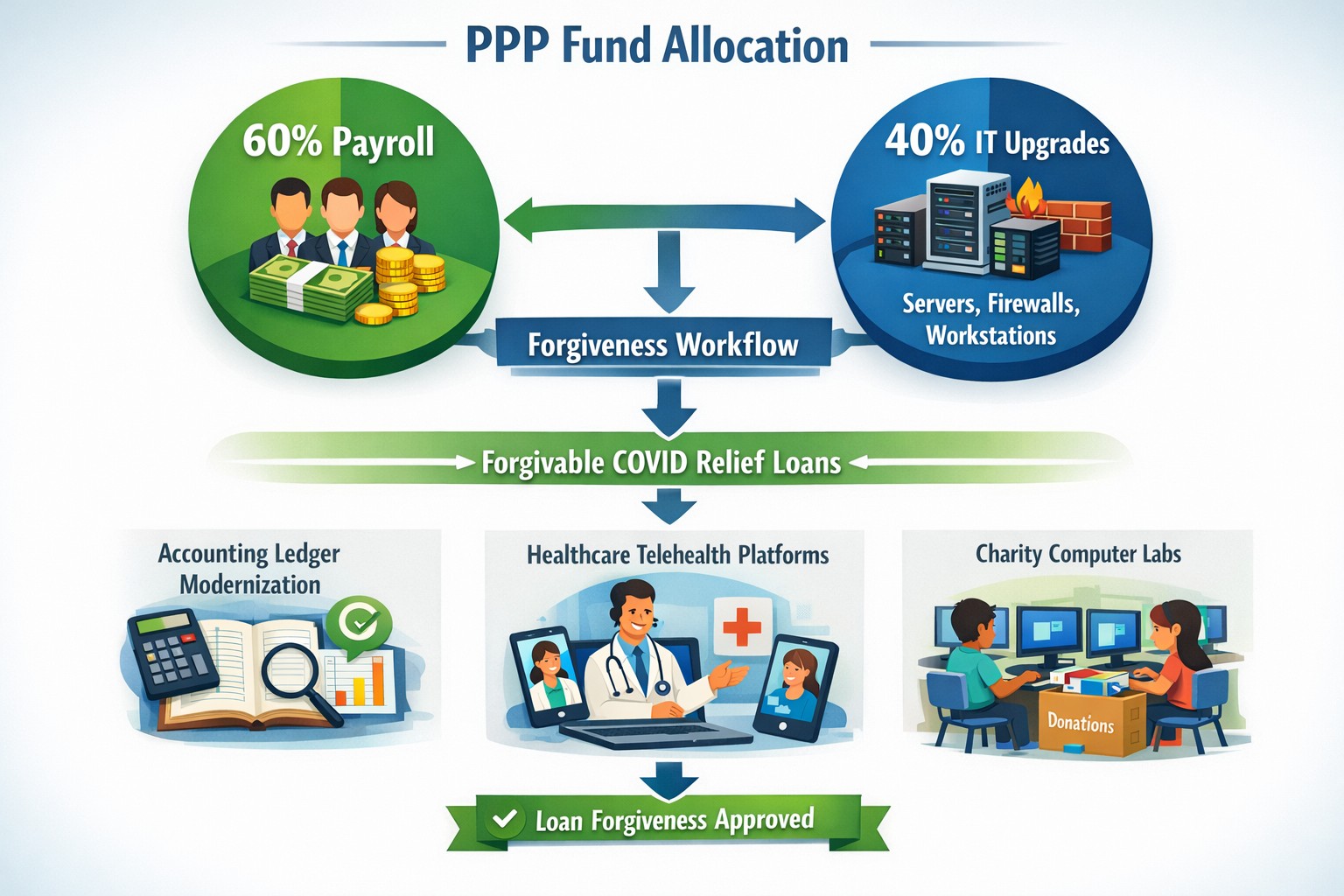
A bill in Congress has been brewing since October 2020 and finally passed in December 2020. Representative David Scott introduced H.R.8620 which is stated to:
“To permit payments for certain business software or cloud computing services as allowable uses of a loan made under the Paycheck Protection Program of the Small Business Administration.”
What PPP can do for you
This bill was an amendment to the Small Business Act that changes the definition of how PPP loan moneys can be used. The changes are as follows:
“the term ‘covered operations expenditure’ means a payment for any business software or cloud computing service that facilitates business operations, product or service delivery, the processing, payment, or tracking of payroll expenses, human resources, sales and billing functions, or accounting or tracking of supplies, inventory, records and expenses”
So what does this mean for your business? That you can apply for the PPP funds then use them to upgrade your out-of-date software that runs your company or use the funds to move your business into the cloud. There has never been a better time or excuse to discuss the possibilities of moving your business to the cloud and implementing those upgrades that have waited so long. By doing so you will position your company better for the Work From Home trend and be prepared for business expansion once the pandemic is over.
And God will generously provide all you need. Then you will always have everything you need and plenty left over to share with others. As the Scriptures say, “They share freely and give generously to the poor. Their good deeds will be remembered forever.” For God is the one who provides seed for the farmer and then bread to eat. In the same way, he will provide and increase your resources and then produce a great harvest of generosity in you. - 2 Corinthians 9:8-10
We use cookies to ensure that we give you the best experience on our website. If you continue to use this site we will assume that you are happy with it.