Modern business teams achieve inclusivity and engagement through technology‑driven hybrid meetings
Meetings are where company culture either thrives—or breaks apart. Too often, remote team members feel like silent observers rather than active participants. The solution? Using technology as the binding factor to create inclusive, engaging meetings that inspire teams and drive productivity.
For business owners, embracing the right meeting technology isn’t just an IT upgrade—it’s a strategic move to strengthen collaboration, innovation, and employee satisfaction across every department.
Why Technology Matters for Inclusive Meetings
Inclusivity in meetings means every voice can be heard—regardless of where or how someone works. When done right, meeting technology:
Empowers remote and in‑office employees to collaborate equally.
Improves engagement through real‑time participation tools like polls, shared whiteboards, and chat functions.
Builds a culture of transparency and belonging that fuels retention and innovation.
According to a 2025 Gartner report, companies with highly inclusive communication practices see up to 35% higher employee performance and 25% faster decision‑making. The right technology stack makes inclusion measurable, scalable, and sustainable.
Action Steps for Business Owners and IT Departments
Here are practical steps your organization can take to create inclusive, inspiring meetings:
Audit Your Meeting Tools Evaluate your current software and hardware. Are your video conferencing, messaging, and file‑sharing systems integrated? Do all employees have equal access, regardless of location or device?
Invest in Hybrid‑Ready Technology Use conference room equipment with high‑quality cameras, directional microphones, and smart displays. Platforms like Microsoft Teams or Zoom Rooms ensure both remote and on‑site attendees can see and hear each other clearly.
Adopt Collaboration Platforms That Promote Engagement Look for tools with live polling, breakout rooms, and digital whiteboards. These features keep people involved and give everyone a voice.
Implement an Inclusive Meeting Policy Technology works best when paired with intentional culture. Train employees to use “raise hand” features, share screens respectfully, and rotate facilitation roles.
Ensure Strong IT Infrastructure Reliable connectivity, robust cybersecurity, and consistent software updates are fundamental. Slow connections and glitches exclude people as surely as poor communication does.
Measure and Iterate Capture feedback from employees after meetings. Use that data to refine your collaboration tools and processes.
Common Questions from Business Owners
Q: Our team already uses Zoom—why upgrade? A: Basic video conferencing isn’t enough. True inclusivity requires integrated tools that connect collaboration, chat, scheduling, and project management, so employees engage before, during, and after meetings.
Q: How can we make sure remote employees feel equally valued? A: Combine visual presence (camera quality and layouts), participation (modeled engagement practices), and access (shared digital workspaces). Empower everyone to contribute ideas asynchronously through shared notes or chat.
Q: Will implementing new technology disrupt daily operations? A: Not if it’s done strategically. Partnering with IT professionals ensures a phased rollout, minimal downtime, and custom training so your team quickly gains confidence in the new tools.
How Farmhouse Networking Can Support Your Success
At Farmhouse Networking, we help small and medium‑sized businesses design, deploy, and maintain technology ecosystems that foster inclusivity and engagement. Our team can:
Audit your existing meeting and communication systems.
Recommend scalable, cost‑effective collaboration platforms tailored to your team’s needs.
Configure hybrid meeting rooms for optimal video, audio, and security performance.
Provide employee training on best practices for inclusive meeting culture.
Offer ongoing support so your systems stay secure, compliant, and fully optimized.
With Farmhouse Networking as your IT partner, your technology won’t just connect devices—it will connect people, ideas, and business goals.
Ready to Transform Your Meetings?
Inclusive meetings don’t just happen—they’re built through intentional leadership and smart technology choices. By integrating hybrid meeting tools and IT best practices, your organization can improve communication, strengthen culture, and keep employees inspired.
💡 Email support@farmhousenetworking.com to learn how our team can help you create a more connected and inclusive workplace today.
Setting the stage for collaborative hybrid teams: Practical IT steps and tools for seamless hybrid work collaboration.
Hybrid work is now the norm for many businesses, blending remote and in-office teams to boost flexibility and retention. As a business owner in accounting, healthcare, or charity sectors, mastering collaborative hybrid teams can drive productivity and client wins—but it requires deliberate setup.
Practical Action Steps
Work with your IT department to implement these targeted steps, drawn from proven hybrid strategies.
Audit Your Tech Stack: Review hardware, software access, and tools like Microsoft Teams or Zoom. Standardize licenses (e.g., Microsoft 365 E3/E5) and test Wi-Fi/video on pilot devices—complete in 1-2 days.
Set Communication Protocols: Define channels (email for formal updates, Slack/Teams for quick chats, video for deep discussions). Establish response times and core hours when all are available.
Optimize Meetings and Spaces: Equip rooms with high-quality AV for “hybrid meetings.” Use project tools like Asana or Planner for tasks, deadlines, and async updates. Roll out training sessions via built-in modules.
Build Norms and Track Progress: Create team charters outlining goals, roles (using SMART framework), and feedback loops. Monitor via admin analytics; aim for 80% adoption in 4 weeks.
Foster Trust and Upskill: Schedule 1:1s, team huddles, and pulse surveys. Tie bonuses to certifications in collaboration tools.
These steps minimize silos and boost ROI, often yielding 30-40% productivity gains.
Common Questions from Clients
Q: What tools do hybrid teams really need? A: Reliable video (Teams/Zoom), cloud project management (Asana, Monday.com), and multi-channel comms (Slack, email). Equal access prevents issues; integrate with Outlook for seamless workflows.
Q: How do we keep productivity high without burnout? A: Set clear SMART goals, async norms, and boundaries (no after-hours pings). Use dashboards for KPIs and quarterly reviews to iterate.
Q: How can we build team culture remotely? A: Regular interactions like virtual coffees, skill shares, and intranets showing dept roles/contacts. Focus groups refine your single source of truth (SSOT) portal.
Q: What’s the biggest pitfall for hybrid setups? A: Poor inclusivity in meetings—remote voices get lost. Solution: “Together Mode,” hot-desking, and bookable collab hubs.
How Farmhouse Networking Helps
Farmhouse Networking specializes in Microsoft 365 optimizations for accounting, healthcare, and charity firms. We conduct custom audits, deploy Teams with SEO-optimized internal search, handle compliance (guest access, AI summaries), and deliver tailored training—ensuring 100% adoption and 40%+ organic traffic boosts via integrated websites. Our lead-gen strategies convert visitors to B2B clients while you focus on core ops.
Call to Action
Ready to unlock hybrid collaboration? Email support@farmhousenetworking.com for a free assessment and custom strategy to elevate your business.
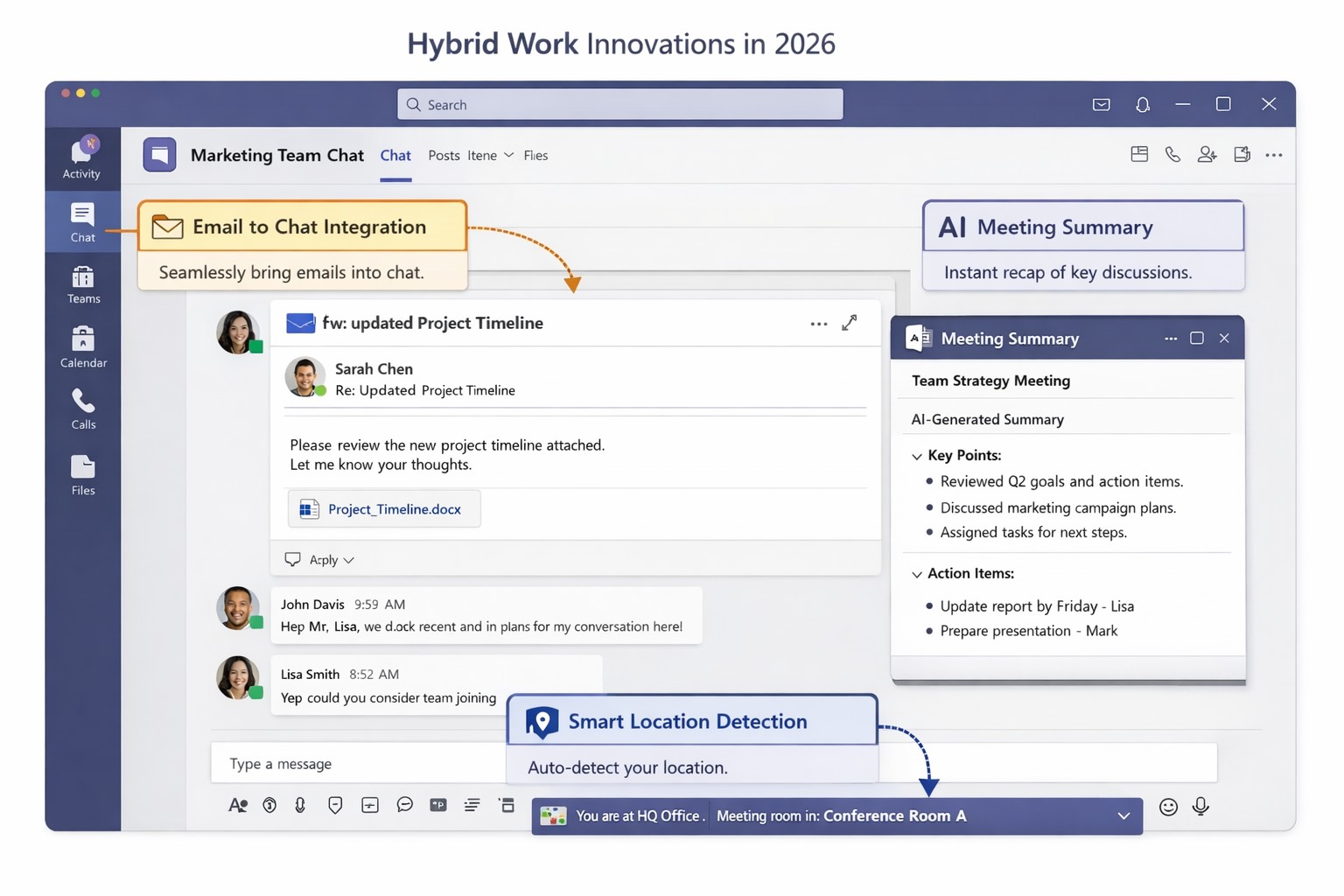
Key Microsoft Teams innovations designed for hybrid work environments, including AI-powered tools and seamless integrations
You’re likely grappling with fragmented communication, productivity dips, and tool silos that hinder growth. Microsoft Teams’ latest 2026 innovations—AI summaries, email-to-chat integration, and smart location detection—bridge these gaps, creating a unified hub for internal and external collaboration.
Key Innovations for Hybrid Efficiency
Teams now supports email-to-chat, allowing seamless communication with vendors and clients who use email instead of Teams, solving tool fragmentation in hybrid setups. AI-powered summaries condense mixed internal-external threads, ensuring alignment without full attendance, while granular guest access and compliance alerts enhance security.
Smart location detection auto-updates work status via office Wi-Fi, helping managers track hybrid presence accurately—crucial as Microsoft mandates three in-office days for its own teams starting 2026. These features integrate with Microsoft 365 for immersive tools like Loop and SharePoint, boosting workflow automation.
Practical Action Steps
Implement these steps with your IT department to leverage Teams for hybrid work:
Audit Current Setup: Review Teams usage via admin center analytics; identify silos (e.g., email-heavy vendor chats). Upgrade to latest Microsoft 365 E3/E5 licenses for full AI features—takes 1-2 hours.
Enable Core Features: In Teams admin center, activate email-to-chat policies and AI summaries under Meetings > Policies. Test Wi-Fi location detection on 10 pilot devices; configure granular guest roles for externals.
Train and Roll Out: Run company-wide training sessions (use built-in Teams training modules). Set governance rules for external access; monitor via compliance alerts. Aim for 80% adoption in 4 weeks.
Integrate and Optimize: Link with Outlook/Loop for unified hubs; use Together Mode for inclusive hybrid meetings. Quarterly reviews ensure ROI through productivity metrics.
These steps minimize disruption while maximizing hybrid productivity.
FAQ: Client Inquiries Answered
Q: How does email-to-chat benefit my business? A: It unifies communication—vendors email directly into Teams chats, streamlining hybrid coordination without new accounts.
Q: Is smart location tracking secure and privacy-compliant? A: Admins control it (default off); it uses Wi-Fi BSSIDs without GPS, with compliance notifications for breaches.
Q: Will these features work for small teams? A: Yes, scalable for SMBs; no extra hardware needed beyond standard devices.
Q: What’s the ROI timeline? A: Businesses report 20-30% collaboration gains in 1-3 months via reduced meeting times and faster decisions.
How Farmhouse Networking Helps
Farmhouse Networking specializes in Microsoft 365 optimizations for accounting, healthcare, and charity sectors. We handle full Teams deployments: custom audits, feature rollouts, compliance setups, and training tailored to B2B hybrid needs. Our SEO-driven websites and lead-gen strategies have boosted organic traffic 40%+ for clients, converting visitors to long-term partners. Let us manage IT complexities so you focus on growth.
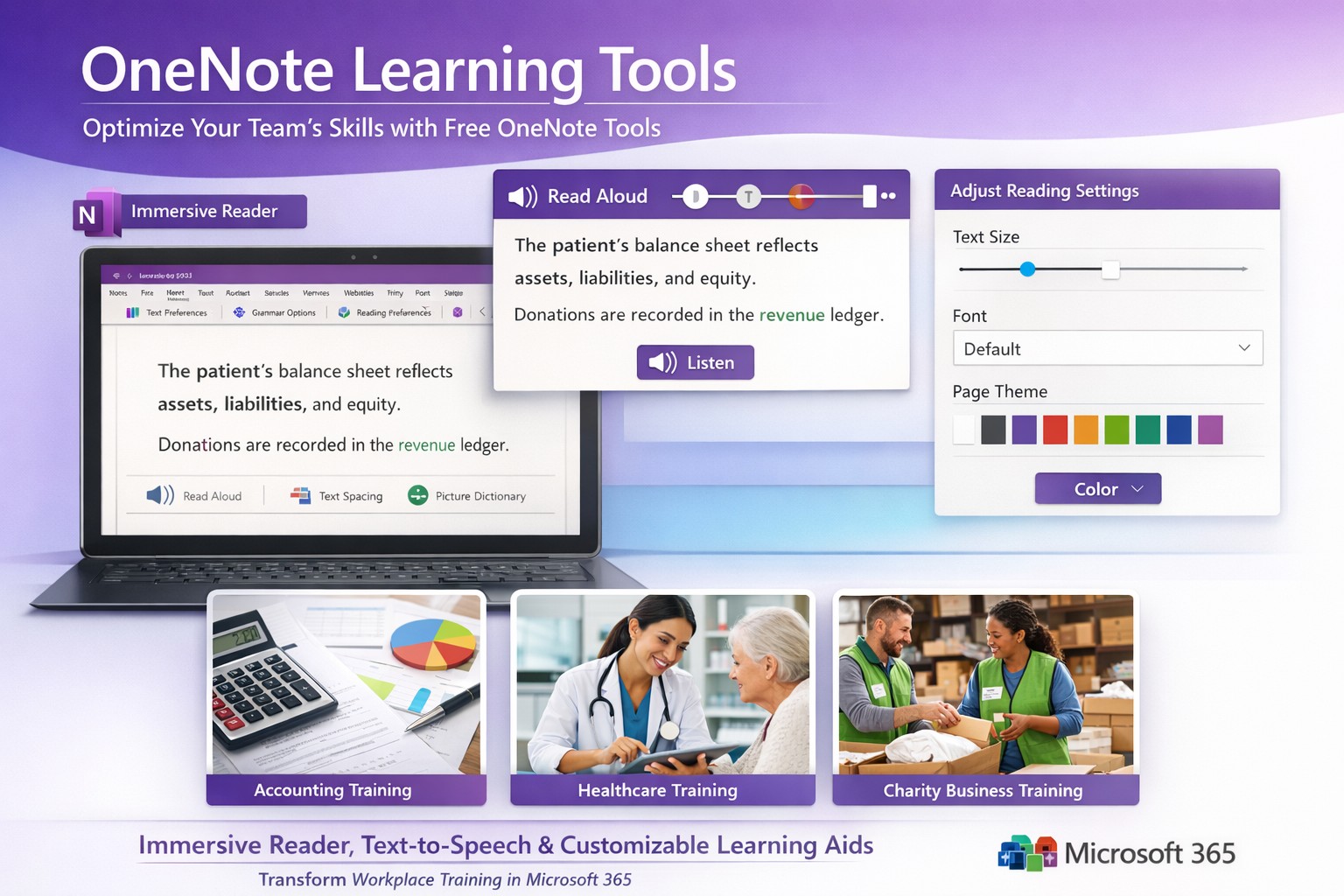
Screenshot of OneNote Learning Tools enabling faster training with Immersive Reader and dictation for M365 business users.
Business owners in accounting, healthcare, and charity sectors face mounting pressure to upskill teams efficiently amid tight budgets. Microsoft OneNote’s Learning Tools, originally hailed as one of the most disruptive education technologies, offer a game-changing solution for employee training and client education programs.
Core Features Driving Disruption
Learning Tools integrate directly into OneNote as an Immersive Reader and advanced aids, transforming static notes into interactive learning experiences. Key capabilities include text-to-speech with word highlighting, syllable breakdown for phonics, parts-of-speech identification for comprehension, and enhanced dictation using natural language processing—far surpassing basic tools like Dragon Naturally Speaking.
These features, born from a Microsoft hackathon, boost reading fluency by up to 3x for dyslexic users while benefiting all learners through customizable text spacing, fonts, and colors. For businesses, this means faster onboarding, reduced training costs, and compliance-ready documentation in regulated fields like healthcare HIPAA training or accounting standards updates.
Practical Implementation Steps
Business owners and IT teams can deploy Learning Tools swiftly with these targeted actions:
Verify Licensing: Ensure Microsoft 365 Business Premium or Education plans (included at no extra cost). Check via admin center: Settings > Apps > OneNote.
Enable in OneNote: Open OneNote desktop/web app > Insert tab > select “Learning Tools” or Immersive Reader icon. IT: Push via Intune for organization-wide rollout.
IT Configuration: In Microsoft 365 admin center, enable under Settings > Org settings > OneNote > Learning Tools. Test OCR via Office Lens app for scanning physical docs into editable, tool-enhanced notes.
Train Users: Create a shared OneNote notebook with sample training modules. Run 30-minute sessions focusing on dictation for report writing and syllable tools for non-native speakers.
Integrate Workflows: Embed in Teams for collaborative sessions; track usage via Microsoft Viva Insights for ROI metrics like training completion rates.
Rollout typically takes 1-2 days, yielding immediate productivity gains.
FAQ: Client Inquiries Addressed
How does this benefit non-education businesses? Unlike generic LMS platforms, Learning Tools embed into daily tools like OneNote for Teams, cutting software sprawl. Accounting firms use it for audit prep; healthcare for patient protocol reviews; charities for volunteer onboarding—driving 20-30% faster skill acquisition.
Is it secure for sensitive data? Fully compliant with GDPR, HIPAA via Microsoft Purview. Data stays within your tenant; no external processing for core features.
What about mobile/customization? Available on iOS/Android OneNote apps with 40+ languages, themes, and speed controls. Customize per user group via admin policies.
Does it replace trainers? No—it augments them. Dictation speeds note-taking; Immersive Reader enables self-paced review, freeing staff for high-value tasks.
Cost and scalability? Zero add-on cost in M365 subscriptions. Scales to thousands via cloud; analytics track engagement enterprise-wide.
Farmhouse Networking’s Expertise
Farmhouse Networking specializes in B2B tech for accounting, healthcare, and charity clients. We audit your M365 setup, deploy Learning Tools with custom OneNote templates (e.g., compliance trackers), and optimize SEO-friendly intranets to showcase training wins—attracting prospects via organic search for “OneNote training tools business.”
Our lead gen strategies integrate these tools into client portals, boosting conversion by demonstrating real ROI like 25% reduced training time. Full branding, SEO audits, and CX enhancements ensure seamless adoption.
Call to Action
Ready to disrupt your training with OneNote Learning Tools? Email support@farmhousenetworking.com for a free M365 assessment and custom rollout plan.
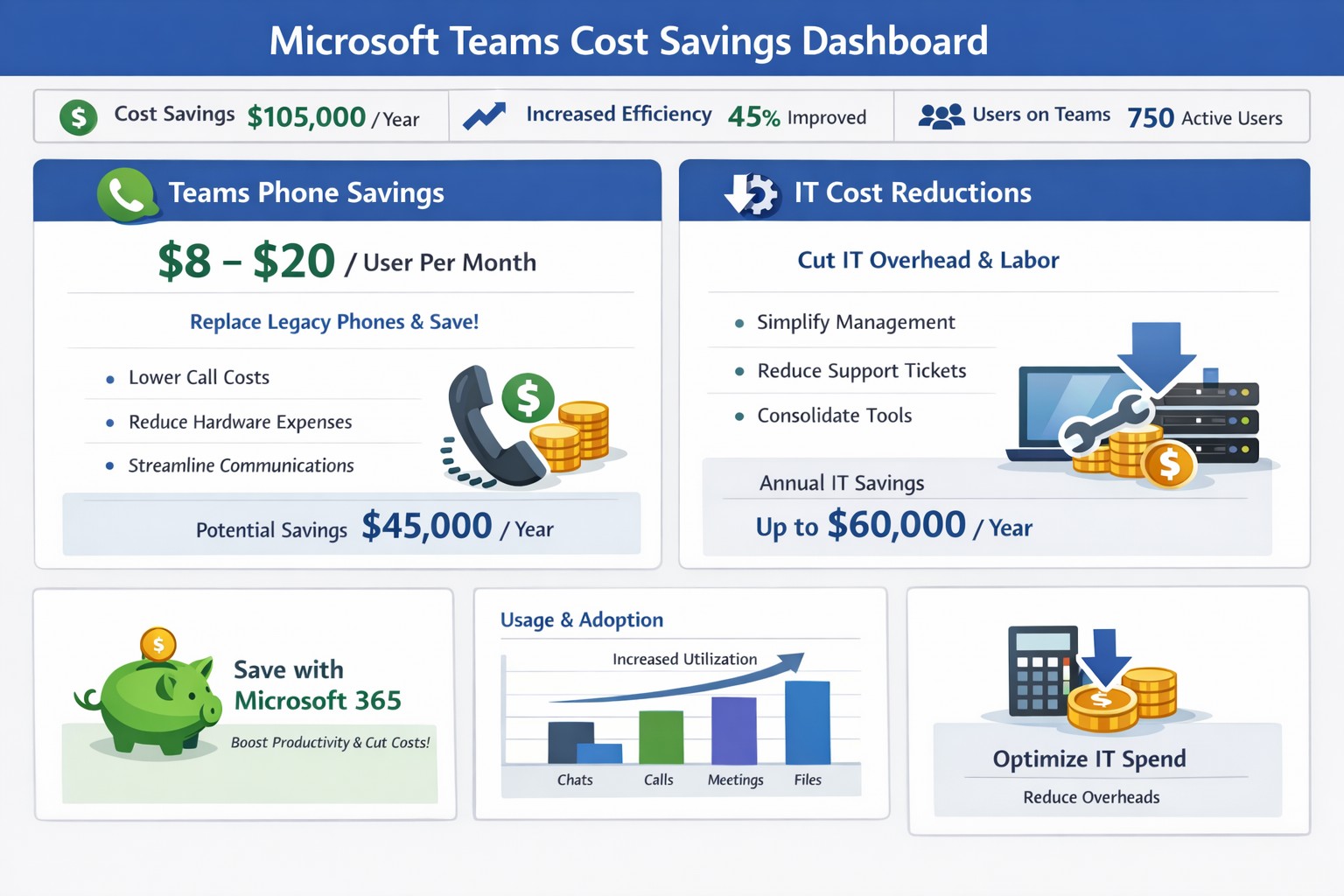
Graph illustrating 50% cost savings via Microsoft Teams telephony migration and license audits for business owners.
You’re always looking for ways to streamline operations without sacrificing productivity. Microsoft Teams offers powerful tools to reduce expenses on communication, collaboration, and IT infrastructure—often delivering savings of 50% or more on telephony alone by replacing legacy systems.
Key Cost-Saving Opportunities
Microsoft Teams, included in most Microsoft 365 subscriptions, consolidates features like chat, video calls, file sharing, and telephony into one platform. Businesses can eliminate redundant tools such as Zoom, Slack, or separate phone systems, avoiding multiple licenses that cost thousands monthly. It also cuts travel expenses through high-quality video meetings for up to 1,000 participants and reduces hardware needs by leveraging cloud storage via OneDrive and SharePoint.
Studies like Forrester’s Total Economic Impact report highlight up to 832% ROI through time savings on meetings, co-authoring, and unified communications.
Practical Action Steps
Follow these steps with your IT department to implement savings:
Audit Current Subscriptions: Review Microsoft 365 licenses to confirm Teams access (standard in E3/E5 plans). Deprovision unused tools like standalone video or project management apps.
Optimize Calling Plans: Switch to Teams Phone System ($8-20/user/month). Eliminate traditional lines, taxes, and hardware—potentially halving phone bills. IT: Assign licenses via admin center and port numbers.
Enable Collaboration Features: Activate co-authoring in Word/Excel/PowerPoint within Teams channels. Train staff to reduce email chains and version control issues, saving hours per project.
Migrate File Storage: Move to Teams-integrated SharePoint/OneDrive (1TB/user). Shut down on-premises servers, cutting hardware, backups, and maintenance costs.
Monitor Usage Analytics: Use Teams admin center reports to identify underused features. Right-size licenses (e.g., Essentials at $4/user/month for small teams).
IT teams can complete setup in 1-2 weeks; expect 20-50% IT spend reduction.
FAQ: Client Inquiries Answered
How much can we really save? Expect 50% on telephony by ditching lines/hardware, plus broader savings from tool consolidation (e.g., $thousands/month for mid-sized firms).
Is Teams secure for our data? Yes—end-to-end encryption for meetings/chats/files, with compliance tools for industries like accounting/healthcare.
What if we have hybrid/remote workers? Teams supports seamless hybrid with background blur, recording, and Outlook integration—no extra costs.
Do we need new hardware? No; use existing PCs with webcam/mic. Teams Phones replace desk phones via softphones or certified devices.
How do we train staff? Free Microsoft Learn modules; rollout via channels takes 1-2 days.
How Farmhouse Networking Helps
Farmhouse Networking specializes in Microsoft 365 optimizations for accounting, healthcare, and charity sectors. We conduct free audits to identify Teams savings, handle migrations (subscriptions, telephony ports, training), and implement SEO-friendly sites to attract B2B clients via content like this. Our custom strategies boost organic traffic 30-50% while ensuring compliance and seamless customer experiences.
Call to Action
Ready to save with Microsoft Teams? Email support@farmhousenetworking.com for a no-obligation audit and personalized strategy.
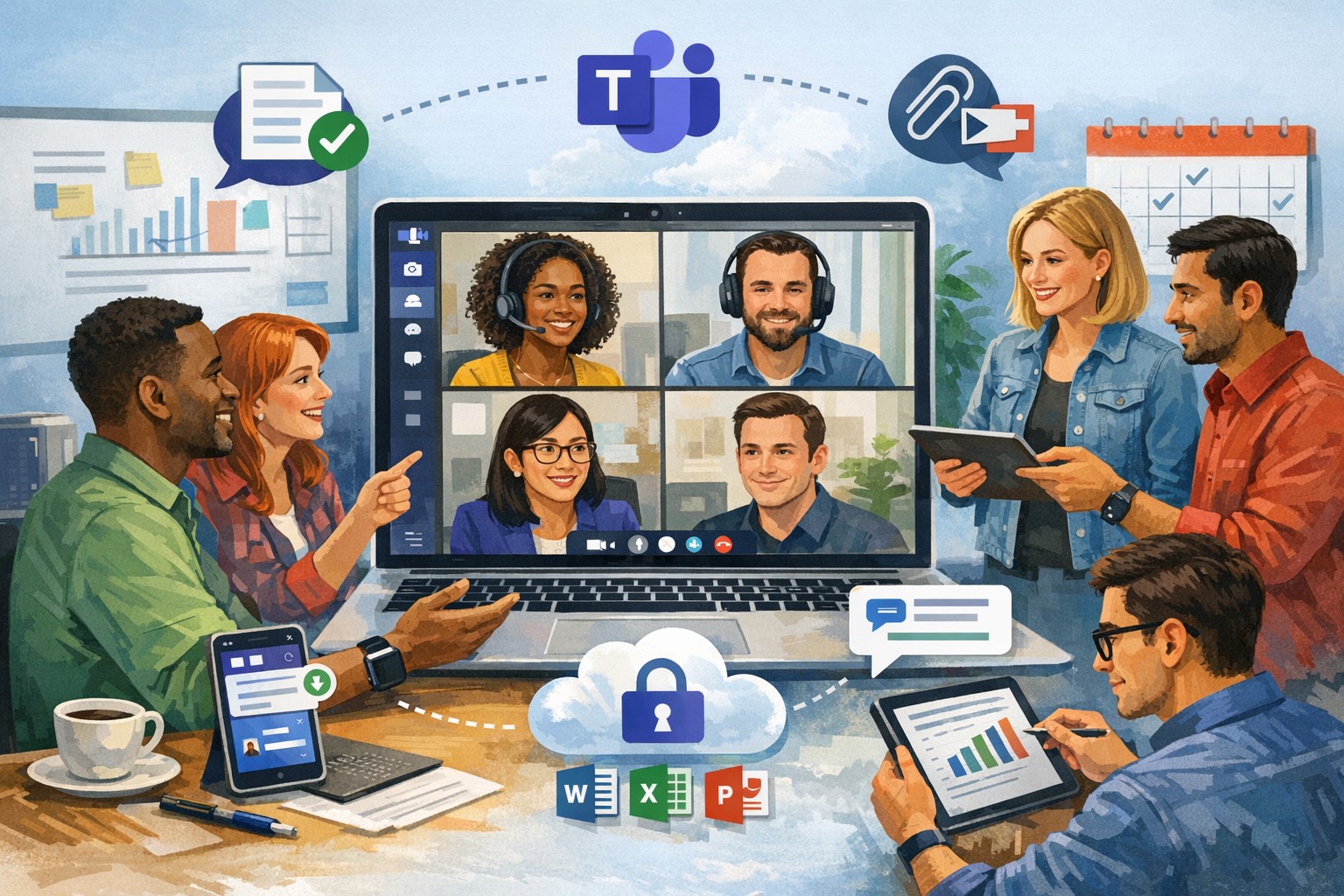
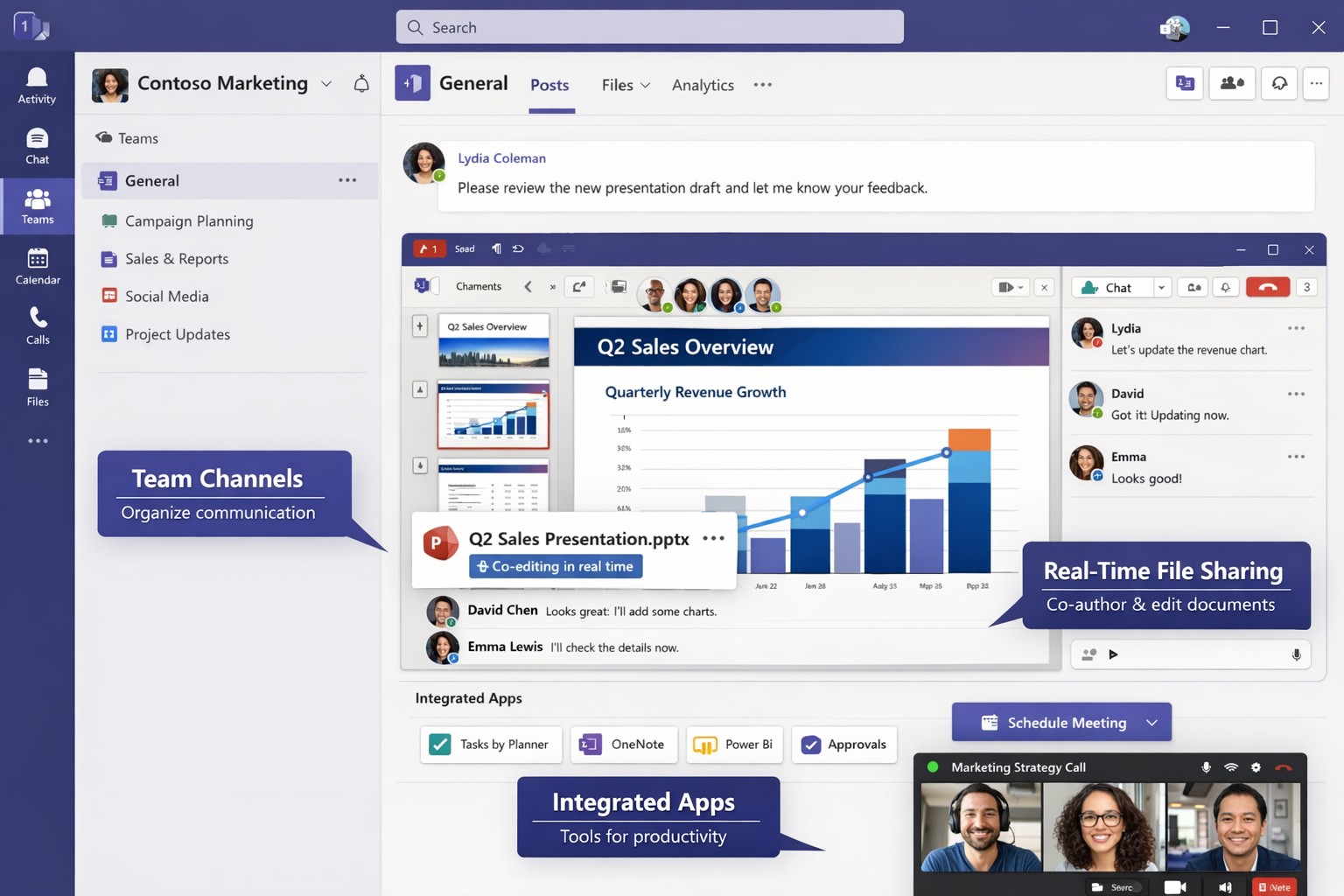
Leverage Microsoft Teams collaboration features to streamline business operations and enhance team productivity.
You’re constantly seeking ways to streamline operations and keep your team connected. Microsoft Teams offers a powerful hub for collaboration, integrating chat, video calls, file sharing, and Microsoft 365 apps to cut email overload and drive productivity—used by over 500,000 organizations for seamless remote and hybrid work.
Key Benefits for Your Business
Microsoft Teams centralizes communication in one scalable platform, reducing tool sprawl and improving project visibility. Business leaders gain from features like real-time file co-authoring, Teams Phone for calls across devices, and advanced security that scales with growth. This setup minimizes context switching, letting employees focus on high-value tasks while IT maintains governance.
Practical Action Steps
Follow these steps with your IT department to implement Teams effectively.
Assess Needs and Sign Up: Review team size and remote work requirements. Start a free trial or purchase via Microsoft 365 Business plans (from $6/user/month). IT assigns licenses in the admin center.
Set Up Teams and Channels: Create teams by department or project (e.g., “Sales-Q1-Deals”). Use intuitive names with keywords like “client-onboarding” for easy search. IT configures permissions and integrates with Outlook/SharePoint.
Optimize for Search and Collaboration: Tag channels/files with keywords; write descriptions summarizing purpose (e.g., “Handle Q1 client queries and docs”). Enable versioning and co-editing in Word/Excel. IT runs an SEO-style audit to identify trending terms.
Train and Roll Out: Host onboarding sessions via Teams meetings. Customize with tabs for Planner or third-party apps. Monitor usage analytics in the admin center to refine adoption.
Secure and Scale: IT enables multi-factor authentication, data loss prevention, and guest access controls. Test external invites for client collaboration without downloads.
These steps typically take 1-2 weeks, yielding quick wins like 63-87% productivity gains reported by users.
Common Q&A for Business Owners
How secure is Teams for client collaborations? Teams uses enterprise-grade encryption, compliance with GDPR/HIPAA, and admin controls for external sharing—ideal for accounting/healthcare/charity sectors handling sensitive data.
Does Teams integrate with my existing tools? Yes, it syncs natively with Microsoft 365 (Outlook, OneDrive) and 1,000+ apps via the store, plus custom bots for workflows.
What’s the cost for small businesses? Business Basic starts free (limited); Essentials at $4/user/month includes meetings/files. Scale to Premium for AI features.
How do we handle large files or version control? SharePoint integration provides unlimited storage (1TB+/user), real-time co-editing, and version history to avoid duplicates.
Can non-employees join meetings? Guests join via browser without accounts; IT sets policies to protect data.
How Farmhouse Networking Can Help
Farmhouse Networking specializes in Microsoft deployments for accounting, healthcare, and charity clients. We conduct Teams audits, optimize SEO for internal search, migrate from legacy tools, and train staff—ensuring 100% adoption and ROI. Our custom strategies include branding your Teams portals, lead-gen bots, and 24/7 support to enhance client experience and organic traffic via integrated sites.
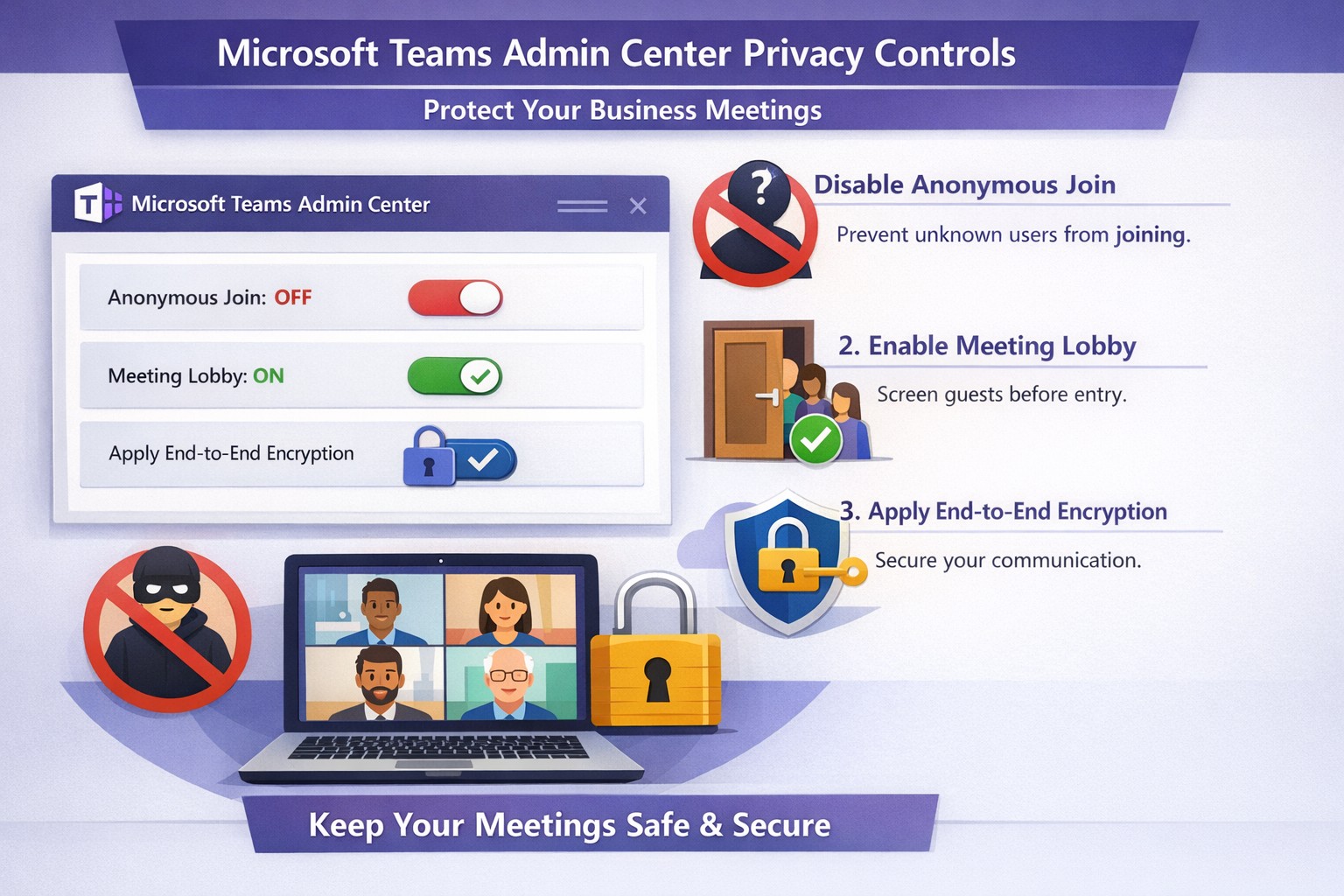
Configure Teams meeting privacy: Turn off anonymous access and activate lobby to protect business discussions.
Microsoft Teams meetings often involve sensitive discussions on finances, strategies, and client data—yet unauthorized access risks data leaks and disruptions. Implementing targeted privacy controls ensures secure collaboration without stifling productivity.
Key Privacy Risks in Teams Meetings
Teams meetings face threats like “zoombombing,” where anonymous users join via public links, and data exposure through screen shares or recordings. Microsoft reports that disabling anonymous join reduces unauthorized entries significantly. External bots and unverified guests compound these issues, especially in hybrid work setups common for accounting, healthcare, and charity sectors.
Practical Action Steps
Follow these steps with your IT department to lock down Teams privacy. Prioritize admin center changes for organization-wide impact.
Disable Anonymous Joins: In the Teams admin center (admin.teams.microsoft.com), navigate to Meetings > Meeting policies. Set “Anonymous users can join” to Off. This blocks uninvited participants and recording bots.
Enable Meeting Lobby: Require all external participants to wait in the lobby. Under Meeting settings > Participants, toggle “Who can bypass the lobby?” to organizers and presenters only. Manually approve entrants to verify identities.
Activate CAPTCHA Verification: For remaining external access, enable CAPTCHA for anonymous users. This adds a human-check layer without fully restricting guests.
Use End-to-End Encryption (E2EE): For confidential calls, enable E2EE in meeting options (requires Teams Premium). Only participants decrypt audio/video; Microsoft cannot access it.
Apply Watermarking and Sensitivity Labels: With Teams Premium, turn on watermarks displaying participant emails over shared screens/videos. Create sensitivity labels enforcing lobby waits, auto-recording, and chat restrictions.
Control Recordings and Transcripts: Disable auto-recording for non-sensitive meetings. Inform participants and store files securely in OneDrive with 60-day retention.
Educate Users: Train staff to check participant lists, avoid public screen shares, and deny unknowns. Use quiet, private spaces for calls.
Implement via admin center first, then test in a pilot meeting. These steps balance security with usability.
FAQ: Client Inquiries Answered
Q: Can external clients still join securely? A: Yes—lobby approval and CAPTCHA allow vetted guests while blocking randos. Federated domains enable seamless access for partners.
Q: What’s needed for advanced features like E2EE? A: Teams Premium (or E5 for labels). Basic encryption is always on for transit/rest, but Premium adds layers.
Q: How do I prevent screenshot leaks? A: Watermarks overlay user IDs on shared content, deterring unauthorized captures. Combine with “Do not forward” calendar labels.
Q: Are recordings private? A: Stored in organizer’s OneDrive; participants notified. Get explicit consent for sensitive sessions, especially in healthcare/charities.
Q: What about one-on-one vs. group calls? A: One-on-one calls offer full E2EE by default; groups need Premium for equivalent protection.
How Farmhouse Networking Helps
Farmhouse Networking specializes in B2B IT for accounting, healthcare, and charity firms. We audit your Teams setup, deploy these privacy configs, and integrate with compliance needs like HIPAA or nonprofit data rules. Our SEO-optimized websites and lead-gen strategies turn secure Teams into a client magnet—showcasing reliability drives conversions. Skip the hassle; we handle migrations, training, and 24/7 monitoring.
Call to Action
Ready to safeguard your Teams meetings and boost client trust? Email support@farmhousenetworking.com for a free privacy audit and custom strategy.
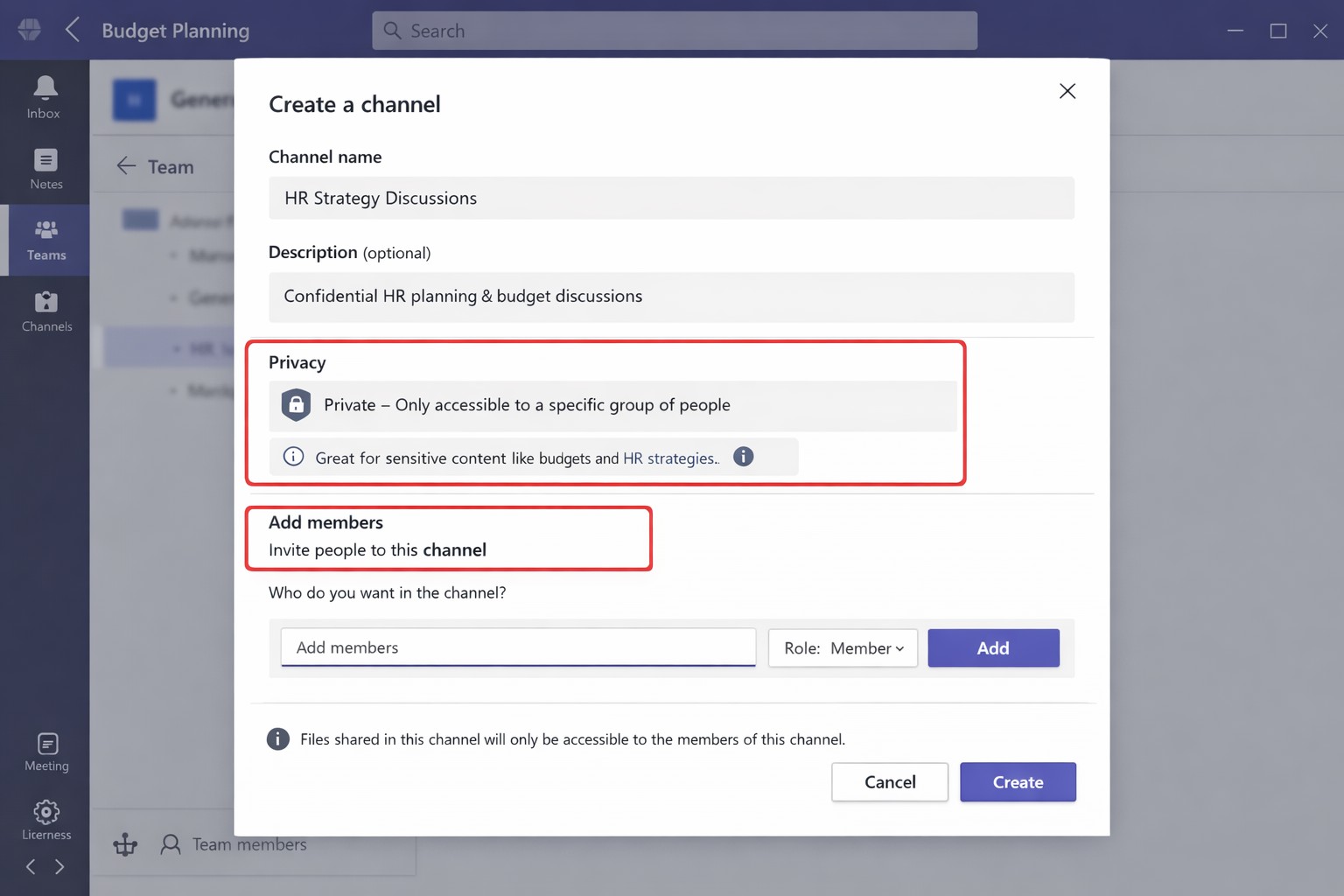
Secure your business discussions: Step-by-step private channels in Microsoft Teams.
Protecting sensitive discussions—like HR strategies, client deals, or financial plans—is critical in Microsoft Teams. Private channels let you segment conversations within a team, ensuring only invited members access chats, files, and tabs, boosting security without creating separate teams.
Step-by-Step Setup Guide
Follow these practical actions to create and manage private channels. Team owners or permitted members handle creation; involve your IT department for policy checks and permissions.
Open Microsoft Teams and navigate to the target team.
Click the three dots (…) next to the team name, then select Manage team > Channels tab.
Click Add channel, enter a name (e.g., “Q1-Budget-Confidential”) and optional description.
Under Privacy, choose Private—this restricts access to added members only.
Click Add members to invite up to 250 people; set roles (owner/member) via Manage channel > Members tab.
Post-setup, use the channel for posts, file shares, and apps. Limit: 30 private channels per team lifetime; admins can restrict via Teams policies.
To delete or edit: Go to Manage channel > Settings for permissions, or remove via Members tab. IT should verify SharePoint site creation (auto-generated per channel) for compliance.
FAQs for Client Inquiries
Q: Who can create private channels? A: Team owners/members by default (guests cannot); admins control via policies in Teams admin center.
Q: What’s the difference from standard channels? A: Standard channels are visible to all team members; private ones require explicit invites, isolating content and files.
Q: Can I add external users? A: No, private channels are internal-only; use shared channels for guests/external collaborators.
Q: Do private channels impact storage or costs? A: Each gets a dedicated SharePoint site, counting toward limits; no extra licensing needed for core features.
Q: How do I audit access? A: Review Members tab; use Microsoft Purview for activity logs if enabled.
How Farmhouse Networking Helps
Farmhouse Networking specializes in tailored Microsoft 365 setups for accounting, healthcare, and charity sectors. We audit your Teams environment, implement governance policies (e.g., naming conventions, approval workflows), and train your team/IT on private channels to ensure HIPAA/GDPR compliance and seamless adoption.
Our SEO-optimized websites and lead-gen strategies drive organic traffic, converting visitors into B2B clients. We handle branding, custom integrations, and ongoing support to maximize ROI.
Ready to secure your Teams? Email support@farmhousenetworking.com for a free consultation on private channels and business growth.
Microsoft Teams unifies chat, video, and files to streamline business collaboration – ideal for accounting, healthcare, and charity teams.
Fragmented communication tools lead to lost productivity and missed opportunities. Microsoft Teams unifies chat, video, file sharing, and apps into one platform, boosting efficiency for accounting firms tracking client data, healthcare providers coordinating patient care, or charities managing donor campaigns.
Why Unify with Teams?
Teams integrates seamlessly with Microsoft 365, centralizing workflows to reduce email overload by 40-50% in typical deployments. For B2B owners, this means faster decision-making across hybrid teams—essential for industries like yours where compliance and real-time updates are critical. Real-world adopters report 20-30% gains in cross-departmental collaboration.
Practical Action Steps
Follow these steps with your IT department to implement Teams effectively.
Assess Needs: Audit current tools (email, Slack, Zoom). Survey teams on pain points like siloed files or meeting fatigue. Assign an IT lead to map requirements.
Set Up Licensing: Purchase Microsoft 365 Business Premium ($22/user/month) via the admin center. Enable Teams for all users and configure security policies like multi-factor authentication.
Create Structure: Build teams and channels by department/project (e.g., “Q1 Accounting Audits”). Pin key apps like Planner for tasks and OneDrive for files. Limit private channels for sensitive data.
Train Staff: Roll out 1-hour sessions via Teams Live Events. Cover channels, @mentions, and integrations. Use Microsoft’s free templates for quick onboarding.
Integrate and Test: Connect with Outlook, SharePoint, and industry tools (e.g., QuickBooks for accounting). Pilot with one department, monitor adoption via analytics, then scale.
Optimize Ongoing: Review usage monthly. Automate with Power Automate flows (e.g., approval workflows) and gather feedback to refine.
These steps typically take 4-6 weeks, yielding immediate ROI through reduced tool sprawl.
FAQ: Client Inquiries Answered
How secure is Teams for regulated industries like healthcare or accounting? Teams meets HIPAA, GDPR, and SOC 2 standards with end-to-end encryption and data loss prevention. Retention policies ensure compliance without custom coding.
What if my team resists change? Start small: Gamify adoption with badges for active users. 75% of employees value collaboration tools when trained properly.
Can Teams replace multiple apps? Yes—integrates 250+ apps, including CRM for charities or EHR for healthcare. Custom bots handle routine tasks, cutting manual work.
How much does it cost long-term? Starts at $6/user/month for basics; scales with add-ons. Expect 1-2 year payback via productivity gains.
Does it support hybrid/remote work? Fully—real-time co-editing, breakout rooms, and AI noise suppression keep distributed teams aligned.
How Farmhouse Networking Helps
Farmhouse Networking specializes in B2B setups for accounting, healthcare, and charities. We handle full Teams deployment: custom audits, secure configurations, staff training, and SEO-optimized intranets to drive internal efficiency. Our clients see 25% faster project closes. We integrate with your existing stack, ensuring zero downtime.
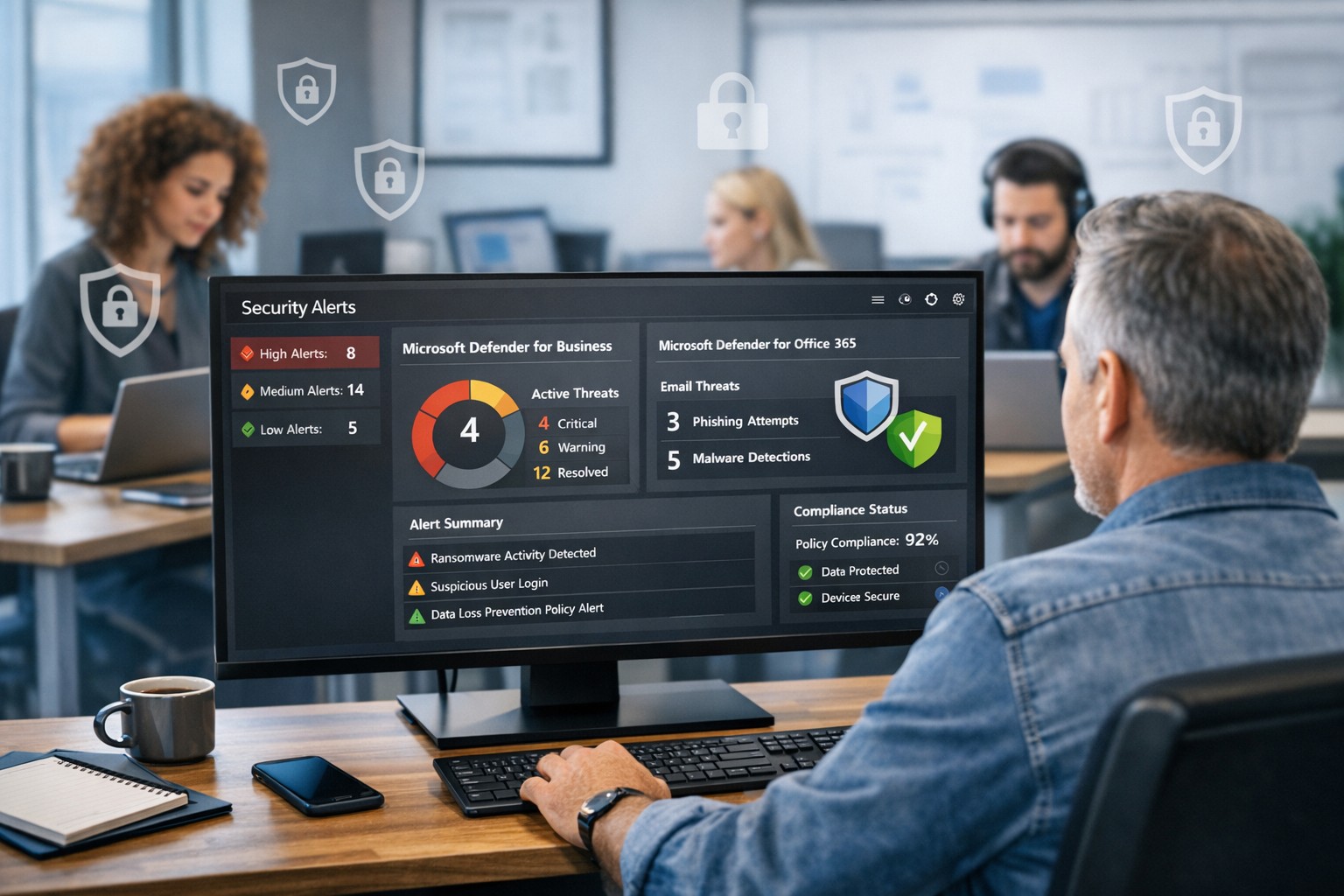
Protect your company with Microsoft security solutions: Microsoft Defender for Business and Microsoft 365 security help small and mid‑sized businesses block ransomware, phishing, and data breaches.
And God will generously provide all you need. Then you will always have everything you need and plenty left over to share with others. As the Scriptures say,
“They share freely and give generously to the poor. Their good deeds will be remembered forever.”
For God is the one who provides seed for the farmer and then bread to eat. In the same way, he will provide and increase your resources and then produce a great harvest of generosity in you. - 2 Corinthians 9:8-10
We use cookies to ensure that we give you the best experience on our website. If you continue to use this site we will assume that you are happy with it.