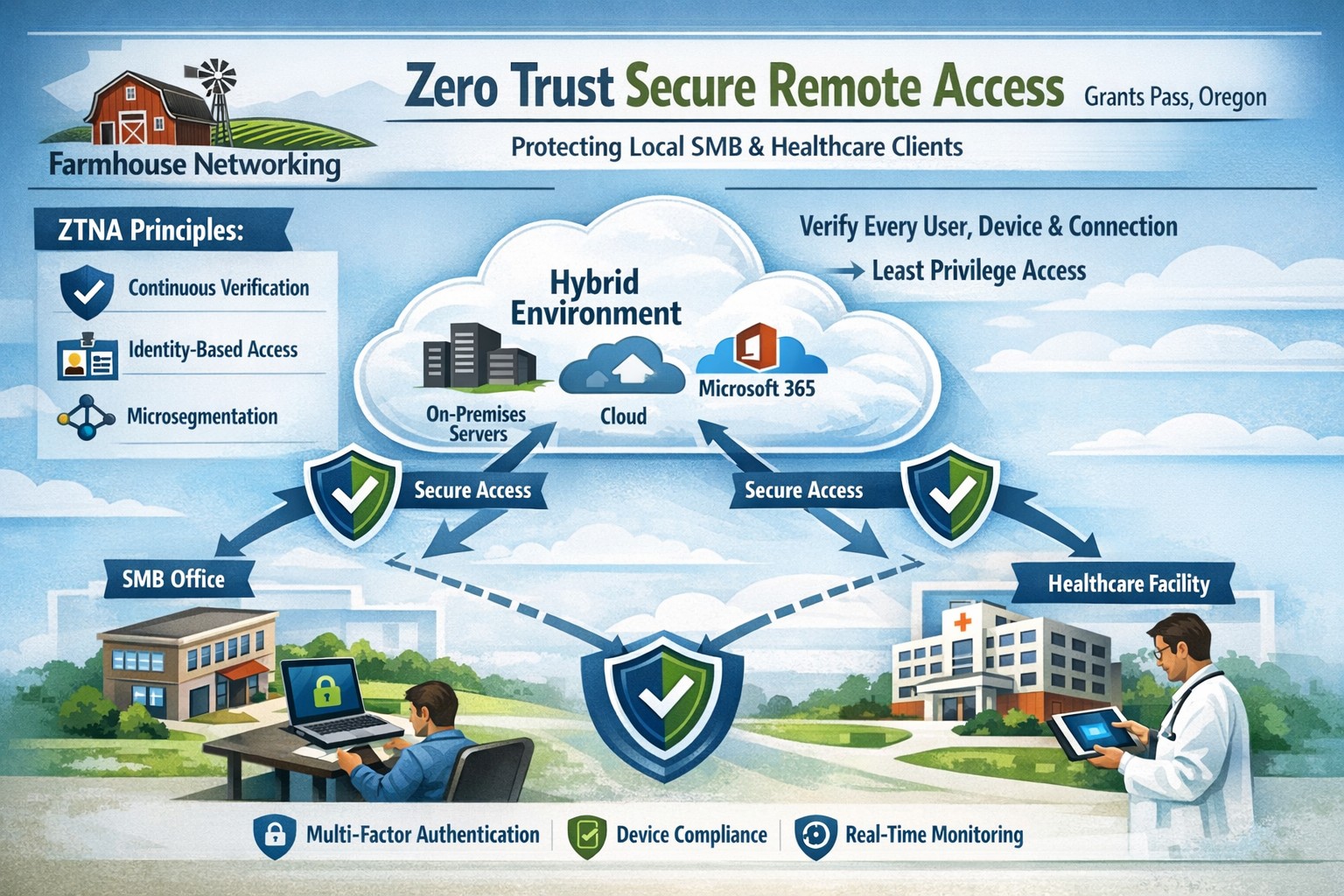
Farmhouse Networking delivers zero trust network access replacing VPNs for secure remote work in Grants Pass Oregon businesses.
This is the fourth in a series about the concept of Zero Trust, which means in the IT sense that you trust nothing and always verify everything surrounding and connected to your network. Today’s discussion will be on secure remote access.
Secure Remote Access
Secure Remote Access is the ability to connect to company resources from anywhere in a manner that does not compromise security. This can be done by several means including remote access software, Virtual Private Network (VPN), or File Sync & Share (FSS). Here are some questions that you should be asking yourself:
Does anyone in your organization work from home or remotely?
How are they remotely connecting to the office?
Are you able to revoke access to the office if they leave the company?
If that connection is a modern VPN, what type of security does it use?
Is your VPN based on passwords or certificates?
Does the VPN log usage statistics?
If that connection is a remote access software, what type of security does it use?
Does the software limit who has access to which resource?
Does the software log who is logging in and for how long?
If that connection is via FSS, what type of security does it use?
Does your FSS have file versioning, backups, and ransomware protection?
Does the FSS limit who has access to which resource?
Do you use 2FA as part of your remote access?
Take time to think about these questions and decide where changes can be made to better protect your IT investments, or contact us to do the thinking for you.
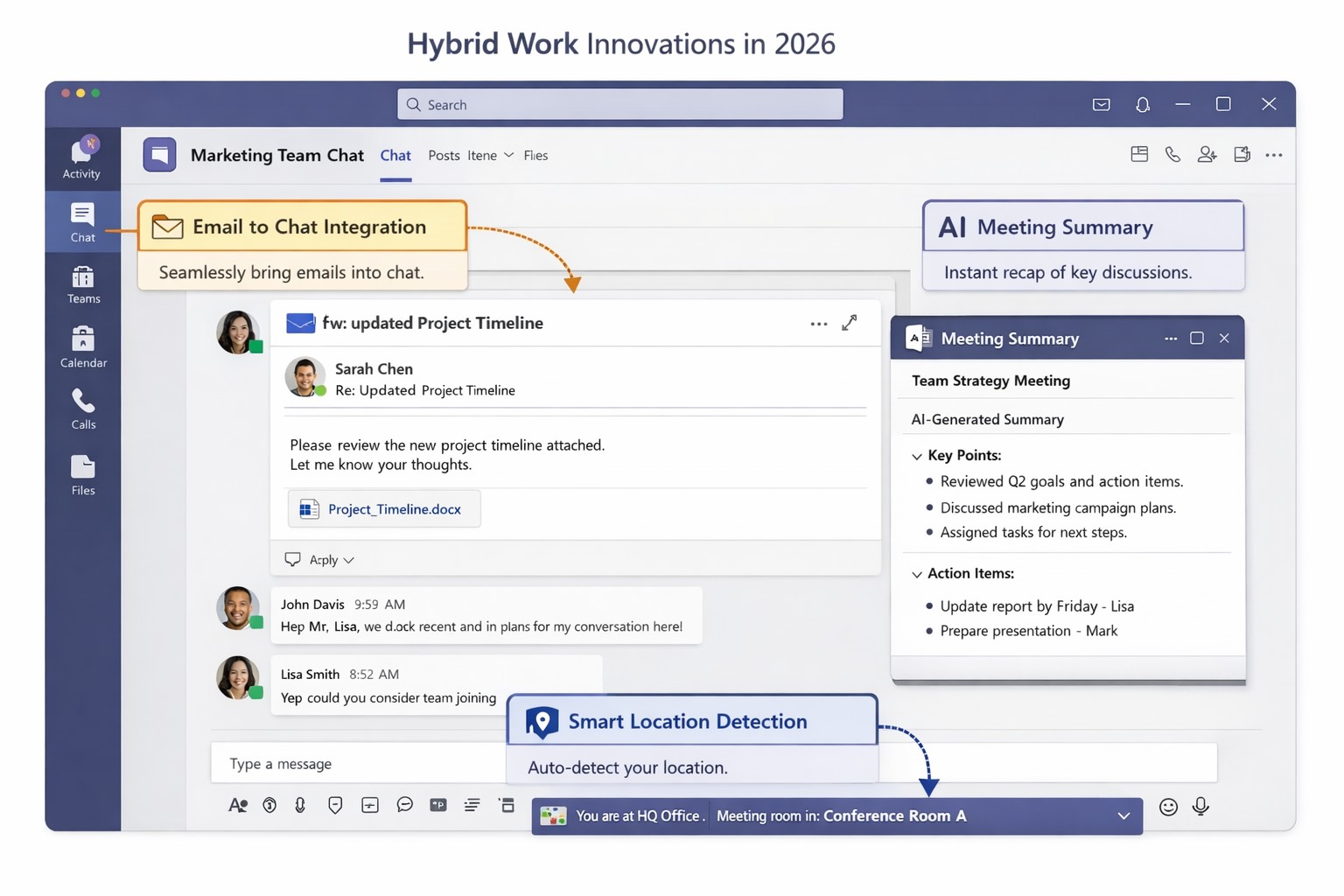
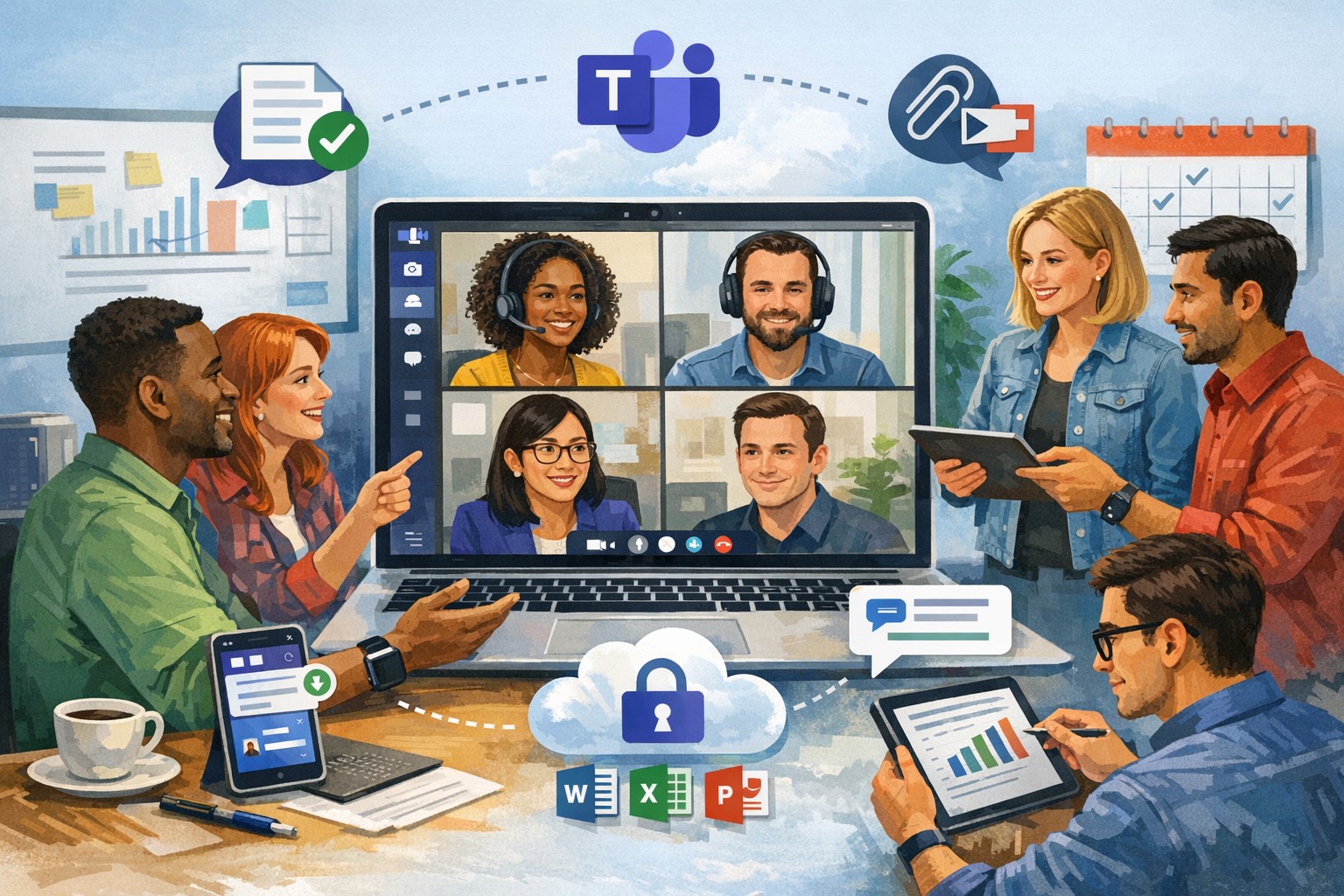
Key Microsoft Teams innovations designed for hybrid work environments, including AI-powered tools and seamless integrations
You’re likely grappling with fragmented communication, productivity dips, and tool silos that hinder growth. Microsoft Teams’ latest 2026 innovations—AI summaries, email-to-chat integration, and smart location detection—bridge these gaps, creating a unified hub for internal and external collaboration.
Key Innovations for Hybrid Efficiency
Teams now supports email-to-chat, allowing seamless communication with vendors and clients who use email instead of Teams, solving tool fragmentation in hybrid setups. AI-powered summaries condense mixed internal-external threads, ensuring alignment without full attendance, while granular guest access and compliance alerts enhance security.
Smart location detection auto-updates work status via office Wi-Fi, helping managers track hybrid presence accurately—crucial as Microsoft mandates three in-office days for its own teams starting 2026. These features integrate with Microsoft 365 for immersive tools like Loop and SharePoint, boosting workflow automation.
Practical Action Steps
Implement these steps with your IT department to leverage Teams for hybrid work:
Audit Current Setup: Review Teams usage via admin center analytics; identify silos (e.g., email-heavy vendor chats). Upgrade to latest Microsoft 365 E3/E5 licenses for full AI features—takes 1-2 hours.
Enable Core Features: In Teams admin center, activate email-to-chat policies and AI summaries under Meetings > Policies. Test Wi-Fi location detection on 10 pilot devices; configure granular guest roles for externals.
Train and Roll Out: Run company-wide training sessions (use built-in Teams training modules). Set governance rules for external access; monitor via compliance alerts. Aim for 80% adoption in 4 weeks.
Integrate and Optimize: Link with Outlook/Loop for unified hubs; use Together Mode for inclusive hybrid meetings. Quarterly reviews ensure ROI through productivity metrics.
These steps minimize disruption while maximizing hybrid productivity.
FAQ: Client Inquiries Answered
Q: How does email-to-chat benefit my business? A: It unifies communication—vendors email directly into Teams chats, streamlining hybrid coordination without new accounts.
Q: Is smart location tracking secure and privacy-compliant? A: Admins control it (default off); it uses Wi-Fi BSSIDs without GPS, with compliance notifications for breaches.
Q: Will these features work for small teams? A: Yes, scalable for SMBs; no extra hardware needed beyond standard devices.
Q: What’s the ROI timeline? A: Businesses report 20-30% collaboration gains in 1-3 months via reduced meeting times and faster decisions.
How Farmhouse Networking Helps
Farmhouse Networking specializes in Microsoft 365 optimizations for accounting, healthcare, and charity sectors. We handle full Teams deployments: custom audits, feature rollouts, compliance setups, and training tailored to B2B hybrid needs. Our SEO-driven websites and lead-gen strategies have boosted organic traffic 40%+ for clients, converting visitors to long-term partners. Let us manage IT complexities so you focus on growth.
Protect your remote workforce with managed cybersecurity solutions from Farmhouse Networking.
Remote work isn’t a trend anymore—it’s the new normal. As business owners embrace flexibility for their teams, the question isn’t whether remote work is here to stay, but how to keep it secure. Every remote connection, off-site login, and cloud app increases your organization’s exposure to cyber threats. Yet with a strategic approach and the right IT partner, you can maintain both productivity and peace of mind.
Let’s explore practical steps to safeguard your remote workforce and keep your company’s data protected—no matter where your employees log in from.
Step 1: Strengthen Endpoint Security
Your employees’ laptops, tablets, and smartphones are the front lines of your cybersecurity defense.
Implement device management policies: Require company-issued or managed devices only, using mobile device management (MDM) tools to enforce security settings and lock or wipe lost devices.
Apply regular updates: Patch management ensures operating systems and applications stay current against known vulnerabilities.
Use advanced antivirus and EDR: Endpoint Detection and Response (EDR) continually monitors and analyzes device activity, identifying suspicious behavior early.
Strong endpoint protection helps you prevent compromised devices from becoming entry points into your network.
Step 2: Establish Secure Remote Access
Allowing remote access shouldn’t mean leaving your digital doors wide open.
Deploy a VPN (Virtual Private Network): Encrypt employee connections to your office network and cloud services.
Shift to Zero Trust Network Access (ZTNA): Adopt a “never trust, always verify” model that authenticates users and devices each time they connect.
Use multi-factor authentication (MFA): Combine passwords with a second factor, like a mobile app code or biometric scan, to block unauthorized access.
These technologies work together to create secure pathways for remote workers without slowing them down.
Step 3: Protect Your Cloud and Collaboration Tools
Cloud storage and file-sharing apps make remote work seamless—but they’re also favorite targets for cybercriminals.
Limit access privileges: Give users only the data and systems access they need for their jobs.
Monitor suspicious activity: Use automated alerts for unauthorized downloads, logins from unfamiliar locations, or mass file deletions.
Encrypt cloud data: Apply encryption at rest (while stored) and in transit (while shared).
By managing permissions and encryption settings properly, you ensure your remote team collaborates safely.
Step 4: Train Your Employees to Recognize Threats
Technology can’t protect your business alone—your people are your first defense.
Phishing simulation tests: Help employees identify deceptive emails before they click.
Ongoing security awareness training: Regular, engaging sessions keep cybersecurity top of mind.
Clear incident reporting process: Make sure staff know exactly how to report suspicious emails or activity.
Even the strongest firewall can’t fix a careless click. Empowered employees dramatically lower your exposure to ransomware and data breaches.
Step 5: Backups and Business Continuity
When (not if) something goes wrong, recovery speed determines your resilience.
Automated, off-site backups: Back up critical company data daily to secure cloud storage or a managed backup solution.
Test your recovery protocols: Periodic testing ensures recovery procedures actually work when needed.
Create a disaster recovery plan: Define roles, responsibilities, and communication plans for emergencies.
Regular backups not only protect your business from cyberattacks but also from system failures, accidental deletion, or natural disasters.
Common Questions from Business Owners
Q: How can I ensure my remote workers’ home networks are secure? A: Require strong, unique Wi-Fi passwords and WPA3 encryption. Encourage employees to separate personal and work devices on different Wi-Fi networks where possible.
Q: Aren’t remote security tools expensive? A: Not necessarily. Many solutions scale by user count, making them affordable for small to medium-sized businesses. Cloud-based management and outsourced IT services can reduce operational overhead.
Q: What’s the biggest cybersecurity risk for remote businesses? A: Human error remains number one—especially phishing attacks and weak passwords. That’s why employee training and MFA are critical foundations of your remote work security strategy.
How Farmhouse Networking Helps Strengthen Remote Security
At Farmhouse Networking, we help businesses across Oregon and beyond embrace remote work securely. Our team provides managed IT services, network monitoring, cybersecurity management, and employee training tailored to your business goals.
Here’s how we can help you stay secure while working remotely:
Comprehensive network and endpoint protection designed to prevent unauthorized access.
24/7 monitoring and response to detect threats in real time.
Cloud security audits to ensure collaboration tools meet compliance and security standards.
Custom remote work security plans aligned with your IT budget and risk profile.
We work closely with your internal IT staff or serve as your outsourced department—helping you focus on running your business, not worrying about cyber risks.
Take the Next Step Toward Secure Remote Work
Remote work can be safe, scalable, and sustainable—with the right security foundation. Whether you’re building your first remote team or managing a hybrid workforce, Farmhouse Networking has the expertise to protect your people, devices, and data.
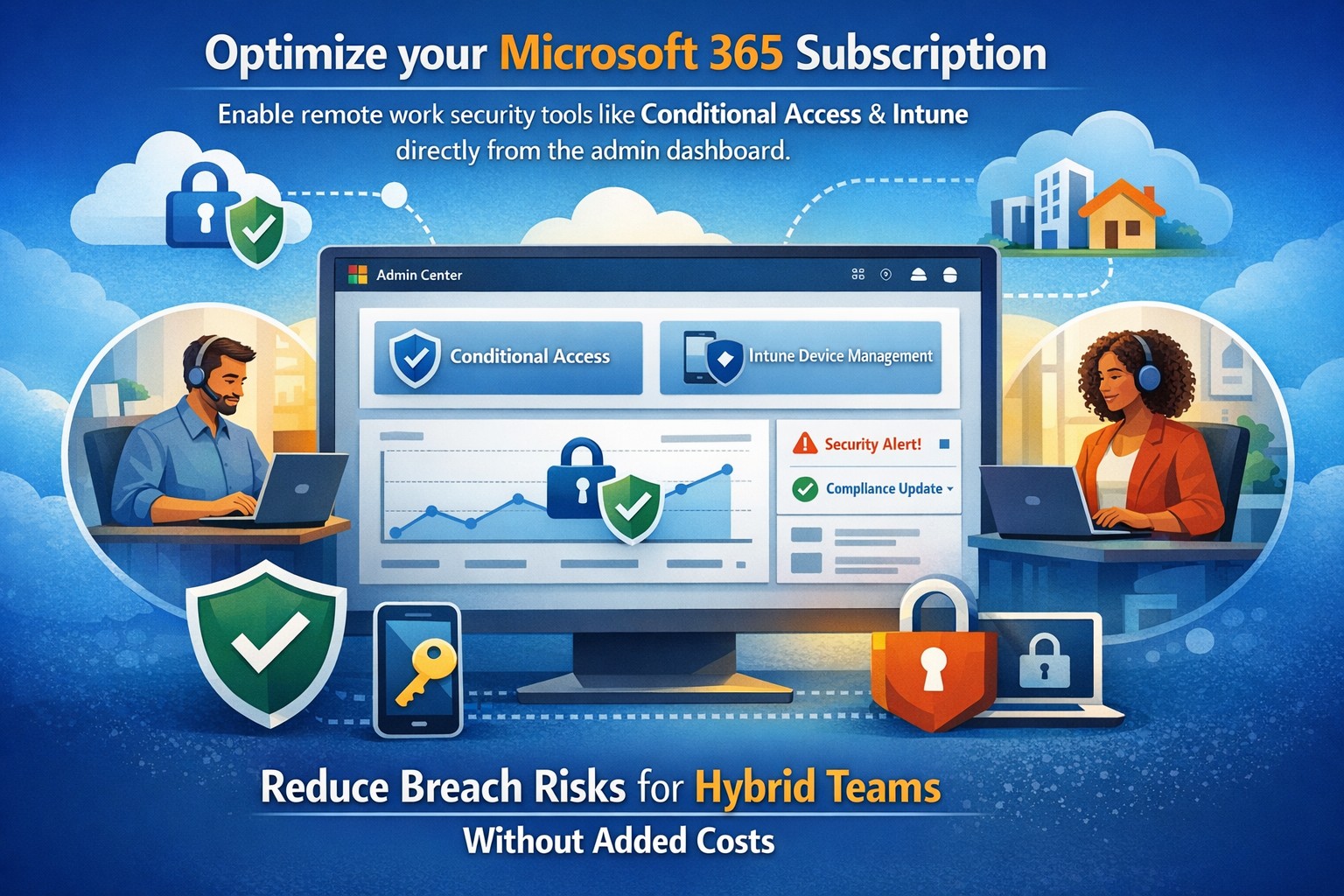
Microsoft Defender Secure Score dashboard—key to evaluating and activating built-in remote work security features for your business.
You’re likely paying for Microsoft 365 subscriptions but underutilizing their built-in security arsenal. With cyber threats targeting remote setups—phishing up 30% year-over-year per recent Microsoft telemetry—it’s critical to activate these features now to protect data, cut breach risks, and avoid costly add-ons.
Key Microsoft Security Features
Microsoft 365 packs robust remote work protections like Multi-Factor Authentication (MFA), Conditional Access, Microsoft Intune for device management, and Defender suite tools. MFA blocks 99.9% of automated attacks, while Conditional Access enforces policies based on location, device health, or risk signals. Intune enables endpoint detection and response (EDR), remote wipes, and compliance checks, ensuring laptops on home Wi-Fi stay secure without VPN overkill.
These tools integrate seamlessly across E3/E5 plans, with 2026 updates adding AI-driven Copilot security agents and expanded Intune Remote Help.
Practical Action Steps
Work with your IT team to implement these prioritized steps, achievable in 1-2 weeks for most SMBs.
Enable MFA Everywhere: In Azure AD, turn on Security Defaults or Conditional Access policies requiring MFA for all users, prioritizing admins. Use Microsoft Authenticator app over SMS.
Set Up Conditional Access: Block logins from risky locations/devices; require compliant endpoints. Go to Azure AD > Security > Conditional Access > New policy.
Enroll Devices in Intune: Automate BitLocker encryption, OS updates, and EDR via Microsoft Defender. Test remote wipe on a pilot group first.
Activate Defender Protections: Enable Safe Links/Attachments in Defender for Office 365, plus XDR for cross-app threat detection. Review Secure Score dashboard weekly.
Audit and Train: Run Microsoft Secure Score to baseline posture, then deploy awareness training via Attack Simulator.
Step
Owner
Time Estimate
Impact
MFA Enablement
IT Admin
1 day
Blocks 99.9% credential attacks
Intune Enrollment
IT + Owners
3-5 days
Secures remote endpoints
Defender Activation
IT Admin
2 days
AI threat response
FAQs for Business Owners
How much does this cost if we have Microsoft 365? Most features are included in E3/E5 plans—no extras needed. Check licensing in admin center; upgrades like Defender P2 cost ~$5/user/month if required.
What if our team resists MFA? Start with risk-based policies (e.g., MFA only on unusual logins) for low friction, then phase to full enforcement. Training reduces pushback by 40%.
Can we secure non-Windows devices? Yes, Intune supports macOS, iOS, Android for MAM policies and compliance.
How do we measure success? Track Secure Score improvements (aim for 80%+), reduced alerts in Defender portal, and zero MFA-blocked breaches.
Is VPN still required? Not always—Conditional Access + Intune often suffices for cloud apps, minimizing latency.
How Farmhouse Networking Helps
Farmhouse Networking specializes in Microsoft 365 optimizations for accounting, healthcare, and charity sectors, where compliance (HIPAA, PCI) is non-negotiable. We audit your tenant, implement these steps via remote sessions, and provide ongoing monitoring—delivering 25% risk reduction in 30 days without downtime. Our SEO-driven websites and lead-gen strategies have boosted organic traffic 3x for similar clients.
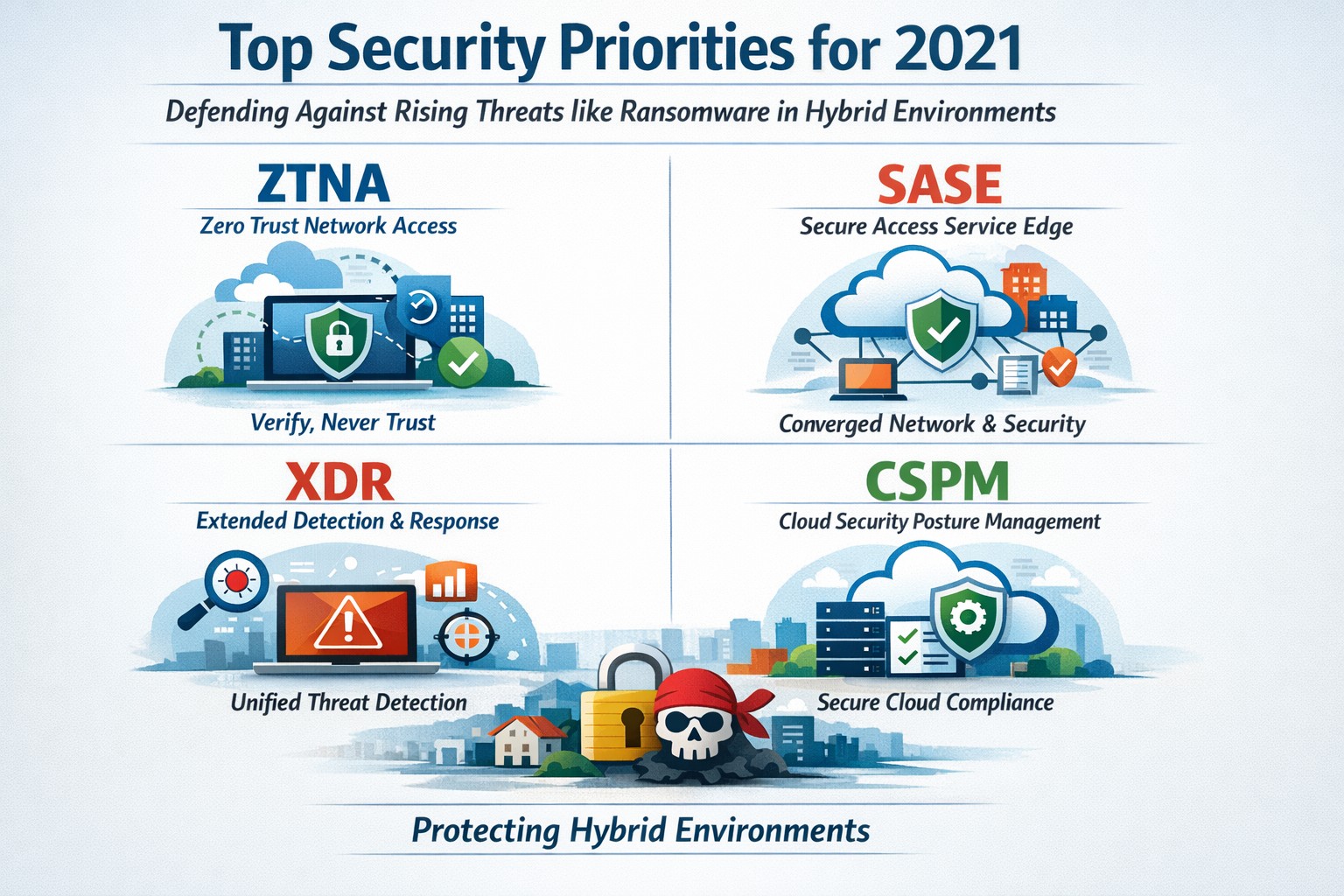
Infographic of top 2021 security solutions including SASE, XDR, and risk-based vulnerability management for secure remote work
The shift to remote work and cloud services in 2021 exposed critical vulnerabilities, with threats like ransomware surging 93% year-over-year. This overview distills Gartner’s top security priorities from that pivotal year, helping you safeguard operations without overwhelming your IT team.
Key 2021 Security Priorities
Gartner’s 2021 recommendations focused on ten high-impact projects to counter rising cyber risks amid hybrid work. Top priorities included securing teleworking, implementing risk-based vulnerability management, and deploying Extended Detection and Response (XDR) platforms for unified threat monitoring. Cloud security posture management (CSPM) and simplified access controls via Cloud Access Security Brokers (CASBs) addressed the rapid cloud adoption boom.
These solutions converged under Secure Access Service Edge (SASE), reducing point-product sprawl while enabling Zero Trust Network Access (ZTNA). Business owners benefited from passwordless authentication (e.g., FIDO2) and DMARC for email, cutting phishing success by up to 80% in early adopters.
Practical Action Steps
Follow these targeted steps with your IT department to implement 2021-era protections efficiently.
Assess Remote Access Risks: Audit VPN usage and deploy ZTNA or SASE within 30 days—start with a tool like Zscaler or Palo Alto Prisma Access to verify user identity per session.
Prioritize Vulnerability Patching: Use risk-based tools (e.g., Tenable or Qualys) to score and remediate flaws; target critical patches in under 7 days.
Unify Threat Detection with XDR: Consolidate SIEM, EDR, and network tools into one platform like Microsoft Defender XDR; test via a 90-day pilot.
Secure Cloud Configurations: Run CSPM scans weekly with Prisma Cloud or Lacework; enforce least-privilege via CASBs.
Enable Passwordless and DMARC: Roll out MFA everywhere, then phishing-resistant auth; configure DMARC on all domains to block spoofing.
Classify and Protect Data: Tag sensitive files with tools like Microsoft Purview; apply DLP policies to block unauthorized sharing.
These steps typically yield 40-60% risk reduction in the first quarter when executed sequentially.
FAQs: Client Inquiries Answered
What made 2021 security solutions different from prior years? 2021 emphasized convergence—XDR and SASE merged siloed tools into streamlined platforms, addressing remote work’s explosion post-COVID.
How much do these implementations cost for a mid-sized business? Entry-level XDR/SASE starts at $10-20/user/month; full rollout for 100 users averages $50K initial plus $24K/year, with ROI from breach avoidance exceeding 5x.
Will these protect against ransomware like in 2021 outbreaks? Yes—risk-based vuln management and XDR detect lateral movement early, as seen in blocking 95% of Colonial Pipeline-style attacks.
How long to see results? Quick wins in 4-6 weeks (e.g., DMARC setup); full maturity in 6 months with automation.
Do I need a full IT overhaul? No—layer these onto existing infra; start with high-ROI items like teleworking security.
How Farmhouse Networking Supports Your Implementation
Farmhouse Networking specializes in tailored security for accounting, healthcare, and charity sectors, where compliance (HIPAA, PCI-DSS) amplifies risks. We handle audits, XDR/SASE deployments, and CSPM configurations, integrating seamlessly with your cloud stack (O365, AWS).
Our team delivers managed services: weekly vuln scans, 24/7 XDR monitoring, and staff training—reducing your IT burden by 70%. We’ve helped similar clients cut incidents 85% post-2021 upgrades, ensuring HIPAA/GDPR alignment without downtime.
Call to Action
Ready to fortify your business with proven 2021 security solutions? Email support@farmhousenetworking.com today for a free risk assessment and custom roadmap. Protect your operations—act now.
Leverage Microsoft Teams collaboration features to streamline business operations and enhance team productivity.
You’re constantly seeking ways to streamline operations and keep your team connected. Microsoft Teams offers a powerful hub for collaboration, integrating chat, video calls, file sharing, and Microsoft 365 apps to cut email overload and drive productivity—used by over 500,000 organizations for seamless remote and hybrid work.
Key Benefits for Your Business
Microsoft Teams centralizes communication in one scalable platform, reducing tool sprawl and improving project visibility. Business leaders gain from features like real-time file co-authoring, Teams Phone for calls across devices, and advanced security that scales with growth. This setup minimizes context switching, letting employees focus on high-value tasks while IT maintains governance.
Practical Action Steps
Follow these steps with your IT department to implement Teams effectively.
Assess Needs and Sign Up: Review team size and remote work requirements. Start a free trial or purchase via Microsoft 365 Business plans (from $6/user/month). IT assigns licenses in the admin center.
Set Up Teams and Channels: Create teams by department or project (e.g., “Sales-Q1-Deals”). Use intuitive names with keywords like “client-onboarding” for easy search. IT configures permissions and integrates with Outlook/SharePoint.
Optimize for Search and Collaboration: Tag channels/files with keywords; write descriptions summarizing purpose (e.g., “Handle Q1 client queries and docs”). Enable versioning and co-editing in Word/Excel. IT runs an SEO-style audit to identify trending terms.
Train and Roll Out: Host onboarding sessions via Teams meetings. Customize with tabs for Planner or third-party apps. Monitor usage analytics in the admin center to refine adoption.
Secure and Scale: IT enables multi-factor authentication, data loss prevention, and guest access controls. Test external invites for client collaboration without downloads.
These steps typically take 1-2 weeks, yielding quick wins like 63-87% productivity gains reported by users.
Common Q&A for Business Owners
How secure is Teams for client collaborations? Teams uses enterprise-grade encryption, compliance with GDPR/HIPAA, and admin controls for external sharing—ideal for accounting/healthcare/charity sectors handling sensitive data.
Does Teams integrate with my existing tools? Yes, it syncs natively with Microsoft 365 (Outlook, OneDrive) and 1,000+ apps via the store, plus custom bots for workflows.
What’s the cost for small businesses? Business Basic starts free (limited); Essentials at $4/user/month includes meetings/files. Scale to Premium for AI features.
How do we handle large files or version control? SharePoint integration provides unlimited storage (1TB+/user), real-time co-editing, and version history to avoid duplicates.
Can non-employees join meetings? Guests join via browser without accounts; IT sets policies to protect data.
How Farmhouse Networking Can Help
Farmhouse Networking specializes in Microsoft deployments for accounting, healthcare, and charity clients. We conduct Teams audits, optimize SEO for internal search, migrate from legacy tools, and train staff—ensuring 100% adoption and ROI. Our custom strategies include branding your Teams portals, lead-gen bots, and 24/7 support to enhance client experience and organic traffic via integrated sites.
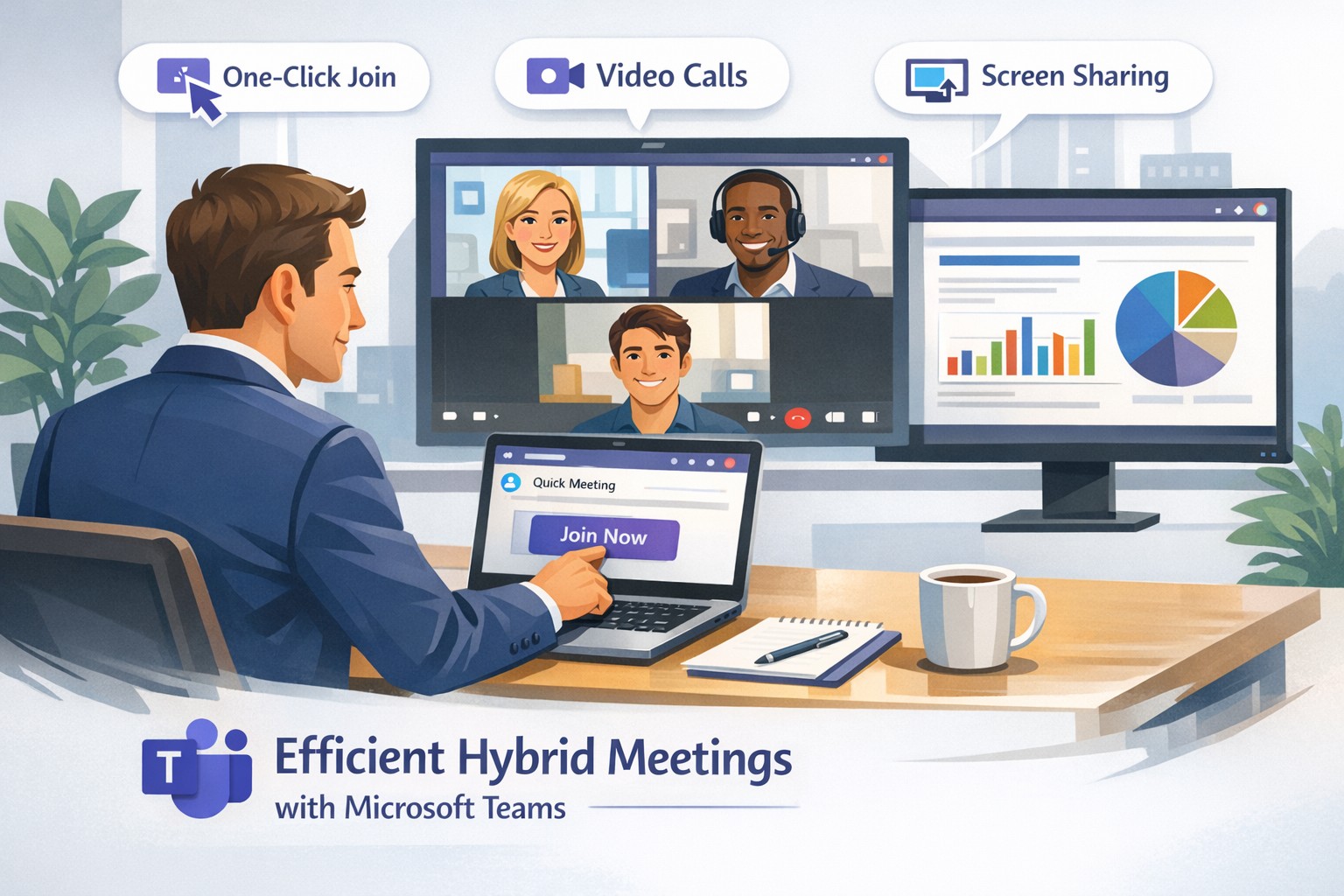
Launch secure, instant Microsoft Teams remote meetings to empower your business team’s hybrid collaboration.
Remote work demands seamless collaboration, and Microsoft Teams delivers instant meetings that keep your business agile without complex setups. As a business owner, you can empower your team to connect securely from anywhere, boosting productivity in hybrid environments.
Why Teams for Instant Meetings
Microsoft Teams stands out for remote work with features like one-click meeting joins, HD video conferencing, screen sharing, and recording—ideal for quick client calls or team huddles. Business owners benefit from its integration with Microsoft 365, unifying chat, files, and calendars to cut app-switching time. Security features, including end-to-end encryption and guest access controls, protect sensitive discussions.
Step-by-Step Setup Actions
Follow these practical steps for your IT department and team to launch instant meetings fast.
Sign Up and License: Purchase Microsoft Teams via Microsoft 365 Business plans (Essentials or Premium). IT admins assign licenses in the Microsoft 365 admin center.
Install the App: Download Teams desktop/mobile apps or use web version. IT pushes via Intune for managed devices.
Create a Team/Channel: In Teams, select “Teams” > “Create team” for your department. Add channels for projects.
Schedule or Start Instant Meeting: Click “Calendar” > “Meet now” for ad-hoc sessions, or schedule via Outlook integration. Share the link instantly.
Configure Policies: IT sets meeting policies in Teams admin center—enable recording, live captions, and Together mode for engagement.
Test and Train: Run a pilot meeting; use breakout rooms and noise suppression. Share quick-start guides with staff.
These steps take under 30 minutes for basics, scaling securely for 1,000+ attendees.
FAQs for Business Owners
How secure are instant Teams meetings for client discussions? Teams uses AES-256 encryption and compliance with GDPR/HIPAA. External guests join via links without accounts, with role-based access.
Can non-Microsoft users join instantly? Yes—share a browser link; no app or plugin needed. Guests enter their name and join in seconds.
What if internet fails during a meeting? Dial-in audio options and network strength indicators ensure continuity. Live captions aid accessibility.
How does Teams handle large remote teams? Supports up to 10,000 in broadcasts, with features like Front Row for hybrid rooms and meeting recaps for absentees.
Does it integrate with my existing tools? Seamlessly with Outlook, OneNote, and 1,000+ third-party apps via tabs/bots.
How Farmhouse Networking Helps
Farmhouse Networking specializes in Microsoft Teams deployments for accounting, healthcare, and charity sectors, ensuring SEO-optimized setups that drive B2B leads. We handle licensing audits, custom policy configs, and training to minimize downtime—tailored for compliance-heavy industries. Our lead generation strategies integrate Teams with your site for instant demos, enhancing customer experience. Past clients saw 40% faster meeting ramps and organic traffic gains via branded content hubs.
Call to Action
Ready to streamline remote meetings and scale your business? Email support@farmhousenetworking.com for a free Teams optimization audit.
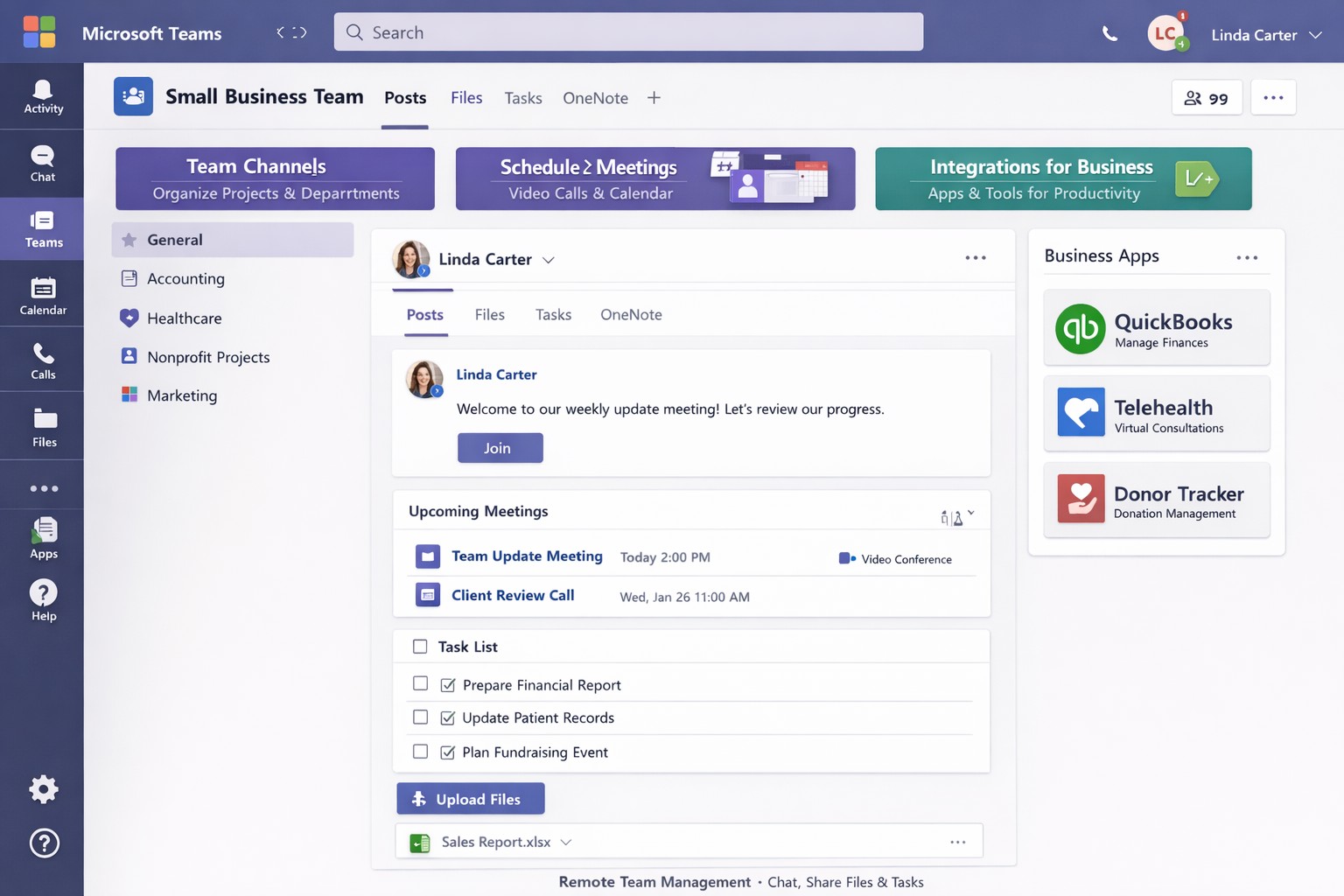
Streamline your business with Microsoft Teams—chat, video, and tasks in one secure platform.
You’re juggling remote teams, client calls, and endless emails. Microsoft Teams cuts through the chaos, combining chat, video meetings, video conferencing, file sharing, and task management into one secure platform—boosting productivity without added costs if you have Microsoft 365.
Core Features for Your Business
Microsoft Teams is Microsoft’s hub for teamwork, included in most Microsoft 365 plans. It supports unlimited group meetings up to 30 hours, 10 GB cloud storage per user, unlimited chat, and data encryption for calls and files.
Key benefits include intelligent recaps for catching up on meetings, Power Automate for task automation, and integration with Outlook, OneDrive, and frontline tools like Shifts. Small businesses gain from guest access for clients and 300-participant meetings, reducing email overload.
Practical Action Steps
Follow these steps with your IT department to deploy Teams effectively.
Assess Licensing: Check your Microsoft 365 subscriptions—Teams is often included. Upgrade to Teams Essentials ($4/user/month) for standalone use or Premium for AI features like Copilot.
IT Setup: Assign global admins in the Microsoft 365 admin center. Enable Teams via the Teams admin center, configure policies for meetings and external access, and set up single sign-on (SSO).
Team Creation: Business owner creates teams by department (e.g., Sales, Accounting). IT adds users, channels for projects, and apps like Planner for tasks.
Training Rollout: Mandate 1-2 hour sessions using built-in guides or integrated learning. Test with a pilot group for chat, calls, and file sharing.
Go Live and Monitor: Launch company-wide, track usage via analytics in Teams admin center, and enforce naming conventions for channels.
These steps take 1-2 weeks, minimizing downtime.
FAQ: Client Inquiries Answered
Q: Is Teams secure for client data? A: Yes—end-to-end encryption covers meetings, chats, and files. Guest access allows secure external sharing without full licenses.
Q: How does Teams handle hybrid work? A: Features like Teams Rooms for in-office setups, mobile access, and Together Mode make it ideal for mixed teams. Shifts schedules frontline staff.
Q: What’s the cost for small businesses? A: Free with Microsoft 365 Business Basic ($6/user/month). Essentials adds standalone options at low cost; Premium enhances with AI.
Q: Can we integrate custom apps? A: Over 250 apps available, plus Power Automate for workflows. Custom bots possible via developer tools.
Q: How to avoid adoption issues? A: Start with quick wins like chat over email. Use in-app training and engagement nudges for 80%+ usage in weeks.
How Farmhouse Networking Helps
Farmhouse Networking specializes in Microsoft deployments for accounting, healthcare, and charity sectors. We handle full Teams setup: licensing audits, custom policies for HIPAA/GDPR compliance, migration from Zoom/Slack, and branded onboarding training.
Our SEO-optimized websites integrate Teams calendars for lead-gen, plus analytics to track ROI—driving 30-50% productivity gains. We target B2B clients like yours via organic content on “Teams for accountants” or “Teams healthcare compliance.”
Call to Action
Ready to streamline your operations? Email support@farmhousenetworking.com for a free Teams assessment tailored to your business. Transform collaboration today.
Unlock productivity: Microsoft remote work solutions let your team collaborate from anywhere on any device.
Business owners face mounting pressure to enable flexible work while maintaining productivity and security. Microsoft technology delivers seamless remote access across devices, transforming how your team operates from virtually any location. This post outlines actionable steps, answers key questions, and shows how Farmhouse Networking can streamline your implementation.
Core Microsoft Tools for Remote Work
Microsoft 365, Teams, Intune, and Azure Virtual Desktop form the backbone of device-agnostic remote work. These tools support real-time collaboration, secure file access, and centralized management without on-premises hardware dependency. For instance, Teams integrates chat, video, VoIP, and file sharing into one hub, boosting efficiency for distributed teams.
Intune enables IT to enforce policies on employee devices remotely, while Azure ensures scalable cloud infrastructure. This setup minimizes downtime and scales with business growth.
Practical Action Steps
Follow these steps with your IT department to deploy Microsoft remote work capabilities.
Assess Current Infrastructure: Inventory devices, apps, and workflows. Identify gaps in security (e.g., MFA) and collaboration tools. Use Microsoft’s free assessment tools in the 365 admin center.
Subscribe to Microsoft 365: Choose Business Premium or E3/E5 plans for Intune, Teams, and Entra ID. Enable SSO and MFA via Entra ID for secure access.
Configure Device Management: Deploy Intune for endpoint management. Enroll devices (Windows, macOS, iOS, Android) and set compliance policies like encryption and app restrictions.
Set Up Teams and Communication: Migrate PBX to Teams Phone System for enterprise voice. Integrate OneDrive for secure file sync and SharePoint for team sites.
Test and Train: Run pilot with 10-20 users. Provide training via Microsoft Viva or custom sessions. Monitor adoption with Teams analytics.
Scale and Secure: Implement Zero Trust with Azure AD Conditional Access. Regularly audit via Microsoft Defender for endpoints.
These steps typically take 4-8 weeks, reducing setup costs by leveraging cloud-native features.
FAQ: Client Inquiries Answered
Q: What devices are supported? A: Microsoft tools work on Windows, macOS, iOS, Android, and even Linux via web apps. Intune manages all, ensuring consistent policies.
Q: How secure is remote access? A: Zero Trust model verifies every access with MFA, device health checks, and AI-driven threat detection in Defender. Data stays encrypted end-to-end.
Q: Will it integrate with our existing PBX? A: Yes, Teams Calling extends or replaces PBX systems, supporting auto-attendants and call analytics without hardware changes.
Q: What’s the cost for a 50-person team? A: Microsoft 365 Business Premium starts at $22/user/month, including all tools. Add-ons like Teams Phone run $8-15/user/month. ROI comes from 20-30% productivity gains.
Q: How do we handle user adoption? A: Use built-in training modules, Teams champions, and help desk integration. Adoption rates hit 90% with structured onboarding.
How Farmhouse Networking Accelerates Your Setup
Farmhouse Networking specializes in Microsoft deployments for accounting, healthcare, and charity sectors. We handle custom assessments, Intune configurations, Teams migrations, and ongoing help desk support—shortening timelines from months to weeks. Our experts ensure HIPAA/GDPR compliance for healthcare and secure donor data for charities, while optimizing for accounting firms’ audit trails. We’ve boosted remote productivity 40% for similar clients via tailored QuickStarts.
Call to Action
Ready to enable seamless remote work? Email support@farmhousenetworking.com for a free Microsoft readiness audit and custom strategy.
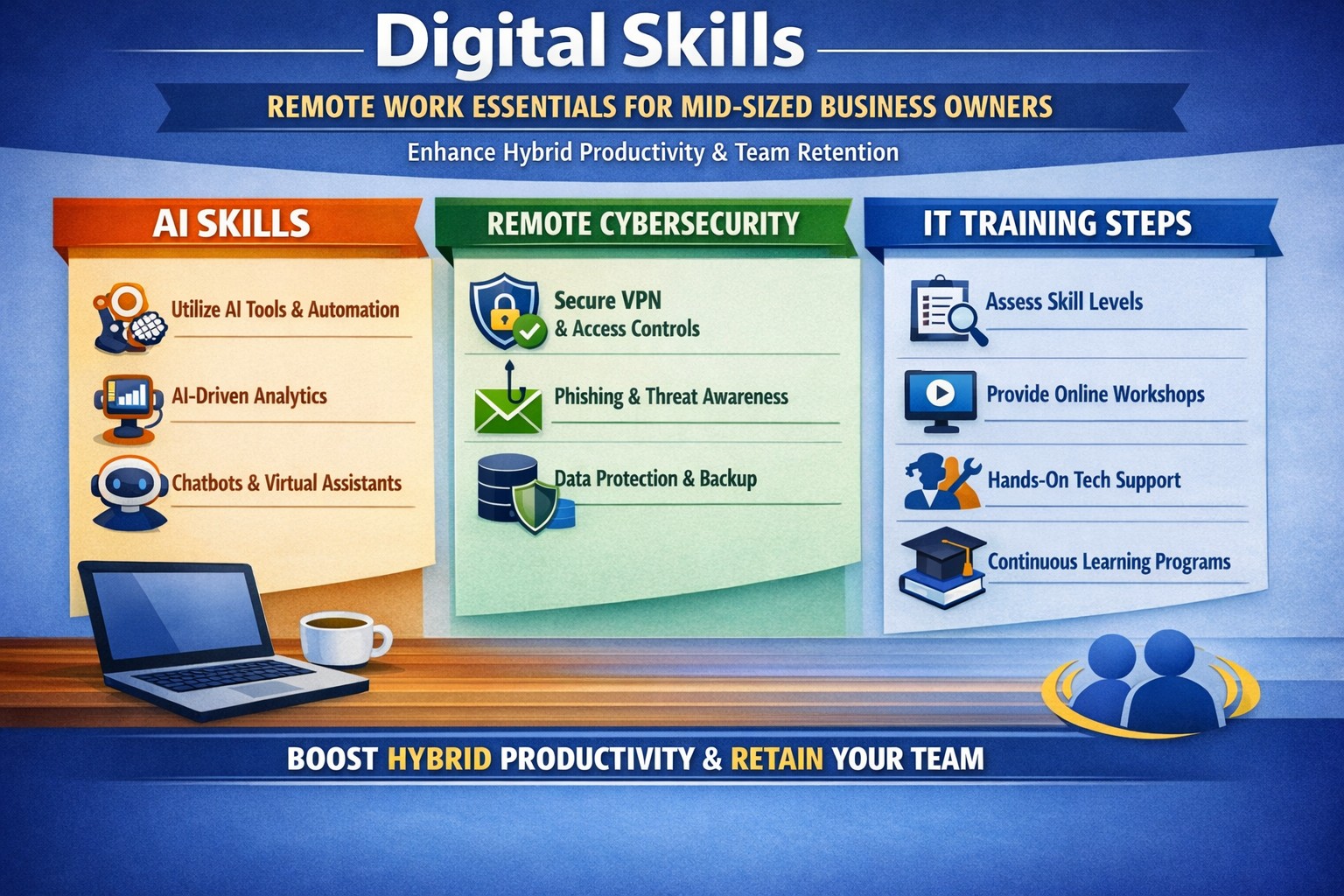
Key digital skills for remote workers: AI-assisted productivity, cybersecurity basics, and data analytics to future-proof your mid-sized team.
Mid-sized business owners face a pivotal choice: adapt to remote work demands or risk losing top talent to competitors. With hybrid models now standard and AI reshaping workflows, equipping your team with essential digital skills isn’t optional—it’s a competitive edge that drives productivity and retention.
Why Digital Skills Matter Now
Remote work has evolved beyond basic video calls. 92% of job postings demand digital proficiency, with mid-sized firms seeing 2.5x revenue growth from tech-savvy teams. Leaders must prioritize skills like AI-assisted productivity and cybersecurity to support distributed operations, reducing downtime and boosting outcomes over hours logged.
Key Digital Skills for Remote Success
Focus on these seven high-impact skills to future-proof your workforce:
AI-Assisted Productivity: Leverage tools for task automation and analysis—daily AI use hit 26% last year, doubling output for proficient users.
Cognitive Flexibility and Adaptability: Shift seamlessly between tools and priorities in dynamic remote setups.
Strong Digital Communication: Master Slack, Microsoft Teams, and asynchronous updates to bridge time zones.
Tech Literacy and Troubleshooting: Handle basic IT fixes independently to minimize disruptions.
Cybersecurity Basics: Implement MFA and zero-trust models to protect distributed data.
Data Analytics: Use tools like Google Analytics or Power BI for real-time insights.
Digital Project Management: Coordinate via Asana or Monday.com for virtual team alignment.
These skills address remote challenges like collaboration gaps and productivity tracking.
Practical Action Steps
Business owners and IT departments should execute these steps systematically.
Assess Current Gaps: Survey your team on proficiency in the seven skills above; use free tools like LinkedIn Learning audits (1-2 weeks).
Build a Training Roadmap: Enroll in microlearning platforms (e.g., 15-min daily sessions on Coursera or freeCodeCamp) and allocate 4-6 hours weekly per employee.
Deploy Secure Infrastructure: IT to roll out VPNs, endpoint protection, and cloud access (e.g., Splashtop for remote desktops); test with a pilot group in 30 days.
Integrate AI Tools: Pilot enterprise AI like Microsoft Copilot or Zapier for automation; track ROI via output metrics quarterly.
Foster Continuous Upskilling: Launch internal “skill shares” via Zoom and tie bonuses to certifications (e.g., Google Data Analytics).
Monitor and Iterate: Use dashboards for skill adoption KPIs; adjust based on quarterly reviews.
These steps minimize risks like breaches (up 30% in hybrid setups) while accelerating hybrid efficiency.
Q&A: Client Inquiries Addressed
Q: How long until we see ROI from upskilling? A: Firms report 3x profitability within 6-12 months via reduced IT tickets and higher output.
Q: What if our team resists new tools? A: Start with voluntary pilots and gamified training; data shows 2.3x retention in adaptive programs.
Q: How do we secure remote access without slowing workflows? A: Adopt zero-trust with MFA—cutting threats while maintaining speed.
Q: Which skills yield the highest salaries for remote hires? A: AI/ML and cybersecurity top lists, with 20-50% premiums for mid-sized firms.
Q: Can we train in-house or need external help? A: In-house works for basics, but experts accelerate deployment for complex setups.
How Farmhouse Networking Accelerates Your Remote Transition
Farmhouse Networking specializes in mid-sized businesses across accounting, healthcare, and nonprofits, delivering tailored IT strategies for seamless remote adoption. We handle infrastructure audits, deploy secure cloud ecosystems, and integrate AI tools—slashing setup time by 50% versus DIY efforts. Our upskilling workshops certify teams in cybersecurity and project management, ensuring compliance (e.g., HIPAA for healthcare) and 99.9% uptime.
Call to Action
Ready to equip your team with digital skills? Email support@farmhousenetworking.com today for a free remote readiness assessment and custom roadmap.
And God will generously provide all you need. Then you will always have everything you need and plenty left over to share with others. As the Scriptures say,
“They share freely and give generously to the poor. Their good deeds will be remembered forever.”
For God is the one who provides seed for the farmer and then bread to eat. In the same way, he will provide and increase your resources and then produce a great harvest of generosity in you. - 2 Corinthians 9:8-10
We use cookies to ensure that we give you the best experience on our website. If you continue to use this site we will assume that you are happy with it.