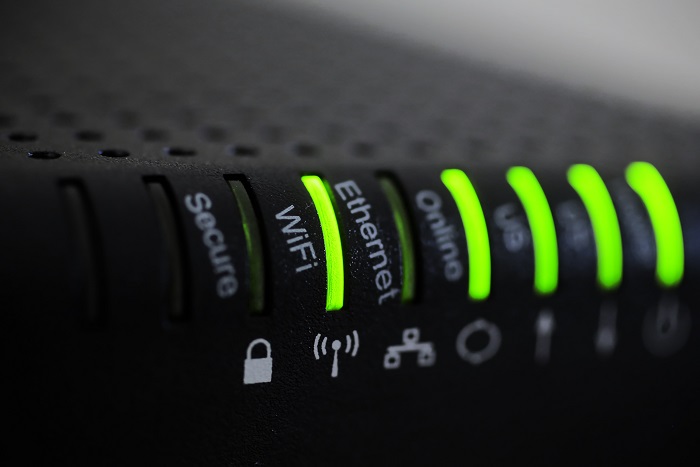
Reliable retail routers powering WFH for B2B professionals
This blog post is more about the use of retail routers at the office than at home, just to make that clear from the beginning. We would also recommend non-retail routers at home, but that is not feasible for everyone.
What is a retail router?
This is a phrase I am coining to describe any router that is generally available from your local retailers like Staples, Walmart, etc or delivered as part of the internet service from your local provider. They include brand names like ASUS, D-Link, Linksys, and Netgear. They range in price from $30 for the extreme low end to $450 for a gaming router. These routers are built for home and small office networks that have very few users or devices connected at any given time. They may include some features that sound “business-like” such as Virtual Private Network (VPN), Stateful Packet Inspection (SPI), VLAN, and Quality of Service (QoS) – remember though that these are also only able to support a minimum number of users and devices connected at any given time. If you try to use a retail router to run your business network then you will find that performance will be severely degraded and these features will not work as advertised.
There is also the issue of security. These routers are rarely if ever updated even when new vulnerabilities are found. This makes them ineligible for PCI or HIPAA compliance situations.
Is there a non-retail router?
So what to do about this situation? Time to call your trusted IT services provider who will be able to get you a non-retail router, but that begs the question – what is a non-retail router?
These routers are built by network professionals who design the hardware to perform under the pressures of the office environment and to handle the work from home remote workload. These routers include brands like Cisco, Juniper, Ubiquiti, and Araknis. They range in price from $150 for an office of up to 5 people to $10,000 for a high traffic company with hundreds of users. These routers handle VPN, SPI, VLAN, QoS, and many other services all at once with ease. Security is baked into these routers with the best ones having the ability to be managed from the cloud. They provide consistent access to all connected users and devices at all times. Your trusted IT services provider will work with you to “right size” the router to your business needs.
If your company is going to have full time work from home employees and is concerned about their ability to perform, then contact us for assistance.
Recently converted a client’s Windows Standard 2012 R2 terminal server into a Remote Desktop Protocol (RDP) Gateway server so that remote users could connect to their workstations inside the corporate network. (The details of how to do this properly will follow soon in another post.) Once the setup was completed it was time to test the connectivity as follows:
Testing RDP Connectivity
Log into a remote workstation
Open Microsoft Terminal Services Client (MSTSC)
Type in the Computer name and User name into the General tab:
Click on the Advanced tab and then on the Settings… button.
Choose Use these RD Gateway server settings then type in the external URL of the RDP Gateway
Choose Bypass RD Gateway server for local addresses
Choose Use my RD Gateway credentials for the remote computer then click OK
Should then be able to click Connect to tunnel into that workstation
Issues with NULL SID as follows:
Getting errors during login process about inability to connect, noticed that it allowed for credentials at RDP Gateway but then failed when trying to login to local worksations.
Attempted to connect from machines without the KB2592687 and KB2830477 installed, but same errors occurred.
Checked the event logs for the local workstation and found Event ID #4625 NULL SID errors. Which should have pointed to issues with authentication.
Tested NTLMv2 login issues via changing the following registry entry:
[HKEY_LOCAL_MACHINE\SYSTEM\CurrentControlSet\Control\Lsa] – LMCompatibilityLevel set above 3
Did the same thing via Group Policy using the following setting:
Computer Configuration > Windows Settings > Security Settings > Local Policies > Security Options – “Network security: LAN Manager authentication level” set to Send NTLMv2 response only
Finally narrowed it down to NTP settings on the router not being set and mismatch of time.
Recently wrestled with a Juniper SRX 220 router that a client needed help with securing RingCentral on. This entailed creating port forwarding rules for specific secure port ranges for TLS transport and linking those with rules for specific IP ranges belonging to RingCentral servers. Here are the specific lines of code that were used to make this connection possible (I am also throwing in the CoS settings used to shape traffic for good measure):
security policies from-zone Internet to-zone LAN policy RingCentral_IP1_NAT match source-address RingCentral_IP1 security policies from-zone Internet to-zone LAN policy RingCentral_IP1_NAT match destination-address any security policies from-zone Internet to-zone LAN policy RingCentral_IP1_NAT match application RingCentral security policies from-zone Internet to-zone LAN policy RingCentral_IP1_NAT then permit
security policies from-zone Internet to-zone LAN policy RingCentral_IP2_NAT match source-address RingCentral_IP2 security policies from-zone Internet to-zone LAN policy RingCentral_IP2_NAT match destination-address any security policies from-zone Internet to-zone LAN policy RingCentral_IP2_NAT match application RingCentral security policies from-zone Internet to-zone LAN policy RingCentral_IP2_NAT then permit
security zones security-zone Internet address-book address RingCentral_IP1 199.255.120.0/22 security zones security-zone Internet address-book address RingCentral_IP2 199.68.212.0/22
applications application RingCentral term Mobile_App_Media destination-port 4000-5000 protocol udp applications application RingCentral term Phone_Registration_UDP destination-port 5060-6000 protocol udp applications application RingCentral term Phone_Registration_TCP destination-port 5060-6000 protocol tcp applications application RingCentral term RTP_SRTP_Softphone1 destination-port 8000-8200 protocol udp applications application RingCentral term RC_Meeting_Signaling_UDP destination-port 8801-8802 protocol udp applications application RingCentral term RC_Meeting_Signaling_TCP destination-port 8801-8802 protocol tcp applications application RingCentral term RTP_SRTP_Deskphone destination-port 16384-16482 protocol udp applications application RingCentral term RTP_SRTP_Softphone2 destination-port 20000-60000 protocol udp
This should be everything unless you have custom firewall filters to lock down management access or something else like that. Please feel free to contact us if you need any help configuring either your RingCentral account or Juniper routers or switches.
This was one of the most exasperating things that I have worked on in some time. The client got a bonded ADSL PPPoE connection from CenturyLink with 40Mbps Up by 2Mbps Down. The PPPoE was to authenticate the connection to CenturyLink.
Reconfigure the Technicolor C2000T modem into Bridged Mode
Login to the modem and click on the “Wireless” button
Disable the wireless completely and click on the “Apply” button
Click on the “Advanced” button then click on the “DHCP Settings” along the left hand menu
Disable DHCP completely and click the “Apply” button
Click on the “WAN Settings” and change the ISP Protocol to “Transparent Bridging” then click on the “Apply” button
Reboot the modem and move on to configuring the Juniper router
Configure the Juniper SRX 210 for the Bonded ADSL PPPoE connection
Enter the following commands on the router CLI:
Set the underlaying interface encapsulation to be PPP-Over-Ethernet:
set interfaces ge-0/0/0 unit 0 encapsulation ppp-over-ether
Set PPP Options with Authentication method CHAP:
set interfaces pp0 unit 0 ppp-options chap default-chap-secret YOUR-PASSWORD set interfaces pp0 unit 0 ppp-options chap local-name YOUR-USERNAME set interfaces pp0 unit 0 ppp-options chap no-rfc2486 set interfaces pp0 unit 0 ppp-options chap passive
Set the PPPoE Options to the underlaying interface along with connection options:
set interfaces pp0 unit 0 pppoe-options underlying-interface ge-0/0/0.0
Set the the pp0 interface to automatically negotiate the IP address:
set interfaces pp0 unit 0 family inet negotiate-address
Set the security zone pp0.0 interface WAN (untrust):
set security zones security-zone WAN interfaces pp0.0
If you are experiencing any fragmentation issue, you may want to adjust the tcp-mss setting as below, this was the part that I left out and had random websites not connecting:
set security flow tcp-mss all-tcp mss 1300
If your company is using a Juniper JunOS router or CenturyLink Bonded ADSL PPPoE connection to the internet, then contact us for assistance.
And God will generously provide all you need. Then you will always have everything you need and plenty left over to share with others. As the Scriptures say, “They share freely and give generously to the poor. Their good deeds will be remembered forever.” For God is the one who provides seed for the farmer and then bread to eat. In the same way, he will provide and increase your resources and then produce a great harvest of generosity in you. - 2 Corinthians 9:8-10
We use cookies to ensure that we give you the best experience on our website. If you continue to use this site we will assume that you are happy with it.