One password for email, payroll, the bank, and that forum you joined in 2014. What could go wrong?
When one password opens email, banking, and payroll, a single breach on any website can unlock your entire business.
Welcome back to our guide to getting breached. This week’s tip is a real time-saver: pick one good password and use it for everything. Email, payroll, the bank, the vendor portal, the site where you ordered the office chairs. You will never click Forgot Password again, and neither will the criminal who bought your login in a leaked list last year.
If you would rather keep your business out of the breach column, read on.
Why password reuse is a business problem
Attackers rarely guess passwords anymore. They collect them. When a website is breached, the usernames and passwords stored there get traded and sold. Automated tools then try those same combinations against thousands of other services: Microsoft 365, banks, payroll providers, accounting software. This is called credential stuffing, and it only works because people reuse passwords.
That means your security depends on the weakest website any employee has ever signed up for with a work password.
A hypothetical example
Picture a made-up 15-person distributor. The office manager uses one password for her work email and for a home decor site she shopped at years ago. The retailer is breached. Months later, an automated tool tries her email address and that password against Microsoft 365, and it works. The attacker reads her inbox quietly for two weeks, learns how invoices get approved, then emails a customer from her real account with new bank details for the next payment.
There was no malware and no alarm. The only thing the attacker needed was one reused password.
Action steps for you and your IT team
Roll out a business password manager. Every employee gets an account, and every login gets a long, unique, generated password. Staff remember one strong passphrase.
Turn on multi-factor authentication (MFA). Start with email, banking, payroll, and remote access. MFA does not make reuse safe, but it keeps many stolen passwords from being enough.
Check for breached passwords. Have IT screen new passwords against lists of known compromised ones, which current NIST guidance calls for, and monitor for company credentials in new leaks. A free service such as Have I Been Pwned shows whether an email address appears in known breaches.
Change passwords on evidence, not on a calendar. Forced 90-day changes produce Spring2026! followed by Summer2026!. Favor length over odd symbols.
Separate work from personal. Work email addresses and work passwords stay out of shopping, streaming, and social accounts.
Retire shared logins where you can. If a shared account is unavoidable, keep it in the password manager’s shared vault, protect it with MFA, and change it whenever someone leaves.
Put it in writing. A one-page password policy gives you something to train on and enforce.
Questions your customers may ask you
Q: How do you protect the accounts that hold our information? A: Every employee uses a unique password for each system, stored in a password manager, with MFA on anything that touches customer data.
Q: What happens if an employee’s password shows up in a breach? A: We monitor for exposed credentials. When one appears, the password is changed right away and we review the account for unusual sign-ins.
Q: Isn’t a password manager putting all your eggs in one basket? A: It is one well-guarded basket instead of dozens of weak ones. The vault is encrypted and protected by a strong passphrase plus MFA.
Q: Do your staff share logins? A: Each person signs in as themselves wherever the system allows, so we can see who did what and remove access the day someone leaves.
How Farmhouse Networking can help
Farmhouse Networking helps small and mid-sized businesses replace password habits with a system. We help you choose and roll out a business password manager, then train your staff so it gets used. Our dark web monitoring alerts us when your company’s credentials appear in a leak. In Microsoft 365, we configure banned-password protection, multi-factor authentication, and Conditional Access so a stolen password alone will not open the door. Our staff is 100% U.S.-based, and a live person answers the phone.
Is one reused password all that stands between you and a breach?
Email support@farmhousenetworking.com to request a free breach-readiness review. We will look at how your business handles passwords, MFA, and exposed credentials, then give you a plain-language list of what to fix first.
Next week: How to Get Breached, Step 3: Click Every Link. What’s the Worst That Could Happen?
Upgrading your device is exciting. Losing access to every business account is not. Here’s what every business owner needs to know before they make the switch.
Switching to a new phone without preparing your MFA can lock you out of every business account. A little preparation before the switch prevents hours of downtime.
email. The system asks for an authentication code. You open the authenticator app. The accounts are gone. Now you’re locked out.
This happens to business owners every day. Multi-factor authentication (MFA) is one of the most effective security tools available – but it’s bound to the device it was set up on. When that device changes, access can disappear instantly unless you prepare in advance.
Here’s exactly what happens, why it matters, and what to do about it.
Why MFA Breaks When You Switch Phones
Authenticator apps like Microsoft Authenticator, Google Authenticator, and Duo Mobile generate time-sensitive codes that are tied to your specific device. The codes work because the app and the service share a secret key established during setup. When you swap phones without transferring that key, the connection breaks.
The result: you cannot complete login, even with the correct password. If your old phone is already wiped or gone, and you have no backup method configured, recovery can take hours, or longer, and usually requires IT intervention.
For a business, that’s more than an inconvenience. It’s a potential compliance issue, a productivity disruption, and in some cases, a security risk if employees start using workarounds.
Action Steps Before You Switch Phones
These steps apply to you, your staff, and anyone who uses MFA to access business systems.
Inventory every account protected by MFA. Email, cloud storage, accounting software, practice management platforms, banking portals – list them all. You cannot protect what you haven’t identified.
Check your authenticator app’s backup settings. Microsoft Authenticator supports cloud backup. Google Authenticator added backup functionality in 2023. Enable it before you wipe or trade in your old device.
Register a backup MFA method. Most platforms allow you to add a secondary method – a different phone number, a hardware key, or an email-based code. Do this now, not after a problem occurs.
Save recovery codes. During initial MFA setup, most services generate one-time recovery codes. Store these in a password manager or a secure, offline location. These are your safety net if everything else fails.
Do not wipe your old phone until the new one is fully verified. Set up the authenticator app on the new device, confirm every account logs in successfully, then decommission the old device.
Notify your IT provider before the switch. If you use a managed IT service, your provider can verify admin-level access to reset MFA on critical accounts if something goes wrong during the transition.
Remove your old device from your account settings. After the switch is complete, log into your security settings for each platform and delete the old device. Leaving it registered is an unnecessary security exposure.
Q&A: What Your Employees (and Clients) Might Ask
Q: Can I just reinstall the authenticator app on my new phone? A: Installing the app is only the first step. You still need to re-link each account, either by restoring from a cloud backup or by re-scanning QR codes through each platform’s security settings. Without prior backup configuration, you’ll need your IT administrator to reset access.
Q: What if I already switched phones and I’m locked out? A: Contact your IT administrator immediately. They can reset your MFA registration at the admin level, which clears the old device and allows you to set up a new one. Do not attempt to bypass MFA – doing so may violate your organization’s security policies.
Q: Is it safe to use text message codes instead of an authenticator app? A: SMS-based codes are better than no MFA, but they’re the weakest option. They’re vulnerable to SIM-swapping attacks, where a criminal hijacks your phone number. An authenticator app is more secure and worth the minor setup effort.
Q: Do I need to do anything with my business accounts specifically? A: Yes. Business accounts managed through Microsoft 365, Google Workspace, or other platforms often have centralized MFA settings controlled by your IT administrator. Those accounts may require admin-assisted recovery if the authenticator app is lost. This is another reason to have a managed IT partner involved before the phone switch.
How Farmhouse Networking Can Help
MFA transitions are a routine part of what we manage for our clients. When one of your employees gets a new phone, we can audit their MFA registrations, verify backup methods are in place, guide them through the device transfer, and reset access at the admin level if something goes wrong.
We also help businesses build a documented MFA policy – so every employee follows a consistent, tested process when devices change, instead of figuring it out under pressure when they’re locked out.
If you don’t currently have backup MFA methods configured across your team, that’s a gap worth closing now.
Ready to Stop Worrying About MFA Lockouts?
Email us at support@farmhousenetworking.com and let’s make sure your team is set up to handle device changes without the drama. One conversation now can prevent hours of lost access later.o handle device changes without the drama. One conversation now can prevent hours of lost access later.
What Every Small Business Owner Should Know About Accounting Software and GAAP
Choosing the right accounting method and software is one of the most important decisions a small business owner can make — especially when loans, audits, or growth are on the horizon.
The software you chose when you started may not be the right fit for where your business is going – and your IT setup is part of the equation.
Most small business owners choose QuickBooks because someone recommended it, or because it was the obvious option. It’s reliable, widely used, and gets the job done for basic bookkeeping. But as your business grows, the question isn’t whether QuickBooks works – it’s whether it’s working well enough for your specific situation.
The answer depends largely on one thing: how your business handles revenue recognition, and whether your financials need to meet GAAP standards.
QuickBooks and GAAP: Understanding the Difference
QuickBooks defaults to cash-basis accounting, which records income when you receive payment and expenses when you pay them. This works well for simple operations and gives you a clear view of your cash position. It’s also how most small businesses file taxes.
Generally Accepted Accounting Principles (GAAP) typically requires accrual-basis accounting, where revenue is recorded when it’s earned and expenses when they’re incurred, regardless of when money changes hands. This produces a more accurate long-term picture of your business’s financial health.
For most small businesses under $25 million in annual revenue, cash-basis accounting is perfectly legal and practical. But if you plan to seek a business loan, bring on investors, take on a business partner, prepare for a sale, or operate in a regulated industry, GAAP-compliant accrual-basis financials will likely be required. QuickBooks can produce accrual-basis reports, but it requires proper configuration and disciplined bookkeeping to do so accurately.
QuickBooks is a general-purpose tool. Depending on your industry, a purpose-built alternative may serve you better: The right choice depends on your size, complexity, industry compliance requirements, and how your financial data needs to flow between systems.
Practical Action Steps for You and Your IT Team
Identify your accounting method. Confirm whether your books are cash or accrual basis and whether that matches what your CPA recommends for your situation.
Review your reporting needs. Ask yourself: could you produce a GAAP-compliant set of financials today if a bank or investor asked for one? If not, that’s worth addressing.
Audit your software integrations. List every system that connects to your accounting software — payroll, CRM, e-commerce, inventory — and verify those connections are working accurately and securely.
Secure your financial data. Confirm that your accounting platform uses encrypted connections, requires strong passwords, and supports multi-factor authentication for all users.
Set up and test your backups. Automated, offsite backups of your financial data should be tested periodically. A backup you’ve never restored is a backup you can’t trust.
Limit access to financial systems. Only the people who need access to your accounting data should have it. Set role-based permissions and review them regularly.
Plan before you migrate. If you decide to switch platforms, involve your CPA and your IT provider from the beginning. Migrations done without a clear plan often result in data gaps, reporting errors, or security exposures.
Keep your software updated. Accounting software vulnerabilities are real attack vectors. Make sure updates and patches are applied promptly.
Questions Your Clients, Lenders, or Partners May Ask — and How to Answer Them
Are your financials GAAP-compliant? Our books are maintained on an accrual basis in coordination with our CPA. We can produce GAAP-compliant financial statements when needed.
How secure is your financial data? We use encrypted accounting software with multi-factor authentication, limited user access, and automated offsite backups.
What happens if your accounting system goes down? We have business continuity measures in place, including current backups and IT support to restore access quickly. We don’t rely on a single point of failure.
Are you considering switching accounting platforms? Any platform change we make would be planned carefully with input from our CPA and IT provider to avoid disruption to our reporting or data integrity.
How Farmhouse Networking Supports Your Business
Your accounting software is only as reliable as the IT environment it runs in. A slow network, an unpatched system, weak access controls, or a missed backup can turn a small accounting problem into a big one — fast.
Farmhouse Networking helps small and mid-sized businesses build and maintain the IT infrastructure that supports their financial systems. That includes network security and reliability, multi-factor authentication setup, automated backup and disaster recovery, user access management, and coordination with software vendors when issues arise. We’re not accountants — but we make sure the technology your accountant depends on is solid.
Take the Next Step
If you’re not confident your accounting setup and the IT behind it are in good shape, we’re here to help.
Email us at support@farmhousenetworking.com to schedule a free IT assessment. We’ll review your current environment and tell you exactly what’s working, what’s at risk, and what to do about it — in plain English, no jargon.
You don’t have to be a Fortune 500 company to be a target. You just have to be open for business.
Cybercriminals no longer need technical skills to target your business — Fraud-as-a-Service puts sophisticated attack tools in anyone’s hands.
You’ve heard of Software-as-a-Service. Now meet its criminal counterpart.
Fraud-as-a-Service (FaaS) is a booming underground economy where cybercriminals sell ready-made attack tools, stolen credentials, phishing kits, and ransomware packages to anyone willing to pay a subscription fee. No technical skill required. No barriers to entry. Just a dark web account and criminal intent.
This new economy lowers the barrier for entry and accelerates the pace of attacks. Even young and inexperienced fraudsters can access sophisticated tools that can be deployed with minimal technical knowledge. The result? A surge in attacks aimed squarely at small and mid-sized businesses — businesses exactly like yours.
In 2025, the FBI received over one million cybercrime complaints for the first time ever. Cyber-enabled fraud accounted for $17.7 billion in total losses. And small businesses are absorbing a disproportionate share of the damage.
Why Your Business Is the Target
Large corporations have security teams, compliance officers, and dedicated budgets. You have a team wearing multiple hats and a firewall that hasn’t been updated since the last administration.
Criminals who used to target only large enterprises now see small businesses as easier prey — because many don’t think they’re targets and often lack the protections to defend themselves.
FaaS attacks against SMBs typically arrive as:
Business Email Compromise (BEC): A convincing email, apparently from your bank or a vendor, redirects a payment to a criminal’s account.
Phishing kits: Pre-built fake login pages that steal employee credentials in seconds.
Ransomware subscriptions: Criminals rent ransomware, deploy it against your files, and split the ransom with the developer.
AI-generated deepfakes: Voice or video impersonations of you or your staff, used to authorize fraudulent transfers.
Business Email Compromise alone generated over $3 billion in losses in 2025.
Practical Action Steps for You and Your IT Team
Enable Multi-Factor Authentication (MFA) on everything — email, banking portals, cloud tools, and remote access. This one step blocks the majority of credential-based attacks.
Conduct a phishing simulation and security awareness training with all staff at least twice per year.
Verify all payment change requests by phone using a known number — never by replying to the email that requested the change.
Audit your email environment for misconfigured permissions, stale accounts, and unusual forwarding rules.
Review and restrict vendor and third-party access to your systems on a quarterly basis.
Maintain tested, offline data backups so ransomware cannot encrypt your only copy.
Create an incident response plan — a written document that tells your team exactly what to do if an attack succeeds.
Questions Your Clients May Ask You
“How do I know my data is safe with you?” You should be able to describe exactly where client data is stored, who has access, and what protections are in place. If you can’t answer this with confidence, it’s time to find out.
“Has your business ever experienced a data breach?” Transparency builds trust. If the answer is yes, explain what happened and what changed afterward.
“What would happen to my files if you got hit with ransomware?” Your answer should include a clear backup and recovery plan with a defined recovery time.
“Do your employees know how to recognize a phishing attempt?” This should be a confident yes — backed by regular training, not just a one-time onboarding video.
How Farmhouse Networking Helps
Farmhouse Networking helps SMBs build the defenses that FaaS criminals count on you not having. From setting up MFA and email authentication, to proactive monitoring, security awareness training, and incident response planning — we make enterprise-grade protection practical for businesses your size.
Ready to Stop Being an Easy Target?
Email us at support@farmhousenetworking.com to schedule a free security consultation. We’ll show you exactly where you’re exposed — and how to fix it before someone else finds out first.
Why SMBs Need Smart Network Infrastructure Management
Optimizing SMB network infrastructure for stronger, scalable business networks
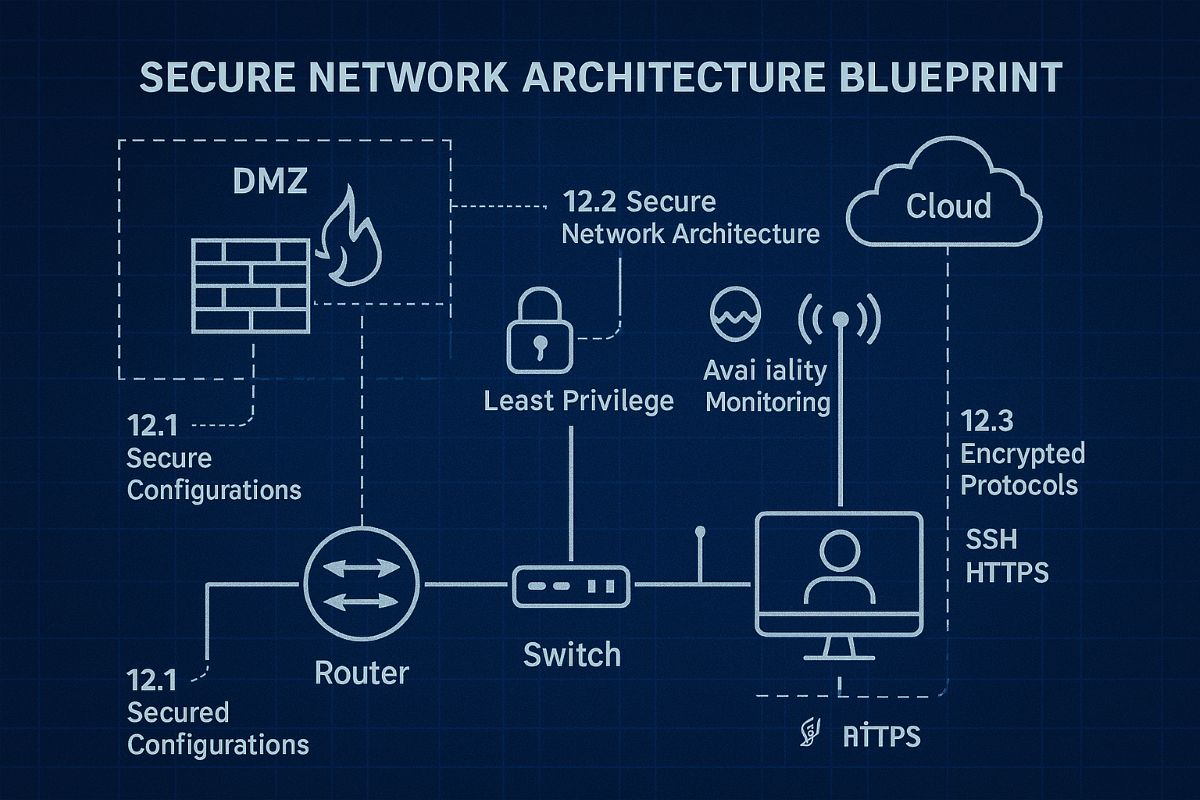
For small and midsize business owners, every minute of uptime counts. A slow or vulnerable network isn’t just frustrating—it costs productivity, damages customer trust, and drains revenue. Network Infrastructure Management, guided by CIS (Center for Internet Security) standards, is the key to keeping your technology reliable, secure, and scalable.
Practical Action Steps
Audit Your Current Network: Compare your systems to CIS-recommended controls to uncover risks.
Secure Data Flows: Implement firewalls, intrusion detection, and CIS baseline configurations.
Plan for Growth: Ensure your infrastructure supports cloud, remote work, and future expansion.
Continuous Monitoring: Use real-time alerts to prevent disruption before it happens.
Employee Awareness: Provide staff training on cybersecurity aligned with CIS best practices.
Client Q&A
“Do CIS standards apply to smaller companies?” – Absolutely; they’re designed to scale to all business sizes.
“Will I need to overhaul my whole network?” – Not necessarily. Often, a phased approach is more cost-effective.
“What if I already have an IT person?” – Farmhouse Networking’s role is to extend their expertise, not replace it.
How Farmhouse Networking Helps We align your systems with CIS benchmarks, secure your infrastructure, and monitor it constantly. That means less downtime, stronger client trust, and more bandwidth for business growth.
Call to Action Ready to protect your network and grow confidently? Email us today at support@farmhousenetworking.com to learn how Farmhouse Networking can keep your systems strong and compliant.
Setting the stage for collaborative hybrid teams: Practical IT steps and tools for seamless hybrid work collaboration.
Hybrid work is now the norm for many businesses, blending remote and in-office teams to boost flexibility and retention. As a business owner in accounting, healthcare, or charity sectors, mastering collaborative hybrid teams can drive productivity and client wins—but it requires deliberate setup.
Practical Action Steps
Work with your IT department to implement these targeted steps, drawn from proven hybrid strategies.
Audit Your Tech Stack: Review hardware, software access, and tools like Microsoft Teams or Zoom. Standardize licenses (e.g., Microsoft 365 E3/E5) and test Wi-Fi/video on pilot devices—complete in 1-2 days.
Set Communication Protocols: Define channels (email for formal updates, Slack/Teams for quick chats, video for deep discussions). Establish response times and core hours when all are available.
Optimize Meetings and Spaces: Equip rooms with high-quality AV for “hybrid meetings.” Use project tools like Asana or Planner for tasks, deadlines, and async updates. Roll out training sessions via built-in modules.
Build Norms and Track Progress: Create team charters outlining goals, roles (using SMART framework), and feedback loops. Monitor via admin analytics; aim for 80% adoption in 4 weeks.
Foster Trust and Upskill: Schedule 1:1s, team huddles, and pulse surveys. Tie bonuses to certifications in collaboration tools.
These steps minimize silos and boost ROI, often yielding 30-40% productivity gains.
Common Questions from Clients
Q: What tools do hybrid teams really need? A: Reliable video (Teams/Zoom), cloud project management (Asana, Monday.com), and multi-channel comms (Slack, email). Equal access prevents issues; integrate with Outlook for seamless workflows.
Q: How do we keep productivity high without burnout? A: Set clear SMART goals, async norms, and boundaries (no after-hours pings). Use dashboards for KPIs and quarterly reviews to iterate.
Q: How can we build team culture remotely? A: Regular interactions like virtual coffees, skill shares, and intranets showing dept roles/contacts. Focus groups refine your single source of truth (SSOT) portal.
Q: What’s the biggest pitfall for hybrid setups? A: Poor inclusivity in meetings—remote voices get lost. Solution: “Together Mode,” hot-desking, and bookable collab hubs.
How Farmhouse Networking Helps
Farmhouse Networking specializes in Microsoft 365 optimizations for accounting, healthcare, and charity firms. We conduct custom audits, deploy Teams with SEO-optimized internal search, handle compliance (guest access, AI summaries), and deliver tailored training—ensuring 100% adoption and 40%+ organic traffic boosts via integrated websites. Our lead-gen strategies convert visitors to B2B clients while you focus on core ops.
Call to Action
Ready to unlock hybrid collaboration? Email support@farmhousenetworking.com for a free assessment and custom strategy to elevate your business.
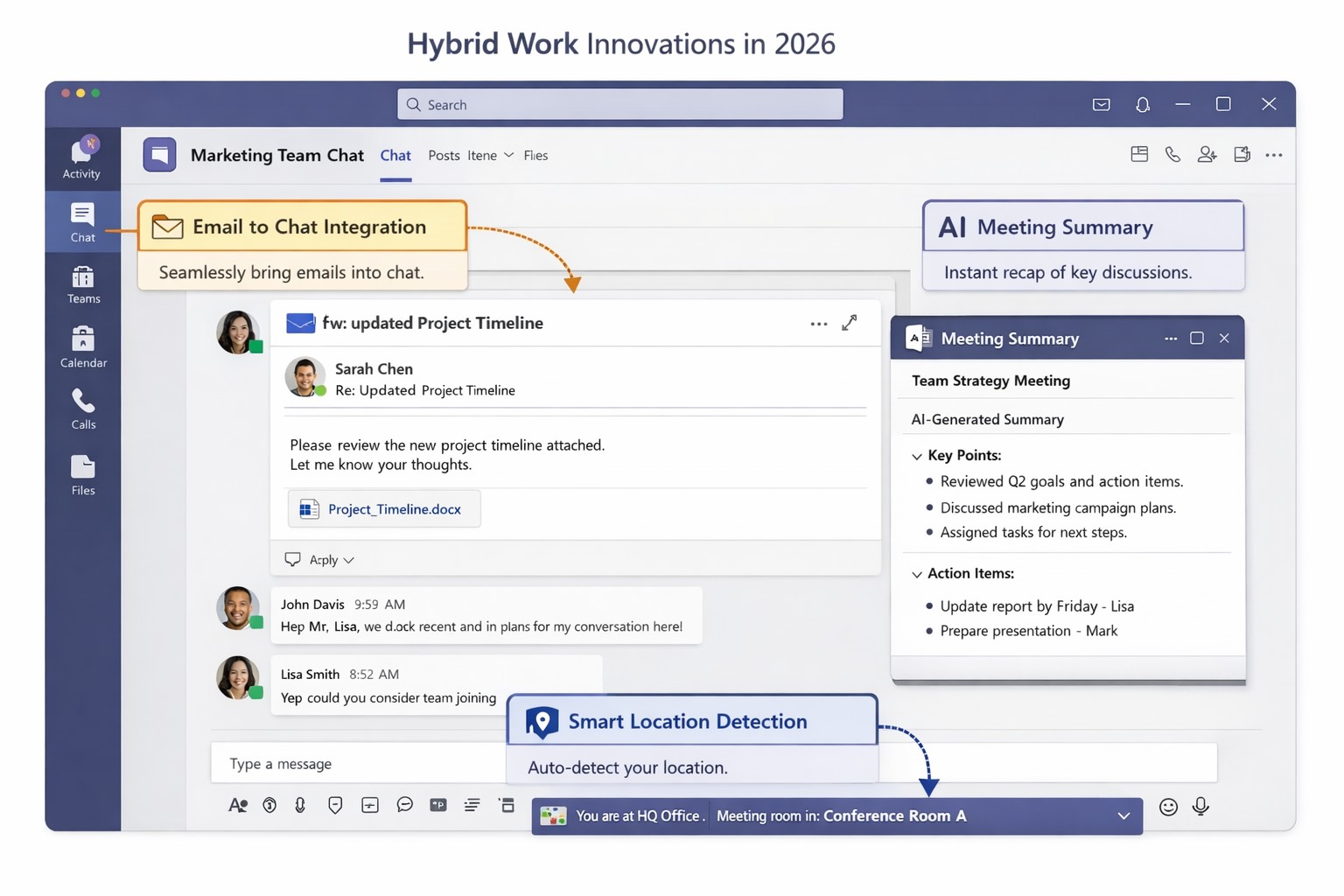
Key Microsoft Teams innovations designed for hybrid work environments, including AI-powered tools and seamless integrations
You’re likely grappling with fragmented communication, productivity dips, and tool silos that hinder growth. Microsoft Teams’ latest 2026 innovations—AI summaries, email-to-chat integration, and smart location detection—bridge these gaps, creating a unified hub for internal and external collaboration.
Key Innovations for Hybrid Efficiency
Teams now supports email-to-chat, allowing seamless communication with vendors and clients who use email instead of Teams, solving tool fragmentation in hybrid setups. AI-powered summaries condense mixed internal-external threads, ensuring alignment without full attendance, while granular guest access and compliance alerts enhance security.
Smart location detection auto-updates work status via office Wi-Fi, helping managers track hybrid presence accurately—crucial as Microsoft mandates three in-office days for its own teams starting 2026. These features integrate with Microsoft 365 for immersive tools like Loop and SharePoint, boosting workflow automation.
Practical Action Steps
Implement these steps with your IT department to leverage Teams for hybrid work:
Audit Current Setup: Review Teams usage via admin center analytics; identify silos (e.g., email-heavy vendor chats). Upgrade to latest Microsoft 365 E3/E5 licenses for full AI features—takes 1-2 hours.
Enable Core Features: In Teams admin center, activate email-to-chat policies and AI summaries under Meetings > Policies. Test Wi-Fi location detection on 10 pilot devices; configure granular guest roles for externals.
Train and Roll Out: Run company-wide training sessions (use built-in Teams training modules). Set governance rules for external access; monitor via compliance alerts. Aim for 80% adoption in 4 weeks.
Integrate and Optimize: Link with Outlook/Loop for unified hubs; use Together Mode for inclusive hybrid meetings. Quarterly reviews ensure ROI through productivity metrics.
These steps minimize disruption while maximizing hybrid productivity.
FAQ: Client Inquiries Answered
Q: How does email-to-chat benefit my business? A: It unifies communication—vendors email directly into Teams chats, streamlining hybrid coordination without new accounts.
Q: Is smart location tracking secure and privacy-compliant? A: Admins control it (default off); it uses Wi-Fi BSSIDs without GPS, with compliance notifications for breaches.
Q: Will these features work for small teams? A: Yes, scalable for SMBs; no extra hardware needed beyond standard devices.
Q: What’s the ROI timeline? A: Businesses report 20-30% collaboration gains in 1-3 months via reduced meeting times and faster decisions.
How Farmhouse Networking Helps
Farmhouse Networking specializes in Microsoft 365 optimizations for accounting, healthcare, and charity sectors. We handle full Teams deployments: custom audits, feature rollouts, compliance setups, and training tailored to B2B hybrid needs. Our SEO-driven websites and lead-gen strategies have boosted organic traffic 40%+ for clients, converting visitors to long-term partners. Let us manage IT complexities so you focus on growth.
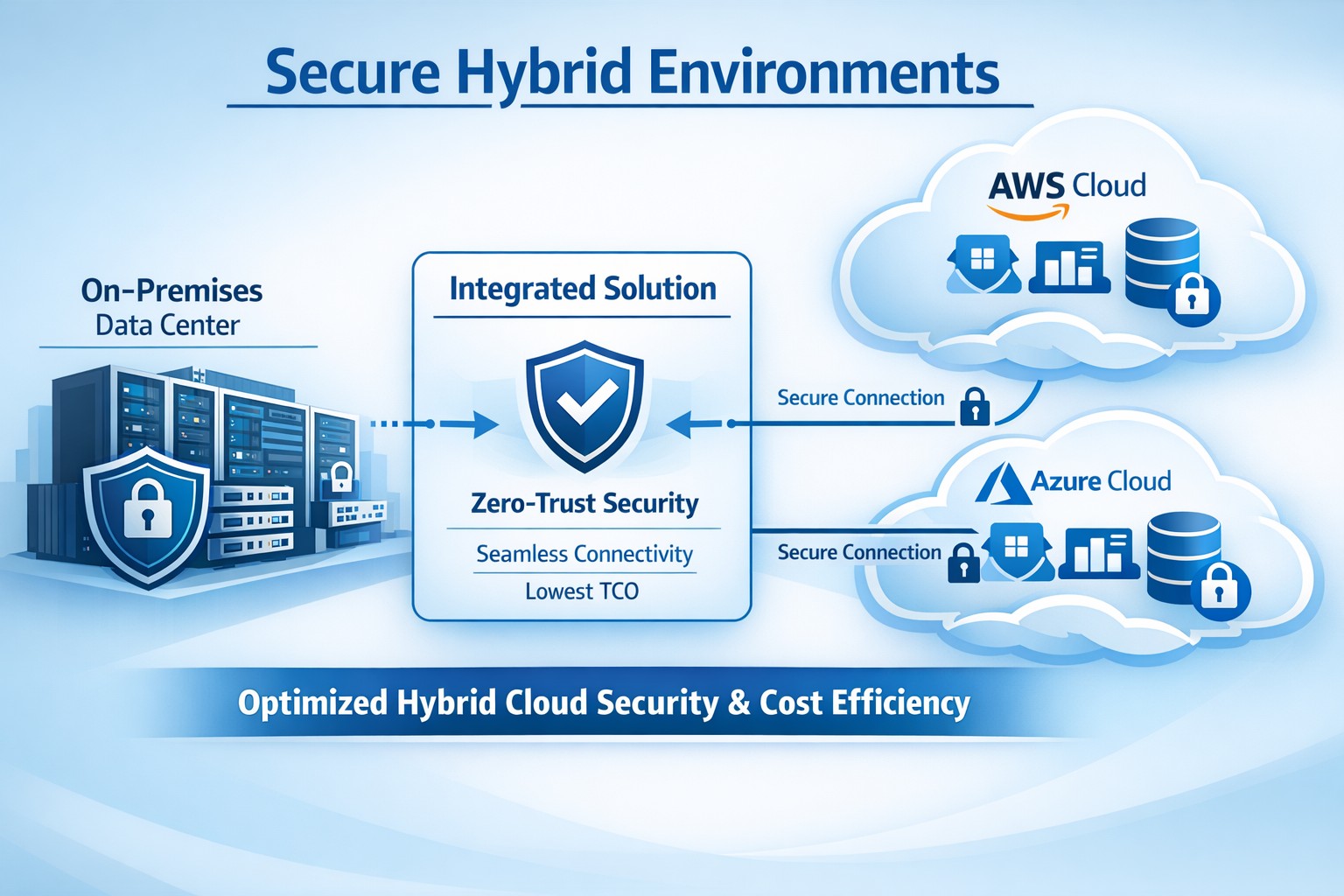
Integrated platform connecting on-prem and cloud for secure hybrid environments, minimizing TCO through automation and zero-trust security.
You’re dealing with rising IT costs while demanding ironclad security in hybrid setups—on-prem servers alongside AWS, Azure, or Google Cloud. Integrated solutions like IBM Hybrid Cloud Mesh or Cisco Secure Workload deliver secure hybrid environments at the lowest total cost of ownership (TCO) by automating connectivity, enforcing zero-trust security, and optimizing resources without vendor lock-in.
Why Integrated Solutions Cut TCO
Hybrid environments blend on-premises and cloud resources for flexibility, but silos breed inefficiency—manual configs spike ops costs by 30-70%, per industry benchmarks. Integrated platforms streamline this with application-centric networking: they auto-provision secure links based on app needs, slashing setup from days to minutes and avoiding over-provisioning.
Zero-trust models and end-to-end encryption are baked in, reducing third-party tool spends and compliance overhead. Real-world cases show 30% TCO drops via dynamic scaling and cross-cloud mobility, freeing budget for growth.
Action Steps for Implementation
Follow these steps with your IT team to deploy a secure hybrid setup minimizing TCO.
Assess Current Infrastructure: Inventory workloads, map on-prem/cloud dependencies, and calculate baseline TCO (hardware, labor, cloud bills). Use tools like AWS TCO Calculator for benchmarks—target 20-40% savings.
Select Integrated Platform: Choose solutions like Cisco Secure Workload for microsegmentation or IBM Hybrid Cloud Mesh for intent-driven connectivity. Prioritize plug-and-play integration to cut custom dev by 50%.
Pilot and Automate Connectivity: Deploy in a sandbox: define app policies, enable zero-trust, and automate provisioning. Monitor for 2-4 weeks, optimizing resource use to eliminate idle cloud spend.
Scale Securely with Monitoring: Roll out firm-wide, integrating DevOps/CloudOps workflows. Set alerts for anomalies; audit quarterly to maintain <5% over-provisioning.
Measure and Iterate: Track KPIs—provisioning time, downtime, TCO reduction. Adjust via platform dashboards for ongoing 15-30% savings.
FAQs from Business Owners
Q: What’s the real TCO impact? A: Integrated solutions reduce TCO 30-50% by automating ops, cutting manual errors, and enabling cost-optimized cloud choices without lock-in.
Q: How secure is hybrid without complexity? A: Zero-trust enforcement, workload visibility, and policy-based microsegmentation protect across environments, minimizing breach risks and extra security tools.
Q: Will this work for my industry (accounting/healthcare/charity)? A: Yes—compliance-ready for HIPAA/SOX, scalable for variable charity workloads, and cost-sensitive for accounting firms handling sensitive data.
Q: Migration downtime? A: Minimal—platforms support agentless deployment and phased rollout, with 70% faster configs than legacy setups.
Farmhouse Networking specializes in tailored hybrid environments for accounting, healthcare, and charity sectors, driving organic traffic and B2B leads via SEO-optimized strategies. We handle full implementation: infrastructure audits, platform selection (e.g., Cisco/IBM integrations), secure automation, and 24/7 monitoring.
Our clients see 25-40% TCO cuts plus enhanced security postures, with custom branding and lead-gen funnels converting visitors to long-term partners. We optimize for keywords like “secure hybrid environments lowest TCO” to boost your site’s rankings.
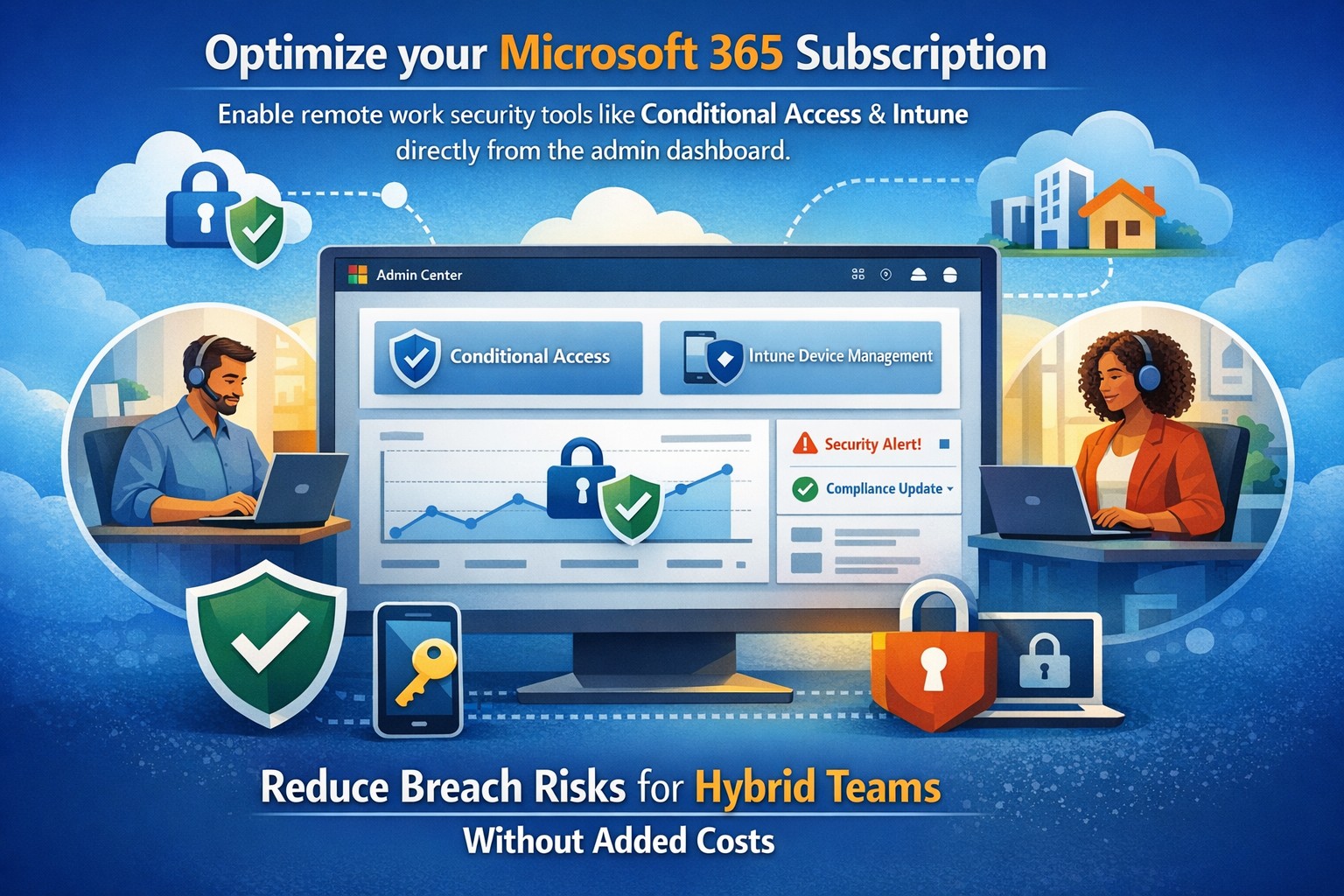
Microsoft Defender Secure Score dashboard—key to evaluating and activating built-in remote work security features for your business.
You’re likely paying for Microsoft 365 subscriptions but underutilizing their built-in security arsenal. With cyber threats targeting remote setups—phishing up 30% year-over-year per recent Microsoft telemetry—it’s critical to activate these features now to protect data, cut breach risks, and avoid costly add-ons.
Key Microsoft Security Features
Microsoft 365 packs robust remote work protections like Multi-Factor Authentication (MFA), Conditional Access, Microsoft Intune for device management, and Defender suite tools. MFA blocks 99.9% of automated attacks, while Conditional Access enforces policies based on location, device health, or risk signals. Intune enables endpoint detection and response (EDR), remote wipes, and compliance checks, ensuring laptops on home Wi-Fi stay secure without VPN overkill.
These tools integrate seamlessly across E3/E5 plans, with 2026 updates adding AI-driven Copilot security agents and expanded Intune Remote Help.
Practical Action Steps
Work with your IT team to implement these prioritized steps, achievable in 1-2 weeks for most SMBs.
Enable MFA Everywhere: In Azure AD, turn on Security Defaults or Conditional Access policies requiring MFA for all users, prioritizing admins. Use Microsoft Authenticator app over SMS.
Set Up Conditional Access: Block logins from risky locations/devices; require compliant endpoints. Go to Azure AD > Security > Conditional Access > New policy.
Enroll Devices in Intune: Automate BitLocker encryption, OS updates, and EDR via Microsoft Defender. Test remote wipe on a pilot group first.
Activate Defender Protections: Enable Safe Links/Attachments in Defender for Office 365, plus XDR for cross-app threat detection. Review Secure Score dashboard weekly.
Audit and Train: Run Microsoft Secure Score to baseline posture, then deploy awareness training via Attack Simulator.
Step
Owner
Time Estimate
Impact
MFA Enablement
IT Admin
1 day
Blocks 99.9% credential attacks
Intune Enrollment
IT + Owners
3-5 days
Secures remote endpoints
Defender Activation
IT Admin
2 days
AI threat response
FAQs for Business Owners
How much does this cost if we have Microsoft 365? Most features are included in E3/E5 plans—no extras needed. Check licensing in admin center; upgrades like Defender P2 cost ~$5/user/month if required.
What if our team resists MFA? Start with risk-based policies (e.g., MFA only on unusual logins) for low friction, then phase to full enforcement. Training reduces pushback by 40%.
Can we secure non-Windows devices? Yes, Intune supports macOS, iOS, Android for MAM policies and compliance.
How do we measure success? Track Secure Score improvements (aim for 80%+), reduced alerts in Defender portal, and zero MFA-blocked breaches.
Is VPN still required? Not always—Conditional Access + Intune often suffices for cloud apps, minimizing latency.
How Farmhouse Networking Helps
Farmhouse Networking specializes in Microsoft 365 optimizations for accounting, healthcare, and charity sectors, where compliance (HIPAA, PCI) is non-negotiable. We audit your tenant, implement these steps via remote sessions, and provide ongoing monitoring—delivering 25% risk reduction in 30 days without downtime. Our SEO-driven websites and lead-gen strategies have boosted organic traffic 3x for similar clients.
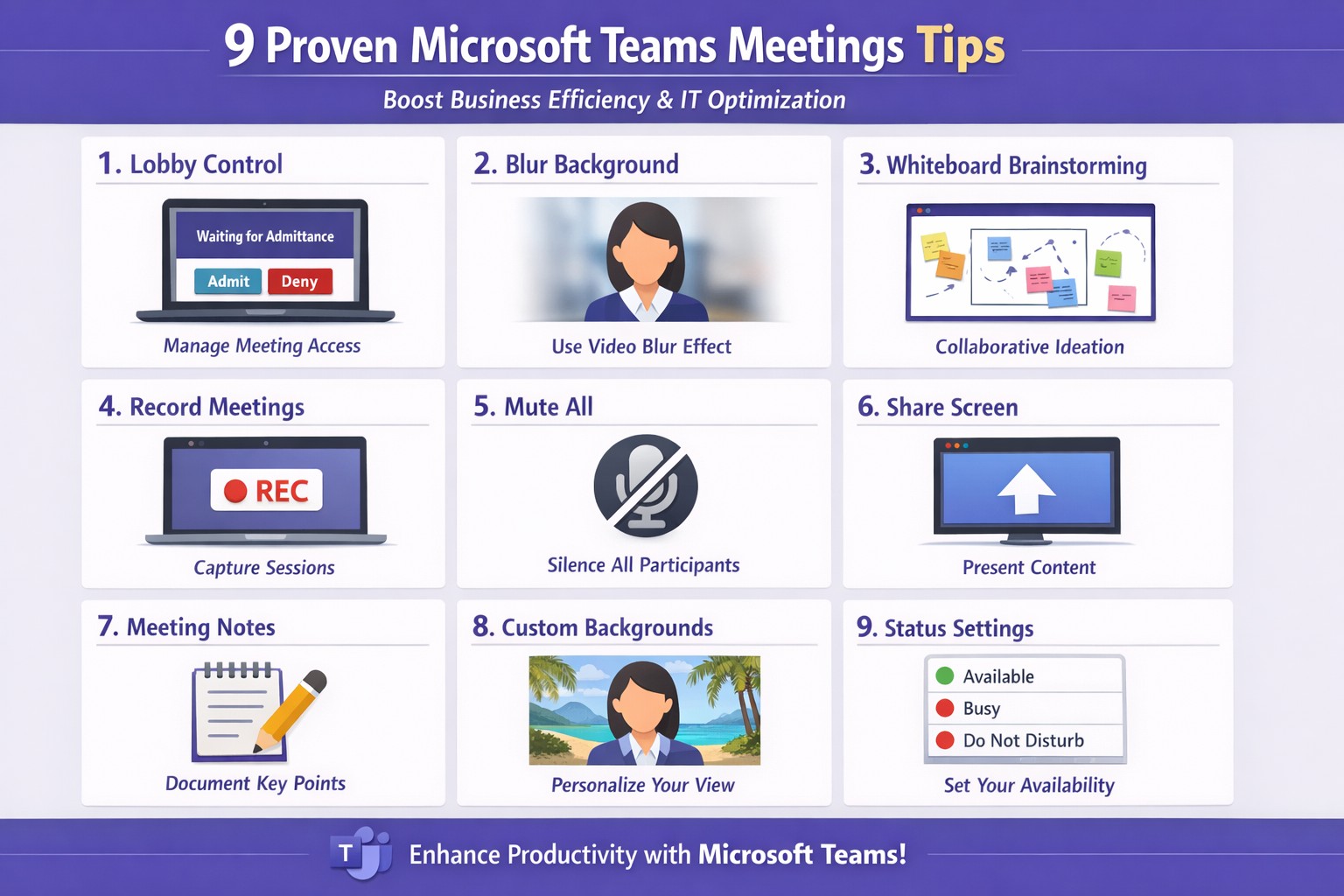
Apply these 9 Microsoft Teams meetings tips to enhance productivity and secure client calls
Ineffective meetings drain time and productivity. Mastering Microsoft Teams meetings ensures seamless collaboration, especially for remote teams in accounting, healthcare, or charity sectors where compliance and client trust matter.
Actionable Setup Steps
Business owners and IT departments can implement these steps for optimal Teams performance.
Verify hardware and network: Upgrade to Teams-certified devices like HD webcams and headsets; ensure 1.5 Mbps upload/download speeds per user. IT: Run network assessments via Teams admin center.
Configure meeting policies: In Teams admin center, enable lobby for external guests, restrict presentations to organizers, and auto-mute participants. Test via a pilot meeting.
Pre-load apps and integrations: Install Whiteboard, Planner, and OneNote; share agendas/files 24 hours ahead using channel posts.
These steps cut setup time by 30-50% based on Microsoft benchmarks.
9 Key Tips for High-Impact Meetings
Apply these practical tips, drawn from Microsoft and expert sources, to run concise, engaging sessions.
Control access with lobby: Require approval for entrants; mute all on join to minimize disruptions.
Mandate video with blur: Turn on cameras for face-to-face feel; use background blur to focus on faces.
Share selectively: Present specific windows/apps, not full desktop; request control for annotations.
Brainstorm via Whiteboard: Co-edit in real-time; save sessions automatically for follow-up.
Assign roles: Designate leader for flow, admin for tech (muting, lobby); use chat for side notes.
Leverage transcripts: Enable live captions/transcripts for accuracy, accessibility.
Keep short with breaks: Target 15-30 min huddles; park off-topic items.
Record and review: Auto-transcribe; search keywords post-meeting for action items.
Tip Category
Benefit
IT Action
Access Control
Reduces chaos
Set policies in admin center
Video/Sharing
Boosts engagement
Test bandwidth tools
Collaboration Tools
Enhances output
Integrate apps pre-rollout
FAQs for Client Inquiries
Q: How do we handle external clients securely? A: Use guest access with lobby approval and end-to-end encryption; review compliance in Teams settings.
Q: What if bandwidth lags? A: Lower video to 720p, disable HD; IT can prioritize QoS on routers.
Q: Can non-Teams users join? A: Yes, via browser link—no install needed; limit to view-only if sensitive.
Q: How to track action items? A: Assign in chat/Whiteboard; use Planner integration for tasks.
How Farmhouse Networking Helps
Farmhouse Networking specializes in tailored Microsoft 365 setups for accounting, healthcare, and charity businesses. We audit your Teams environment, implement these tips via custom policies, and optimize for SEO-driven branding—driving organic traffic and B2B leads. Our IT experts handle migrations, training, and 24/7 support to convert visitors into clients.
And God will generously provide all you need. Then you will always have everything you need and plenty left over to share with others. As the Scriptures say, “They share freely and give generously to the poor. Their good deeds will be remembered forever.” For God is the one who provides seed for the farmer and then bread to eat. In the same way, he will provide and increase your resources and then produce a great harvest of generosity in you. - 2 Corinthians 9:8-10
We use cookies to ensure that we give you the best experience on our website. If you continue to use this site we will assume that you are happy with it.