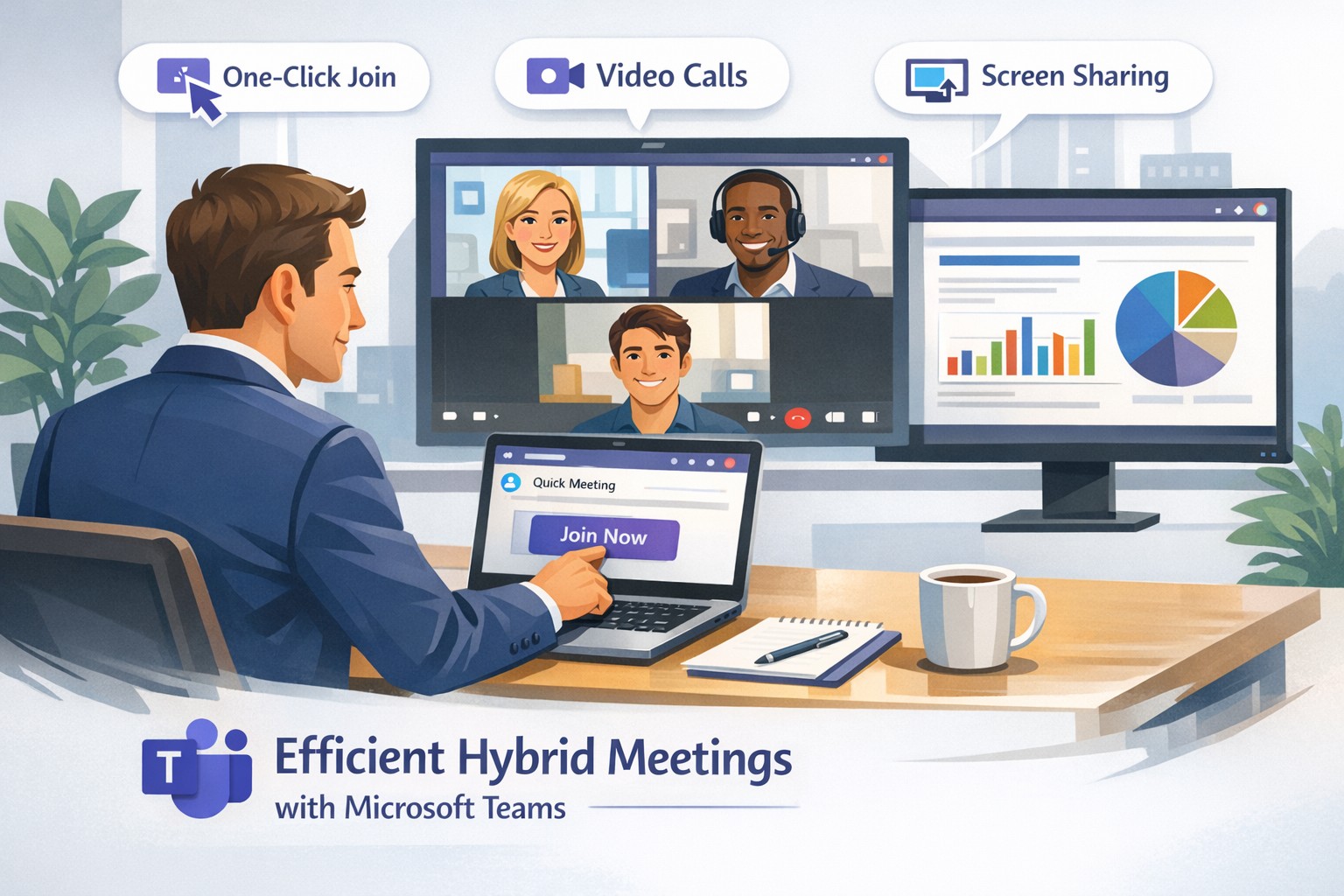
Launch secure, instant Microsoft Teams remote meetings to empower your business team’s hybrid collaboration.
Remote work demands seamless collaboration, and Microsoft Teams delivers instant meetings that keep your business agile without complex setups. As a business owner, you can empower your team to connect securely from anywhere, boosting productivity in hybrid environments.
Why Teams for Instant Meetings
Microsoft Teams stands out for remote work with features like one-click meeting joins, HD video conferencing, screen sharing, and recording—ideal for quick client calls or team huddles. Business owners benefit from its integration with Microsoft 365, unifying chat, files, and calendars to cut app-switching time. Security features, including end-to-end encryption and guest access controls, protect sensitive discussions.
Step-by-Step Setup Actions
Follow these practical steps for your IT department and team to launch instant meetings fast.
Sign Up and License: Purchase Microsoft Teams via Microsoft 365 Business plans (Essentials or Premium). IT admins assign licenses in the Microsoft 365 admin center.
Install the App: Download Teams desktop/mobile apps or use web version. IT pushes via Intune for managed devices.
Create a Team/Channel: In Teams, select “Teams” > “Create team” for your department. Add channels for projects.
Schedule or Start Instant Meeting: Click “Calendar” > “Meet now” for ad-hoc sessions, or schedule via Outlook integration. Share the link instantly.
Configure Policies: IT sets meeting policies in Teams admin center—enable recording, live captions, and Together mode for engagement.
Test and Train: Run a pilot meeting; use breakout rooms and noise suppression. Share quick-start guides with staff.
These steps take under 30 minutes for basics, scaling securely for 1,000+ attendees.
FAQs for Business Owners
How secure are instant Teams meetings for client discussions? Teams uses AES-256 encryption and compliance with GDPR/HIPAA. External guests join via links without accounts, with role-based access.
Can non-Microsoft users join instantly? Yes—share a browser link; no app or plugin needed. Guests enter their name and join in seconds.
What if internet fails during a meeting? Dial-in audio options and network strength indicators ensure continuity. Live captions aid accessibility.
How does Teams handle large remote teams? Supports up to 10,000 in broadcasts, with features like Front Row for hybrid rooms and meeting recaps for absentees.
Does it integrate with my existing tools? Seamlessly with Outlook, OneNote, and 1,000+ third-party apps via tabs/bots.
How Farmhouse Networking Helps
Farmhouse Networking specializes in Microsoft Teams deployments for accounting, healthcare, and charity sectors, ensuring SEO-optimized setups that drive B2B leads. We handle licensing audits, custom policy configs, and training to minimize downtime—tailored for compliance-heavy industries. Our lead generation strategies integrate Teams with your site for instant demos, enhancing customer experience. Past clients saw 40% faster meeting ramps and organic traffic gains via branded content hubs.
Call to Action
Ready to streamline remote meetings and scale your business? Email support@farmhousenetworking.com for a free Teams optimization audit.
Streamline your business with Microsoft Teams—chat, video, and tasks in one secure platform.
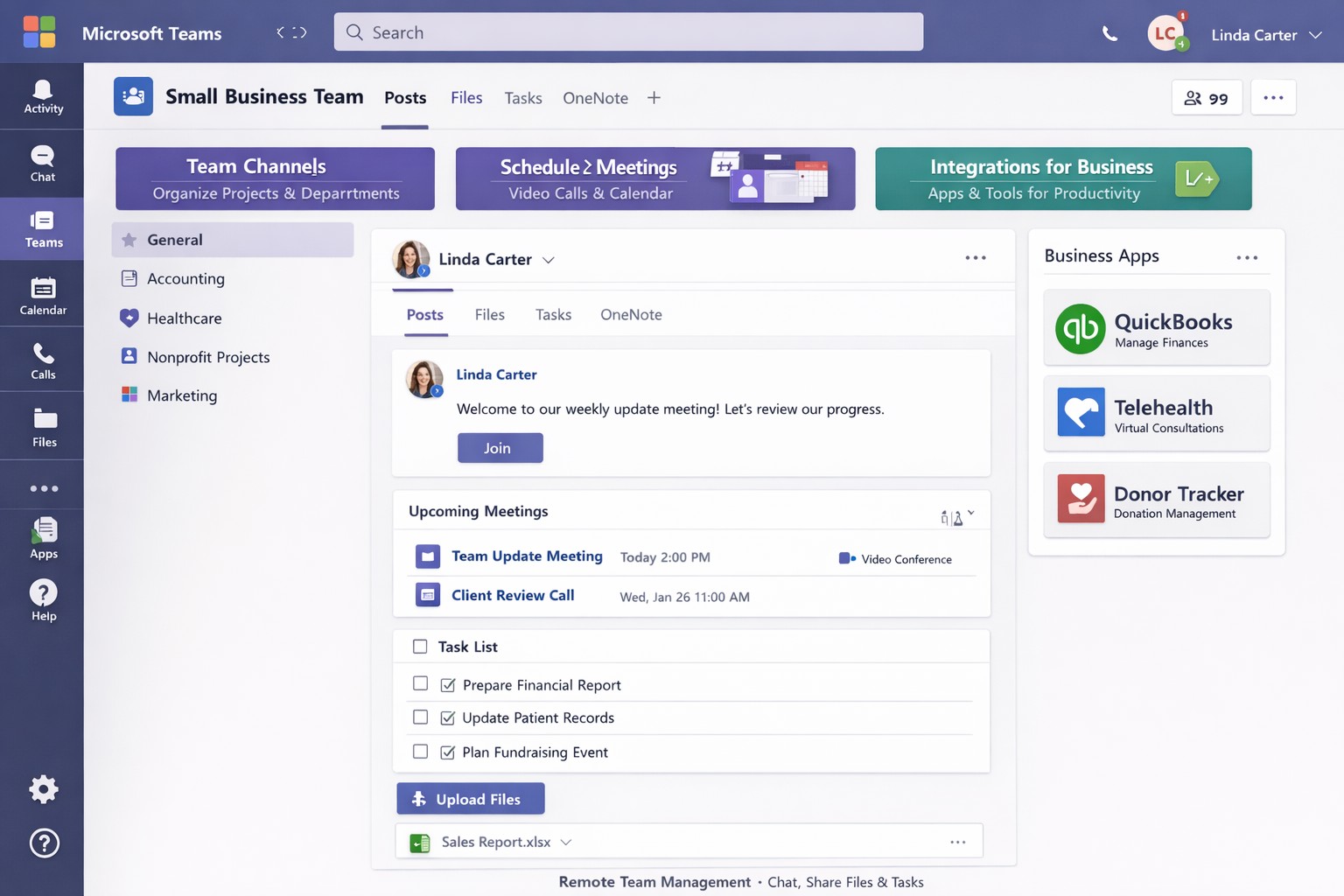
You’re juggling remote teams, client calls, and endless emails. Microsoft Teams cuts through the chaos, combining chat, video meetings, video conferencing, file sharing, and task management into one secure platform—boosting productivity without added costs if you have Microsoft 365.
Core Features for Your Business
Microsoft Teams is Microsoft’s hub for teamwork, included in most Microsoft 365 plans. It supports unlimited group meetings up to 30 hours, 10 GB cloud storage per user, unlimited chat, and data encryption for calls and files.
Key benefits include intelligent recaps for catching up on meetings, Power Automate for task automation, and integration with Outlook, OneDrive, and frontline tools like Shifts. Small businesses gain from guest access for clients and 300-participant meetings, reducing email overload.
Practical Action Steps
Follow these steps with your IT department to deploy Teams effectively.
Assess Licensing: Check your Microsoft 365 subscriptions—Teams is often included. Upgrade to Teams Essentials ($4/user/month) for standalone use or Premium for AI features like Copilot.
IT Setup: Assign global admins in the Microsoft 365 admin center. Enable Teams via the Teams admin center, configure policies for meetings and external access, and set up single sign-on (SSO).
Team Creation: Business owner creates teams by department (e.g., Sales, Accounting). IT adds users, channels for projects, and apps like Planner for tasks.
Training Rollout: Mandate 1-2 hour sessions using built-in guides or integrated learning. Test with a pilot group for chat, calls, and file sharing.
Go Live and Monitor: Launch company-wide, track usage via analytics in Teams admin center, and enforce naming conventions for channels.
These steps take 1-2 weeks, minimizing downtime.
FAQ: Client Inquiries Answered
Q: Is Teams secure for client data? A: Yes—end-to-end encryption covers meetings, chats, and files. Guest access allows secure external sharing without full licenses.
Q: How does Teams handle hybrid work? A: Features like Teams Rooms for in-office setups, mobile access, and Together Mode make it ideal for mixed teams. Shifts schedules frontline staff.
Q: What’s the cost for small businesses? A: Free with Microsoft 365 Business Basic ($6/user/month). Essentials adds standalone options at low cost; Premium enhances with AI.
Q: Can we integrate custom apps? A: Over 250 apps available, plus Power Automate for workflows. Custom bots possible via developer tools.
Q: How to avoid adoption issues? A: Start with quick wins like chat over email. Use in-app training and engagement nudges for 80%+ usage in weeks.
How Farmhouse Networking Helps
Farmhouse Networking specializes in Microsoft deployments for accounting, healthcare, and charity sectors. We handle full Teams setup: licensing audits, custom policies for HIPAA/GDPR compliance, migration from Zoom/Slack, and branded onboarding training.
Our SEO-optimized websites integrate Teams calendars for lead-gen, plus analytics to track ROI—driving 30-50% productivity gains. We target B2B clients like yours via organic content on “Teams for accountants” or “Teams healthcare compliance.”
Call to Action
Ready to streamline your operations? Email support@farmhousenetworking.com for a free Teams assessment tailored to your business. Transform collaboration today.
Microsoft Teams unifies chat, video, and files to streamline business collaboration – ideal for accounting, healthcare, and charity teams.
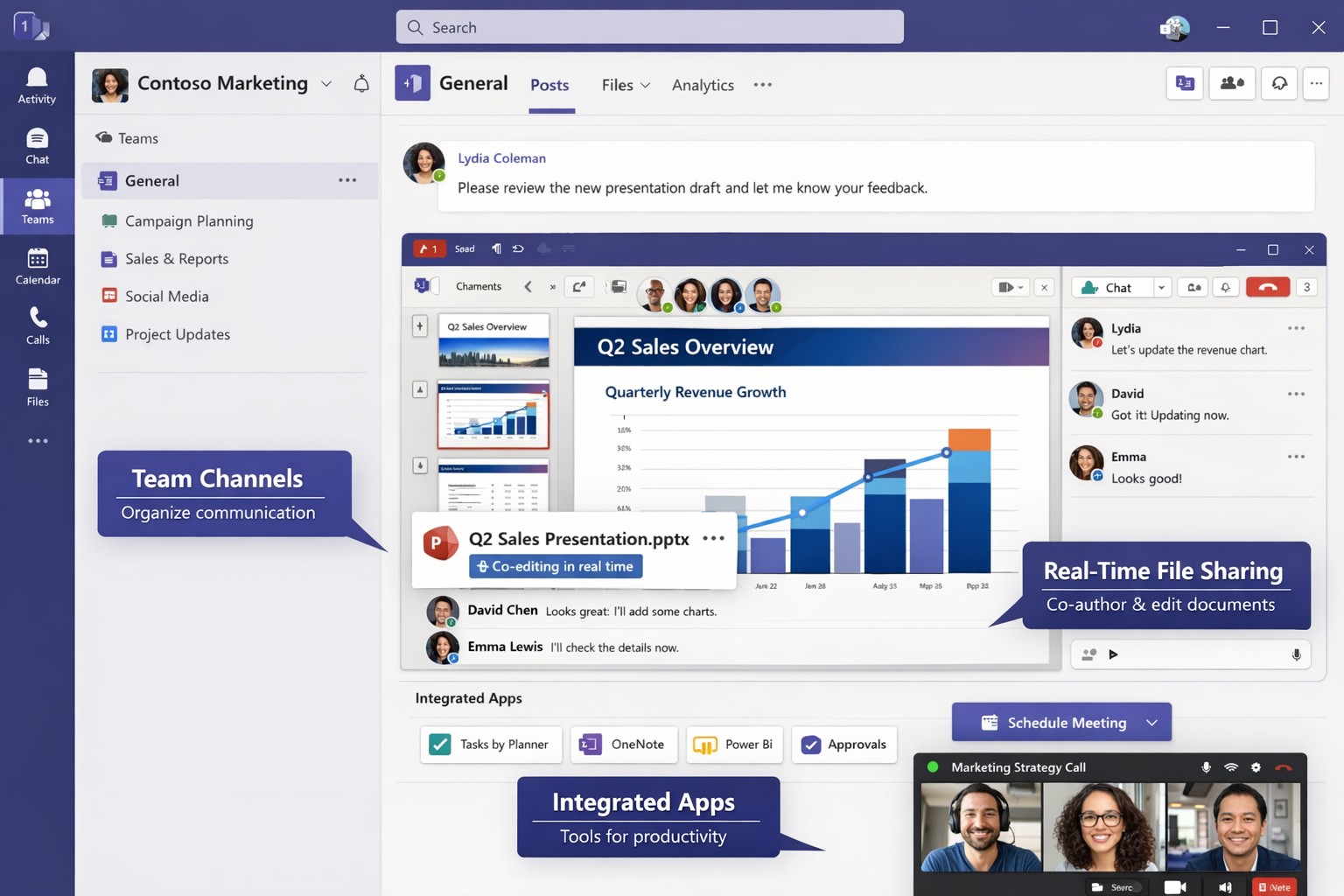
Fragmented communication tools lead to lost productivity and missed opportunities. Microsoft Teams unifies chat, video, file sharing, and apps into one platform, boosting efficiency for accounting firms tracking client data, healthcare providers coordinating patient care, or charities managing donor campaigns.
Why Unify with Teams?
Teams integrates seamlessly with Microsoft 365, centralizing workflows to reduce email overload by 40-50% in typical deployments. For B2B owners, this means faster decision-making across hybrid teams—essential for industries like yours where compliance and real-time updates are critical. Real-world adopters report 20-30% gains in cross-departmental collaboration.
Practical Action Steps
Follow these steps with your IT department to implement Teams effectively.
Assess Needs: Audit current tools (email, Slack, Zoom). Survey teams on pain points like siloed files or meeting fatigue. Assign an IT lead to map requirements.
Set Up Licensing: Purchase Microsoft 365 Business Premium ($22/user/month) via the admin center. Enable Teams for all users and configure security policies like multi-factor authentication.
Create Structure: Build teams and channels by department/project (e.g., “Q1 Accounting Audits”). Pin key apps like Planner for tasks and OneDrive for files. Limit private channels for sensitive data.
Train Staff: Roll out 1-hour sessions via Teams Live Events. Cover channels, @mentions, and integrations. Use Microsoft’s free templates for quick onboarding.
Integrate and Test: Connect with Outlook, SharePoint, and industry tools (e.g., QuickBooks for accounting). Pilot with one department, monitor adoption via analytics, then scale.
Optimize Ongoing: Review usage monthly. Automate with Power Automate flows (e.g., approval workflows) and gather feedback to refine.
These steps typically take 4-6 weeks, yielding immediate ROI through reduced tool sprawl.
FAQ: Client Inquiries Answered
How secure is Teams for regulated industries like healthcare or accounting? Teams meets HIPAA, GDPR, and SOC 2 standards with end-to-end encryption and data loss prevention. Retention policies ensure compliance without custom coding.
What if my team resists change? Start small: Gamify adoption with badges for active users. 75% of employees value collaboration tools when trained properly.
Can Teams replace multiple apps? Yes—integrates 250+ apps, including CRM for charities or EHR for healthcare. Custom bots handle routine tasks, cutting manual work.
How much does it cost long-term? Starts at $6/user/month for basics; scales with add-ons. Expect 1-2 year payback via productivity gains.
Does it support hybrid/remote work? Fully—real-time co-editing, breakout rooms, and AI noise suppression keep distributed teams aligned.
How Farmhouse Networking Helps
Farmhouse Networking specializes in B2B setups for accounting, healthcare, and charities. We handle full Teams deployment: custom audits, secure configurations, staff training, and SEO-optimized intranets to drive internal efficiency. Our clients see 25% faster project closes. We integrate with your existing stack, ensuring zero downtime.
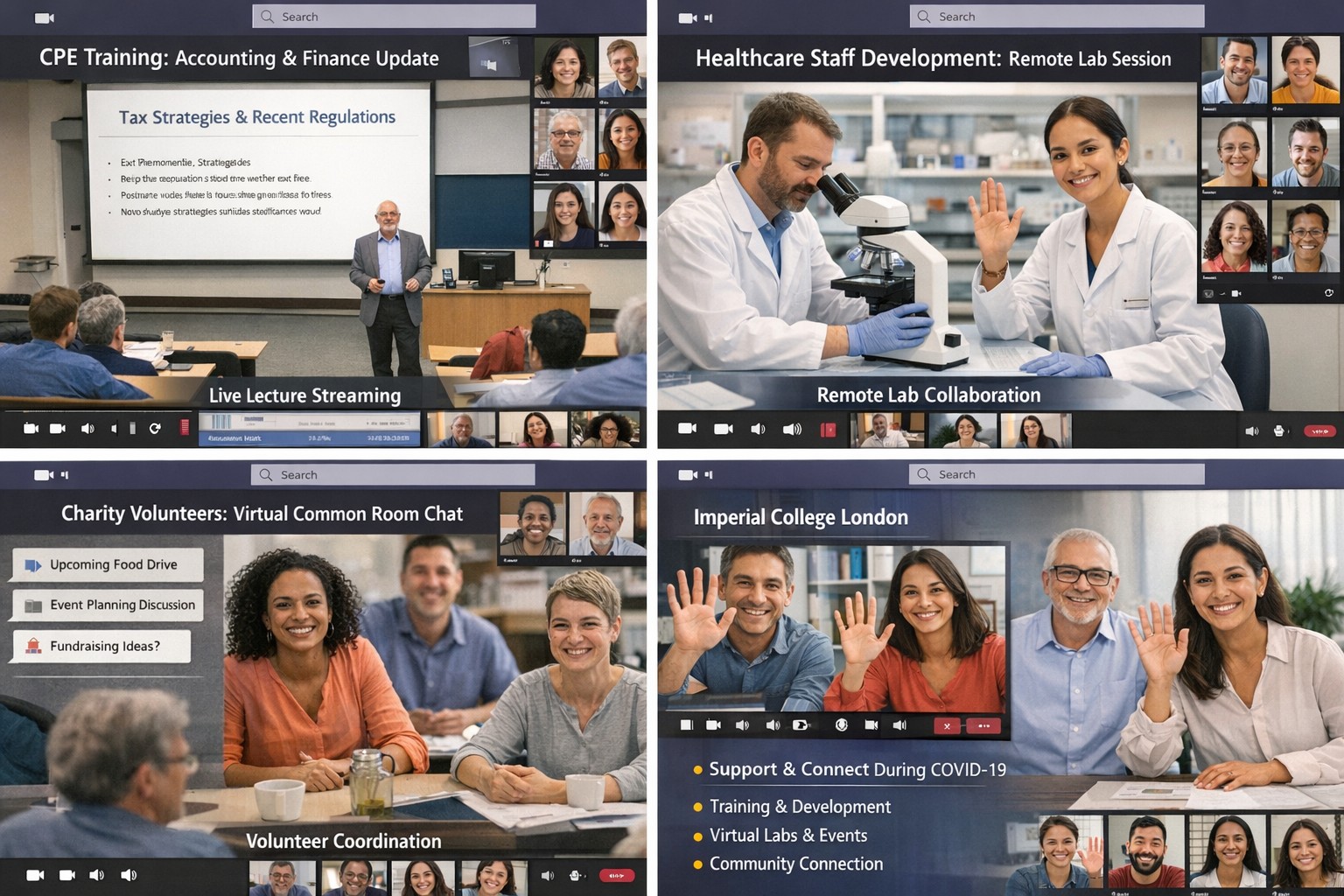
Teams enables Imperial College’s complete COVID-19 remote learning ecosystem
A world top ten university, with an international reputation for excellence in teaching and research, Imperial College London now uses Microsoft Teams to teach and connect in a time of COVID-19. In this video, see how the college is now relying on Teams for the delivery of its lectures and its remote labs, as well as a “virtual common room” where students and faculty can interact. Staff now have the fluid integration of shared files, scheduled events, and the students’ use of the virtual learning environment, providing opportunities to respond to students in a way never done before.
The Federal Trade Commission (FTC) has agreed with Zoom to settle their allegations that it “engaged in a series of deceptive and unfair practices that undermined the security of its users.”
Settlement Conditions
The conditions put forth by the settlement The FTC complaint said that:
Since at least 2016, the company misled users by touting that it offered “end-to-end, 256-bit encryption” to secure users’ communications, when in fact it provided a lower level of security, i.e., it encrypted communications but stored the encryption keys on its servers
The company misled users by saying that recorded meetings that were stored on the company’s cloud storage were encrypted immediately after the meeting ended, which was untrue in some cases
In July 2018, the company compromised the security of some users when it secretly installed a hidden web server on Macs that helped with frictionless installation of the Zoom application
The settlement does not oblige Zoom to admit fault or pay a fine, but obligates it to:
Refrain from misrepresenting privacy and security practices, including about how it collects, uses, maintains, or discloses personal information; its security features; and the extent to which users can control the privacy or security of their personal information
Implement a comprehensive information security program and obtain biennial assessments of its security program by an independent third party and notify the FTC if it experiences a data breach
Implement a vulnerability management program
Assess and document on an annual basis any potential internal and external security risks and develop ways to safeguard against such risks Deploy safeguards such as MFA to protect against unauthorized access to its network; institute data deletion controls; and take steps to prevent the use of known compromised user credentials
Review any software updates for security flaws and ensure the updates will not hamper third-party security features
Quoted from https://www.helpnetsecurity.com/2020/11/10/ftc-zoom/
If your company is going to use video conferencing to assist with work from home or to remotely connect with clients, then contact us for assistance.
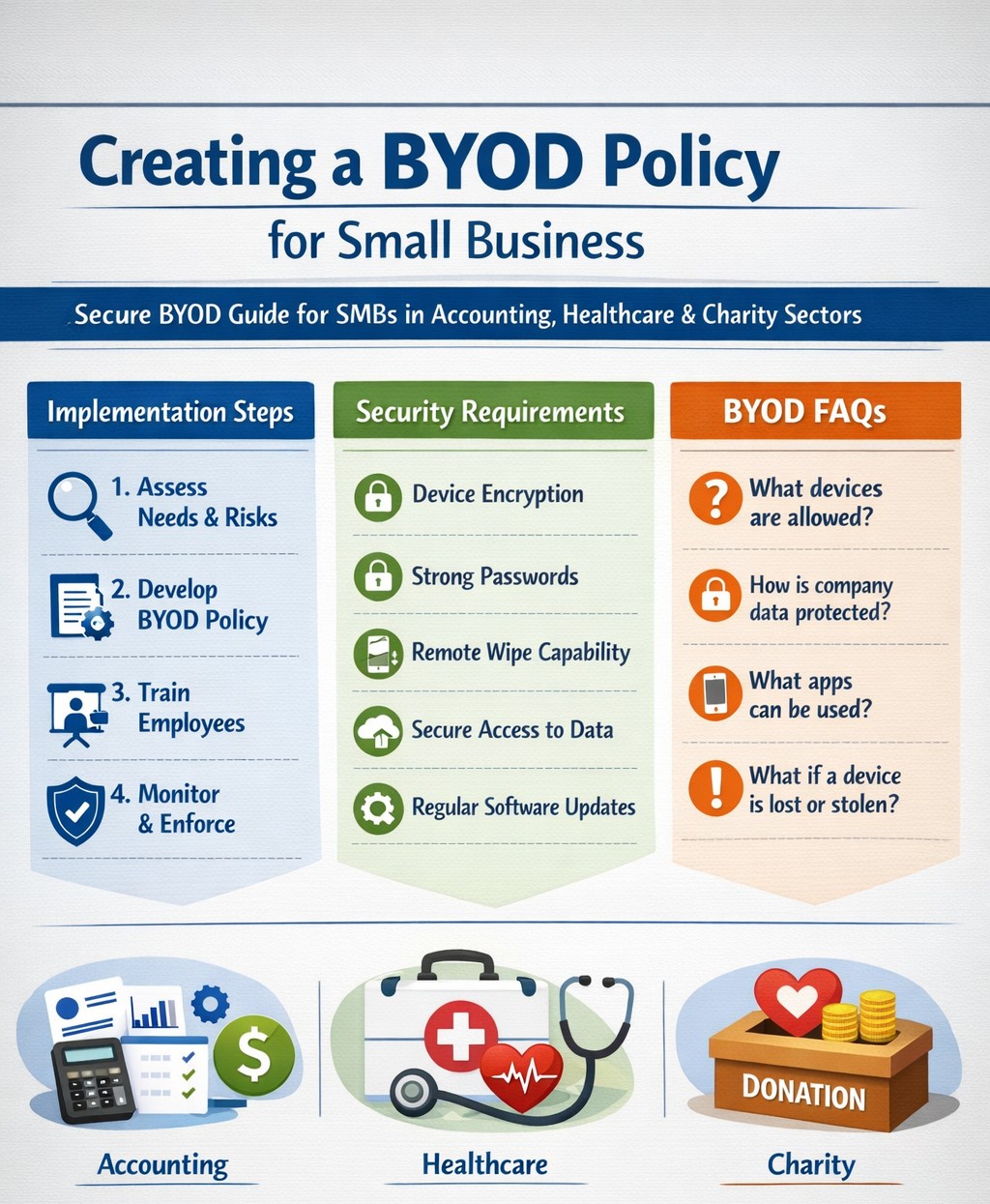
Step-by-step BYOD policy checklist for small businesses – protect data and cut costs with our proven guide.
Allowing employees to use personal devices for work—known as Bring Your Own Device (BYOD)—can cut hardware costs by up to 50% and boost productivity, but it exposes your data to risks like breaches if unmanaged. This guide provides actionable steps to craft a secure BYOD policy tailored for your operations.
Why BYOD Matters for Your Business
BYOD lets employees work flexibly on familiar devices, ideal for small teams in accounting, healthcare, or nonprofits where agility drives growth. Without a policy, however, you risk data leaks, compliance violations (e.g., HIPAA for healthcare), and lost productivity from IT issues. A strong policy balances these by defining rules upfront.
Key Components of Your BYOD Policy
Include these essentials to protect your business:
Data Separation: Use Mobile Device Management (MDM) to isolate work apps from personal data.
Acceptable Use: Limit work access to business hours unless approved; ban risky sites or app syncing.
Onboarding/Offboarding: Detail enrollment (e.g., MDM install) and exit processes (remote wipe of company data only).
Privacy and Liability: Clarify monitoring rights, employee data protection, and who covers repairs.
Step-by-Step Implementation Guide
Follow these practical actions with your IT team or provider:
Assess Needs: Audit current devices and risks; define goals like cost savings or remote access. Involve legal for compliance.
Draft Policy: Write in plain language (1-2 pages); include templates for consent forms. Get employee/legal buy-in.
Choose Tools: Select MDM like Microsoft Intune or Jamf (under $10/user/month for small biz); enable remote wipe and app controls.
Train Staff: Host 30-minute sessions on setup, phishing, and policy rules; provide FAQs and setup guides.
Pilot Test: Roll out to 5-10 users for 2 weeks; gather feedback on issues like battery drain.
Launch and Monitor: Enforce via automated alerts; review quarterly for updates (e.g., new OS threats).
Offboard Securely: Automate access revocation on employee exit; test wipes.
Step
Owner
Timeline
Tools Needed
Assess Needs
Business Owner
1 week
Risk checklist
Draft Policy
IT/Owner
1-2 weeks
Word template
Pilot Test
IT Team
2 weeks
MDM trial
Review
All
Quarterly
Audit logs
FAQs: Client Questions Answered
Q: Does BYOD work for regulated industries like accounting or healthcare? A: Yes, with MDM for data isolation and compliance features (e.g., audit logs for HIPAA/SOX). Avoid full wipes; use containerization.
Q: What if an employee loses their device? A: Policy requires immediate IT report; MDM enables remote lock/wipe of company data only, preserving personal files.
Q: How much does MDM cost for 10 users? A: $5-15/user/month; free tiers exist for basics, scaling with features like geofencing.
Q: Can I monitor personal apps? A: No—focus on company data only to respect privacy laws; disclose monitoring in policy.
Q: What about support for personal devices? A: Limit to work apps; charge for hardware fixes or outsource to MSPs.
How Farmhouse Networking Helps
Farmhouse Networking specializes in BYOD setups for accounting, healthcare, and charity sectors, handling policy drafting, MDM deployment, and training to drive secure organic growth. We integrate SEO-optimized client portals and lead-gen tools, ensuring compliance while converting visitors to B2B clients. Our custom strategies cut implementation time by 40% via automated audits.
Call to Action
Ready to secure your BYOD policy and scale efficiently? Email support@farmhousenetworking.com today for a free policy audit and personalized strategy.
And God will generously provide all you need. Then you will always have everything you need and plenty left over to share with others. As the Scriptures say, “They share freely and give generously to the poor. Their good deeds will be remembered forever.” For God is the one who provides seed for the farmer and then bread to eat. In the same way, he will provide and increase your resources and then produce a great harvest of generosity in you. - 2 Corinthians 9:8-10
We use cookies to ensure that we give you the best experience on our website. If you continue to use this site we will assume that you are happy with it.