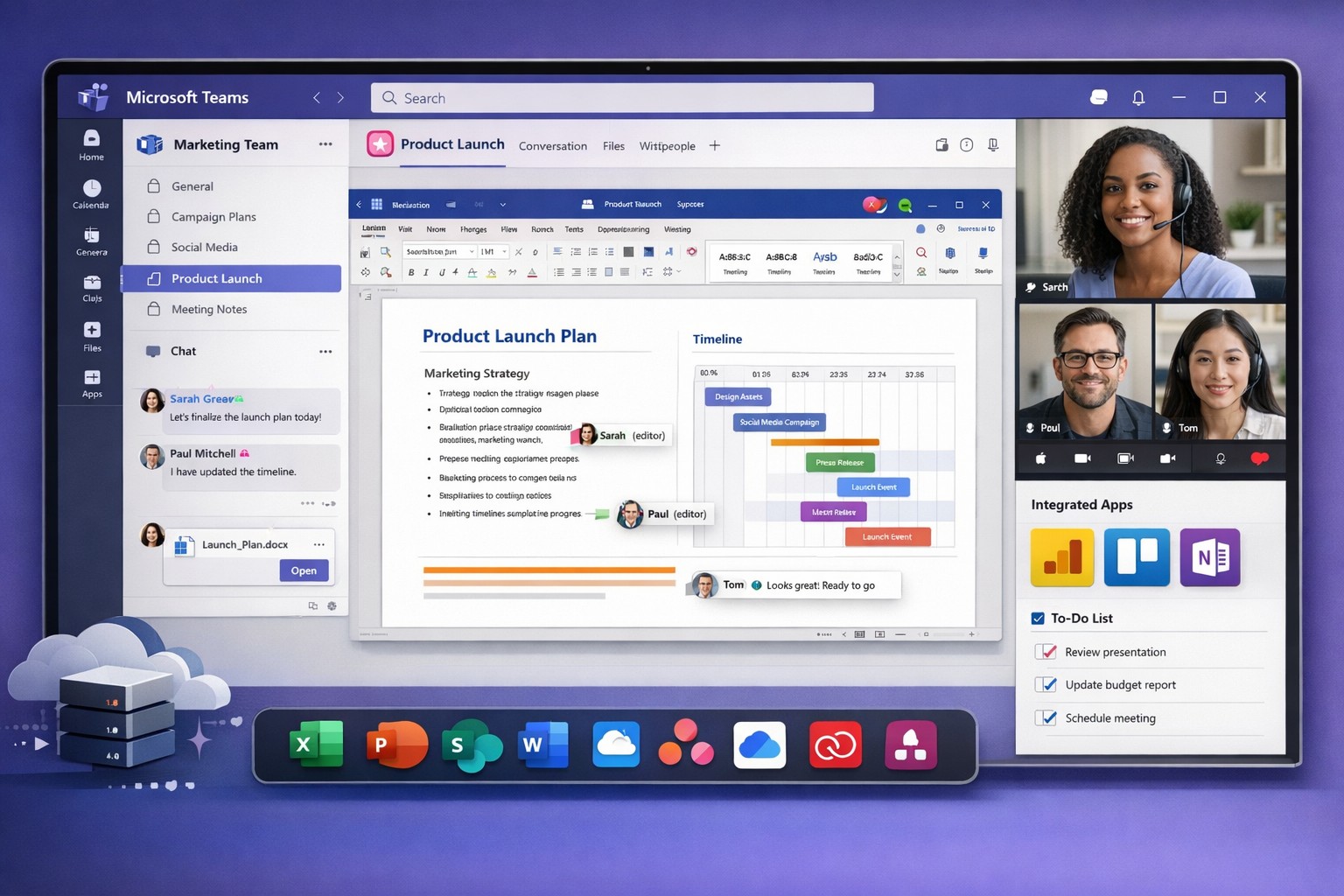
Microsoft Teams interface: Central hub for team collaboration, file sharing, and resource management to boost business productivity.
You’re constantly juggling teams, projects, and resources across locations. Microsoft technology, like Teams and Microsoft 365, centralizes everything into one platform to boost productivity and cut chaos.
Key Microsoft Tools for Collaboration
Microsoft Teams stands out as the hub, combining chat, video calls, file sharing, and app integrations. It lets teams create channels for projects, co-edit documents in real-time, and invite external partners securely.
Other tools like SharePoint for file storage, Planner for task tracking, and Viva Insights for analytics integrate natively, ensuring resources stay organized without switching apps. AI features, such as meeting summaries and action item capture, automate admin work.
These tools scale for small businesses to enterprises, supporting hybrid work with mobile access and real-time updates.
Practical Action Steps
Follow these steps with your IT department to implement quickly.
Assess Needs: Audit current tools—list pain points like scattered emails or file versions. Involve team leads via a short survey.
Set Up Microsoft 365: Sign up for a business plan (e.g., Microsoft 365 Business Premium). IT assigns licenses and configures security like multi-factor authentication.
Deploy Teams: Create core teams/channels (e.g., “Sales-Projects”, “Ops-General”). IT enables integrations with Outlook and OneDrive.
Train Users: Run 1-hour sessions on channels, @mentions, and file sharing. Share quick guides for Week 1 exploration.
Optimize and Monitor: Use SEO-like naming (descriptive keywords in channel names/descriptions) for findability. Review usage weekly, tidy unused channels, and add tabs for apps like Planner.
Expect 20-30% productivity gains within weeks through better communication.
FAQ: Client Inquiries Answered
How secure is Microsoft Teams for sensitive business data? Teams uses enterprise-grade encryption, compliance with GDPR/HIPAA, and role-based access. Guests get limited permissions.
What about costs for small businesses? Plans start at $6/user/month. Free trials let you test without commitment. ROI comes from reduced email overload and faster decisions.
Can it integrate with non-Microsoft tools? Yes, via 1,000+ app connectors (e.g., Zoom, Salesforce). Custom workflows via Power Automate.
How do we handle adoption resistance? Start small: Pilot with one department, gather feedback, and showcase wins like saved meeting time. AI recaps help busy owners.
Is it good for remote/hybrid teams? Perfect—real-time co-authoring, calls, and channels keep everyone aligned across time zones.
How Farmhouse Networking Helps
Farmhouse Networking specializes in Microsoft 365 deployments for accounting, healthcare, and charity sectors. We handle audits, custom setups, SEO-optimized Teams structures (e.g., keyword-rich naming for internal search), training, and ongoing optimization to drive efficiency.
Our B2B clients see faster lead gen through streamlined client portals and improved CX via integrated resources. We target organic traffic with blog strategies like this, positioning your firm as a tech leader.
Call to Action
Ready to unify your teams? Email support@farmhousenetworking.com for a free Microsoft collaboration audit tailored to your business.
Using the right collaboration tools and strategies helps teams communicate faster, reduce silos, and get more done together.
Up to 80% of employees’ time is spent on collaborative activities—emails, meetings, and informal coordination. Yet many businesses still struggle with communication breakdowns, duplicated effort, and siloed teams. For a business owner, this isn’t just a “people problem”; it’s a productivity and profitability problem. The good news is that a few well‑chosen tools and strategies can unblock collaboration and give your organization a clear competitive edge.
Below are five practical tool categories and strategies tailored to business owners, plus specific actions your leadership and IT teams can take to implement them.
1. Centralize Communication with a Unified Platform
Many teams juggle email, texts, Slack‑like apps, and project tools, which fragments information and creates confusion. A unified communication platform (for example, Microsoft 365 with Teams–style capabilities) keeps chats, calls, files, and tasks in one place. This reduces missed messages, speeds up decisions, and makes onboarding new staff easier.
Action steps for you and your IT team:
Audit current tools; identify redundant channels and sunset ones that are underused.
Choose one primary communication suite aligned with your existing infrastructure.
Configure clear norms: which channel is for urgent issues, which is for project updates, and which is for casual conversation.
Train staff with short, role‑specific sessions (e.g., “how to create a team channel” vs. “how to share a secure file”).
2. Use Project Management and Task‑Tracking Tools
Without visibility into who is doing what, teams waste time chasing status updates and reworking tasks. Project management tools such as Asana‑style platforms or similar task‑tracking systems help teams align on goals, deadlines, and deliverables. They also surface bottlenecks before they become major delays.
Action steps:
Define 2–3 core workflows (e.g., client onboarding, internal reporting, campaign launches) that will live in the tool.
Assign an “owner” for each workflow and task to ensure accountability.
Integrate the tool with your central communication platform so updates appear automatically (e.g., “Task completed” posts to a project channel).
Review dashboards weekly in leadership meetings to spot recurring delays or capacity issues.
3. Standardize Document Collaboration and Access
Version confusion—multiple copies of the same file circulating by email—wastes hours and creates compliance risks. Cloud‑based document collaboration (e.g., shared workspaces with real‑time editing and audit trails) keeps everyone on the same version and improves governance.
Action steps:
Migrate all operational documents into a single secure collaboration platform.
Set consistent folder structures and naming conventions (e.g., “ClientName_ProjectName_YYYYMMDD”).
Define permission levels: who can edit, who can comment, and who can only view.
Automate versioning and retention rules so older drafts are archived, not deleted.
4. Train Teams on Collaboration Norms (Not Just Tools)
Tools only work if people understand how to use them effectively. Studies show that poor training and unclear norms are major blockers to digital collaboration. Investing in short, ongoing training and clear collaboration guidelines pays back in faster decision‑making and less friction.
Action steps:
Roll out a “Collaboration Playbook” with simple rules: response‑time expectations, meeting‑free blocks, and escalation paths.
Host quarterly micro‑training sessions (15–20 minutes) focused on one tool or behavior, such as giving feedback in shared documents.
Encourage managers to model the behavior they want—using the right channels, documenting decisions, and tagging tasks clearly.
Survey staff every six months to identify new pain points and refine norms.
5. Measure and Iterate on Collaboration Performance
Leadership often assumes collaboration is “working,” but without metrics, issues remain hidden. Tracking collaboration effectiveness—such as cycle times for key workflows, meeting‑to‑decision ratios, and employee feedback—lets you spot what is and isn’t working.
Action steps:
Define 3–5 key collaboration KPIs (e.g., average time to close a client request, number of “urgent” emails vs. structured tickets, employee survey scores on “feeling heard”).
Set up simple dashboards in your project or collaboration tools so you can review them monthly.
Host quarterly “collaboration health checks” where leadership and team leads discuss what to start, stop, or change.
Adjust tools, training, and processes based on the data, not just opinions.
Frequently Asked Questions (For Your Clients)
Q: How do we choose the right collaboration tools without over‑complicating everything? A: Start with your existing ecosystem (e.g., Microsoft 365, Google Workspace) and extend it; avoid introducing too many new brands. Pilot one tool for a single department, measure impact, then scale if it improves speed and clarity.
Q: Won’t collaboration tools just create more noise and notifications? A: Only if there are no clear rules. Define communication norms, mute non‑essential channels, and train teams on “signal vs. noise” to keep collaboration productive, not chaotic.
Q: How do we get remote or hybrid teams to collaborate effectively? A: Treat remote and in‑office staff the same: use the same tools, agendas, and documentation. Default to “everything is recorded or written” so no one is left out of the loop.
Q: What’s the role of IT versus leadership in this process? A: IT owns setup, security, and integration; leadership owns behavior, expectations, and culture. Both need to align on goals and metrics.
How Farmhouse Networking Can Help
Farmhouse Networking specializes in helping business owners remove the friction from workplace collaboration by aligning technology with real‑world workflows. We can help you:
Audit your current tools and collaboration pain points.
Design and deploy a secure, unified communication and collaboration stack tailored to your industry and team size.
Integrate project management, file sharing, and communication tools into a single, intuitive experience.
Provide staff training and ongoing support so your investment translates into measurable productivity gains.
Ready to Unblock Your Team’s Collaboration?
If you’re a business owner who is tired of endless email threads, missed deadlines, and siloed information, it’s time to rethink how your team collaborates.
Email us at support@farmhousenetworking.com for more information about how Farmhouse Networking can help improve your business—from tool selection and deployment to training and ongoing optimization.
Unlock productivity: Microsoft remote work solutions let your team collaborate from anywhere on any device.
Business owners face mounting pressure to enable flexible work while maintaining productivity and security. Microsoft technology delivers seamless remote access across devices, transforming how your team operates from virtually any location. This post outlines actionable steps, answers key questions, and shows how Farmhouse Networking can streamline your implementation.
Core Microsoft Tools for Remote Work
Microsoft 365, Teams, Intune, and Azure Virtual Desktop form the backbone of device-agnostic remote work. These tools support real-time collaboration, secure file access, and centralized management without on-premises hardware dependency. For instance, Teams integrates chat, video, VoIP, and file sharing into one hub, boosting efficiency for distributed teams.
Intune enables IT to enforce policies on employee devices remotely, while Azure ensures scalable cloud infrastructure. This setup minimizes downtime and scales with business growth.
Practical Action Steps
Follow these steps with your IT department to deploy Microsoft remote work capabilities.
Assess Current Infrastructure: Inventory devices, apps, and workflows. Identify gaps in security (e.g., MFA) and collaboration tools. Use Microsoft’s free assessment tools in the 365 admin center.
Subscribe to Microsoft 365: Choose Business Premium or E3/E5 plans for Intune, Teams, and Entra ID. Enable SSO and MFA via Entra ID for secure access.
Configure Device Management: Deploy Intune for endpoint management. Enroll devices (Windows, macOS, iOS, Android) and set compliance policies like encryption and app restrictions.
Set Up Teams and Communication: Migrate PBX to Teams Phone System for enterprise voice. Integrate OneDrive for secure file sync and SharePoint for team sites.
Test and Train: Run pilot with 10-20 users. Provide training via Microsoft Viva or custom sessions. Monitor adoption with Teams analytics.
Scale and Secure: Implement Zero Trust with Azure AD Conditional Access. Regularly audit via Microsoft Defender for endpoints.
These steps typically take 4-8 weeks, reducing setup costs by leveraging cloud-native features.
FAQ: Client Inquiries Answered
Q: What devices are supported? A: Microsoft tools work on Windows, macOS, iOS, Android, and even Linux via web apps. Intune manages all, ensuring consistent policies.
Q: How secure is remote access? A: Zero Trust model verifies every access with MFA, device health checks, and AI-driven threat detection in Defender. Data stays encrypted end-to-end.
Q: Will it integrate with our existing PBX? A: Yes, Teams Calling extends or replaces PBX systems, supporting auto-attendants and call analytics without hardware changes.
Q: What’s the cost for a 50-person team? A: Microsoft 365 Business Premium starts at $22/user/month, including all tools. Add-ons like Teams Phone run $8-15/user/month. ROI comes from 20-30% productivity gains.
Q: How do we handle user adoption? A: Use built-in training modules, Teams champions, and help desk integration. Adoption rates hit 90% with structured onboarding.
How Farmhouse Networking Accelerates Your Setup
Farmhouse Networking specializes in Microsoft deployments for accounting, healthcare, and charity sectors. We handle custom assessments, Intune configurations, Teams migrations, and ongoing help desk support—shortening timelines from months to weeks. Our experts ensure HIPAA/GDPR compliance for healthcare and secure donor data for charities, while optimizing for accounting firms’ audit trails. We’ve boosted remote productivity 40% for similar clients via tailored QuickStarts.
Call to Action
Ready to enable seamless remote work? Email support@farmhousenetworking.com for a free Microsoft readiness audit and custom strategy.
Leverage Microsoft collaboration tools like Teams to help customers work together efficiently and boost your business workflows.
You know collaboration drives growth—but scattered tools and poor communication waste time and opportunities. Microsoft technology, like Teams and Microsoft 365, enables your customers to work together effortlessly, boosting satisfaction and loyalty. This post outlines how to implement it effectively for your business.
Key Microsoft Collaboration Tools
Microsoft Teams serves as the central hub for meetings, chats, calls, and file sharing, integrating with Outlook and OneNote for streamlined workflows. Tools like Microsoft Loop offer flexible workspaces for co-creation, while Whiteboard supports real-time brainstorming across locations. These features allow customers to join as guests, co-author documents, and track projects without switching apps, enhancing productivity by up to 30% in team settings.
Practical Action Steps
Follow these steps with your IT department to deploy Microsoft collaboration tools targeting customer interactions.
Assess Needs: Audit current customer touchpoints—review emails, support tickets, and feedback to identify collaboration gaps, such as delayed responses or siloed data.
Select Licensing: Choose Microsoft 365 Business Premium for Teams, SharePoint, and Copilot AI features; start with a 1-month trial to test scalability.
Set Up Teams Channels: Create dedicated customer channels for projects, enabling guest access; configure permissions to limit sensitive data exposure.
Integrate Tools: Link Teams with OneDrive for secure file sharing and Power Automate for automated workflows, like instant notifications on customer updates.
Train Staff: Run 2-hour sessions on co-authoring in Word/Excel and meeting recaps; use Microsoft’s free resources for onboarding.
Test and Monitor: Pilot with 5 key customers, tracking metrics like response time (aim for <2 hours) via Teams analytics; adjust based on feedback.
These steps typically take 2-4 weeks, yielding faster customer resolutions and stronger relationships.
FAQ: Customer Inquiries Answered
How secure is customer data in Teams? Microsoft Teams uses end-to-end encryption and compliance with GDPR/HIPAA, with guest access controls to prevent unauthorized sharing.
Can customers join without a Microsoft account? Yes, external guests join via browser or app invite—no account needed—ideal for quick collaborations.
What if our team is remote or hybrid? Teams supports anywhere-access with AI recaps, transcripts, and intelligent speakers for up to 1,000 attendees.
How does this integrate with existing CRM? Seamless with Dynamics 365 or third-party apps via APIs, syncing customer data for unified views.
What’s the ROI for small businesses? Businesses report 20-50% productivity gains through reduced email overload and real-time co-editing.
How Farmhouse Networking Helps
Farmhouse Networking specializes in Microsoft 365 deployments for accounting, healthcare, and charity sectors, ensuring SEO-optimized client portals and lead-gen strategies. We handle audits, custom setups, training, and ongoing optimization—delivering 99.9% uptime and measurable traffic growth to your collaboration hubs. Our experts integrate Copilot for AI-driven insights, turning customer interactions into B2B opportunities.
Ready to unlock Microsoft-powered collaboration? Email support@farmhousenetworking.com for a free consultation on improving your business today.
And God will generously provide all you need. Then you will always have everything you need and plenty left over to share with others. As the Scriptures say,
“They share freely and give generously to the poor. Their good deeds will be remembered forever.”
For God is the one who provides seed for the farmer and then bread to eat. In the same way, he will provide and increase your resources and then produce a great harvest of generosity in you. - 2 Corinthians 9:8-10
We use cookies to ensure that we give you the best experience on our website. If you continue to use this site we will assume that you are happy with it.