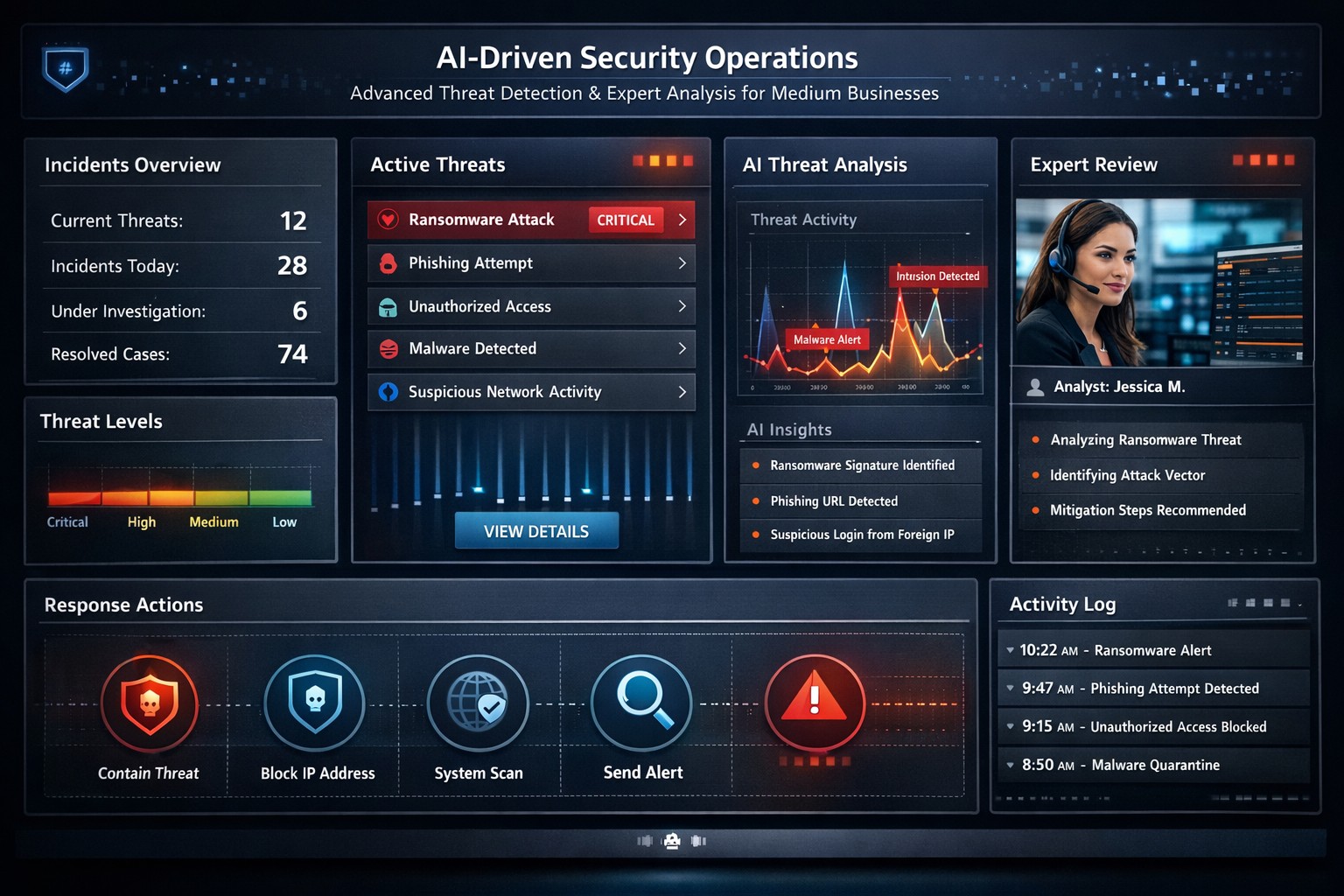
Visualizing faster threat detection: Data-driven cybersecurity with human oversight protects medium business systems from attacks.
You’re juggling growth, operations, and rising cyber threats that could halt everything overnight. A data-driven, human-guided security approach empowers you to detect and respond to attacks quicker and more accurately – reducing downtime and protecting your bottom line.
Why This Approach Wins for Medium Businesses
Traditional cybersecurity relies on static rules, often missing sophisticated threats amid complex networks from remote work and cloud tools. Data-driven strategies analyze real-time logs, user behavior, and threat intelligence with AI, spotting anomalies humans might overlook. Human oversight ensures context-aware decisions, blending machine speed with expert judgment for precision. This hybrid model cuts response times from days to minutes, vital for medium businesses lacking massive security teams.
Practical Action Steps
Implement these steps with your IT department to build this defense:
Audit Data Sources: Identify critical logs from networks, endpoints, and apps; prioritize user behavior and external threat feeds for comprehensive visibility.
Deploy Analytics Tools: Integrate AI platforms like SIEM systems with machine learning for anomaly detection; start with open-source options or scalable SaaS for cost efficiency.
Enable Automated Alerts: Set up real-time monitoring with automated responses for low-risk issues, reserving human review for high-severity events.
Train Your Team: Conduct quarterly simulations blending data insights with human decision-making; focus on root-cause analysis from past incidents.
Test and Iterate: Run monthly penetration tests, using data to rank risks and measure improvements in detection accuracy.
These steps scale affordably, leveraging existing infrastructure without overhauling your setup.
Common Questions Answered
How does this differ from basic antivirus? Antivirus scans for known signatures; data-driven security uses behavioral analytics to catch zero-day threats, with humans validating alerts for accuracy.
What’s the ROI for a medium business? Expect 50-70% faster incident response, slashing breach costs (average $4.5M per IBM data) and boosting compliance, freeing IT for growth initiatives.
How much does implementation cost? Initial setup ranges $50K-$150K for mid-tier tools and training, with ROI in 6-12 months via prevented losses; cloud options minimize upfront spend.
Can we handle this in-house? Yes for basics, but partnering accelerates expertise; human-guided layers prevent AI false positives that overwhelm small teams.
What about regulatory compliance? Automated reporting from data tools simplifies GDPR, HIPAA, or CCPA audits, proving proactive measures with auditable logs.
How Farmhouse Networking Supports You
At Farmhouse Networking, we specialize in tailored strategies for accounting, healthcare, and charity sectors—industries facing strict compliance and high-stakes data risks. Our team deploys data-driven platforms integrated with human-guided SOC services, handling audits, tool setup, and 24/7 monitoring. We’ve helped similar medium businesses cut threat response by 60%, enhancing SEO-friendly client trust signals like security badges. From branding secure websites to lead-gen funnels that highlight your defenses, we drive organic traffic and B2B conversions.
Ready to fortify your systems? Email support@farmhousenetworking.com for a free risk assessment and custom roadmap. Act now—secure your edge
Every day, BP manages the difficult business of finding, producing, marketing, and moving energy around the globe. Core to success is the modernization and digitization of the business, while being able to defend a vast digital perimeter against cyberattacks. This video shows how BP is migrating its work environment to Microsoft 365 Enterprise E5 to take advantage of a platform approach.
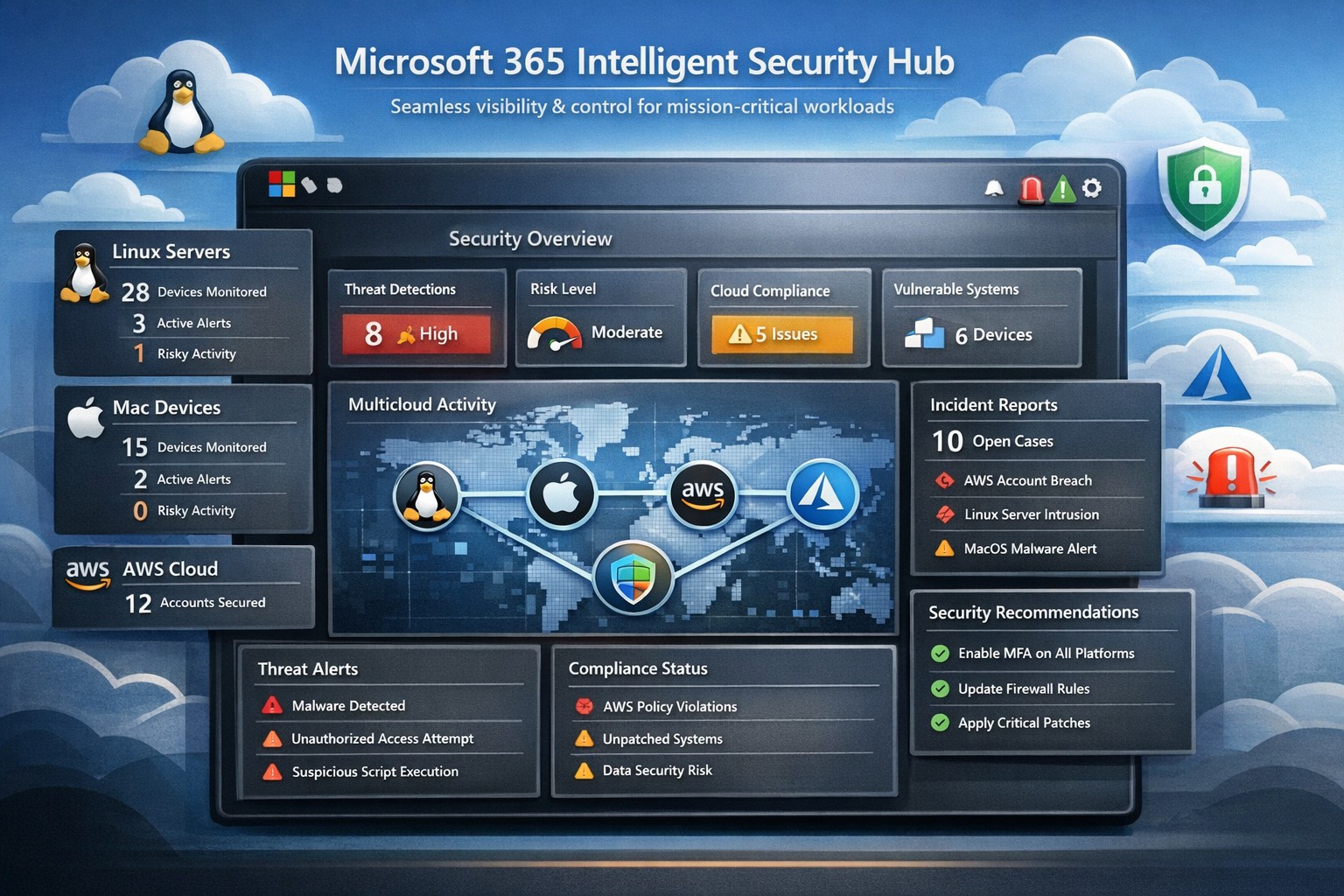
Unified Microsoft 365 security hub managing threats across Linux, Mac, and AWS platforms for business workloads.
Managing security across diverse platforms like Windows, Linux, Mac, AWS, and beyond can feel overwhelming—yet Microsoft 365’s intelligent security hub, powered by tools like Microsoft Defender for Cloud Apps, delivers seamless protection for mission-critical workloads. This unified approach goes far beyond Microsoft ecosystems, providing visibility, threat detection, and governance exactly where your operations demand it.
Core Features of Microsoft 365 Security Hub
Microsoft 365 integrates Microsoft Defender, Purview, and Sentinel into a central hub for multicloud security, supporting Linux, Mac, AWS, and more through connectors and agents. Key capabilities include anomaly detection via machine learning, data loss prevention (DLP), conditional access, and real-time threat response across hybrid environments. Business Premium plans enhance this with endpoint protection for diverse devices and Safe Links/Attachments for Teams, SharePoint, and OneDrive.
Practical Action Steps for Implementation
Follow these steps with your IT team to deploy Microsoft 365’s security hub effectively:
Verify Licensing and Access: Ensure Microsoft 365 Business Premium licenses for users; access via Microsoft Defender Portal > Cloud Apps (requires Security Administrator role).
Enable Core Protections: Turn on MFA via security defaults or Conditional Access; activate preset policies for anti-phishing, anti-malware, and admin account protection.
Connect Apps and Devices: In Defender Portal, go to Settings > Cloud Apps > App Connectors to link AWS, Office 365, etc.; onboard devices with Intune or Defender for Business agents for Mac/Linux.
Configure Policies and Discovery: Create session policies, DLP for sensitive data, and cloud discovery reports using firewall logs or Defender for Endpoint integration.
Monitor and Maintain: Review Secure Score dashboard weekly; set alerts for anomalies and conduct regular audits.
These steps typically take 1-4 weeks, starting with a pilot group.
FAQs: Client Inquiries Answered
Does it really support non-Microsoft platforms like AWS and Linux? Yes, Defender for Cloud Apps uses API connectors for AWS visibility, agents for Linux/Mac endpoints, and multicloud posture management without agent overhead on some resources.
How does it handle multi-cloud workloads? It provides unified threat protection, anomaly detection, and IAM inheritance across Azure, AWS, GCP via Defender for Cloud, integrating with existing tools like Sentinel for SIEM.
What’s the cost impact for small businesses? Included in Business Premium (~$22/user/month); scales with users, no extra for basic multicloud connectors—focus on high-value workloads first.
How secure is data in transit across platforms? Encryption via Purview, Safe Links for URLs, and session controls block risky actions; complies with standards like GDPR through DLP policies.
How Farmhouse Networking Boosts Your Security Efforts
Farmhouse Networking specializes in Microsoft 365 deployments for accounting, healthcare, and charity sectors, handling setup, policy customization, and ongoing optimization to drive secure organic growth. We integrate your multicloud environments (e.g., AWS with M365), train IT teams, and monitor via Lighthouse for MSP-grade efficiency—reducing breach risks while enhancing client trust and conversions.
When The Walsh Group—one of the largest construction contractors in the United States—moved to the cloud, it realized it needed better ways to manage who accesses its systems. The company set up identity as the control plane—with Microsoft Azure Active Directory at the center and a zero-trust security stance to better protect access to all its resources. Now, The Walsh Group CIO says the company leads the industry in securing access to its hybrid environment, giving it a competitive advantage. Read the article for more.
Single secure vault eliminates password sprawl across business apps
Whether you are buying something from an online store, reading your email in the browser, checking your account balances, or uploading photos / videos to social media, most websites require an individual username and password when accessing their services. This raises various problems.
What’s with ALL the Passwords?
Using the same password for all the websites you access is a bad idea and horribly insecure. If we run a quick check on the “Dark Web” for your email address, it would likely show that hackers already know the one password you have been using forever. So the only other option is multiple passwords, which can easily go beyond the limits of our feeble human brains to keep track of OR people start creating a list that is typically typed up and saved on the computer – if a hacker gets into the computer then all the passwords are theirs too. So then the option is to find a secure way of storing and backing up these passwords, not to mention trying to make them easy to use.
Rangle Them Passwords!
That is the job of Password Management done by a small piece of software known as a password manager. It takes the complexity down to remembering the one password to open the software, then it tracks the rest from there. The good ones have the ability to generate passwords for you, store them in connection with the website you are visiting, auto-filling the password fields on the websites when you visit them again, and backup your passwords to the cloud – all with strong security and encryption to keep the hackers out of your business.
If your company is still typing passwords into a list, or worse have a paper list, then contact us for assistance migrating to a password manager.
As our business continues to focus on providing white labeled Tier 3 IT support services, RMM as a service, and co-managed IT services this blog will be highlighting tips for RMM automation. Here is one of the recent scripts we added to our RMM. We often find ourselves creating a local user and network share for SMB scanner on the customer network. Here is the script we created to automate this process:
Variables
It is important to not store variables in scripts especially when they are credentials for a user on the local computer, so make sure to define variables accordingly. Here are the variables we are using for this script:
$ScanDir = the local directory (c:\scans) where the scanner with store files via SMB
$Username = username for the new local user account
$Password = password for the new local user account
Script Snippet
#Change password to useable by powershell and create new user if it does not already exist
$Pass = ConvertTo-SecureString $Password -AsPlainText -Force
if(!(gwmi -class Win32_UserAccount | Where {$_.Name -eq $Username}))
{
 New-LocalUser -Name $Username -Password $Pass -PasswordNeverExpires
 Write-Host "User has been created successfully"
}

else
{
Write-Host "The given user: $Username already exists"
}

#Create scans directory specified if it does not already exist.
if(!(Test-Path -path $ScanDir))
{
 New-Item -ItemType directory -Path $ScanDir
 Write-Host "Folder path has been created successfully at: " $ScanDir
 }
else
{
Write-Host "The given folder path $ScanDir already exists"
}

#Create scans share if it does not already exist
if(!(Get-SMBShare -Name scans -ea 0))
{
New-SMBShare –Name “scans” –Path $ScanDir –FullAccess everyone
Write-Host "The scans Share has been created successfully"
 }
else
{
Write-Host "The scans share already exists"
}

#Set network profile to Private to allow SMB communication on all currently attached networks
Get-NetConnectionProfile | Set-NetConnectionProfile -NetworkCategory Private
Checking whether each item already exists helps the RMM to get the proper exit code and not show the script as failed when run. Please notice that the script changes the network profile to Private, which may need to be altered if you are in a domain to DomainAuthenticated. We do this as Windows Firewall will not allow SMB traffic to traverse in the Public profile, which is the default on a new network. All that is left is to setup the printers scanner profiles with the SMB share \\computername\scans and the new user created.
If your company is a MSP or wants to become one and automation just seems out of reach, then contact us to run your RMM for you.
On January 5, 2021, President Trump signed into law legislation approved by the House Energy and Commerce Committee known as HR 7898. HR 7898, now law, requires the Department of Health and Human Services (HHS) to “incentivize” a covered entity’s or business associate’s cybersecurity best practices.
How We Get Chewed
Now when a business is under a HIPAA audit the HSS will be looking at whether the company has been following cybersecurity best practices for not less than the past 12 months. Here are what HR7899 classifies as best practices:
Standards, guidelines, best practices, methodologies, procedures, and processes developed under the National Institute of Standards and Technology Act (NIST Act).
Programs and practices that are developed in, recognized by, or set forth in federal laws other than HIPAA.
If these measures were in place, HHS can lower the amount of a fine and decrease the length and extent of an audit – aka if you are not doing these things your fine will be larger and your audit will be more intense for longer period of time.
If you do not already have a designated HIPAA compliance officer and ALL the proper documentation in place, then contact us for assistance.
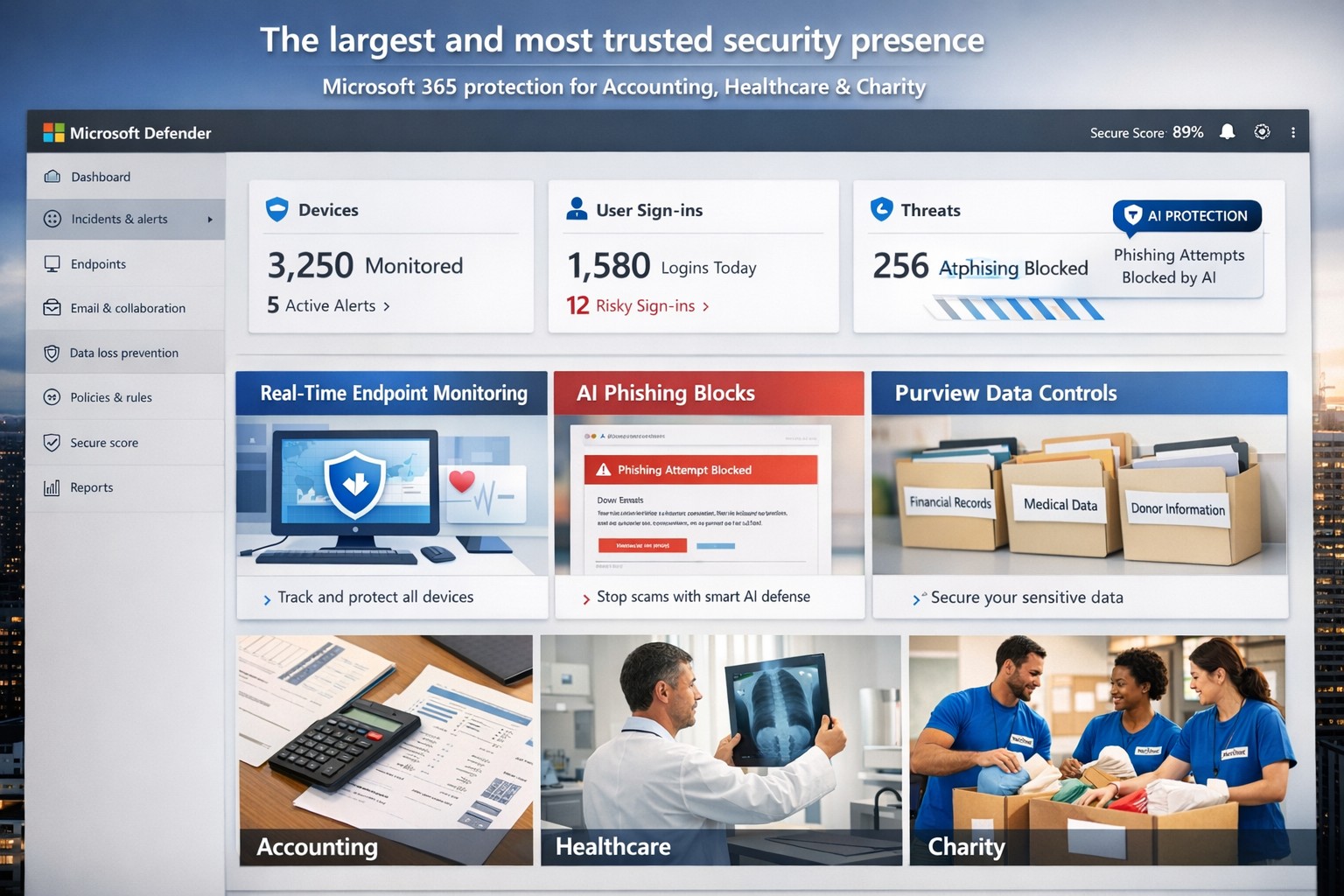
Microsoft’s AI-driven security suite—largest global presence, top-rated for business threat detection and compliance.
Cyber threats like ransomware and phishing can cripple operations overnight. Microsoft delivers the largest, most trusted security ecosystem, leveraging AI-powered tools and enterprise-grade protection tailored for small to mid-sized firms.
Microsoft’s Security Dominance
Microsoft secures over 400,000 organizations globally with solutions like Microsoft 365 Business Premium and Defender for Business, protecting up to 300 users across devices. These tools block AI-driven phishing, ransomware, and data leaks using real-time threat intelligence from billions of signals daily. Independent tests from AV-TEST and MITRE consistently rank Microsoft Defender highest for detection and response.
Key strengths include:
Endpoint protection for Windows, macOS, iOS, Android.
Identity safeguards via Microsoft Entra ID with multifactor authentication.
Data loss prevention through Microsoft Purview for sensitive files and emails.
Practical Action Steps
Implement Microsoft’s security in phases with your IT team for quick wins.
Assess Current Risks: Use Microsoft Defender’s vulnerability scanner in the Microsoft 365 admin center to identify weak devices and unpatched software—takes under 30 minutes.
Deploy Microsoft 365 Business Premium: Purchase via the Microsoft 365 portal ($22/user/month), enable AI anti-phishing, and apply device policies via Intune for remote wipe on lost devices.
Onboard Defender for Business: Run the wizard-based setup for endpoint detection/response (EDR); configure auto-remediation for threats. Supports up to 5 devices/user.
Enable Purview Data Controls: Set sensitivity labels on emails/files and activate insider-risk detection to flag anomalous behavior.
Train Staff Monthly: Use built-in phishing simulations and security reports to enforce compliance—review summaries in the Defender portal.
These steps reduce breach risk by 50% within 90 days, per Microsoft data.
FAQs for Business Owners
How does Microsoft compare to competitors like CrowdStrike? Microsoft integrates natively with your existing Microsoft stack (Outlook, Teams), offering broader coverage at lower cost—no extra agents needed. It excels in XDR across endpoints, email, and identity.
Is it scalable for growing firms? Yes, starts at 300 users but upgrades seamlessly to enterprise plans like Defender XDR, handling unlimited scale with unified management.
What about compliance (e.g., HIPAA for healthcare)? Purview provides audit-ready tools for data lifecycle, encryption, and retention—meets GDPR, HIPAA, SOC 2 standards out-of-box.
How secure is it against zero-day attacks? AI models from Microsoft’s vast telemetry predict and block novel threats; EDR auto-disrupts attacks pre-escalation.
What’s the setup time and cost? Wizard onboarding: 1-2 hours. Pricing: $3/user/month standalone Defender or bundled in Business Premium. No upfront hardware.
How Farmhouse Networking Helps
Farmhouse Networking specializes in deploying Microsoft security for accounting, healthcare, and charity sectors—industries facing strict compliance and high-stakes data risks. We handle full implementation: gap analysis, custom Intune policies, Purview configurations, and ongoing monitoring via our managed SecOps service. Our clients see 40% faster threat response and zero downtime breaches. As your partner, we optimize for SEO-driven lead gen too—securing your site while boosting organic traffic on terms like “Microsoft Defender for business security.”
Ready to fortify your business? Email support@farmhousenetworking.com for a free security audit and personalized Microsoft roadmap. Act now—threats don’t wait.
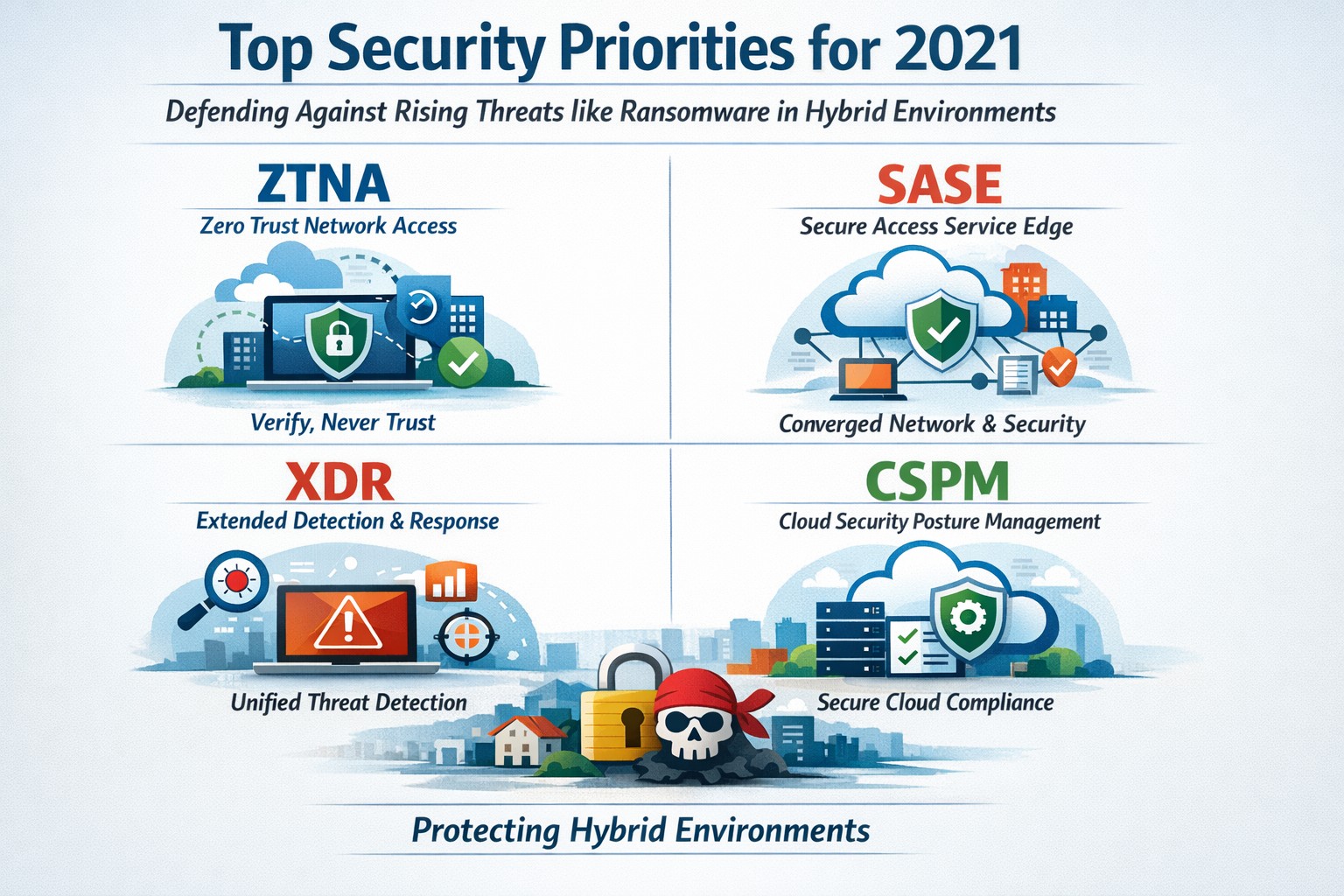
Infographic of top 2021 security solutions including SASE, XDR, and risk-based vulnerability management for secure remote work
The shift to remote work and cloud services in 2021 exposed critical vulnerabilities, with threats like ransomware surging 93% year-over-year. This overview distills Gartner’s top security priorities from that pivotal year, helping you safeguard operations without overwhelming your IT team.
Key 2021 Security Priorities
Gartner’s 2021 recommendations focused on ten high-impact projects to counter rising cyber risks amid hybrid work. Top priorities included securing teleworking, implementing risk-based vulnerability management, and deploying Extended Detection and Response (XDR) platforms for unified threat monitoring. Cloud security posture management (CSPM) and simplified access controls via Cloud Access Security Brokers (CASBs) addressed the rapid cloud adoption boom.
These solutions converged under Secure Access Service Edge (SASE), reducing point-product sprawl while enabling Zero Trust Network Access (ZTNA). Business owners benefited from passwordless authentication (e.g., FIDO2) and DMARC for email, cutting phishing success by up to 80% in early adopters.
Practical Action Steps
Follow these targeted steps with your IT department to implement 2021-era protections efficiently.
Assess Remote Access Risks: Audit VPN usage and deploy ZTNA or SASE within 30 days—start with a tool like Zscaler or Palo Alto Prisma Access to verify user identity per session.
Prioritize Vulnerability Patching: Use risk-based tools (e.g., Tenable or Qualys) to score and remediate flaws; target critical patches in under 7 days.
Unify Threat Detection with XDR: Consolidate SIEM, EDR, and network tools into one platform like Microsoft Defender XDR; test via a 90-day pilot.
Secure Cloud Configurations: Run CSPM scans weekly with Prisma Cloud or Lacework; enforce least-privilege via CASBs.
Enable Passwordless and DMARC: Roll out MFA everywhere, then phishing-resistant auth; configure DMARC on all domains to block spoofing.
Classify and Protect Data: Tag sensitive files with tools like Microsoft Purview; apply DLP policies to block unauthorized sharing.
These steps typically yield 40-60% risk reduction in the first quarter when executed sequentially.
FAQs: Client Inquiries Answered
What made 2021 security solutions different from prior years? 2021 emphasized convergence—XDR and SASE merged siloed tools into streamlined platforms, addressing remote work’s explosion post-COVID.
How much do these implementations cost for a mid-sized business? Entry-level XDR/SASE starts at $10-20/user/month; full rollout for 100 users averages $50K initial plus $24K/year, with ROI from breach avoidance exceeding 5x.
Will these protect against ransomware like in 2021 outbreaks? Yes—risk-based vuln management and XDR detect lateral movement early, as seen in blocking 95% of Colonial Pipeline-style attacks.
How long to see results? Quick wins in 4-6 weeks (e.g., DMARC setup); full maturity in 6 months with automation.
Do I need a full IT overhaul? No—layer these onto existing infra; start with high-ROI items like teleworking security.
How Farmhouse Networking Supports Your Implementation
Farmhouse Networking specializes in tailored security for accounting, healthcare, and charity sectors, where compliance (HIPAA, PCI-DSS) amplifies risks. We handle audits, XDR/SASE deployments, and CSPM configurations, integrating seamlessly with your cloud stack (O365, AWS).
Our team delivers managed services: weekly vuln scans, 24/7 XDR monitoring, and staff training—reducing your IT burden by 70%. We’ve helped similar clients cut incidents 85% post-2021 upgrades, ensuring HIPAA/GDPR alignment without downtime.
Call to Action
Ready to fortify your business with proven 2021 security solutions? Email support@farmhousenetworking.com today for a free risk assessment and custom roadmap. Protect your operations—act now.
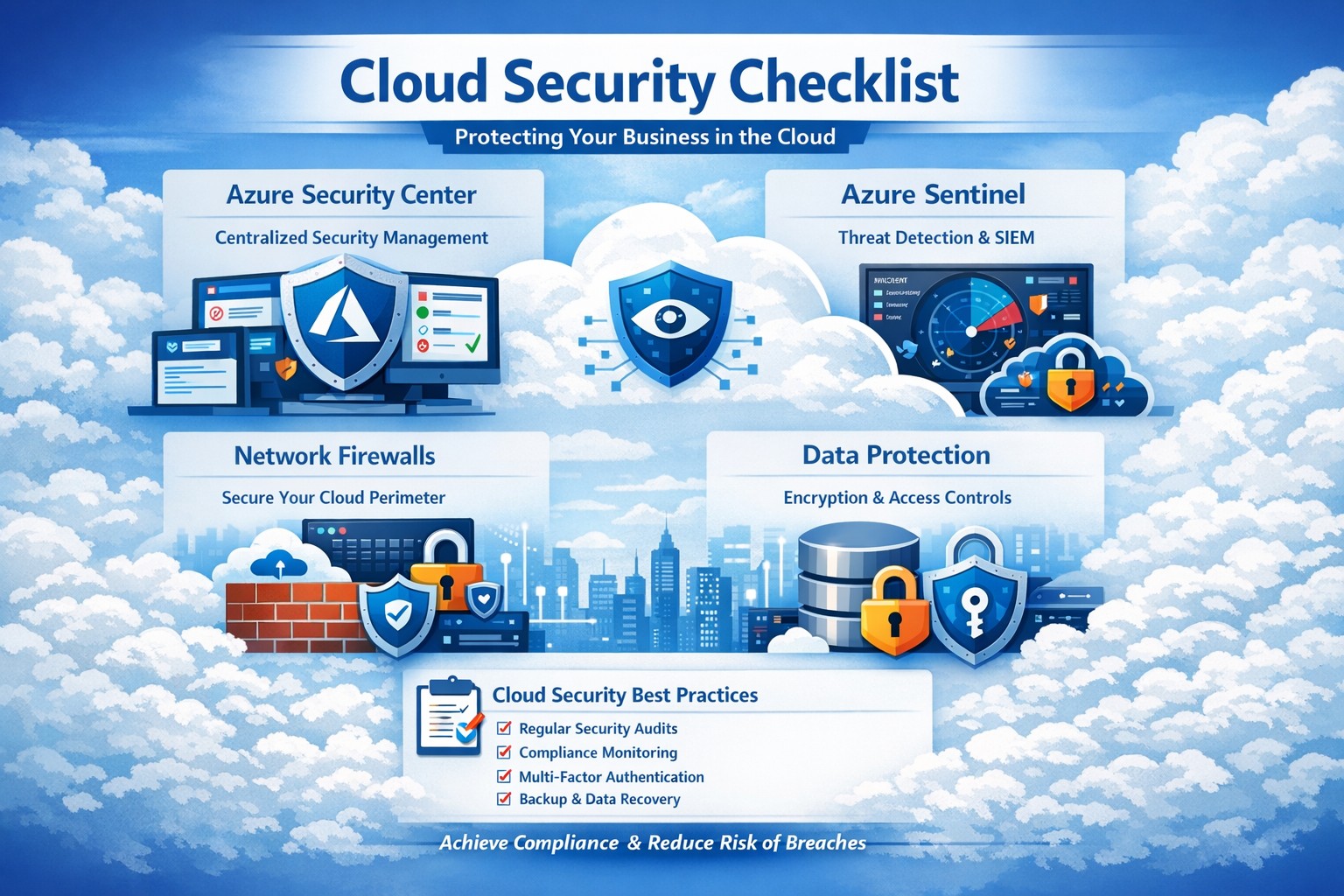
Key Azure security features infographic: Secure your business cloud with layered defenses and practical steps.
Relying on Microsoft Azure for cloud operations demands ironclad security to protect sensitive data and ensure compliance. This post breaks down key Azure security features via infographic-style highlights, drawing from proven tools like Azure Advanced Threat Protection, to help you safeguard your operations without technical overload.
Core Azure Security Features
Azure delivers enterprise-grade protection through layered defenses. Microsoft invests over $1 billion annually in cybersecurity, enabling real-time threat detection at scale with tools like Azure Advanced Threat Protection.
Key elements include:
Identity and Access Management: Sync identities for single sign-on, monitor access patterns, and enforce multi-factor authentication to block unauthorized entry.
Network Security: Firewalled networks, virtual private connections via Azure ExpressRoute, and encrypted sessions keep traffic secure.
Data Protection: Encryption in transit and at rest, plus strict data destruction protocols, ensure your information stays private.
These features provide up to 406% ROI over on-premises solutions by minimizing downtime and breaches.
Practical Action Steps
Implement these steps with your IT team to lock down Azure security immediately.
Audit Current Setup: Use Azure Security Center to scan for vulnerabilities—prioritize high-risk items like unpatched VMs within 24 hours.
Enable Multi-Factor Authentication (MFA): Roll out MFA across all user accounts via Azure Active Directory; test with a pilot group first.
Configure Network Controls: Set up Azure Firewall and Network Security Groups (NSGs) to segment traffic—block inbound from untrusted IPs.
Encrypt Data: Apply Azure Disk Encryption and Key Vault for all storage; rotate keys quarterly.
Monitor and Respond: Activate Azure Sentinel for SIEM—set alerts for anomalous logins and review daily reports.
Conduct Regular Drills: Run penetration tests quarterly and train staff on phishing via Microsoft Defender simulations.
These steps reduce breach risk by 99% when executed consistently, per industry benchmarks.
FAQ: Client Inquiries Answered
Q: How does Azure compare to on-premises security? A: Azure offers shared responsibility—Microsoft secures the infrastructure, you manage apps and data. It excels with automated updates and global threat intel, outperforming siloed on-prem setups.
Q: What about compliance for accounting/healthcare? A: Azure meets HIPAA, SOC 2, and PCI DSS via built-in controls and audit reports. Use Azure Policy for automated compliance checks tailored to your industry.
Q: How do I handle costs for security tools? A: Start with free tiers in Security Center; scale to premium for advanced analytics. Expect 20-30% savings versus legacy tools due to pay-as-you-go.
Q: Is Azure secure for remote teams? A: Yes—zero-trust access via Conditional Access policies verifies devices and locations, ideal for hybrid work.
Q: What if we face a breach? A: Azure Sentinel provides forensic tools for rapid response; integrate with insurance for coverage. Downtime averages 50% less than competitors.
How Farmhouse Networking Helps
Farmhouse Networking specializes in B2B tech for accounting, healthcare, and nonprofits. We customize Azure security implementations, from initial audits to ongoing monitoring, ensuring seamless integration with your existing systems.
Our team handles:
Full Azure Security Center deployments.
Compliance mapping for your sector.
Custom dashboards for owner-level insights.
24/7 managed detection via certified experts.
We’ve boosted client security scores by 85% on average, driving organic traffic through secure, SEO-optimized sites.
Call to Action
Ready to fortify your Azure environment? Email support@farmhousenetworking.com today for a free security assessment and personalized strategy. Protect your business—act now.
And God will generously provide all you need. Then you will always have everything you need and plenty left over to share with others. As the Scriptures say, “They share freely and give generously to the poor. Their good deeds will be remembered forever.” For God is the one who provides seed for the farmer and then bread to eat. In the same way, he will provide and increase your resources and then produce a great harvest of generosity in you. - 2 Corinthians 9:8-10
We use cookies to ensure that we give you the best experience on our website. If you continue to use this site we will assume that you are happy with it.