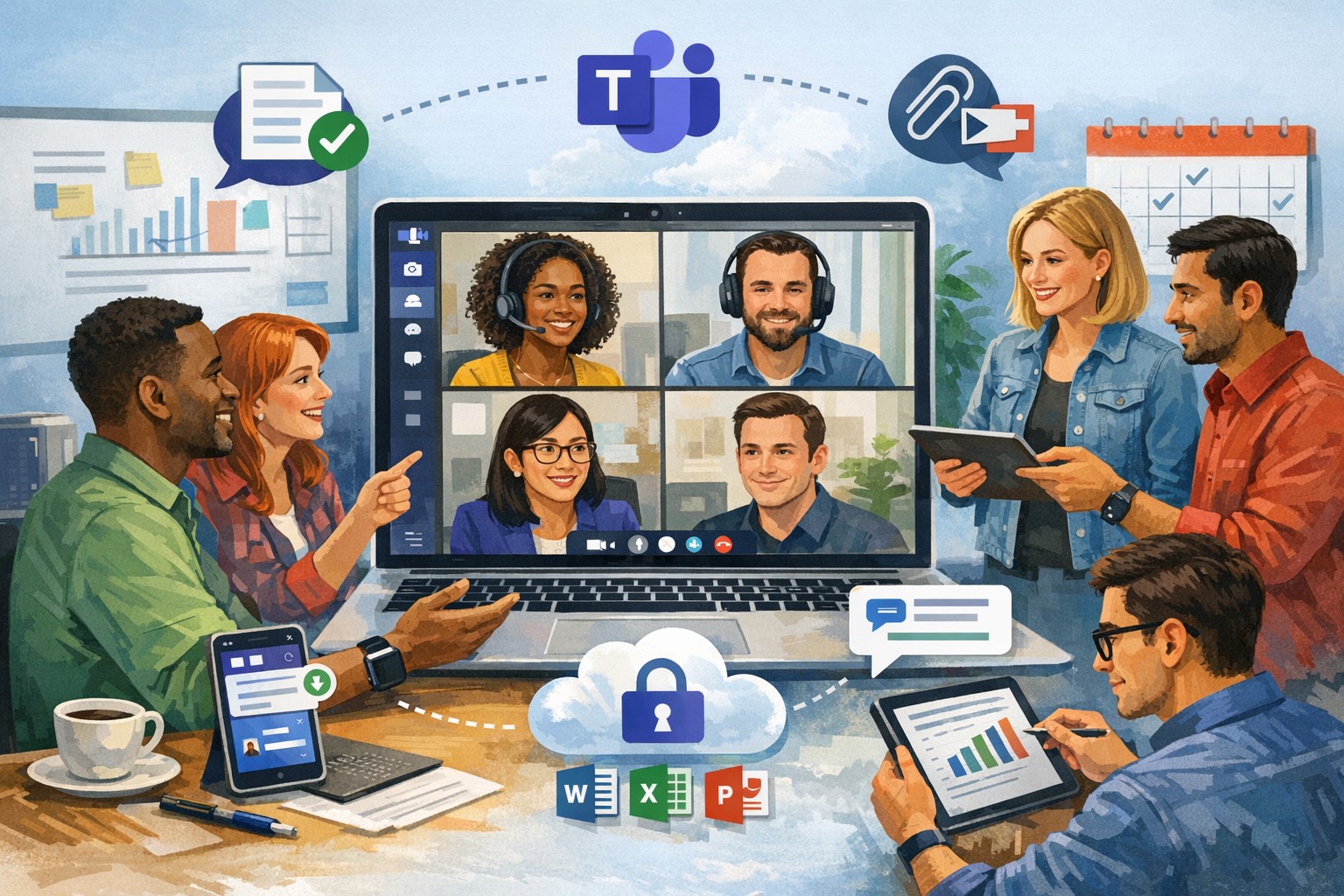
Leverage Microsoft Teams collaboration features to streamline business operations and enhance team productivity.
You’re constantly seeking ways to streamline operations and keep your team connected. Microsoft Teams offers a powerful hub for collaboration, integrating chat, video calls, file sharing, and Microsoft 365 apps to cut email overload and drive productivity—used by over 500,000 organizations for seamless remote and hybrid work.
Key Benefits for Your Business
Microsoft Teams centralizes communication in one scalable platform, reducing tool sprawl and improving project visibility. Business leaders gain from features like real-time file co-authoring, Teams Phone for calls across devices, and advanced security that scales with growth. This setup minimizes context switching, letting employees focus on high-value tasks while IT maintains governance.
Practical Action Steps
Follow these steps with your IT department to implement Teams effectively.
Assess Needs and Sign Up: Review team size and remote work requirements. Start a free trial or purchase via Microsoft 365 Business plans (from $6/user/month). IT assigns licenses in the admin center.
Set Up Teams and Channels: Create teams by department or project (e.g., “Sales-Q1-Deals”). Use intuitive names with keywords like “client-onboarding” for easy search. IT configures permissions and integrates with Outlook/SharePoint.
Optimize for Search and Collaboration: Tag channels/files with keywords; write descriptions summarizing purpose (e.g., “Handle Q1 client queries and docs”). Enable versioning and co-editing in Word/Excel. IT runs an SEO-style audit to identify trending terms.
Train and Roll Out: Host onboarding sessions via Teams meetings. Customize with tabs for Planner or third-party apps. Monitor usage analytics in the admin center to refine adoption.
Secure and Scale: IT enables multi-factor authentication, data loss prevention, and guest access controls. Test external invites for client collaboration without downloads.
These steps typically take 1-2 weeks, yielding quick wins like 63-87% productivity gains reported by users.
Common Q&A for Business Owners
How secure is Teams for client collaborations? Teams uses enterprise-grade encryption, compliance with GDPR/HIPAA, and admin controls for external sharing—ideal for accounting/healthcare/charity sectors handling sensitive data.
Does Teams integrate with my existing tools? Yes, it syncs natively with Microsoft 365 (Outlook, OneDrive) and 1,000+ apps via the store, plus custom bots for workflows.
What’s the cost for small businesses? Business Basic starts free (limited); Essentials at $4/user/month includes meetings/files. Scale to Premium for AI features.
How do we handle large files or version control? SharePoint integration provides unlimited storage (1TB+/user), real-time co-editing, and version history to avoid duplicates.
Can non-employees join meetings? Guests join via browser without accounts; IT sets policies to protect data.
How Farmhouse Networking Can Help
Farmhouse Networking specializes in Microsoft deployments for accounting, healthcare, and charity clients. We conduct Teams audits, optimize SEO for internal search, migrate from legacy tools, and train staff—ensuring 100% adoption and ROI. Our custom strategies include branding your Teams portals, lead-gen bots, and 24/7 support to enhance client experience and organic traffic via integrated sites.
Configure Teams meeting privacy: Turn off anonymous access and activate lobby to protect business discussions.
Microsoft Teams meetings often involve sensitive discussions on finances, strategies, and client data—yet unauthorized access risks data leaks and disruptions. Implementing targeted privacy controls ensures secure collaboration without stifling productivity.
Key Privacy Risks in Teams Meetings
Teams meetings face threats like “zoombombing,” where anonymous users join via public links, and data exposure through screen shares or recordings. Microsoft reports that disabling anonymous join reduces unauthorized entries significantly. External bots and unverified guests compound these issues, especially in hybrid work setups common for accounting, healthcare, and charity sectors.
Practical Action Steps
Follow these steps with your IT department to lock down Teams privacy. Prioritize admin center changes for organization-wide impact.
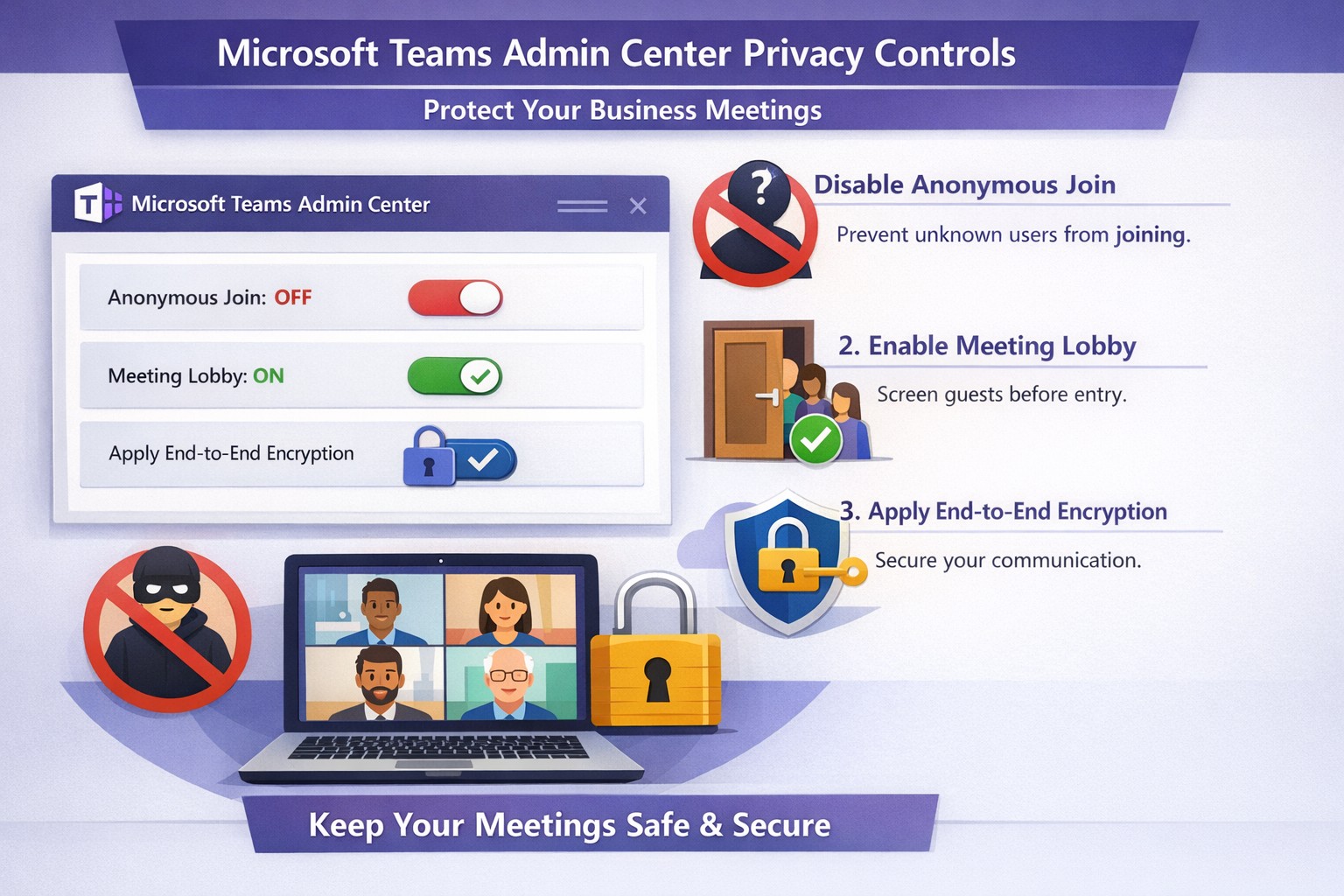
Disable Anonymous Joins: In the Teams admin center (admin.teams.microsoft.com), navigate to Meetings > Meeting policies. Set “Anonymous users can join” to Off. This blocks uninvited participants and recording bots.
Enable Meeting Lobby: Require all external participants to wait in the lobby. Under Meeting settings > Participants, toggle “Who can bypass the lobby?” to organizers and presenters only. Manually approve entrants to verify identities.
Activate CAPTCHA Verification: For remaining external access, enable CAPTCHA for anonymous users. This adds a human-check layer without fully restricting guests.
Use End-to-End Encryption (E2EE): For confidential calls, enable E2EE in meeting options (requires Teams Premium). Only participants decrypt audio/video; Microsoft cannot access it.
Apply Watermarking and Sensitivity Labels: With Teams Premium, turn on watermarks displaying participant emails over shared screens/videos. Create sensitivity labels enforcing lobby waits, auto-recording, and chat restrictions.
Control Recordings and Transcripts: Disable auto-recording for non-sensitive meetings. Inform participants and store files securely in OneDrive with 60-day retention.
Educate Users: Train staff to check participant lists, avoid public screen shares, and deny unknowns. Use quiet, private spaces for calls.
Implement via admin center first, then test in a pilot meeting. These steps balance security with usability.
FAQ: Client Inquiries Answered
Q: Can external clients still join securely? A: Yes—lobby approval and CAPTCHA allow vetted guests while blocking randos. Federated domains enable seamless access for partners.
Q: What’s needed for advanced features like E2EE? A: Teams Premium (or E5 for labels). Basic encryption is always on for transit/rest, but Premium adds layers.
Q: How do I prevent screenshot leaks? A: Watermarks overlay user IDs on shared content, deterring unauthorized captures. Combine with “Do not forward” calendar labels.
Q: Are recordings private? A: Stored in organizer’s OneDrive; participants notified. Get explicit consent for sensitive sessions, especially in healthcare/charities.
Q: What about one-on-one vs. group calls? A: One-on-one calls offer full E2EE by default; groups need Premium for equivalent protection.
How Farmhouse Networking Helps
Farmhouse Networking specializes in B2B IT for accounting, healthcare, and charity firms. We audit your Teams setup, deploy these privacy configs, and integrate with compliance needs like HIPAA or nonprofit data rules. Our SEO-optimized websites and lead-gen strategies turn secure Teams into a client magnet—showcasing reliability drives conversions. Skip the hassle; we handle migrations, training, and 24/7 monitoring.
Call to Action
Ready to safeguard your Teams meetings and boost client trust? Email support@farmhousenetworking.com for a free privacy audit and custom strategy.
Secure your business discussions: Step-by-step private channels in Microsoft Teams.
Protecting sensitive discussions—like HR strategies, client deals, or financial plans—is critical in Microsoft Teams. Private channels let you segment conversations within a team, ensuring only invited members access chats, files, and tabs, boosting security without creating separate teams.
Step-by-Step Setup Guide
Follow these practical actions to create and manage private channels. Team owners or permitted members handle creation; involve your IT department for policy checks and permissions.
Open Microsoft Teams and navigate to the target team.
Click the three dots (…) next to the team name, then select Manage team > Channels tab.
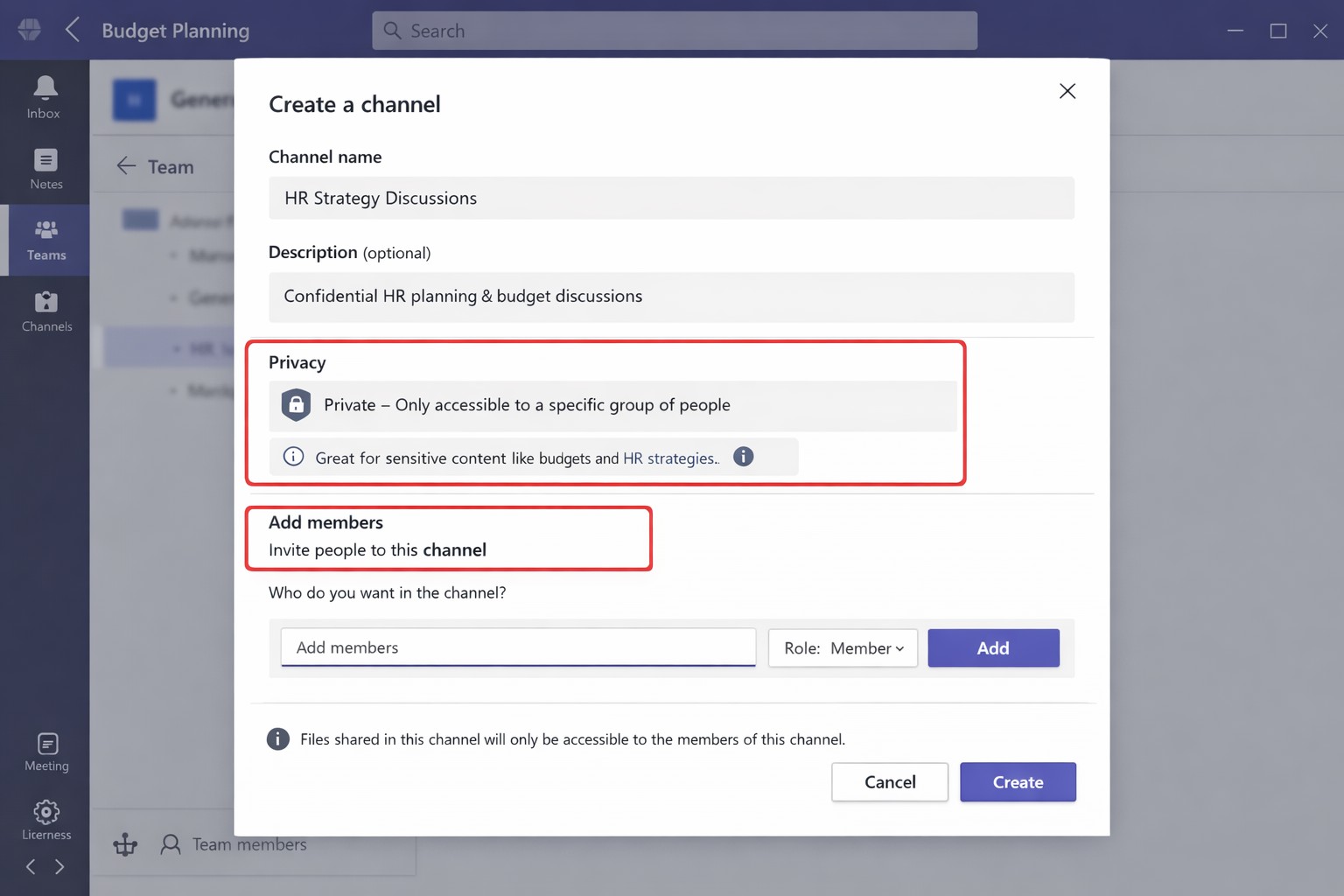
Click Add channel, enter a name (e.g., “Q1-Budget-Confidential”) and optional description.
Under Privacy, choose Private—this restricts access to added members only.
Click Add members to invite up to 250 people; set roles (owner/member) via Manage channel > Members tab.
Post-setup, use the channel for posts, file shares, and apps. Limit: 30 private channels per team lifetime; admins can restrict via Teams policies.
To delete or edit: Go to Manage channel > Settings for permissions, or remove via Members tab. IT should verify SharePoint site creation (auto-generated per channel) for compliance.
FAQs for Client Inquiries
Q: Who can create private channels? A: Team owners/members by default (guests cannot); admins control via policies in Teams admin center.
Q: What’s the difference from standard channels? A: Standard channels are visible to all team members; private ones require explicit invites, isolating content and files.
Q: Can I add external users? A: No, private channels are internal-only; use shared channels for guests/external collaborators.
Q: Do private channels impact storage or costs? A: Each gets a dedicated SharePoint site, counting toward limits; no extra licensing needed for core features.
Q: How do I audit access? A: Review Members tab; use Microsoft Purview for activity logs if enabled.
How Farmhouse Networking Helps
Farmhouse Networking specializes in tailored Microsoft 365 setups for accounting, healthcare, and charity sectors. We audit your Teams environment, implement governance policies (e.g., naming conventions, approval workflows), and train your team/IT on private channels to ensure HIPAA/GDPR compliance and seamless adoption.
Our SEO-optimized websites and lead-gen strategies drive organic traffic, converting visitors into B2B clients. We handle branding, custom integrations, and ongoing support to maximize ROI.
Ready to secure your Teams? Email support@farmhousenetworking.com for a free consultation on private channels and business growth.
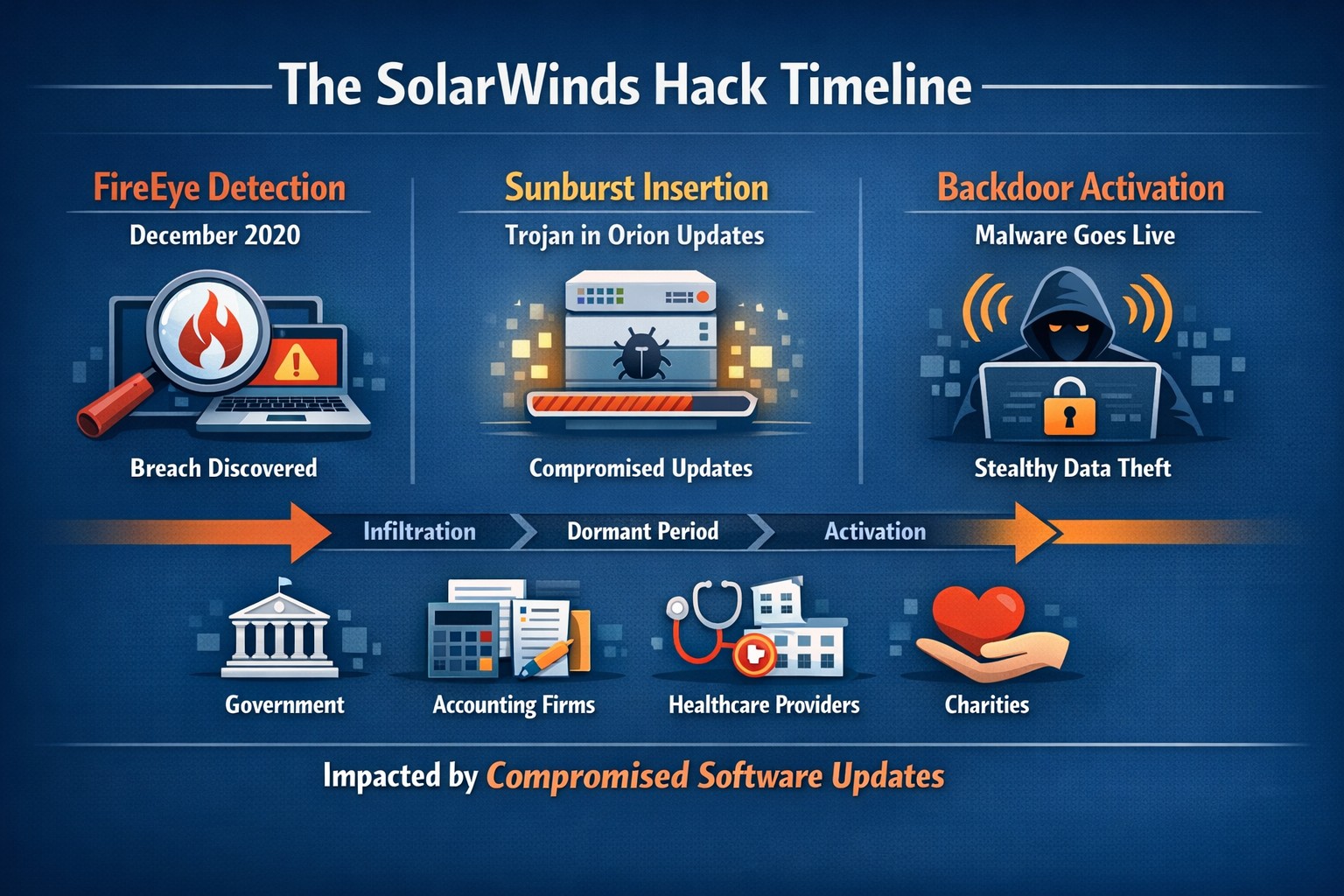
Timeline of the stealthy SolarWinds supply chain breach
We feel the need to make a full disclosure about the recent news of a hack of Solarwinds since we use the Solarwinds Remote Monitoring and Maintenance platform to manage our monthly clients. Based on a cyber incident write-up by FireEye, an enterprise security research firm, Solarwinds had one of their software packages called Orion compromised by files included in update files. This attack has effected many large organizations including many governmental agencies and larger firms worldwide. The software under attack is used by these larger organizations to monitor the performance of their networks even across multiple locations. This software is completely different from the product that we use and we have been assured by Solarwinds that no compromise of the Remote Monitoring and Maintenance platform has occurred.
We continue business as usual including allowing users to use this platform for remote access to their business. We continue to add further automation into the system to better monitor and maintain your networks and computers.
If your company is going to use full disk encryption or has compliance requirements that you need consulting for, then contact us for assistance.
Automated RMM cleanup targets files older than configurable days threshold
As our business continues to focus on providing white labeled Tier 3 IT support services, RMM as a service, and co-managed IT services this blog will be highlighting tips for RMM automation. Here is a script that we came up with to handle a particular client that has a Line-of-Business application that does automatic backups to the server but it does not clean up after itself which leads to a full server hard drive. We have tailored this script to be used not only at that client but for any folder on any Microsoft Windows computer for any number of days previous and for any specified file extension. This script could easily be modified to take any action on files in a folder older than a specific date, like copy them to off-site storage bucket in Amazon Glacier.
Variables
Here are the variables we are using for this script:
$DaysAgo = the number of days ago or older that you want deleted
$FileExtension = the extension for the files that are to be deleted or leave blank for all files
$FolderPath = the full local file path that is to be cleaned
Script Snippet
# Defines the 'days old' (today's date minus DaysAgo)
$days = -($DaysAgo)
$age = (Get-Date).AddDays($days)

# Get all the files in the folder and subfolders matching extension | foreach file
if ($FileExtension -ne '') {
    Get-ChildItem $FolderPath -Recurse -File | Where-Object { $_.Extension -eq $FileExtension } | foreach{
        # if creationtime is 'le' (less or equal) than DaysAgo days
        if ($_.CreationTime -le $age){
            Write-Output "Older than $DaysAgo days - $($_.name)"
            # remove the item
            Remove-Item $_.fullname -Force -Verbose
            }
        }
    }else {
        Get-ChildItem $FolderPath -Recurse -File | foreach{
            # if creationtime is 'le' (less or equal) than DaysAgo days
            if ($_.CreationTime -le $age){
                Write-Output "Older than $DaysAgo days - $($_.name)"
                # remove the item
                Remove-Item $_.fullname -Force -Verbose
                }
            }
    }
This script is destructive meaning that the files deleted are gone for good, so be careful with this one. Notice that we put in some output that will declare a file older than $DaysAgo and then delete it giving the details of the delete. This give a record of what was deleted. We have thought also about adding a counter for total amount of file space deleted, but making it human readable is not simple code.
If your company is a MSP or wants to become one and automation just seems out of reach, then contact us to run your RMM for you.
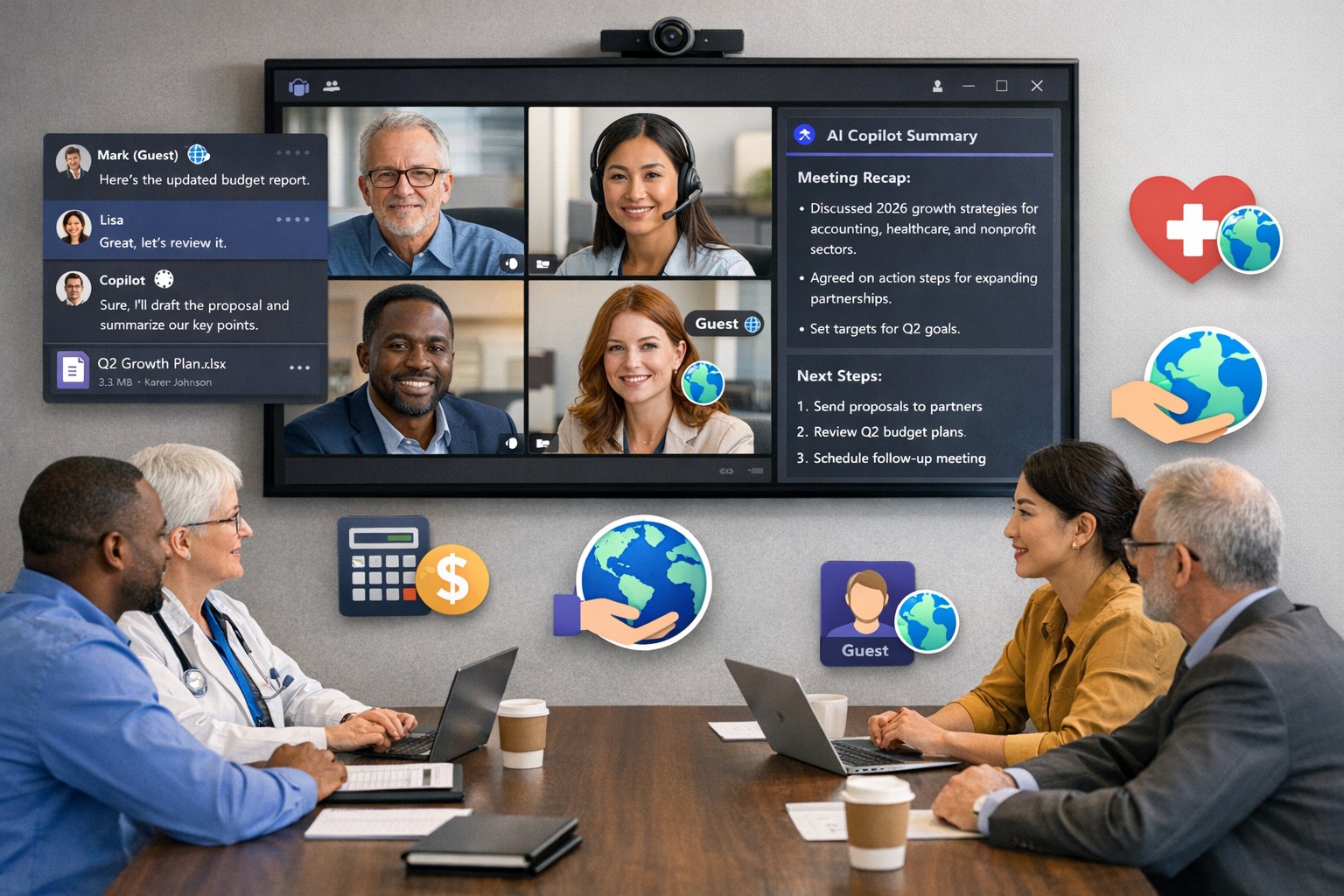
Scale your business: Unlock Microsoft Teams collaboration expansion with AI recaps and guest access.
Business owners face a constant challenge: keeping distributed teams aligned amid hybrid work and external partnerships. Microsoft Teams’ 2026 updates—like AI-powered recaps, email-to-chat, and smarter hybrid meetings—unlock seamless expansion of collaboration without tool fragmentation.
Key 2026 Teams Features for Growth
Teams now bridges internal and external comms via email invites, letting anyone join chats as temporary guests while staying compliant. Copilot integrates directly for chat summaries, task assignments, and decision highlights, cutting admin time. Hybrid upgrades include AI voice isolation, speaker recognition in rooms, and audio recaps so absentees catch up fast.
These tools reduce context-switching, boost inclusivity, and handle vendor or client coordination effortlessly—ideal for accounting firms tracking audits, healthcare practices managing referrals, or charities syncing volunteers.
Action Steps for Business Owners and IT
Expand collaboration systematically. Follow these steps:
Assess Needs: Audit current usage—survey teams on pain points like external email chains or meeting drop-offs. Prioritize hybrid features if >30% remote.
Upgrade Licensing: Switch to Teams Premium or Microsoft 365 E5 for Copilot, AI recaps, and guest controls. IT verifies via admin center; budget $7–$22/user/month.
Configure External Access: IT enables “email-to-chat” in Teams admin > Users > External access. Set policies for guest expiration (e.g., 30 days) and trust badges for unfamiliar users.
Deploy AI Tools: Activate Copilot in meetings/chats via Microsoft 365 admin. Train staff on prompts like “Summarize key decisions” during 15-min sessions.
Optimize Hybrid Setup: IT installs certified Teams Rooms hardware; enable voice isolation and live captions. Test with a cross-team pilot meeting.
Monitor and Scale: Use analytics dashboard for adoption metrics (e.g., chat volume up 20%). Automate with Power Automate for workflows like task follow-ups.
Expect 25–40% productivity gains in 3 months, per early 2026 reports.
Client FAQs on Teams Expansion
Q: How secure is external collaboration? A: Chats stay in your compliance boundary with granular guest controls, AI compliance alerts, and encryption. External users get trust badges (e.g., “verified”).
Q: Does everyone need a Teams license? A: No—email recipients join as guests without accounts. Internal users need Essentials ($4/user) or higher for full AI.
Q: What about integration with our CRM or accounting software? A: Teams connects via 250+ apps (e.g., Dynamics 365, QuickBooks). Copilot pulls data for unified views.
Q: How do we train non-tech staff? A: Use built-in templates, keyboard shortcuts, and “pin window” for multitasking. Roll out via Viva Engage communities.
Q: What’s the ROI for charities/healthcare? A: Reduced email overload frees 10+ hours/week per manager; hybrid tools cut no-shows by 30%.
How Farmhouse Networking Accelerates Your Teams Expansion
Farmhouse Networking specializes in B2B setups for accounting, healthcare, and nonprofits. We handle licensing audits, custom configs (e.g., HIPAA-compliant guest access), and AI onboarding—slashing setup from weeks to days. Our SEO-optimized sites and lead-gen strategies have driven 40% organic traffic growth for similar clients, converting Teams efficiency into client wins. Skip IT headaches; we integrate Teams with your branding for seamless scaling.
Microsoft Teams Productivity Features for Business
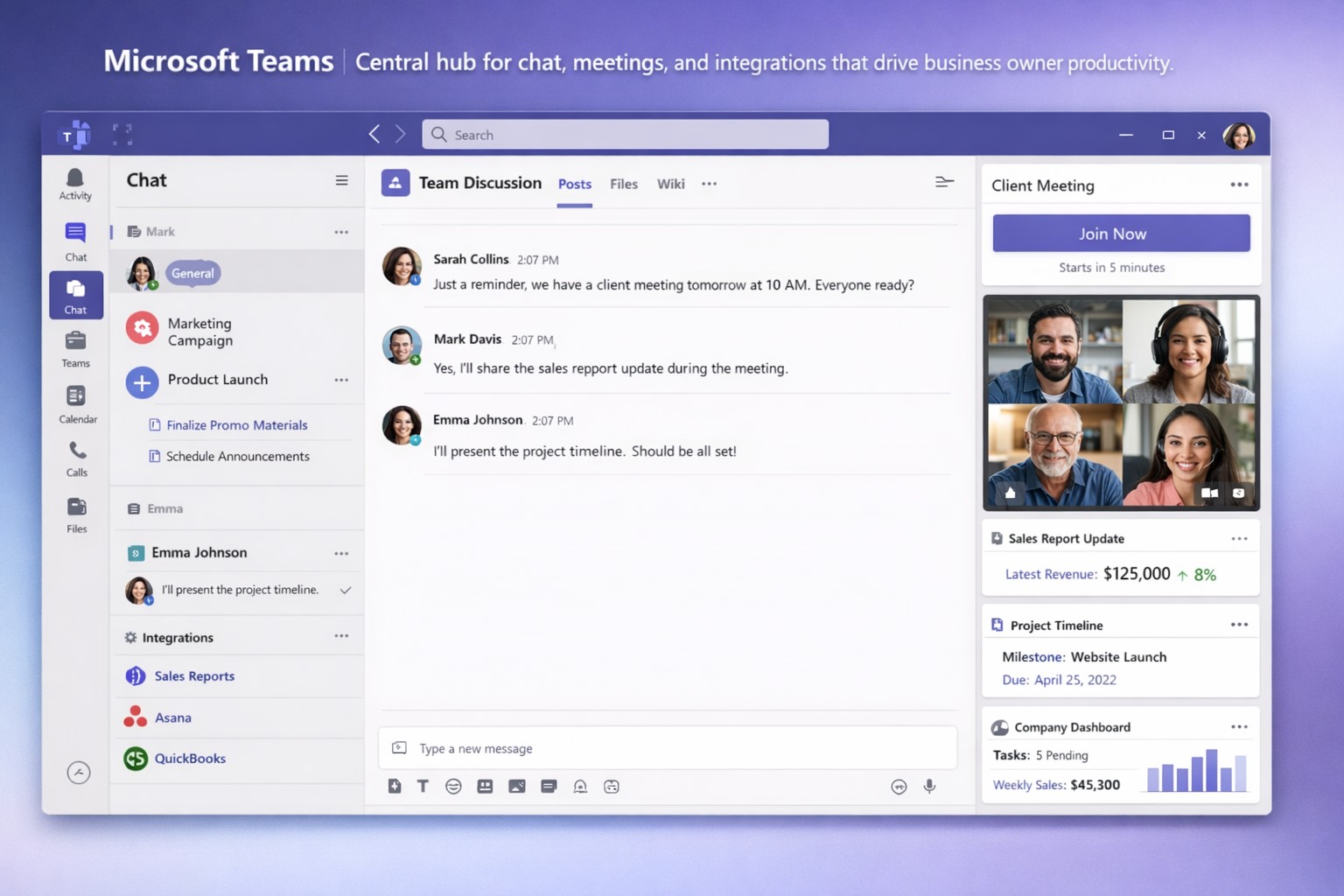
Staying connected and productive isn’t optional—it’s essential for growth. Microsoft Teams centralizes chat, video meetings, file sharing, and integrations into one platform, slashing app-switching and boosting efficiency for business owners managing remote or hybrid teams.
Key Features Driving Productivity
Microsoft Teams excels with features tailored for business operations. Persistent chat and channels organize conversations by project or department, while HD video meetings support up to 300 participants with screen sharing and virtual whiteboards.
AI tools like Copilot summarize files in chats, generate meeting agendas, and assign action items automatically. Integrations with 800+ apps—including Salesforce, Trello, and OneDrive—streamline workflows without leaving Teams.
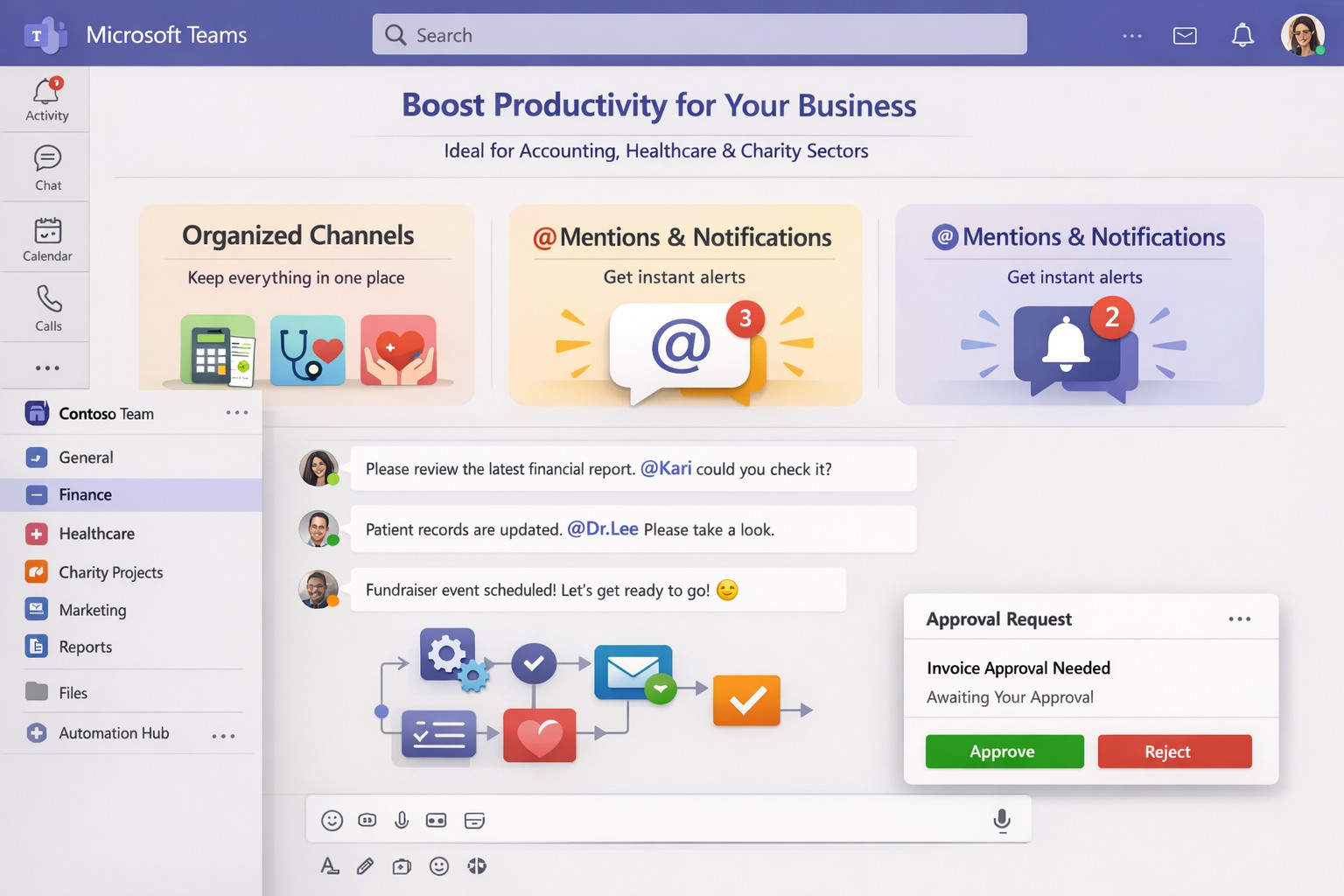
Structured channels, @mentions, and tags reduce clutter, ensuring critical updates reach the right people instantly.
Practical Action Steps for Implementation
Business owners and IT departments can deploy Teams effectively with these steps:
Assess Needs and License: Audit team size and requirements. Start with Microsoft 365 Business Basic ($6/user/month) for core features or Premium for advanced AI. IT assigns licenses via admin center.
Set Up Structure: Create teams for departments and channels for projects (e.g., “Q1 Sales Pipeline”). IT enables guest access for clients and sets naming conventions to avoid chaos.
Configure Security and Integrations: IT activates multi-factor authentication, data loss prevention, and noise suppression. Integrate Planner for tasks, Power BI for analytics, and Copilot for AI summaries.
Train and Optimize: Roll out via short sessions on channels, @tags, and meeting intelligence (transcripts, recaps). Monitor usage in admin analytics and refine with custom bots.
Test and Scale: Pilot with one department, gather feedback, then expand. Use Teams Phone for CCaaS if handling calls.
These steps typically take 1-2 weeks, yielding 20-30% productivity gains through reduced email and focused meetings.
FAQ: Client Inquiries Answered
How secure is Teams for sensitive business data? Teams uses enterprise-grade encryption, compliance with GDPR/HIPAA, and role-based access. IT controls via Microsoft Purview for auditing.
What’s the learning curve for non-tech teams? Minimal—intuitive like chat apps. AI features like live captions and summaries ease adoption; most users proficient in days.
Can Teams replace Zoom or Slack entirely? Yes, with superior Microsoft ecosystem integration. Handles 10,000+ attendees, outperforms in file collab, but pair with Outlook for scheduling.
How does Copilot justify the cost? It saves hours weekly by auto-summarizing threads/files and suggesting replies, ideal for busy owners.
What if we have hybrid workers? Perfect fit—real-time co-editing, presence indicators, and whiteboard tools bridge office/remote gaps.
How Farmhouse Networking Elevates Your Teams Setup
Farmhouse Networking specializes in Microsoft 365 optimizations for accounting, healthcare, and charity sectors. We handle full Teams deployments: custom channel strategies, AI/Copilot integrations, compliance configs, and training tailored to B2B workflows.
Our clients see 40% faster onboarding and higher client conversions via streamlined comms. We audit existing setups, migrate from legacy tools, and provide ongoing support to maximize ROI—without disrupting operations.
Optimize your workflow: Microsoft Teams channels and Power Automate save business owners hours weekly.
Endless meetings, scattered emails, and disorganized chats steal hours weekly. Microsoft Teams can reclaim that time by centralizing communication, automating workflows, and streamlining collaboration, potentially saving your team 5-10 hours per week per employee.
Key Time-Saving Features
Teams integrates chat, video, files, and tasks into one platform, reducing app-switching by up to 30%. Features like channels replace status meetings, search commands (/call, /files) launch actions instantly, and AI-driven Viva Insights schedules focus time to minimize distractions.
Business owners report faster decisions with real-time co-editing in Word/Excel via Teams and automatic transcriptions that eliminate note-taking.
Practical Action Steps
Follow these steps with your IT department to implement immediately:
Audit and Organize Channels: Create topic-specific channels (e.g., “Sales-Q1”, “HR-Onboarding”) instead of group chats. Pin key ones and hide inactive channels to cut navigation time by 50%.
Enable Strategic @Mentions and Tags: Train staff to @mention individuals for tasks, @channel sparingly, and create custom tags (e.g., @MarketingTeam). This reduces back-and-forth messaging.
Set Up Meeting Templates and Transcriptions: In Teams admin center, enable templates for recurring meetings (agenda, attendees, tasks) and auto-transcriptions. IT: Activate under Meetings > Meeting policies.
Integrate Power Automate Workflows: IT connects Outlook, SharePoint, and Planner. Automate approvals, reminders, and file routing—e.g., auto-post email attachments to channels.
Configure Notifications and Viva Insights: Customize alerts (e.g., priority only) and enable focus blocks. IT: Roll out via admin settings for company-wide adoption.
Leverage Search as Command Center: Bookmark shortcuts like /saved for quick access to files/messages. Train via pinned announcements.
Link with Microsoft 365: IT ensures seamless OneDrive/SharePoint sync for instant file access without downloads.
Implement in phases: Week 1 for setup, Week 2 for training.
Feature
Time Saved
IT Action Required
Channels over Meetings
2-4 hrs/week
Create/organize in Teams admin
Power Automate
1-3 hrs/week
Set flows in Power Automate portal
Transcriptions
1 hr/meeting
Enable in Meeting policies
Viva Focus Time
5-10 hrs/week
Deploy via Insights dashboard
FAQs for Client Inquiries
How secure is Teams for sensitive business data? Teams uses enterprise-grade encryption (at-rest and in-transit) compliant with GDPR, HIPAA. IT controls guest access and data retention policies.
What’s the ROI for small businesses? SMEs see 20-40% productivity gains; integrates free with Microsoft 365 Business plans starting at $6/user/month.
Can we customize for our industry (accounting/healthcare/charity)? Yes—add apps for QuickBooks (accounting), EHR integrations (healthcare), or donor tracking (charity). Power Automate handles compliance workflows.
How long to see time savings? Most teams report gains in 2-4 weeks post-training.
Does it work for hybrid/remote teams? Fully—real-time collaboration scales from 5 to 500 users seamlessly.
How Farmhouse Networking Helps
Farmhouse Networking specializes in Microsoft 365 optimizations for accounting, healthcare, and charity sectors. We conduct free Teams audits, implement custom workflows (e.g., HIPAA-compliant automations), and train your staff/IT for 30% faster adoption. Our SEO-driven websites and lead-gen strategies have boosted B2B conversions for similar clients by 25%. Let us handle setup so you focus on growth.
Email support@farmhousenetworking.com for a no-obligation Teams efficiency assessment and tailored strategy to save your business hours weekly. Act now—spots fill fast.
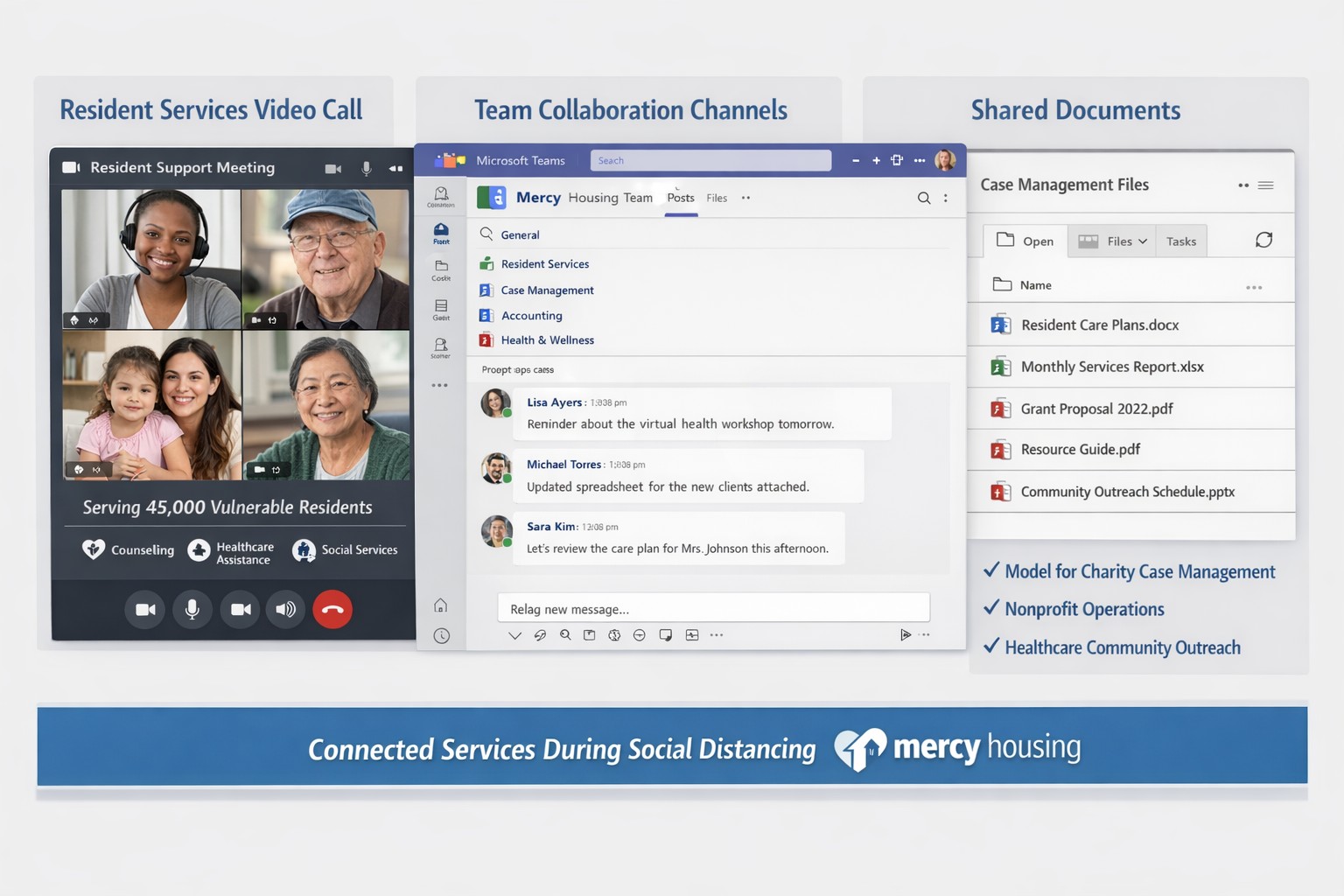
Teams enables Mercy Housing’s safe remote resident support during pandemic
When the pandemic ushered in a new reality of social distancing, Mercy Housing was able to continue supporting the residents and communities it serves while keeping everyone safe using Microsoft Teams. This customer story video outlines when COVID-19 created a tremendous need for a tool that can maintain personal connection, Teams has allowed the company to maintain reaching residents and serving its communities, growing the business while working remotely, all while supporting highly secure environments for remote work.
Automated FTP log export scales RMM diagnostics across client endpoints
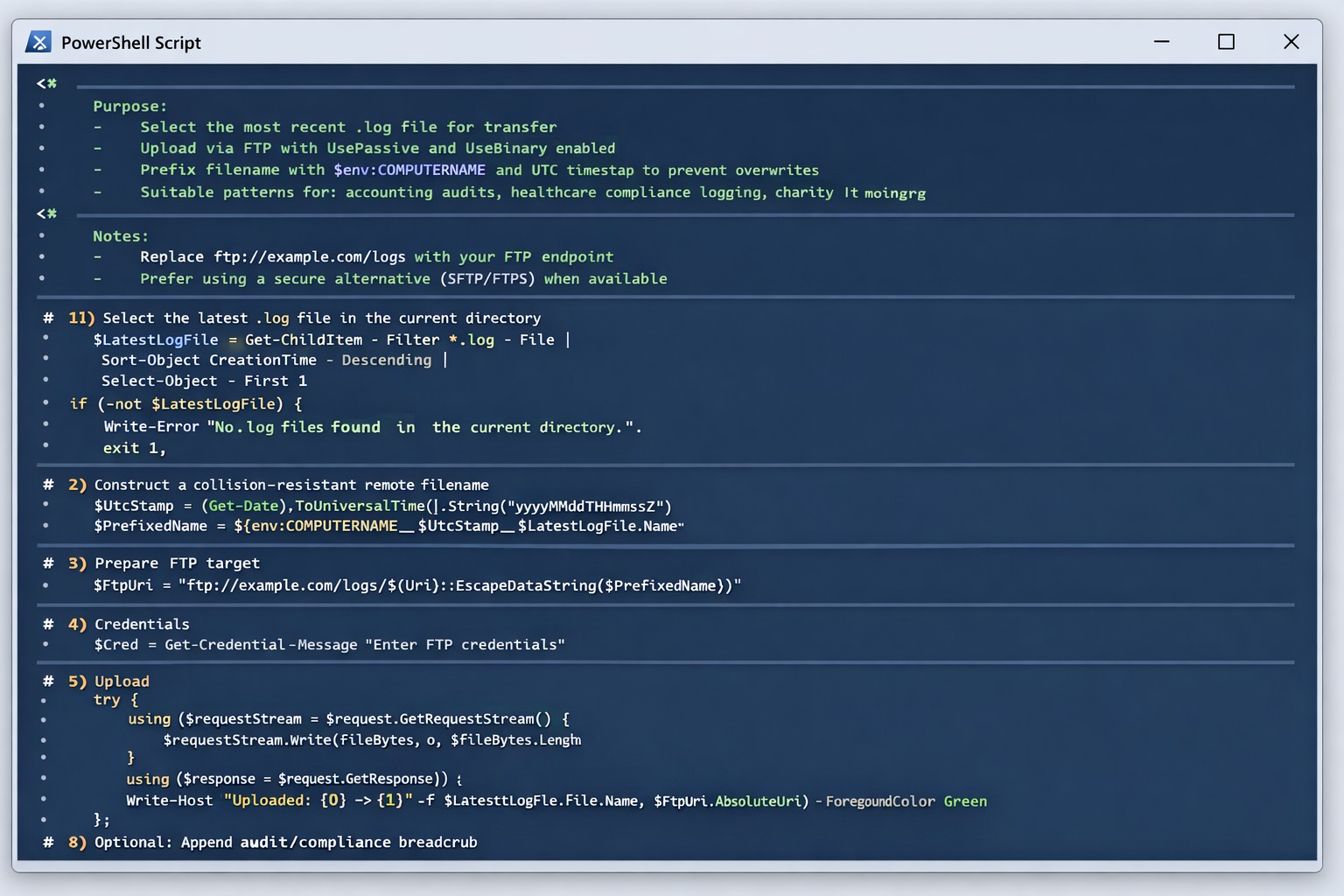
As our business continues to focus on providing white labeled Tier 3 IT support services, RMM as a service, and co-managed IT services this blog will be highlighting tips for RMM automation. Here is one of the recent updates we are making to several of our scripts. It is great to have a diagnostic script that outputs information and review those logs to help figure out issues or to write out the log file created to output for review from the RMM.
What if you have a software tool that aggregates log files to look for trends or security issues across the organization. Running the script and manually collecting log files from each computers gets tedious at scale, so I came up with the idea to automate the log collection via sending them to a FTP site. Here is what we are adding to scripts:
Variables
It is important to not store variables in scripts especially when they are credentials for the FTP server, so make sure to define variables accordingly. Here are the variables we are using for this script:
$LocalDir = the local directory where you expect to find the logs from the script
$RemoteDir = the FTP server address and file directory structure (ie ftp://myftpserver.com/LOGS)
Notice that we use the $LatestLogFile variable to find the most recent log file. Edit this as needed (ie *.txt or whatever) to get the newest log file name. Adding this to the end of the RMM automation script will allow the needed log files to be placed in the FTP server. Collecting from multiple machines means that each file collected should have a different file name, so make sure when you are scripting the diagnostic that you use to name the log file with $env:computername or some other identifier to make sure the files don’t overwrite themselves when uploaded.
If your company is a MSP or wants to become one and automation just seems out of reach, then contact us to run your RMM for you.
And God will generously provide all you need. Then you will always have everything you need and plenty left over to share with others. As the Scriptures say, “They share freely and give generously to the poor. Their good deeds will be remembered forever.” For God is the one who provides seed for the farmer and then bread to eat. In the same way, he will provide and increase your resources and then produce a great harvest of generosity in you. - 2 Corinthians 9:8-10
We use cookies to ensure that we give you the best experience on our website. If you continue to use this site we will assume that you are happy with it.