Mimecast KnowBe4 phishing simulation risk scoring employee training dashboard
As you know, we take cybersecurity and the protection of your accounts and data very seriously. That’s why we are always striving to provide you with tools and resources to help keep you and your employees safe from cybercrime.
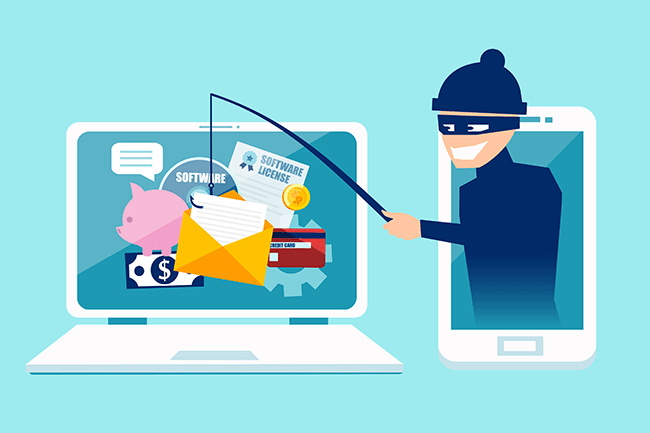
The most common threat we are seeing is phishing messages delivering malware or stealing credentials. Even though your company might be protected with spam filtering, there are instances where these malicious messages could still appear in your employee’s inboxes. And it’s important we both arm them with as much education and resources as possible to understand and identify these phishes.
We have a new tool that we’d love to demonstrate for your or talk more about. It’s called Catch Phish, and it’s an email analysis and training tool. It connects right to your employee’s Outlook as a clickable application on every message. When clicked, the tool quickly, but safely, scans the important details of the message to find potential threats such as suspicious links or attachments, sender details, or message details such as threatening language or deactivation scares.
This tool is included in our cybersecurity training packages and can help provide the much needed cybersecurity education to all levels of staff.
Do you have 30 minutes to talk about reducing your risks with Catch Phish and our other cybersecurity awareness training tools, then contact us for assistance.
Farmhouse Networking cloud automation eliminates manual IT tasks for Oregon SMBs using Power Automate and PowerShell workflows.
Worked with a client lately to help them Automate a workflow, but you may be wondering what does that even mean. Let me explain. We all have tasks in our workday that are repetitive and consume little bite size pieces of our time. Depending on the steps needed to accomplish these tasks, they can be “delegated” to a computer process via scripting aka we automate them. In the case of the client we helped, they received emails from an eFax service which included attachments. These attachments had to be manually saved into a shared folder for the rest of the staff to access as needed. This process probably took about 30 to 60 seconds each, but multiply this by the 30+ faxes they received each day you have 15 to 30 minutes of wasted time each day (65-130 hours per year). This does not take into account the time taken to stop doing one thing, accomplish this task, and restart the original thing they were doing.
Automate to Freedom
What if we could automate this little task and keep them employee free to do other more important things? We did. They customer uses Office 365 which includes a service called Power Automate. We scripted this tool to look at incoming messages, find ones from the eFax vendor, strip out the attachment, and save it to a SharePoint folder. This can then be shared with other employees and even synced via OneDrive to their Desktops for viewing, etc. That is just the tip of the iceberg as there is so much more that can be done with this technology.
If your company wasting little bite size pieces of time in repetitive taks, then contact us for assistance.
How an integrated advanced threat protection solution helps business owners monitor and block cyber threats in real time
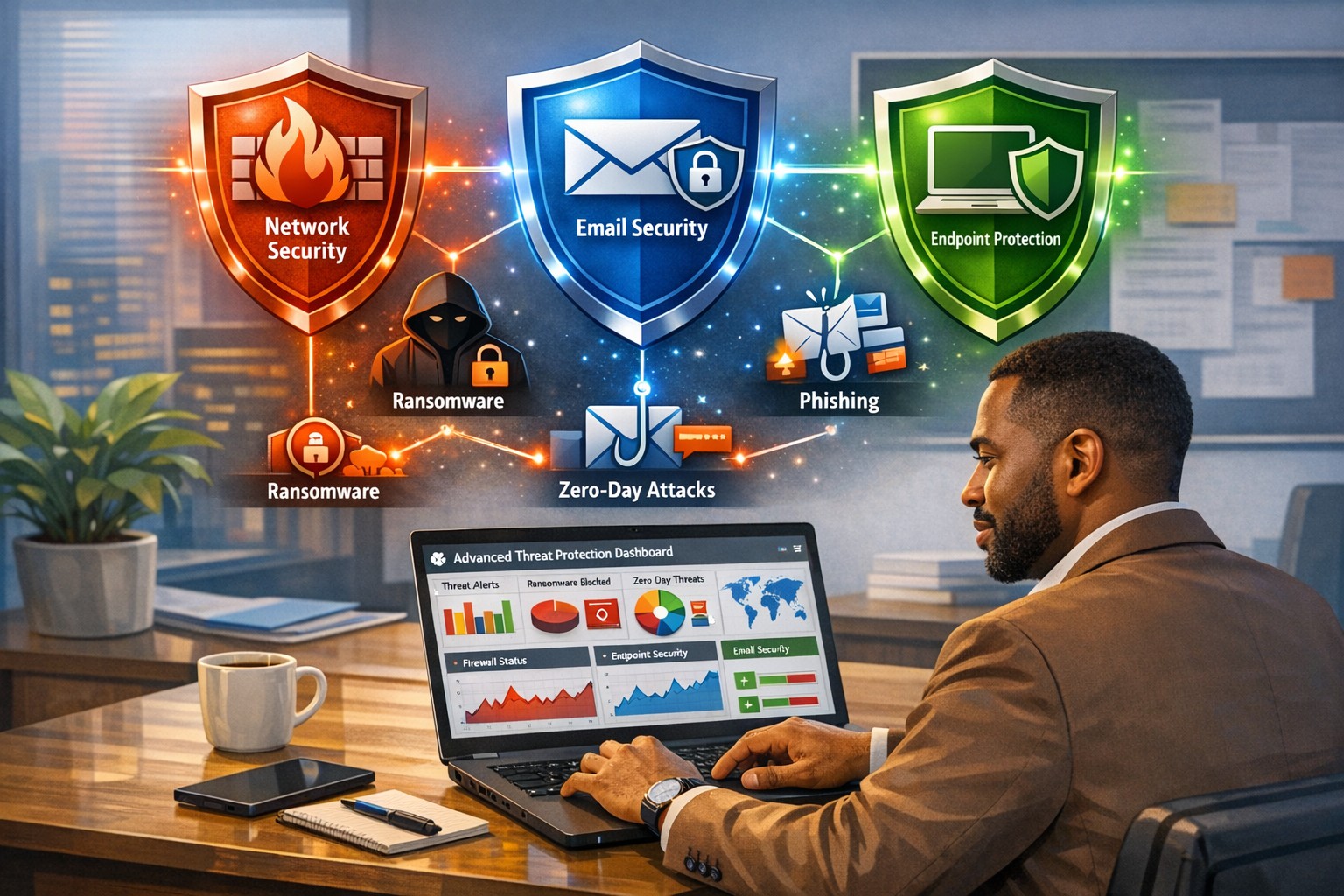
Cyberattacks are no longer “someone else’s problem.” From ransomware to phishing‑laden emails and zero‑day exploits, modern threats are designed to bypass traditional antivirus and basic firewalls. As a business owner, your core concern is simple: keep data safe, keep operations running, and protect your reputation. An integrated advanced threat protection (ATP) solution is exactly the kind of security framework that turns reactive panic into proactive control.
What Is Advanced Threat Protection?
Advanced threat protection (ATP) is a unified cybersecurity strategy that combines multiple technologies—such as AI‑driven analytics, behavioral monitoring, sandboxes, next‑generation firewalls, and endpoint detection—into a single, coordinated system. Instead of relying on isolated tools, ATP monitors your entire digital ecosystem (email, web, cloud, endpoints, and network) and blocks sophisticated threats before they can disrupt your business.
For a business owner, this means fewer surprises, faster incident response, and less downtime when—if—something does slip through.
What Your Business Needs to Do
An effective ATP rollout isn’t just an IT project; it’s a strategic decision you steer. Here are practical action steps you and your IT team should take:
1. Map Your Risk and Critical Assets
Identify which data, systems, and third‑party services are most critical (client records, accounting, PHI if in healthcare, donor data if nonprofit).
Document access controls and where third‑party vendors touch your network.
2. Upgrade Core Security Infrastructure
Replace legacy firewalls and antivirus with next‑generation firewalls and advanced endpoint protection that use behavioral analysis and AI.
Enable email‑layer ATP to filter phishing, malicious links, and infected attachments before they reach inboxes.
3. Implement Visibility and Centralized Monitoring
Deploy tools that give real‑time visibility across endpoints, network traffic, and cloud services (SIEM‑style logging or managed EDR).
Use a centralized management console so your IT team can view threats, alerts, and responses from one place.
4. Harden Access and Policies
Roll out multi‑factor authentication (MFA) for email, cloud apps, and any system with sensitive data.
Enforce strong password policies, device‑management rules, and safe‑browsing guidelines for staff.
5. Train Employees and Build an Incident Playbook
Run regular, short cybersecurity training focused on spotting phishing, avoiding risky downloads, and reporting suspicious activity.
Draft a simple incident‑response plan that includes isolation steps, communication protocols, and points of contact.
Common Questions Business Owners Ask
Q: If we already have a firewall and antivirus, isn’t that enough? Traditional tools are designed for known, signature‑based threats. Modern attackers use zero‑day exploits, fileless malware, and spear‑phishing that slip past these defenses. ATP adds behavioral analysis, sandboxing, and AI‑driven threat‑hunting that traditional tools simply can’t match.
Q: Won’t ATP slow down our systems and network? Most modern ATP platforms are engineered for performance and often run in the cloud or as lightweight agents. When configured correctly, users rarely notice slowdowns, while the security gains are very visible.
Q: Can small or mid‑sized businesses afford ATP? Yes. Many ATP solutions are tiered by company size, and managed ATP services allow you to outsource the heavy lifting rather than hiring a full‑time security team.
Q: How much effort does ATP require to maintain? Once deployed, ATP is largely automated. Your IT team (or your managed‑security partner) still need to monitor alerts, tune policies, and respond to incidents—but the platform does the heavy lifting of detection and many remediation steps.
How Farmhouse Networking Can Help
Farmhouse Networking helps businesses like yours bridge the gap between “we’re doing our best” and “we’re actually secure.” Our services focus on:
Assessment and planning: We audit your current setup, identify your biggest exposure points, and design an ATP‑ready roadmap tailored to your industry (accounting, healthcare, or nonprofit).
Deployment and integration: We help you deploy or upgrade to next‑generation firewalls, endpoint protection, and email‑layer ATP, ensuring all pieces work together seamlessly.
Managed monitoring and response: If you lack in‑house expertise, we can provide ongoing monitoring, alert triage, and coordinated incident response so threats are contained quickly.
Training and policy support: We assist with policy templates and staff training so your team becomes part of your defense, not the weakest link.
You don’t need to become a cybersecurity expert overnight. You just need a partner who can translate ATP into clear, manageable steps that protect your business without over‑complicating your day‑to‑day operations.
Take the Next Step
If you’re ready to treat cybersecurity as a strategic investment instead of an afterthought, now is the time to explore an integrated advanced threat protection solution. Farmhouse Networking can help you design, deploy, and manage ATP tailored to your specific risks and budget.
For more information, email us at support@farmhousenetworking.com and we’ll schedule a call to walk through your current setup, your biggest concerns, and the practical steps you can take next.
Read a recent study on the origins of malicious software aka malware. Here are the highlights:
Current Malware Statistics
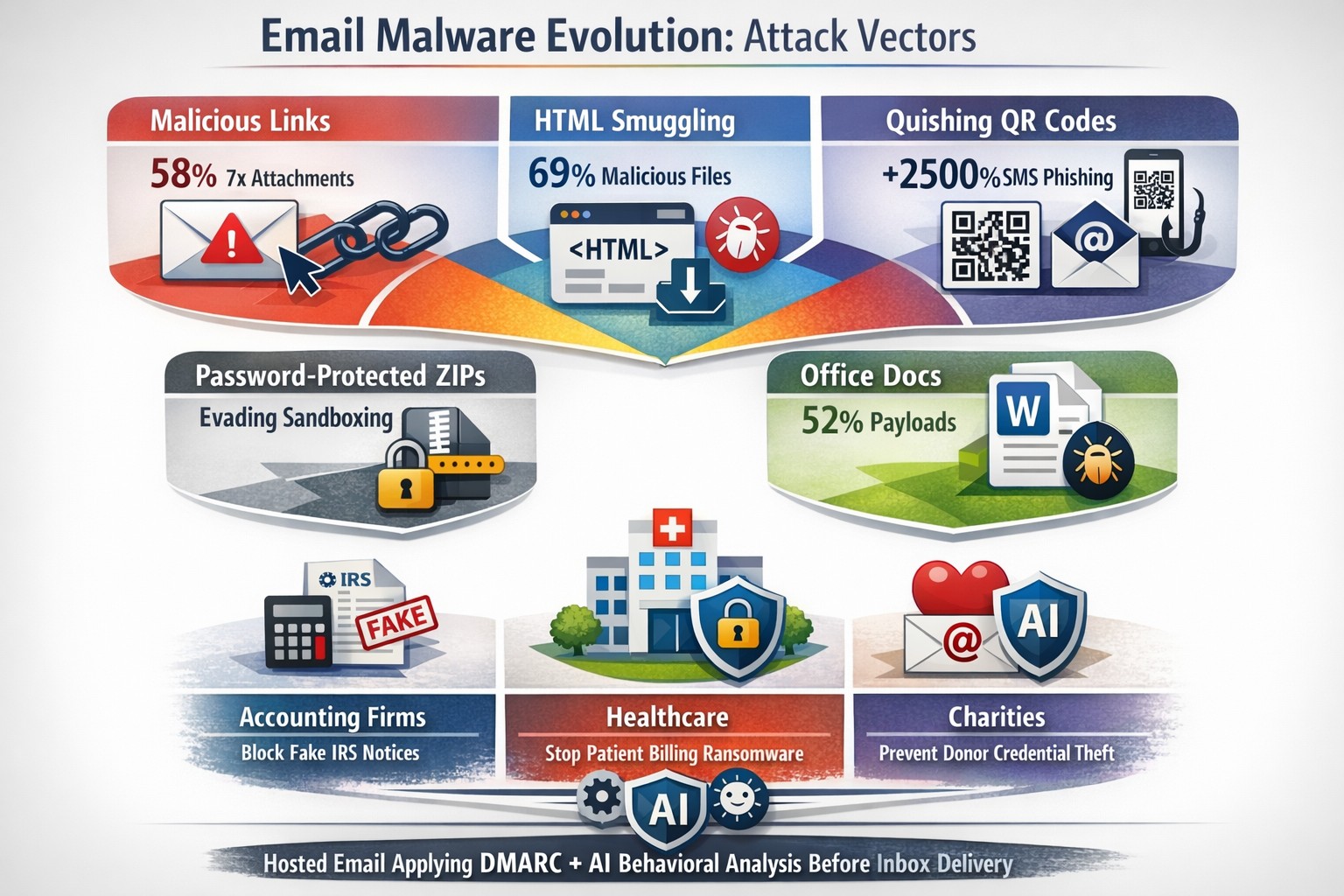
29% – Malware is previously unknown to security vendors due to the continued efforts of malware creators to hide the software or make it undetectable.
88% – Malware is delivered to people’s inboxes and some of it bypassing normal SPAM filters.
8.8 Days – Time before regular antivirus vendors have discovered the malware and added it to their lists for detection.
$50 – The cost of a pre-fabricated malware kit that can be bought currently on the dark web.
“The most common type of malicious attachments were: documents (Word – 31%), archive files (ZIP & RAR – 28%), spreadsheets (Excel – 19%) and executable files (EXE – 17%).”
What can be done?
A multi-tiered approach to security remains the best solution:
Moving from traditional antivirus to Enhanced Detection & Response (EDR) software to go beyond lists of know infections to behavior tracking of software
Moving from traditional SPAM filters to Email Advanced Threat Protection which scans each email and opens each attachment to see if there is any malicious activity cause by them
Moving from traditional router to a business class firewall with Intrusion Prevention System to monitor traffic for suspicious activity
Employee training is also key to keep your staff aware of immerging trends and threats
If your company is looking to enhance your network security posture, then contact us for assistance.
429% credential exposure surge demands passwordless authentication now
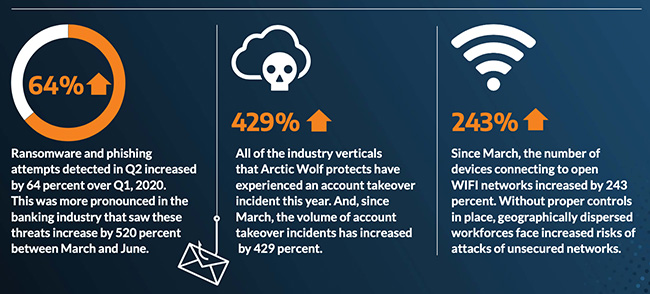
A company named Arctic Wolf, a leader in enterprise security operation centers, published a report that states that the number of corporate credentials with plaintext passwords on the dark web has increased by 429% since March.
There are also startling statistics on the increase in email phishing attempts and the use of unsecure public wireless connections. These numbers are like due to the Work From Home employees using their own insecure computers and cyber criminals trying to take advantage of the trend. It appears that security measures that are used in the office need to be extended to the Work From Home network as well.
If your company is currently or is going to have Work From Home users, then contact us for assistance.
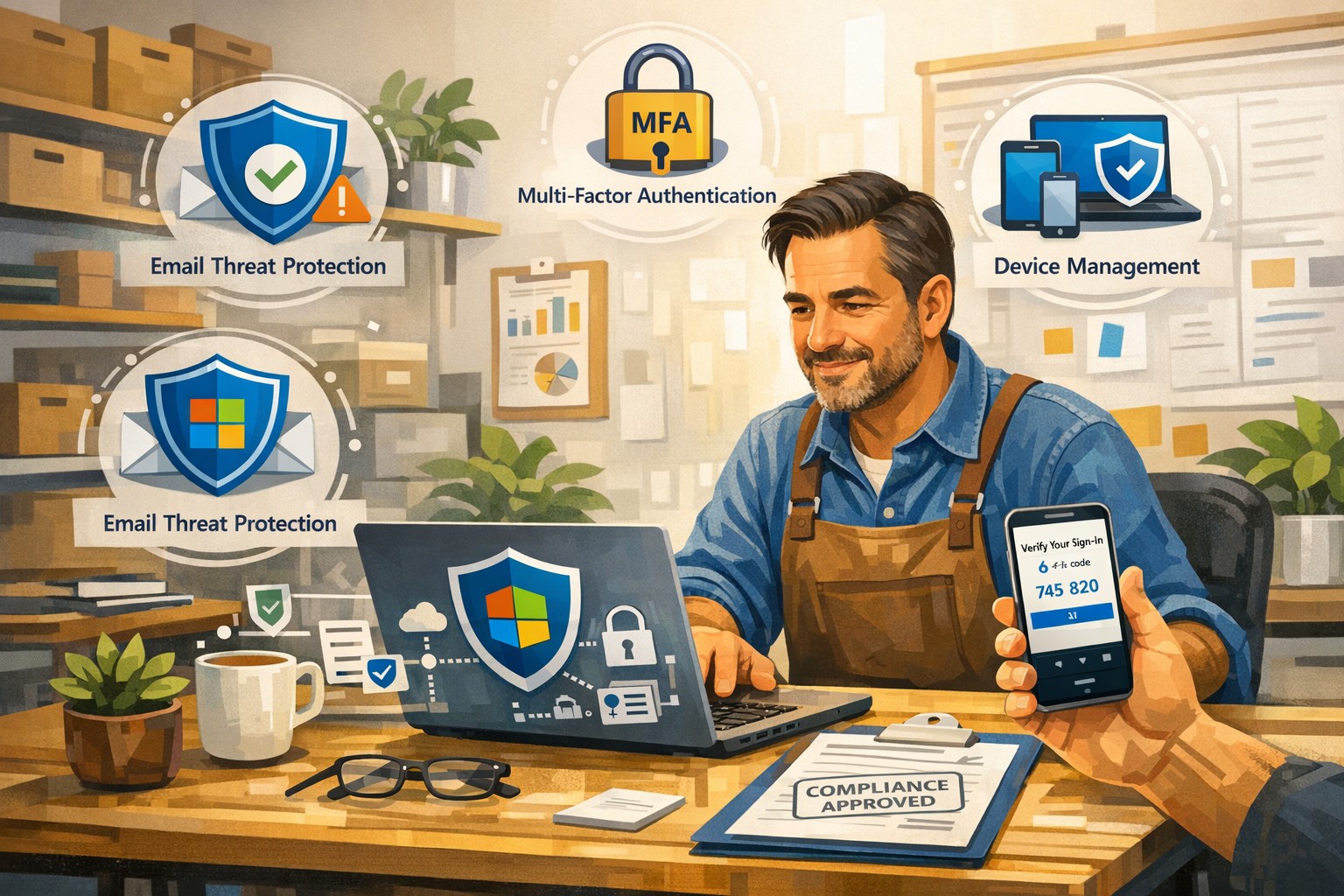
A small business owner uses Microsoft 365 Business to protect email, files, and devices with advanced security features like MFA and device management.
You’re a target whether you have 5 employees or 150. A single compromised email account, lost laptop, or bogus invoice can cost more than a year of IT budget. Microsoft 365 Business (especially Business Premium) includes advanced security—multi-factor authentication, threat protection, and device management—that, when configured correctly, can dramatically reduce your risk without slowing your team down.
Why Microsoft 365 Security Matters to Owners
Microsoft 365 Business plans include built-in protections for email, files, identities, and devices, not just productivity tools. They provide anti-phishing, anti-spam, and anti-malware for cloud mailboxes, plus additional capabilities in Business Premium such as endpoint protection, data loss prevention, and advanced email threat protection. These capabilities are designed specifically for small and mid-sized businesses with up to about 300 users.
For you as an owner, the business outcomes are clear: fewer successful phishing attacks, protection if a device is lost or stolen, better control over who can see what, and evidence you’re taking reasonable steps for compliance and cyber insurance.
Practical Action Steps for You and Your IT
Below is a prioritized, owner-friendly checklist you can drive with your IT provider or internal IT lead.
1. Lock down accounts and logins
Owner responsibilities:
Require multi-factor authentication (MFA) for all staff, especially executives and finance.
Make it policy that shared accounts (info@, billing@) are tightly controlled and monitored.
Approve a standard for strong passwords and password reset processes.
IT responsibilities:
Turn on MFA for all users and admins and enforce it with security defaults or Conditional Access.
Protect admin accounts (separate admin IDs, no email or browsing from admin accounts, strong MFA).
Disable legacy authentication protocols that bypass modern security controls.
2. Harden email and collaboration
Owner responsibilities:
Decide which types of sensitive information must never be sent unencrypted (SSNs, health info, financials, donor lists, etc.).
Set expectations that staff must report suspicious emails instead of clicking or deleting quietly.
IT responsibilities:
Enable advanced anti-phishing, Safe Links, and Safe Attachments if you have Business Premium or Defender add-ons.
Configure preset security policies for Exchange Online to enforce consistent spam and malware filtering.
Enable email encryption policies for sensitive communications and configure data loss prevention (DLP) rules for critical data types.
3. Protect laptops, desktops, and mobile devices
Owner responsibilities:
Require all company devices to be enrolled in device management before accessing business data.
Decide whether personal (BYOD) phones can access company data and under what conditions.
IT responsibilities:
Use mobile device management and mobile app management to enforce PIN/biometric locks and device encryption.
Configure endpoint protection (Microsoft Defender for Business) on Windows devices and ensure automatic security updates.
Enable the ability to remotely wipe corporate data from lost or stolen devices.
4. Control access to files and data
Owner responsibilities:
Define which departments or roles should have access to which data (HR, finance, operations, executive, etc.).
Nominate “data owners” in each area who approve access changes.
IT responsibilities:
Use role-based access and groups to control who can see what in SharePoint, OneDrive, and Teams.
Implement sensitivity labels (e.g., Public, Internal, Confidential) to classify and protect documents and emails.
Set file-sharing policies (internal-only for sensitive data, restricted external sharing where needed).
5. Train people and monitor the environment
Owner responsibilities:
Mandate short, recurring security awareness training and phishing simulations.
Make it clear that reporting a mistake early is rewarded, not punished.
IT responsibilities:
Turn on security dashboards/secure score reporting and review them routinely.
Run regular phishing simulations and track improvement over time.
Document an incident response plan: who does what in the first hour of a suspected breach.
Common Client Questions and Straightforward Answers
Q1: Isn’t Microsoft 365 secure “out of the box”? A: It’s secure by default compared to many platforms, but critical features like MFA, device policies, and data loss prevention must be deliberately configured. Think of it like a building with locks installed—you still have to decide who gets keys and when doors stay locked.
Q2: Will all this security make it harder for my employees to work? A: Done properly, most changes are almost invisible after setup. MFA adds a few seconds at sign-in but can drastically cut account takeovers; device policies and automatic updates run in the background.
Q3: We’re a small business. Are we really a target? A: Yes. Automated attacks scan the internet for easy targets regardless of size, and small businesses are often seen as “soft” targets with weaker controls.
Q4: Do we need Business Premium, or is Basic/Standard enough? A: Basic and Standard include core email protections and collaboration tools, but Business Premium adds advanced threat protection, full device management, and better data protection—those are often required to meet cyber insurance and compliance expectations.
Q5: How long does it take to put all this in place? A: A phased rollout is typical: MFA and email protection in days, device and data controls over a few weeks, followed by ongoing tuning and training.
How Farmhouse Networking Helps You Implement This
Farmhouse Networking specializes in turning Microsoft 365 Business into a practical, business-grade security platform tailored for small and mid-sized organizations in accounting, healthcare, and nonprofit sectors.
Here is what implementation looks like with us:
Security assessment and roadmap We review your current Microsoft 365 tenant, licensing, and security posture, then build a prioritized, owner-friendly roadmap focused on quick wins (MFA, admin protection, baseline email security) and longer-term improvements (device management, DLP, labeling).
Secure configuration and deployment We configure MFA, Conditional Access, advanced email security, device protection, and file-sharing policies following Microsoft best practices, while aligning with your industry-specific requirements and compliance pressures.
Data classification and access design We work with you to define which information is most sensitive, who should access it, and how to label and protect it across email, SharePoint, OneDrive, and Teams.
User training and ongoing support We provide concise training for your staff, phishing simulations, and ongoing monitoring so that your security posture keeps improving instead of drifting over time.
Coordination with your IT team If you already have internal IT, we act as a specialist partner, focusing on Microsoft 365 security design, documentation, and escalation support while your team handles day-to-day operations.
Call to Action
If you want to turn Microsoft 365 Business into a true security shield for your organization—not just an email and Office subscription—Farmhouse Networking can design and implement a right-sized security program for you.
Email support@farmhousenetworking.com for more information about how Farmhouse Networking can help improve your business and better protect it with advanced security from Microsoft 365 Business.
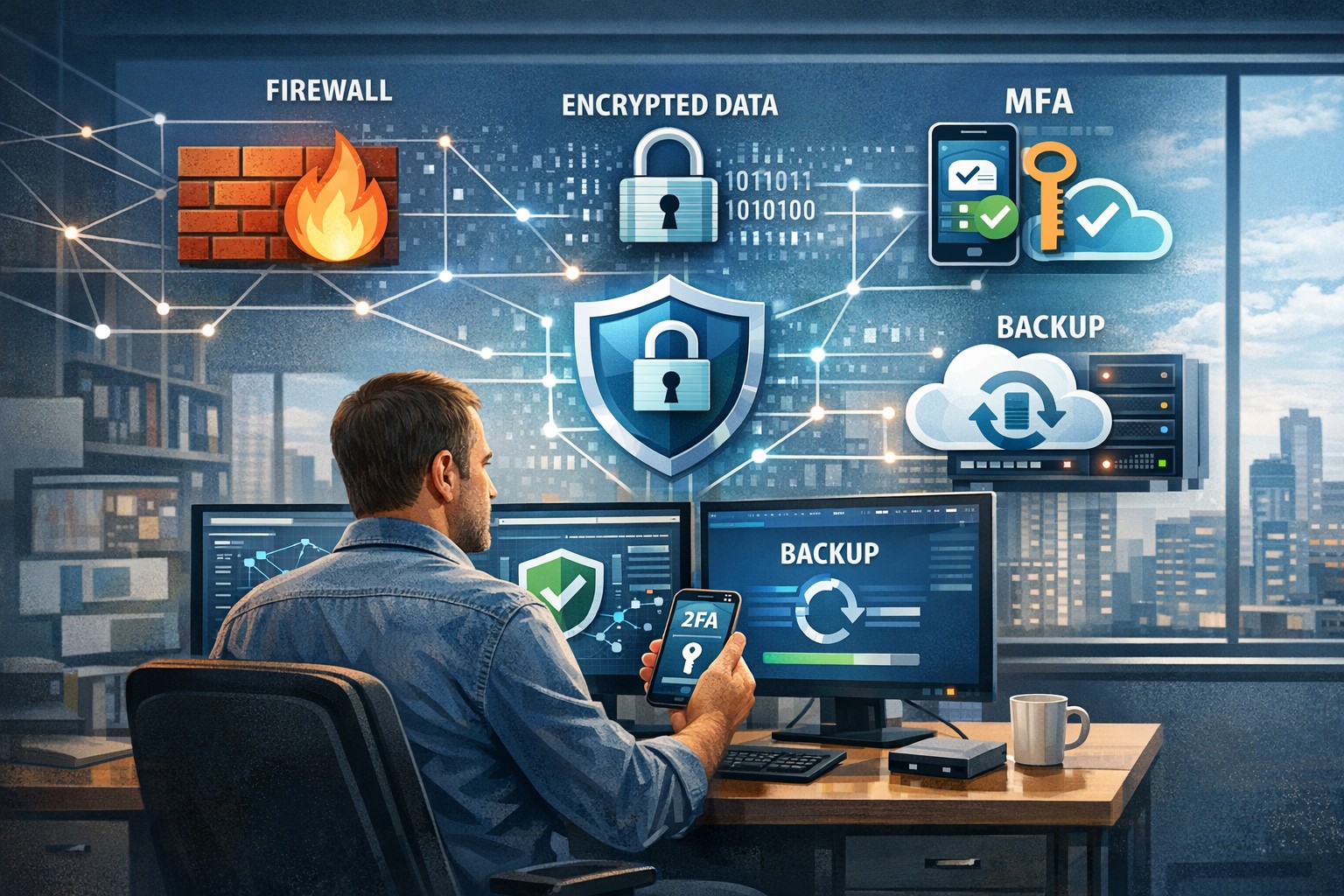
A small business owner leveraging modern cybersecurity tools—firewalls, multi‑factor authentication, and backups—to protect their company’s network and sensitive client data from cyber threats.
You may think cyberattacks are a “big‑company problem.” In 2026, that assumption is one of the most dangerous blind spots you can have. Cybercriminals increasingly target SMBs precisely because budgets are tighter, security is lighter, and breaches in small environments can be just as costly as in large enterprises. The question is no longer if a threat will hit your business, but when—and whether your people, data, and reputation are ready.
For a business‑owner audience, this post breaks down what “good cybersecurity” actually looks like in practice, gives you concrete steps your team can take, answers common client‑facing concerns, and shows how Farmhouse Networking can help you implement and maintain these protections without overhauling your operations.
Why SMBs Are Prime Targets
Cybercriminals are opportunistic: they look for the path of least resistance. SMBs often have limited IT staff, minimal security budgets, and patchy policies around email, passwords, and backups. That combination makes them ideal targets for ransomware, phishing, and data‑theft campaigns that can cripple operations and destroy customer trust in a matter of hours.
Regulatory scrutiny is also tightening. Even if you’re not a multinational, you may still face fines or contractual penalties if client or partner data is lost in a breach. Investing in cybersecurity is no longer “optional overhead”—it’s a core cost of doing business in 2026.
Practical Cybersecurity Steps for Business Owners
You don’t need a Fortune‑500‑level security team, but you do need structure. Here are the key areas every small or mid‑size business should address, along with specific actions your owner and IT team can immediately act on.
1. Lock Down Access with Strong Authentication
Require multi‑factor authentication (MFA) for all accounts that hold customer data, email, banking, or cloud services.
Prefer authenticator apps or hardware keys over SMS‑based codes to reduce phishing and SIM‑swapping risk.
Enforce strong password policies and provide a company‑approved password manager so teams don’t reuse passwords across personal and business services.
2. Patch Systems and Secure Endpoints
Turn on automatic updates for operating systems, browsers, and core business software (accounting, CRM, practice management).
Deploy next‑generation antivirus or EDR tools that monitor unusual behavior, not just known malware signatures.
Ensure every device that touches business data has disk encryption, screen‑lock timing, and basic firewall rules enabled.
3. Protect Networks and Wi‑Fi
Use business‑grade firewalls with default‑deny rules and logging, and avoid exposing unnecessary ports to the internet.
Configure Wi‑Fi networks with WPA3 encryption (or WPA2‑Enterprise), and keep guest Wi‑Fi on a separate, isolated segment.
Segment your network so that high‑value systems (financial and HR data, servers) sit on a separate, more tightly controlled segment.
4. Back Up Data and Plan for Incidents
Define what data is critical (client records, financials, contracts) and back it up regularly to an encrypted, cloud‑ or off‑site‑based solution.
Store multiple recovery points and test restorations periodically to ensure backups actually work.
Put a simple incident response plan in place: who gets notified, who talks to clients, and how you’ll isolate affected systems during a breach.
5. Train Your Team and Manage Email Risk
Conduct regular, short security training focused on phishing, password hygiene, and safe handling of sensitive data.
Deploy an email security gateway that scans attachments, rewrites malicious URLs, and quarantines suspicious messages before they reach inboxes.
Establish clear rules for sharing sensitive data via email (e.g., no client SSNs or insurance numbers in plain text) and enforce them.
Common Client Questions (and How to Answer Them)
When you talk to clients about cybersecurity, they’ll naturally ask around cost, risk, and responsibility. Framing these clearly builds trust and positions your business as a professional partner, not just a vendor.
“Won’t this slow down our operations?”
Answer: Modern security tools are designed to run quietly in the background. Properly configured firewalls, MFA, and endpoint protection add minimal friction while stopping the vast majority of automated attacks. Think of it like seat belts and airbags: you don’t feel them every day, but they’re critical when something goes wrong.
“We’re a small business; do we really need this much protection?”
Answer: Cybercriminals are increasingly using AI‑driven tools to probe and exploit small businesses precisely because defenses are weaker. A single breach can mean downtime, legal fees, and reputational damage that can take years to recover from. Basic, layered security is now table stakes for reputable SMBs.
“How do you know if our network is secure enough?”
Answer: There’s no “perfectly secure” state, but there are measurable baselines:
Are critical systems encrypted and backed up?
Is MFA enforced on all key accounts?
Are software and firmware updated regularly?
Are there clear policies and training for staff? A third‑party security audit or network assessment can map these gaps and prioritize where to invest next.
How Farmhouse Networking Can Help
Farmhouse Networking is built to help small and mid‑size businesses implement, manage, and maintain these cybersecurity measures without the overhead of a full‑time, in‑house security team. We focus on practical, cost‑effective solutions that fit your budget and workflow.
Here’s how we support your cybersecurity efforts:
Network and firewall configuration: We design and harden your network so that only necessary services are exposed, and sensitive systems are segmented and monitored.
Endpoint protection and patch management: We deploy and manage modern antivirus/EDR tools, ensure automatic updates, and enforce device‑level security policies across laptops, desktops, and mobile devices.
MFA, password policy, and access controls: We help you implement MFA everywhere it matters and set up role‑based access so employees only see the data they need.
Backup and incident readiness: We design a backup strategy tailored to your business‑critical data and help you define a simple incident response playbook so you know what to do if something goes wrong.
Ongoing monitoring and training support: We can monitor key security events and provide guidance on regular, brief security training sessions so your team stays alert without disrupting daily operations.
Take the Next Step Today
If you’re a small or mid‑size business owner, now is the time to treat cybersecurity as a core business function, not an afterthought. Simple, layered defenses—strong authentication, regular patching, secure networks, and reliable backups—can dramatically reduce your risk and keep your operations running even when threats emerge.
If you’d like to see how Farmhouse Networking can help you implement these steps with minimal disruption to your team, email us atsupport@farmhousenetworking.comfor a consultation. We’ll review your current setup, identify your top risks, and build a tailored plan that keeps your data, customers, and reputation safe in 2026 and beyond.
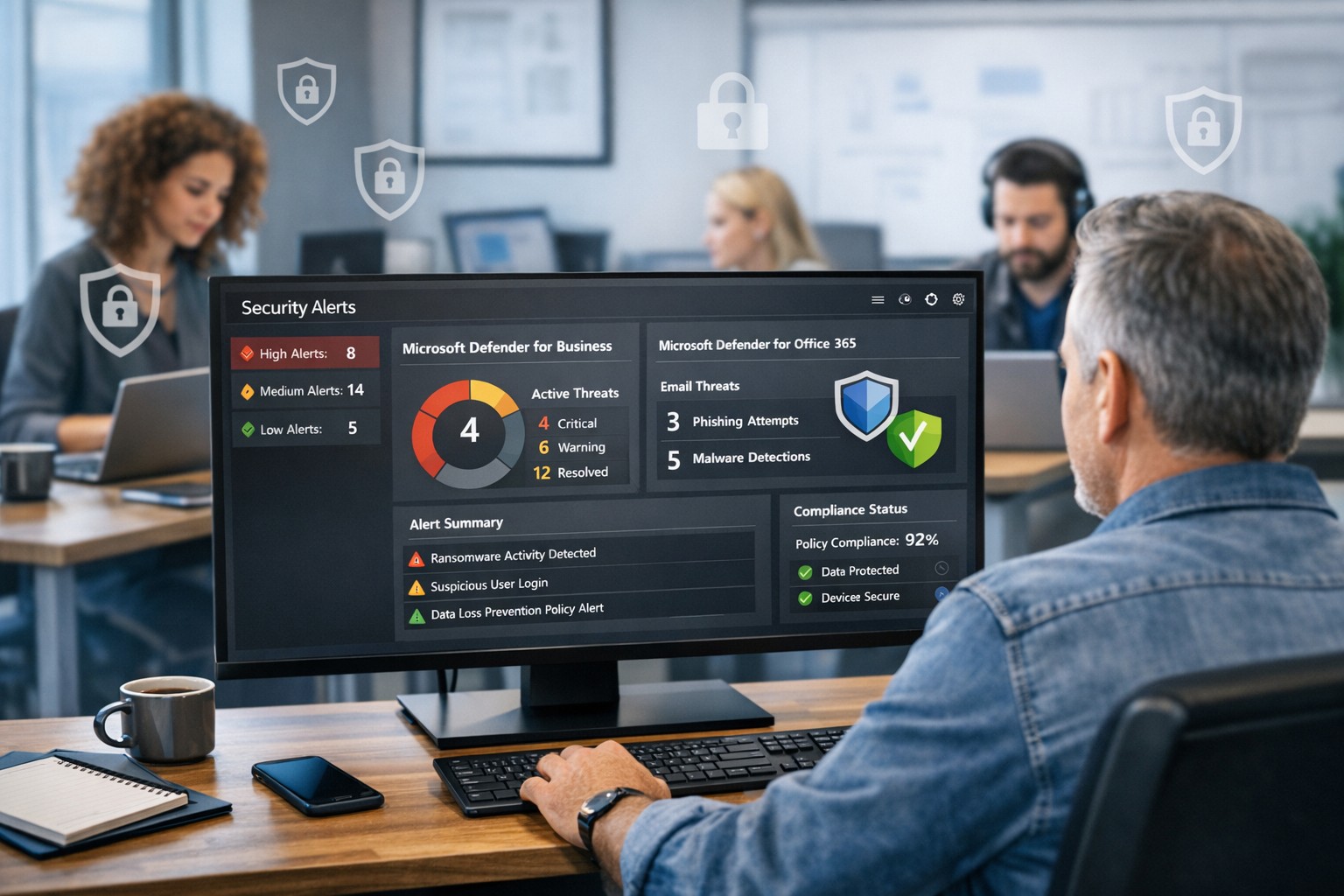
Protect your company with Microsoft security solutions: Microsoft Defender for Business and Microsoft 365 security help small and mid‑sized businesses block ransomware, phishing, and data breaches.
Many of our customers have been experiencing some of their users having Outlook crashing immediately after opening. We even had other tech companies call to find out how we were fixing it, so we investigated and found the following known issue from Microsoft:
Users experiencing Outlook connection issues and crashes EX218604, Exchange Online, Last updated: July 15, 2020 10:12 AM Start time: July 15, 2020 9:18 AM User impact: Users may experience crashes or may be unable to access Exchange Online via Outlook. Current status: Our initial review of the available data indicates that recently deployed updates are the likely source of the problem. We’re performing an analysis of all recent service updates to isolate the underlying cause of the problem and to determine the most expedient means to restore service.
We will be keeping our monthly clients up to date on this issue.
Archive emails forever without PST management or storage quotas
Have to admit that I get a ton of email. In fact I have received 30+GB over the almost five years Farmhouse Networking has been in business. I decided that it was time to archive some of the older messages and checked into what Office 365 has for options. Here is what I found:
“Unlimited” Archiving Office 365 now has what is called “auto-expanding archiving” that is now available for all users. The old archive feature only allowed 100GB of additional space for free, but the new system is different. Users who get close to the old limit then their account changes to the auto-expanding type and additional storage is added as needed. The new maximum is at 1TB of storage, which even at average maximum size per email (10MB) that is 100,000 emails. To put that in perspective that is one maximum size email per hour, eight hours per day, five days per week, for almost 42 years before email archives would be full.
If your company is gets a bunch of email and likes to save it all, then contact us for assistance.
And God will generously provide all you need. Then you will always have everything you need and plenty left over to share with others. As the Scriptures say, “They share freely and give generously to the poor. Their good deeds will be remembered forever.” For God is the one who provides seed for the farmer and then bread to eat. In the same way, he will provide and increase your resources and then produce a great harvest of generosity in you. - 2 Corinthians 9:8-10
We use cookies to ensure that we give you the best experience on our website. If you continue to use this site we will assume that you are happy with it.