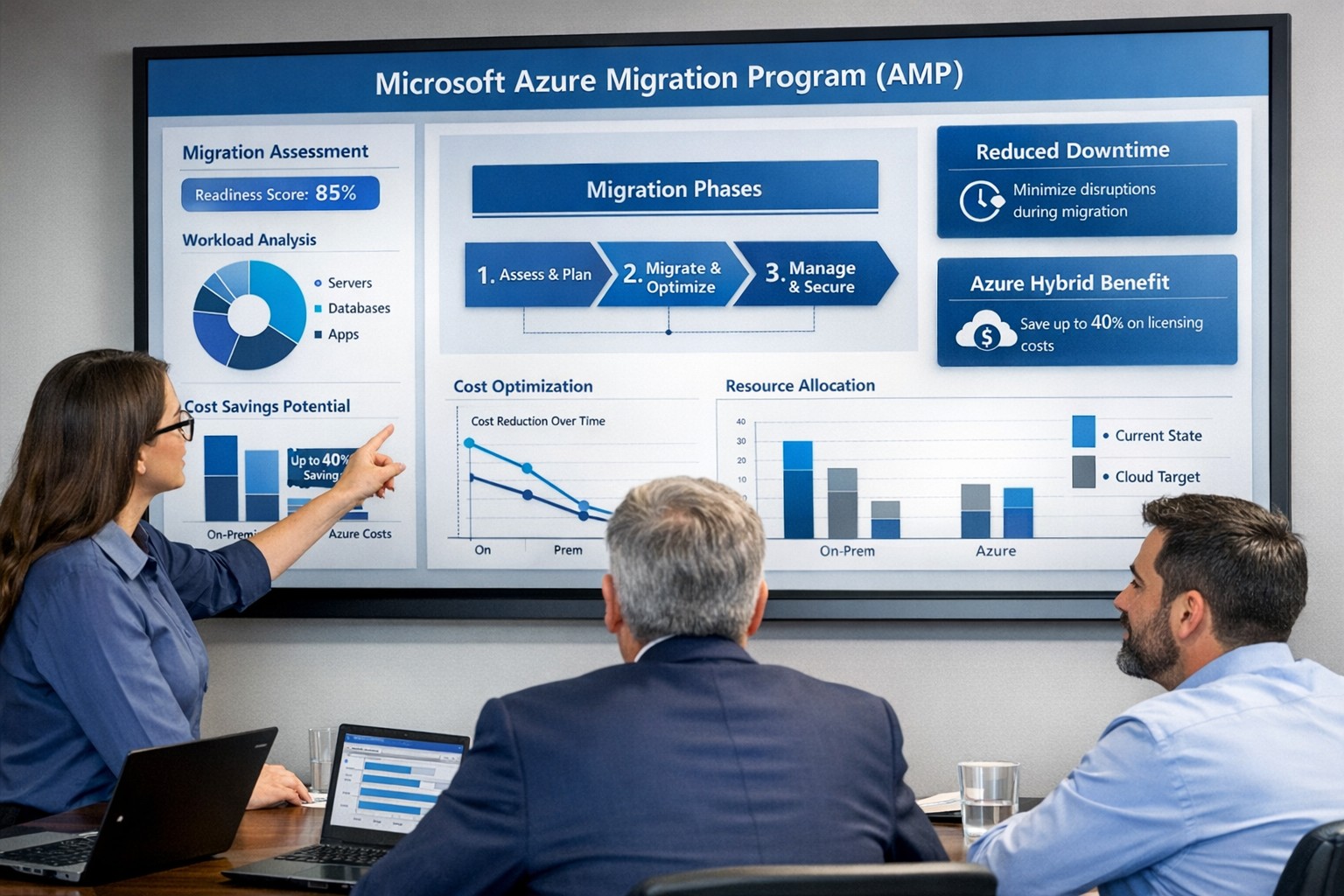
Visualize your Azure migration success with the Microsoft Azure Migration Program (AMP)—structured steps, cost savings, and expert guidance for seamless cloud adoption.
If you are considering moving servers, line‑of‑business apps, or databases into Microsoft Azure, the Azure Migration Program (often called AMP) is designed to reduce risk, speed up the project, and lower your total cost of migration. For a business owner, AMP means structured guidance from Microsoft and certified partners, funded assessments, and proven tools instead of “figure it out as we go.”
What Is the Azure Migration Program (AMP)?
Microsoft’s Azure Migration Program provides a guided, end‑to‑end approach to moving workloads into Azure, based on the Cloud Adoption Framework. It combines technical guidance, training, migration tools, and cost‑saving offers so your team is not reinventing the wheel.
Key elements include:
Curated, step‑by‑step guidance from Microsoft experts and specialized migration partners.
Free Azure migration tools such as Azure Migrate, Azure Site Recovery, and Database Migration Service.
Cost‑reduction offers like Azure Hybrid Benefit and extended security updates for legacy Windows Server and SQL Server.
Training and skill building for your IT staff so they can operate confidently in Azure after the move.
Practical Action Steps for You and Your IT Team
As the owner, your role is to set business priorities and ensure the migration stays aligned with revenue, risk, and customer impact, while IT handles the technical execution.
Step 1: Define business outcomes and constraints
Identify which systems are most critical (ERP, EMR, accounting, CRM) and what can tolerate downtime.
Set financial guardrails: target monthly cloud budget and acceptable payback period on the migration.
Step 2: Assess your current environment Your IT team, often with an AMP‑qualified partner, should:
Inventory servers, applications, databases, and dependencies (who talks to what, and when).
Use Azure Migrate to scan workloads and estimate right‑sized Azure resources and costs.
Group applications into logical waves (low‑risk first, mission‑critical later).
Decide per workload: rehost (“lift and shift”), refactor, or modernize.
Agree on success metrics: performance, availability, RPO/RTO, and cost per workload.
Step 4: Secure funding and enroll in AMP
Confirm AMP eligibility and available funding for assessments and implementation with a certified partner.
Use funded assessments to validate architecture, security, and migration approach before committing to a full rollout.
Step 5: Execute, optimize, then expand
Start with a pilot migration to prove performance, security, and cost assumptions.
Monitor usage with Azure Cost Management and tune sizing, auto‑scaling, and reserved instances.
Apply lessons from the pilot to subsequent waves to reduce timelines and surprises.
Common Client Questions (and Clear Answers)
Q1: Is Azure really more cost‑effective than keeping my servers on‑premises? A: For most organizations, especially those facing hardware refresh, licensing renewals, or colo costs, Azure can be more cost‑effective when workloads are right‑sized and governed. AMP helps you estimate costs with real data and use cost‑optimization tools like Azure Hybrid Benefit and Azure Cost Management from day one.
Q2: How will this impact uptime and my customers? A: The program is designed to minimize disruption using tools such as Azure Site Recovery and structured migration waves. With proper planning, most critical workload cutovers are scheduled during low‑usage windows and can be rolled back if required.
Q3: What about security and compliance? A: Azure includes built‑in security controls, encryption, identity management, and compliance certifications that often exceed what small and mid‑sized businesses maintain on‑premises. AMP engagements incorporate security and governance reviews so your new environment aligns with industry and regulatory requirements.
Q4: My internal IT team is stretched. Do they have to do everything? A: No—AMP is explicitly structured around collaboration between your team, Microsoft engineers, and certified partners. Your staff focuses on business knowledge and application nuances while the partner handles the heavy lifting and trains your team on new cloud operations.
Q5: We tried “cloud” before and it was painful. Why will this be different? A: Most failed migrations lacked a standardized framework, proper assessment, or cost governance. AMP enforces a proven methodology, tooling, and checkpoints, reducing the likelihood of budget overruns, downtime, or security gaps.
How Farmhouse Networking Helps You Succeed with AMP
Farmhouse Networking aligns your Azure migration with your business strategy, not just your server list. We help you translate goals like “reduce downtime,” “improve security posture,” or “support remote work” into a concrete cloud roadmap.
Here is how we typically engage:
Eligibility and strategy session – We review your environment, validate AMP eligibility, and map out a phased migration aligned with risk and cash‑flow tolerance.
AMP‑style assessment and planning – We perform an in‑depth inventory, dependency analysis, and sizing estimate using Azure’s migration tools, then deliver a prioritized migration plan and business‑level impact summary.
Hands‑on migration and modernization – We handle the technical execution: configuring Azure landing zones, security and networking, moving servers and databases, and modernizing apps where it makes financial sense.
Training and ongoing optimization – We coach your IT staff on Azure operations and put cost, security, and performance monitoring in place so you continue to see value after the cutover.
Take the Next Step
If you are ready to explore whether the Azure Migration Program is the right path for your business—and want a partner who understands both the technical and financial side of migration—Farmhouse Networking is ready to help. Email support@farmhousenetworking.com for more information about how Farmhouse Networking can help improve your business with a structured, low‑risk move to Azure.
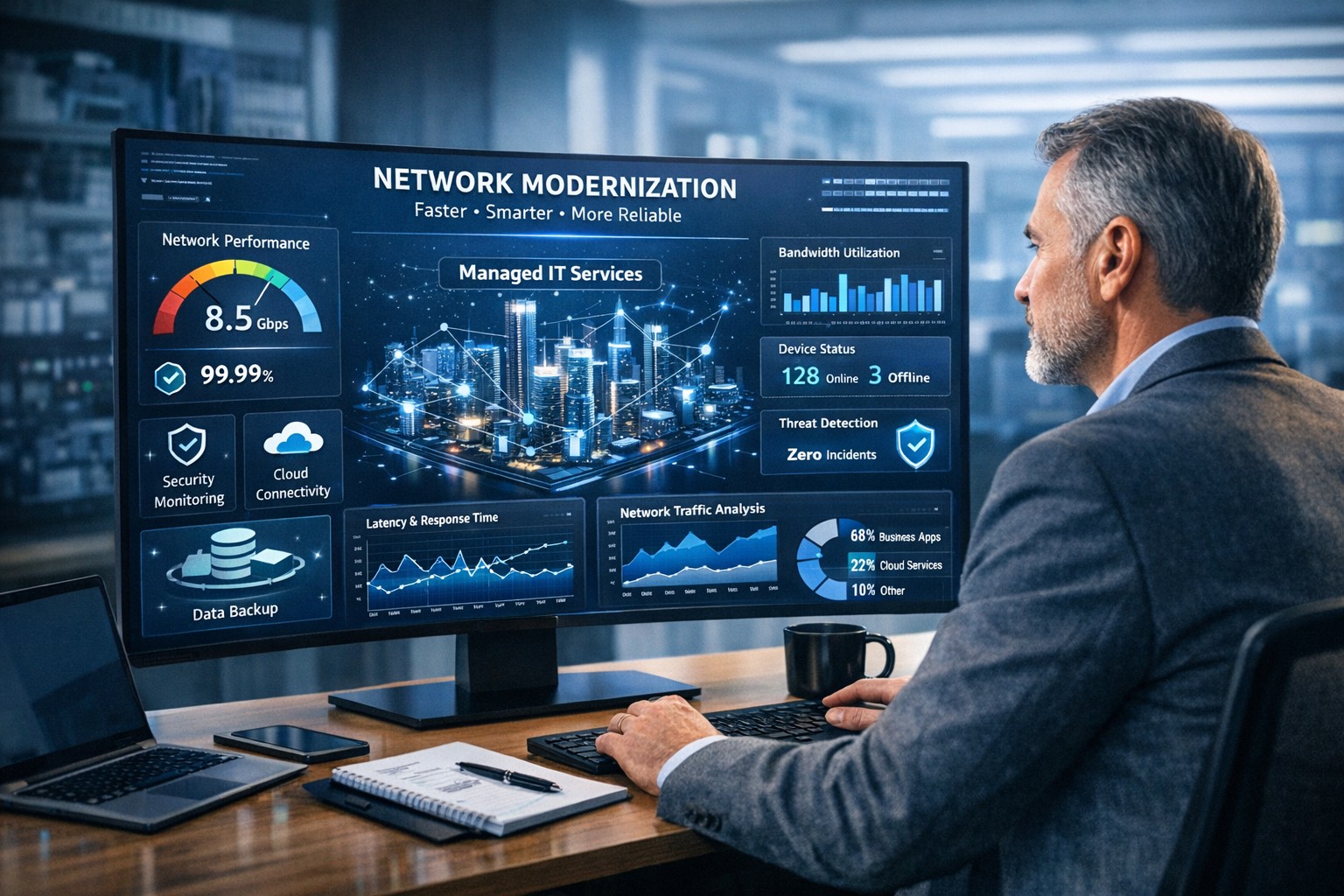
Farmhouse Networking helps businesses modernize their networks for faster performance, smarter automation, and secure connectivity.
The business world is moving at the speed of data. From cloud applications to video conferencing and smart devices, modern companies thrive on connectivity — and that means your network must be faster, more reliable, and intelligent enough to adapt. The days of “good enough” internet are gone. The next-generation network is faster, closer to your customers, and smarter in the way it predicts and manages performance.
Why “Faster, Closer, Smarter” Matters for Every Business Owner
A few years ago, network upgrades were viewed as an IT luxury. Today they’re a business necessity. Productivity, customer experience, and profit margins increasingly depend on how efficiently your systems communicate across multiple sites and cloud services.
Faster: Applications like video meetings, VoIP, and cloud storage demand low latency and high bandwidth. Slow connections mean lost opportunities.
Closer: Edge computing brings resources and data processing nearer to users, reducing lag and improving responsiveness for remote teams and mobile customers.
Smarter: Artificial intelligence (AI)–driven networks detect issues before they cause downtime, automatically direct traffic, and protect against cyber threats.
Business growth in 2020 and beyond will favor companies that embrace these technologies early — and that’s where proactive planning makes all the difference.
Action Steps for Business Owners and IT Teams
Modernizing your network doesn’t have to be complicated. Here are practical steps to future-proof your infrastructure:
Audit your current network. Identify bottlenecks, aging hardware, and underperforming Wi-Fi zones. Tools like traffic analyzers or managed network assessments can pinpoint areas for improvement.
Move critical workloads to the cloud wisely. Hybrid cloud environments balance flexibility and security — but only when configured with responsive bandwidth and monitored connections.
Invest in network automation and AI-based monitoring. Smart analytics help your IT team spot anomalies before employees notice performance issues.
Upgrade for speed and reliability. Fiber-optic connectivity, gigabit routers, and Wi-Fi 6 access points deliver measurable performance boosts.
Secure everything. With more connected devices comes more risk. Integrated firewalls, endpoint protection, and regular patch management are essential defenses.
Partner with a managed services provider (MSP). Outsourcing these functions ensures around-the-clock monitoring and proactive support so your internal staff can focus on core business priorities.
Common Client Questions — Answered
Q: “Is upgrading my network really worth the cost?” A: Absolutely. Slow or unreliable connectivity costs more in downtime and lost productivity than the upgrade itself. Modern networks reduce maintenance time, prevent outages, and improve customer satisfaction.
Q: “What about security? Doesn’t a smarter network mean more risk?” A: Actually, the opposite. With automated patching, real-time threat detection, and AI-powered monitoring, a smarter network significantly strengthens protection.
Q: “How do I know what network capacity I’ll need?” A: Your ideal bandwidth depends on your business applications, remote workers, and cloud services. A professional assessment from an MSP can provide accurate data and recommendations tailored to your growth goals.
How Farmhouse Networking Can Help
At Farmhouse Networking, we specialize in helping businesses modernize their IT infrastructure with practical, budget-conscious solutions. Whether you need a network assessment, faster connectivity, smart automation, or enhanced cybersecurity, our team brings years of expertise in network design, implementation, and ongoing support.
We work with local businesses to:
Audit existing network performance and identify inefficiencies.
Implement cloud and edge computing solutions.
Automate monitoring through intelligent network management tools.
Strengthen IT security to protect sensitive data and client trust.
Our mission is to make enterprise-grade technology accessible to your small or mid-sized business — keeping your network running faster, closer, and smarter than ever before.
Ready to Upgrade Your Network?
Don’t let outdated systems slow you down in 2020’s fast-moving digital economy. Future-proof your business with a smarter, more efficient network built for growth.
Email support@farmhousenetworking.com today to learn how Farmhouse Networking can help your business stay connected, secure, and competitive.
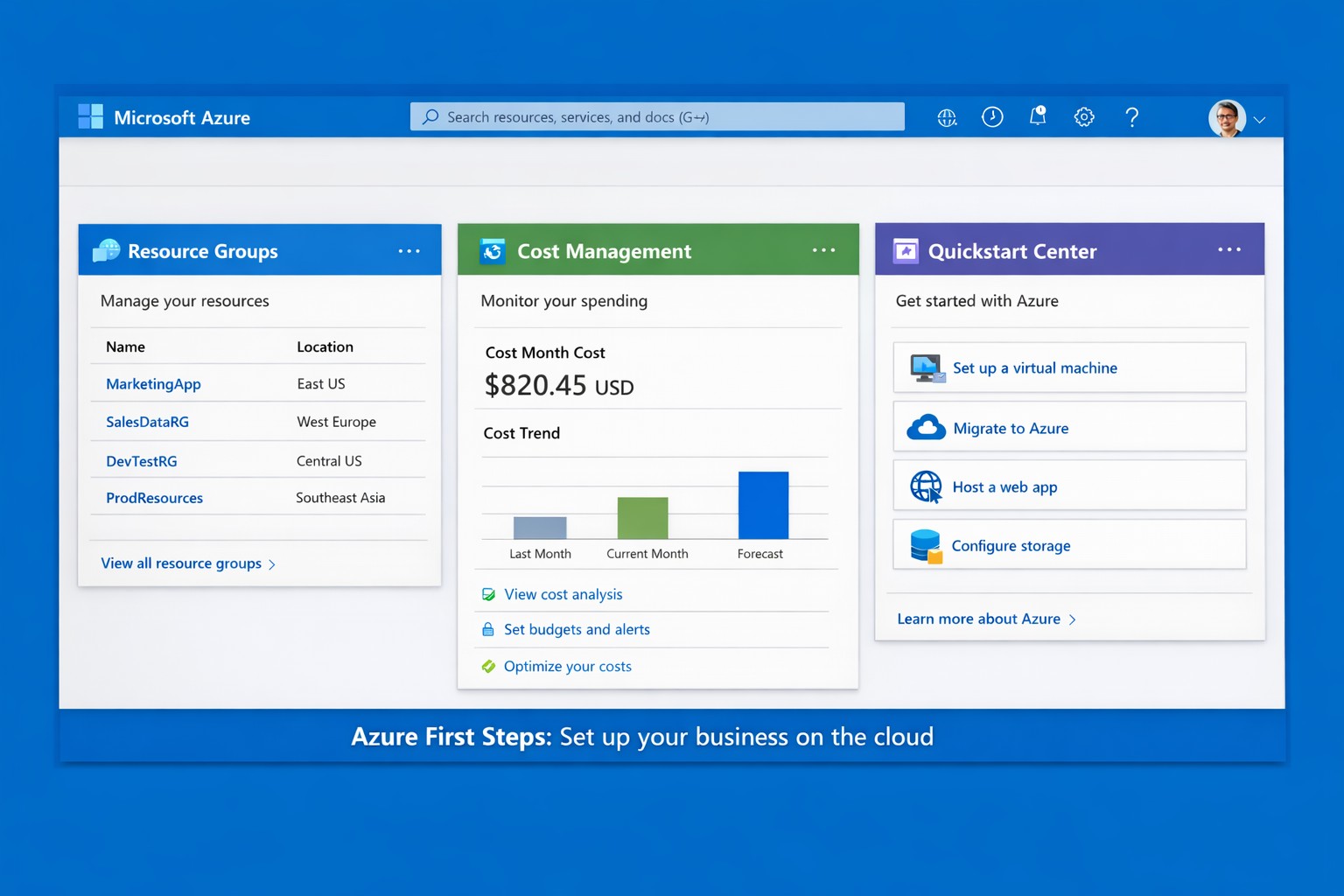
Launch your business on Microsoft Azure: Sign up, deploy resources, and monitor costs in minutes.
Migrating to Microsoft Azure can cut IT costs by up to 40% while scaling operations seamlessly—without the hassle of on-premises servers. This guide delivers practical steps tailored for you and your IT team to launch Azure quickly, addressing common concerns and showing how Farmhouse Networking streamlines the process.
Practical Action Steps
Follow these actionable steps to get your business on Azure. Designed for owners overseeing IT without deep technical dives.
Sign Up for a Free Azure Account: Visit azure.microsoft.com, select “Start Free,” and use your Microsoft account or create one. You’ll get $200 in credits for 30 days plus 12 months of popular free services like VMs and storage—no upfront charges if you monitor usage.
Access the Azure Portal and Customize Dashboard: Log in at portal.azure.com. Use the search bar for quick navigation, create Resource Groups to organize projects (e.g., “Marketing Apps”), and pin key metrics like costs to your dashboard for at-a-glance oversight.
Estimate Costs and Set Budgets: In the portal, go to Cost Management + Billing. Input your expected usage (e.g., VMs, storage) via the Pricing Calculator to forecast expenses. Set alerts for $50+ thresholds to avoid surprises—essential for business budgeting.
Deploy Your First Resource: Start with a simple Web App or VM. Search “App Service” > Create > Choose runtime (e.g., .NET), free tier, and region near Grants Pass, OR (West US 2). Deploy in minutes to test scalability.
Secure and Monitor Basics: Enable Multi-Factor Authentication (MFA) under Security settings. Use Azure Monitor for alerts on performance and Azure Advisor for free optimization tips like rightsizing resources.
These steps typically take 1-2 hours initially, scaling as your business grows.
Common Q&A for Business Owners
Q: Is Azure secure for sensitive business data? A: Yes—Azure meets standards like HIPAA, GDPR, and SOC 2 via built-in encryption, firewalls, and compliance tools. Your IT team can enforce policies automatically.
Q: How much will this cost my business? A: Free tier covers starters; paid scales pay-as-you-go (e.g., $0.01/hour for basic VM). Use the Azure Pricing Calculator and Cost Management to cap spends—many businesses save 30% vs. AWS.
Q: Do I need Azure-certified staff? A: Not immediately—use the Quickstart Center for guided checklists. For complex setups, partner with experts to avoid pitfalls.
Q: Can Azure handle growth for accounting/healthcare firms? A: Absolutely—auto-scaling VMs and App Services support spikes (e.g., tax season), with HIPAA-compliant storage for healthcare records.
How Farmhouse Networking Helps
Farmhouse Networking specializes in B2B cloud migrations for accounting, healthcare, and nonprofits—driving organic traffic via Azure-optimized sites and converting visitors to clients. We handle full setups: account config, custom resource groups, cost forecasting, secure deployments, and 24/7 monitoring. Our SEO-infused strategies (e.g., Azure-backed blogs) boost your visibility, while lead-gen tools turn portal analytics into qualified prospects. Skip the learning curve—our team deploys production-ready Azure in days, ensuring compliance and ROI from day one.
Call to Action
Ready to unlock Azure’s potential for your business? Email support@farmhousenetworking.com today for a free consultation on streamlining your first steps.
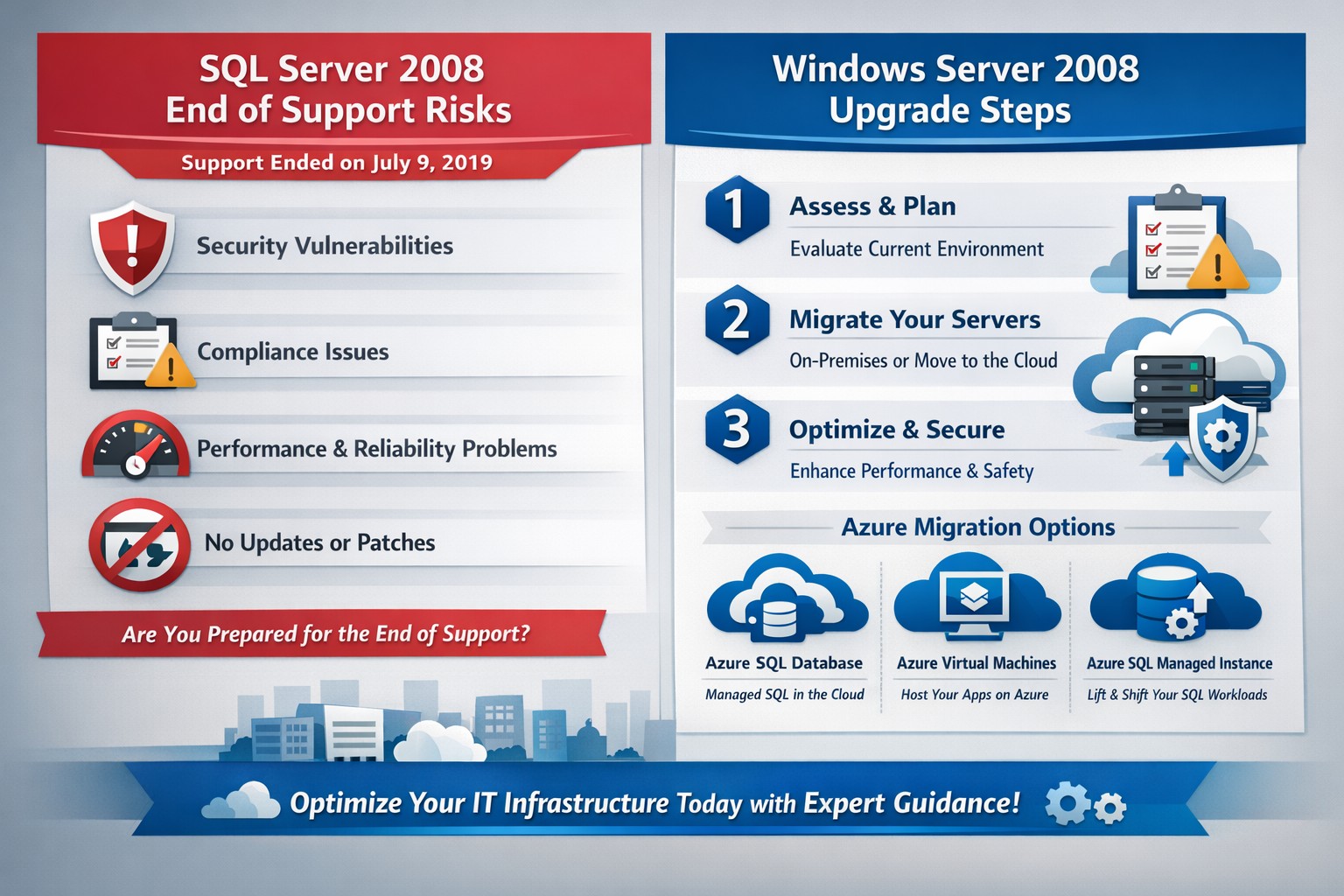
Visual timeline: SQL Server 2008 end of support (2019) and Windows Server 2008 EOS (2020)—start your secure migration now.
Relying on SQL Server 2008 or Windows Server 2008 exposes your operations to severe security risks since both reached end of support years ago—SQL Server on July 9, 2019, and Windows Server on January 14, 2020. Without Microsoft’s security patches, your databases and servers are vulnerable to exploits, data breaches, and compliance failures that could cost millions in fines, downtime, and lost trust.
Critical Risks for Your Business
Unpatched systems like these attract cyberattacks targeting outdated databases and servers, often holding sensitive customer data in accounting, healthcare, or charity sectors. Regulatory mandates (e.g., HIPAA, PCI-DSS) demand supported software, risking penalties if breached. Performance lags and incompatibility with modern apps further erode efficiency, directly hitting your bottom line.
Action Steps for You and Your IT Team
Follow these prioritized steps to migrate securely and minimize disruption.
Inventory Assets: Use tools like Microsoft Assessment and Planning Toolkit (MAP) to scan for SQL Server 2008/R2 and Windows Server 2008 instances across on-premises, VMs, and apps.
Assess Compatibility: Run SQL Server Upgrade Advisor to identify migration blockers; test apps on newer versions like SQL Server 2022 or Azure SQL.
Choose Path: Upgrade in-place to supported versions, lift-and-shift to Azure, or modernize with containers—avoid Extended Security Updates (ESU) as they’re costly and temporary (up to 3 years extra, post-2023).
Plan Migration: Phase workloads by risk; start with dev/test environments. Budget 3-6 months for complex setups.
Test and Go Live: Validate post-migration with backups, failover tests, and monitoring; cut over during low-traffic windows.
Secure and Monitor: Enable Azure Defender, multi-factor auth, and ongoing patching on new platforms.
Option
Pros
Cons
Cost Estimate
On-Prem Upgrade
Familiar setup
Hardware refresh needed
High upfront
Azure Migration
Scalable, pay-as-you-go
Learning curve
Lower TCO long-term
ESU (Temporary)
Quick fix
Expensive, no new features
$30K+ per core/year
FAQs: Client Questions Answered
Q: What if we can’t migrate immediately? A: Purchase ESU for critical security patches, but it’s a stopgap—plan full migration to avoid doubled costs later.
Q: Will our apps break on upgrade? A: Most do fine; use upgrade advisors early. Legacy apps may need refactoring, but Azure compatibility is high for 2008 workloads.
Q: How much downtime? A: Near-zero with Azure Site Recovery or Database Migration Service; test to confirm.
Q: What’s the breach risk? A: High—unpatched flaws enable ransomware/data theft. Post-EOS, no auto-updates mean manual fixes only if Microsoft deems critical.
Q: Cloud or on-prem? A: Cloud cuts costs 30-50% via scaling; ideal for variable workloads in your industries.
How Farmhouse Networking Helps
Farmhouse Networking specializes in B2B migrations for accounting, healthcare, and charity clients, driving organic traffic via SEO-optimized sites while securing infrastructure. We conduct free EOS assessments, execute inventory/scans, and handle end-to-end migrations to Azure/SQL Managed Instance—reducing risk and boosting performance. Our branding/SEO strategies ensure your site ranks for terms like “SQL Server 2008 migration,” converting visitors to leads. Past projects cut downtime 90% and compliance risks to zero.
Protect your remote workforce with managed cybersecurity solutions from Farmhouse Networking.
Remote work isn’t a trend anymore—it’s the new normal. As business owners embrace flexibility for their teams, the question isn’t whether remote work is here to stay, but how to keep it secure. Every remote connection, off-site login, and cloud app increases your organization’s exposure to cyber threats. Yet with a strategic approach and the right IT partner, you can maintain both productivity and peace of mind.
Let’s explore practical steps to safeguard your remote workforce and keep your company’s data protected—no matter where your employees log in from.
Step 1: Strengthen Endpoint Security
Your employees’ laptops, tablets, and smartphones are the front lines of your cybersecurity defense.
Implement device management policies: Require company-issued or managed devices only, using mobile device management (MDM) tools to enforce security settings and lock or wipe lost devices.
Apply regular updates: Patch management ensures operating systems and applications stay current against known vulnerabilities.
Use advanced antivirus and EDR: Endpoint Detection and Response (EDR) continually monitors and analyzes device activity, identifying suspicious behavior early.
Strong endpoint protection helps you prevent compromised devices from becoming entry points into your network.
Step 2: Establish Secure Remote Access
Allowing remote access shouldn’t mean leaving your digital doors wide open.
Deploy a VPN (Virtual Private Network): Encrypt employee connections to your office network and cloud services.
Shift to Zero Trust Network Access (ZTNA): Adopt a “never trust, always verify” model that authenticates users and devices each time they connect.
Use multi-factor authentication (MFA): Combine passwords with a second factor, like a mobile app code or biometric scan, to block unauthorized access.
These technologies work together to create secure pathways for remote workers without slowing them down.
Step 3: Protect Your Cloud and Collaboration Tools
Cloud storage and file-sharing apps make remote work seamless—but they’re also favorite targets for cybercriminals.
Limit access privileges: Give users only the data and systems access they need for their jobs.
Monitor suspicious activity: Use automated alerts for unauthorized downloads, logins from unfamiliar locations, or mass file deletions.
Encrypt cloud data: Apply encryption at rest (while stored) and in transit (while shared).
By managing permissions and encryption settings properly, you ensure your remote team collaborates safely.
Step 4: Train Your Employees to Recognize Threats
Technology can’t protect your business alone—your people are your first defense.
Phishing simulation tests: Help employees identify deceptive emails before they click.
Ongoing security awareness training: Regular, engaging sessions keep cybersecurity top of mind.
Clear incident reporting process: Make sure staff know exactly how to report suspicious emails or activity.
Even the strongest firewall can’t fix a careless click. Empowered employees dramatically lower your exposure to ransomware and data breaches.
Step 5: Backups and Business Continuity
When (not if) something goes wrong, recovery speed determines your resilience.
Automated, off-site backups: Back up critical company data daily to secure cloud storage or a managed backup solution.
Test your recovery protocols: Periodic testing ensures recovery procedures actually work when needed.
Create a disaster recovery plan: Define roles, responsibilities, and communication plans for emergencies.
Regular backups not only protect your business from cyberattacks but also from system failures, accidental deletion, or natural disasters.
Common Questions from Business Owners
Q: How can I ensure my remote workers’ home networks are secure? A: Require strong, unique Wi-Fi passwords and WPA3 encryption. Encourage employees to separate personal and work devices on different Wi-Fi networks where possible.
Q: Aren’t remote security tools expensive? A: Not necessarily. Many solutions scale by user count, making them affordable for small to medium-sized businesses. Cloud-based management and outsourced IT services can reduce operational overhead.
Q: What’s the biggest cybersecurity risk for remote businesses? A: Human error remains number one—especially phishing attacks and weak passwords. That’s why employee training and MFA are critical foundations of your remote work security strategy.
How Farmhouse Networking Helps Strengthen Remote Security
At Farmhouse Networking, we help businesses across Oregon and beyond embrace remote work securely. Our team provides managed IT services, network monitoring, cybersecurity management, and employee training tailored to your business goals.
Here’s how we can help you stay secure while working remotely:
Comprehensive network and endpoint protection designed to prevent unauthorized access.
24/7 monitoring and response to detect threats in real time.
Cloud security audits to ensure collaboration tools meet compliance and security standards.
Custom remote work security plans aligned with your IT budget and risk profile.
We work closely with your internal IT staff or serve as your outsourced department—helping you focus on running your business, not worrying about cyber risks.
Take the Next Step Toward Secure Remote Work
Remote work can be safe, scalable, and sustainable—with the right security foundation. Whether you’re building your first remote team or managing a hybrid workforce, Farmhouse Networking has the expertise to protect your people, devices, and data.
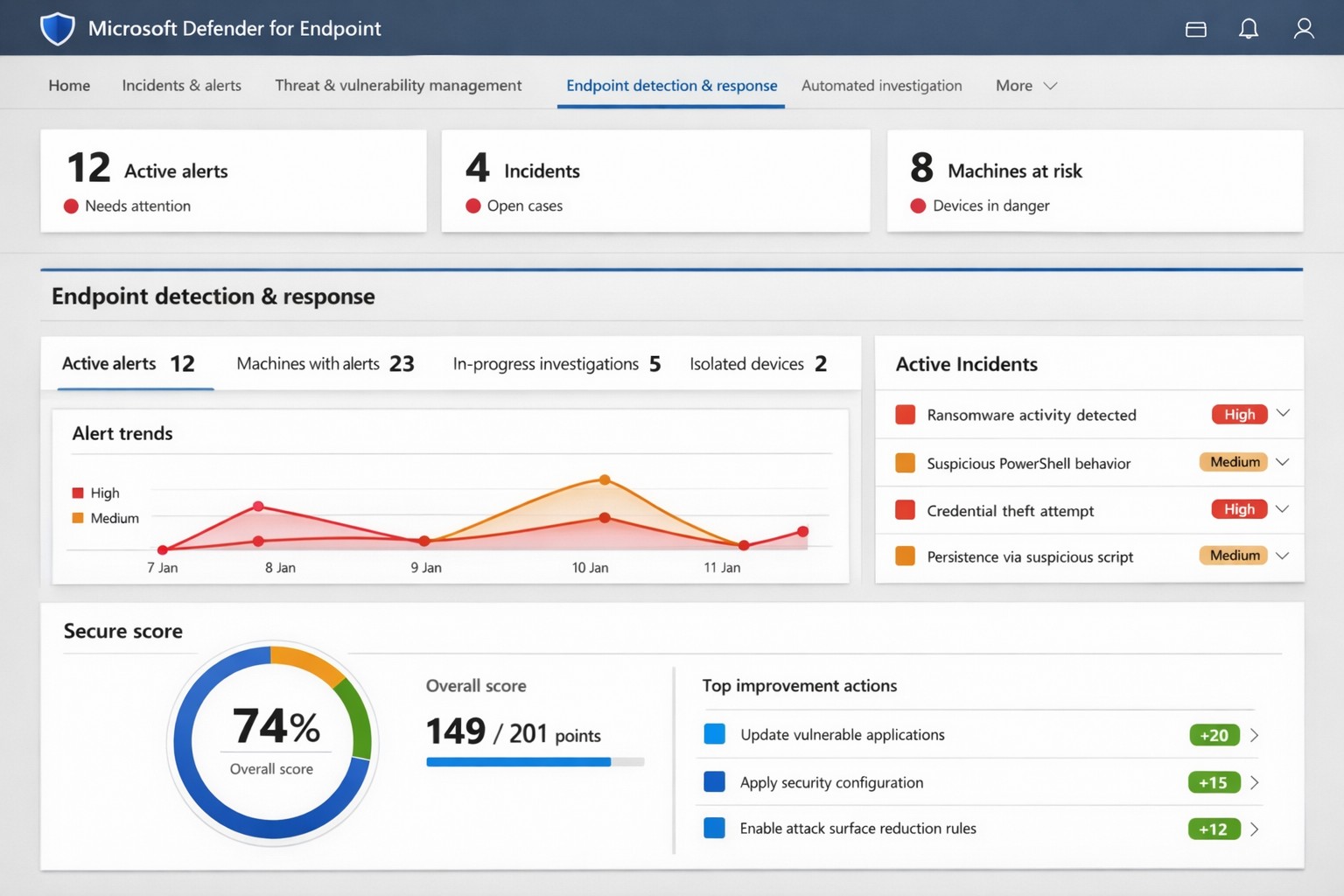
Microsoft Defender for Endpoint (ATP) portal: Monitor advanced threats, EDR alerts, and secure score to safeguard your business devices.
Cyber threats like ransomware and data breaches can cripple operations, costing millions in downtime and recovery. Microsoft Defender for Endpoint—previously known as Microsoft Defender Advanced Threat Protection (ATP)—delivers enterprise-grade endpoint security to detect, investigate, and stop these attacks before they escalate.
What is Microsoft Defender for Endpoint?
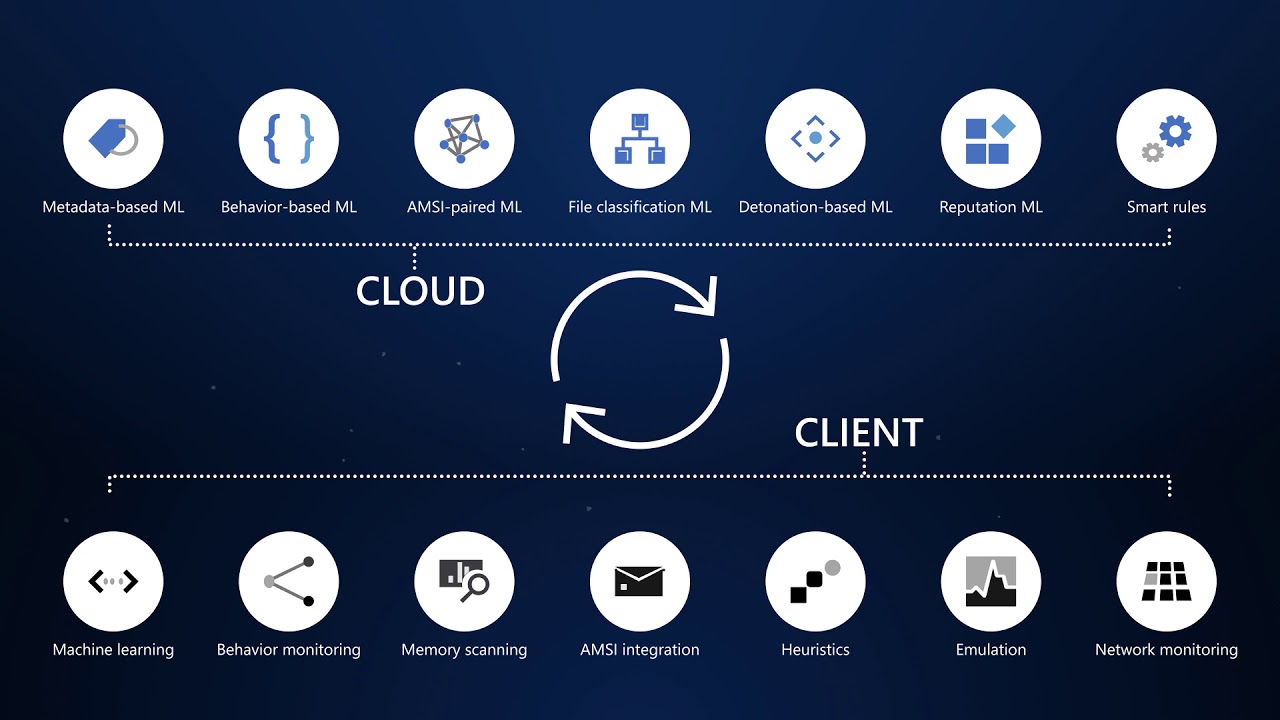
This cloud-native platform safeguards devices like laptops, servers, and mobiles from advanced threats using AI-driven analytics, behavioral monitoring, and automated response. Key capabilities include next-generation antivirus, endpoint detection and response (EDR), threat and vulnerability management, attack surface reduction, and automated investigations that group alerts into incidents for faster triage.
It integrates seamlessly with Microsoft 365, offering Plan 1 (basic protection, network controls) and Plan 2 (full EDR, vulnerability management, sandboxing). Businesses gain a “secure score” to benchmark and improve security posture.
Practical Action Steps for Implementation
Follow these steps with your IT team to deploy effectively:
Assess Eligibility and License: Confirm Microsoft 365 E3/E5 or standalone Defender licensing via the Microsoft 365 admin center. Start a 30-day trial if needed.
Onboard Devices: Use Microsoft Endpoint Manager or Group Policy to enable onboarding scripts for Windows, macOS, Linux, iOS, and Android. Prioritize high-value assets like executive laptops.
Configure Policies: Set attack surface reduction rules, enable cloud-delivered protection, and deploy controlled folder access to block ransomware. Test in audit mode first.
Monitor and Respond: Review the Defender portal daily for incidents. Use automated remediation to isolate devices and run live response commands like file quarantine.
Train Staff and Review Secure Score: Conduct phishing simulations and user training. Aim for a secure score above 80% by addressing recommendations.
Expect initial setup in 1-2 weeks for 50 devices, with ongoing management under 1 hour daily post-configuration.
FAQ: Client Inquiries Answered
How does Defender differ from basic antivirus? Unlike traditional AV, it provides EDR for post-breach hunting, cloud analytics for zero-day threats, and cross-device incident correlation—reducing detection time from 200+ days to hours.
What about performance impact? Minimal; sensors use hardware acceleration and run lightweight scans. Enterprises report <1% CPU overhead.
Is it suitable for small businesses without IT staff? Yes, Defender for Business offers simplified P1/P2 features with guided setup. It scales from 5 to 50,000 endpoints.
How secure is data in Defender? Microsoft isolates customer data by tenant, with no use for training AI. Compliance includes GDPR, HIPAA.
What if we use non-Windows devices? Full support for macOS, Linux, mobile; unified console prevents silos.
How Farmhouse Networking Can Help
Farmhouse Networking specializes in B2B cybersecurity for accounting, healthcare, and nonprofits—industries handling sensitive data under strict compliance like HIPAA and PCI-DSS. We conduct cloud security assessments to baseline your posture, implement Defender onboarding, customize policies for your endpoints, and integrate with existing Microsoft stacks for automated threat hunting.
Our team handles vulnerability prioritization, staff training, and 24/7 monitoring, freeing you to focus on growth. Clients see 40% faster threat response and improved secure scores within months.
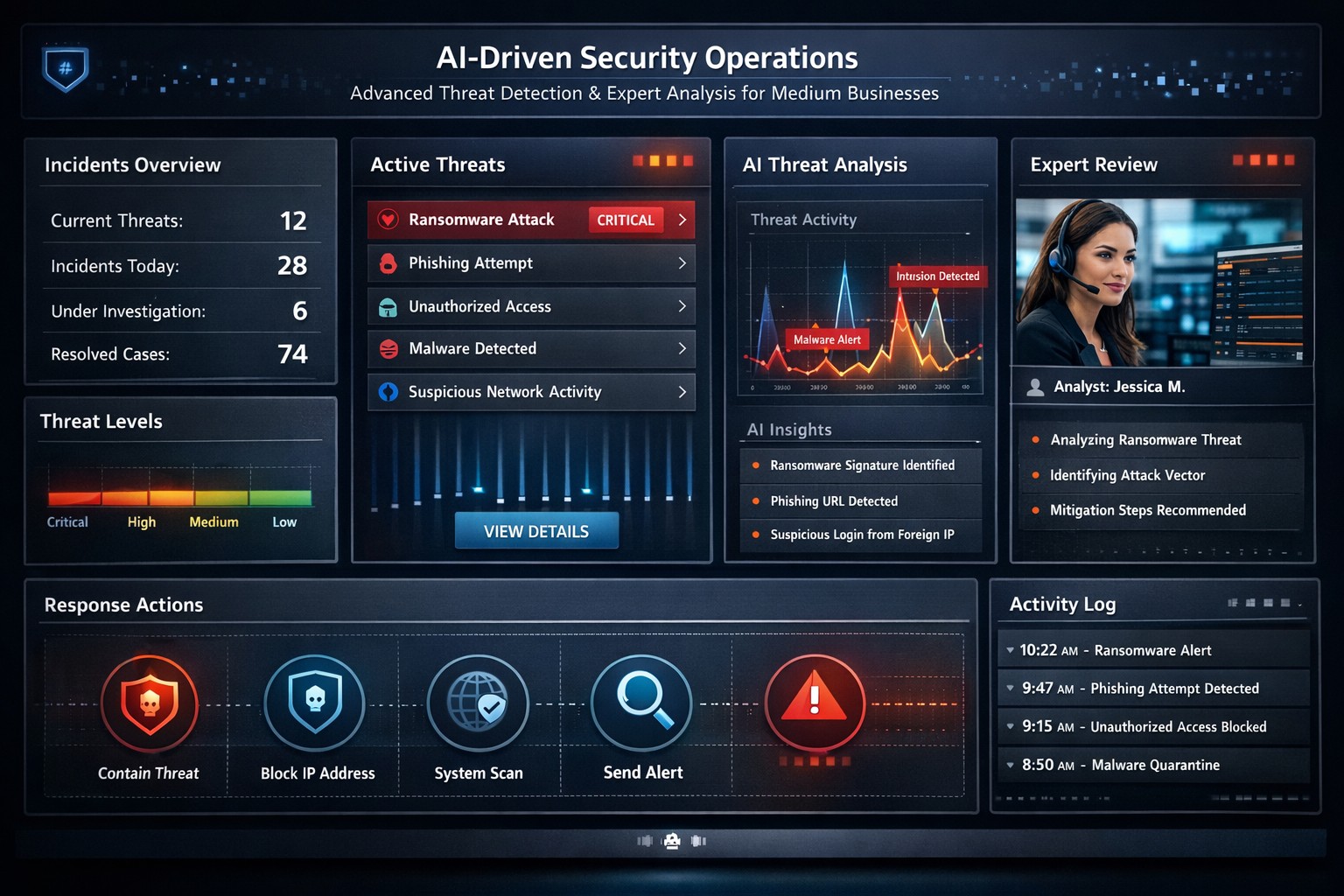
Visualizing faster threat detection: Data-driven cybersecurity with human oversight protects medium business systems from attacks.
You’re juggling growth, operations, and rising cyber threats that could halt everything overnight. A data-driven, human-guided security approach empowers you to detect and respond to attacks quicker and more accurately – reducing downtime and protecting your bottom line.
Why This Approach Wins for Medium Businesses
Traditional cybersecurity relies on static rules, often missing sophisticated threats amid complex networks from remote work and cloud tools. Data-driven strategies analyze real-time logs, user behavior, and threat intelligence with AI, spotting anomalies humans might overlook. Human oversight ensures context-aware decisions, blending machine speed with expert judgment for precision. This hybrid model cuts response times from days to minutes, vital for medium businesses lacking massive security teams.
Practical Action Steps
Implement these steps with your IT department to build this defense:
Audit Data Sources: Identify critical logs from networks, endpoints, and apps; prioritize user behavior and external threat feeds for comprehensive visibility.
Deploy Analytics Tools: Integrate AI platforms like SIEM systems with machine learning for anomaly detection; start with open-source options or scalable SaaS for cost efficiency.
Enable Automated Alerts: Set up real-time monitoring with automated responses for low-risk issues, reserving human review for high-severity events.
Train Your Team: Conduct quarterly simulations blending data insights with human decision-making; focus on root-cause analysis from past incidents.
Test and Iterate: Run monthly penetration tests, using data to rank risks and measure improvements in detection accuracy.
These steps scale affordably, leveraging existing infrastructure without overhauling your setup.
Common Questions Answered
How does this differ from basic antivirus? Antivirus scans for known signatures; data-driven security uses behavioral analytics to catch zero-day threats, with humans validating alerts for accuracy.
What’s the ROI for a medium business? Expect 50-70% faster incident response, slashing breach costs (average $4.5M per IBM data) and boosting compliance, freeing IT for growth initiatives.
How much does implementation cost? Initial setup ranges $50K-$150K for mid-tier tools and training, with ROI in 6-12 months via prevented losses; cloud options minimize upfront spend.
Can we handle this in-house? Yes for basics, but partnering accelerates expertise; human-guided layers prevent AI false positives that overwhelm small teams.
What about regulatory compliance? Automated reporting from data tools simplifies GDPR, HIPAA, or CCPA audits, proving proactive measures with auditable logs.
How Farmhouse Networking Supports You
At Farmhouse Networking, we specialize in tailored strategies for accounting, healthcare, and charity sectors—industries facing strict compliance and high-stakes data risks. Our team deploys data-driven platforms integrated with human-guided SOC services, handling audits, tool setup, and 24/7 monitoring. We’ve helped similar medium businesses cut threat response by 60%, enhancing SEO-friendly client trust signals like security badges. From branding secure websites to lead-gen funnels that highlight your defenses, we drive organic traffic and B2B conversions.
Ready to fortify your systems? Email support@farmhousenetworking.com for a free risk assessment and custom roadmap. Act now—secure your edge
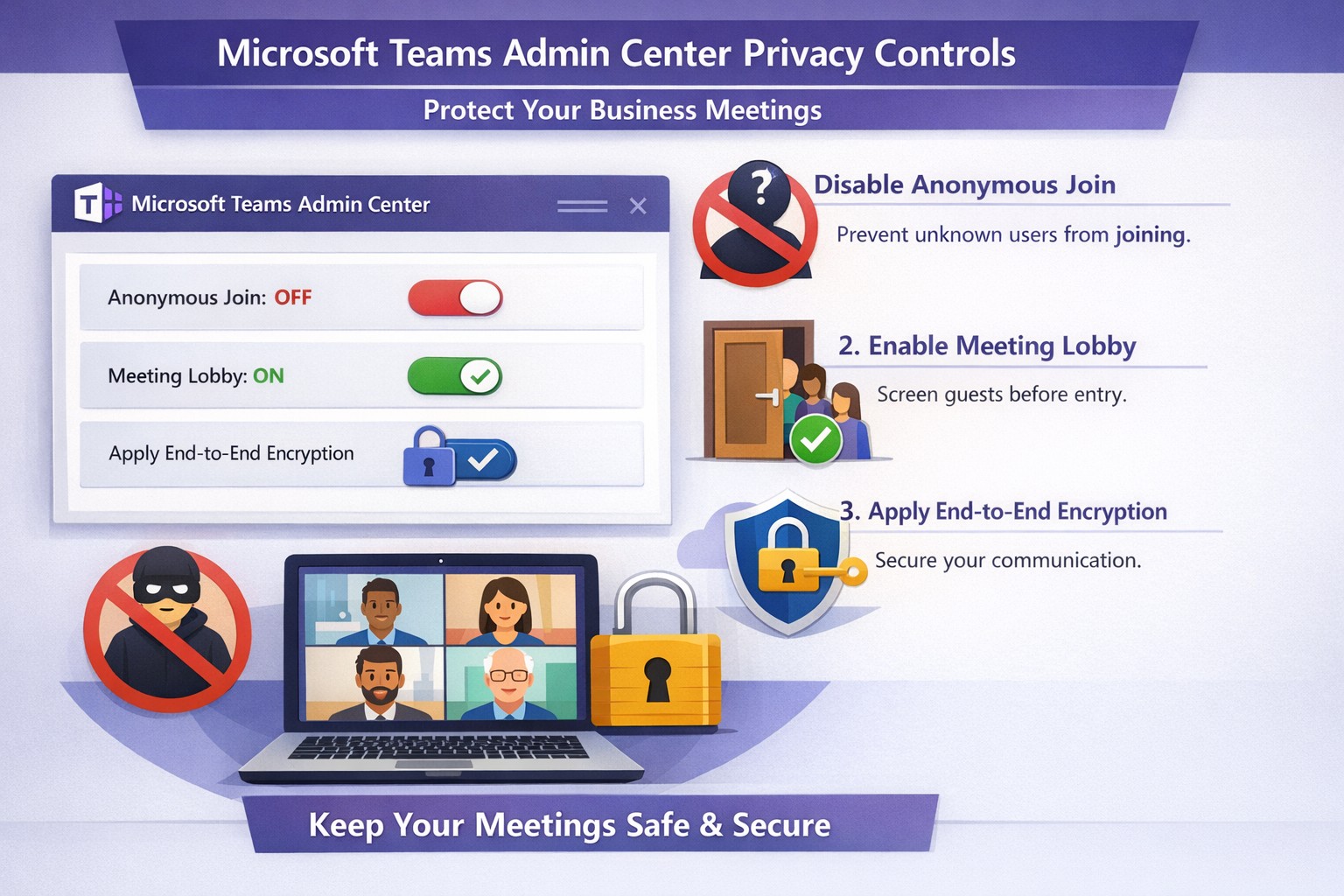
Configure Teams meeting privacy: Turn off anonymous access and activate lobby to protect business discussions.
Microsoft Teams meetings often involve sensitive discussions on finances, strategies, and client data—yet unauthorized access risks data leaks and disruptions. Implementing targeted privacy controls ensures secure collaboration without stifling productivity.
Key Privacy Risks in Teams Meetings
Teams meetings face threats like “zoombombing,” where anonymous users join via public links, and data exposure through screen shares or recordings. Microsoft reports that disabling anonymous join reduces unauthorized entries significantly. External bots and unverified guests compound these issues, especially in hybrid work setups common for accounting, healthcare, and charity sectors.
Practical Action Steps
Follow these steps with your IT department to lock down Teams privacy. Prioritize admin center changes for organization-wide impact.
Disable Anonymous Joins: In the Teams admin center (admin.teams.microsoft.com), navigate to Meetings > Meeting policies. Set “Anonymous users can join” to Off. This blocks uninvited participants and recording bots.
Enable Meeting Lobby: Require all external participants to wait in the lobby. Under Meeting settings > Participants, toggle “Who can bypass the lobby?” to organizers and presenters only. Manually approve entrants to verify identities.
Activate CAPTCHA Verification: For remaining external access, enable CAPTCHA for anonymous users. This adds a human-check layer without fully restricting guests.
Use End-to-End Encryption (E2EE): For confidential calls, enable E2EE in meeting options (requires Teams Premium). Only participants decrypt audio/video; Microsoft cannot access it.
Apply Watermarking and Sensitivity Labels: With Teams Premium, turn on watermarks displaying participant emails over shared screens/videos. Create sensitivity labels enforcing lobby waits, auto-recording, and chat restrictions.
Control Recordings and Transcripts: Disable auto-recording for non-sensitive meetings. Inform participants and store files securely in OneDrive with 60-day retention.
Educate Users: Train staff to check participant lists, avoid public screen shares, and deny unknowns. Use quiet, private spaces for calls.
Implement via admin center first, then test in a pilot meeting. These steps balance security with usability.
FAQ: Client Inquiries Answered
Q: Can external clients still join securely? A: Yes—lobby approval and CAPTCHA allow vetted guests while blocking randos. Federated domains enable seamless access for partners.
Q: What’s needed for advanced features like E2EE? A: Teams Premium (or E5 for labels). Basic encryption is always on for transit/rest, but Premium adds layers.
Q: How do I prevent screenshot leaks? A: Watermarks overlay user IDs on shared content, deterring unauthorized captures. Combine with “Do not forward” calendar labels.
Q: Are recordings private? A: Stored in organizer’s OneDrive; participants notified. Get explicit consent for sensitive sessions, especially in healthcare/charities.
Q: What about one-on-one vs. group calls? A: One-on-one calls offer full E2EE by default; groups need Premium for equivalent protection.
How Farmhouse Networking Helps
Farmhouse Networking specializes in B2B IT for accounting, healthcare, and charity firms. We audit your Teams setup, deploy these privacy configs, and integrate with compliance needs like HIPAA or nonprofit data rules. Our SEO-optimized websites and lead-gen strategies turn secure Teams into a client magnet—showcasing reliability drives conversions. Skip the hassle; we handle migrations, training, and 24/7 monitoring.
Call to Action
Ready to safeguard your Teams meetings and boost client trust? Email support@farmhousenetworking.com for a free privacy audit and custom strategy.
Secure your business discussions: Step-by-step private channels in Microsoft Teams.
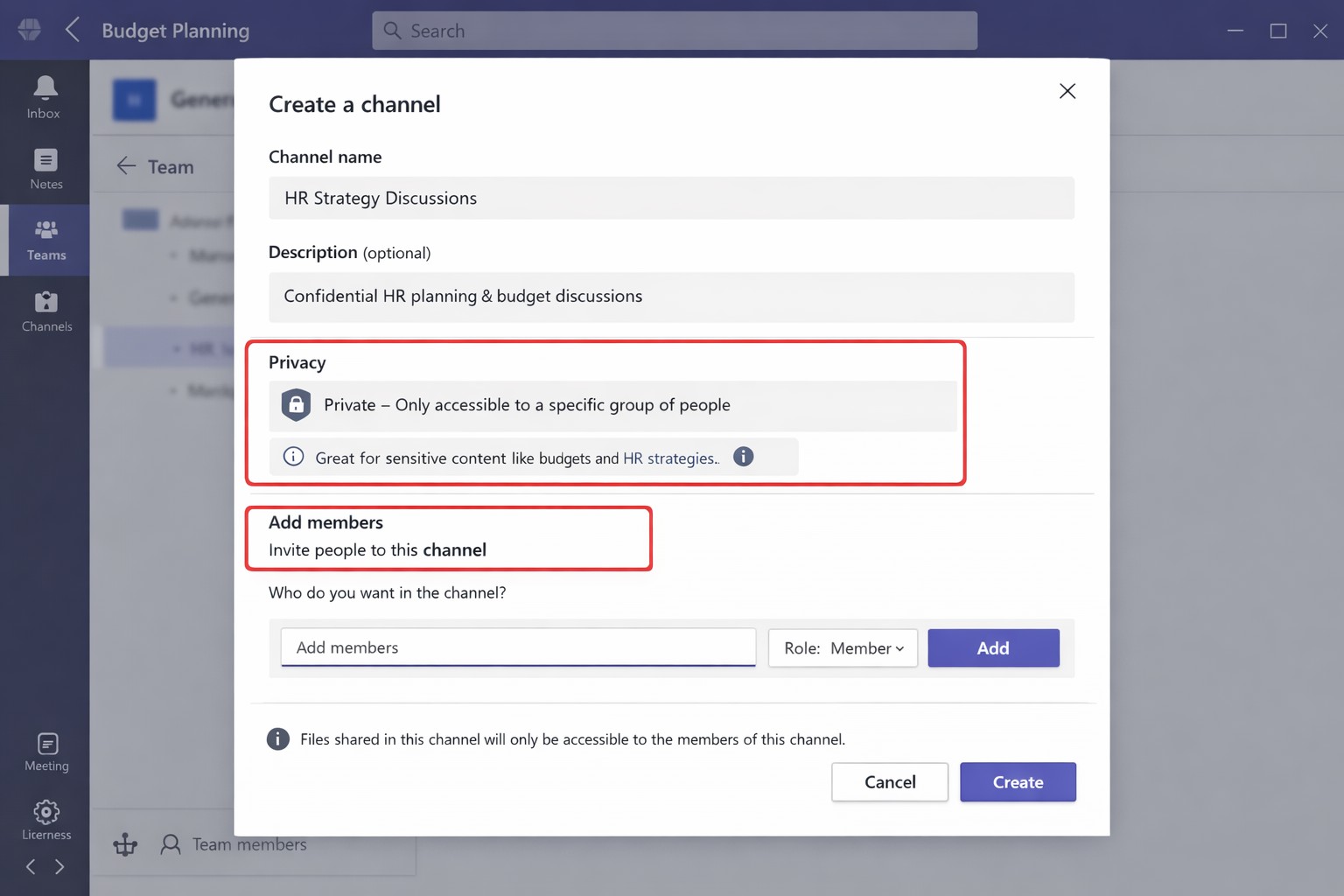
Protecting sensitive discussions—like HR strategies, client deals, or financial plans—is critical in Microsoft Teams. Private channels let you segment conversations within a team, ensuring only invited members access chats, files, and tabs, boosting security without creating separate teams.
Step-by-Step Setup Guide
Follow these practical actions to create and manage private channels. Team owners or permitted members handle creation; involve your IT department for policy checks and permissions.
Open Microsoft Teams and navigate to the target team.
Click the three dots (…) next to the team name, then select Manage team > Channels tab.
Click Add channel, enter a name (e.g., “Q1-Budget-Confidential”) and optional description.
Under Privacy, choose Private—this restricts access to added members only.
Click Add members to invite up to 250 people; set roles (owner/member) via Manage channel > Members tab.
Post-setup, use the channel for posts, file shares, and apps. Limit: 30 private channels per team lifetime; admins can restrict via Teams policies.
To delete or edit: Go to Manage channel > Settings for permissions, or remove via Members tab. IT should verify SharePoint site creation (auto-generated per channel) for compliance.
FAQs for Client Inquiries
Q: Who can create private channels? A: Team owners/members by default (guests cannot); admins control via policies in Teams admin center.
Q: What’s the difference from standard channels? A: Standard channels are visible to all team members; private ones require explicit invites, isolating content and files.
Q: Can I add external users? A: No, private channels are internal-only; use shared channels for guests/external collaborators.
Q: Do private channels impact storage or costs? A: Each gets a dedicated SharePoint site, counting toward limits; no extra licensing needed for core features.
Q: How do I audit access? A: Review Members tab; use Microsoft Purview for activity logs if enabled.
How Farmhouse Networking Helps
Farmhouse Networking specializes in tailored Microsoft 365 setups for accounting, healthcare, and charity sectors. We audit your Teams environment, implement governance policies (e.g., naming conventions, approval workflows), and train your team/IT on private channels to ensure HIPAA/GDPR compliance and seamless adoption.
Our SEO-optimized websites and lead-gen strategies drive organic traffic, converting visitors into B2B clients. We handle branding, custom integrations, and ongoing support to maximize ROI.
Ready to secure your Teams? Email support@farmhousenetworking.com for a free consultation on private channels and business growth.
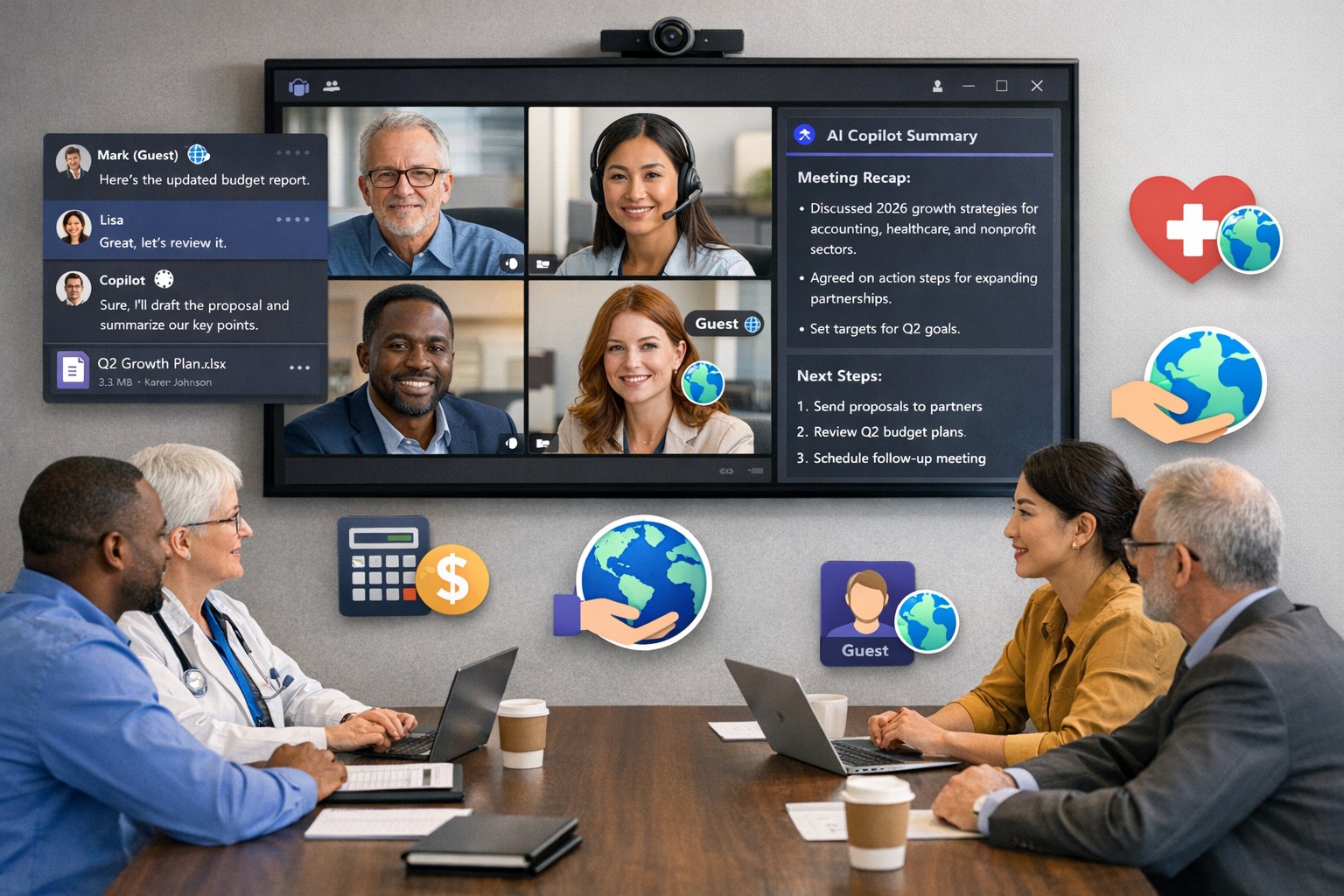
Scale your business: Unlock Microsoft Teams collaboration expansion with AI recaps and guest access.
Business owners face a constant challenge: keeping distributed teams aligned amid hybrid work and external partnerships. Microsoft Teams’ 2026 updates—like AI-powered recaps, email-to-chat, and smarter hybrid meetings—unlock seamless expansion of collaboration without tool fragmentation.
Key 2026 Teams Features for Growth
Teams now bridges internal and external comms via email invites, letting anyone join chats as temporary guests while staying compliant. Copilot integrates directly for chat summaries, task assignments, and decision highlights, cutting admin time. Hybrid upgrades include AI voice isolation, speaker recognition in rooms, and audio recaps so absentees catch up fast.
These tools reduce context-switching, boost inclusivity, and handle vendor or client coordination effortlessly—ideal for accounting firms tracking audits, healthcare practices managing referrals, or charities syncing volunteers.
Action Steps for Business Owners and IT
Expand collaboration systematically. Follow these steps:
Assess Needs: Audit current usage—survey teams on pain points like external email chains or meeting drop-offs. Prioritize hybrid features if >30% remote.
Upgrade Licensing: Switch to Teams Premium or Microsoft 365 E5 for Copilot, AI recaps, and guest controls. IT verifies via admin center; budget $7–$22/user/month.
Configure External Access: IT enables “email-to-chat” in Teams admin > Users > External access. Set policies for guest expiration (e.g., 30 days) and trust badges for unfamiliar users.
Deploy AI Tools: Activate Copilot in meetings/chats via Microsoft 365 admin. Train staff on prompts like “Summarize key decisions” during 15-min sessions.
Optimize Hybrid Setup: IT installs certified Teams Rooms hardware; enable voice isolation and live captions. Test with a cross-team pilot meeting.
Monitor and Scale: Use analytics dashboard for adoption metrics (e.g., chat volume up 20%). Automate with Power Automate for workflows like task follow-ups.
Expect 25–40% productivity gains in 3 months, per early 2026 reports.
Client FAQs on Teams Expansion
Q: How secure is external collaboration? A: Chats stay in your compliance boundary with granular guest controls, AI compliance alerts, and encryption. External users get trust badges (e.g., “verified”).
Q: Does everyone need a Teams license? A: No—email recipients join as guests without accounts. Internal users need Essentials ($4/user) or higher for full AI.
Q: What about integration with our CRM or accounting software? A: Teams connects via 250+ apps (e.g., Dynamics 365, QuickBooks). Copilot pulls data for unified views.
Q: How do we train non-tech staff? A: Use built-in templates, keyboard shortcuts, and “pin window” for multitasking. Roll out via Viva Engage communities.
Q: What’s the ROI for charities/healthcare? A: Reduced email overload frees 10+ hours/week per manager; hybrid tools cut no-shows by 30%.
How Farmhouse Networking Accelerates Your Teams Expansion
Farmhouse Networking specializes in B2B setups for accounting, healthcare, and nonprofits. We handle licensing audits, custom configs (e.g., HIPAA-compliant guest access), and AI onboarding—slashing setup from weeks to days. Our SEO-optimized sites and lead-gen strategies have driven 40% organic traffic growth for similar clients, converting Teams efficiency into client wins. Skip IT headaches; we integrate Teams with your branding for seamless scaling.
And God will generously provide all you need. Then you will always have everything you need and plenty left over to share with others. As the Scriptures say, “They share freely and give generously to the poor. Their good deeds will be remembered forever.” For God is the one who provides seed for the farmer and then bread to eat. In the same way, he will provide and increase your resources and then produce a great harvest of generosity in you. - 2 Corinthians 9:8-10
We use cookies to ensure that we give you the best experience on our website. If you continue to use this site we will assume that you are happy with it.