Leverage Microsoft collaboration tools like Teams to help customers work together efficiently and boost your business workflows.
You know collaboration drives growth—but scattered tools and poor communication waste time and opportunities. Microsoft technology, like Teams and Microsoft 365, enables your customers to work together effortlessly, boosting satisfaction and loyalty. This post outlines how to implement it effectively for your business.
Key Microsoft Collaboration Tools
Microsoft Teams serves as the central hub for meetings, chats, calls, and file sharing, integrating with Outlook and OneNote for streamlined workflows. Tools like Microsoft Loop offer flexible workspaces for co-creation, while Whiteboard supports real-time brainstorming across locations. These features allow customers to join as guests, co-author documents, and track projects without switching apps, enhancing productivity by up to 30% in team settings.
Practical Action Steps
Follow these steps with your IT department to deploy Microsoft collaboration tools targeting customer interactions.
Assess Needs: Audit current customer touchpoints—review emails, support tickets, and feedback to identify collaboration gaps, such as delayed responses or siloed data.
Select Licensing: Choose Microsoft 365 Business Premium for Teams, SharePoint, and Copilot AI features; start with a 1-month trial to test scalability.
Set Up Teams Channels: Create dedicated customer channels for projects, enabling guest access; configure permissions to limit sensitive data exposure.
Integrate Tools: Link Teams with OneDrive for secure file sharing and Power Automate for automated workflows, like instant notifications on customer updates.
Train Staff: Run 2-hour sessions on co-authoring in Word/Excel and meeting recaps; use Microsoft’s free resources for onboarding.
Test and Monitor: Pilot with 5 key customers, tracking metrics like response time (aim for <2 hours) via Teams analytics; adjust based on feedback.
These steps typically take 2-4 weeks, yielding faster customer resolutions and stronger relationships.
FAQ: Customer Inquiries Answered
How secure is customer data in Teams? Microsoft Teams uses end-to-end encryption and compliance with GDPR/HIPAA, with guest access controls to prevent unauthorized sharing.
Can customers join without a Microsoft account? Yes, external guests join via browser or app invite—no account needed—ideal for quick collaborations.
What if our team is remote or hybrid? Teams supports anywhere-access with AI recaps, transcripts, and intelligent speakers for up to 1,000 attendees.
How does this integrate with existing CRM? Seamless with Dynamics 365 or third-party apps via APIs, syncing customer data for unified views.
What’s the ROI for small businesses? Businesses report 20-50% productivity gains through reduced email overload and real-time co-editing.
How Farmhouse Networking Helps
Farmhouse Networking specializes in Microsoft 365 deployments for accounting, healthcare, and charity sectors, ensuring SEO-optimized client portals and lead-gen strategies. We handle audits, custom setups, training, and ongoing optimization—delivering 99.9% uptime and measurable traffic growth to your collaboration hubs. Our experts integrate Copilot for AI-driven insights, turning customer interactions into B2B opportunities.
Ready to unlock Microsoft-powered collaboration? Email support@farmhousenetworking.com for a free consultation on improving your business today.
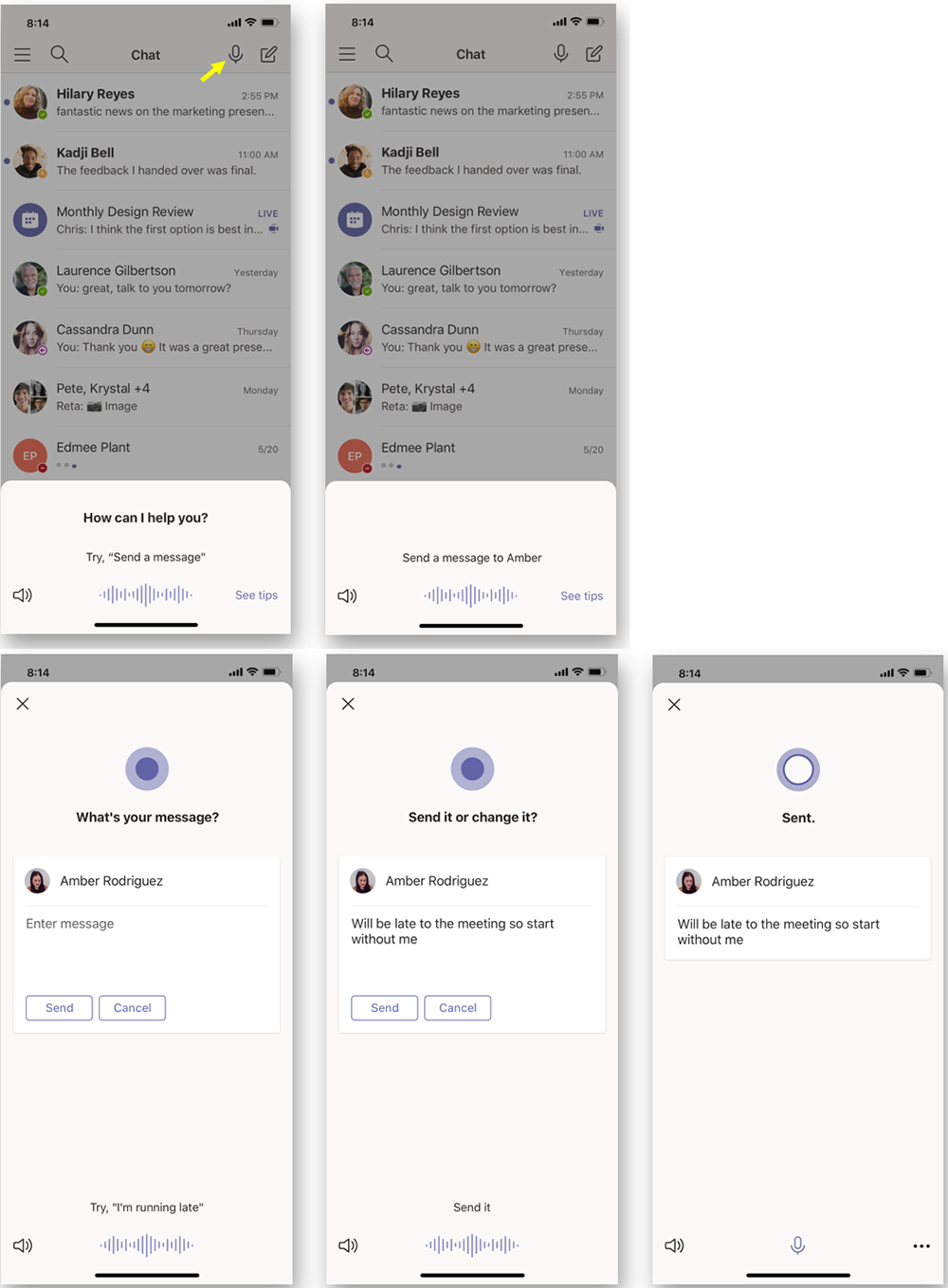
According to the Microsoft Office 365 development roadmap, an exciting new feature is coming to Microsoft Teams:
“Cortana is coming to the Teams mobile app, using AI and the Microsoft Graph to provide voice assistance in Teams. To stay connected to your team even when you have your hands full, click the microphone button on the top right and ask Cortana to make a call, join a meeting, send chat messages, share files, and more. These voice assistance experiences are delivered using Cortana enterprise-grade services that meet Microsoft 365 privacy, security and compliance commitments. Cortana will be available in the Teams mobile app on iOS and Android in the coming weeks for Microsoft 365 Enterprise users in the U.S. in English.”
Voice profiles transform generic transcripts into actionable intelligence
If your company is looking to collaborate with your office effectively, then contact us for assistance.
How technology has transformed workplaces: a diverse team using cloud‑based tools and secure connections to collaborate more efficiently
The promise (and the reality) of workplace tech
When most business leaders adopted cloud tools, collaboration platforms, and automation over the last decade, the pitch was simple: technology will make work faster, smoother, and more productive. In many ways, that promise has delivered. Cloud‑based platforms now underpin hybrid work, AI‑driven analytics help you spot bottlenecks, and digital workflows have cut hours of manual effort.
Yet for many mid‑sized business owners, the reality feels messier. Tools are scattered. Systems don’t talk to each other. Employees juggle logins, notifications, and legacy apps that slow them down instead of speeding them up. The real question isn’t whether tech should make work better—it’s how to align your technology stack with your business model, your people, and your growth ambitions.
How technology has already transformed workplaces
Modern workplaces are no longer defined by cubicles and paper; they’re defined by data, connectivity, and automation.
Hybrid and remote work became mainstream, supported by cloud applications, collaboration suites, and secure remote‑access infrastructure.
Cloud adoption now stands at or near saturation for most organizations, enabling scalability, resilience, and faster deployment of new capabilities.
AI and automation are moving from pilot projects to core operations, with 24% of organizations reporting enterprise‑wide AI adoption in 2026—up from 12% in 2025.
Digital‑first workflows have replaced many manual processes, with nearly 90% of companies already relying on cloud technology as a baseline.
For mid‑sized business owners, that means the bar for “modern workplace” is no longer about buying a single tool; it’s about orchestrating a coherent, secure, and scalable technology ecosystem. Failing to manage that ecosystem properly can quietly erode productivity, raise security risks, and slow growth.
Practical steps for you and your IT team
If you’re a mid‑sized business owner, treat your technology stack as a growth‑enabling asset, not just a cost center. Here’s how you and your IT department can turn that promise into results:
1. Audit your current tech stack
Inventory all tools (CRM, accounting, HR, communications, file‑sharing, monitoring, etc.) and map how they connect.
Identify redundancies, unsanctioned tools (“shadow IT”), and gaps in security or integration.
2. Define one source of truth for data
Pick a primary system (e.g., a cloud ERP or CRM) and align reporting, workflows, and user‑experience around it.
Ensure that key systems can sync customer, employee, and financial data so decisions are based on one consistent dataset.
3. Standardize secure access and collaboration
Implement single sign‑on (SSO), multi‑factor authentication (MFA), and role‑based access controls for all cloud and on‑prem systems.
Standardize collaboration tools (e.g., one primary messaging platform and one video‑conferencing suite) to reduce training overhead and context switching.
4. Automate low‑value, repeatable tasks
Identify repetitive workflows (invoices, approvals, ticket handling, onboarding, reports) and automate them using workflow automation or RPA where appropriate.
Measure before and after: time saved per task, error reduction, and impact on customer‑facing SLAs.
5. Invest in continuous training and change management
Treat technology adoption as a change‑management project, not a “one‑and‑done” rollout.
Provide regular training sessions, quick reference guides, and “power‑user” champions in each department to drive adoption.
6. Revisit your security and compliance posture
Ensure cloud‑workload security, data‑retention policies, and endpoint protection keep pace with your growth and regulatory obligations.
Conduct periodic risk assessments and penetration testing, especially as AI‑driven tools and more data‑centric workflows come online.
For mid‑sized owners, these steps should be treated as ongoing disciplines, not one‑time projects. The goal is to build a workplace where technology recedes into the background and employees simply get more done.
Clients’ likely questions—answered
Q: “We already have a lot of tools—why can’t we just keep adding whatever we need?” A: More tools mean more complexity, more security gaps, and more training overhead. Modern mid‑sized businesses get better outcomes by streamlining around fewer, integrated platforms than by stringing together dozens of siloed apps.
Q: “How do we know if our tech is actually improving productivity?” A: Tie technology to measurable KPIs: cycle times, error rates, support‑ticket resolution time, and employee‑time‑spent‑on‑manual‑work. If you can’t quantify the benefit, you’re likely drifting into “tech for tech’s sake.”
Q: “Isn’t AI just hype for bigger companies?” A: AI is now a practical tool for any business that deals with data, workflows, or customer interactions. For mid‑sized firms, it often means automating routine tasks, surfacing insights from operational data, and improving customer service, not building bespoke AI models.
Q: “How do we protect ourselves from ransomware and data breaches while modernizing?” A: Modernization must include proactive security: cloud‑workload protection, endpoint detection and response, secure access controls, and regular backups. A well‑architected environment is actually more secure than a fragmented, legacy‑heavy one.
How Farmhouse Networking can help
Farmhouse Networking partners with mid‑sized business owners to turn technology from a cost center into a competitive advantage. For companies already operating in hybrid or distributed environments, we help:
Map and rationalize your technology stack so tools actually work together instead of against each other.
Design and implement secure, scalable cloud‑enabled workspaces, including secure remote access, SSO, and unified collaboration tooling.
Identify and automate repetitive workflows so your employees spend less time on manual tasks and more time on value‑add work.
Strengthen your security and compliance posture as you adopt AI‑driven tools, cloud services, and new data sources.
We don’t just sell equipment or licenses; we work with your leadership and IT team to align your technology with your business model, culture, and growth plans.
Ready to make technology work for you?
If you’re a mid‑sized business owner and you’ve ever thought, “We all knew tech would make work better—but it still feels like it’s making everything more complicated,” you’re not alone—and you’re in the right place.
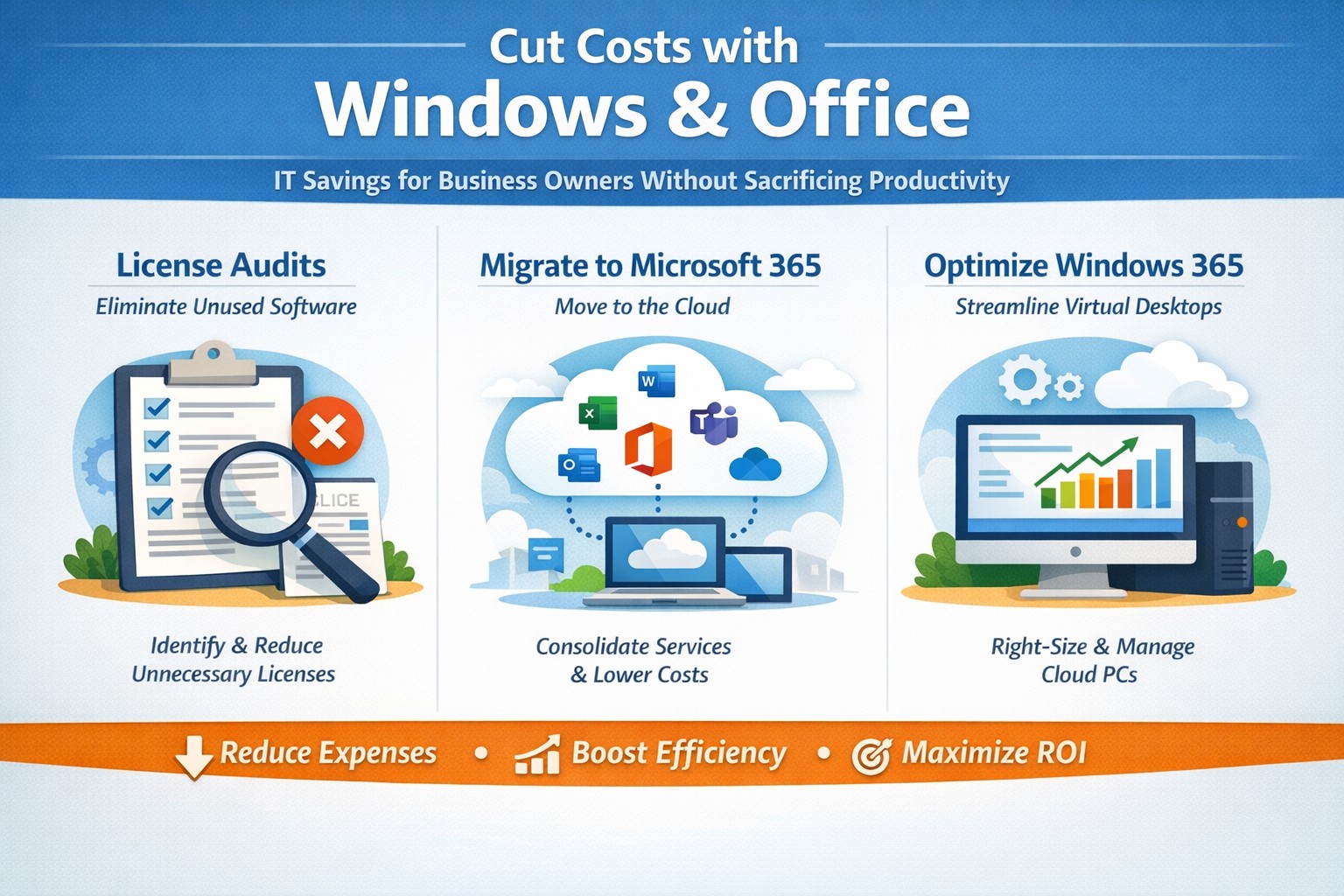
Visual guide: Slash IT expenses 30-50% using Windows 365 Cloud PCs and Microsoft 365 subscriptions—perfect for accounting, healthcare, and charity sectors
Rising operational expenses challenge every business owner. Switching to optimized Windows and Microsoft 365 setups can cut software and IT costs by up to 50% through subscriptions and cloud efficiency, targeting accounting, healthcare, and charity sectors with scalable tools.
Practical Action Steps
Business owners and IT teams can implement these steps to reduce costs immediately.
Audit Current Licenses: Review perpetual licenses for Windows and Office; compare against Microsoft 365 per-user subscriptions starting at $6/month, eliminating upfront hardware investments.
Migrate to Microsoft 365: Shift to cloud-based plans for automatic updates, remote access, and pay-per-active-user models—ideal for fluctuating staff in charities or seasonal healthcare billing.
Optimize Windows Deployment: Use Windows 365 Cloud PCs for virtual desktops, rightsizing resources to avoid overprovisioning; shut down unused instances overnight to save 30-40% on compute costs.
Enable Hybrid Work Features: Leverage built-in Teams and OneDrive to downsize office space, cutting utilities and infrastructure by supporting remote accounting audits or charity fundraisers.
Consolidate Tools: Replace third-party antivirus and email security with Microsoft Defender and Exchange Online Protection, streamlining to one predictable bill.
IT departments should pilot with 10 users, monitor via Microsoft Cost Management tools, then scale enterprise-wide.
FAQs for Business Owners
How much can we save switching from perpetual Office licenses? Subscriptions replace $400+ one-time buys with $72/user/year, plus no server maintenance—many SMBs report 20-70% IT savings reinvested in growth.
Is Microsoft 365 secure for healthcare or charity data? Yes, it meets HIPAA and nonprofit compliance with enterprise-grade encryption, zero-trust access, and automatic threat detection, reducing breach-related costs.
What about Windows 365 for non-technical staff? Cloud PCs deliver full desktops via browser, auto-scaling for accountants during tax season or charity events, with admin controls to minimize support tickets.
Can we avoid vendor lock-in? Flexible plans allow easy scaling or export; start with Business Premium for integrated Windows/Office at low entry cost.
How do we handle legacy apps? Windows 365 supports app streaming and compatibility modes, ensuring smooth transitions without rework.
How Farmhouse Networking Helps
Farmhouse Networking specializes in B2B IT for accounting firms streamlining client invoicing, healthcare practices managing patient records, and charities maximizing donor outreach. We conduct free cost audits to identify savings, then deploy customized Microsoft migrations—handling licensing, training, and 24/7 monitoring.
Our team optimizes Windows 365 for peak loads (e.g., year-end accounting) and integrates Office for seamless collaboration, often achieving 40%+ reductions in first year. With expertise in SEO-driven websites and lead-gen strategies, we also boost your online presence to attract clients while cutting internal costs.
Call to Action
Ready to reduce Windows and Office costs? Email support@farmhousenetworking.com for a no-obligation audit and personalized strategy to improve your business today.
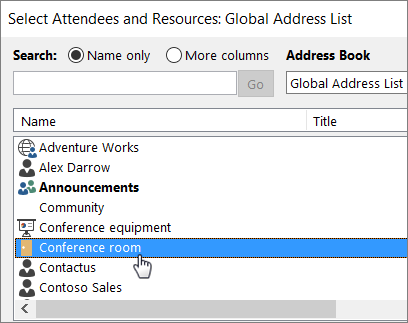
Office 365 has had the option to create resources, either equipment or rooms, that can be scheduled. Setup is fairly easy inside the Office 365 Admin console and you get to choose several options:
Select Room or Equipment, give it a name, an email address (no license required), and set the capacity. Once setup it is easy to use:
How can you tell when the room or equipment is available?
Open Outlook and create a new meeting. Add the room or equipment to the meeting as if it were a person and select Scheduling Assistant to see a live calendar view of the room or equipment’s availability. If the hour slot is clear, it’s available; if it’s blue, it’s reserved.
If your company needs help setting up Office 365 Equipment & Room Calendars, then contact us for assistance.
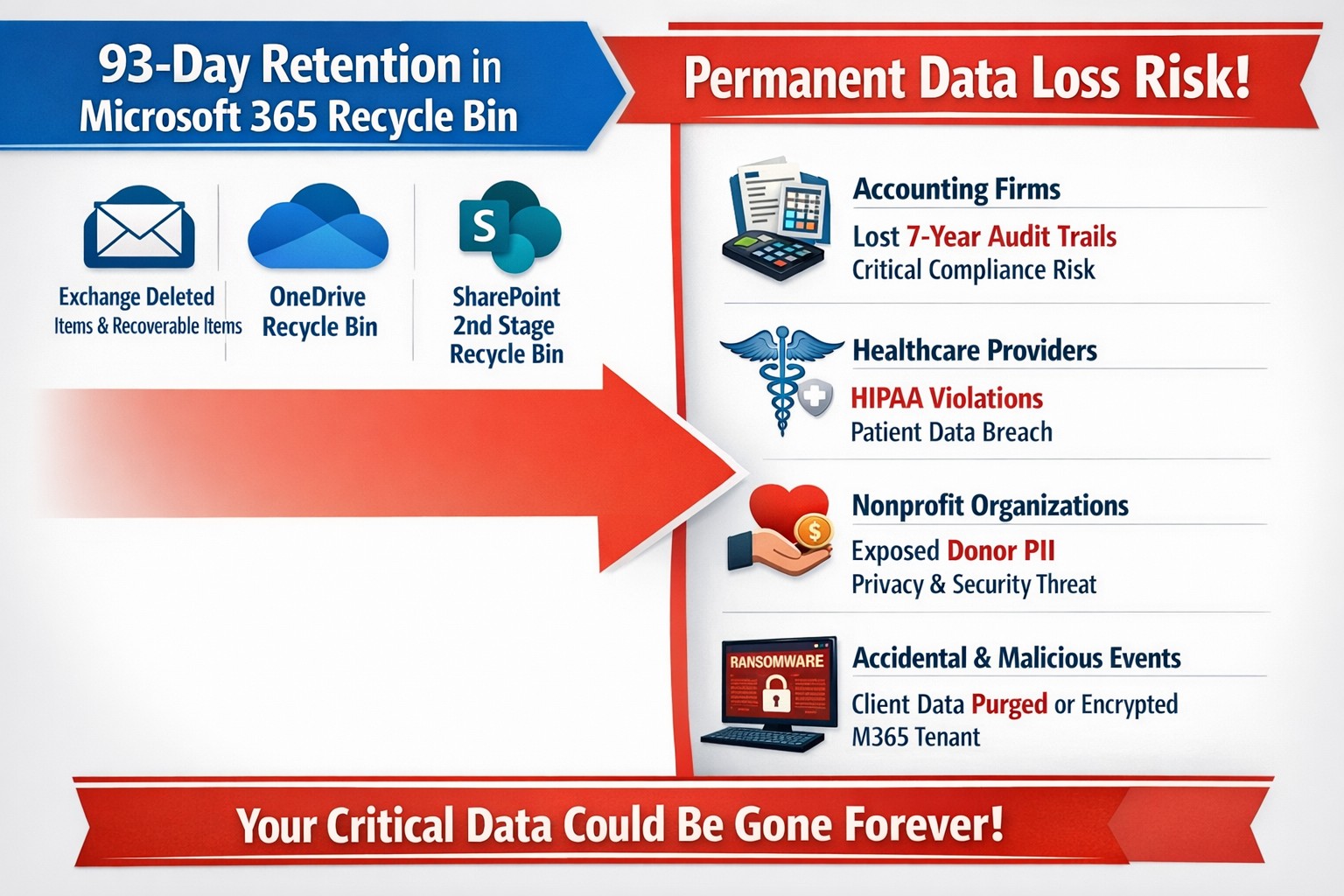
This question came to light while talking to a vendor about backups. It turns out that Microsoft does not backup any of your Office 365 data but does have aggressive redundancy in place. This is both good and bad, here is why:
Email
Microsoft has several levels of redundancy / resiliency / protection to keep email data from being corrupted, keep multiple copies of all email data, and scan emails for security threats. If there is ever any data issues then their systems automatically detect the problem and work to fix them or when threats are detected they are automatically remediated. There is also a recycle bin for emails and users that lasts from 30 to 90 days. Once that time is over there is no recourse for getting the data back.
Sharepoint & OneDrive
Microsoft here again has deep redundancy to protect your data from corruption, but they do nothing to check for malware or cryptoware. There is something called versioning that can help with some cryptoware, but not all. There is also a recycle bin for these services that could possibly help.
There are several apparent gaps in coverage that Microsoft does not deal with, but there are third-party services that have stepped in to do just that. If your company is looking to keep their Office 365 data safe from internal and external threats, then contact us for assistance.
Business owner reviewing 4 reasons to move to cloud migration on laptop for cost savings and scalability
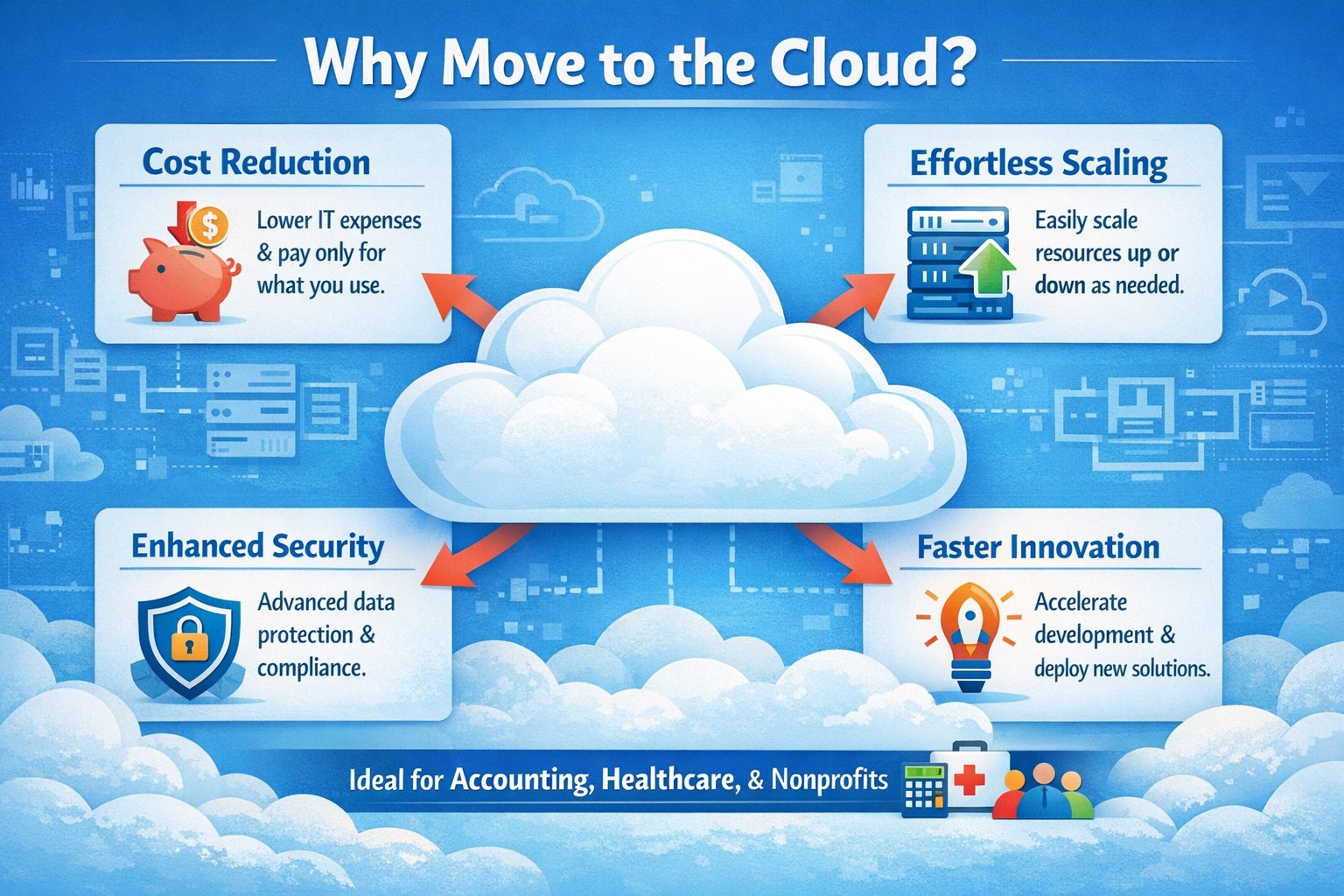
You’re constantly balancing growth ambitions with tight budgets and operational hurdles. Moving to the cloud isn’t just a tech upgrade—it’s a strategic pivot that cuts costs, boosts agility, and future-proofs your operations, as seen in widespread adoption by organizations prioritizing speed and innovation.
Reason 1: Slash IT Costs Dramatically
Cloud eliminates hefty upfront hardware investments and ongoing maintenance, shifting to a pay-as-you-use model. Businesses save on data center overhead like electricity and staffing, with many reporting lower total IT spend post-migration. For accounting firms handling sensitive financials or healthcare providers managing patient records, this means predictable budgeting without overprovisioning servers.
Reason 2: Scale Effortlessly with Demand
Traditional servers lock you into fixed capacity, but cloud auto-scales resources instantly during peaks—like tax season for accountants or patient surges in healthcare. This flexibility supports remote teams and global reach without downtime, enhancing reliability through built-in failover. Charities scaling donation drives benefit too, handling traffic spikes cost-effectively.
Reason 3: Strengthen Security and Compliance
Modern clouds offer enterprise-grade security surpassing most on-premises setups, with automated updates, encryption, and compliance tools for HIPAA or nonprofit regulations. Providers manage patches and backups, reducing breach risks that plague outdated systems. Your IT team focuses on business logic, not constant vulnerability scans.
Reason 4: Accelerate Innovation and Collaboration
Cloud unlocks AI, analytics, and real-time collaboration tools, speeding product launches and remote work. Teams access data from anywhere, fostering efficiency without version control headaches. For B2B sectors like yours, this drives faster client service and competitive edges.
Practical Action Steps for Migration
Follow these steps to transition smoothly, involving your IT department:
Assess Inventory: Catalog apps, data, and dependencies; tag by cloud-fit (e.g., lift-and-shift email vs. refactor custom CRM).
Set Goals and Choose Provider: Align on cost savings or scalability; evaluate AWS, Azure, or Google Cloud for your industry (e.g., HIPAA-compliant for healthcare).
Build Landing Zone: Establish security baselines, networking, and policies before migration.
Migrate in Phases: Start with low-risk workloads; test hybrid setups to minimize disruption.
Train and Monitor: Roll out employee training; use dashboards for cost/performance tracking post-go-live.
FAQs: Client Inquiries Answered
How long does migration take? Phased approaches span weeks to months, depending on complexity—small businesses often complete in 4-8 weeks with planning.
What about data security during transition? Encrypt data in transit/rest; conduct risk audits and use provider tools for zero-downtime moves.
Will it disrupt operations? Minimal with pilots and weekends; hybrid models keep critical systems on-prem initially.
Is cloud cheaper long-term? Yes, for most—avoid CapEx, pay OpEx, and optimize via auto-scaling; ROI hits in 12-18 months.
Hybrid or full cloud? Hybrid suits regulated industries like healthcare for compliance; full cloud maximizes agility.
How Farmhouse Networking Supports Your Move
Farmhouse Networking specializes in tailored cloud migrations for accounting, healthcare, and charity clients. We handle assessments, secure setups, and optimizations—integrating SEO-driven websites with cloud backends for lead-gen boosts. Our team manages compliance (e.g., HIPAA), trains your staff, and monitors ROI, ensuring seamless B2B growth.
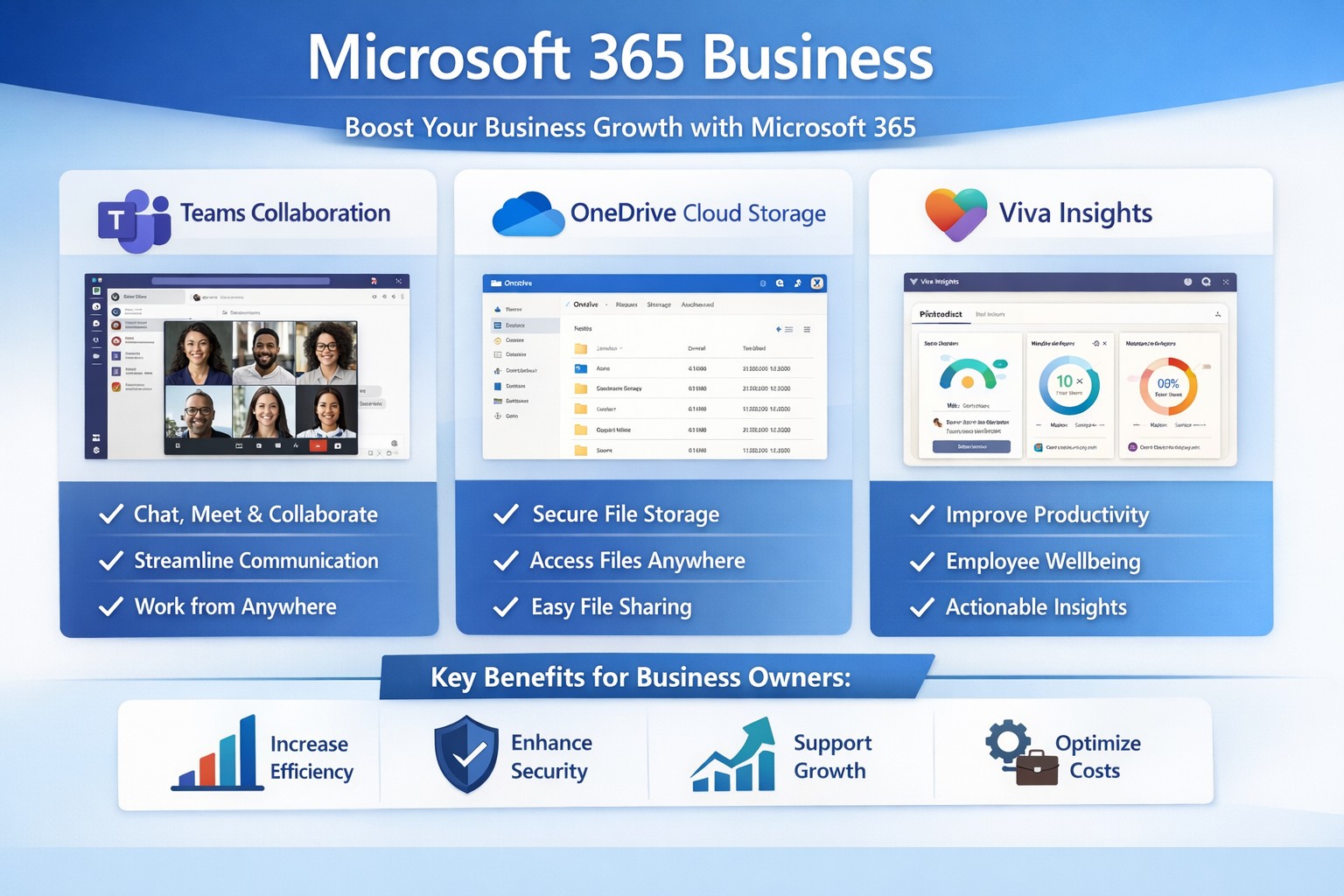
Microsoft 365 Business interface: Collaborate, secure data, and scale your business effortlessly.
You’re juggling growth ambitions with operational headaches like scattered files, insecure data, and remote team friction. Microsoft 365 Business transforms these pain points into scalable advantages, boosting productivity, security, and collaboration to fuel expansion.
Key Benefits for Growth
Microsoft 365 Business bundles essential apps like Teams, Outlook, OneDrive, and Office tools into cloud-based plans starting at $6/user/month.
It enables real-time collaboration via SharePoint and Teams, letting teams co-edit documents without version chaos, which cuts project delays by up to 30% in growing firms.
Advanced security—such as threat protection and data encryption—safeguards sensitive info, vital for scaling without cyber risks.
Scalable subscriptions adapt as you add users, with AI features in Viva Insights optimizing workflows for efficiency.
Practical Action Steps
Follow these steps with your IT department to deploy Microsoft 365 Business effectively.
Assess Needs: Audit current tools for gaps in email, storage, and security; choose a plan like Business Basic ($6/user/month) for starters or Premium ($22/user/month) for full security.
Sign Up and Migrate: Purchase via microsoft.com/microsoft-365/business; migrate emails/files using admin center tools—expect 1-2 days for small teams.
Configure Security: Enable multi-factor authentication (MFA), set up Defender for phishing protection, and classify sensitive data in compliance center.
Onboard Team: Roll out Teams channels, train via free Microsoft Learn modules (30-60 minutes/user), and automate tasks with Power Automate.
Monitor and Scale: Use Viva Insights for usage analytics; add users monthly as you hire. Test ROI in 30 days via productivity metrics.
FAQs from Business Owners
How does Microsoft 365 differ from free personal versions? Business editions offer custom email (you@yourcompany.com), 1TB/user storage, enterprise security, and admin controls absent in personal plans.
Is it secure for healthcare/accounting data? Yes—Premium includes HIPAA/GDPR compliance tools, endpoint protection, and automatic updates to counter threats.
What if my team resists change? Start with pilot groups, provide 1-hour Teams training, and highlight wins like 20% faster file sharing. Adoption hits 90% in optimized setups.
Can I integrate with existing software? Seamless with QuickBooks, CRM tools, and more via APIs; Power Automate connects workflows effortlessly.
What’s the ROI timeline? Most see productivity gains in weeks; scalable costs beat on-premise servers by 50% over time.
How Farmhouse Networking Helps
Farmhouse Networking specializes in Microsoft 365 deployments for accounting, healthcare, and nonprofits, ensuring SEO-driven websites and lead-gen funnels amplify your growth.
We handle full migrations, custom branding for Teams portals, and SEO-optimized intranets to convert visitors into B2B clients.
Our IT experts audit your setup, train staff, and integrate with industry-specific compliance (e.g., HIPAA for healthcare), slashing setup time by 40%.
Past clients in Estacada, OR, report 25% organic traffic boosts via M365-powered content strategies.
Call to Action
Ready to scale securely? Email support@farmhousenetworking.com for a free Microsoft 365 assessment tailored to your business.
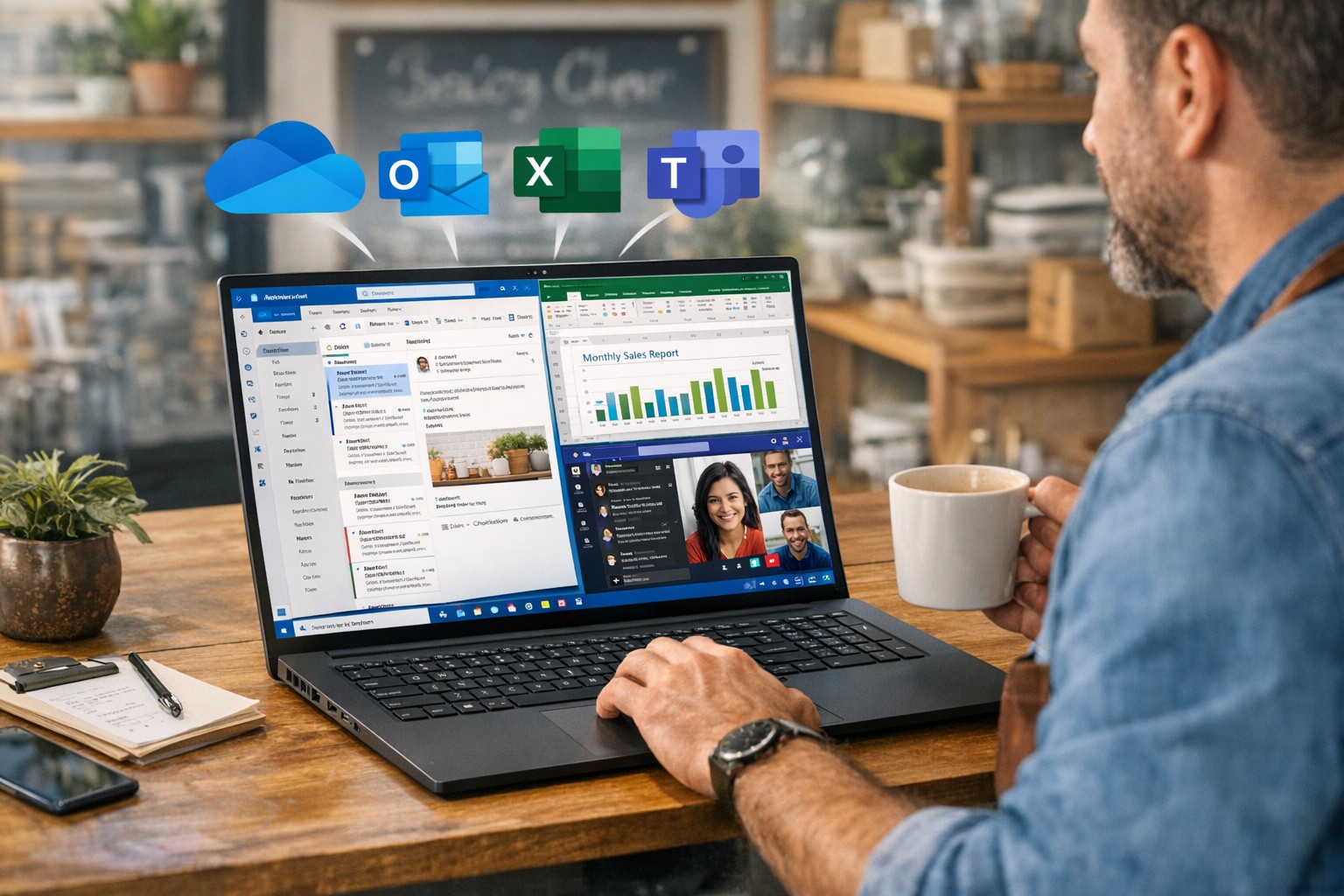
How a small business owner can improve productivity with Windows and Microsoft 365 using Outlook, Excel, Teams, and OneDrive for streamlined workflows and collaboration.
You don’t need to become a power user, but you do need to set expectations and sponsor the rollout. Hand these action items to your operations lead or IT department and ask for a 30‑, 60‑, and 90‑day plan.
1. Standardize on Microsoft 365, not just Office
Migrate from legacy Office installs to Microsoft 365 (Business Standard or equivalent) so everyone has access to cloud storage, Teams, and shared calendars.
Ensure all users have work email accounts tied to the Microsoft 365 tenant; this simplifies sharing, licensing, and auditing access later.
2. Lock down storage with OneDrive and SharePoint
Move department‑specific files (contracts, templates, policies) into SharePoint so they live in version‑controlled libraries instead of scattered email attachments and local folders.
Require staff to save active project files to OneDrive or SharePoint, not just the desktop or C‑drive, so documents are backed up, searchable, and recoverable.
3. Streamline communication with Outlook and Teams
Design a clear “rules of engagement”:
Emails for formal correspondence and external clients.
Teams for internal discussions, approvals, and quick questions.
Train managers to enable Focused Inbox and use Outlook rules to route high‑priority clients or vendors to a dedicated folder or notification channel.
4. Automate repetitive tasks with Power Automate
Identify 2–3 recurring manual tasks (e.g., invoice creation, timesheet approvals, status reports) and design Power Automate flows that move data between Excel, Forms, SharePoint, or Outlook.
Have IT build a “template library” of reusable flows so new departments can adopt them without re‑engineering from scratch.
5. Optimize workstations for Windows and Office
Ensure all employee machines run a supported Windows 10/11 version with automatic updates enabled; this reduces vulnerabilities and compatibility issues with Office apps.
Standardize core Office toolbars and shortcuts (for example, “Quick Access Toolbar” and frequently used Ribbon commands) so staff spend less time hunting for features.
6. Train users, not just deploy licenses
Schedule short, role‑specific workshops (e.g., “Excel for managers,” “Teams for remote staff”) instead of one‑size‑fits‑all training.
Provide cheat sheets or quick‑reference guides for common features: co‑authoring, Track Changes, Outlook rules, and Teams meeting best practices.
Anticipated client questions (FAQ)
Q: Isn’t Microsoft 365 just more license cost? A: If you’re only using it as “Word and Excel on each desktop,” yes. But when you leverage collaboration, automation, and cloud storage consistently across your team, you reduce errors, rework, and the time staff spend hunting for files—making the subscription cost a productivity multiplier.
Q: How much downtime will this rollout cause? A: With proper planning, user‑facing disruption is minimal. Most changes are configuration and training, not rip‑and‑replace. A phased rollout—starting with a pilot group, then expanding—keeps productivity steady.
Q: Can we keep using our old file servers and local folders? A: You can, but you trade visibility, backup, and real‑time collaboration for that control. A hybrid approach—key current projects in SharePoint, legacy archives on local servers—often works well during the transition.
Q: Is this secure enough for our data and clients? A: Microsoft 365 offers enterprise‑grade security, including conditional access, multi‑factor authentication, and audit logs. The bigger risk is misconfigured accounts (e.g., shared passwords, no MFA) that your IT provider should harden.
How Farmhouse Networking can help
At Farmhouse Networking, we help business owners like you turn Windows and Microsoft 365 from a “box of tools” into a repeatable productivity engine:
Assessment and planning: We audit your current Windows and Office use, map out critical workflows, and propose a 90‑day plan tailored to your industry and team size.
Deployment and hardening:
Configure Microsoft 365 tenants, enforce password policies and MFA, and set up OneDrive/SharePoint structures that match your org chart.
Optimize Windows workstations (updates, security, and Office settings) so end‑users get reliability instead of reboots.
Automation and training:
Build Power Automate workflows for your most tedious tasks (reports, approvals, reminders).
Deliver concise, role‑based training sessions so your team actually uses the features you’re paying for.
Ongoing support:
Provide help‑desk coverage so employees don’t fall back on “printing it and emailing it again” when they hit a snag.
Call to action
If you’re ready to stop wasting time on email chains, file‑version chaos, and ad‑hoc workarounds, Farmhouse Networking can help you implement a coherent Windows and Microsoft 365 strategy that scales with your business.
Email us at support@farmhousenetworking.com to request a free 30‑minute consultation on how we can improve productivity with Windows and Office in your specific environment.
Leverage Windows 11 and Office apps to boost business productivity and enhance security—key Microsoft 365 features for accounting, healthcare, and charity firms.
As a business owner in accounting, healthcare, or charity sectors, you’re juggling tight deadlines, sensitive data, and remote teams. Windows and Microsoft Office apps, powered by Microsoft 365, deliver seamless productivity gains and enterprise-grade security to protect your operations without complexity.
Key Benefits for Your Business
Windows 11 integrates tightly with Office apps like Teams, OneDrive, and Outlook, enabling real-time collaboration that cuts email chains by 30-50% in typical teams. Security features such as multi-factor authentication (MFA) and advanced threat protection block 99% of phishing attempts, vital for HIPAA-compliant healthcare or IRS-regulated accounting firms. Cloud syncing via OneDrive ensures data accessibility across devices while encrypting files end-to-end, reducing downtime from lost laptops.
Practical Action Steps
Follow these steps with your IT department for quick wins.
Upgrade to Windows 11 and Microsoft 365 E3/E5: Audit current licenses via the Microsoft 365 admin center; migrate from legacy Windows 10 (support ended October 2025) to avoid vulnerabilities. Enable auto-updates for patches.
Deploy MFA and Endpoint Protection: In the Microsoft Entra admin center, enforce MFA for all users; activate Defender for Endpoint to monitor threats in real-time. Test on a pilot group of 10 users first.
Optimize Teams and Power Automate: Set up Teams channels for projects; use Power Automate to automate invoice approvals or donor reports, saving 5-10 hours weekly per employee.
Secure OneDrive Sharing: Configure sensitivity labels for client files; train staff via Microsoft Learn modules (free, 30-minute sessions).
Monitor with Insights Tools: Use Microsoft Viva Insights to track productivity metrics; review monthly for bottlenecks.
These steps yield ROI in 3-6 months through reduced breaches (average cost $120K for small firms) and 20% time savings.
FAQ: Client Inquiries Answered
How does this improve remote work security? Windows and Office apps use Zero Trust security, verifying every access attempt. Remote users get the same protections as in-office via Intune device management.
What’s the cost for a 50-employee firm? Microsoft 365 Business Premium starts at $22/user/month, including all apps, 1TB OneDrive, and advanced security—often cheaper than disjointed tools.
Will it disrupt daily operations? Minimal: Phased rollout with co-pilot AI assistance eases adoption. Teams integrates with existing email in under an hour.
How to comply with industry regs like HIPAA or 990 filings? Built-in compliance tools like data loss prevention (DLP) and audit logs map directly to standards; export reports for audits.
Can we customize for accounting workflows? Yes—Power Apps builds no-code tools for QuickBooks integration or charity donor tracking, boosting efficiency 25%.
How Farmhouse Networking Helps
Farmhouse Networking specializes in tailored Microsoft 365 deployments for accounting, healthcare, and charity clients. We handle audits, migrations, custom automations, and ongoing optimization—ensuring 99.9% uptime and full compliance. Our team conducts free assessments, trains your staff, and integrates with existing systems like EHRs or fund management software. Past clients report 40% productivity lifts and zero breaches post-implementation.
And God will generously provide all you need. Then you will always have everything you need and plenty left over to share with others. As the Scriptures say, “They share freely and give generously to the poor. Their good deeds will be remembered forever.” For God is the one who provides seed for the farmer and then bread to eat. In the same way, he will provide and increase your resources and then produce a great harvest of generosity in you. - 2 Corinthians 9:8-10
We use cookies to ensure that we give you the best experience on our website. If you continue to use this site we will assume that you are happy with it.