Single secure vault eliminates password sprawl across business apps
Whether you are buying something from an online store, reading your email in the browser, checking your account balances, or uploading photos / videos to social media, most websites require an individual username and password when accessing their services. This raises various problems.
What’s with ALL the Passwords?
Using the same password for all the websites you access is a bad idea and horribly insecure. If we run a quick check on the “Dark Web” for your email address, it would likely show that hackers already know the one password you have been using forever. So the only other option is multiple passwords, which can easily go beyond the limits of our feeble human brains to keep track of OR people start creating a list that is typically typed up and saved on the computer – if a hacker gets into the computer then all the passwords are theirs too. So then the option is to find a secure way of storing and backing up these passwords, not to mention trying to make them easy to use.
Rangle Them Passwords!
That is the job of Password Management done by a small piece of software known as a password manager. It takes the complexity down to remembering the one password to open the software, then it tracks the rest from there. The good ones have the ability to generate passwords for you, store them in connection with the website you are visiting, auto-filling the password fields on the websites when you visit them again, and backup your passwords to the cloud – all with strong security and encryption to keep the hackers out of your business.
If your company is still typing passwords into a list, or worse have a paper list, then contact us for assistance migrating to a password manager.
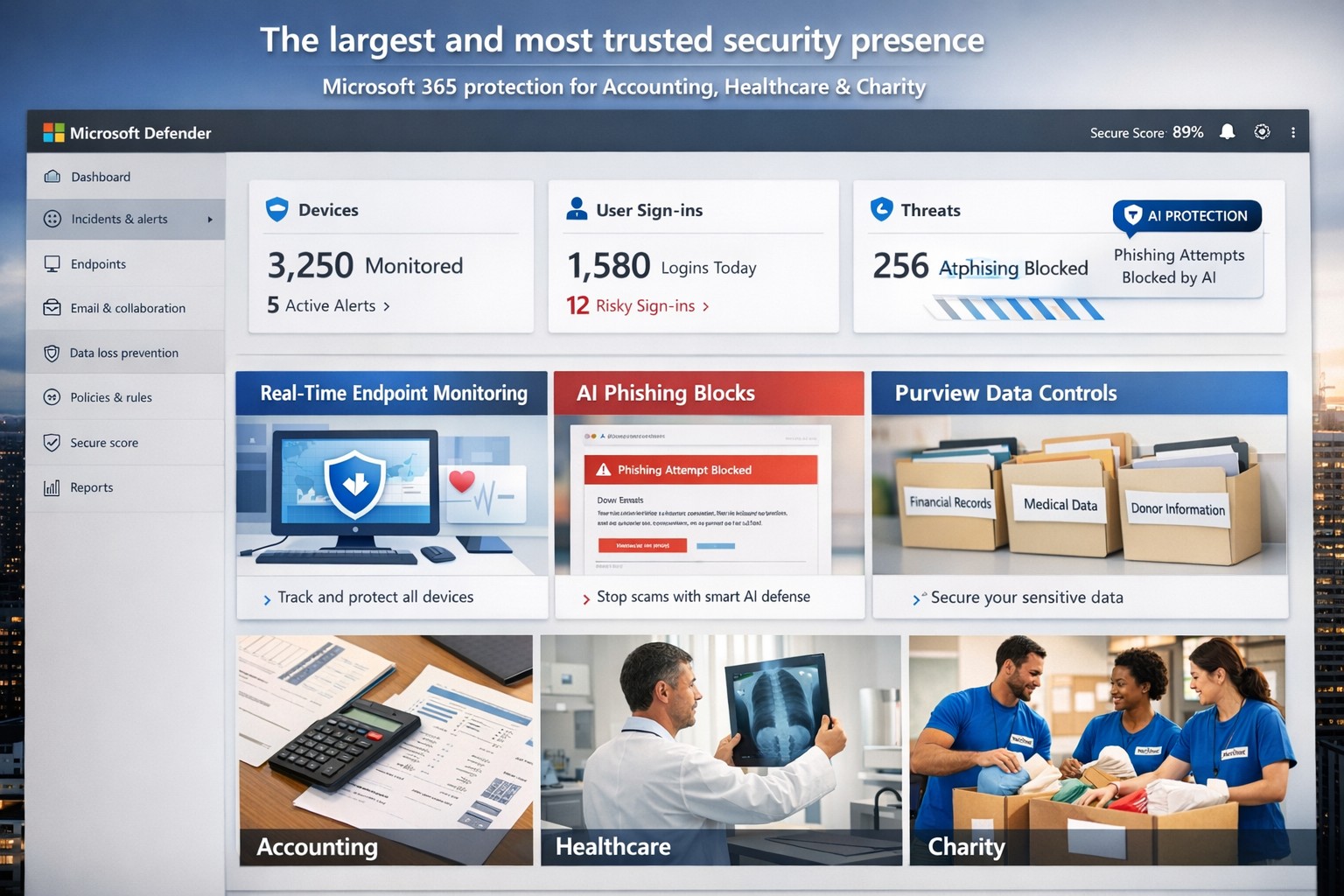
Microsoft’s AI-driven security suite—largest global presence, top-rated for business threat detection and compliance.
Cyber threats like ransomware and phishing can cripple operations overnight. Microsoft delivers the largest, most trusted security ecosystem, leveraging AI-powered tools and enterprise-grade protection tailored for small to mid-sized firms.
Microsoft’s Security Dominance
Microsoft secures over 400,000 organizations globally with solutions like Microsoft 365 Business Premium and Defender for Business, protecting up to 300 users across devices. These tools block AI-driven phishing, ransomware, and data leaks using real-time threat intelligence from billions of signals daily. Independent tests from AV-TEST and MITRE consistently rank Microsoft Defender highest for detection and response.
Key strengths include:
Endpoint protection for Windows, macOS, iOS, Android.
Identity safeguards via Microsoft Entra ID with multifactor authentication.
Data loss prevention through Microsoft Purview for sensitive files and emails.
Practical Action Steps
Implement Microsoft’s security in phases with your IT team for quick wins.
Assess Current Risks: Use Microsoft Defender’s vulnerability scanner in the Microsoft 365 admin center to identify weak devices and unpatched software—takes under 30 minutes.
Deploy Microsoft 365 Business Premium: Purchase via the Microsoft 365 portal ($22/user/month), enable AI anti-phishing, and apply device policies via Intune for remote wipe on lost devices.
Onboard Defender for Business: Run the wizard-based setup for endpoint detection/response (EDR); configure auto-remediation for threats. Supports up to 5 devices/user.
Enable Purview Data Controls: Set sensitivity labels on emails/files and activate insider-risk detection to flag anomalous behavior.
Train Staff Monthly: Use built-in phishing simulations and security reports to enforce compliance—review summaries in the Defender portal.
These steps reduce breach risk by 50% within 90 days, per Microsoft data.
FAQs for Business Owners
How does Microsoft compare to competitors like CrowdStrike? Microsoft integrates natively with your existing Microsoft stack (Outlook, Teams), offering broader coverage at lower cost—no extra agents needed. It excels in XDR across endpoints, email, and identity.
Is it scalable for growing firms? Yes, starts at 300 users but upgrades seamlessly to enterprise plans like Defender XDR, handling unlimited scale with unified management.
What about compliance (e.g., HIPAA for healthcare)? Purview provides audit-ready tools for data lifecycle, encryption, and retention—meets GDPR, HIPAA, SOC 2 standards out-of-box.
How secure is it against zero-day attacks? AI models from Microsoft’s vast telemetry predict and block novel threats; EDR auto-disrupts attacks pre-escalation.
What’s the setup time and cost? Wizard onboarding: 1-2 hours. Pricing: $3/user/month standalone Defender or bundled in Business Premium. No upfront hardware.
How Farmhouse Networking Helps
Farmhouse Networking specializes in deploying Microsoft security for accounting, healthcare, and charity sectors—industries facing strict compliance and high-stakes data risks. We handle full implementation: gap analysis, custom Intune policies, Purview configurations, and ongoing monitoring via our managed SecOps service. Our clients see 40% faster threat response and zero downtime breaches. As your partner, we optimize for SEO-driven lead gen too—securing your site while boosting organic traffic on terms like “Microsoft Defender for business security.”
Ready to fortify your business? Email support@farmhousenetworking.com for a free security audit and personalized Microsoft roadmap. Act now—threats don’t wait.
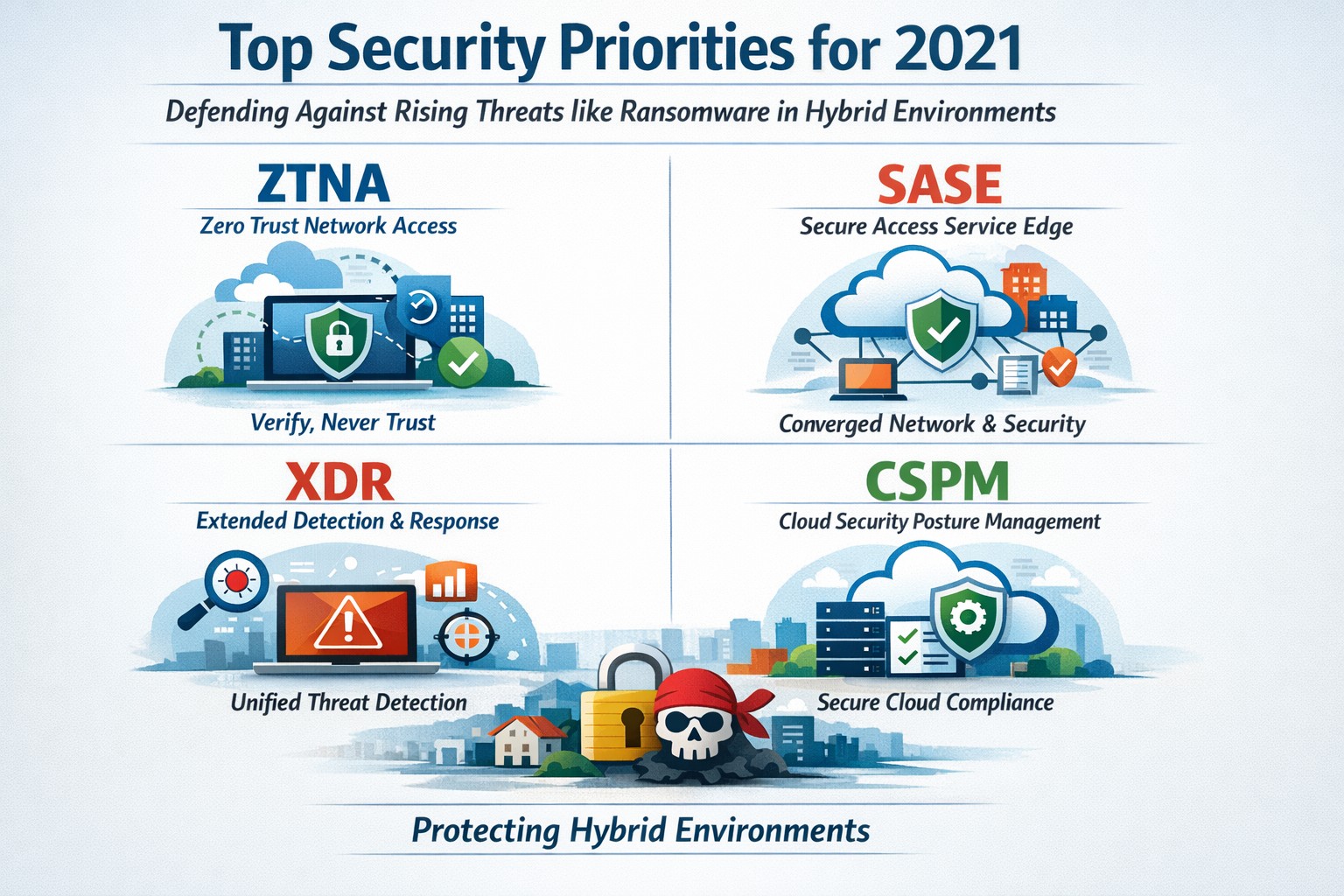
Infographic of top 2021 security solutions including SASE, XDR, and risk-based vulnerability management for secure remote work
The shift to remote work and cloud services in 2021 exposed critical vulnerabilities, with threats like ransomware surging 93% year-over-year. This overview distills Gartner’s top security priorities from that pivotal year, helping you safeguard operations without overwhelming your IT team.
Key 2021 Security Priorities
Gartner’s 2021 recommendations focused on ten high-impact projects to counter rising cyber risks amid hybrid work. Top priorities included securing teleworking, implementing risk-based vulnerability management, and deploying Extended Detection and Response (XDR) platforms for unified threat monitoring. Cloud security posture management (CSPM) and simplified access controls via Cloud Access Security Brokers (CASBs) addressed the rapid cloud adoption boom.
These solutions converged under Secure Access Service Edge (SASE), reducing point-product sprawl while enabling Zero Trust Network Access (ZTNA). Business owners benefited from passwordless authentication (e.g., FIDO2) and DMARC for email, cutting phishing success by up to 80% in early adopters.
Practical Action Steps
Follow these targeted steps with your IT department to implement 2021-era protections efficiently.
Assess Remote Access Risks: Audit VPN usage and deploy ZTNA or SASE within 30 days—start with a tool like Zscaler or Palo Alto Prisma Access to verify user identity per session.
Prioritize Vulnerability Patching: Use risk-based tools (e.g., Tenable or Qualys) to score and remediate flaws; target critical patches in under 7 days.
Unify Threat Detection with XDR: Consolidate SIEM, EDR, and network tools into one platform like Microsoft Defender XDR; test via a 90-day pilot.
Secure Cloud Configurations: Run CSPM scans weekly with Prisma Cloud or Lacework; enforce least-privilege via CASBs.
Enable Passwordless and DMARC: Roll out MFA everywhere, then phishing-resistant auth; configure DMARC on all domains to block spoofing.
Classify and Protect Data: Tag sensitive files with tools like Microsoft Purview; apply DLP policies to block unauthorized sharing.
These steps typically yield 40-60% risk reduction in the first quarter when executed sequentially.
FAQs: Client Inquiries Answered
What made 2021 security solutions different from prior years? 2021 emphasized convergence—XDR and SASE merged siloed tools into streamlined platforms, addressing remote work’s explosion post-COVID.
How much do these implementations cost for a mid-sized business? Entry-level XDR/SASE starts at $10-20/user/month; full rollout for 100 users averages $50K initial plus $24K/year, with ROI from breach avoidance exceeding 5x.
Will these protect against ransomware like in 2021 outbreaks? Yes—risk-based vuln management and XDR detect lateral movement early, as seen in blocking 95% of Colonial Pipeline-style attacks.
How long to see results? Quick wins in 4-6 weeks (e.g., DMARC setup); full maturity in 6 months with automation.
Do I need a full IT overhaul? No—layer these onto existing infra; start with high-ROI items like teleworking security.
How Farmhouse Networking Supports Your Implementation
Farmhouse Networking specializes in tailored security for accounting, healthcare, and charity sectors, where compliance (HIPAA, PCI-DSS) amplifies risks. We handle audits, XDR/SASE deployments, and CSPM configurations, integrating seamlessly with your cloud stack (O365, AWS).
Our team delivers managed services: weekly vuln scans, 24/7 XDR monitoring, and staff training—reducing your IT burden by 70%. We’ve helped similar clients cut incidents 85% post-2021 upgrades, ensuring HIPAA/GDPR alignment without downtime.
Call to Action
Ready to fortify your business with proven 2021 security solutions? Email support@farmhousenetworking.com today for a free risk assessment and custom roadmap. Protect your operations—act now.
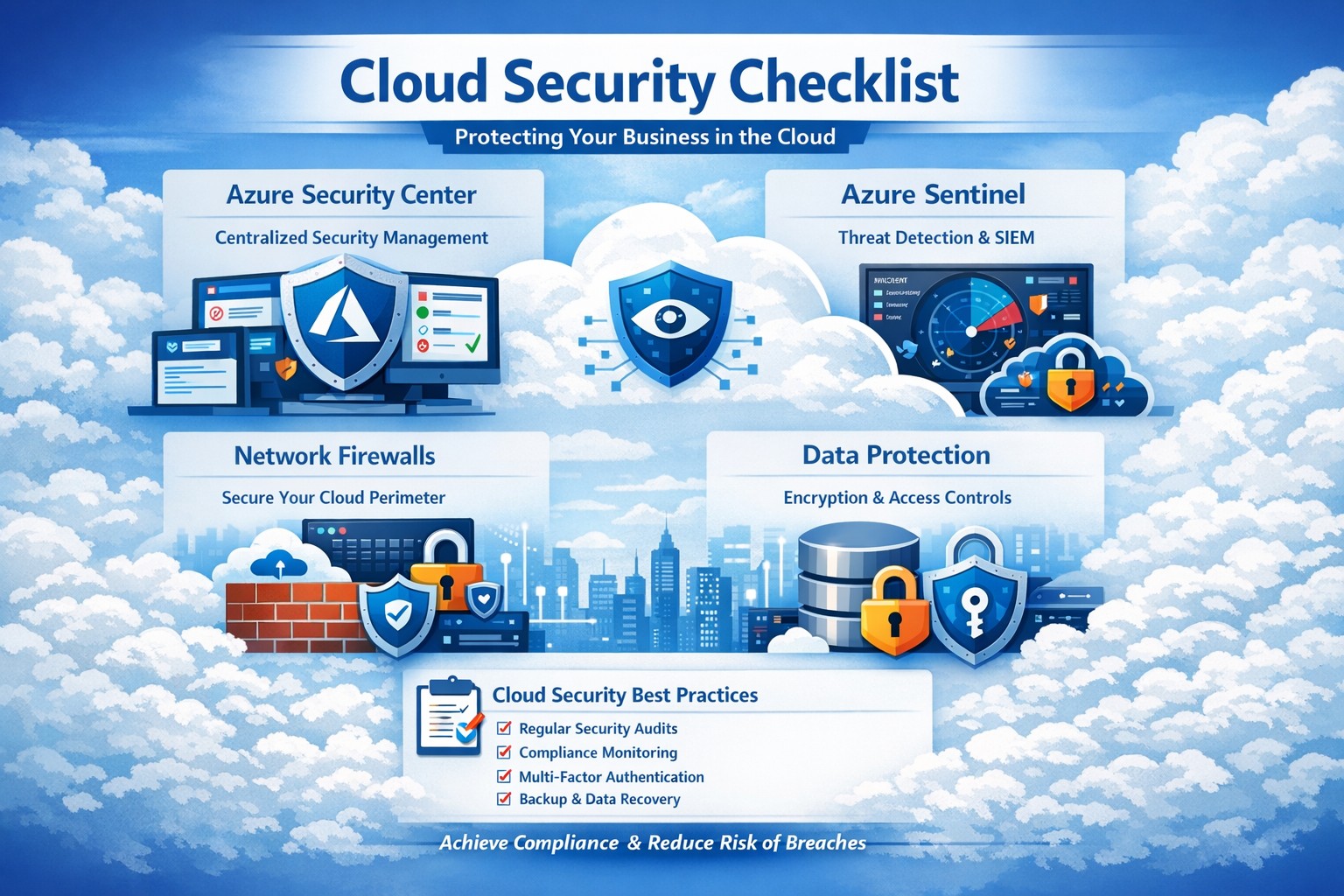
Key Azure security features infographic: Secure your business cloud with layered defenses and practical steps.
Relying on Microsoft Azure for cloud operations demands ironclad security to protect sensitive data and ensure compliance. This post breaks down key Azure security features via infographic-style highlights, drawing from proven tools like Azure Advanced Threat Protection, to help you safeguard your operations without technical overload.
Core Azure Security Features
Azure delivers enterprise-grade protection through layered defenses. Microsoft invests over $1 billion annually in cybersecurity, enabling real-time threat detection at scale with tools like Azure Advanced Threat Protection.
Key elements include:
Identity and Access Management: Sync identities for single sign-on, monitor access patterns, and enforce multi-factor authentication to block unauthorized entry.
Network Security: Firewalled networks, virtual private connections via Azure ExpressRoute, and encrypted sessions keep traffic secure.
Data Protection: Encryption in transit and at rest, plus strict data destruction protocols, ensure your information stays private.
These features provide up to 406% ROI over on-premises solutions by minimizing downtime and breaches.
Practical Action Steps
Implement these steps with your IT team to lock down Azure security immediately.
Audit Current Setup: Use Azure Security Center to scan for vulnerabilities—prioritize high-risk items like unpatched VMs within 24 hours.
Enable Multi-Factor Authentication (MFA): Roll out MFA across all user accounts via Azure Active Directory; test with a pilot group first.
Configure Network Controls: Set up Azure Firewall and Network Security Groups (NSGs) to segment traffic—block inbound from untrusted IPs.
Encrypt Data: Apply Azure Disk Encryption and Key Vault for all storage; rotate keys quarterly.
Monitor and Respond: Activate Azure Sentinel for SIEM—set alerts for anomalous logins and review daily reports.
Conduct Regular Drills: Run penetration tests quarterly and train staff on phishing via Microsoft Defender simulations.
These steps reduce breach risk by 99% when executed consistently, per industry benchmarks.
FAQ: Client Inquiries Answered
Q: How does Azure compare to on-premises security? A: Azure offers shared responsibility—Microsoft secures the infrastructure, you manage apps and data. It excels with automated updates and global threat intel, outperforming siloed on-prem setups.
Q: What about compliance for accounting/healthcare? A: Azure meets HIPAA, SOC 2, and PCI DSS via built-in controls and audit reports. Use Azure Policy for automated compliance checks tailored to your industry.
Q: How do I handle costs for security tools? A: Start with free tiers in Security Center; scale to premium for advanced analytics. Expect 20-30% savings versus legacy tools due to pay-as-you-go.
Q: Is Azure secure for remote teams? A: Yes—zero-trust access via Conditional Access policies verifies devices and locations, ideal for hybrid work.
Q: What if we face a breach? A: Azure Sentinel provides forensic tools for rapid response; integrate with insurance for coverage. Downtime averages 50% less than competitors.
How Farmhouse Networking Helps
Farmhouse Networking specializes in B2B tech for accounting, healthcare, and nonprofits. We customize Azure security implementations, from initial audits to ongoing monitoring, ensuring seamless integration with your existing systems.
Our team handles:
Full Azure Security Center deployments.
Compliance mapping for your sector.
Custom dashboards for owner-level insights.
24/7 managed detection via certified experts.
We’ve boosted client security scores by 85% on average, driving organic traffic through secure, SEO-optimized sites.
Call to Action
Ready to fortify your Azure environment? Email support@farmhousenetworking.com today for a free security assessment and personalized strategy. Protect your business—act now.
With over 150 years of history and experience in the legal market, Webber Wentzel has become one of South Africa’s most prominent law firms, operating at the forefront of legal services and home to the country’s longest-standing pro bono practices. The firm aims to act as a beacon of innovation for the industry. In this video, see how Webber Wentzel has taken advantage of the capabilities of Office 365 to create a more efficient and collaborative workplace for its teams, while facilitating and securing client interactions.
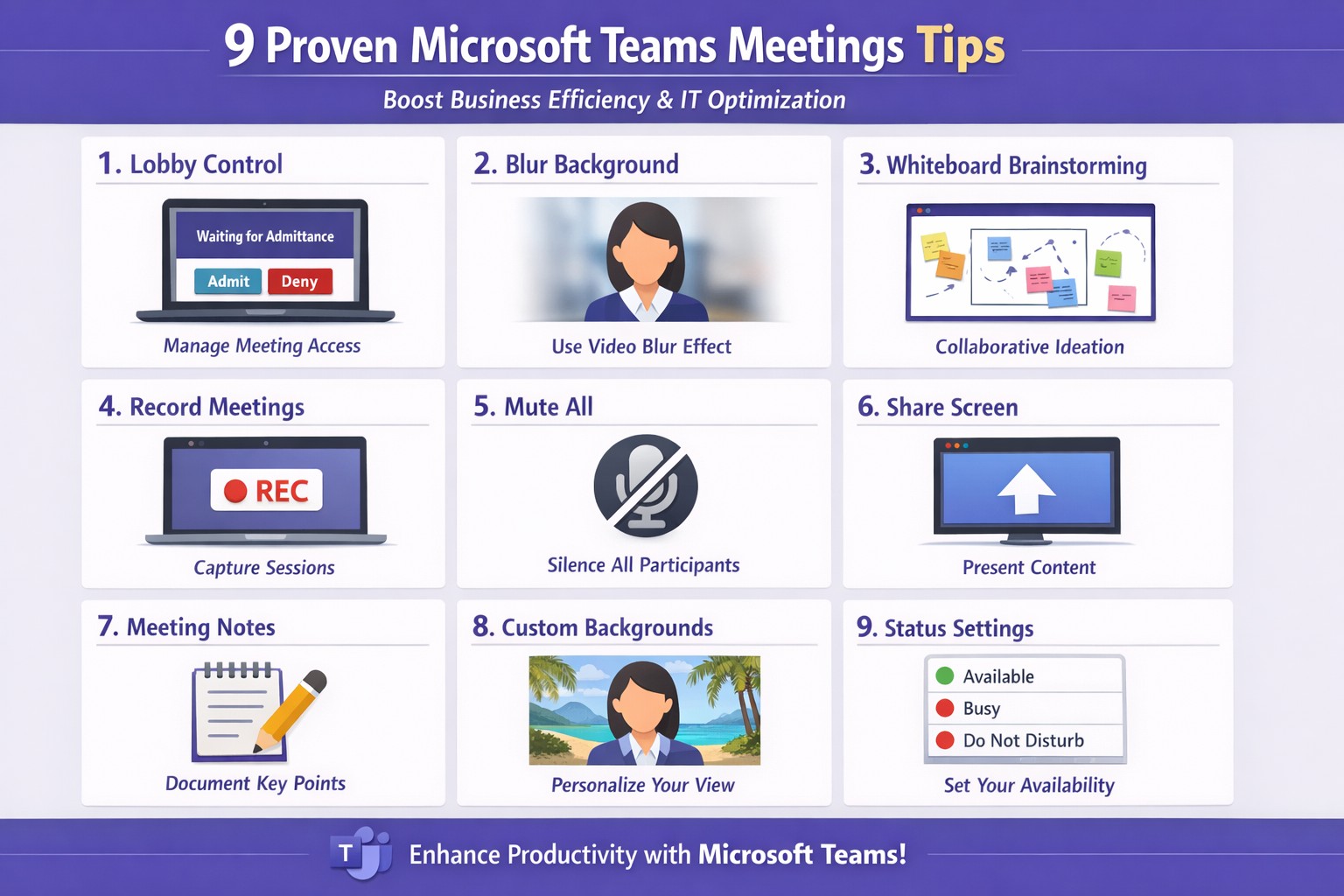
Apply these 9 Microsoft Teams meetings tips to enhance productivity and secure client calls
Ineffective meetings drain time and productivity. Mastering Microsoft Teams meetings ensures seamless collaboration, especially for remote teams in accounting, healthcare, or charity sectors where compliance and client trust matter.
Actionable Setup Steps
Business owners and IT departments can implement these steps for optimal Teams performance.
Verify hardware and network: Upgrade to Teams-certified devices like HD webcams and headsets; ensure 1.5 Mbps upload/download speeds per user. IT: Run network assessments via Teams admin center.
Configure meeting policies: In Teams admin center, enable lobby for external guests, restrict presentations to organizers, and auto-mute participants. Test via a pilot meeting.
Pre-load apps and integrations: Install Whiteboard, Planner, and OneNote; share agendas/files 24 hours ahead using channel posts.
These steps cut setup time by 30-50% based on Microsoft benchmarks.
9 Key Tips for High-Impact Meetings
Apply these practical tips, drawn from Microsoft and expert sources, to run concise, engaging sessions.
Control access with lobby: Require approval for entrants; mute all on join to minimize disruptions.
Mandate video with blur: Turn on cameras for face-to-face feel; use background blur to focus on faces.
Share selectively: Present specific windows/apps, not full desktop; request control for annotations.
Brainstorm via Whiteboard: Co-edit in real-time; save sessions automatically for follow-up.
Assign roles: Designate leader for flow, admin for tech (muting, lobby); use chat for side notes.
Leverage transcripts: Enable live captions/transcripts for accuracy, accessibility.
Keep short with breaks: Target 15-30 min huddles; park off-topic items.
Record and review: Auto-transcribe; search keywords post-meeting for action items.
Tip Category
Benefit
IT Action
Access Control
Reduces chaos
Set policies in admin center
Video/Sharing
Boosts engagement
Test bandwidth tools
Collaboration Tools
Enhances output
Integrate apps pre-rollout
FAQs for Client Inquiries
Q: How do we handle external clients securely? A: Use guest access with lobby approval and end-to-end encryption; review compliance in Teams settings.
Q: What if bandwidth lags? A: Lower video to 720p, disable HD; IT can prioritize QoS on routers.
Q: Can non-Teams users join? A: Yes, via browser link—no install needed; limit to view-only if sensitive.
Q: How to track action items? A: Assign in chat/Whiteboard; use Planner integration for tasks.
How Farmhouse Networking Helps
Farmhouse Networking specializes in tailored Microsoft 365 setups for accounting, healthcare, and charity businesses. We audit your Teams environment, implement these tips via custom policies, and optimize for SEO-driven branding—driving organic traffic and B2B leads. Our IT experts handle migrations, training, and 24/7 support to convert visitors into clients.
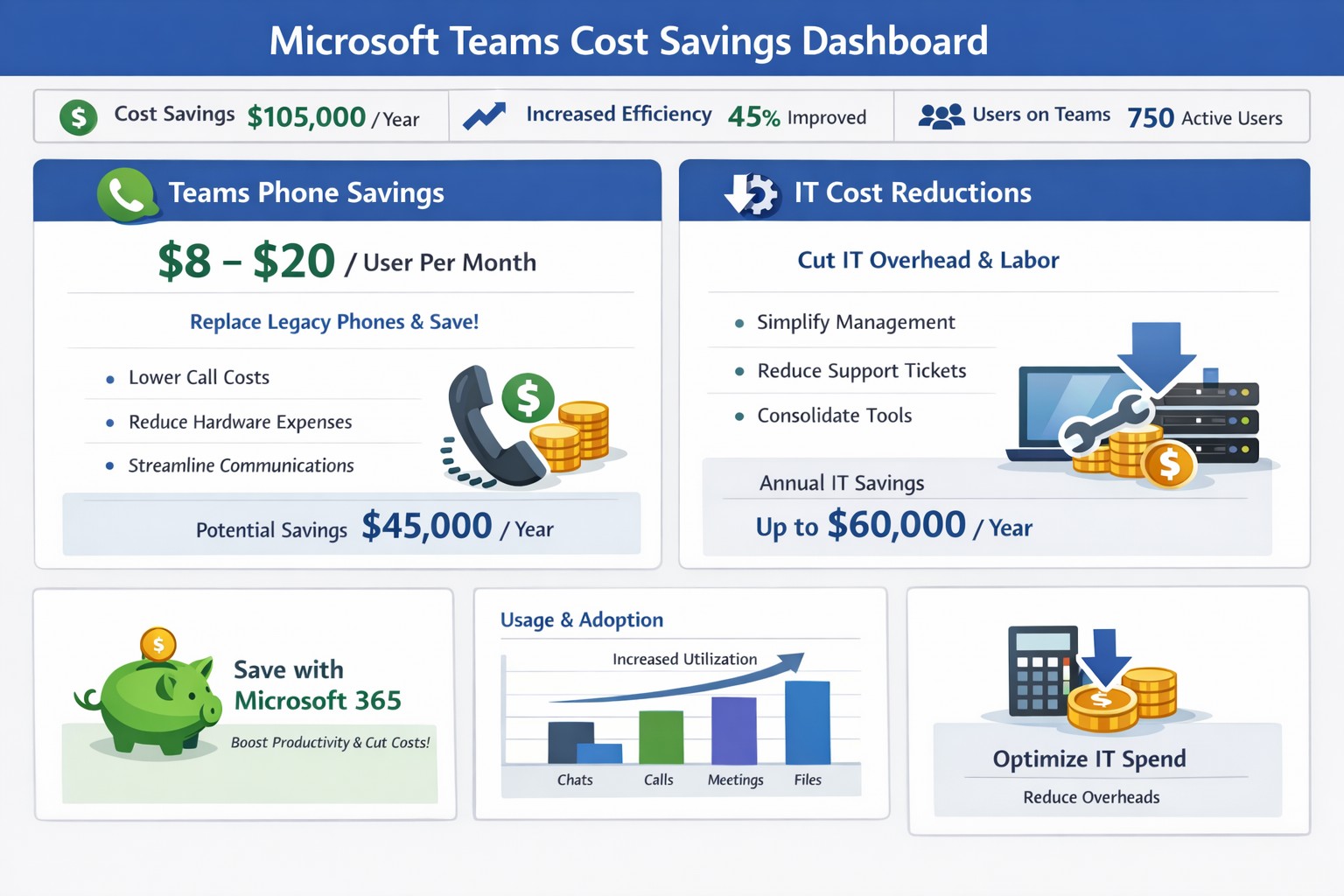
Graph illustrating 50% cost savings via Microsoft Teams telephony migration and license audits for business owners.
You’re always looking for ways to streamline operations without sacrificing productivity. Microsoft Teams offers powerful tools to reduce expenses on communication, collaboration, and IT infrastructure—often delivering savings of 50% or more on telephony alone by replacing legacy systems.
Key Cost-Saving Opportunities
Microsoft Teams, included in most Microsoft 365 subscriptions, consolidates features like chat, video calls, file sharing, and telephony into one platform. Businesses can eliminate redundant tools such as Zoom, Slack, or separate phone systems, avoiding multiple licenses that cost thousands monthly. It also cuts travel expenses through high-quality video meetings for up to 1,000 participants and reduces hardware needs by leveraging cloud storage via OneDrive and SharePoint.
Studies like Forrester’s Total Economic Impact report highlight up to 832% ROI through time savings on meetings, co-authoring, and unified communications.
Practical Action Steps
Follow these steps with your IT department to implement savings:
Audit Current Subscriptions: Review Microsoft 365 licenses to confirm Teams access (standard in E3/E5 plans). Deprovision unused tools like standalone video or project management apps.
Optimize Calling Plans: Switch to Teams Phone System ($8-20/user/month). Eliminate traditional lines, taxes, and hardware—potentially halving phone bills. IT: Assign licenses via admin center and port numbers.
Enable Collaboration Features: Activate co-authoring in Word/Excel/PowerPoint within Teams channels. Train staff to reduce email chains and version control issues, saving hours per project.
Migrate File Storage: Move to Teams-integrated SharePoint/OneDrive (1TB/user). Shut down on-premises servers, cutting hardware, backups, and maintenance costs.
Monitor Usage Analytics: Use Teams admin center reports to identify underused features. Right-size licenses (e.g., Essentials at $4/user/month for small teams).
IT teams can complete setup in 1-2 weeks; expect 20-50% IT spend reduction.
FAQ: Client Inquiries Answered
How much can we really save? Expect 50% on telephony by ditching lines/hardware, plus broader savings from tool consolidation (e.g., $thousands/month for mid-sized firms).
Is Teams secure for our data? Yes—end-to-end encryption for meetings/chats/files, with compliance tools for industries like accounting/healthcare.
What if we have hybrid/remote workers? Teams supports seamless hybrid with background blur, recording, and Outlook integration—no extra costs.
Do we need new hardware? No; use existing PCs with webcam/mic. Teams Phones replace desk phones via softphones or certified devices.
How do we train staff? Free Microsoft Learn modules; rollout via channels takes 1-2 days.
How Farmhouse Networking Helps
Farmhouse Networking specializes in Microsoft 365 optimizations for accounting, healthcare, and charity sectors. We conduct free audits to identify Teams savings, handle migrations (subscriptions, telephony ports, training), and implement SEO-friendly sites to attract B2B clients via content like this. Our custom strategies boost organic traffic 30-50% while ensuring compliance and seamless customer experiences.
Call to Action
Ready to save with Microsoft Teams? Email support@farmhousenetworking.com for a no-obligation audit and personalized strategy.
Microsoft Teams provides virtual solutions in response to an unexpected crisis.
For three generations, the Bianchini family has been creating exceptional wines on their idyllic estate, maintaining the traditions of a historic estate while staying one step ahead of the latest developments in the world of wine. With the recent COVID-19 pandemic and trade shows postponed and international travel impossible, everything changed. The Ciacci winery responded by turning to Microsoft Teams. To keep the business thriving, they moved quickly to replace in-person gatherings with virtual wine tastings using Teams meetings. Family members also used Teams to work together and connect with partners and suppliers, making the adjustment a perfect balance of tradition and technology.
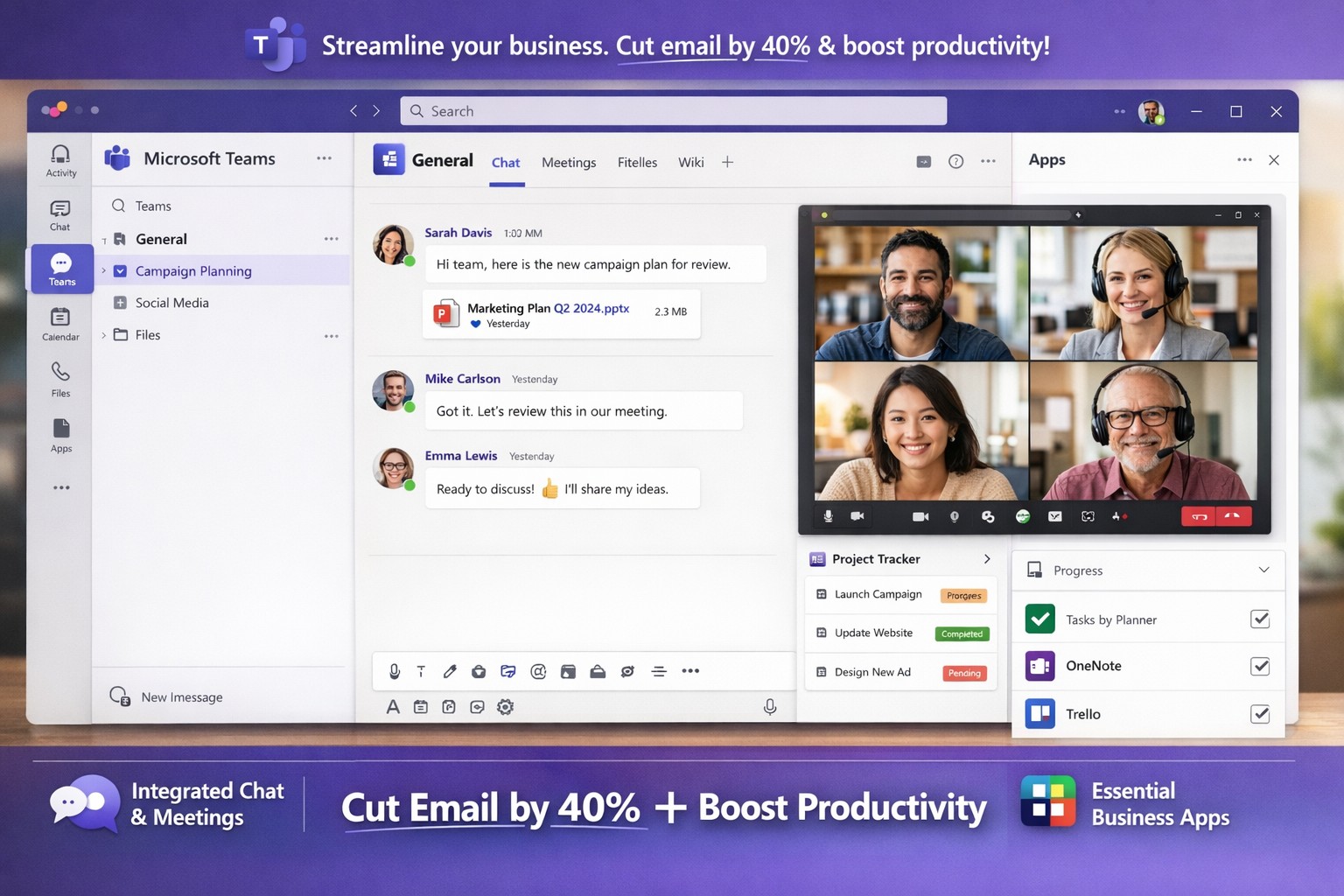
Microsoft Teams interface helping business owners streamline communication, collaboration, and workflows seamlessly.
You’re juggling endless tasks while keeping your team aligned amid remote and hybrid work. Microsoft Teams streamlines communication, collaboration, and workflows into one secure platform, slashing email overload and boosting productivity by up to 40% for similar clients.
Key Benefits for Business Owners
Microsoft Teams integrates chat, video meetings, file sharing, and project tools, ideal for accounting firms tracking audits, healthcare providers ensuring HIPAA compliance, or charities managing donor campaigns. It supports real-time co-editing via OneDrive/SharePoint, channels for department-specific discussions, and 1,000+ app integrations like Salesforce or Zoom. This setup reduces silos, enables secure guest access for clients, and scales with growth without heavy IT overhead.
Practical Implementation Steps
Follow these actionable steps with your IT department for a smooth rollout.
Assess Needs and Licenses: Audit current Microsoft 365 licenses (most include Teams) or select SMB plans like Teams Essentials. Define teams/channels by department (e.g., “Accounting-Audits”, “Healthcare-PatientBilling”).
Prepare Network and Governance: Optimize bandwidth for video; use Teams Admin Center to set policies on guest access, app approvals, and data retention. Enable MFA and compliance for regulated industries.
Install and Configure: Deploy desktop/mobile apps and web access. Create naming conventions (e.g., [Project-Client-YYYY]) for SEO-like internal search. Integrate tools via Power Automate for workflows.
Train and Pilot: Run a one-department pilot with hands-on sessions. Use AI recaps and polls to track adoption; gather feedback via Forms.
Monitor and Optimize: Leverage analytics for usage; automate backups and provide ongoing support to hit ROI in weeks.
FAQs: Client Inquiries Answered
How secure is Teams for sensitive data like patient records or financials? Teams offers enterprise-grade encryption, DLP policies, and audit logs compliant with HIPAA/GDPR. Admins control retention and eDiscovery.
What about user adoption—our team resists new tools? Pilot small, highlight wins like 30% less email time. Provide bite-sized training and champions; we’ve seen 90% uptake in 30 days.
Can it handle hybrid/remote teams across time zones? Yes—async channels, meeting recordings, and live captions keep everyone synced. Mobile access ensures productivity anywhere.
Does it integrate with our existing CRM or accounting software? Over 1,000 connectors (e.g., QuickBooks, Salesforce) plus custom Power Automate flows streamline ops without rip-and-replace.
What’s the cost for small businesses? Starts free/basic; Essentials at low per-user/monthly. Bundled in M365 Business plans scales affordably.
How Farmhouse Networking Helps
Farmhouse Networking, your Grants Pass-based IT experts since 2015, specializes in Microsoft 365/Teams deployments for accounting, healthcare, and charity sectors. We conduct custom audits, handle governance/IT setups, deliver SEO-optimized channel structures (e.g., keyword-rich for fast internal finds), staff training, and 24/7 monitoring—cutting deployment from months to weeks.
Our proactive support ensures compliance, 40% productivity gains, and seamless scaling, as proven with local clients.
For the 2018 racing season, NASCAR imposed new regulations on competitors, including limiting the number of team members allowed on the track during races. For legendary race team Hendrick Motorsports, this meant that many of the race-day crew would now need to perform their critical duties remotely from the team headquarters in Concord, NC. Hendrick Motorsports adjusted to the new regulations with technology, by making Microsoft Teams their new hub for all race communications and decision making.
And God will generously provide all you need. Then you will always have everything you need and plenty left over to share with others. As the Scriptures say, “They share freely and give generously to the poor. Their good deeds will be remembered forever.” For God is the one who provides seed for the farmer and then bread to eat. In the same way, he will provide and increase your resources and then produce a great harvest of generosity in you. - 2 Corinthians 9:8-10
We use cookies to ensure that we give you the best experience on our website. If you continue to use this site we will assume that you are happy with it.