Enterprise managed backup console with real-time monitoring and recovery analytics.
Data is the lifeblood of any business. From customer information to financial records, losing critical data can have devastating consequences for a company. That’s why businesses must have a reliable backup system in place. Managed backup services offer a comprehensive solution for data protection, providing automated backups, off-site storage, and quick data recovery in case of emergencies. In this blog post, we will explore the importance of protecting your business with managed backup services and how they can safeguard your valuable data.
The importance of data protection for businesses
Data protection is a top priority for businesses of all sizes. The importance of safeguarding your valuable data cannot be overstated. In addition to the potential financial losses that can result from data breaches or loss, businesses also face the risk of damaging their reputation and losing customer trust. Managed backup services are an essential part of a comprehensive data protection strategy. With automated backups and off-site storage, businesses can ensure that their data is safe and accessible, even in the event of a disaster. Additionally, quick data recovery capabilities minimize downtime and keep operations running smoothly. By investing in managed backup services, businesses can have peace of mind knowing that their critical data is protected and their business is secure.
Benefits of using managed backup services for your business
Using managed backup services can bring numerous benefits to your business. Let’s explore some of the key advantages that come with implementing managed backup services:
Increased Data Security: With automated backups and off-site storage, your valuable business data is protected from human errors, accidental deletions, or potential disasters. In the event of any mishaps, your data remains safe and easily recoverable.
Enhanced Disaster Recovery: Storing your data off-site ensures that even if your primary business location is compromised, you can still access your data and continue operations seamlessly. This added layer of security is crucial for business continuity.
Time and Cost Savings: The quick data recovery capabilities of managed backup services minimize downtime and save your business from significant financial losses. By swiftly restoring your data, you can maintain productivity and keep customer trust intact.
Peace of Mind: Investing in managed backup services equips your business with reliable and comprehensive data protection, giving you the peace of mind that your critical information is secure.
Factors to consider when choosing a managed backup service provider
When it comes to choosing a managed backup service provider for your business, there are several important factors to consider. Here are six key considerations that will help you make an informed decision:
Reliability and Security: Look for a provider that offers reliable and secure backup solutions. They should have a track record of successfully protecting data and providing seamless disaster recovery.
Scalability: Your business needs may change over time, so it is crucial to choose a provider that can scale its services to meet your evolving backup requirements without hindering performance.
Data Encryption: Ensure that the provider offers strong encryption measures to protect your data during storage and transmission. This will safeguard your sensitive information from unauthorized access.
Monitoring and Support: Opt for a provider that offers proactive monitoring and support services. They should be readily available to address any issues promptly and assist you in restoring your data whenever needed.
Cost and Pricing Model: Consider your budget and choose a provider that offers transparent pricing with no hidden costs. Assess the value of the service and determine if it aligns with your business’s financial objectives.
Backup Reliability: Regular testing and monitoring of your backups is crucial to ensure their effectiveness and reliability. It is important to regularly review and test the backups to verify that they are working correctly.
Taking a proactive approach to backup will provide you with confidence in your data protection strategy. By minimizing downtime and potential risks, you can focus on growing your business and achieving your goals. Invest in managed backup services today and secure your business’s future – contact us to get started
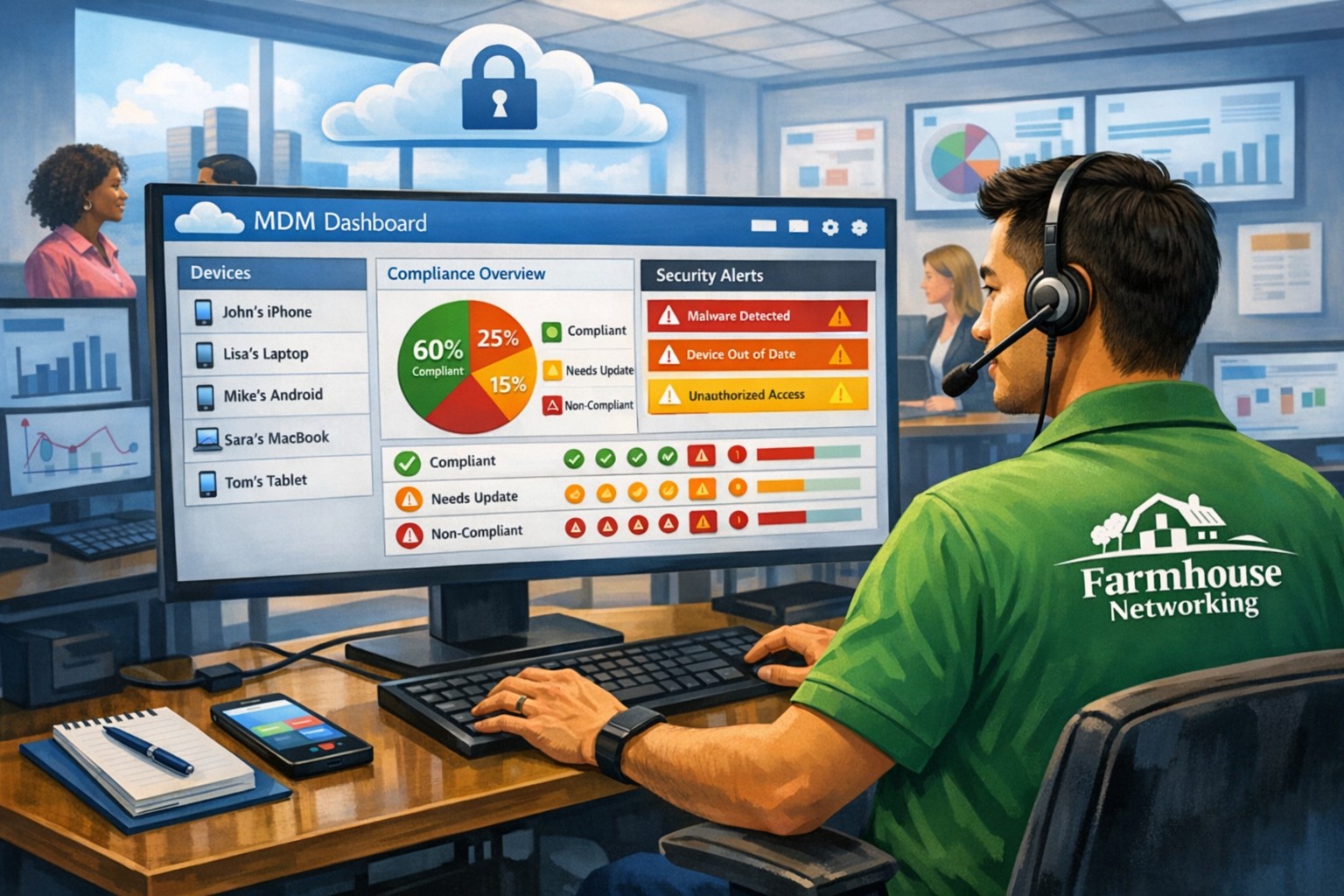
MSP console managing SMB BYOD smartphones and laptops with centralized MDM and security policies.
Small and medium-sized businesses (SMBs) face numerous challenges when it comes to managing their IT. Limited resources (both human and money), lack of expertise, and the need to focus on core business operations often make it difficult for SMBs to understand and manage technology needs. This is where Managed Service Providers (MSPs) come in. In this blog article, we will explore the reasons why SMBs should consider partnering with MSPs to enhance their IT capabilities and drive business growth.
Cost-Effective IT Solutions:
One of the primary reasons why SMBs need MSPs is the cost-effectiveness they offer. By outsourcing their IT needs to MSPs, SMBs can avoid the high costs associated with hiring and training an in-house IT team. MSPs provide a range of services, including network monitoring, data backup and recovery, cybersecurity, and software updates, all at a predictable monthly cost. This allows SMBs to allocate their resources more efficiently and focus on their core business.
Access to Expertise and Advanced Technology:
MSPs are experts in providing IT services and have a team of highly skilled professionals with expertise in variety of technology. By partnering with MSPs, SMBs gain access to the depth of knowledge and experience from IT experts who can handle complex tasks and provide strategic guidance. Additionally, MSPs stay up-to-date with the latest technology trends and can recommend and implement solutions that can help SMBs stay competitive in the market and safe from hackers.
Proactive IT Support and Maintenance:
MSPs offer proactive IT support and maintenance, which is crucial for SMBs. They monitor networks, identify potential issues, and take preventive measures to avoid downtime and disruptions. MSPs also provide regular software updates, security patches, and system maintenance, ensuring that SMBs’ IT remains secure and up-to-date. This proactive approach helps SMBs minimize the risk of costly IT failures and ensures smooth business operations.
Enhanced Data Security:
Data breaches and cyberattacks pose a significant threat to SMBs. MSPs play a vital role in safeguarding SMBs’ sensitive data and protecting them from potential security breaches. They implement robust cybersecurity measures, such as firewalls, antivirus software, and encryption, to ensure data confidentiality and integrity. MSPs can also conduct regular security audits and vulnerability assessments to identify and address any potential weaknesses in the IT infrastructure.
Scalability and Flexibility:
As SMBs grow, their IT needs evolve. MSPs offer scalable solutions that can adapt to changing business requirements. Whether it’s adding new users, expanding storage capacity, or integrating new software, MSPs can quickly and efficiently accommodate these changes. This scalability and flexibility allow SMBs to focus on their growth without worrying about the limitations of their IT infrastructure.
If your company could use the cost-effective solutions, access to expertise, proactive support, enhanced data security, and scalability that come from using a MSP, then contact us for assistance.
Make sure Hyper-V Host has CPUs than the combined total of CPUs for all servers being restored as these static until after the VMs are completely restored. If there is not enough CPU resources then the VMs will not boot.
Make sure Hyper-V Host has more than the combined total of RAM for all servers being restored as these settings are static until after the VMs are completely restored. If there is not enough memory then the VMs will not boot.
Create a SET NIC Team on the server (if you have multiple NICs)
Open Powershell as administrator
User the New-VMSwitch command to setup an external virtual switch to connect to for live connections
The AllowManagementOS is needed if you are using the same NIC team to access the VM host
Setup secondary Internal vSwitch to allow for testing before deploying
Setup Synology LUN targets for each VM to be restored. Make sure that they are big enough to hold all the full uncompressed size of the entire thick provisioned hard drives for the entire server.
Connect each LUN to the iSCSI Initiator on the VM Host. Make sure to bring them online, initialize them, and give them a drive letter. Synology needs this because it uses the SMB protocol to transfer the files during restore.
Make sure to allow the File and Printer Sharing app through the Windows firewall and open port 5986 to allow HTTP traffic for WinRM to allow Synology to query the Hyper-V settings.
Add the Hyper-V Host to the Active Backup for Business app.
Synology Active Backup Restore to Hyper-V
Open the Active Backup for Business app
Click on the Physical Server tab on the left
Select the server and click the Restore button
Select the point in time to restore from
Choose Restore to Microsoft Hyper-V
Choose Full Virtual Machine Restore
Change the Restore Name
Select a folder on the Hyper-V Host to place the configuration files
Select a folder on the Hyper-V Host to place each of the restore VHD files
Select a Virtual Switch on the Hyper-V Host to connect the VM to
Confirm the settings by clicking on the Done button.
After:
The VMs will boot with a single NIC and no network settings. Keep them offline and add additional NICs as needed to match the original setup. Then configure the NICs as before upon reboot. Make sure to connect to Internal Test Switch for initial steps.
Check hardware configuration of CPUs and RAM to determine if adjustments can be made. In particular, the RAM settings can be changed to startup, minimum, and maximum to allow for distribution of resources to VMs that have heavier workloads.
Boot VM to make sure it is functioning correctly. (first bootup can take upwards of 15 minutes)
Convert the VM from Gen1 to Gen2
Download Windows 10 ISO – https://www.microsoft.com/en-us/software-download/windows10
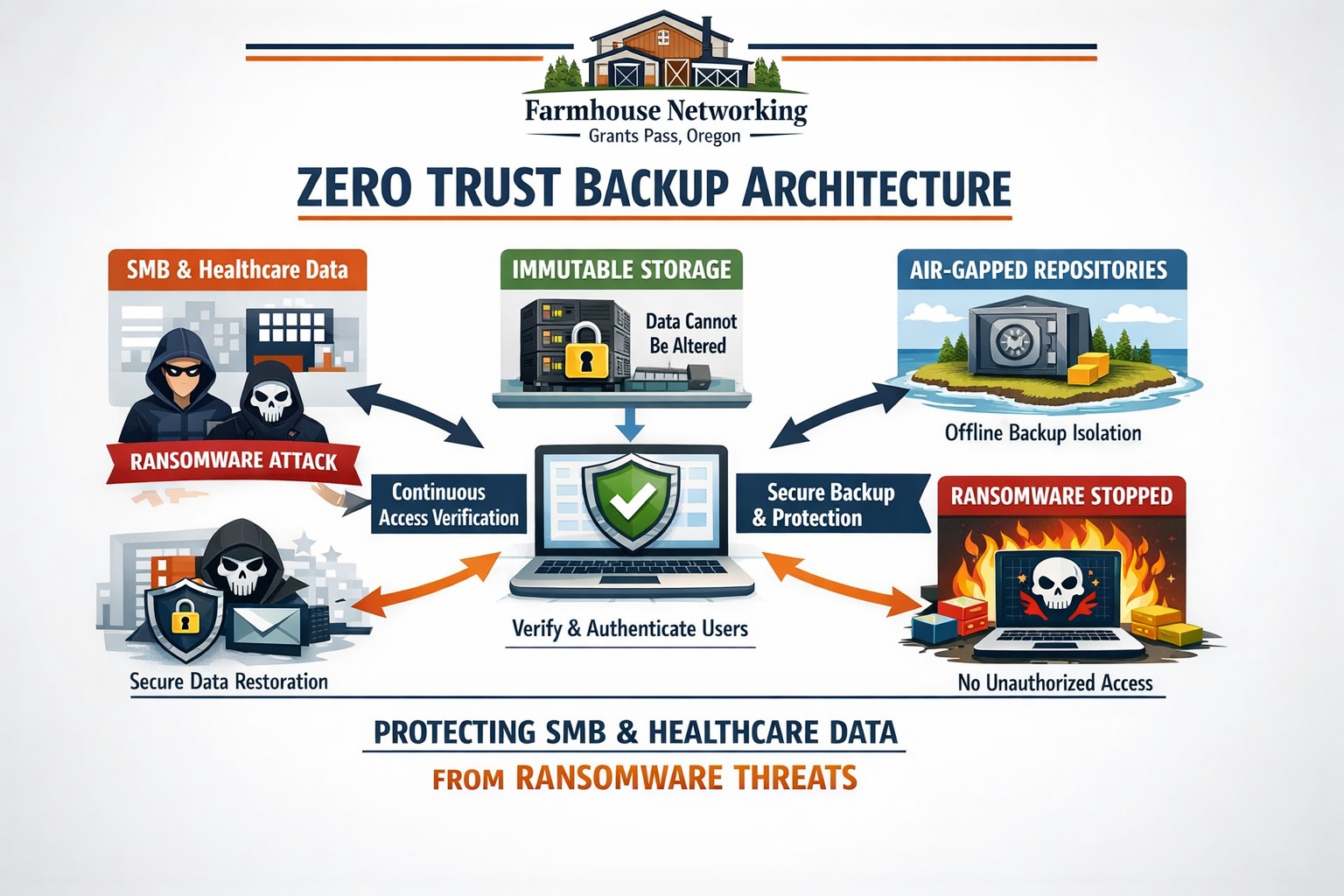
Farmhouse Networking secures Oregon business backups with zero trust immutability preventing ransomware encryption and deletion.
This is the third in a series about the concept of Zero Trust, which means in the IT sense that you trust nothing and always verify everything surrounding and connected to your network. Today’s discussion will be on the backup of important data.
Backup
Backup is a way of creating multiple copies of your important data and the systems that house them. This has become a necessity thanks to acts of God (unforeseen physical disasters), acts of employees (accidental or purposeful destruction of data), and acts of malicious hackers (ransomware or malware). Here are some questions that you should be asking yourself:
What data or systems are being backed up?
How often are these backups being performed?
Are your backups protected from natural disasters (offsite and redundant)?
How long are backups being stored?
Once expired are they securely removed?
What is the process for recovering files, emails, workstations, servers, applications, databases?
Have you tested your recovery process lately?
Do you know how long it will take to recover?
How will business continue until systems are restored?
How will you merge new information into recovered data once restored?
How often do you test your recovery process?
Is the recovery test process automated?
Take time to think about these questions and decide where changes can be made to better protect your IT investments, or contact us to do the thinking for you.
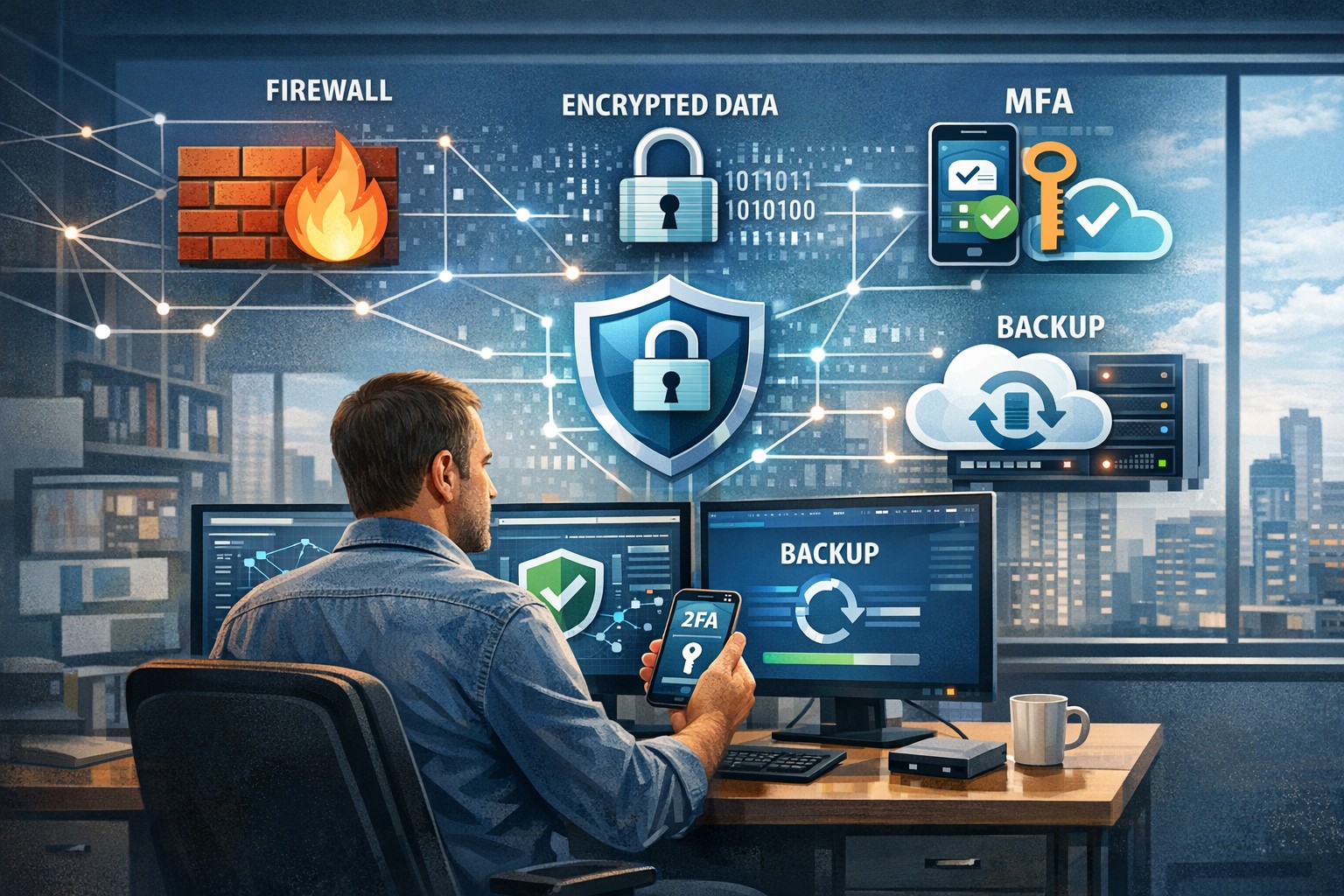
A small business owner leveraging modern cybersecurity tools—firewalls, multi‑factor authentication, and backups—to protect their company’s network and sensitive client data from cyber threats.
You may think cyberattacks are a “big‑company problem.” In 2026, that assumption is one of the most dangerous blind spots you can have. Cybercriminals increasingly target SMBs precisely because budgets are tighter, security is lighter, and breaches in small environments can be just as costly as in large enterprises. The question is no longer if a threat will hit your business, but when—and whether your people, data, and reputation are ready.
For a business‑owner audience, this post breaks down what “good cybersecurity” actually looks like in practice, gives you concrete steps your team can take, answers common client‑facing concerns, and shows how Farmhouse Networking can help you implement and maintain these protections without overhauling your operations.
Why SMBs Are Prime Targets
Cybercriminals are opportunistic: they look for the path of least resistance. SMBs often have limited IT staff, minimal security budgets, and patchy policies around email, passwords, and backups. That combination makes them ideal targets for ransomware, phishing, and data‑theft campaigns that can cripple operations and destroy customer trust in a matter of hours.
Regulatory scrutiny is also tightening. Even if you’re not a multinational, you may still face fines or contractual penalties if client or partner data is lost in a breach. Investing in cybersecurity is no longer “optional overhead”—it’s a core cost of doing business in 2026.
Practical Cybersecurity Steps for Business Owners
You don’t need a Fortune‑500‑level security team, but you do need structure. Here are the key areas every small or mid‑size business should address, along with specific actions your owner and IT team can immediately act on.
1. Lock Down Access with Strong Authentication
Require multi‑factor authentication (MFA) for all accounts that hold customer data, email, banking, or cloud services.
Prefer authenticator apps or hardware keys over SMS‑based codes to reduce phishing and SIM‑swapping risk.
Enforce strong password policies and provide a company‑approved password manager so teams don’t reuse passwords across personal and business services.
2. Patch Systems and Secure Endpoints
Turn on automatic updates for operating systems, browsers, and core business software (accounting, CRM, practice management).
Deploy next‑generation antivirus or EDR tools that monitor unusual behavior, not just known malware signatures.
Ensure every device that touches business data has disk encryption, screen‑lock timing, and basic firewall rules enabled.
3. Protect Networks and Wi‑Fi
Use business‑grade firewalls with default‑deny rules and logging, and avoid exposing unnecessary ports to the internet.
Configure Wi‑Fi networks with WPA3 encryption (or WPA2‑Enterprise), and keep guest Wi‑Fi on a separate, isolated segment.
Segment your network so that high‑value systems (financial and HR data, servers) sit on a separate, more tightly controlled segment.
4. Back Up Data and Plan for Incidents
Define what data is critical (client records, financials, contracts) and back it up regularly to an encrypted, cloud‑ or off‑site‑based solution.
Store multiple recovery points and test restorations periodically to ensure backups actually work.
Put a simple incident response plan in place: who gets notified, who talks to clients, and how you’ll isolate affected systems during a breach.
5. Train Your Team and Manage Email Risk
Conduct regular, short security training focused on phishing, password hygiene, and safe handling of sensitive data.
Deploy an email security gateway that scans attachments, rewrites malicious URLs, and quarantines suspicious messages before they reach inboxes.
Establish clear rules for sharing sensitive data via email (e.g., no client SSNs or insurance numbers in plain text) and enforce them.
Common Client Questions (and How to Answer Them)
When you talk to clients about cybersecurity, they’ll naturally ask around cost, risk, and responsibility. Framing these clearly builds trust and positions your business as a professional partner, not just a vendor.
“Won’t this slow down our operations?”
Answer: Modern security tools are designed to run quietly in the background. Properly configured firewalls, MFA, and endpoint protection add minimal friction while stopping the vast majority of automated attacks. Think of it like seat belts and airbags: you don’t feel them every day, but they’re critical when something goes wrong.
“We’re a small business; do we really need this much protection?”
Answer: Cybercriminals are increasingly using AI‑driven tools to probe and exploit small businesses precisely because defenses are weaker. A single breach can mean downtime, legal fees, and reputational damage that can take years to recover from. Basic, layered security is now table stakes for reputable SMBs.
“How do you know if our network is secure enough?”
Answer: There’s no “perfectly secure” state, but there are measurable baselines:
Are critical systems encrypted and backed up?
Is MFA enforced on all key accounts?
Are software and firmware updated regularly?
Are there clear policies and training for staff? A third‑party security audit or network assessment can map these gaps and prioritize where to invest next.
How Farmhouse Networking Can Help
Farmhouse Networking is built to help small and mid‑size businesses implement, manage, and maintain these cybersecurity measures without the overhead of a full‑time, in‑house security team. We focus on practical, cost‑effective solutions that fit your budget and workflow.
Here’s how we support your cybersecurity efforts:
Network and firewall configuration: We design and harden your network so that only necessary services are exposed, and sensitive systems are segmented and monitored.
Endpoint protection and patch management: We deploy and manage modern antivirus/EDR tools, ensure automatic updates, and enforce device‑level security policies across laptops, desktops, and mobile devices.
MFA, password policy, and access controls: We help you implement MFA everywhere it matters and set up role‑based access so employees only see the data they need.
Backup and incident readiness: We design a backup strategy tailored to your business‑critical data and help you define a simple incident response playbook so you know what to do if something goes wrong.
Ongoing monitoring and training support: We can monitor key security events and provide guidance on regular, brief security training sessions so your team stays alert without disrupting daily operations.
Take the Next Step Today
If you’re a small or mid‑size business owner, now is the time to treat cybersecurity as a core business function, not an afterthought. Simple, layered defenses—strong authentication, regular patching, secure networks, and reliable backups—can dramatically reduce your risk and keep your operations running even when threats emerge.
If you’d like to see how Farmhouse Networking can help you implement these steps with minimal disruption to your team, email us atsupport@farmhousenetworking.comfor a consultation. We’ll review your current setup, identify your top risks, and build a tailored plan that keeps your data, customers, and reputation safe in 2026 and beyond.
ProTips for successful Windows Server 2012 backup restoration
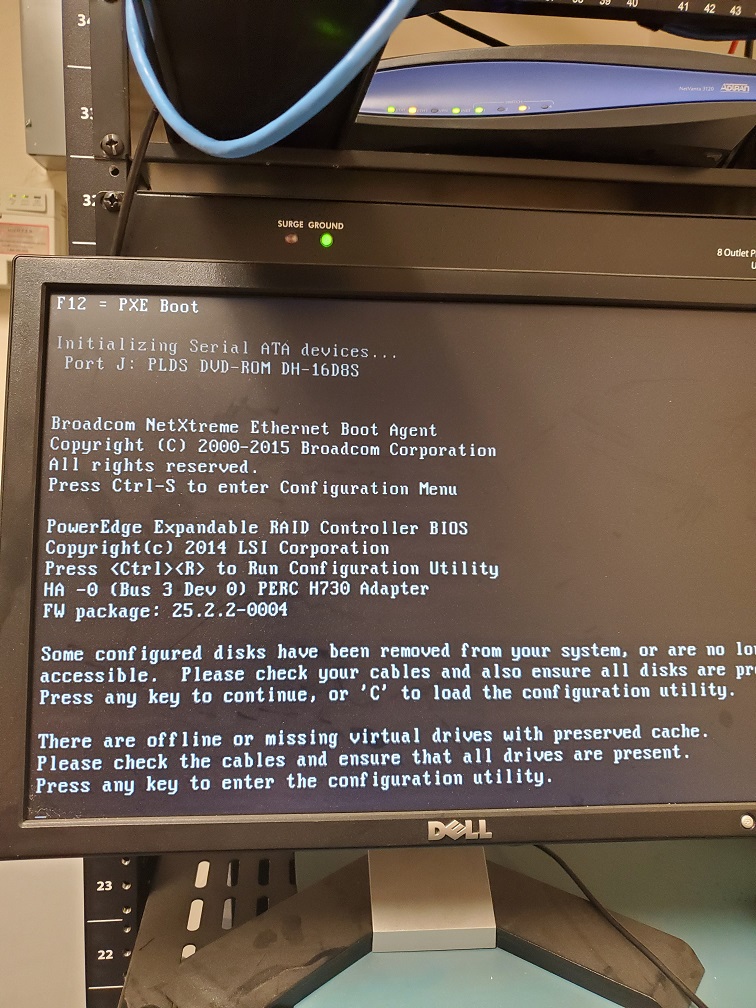
Here are some lessons learned from a recent recovery of a server with the following error:
Lesson #1 – Blinking Hard Drives
So when I got to the customer site the Dell server had blinking hard drive lights on two of the drives. Based on the support article about it the lights meant -“Identifying drive or preparing for removal.” and digging into the RAID controller I found the worst possible scenario for a RAID-5 array – two dead hard drives. I removed the two dead drives, cleared the configuration on the RAID controller, built a new RAID-5 array out of the remaining drives (4 out of 6), and did a fast initialize.
Lesson #2 – Drive letters on Windows Server Backup
Not sure if anyone else has noticed, but when Windows Server Backup is setup to use an external drive it likes to hide the drive by not assigning it a drive letter. This caused a few issues with the restore done from Windows Server 2012 R2 USB boot media as it couldn’t find the drive. I had to connect the external drive to my laptop then give it a drive letter. Plugged it back into the server and rebooted.
Lesson #3 – Patience is a virtue in Scanning for System Image Disks
Following the basic instructions for doing a Windows Server Backup 2012 Restore via Windows Server 2012 R2 USB boot media it came to the point where it does the scanning for System Image Disks. Turns out this can take hours depending on the speed of the drive plus the size and quantity of restores you have on the external drive. Just wait for the process to complete.
Lesson #4 – UEFI or Legacy BIOS matters
So you waited all that time for the Scanning for System Image Disks to complete and now that precious moment arrives when you realize that the Windows Server 2012 R2 USB boot media that you created was UEFI instead of legacy BIOS and the restore fails telling you so. Make sure that when you create the Windows Server 2012 R2 USB boot media that you change the settings to match the system that you are trying to restore.
Hope that these lessons help a few other Windows Server admins, who are trying to do a Windows Server Backup 2012 Restore, save some time and frustration. If you are looking for a better way to do backup and restore then contact us for details.
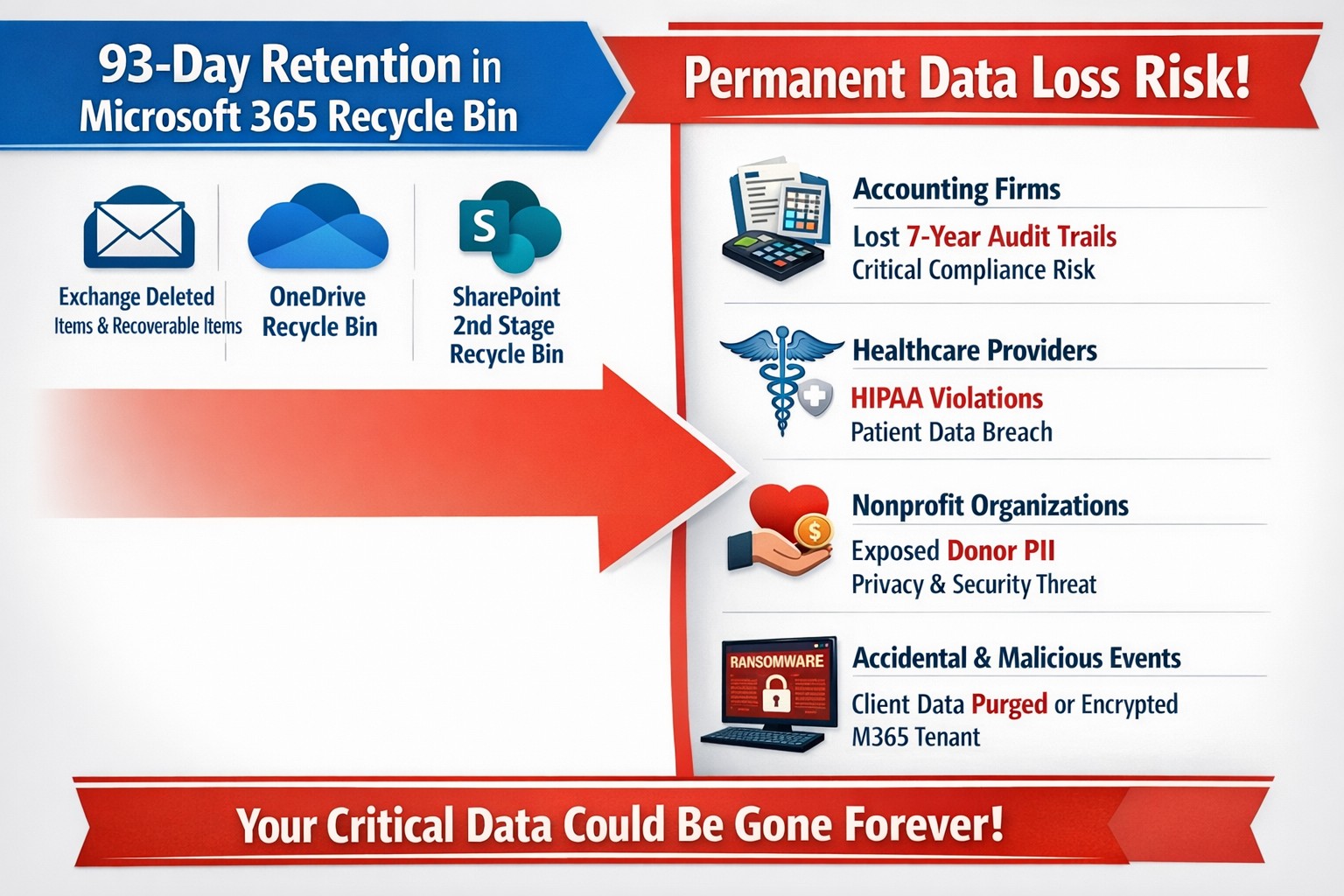
This question came to light while talking to a vendor about backups. It turns out that Microsoft does not backup any of your Office 365 data but does have aggressive redundancy in place. This is both good and bad, here is why:
Email
Microsoft has several levels of redundancy / resiliency / protection to keep email data from being corrupted, keep multiple copies of all email data, and scan emails for security threats. If there is ever any data issues then their systems automatically detect the problem and work to fix them or when threats are detected they are automatically remediated. There is also a recycle bin for emails and users that lasts from 30 to 90 days. Once that time is over there is no recourse for getting the data back.
Sharepoint & OneDrive
Microsoft here again has deep redundancy to protect your data from corruption, but they do nothing to check for malware or cryptoware. There is something called versioning that can help with some cryptoware, but not all. There is also a recycle bin for these services that could possibly help.
There are several apparent gaps in coverage that Microsoft does not deal with, but there are third-party services that have stepped in to do just that. If your company is looking to keep their Office 365 data safe from internal and external threats, then contact us for assistance.
Archive emails forever without PST management or storage quotas
Have to admit that I get a ton of email. In fact I have received 30+GB over the almost five years Farmhouse Networking has been in business. I decided that it was time to archive some of the older messages and checked into what Office 365 has for options. Here is what I found:
“Unlimited” Archiving Office 365 now has what is called “auto-expanding archiving” that is now available for all users. The old archive feature only allowed 100GB of additional space for free, but the new system is different. Users who get close to the old limit then their account changes to the auto-expanding type and additional storage is added as needed. The new maximum is at 1TB of storage, which even at average maximum size per email (10MB) that is 100,000 emails. To put that in perspective that is one maximum size email per hour, eight hours per day, five days per week, for almost 42 years before email archives would be full.
If your company is gets a bunch of email and likes to save it all, then contact us for assistance.
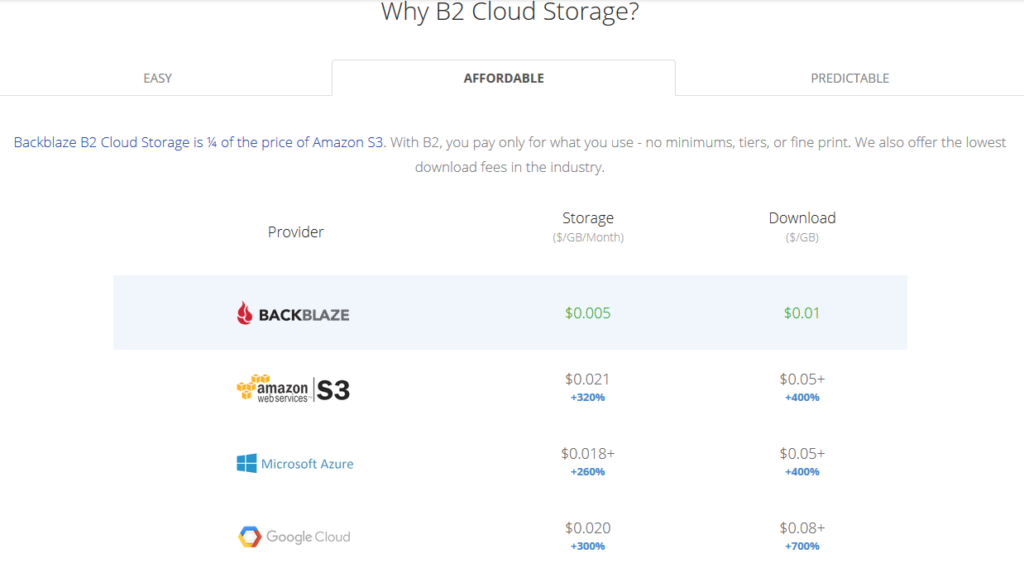
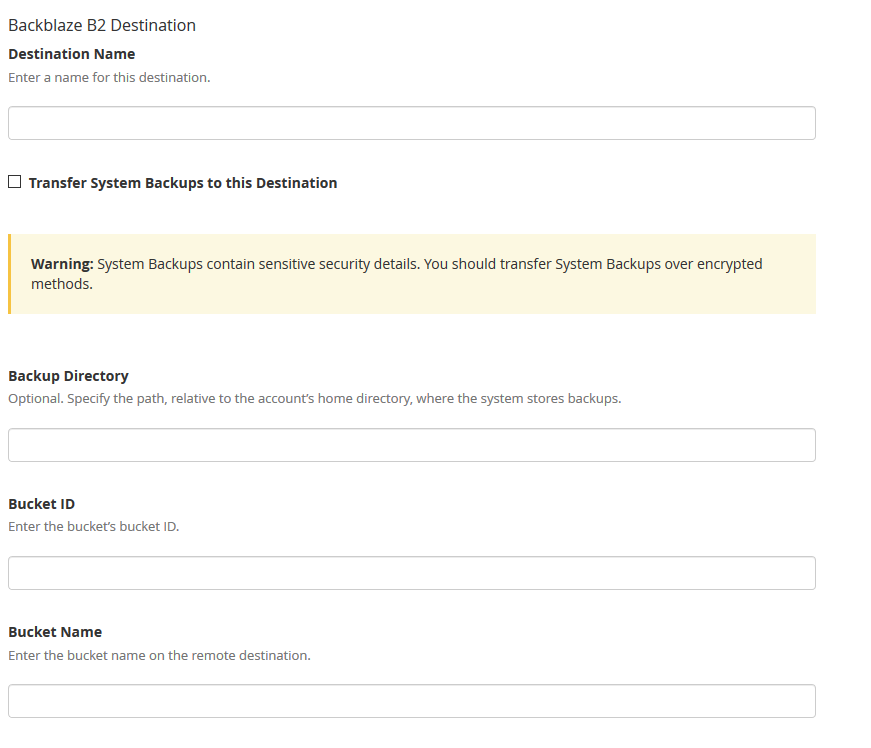
All someone has to do is look at the pricing model above to see why Backblaze is a no brainer for long term storage (not to mention the first 10GB of storage is free. With its recent inclusion as a destination for web server’s WHM backup, Farmhouse Networking has been recommending our hosting provider customers to make the switch from AWS Glacier. Here is the steps to make the switch:
Setup Backblaze Buckets
Login to Backblaze account
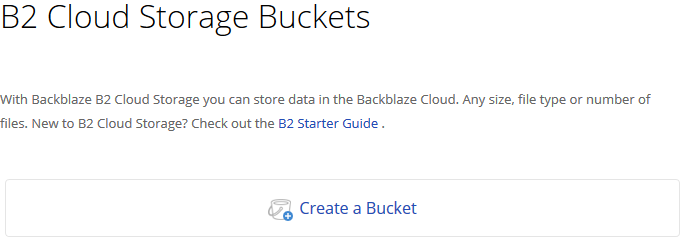
Click on the Create Bucket button in the B2 Cloud Storage Buckets section
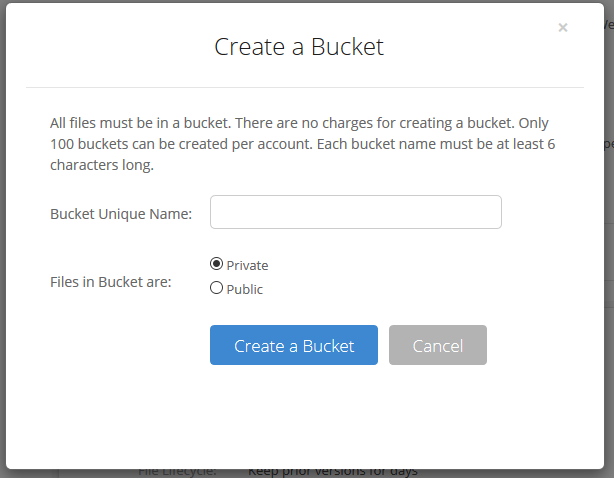
3. Give the Bucket a name and keep the bucket private for the backups. Click on the Create a Bucket button.
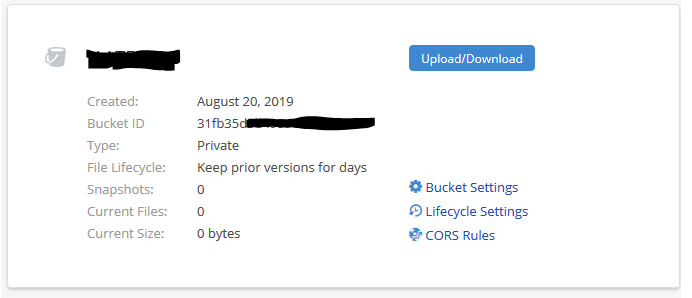
4. Copy down your Backblaze Bucket name and Backblaze Bucket ID
Setup Backblaze Application Key
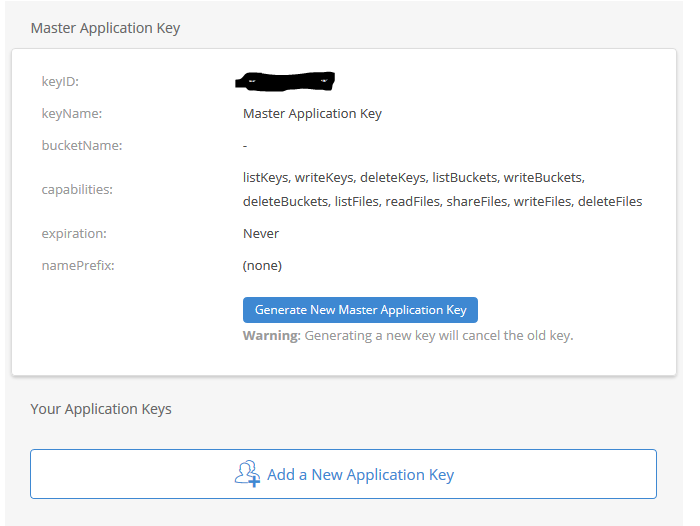
Click on the App Keys section
Click on Add a New Application Key
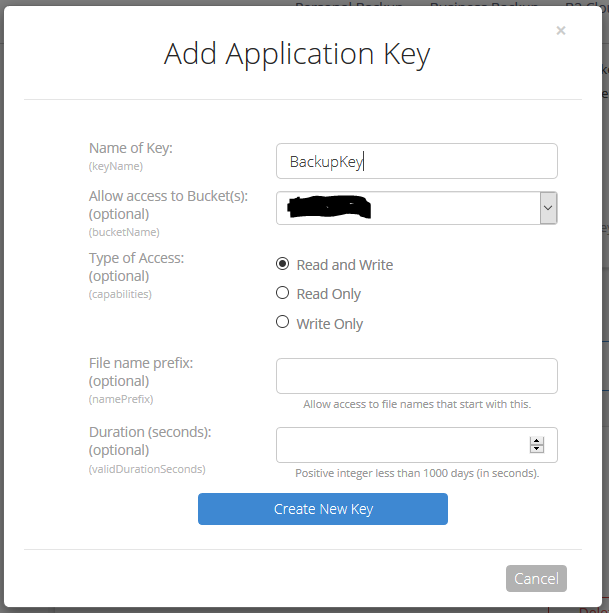
3. Give the Backblaze Application Key a name, chose the newly created bucket from the list and make sure to leave the Type of Access as “Read and Write”. Click the Create Key button.
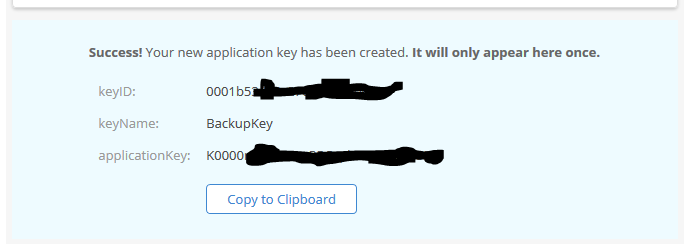
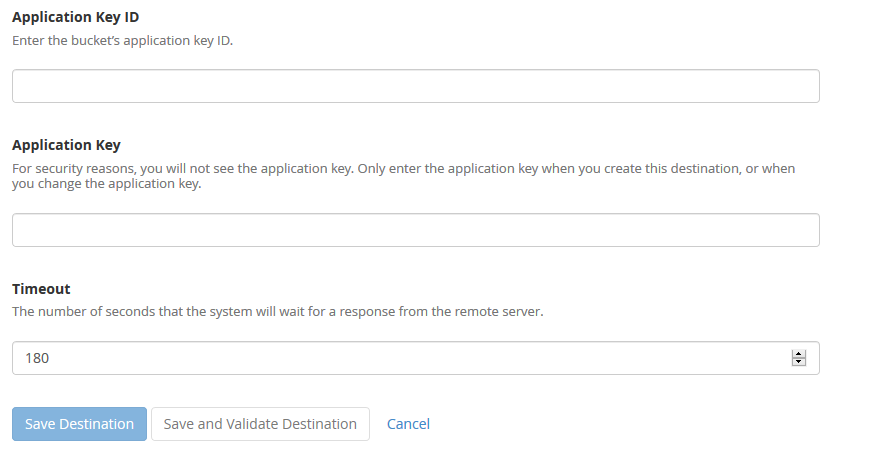
4. Make sure to copy down the Backblaze Application keyID and Backblaze Application applicationKey. This will be the only time they are both shown. If you lose the Backblaze Application applicationKey then you will have to delete the current one and create a new one.
Setup WHM Backup to Backblaze
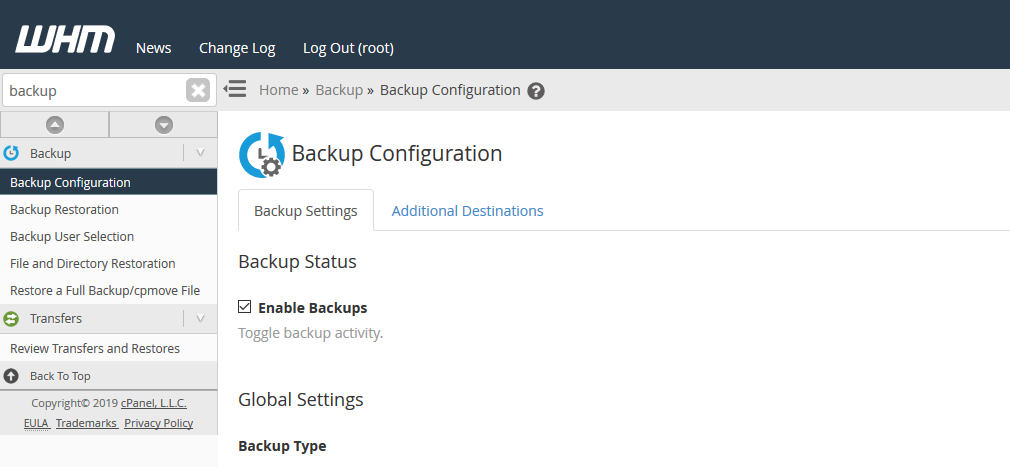
Connect to WHM as root user and choose Backup Configuration from the menu. The specific WHM backup settings are not discussed here, but feel free to contact us for advise on how to do so.
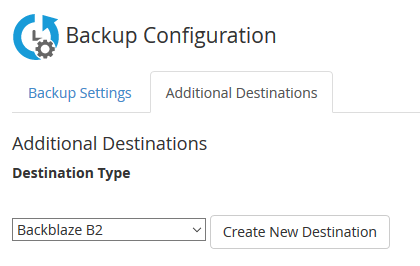
2. Click on Additional Destinations. Chose Backblaze B2 from the Destination Type and click on the Create New Destination button.
3. Enter in a backup name. Click on the “System Backups” if that is desired. Leave the Backup Directory blank. Enter in the Backblaze Bucket ID and Backblaze Bucket Name copied down earlier. Enter in the Backblaze Application Key ID and Backblaze Application Key. Click on the Save and Validate Destination button.
Make sure to disable your old AWS Glacier backup destination. All backups on Glacier should be set to auto delete according to a lifecycle, but if not then wait 120 days from creation to remove them to avoid any penalties. Speaking of lifecycles, it is a good idea to change the lifecycle settings on the Backblaze bucket to auto delete after a determined number of days since they do charge for total storage utilized.
If your company is would like to discuss the layers of security you have in place, then contact us for assistance.
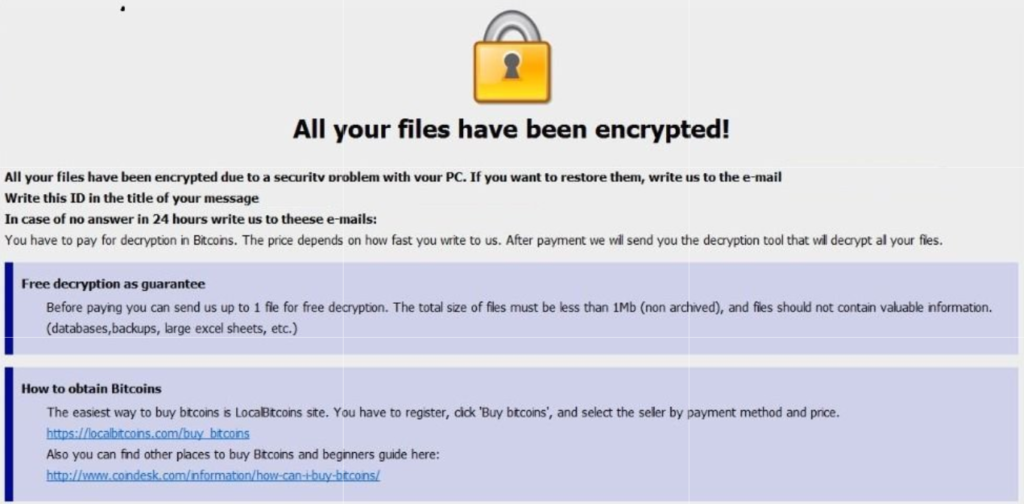
A single ransomware infection can freeze a church’s donations, records, and operations
Got a call a couple weeks ago from a local church:
“we came in and open the computer and we have ransomware on there. We can’t even get to any of our stuff. It’s telling us to email somebody and so that they can free up the computer.”
How does this happen?
Generally these things happen because people click on things they shouldn’t. Whether in an attachment in email from someone they don’t recognize, a link in social media that sounds too good to pass up, or an advertisement for something they can’t live without. Once the user gives permission for something to open or run on their computer the game is over and the hacker wins.
What to do when it happen?
Stop using the computer.
Leave the computer alone! Do not carry out any further commands, including commands to Save data.
Do not close any of the computer’s windows or programs. Leave the computer alone.
Leave everything plugged in and do not turn off the computer or peripheral devices.
If possible, physically disconnect the computer from networks to which it is attached.
Call us immediately. Write down any unusual behavior of the computer (screen messages, unexpected disk access, unusual responses to commands) and the time when they were first noticed.
Write down any changes in hardware, software, or usage that preceded the malfunction.
Do not attempt to remove a suspected virus! Let the professionals do the dirty work.
How to prevent this from happening?
Layers of protection is the simple answer. A good antivirus installed to stop the bad programs from running, DNS filtering to keep users off of bad sites / advertisements, a good backup of all data to recover when this does happen, and most important of all EDUCATION – teaching users what safe internet usage looks like and having policies in effect to train them can mitigate 60-70% of infections.
If your company is would like to discuss the layers of security you have in place, then contact us for assistance.
And God will generously provide all you need. Then you will always have everything you need and plenty left over to share with others. As the Scriptures say, “They share freely and give generously to the poor. Their good deeds will be remembered forever.” For God is the one who provides seed for the farmer and then bread to eat. In the same way, he will provide and increase your resources and then produce a great harvest of generosity in you. - 2 Corinthians 9:8-10
We use cookies to ensure that we give you the best experience on our website. If you continue to use this site we will assume that you are happy with it.