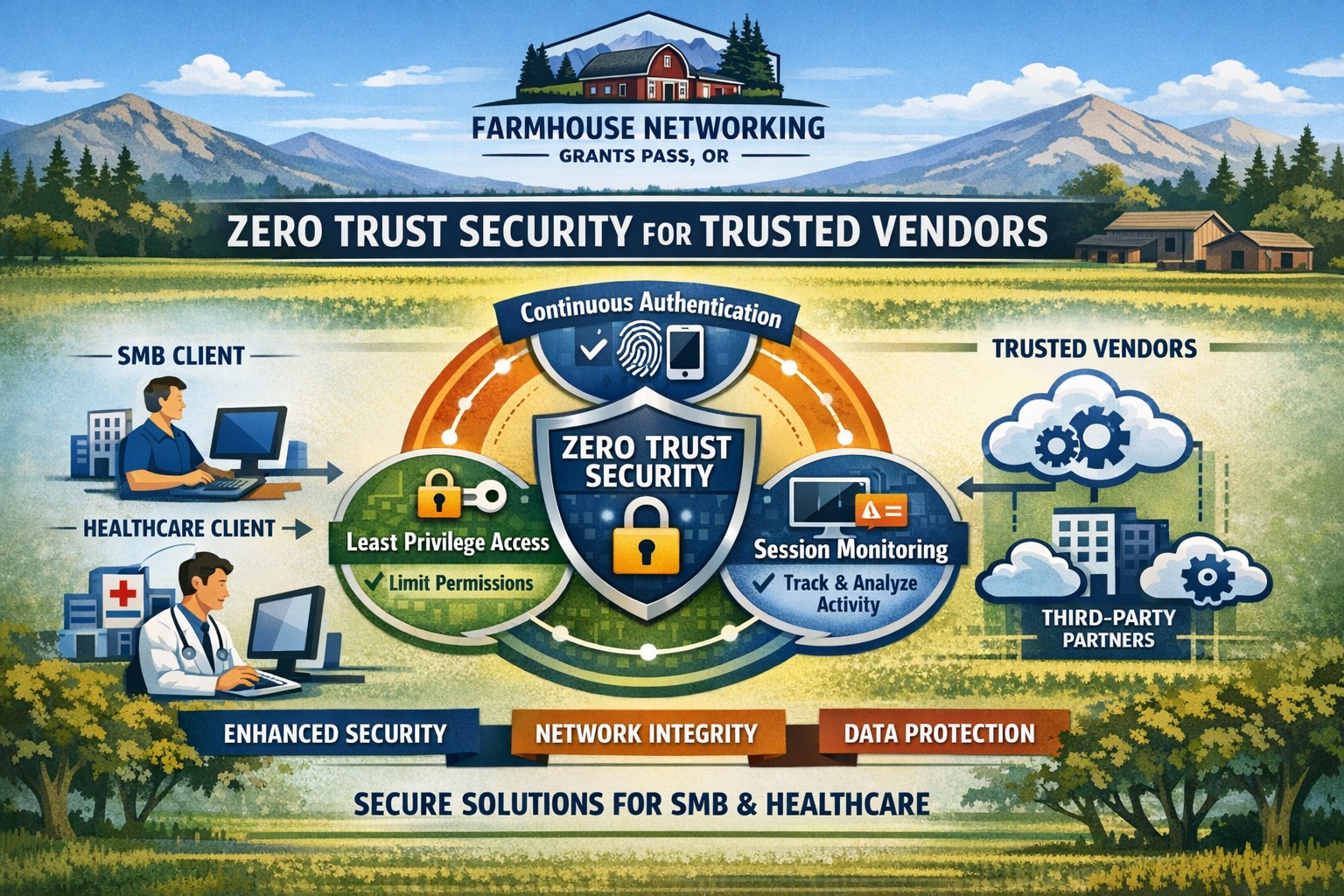
Farmhouse Networking secures vendor access with zero trust verification for Grants Pass businesses, protecting against supply chain threats.
This is the second in a series about the concept of Zero Trust, which means in the IT sense that you trust nothing and always verify everything surrounding and connected to your network. Today’s discussion will be on the vendors you purchase network equipment from.
Trusted Vendors
Trusted vendors are those who supply workstations, servers, routers, switches, power protection, software, and anything else connected to your network. Here are some questions that you should be asking yourself:
Do you know who makes your network equipment, servers, computers, and software?
Do you know the way to contact their support and have current account access information?
Do you have current warranties / support contracts on hardware and software?
Is the hardware able to perform at the level needed?
Are you purchasing software from those who meets industry standards?
If a subscription, how much are you paying and are you on the correct plan for your needs?
When is the last time you upgraded your software and hardware?
Have you budgeted for the next upgrade?
Take time to think about these questions and decide where changes can be made to better protect your IT investments, or contact us to do the thinking for you.
Farmhouse Networking deploys zero trust physical security for Grants Pass businesses, verifying every facility access request continuously.
This is the first in a series about the concept of Zero Trust, which means in the IT sense that you trust nothing and always verify everything surrounding and connected to your network. Today’s discussion will be on the physical security surrounding your network.
Physical Security
Physical security can include the locks on the doors, where things are placed, and how they are protected from the unpredictability of the environment. Here are some questions that you should be asking yourself:
Do you know where your network equipment is located?
Is the server / network in a separate area from where work is done?
Is this separate area behind a locked door?
Is the equipment in a locked rack or cabinet?
Is there a separate air conditioning zone for this area (servers like it cold)?
Is there a separate alarm zone for this equipment?
Who has the codes?
Is there a security camera watching this area (we don’t install these)?
How long is the recording for?
Who has access to the recordings?
Are computers located in areas where customers can physically touch them?
Are unused USB ports on the computer turned off or locked?
Are all systems protected by battery backup devices?
Are all systems off the floor in case of a flood?
Take time to think about these questions and decide where changes can be made to better protect your IT investments, or contact us to do the thinking for you.
We caught wind of two separate actions the US has taken against Cyber Threats from Russia over the weekend:
Kaspersky
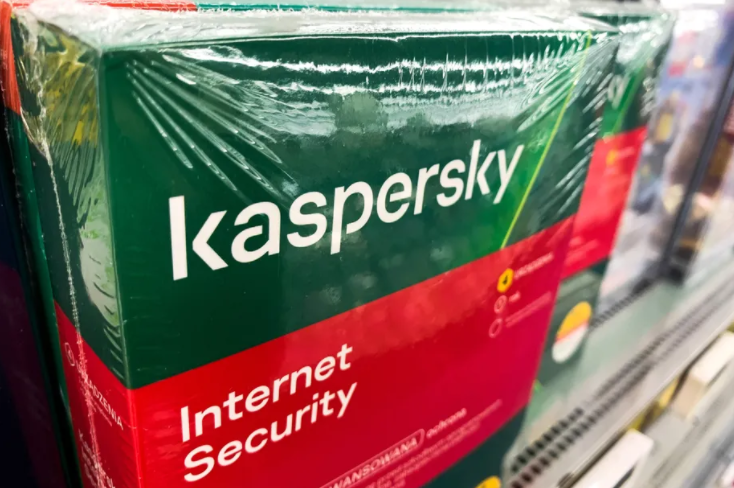
The first is news that the US Federal Communications Commission has added Russian cybersecurity company Kaspersky Lab to its list of entities that pose an “unacceptable risk to US national security,” according to a report from Bloomberg. This company has been banned from use by government agencies since 2017 when a bill was signed due to the companies ties to the Kremlin.
Russian Hackers
The second article was a press release from the FBI stating that:
“The Department of Justice unsealed two indictments today charging four defendants, all Russian nationals who worked for the Russian government, with attempting, supporting and conducting computer intrusions that together, in two separate conspiracies, targeted the global energy sector between 2012 and 2018. In total, these hacking campaigns targeted thousands of computers, at hundreds of companies and organizations, in approximately 135 countries.”
This hacking activity should be another wake-up call to American businesses to harden their defenses and remain vigilant against cyber security threats. These people are nationally sponsored criminals and we must protect ourselves.
If your company is currently using Kaspersky or any other Russian based vendors, then it is time to carefully consider whether to continue being connected with them and contact us for assistance migrating to a trusted source.
83% of employees continue accessing old employer’s accounts
Farmhouse Networking Grants Pass implements robust employee offboarding to revoke access and secure networks for Oregon businesses.
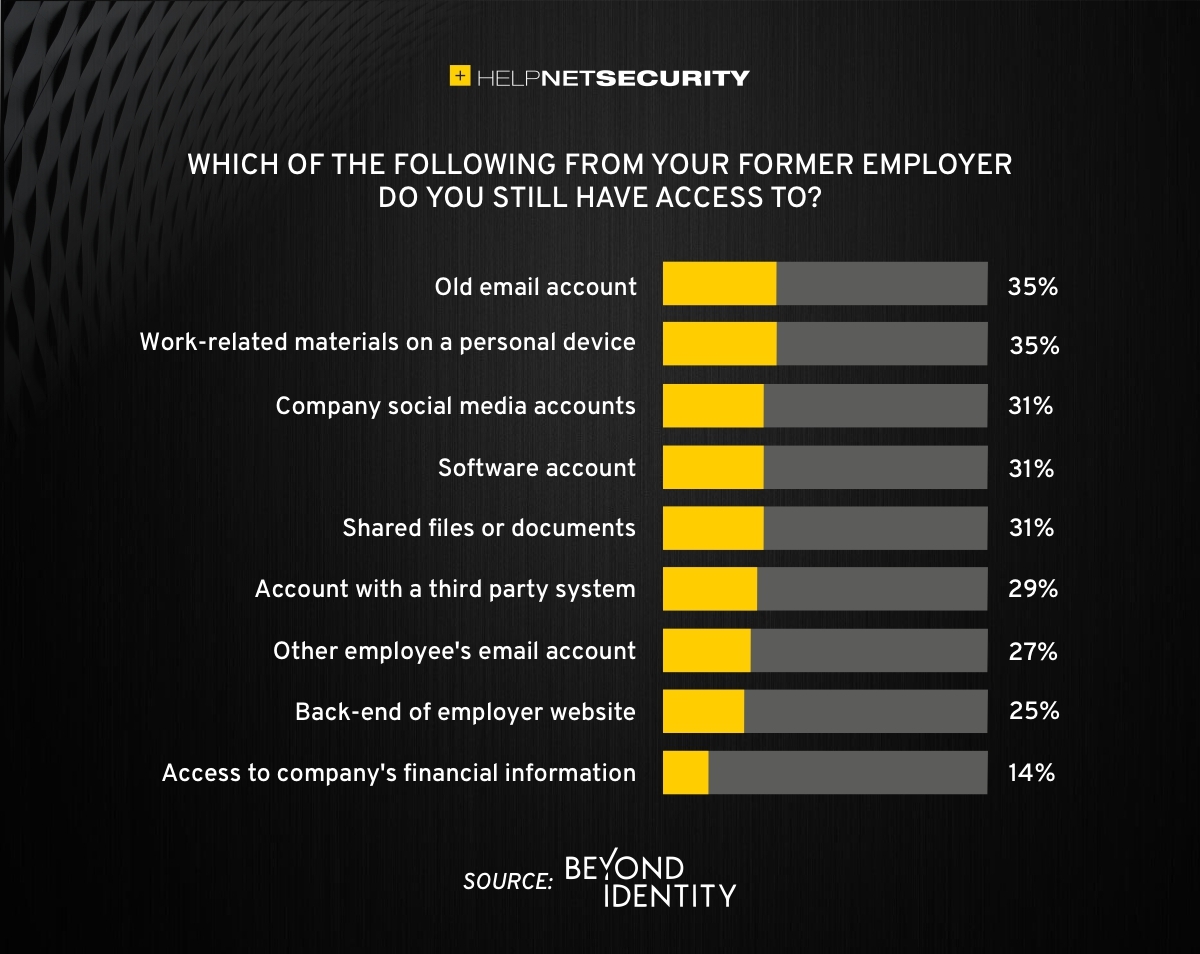
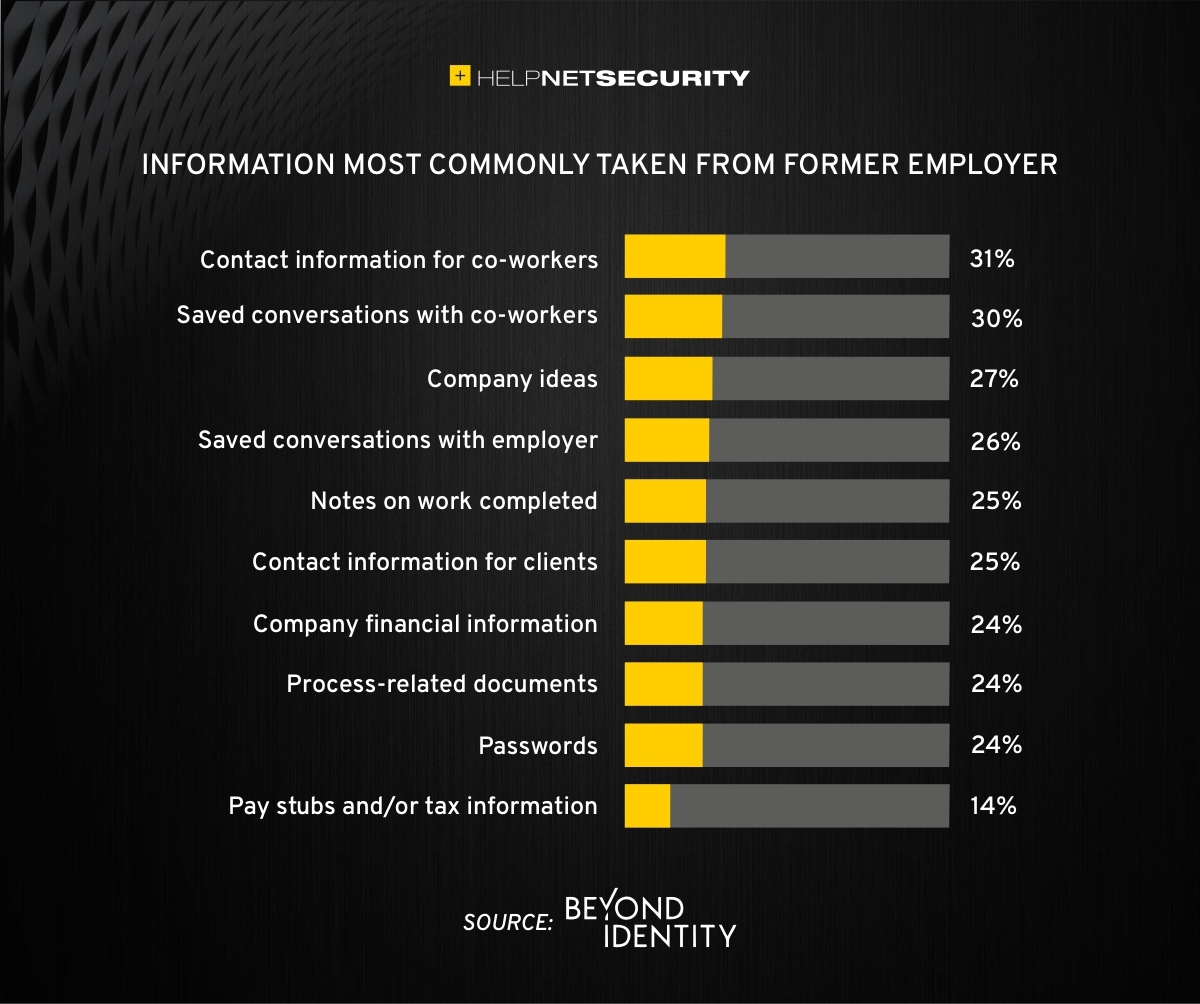
A study was performed by Beyond Identity throughout the US, UK, and Ireland which found that 83% of employees admitted to maintaining continued access to accounts from a previous employer. Also a shocking 56% admitted to using this access to harm their former employer.
The study also states that a professional and details offboarding process can prevent unauthorized access by former employees by eliminating their passwords and other insecure authentication methods. Strangely enough this also creates a sense of goodwill in the company that helps to lessen the motivation for employees to attempt this kind of malicious access. This kind of process is vital considering the current employment market and high turn over rates at almost all companies.
If your company does not have a detailed and documented offboarding process, thencontact usfor assistance.
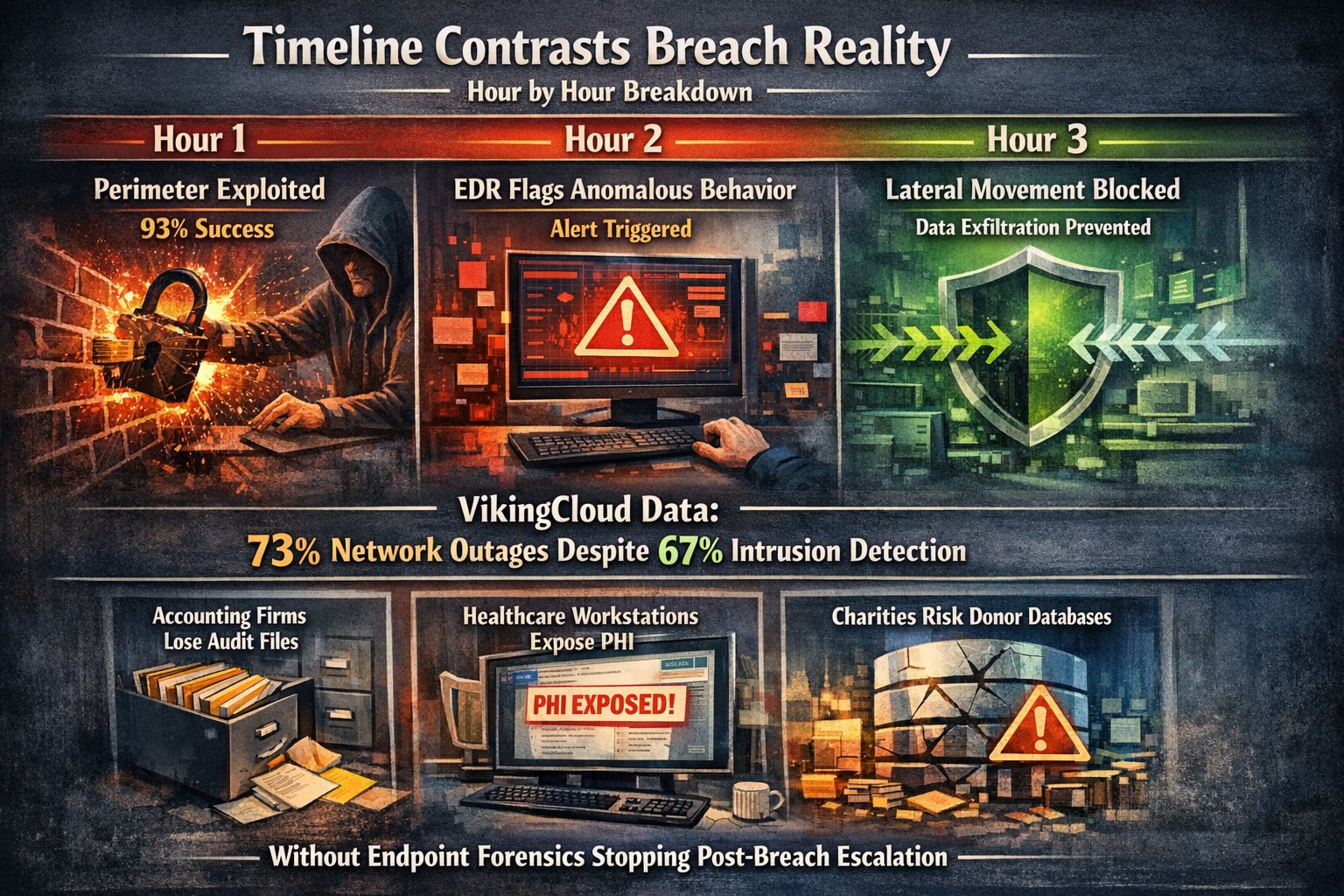
Security researchers performed penetration testing on the networks of 45 various mid-sized companies and found that in real life scenarios 93% of those networks were able to be compromised to the point of business disruption. Here are the details:
The Target
The 45 companies were polled to determine what would be an unacceptable business interruption. They decided that the following met that criteria:
Disruption of production processes
Disruption of service delivery processes
Compromise of the digital identity of top management
Theft of funds
Theft of sensitive information
Fraud against users
These became the target for the penetration testers.
The Process
In order for the penetration tester to achieve their target, they followed the following process:
Breach the network perimeter – This was done by the use of compromised passwords found on the Dark Web and know vulnerabilities on devices that were directly connected to the internet
Obtain maximum privileges – In 100% of the networks, once an attacker was inside the network
Gaining access to key systems – With maximum privileges, the testers are able to gain access to other areas of the network including databases, executives computers, and production servers
Develop attacks on target systems – Once key systems are compromised the testers then figured out how to create the unacceptable business interruption. Although they could have created these interruptions, they only gathered proof that they could to present the data to the companies.
How to Defend
There are a couple main ways to defend against these kinds of attacks:
Security Controls / Segmentation – Creating least privileged access to key systems and segmenting the network will keep hackers from traversing the network once inside
Enhanced Network Monitoring – Modern cyber security tools watch activity and traffic on the network to find indicators of compromise. They pool this information into an attack history that can be used to remediate and further protect.
Your company is not as safe as you think, so contact us for free initial cybersecurity evaluation and risk report. .
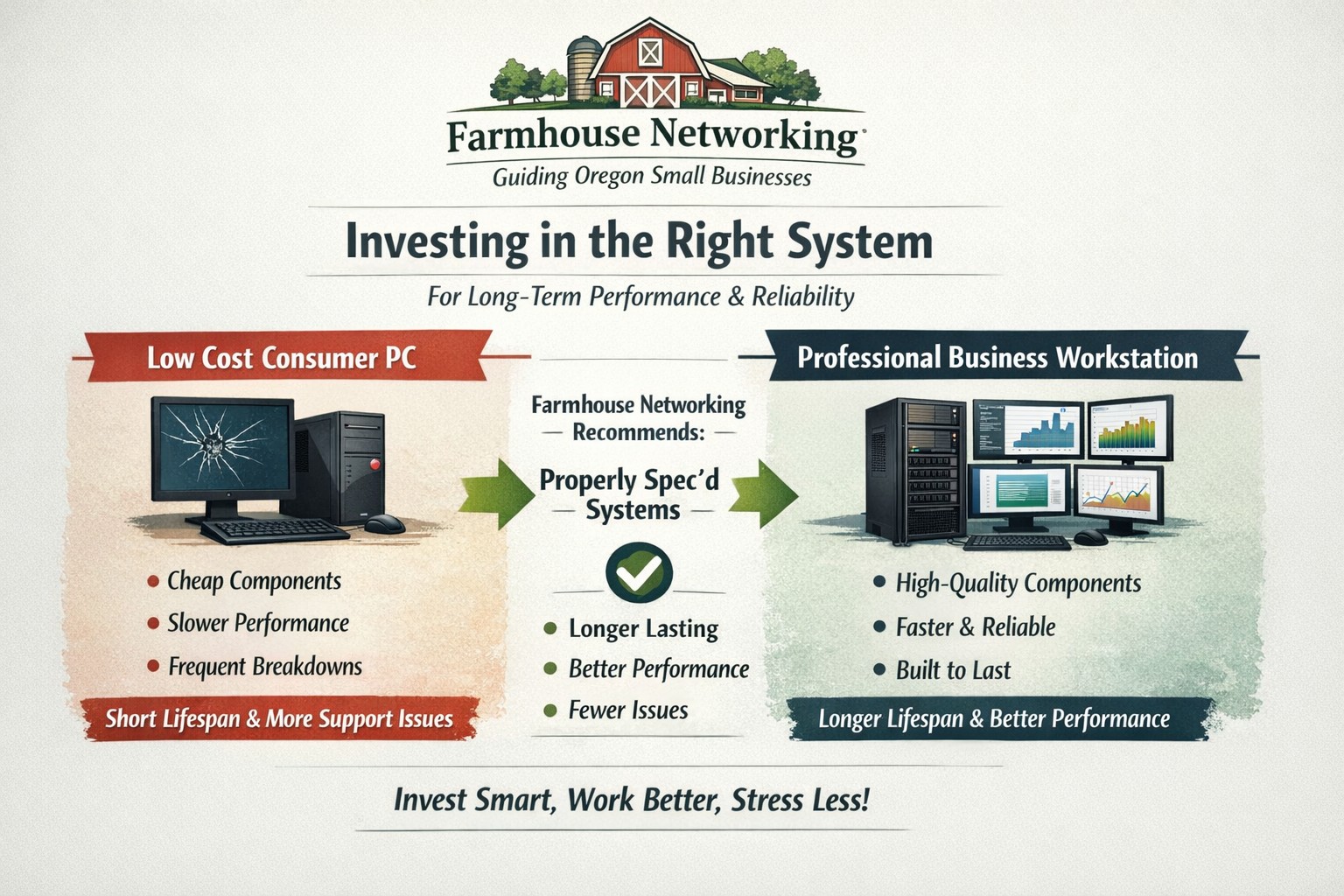
Farmhouse Networking helps small businesses choose new computers where price reflects long term reliability, performance, and lower total cost of ownership.
Based on some recent experiences and plenty of past experiences, we thought it would be good to help customers make good choices when shopping for new computers. The easiest and best way is to trust us to do the research and know your company’s computing needs enough to provide you with the best computer for the best price. However there are some that like the thrill of the hunt and want to find the best “deal” themselves. They try to save money via sales that we honestly cannot compete with on price. This newsletter is meant to help guide them to the best options for solid performance and longevity in their investment.
Shopping Guide
Big Box Stores (Staples, Walmart, Costco, Best Buy, etc.): Seeing the local adds, these retailers are often at the top of the list for many people when shopping for a computer. They offer the convenience of being able to physically touch the computer being purchased and not having to wait for the computer to be shipped from some other part of the country. The downside is that these retailers are selling a commodity product for the smallest cost possible to maximize their profits. This means they are willing to have computers made from the least expensive parts and lowest build quality. They also find ways of scrimping on important features and masking this deficiency with flashy claims on features or partnerships with celebrity endorsements. Don’t be fooled these are disposable computers that will not stand up to the demands of a business environment.
Online Discount Sellers (eBay, Amazon, Google. Overstock, etc.): Bargain hunters are getting savvier with online tools and searches for the products they want. This type of “retailer” works much like the big box store, but you have to trust the pictures you see online and wait for the product to arrive from across the country or globe. These online stores are often just marketplaces where smaller retailers post their products to gain greater visibility then they could on their own. They are also notorious for selling what appear to be quality computers that have been “refurbished” in-house. These refurbished computers are usually years old and are a Frankenstein monster of spare used parts from their shop. Much like buying a car from a used car lot, you get all the troubles of someone else’s computer with all the reliability of a computer that is past its prime held together with old parts.
What to look for in a new computer
Business Class: This is important because manufactures who have this distinction on their products take the time to make a quality computer with mid-range parts. These computers will have all the needed features and typically last much longer then the disposable computers from other stores. If you go directly to the manufacturers website, they will typically have a section labeled Business that you can look through the models they have given this distinction.
Processors: This is the capacity of the computer to crunch through data. There are two main companies that make these chips, Intel and AMD. Intel is what I recommend for the majority of business users (except for those who only do light office work). They currently are using a system of Generations and i-series distinctions. The Generations help determine the age of the processor with the latest being 12th-generation processors, so if you are looking at a computer with a 9th-generation processor it is likely 3 years old out of the box. The i-series consists of i3, i5, i7, and i9 which is a measure of the raw computing power that the processor contains. Our recommendation for businesses are i5 for general office work and i7 if you are a power user who does many things at once.
Memory: This is the short-term memory capacity of the computer, so the more you have the more you can accomplish at once. These chips also have designations of DDR technology and PC-speed rating. The DDR technology has slowly changed over time and they are now shipping DDR5 chips for top of the line gaming computers, but for typical office computers the DDR4 technology will be the best performance per dollar. As for the PC-speed rating, it will somewhat match the DDR number with the latest in the PC5-38400 range, but again the PC4 with the highest number possible next to it will be sufficient. General office work can be accomplished with 8GB of RAM, but 16GB is becoming the new norm. Those who want more performance will need to go to 32GB or higher.
Hard Drive: This is the long-term memory storage of the computer. There have been massive improvements in technology on these in the past few years and performance has jumped substantially. This is one of the ways that big box stores save money the most, they sell an old fashioned hard drive in a new computer and performance suffers greatly. The newest technology is called NVMe and any new computer should contain this kind of hard drive to see the best performance. If cost is prohibitive, then at least get the previous technology of an SSD installed in the computer.
Everything Else: The rest is mostly personal taste. If you want wireless, then get one with wireless in it with the latest being WiFi6 and some include Bluetooth connections too. If you want a large screen, touchscreen, fingerprint scanner, lightweight, certain specific ports for your devices, or whatever other features – these will be the finishing touches that help shape your final choice.
If your company is going to looking to buys new computer, then contact us to save yourself the time and money of getting a computer or worse the wrong computer.
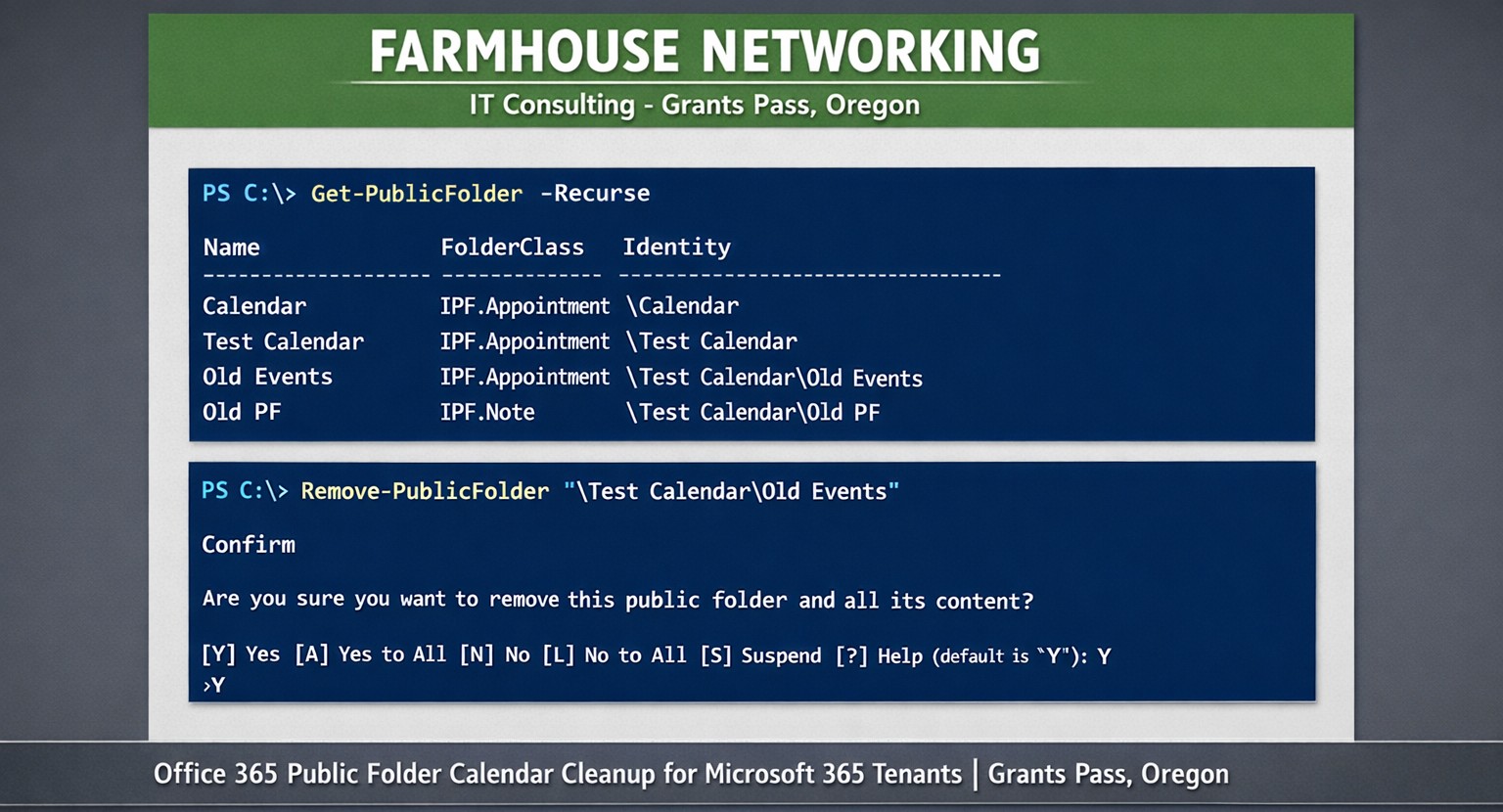
Farmhouse Networking uses PowerShell get-publicfolder -Recurse to locate and remove unwanted Office 365 public folder calendars for Grants Pass clients.
Here is a quick bit of Powershell that helped me to track down a “shared calendar” in a Co-Managed IT / Tier3 client’s Office 365 tenant. After looking in Shared Mailboxes and Resources for the calendar with no luck, we tried to get into the Exchange Management Console (EMC). The loading circle of death went on for an eternity, so switched to good old Powershell. Found the commands as follows after connecting to Exchange Online in Powershell:
If your company is looking for local management of your Office 365 tenant or need advanced support for your IT team, then contact us to find out how much you can save with us.
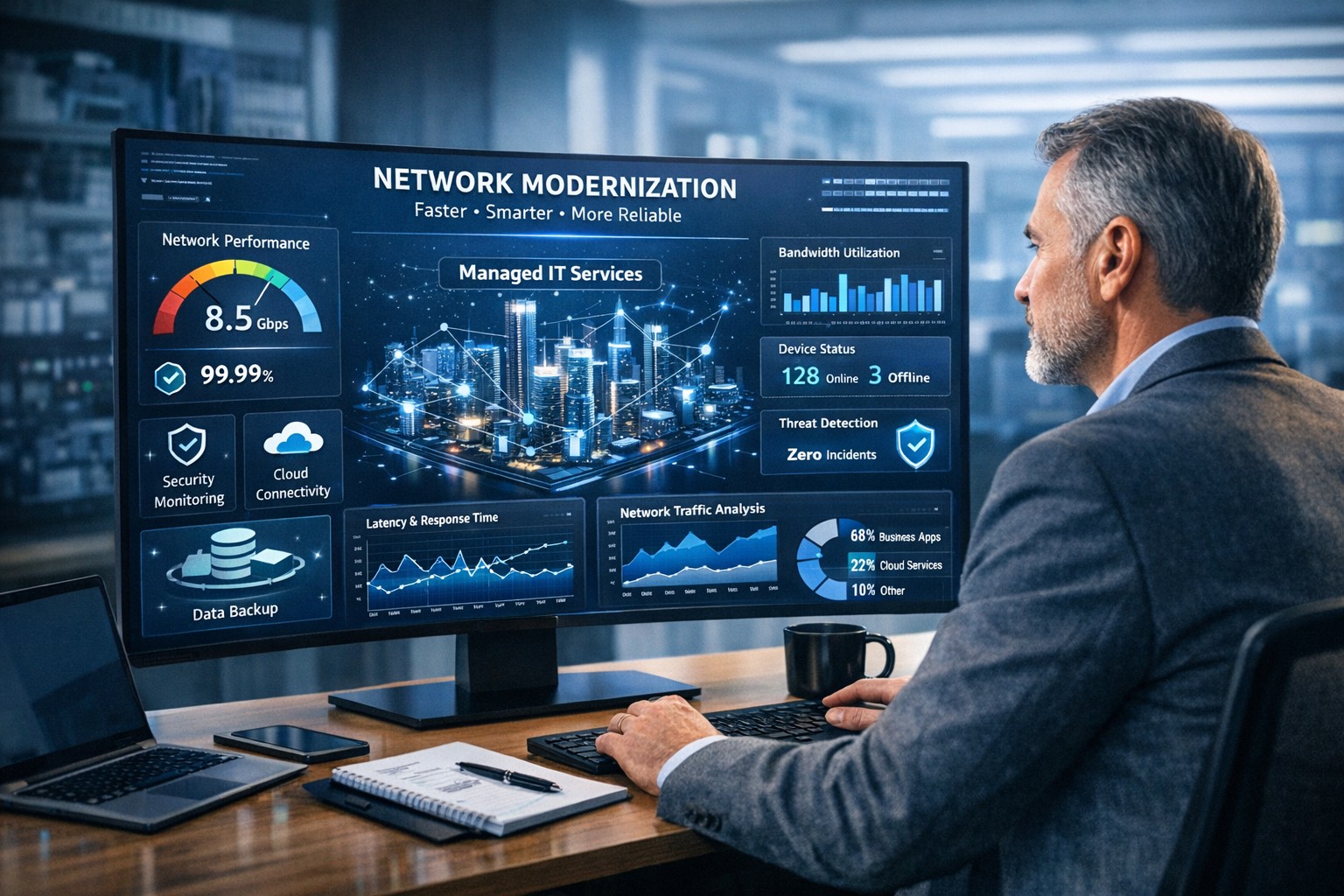
Farmhouse Networking helps businesses modernize their networks for faster performance, smarter automation, and secure connectivity.
The business world is moving at the speed of data. From cloud applications to video conferencing and smart devices, modern companies thrive on connectivity — and that means your network must be faster, more reliable, and intelligent enough to adapt. The days of “good enough” internet are gone. The next-generation network is faster, closer to your customers, and smarter in the way it predicts and manages performance.
Why “Faster, Closer, Smarter” Matters for Every Business Owner
A few years ago, network upgrades were viewed as an IT luxury. Today they’re a business necessity. Productivity, customer experience, and profit margins increasingly depend on how efficiently your systems communicate across multiple sites and cloud services.
Faster: Applications like video meetings, VoIP, and cloud storage demand low latency and high bandwidth. Slow connections mean lost opportunities.
Closer: Edge computing brings resources and data processing nearer to users, reducing lag and improving responsiveness for remote teams and mobile customers.
Smarter: Artificial intelligence (AI)–driven networks detect issues before they cause downtime, automatically direct traffic, and protect against cyber threats.
Business growth in 2020 and beyond will favor companies that embrace these technologies early — and that’s where proactive planning makes all the difference.
Action Steps for Business Owners and IT Teams
Modernizing your network doesn’t have to be complicated. Here are practical steps to future-proof your infrastructure:
Audit your current network. Identify bottlenecks, aging hardware, and underperforming Wi-Fi zones. Tools like traffic analyzers or managed network assessments can pinpoint areas for improvement.
Move critical workloads to the cloud wisely. Hybrid cloud environments balance flexibility and security — but only when configured with responsive bandwidth and monitored connections.
Invest in network automation and AI-based monitoring. Smart analytics help your IT team spot anomalies before employees notice performance issues.
Upgrade for speed and reliability. Fiber-optic connectivity, gigabit routers, and Wi-Fi 6 access points deliver measurable performance boosts.
Secure everything. With more connected devices comes more risk. Integrated firewalls, endpoint protection, and regular patch management are essential defenses.
Partner with a managed services provider (MSP). Outsourcing these functions ensures around-the-clock monitoring and proactive support so your internal staff can focus on core business priorities.
Common Client Questions — Answered
Q: “Is upgrading my network really worth the cost?” A: Absolutely. Slow or unreliable connectivity costs more in downtime and lost productivity than the upgrade itself. Modern networks reduce maintenance time, prevent outages, and improve customer satisfaction.
Q: “What about security? Doesn’t a smarter network mean more risk?” A: Actually, the opposite. With automated patching, real-time threat detection, and AI-powered monitoring, a smarter network significantly strengthens protection.
Q: “How do I know what network capacity I’ll need?” A: Your ideal bandwidth depends on your business applications, remote workers, and cloud services. A professional assessment from an MSP can provide accurate data and recommendations tailored to your growth goals.
How Farmhouse Networking Can Help
At Farmhouse Networking, we specialize in helping businesses modernize their IT infrastructure with practical, budget-conscious solutions. Whether you need a network assessment, faster connectivity, smart automation, or enhanced cybersecurity, our team brings years of expertise in network design, implementation, and ongoing support.
We work with local businesses to:
Audit existing network performance and identify inefficiencies.
Implement cloud and edge computing solutions.
Automate monitoring through intelligent network management tools.
Strengthen IT security to protect sensitive data and client trust.
Our mission is to make enterprise-grade technology accessible to your small or mid-sized business — keeping your network running faster, closer, and smarter than ever before.
Ready to Upgrade Your Network?
Don’t let outdated systems slow you down in 2020’s fast-moving digital economy. Future-proof your business with a smarter, more efficient network built for growth.
Email support@farmhousenetworking.com today to learn how Farmhouse Networking can help your business stay connected, secure, and competitive.
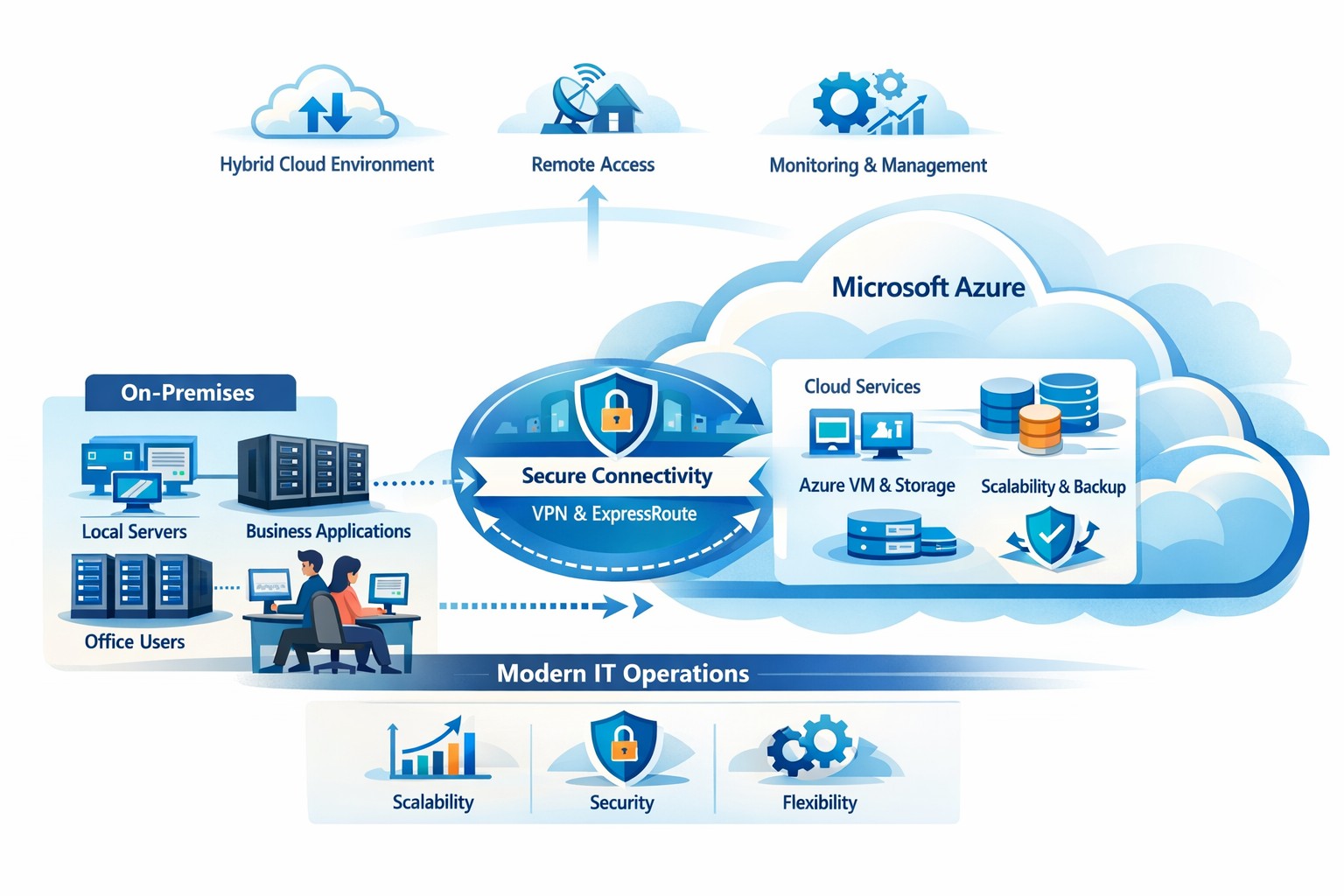
How your business can connect on‑premises servers and workloads to Microsoft Azure for scalable, secure, and compliant cloud computing
The cloud is no longer a “nice‑to‑have”—it’s the backbone of modern operations. Moving to Microsoft Azure gives you enterprise‑grade security, scalability, and cost control without the burden of managing your own data center. In this post, you’ll learn why the cloud matters, why Azure in particular is the right fit for many businesses, and—most importantly—how Farmhouse Networking can guide you through each step of the journey.
Why the cloud matters for your business
The cloud lets you turn capital‑heavy IT (servers, routers, on‑site backups) into a predictable operating expense. Instead of buying and maintaining hardware, you pay for what you use, when you use it. This model is especially powerful for companies with seasonal spikes, hybrid workforces, or plans to grow into new markets.
For business owners, the cloud means:
Lower upfront costs and easier budgeting.
Faster innovation and deployment of new tools or applications.
Built‑in disaster recovery and business continuity capabilities.
Azure, in particular, is trusted by 90% of Fortune 500 companies and offers a globally distributed, secure platform tightly integrated with familiar Microsoft tools like Microsoft 365, Entra ID, and Dynamics 365.
Why choose Microsoft Azure?
Azure stands out for three reasons relevant to owners and IT teams:
Security and compliance Azure provides enterprise‑level protection, identity management, and compliance certifications that small‑ and mid‑sized businesses can leverage without hiring a full‑time security team.
Scalability and flexibility You can scale compute, storage, and networking up or down in minutes—perfect for handling seasonal demand, new projects, or unexpected growth.
Seamless integration with Microsoft tools If your team already uses Microsoft 365, Teams, or Windows‑based applications, Azure simplifies integration and reduces complexity in permissions, patching, and remote access.
Practical steps for your business and IT team
Making the move to Azure doesn’t have to be disruptive. Here’s a realistic, phased roadmap:
Assess your current environment
Inventory servers, applications, and data.
Identify which workloads are good candidates for the cloud (e.g., file servers, backups, certain line‑of‑business apps). Farmhouse Networking can perform a free infrastructure assessment to help you classify and prioritize workloads.
Define your cloud strategy and goals
Decide what “success” looks like: better uptime, remote work support, cost savings, faster backups, etc.
Set a timeline (e.g., 6–18 months for a phased migration).
Start with low‑risk, high‑impact workloads
Migrate backups, archival storage, or non‑critical applications first.
Use Azure Backup and Azure Site Recovery to test disaster‑recovery scenarios without disrupting production.
Build identity and security foundations
Sync your on‑premises directories (or move entirely) to Microsoft Entra ID.
Implement multi‑factor authentication (MFA) and conditional access policies for remote users and admins. Farmhouse Networking can help design and deploy these policies with minimal friction for your team.
Train and support your internal team
Provide basic Azure operations training for your IT staff.
Set up monitoring dashboards so your team can track costs, performance, and security events.
Client questions and answers
Here are some typical questions business owners and clients might ask:
Q: Is the cloud really more secure than our own servers? A: When properly configured, Azure offers better security than most on‑premises environments, including advanced threat detection, encryption at rest and in transit, and continuous Microsoft‑led security updates. Azure also meets many industry‑specific compliance standards that can be difficult and expensive to maintain in‑house.
Q: Will migrating to Azure be expensive and disruptive? A: Migrations can be staged so core operations stay online. You shift from large capital investments to predictable monthly costs, and you often achieve savings by retiring aging hardware and consolidating tools. A phased approach, with Farmhouse Networking managing the planning and execution, keeps disruption low.
Q: What happens if we need to move back on‑premises someday? A: Azure supports hybrid scenarios, so you can keep some workloads on‑site and others in the cloud. Azure’s hybrid tools (such as Azure Stack, VPNs, and ExpressRoute) make it possible to move workloads back or between environments as business needs change.
How Farmhouse Networking can help
Farmhouse Networking acts as your strategic partner for cloud adoption, not just a vendor. We help you:
Conduct a current‑state assessment and build a tailored Azure roadmap aligned with your growth goals.
Manage the technical migration with minimal disruption to your team and clients.
Implement security, governance, and monitoring so you retain control while Azure does the heavy lifting.
By partnering with us, you get a clear, documented plan and ongoing support—so you can focus on running your business while your systems stay secure, available, and scalable.
Ready to explore Azure for your business?
If you’re wondering whether the cloud—and specifically Microsoft Azure—is the right fit for your organization, let’s start the conversation. Email us at support@farmhousenetworking.com to schedule a consultation, and we’ll walk through your current environment, your goals, and a practical next step toward a smarter, more resilient IT foundation.
STIR/SHAKEN authentication prevents legitimate business calls from spam filters
Here is a quick tip for anyone doing advertising from their phone number, you can be marked as SPAM LIKELY or SPAM RISK by phone companies. Each phone carrier keeps a list of numbers they determine to be spam risks based on the history of the number. Unfortunately, there is no central database or service so far that manages this number designation.
What Causes the SPAM Designation?
In short, here are the most obvious reasons for designation:
Volume of Outbound Calls Per Day Per Number
Someone Flagged a call from your number in that carrier’s app as spam
Outbound Caller ID number is not set properly from your system and incomplete will probably be flagged as spam automatically
How to Get De-Listed
You can use the links or email addresses below to register legitimate numbers and also address any incorrect labeling or call blocking with other carriers:
And God will generously provide all you need. Then you will always have everything you need and plenty left over to share with others. As the Scriptures say, “They share freely and give generously to the poor. Their good deeds will be remembered forever.” For God is the one who provides seed for the farmer and then bread to eat. In the same way, he will provide and increase your resources and then produce a great harvest of generosity in you. - 2 Corinthians 9:8-10
We use cookies to ensure that we give you the best experience on our website. If you continue to use this site we will assume that you are happy with it.