The Power of Standard Operating Procedures for Small to Medium Businesses
SOP management platform with process library training assignments and performance metrics.
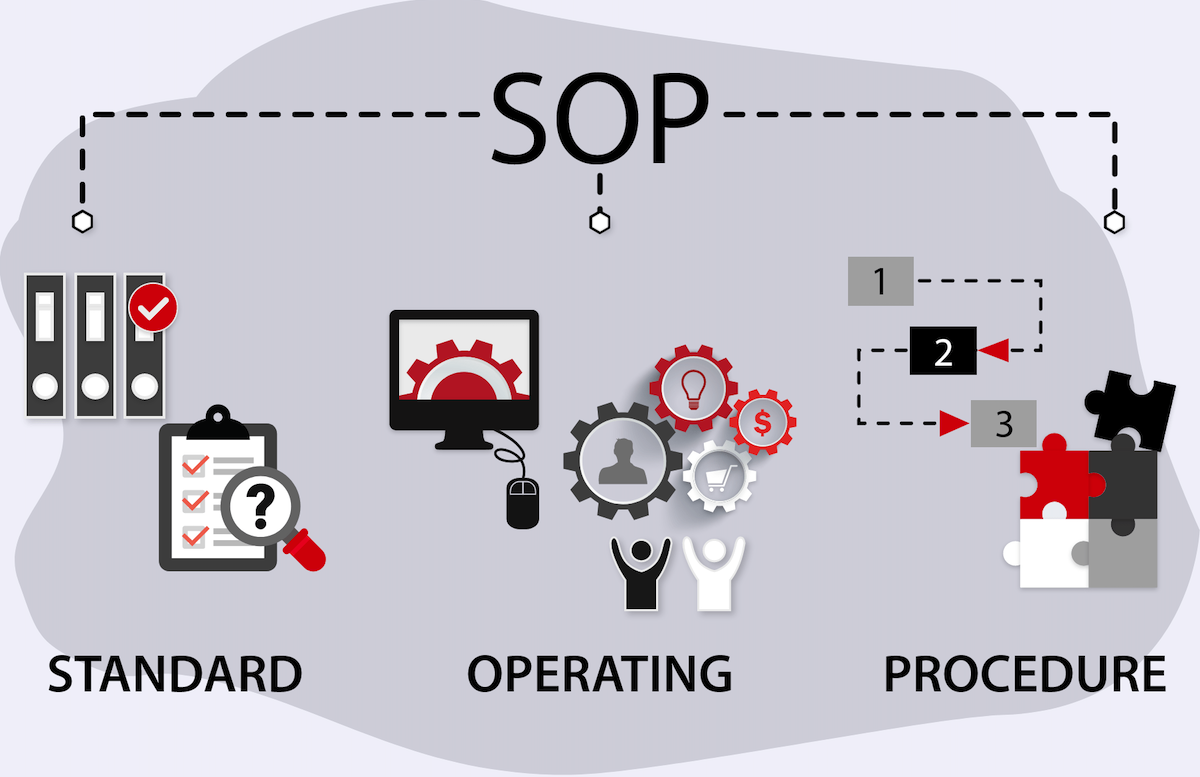
Small to medium businesses (SMBs) need increase agility by finding ways to operate more efficiently and minimize errors. One powerful tool that can help achieve these goals is the implementation of Standard Operating Procedures (SOPs). By creating well-defined and documented processes, businesses can boost efficiency, reduce errors, and ensure consistent quality and performance.
What are Standard Operating Procedures (SOPs)?
Simply put, SOPs are step-by-step instructions and guidelines that provide detailed explanations of how tasks or processes should be performed within a business. They establish a clear path for employees and vendors to follow, ensuring consistency and reducing the likelihood of errors or mistakes.
SOPs can cover a wide range of areas within a business, including operations, customer service, marketing, finance, HR, and especially IT tasks. No matter the industry or department, establishing SOPs can streamline operations and improve overall performance.
Benefits of Implementing SOPs
1. Boost Efficiency
One of the primary benefits of SOPs is the improvement in efficiency they bring to day-to-day operations. By standardizing processes, employees and vendors can complete tasks more quickly and effectively. SOPs eliminate the need for employees and vendors to figure out the best approach each time a task is performed, reducing the time wasted on trial and error. This, in turn, allows for increased productivity and ensures that deadlines are met consistently.
2. Ensure Consistency and Quality
SOPs help businesses maintain consistent quality and performance across their operations. By providing employees and vendors with clear instructions and guidelines, businesses can ensure that tasks are performed in the same manner, regardless of who is carrying them out. This consistency guarantees that customers receive the same level of service or product quality each time they interact with the business. Consistency also makes it easier to identify and correct errors or deviations from the expected standard.
3. Reduce Errors and Risks
Errors can be costly for businesses, both in terms of time and resources. SOPs play a crucial role in minimizing errors and mitigating risks. By providing employees and vendors with clear instructions and best practices, SOPs significantly reduce the chances of mistakes being made. This is particularly important for tasks that involve compliance, safety, regulatory requirements, or complex IT tasks. By adhering to established SOPs, businesses can ensure that they are operating within legal and ethical boundaries.
4. Facilitate Training and Onboarding
SOPs are invaluable as training tools for new employees and during the onboarding process. They provide a structured and consistent way to train employees on how tasks are to be performed. SOPs outline the necessary steps, tools, and expected outcomes for each task, making it easier for new hires to get up to speed quickly. By reducing the learning curve, SOPs allow businesses to get the most out of their employees from day one.
Implementing SOPs
To effectively implement SOPs, businesses should follow a structured approach:
Identify critical processes: Determine which processes within your business require SOPs. Focus on those that require consistency and have a significant impact on efficiency and customer satisfaction.
Document the processes: Work with relevant stakeholders to document each process step-by-step. Be clear and concise, and include any necessary visuals, charts, or diagrams to aid understanding.
Test and refine: Before implementing SOPs across the entire business, test them on a smaller scale. Solicit feedback from employees involved in the process, and refine the SOPs based on their input. This iterative approach ensures that the final SOPs are practical and effective.
Communicate and train: Once finalized, communicate the SOPs to all relevant employees. Hold training sessions to ensure that everyone understands how to follow the procedures correctly. Make the SOPs easily accessible through a centralized repository or digital platforms.
Monitor and update: SOPs should not be a one-time effort. Continuously monitor their effectiveness and update them as needed. Encourage employees to provide feedback and suggest improvements to keep the SOPs relevant and up to date.
Standard Operating Procedures are powerful tools for small to medium businesses looking to improve efficiency and reduce errors. By establishing clear guidelines and instructions, businesses can boost productivity, ensure consistent quality, and reduce risks. Implementing SOPs may require time and effort, but the benefits in terms of increased efficiency and reduced errors make it a worthwhile investment for any SMB.
Let Farmhouse Networking help you embrace the power of SOPs and pave the way for improved performance and growth – contact us for assistance.
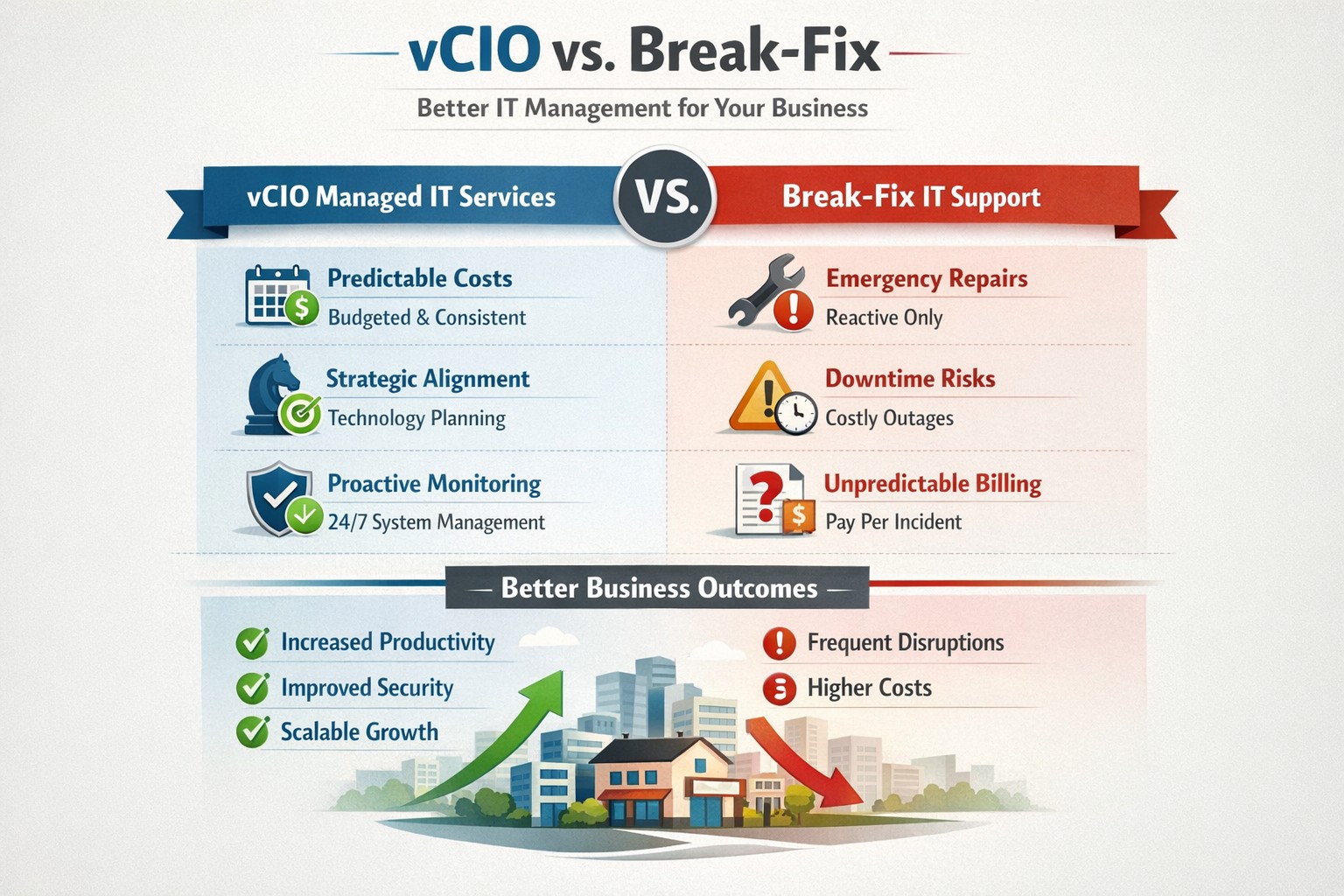
vCIO strategic services vs break-fix reactive IT model performance comparison.
In the ever-evolving world of IT support, two strategic approaches have emerged to address the needs of businesses – vCIO (Virtual CIO) services and break-fix services. Each of these approaches has its own merits and drawbacks, making it crucial for businesses to carefully consider which option best aligns with their goals and IT requirements. So, let’s dive into the comparison between vCIO services and break-fix services and find out which one takes the crown!
vCIO Services: Unleashing the Power of Proactive IT Management
The vCIO model offers businesses a cost-effective and strategic solution to IT management, delivering benefits far beyond simple problem-solving. Here’s a breakdown of what vCIO services bring to the table:
Strategic Technology Planning: A vCIO provides a long-term roadmap for your IT infrastructure, aligning it with your business objectives. They assess your current technology landscape, analyze potential risks, and develop a comprehensive IT strategy to ensure your technology infrastructure drives success.
Proactive IT Monitoring and Management: By constantly monitoring your systems, a vCIO can detect and address issues before they turn into full-blown disasters. They implement proactive measures, such as 24/7 system monitoring, patch management, and security audits to keep your IT environment optimized and secure.
IT Budgeting and Procurement: A vCIO helps you streamline your IT budget by aligning your investment with your business goals. They provide insights into cost-effective technology solutions, negotiate contracts with vendors, and manage IT procurement to help you make informed decisions while optimizing your spending.
Technology Vendor Management: Collaborating with multiple technology vendors can be time-consuming and complex. A vCIO acts as a single point of contact for all your technology vendors, managing relationships and ensuring smooth coordination between various stakeholders.
Break-Fix Services: The Traditional Firefighter Approach
Break-fix services have long been the go-to approach for businesses seeking IT support on an as-needed basis. Here’s a closer look at what break-fix services bring to the table:
Issue-Specific Support: Break-fix services are designed to address specific IT issues as and when they arise. This approach involves fixing problems after they occur, reacting to incidents rather than proactively managing your systems.
Limited Scope of Support: Break-fix services typically focus solely on resolving immediate technical issues. While they can provide quick fixes, they do not offer strategic planning or ongoing support to help prevent future issues or optimize your IT infrastructure.
Variable Costs: Break-fix service costs can be unpredictable, as you are billed per incident or hourly basis. This makes budgeting and financial planning more challenging, especially if you encounter frequent or recurring IT issues.
Less Focus on Prevention: With break-fix services, the emphasis is on remedying existing problems, leaving behind the potential for other underlying issues to remain undetected, ultimately leading to more costly and time-consuming problems down the line.
The Verdict: vCIO Takes the Throne!
While break-fix services may have their place in certain scenarios, vCIO services offer a more comprehensive approach to IT management, aligning your technology with your business goals and providing ongoing support. The proactive nature, strategic planning, and cost optimization provided by vCIO services make it the winning solution for businesses looking to stay ahead of the ever-changing technology landscape. So, without a doubt, the crown firmly sits on the head of vCIO services!
If your company is tired of just calling your IT service company when things are broken, then contact us for vCIO services.
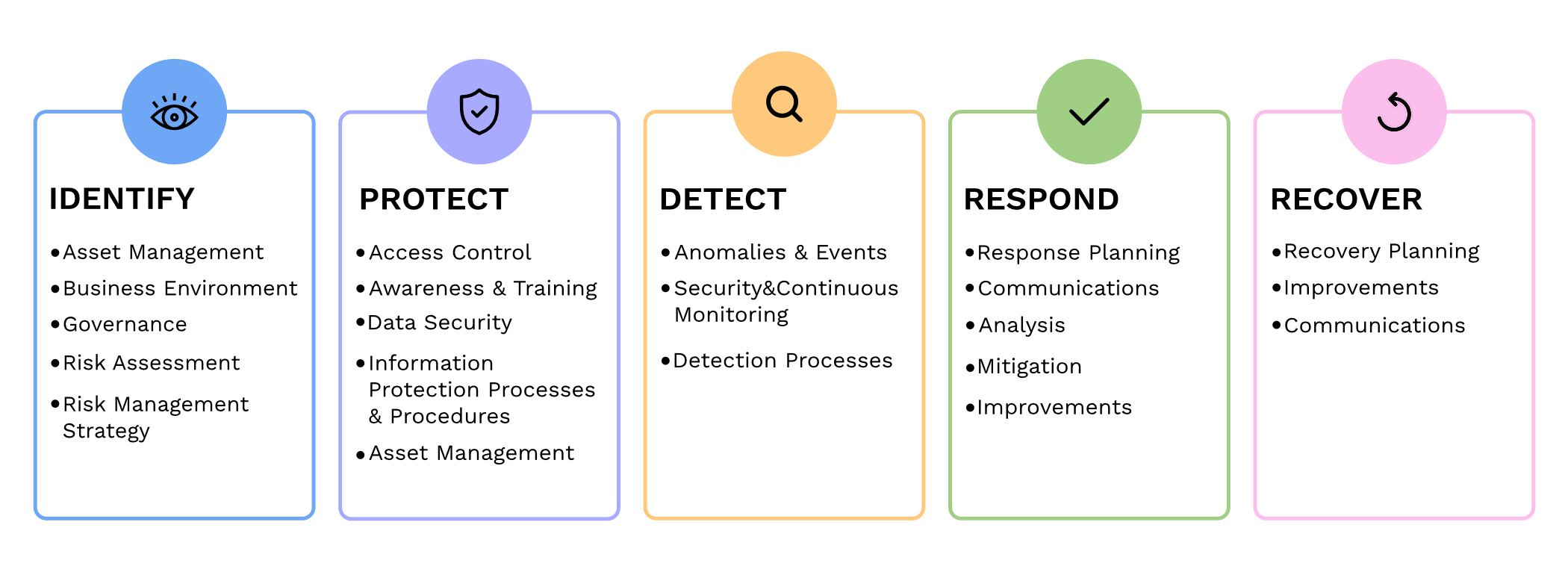
Small and medium-sized businesses (SMBs) are the backbone of the economy, but they are often the primary targets for cyberattacks. In fact, according to recent reports, nearly half of all cyberattacks are aimed at SMBs. To protect themselves from these threats and ensure the security of their critical assets, SMBs should consider following the guidelines provided by the National Institute of Standards and Technology (NIST) in their Special Publication 800 series.
Comprehensive Cybersecurity Framework
NIST 800 series provides a comprehensive framework that helps SMBs establish and maintain effective cybersecurity measures. By implementing the NIST guidelines, SMBs can enhance their cybersecurity posture and reduce the risk of potential data breaches, financial losses, and reputational damage.
Improved Risk Management
NIST 800 guidelines focus on risk management, helping SMBs identify and mitigate potential vulnerabilities and threats. Following the guidelines allows SMBs to proactively assess their cybersecurity risks and develop effective strategies to safeguard their sensitive data, intellectual property, and customer information.
Industry-Recognized Standards
NIST 800 series is widely recognized and adopted by both the public and private sectors. By adhering to these guidelines, SMBs demonstrate their commitment to meeting industry standards and best practices. This not only helps build trust with customers and partners but also increases their chances of securing lucrative business contracts and partnerships.
Cost-Effective Approach
Implementing NIST 800 guidelines can be a cost-effective approach for SMBs. These guidelines offer scalable solutions that can be tailored according to the organization’s size, budget, and specific requirements. SMBs can leverage the NIST framework to prioritize their cybersecurity investments, ensuring that they maximize their security efforts within their available resources.
In today’s digitally connected world, SMBs cannot afford to neglect cybersecurity. Following the NIST 800 guidelines provides SMBs with a comprehensive framework to enhance their cybersecurity posture, improve risk management, establish industry-recognized standards, and reduce costs, By working with a managed IT service provider to implementing these guidelines, SMBs can protect their assets, maintain their reputation, and thrive in an increasingly cyber-threatened landscape.
If your company is looking to implement stronger security through an standards based framework, then contact us for assistance.
Business password manager vault with shared folders, password strength indicators, and audit log activity.
Today’s cybersecurity threats are constantly evolving, so it’s crucial for businesses to protect their sensitive data. One of the simplest yet most effective ways to enhance your company’s security is by using a company-wide password manager. In this blog post, we will explore the top reasons why businesses should adopt password managers.
Simplify Password Management
With the average person having to remember dozens of passwords for various accounts, it’s no wonder that weak passwords and password reuse are prevalent. A password manager simplifies this process by securely storing all passwords in one encrypted location. Employees can then access their passwords with a single master password or use biometric authentication.
Generate Strong and Unique Passwords
One of the primary reasons for data breaches is weak passwords. Many people still rely on easily guessable passwords, such as “monkey” or “123456” or “password.” A password manager helps eliminate this risk by generating and storing strong, unique passwords for each account. (Most even have an auto-fill feature to work with internet browsers to make website login fast and secure.) This ensures that even if one account is compromised, the rest remain secure.
Enhance Security and Privacy
By using a company-wide password manager, businesses can significantly improve their security posture. These tools employ strong encryption algorithms to protect sensitive information from unauthorized access. Moreover, most password managers offer additional security features like two-factor authentication and secure password sharing, further enhancing your company’s security.
Boost Productivity and Efficiency
Lost or forgotten passwords can cause significant downtime and productivity loss for individuals and businesses. With a password manager, employees no longer need to waste time recovering or resetting passwords. They can easily retrieve their credentials whenever needed, freeing up valuable time to focus on their primary tasks.
Centralize Access Control
In a business setting, it’s crucial to have centralized control over employee access to various systems and accounts. A password manager allows administrators to manage user access and permissions, ensuring that the right people have access to the right resources. It also facilitates revoke access promptly when an employee leaves the organization, minimizing the risk of unauthorized access.
Simplify Onboarding and Offboarding
Managing employee onboarding and offboarding can be a complex process. A password manager streamlines this by providing a centralized platform for creating and distributing passwords. When an employee leaves, their access can be promptly revoked, eliminating any potential security vulnerabilities associated with ex-employee accounts.
If your company is looking to implement the ease and security of a password manager, then contact us for assistance.
This is the fifth in a series that documents the Tier 3 / Co-Managed IT work we did to setup a wireless test bed for a Linux based scientific device. The testing environment included two different wireless network hardware types (Ubiquiti and Cisco). There was also a Synology device used for various purposes including hosting the Ubiquiti controller inside a Kubernetes container, providing certificate services, providing LDAP authentication, and providing RADIUS authentication. Each article will detail a separate piece of the project. This article shows the setup Synology RADIUS server & certificates.
Setup RADIUS Server
Login to Synology
Open Package Center
Install RADIUS Server app
Open RADIUS Server package
Uncheck local users
Check LDAP users
Click Apply
Click on Clients on left hand side
Click on Add
Create Name
Create Shared Secret
Enter IP address of Cisco WLAN controller
Click on Add
Create Name
Create Shared Secret
Enter IP address of Ubiquiti Controller
Configure RADIUS Certificates
Open Control Panel
Click on External Access
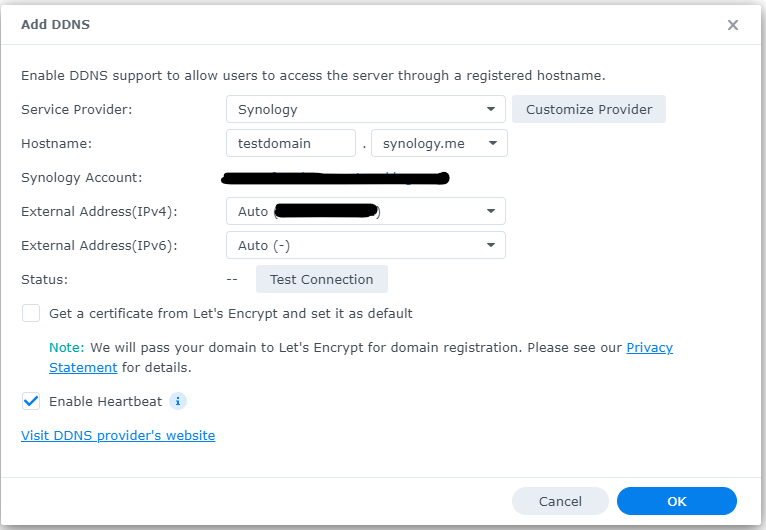
Click on DDNS tab
Click Add
Choose Synology as service provider
Add hostname
Click Test Connection
Click OK
Click on Security on left hand side
Click on the Certificate tab
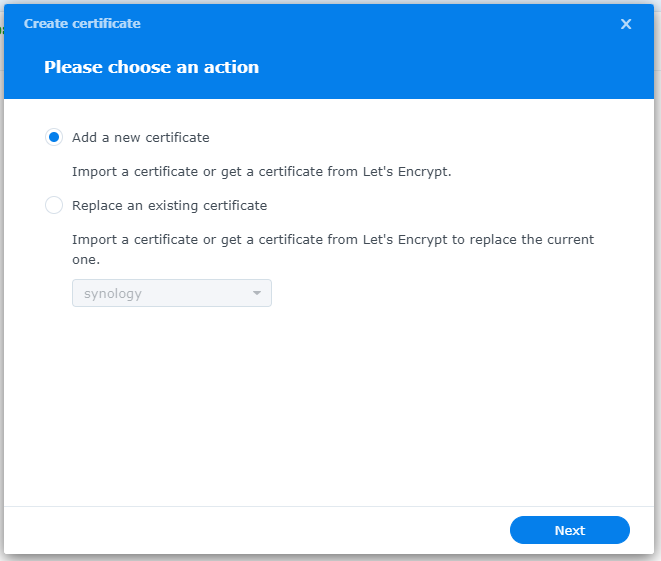
Click on Add
Add new certificate
Click Next
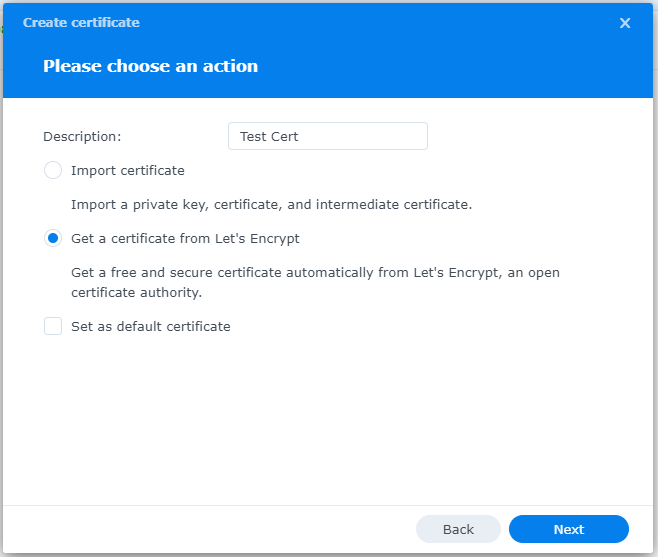
Create description
Get a certificate from Let’s Encrypt
Click Next
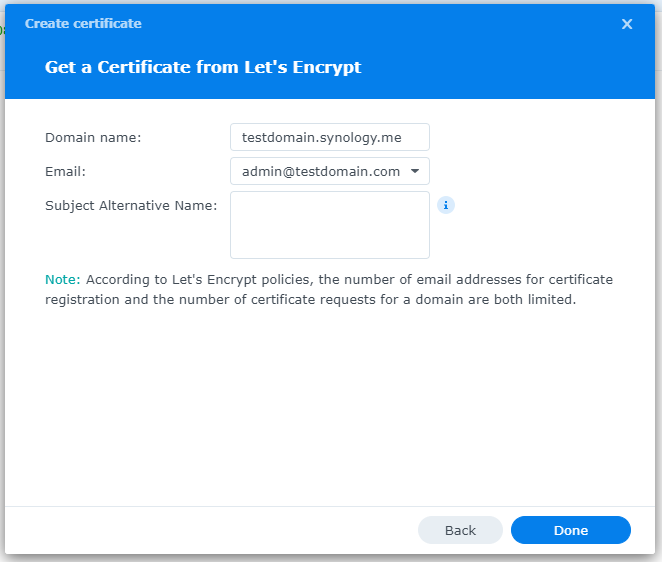
Add needed certificate information
Click Done
Click Settings button and choose appropriate RADIUS server certificate
If your company has highly customized setup requirements that you need consulting for, then contact us for assistance.
PwC study: MSP strategic users gain 43-point performance premium over cost-focused peers.
A report from PricewaterhouseCoopers based on a survey of over 2,000 business leaders and took it as confirmation of our recent blog post about Why SMBs Need Managed Service Providers (MSPs). Here are some takeaways from the article:
Takeaways:
“Companies that use MSPs for strategic advantage are 1.6 times and 2.4 times more likely to be faster to market as well as more innovative than those focused solely on cost savings, according to the report.”
“Organizations utilizing managed services at a mature level use them to respond more adroitly to changing conditions and potential threats.”
“Most business and IT leaders recognize the pace of innovation is occurring faster than their internal IT teams can absorb. There is always going to be some type of skills shortage. Those skill shortages are ones that MSPs are in the best position to fill.”
If your company is looking to outperform in the marketplace, then contact us to start a partnership.
IT lifecycle dashboard tracking device age, refresh cycles, and replacement planning for SMB hardware.
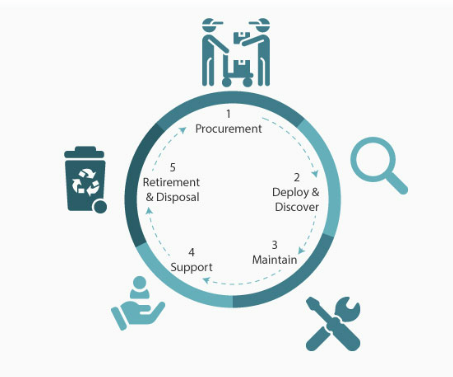
In today’s fast-paced business environment, effectively managing IT equipment throughout its lifecycle has become essential. Equipment Lifecycle Management (ELM) refers to the systematic approach of acquiring, operating, maintaining, and disposing of equipment. By implementing an ELM strategy, businesses can maximize the lifespan and productivity of their equipment, while also minimizing costs and downtime. Let’s explore some of the secret benefits of equipment lifecycle management.
Cost Optimization
IT equipment can represent a significant investment for businesses. Through ELM, companies can optimize costs by planning IT equipment updates and replacements in a strategic manner. With a clear understanding of the IT equipment’s lifespan and maintenance requirements, businesses can budget for these costs well in advance, avoiding unexpected expenses that could negatively impacting their finances.
Increased Equipment Efficiency
One of the primary goals of ELM is to maximize equipment efficiency and productivity. By conducting regular inspections, maintenance, and repairs, businesses can identify and address performance issues before they become major problems. Proactively managing IT equipment ensures that it operates at optimal levels, reducing downtime and improving overall operational efficiency.
Enhanced Asset Tracking and Planning
ELM provides businesses with a comprehensive understanding of their equipment inventory. Through proper record-keeping and asset tracking systems, companies can easily identify the location, condition, and maintenance history of each piece of IT equipment. This information enables businesses to plan for IT equipment updates, replacements, or adjustments based on their lifecycle and performance, ensuring that resources are allocated efficiently.
Sustainable and Environmentally Responsible Practices
Efficient IT equipment management is not only beneficial for businesses but also for the environment. By properly maintaining and disposing of equipment, companies can significantly reduce waste generation and minimize their carbon footprint. Implementing ELM strategies, such as equipment reuse or recycling programs, aligns with sustainable business practices and demonstrates a commitment to environmental responsibility.
Effective equipment lifecycle management is crucial for businesses looking to optimize costs, improve productivity, and minimize their environmental impact. By proactively managing IT equipment throughout its lifecycle, companies can maximize its efficiency, extend its lifespan, and ensure smooth operations. Investing in IT equipment lifecycle management ultimately leads to long-term benefits and a competitive advantage in today’s business landscape.
If you haven’t already, contact us to implement an ELM strategy for your business.
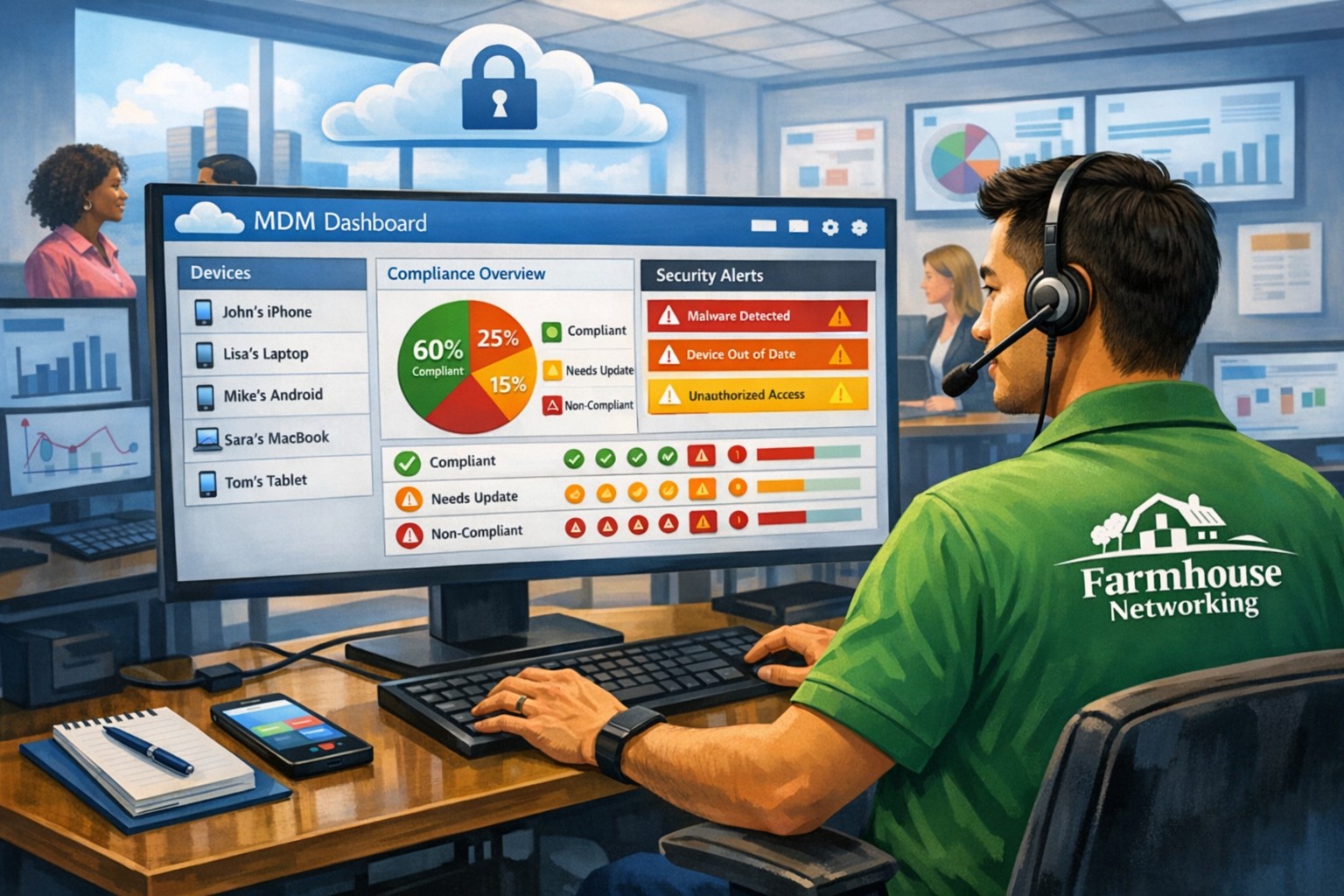
MSP console managing SMB BYOD smartphones and laptops with centralized MDM and security policies.
Small and medium-sized businesses (SMBs) face numerous challenges when it comes to managing their IT. Limited resources (both human and money), lack of expertise, and the need to focus on core business operations often make it difficult for SMBs to understand and manage technology needs. This is where Managed Service Providers (MSPs) come in. In this blog article, we will explore the reasons why SMBs should consider partnering with MSPs to enhance their IT capabilities and drive business growth.
Cost-Effective IT Solutions:
One of the primary reasons why SMBs need MSPs is the cost-effectiveness they offer. By outsourcing their IT needs to MSPs, SMBs can avoid the high costs associated with hiring and training an in-house IT team. MSPs provide a range of services, including network monitoring, data backup and recovery, cybersecurity, and software updates, all at a predictable monthly cost. This allows SMBs to allocate their resources more efficiently and focus on their core business.
Access to Expertise and Advanced Technology:
MSPs are experts in providing IT services and have a team of highly skilled professionals with expertise in variety of technology. By partnering with MSPs, SMBs gain access to the depth of knowledge and experience from IT experts who can handle complex tasks and provide strategic guidance. Additionally, MSPs stay up-to-date with the latest technology trends and can recommend and implement solutions that can help SMBs stay competitive in the market and safe from hackers.
Proactive IT Support and Maintenance:
MSPs offer proactive IT support and maintenance, which is crucial for SMBs. They monitor networks, identify potential issues, and take preventive measures to avoid downtime and disruptions. MSPs also provide regular software updates, security patches, and system maintenance, ensuring that SMBs’ IT remains secure and up-to-date. This proactive approach helps SMBs minimize the risk of costly IT failures and ensures smooth business operations.
Enhanced Data Security:
Data breaches and cyberattacks pose a significant threat to SMBs. MSPs play a vital role in safeguarding SMBs’ sensitive data and protecting them from potential security breaches. They implement robust cybersecurity measures, such as firewalls, antivirus software, and encryption, to ensure data confidentiality and integrity. MSPs can also conduct regular security audits and vulnerability assessments to identify and address any potential weaknesses in the IT infrastructure.
Scalability and Flexibility:
As SMBs grow, their IT needs evolve. MSPs offer scalable solutions that can adapt to changing business requirements. Whether it’s adding new users, expanding storage capacity, or integrating new software, MSPs can quickly and efficiently accommodate these changes. This scalability and flexibility allow SMBs to focus on their growth without worrying about the limitations of their IT infrastructure.
If your company could use the cost-effective solutions, access to expertise, proactive support, enhanced data security, and scalability that come from using a MSP, then contact us for assistance.
2FA dashboard displaying account protection compliance metrics and phishing defenses.
Businesses are face an increasing number of cyber threats. To protect sensitive data and prevent hackers from gaining access, implementing stronger security measures is crucial. One such measure is 2-factor authentication (2FA). Let’s look at the importance and security benefits of 2FA for businesses.
Enhanced Account Security:
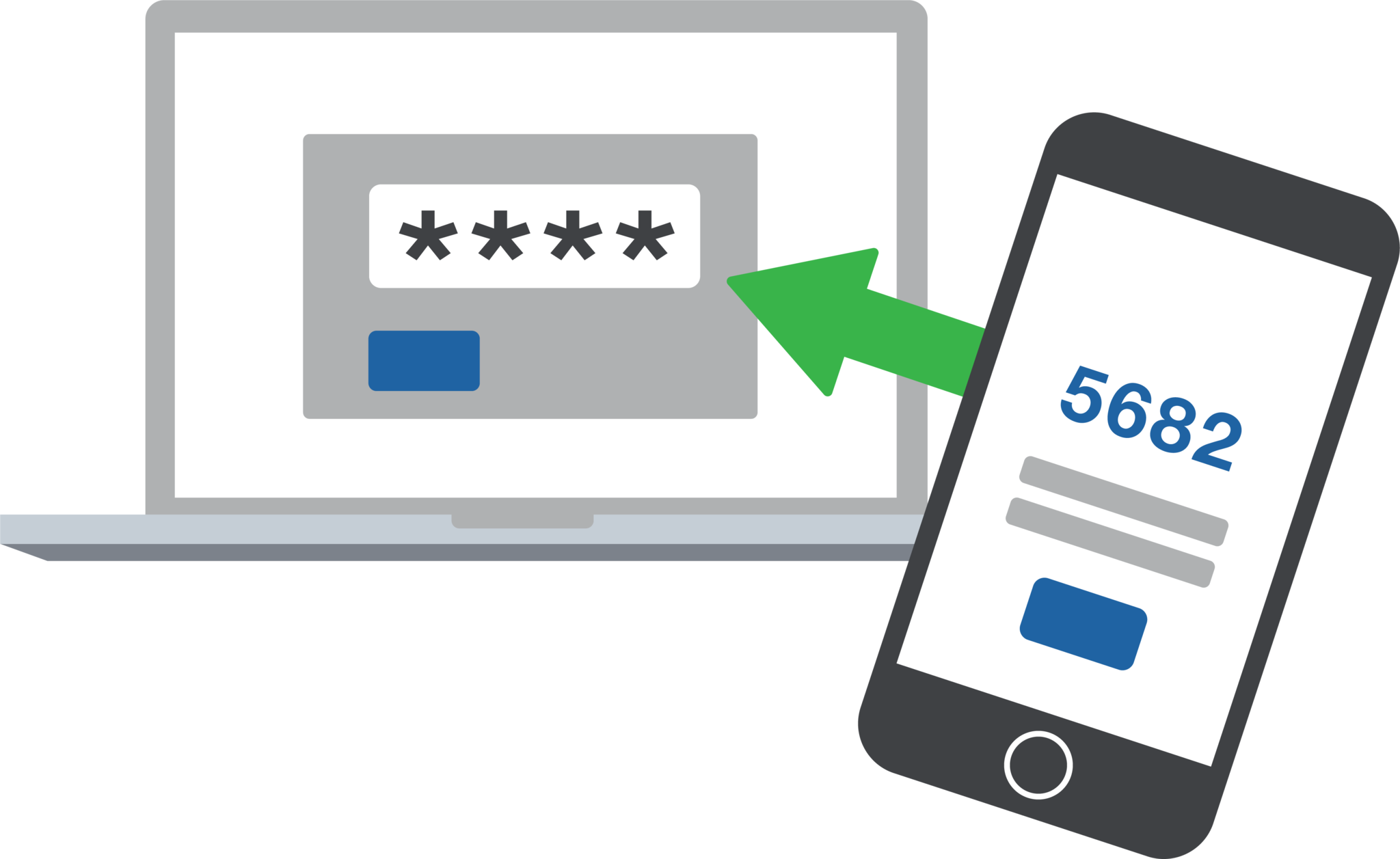
2FA adds an extra layer of security to the traditional username and password login process. By requiring users to provide a second form of authentication, such as a unique code sent to their mobile device, it significantly reduces the risk of hackers from gaining access. Even if a hacker manages to obtain a user’s password, they would still need the second factor to gain access.
Mitigation of Password-related Risks:
Passwords are often the weakest link in security systems. Many users tend to reuse passwords across multiple accounts or choose weak and easily guessable ones or re-use the same password while incrementally changing a digit or two. With 2FA, even if a password is compromised, the additional authentication factor acts as a safeguard, making it significantly harder for attackers to gain access.
Protection Against Phishing Attacks:
Phishing attacks, where attackers trick users into revealing their login credentials, are a common threat to businesses. 2FA provides an additional layer of defense against such attacks. Even if a user unknowingly falls victim to a phishing attempt and enters their credentials on a fake website, the second authentication factor would prevent the attacker from accessing the account.
Compliance with Industry Regulations:
Many industries, such as finance, healthcare, government contractors, and e-commerce, are subject to strict data protection regulations. Implementing 2FA helps businesses meet compliance requirements and avoid potential penalties. It demonstrates a commitment to safeguarding sensitive customer information and builds trust with clients.
Cost-Effective Security Measure:
Implementing 2FA does not require significant financial investment. Many 2FA solutions are readily available and can be easily integrated into existing systems. Considering the potential financial and brand reputation damage caused by a security breach, the cost of implementing 2FA is minimal compared to the benefits it provides.
In an era where cyber threats are constantly evolving, businesses must prioritize security measures to protect their valuable data. 2-factor authentication offers a simple yet effective way to do so.
If your company is interested in implementing 2FA across the entire organization, then contact us for assistance.
This is the forth in a series that documents the Tier 3 / Co-Managed IT work we did to setup a wireless test bed for a Linux based scientific device. The testing environment included two different wireless network hardware types (Ubiquiti and Cisco). There was also a Synology device used for various purposes including hosting the Ubiquiti controller inside a Kubernetes container, providing certificate services, providing LDAP authentication, and providing RADIUS authentication. Each article will detail a separate piece of the project. This article shows the setup Synology LDAP server & certificates.
Setup LDAP Server
Login to Synology
Open Package Center
Install LDAP Server app
Open LDAP Server package
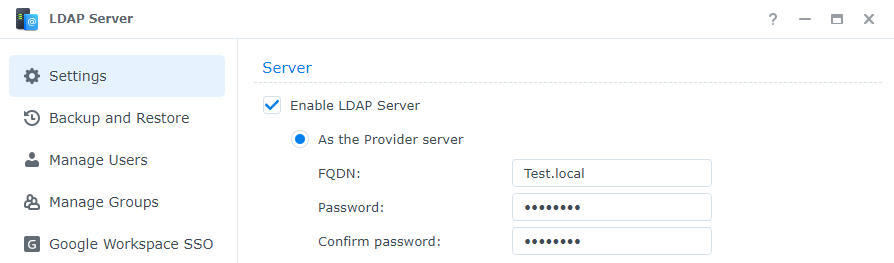
Enable LDAP Server
Create FQDN (something like Test.local)
Create password
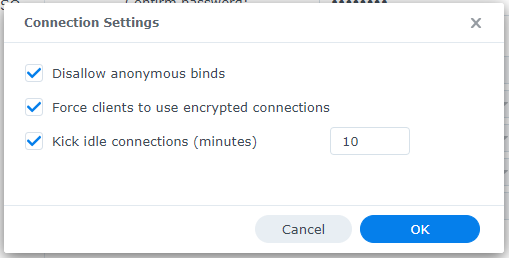
Change Connection Settings
Disallow anonymous binds
Force clients to use encrypted connections
Change timeout to 10 minutes
Click OK
Click Apply
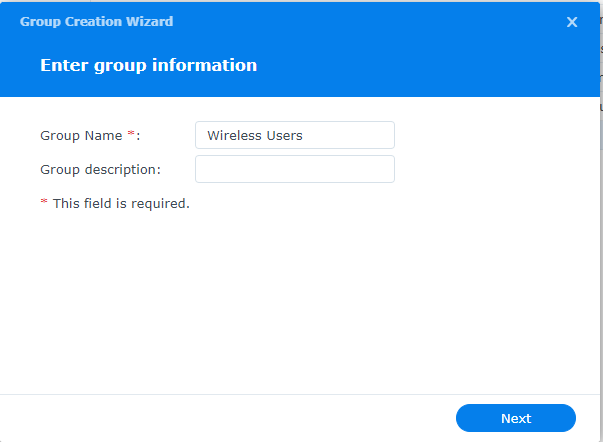
Click on Manage Groups
Click on Create
Give the Group a name
Click Next
Click Done
Click on Manage Users
Click on Create
Give the User a name
Add user email if appropriate
Create password
Click Next
Check mark next to new group previously created
Click Next x2
Click Done
Connect Synology to LDAP Server
Open Control Panel
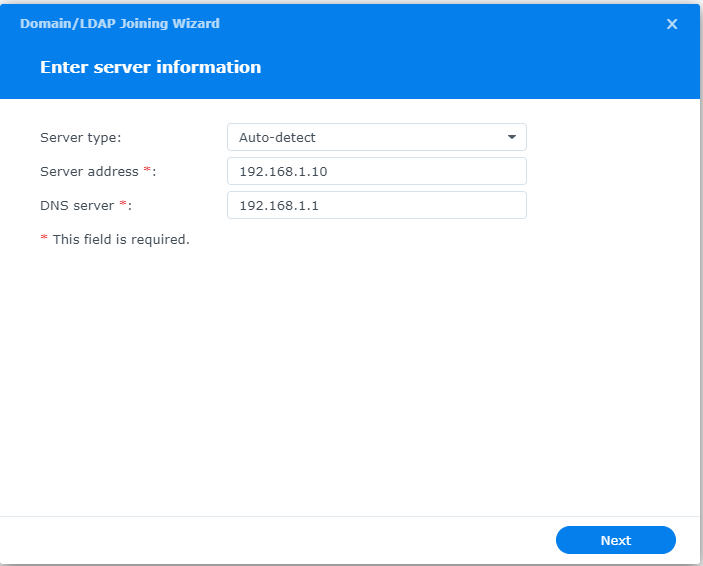
Click on Domain / LDAP on left hand side
Click Join
Enter IP address of Synology
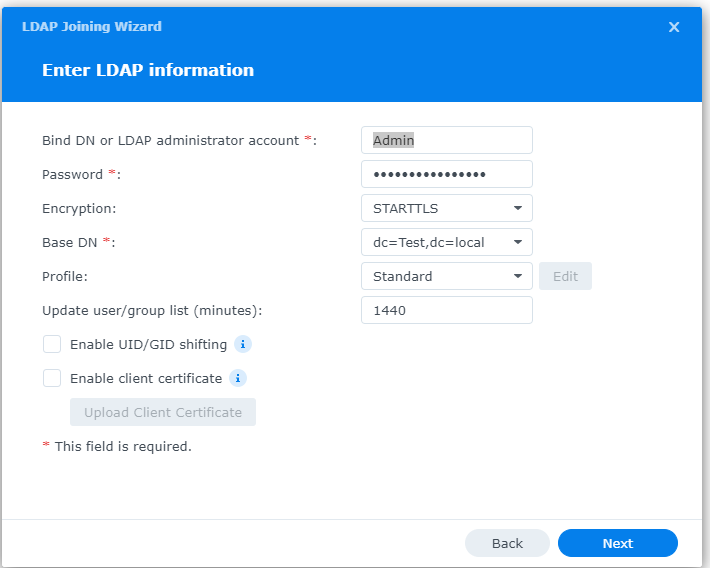
Enter Admin username / password
Choose STARTTLS encryption
Copy Base DN from LDAP Server app Settings tab
Click Next
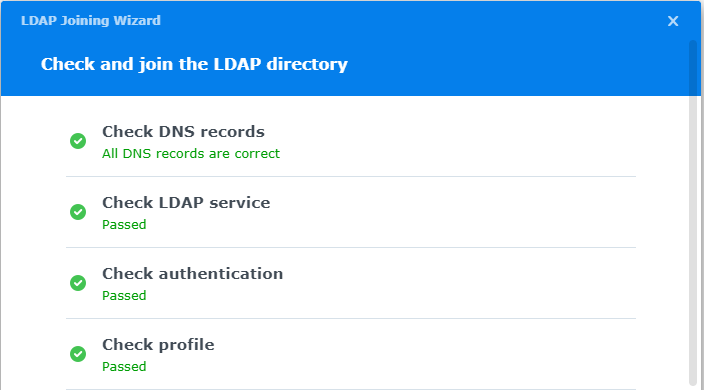
Connection parameters will be check (fix any issues)
Configure LDAP Certificates
Open Control Panel
Click on External Access
Click on DDNS tab
Click Add
Choose Synology as service provider
Add hostname
Click Test Connection
Click OK
Click on Security on left hand side
Click on the Certificate tab
Click on Add
Add new certificate
Click Next
Create description
Get a certificate from Let’s Encrypt
Click Next
Add needed certificate information
Click Done
Click Settings button and choose appropriate LDAP server certificate
If your company has highly customized setup requirements that you need consulting for, then contact us for assistance.
And God will generously provide all you need. Then you will always have everything you need and plenty left over to share with others. As the Scriptures say, “They share freely and give generously to the poor. Their good deeds will be remembered forever.” For God is the one who provides seed for the farmer and then bread to eat. In the same way, he will provide and increase your resources and then produce a great harvest of generosity in you. - 2 Corinthians 9:8-10
We use cookies to ensure that we give you the best experience on our website. If you continue to use this site we will assume that you are happy with it.