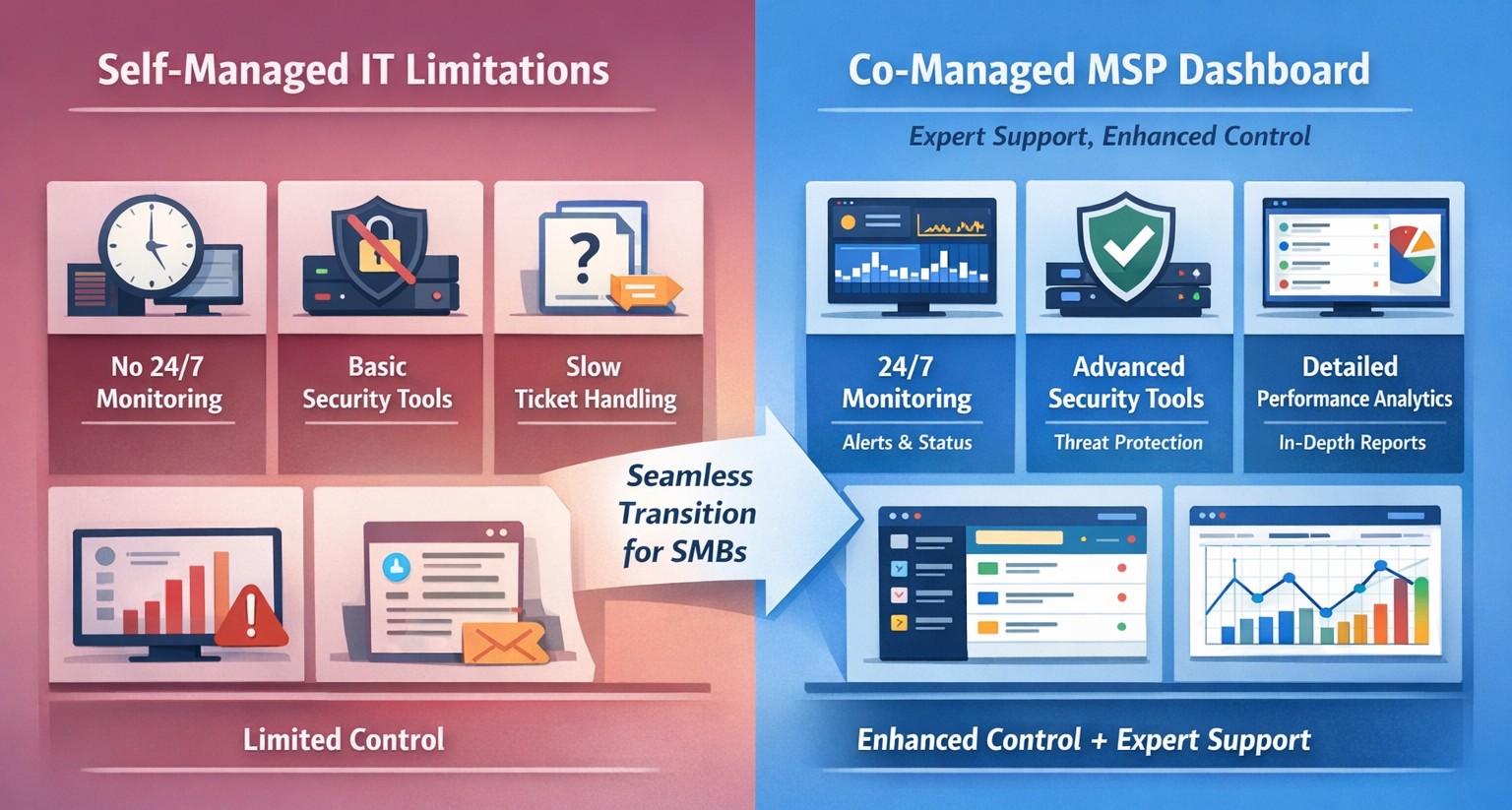
Co-managed IT dashboard with MSP monitoring supplementing internal team.
Managing IT can be a daunting task, especially for businesses that lack dedicated IT personnel or the expertise to handle today’s complex technology. In recent years, more and more organizations have recognized the benefits of outsourcing their IT management to Managed Service Providers (MSPs).
What is an MSP?
A Managed Service Provider, or MSP, is a company that offers a range of IT services to businesses. These services can include network monitoring, infrastructure management, data backup, cybersecurity, and more. By partnering with an MSP, businesses can offload their IT responsibilities to professionals with deep expertise and industry-best practices.
The Challenges of Self-Managed IT
Self-managing your IT can be a significant challenge. Here are some of the common pain points that organizations face:
Lack of Expertise: IT is a complex and ever-evolving field. Keeping up with the latest technologies, security threats, and best practices can be overwhelming, especially for businesses without dedicated IT staff.
Resource Constraints: Managing IT requires time, manpower, and financial resources. Small and medium-sized businesses often struggle to allocate these resources effectively, leading to inefficiencies, downtime, and security vulnerabilities.
Limited Scalability: Growing businesses often find it difficult to scale their IT infrastructure to meet increased demand. Self-managing your IT environment may require significant investments in hardware, software, and additional staff, which can strain budgets and hinder growth.
Cybersecurity Risks: Data breaches and cyber-attacks are on the rise. Without proper security measures in place, businesses face significant financial and reputational risks. Implementing and maintaining robust cybersecurity protocols can be challenging for organizations without the necessary expertise.
The Benefits of MSP-Managed IT
Switching to an MSP-managed IT environment offers several benefits:
Expertise and Support: MSPs have a team of experienced professionals who specialize in different aspects of IT management. They stay up-to-date with the latest industry trends and best practices, providing businesses with access to a breadth of knowledge and expertise.
Proactive Monitoring and Maintenance: MSPs utilize advanced tools and technologies to monitor your IT infrastructure 24/7. They identify potential issues before they become critical, minimizing downtime and ensuring smooth operations.
Scalability and Flexibility: MSPs provide scalable solutions tailored to your business needs. Whether you’re experiencing rapid growth or need to downsize, an MSP can quickly adapt your IT infrastructure to meet changing requirements without additional investments or resources.
Enhanced Security: MSPs employ robust security measures to protect your systems, networks, and data from cyber threats. They implement industry-standard security practices, conduct regular security audits, and ensure compliance with data protection regulations.
Cost Savings: By outsourcing IT management to an MSP, businesses can reduce the overhead costs associated with maintaining an in-house IT department. MSPs work on a subscription-based model, allowing organizations to pay for the services they need, when they need them.
Strategic Planning: MSPs can act as your virtual chief information officer providing project planning services that keep IT spend spread across the years to make the IT budget easier to manage.
Consider making the switch to an MSP today and unlock the benefits of professional IT management, contact us to get started.
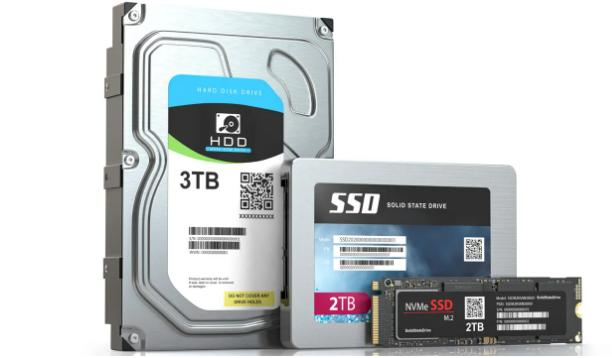
SSD vs HDD speed reliability power comparison chart.
In the world of technology, advancements are constantly being made to enhance the user experience. One such innovation that has revolutionized the storage industry is the solid-state drive (SSD). For years, there has been a debate between skeptics and proponents of SSDs, with the former questioning the true benefits of upgrading from traditional hard disk drives (HDDs). However, empirical evidence has time and again proven that SSDs offer a significant performance boost in various aspects. In this article, we will explore the reasons why upgrading from HDDs to SSDs is worth it, shedding light on the remarkable advantages that SSDs bring to the table.
The Need for Speed
Faster Boot Times and Program Launches
One of the most noticeable benefits of upgrading to an SSD is the drastic reduction in boot times and program launches. Unlike HDDs, SSDs have no moving parts, which means they can access data much faster. When you power on your computer, an SSD can quickly retrieve the necessary files and get your system up and running in a matter of seconds. Similarly, launching resource-intensive programs becomes a breeze with an SSD. Tasks that used to take minutes can now be completed in a matter of seconds, saving you valuable time and increasing efficiency.
Improved File Transfer Speeds
Gone are the days of waiting for files to transfer at a snail’s pace. SSDs excel in delivering lightning-fast file transfer speeds. Whether you’re copying large multimedia files, transferring documents to the server, or backing up your data, an SSD will significantly reduce the time it takes to complete these tasks. With read and write speeds that can be several times faster than traditional HDDs, SSDs provide a seamless and efficient experience when it comes to managing your files.
Enhanced System Responsiveness
A Smoother User Interface
Upgrading to an SSD can transform your overall computing experience by providing a smoother and more responsive user interface. With faster data access times, an SSD ensures that your operating system (OS) responds promptly to your commands. Opening applications, navigating through menus, and multitasking become much more fluid, allowing you to work seamlessly without any frustrating lag or delays. This newfound responsiveness can make a significant difference, especially for professionals who rely on their computers for demanding tasks.
Reduced System Downtime
Slow and unresponsive systems can be a major hindrance to productivity. With an HDD, you may have experienced frequent freezes, crashes, and system slowdowns. SSDs, on the other hand, mitigate these issues by providing a stable and reliable platform for your computing needs. The absence of moving parts in an SSD means that there is less chance of mechanical failure, resulting in improved system stability and reduced downtime. Whether you’re a student, professional, or casual user, upgrading to an SSD can help you avoid frustrating delays and keep your workflow uninterrupted.
Power Efficiency and Durability
Energy-Saving Benefits
In addition to the performance advantages, SSDs also offer notable energy-saving benefits. Unlike HDDs, which require spinning disks and moving parts, SSDs operate using flash memory technology. This means that SSDs consume significantly less power, resulting in improved battery life for laptops and reduced electricity costs for desktop computers. If you’re constantly on the go or looking for ways to reduce your carbon footprint, upgrading to an SSD can be a wise choice.
Enhanced Durability
Another compelling reason to make the switch to SSDs is their enhanced durability. Traditional HDDs are susceptible to damage from physical impacts, as they rely on spinning disks and delicate read/write heads. In contrast, SSDs are built with solid-state components, making them more resistant to shock and vibration. This durability factor makes SSDs ideal for portable devices, such as laptops, where they can withstand the rigors of daily use and transportation without compromising data integrity.
If your company is looking for a boost in performance without replacing all your computers, then contact us for assistance.
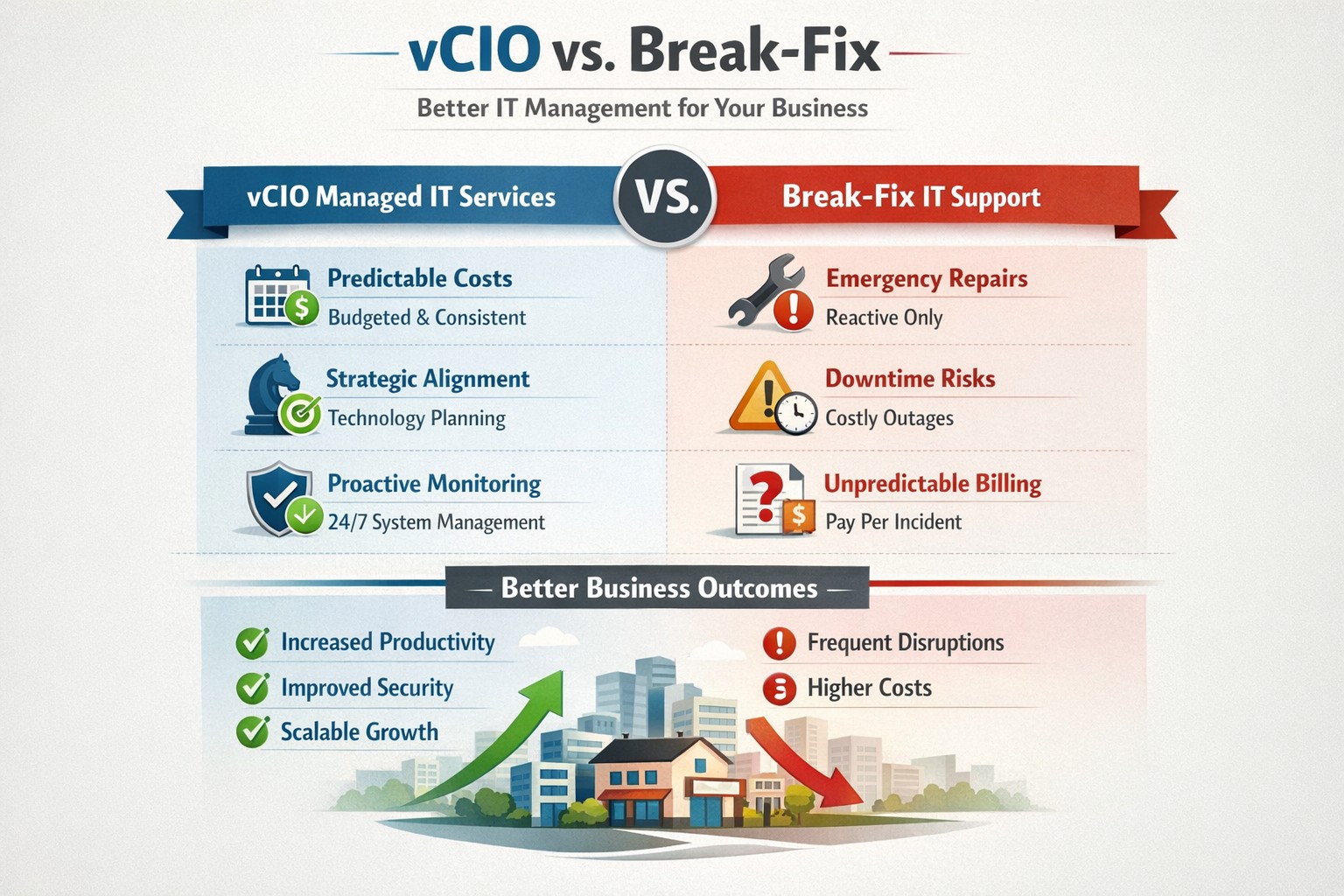
vCIO strategic services vs break-fix reactive IT model performance comparison.
In the ever-evolving world of IT support, two strategic approaches have emerged to address the needs of businesses – vCIO (Virtual CIO) services and break-fix services. Each of these approaches has its own merits and drawbacks, making it crucial for businesses to carefully consider which option best aligns with their goals and IT requirements. So, let’s dive into the comparison between vCIO services and break-fix services and find out which one takes the crown!
vCIO Services: Unleashing the Power of Proactive IT Management
The vCIO model offers businesses a cost-effective and strategic solution to IT management, delivering benefits far beyond simple problem-solving. Here’s a breakdown of what vCIO services bring to the table:
Strategic Technology Planning: A vCIO provides a long-term roadmap for your IT infrastructure, aligning it with your business objectives. They assess your current technology landscape, analyze potential risks, and develop a comprehensive IT strategy to ensure your technology infrastructure drives success.
Proactive IT Monitoring and Management: By constantly monitoring your systems, a vCIO can detect and address issues before they turn into full-blown disasters. They implement proactive measures, such as 24/7 system monitoring, patch management, and security audits to keep your IT environment optimized and secure.
IT Budgeting and Procurement: A vCIO helps you streamline your IT budget by aligning your investment with your business goals. They provide insights into cost-effective technology solutions, negotiate contracts with vendors, and manage IT procurement to help you make informed decisions while optimizing your spending.
Technology Vendor Management: Collaborating with multiple technology vendors can be time-consuming and complex. A vCIO acts as a single point of contact for all your technology vendors, managing relationships and ensuring smooth coordination between various stakeholders.
Break-Fix Services: The Traditional Firefighter Approach
Break-fix services have long been the go-to approach for businesses seeking IT support on an as-needed basis. Here’s a closer look at what break-fix services bring to the table:
Issue-Specific Support: Break-fix services are designed to address specific IT issues as and when they arise. This approach involves fixing problems after they occur, reacting to incidents rather than proactively managing your systems.
Limited Scope of Support: Break-fix services typically focus solely on resolving immediate technical issues. While they can provide quick fixes, they do not offer strategic planning or ongoing support to help prevent future issues or optimize your IT infrastructure.
Variable Costs: Break-fix service costs can be unpredictable, as you are billed per incident or hourly basis. This makes budgeting and financial planning more challenging, especially if you encounter frequent or recurring IT issues.
Less Focus on Prevention: With break-fix services, the emphasis is on remedying existing problems, leaving behind the potential for other underlying issues to remain undetected, ultimately leading to more costly and time-consuming problems down the line.
The Verdict: vCIO Takes the Throne!
While break-fix services may have their place in certain scenarios, vCIO services offer a more comprehensive approach to IT management, aligning your technology with your business goals and providing ongoing support. The proactive nature, strategic planning, and cost optimization provided by vCIO services make it the winning solution for businesses looking to stay ahead of the ever-changing technology landscape. So, without a doubt, the crown firmly sits on the head of vCIO services!
If your company is tired of just calling your IT service company when things are broken, then contact us for vCIO services.
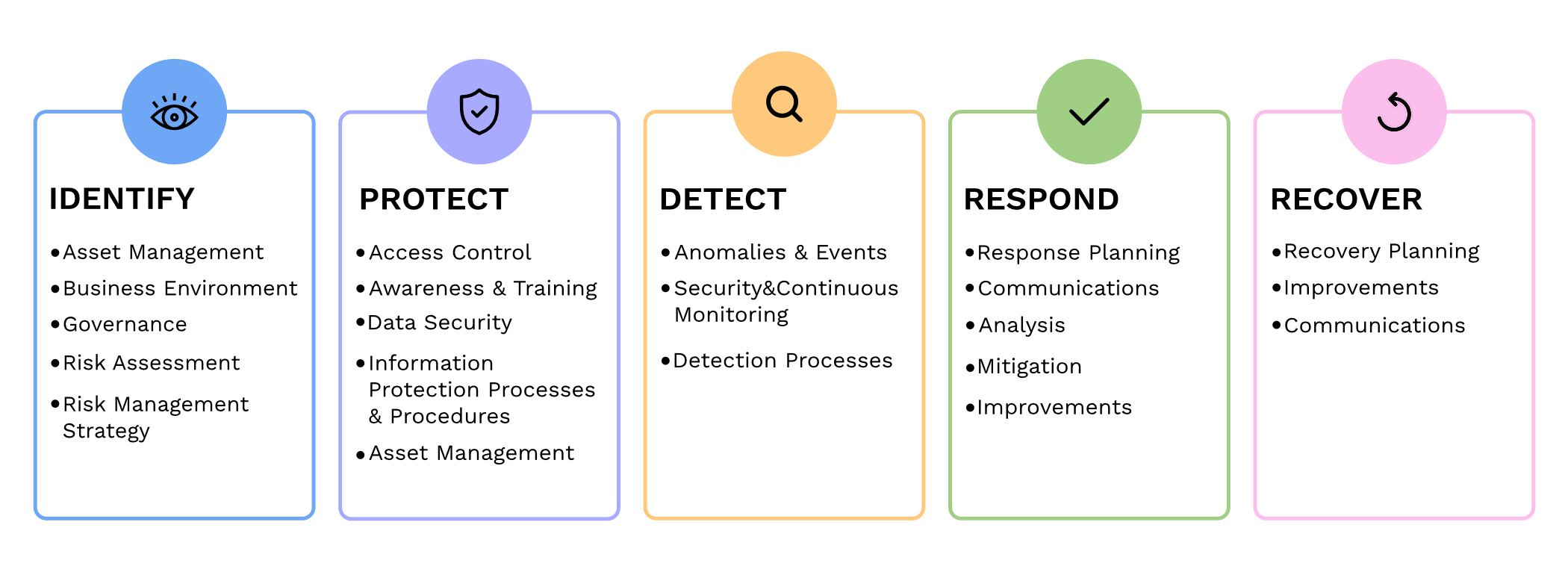
Small and medium-sized businesses (SMBs) are the backbone of the economy, but they are often the primary targets for cyberattacks. In fact, according to recent reports, nearly half of all cyberattacks are aimed at SMBs. To protect themselves from these threats and ensure the security of their critical assets, SMBs should consider following the guidelines provided by the National Institute of Standards and Technology (NIST) in their Special Publication 800 series.
Comprehensive Cybersecurity Framework
NIST 800 series provides a comprehensive framework that helps SMBs establish and maintain effective cybersecurity measures. By implementing the NIST guidelines, SMBs can enhance their cybersecurity posture and reduce the risk of potential data breaches, financial losses, and reputational damage.
Improved Risk Management
NIST 800 guidelines focus on risk management, helping SMBs identify and mitigate potential vulnerabilities and threats. Following the guidelines allows SMBs to proactively assess their cybersecurity risks and develop effective strategies to safeguard their sensitive data, intellectual property, and customer information.
Industry-Recognized Standards
NIST 800 series is widely recognized and adopted by both the public and private sectors. By adhering to these guidelines, SMBs demonstrate their commitment to meeting industry standards and best practices. This not only helps build trust with customers and partners but also increases their chances of securing lucrative business contracts and partnerships.
Cost-Effective Approach
Implementing NIST 800 guidelines can be a cost-effective approach for SMBs. These guidelines offer scalable solutions that can be tailored according to the organization’s size, budget, and specific requirements. SMBs can leverage the NIST framework to prioritize their cybersecurity investments, ensuring that they maximize their security efforts within their available resources.
In today’s digitally connected world, SMBs cannot afford to neglect cybersecurity. Following the NIST 800 guidelines provides SMBs with a comprehensive framework to enhance their cybersecurity posture, improve risk management, establish industry-recognized standards, and reduce costs, By working with a managed IT service provider to implementing these guidelines, SMBs can protect their assets, maintain their reputation, and thrive in an increasingly cyber-threatened landscape.
If your company is looking to implement stronger security through an standards based framework, then contact us for assistance.
IT lifecycle dashboard tracking device age, refresh cycles, and replacement planning for SMB hardware.
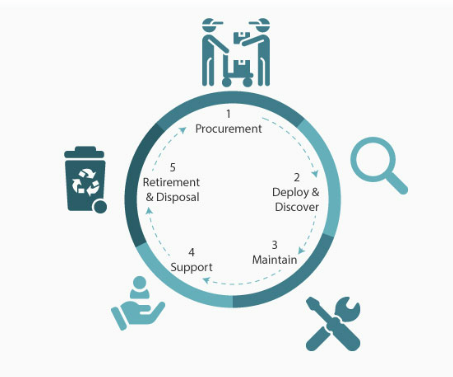
In today’s fast-paced business environment, effectively managing IT equipment throughout its lifecycle has become essential. Equipment Lifecycle Management (ELM) refers to the systematic approach of acquiring, operating, maintaining, and disposing of equipment. By implementing an ELM strategy, businesses can maximize the lifespan and productivity of their equipment, while also minimizing costs and downtime. Let’s explore some of the secret benefits of equipment lifecycle management.
Cost Optimization
IT equipment can represent a significant investment for businesses. Through ELM, companies can optimize costs by planning IT equipment updates and replacements in a strategic manner. With a clear understanding of the IT equipment’s lifespan and maintenance requirements, businesses can budget for these costs well in advance, avoiding unexpected expenses that could negatively impacting their finances.
Increased Equipment Efficiency
One of the primary goals of ELM is to maximize equipment efficiency and productivity. By conducting regular inspections, maintenance, and repairs, businesses can identify and address performance issues before they become major problems. Proactively managing IT equipment ensures that it operates at optimal levels, reducing downtime and improving overall operational efficiency.
Enhanced Asset Tracking and Planning
ELM provides businesses with a comprehensive understanding of their equipment inventory. Through proper record-keeping and asset tracking systems, companies can easily identify the location, condition, and maintenance history of each piece of IT equipment. This information enables businesses to plan for IT equipment updates, replacements, or adjustments based on their lifecycle and performance, ensuring that resources are allocated efficiently.
Sustainable and Environmentally Responsible Practices
Efficient IT equipment management is not only beneficial for businesses but also for the environment. By properly maintaining and disposing of equipment, companies can significantly reduce waste generation and minimize their carbon footprint. Implementing ELM strategies, such as equipment reuse or recycling programs, aligns with sustainable business practices and demonstrates a commitment to environmental responsibility.
Effective equipment lifecycle management is crucial for businesses looking to optimize costs, improve productivity, and minimize their environmental impact. By proactively managing IT equipment throughout its lifecycle, companies can maximize its efficiency, extend its lifespan, and ensure smooth operations. Investing in IT equipment lifecycle management ultimately leads to long-term benefits and a competitive advantage in today’s business landscape.
If you haven’t already, contact us to implement an ELM strategy for your business.
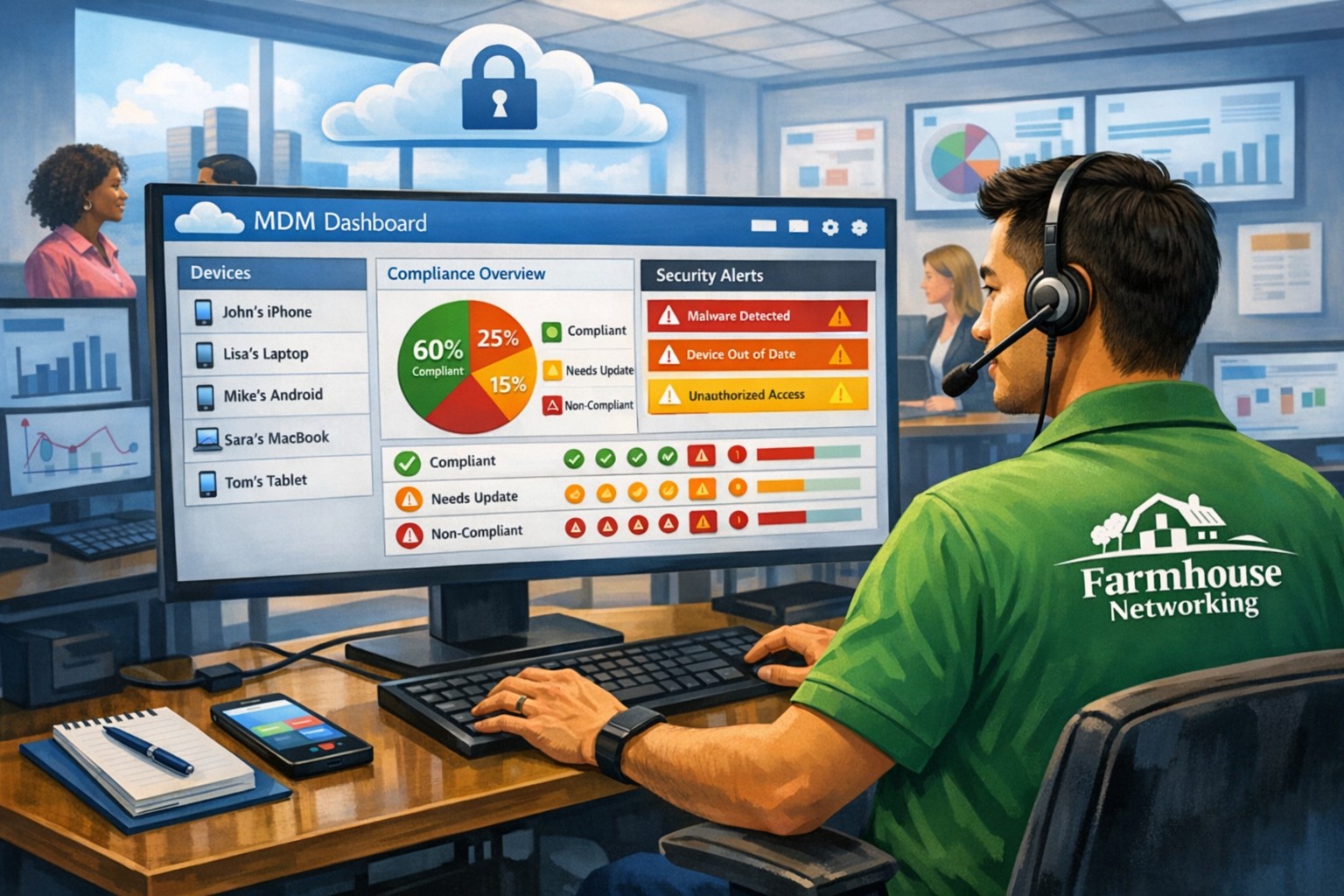
MSP console managing SMB BYOD smartphones and laptops with centralized MDM and security policies.
Small and medium-sized businesses (SMBs) face numerous challenges when it comes to managing their IT. Limited resources (both human and money), lack of expertise, and the need to focus on core business operations often make it difficult for SMBs to understand and manage technology needs. This is where Managed Service Providers (MSPs) come in. In this blog article, we will explore the reasons why SMBs should consider partnering with MSPs to enhance their IT capabilities and drive business growth.
Cost-Effective IT Solutions:
One of the primary reasons why SMBs need MSPs is the cost-effectiveness they offer. By outsourcing their IT needs to MSPs, SMBs can avoid the high costs associated with hiring and training an in-house IT team. MSPs provide a range of services, including network monitoring, data backup and recovery, cybersecurity, and software updates, all at a predictable monthly cost. This allows SMBs to allocate their resources more efficiently and focus on their core business.
Access to Expertise and Advanced Technology:
MSPs are experts in providing IT services and have a team of highly skilled professionals with expertise in variety of technology. By partnering with MSPs, SMBs gain access to the depth of knowledge and experience from IT experts who can handle complex tasks and provide strategic guidance. Additionally, MSPs stay up-to-date with the latest technology trends and can recommend and implement solutions that can help SMBs stay competitive in the market and safe from hackers.
Proactive IT Support and Maintenance:
MSPs offer proactive IT support and maintenance, which is crucial for SMBs. They monitor networks, identify potential issues, and take preventive measures to avoid downtime and disruptions. MSPs also provide regular software updates, security patches, and system maintenance, ensuring that SMBs’ IT remains secure and up-to-date. This proactive approach helps SMBs minimize the risk of costly IT failures and ensures smooth business operations.
Enhanced Data Security:
Data breaches and cyberattacks pose a significant threat to SMBs. MSPs play a vital role in safeguarding SMBs’ sensitive data and protecting them from potential security breaches. They implement robust cybersecurity measures, such as firewalls, antivirus software, and encryption, to ensure data confidentiality and integrity. MSPs can also conduct regular security audits and vulnerability assessments to identify and address any potential weaknesses in the IT infrastructure.
Scalability and Flexibility:
As SMBs grow, their IT needs evolve. MSPs offer scalable solutions that can adapt to changing business requirements. Whether it’s adding new users, expanding storage capacity, or integrating new software, MSPs can quickly and efficiently accommodate these changes. This scalability and flexibility allow SMBs to focus on their growth without worrying about the limitations of their IT infrastructure.
If your company could use the cost-effective solutions, access to expertise, proactive support, enhanced data security, and scalability that come from using a MSP, then contact us for assistance.
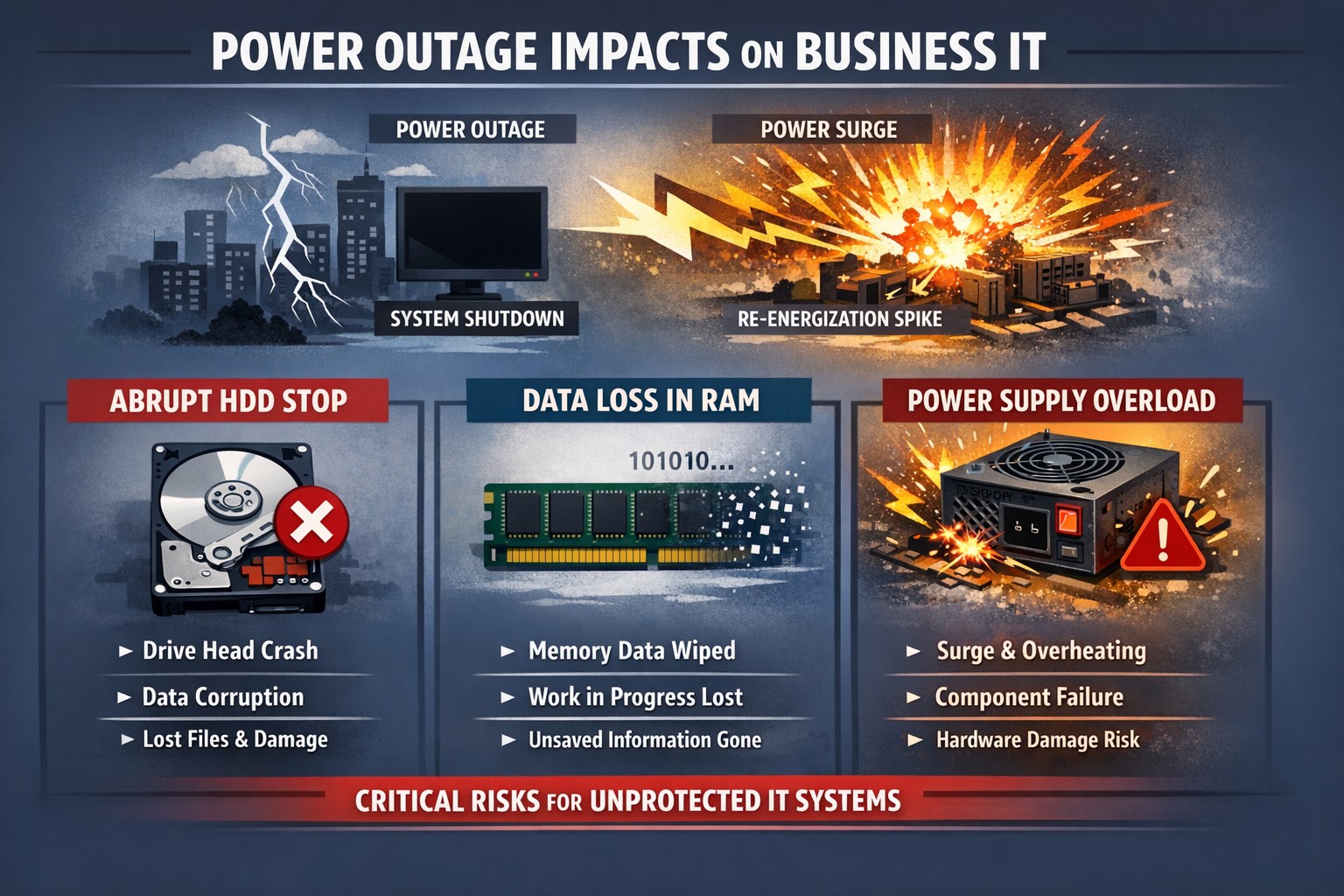
Power outage impacts: hard drive head crash data corruption PSU surge damage.
Power outages are a common occurrence in our area. While they may seem like a minor inconvenience, they can actually have a significant impact on your computer hardware. In this article, we will explore the negative effects of repeated power outages on computer hardware.
Hard Drive Failure
One of the most common negative effects of power outages on computer hardware is hard drive failure. When the power goes out, it can cause the hard drive to stop spinning abruptly. This sudden stop can cause the read/write head to crash into the disk platter, resulting in physical damage to the hard drive. In some cases, the hard drive may become completely unusable, leading to data loss.
Data Corruption
Power outages can also lead to data corruption. When the power goes out, any unsaved data in your computer’s memory is lost. This can cause files to become corrupted or damaged. In some cases, the entire operating system may become corrupted, making it impossible to boot up your computer.
Power Supply Damage
Finally, power outages can cause damage to your computer’s power supply. When the power goes out, it can cause a surge when the power comes back on. This surge can overload your computer’s power supply, causing it to fail. In some cases, the power supply may even catch fire, leading to a potentially dangerous situation.
Conclusion
In conclusion, power outages can have a significant negative impact on your computer hardware. From hard drive failure to data corruption, and power supply damage, there are many potential consequences of repeated power outages. To protect your computer from these negative effects, it’s important to invest in a high-quality uninterruptible power supply (UPS). These devices can help protect your computer from power surges and other electrical disturbances, ensuring that your hardware remains safe and functional.
If your company is not protecting its computers from the damaging effects of power outages , then contact us for assistance.
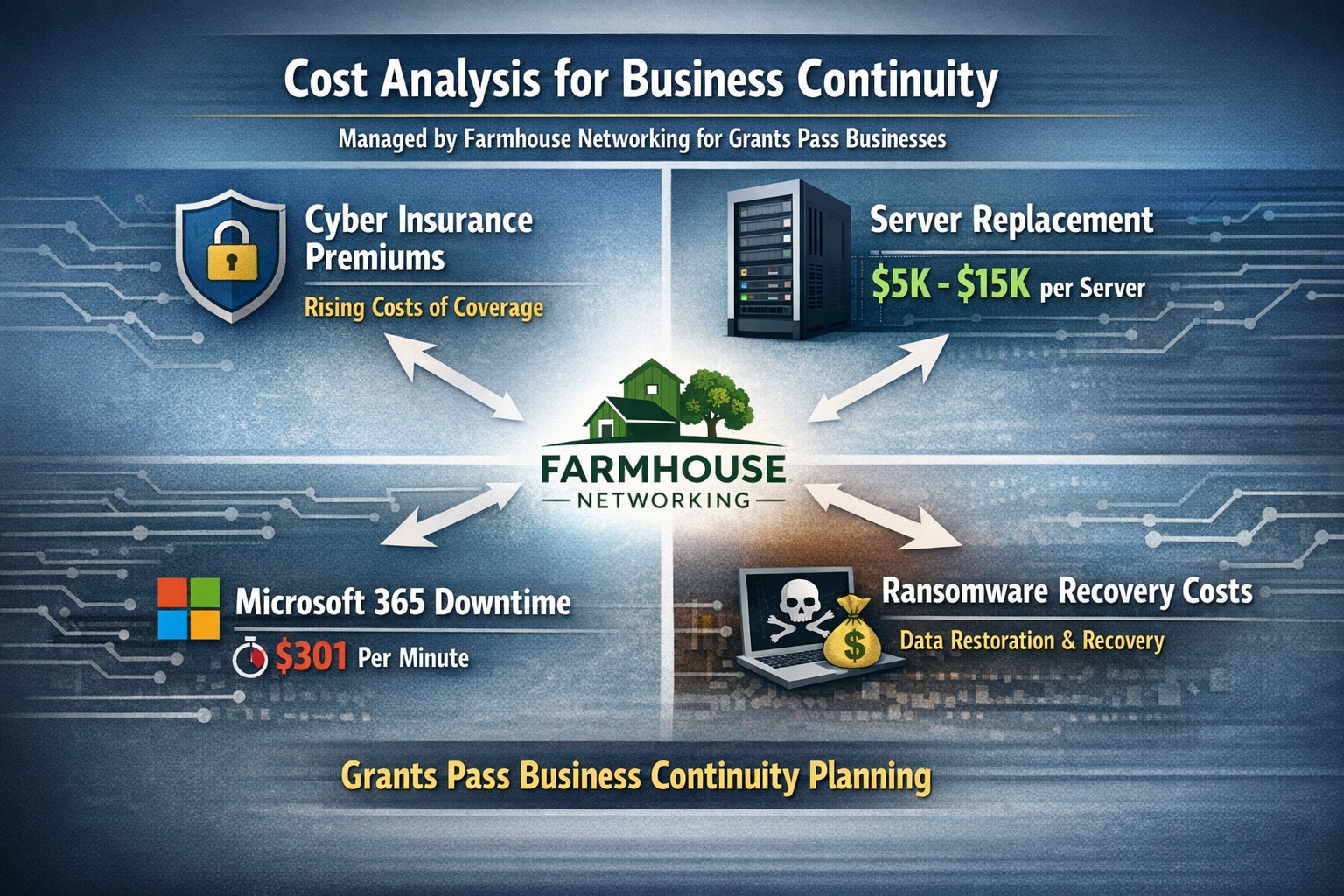
Farmhouse Networking calculates ransomware, server failure, and cyber insurance costs protecting Oregon SMB digital employees from downtime.
We were discussing the price customers paid for their monthly maintenance of computers and the comparison was brought up about insurance costs. As a business owner with employees, it is necessary these days to offer health insurance as part of their compensation package. If the company has vehicles that are used for business, then the government mandates that they be covered by minimum amounts of insurance. These costs are then built into the price the business owner then charges their clients for products or services.
Insurance Statistics:
According to Business.com, the average cost of health insurance for a single employee was $645 per month and $1,850 per month for a family.
According to NerdWallet.com, the average cost of car insurance was $179 per vehicle per month.
Questions:
So what about the “digital” employees of the company, aka the computers and network equipment that make business possible. How much are business owners paying to “insure” these assets? What are businesses willing to pay to make sure that their computers and network don’t have a sick day? Does the cost of insuring them include preventative care? Who does the business call in case of an accident or breakdown in the middle of the day? Does the cost of insuring include on-site service or transport to a service center?
If your company wants to keep their digital employees healthy and insure them from accidents, then contact us for assistance.
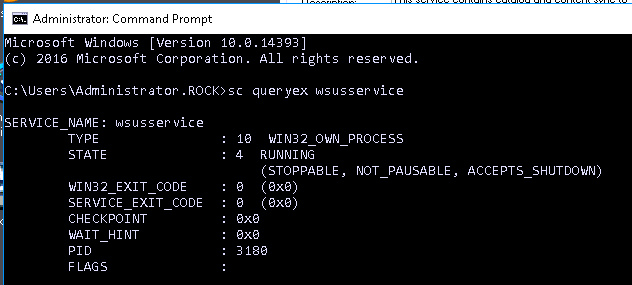
Recently had an issue with a backup software that would get stuck in START_PENDING status at every startup. This caused it to be unable to be uninstalled, repaired, or forcefully removed and re-installed. Here is how we fixed it:
1. Find out the Service Name of the service by looking for it in the Services control panel:
Farmhouse Networking force-stops stuck Windows services using taskkill, sc.exe, and Resource Monitor for Oregon SMB server reliability.
2. Open command prompt as administrator
3. To get the PID type in – sc queryex [Service Name]
4. To kill the errant process type in – taskkill /f /pid [PID]
5. To remove the process type in – sc delete [Service Name]
One I had removed the process I restarted the server just to make sure then re-installed the software.
If your company needs help troubleshooting software issues, then contact us for assistance.
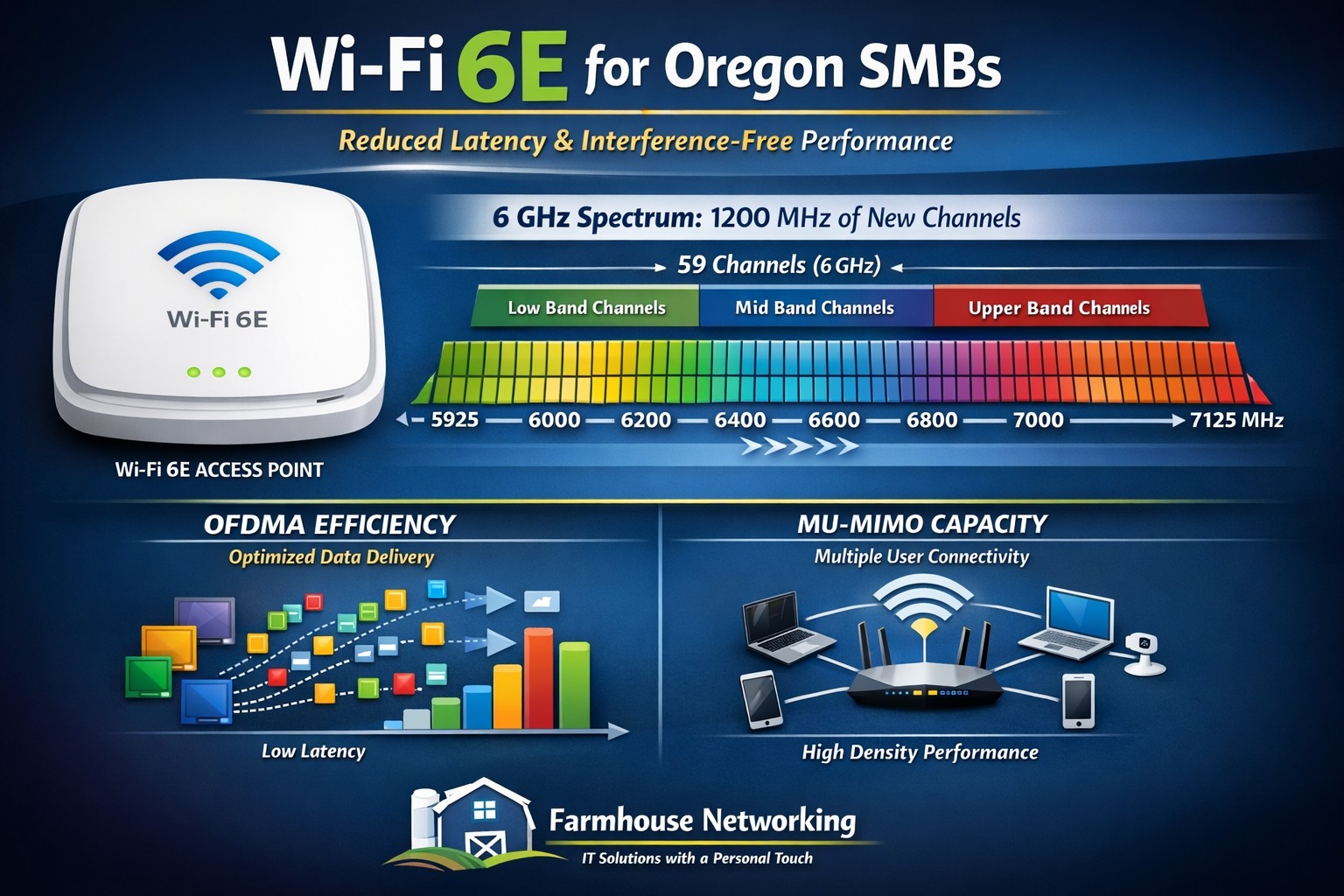
Farmhouse Networking installs Wi-Fi 6E eliminating 2.4/5 GHz congestion for Grants Pass businesses using clean 6 GHz spectrum.
Wi-Fi technology is ingrained into our everyday lives WE COLLECTIVELY STREAM more movies and TV shows, play more online games, and make more video calls than ever before, and all this activity puts a serious strain on our Wi-Fi networks. Wi-Fi 6e has various features to improve the efficiency and data of your wireless network and reduce latency. the latest Wi-Fi 6e standards offers a range of benefits, including faster and more reliable access. So, what is Wi-Fi 6e and what are some of the benefits?
Wi-Fi 6e explained
Existing technologies operate on two frequencies 2.4 GHz and 5GHz which have become more congested over time; Wi-Fi 6e adds access to a third frequency, 6GHz. now wireless devices can also use the 6GHz band. And the 6GHz band opens up the opportunity for higher transfer speeds. On top of that, currently there are about four 160 MHz-wide channels with normal Wi-Fi this 6GHz band brings with it seven 160 MHz-wide channels, More available channels mean more available spectrum for Wi-Fi service “and less overlap between networks in crowded areas like apartment complexes or offices,”. with less overlap and congestion you are able to connect more devices with the same efficiency expectation. Additionally there have been security improvements with Wi-Fi 6E that puts the burden on the router, rather than you, to secure connections between your devices. WPA3 is mandatory for all Wi-Fi 6 certified devices, which provides the latest security and authentication protocols.
Summary of Benefits
Faster, more reliable connection
Transmits data faster with less interference.
You don’t have to compete with traffic from other devices or networks.
Security improvements making it more secure and harder to hack
Accommodates more connected devices
If your company is looking to upgrade the wireless coverage in your office, whole building, or entire business complex, then contact usto evaluate your WiFi needs.
And God will generously provide all you need. Then you will always have everything you need and plenty left over to share with others. As the Scriptures say, “They share freely and give generously to the poor. Their good deeds will be remembered forever.” For God is the one who provides seed for the farmer and then bread to eat. In the same way, he will provide and increase your resources and then produce a great harvest of generosity in you. - 2 Corinthians 9:8-10
We use cookies to ensure that we give you the best experience on our website. If you continue to use this site we will assume that you are happy with it.