Farmhouse Networking resolves credential manager clearing after reboot by deleting Microsoft Vault folder and restarting services for Oregon RMM automation.
As our business continues to focus on providing white labeled Tier 3 IT support services, RMM as a service, and co-managed IT services this blog will be highlighting tips for using Powershell to fix Credential Manager empty after reboot. There has been several users at a bunch of clients recently that have lost access to a network share due to saved passwords and we found Credential Manager empty after reboot. It was easy enough to re-add their password to Credential Manager, but it was not sticking around. This sounds like a job for automation, so we created a script to clear the errant Credential Manger files and create a new entry for the user to connect to file shares.
Variables
$user = username to add to Credential Manager of network share connection
$pass = password to add to same
Script Snippet
### Remove file folder associated with Credential Manager
Remove-Item -Path %localappdata%\Microsoft\Vault -Recurse

### Install Credential Manager Powershell Module
Import-Module -Name CredentialManager -Force

### Convert password to Secure String and create credential
$password = ConvertTo-SecureString -string $pass -AsPlainText -Force
$Credential = new-object -typename System.Management.Automation.PSCredential -argumentlist $user, $password

# Save the credential object directly without unwrapping it:
New-StoredCredential -Credentials $Credential -Target 'Share Credentials' -Persist Enterprise -Comment "Share Credentials for $($Credential.UserName)" > $null
This script will need to be run in the context of the user who needs the credential created. Please use caution with this script as it will empty Credential Manager completely for the user context run with. Also it is advised to run a full CHKDSK /R on the root (C:\ usually) directory to make sure that nothing else is corrupt on the drive.
If your company is a MSP or wants to become one and automation just seems out of reach, then contact usto run your RMM for you.
This is the eighth in a series about the concept of Zero Trust, which means in the IT sense that you trust nothing and always verify everything surrounding and connected to your network. Today’s discussion will be on Application Whitelisting.
Application Whitelisting
Application Whitelisting is a process of determining which software programs the company absolutely needs to do business, marking them as safe, and blocking any other program that tries to run on company computers. This methodology has the distinct advantage of blocking almost all forms of malware on computers. Pairing this with a good next-gen antivirus creates an impenetrable wall against malware threats. It also prevents users from accidentally or intentionally running something that should not be on company computers. Here are some questions to ask:
Do you know all software on your computers?
Do your users spend time on company computers listening to music?
Have any of your users ever downloaded software without asking?
Do you have a computer use policy? How is that enforced?
If your company is wanting to lock down what is running on company computers, then contact us for assistance.
This is the seventh in a series about the concept of Zero Trust, which means in the IT sense that you trust nothing and always verify everything surrounding and connected to your network. Today’s discussion will be on software patching.
Software Patching
Software patching is a neccesity because no person who writes code is perfect and hackers are actively looking for these mistakes. The hackers find the mistakes and then develop ways of using these to exploit the software, computer, or whatever else they can gain access to. The only way to combat both the mistakes and the exploits is to discover them before the hackers do and patch the hole in the software. This patch can however lead to unforseen consequences to the software, so a plan for testing and deployment of patches is needed to avoid unexpected downtime to businesses.Here are some questions to ask:
Do you know all of the hardware and software on your network?
Do you check for hardware, operating system, and other software regularly?
How do you check for updates, patches, or upgrades to software?
How do you install these patches? Is it automated?
Are these patches tested before installation?
What happens if a patch causes problems?
Do you have a log of all installed updates?
Are any systems or software on your network no longer supported for updates?
If your company is going to use full disk encryption or has compliance requirements that you need consulting for, then contact us for assistance.
Farmhouse Networking protects Grants Pass businesses from Rogue River floods with secure cloud backups and rapid IT disaster recovery.
Had a client walk into their office to find it flooded with an inch and a half of water on the ground and it got me thinking about what could be done to mitigate the risks associated with this sort of “Act of God” at the office.
Can’t Stop the Flood
It goes without saying that there is no way to realistically prevent a flood besides the usual preventative building maintenance that most businesses are not in control of anyways. It makes sense then to choose an office space where the owner is into proactive repairs on the building, even if it costs a little extra per month. It would also be good to talk to your business insurance provider to make sure that such Acts of God are covered. Clean-up and recovery though usually covered by the building owner can get expensive if your contract doesn’t cover it.
Prepare for the Worst
Practically speaking it may not be possible to keep computers out of the water in a flood. At this particular client we did have the computers up on blocks just in case of this very thing. All network equipment should also be in a safe place, ideally in a locked cabinet high off the ground.
Recovery can happen
If the worst does happen, the first thing to do is shut off the electricity to the building. After that take careful inventory of all that is plugged in and remove it from electrical outlets. If equipment is wet, keep it unplugged for a couple days in a dry environment to make sure it is free from moisture. Once sure it is dry, plug in the equipment and test whether it will come back online. If anything was submerged in water, it is best to plan on replacing it as most water has minerals in it that will stick to components in the computer and could cause and electrical short.
If your company is not ready for the worst, then contact us for assistance.
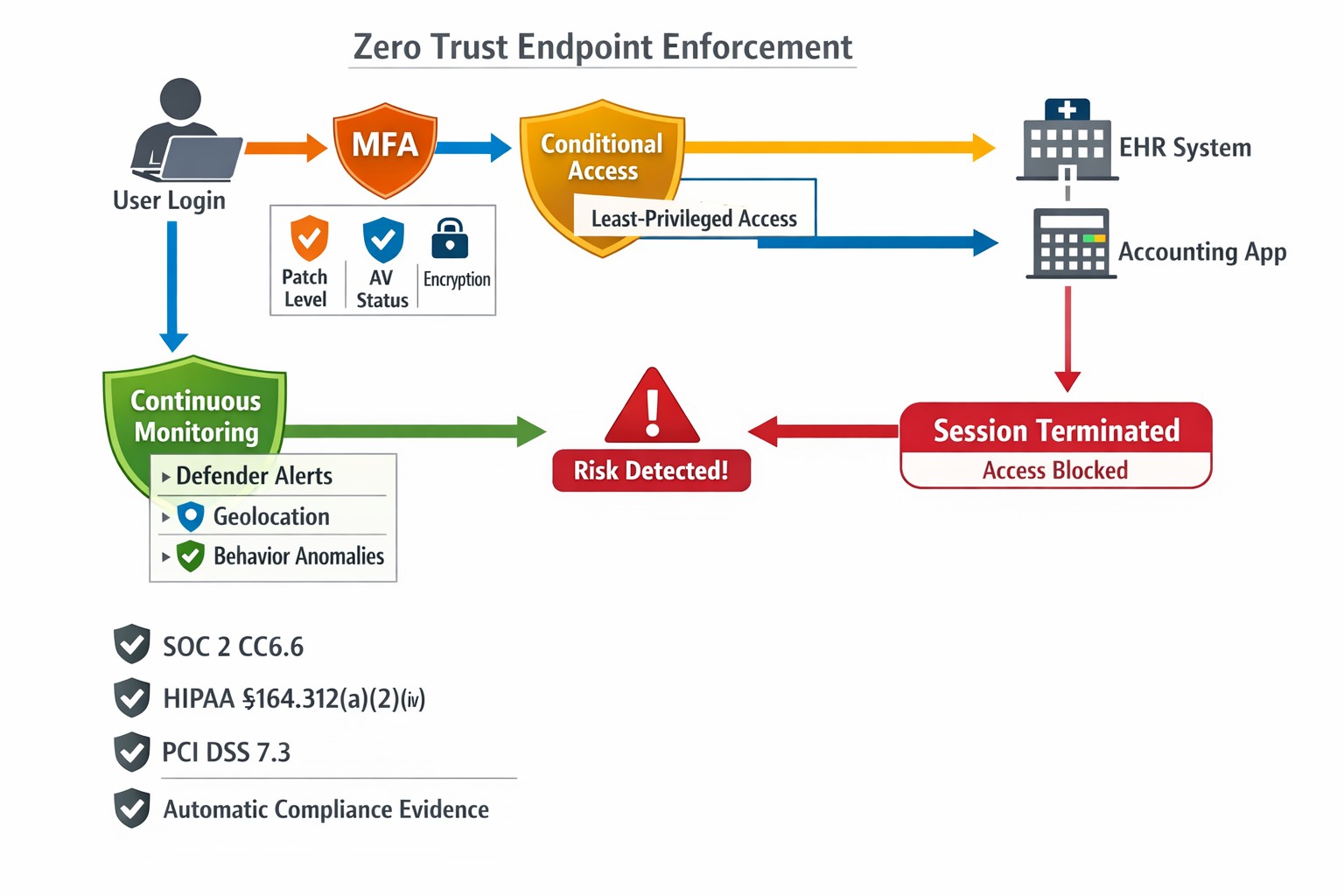
This is the sixth in a series about the concept of Zero Trust, which means in the IT sense that you trust nothing and always verify everything surrounding and connected to your network. Today’s discussion will be on endpoint security.
Endpoint Security
Endpoint security is a fancy term used to describe how the computers on the network are protected. This used to be done by antivirus but due to the complexity of the attacks hackers are using to compromise networks these days, the definition has expanded greatly. This now includes things like Enhanced Detection & Response software, Security Operations Centers, DNS Filtering, employee train and more. Here are some questions that you should be asking yourself:
Are your endpoints protected by antivirus or enhanced detection & response?
Is website traffic being monitored? Restricted?
Are your employees being trained in cyber security?
Are computer logs being monitored for malicious activity?
Would unusual or suspicious activity on a computer be noticed? Alerted on?
Do you have security permissions set on all file shares?
Do you have least privileged access configured on those shares?
Do you keep track of what software is installed on all workstations?
Do you block access to unauthorized software?
Are files encrypted on servers and workstations?
Are your mobile devices managed? Can you wipe them remotely?
Are USB ports blocking removeable storage devices?
Are endpoints set to automatically log-out?
If your company is going to use full disk encryption or has compliance requirements that you need consulting for, then contact us for assistance.
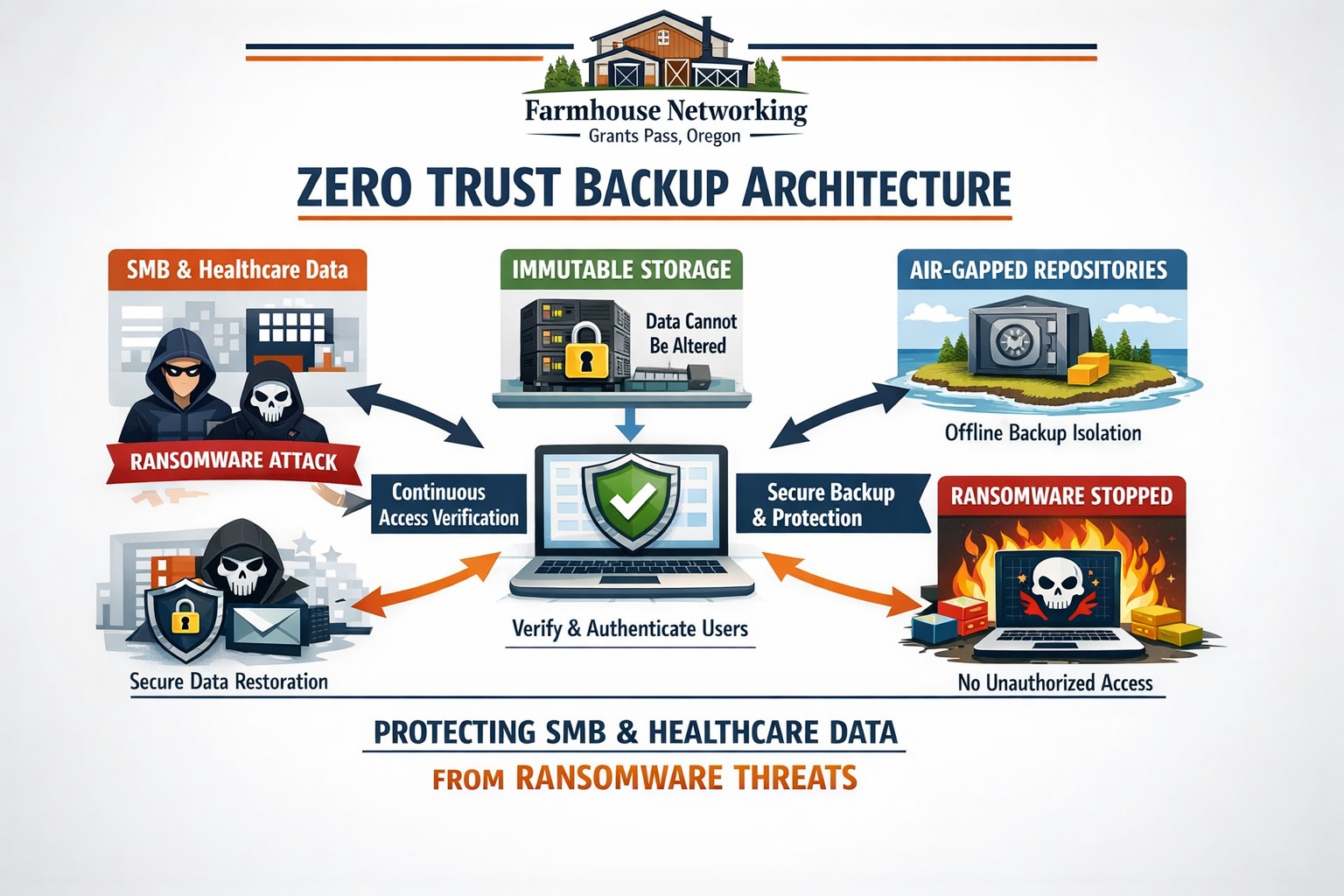
Farmhouse Networking secures Oregon business backups with zero trust immutability preventing ransomware encryption and deletion.
This is the third in a series about the concept of Zero Trust, which means in the IT sense that you trust nothing and always verify everything surrounding and connected to your network. Today’s discussion will be on the backup of important data.
Backup
Backup is a way of creating multiple copies of your important data and the systems that house them. This has become a necessity thanks to acts of God (unforeseen physical disasters), acts of employees (accidental or purposeful destruction of data), and acts of malicious hackers (ransomware or malware). Here are some questions that you should be asking yourself:
What data or systems are being backed up?
How often are these backups being performed?
Are your backups protected from natural disasters (offsite and redundant)?
How long are backups being stored?
Once expired are they securely removed?
What is the process for recovering files, emails, workstations, servers, applications, databases?
Have you tested your recovery process lately?
Do you know how long it will take to recover?
How will business continue until systems are restored?
How will you merge new information into recovered data once restored?
How often do you test your recovery process?
Is the recovery test process automated?
Take time to think about these questions and decide where changes can be made to better protect your IT investments, or contact us to do the thinking for you.
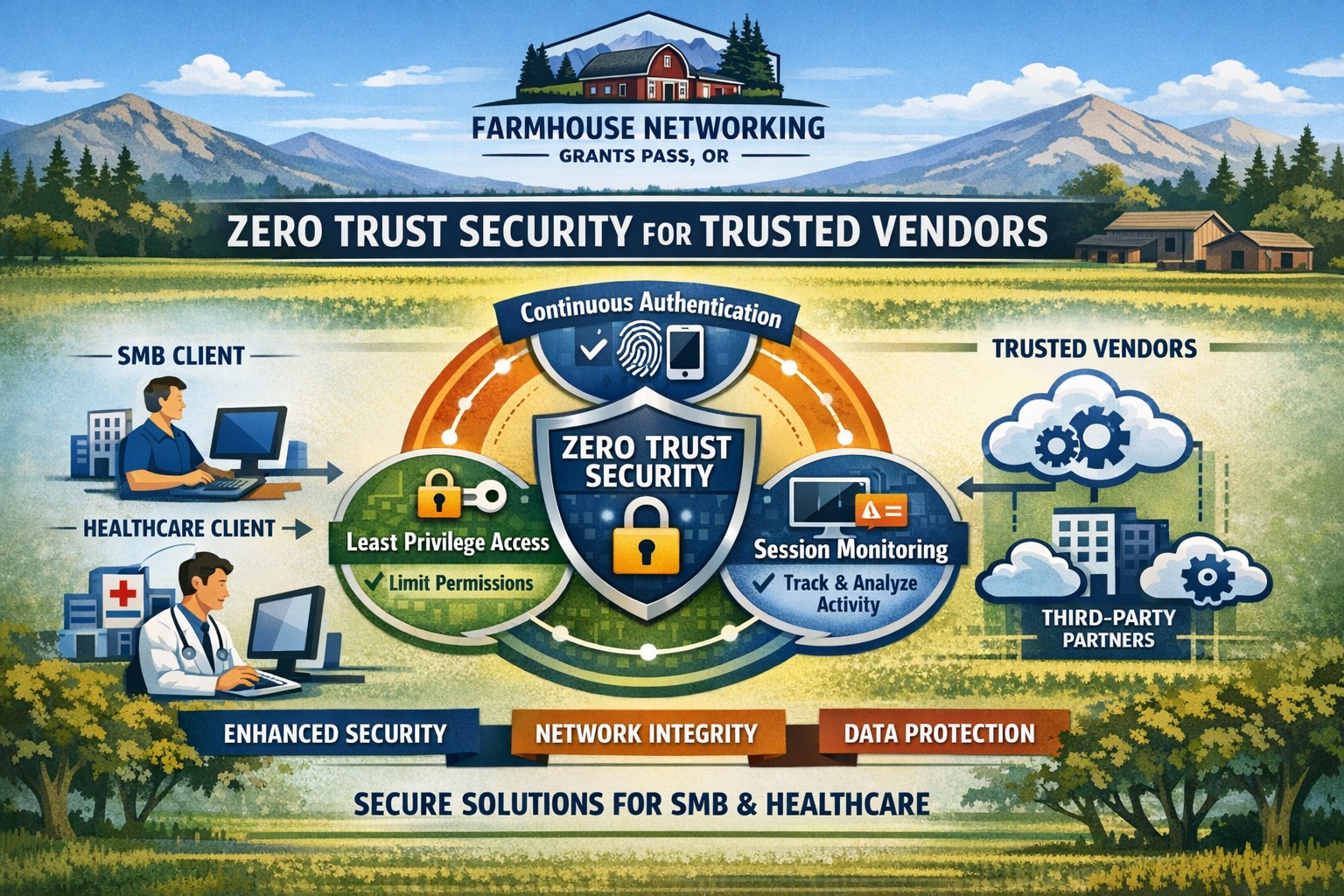
Farmhouse Networking secures vendor access with zero trust verification for Grants Pass businesses, protecting against supply chain threats.
This is the second in a series about the concept of Zero Trust, which means in the IT sense that you trust nothing and always verify everything surrounding and connected to your network. Today’s discussion will be on the vendors you purchase network equipment from.
Trusted Vendors
Trusted vendors are those who supply workstations, servers, routers, switches, power protection, software, and anything else connected to your network. Here are some questions that you should be asking yourself:
Do you know who makes your network equipment, servers, computers, and software?
Do you know the way to contact their support and have current account access information?
Do you have current warranties / support contracts on hardware and software?
Is the hardware able to perform at the level needed?
Are you purchasing software from those who meets industry standards?
If a subscription, how much are you paying and are you on the correct plan for your needs?
When is the last time you upgraded your software and hardware?
Have you budgeted for the next upgrade?
Take time to think about these questions and decide where changes can be made to better protect your IT investments, or contact us to do the thinking for you.
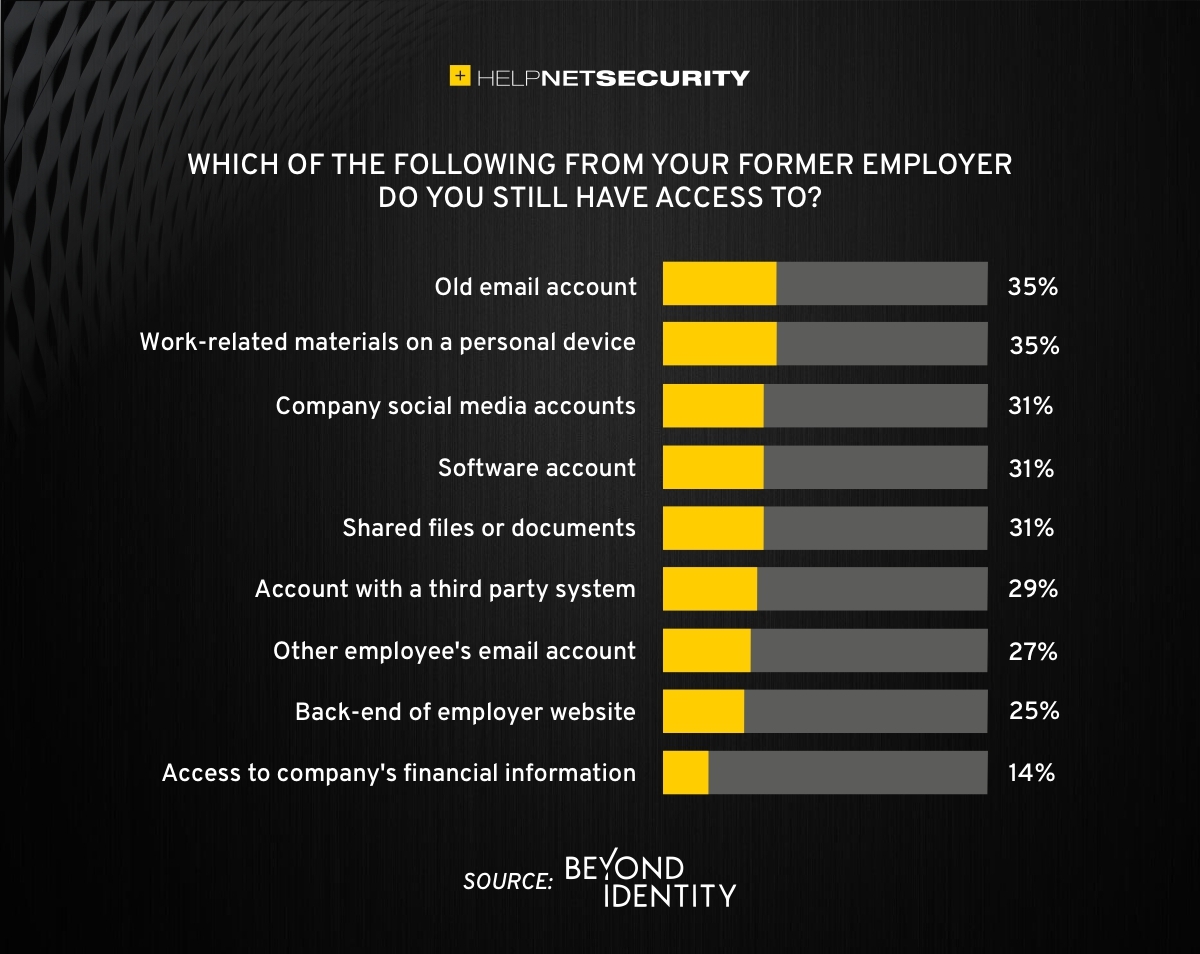
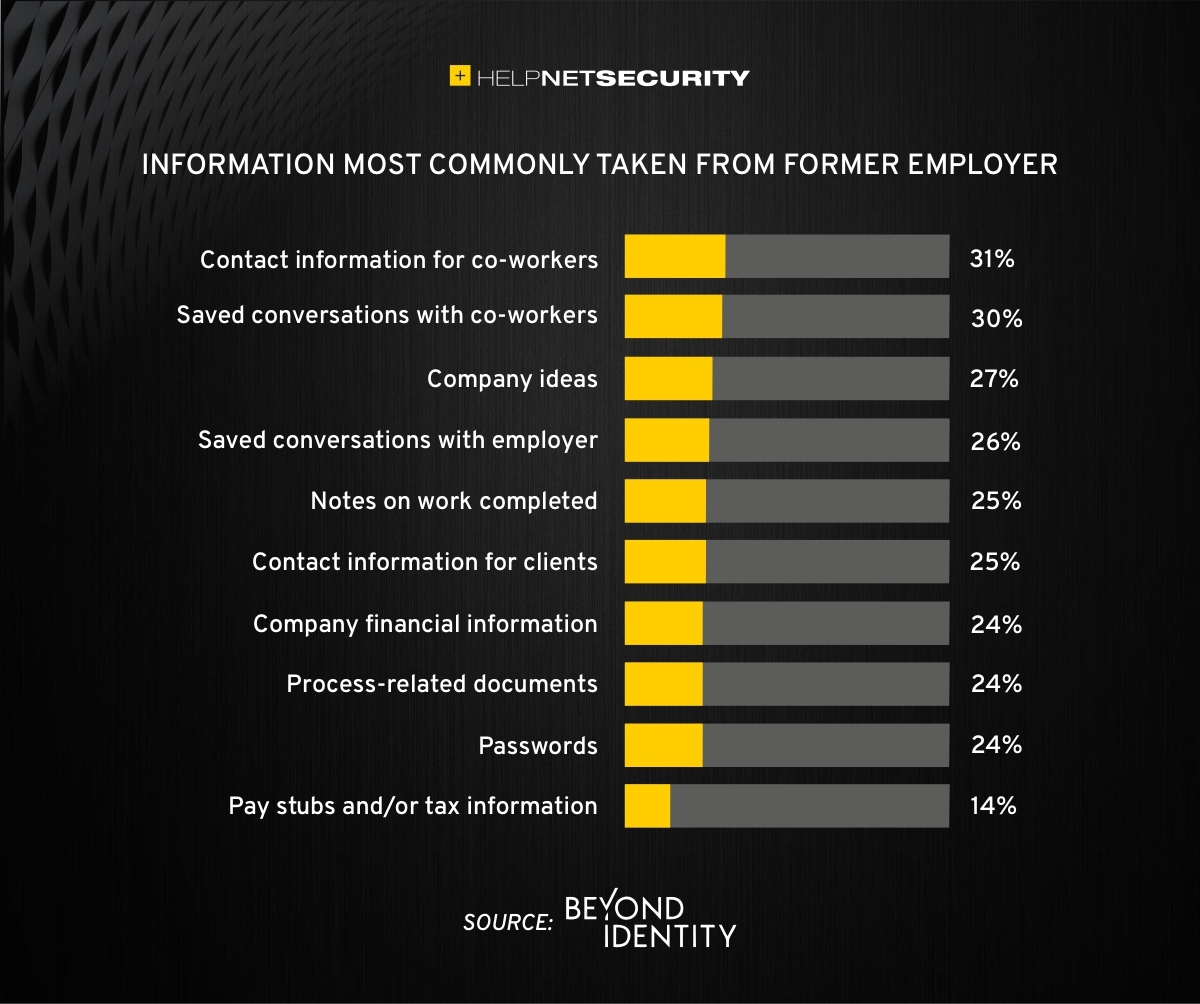
83% of employees continue accessing old employer’s accounts
Farmhouse Networking Grants Pass implements robust employee offboarding to revoke access and secure networks for Oregon businesses.
A study was performed by Beyond Identity throughout the US, UK, and Ireland which found that 83% of employees admitted to maintaining continued access to accounts from a previous employer. Also a shocking 56% admitted to using this access to harm their former employer.
The study also states that a professional and details offboarding process can prevent unauthorized access by former employees by eliminating their passwords and other insecure authentication methods. Strangely enough this also creates a sense of goodwill in the company that helps to lessen the motivation for employees to attempt this kind of malicious access. This kind of process is vital considering the current employment market and high turn over rates at almost all companies.
If your company does not have a detailed and documented offboarding process, thencontact usfor assistance.
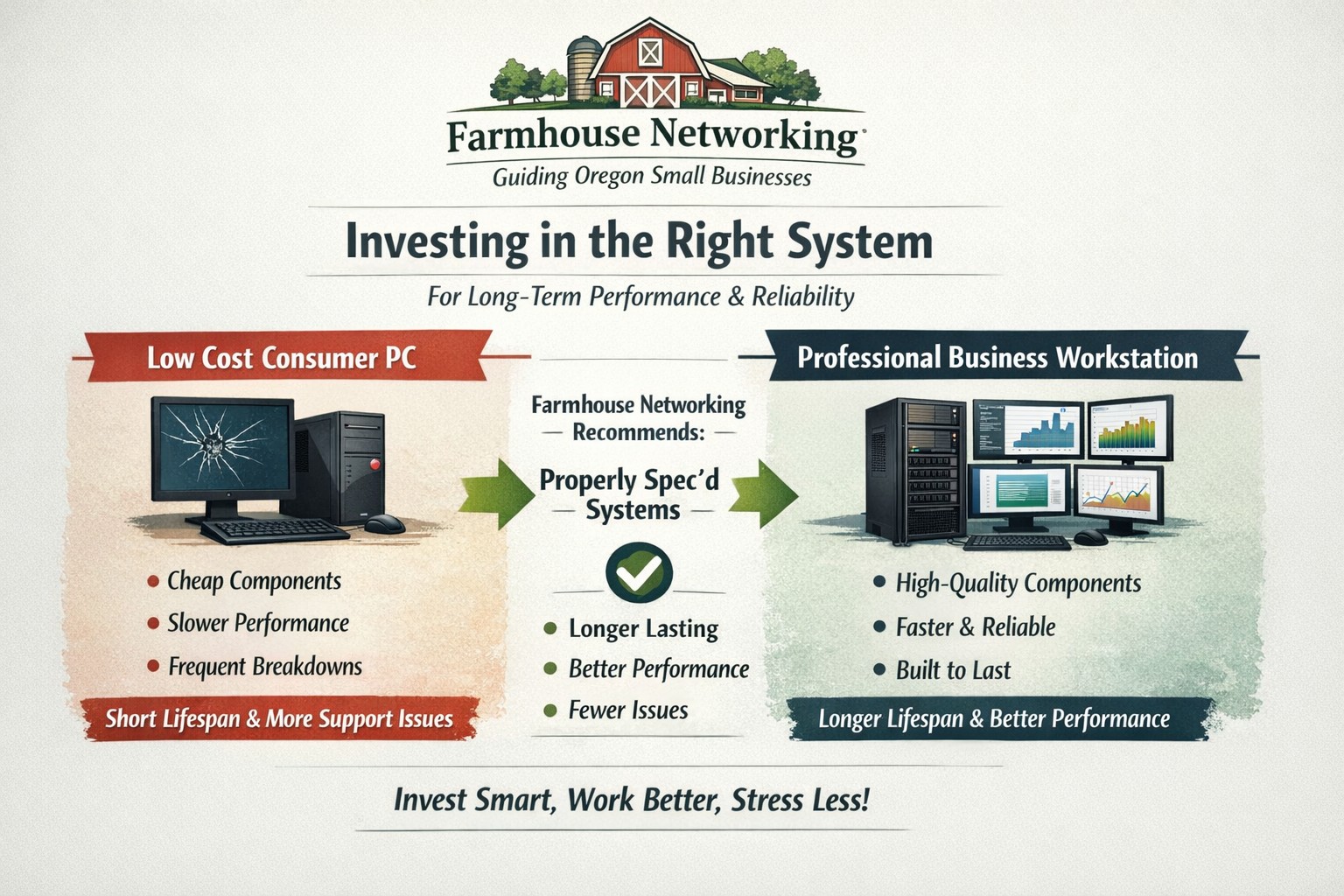
Farmhouse Networking helps small businesses choose new computers where price reflects long term reliability, performance, and lower total cost of ownership.
Based on some recent experiences and plenty of past experiences, we thought it would be good to help customers make good choices when shopping for new computers. The easiest and best way is to trust us to do the research and know your company’s computing needs enough to provide you with the best computer for the best price. However there are some that like the thrill of the hunt and want to find the best “deal” themselves. They try to save money via sales that we honestly cannot compete with on price. This newsletter is meant to help guide them to the best options for solid performance and longevity in their investment.
Shopping Guide
Big Box Stores (Staples, Walmart, Costco, Best Buy, etc.): Seeing the local adds, these retailers are often at the top of the list for many people when shopping for a computer. They offer the convenience of being able to physically touch the computer being purchased and not having to wait for the computer to be shipped from some other part of the country. The downside is that these retailers are selling a commodity product for the smallest cost possible to maximize their profits. This means they are willing to have computers made from the least expensive parts and lowest build quality. They also find ways of scrimping on important features and masking this deficiency with flashy claims on features or partnerships with celebrity endorsements. Don’t be fooled these are disposable computers that will not stand up to the demands of a business environment.
Online Discount Sellers (eBay, Amazon, Google. Overstock, etc.): Bargain hunters are getting savvier with online tools and searches for the products they want. This type of “retailer” works much like the big box store, but you have to trust the pictures you see online and wait for the product to arrive from across the country or globe. These online stores are often just marketplaces where smaller retailers post their products to gain greater visibility then they could on their own. They are also notorious for selling what appear to be quality computers that have been “refurbished” in-house. These refurbished computers are usually years old and are a Frankenstein monster of spare used parts from their shop. Much like buying a car from a used car lot, you get all the troubles of someone else’s computer with all the reliability of a computer that is past its prime held together with old parts.
What to look for in a new computer
Business Class: This is important because manufactures who have this distinction on their products take the time to make a quality computer with mid-range parts. These computers will have all the needed features and typically last much longer then the disposable computers from other stores. If you go directly to the manufacturers website, they will typically have a section labeled Business that you can look through the models they have given this distinction.
Processors: This is the capacity of the computer to crunch through data. There are two main companies that make these chips, Intel and AMD. Intel is what I recommend for the majority of business users (except for those who only do light office work). They currently are using a system of Generations and i-series distinctions. The Generations help determine the age of the processor with the latest being 12th-generation processors, so if you are looking at a computer with a 9th-generation processor it is likely 3 years old out of the box. The i-series consists of i3, i5, i7, and i9 which is a measure of the raw computing power that the processor contains. Our recommendation for businesses are i5 for general office work and i7 if you are a power user who does many things at once.
Memory: This is the short-term memory capacity of the computer, so the more you have the more you can accomplish at once. These chips also have designations of DDR technology and PC-speed rating. The DDR technology has slowly changed over time and they are now shipping DDR5 chips for top of the line gaming computers, but for typical office computers the DDR4 technology will be the best performance per dollar. As for the PC-speed rating, it will somewhat match the DDR number with the latest in the PC5-38400 range, but again the PC4 with the highest number possible next to it will be sufficient. General office work can be accomplished with 8GB of RAM, but 16GB is becoming the new norm. Those who want more performance will need to go to 32GB or higher.
Hard Drive: This is the long-term memory storage of the computer. There have been massive improvements in technology on these in the past few years and performance has jumped substantially. This is one of the ways that big box stores save money the most, they sell an old fashioned hard drive in a new computer and performance suffers greatly. The newest technology is called NVMe and any new computer should contain this kind of hard drive to see the best performance. If cost is prohibitive, then at least get the previous technology of an SSD installed in the computer.
Everything Else: The rest is mostly personal taste. If you want wireless, then get one with wireless in it with the latest being WiFi6 and some include Bluetooth connections too. If you want a large screen, touchscreen, fingerprint scanner, lightweight, certain specific ports for your devices, or whatever other features – these will be the finishing touches that help shape your final choice.
If your company is going to looking to buys new computer, then contact us to save yourself the time and money of getting a computer or worse the wrong computer.
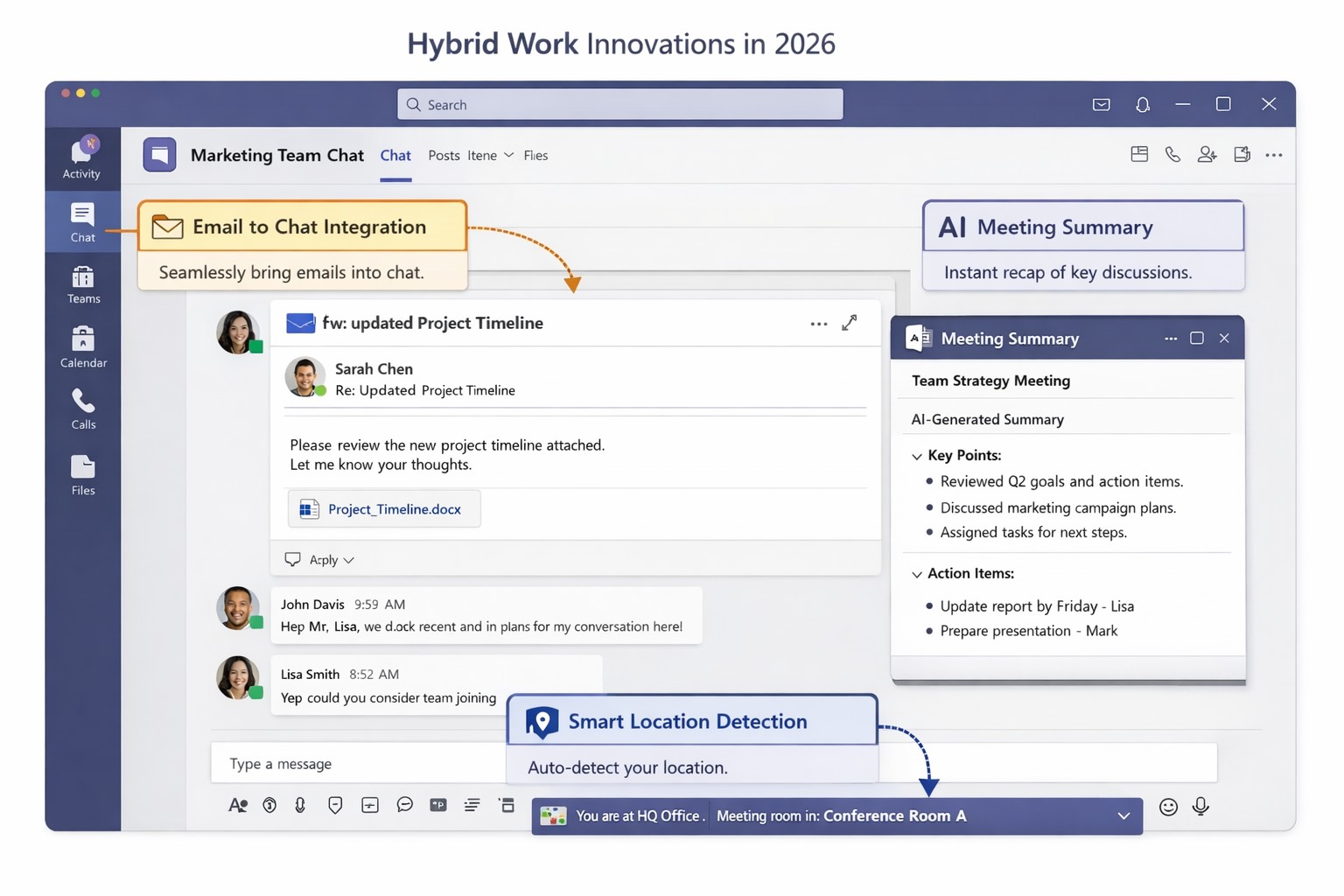
Key Microsoft Teams innovations designed for hybrid work environments, including AI-powered tools and seamless integrations
You’re likely grappling with fragmented communication, productivity dips, and tool silos that hinder growth. Microsoft Teams’ latest 2026 innovations—AI summaries, email-to-chat integration, and smart location detection—bridge these gaps, creating a unified hub for internal and external collaboration.
Key Innovations for Hybrid Efficiency
Teams now supports email-to-chat, allowing seamless communication with vendors and clients who use email instead of Teams, solving tool fragmentation in hybrid setups. AI-powered summaries condense mixed internal-external threads, ensuring alignment without full attendance, while granular guest access and compliance alerts enhance security.
Smart location detection auto-updates work status via office Wi-Fi, helping managers track hybrid presence accurately—crucial as Microsoft mandates three in-office days for its own teams starting 2026. These features integrate with Microsoft 365 for immersive tools like Loop and SharePoint, boosting workflow automation.
Practical Action Steps
Implement these steps with your IT department to leverage Teams for hybrid work:
Audit Current Setup: Review Teams usage via admin center analytics; identify silos (e.g., email-heavy vendor chats). Upgrade to latest Microsoft 365 E3/E5 licenses for full AI features—takes 1-2 hours.
Enable Core Features: In Teams admin center, activate email-to-chat policies and AI summaries under Meetings > Policies. Test Wi-Fi location detection on 10 pilot devices; configure granular guest roles for externals.
Train and Roll Out: Run company-wide training sessions (use built-in Teams training modules). Set governance rules for external access; monitor via compliance alerts. Aim for 80% adoption in 4 weeks.
Integrate and Optimize: Link with Outlook/Loop for unified hubs; use Together Mode for inclusive hybrid meetings. Quarterly reviews ensure ROI through productivity metrics.
These steps minimize disruption while maximizing hybrid productivity.
FAQ: Client Inquiries Answered
Q: How does email-to-chat benefit my business? A: It unifies communication—vendors email directly into Teams chats, streamlining hybrid coordination without new accounts.
Q: Is smart location tracking secure and privacy-compliant? A: Admins control it (default off); it uses Wi-Fi BSSIDs without GPS, with compliance notifications for breaches.
Q: Will these features work for small teams? A: Yes, scalable for SMBs; no extra hardware needed beyond standard devices.
Q: What’s the ROI timeline? A: Businesses report 20-30% collaboration gains in 1-3 months via reduced meeting times and faster decisions.
How Farmhouse Networking Helps
Farmhouse Networking specializes in Microsoft 365 optimizations for accounting, healthcare, and charity sectors. We handle full Teams deployments: custom audits, feature rollouts, compliance setups, and training tailored to B2B hybrid needs. Our SEO-driven websites and lead-gen strategies have boosted organic traffic 40%+ for clients, converting visitors to long-term partners. Let us manage IT complexities so you focus on growth.
And God will generously provide all you need. Then you will always have everything you need and plenty left over to share with others. As the Scriptures say, “They share freely and give generously to the poor. Their good deeds will be remembered forever.” For God is the one who provides seed for the farmer and then bread to eat. In the same way, he will provide and increase your resources and then produce a great harvest of generosity in you. - 2 Corinthians 9:8-10
We use cookies to ensure that we give you the best experience on our website. If you continue to use this site we will assume that you are happy with it.