You are a critical part of our business. Our Managed Service Providers have asked us to write you to explain why our Webroot SecureAnywhere Business Endpoint Protection experienced performance issues, and what we are doing to resolve those
issues as quickly as possible.
Yesterday, Webroot released a rule that categorized some legitimate files as malware. As a result, multiple legitimate business applications were quarantined and unable to function. This rule change was in effect for 13 minutes on Monday, April 24. To be clear, this rule change was caused by Webroot and not your Managed Service Provider.
Webroot is continuing to work diligently with our partners to restore functionality for our mutual customers. While the false positives that caused the incident have been stopped, we are still working on an automated fix to reverse the files affected. Any
resolution will be released immediately.
Webroot is a trusted partner of many Managed Services Providers and this incident is not representative of our high standards. We always strive to be open and transparent, and we are working tirelessly to fix the issue. Once Webroot has identified the root cause, we will ensure further controls are in place to prevent an
incident like this from happening again.
We apologize for the pain this has caused you. Webroot appreciates your business, and our entire team is dedicated to being your most trusted Partner.
Thank you for your patience as we work through this incident.
The SANS Institute has been putting out the OUCH! newsletter for some time now in a project called Securing the Human. In the most recent Issue, they discuss some best practices and practical advice for traveling. Here are some highlights:
Minimize Possible Losses
Here are a few tips to protect information from the hazards of traveling and possible theft:
Remove any data that is not needed on the device
Use full disk encryption & strong passwords
Perform a complete backup before leaving
Install tracking software on the device
Update OSes and Antivirus
Lost/Stolen Devices
Although crime is more of a factor in some third world nations or those in active conflict, the human element of losing the device is 100x more likely. Keep inventory of your devices before, during and after transporting from one location to another. Do not leave your device in the hotel room, have the hotel front desk put it in their safe or locked administrative offices.
Public WiFi
If you have to connect to the internet in public spaces and/or cannot afford mobile data on your trip, then make sure to do the following:
Never use public computers for sensitive information, especially banking sites
When on public wifi, only surf to sites with HTTPS:// secure connections
Consider connecting to a VPN service to further encrypt communications
If your company is requires traveling or you are planning to remotely work while on vacation, then contact us for assistance. We would be happy to walk you through the full disk encryption process, update / secure your devices and configure a company VPN service to connect to on the go.
Recently had a financial planning firm contact me with their new compliance regulations which included full disk encryption on all workstations that accessed client data and on all thumb drives used. This led me on a search to find the best solution for their systems which boiled down to essentially two solutions – Bitlocker or TrueCrypt / VeraCrypt.
Full Disk Encryption w/ Bitlocker
This feature is built into the professional versions of Windows OS from version 7 and beyond. It is simple to use and can be implemented from the Properties on local drives. It works with the modern GUID partition table (GPT) and Unified Extensible Firmware Interface (UEFI) as well as the older MBR / BIOS model. It works best with a Trusted Platform Module chip but can also be setup to use an external USB device as the encryption key repository. There is also a “Bitlocker To Go” setup for thumb drives that will work easily on other Windows based devices.
Full Disk Encryption w/ TrueCrypt
TrueCrypt, and the more recent “fork” of the software VeraCrypt, are based on the same open source code and are compatible with all recent versions of Windows OS. These software packages are not for the faint of heart as they require following detailed instructions on their usage through a multi-stage process to perform the drive encryption. My testing has revealed that they do not work well with modern GPT or UEFI and instead the Master Boot Record (MBR) and Basic Input/Output System (BIOS) systems would have to have been implemented from the initial setup of the workstation to function properly. There is currently no support for TPM, so remember your password or else say goodbye to your data. There is the ability to create a portable drive via these software packages, but the process is not something an end-user could easily do themselves.
Based on the limitations of TrueCrypt and the steep learning curve. It will be my recommendation to use the more simple and up-to-date Bitlocker technology to protect their firm – even if the encryption algorithms available in the other software provide deeper security. If your company is going to use full disk encryption or has compliance requirements that you need consulting for, then contact us for assistance.
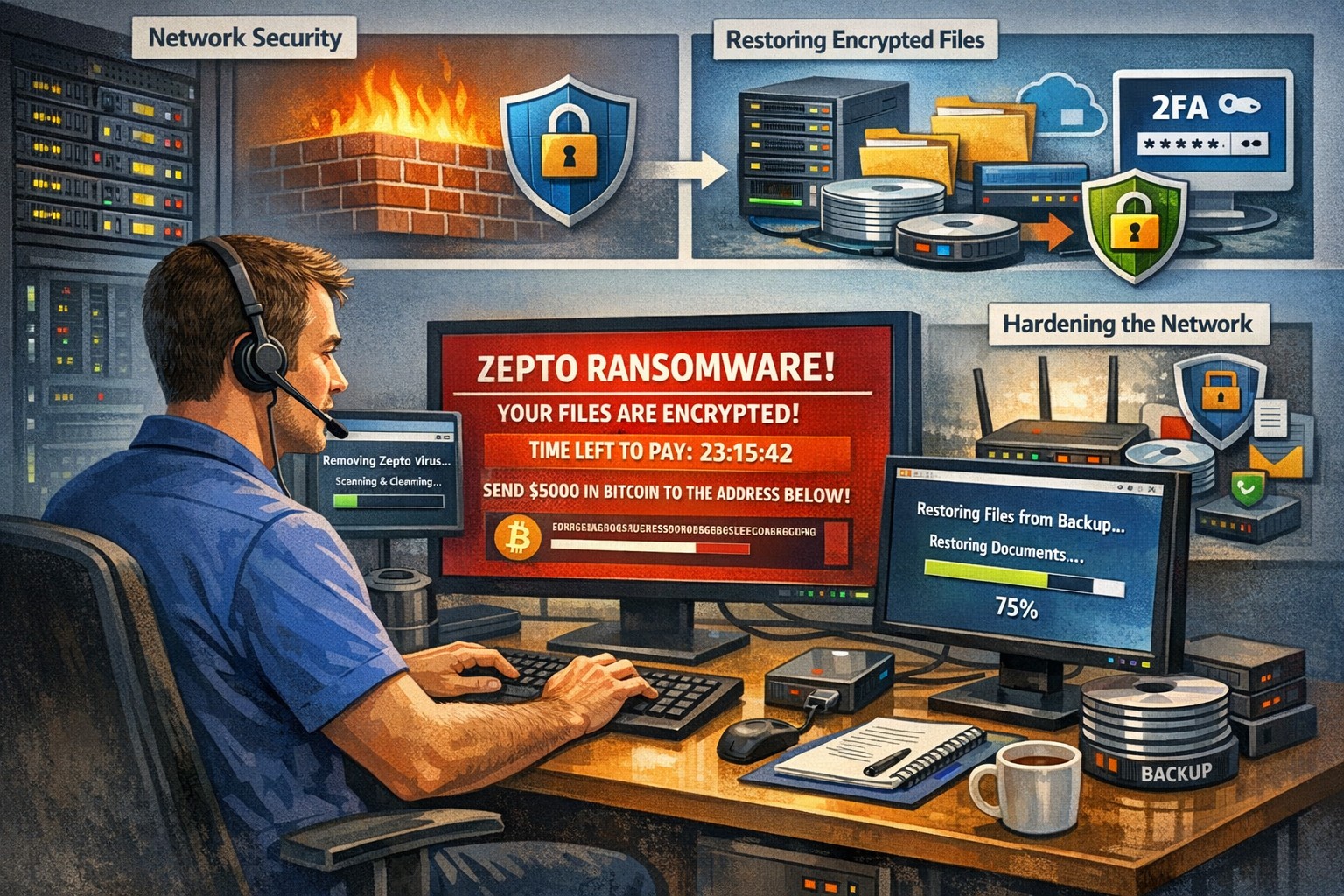
Recently had a client get infected by the Zepto variant of crypto malware without even knowing it. The call originated when they could not find some of the shortcuts they were used to seeing on the desktop. I began to search for the shortcuts and found some files with the .ZEPTO extension on them. A quick Google search found that this was indeed an infection of crypto malware but something was different about this one – there was no ransom note or instructions on where to send the money for the decryption key. After investigating the problem it seems that the user got an image file that they could not open and forgot about. They noticed some slow down of the computer the day that these files indicated that they were created but nothing else presented itself that day, so they dismissed it.
So here is breakdown of what actually happened. They were protected by Norton Antivirus and when the infection began to spread across the network (only a couple files were affected there) it removed the infection and left the damage done by Zepto encryption of some of the files in place with no notice to the user about what was done. The customer had a partial backup from a poorly designed backup scheme that was able to recover some of the files, which left them in a state of not knowing what was missing from their local file directories. Needless to say that I will be recommending a different antivirus and backup / recovery plan for them going forward.
If your company is not sure about whether your antivirus software is capable of handling this type of situation properly or are not sure about the status of your backup / recovery procedures, then contact us for assistance.
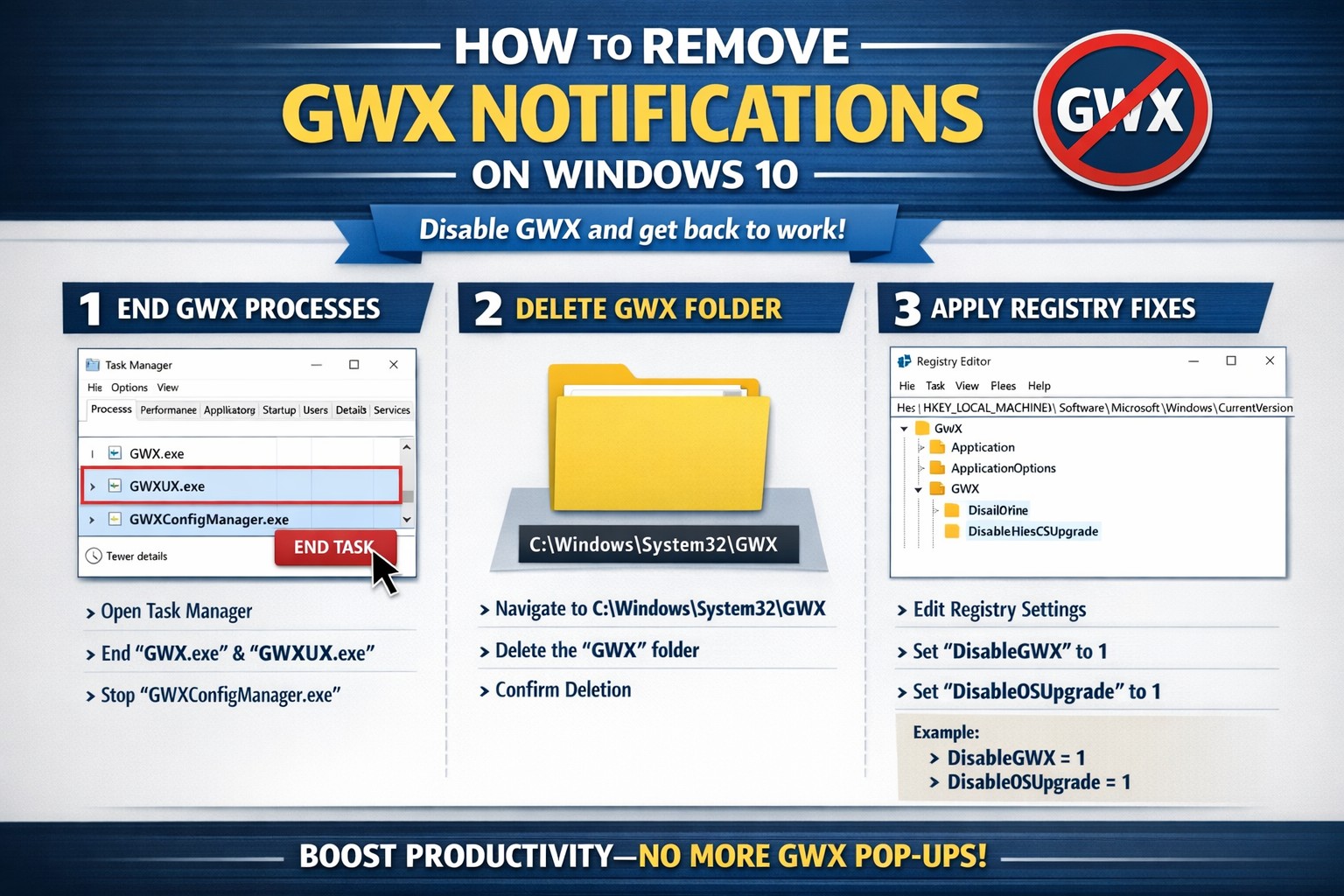
Many have by now experienced the annoyance of the Get Windows 10 (GWX) notification icon down by the clock and the subsequent pop-ups asking to install this update. There have also been reports that the update for some has automatically started and without user intervention the update will install itself. I have found two tools that will help to remove the notification, its related files and block the update from happening automatically.
GRC – Never10
Never10 is a great little tool made by Steve Gibson to both disable the update but also remove the files. This is done in two easy clicks of the “Disable Win10 Upgrade” button and “Remove Win10 Files” buttons on the main program screen.
Ultimate Outsider – GWX Control Panel
GWX Control Panel is more in-depth tool that allows removal of every trace of the Get Windows 10 update. There are several buttons that will need to be pressed here to complete the removal process, so for you techie people this is the way to go.
If your company is having issues with the Get Windows 10 update or would like to proceed with a deployment of Windows 10 to your network, then contact us for assistance.
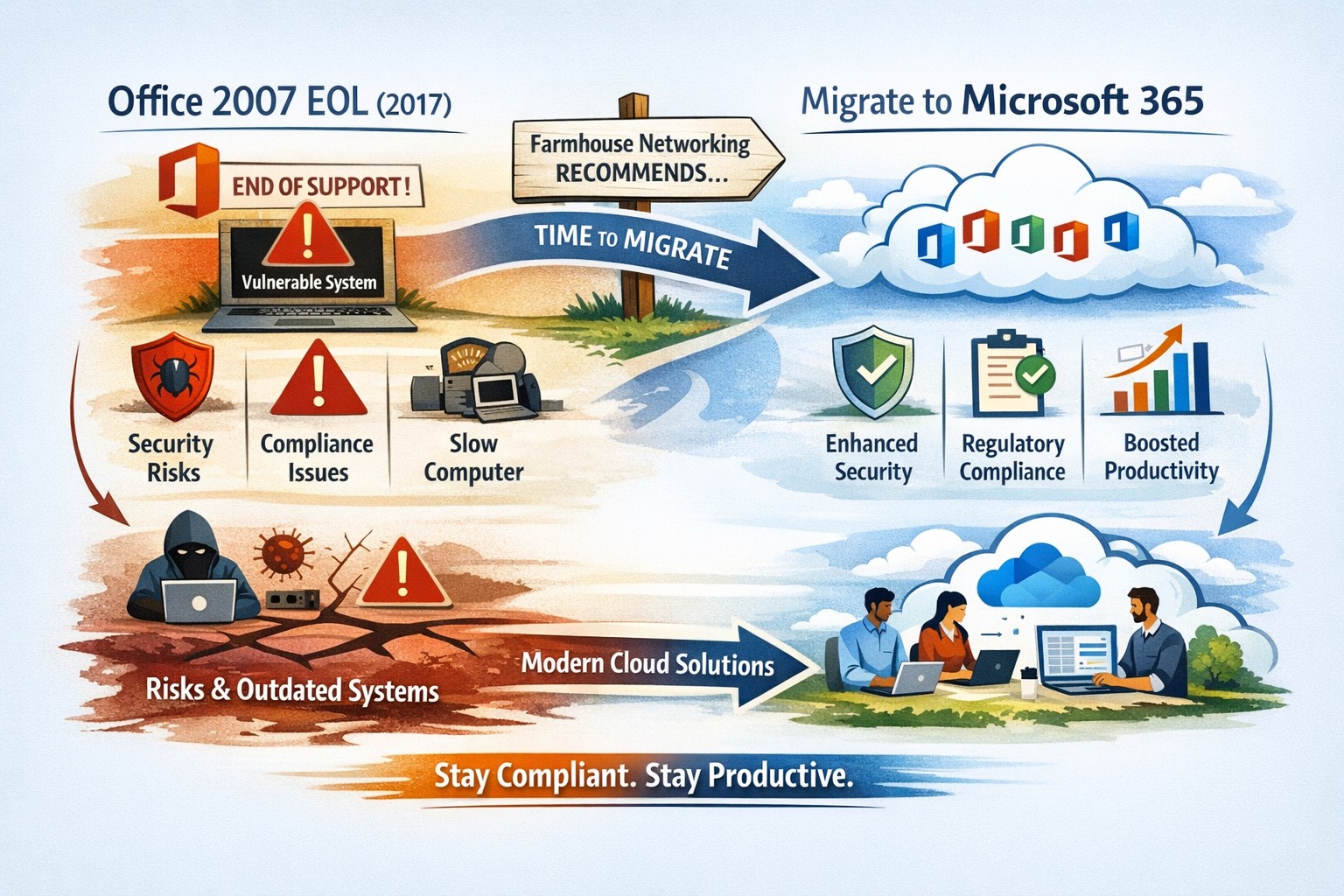
All good things must come to an end and all software will one day reach End-of-Life (EOL). Microsoft Office 2007 EOL is coming in October 2017 as per the Microsoft Support Lifecycle Site. This will mean that all patching and extended support for the product will end and anything new that goes wrong with the product is ignored by Microsoft. This allows malicious hackers to use these flaws to easily infect systems, encrypt data, exfiltrate data or basically have their way with your systems. Now is the time to consider updating your systems to Office 365 which includes the opportunity to use their fabulous new Exchange Online service along with many other useful cloud based services.
Had a client with a simple peer-to-peer network of three machines that was using Quickbooks for their accounting and customer database. Their main bookkeeper’s workstation was the “file server” for their network with the rest as “client” workstations on their network. This allowed the secretary to access the customer data while scanning in contracts. Regularly these computers would become disconnected and their secretary was unable to connect properly. It would give a Quickbooks H202 error when trying to open across the network. This was causing multiple files to be created and their bookkeeper was often contacted to “fix” the problem. When I got an opportunity to work on their network there were several issues that needed addressing to properly fix the issue:
In a peer-to-peer environment, hosting should only be enabled on the hosting computer (file server).
On each workstation (not the file server), open QuickBooks and choose File Utilities.
If you see Host Multi-User Access on the list, this computer is not hosting the company file and you can go to the next computer. Note: Don’t change anything if you see Host Multi User Access at your workstation.
If you see Stop Hosting Multi-User Access, select that option.
Click Yes to confirm. In the Company File Must Be Closed window, click Yes.
Repeat steps 1-4 on each computer.
Verify QuickBooks Services
When working with QuickBooks in a multi-user mode, QuickBooks services need to be running on the file server computer.
Make sure the QuickBooksDBXX (XX represents the year of QuickBooks) and QBCFMonitorService services are started.
Click the WindowsStart button.
Press the Windows key + R to bring up the run box.
Type services.msc and press Enter.
In the services window, scroll down and look for the QuickBooksDBXX service. Note: XX represents the year of QuickBooks you are troubleshooting.
If you do not see the QuickBooksDBXX service, open QuickBooks, go to File– Utilities– and make sure hosting is enabled (it should say Stop Hosting Multi User access. If it says Host Multi User mode, click it to enable hosting on the server)
Double-click the QuickBooksDBXX service and make sure the Startup Type is set to Automatic and service status is Started.
Click the Recovery tab.
Click the drop-down menu for First failure and select Restart the Service. This will automatically restart the QuickBooksDB service if it fails. Do the same for Second failure and Subsequent failures:
Click OK to save the changes.
Repeat steps 1-6 above for the QBCFMonitorService.
Open QuickBooks in multi-user mode on each affected workstation. If the issue persists, try to make sure the QuickBooksDBXX service is a member of the administrator group and has the appropriate permissions.
Open the Network Ports QuickBooks Uses to Transmit Data
Perform the following on each computer:
Access Windows Firewall Settings
For Windows 8
Hover the mouse in the upper or lower right-hand corners and select Settings
Click on Control Panel and choose Windows Firewall
On the left, click on Advanced Settings
For Windows Vista/Windows 7/Windows Server 2008
Click the Start menu and enter firewall.
Click on Windows Firewall with Advanced Security.
On the left, right-click on Outbound Rules, and choose New Rule
Note (Windows Vista/Windows 7/Windows Server 2008): It’s a little tricky, you have to left-click Outbound Rules first to highlight it, then right-click on it.
Choose Ports and click Next.
Select TCP and in the specific local ports box, enter in the following ports:
QuickBooks 2016: 8019, 56726, 55368-55372
QuickBooks 2015: 8019, 56725, 55363-55367
QuickBooks 2014: 8019, 56724, 55358-55362
QuickBooks 2013: 8019, 56723, 55353-55357
Click Next and select Allow the Connection.
Click Next to enter a name in the name field (for example, “QuickBooks ports” ) and click Finish.
Repeat steps 1-5 for the Inbound Rules.
Open QuickBooks in multi-user mode.
If you have a third party antivirus/firewall program, you may need to configure any other firewall or antivirus software.
Note: For a temporary solution, you may disable the anti-virus/firewall program to identify it as a problem and make sure to re-enable it when you’re done with the test. If the error persists, continue to step 3 (Ping the Server Computer).
Once these three items are configured properly on each of the network workstations then there should be no problems with connectivity or get any further Quickbooks H202 errors – that is of course as long as the “file server” workstation is not turned off or allowed to go to sleep. Also the file cannot be switched to single user mode on any computer unless it is then set back to multi-user mode once advanced configuration is done. If your company is using Quickbooks for your accounting or customer database and need help getting the network connected to the file, then contact us for assistance.
Modern businesses are transitioning from break-fix computer repair to proactive IT management for stability, security, and growth.
You’re not imagining it: the computer repair industry is changing fast—but it’s not dying. It’s splitting. Traditional “fix my broken PC” walk-in work is declining, while managed IT services, cybersecurity, cloud support, and strategic consulting are growing.
Below is a concise, SEO-optimized guide to help you decide how to adapt.
Is the Computer Repair Industry Growing or Declining?
For break-fix computer repair (one-off repairs, virus removal, hardware swaps), demand is largely declining:
Hardware is cheaper and more disposable, especially laptops and consumer desktops.
Cloud and SaaS reduce local software issues.
Remote work and remote management tools mean many problems never reach a local shop.
However, the broader “computer support and IT services” industry is growing:
Global managed services market is projected to grow in the high single to low double digits annually over the next few years, driven by cybersecurity, cloud, and remote monitoring.
Cybersecurity demand continues to rise as attacks target small and mid-sized businesses, healthcare, and financial firms.
Compliance and data protection requirements are pushing organizations to formalize IT management rather than rely on ad-hoc repair.
In practice: the industry isn’t disappearing—it’s shifting from repair to proactive, managed, and strategic IT.
What This Means for Your Business
If your organization still thinks of IT as “call someone when the computer breaks,” you are operating in the declining part of the market.
To stay competitive, you and your IT team must:
Move from break-fix to proactive maintenance and monitoring.
Treat IT as a business function, not a cost center or emergency service.
Build resilience: backups, security, and business continuity.
This shift directly affects how you work with outside providers and how your internal IT department is structured.
Practical Action Steps for Owners and IT Departments
Here’s a focused roadmap to move from “computer repair” thinking to “managed IT” thinking.
Audit your current IT and risk exposure
List all critical systems: servers, workstations, line-of-business apps, cloud services.
Identify single points of failure (one server, one person, one outdated backup).
Review your last 12–24 months of issues: downtime, security problems, lost data, slow performance.
Quantify the business impact
Estimate the cost per hour of downtime: lost revenue, staff idle time, reputational damage.
Compare that cost against what you currently spend on one-off repairs or underpowered internal IT.
Use this data to justify a more robust, proactive IT model.
Implement proactive monitoring and maintenance
Deploy remote monitoring and management (RMM) tools across all endpoints.
Standardize patching schedules, antivirus/EDR, and firmware updates.
Establish regular health reports to leadership so you see trends before they become crises.
Upgrade your security posture
Enforce multi-factor authentication (MFA) on all critical systems and email.
Implement managed endpoint protection, email filtering, and DNS filtering.
Create and test an incident response plan so you know exactly what to do when—not if—an attack occurs.
Strengthen backup and disaster recovery
Move from “we think we have backups” to verified, automated, versioned backups.
Follow the 3-2-1 rule: 3 copies of data, on 2 different media, 1 offsite.
Test restore procedures quarterly and document recovery time objectives (RTOs).
Redefine your relationship with IT providers
Replace hourly, ticket-based “repair” work with a managed services agreement with clear SLAs.
Hold regular IT business reviews: security posture, risks, and upcoming technology needs.
Communicate the shift to your staff
Explain that IT is now about prevention, security, and productivity—not just repairs.
Train employees on security basics: phishing, password hygiene, remote work best practices.
Encourage staff to report issues early rather than wait until something is “completely broken.”
Common Client Questions (With Straight Answers)
Q1: “If hardware is cheaper, why not just replace instead of repair?” A: For many low-cost devices, replacement is more economical than component-level repair. The real value is in protecting data, uptime, and security, which is where managed IT, backup, and cybersecurity services matter far more than a one-time fix.
Q2: “Do we still need an internal IT person?” A: Often, a hybrid model works best. Your internal IT can focus on business processes, line-of-business apps, and staff support, while a managed services provider handles monitoring, security, infrastructure, and strategic planning. This reduces single-person risk and expands your capabilities.
Q3: “Can’t our cloud provider handle all of this?” A: Cloud providers secure their infrastructure, but you are still responsible for user access, configuration, data governance, and endpoint security. Most breaches happen at the user or configuration level, not in the cloud provider’s core systems.
Q4: “Isn’t proactive IT more expensive than calling for repairs?” A: On paper, a monthly fee can look higher than a few repair invoices. But when you factor in downtime, lost productivity, security incidents, and emergency project work, proactive IT usually lowers your total cost of ownership—and gives you predictability in your budget.
Q5: “How do we know if our current IT provider is still in ‘repair mode’?” A: Warning signs include: no regular reporting, no documented roadmap, no written security policies, mostly reactive ticket work, and limited visibility into your environment. A modern provider will talk business outcomes, not just fixes.
How Farmhouse Networking Helps You Move Beyond Repairs
Farmhouse Networking is built around the growing side of the “computer repair” industry: proactive, secure, business-focused managed IT.
Here’s how we can support your transition:
Environment and risk assessment We perform a detailed review of your current infrastructure, security, backups, and workflows, then deliver a clear, business-friendly risk report and prioritized remediation plan.
Managed IT and proactive monitoring We deploy RMM tools, automate patching, monitor endpoints and servers 24/7, and address issues before they impact your staff. You get consistent performance and fewer surprises.
Cybersecurity and compliance support We implement layered security (endpoint protection, MFA, email filtering, DNS filtering, and more) and help align your practices with industry expectations—especially important for healthcare, financial, and other regulated sectors.
Backup, disaster recovery, and business continuity We design and manage robust backup strategies, test restores regularly, and document realistic recovery times so leadership knows exactly what to expect in an incident.
Strategic IT guidance and roadmapping We partner with you on lifecycle planning, cloud adoption, budgeting, and technology alignment with your growth goals so IT stops being a headache and becomes a competitive advantage.
In short: instead of just fixing what’s broken, we help you build an IT foundation that is resilient, secure, and aligned with your business strategy.
Take the Next Step
If you’re concerned about whether you’re stuck in the declining “repair-only” world—or ready to move into proactive, modern IT management—Farmhouse Networking can guide that transition.
Email support@farmhousenetworking.com for more information about how Farmhouse Networking can help improve your business, reduce downtime, and turn IT into a strategic asset instead of a recurring problem.
Keep running into this issue at client sites where an on-premise Microsoft Exchange Server (especially from Microsoft SBS Server) to Office 365 migration has taken place. Client workstations are unable to connect to Office 365 servers via Autodiscover for their migrated email accounts. During Outlook first run it would pre-populate their email correctly but then try to connect to the old email server instead. If the DNS settings for the workstation were changed to non-domain external DNS servers then the email would not pre-populate but the setup would complete successfully. Checked the Autodiscover URL using NSLOOKUP to the Microsoft servers from local domain DNS servers successfully, so felt a little stumpled. Research pointed to the Service Connection Point (SCP) object in Active Directory which can be either deleted from the server or excluded on a per workstation basis, so both will be shown here. Starting with the server first:
Deleting SCP from Server after Office 365 Migration
Login to a server with Active Directory Domain Services installed as administrator
Launch ADSIedit from the Start Menu
Right click on the root of the console and choose “Connect to…”
Under “Select a well know Naming Context” choose Configuration
Navigate down through the tree as follows (these are always listed from the bottom up on other tech sites for some reason):
Add a 32-bit DWORD called ExcludeScpLookup with the value of 1 to enable
Reboot the workstation to effect the Registry changes and try to connect to Office 365 servers again
If your organization needs any help with troubleshooting issues with Office 365 or with migrating from on-premise Microsoft Exchange Server, then don’t hesitate to contact us for support.
“What’s the best browser?” sounds like a simple IT question, but it’s really a strategic decision about security, productivity, and supportability. The right answer is not one perfect browser for everyone, but a deliberate choice based on your tools, risk profile, and how your team actually works.
Why “Best Browser” Is the Wrong Question
Instead of asking “Which browser is best?”, it’s more useful to ask “Which browser is best for our stack and our security model?” Key factors include:
Existing ecosystem:
Microsoft 365 / Windows-centric shops often gain the most from Microsoft Edge because of tight integration and management tooling.
Google Workspace organizations often benefit from Chrome’s deep integration and extension ecosystem.
Security and compliance:
Enterprise features like centralized policy management, password monitoring, tracking protection, and secure profiles are now standard expectations, not bonuses.
Hardware and performance:
Older workstations may perform better with leaner browsers like Firefox or optimized Chromium-based builds.
In practice, most modern businesses standardize on one primary browser, with one backup for special use cases (e.g., legacy apps).
Practical Action Steps for Owners and IT
Here’s a concrete, owner-level plan you can hand to your IT team.
Define your browser strategy in plain language
Decide: “We will standardize on Browser X, with Browser Y as backup for legacy/edge cases.”
Align that choice with your core platform (Microsoft 365 vs Google Workspace vs mixed).
Inventory your current reality
Ask IT to audit:
Which browsers are currently installed
Which line-of-business apps require specific browsers (including any that still need “Internet Explorer mode”)
Add-ons and extensions in use, especially anything touching passwords or sensitive data.
Evaluate security and management capabilities Have IT compare your candidate browsers on:
Preconfigured favorites/portals for key business apps
Profile separation (e.g., work profile vs personal) where supported
Remove or deprecate unused/unsupported browsers to reduce attack surface.
Optimize for productivity
Have IT:
Pre-load extensions that actually improve work (password managers, SSO helpers, approved collaboration tools).
Configure PDF handling, “new tab” layouts, and default search engines to match how your team works.
Train your staff
Short, focused training on:
Which browser to use for what
How to spot dangerous extensions and phishing warnings
How to use profiles or sign-in correctly for business accounts
Review annually
At least once a year, have IT re-check: security features, management capabilities, and compatibility with your evolving app stack.
Common Client Questions (with Owner-Friendly Answers)
Q1: Why can’t staff just use whatever browser they like? A: Uncontrolled browser choice complicates security, support, and compliance. Standardizing gives IT one set of policies, one update path, and a predictable user experience to support.
Q2: Is Chrome always the safest choice because it’s popular? A: Chrome is powerful and widely used, but popularity doesn’t automatically mean “safest.” Enterprise security depends more on how the browser is managed, what ecosystem you’re in, and which controls are enforced.
Q3: We’re a Microsoft 365 shop. Should we switch to Edge? A: Edge often makes sense in a Microsoft-first environment because it integrates tightly with Windows, Microsoft 365, and endpoint management tools, and even supports Internet Explorer mode for legacy apps.
Q4: We use Google Workspace. Do we have to use Chrome? A: You don’t have to, but Chrome typically delivers the smoothest experience and strongest management story in a Google-centric stack. Other browsers can work, but may lack some admin or integration capabilities.
Q5: Is it okay to run multiple browsers? A: Yes—but with intent. Many businesses standardize on one browser for daily work and keep a second, controlled browser for specialized or legacy applications, with clear rules about when to use each.
How Farmhouse Networking Can Help
Farmhouse Networking can guide you from “random browser chaos” to a secure, documented browser strategy that matches your infrastructure and risk profile.
Here’s how we support owners and their IT teams:
Browser strategy & selection
Analyze your environment (Windows vs macOS, Microsoft 365 vs Google Workspace, on-prem vs cloud apps) and recommend a primary and secondary browser strategy.
Hardened configuration & deployment
Design and implement secure, centrally managed browser configurations: policies, extensions, update channels, and integration with your identity and endpoint management tools.
Legacy and line-of-business app support
Identify applications that require specific engines or “IE mode” and ensure they are handled cleanly without weakening the overall security posture.
Staff training and documentation
Create simple, branded “Which browser do I use?” guides and short trainings so your team knows exactly what to do, reducing tickets and confusion.
Ongoing monitoring and review
Periodic checkups to adjust policies as browsers evolve, new threats emerge, or your stack changes.
If you’re ready to turn browser choice from an ad-hoc habit into a secure, productive standard for your business, Farmhouse Networking can lead the process and support your IT team end to end. Email support@farmhousenetworking.com for more information about how Farmhouse Networking can help improve your business.
And God will generously provide all you need. Then you will always have everything you need and plenty left over to share with others. As the Scriptures say, “They share freely and give generously to the poor. Their good deeds will be remembered forever.” For God is the one who provides seed for the farmer and then bread to eat. In the same way, he will provide and increase your resources and then produce a great harvest of generosity in you. - 2 Corinthians 9:8-10
We use cookies to ensure that we give you the best experience on our website. If you continue to use this site we will assume that you are happy with it.