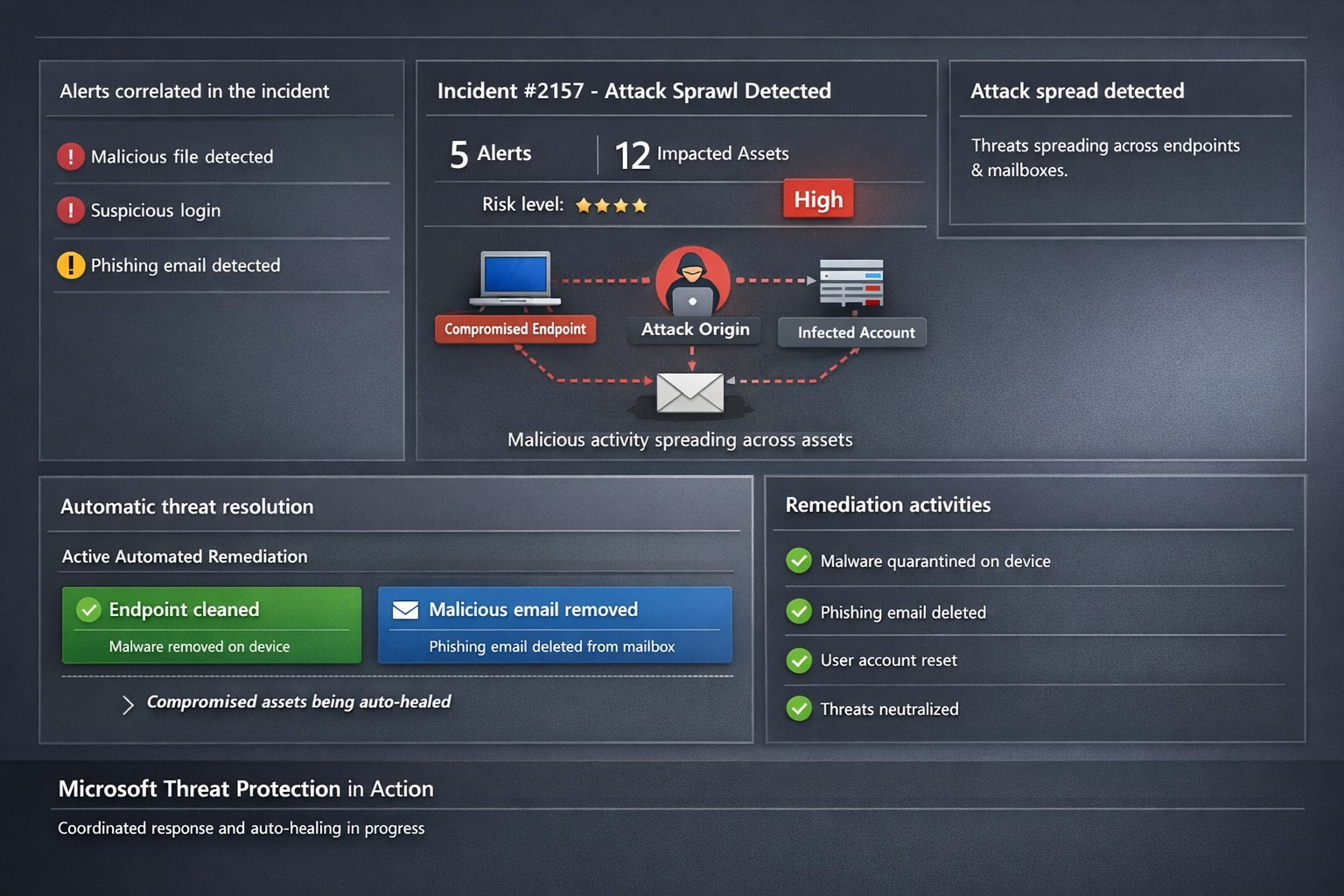
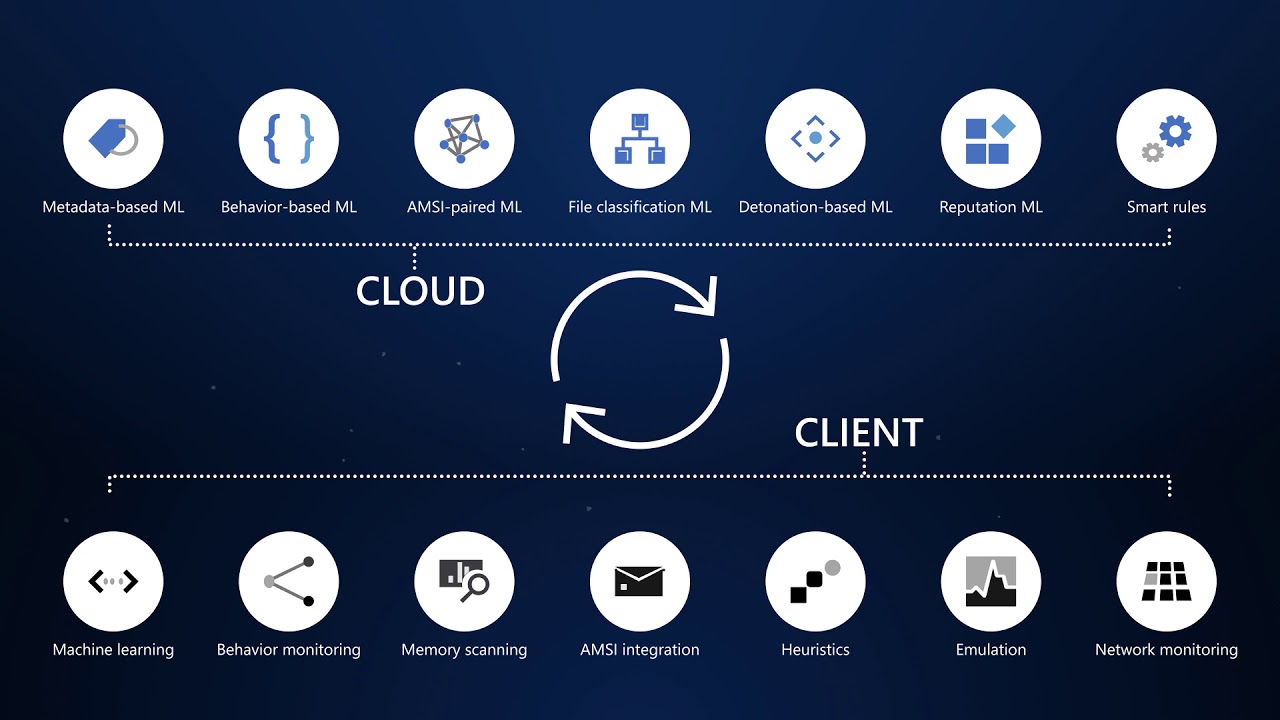
Microsoft 365 Defender auto-disrupts threats across endpoints and identities, healing assets in real-time to prevent sprawl.
One cyberattack can cripple operations, expose sensitive data, and cost millions in recovery. Microsoft Threat Protection (now evolved into Microsoft 365 Defender) integrates defenses across endpoints, email, identity, and apps to halt attack sprawl—where threats spread unchecked—and automatically heals compromised assets, minimizing downtime and risk.
What Is Attack Sprawl and Auto-Healing?
Attack sprawl happens when adversaries breach one domain, like email, then pivot to endpoints or identities via weak seams in siloed tools. Microsoft Threat Protection correlates signals across Microsoft Defender for Endpoint, Office 365 ATP, Azure ATP, and Cloud App Security to detect the full attack chain in real time.
It stops sprawl by blocking persistence mechanisms, such as malicious processes or credential abuse, and auto-heals assets—terminating threats on devices, removing harmful email rules, and flagging compromised users in Azure AD—restoring safety without manual intervention. Recent updates add automatic attack disruption for critical assets like domain controllers, disrupting threats days earlier in the kill chain.
Practical Action Steps for Implementation
Business owners and IT teams can deploy Microsoft Threat Protection systematically to fortify defenses. Follow these steps:
Assess Your Environment: Inventory endpoints, email, identities, and apps using Microsoft 365 Defender portal. Enable integration for Defender ATP, Office 365 ATP, Azure ATP, and MCAS via the unified console.
Enable Cross-Domain Correlation: Activate incident correlation in the Microsoft 365 Defender portal to prioritize high-fidelity threats. Configure conditional access policies to block risky logins automatically.
Turn On Auto-Healing and Disruption: In Defender settings, enable automated response actions like process termination and asset isolation. Test automatic attack disruption for critical assets via Security Exposure Management integration.
Conduct Proactive Hunting: Use custom queries in the portal to hunt cross-domain threats with your org-specific indicators. Review Threat Analytics reports for exposure insights and patches.
Monitor and Refine: Set up Action Center to track automated actions. Schedule monthly reviews to harden configurations based on incident data.
These steps reduce response times from hours to minutes, cutting breach costs by limiting sprawl.
FAQ: Client Inquiries Answered
How does Microsoft Threat Protection differ from standalone tools? It unifies siloed solutions into one XDR platform, correlating alerts for end-to-end visibility—unlike fragmented tools that miss cross-domain sprawl.
What assets does auto-healing cover? Endpoints (malicious processes), mailboxes (forwarding rules), identities (compromised flags), and apps. New capabilities target domain controllers and high-value servers.
Is it suitable for small businesses without a full IT team? Yes—built-in automation handles most responses. Pair with Microsoft 365 E5 licensing for seamless setup, scaling from SMBs to enterprises.
How effective is it against ransomware? It disrupts human-operated ransomware early by inoculating devices org-wide upon initial detection, reducing dwell time significantly.
What are setup costs and timelines? Licensing starts in Microsoft 365 plans; deployment takes days for integrated environments. Expect ROI via reduced incidents within weeks.
How Farmhouse Networking Boosts Your Efforts
Farmhouse Networking specializes in tailored Microsoft 365 security for accounting, healthcare, and charity sectors—industries handling sensitive data under strict compliance like HIPAA or GAAP. We handle assessment, configuration, and optimization of Threat Protection to stop attack sprawl and enable auto-healing.
Our team deploys custom integrations, trains your staff on hunting tools, and monitors via proactive managed services. We’ve helped similar clients cut threat response by 70%, ensuring business continuity. As your partner, we align SEO-driven website branding with lead-gen strategies to attract secure B2B growth.
Ready to protect your business? Email support@farmhousenetworking.com for a free Threat Protection audit and custom strategy.
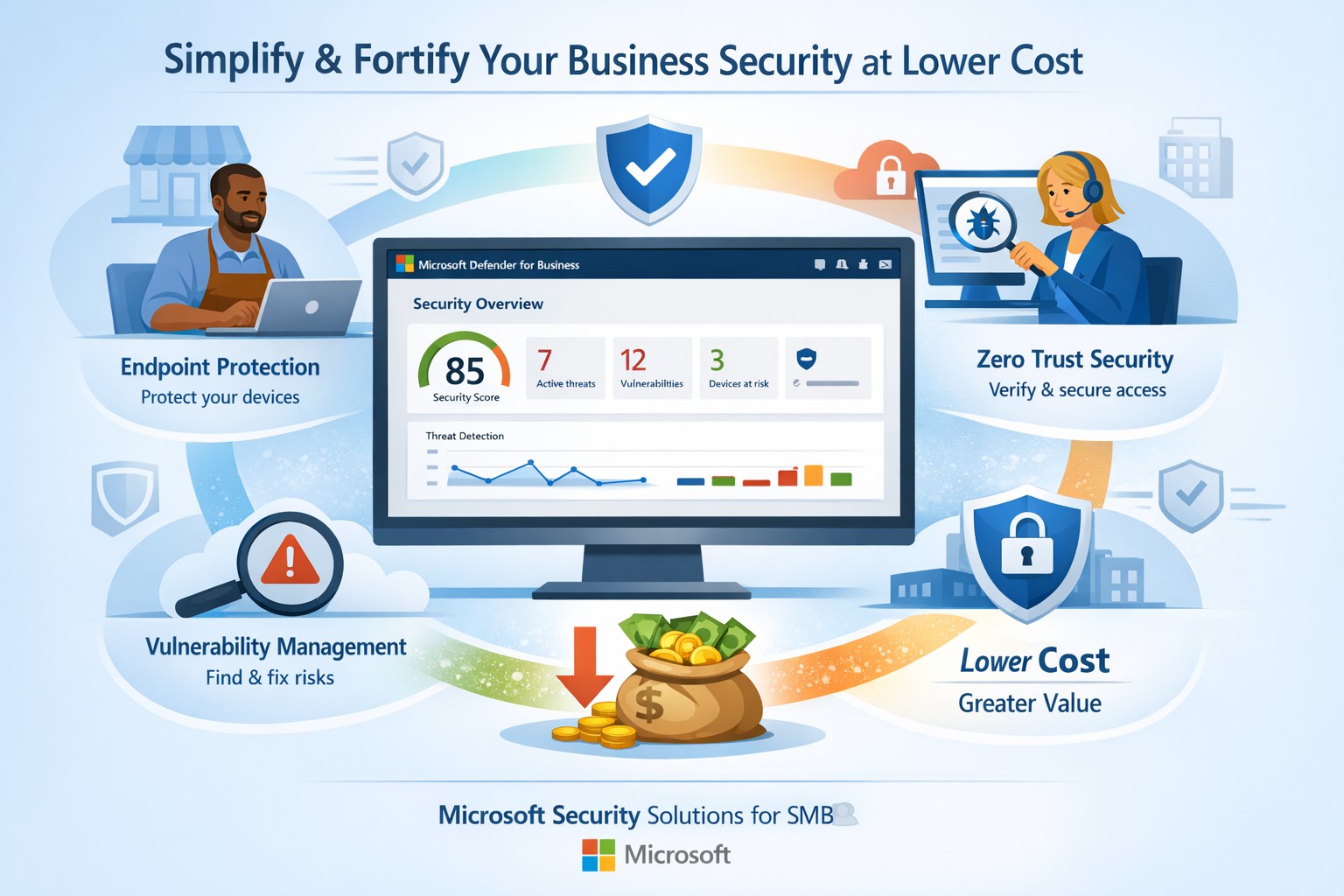
Fortify your SMB with Microsoft Defender for Business—enterprise-grade security at affordable prices via Microsoft 365.
Business owners face rising cyber threats but shrinking budgets for protection. Microsoft security solutions deliver enterprise-grade defenses at small-business prices, simplifying operations while fortifying your operations.
Why Microsoft Security Fits SMBs
Microsoft Defender for Business targets companies up to 300 employees, offering AI-driven endpoint protection across Windows, macOS, iOS, and Android. It includes next-gen antivirus, vulnerability management, and automated attack disruption—often bundled in Microsoft 365 Business Premium for cost efficiency. Combined with Purview suites, you get data loss prevention, insider risk detection, and compliance tools, reducing total ownership costs by consolidating vendors. This unified approach cuts complexity, with wizard-based onboarding and monthly reports that save IT time.
Action Steps for Implementation
Follow these steps with your IT team to deploy Microsoft security effectively:
Assess Current Risks: Use Microsoft Secure Score (free in Defender portal) to scan endpoints, identities, and apps for vulnerabilities—prioritize high-risk fixes first.
Select the Right Bundle: Start with Microsoft 365 Business Premium for Defender XDR, adding Defender for Business if needed (up to 5 devices/user). Enable multi-factor authentication via Entra ID Plan 1.
Onboard Devices: Run the wizard in the Microsoft Defender portal to deploy agents; test on a pilot group of 10-20 devices before full rollout.
Configure Policies: Set up Zero Trust basics—verify every access request, enable phishing simulations monthly, and automate data classification with Purview.
Monitor and Review: Schedule quarterly audits using built-in reports; integrate threat hunting for proactive response.
These steps typically take 2-4 weeks, yielding immediate ROI through reduced breach risks.
FAQs on Microsoft Security
How much does it cost compared to competitors? Microsoft bundles start under $10/user/month via Business Premium, far below standalone EDR tools (often $15-30/user). Consolidation avoids multi-vendor fees.
Is it scalable for growing businesses? Yes, Defender scales seamlessly to 300+ users with add-ons like server protection; no rip-and-replace needed.
What about training my team? Built-in simulations and reports require minimal training; AI automates 70%+ of responses, freeing staff.
Does it cover cloud apps and email? Fully—Defender includes SaaS security, phishing protection, and XDR across email, endpoints, and identities.
How secure is it against ransomware? AI-powered EDR disrupts attacks in real-time, with auto-remediation recovering systems quickly.
How Farmhouse Networking Assists
Farmhouse Networking specializes in Microsoft security deployments for accounting, healthcare, and charity sectors. We handle assessments, configurations, and ongoing managed detection—ensuring compliance (e.g., HIPAA for healthcare) without in-house expertise. Our team optimizes your setup for maximum ROI, conducts penetration tests, and provides 24/7 monitoring via Microsoft tools. Clients see 30-50% cost savings through streamlined licensing and automation. We’ve helped similar B2B firms fortify defenses while boosting productivity.
Ready to secure your business affordably? Email support@farmhousenetworking.com for a free security audit and custom Microsoft strategy.
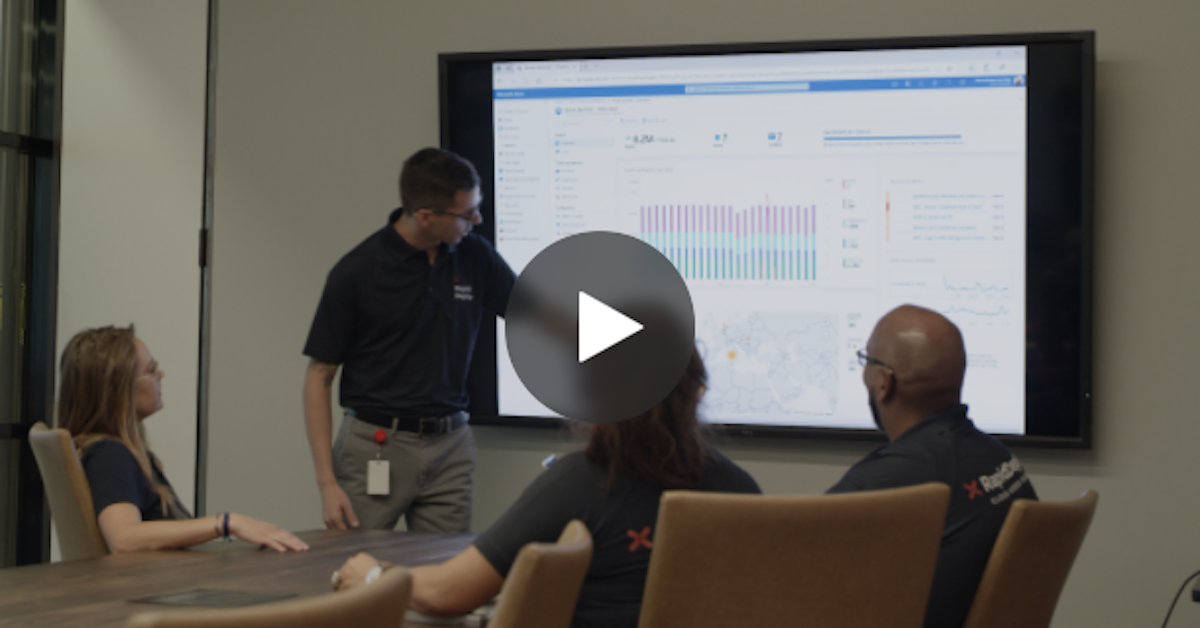
RapidDeploy creates its Cloud Aided Dispatch systems to help first responders act quickly to protect the public. There’s a lot at stake, and the company’s cloud-native platform must be secure against an array of serious cybersecurity threats. So, when RapidDeploy implemented a Security Information and Event Management (SIEM) system, it chose Microsoft Azure Sentinel, one of the world’s first cloud-native SIEMs. See the full story in the video below.
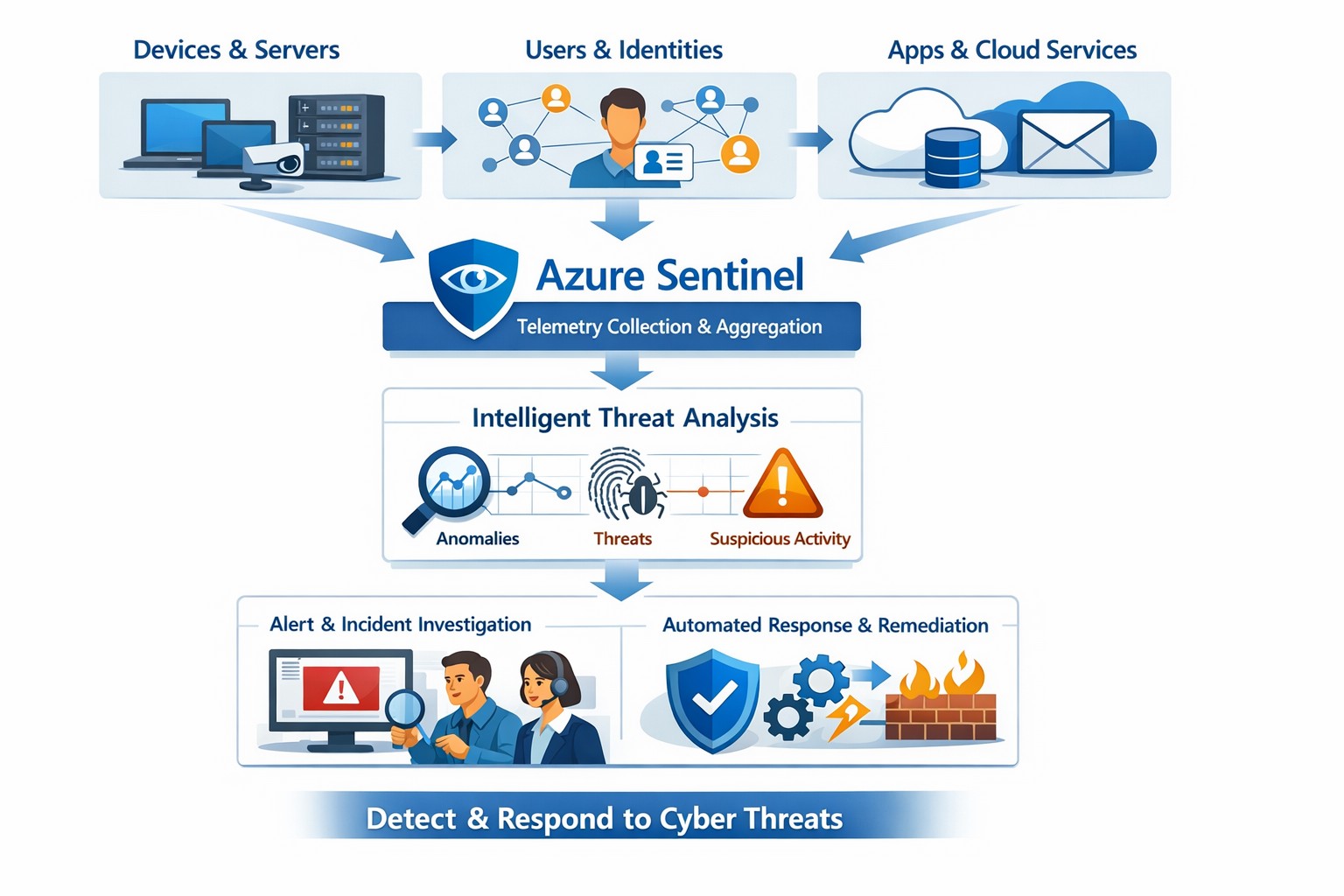
Azure Sentinel provides a unified view of your enterprise security data, allowing you to collect logs, detect threats, investigate incidents, and automate responses across cloud and on‑premises systems.
Cyber threats are a constant reality for businesses of all sizes. As your company grows, your IT environment becomes more complex, with data scattered across on-premises systems, cloud platforms, and third-party applications. This complexity makes it harder to detect and respond to security incidents quickly. Azure Sentinel, Microsoft’s cloud-native SIEM (Security Information and Event Management) solution, offers an intelligent way to collect, detect, investigate, and respond to security threats across your entire enterprise. For business owners, this means better protection, reduced downtime, and faster incident response—without the need for massive infrastructure investments.
What Azure Sentinel Does for Your Business
Azure Sentinel collects security data from your entire IT ecosystem, including devices, users, applications, and hybrid environments, both on-premises and in the cloud. It uses advanced analytics and threat intelligence to detect threats, often uncovering risks that traditional tools miss. With machine learning and AI, Azure Sentinel helps your security team investigate suspicious activities, hunt for hidden threats, and automate responses to common incidents. This reduces alert fatigue, lowers false positives, and speeds up resolution times, allowing your business to operate more securely and efficiently.
Practical Steps for Business Owners and IT Teams
To get the most out of Azure Sentinel, business owners and their IT departments need to take several practical steps. First, conduct a thorough assessment of your current security infrastructure to identify gaps and define clear objectives, such as improving threat detection or enhancing incident response. Next, choose the right data connectors to integrate logs from your existing systems into Azure Sentinel, ensuring comprehensive visibility across your environment. Establish clear objectives that align with your business goals, such as achieving regulatory compliance or reducing downtime. Train your security team to use Azure Sentinel effectively, providing ongoing education to stay ahead of emerging threats. Finally, continuously tune and optimize detection rules and automate routine response actions to maximize the platform’s potential.
Common Questions and Answers
Q: How does Azure Sentinel reduce downtime for my business? Azure Sentinel operates on the Azure cloud platform, which includes built-in load balancing and automated failover. This ensures that your security operations continue even during disruptions, minimizing downtime and ensuring that critical cloud applications remain secure and available.
Q: Can Azure Sentinel work with my existing security tools? Yes, Azure Sentinel integrates seamlessly with a wide range of security tools and data sources. It supports numerous connectors for cloud platforms like Azure, AWS, and GCP, as well as on-premises systems and third-party security solutions. This allows you to centralize your security operations without replacing your existing investments.
Q: How does Azure Sentinel handle automated incident response? Azure Sentinel uses playbooks based on Azure Logic Apps to automate common security tasks. For example, when an alert is triggered, a playbook can automatically assign the incident to a team member, update its status, or integrate with your ticketing system to create a new incident ticket, reducing manual effort and speeding up response times.
How Farmhouse Networking Can Help
Farmhouse Networking specializes in helping businesses in the accounting, healthcare, and charity industries implement and optimize Azure Sentinel. We can conduct a comprehensive assessment of your current security posture, identify gaps, and define clear objectives tailored to your business needs. Our team can also help you set up the right data connectors, train your IT staff, and continuously tune your detection rules to reduce noise and improve threat detection. Additionally, we can assist with automating incident response workflows to ensure that your security operations are as efficient and effective as possible.
If you’re ready to take the next step in securing your business with Azure Sentinel, contact Farmhouse Networking today. Email support@farmhousenetworking.com to learn more about how we can help improve your business’s security posture and protect your critical data from cyber threats.
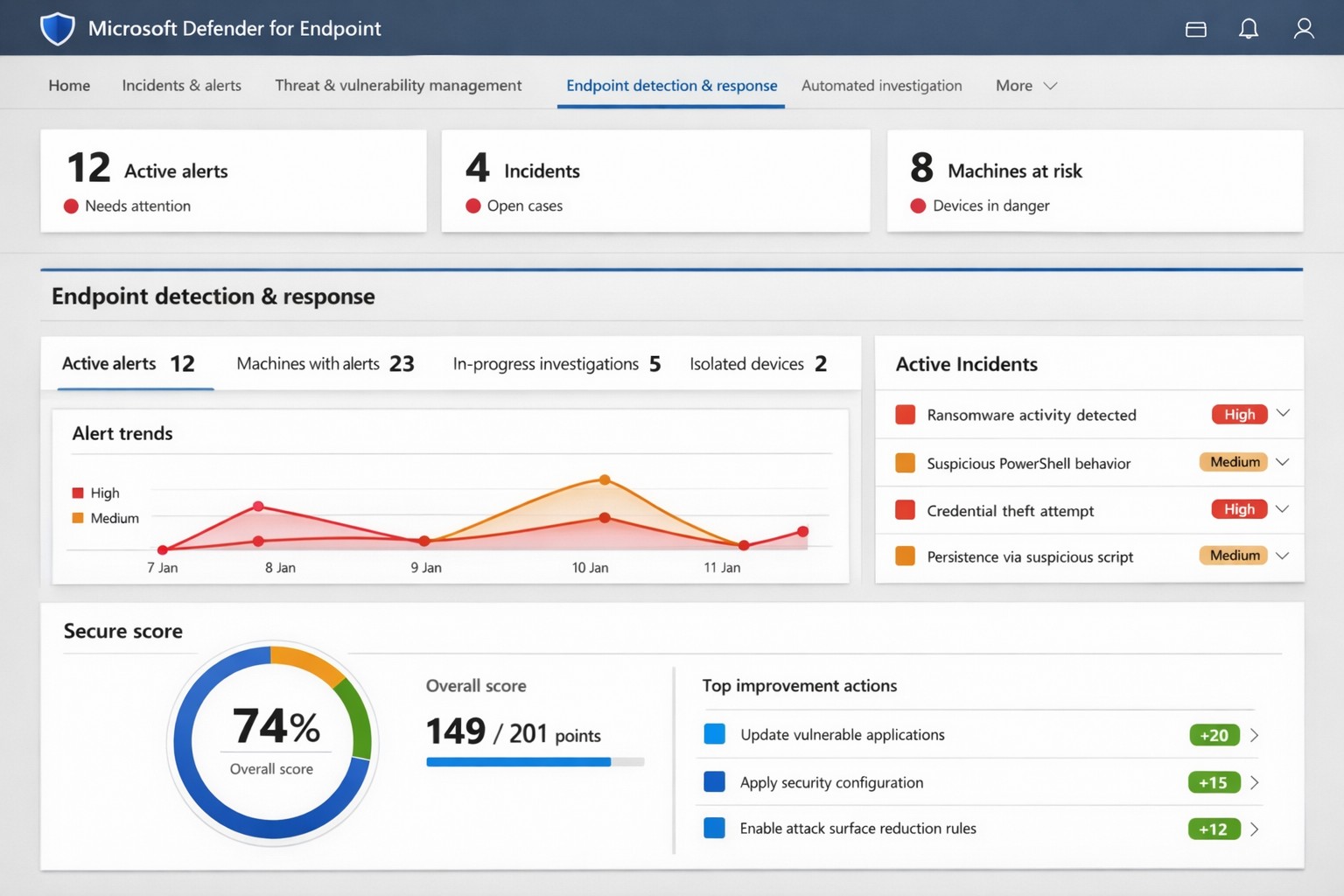
Microsoft Defender for Endpoint (ATP) portal: Monitor advanced threats, EDR alerts, and secure score to safeguard your business devices.
Cyber threats like ransomware and data breaches can cripple operations, costing millions in downtime and recovery. Microsoft Defender for Endpoint—previously known as Microsoft Defender Advanced Threat Protection (ATP)—delivers enterprise-grade endpoint security to detect, investigate, and stop these attacks before they escalate.
What is Microsoft Defender for Endpoint?
This cloud-native platform safeguards devices like laptops, servers, and mobiles from advanced threats using AI-driven analytics, behavioral monitoring, and automated response. Key capabilities include next-generation antivirus, endpoint detection and response (EDR), threat and vulnerability management, attack surface reduction, and automated investigations that group alerts into incidents for faster triage.
It integrates seamlessly with Microsoft 365, offering Plan 1 (basic protection, network controls) and Plan 2 (full EDR, vulnerability management, sandboxing). Businesses gain a “secure score” to benchmark and improve security posture.
Practical Action Steps for Implementation
Follow these steps with your IT team to deploy effectively:
Assess Eligibility and License: Confirm Microsoft 365 E3/E5 or standalone Defender licensing via the Microsoft 365 admin center. Start a 30-day trial if needed.
Onboard Devices: Use Microsoft Endpoint Manager or Group Policy to enable onboarding scripts for Windows, macOS, Linux, iOS, and Android. Prioritize high-value assets like executive laptops.
Configure Policies: Set attack surface reduction rules, enable cloud-delivered protection, and deploy controlled folder access to block ransomware. Test in audit mode first.
Monitor and Respond: Review the Defender portal daily for incidents. Use automated remediation to isolate devices and run live response commands like file quarantine.
Train Staff and Review Secure Score: Conduct phishing simulations and user training. Aim for a secure score above 80% by addressing recommendations.
Expect initial setup in 1-2 weeks for 50 devices, with ongoing management under 1 hour daily post-configuration.
FAQ: Client Inquiries Answered
How does Defender differ from basic antivirus? Unlike traditional AV, it provides EDR for post-breach hunting, cloud analytics for zero-day threats, and cross-device incident correlation—reducing detection time from 200+ days to hours.
What about performance impact? Minimal; sensors use hardware acceleration and run lightweight scans. Enterprises report <1% CPU overhead.
Is it suitable for small businesses without IT staff? Yes, Defender for Business offers simplified P1/P2 features with guided setup. It scales from 5 to 50,000 endpoints.
How secure is data in Defender? Microsoft isolates customer data by tenant, with no use for training AI. Compliance includes GDPR, HIPAA.
What if we use non-Windows devices? Full support for macOS, Linux, mobile; unified console prevents silos.
How Farmhouse Networking Can Help
Farmhouse Networking specializes in B2B cybersecurity for accounting, healthcare, and nonprofits—industries handling sensitive data under strict compliance like HIPAA and PCI-DSS. We conduct cloud security assessments to baseline your posture, implement Defender onboarding, customize policies for your endpoints, and integrate with existing Microsoft stacks for automated threat hunting.
Our team handles vulnerability prioritization, staff training, and 24/7 monitoring, freeing you to focus on growth. Clients see 40% faster threat response and improved secure scores within months.
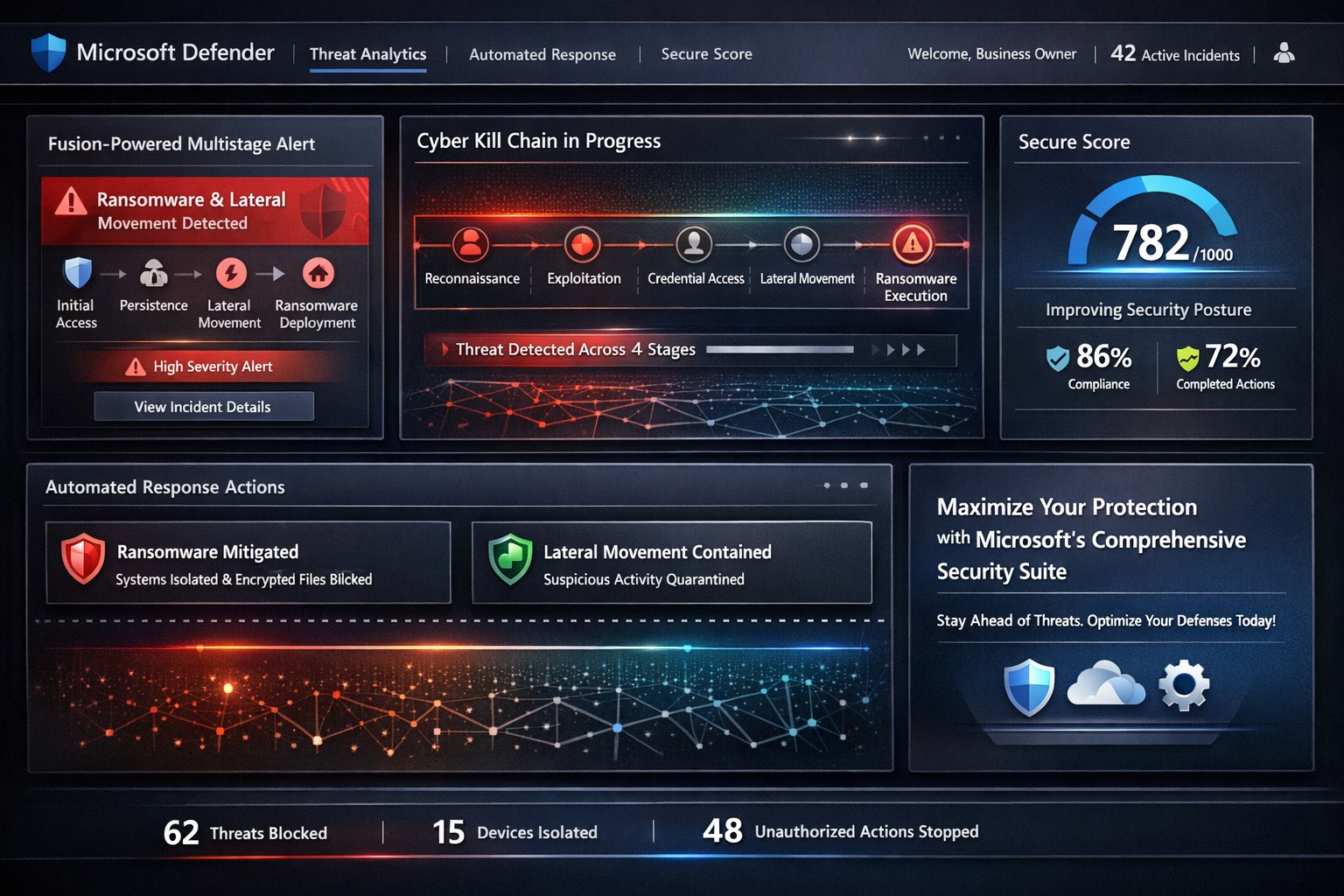
Visualize multistage attack detection with Microsoft security suite—stop threats from reconnaissance to exfiltration using Sentinel and Defender XDR.
Cyber threats evolve rapidly, targeting businesses at every stage of the attack chain—from reconnaissance to exfiltration. Microsoft’s integrated security solutions, like Sentinel and Defender, empower business owners to detect and neutralize these threats proactively, safeguarding operations and revenue.
Understanding the Cyber Kill Chain
The cyber kill chain framework outlines eight stages: reconnaissance, weaponization, delivery, exploitation, installation, command and control (C2), actions on objectives, and monetization. Microsoft’s tools map directly to these, using AI-driven correlation to spot multistage attacks that single-point defenses miss.
Microsoft Sentinel’s Fusion engine exemplifies this by analyzing anomalous behaviors across stages, generating high-fidelity incidents from low-volume alerts—like ransomware execution following suspicious sign-ins. Defender XDR unifies endpoints, identity, email, and cloud signals for end-to-end visibility.
Practical Action Steps for Implementation
Business owners and IT teams can deploy these solutions methodically to maximize detection.
Assess Current Posture: Log into the Microsoft 365 Defender portal (security.microsoft.com). Review Secure Score for Devices to identify unprotected systems and prioritize fixes, such as enabling multifactor authentication (MFA).
Enable Fusion in Sentinel: In Azure Sentinel, activate the Advanced Multistage Attack Detection rule—it’s enabled by default but requires data connectors for Microsoft Entra ID, Office 365, and endpoints. Ingest logs from these sources to detect scenarios like mass file deletion post-suspicious sign-in.
Configure Defender Policies: Set Strict preset policies for Safe Attachments, Safe Links, and anti-phishing in Email & Collaboration > Threat Policies. Test with advanced hunting queries to proactively scan for breaches.
Monitor and Respond: Use the unified dashboard for prioritized incidents. Automate investigations in Defender XDR to triage alerts, focusing IT efforts on high-severity threats like lateral movement or data exfiltration.
Test and Iterate: Run tabletop exercises simulating kill chain stages. Leverage Threat Analytics for tailored briefings on risks specific to your infrastructure, such as exposed servers vulnerable to ransomware.
These steps typically yield results within weeks, reducing alert fatigue and dwell time.
FAQ: Client Inquiries Answered
Q: How does Microsoft detect threats across all kill chain stages? A: Fusion in Sentinel correlates alerts from reconnaissance (suspicious sign-ins) to exfiltration (mass file downloads), covering compute abuse, credential theft, ransomware, and more via ML algorithms.
Q: Is this suitable for small businesses without a full SOC? A: Yes—preset policies and automated response in Defender XDR minimize manual effort. Secure Score provides actionable recommendations without deep expertise.
Q: What about integration with existing tools like firewalls? A: Sentinel ingests data from Palo Alto, Cisco, and Fortinet, enhancing detections like beaconing post-sign-in or anomalous traffic after WMI execution.
Q: How much does it cost, and what’s the ROI? A: Pricing scales with data ingestion; starts low for Microsoft 365 E5 users. ROI comes from stopping breaches early—e.g., preventing ransomware via stage-specific alerts.
Q: Can it handle cloud-specific threats? A: Attack Path Analysis in Security Exposure Management identifies exploitable paths to critical assets, validating exposures in storage, APIs, and AI agents.
How Farmhouse Networking Elevates Your Security
Farmhouse Networking specializes in deploying Microsoft security stacks for accounting, healthcare, and charity sectors—industries facing strict compliance like HIPAA and PCI-DSS. We handle initial assessments, custom Fusion rule tuning beyond defaults, and ongoing optimization to align with your kill chain risks.
Our team integrates Sentinel with your endpoints and cloud environments, trains IT staff on Defender workflows, and monitors via managed detection services. Clients see 40-60% faster threat response, driving organic traffic to secure operations that convert partners and donors confidently.
Call to Action
Ready to fortify your business against multistage attacks? Email support@farmhousenetworking.com for a free threat posture audit and personalized Microsoft security roadmap.
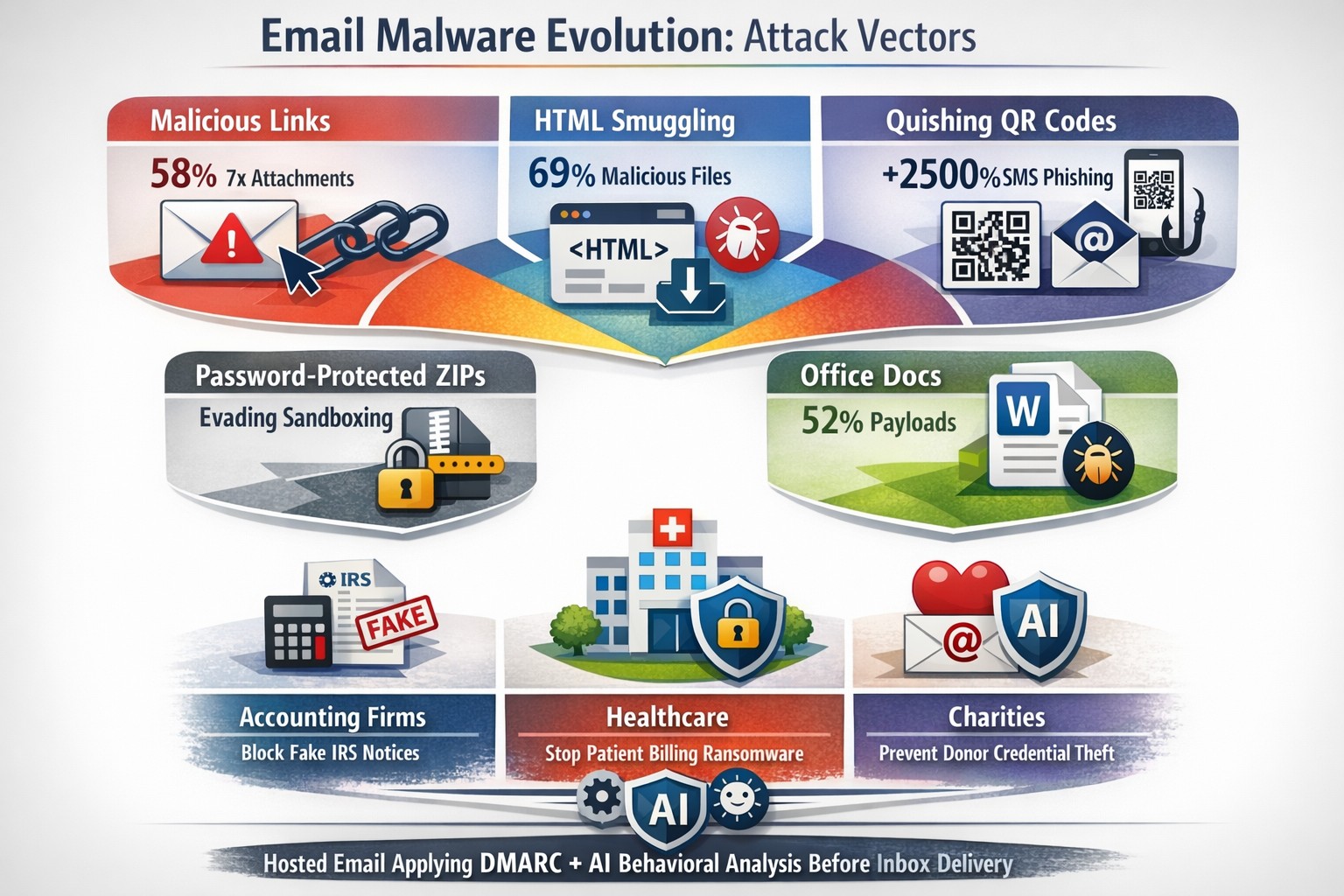
Read a recent study on the origins of malicious software aka malware. Here are the highlights:
Current Malware Statistics
29% – Malware is previously unknown to security vendors due to the continued efforts of malware creators to hide the software or make it undetectable.
88% – Malware is delivered to people’s inboxes and some of it bypassing normal SPAM filters.
8.8 Days – Time before regular antivirus vendors have discovered the malware and added it to their lists for detection.
$50 – The cost of a pre-fabricated malware kit that can be bought currently on the dark web.
“The most common type of malicious attachments were: documents (Word – 31%), archive files (ZIP & RAR – 28%), spreadsheets (Excel – 19%) and executable files (EXE – 17%).”
What can be done?
A multi-tiered approach to security remains the best solution:
Moving from traditional antivirus to Enhanced Detection & Response (EDR) software to go beyond lists of know infections to behavior tracking of software
Moving from traditional SPAM filters to Email Advanced Threat Protection which scans each email and opens each attachment to see if there is any malicious activity cause by them
Moving from traditional router to a business class firewall with Intrusion Prevention System to monitor traffic for suspicious activity
Employee training is also key to keep your staff aware of immerging trends and threats
If your company is looking to enhance your network security posture, then contact us for assistance.
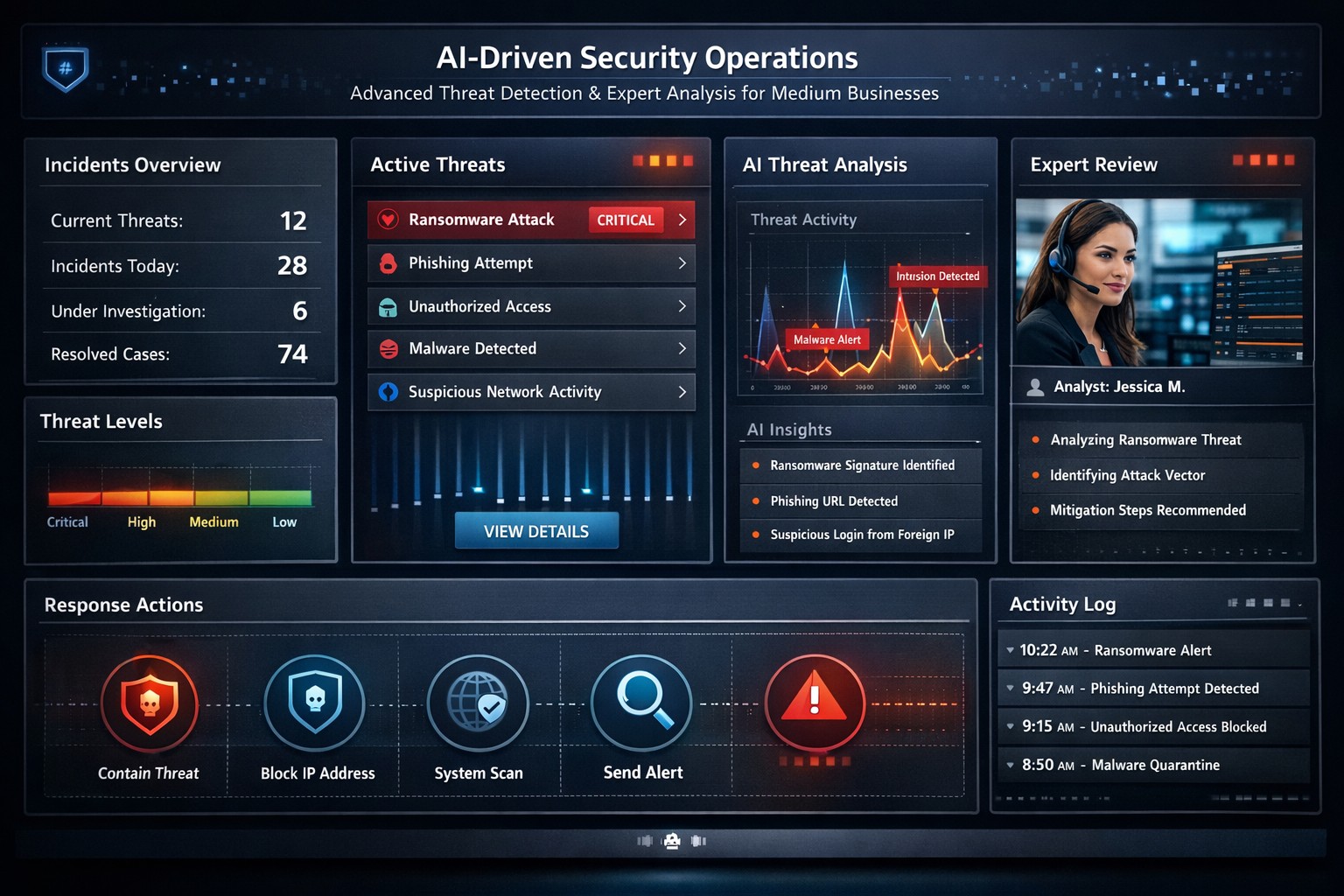
Visualizing faster threat detection: Data-driven cybersecurity with human oversight protects medium business systems from attacks.
You’re juggling growth, operations, and rising cyber threats that could halt everything overnight. A data-driven, human-guided security approach empowers you to detect and respond to attacks quicker and more accurately – reducing downtime and protecting your bottom line.
Why This Approach Wins for Medium Businesses
Traditional cybersecurity relies on static rules, often missing sophisticated threats amid complex networks from remote work and cloud tools. Data-driven strategies analyze real-time logs, user behavior, and threat intelligence with AI, spotting anomalies humans might overlook. Human oversight ensures context-aware decisions, blending machine speed with expert judgment for precision. This hybrid model cuts response times from days to minutes, vital for medium businesses lacking massive security teams.
Practical Action Steps
Implement these steps with your IT department to build this defense:
Audit Data Sources: Identify critical logs from networks, endpoints, and apps; prioritize user behavior and external threat feeds for comprehensive visibility.
Deploy Analytics Tools: Integrate AI platforms like SIEM systems with machine learning for anomaly detection; start with open-source options or scalable SaaS for cost efficiency.
Enable Automated Alerts: Set up real-time monitoring with automated responses for low-risk issues, reserving human review for high-severity events.
Train Your Team: Conduct quarterly simulations blending data insights with human decision-making; focus on root-cause analysis from past incidents.
Test and Iterate: Run monthly penetration tests, using data to rank risks and measure improvements in detection accuracy.
These steps scale affordably, leveraging existing infrastructure without overhauling your setup.
Common Questions Answered
How does this differ from basic antivirus? Antivirus scans for known signatures; data-driven security uses behavioral analytics to catch zero-day threats, with humans validating alerts for accuracy.
What’s the ROI for a medium business? Expect 50-70% faster incident response, slashing breach costs (average $4.5M per IBM data) and boosting compliance, freeing IT for growth initiatives.
How much does implementation cost? Initial setup ranges $50K-$150K for mid-tier tools and training, with ROI in 6-12 months via prevented losses; cloud options minimize upfront spend.
Can we handle this in-house? Yes for basics, but partnering accelerates expertise; human-guided layers prevent AI false positives that overwhelm small teams.
What about regulatory compliance? Automated reporting from data tools simplifies GDPR, HIPAA, or CCPA audits, proving proactive measures with auditable logs.
How Farmhouse Networking Supports You
At Farmhouse Networking, we specialize in tailored strategies for accounting, healthcare, and charity sectors—industries facing strict compliance and high-stakes data risks. Our team deploys data-driven platforms integrated with human-guided SOC services, handling audits, tool setup, and 24/7 monitoring. We’ve helped similar medium businesses cut threat response by 60%, enhancing SEO-friendly client trust signals like security badges. From branding secure websites to lead-gen funnels that highlight your defenses, we drive organic traffic and B2B conversions.
Ready to fortify your systems? Email support@farmhousenetworking.com for a free risk assessment and custom roadmap. Act now—secure your edge
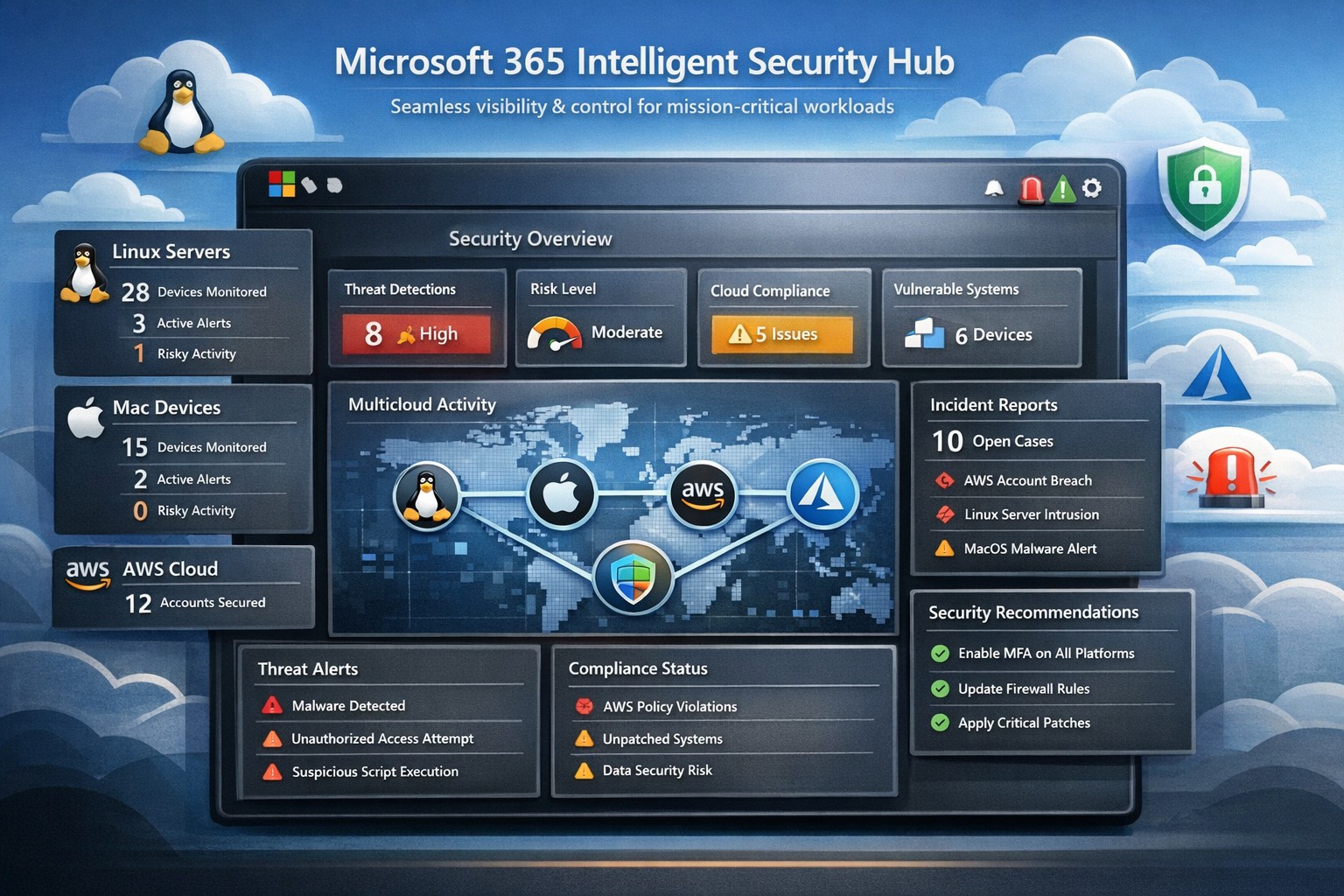
Unified Microsoft 365 security hub managing threats across Linux, Mac, and AWS platforms for business workloads.
Managing security across diverse platforms like Windows, Linux, Mac, AWS, and beyond can feel overwhelming—yet Microsoft 365’s intelligent security hub, powered by tools like Microsoft Defender for Cloud Apps, delivers seamless protection for mission-critical workloads. This unified approach goes far beyond Microsoft ecosystems, providing visibility, threat detection, and governance exactly where your operations demand it.
Core Features of Microsoft 365 Security Hub
Microsoft 365 integrates Microsoft Defender, Purview, and Sentinel into a central hub for multicloud security, supporting Linux, Mac, AWS, and more through connectors and agents. Key capabilities include anomaly detection via machine learning, data loss prevention (DLP), conditional access, and real-time threat response across hybrid environments. Business Premium plans enhance this with endpoint protection for diverse devices and Safe Links/Attachments for Teams, SharePoint, and OneDrive.
Practical Action Steps for Implementation
Follow these steps with your IT team to deploy Microsoft 365’s security hub effectively:
Verify Licensing and Access: Ensure Microsoft 365 Business Premium licenses for users; access via Microsoft Defender Portal > Cloud Apps (requires Security Administrator role).
Enable Core Protections: Turn on MFA via security defaults or Conditional Access; activate preset policies for anti-phishing, anti-malware, and admin account protection.
Connect Apps and Devices: In Defender Portal, go to Settings > Cloud Apps > App Connectors to link AWS, Office 365, etc.; onboard devices with Intune or Defender for Business agents for Mac/Linux.
Configure Policies and Discovery: Create session policies, DLP for sensitive data, and cloud discovery reports using firewall logs or Defender for Endpoint integration.
Monitor and Maintain: Review Secure Score dashboard weekly; set alerts for anomalies and conduct regular audits.
These steps typically take 1-4 weeks, starting with a pilot group.
FAQs: Client Inquiries Answered
Does it really support non-Microsoft platforms like AWS and Linux? Yes, Defender for Cloud Apps uses API connectors for AWS visibility, agents for Linux/Mac endpoints, and multicloud posture management without agent overhead on some resources.
How does it handle multi-cloud workloads? It provides unified threat protection, anomaly detection, and IAM inheritance across Azure, AWS, GCP via Defender for Cloud, integrating with existing tools like Sentinel for SIEM.
What’s the cost impact for small businesses? Included in Business Premium (~$22/user/month); scales with users, no extra for basic multicloud connectors—focus on high-value workloads first.
How secure is data in transit across platforms? Encryption via Purview, Safe Links for URLs, and session controls block risky actions; complies with standards like GDPR through DLP policies.
How Farmhouse Networking Boosts Your Security Efforts
Farmhouse Networking specializes in Microsoft 365 deployments for accounting, healthcare, and charity sectors, handling setup, policy customization, and ongoing optimization to drive secure organic growth. We integrate your multicloud environments (e.g., AWS with M365), train IT teams, and monitor via Lighthouse for MSP-grade efficiency—reducing breach risks while enhancing client trust and conversions.
When The Walsh Group—one of the largest construction contractors in the United States—moved to the cloud, it realized it needed better ways to manage who accesses its systems. The company set up identity as the control plane—with Microsoft Azure Active Directory at the center and a zero-trust security stance to better protect access to all its resources. Now, The Walsh Group CIO says the company leads the industry in securing access to its hybrid environment, giving it a competitive advantage. Read the article for more.
And God will generously provide all you need. Then you will always have everything you need and plenty left over to share with others. As the Scriptures say, “They share freely and give generously to the poor. Their good deeds will be remembered forever.” For God is the one who provides seed for the farmer and then bread to eat. In the same way, he will provide and increase your resources and then produce a great harvest of generosity in you. - 2 Corinthians 9:8-10
We use cookies to ensure that we give you the best experience on our website. If you continue to use this site we will assume that you are happy with it.