Farmhouse Networking cloud automation eliminates manual IT tasks for Oregon SMBs using Power Automate and PowerShell workflows.
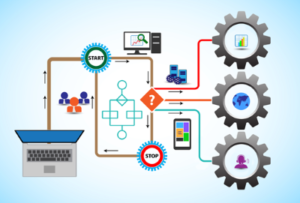
Worked with a client lately to help them Automate a workflow, but you may be wondering what does that even mean. Let me explain. We all have tasks in our workday that are repetitive and consume little bite size pieces of our time. Depending on the steps needed to accomplish these tasks, they can be “delegated” to a computer process via scripting aka we automate them. In the case of the client we helped, they received emails from an eFax service which included attachments. These attachments had to be manually saved into a shared folder for the rest of the staff to access as needed. This process probably took about 30 to 60 seconds each, but multiply this by the 30+ faxes they received each day you have 15 to 30 minutes of wasted time each day (65-130 hours per year). This does not take into account the time taken to stop doing one thing, accomplish this task, and restart the original thing they were doing.
Automate to Freedom
What if we could automate this little task and keep them employee free to do other more important things? We did. They customer uses Office 365 which includes a service called Power Automate. We scripted this tool to look at incoming messages, find ones from the eFax vendor, strip out the attachment, and save it to a SharePoint folder. This can then be shared with other employees and even synced via OneDrive to their Desktops for viewing, etc. That is just the tip of the iceberg as there is so much more that can be done with this technology.
If your company wasting little bite size pieces of time in repetitive taks, then contact us for assistance.
As our business continues to focus on providing white labeled Tier 3 IT support services, RMM as a service, and co-managed IT services this blog will be highlighting tips for using Powershell to create Office 365 User and add them to groups. We have several clients with high employee turn-over which makes it necessary to often create Office 365 user. We will detail how to find all the needed data to create the proper script for each client (yes it will take a different script for each client due to different group names for each client).
Research
You need to get two pieces of information – the license type used by the organization to create users and the names of the groups to add users to
To find out the license types used use this commands:
Connect-MsolService
Get-MsolAccountSku
To find out all the groups in the organization use this commands:
Connect-ExchangeOnline
Get-UnifiedGroup | Format-Table Alias
Variables
$displayName = Full user name – usually First name & Last Name $userPrincipleName = Email address for user $adminuser = Email address for admin of Office 365 Tenant $adminpass = Password for admin of Office 365 Tenant $licenseType = Office 365 license type found in research above
There is also the need for variables for each group you will be adding users to (found in research above). For this example I will be using:
$CompanyShared = Company Shared Contacts $CompanyTimeOff = Company Time Off Calendar $BillingPayroll = Billing & Payroll Group Email
Script Snippet
###Use this command to be allowed to use DotNet assemblies
Add-Type -AssemblyName System.web

$displayName = "UserFirst UserLast"
$userPrincipleName = “User@Company.com”
$adminuser = "admin@Company.com"
$adminpass = '@dm1nP4ssw0rd'

$CompanyShared = "yes"
$CompanyTimeOff = "yes"
$BillingPayroll = "no"

###converts admin credentials to useable format for connections to Office 365
$adminpassword = ConvertTo-SecureString -string $adminpass -AsPlainText -Force
$admincred = new-object -typename System.Management.Automation.PSCredential -argumentlist $adminuser, $adminpassword

Connect-AzureAD -Credential $admincred
Connect-MsolService -Credential $admincred

$mailNickname = $userPrincipleName.Split("@")[0]

###To find User License Types use Get-MsolAccountSku
$licenseType = "companytenantID:SPB"

###Generates a random password length
$minPassLength = 8 ## characters
$maxPassLength = 15 ## characters
$passlength = Get-Random -Minimum $minPassLength -Maximum $maxPassLength

###Generates a random number of non-alpha characters in the password
$minNonAlphaChars = 1 ## characters
$maxNonAlphaChars = 5 ## characters
$nonAlphaChars = Get-Random -Minimum $minNonAlphaChars -Maximum $maxNonAlphaChars

###Creates the password, makes it useable by Azure, sets it up to not require password change, and creates account
$password = [System.Web.Security.Membership]::GeneratePassword($passlength, $nonAlphaChars)
$PasswordProfile = New-Object -TypeName Microsoft.Open.AzureAD.Model.PasswordProfile
$PasswordProfile.Password = "$password"
$PasswordProfile.ForceChangePasswordNextLogin = $false
Write-Host "Password is set to $password for $displayName"
$user = New-AzureADUSer -DisplayName $displayName -PasswordProfile $PasswordProfile -UserPrincipalName $userPrincipleName -mailNickname $mailNickname -AccountEnabled $true

###Waits 5 minutes for the user creation process in Office 365
Start-Sleep -Seconds 300

###Sets additional parameters for account that are needed like location, license type, and sets password to never expire
Get-MsolUser -UserPrincipalName $userPrincipleName | Set-MsolUser -UsageLocation US
Get-MsolUser -UserPrincipalName $userPrincipleName | Set-MsolUserLicense -AddLicenses $licenseType
Get-MsolUser –UserPrincipalName $userPrincipleName | Set-MsolUser –PasswordNeverExpires $True

###Adds new user to groups
if ($CompanyShared -eq "yes")
{ Add-MailboxPermission -Identity companyshared@premieror.com -User $userPrincipleName -AccessRights FullAccess -InheritanceType All}

if ($CompanyTimeOff -eq "yes")
{ Add-MailboxPermission -Identity companytimeoff@premieror.com -User $userPrincipleName -AccessRights FullAccess -InheritanceType All}

if ($BillingPayroll -eq "yes")
{ Add-MailboxPermission -Identity billing_payroll@premieror.com -User $userPrincipleName -AccessRights FullAccess -InheritanceType All}
This script requires that the admin account you use to setup the user have multifactor authentication turned off (I know not secure), so use a really long complex password. The script creates a random password for the new user and write it to output. The script will take several minutes to run due to the waiting for the account to finish setup before adding additional parameters and adding them to groups.
If your company is a MSP or wants to become one and automation just seems out of reach, then contact usto run your RMM for you.
Farmhouse Networking implements zero trust password management with passwordless MFA for secure Grants Pass business cloud access.
This is the fifth in a series about the concept of Zero Trust, which means in the IT sense that you trust nothing and always verify everything surrounding and connected to your network. Today’s discussion will be on password management.
Password Management
Password management is the concept that you are not using the same password for all sites and services. So it is necessary to have a means to track and protect those passwords from others accessing or using them without consent. Here are some questions that you should be asking yourself:
How do you keep track of passwords? paper? spreadsheet? program?
Are your passwords encrypted? Are they guessable? Are they changed regularly?
Do you have a password policy?
What do you do when someone leaves the company?
Do you take advantage of 2FA or MFA?
Do you take advantage of single sign-on?
Take time to think about these questions and decide where changes can be made to better protect your passwords, or contact us to do the thinking for you.
83% of employees continue accessing old employer’s accounts
Farmhouse Networking Grants Pass implements robust employee offboarding to revoke access and secure networks for Oregon businesses.
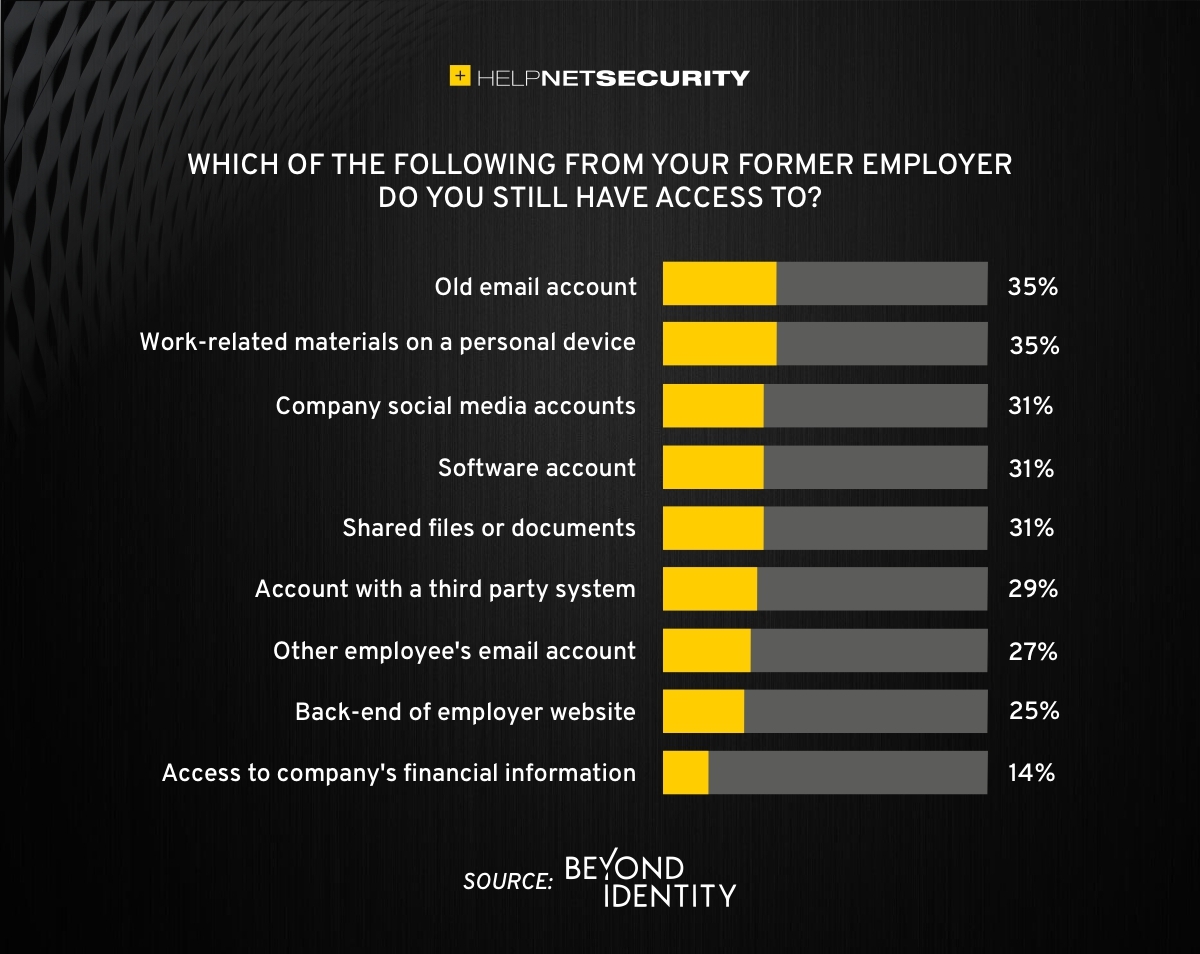
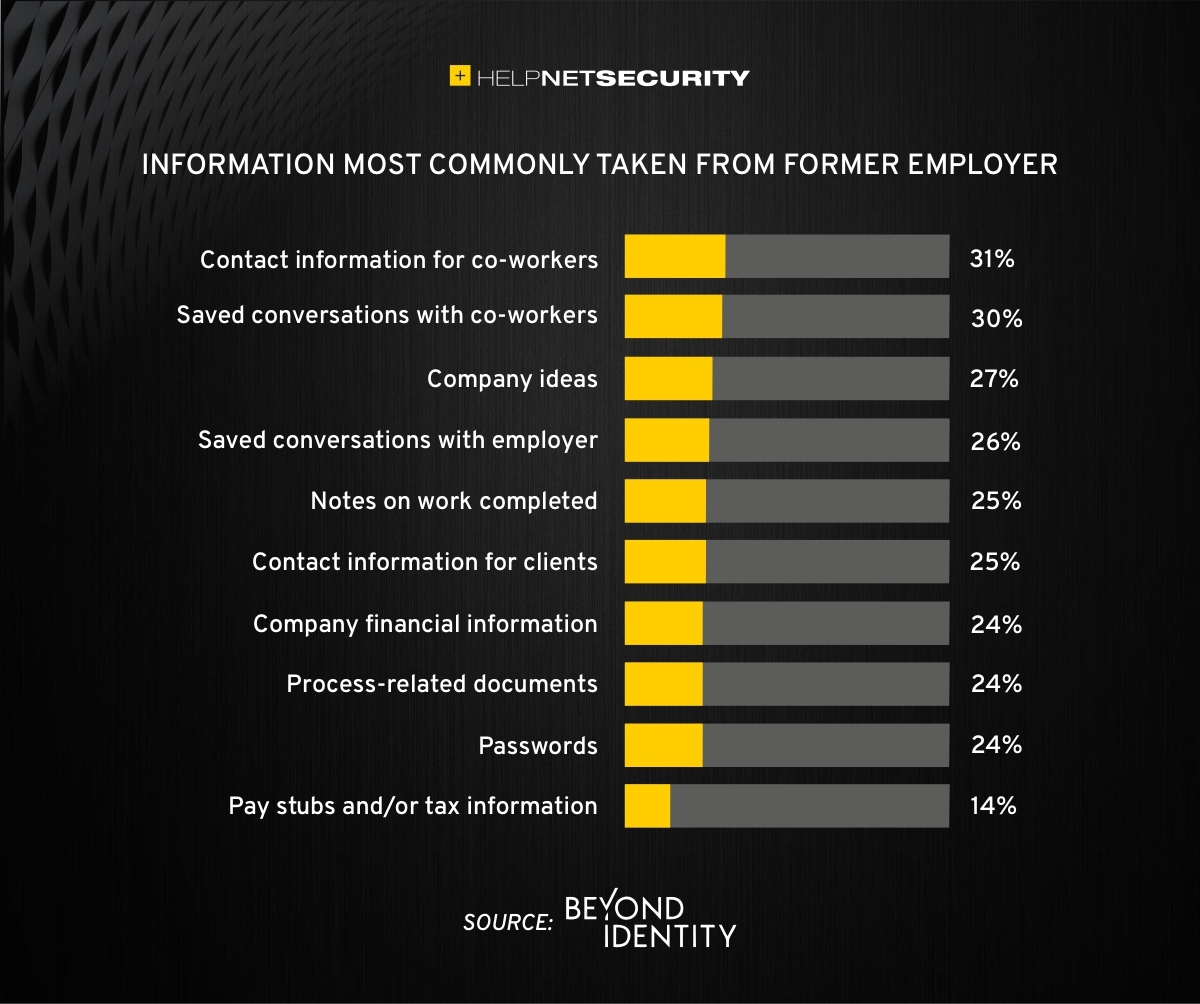
A study was performed by Beyond Identity throughout the US, UK, and Ireland which found that 83% of employees admitted to maintaining continued access to accounts from a previous employer. Also a shocking 56% admitted to using this access to harm their former employer.
The study also states that a professional and details offboarding process can prevent unauthorized access by former employees by eliminating their passwords and other insecure authentication methods. Strangely enough this also creates a sense of goodwill in the company that helps to lessen the motivation for employees to attempt this kind of malicious access. This kind of process is vital considering the current employment market and high turn over rates at almost all companies.
If your company does not have a detailed and documented offboarding process, thencontact usfor assistance.
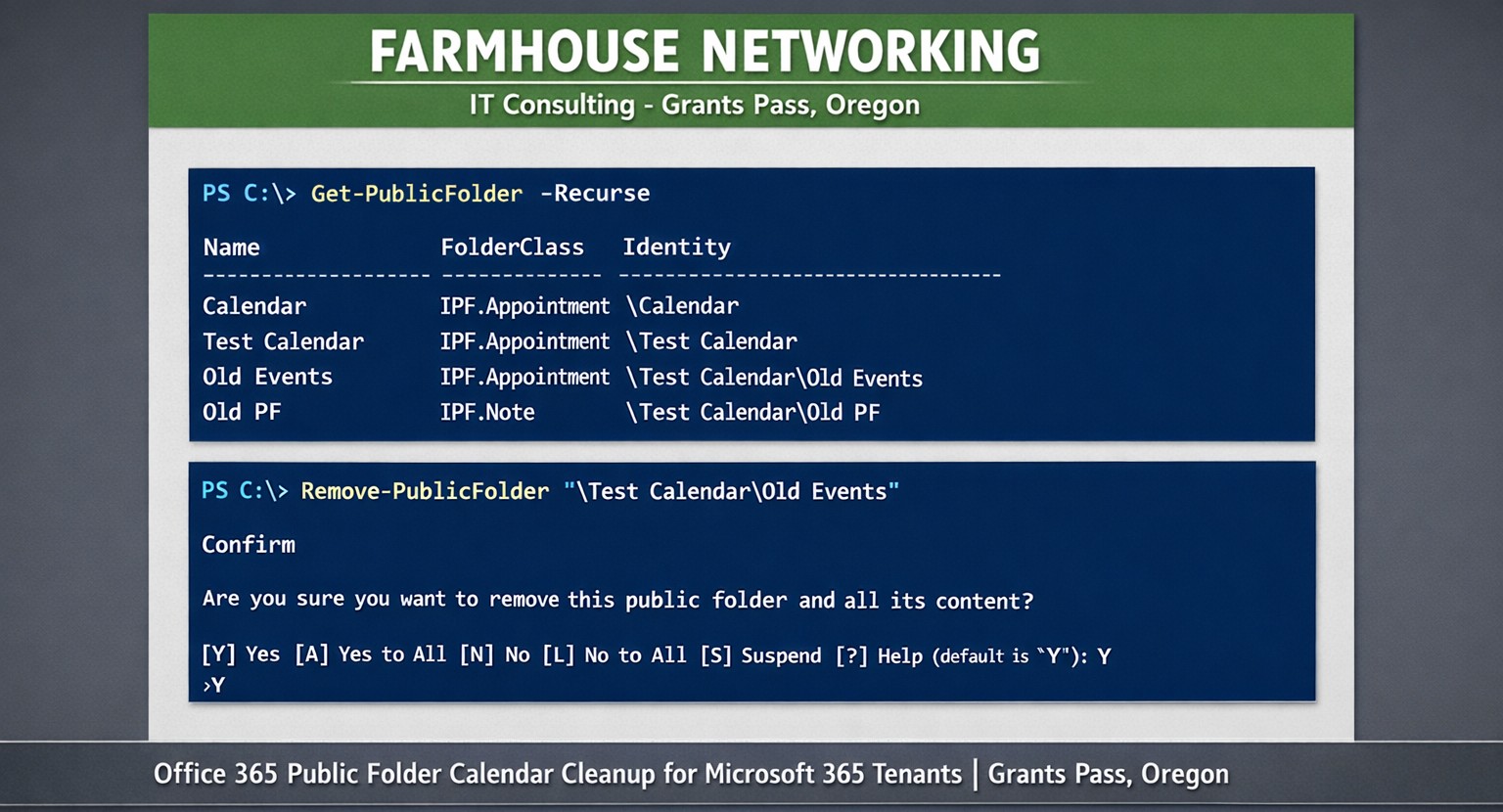
Farmhouse Networking uses PowerShell get-publicfolder -Recurse to locate and remove unwanted Office 365 public folder calendars for Grants Pass clients.
Here is a quick bit of Powershell that helped me to track down a “shared calendar” in a Co-Managed IT / Tier3 client’s Office 365 tenant. After looking in Shared Mailboxes and Resources for the calendar with no luck, we tried to get into the Exchange Management Console (EMC). The loading circle of death went on for an eternity, so switched to good old Powershell. Found the commands as follows after connecting to Exchange Online in Powershell:
If your company is looking for local management of your Office 365 tenant or need advanced support for your IT team, then contact us to find out how much you can save with us.
Farmhouse Networking protects Grants Pass businesses from surprise Microsoft 365 account deactivation and tenant deletion policies.
We recently received this notice from Microsoft:
“Microsoft has observed a recent increase in spamming activity among some customers using Azure subscriptions obtained via their CSP partners. This activity is outside of what is permitted under the terms of use for Microsoft Azure services.
Examples of these violations of Microsoft’s acceptable use policy can include:
Spamming
Hacking
Distributed denial-of-service (DDoS) attacks
Cryptocurrency mining
Malware distribution
Resale of pirated subscriptions
In cases where Microsoft observes this type of activity, we may take action to deactivate customer subscriptions without prior notice.”
This is definitely the time to make sure that your company has the following safeguards in place:
Antivirus with Enhanced Detection & Response – to catch the bad guys on the internal network
Multi-factor Authentication on all online accounts – make the hackers job harder with more secure connections
Password Manager – to stop using the same password for all sites (changing on character is not enough)
Enhanced Email Security – to keep the bad guys from pretending to be your company and stop the spam before it gets out
SaaS Backups – to prevent deletion of emails, contacts, calendar items, and shared online storage
Every company is entitled to a free security check-up, so contact us to schedule yours today.
Modern business teams achieve inclusivity and engagement through technology‑driven hybrid meetings
Meetings are where company culture either thrives—or breaks apart. Too often, remote team members feel like silent observers rather than active participants. The solution? Using technology as the binding factor to create inclusive, engaging meetings that inspire teams and drive productivity.
For business owners, embracing the right meeting technology isn’t just an IT upgrade—it’s a strategic move to strengthen collaboration, innovation, and employee satisfaction across every department.
Why Technology Matters for Inclusive Meetings
Inclusivity in meetings means every voice can be heard—regardless of where or how someone works. When done right, meeting technology:
Empowers remote and in‑office employees to collaborate equally.
Improves engagement through real‑time participation tools like polls, shared whiteboards, and chat functions.
Builds a culture of transparency and belonging that fuels retention and innovation.
According to a 2025 Gartner report, companies with highly inclusive communication practices see up to 35% higher employee performance and 25% faster decision‑making. The right technology stack makes inclusion measurable, scalable, and sustainable.
Action Steps for Business Owners and IT Departments
Here are practical steps your organization can take to create inclusive, inspiring meetings:
Audit Your Meeting Tools Evaluate your current software and hardware. Are your video conferencing, messaging, and file‑sharing systems integrated? Do all employees have equal access, regardless of location or device?
Invest in Hybrid‑Ready Technology Use conference room equipment with high‑quality cameras, directional microphones, and smart displays. Platforms like Microsoft Teams or Zoom Rooms ensure both remote and on‑site attendees can see and hear each other clearly.
Adopt Collaboration Platforms That Promote Engagement Look for tools with live polling, breakout rooms, and digital whiteboards. These features keep people involved and give everyone a voice.
Implement an Inclusive Meeting Policy Technology works best when paired with intentional culture. Train employees to use “raise hand” features, share screens respectfully, and rotate facilitation roles.
Ensure Strong IT Infrastructure Reliable connectivity, robust cybersecurity, and consistent software updates are fundamental. Slow connections and glitches exclude people as surely as poor communication does.
Measure and Iterate Capture feedback from employees after meetings. Use that data to refine your collaboration tools and processes.
Common Questions from Business Owners
Q: Our team already uses Zoom—why upgrade? A: Basic video conferencing isn’t enough. True inclusivity requires integrated tools that connect collaboration, chat, scheduling, and project management, so employees engage before, during, and after meetings.
Q: How can we make sure remote employees feel equally valued? A: Combine visual presence (camera quality and layouts), participation (modeled engagement practices), and access (shared digital workspaces). Empower everyone to contribute ideas asynchronously through shared notes or chat.
Q: Will implementing new technology disrupt daily operations? A: Not if it’s done strategically. Partnering with IT professionals ensures a phased rollout, minimal downtime, and custom training so your team quickly gains confidence in the new tools.
How Farmhouse Networking Can Support Your Success
At Farmhouse Networking, we help small and medium‑sized businesses design, deploy, and maintain technology ecosystems that foster inclusivity and engagement. Our team can:
Audit your existing meeting and communication systems.
Recommend scalable, cost‑effective collaboration platforms tailored to your team’s needs.
Configure hybrid meeting rooms for optimal video, audio, and security performance.
Provide employee training on best practices for inclusive meeting culture.
Offer ongoing support so your systems stay secure, compliant, and fully optimized.
With Farmhouse Networking as your IT partner, your technology won’t just connect devices—it will connect people, ideas, and business goals.
Ready to Transform Your Meetings?
Inclusive meetings don’t just happen—they’re built through intentional leadership and smart technology choices. By integrating hybrid meeting tools and IT best practices, your organization can improve communication, strengthen culture, and keep employees inspired.
💡 Email support@farmhousenetworking.com to learn how our team can help you create a more connected and inclusive workplace today.
Setting the stage for collaborative hybrid teams: Practical IT steps and tools for seamless hybrid work collaboration.
Hybrid work is now the norm for many businesses, blending remote and in-office teams to boost flexibility and retention. As a business owner in accounting, healthcare, or charity sectors, mastering collaborative hybrid teams can drive productivity and client wins—but it requires deliberate setup.
Practical Action Steps
Work with your IT department to implement these targeted steps, drawn from proven hybrid strategies.
Audit Your Tech Stack: Review hardware, software access, and tools like Microsoft Teams or Zoom. Standardize licenses (e.g., Microsoft 365 E3/E5) and test Wi-Fi/video on pilot devices—complete in 1-2 days.
Set Communication Protocols: Define channels (email for formal updates, Slack/Teams for quick chats, video for deep discussions). Establish response times and core hours when all are available.
Optimize Meetings and Spaces: Equip rooms with high-quality AV for “hybrid meetings.” Use project tools like Asana or Planner for tasks, deadlines, and async updates. Roll out training sessions via built-in modules.
Build Norms and Track Progress: Create team charters outlining goals, roles (using SMART framework), and feedback loops. Monitor via admin analytics; aim for 80% adoption in 4 weeks.
Foster Trust and Upskill: Schedule 1:1s, team huddles, and pulse surveys. Tie bonuses to certifications in collaboration tools.
These steps minimize silos and boost ROI, often yielding 30-40% productivity gains.
Common Questions from Clients
Q: What tools do hybrid teams really need? A: Reliable video (Teams/Zoom), cloud project management (Asana, Monday.com), and multi-channel comms (Slack, email). Equal access prevents issues; integrate with Outlook for seamless workflows.
Q: How do we keep productivity high without burnout? A: Set clear SMART goals, async norms, and boundaries (no after-hours pings). Use dashboards for KPIs and quarterly reviews to iterate.
Q: How can we build team culture remotely? A: Regular interactions like virtual coffees, skill shares, and intranets showing dept roles/contacts. Focus groups refine your single source of truth (SSOT) portal.
Q: What’s the biggest pitfall for hybrid setups? A: Poor inclusivity in meetings—remote voices get lost. Solution: “Together Mode,” hot-desking, and bookable collab hubs.
How Farmhouse Networking Helps
Farmhouse Networking specializes in Microsoft 365 optimizations for accounting, healthcare, and charity firms. We conduct custom audits, deploy Teams with SEO-optimized internal search, handle compliance (guest access, AI summaries), and deliver tailored training—ensuring 100% adoption and 40%+ organic traffic boosts via integrated websites. Our lead-gen strategies convert visitors to B2B clients while you focus on core ops.
Call to Action
Ready to unlock hybrid collaboration? Email support@farmhousenetworking.com for a free assessment and custom strategy to elevate your business.
Key Microsoft Teams innovations designed for hybrid work environments, including AI-powered tools and seamless integrations
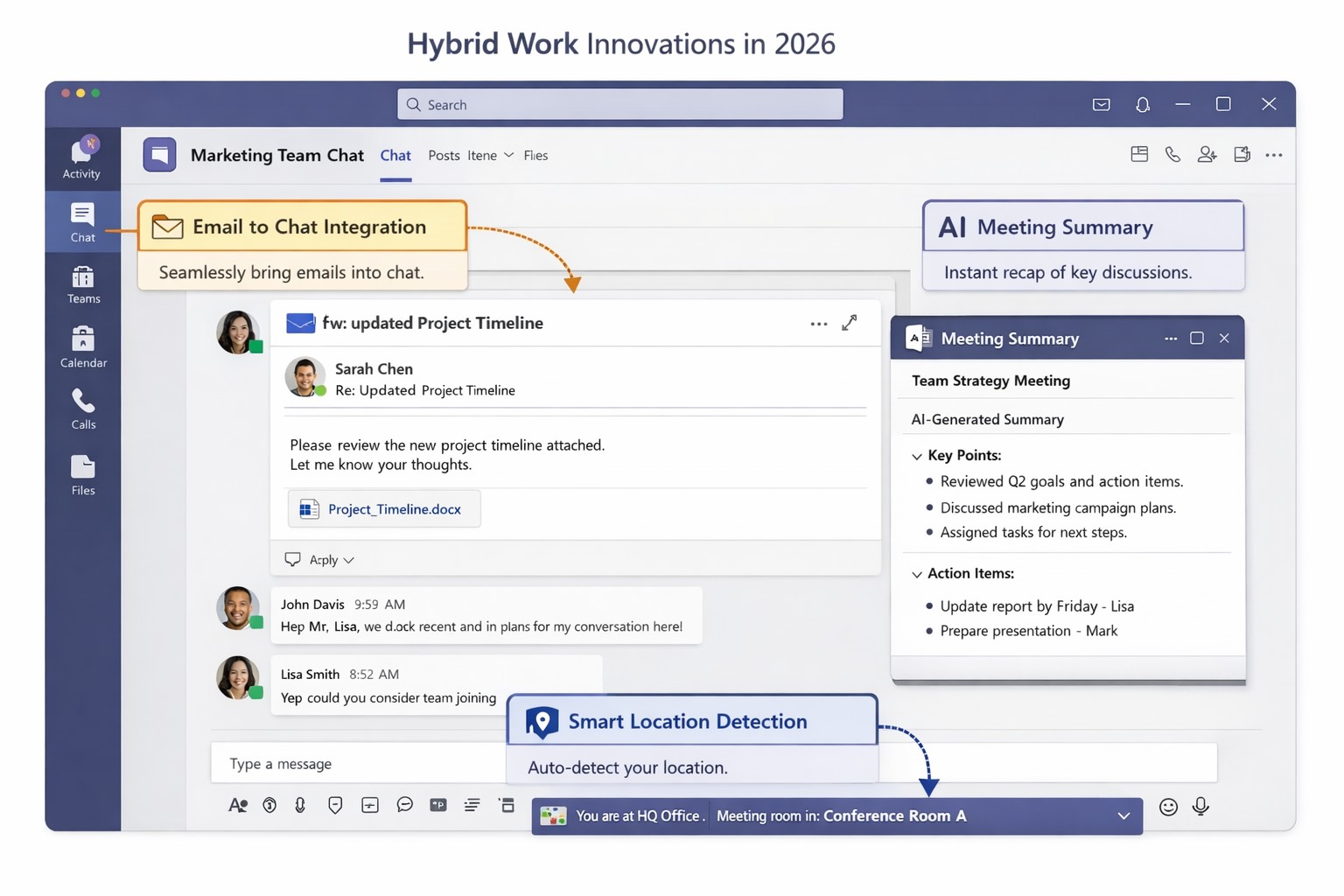
You’re likely grappling with fragmented communication, productivity dips, and tool silos that hinder growth. Microsoft Teams’ latest 2026 innovations—AI summaries, email-to-chat integration, and smart location detection—bridge these gaps, creating a unified hub for internal and external collaboration.
Key Innovations for Hybrid Efficiency
Teams now supports email-to-chat, allowing seamless communication with vendors and clients who use email instead of Teams, solving tool fragmentation in hybrid setups. AI-powered summaries condense mixed internal-external threads, ensuring alignment without full attendance, while granular guest access and compliance alerts enhance security.
Smart location detection auto-updates work status via office Wi-Fi, helping managers track hybrid presence accurately—crucial as Microsoft mandates three in-office days for its own teams starting 2026. These features integrate with Microsoft 365 for immersive tools like Loop and SharePoint, boosting workflow automation.
Practical Action Steps
Implement these steps with your IT department to leverage Teams for hybrid work:
Audit Current Setup: Review Teams usage via admin center analytics; identify silos (e.g., email-heavy vendor chats). Upgrade to latest Microsoft 365 E3/E5 licenses for full AI features—takes 1-2 hours.
Enable Core Features: In Teams admin center, activate email-to-chat policies and AI summaries under Meetings > Policies. Test Wi-Fi location detection on 10 pilot devices; configure granular guest roles for externals.
Train and Roll Out: Run company-wide training sessions (use built-in Teams training modules). Set governance rules for external access; monitor via compliance alerts. Aim for 80% adoption in 4 weeks.
Integrate and Optimize: Link with Outlook/Loop for unified hubs; use Together Mode for inclusive hybrid meetings. Quarterly reviews ensure ROI through productivity metrics.
These steps minimize disruption while maximizing hybrid productivity.
FAQ: Client Inquiries Answered
Q: How does email-to-chat benefit my business? A: It unifies communication—vendors email directly into Teams chats, streamlining hybrid coordination without new accounts.
Q: Is smart location tracking secure and privacy-compliant? A: Admins control it (default off); it uses Wi-Fi BSSIDs without GPS, with compliance notifications for breaches.
Q: Will these features work for small teams? A: Yes, scalable for SMBs; no extra hardware needed beyond standard devices.
Q: What’s the ROI timeline? A: Businesses report 20-30% collaboration gains in 1-3 months via reduced meeting times and faster decisions.
How Farmhouse Networking Helps
Farmhouse Networking specializes in Microsoft 365 optimizations for accounting, healthcare, and charity sectors. We handle full Teams deployments: custom audits, feature rollouts, compliance setups, and training tailored to B2B hybrid needs. Our SEO-driven websites and lead-gen strategies have boosted organic traffic 40%+ for clients, converting visitors to long-term partners. Let us manage IT complexities so you focus on growth.
Forrester TEI: Microsoft 365 threat intelligence delivers 113% ROI and $3M net present value over 3 years by reducing cyber breach costs.
One major cyber breach can wipe out years of profits—averaging $4.88 million globally in 2024. Microsoft Office 365 Threat Intelligence, part of Microsoft 365 Defender, delivers comprehensive protection against advanced threats in email, Teams, and collaboration tools, potentially saving your organization over $3 million in three years through risk reduction and efficiency gains.
Key Economic Impacts
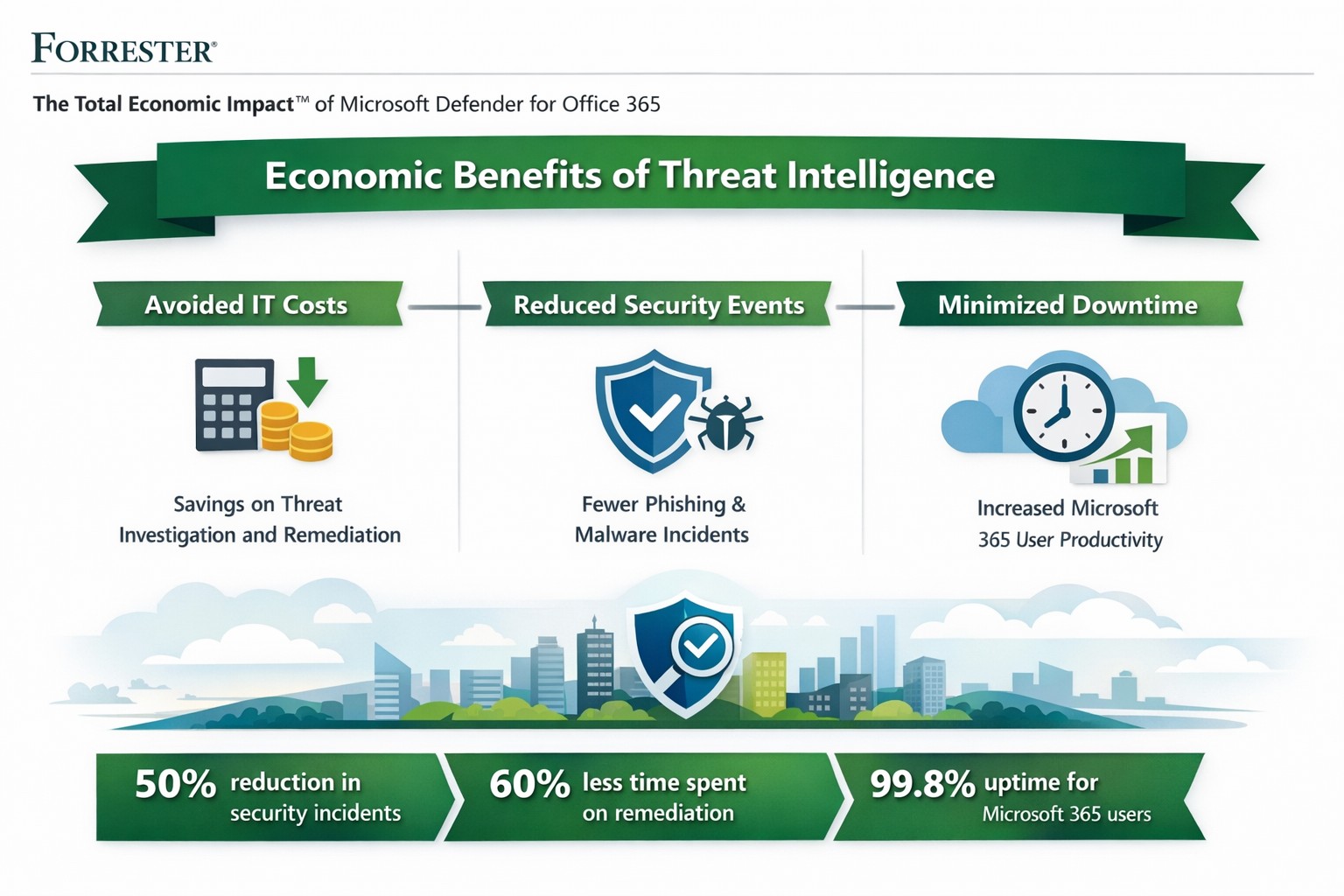
Forrester’s Total Economic Impact (TEI) studies highlight massive ROI from Microsoft 365 security features like Threat Intelligence. A composite organization with 20,000 users saw:
Avoided IT costs: $673K over three years by consolidating security tools into a single platform, eliminating third-party licenses and maintenance.
Reduced security events: Saved 27,168 IT support hours annually ($1.9M PV) via faster remediation and lower event severity.
Minimized downtime: Nearly $1.27M in productivity gains from fewer disruptions.
Breach risk cut by 60%: Avoiding $321K+ in business impacts from data leaks.
Related Defender for Office 365 TEI shows 113% ROI, $3.19M NPV: 95% faster link blocking, 92% quicker investigations, and $250K annual tool savings. Average breaches cost small businesses $4.44M—prevention via Threat Intelligence pays for itself fast.
Practical Action Steps
Implement these steps with your IT team to harness Threat Intelligence:
Assess current setup: Audit Office 365 logs for threats using Microsoft Secure Score (free tool). Target E5 licensing if not active—includes Threat Intelligence at no extra cost for many.
Enable protections: Activate Safe Links, Safe Attachments, and Attack Simulator in Defender portal. Run initial phishing simulations to baseline employee readiness.
Integrate and automate: Link to Microsoft Sentinel for SIEM; set auto-remediation rules. Train SOC team (8 hours avg.) on hunting/response workflows.
Monitor and optimize: Review weekly reports; decommission redundant tools (e.g., third-party ATP). Aim for 29% risk reduction via visibility gains.
Test ROI: Track metrics like MTTR (mean time to respond)—expect 92% investigation speedup.
These yield payback in <6 months for most.
FAQ: Client Inquiries Answered
Q: What’s the real cost of Office 365 Threat Intelligence? A: Included in Microsoft 365 E5 (~$57/user/month); standalone Plan 2 at $4.25/user. Volume discounts apply; offsets via $250K+ tool savings.
Q: How does it prevent breaches? A: Leverages Microsoft’s Intelligent Security Graph for threat intel, blocking zero-days/phishing pre-click. Reduces breach likelihood 29-60% vs. competitors.
Q: Is it suitable for small/medium businesses? A: Yes—one prevented $4.44M breach covers E5 for 150+ years for 25-user firms. Ideal if Microsoft-centric.
Q: What about implementation time? A: 3-4 weeks with 3 FTEs (120 hours); free migration from EOP.
Farmhouse Networking specializes in B2B security for accounting, healthcare, and nonprofits. We handle full implementation: licensing audits, Defender configuration, custom automation, and ongoing optimization. Our experts integrate Threat Intelligence with your workflows, train teams, and monitor for compliance (e.g., HIPAA). Clients see 242% ROI like Forrester cases, plus organic traffic boosts via secure, SEO-optimized sites. We drive leads while slashing risks.
Ready to safeguard profits? Email support@farmhousenetworking.com for a free economic impact assessment tailored to your business.
And God will generously provide all you need. Then you will always have everything you need and plenty left over to share with others. As the Scriptures say, “They share freely and give generously to the poor. Their good deeds will be remembered forever.” For God is the one who provides seed for the farmer and then bread to eat. In the same way, he will provide and increase your resources and then produce a great harvest of generosity in you. - 2 Corinthians 9:8-10
We use cookies to ensure that we give you the best experience on our website. If you continue to use this site we will assume that you are happy with it.