Windows 10 end of life preparation: audit compatibility, plan Windows 11 upgrades, and partner with managed IT before support ends October 14, 2025.
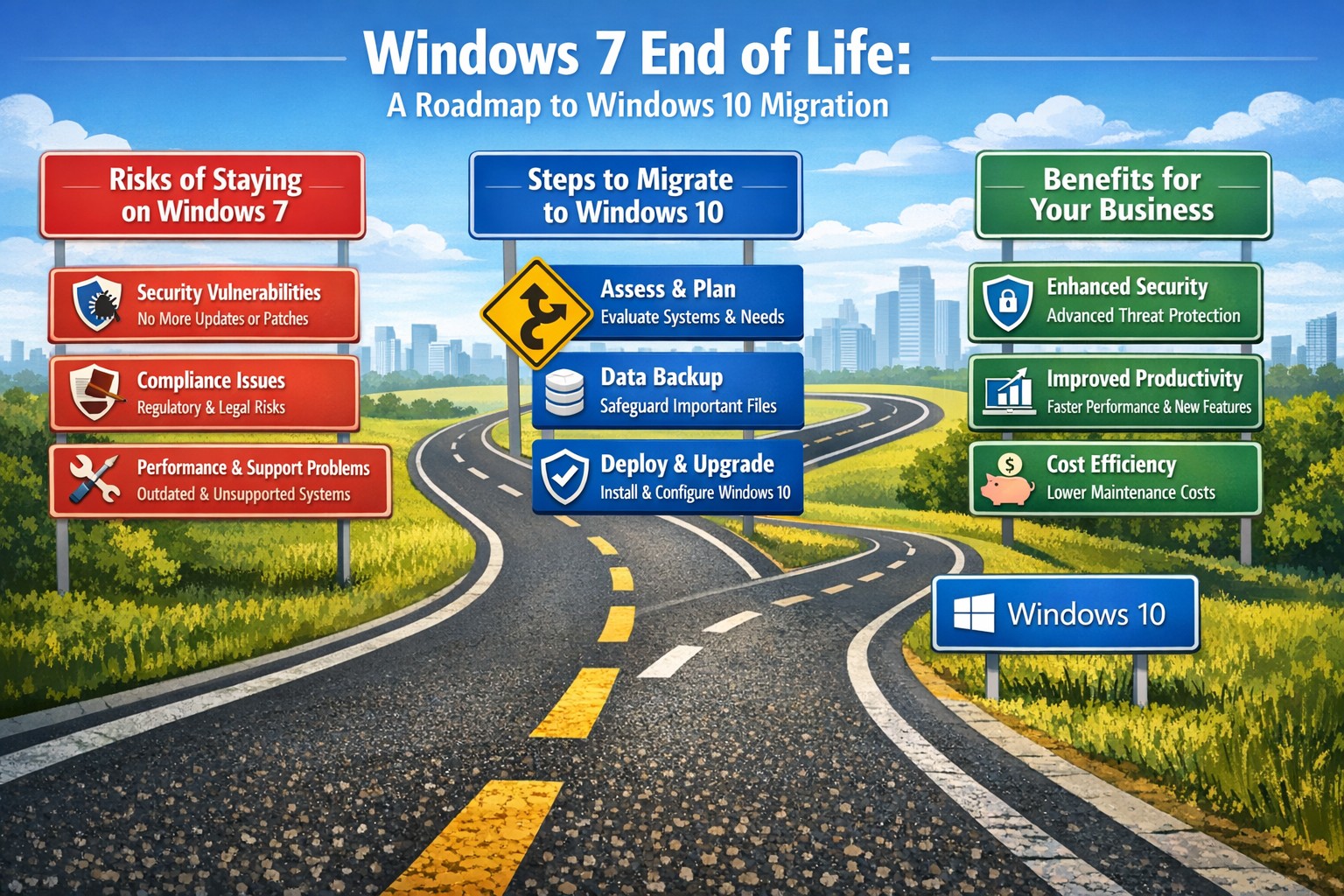
As the end of support for Windows 10 approaches in about a year on October 14, 2025, it’s crucial for businesses to start preparing for the transition. This article will guide you through the essential steps to ensure a smooth and secure move to the next phase of your computing experience.
Understanding Windows 10 End of Life
Windows 10 End of Life (EOL) marks the point when Microsoft will cease providing updates, security patches, and technical support for the operating system. This event is significant because it leaves users vulnerable to security risks, compatibility issues with newer software and hardware, and non-compliant with standards like HIPAA, PCI, and CMMC.
Key Steps to Prepare
Assess Your Current Setup: Before making any changes, take stock of your current system:
Identify all devices running Windows 10
Check hardware specifications to make sure old computers are compatible
List essential software and applications
Evaluate Upgrade Options: Consider these alternatives:
Upgrading to Windows 11 for free (if your hardware supports it)
Purchasing new devices with the latest operating system to replace older ones
Plan for Software Compatibility: Ensure your critical applications will work post-transition:
Check compatibility with newer operating systems
Contact software vendors for upgrade options
Consider alternative software solutions if needed
Train Your Team: If you’re managing a business environment:
Educate employees about the upcoming changes
Provide training on new systems or procedures
Establish a support system for the transition period
Set a Timeline: Create a realistic schedule for your transition:
Set milestones for each phase of the preparation
Allow ample time for testing and troubleshooting
Plan for potential downtime during the switch
Financial Considerations: Budgeting for the transition is crucial:
Allocate funds for new hardware if needed
Account for potential software upgrade costs
Consider the long-term cost benefits of modernizing your IT infrastructure
Security Implications: Understand the risks of running an unsupported OS:
Increased vulnerability to malware and cyber attacks
Potential compliance issues for regulated industries
Lack of technical support for critical issues
Remember, a well-planned transition not only safeguards your system but also opens up opportunities for improved performance and productivity. Take the first step now: conduct an inventory of your Windows 10 devices and begin researching upgrade paths. Your future self will thank you for your foresight and preparation.
Don’t wait until the last minute to prepare for Windows 10 End of Life. Start your transition plan today to ensure a secure and efficient computing environment for the future. Let Farmhouse Networking do the heavy lifting by assessing your needs, exploring your options, and taking proactive steps to protect your digital assets.
Time to modernize: Upgrade from Windows 7 end of life to secure Windows 10 desktops and protect your mid-sized business
After its end-of-support date, many mid-sized businesses still run Windows 7, exposing them to unpatched vulnerabilities and compliance risks. Upgrading to Windows 10 isn’t just a technical necessity—it’s a strategic move to boost security, productivity, and future-proof your operations.
Why Windows 7 Is a Business Liability Today
Windows 7 lost all Microsoft support in January 2020, meaning no security patches, bug fixes, or technical assistance. Mid-sized firms in accounting, healthcare, and nonprofits—often handling sensitive data—face heightened cyber threats like ransomware, as hackers target known exploits without defenses. Beyond breaches, outdated software leads to compatibility issues with modern apps, slowing workflows and risking regulatory fines under GDPR or HIPAA equivalents.
Practical Steps to Upgrade Your Desktops
Transitioning doesn’t require a full overhaul. Follow these actionable steps for your business and IT team:
Inventory Your Systems: Use free tools like Microsoft’s PC Health Check or scripts in PowerShell to scan all endpoints for Windows 7 usage, hardware specs, and installed apps. Prioritize machines handling customer data.
Assess Compatibility: Test key business software (e.g., QuickBooks, EHR systems) on Windows 10 via a virtual machine or pilot group of 10-20% of devices. Budget $50-150 per device for potential app updates.
Backup and Plan Migration: Secure full backups to cloud (e.g., OneDrive for Business) or external drives. Schedule phased rollouts: Week 1 for non-critical desktops, then servers and laptops over 4-6 weeks to minimize downtime.
Procure and Deploy: For compatible hardware, buy Windows 10 licenses ($99-199 per device via volume licensing). Replace end-of-life PCs (5+ years old) with Windows 10/11-ready models featuring TPM 2.0 for enhanced security. Use Microsoft Endpoint Manager for automated imaging.
Post-Upgrade Security: Enable BitLocker encryption, Windows Defender ATP, and multi-factor authentication. Test for 48 hours, then monitor via dashboards.
Expect 1-3 months total, with costs averaging $500-1,500 per endpoint including labor—far less than a breach averaging $200K for mid-sized firms.
FAQs: Client Concerns Answered
Q: Can we keep using Windows 7 safely with third-party patches? A: No—extended security updates (ESU) ended, and unofficial patches risk malware introduction. Microsoft warns they expose more vulnerabilities than they fix.
Q: What if our hardware won’t support Windows 10? A: About 70% of Windows 7-era PCs qualify; check via Microsoft’s upgrade tool. Upgrade non-compatible ones to cut long-term support costs by 40%.
Q: How does this impact our industry-specific compliance? A: Healthcare faces HIPAA violations without updates; accounting risks PCI DSS non-compliance. Modern OS ensures audit-ready logs and encryption.
Q: Is Windows 11 a better target than 10? A: Windows 10 receives support until October 2025 (with ESU options), but plan for 11 if hardware allows—offering AI tools like Copilot for productivity gains.
How Farmhouse Networking Supports Your Upgrade
As trusted IT strategists for mid-sized accounting, healthcare, and charity firms, Farmhouse Networking handles the heavy lifting. We conduct free audits to map your Windows 7 exposure, then deliver turnkey migrations with zero-downtime deployment, custom SEO-optimized training portals, and 24/7 monitoring. Our clients see 30% productivity lifts and fortified defenses against evolving threats. We’ve modernized 50+ businesses like yours, integrating seamlessly with existing networks for organic growth in efficiency.
Unlock 147% ROI with Windows 10 security: Slash third-party tool costs and malware downtime using built-in features like Windows Defender
Rising cyber threats and IT costs threaten your bottom line. Windows 10’s built-in security features deliver proven cost savings and operational benefits, potentially netting millions in avoided expenses over three years per Forrester’s analysis.
Key Cost Savings and Benefits
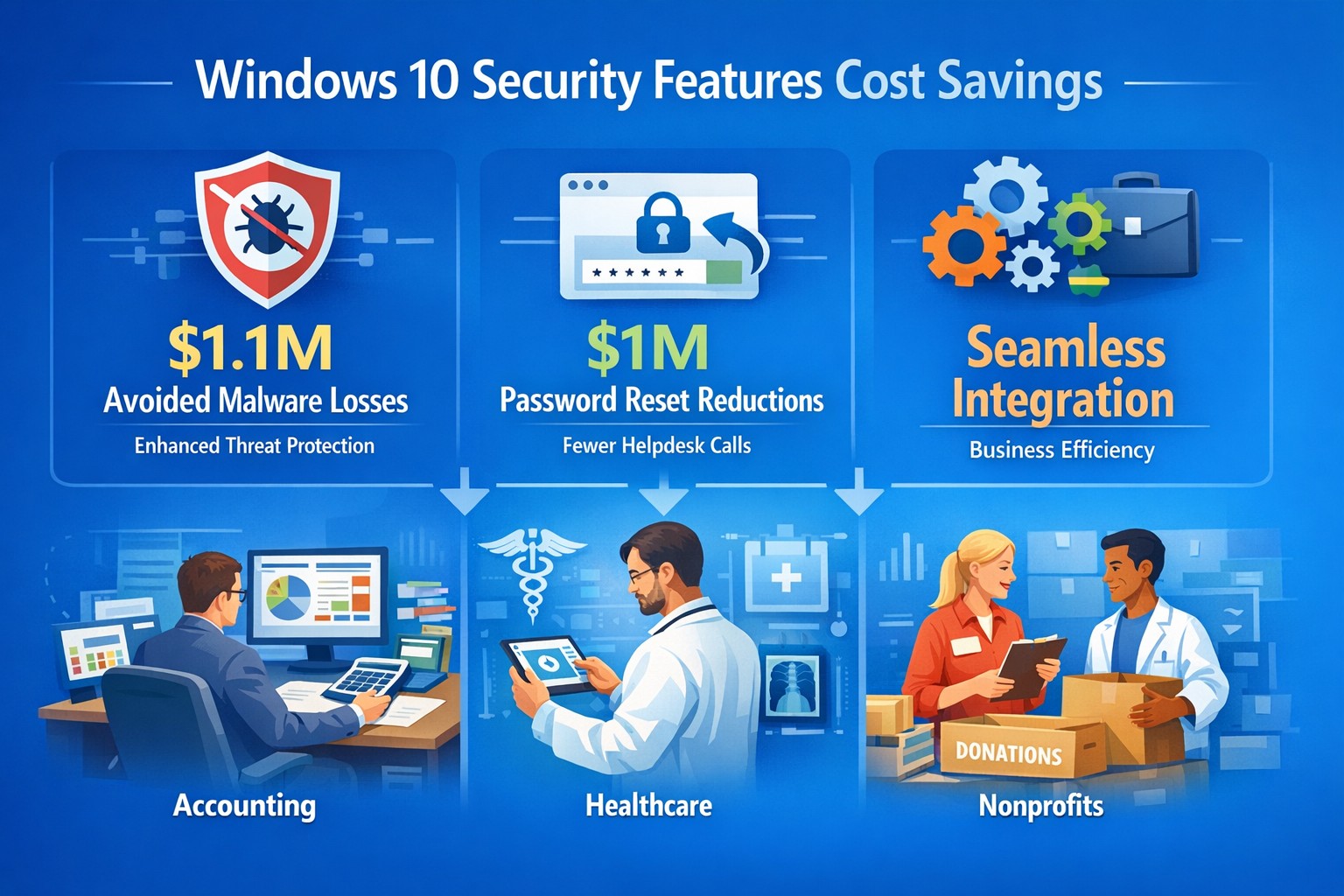
Windows 10 security eliminates needs for third-party tools like EDR, EPP, AV, and disk encryption, saving on licenses and management time. Businesses report $1.1 million in reduced productivity losses from fewer malware infections, thanks to faster detection and auto-remediation via Windows Defender ATP. Password resets drop dramatically with Windows Hello biometrics, cutting another $1.0 million in support costs.
Additional gains include improved device performance, cloud-based protection for remote teams, and easier OS-integrated maintenance—reducing IT burden without extra vendors. BitLocker and Credential Guard further minimize data breach risks, avoiding downtime from incidents like WannaCry, which spared updated Windows 10 systems.
Benefit
3-Year Savings (Composite Org.)
Key Features
Avoided Third-Party Costs
Significant (licenses + ops time)
Native Defender, BitLocker
Reduced Malware Impact
$1.1M
ATP auto-remediation
Fewer Password Resets
$1.0M
Windows Hello biometrics
Overall ROI
147% (Forrester TEI)
Integrated, low-resource security
Practical Action Steps
Business owners and IT teams can activate these savings quickly.
Audit Current Setup: Inventory endpoints for third-party security tools; calculate annual license and support costs.
Enable Core Features: Turn on Windows Defender ATP, BitLocker encryption, and Windows Hello in Group Policy (Settings > Update & Security > Windows Security).
Update and Test: Deploy latest Windows 10 updates via WSUS or Intune; pilot on 10% of devices to measure infection rates and reset tickets pre/post.
Train Staff: Run 30-minute sessions on biometrics and reporting suspicious activity to Defender dashboard.
Monitor ROI: Track metrics like MTTK (mean-time-to-know threats) and remediation time quarterly using built-in analytics.
These steps typically take 4-6 weeks, with immediate third-party savings.
FAQ: Client Inquiries Answered
Q: Is Windows 10 secure enough without add-ons? A: Yes—Forrester found it replaces multiple vendors effectively, reducing infections and resource strain. It’s cloud-integrated for mobile workforces.
Q: What about upgrade costs from older Windows? A: Implementation is low; license costs offset by $2.1M+ benefits. No major upfront hardware needs if on compatible PCs.
Q: How does it help compliance like GDPR? A: Defender Security Center provides audit-ready logs for apps, credentials, and files; BitLocker ensures data protection.
Q: Works for small businesses? A: Absolutely—scalable subscriptions match enterprise security without complexity or high costs.
How Farmhouse Networking Helps
Farmhouse Networking specializes in B2B IT for accounting, healthcare, and charity sectors. We handle audits, feature deployments, and custom Intune setups to maximize Windows 10 ROI—driving organic traffic via secure, compliant networks that convert visitors to clients. Our SEO-optimized strategies include branded sites emphasizing cost savings like these, plus lead gen via targeted content. We’ve helped similar firms cut security spend 30-50% while boosting uptime.
Call to Action
Ready to slash costs and fortify your business? Email support@farmhousenetworking.com for a free Windows 10 security audit and tailored implementation plan.
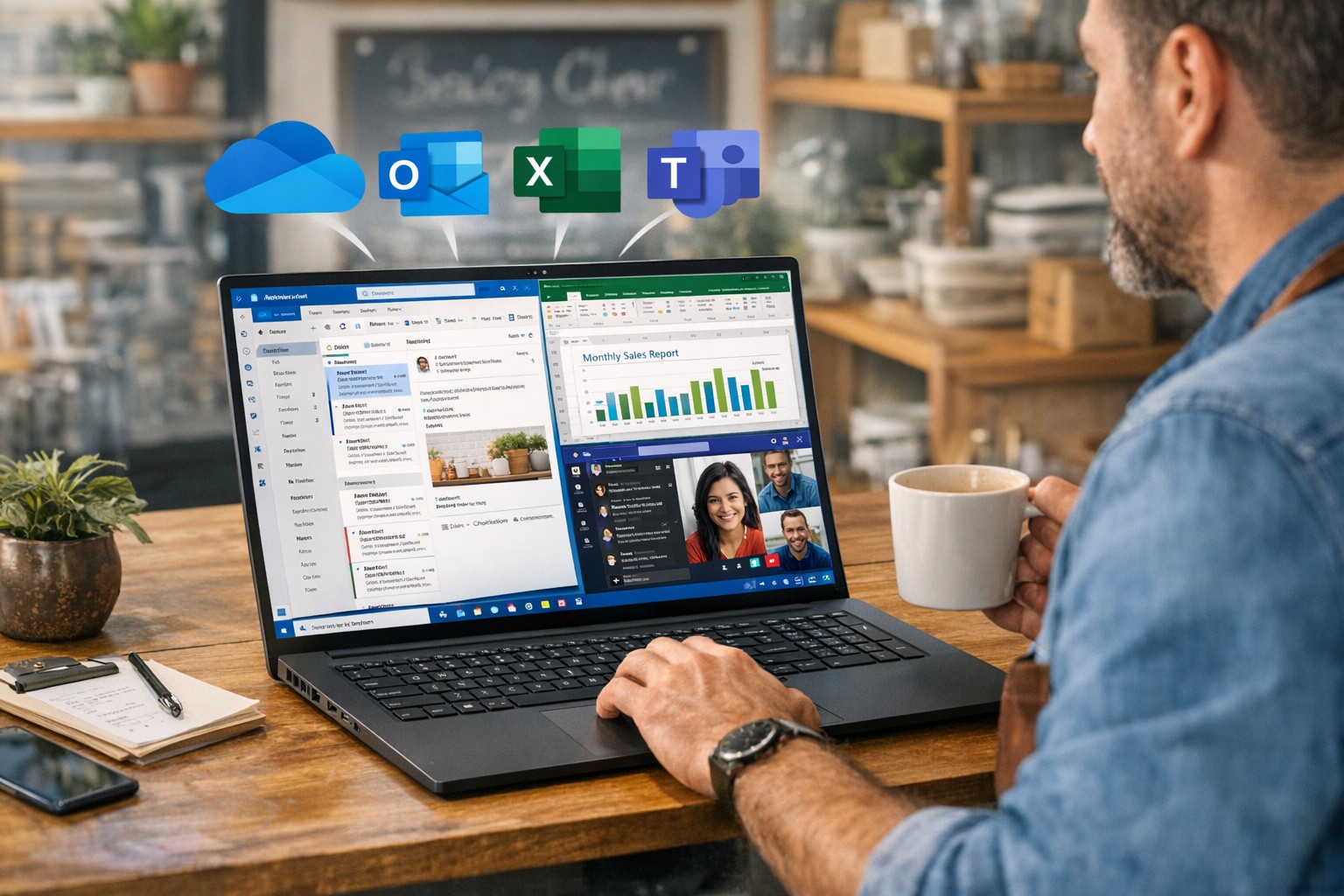
How a small business owner can improve productivity with Windows and Microsoft 365 using Outlook, Excel, Teams, and OneDrive for streamlined workflows and collaboration.
You don’t need to become a power user, but you do need to set expectations and sponsor the rollout. Hand these action items to your operations lead or IT department and ask for a 30‑, 60‑, and 90‑day plan.
1. Standardize on Microsoft 365, not just Office
Migrate from legacy Office installs to Microsoft 365 (Business Standard or equivalent) so everyone has access to cloud storage, Teams, and shared calendars.
Ensure all users have work email accounts tied to the Microsoft 365 tenant; this simplifies sharing, licensing, and auditing access later.
2. Lock down storage with OneDrive and SharePoint
Move department‑specific files (contracts, templates, policies) into SharePoint so they live in version‑controlled libraries instead of scattered email attachments and local folders.
Require staff to save active project files to OneDrive or SharePoint, not just the desktop or C‑drive, so documents are backed up, searchable, and recoverable.
3. Streamline communication with Outlook and Teams
Design a clear “rules of engagement”:
Emails for formal correspondence and external clients.
Teams for internal discussions, approvals, and quick questions.
Train managers to enable Focused Inbox and use Outlook rules to route high‑priority clients or vendors to a dedicated folder or notification channel.
4. Automate repetitive tasks with Power Automate
Identify 2–3 recurring manual tasks (e.g., invoice creation, timesheet approvals, status reports) and design Power Automate flows that move data between Excel, Forms, SharePoint, or Outlook.
Have IT build a “template library” of reusable flows so new departments can adopt them without re‑engineering from scratch.
5. Optimize workstations for Windows and Office
Ensure all employee machines run a supported Windows 10/11 version with automatic updates enabled; this reduces vulnerabilities and compatibility issues with Office apps.
Standardize core Office toolbars and shortcuts (for example, “Quick Access Toolbar” and frequently used Ribbon commands) so staff spend less time hunting for features.
6. Train users, not just deploy licenses
Schedule short, role‑specific workshops (e.g., “Excel for managers,” “Teams for remote staff”) instead of one‑size‑fits‑all training.
Provide cheat sheets or quick‑reference guides for common features: co‑authoring, Track Changes, Outlook rules, and Teams meeting best practices.
Anticipated client questions (FAQ)
Q: Isn’t Microsoft 365 just more license cost? A: If you’re only using it as “Word and Excel on each desktop,” yes. But when you leverage collaboration, automation, and cloud storage consistently across your team, you reduce errors, rework, and the time staff spend hunting for files—making the subscription cost a productivity multiplier.
Q: How much downtime will this rollout cause? A: With proper planning, user‑facing disruption is minimal. Most changes are configuration and training, not rip‑and‑replace. A phased rollout—starting with a pilot group, then expanding—keeps productivity steady.
Q: Can we keep using our old file servers and local folders? A: You can, but you trade visibility, backup, and real‑time collaboration for that control. A hybrid approach—key current projects in SharePoint, legacy archives on local servers—often works well during the transition.
Q: Is this secure enough for our data and clients? A: Microsoft 365 offers enterprise‑grade security, including conditional access, multi‑factor authentication, and audit logs. The bigger risk is misconfigured accounts (e.g., shared passwords, no MFA) that your IT provider should harden.
How Farmhouse Networking can help
At Farmhouse Networking, we help business owners like you turn Windows and Microsoft 365 from a “box of tools” into a repeatable productivity engine:
Assessment and planning: We audit your current Windows and Office use, map out critical workflows, and propose a 90‑day plan tailored to your industry and team size.
Deployment and hardening:
Configure Microsoft 365 tenants, enforce password policies and MFA, and set up OneDrive/SharePoint structures that match your org chart.
Optimize Windows workstations (updates, security, and Office settings) so end‑users get reliability instead of reboots.
Automation and training:
Build Power Automate workflows for your most tedious tasks (reports, approvals, reminders).
Deliver concise, role‑based training sessions so your team actually uses the features you’re paying for.
Ongoing support:
Provide help‑desk coverage so employees don’t fall back on “printing it and emailing it again” when they hit a snag.
Call to action
If you’re ready to stop wasting time on email chains, file‑version chaos, and ad‑hoc workarounds, Farmhouse Networking can help you implement a coherent Windows and Microsoft 365 strategy that scales with your business.
Email us at support@farmhousenetworking.com to request a free 30‑minute consultation on how we can improve productivity with Windows and Office in your specific environment.
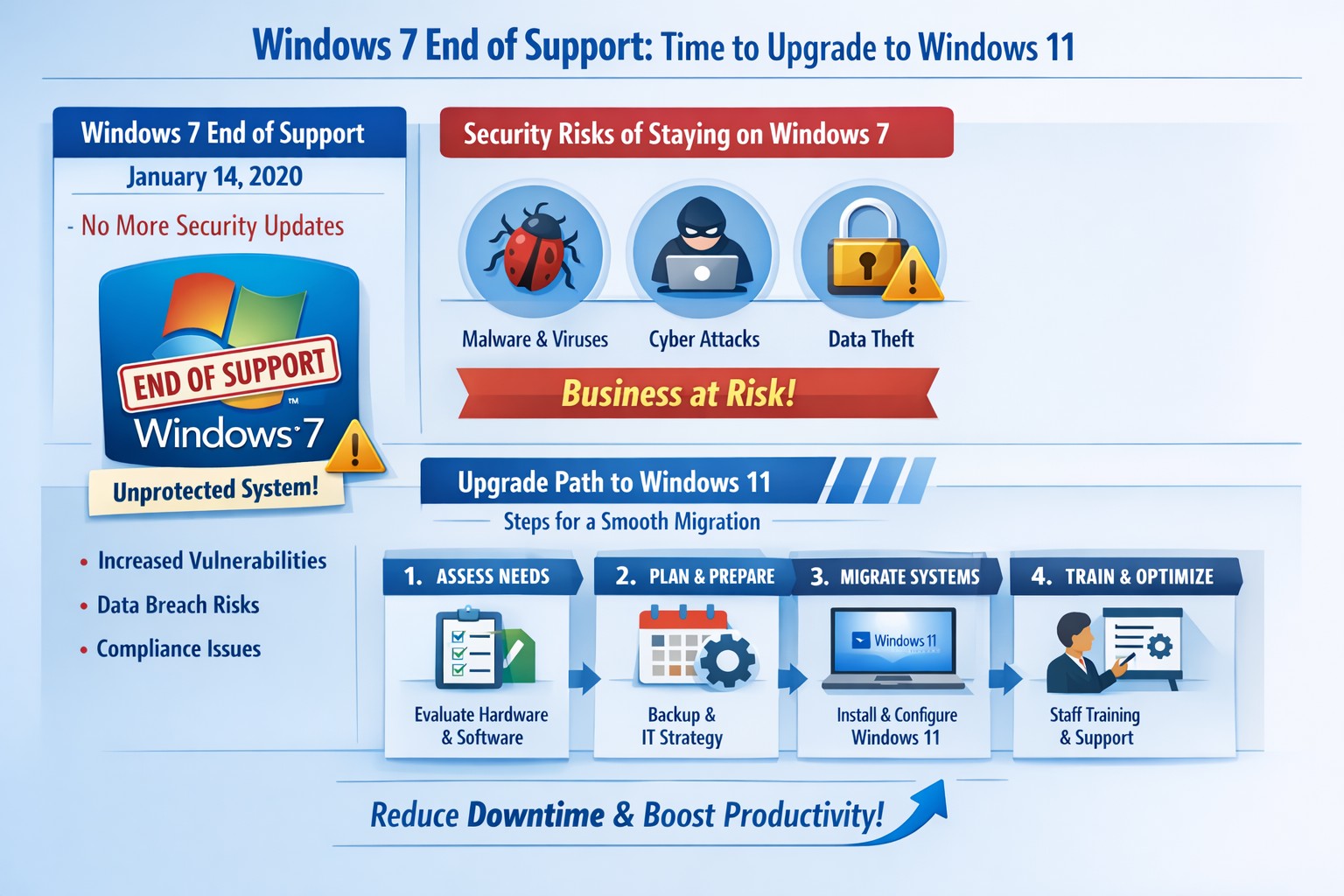
Infographic: Key steps to migrate from Windows 7 end of support, minimizing risks for accounting, healthcare, and charity businesses.
Windows 7 support officially ended years ago, but many businesses still run legacy systems, exposing them to severe security risks and compliance issues. As a business owner, ignoring this leaves your operations vulnerable to cyberattacks that target unpatched vulnerabilities—hackers know exactly when support lapses.
Business Risks
Continued use of Windows 7 means no more Microsoft security updates, making systems prime targets for malware, ransomware, and exploits. Third-party software and hardware vendors will drop compatibility, leading to functionality failures and forced hardware upgrades. Non-compliance with regulations like GDPR, HIPAA, or PCI DSS could trigger fines, especially in accounting, healthcare, and charity sectors.
Practical Action Steps
Follow these steps with your IT department to migrate securely:
Inventory Systems: Audit all devices for Windows 7 usage. Use tools like Microsoft’s PC Health Check or scripts to scan networks—prioritize critical machines handling client data.
Backup Data: Perform full backups to encrypted, offsite storage. Test restores to ensure integrity before any changes.
Upgrade or Replace: Assess hardware; pre-2015 PCs may not support Windows 11. Upgrade eligible systems to Windows 10/11 or deploy new hardware with modern OS. Budget for this: expect $500–$1500 per workstation.
Test Compatibility: Run applications in a sandboxed environment on the new OS. Switch incompatible software to cloud alternatives like Microsoft 365.
Deploy Security: Install endpoint protection, enable multi-factor authentication, and patch all systems post-migration.
Train Staff: Schedule sessions on new interfaces to minimize downtime—aim for under 4 hours per user.
Step
Timeline
Responsible Party
Inventory
1 week
IT Admin
Backup
Ongoing
IT + Owner
Upgrade/Test
2–4 weeks
IT Department
Deploy/Train
1 week
Full Team
FAQs for Client Inquiries
Q: Can I pay for extended Windows 7 support? A: Microsoft’s Extended Security Updates (ESU) ended in 2023; no options remain. Migration is mandatory.
Q: What if my accounting software doesn’t work on Windows 11? A: Most vendors (e.g., QuickBooks) support Windows 11. Test via vendor trials; cloud versions bypass OS issues entirely.
Q: How much will this cost my small business? A: $1000–$5000 for a 5-PC setup, including hardware. Delaying increases breach costs exponentially—average ransomware payout hit $1.5M in 2025.
Q: Is Windows 10 safe long-term? A: Support ends October 2025; plan for Windows 11 now to avoid repeat issues.
Q: What about healthcare/charity compliance? A: HIPAA/PCI violations start immediately on unsupported OS. Migrate to audited, compliant systems.
How Farmhouse Networking Helps
Farmhouse Networking specializes in seamless Windows migrations for accounting firms tracking finances, healthcare providers securing PHI, and charities managing donor data. We conduct free audits, handle inventory-to-deployment, and optimize for SEO-driven websites that convert IT leads into long-term B2B clients. Our custom strategies include branded cloud setups, lead-gen automation, and 24/7 monitoring—reducing downtime by 90% and boosting security scores. Past clients saw 25% organic traffic growth post-migration via content-optimized sites.
Ready to secure your business? Email support@farmhousenetworking.com for a no-obligation audit and personalized migration plan. Act now—before a breach does.
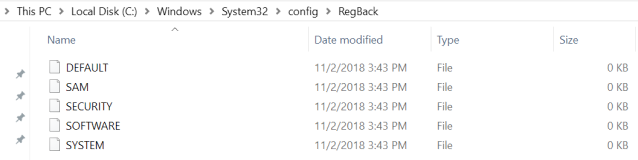
In a new Windows 10 Support article, dated June 28th, Microsoft comes clean that they will no longer be backing up the registry file with its built in backup feature. “This change is by design, and is intended to help reduce the overall disk footprint size of Windows.” They instead recommend that System Restore be enabled and used to recover in case of registry corruption (which by the way uses disk space too).
Ending Registry Backup
The Windows Registry is a hierarchical database that stores low-level settings for Windows 10 and installed applications that rely on it. The kernel, device drivers, services, Security Accounts Manager, and user interface configuration are all in the registry. If the registry is lost then system settings, drivers, user interface tweaks, and many programs will all need to be fixed or re-installed from scratch.
If your company is using the built in Windows Backup feature, then contact us for assistance moving to a system that provides complete backup of your systems.
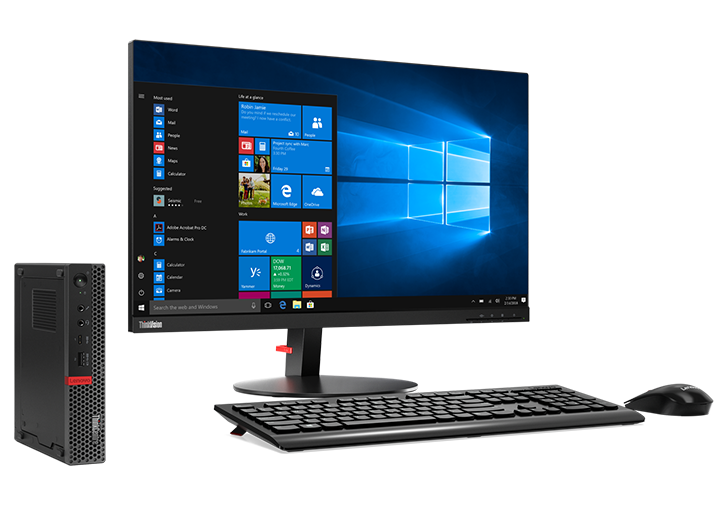
As a partner with Lenovo and Intel, I have been given the opportunity to give one of my clients (or perspective clients) a brand new computer and workstation as pictured above. It contain a new memory cache chip from Intel that they would like some feedback on, so the company that accepts this will have to fill out a survey and be on a single phone interview. The computer will be used with the cache enabled and disabled to see the difference the chip makes. Once the testing is done the computer is FREE to keep.
I would like to give this computer to a well deserving non-profit or struggling business that would benefit from a technology infusion. This computer is suitable for normal office work. I will include free setup of the computer to help get them connected properly. I will decide who gets the computer at the end of March 2019.
Please contact us with ideas on who could best use this free new computer.
Unpatched Windows 7 = immediate cyber risk for SMB data
With Windows 7 quickly moving to End of Life within a years time, it is time to consider replacing current workstations with newer ones.
Why make the move to Windows 10 Pro?
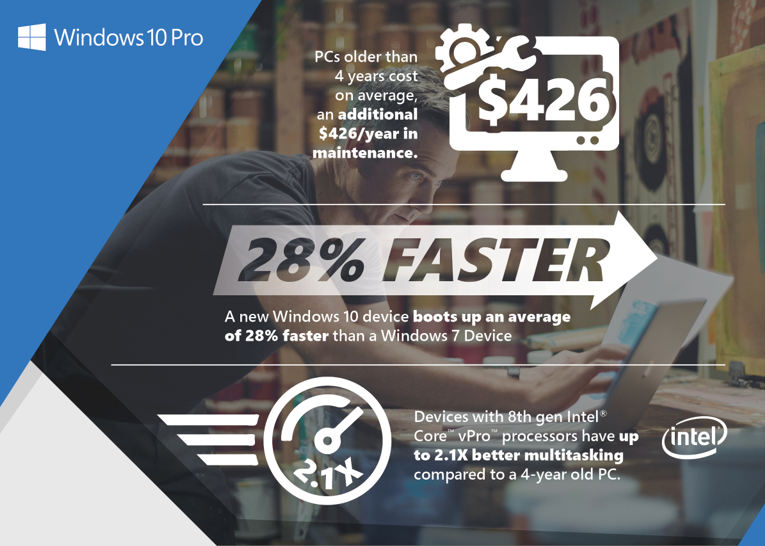
You’ll get the familiar yet improved desktop and Start Menus as well as all-new features, such as the Cortana personal digital assistant, Live Tiles, Tablet Mode, cloud services integration, improved support for touch, pen and voice and so much more. More importantly, you’ll get hardware and software enabled features that help protect device and company information from ever- evolving security threats. Most importantly, you will meet compliance requirements before they become enforceable.
If your company is still using Windows 7 in your business environment, then contact us for assistance.
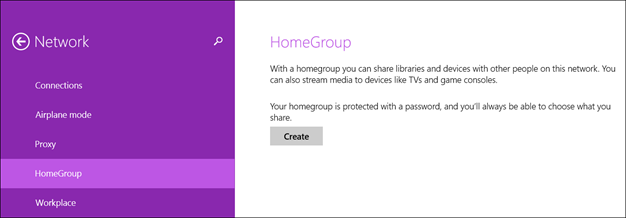
According to the following Microsoft Support Post published in October 2018, the HomeGroup feature has now been removed from Windows 10. Most people won’t need to worry about this, but recently ran across a business that had relied on this feature to run their network. With HomeGroup removed from Windows 10 they were left without the ability to share properly with a new computer on the network. So here is how to fix the issue:
How to fix Windows Networking after HomeGroup Removal
Turn off all sharing:
Open Network & Sharing Center
Click on Advanced Sharing Settings
Turn off network discovery (Private & Public)
Turn off file and print sharing (Private & Public)
Turn off Public folder sharing (All Networks)
Turn off Password Protected Sharing (All Networks)
Save Changes
Remove old password:
Open Credentials Manager
Change to Windows Credentials
Remove all $HomeGroup users credentials from networked computers on all computers formerly in HomeGroup
AutoStart Services
Open Services
Find Function Discovery Provider Host and set to Automatic Startup then Start service
Find Function Discovery Resource Publication and set to Automatic Startup then Start service
Find SSDP Discovery and set to Automatic Startup then Start service
Find UPnP Device Host and set to Automatic Startup then Start service
Add Users
Get username and password for all computers on network
On each computer on the network, open command prompt
For each username, use the command – net user [username] [password] /add
Turn on all sharing:
Open Network & Sharing Center
Click on Advanced Sharing Settings
Turn on network discovery (Private)
Turn on file and print sharing (Private)
Turn on Public folder sharing (All Networks)
Use 128-bit encryption (All Networks)
Turn on Password Protected Sharing (All Networks)
Save Changes
Recreate Shares (if needed)
Right-click on folder and choose Properties
Click on Sharing tab
Click on Advanced Sharing
Check Share This Folder
Name the share
Click Permissions
Click on Add
Select username and add Full Control then click OK
Repeat for each username
Click OK to return to Properties window
Click on Security Tab
Click on Advanced
Click on Add
Select username and add Full Permissions (or appropriate level) then click OK
Repeat for each username
Check Replace Child Permisssions and click OK
Click OK on all previous windows
Hope this post helps some other techs save the time in fixing Windows 10 networking when HomeGroup is removed.
If your company is still using HomeGroup or needs any help with advanced networking, then contact us for assistance.
Ran into an issue with Scan to Folder on Windows 10 Home from a Xerox Versalink C7025 via SMB. Contacted support and they stated that Xerox does not support this setup. Further digging found that Windows 10 Home folder shares need passwords in a [Computername]\[Username] format that the Xerox Versalink could not provide correctly. I found another option that works well in this situation:
Scan to Folder via FTP
Create a Scan folder in the Users directory
Download and install Filezilla FTP Server with the defaults (I prefer to set “start user interface: to manually)
Click on the Edit > Users menu item.
Click on the Add button and create a username (case sensitive)
Check the password box and create a password
Click on the Shared Folders tab on the left then click on the Add under Shared Folders
Browse to the Scan folder and click OK
Check all File & Directory permissions then click OK at bottom left
With this setup on the Windows 10 Home computer an Address Book entry can be created for Scan to Folder via FTP on the Xerox Versalink. The only thing that could be a problem after that is a software firewall link Windows Firewall or McAfee LiveSafe.
If your company wants to utilize more functionality from your multi-function device, then contact us for assistance.
And God will generously provide all you need. Then you will always have everything you need and plenty left over to share with others. As the Scriptures say,
“They share freely and give generously to the poor. Their good deeds will be remembered forever.”
For God is the one who provides seed for the farmer and then bread to eat. In the same way, he will provide and increase your resources and then produce a great harvest of generosity in you. - 2 Corinthians 9:8-10
We use cookies to ensure that we give you the best experience on our website. If you continue to use this site we will assume that you are happy with it.