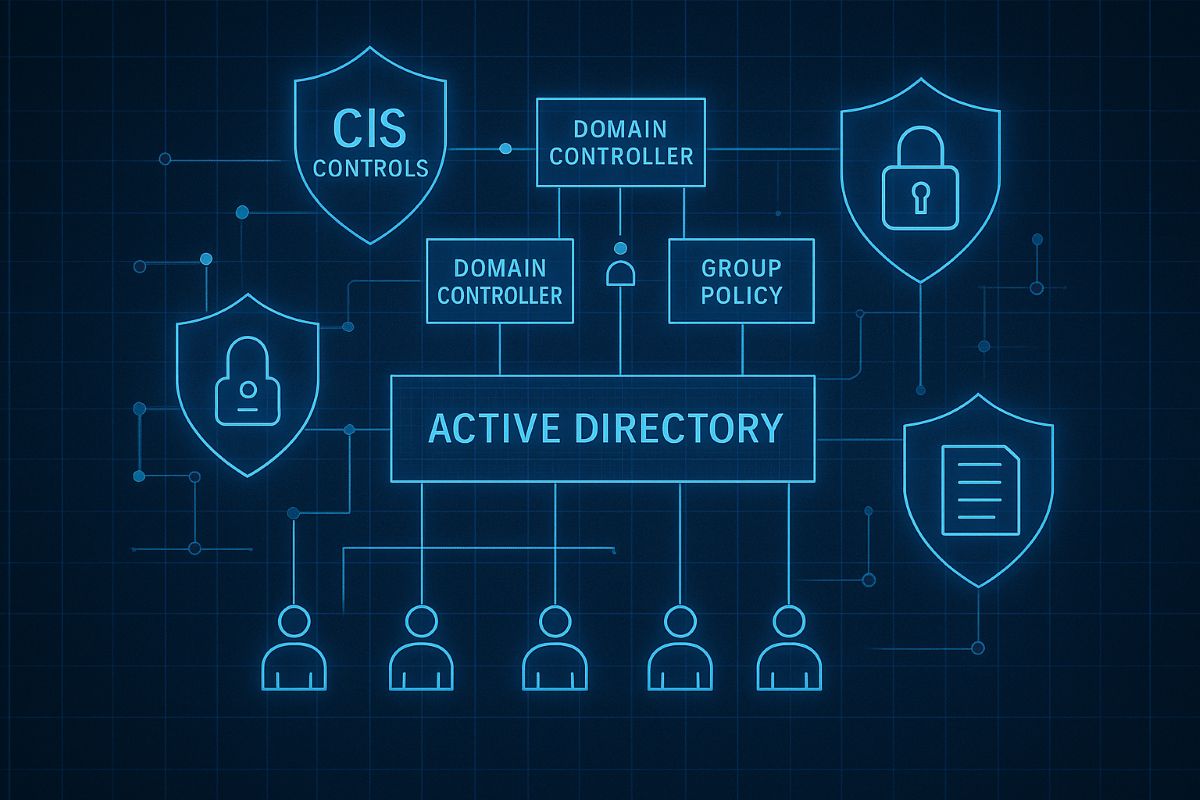
This image illustrates key CIS controls for Active Directory, including inventory of assets, secure configurations, and administrative privilege management to safeguard SMB networks from breaches. Optimize your AD security with these proven CIS benchmarks today.
SMBs are increasingly targeted by cyberattacks. Securing your Active Directory with CIS Controls is the first step to protecting your business data and maintaining operational continuity.
Practical Cybersecurity Measures for SMBs
Apply least privilege: Limit admin accounts and use normal user accounts for everyday work.
Account inventory and review: Know who has access and regularly validate permissions.
Secure domain controllers: Harden core AD servers and apply updates.
Set strong password policies: Require complexity, expiration, and lockouts.
Monitor AD activity: Use auditing to detect unauthorized changes or suspicious logins.
Common Inquiries from SMB Clients
Q: Is Active Directory security necessary for small businesses? A: Absolutely—many attacks exploit AD weaknesses to escalate privileges and steal data.
Q: How complex is implementing CIS Controls? A: The CIS Controls provide a prioritized and scalable framework suitable even for small IT teams.
How Farmhouse Networking Can Support SMBs
Our team specializes in helping SMBs implement CIS Controls for AD security, offering expert guidance, implementation, and ongoing monitoring to keep your network safe.
Small business security strengthened with CIS account management controls
Small business owners face evolving security threats and regulatory obligations. Implementing CIS Account Management Control is key to protecting data, assets, and reputation.
Practical Steps for SMBs
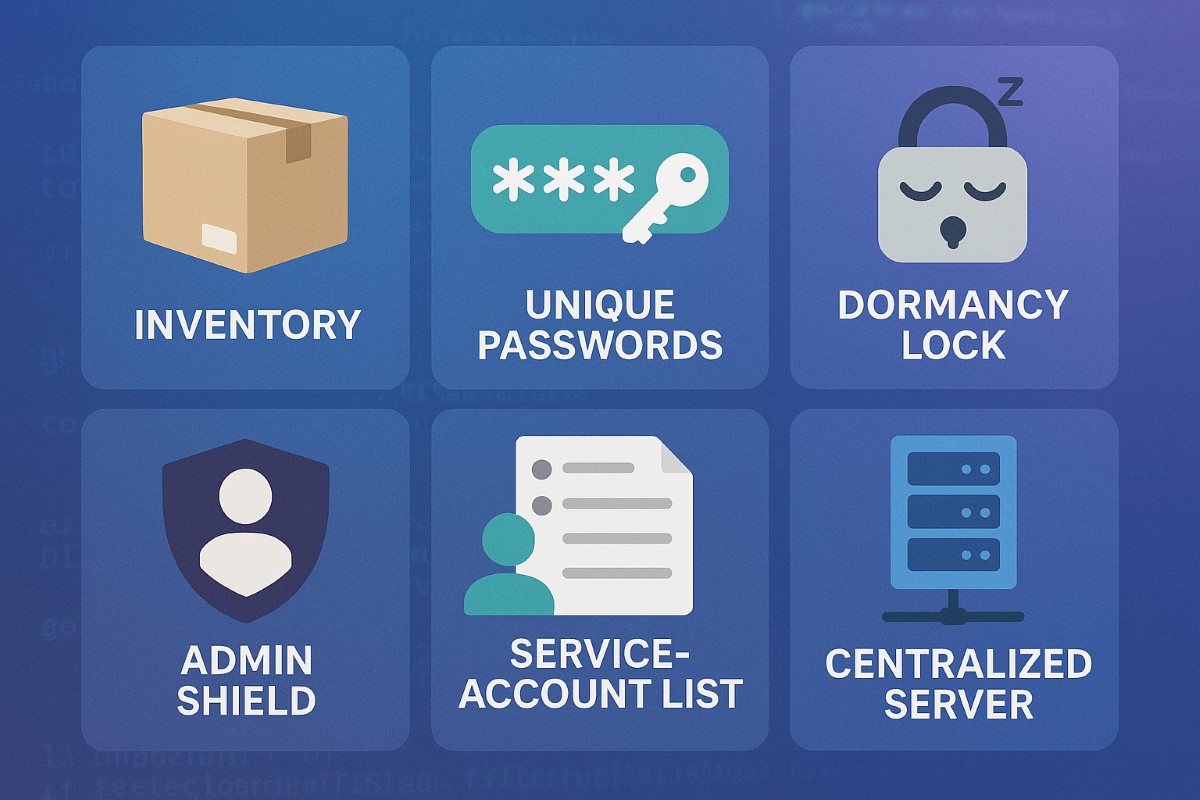
Catalog All User and Service Accounts: Record names, departments, and account activity for every user and automated process.
Use Strong and Unique Passwords: Demand complex passwords, rotate them annually, and use MFA whenever possible.
Disable Dormant Accounts: Purge inactive accounts every 45 days for better security hygiene.
Limit and Monitor Admin Privileges: Assign admin roles sparingly and monitor usage.
Centralize Account Oversight: Deploy a directory or identity manager for simplified user management and audit trails.
Questions & Answers
Q: What’s the biggest risk of poor account management? A: Unauthorized access can lead to financial loss, data breach, or legal liability—CIS controls dramatically reduce this risk.
Q: Does this require expensive software? A: Many tools, such as Microsoft Active Directory, are affordable and scalable for SMBs. CIS controls guide you in choosing solutions that fit your needs.
How Farmhouse Networking Helps
Farmhouse Networking guides SMBs through creating robust account management policies, deploying affordable directory services, and training your team for optimal cyber hygiene.
Call to Action
Start protecting your business today—email support@farmhousenetworking.com to learn how CIS controls can boost your cybersecurity.
Why SMBs Need Smart Network Infrastructure Management
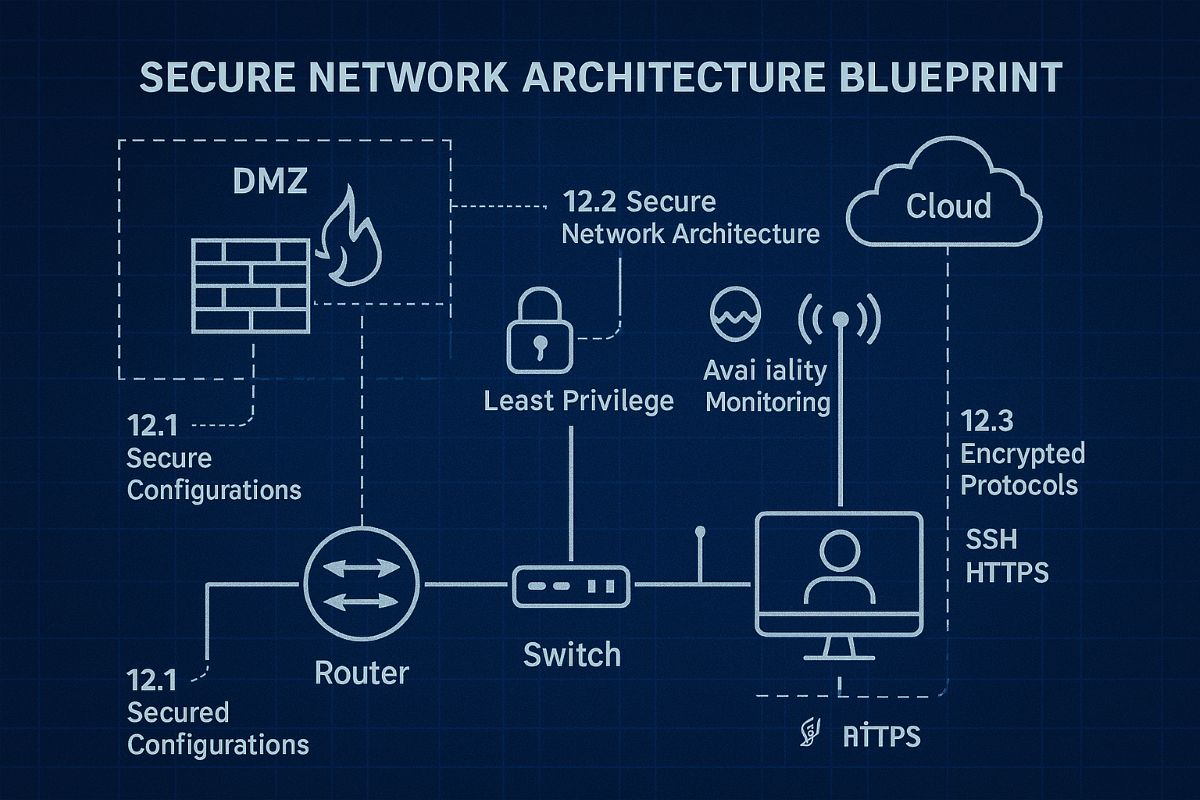
Optimizing SMB network infrastructure for stronger, scalable business networks
For small and midsize business owners, every minute of uptime counts. A slow or vulnerable network isn’t just frustrating—it costs productivity, damages customer trust, and drains revenue. Network Infrastructure Management, guided by CIS (Center for Internet Security) standards, is the key to keeping your technology reliable, secure, and scalable.
Practical Action Steps
Audit Your Current Network: Compare your systems to CIS-recommended controls to uncover risks.
Secure Data Flows: Implement firewalls, intrusion detection, and CIS baseline configurations.
Plan for Growth: Ensure your infrastructure supports cloud, remote work, and future expansion.
Continuous Monitoring: Use real-time alerts to prevent disruption before it happens.
Employee Awareness: Provide staff training on cybersecurity aligned with CIS best practices.
Client Q&A
“Do CIS standards apply to smaller companies?” – Absolutely; they’re designed to scale to all business sizes.
“Will I need to overhaul my whole network?” – Not necessarily. Often, a phased approach is more cost-effective.
“What if I already have an IT person?” – Farmhouse Networking’s role is to extend their expertise, not replace it.
How Farmhouse Networking Helps We align your systems with CIS benchmarks, secure your infrastructure, and monitor it constantly. That means less downtime, stronger client trust, and more bandwidth for business growth.
Call to Action Ready to protect your network and grow confidently? Email us today at support@farmhousenetworking.com to learn how Farmhouse Networking can keep your systems strong and compliant.
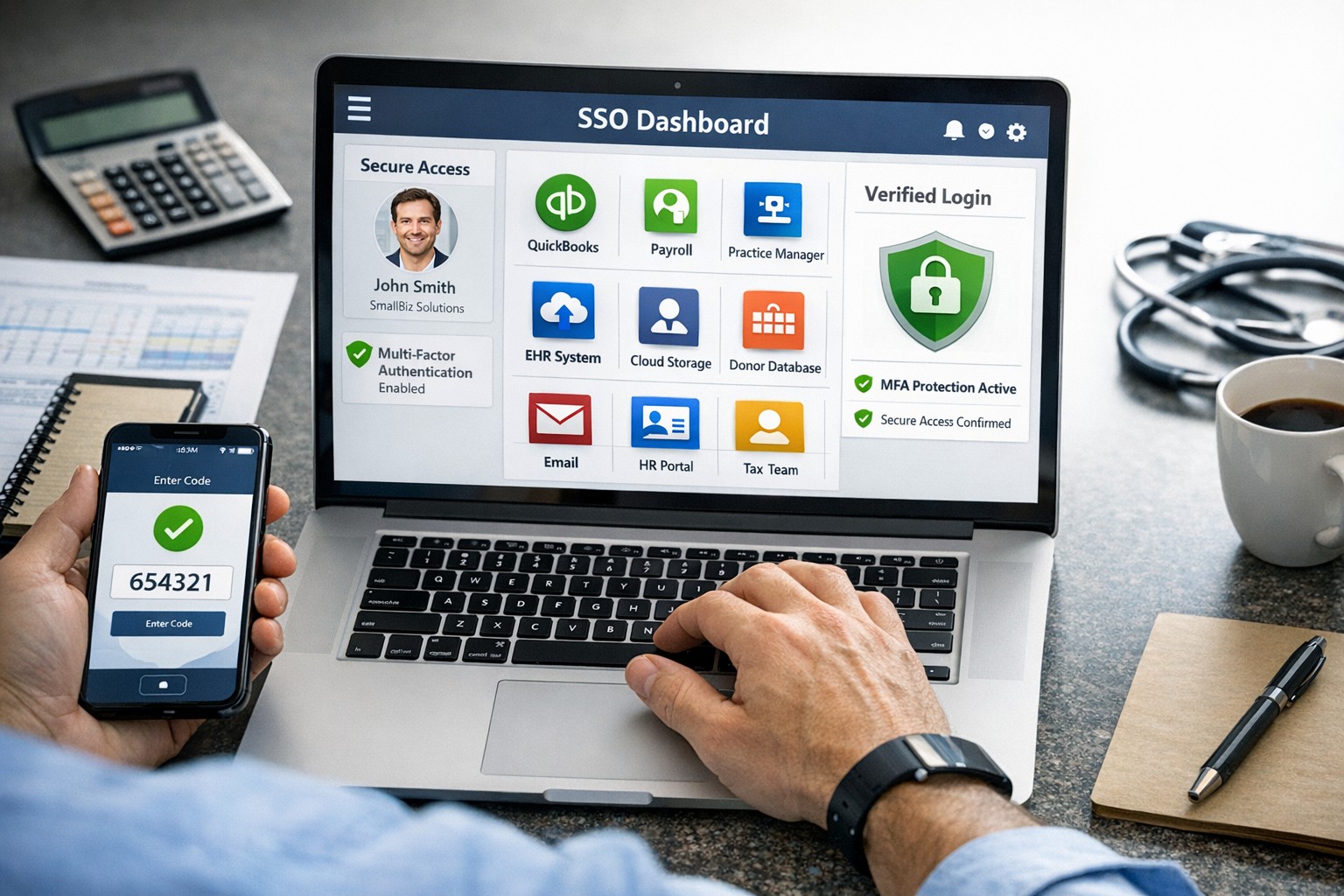
SSO for BYOD provides secure, convenient single sign-on access across apps on personal devices for small business teams.
Individuals and organizations rely heavily on various online platforms and services, the need for a secure and convenient way to access these resources is paramount. This is where SSO Single Sign-On comes into play. SSO Single Sign-On is a powerful authentication method that allows users to securely sign in to multiple applications and platforms using just one set of credentials. In this article, we will explore the benefits of SSO Single Sign-On, its implementation, and how it enhances security while streamlining the user experience.
Understanding SSO Single Sign-On
What is SSO Single Sign-On? SSO Single Sign-On is an authentication process that enables users to access multiple applications and platforms using a single set of login credentials. With SSO Single Sign-On, users only need to remember one username and password, eliminating the hassle of managing multiple credentials for different services. This not only saves time but also enhances convenience for users.
How does SSO Single Sign-On work? SSO Single Sign-On works by establishing a trust relationship between an identity provider (IdP) and the various service providers (SPs). When a user attempts to access a service, the IdP verifies the user’s identity and provides a token to the SP, which grants the user access without requiring additional authentication. This seamless process simplifies the login experience and eliminates the need for users to repeatedly enter their credentials.
Benefits of SSO Single Sign-On
Enhanced Security: One of the key advantages of SSO Single Sign-On is its ability to enhance security. By consolidating login credentials into a single set, users are less likely to resort to weak passwords or reuse passwords across multiple platforms. This reduces the risk of password-related security breaches. Additionally, SSO Single Sign-On allows for stronger authentication methods, such as two-factor authentication, further bolstering security without requiring multiple accounts.
Streamlined User Experience: With SSO Single Sign-On, users no longer have to remember and enter multiple sets of login credentials. This significantly reduces the login friction and streamlines the user experience. Users can seamlessly navigate between different applications and platforms without the need for repetitive logins. This convenience not only saves time but also improves productivity.
Centralized Access Management: SSO Single Sign-On provides organizations with centralized access management capabilities. Administrators can easily control user access to various applications and platforms from a centralized dashboard. This simplifies user provisioning and deprovisioning, ensuring that employees have timely access to the resources they need while maintaining security and compliance.
Cost and Time Savings: Implementing SSO Single Sign-On can lead to cost and time savings for organizations. By reducing the number of password-related support requests, IT teams can focus on more strategic initiatives. Additionally, the streamlined login experience reduces the time spent by employees on authentication, leading to increased productivity and efficiency.
Implementing SSO Single Sign-On
To implement SSO Single Sign-On, organizations need to follow a few key steps:
Evaluate SSO Solutions: Begin by evaluating various SSO solutions available in the market. Consider factors such as compatibility with existing systems, scalability, security features, and ease of integration.
Choose an Identity Provider: Select an identity provider that aligns with your organization’s requirements. The identity provider will be responsible for authenticating users and issuing tokens for accessing service providers. Office 365 and Google Workspace are usually the best, most prolific IdP sources to use.
Configure Service Providers: Configure the service providers that you want to integrate with SSO Single Sign-On. This involves establishing trust relationships between the identity provider and the service providers.
User Provisioning and Deprovisioning: Implement a user provisioning and deprovisioning process to ensure that users have the necessary access to the applications and platforms they require. This process should be integrated with the SSO Single Sign-On solution to maintain centralized access management.
Test and Monitor: Thoroughly test the SSO Single Sign-On implementation to ensure its functionality and security. Regularly monitor the system to identify and address any potential issues or vulnerabilities.
Best Practices for SSO Single Sign-On Implementation
When implementing SSO Single Sign-On, it is essential to follow best practices to maximize security and usability:
Strong Authentication: Implement strong authentication methods such as two-factor authentication or biometric authentication to enhance security.
Regular Auditing: Conduct regular audits of user access rights and permissions to ensure compliance and detect any unauthorized access.
User Education: Educate users about the benefits of SSO Single Sign-On and best practices for password management to promote secure behavior.
Continuous Monitoring: Implement a robust monitoring system to detect and respond to any suspicious activities or potential security threats.
Regular Updates: Keep the SSO Single Sign-On solution and all integrated applications up to date with the latest security patches and updates.
Remember, security should never be compromised, and SSO Single Sign-On provides a robust solution to protect user identities and streamline access to applications and platforms. Embrace the power of SSO Single Sign-On and enjoy the benefits of enhanced security and convenience.
Today we tell the story of a medical office’s journey to the cloud. This particular client was facing their server operating system reaching end of support (a HIPAA violation) in the near future. They had begun by looking at their electronic medical records software company’s online offering, which didn’t have all the functionality of their on-premises software and was very expensive (this is typical).
They next decided to look into moving their current on-premises software into the cloud and we were asked to help with the testing. We determined that it would be best to move the file portion of the server to SharePoint / OneDrive to increase their mobility and flexibility. We also determined that it would be best to move them away from on premises Active Directory into Azure Active Directory / Intune to allow authentication and security policies. Finally we began testing the on-premises software hosted on a server in Azure with a VPN connection to their office.
The SharePoint / OneDrive and Azure Active Directory portions went through with little issues. The server, however, was not as we had hoped. The Azure VPN connection was expensive due to it always being on and no way of turning it off outside of business hours. The performance of the SQL database that the on-premises software used was basically unusable. The other option would be to create virtual desktops on Azure for this purpose but the cost and functionality was not what the customer was hoping for.
This has lead them back to searching for an online EMR software that will meet all their requirements. This will be tough because most companies are good at some things, but not all things and compromises usually have to be made. Our hope is that this story is a lesson to other companies. The cloud may sound like the newest and best way to work, but the costs and functionality are often worse than expected.
If your company is going to use full disk encryption or has compliance requirements that you need consulting for, then contact us for assistance.
As our business continues to grow our focus is on providing white labeled Tier 3 IT support services, RMM as a service, and co-managed IT services. This blog will be highlighting tips for using Powershell to get an Export List of AD Users Last Login was more than 90 Days Ago.
Research
You need to find out what the Organizational Unit (OU) path that you are trying to get the count from. The following command will list all OUs in the domain.
Get-ADOrganizationalUnit -Filter 'Name -like "*"' | Format-Table Name, DistinguishedName -A
If you want the entire organization then you will need the top level information which looks like DC=[DomainName],DC=local
Variables
$SearchOU = This is the full DistinguishedName from the above output.
The script will take several seconds to run based on the number of users in the OU being searched. The output is saved to the local c:\support directory and you can modify this script to include the FTP upload based on our previous article – https://www.farmhousenetworking.com/rmm/automation/rmm-automation-export-log-files-to-ftp/ The script can also be easily modified to change the number of days since last login.
If your company is a MSP or wants to become one and automation just seems out of reach, then contact usto run your RMM for you.
As our business continues to grow our focus is on providing white labeled Tier 3 IT support services, RMM as a service, and co-managed IT services. This blog will be highlighting tips for using Powershell to get an Active Directory User Count.
Research
You need to find out what the Organizational Unit (OU) path that you are trying to get the count from. The following command will list all OUs in the domain.
Get-ADOrganizationalUnit -Filter 'Name -like "*"' | Format-Table Name, DistinguishedName -A
If you want the entire organization then you will need the top level information which looks like DC=[DomainName],DC=local
Variables
$SearchOU = This is the full DistinguishedName from the above output.
The script will take several seconds to run based on the number of users in the OU being searched. The output is an integer number. You can do the same sort of thing for an Active Directory Group Count or Active Directory Computer Count:
83% of employees continue accessing old employer’s accounts
Farmhouse Networking Grants Pass implements robust employee offboarding to revoke access and secure networks for Oregon businesses.
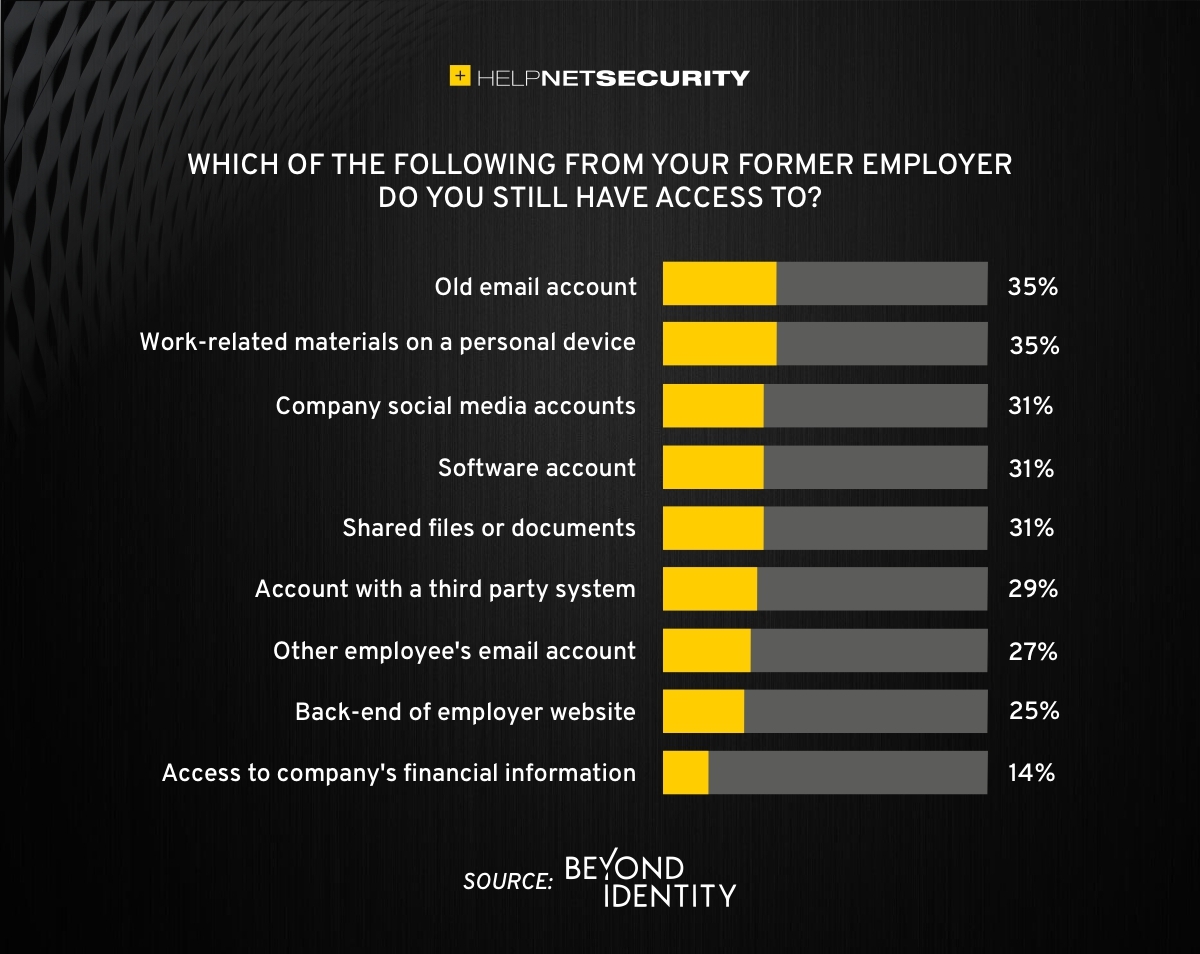
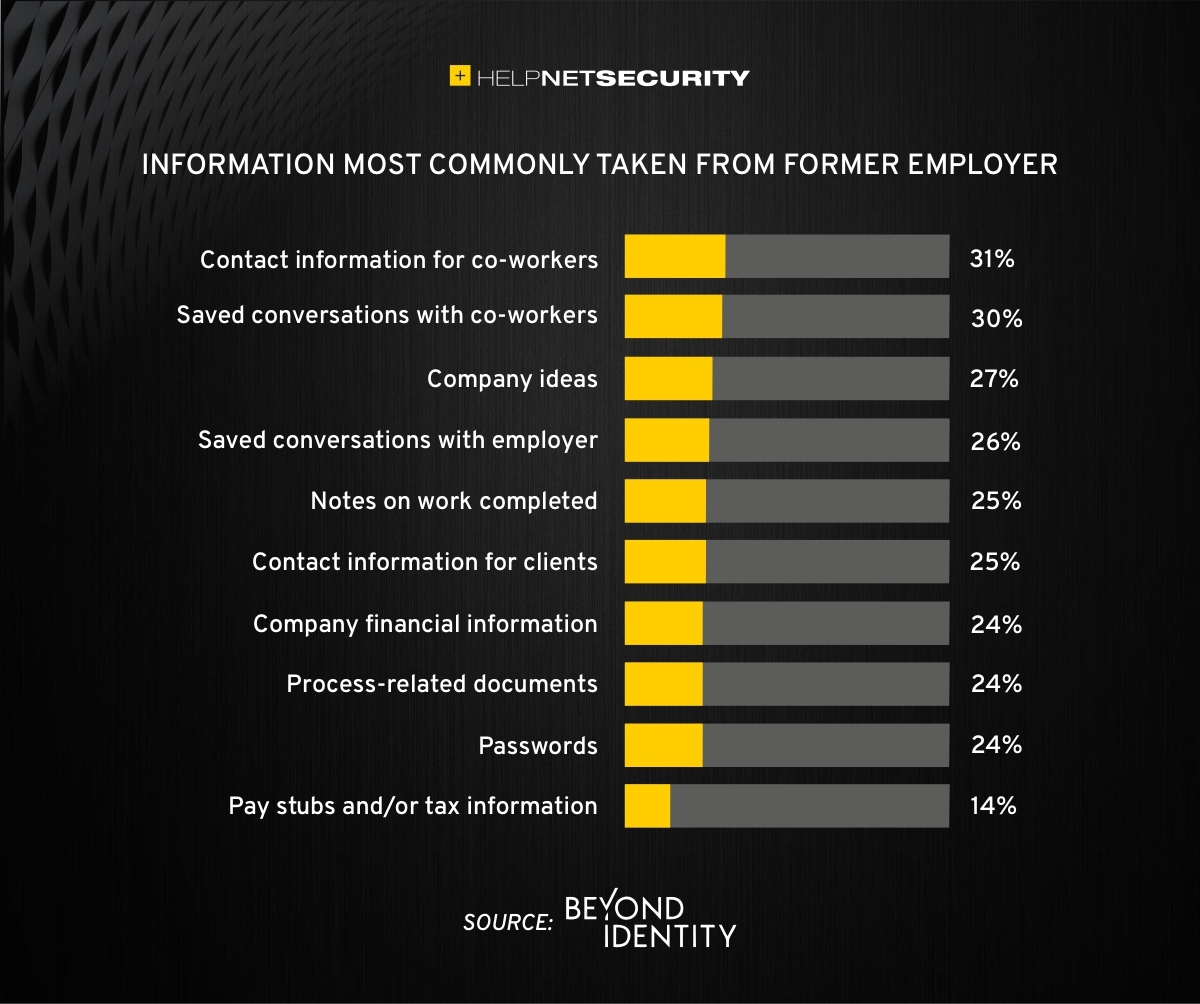
A study was performed by Beyond Identity throughout the US, UK, and Ireland which found that 83% of employees admitted to maintaining continued access to accounts from a previous employer. Also a shocking 56% admitted to using this access to harm their former employer.
The study also states that a professional and details offboarding process can prevent unauthorized access by former employees by eliminating their passwords and other insecure authentication methods. Strangely enough this also creates a sense of goodwill in the company that helps to lessen the motivation for employees to attempt this kind of malicious access. This kind of process is vital considering the current employment market and high turn over rates at almost all companies.
If your company does not have a detailed and documented offboarding process, thencontact usfor assistance.
Registry key excluding sync folders resolves Windows roaming profile errors
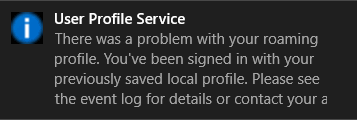
Had a client receive the message “There was a problem with your roaming profile…” after logging into another computer on the domain. Research and found that a simple registry fix was available, but most fixes wanted admins to export a key from another working profile then import it into the broken one. Here is the actual registry key that was used to fix the profile:
Registry Fix for roaming profile was not completely synchronized
Open Registry Editor as the broken user and NOT administrator
Navigate to HKCU > SOFTWARE > Microsoft > Windows NT > CurrentVersion > Winlogon
Right click and choose New > String Value and give it the name ExcludeProfileDirs
Enter the following – AppData\Local;AppData\LocalLow;$Recycle.Bin;OneDrive;Work Folders
24/7 cyber defense protects small business critical data
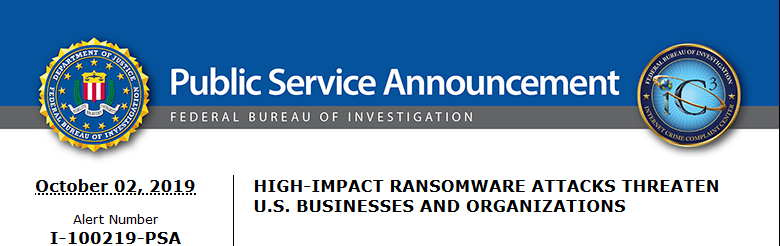
A recent briefing from the FBI’s Internet Internet Crime Complaint Center (IC3) detailed current best practices and industry standards for cyber defense. Here is a summation:
Cyber Defense Best Practices
Backups – Regularly back up data and verify its integrity. Backups are critical in ransomware; if you are infected, backups may be the only way to recover your critical data.
Training – Employees should be made aware of the threat of ransomware, how it is delivered, and trained on information security principles and techniques.
Patching – All endpoints should be patched as vulnerabilities are discovered. This can be made easier through a centralized patch management system.
Antivirus – Ensure anti-virus and anti-malware solutions are set to automatically update and that regular scans are conducted. Centrally managed is even better.
File Permissions – If a user only needs to read specific files, they should not have write-access to those files, directories, or shares. Configure access controls with least privilege in mind.
Macros – Disable macro scripts from Office files transmitted via email.
Program Execution Restrictions – Implement software restriction policies or other controls to prevent the execution of programs in common ransomware locations, such as temporary folders supporting popular internet browsers, and compression/decompression programs.
Remote Desktop Protocol – Employ best practices for use of RDP, including use of VPN, auditing your network for systems using RDP, closing unused RDP ports, applying two-factor authentication wherever possible, and logging RDP login attempts.
Software Whitelisting – Implement application whitelisting. Only allow systems to execute programs known and permitted by security policy. This one takes careful planning.
Virtualization – Use virtualized environments to execute operating system environments or specific programs. No physical access to servers makes hacking harder.
Network Segmentation – Implement physical and logical separation of networks and data for different organizational units. Keep guest traffic out of your business network.
No Saved Passwords – Require users to type information or enter a password when their system communicates with a website. Better yet use a password management tool.
If your company is going to use full disk encryption or has compliance requirements that you need consulting for, then contact us for assistance.
And God will generously provide all you need. Then you will always have everything you need and plenty left over to share with others. As the Scriptures say,
“They share freely and give generously to the poor. Their good deeds will be remembered forever.”
For God is the one who provides seed for the farmer and then bread to eat. In the same way, he will provide and increase your resources and then produce a great harvest of generosity in you. - 2 Corinthians 9:8-10
We use cookies to ensure that we give you the best experience on our website. If you continue to use this site we will assume that you are happy with it.