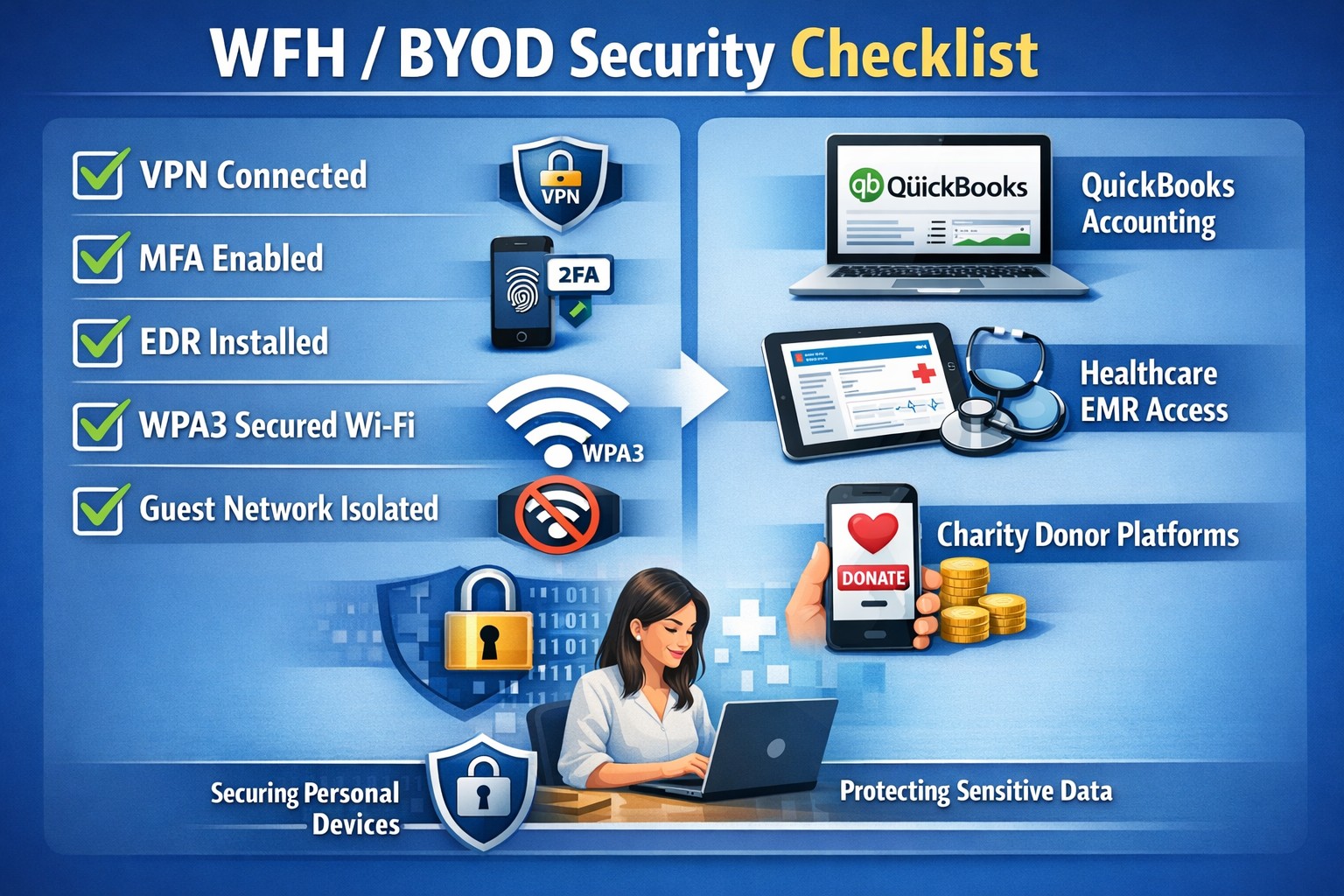
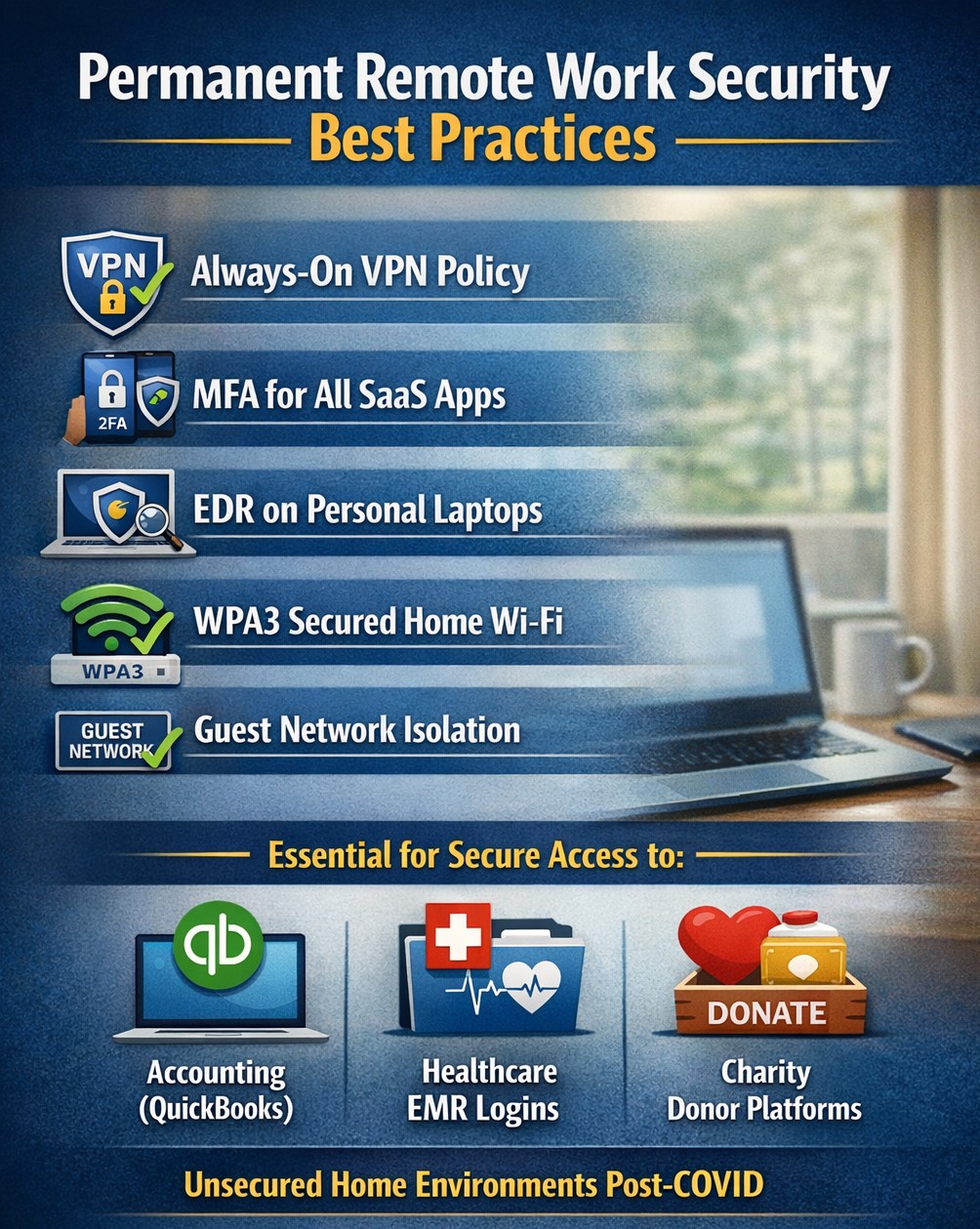
In this unprecedented time that we are currently experiencing, you have had to set your team up to work remotely, often without thinking about how they might actually get work done, let alone security of all things. Our employee checklist and no-cost cybersecurity training course will provide your team with the tools they need to ensure that they are safe and productive – right out of the gate. These free resources are part of our initiative to keep our community safe and working during this time of crisis, without the additional disruption and financial impact of a breach.
Don’t let a change in circumstance allow for a change in cybersecurity standards.
Unlock strong, memorable passwords: Use 5-7 random words for SMB security—simple, effective, and Farmhouse Networking approved.
The COVID-19 scare and ensuing rush to remote access has us thinking security. What is more basic to security than passwords. In an effort to find a way to make passwords both secure and easy to remember, I have found a website that seems to fit the bill:
The concept is surprisingly simple and is said to be based on a cartoon:
I have played with the settings and found the following to generate some good password settings. Here they are for those who are interested:
The only other option would be to use random passwords stored in a password keeper. This also allows secure sharing of passwords throughout the organization.
If your company is using remote access, then contact us for assistance to make it secure.
Secure WFH prevents data breaches from personal devices
According to the executive order made by Oregon State Governor, Kate Brown: “On Friday night, I frankly directed them to stay home. And now I am ordering them to stay home.”
The following guidelines are in effect for businesses:
It closes and prohibits shopping at specific categories of retail businesses, for which close personal contact is difficult to avoid, such as arcades, barber shops, hair salons, gyms and fitness studios, skating rinks, theaters, and yoga studios.
It requires businesses not closed by the order to implement social distancing policies in order to remain open, and requires workplaces to implement teleworking and work-at-home options when possible. They must also elect a representative who will be in charge of monitoring social distancing.
What FHN is doing?
FREE Remote Access – Just a re-iteration that all our monthly managed services clients will have remote access to their systems at no additional cost. If you are not a managed client then we can set you up with secure remote access to your data or network depending on need. Please call sooner rather than later as we have to take care of our managed clients first and there may be a wait at this point.
On-site support continues – At this time there is no restrictions on service industries who perform on-site visits to complete work, so Farmhouse Networking will continue to do so for the foreseeable future. We will be taking precautions such as protective masks, gloves, or perhaps more extreme measures (hazmat suit) to insure the safety of our staff and clients. We ask that clients keep these visits to emergency needs and planned projects until these social distancing rules are lifted.
Stocking up on essentials – We have been closely monitoring our distribution channels and several of them have been stating that non-essential items would take up to one month to receive. As a courtesy to our clients and to better service them in times of emergency IT needs, we will be stocking up on computer and network parts that are most often needed.
What should clients do?
Remote workers – Send unneeded on-site staff home to work remotely. With remote access capabilities, video conferencing, and VoIP phones – there is no reason to keep them in harms way. We are experts in these technologies and can get you up and running on them quickly.
Maintain infrastructure – For remote workers to be able to get access to their computers there needs to be a solid foundation at the business location.
Workstations, servers, and network equipment should be on battery backups to keep them from going offline unnecessarily due to power fluctuations – triggering a need to go into the office.
Is part of your network over 6 years old? Now may be the time to replace the network equipment to avoid downtime and unneeded office visits in the future.
Now more than ever backups are needed in case anything should go wrong. Recovery times are bound to be increased as the lock down on businesses increases.
Don’t forget to leave the A/C on especially if you have a server closet, they work better in cooler temperatures.
Planning – With a possible slowdown in business now is the time to take stock of your company, to get used to this new normal, and make plans for the long term implications of this craziness on our businesses.
If your company needs any help weathering the COVID-19 storm, then contact us for assistance.
Essential small business information security fundamentals: encrypt data, enable MFA, train employees, and backup regularly.
NIST is the National Institute of Standards and Technology. It acts as the defacto baseline that all other security and compliance organizations use to construct their standards. Reading their publications is like reading any other government document – extremely long and not interesting. Farmhouse Networking recently became aware of one such document called NISTIR 7621 aka Small Business Information Security: The Fundamentals. We took the time to distill out the main points here:
The Fundamentals aka Best Practices
Identify: Who has access to the network, who has access to the data, and what do they have access to. This includes background checking employees during the hiring process, taking an inventory of data to see who needs access to what, requiring that each user have their own login, and company policy creation.
Protect: Protection starts with separating data into shares then giving access only to those who really need it. It also includes protecting hardware with uninterruptible power supplies (UPS) and protecting software with regular updates. Protecting the network includes setting up a proper firewall, separate wireless for guest access, and VPN only access for remote users. Web filtering, SPAM filtering, file encryption, proper disposal of old equipment, and employee training are also mentioned.
Detect: Having a centrally managed antivirus software on each workstation is a must. This includes the ability to look back in time via log files or monitoring system to find the root of the security breach.
Respond: Have a disaster recovery plan and security incident response plan in place.
Recover: Need full backups of all important business data, invest in cyber insurance, and regularly access your technology to find timely improvements.
If your company does not meet these fundamentals, then contact us for assistance.
Found myself setting up a client with a remote desktop connection to a local workstation from a remote site to use their Client Management System (CMS). Even after successfully getting them connected to the local workstation and warning them there would be issues with using their network printer at the remote office, they stated it would be just fine. Found out later indeed they were not able to use the printer successfully due to the inherent issue with network printers across a Remote Desktop Connection. Found this little workaround to provide Remote Desktop network printer redirection in the Microsoft forums:
Click on the Start button and open Control Panel then open “Devices and Printers”
Right click on the network printer that needs to be redirected and choose “Printer Properties”
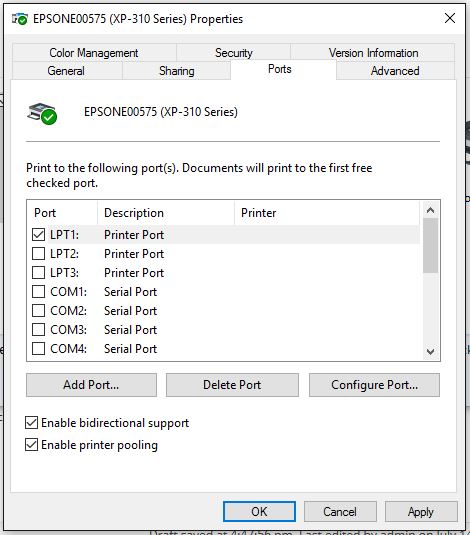
Click on the Ports tab and put a check next to “Enable printer pooling” and next to the “LPT1:” in the list then click the OK button to finish.
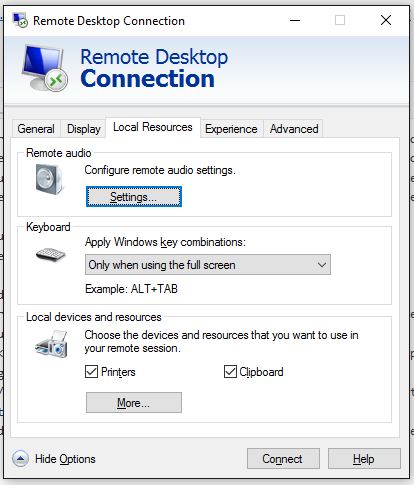
Click on the Start button and open Remote Desktop Connection then click on the “Local Resources” tab.
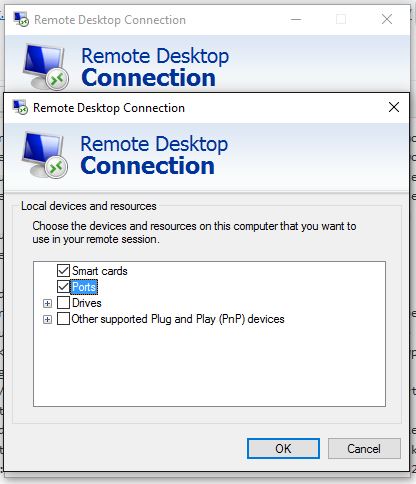
Click on the “More…” button at the bottom then put a check next to the Ports item then click the OK button.
Make sure to go back to the General tab and click on save before clicking on the Connect button.
Once connected download and install the needed print driver but do not create the printer itself yet.
Inside the Remote Desktop connected computer click on the Start button and open Control Panel then open “Devices and Printer”
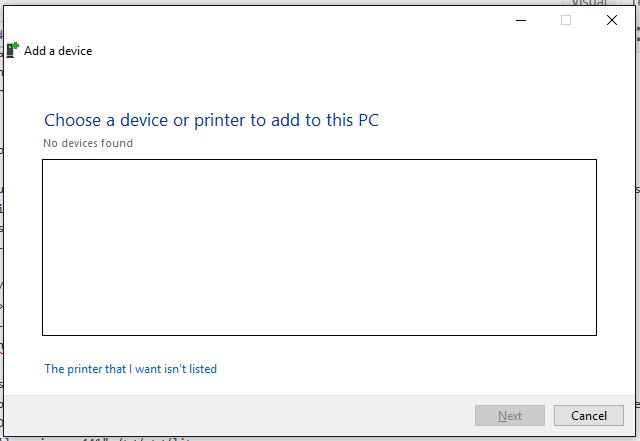
Click on the Add Printer button at the top then click on the “The printer that I want isn’t listed” link at the bottom of the window that opens.
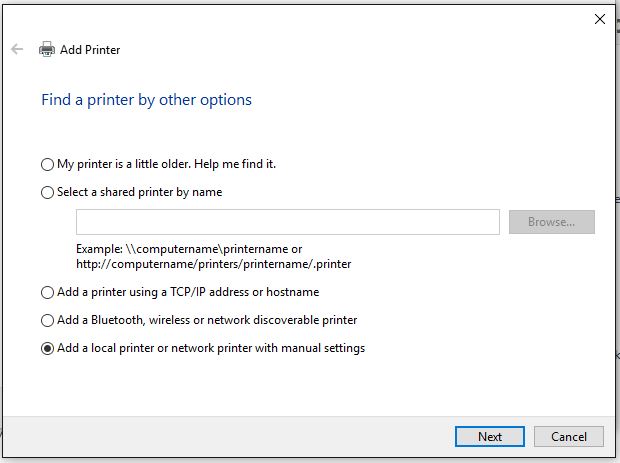
Click on the radio selection next to “Add a local printer or network printer with manual settings” then click on the next button.
Click on the list “Use an existing port” and choose “TS001:” which usually corresponds to the LPT1: port redirection, but it may take some trial and error going through this list later to figure out which one it is.
Search through the list of drivers to pick the one associated with the one being connected then click on the Next button.
If requested, choose to “Replace the current driver” and click on the Next button.
Change the name as needed and click on the Next button.
Choose “Do not share this printer” and click on the Next button.
Test the printer by clicking on “Print a test page” then click the Finish button.
If the printer does not print then open the printer properties on the Remote Desktop connected computer and change the port to TS002: on the Ports tab, click Apply then click “Print a test page” on the General tab to test again. Repeat down the list until the correct port is found. If your company is using Remote Desktop Network Printer Redirection or need help getting the network connected printers working properly, then contact us for assistance.
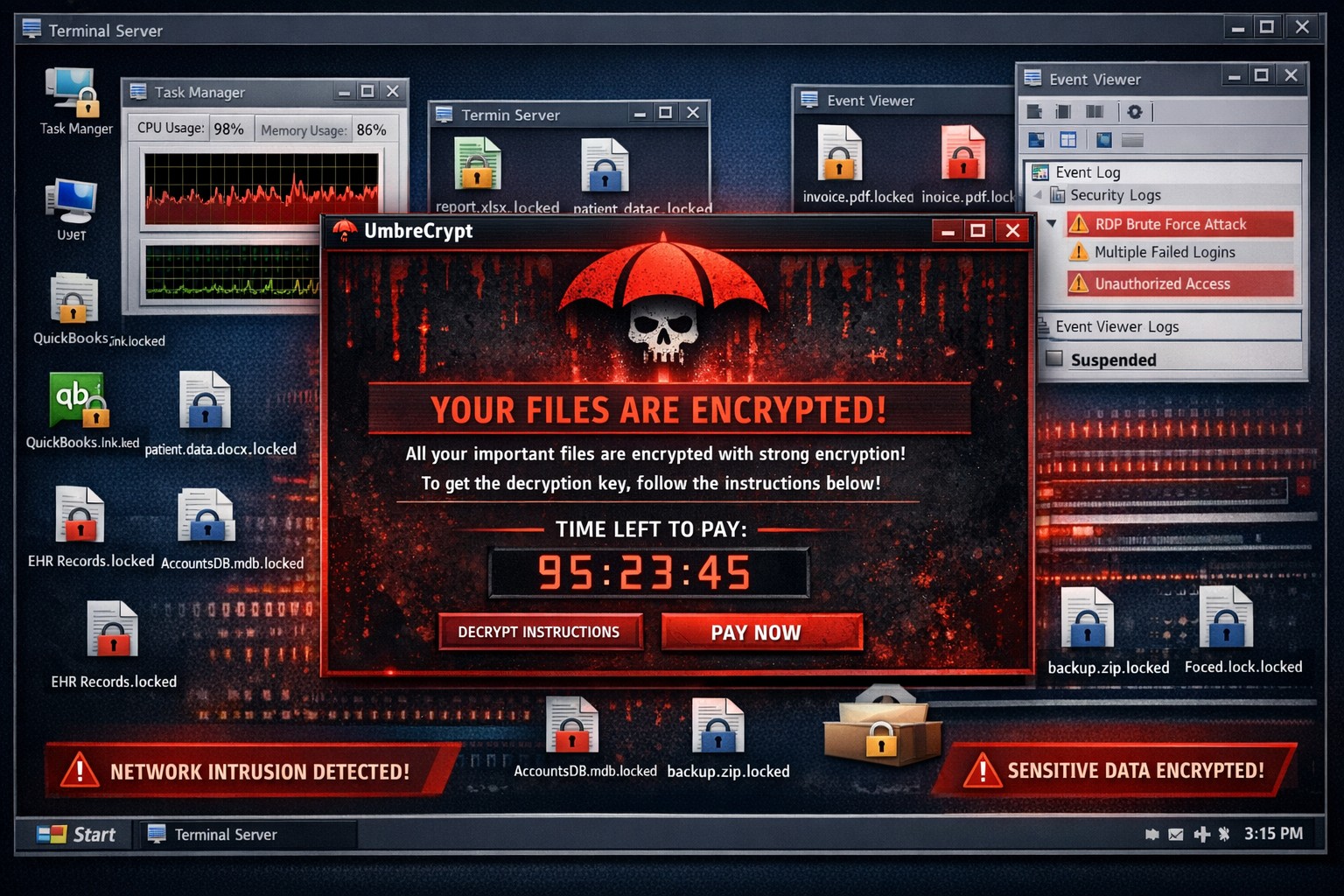
This one scares me to read about. A new variant of ransomware called UmbreCrypt RansomWare is out there that is getting into business networks via hacking of terminal servers. This is even more reason to use the best practice of connecting to a Virtual Private Network (VPN) before connecting to your company terminal server. Please take the time to read this article from BleepingComputer.com to find out the frightening details. Feel free to call or email us to discuss how to proactively protect your business computer network with managed antivirus and offsite backups. Schedule a full network security audit to determine just how vulnerable your systems are and to determine what can be done to mitigate the risks.
I have had the privilege of using a new remote support tool called ScreenConnect which was recently acquired. This tool has all the major features of other remote support tools including a built in screen annotation feature and OCR capability that feeds into the built in research tool. Looking forward to training and trying all the features of this wonderful new software.
And God will generously provide all you need. Then you will always have everything you need and plenty left over to share with others. As the Scriptures say,
“They share freely and give generously to the poor. Their good deeds will be remembered forever.”
For God is the one who provides seed for the farmer and then bread to eat. In the same way, he will provide and increase your resources and then produce a great harvest of generosity in you. - 2 Corinthians 9:8-10
We use cookies to ensure that we give you the best experience on our website. If you continue to use this site we will assume that you are happy with it.