Your roaming profile was not completely synchronized error on Windows 10
Registry key excluding sync folders resolves Windows roaming profile errors
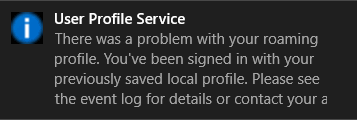
Had a client receive the message “There was a problem with your roaming profile…” after logging into another computer on the domain. Research and found that a simple registry fix was available, but most fixes wanted admins to export a key from another working profile then import it into the broken one. Here is the actual registry key that was used to fix the profile:
Registry Fix for roaming profile was not completely synchronized
Open Registry Editor as the broken user and NOT administrator
Navigate to HKCU > SOFTWARE > Microsoft > Windows NT > CurrentVersion > Winlogon
Right click and choose New > String Value and give it the name ExcludeProfileDirs
Enter the following – AppData\Local;AppData\LocalLow;$Recycle.Bin;OneDrive;Work Folders
2 thoughts on “Your roaming profile was not completely synchronized error on Windows 10”
John Rubio
Hi, question please (!) – I go to the location you mention in the registry, and I already see something with your string but listed as ExcludeProfileDirs Reg_SZ and then the above string
I am going crazy with this issue.
Should I add the string as you describe and delete the existing one?
And, also, do I leave the name of the new string after right clicking as NewValue#1 or change it?
Found your directions on Google, hope you don’t mind helping me. thank you
Looks like I needed to update the post to include the name of the registry value. Thanks.
Since you already have this registry key, I have to ask first are you on wireless? Wireless and roaming profiles are a recipe for disaster.
Second is check the file server where the roaming profiles are stored to see if there are open file sessions, especially NTUSER.DAT, that are tied to that user or computer. You can run the command “openfiles -disconnect -id *” on the server to disconnect these sessions.
Feel free to contact us directly to see if we can help you.
And God will generously provide all you need. Then you will always have everything you need and plenty left over to share with others. As the Scriptures say,
“They share freely and give generously to the poor. Their good deeds will be remembered forever.”
For God is the one who provides seed for the farmer and then bread to eat. In the same way, he will provide and increase your resources and then produce a great harvest of generosity in you. - 2 Corinthians 9:8-10
We use cookies to ensure that we give you the best experience on our website. If you continue to use this site we will assume that you are happy with it.
Hi, question please (!) – I go to the location you mention in the registry, and I already see something with your string but listed as ExcludeProfileDirs Reg_SZ and then the above string
I am going crazy with this issue.
Should I add the string as you describe and delete the existing one?
And, also, do I leave the name of the new string after right clicking as NewValue#1 or change it?
Found your directions on Google, hope you don’t mind helping me. thank you
Looks like I needed to update the post to include the name of the registry value. Thanks.
Since you already have this registry key, I have to ask first are you on wireless? Wireless and roaming profiles are a recipe for disaster.
Second is check the file server where the roaming profiles are stored to see if there are open file sessions, especially NTUSER.DAT, that are tied to that user or computer. You can run the command “openfiles -disconnect -id *” on the server to disconnect these sessions.
Feel free to contact us directly to see if we can help you.