How technology has transformed workplaces: a diverse team using cloud‑based tools and secure connections to collaborate more efficiently
The promise (and the reality) of workplace tech
When most business leaders adopted cloud tools, collaboration platforms, and automation over the last decade, the pitch was simple: technology will make work faster, smoother, and more productive. In many ways, that promise has delivered. Cloud‑based platforms now underpin hybrid work, AI‑driven analytics help you spot bottlenecks, and digital workflows have cut hours of manual effort.
Yet for many mid‑sized business owners, the reality feels messier. Tools are scattered. Systems don’t talk to each other. Employees juggle logins, notifications, and legacy apps that slow them down instead of speeding them up. The real question isn’t whether tech should make work better—it’s how to align your technology stack with your business model, your people, and your growth ambitions.
How technology has already transformed workplaces
Modern workplaces are no longer defined by cubicles and paper; they’re defined by data, connectivity, and automation.
Hybrid and remote work became mainstream, supported by cloud applications, collaboration suites, and secure remote‑access infrastructure.
Cloud adoption now stands at or near saturation for most organizations, enabling scalability, resilience, and faster deployment of new capabilities.
AI and automation are moving from pilot projects to core operations, with 24% of organizations reporting enterprise‑wide AI adoption in 2026—up from 12% in 2025.
Digital‑first workflows have replaced many manual processes, with nearly 90% of companies already relying on cloud technology as a baseline.
For mid‑sized business owners, that means the bar for “modern workplace” is no longer about buying a single tool; it’s about orchestrating a coherent, secure, and scalable technology ecosystem. Failing to manage that ecosystem properly can quietly erode productivity, raise security risks, and slow growth.
Practical steps for you and your IT team
If you’re a mid‑sized business owner, treat your technology stack as a growth‑enabling asset, not just a cost center. Here’s how you and your IT department can turn that promise into results:
1. Audit your current tech stack
Inventory all tools (CRM, accounting, HR, communications, file‑sharing, monitoring, etc.) and map how they connect.
Identify redundancies, unsanctioned tools (“shadow IT”), and gaps in security or integration.
2. Define one source of truth for data
Pick a primary system (e.g., a cloud ERP or CRM) and align reporting, workflows, and user‑experience around it.
Ensure that key systems can sync customer, employee, and financial data so decisions are based on one consistent dataset.
3. Standardize secure access and collaboration
Implement single sign‑on (SSO), multi‑factor authentication (MFA), and role‑based access controls for all cloud and on‑prem systems.
Standardize collaboration tools (e.g., one primary messaging platform and one video‑conferencing suite) to reduce training overhead and context switching.
4. Automate low‑value, repeatable tasks
Identify repetitive workflows (invoices, approvals, ticket handling, onboarding, reports) and automate them using workflow automation or RPA where appropriate.
Measure before and after: time saved per task, error reduction, and impact on customer‑facing SLAs.
5. Invest in continuous training and change management
Treat technology adoption as a change‑management project, not a “one‑and‑done” rollout.
Provide regular training sessions, quick reference guides, and “power‑user” champions in each department to drive adoption.
6. Revisit your security and compliance posture
Ensure cloud‑workload security, data‑retention policies, and endpoint protection keep pace with your growth and regulatory obligations.
Conduct periodic risk assessments and penetration testing, especially as AI‑driven tools and more data‑centric workflows come online.
For mid‑sized owners, these steps should be treated as ongoing disciplines, not one‑time projects. The goal is to build a workplace where technology recedes into the background and employees simply get more done.
Clients’ likely questions—answered
Q: “We already have a lot of tools—why can’t we just keep adding whatever we need?” A: More tools mean more complexity, more security gaps, and more training overhead. Modern mid‑sized businesses get better outcomes by streamlining around fewer, integrated platforms than by stringing together dozens of siloed apps.
Q: “How do we know if our tech is actually improving productivity?” A: Tie technology to measurable KPIs: cycle times, error rates, support‑ticket resolution time, and employee‑time‑spent‑on‑manual‑work. If you can’t quantify the benefit, you’re likely drifting into “tech for tech’s sake.”
Q: “Isn’t AI just hype for bigger companies?” A: AI is now a practical tool for any business that deals with data, workflows, or customer interactions. For mid‑sized firms, it often means automating routine tasks, surfacing insights from operational data, and improving customer service, not building bespoke AI models.
Q: “How do we protect ourselves from ransomware and data breaches while modernizing?” A: Modernization must include proactive security: cloud‑workload protection, endpoint detection and response, secure access controls, and regular backups. A well‑architected environment is actually more secure than a fragmented, legacy‑heavy one.
How Farmhouse Networking can help
Farmhouse Networking partners with mid‑sized business owners to turn technology from a cost center into a competitive advantage. For companies already operating in hybrid or distributed environments, we help:
Map and rationalize your technology stack so tools actually work together instead of against each other.
Design and implement secure, scalable cloud‑enabled workspaces, including secure remote access, SSO, and unified collaboration tooling.
Identify and automate repetitive workflows so your employees spend less time on manual tasks and more time on value‑add work.
Strengthen your security and compliance posture as you adopt AI‑driven tools, cloud services, and new data sources.
We don’t just sell equipment or licenses; we work with your leadership and IT team to align your technology with your business model, culture, and growth plans.
Ready to make technology work for you?
If you’re a mid‑sized business owner and you’ve ever thought, “We all knew tech would make work better—but it still feels like it’s making everything more complicated,” you’re not alone—and you’re in the right place.
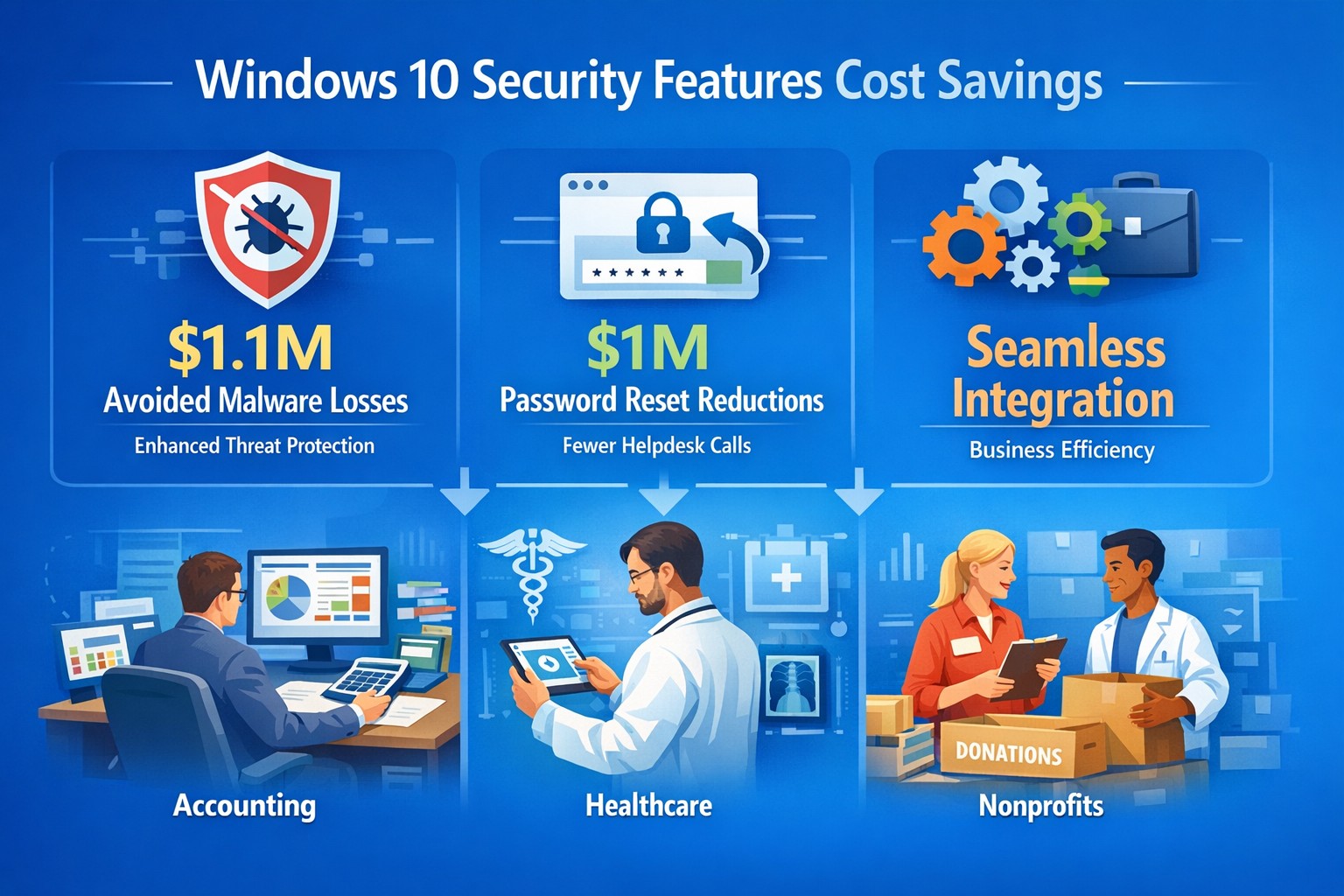
Unlock 147% ROI with Windows 10 security: Slash third-party tool costs and malware downtime using built-in features like Windows Defender
Rising cyber threats and IT costs threaten your bottom line. Windows 10’s built-in security features deliver proven cost savings and operational benefits, potentially netting millions in avoided expenses over three years per Forrester’s analysis.
Key Cost Savings and Benefits
Windows 10 security eliminates needs for third-party tools like EDR, EPP, AV, and disk encryption, saving on licenses and management time. Businesses report $1.1 million in reduced productivity losses from fewer malware infections, thanks to faster detection and auto-remediation via Windows Defender ATP. Password resets drop dramatically with Windows Hello biometrics, cutting another $1.0 million in support costs.
Additional gains include improved device performance, cloud-based protection for remote teams, and easier OS-integrated maintenance—reducing IT burden without extra vendors. BitLocker and Credential Guard further minimize data breach risks, avoiding downtime from incidents like WannaCry, which spared updated Windows 10 systems.
Benefit
3-Year Savings (Composite Org.)
Key Features
Avoided Third-Party Costs
Significant (licenses + ops time)
Native Defender, BitLocker
Reduced Malware Impact
$1.1M
ATP auto-remediation
Fewer Password Resets
$1.0M
Windows Hello biometrics
Overall ROI
147% (Forrester TEI)
Integrated, low-resource security
Practical Action Steps
Business owners and IT teams can activate these savings quickly.
Audit Current Setup: Inventory endpoints for third-party security tools; calculate annual license and support costs.
Enable Core Features: Turn on Windows Defender ATP, BitLocker encryption, and Windows Hello in Group Policy (Settings > Update & Security > Windows Security).
Update and Test: Deploy latest Windows 10 updates via WSUS or Intune; pilot on 10% of devices to measure infection rates and reset tickets pre/post.
Train Staff: Run 30-minute sessions on biometrics and reporting suspicious activity to Defender dashboard.
Monitor ROI: Track metrics like MTTK (mean-time-to-know threats) and remediation time quarterly using built-in analytics.
These steps typically take 4-6 weeks, with immediate third-party savings.
FAQ: Client Inquiries Answered
Q: Is Windows 10 secure enough without add-ons? A: Yes—Forrester found it replaces multiple vendors effectively, reducing infections and resource strain. It’s cloud-integrated for mobile workforces.
Q: What about upgrade costs from older Windows? A: Implementation is low; license costs offset by $2.1M+ benefits. No major upfront hardware needs if on compatible PCs.
Q: How does it help compliance like GDPR? A: Defender Security Center provides audit-ready logs for apps, credentials, and files; BitLocker ensures data protection.
Q: Works for small businesses? A: Absolutely—scalable subscriptions match enterprise security without complexity or high costs.
How Farmhouse Networking Helps
Farmhouse Networking specializes in B2B IT for accounting, healthcare, and charity sectors. We handle audits, feature deployments, and custom Intune setups to maximize Windows 10 ROI—driving organic traffic via secure, compliant networks that convert visitors to clients. Our SEO-optimized strategies include branded sites emphasizing cost savings like these, plus lead gen via targeted content. We’ve helped similar firms cut security spend 30-50% while boosting uptime.
Call to Action
Ready to slash costs and fortify your business? Email support@farmhousenetworking.com for a free Windows 10 security audit and tailored implementation plan.
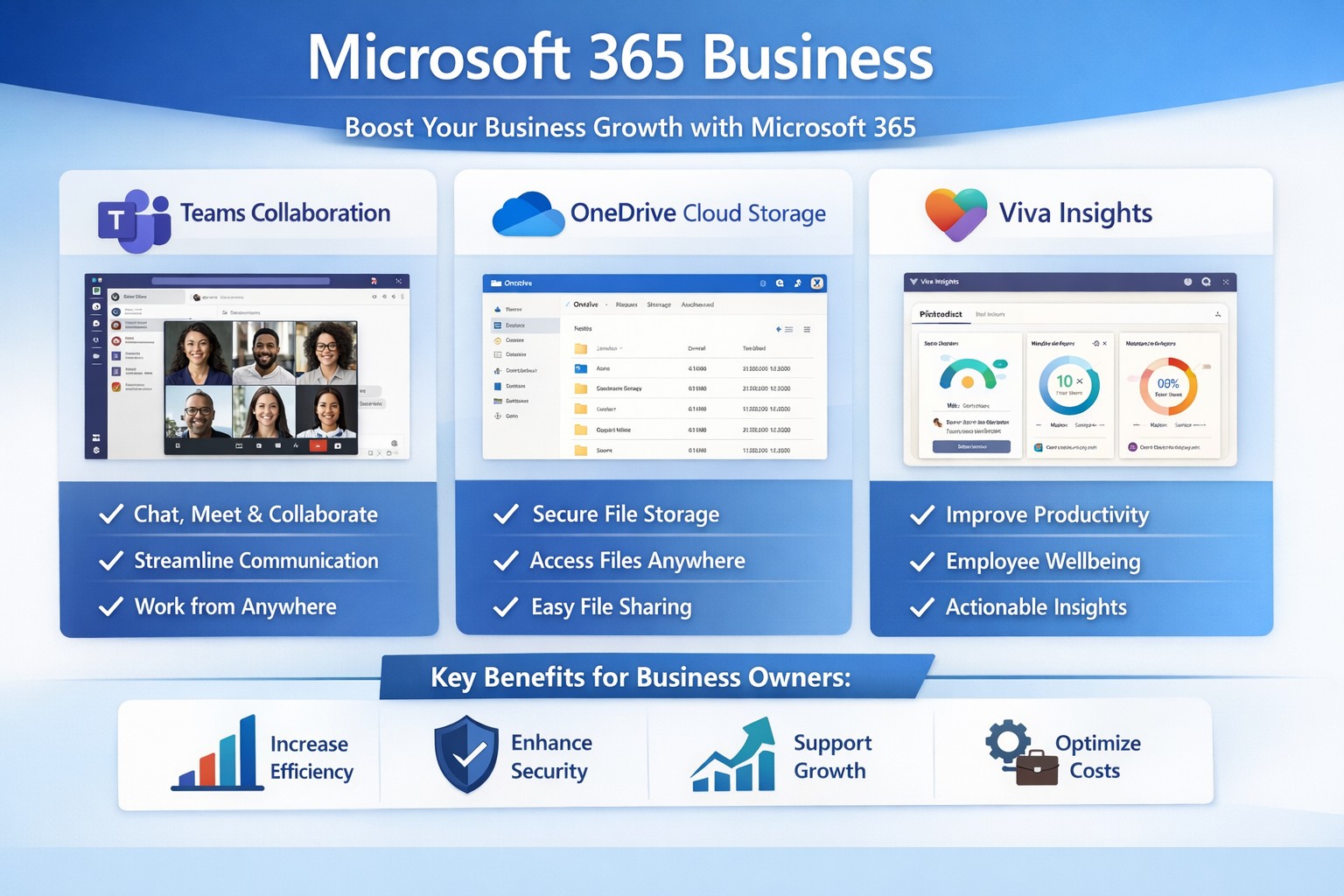
Microsoft 365 Business interface: Collaborate, secure data, and scale your business effortlessly.
You’re juggling growth ambitions with operational headaches like scattered files, insecure data, and remote team friction. Microsoft 365 Business transforms these pain points into scalable advantages, boosting productivity, security, and collaboration to fuel expansion.
Key Benefits for Growth
Microsoft 365 Business bundles essential apps like Teams, Outlook, OneDrive, and Office tools into cloud-based plans starting at $6/user/month.
It enables real-time collaboration via SharePoint and Teams, letting teams co-edit documents without version chaos, which cuts project delays by up to 30% in growing firms.
Advanced security—such as threat protection and data encryption—safeguards sensitive info, vital for scaling without cyber risks.
Scalable subscriptions adapt as you add users, with AI features in Viva Insights optimizing workflows for efficiency.
Practical Action Steps
Follow these steps with your IT department to deploy Microsoft 365 Business effectively.
Assess Needs: Audit current tools for gaps in email, storage, and security; choose a plan like Business Basic ($6/user/month) for starters or Premium ($22/user/month) for full security.
Sign Up and Migrate: Purchase via microsoft.com/microsoft-365/business; migrate emails/files using admin center tools—expect 1-2 days for small teams.
Configure Security: Enable multi-factor authentication (MFA), set up Defender for phishing protection, and classify sensitive data in compliance center.
Onboard Team: Roll out Teams channels, train via free Microsoft Learn modules (30-60 minutes/user), and automate tasks with Power Automate.
Monitor and Scale: Use Viva Insights for usage analytics; add users monthly as you hire. Test ROI in 30 days via productivity metrics.
FAQs from Business Owners
How does Microsoft 365 differ from free personal versions? Business editions offer custom email (you@yourcompany.com), 1TB/user storage, enterprise security, and admin controls absent in personal plans.
Is it secure for healthcare/accounting data? Yes—Premium includes HIPAA/GDPR compliance tools, endpoint protection, and automatic updates to counter threats.
What if my team resists change? Start with pilot groups, provide 1-hour Teams training, and highlight wins like 20% faster file sharing. Adoption hits 90% in optimized setups.
Can I integrate with existing software? Seamless with QuickBooks, CRM tools, and more via APIs; Power Automate connects workflows effortlessly.
What’s the ROI timeline? Most see productivity gains in weeks; scalable costs beat on-premise servers by 50% over time.
How Farmhouse Networking Helps
Farmhouse Networking specializes in Microsoft 365 deployments for accounting, healthcare, and nonprofits, ensuring SEO-driven websites and lead-gen funnels amplify your growth.
We handle full migrations, custom branding for Teams portals, and SEO-optimized intranets to convert visitors into B2B clients.
Our IT experts audit your setup, train staff, and integrate with industry-specific compliance (e.g., HIPAA for healthcare), slashing setup time by 40%.
Past clients in Estacada, OR, report 25% organic traffic boosts via M365-powered content strategies.
Call to Action
Ready to scale securely? Email support@farmhousenetworking.com for a free Microsoft 365 assessment tailored to your business.
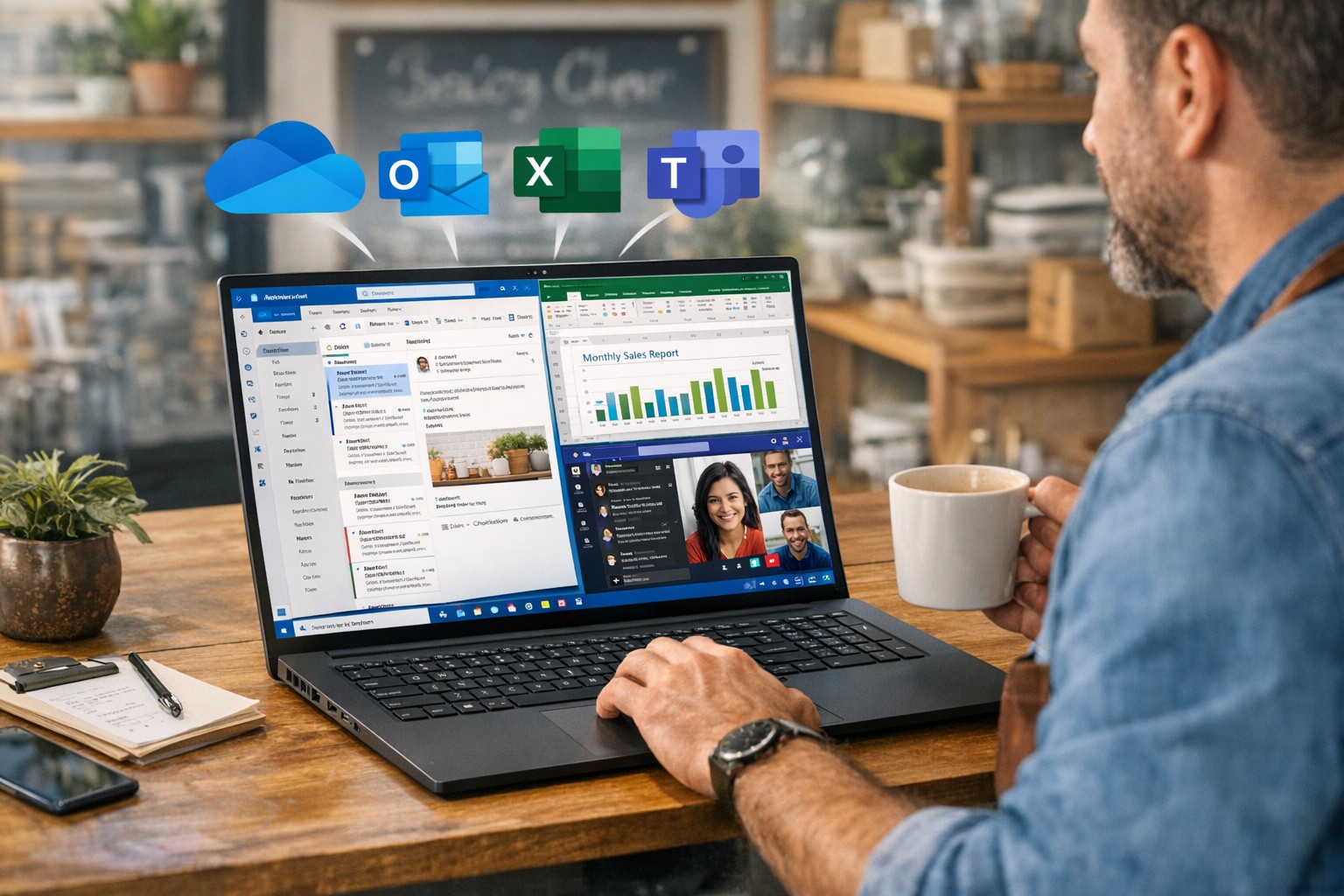
How a small business owner can improve productivity with Windows and Microsoft 365 using Outlook, Excel, Teams, and OneDrive for streamlined workflows and collaboration.
You don’t need to become a power user, but you do need to set expectations and sponsor the rollout. Hand these action items to your operations lead or IT department and ask for a 30‑, 60‑, and 90‑day plan.
1. Standardize on Microsoft 365, not just Office
Migrate from legacy Office installs to Microsoft 365 (Business Standard or equivalent) so everyone has access to cloud storage, Teams, and shared calendars.
Ensure all users have work email accounts tied to the Microsoft 365 tenant; this simplifies sharing, licensing, and auditing access later.
2. Lock down storage with OneDrive and SharePoint
Move department‑specific files (contracts, templates, policies) into SharePoint so they live in version‑controlled libraries instead of scattered email attachments and local folders.
Require staff to save active project files to OneDrive or SharePoint, not just the desktop or C‑drive, so documents are backed up, searchable, and recoverable.
3. Streamline communication with Outlook and Teams
Design a clear “rules of engagement”:
Emails for formal correspondence and external clients.
Teams for internal discussions, approvals, and quick questions.
Train managers to enable Focused Inbox and use Outlook rules to route high‑priority clients or vendors to a dedicated folder or notification channel.
4. Automate repetitive tasks with Power Automate
Identify 2–3 recurring manual tasks (e.g., invoice creation, timesheet approvals, status reports) and design Power Automate flows that move data between Excel, Forms, SharePoint, or Outlook.
Have IT build a “template library” of reusable flows so new departments can adopt them without re‑engineering from scratch.
5. Optimize workstations for Windows and Office
Ensure all employee machines run a supported Windows 10/11 version with automatic updates enabled; this reduces vulnerabilities and compatibility issues with Office apps.
Standardize core Office toolbars and shortcuts (for example, “Quick Access Toolbar” and frequently used Ribbon commands) so staff spend less time hunting for features.
6. Train users, not just deploy licenses
Schedule short, role‑specific workshops (e.g., “Excel for managers,” “Teams for remote staff”) instead of one‑size‑fits‑all training.
Provide cheat sheets or quick‑reference guides for common features: co‑authoring, Track Changes, Outlook rules, and Teams meeting best practices.
Anticipated client questions (FAQ)
Q: Isn’t Microsoft 365 just more license cost? A: If you’re only using it as “Word and Excel on each desktop,” yes. But when you leverage collaboration, automation, and cloud storage consistently across your team, you reduce errors, rework, and the time staff spend hunting for files—making the subscription cost a productivity multiplier.
Q: How much downtime will this rollout cause? A: With proper planning, user‑facing disruption is minimal. Most changes are configuration and training, not rip‑and‑replace. A phased rollout—starting with a pilot group, then expanding—keeps productivity steady.
Q: Can we keep using our old file servers and local folders? A: You can, but you trade visibility, backup, and real‑time collaboration for that control. A hybrid approach—key current projects in SharePoint, legacy archives on local servers—often works well during the transition.
Q: Is this secure enough for our data and clients? A: Microsoft 365 offers enterprise‑grade security, including conditional access, multi‑factor authentication, and audit logs. The bigger risk is misconfigured accounts (e.g., shared passwords, no MFA) that your IT provider should harden.
How Farmhouse Networking can help
At Farmhouse Networking, we help business owners like you turn Windows and Microsoft 365 from a “box of tools” into a repeatable productivity engine:
Assessment and planning: We audit your current Windows and Office use, map out critical workflows, and propose a 90‑day plan tailored to your industry and team size.
Deployment and hardening:
Configure Microsoft 365 tenants, enforce password policies and MFA, and set up OneDrive/SharePoint structures that match your org chart.
Optimize Windows workstations (updates, security, and Office settings) so end‑users get reliability instead of reboots.
Automation and training:
Build Power Automate workflows for your most tedious tasks (reports, approvals, reminders).
Deliver concise, role‑based training sessions so your team actually uses the features you’re paying for.
Ongoing support:
Provide help‑desk coverage so employees don’t fall back on “printing it and emailing it again” when they hit a snag.
Call to action
If you’re ready to stop wasting time on email chains, file‑version chaos, and ad‑hoc workarounds, Farmhouse Networking can help you implement a coherent Windows and Microsoft 365 strategy that scales with your business.
Email us at support@farmhousenetworking.com to request a free 30‑minute consultation on how we can improve productivity with Windows and Office in your specific environment.
Leverage Windows 11 and Office apps to boost business productivity and enhance security—key Microsoft 365 features for accounting, healthcare, and charity firms.
As a business owner in accounting, healthcare, or charity sectors, you’re juggling tight deadlines, sensitive data, and remote teams. Windows and Microsoft Office apps, powered by Microsoft 365, deliver seamless productivity gains and enterprise-grade security to protect your operations without complexity.
Key Benefits for Your Business
Windows 11 integrates tightly with Office apps like Teams, OneDrive, and Outlook, enabling real-time collaboration that cuts email chains by 30-50% in typical teams. Security features such as multi-factor authentication (MFA) and advanced threat protection block 99% of phishing attempts, vital for HIPAA-compliant healthcare or IRS-regulated accounting firms. Cloud syncing via OneDrive ensures data accessibility across devices while encrypting files end-to-end, reducing downtime from lost laptops.
Practical Action Steps
Follow these steps with your IT department for quick wins.
Upgrade to Windows 11 and Microsoft 365 E3/E5: Audit current licenses via the Microsoft 365 admin center; migrate from legacy Windows 10 (support ended October 2025) to avoid vulnerabilities. Enable auto-updates for patches.
Deploy MFA and Endpoint Protection: In the Microsoft Entra admin center, enforce MFA for all users; activate Defender for Endpoint to monitor threats in real-time. Test on a pilot group of 10 users first.
Optimize Teams and Power Automate: Set up Teams channels for projects; use Power Automate to automate invoice approvals or donor reports, saving 5-10 hours weekly per employee.
Secure OneDrive Sharing: Configure sensitivity labels for client files; train staff via Microsoft Learn modules (free, 30-minute sessions).
Monitor with Insights Tools: Use Microsoft Viva Insights to track productivity metrics; review monthly for bottlenecks.
These steps yield ROI in 3-6 months through reduced breaches (average cost $120K for small firms) and 20% time savings.
FAQ: Client Inquiries Answered
How does this improve remote work security? Windows and Office apps use Zero Trust security, verifying every access attempt. Remote users get the same protections as in-office via Intune device management.
What’s the cost for a 50-employee firm? Microsoft 365 Business Premium starts at $22/user/month, including all apps, 1TB OneDrive, and advanced security—often cheaper than disjointed tools.
Will it disrupt daily operations? Minimal: Phased rollout with co-pilot AI assistance eases adoption. Teams integrates with existing email in under an hour.
How to comply with industry regs like HIPAA or 990 filings? Built-in compliance tools like data loss prevention (DLP) and audit logs map directly to standards; export reports for audits.
Can we customize for accounting workflows? Yes—Power Apps builds no-code tools for QuickBooks integration or charity donor tracking, boosting efficiency 25%.
How Farmhouse Networking Helps
Farmhouse Networking specializes in tailored Microsoft 365 deployments for accounting, healthcare, and charity clients. We handle audits, migrations, custom automations, and ongoing optimization—ensuring 99.9% uptime and full compliance. Our team conducts free assessments, trains your staff, and integrates with existing systems like EHRs or fund management software. Past clients report 40% productivity lifts and zero breaches post-implementation.
“What’s the best browser?” sounds like a simple IT question, but it’s really a strategic decision about security, productivity, and supportability. The right answer is not one perfect browser for everyone, but a deliberate choice based on your tools, risk profile, and how your team actually works.
Why “Best Browser” Is the Wrong Question
Instead of asking “Which browser is best?”, it’s more useful to ask “Which browser is best for our stack and our security model?” Key factors include:
Existing ecosystem:
Microsoft 365 / Windows-centric shops often gain the most from Microsoft Edge because of tight integration and management tooling.
Google Workspace organizations often benefit from Chrome’s deep integration and extension ecosystem.
Security and compliance:
Enterprise features like centralized policy management, password monitoring, tracking protection, and secure profiles are now standard expectations, not bonuses.
Hardware and performance:
Older workstations may perform better with leaner browsers like Firefox or optimized Chromium-based builds.
In practice, most modern businesses standardize on one primary browser, with one backup for special use cases (e.g., legacy apps).
Practical Action Steps for Owners and IT
Here’s a concrete, owner-level plan you can hand to your IT team.
Define your browser strategy in plain language
Decide: “We will standardize on Browser X, with Browser Y as backup for legacy/edge cases.”
Align that choice with your core platform (Microsoft 365 vs Google Workspace vs mixed).
Inventory your current reality
Ask IT to audit:
Which browsers are currently installed
Which line-of-business apps require specific browsers (including any that still need “Internet Explorer mode”)
Add-ons and extensions in use, especially anything touching passwords or sensitive data.
Evaluate security and management capabilities
Have IT compare your candidate browsers on:
Preconfigured favorites/portals for key business apps
Profile separation (e.g., work profile vs personal) where supported
Remove or deprecate unused/unsupported browsers to reduce attack surface.
Optimize for productivity
Have IT:
Pre-load extensions that actually improve work (password managers, SSO helpers, approved collaboration tools).
Configure PDF handling, “new tab” layouts, and default search engines to match how your team works.
Train your staff
Short, focused training on:
Which browser to use for what
How to spot dangerous extensions and phishing warnings
How to use profiles or sign-in correctly for business accounts
Review annually
At least once a year, have IT re-check: security features, management capabilities, and compatibility with your evolving app stack.
Common Client Questions (with Owner-Friendly Answers)
Q1: Why can’t staff just use whatever browser they like?
A: Uncontrolled browser choice complicates security, support, and compliance. Standardizing gives IT one set of policies, one update path, and a predictable user experience to support.
Q2: Is Chrome always the safest choice because it’s popular?
A: Chrome is powerful and widely used, but popularity doesn’t automatically mean “safest.” Enterprise security depends more on how the browser is managed, what ecosystem you’re in, and which controls are enforced.
Q3: We’re a Microsoft 365 shop. Should we switch to Edge?
A: Edge often makes sense in a Microsoft-first environment because it integrates tightly with Windows, Microsoft 365, and endpoint management tools, and even supports Internet Explorer mode for legacy apps.
Q4: We use Google Workspace. Do we have to use Chrome?
A: You don’t have to, but Chrome typically delivers the smoothest experience and strongest management story in a Google-centric stack. Other browsers can work, but may lack some admin or integration capabilities.
Q5: Is it okay to run multiple browsers?
A: Yes—but with intent. Many businesses standardize on one browser for daily work and keep a second, controlled browser for specialized or legacy applications, with clear rules about when to use each.
How Farmhouse Networking Can Help
Farmhouse Networking can guide you from “random browser chaos” to a secure, documented browser strategy that matches your infrastructure and risk profile.
Here’s how we support owners and their IT teams:
Browser strategy & selection
Analyze your environment (Windows vs macOS, Microsoft 365 vs Google Workspace, on-prem vs cloud apps) and recommend a primary and secondary browser strategy.
Hardened configuration & deployment
Design and implement secure, centrally managed browser configurations: policies, extensions, update channels, and integration with your identity and endpoint management tools.
Legacy and line-of-business app support
Identify applications that require specific engines or “IE mode” and ensure they are handled cleanly without weakening the overall security posture.
Staff training and documentation
Create simple, branded “Which browser do I use?” guides and short trainings so your team knows exactly what to do, reducing tickets and confusion.
Ongoing monitoring and review
Periodic checkups to adjust policies as browsers evolve, new threats emerge, or your stack changes.
If you’re ready to turn browser choice from an ad-hoc habit into a secure, productive standard for your business, Farmhouse Networking can lead the process and support your IT team end to end. Email support@farmhousenetworking.com for more information about how Farmhouse Networking can help improve your business.
And God will generously provide all you need. Then you will always have everything you need and plenty left over to share with others. As the Scriptures say,
“They share freely and give generously to the poor. Their good deeds will be remembered forever.”
For God is the one who provides seed for the farmer and then bread to eat. In the same way, he will provide and increase your resources and then produce a great harvest of generosity in you. - 2 Corinthians 9:8-10
We use cookies to ensure that we give you the best experience on our website. If you continue to use this site we will assume that you are happy with it.