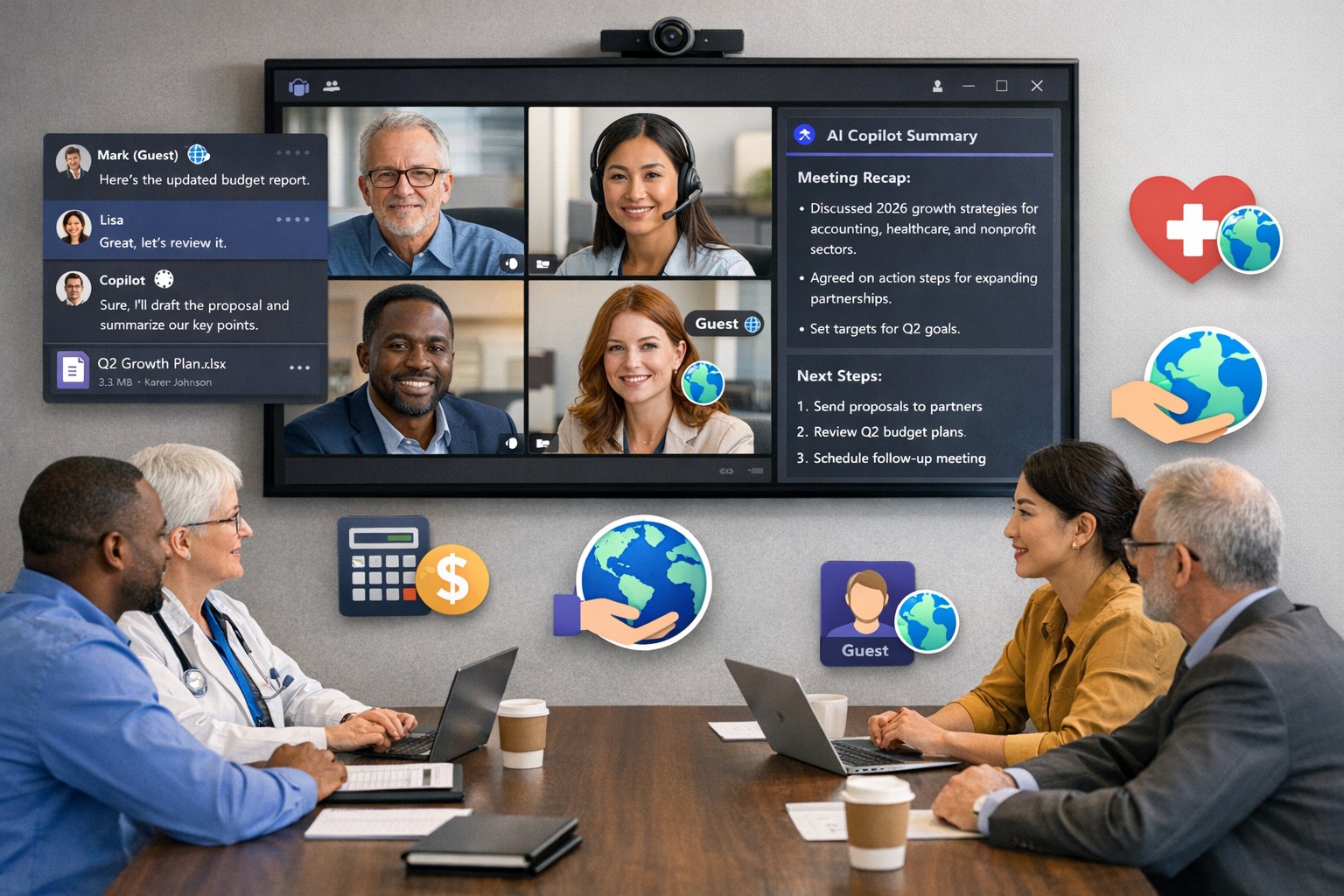
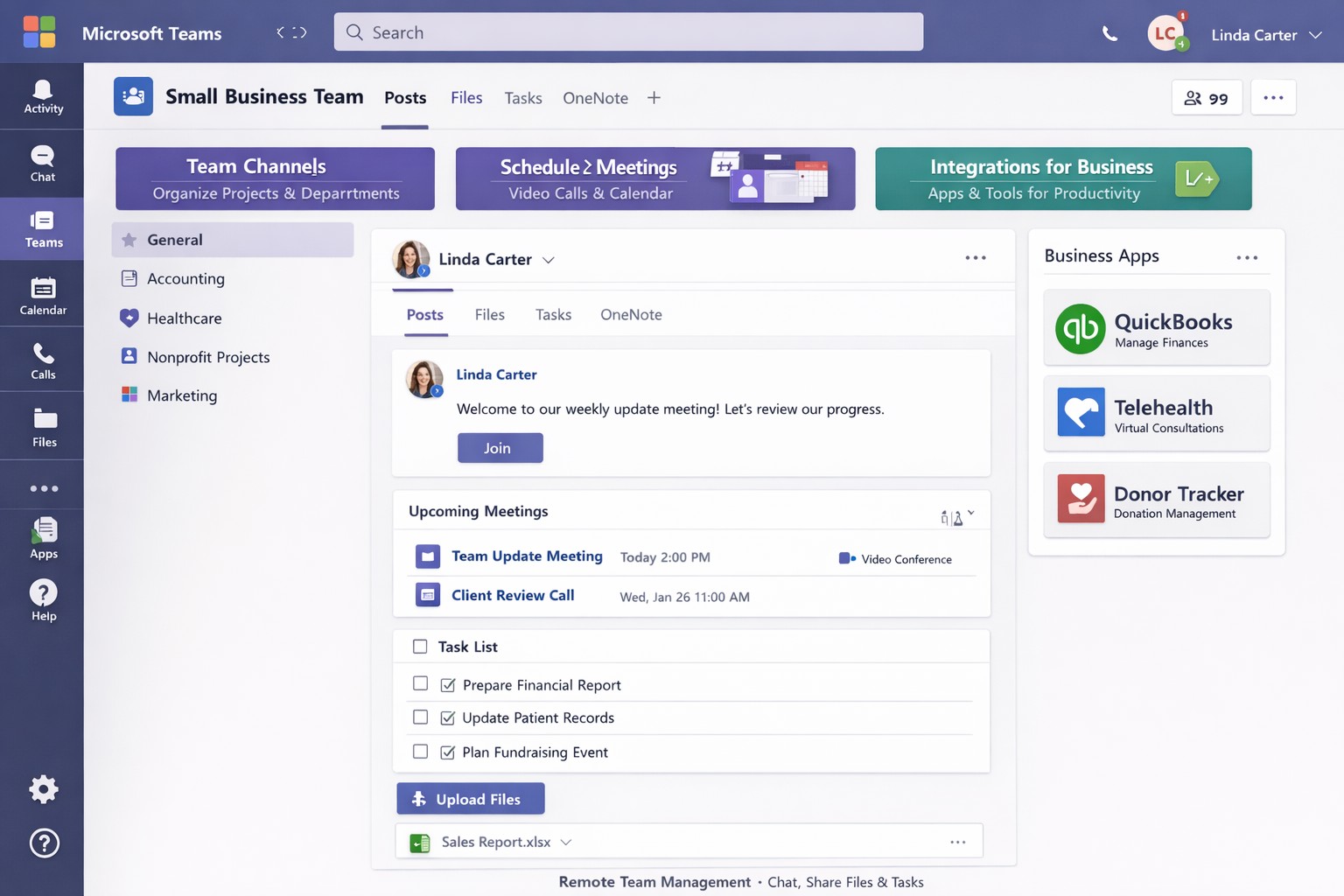
Scale your business: Unlock Microsoft Teams collaboration expansion with AI recaps and guest access.
Business owners face a constant challenge: keeping distributed teams aligned amid hybrid work and external partnerships. Microsoft Teams’ 2026 updates—like AI-powered recaps, email-to-chat, and smarter hybrid meetings—unlock seamless expansion of collaboration without tool fragmentation.
Key 2026 Teams Features for Growth
Teams now bridges internal and external comms via email invites, letting anyone join chats as temporary guests while staying compliant. Copilot integrates directly for chat summaries, task assignments, and decision highlights, cutting admin time. Hybrid upgrades include AI voice isolation, speaker recognition in rooms, and audio recaps so absentees catch up fast.
These tools reduce context-switching, boost inclusivity, and handle vendor or client coordination effortlessly—ideal for accounting firms tracking audits, healthcare practices managing referrals, or charities syncing volunteers.
Action Steps for Business Owners and IT
Expand collaboration systematically. Follow these steps:
Assess Needs: Audit current usage—survey teams on pain points like external email chains or meeting drop-offs. Prioritize hybrid features if >30% remote.
Upgrade Licensing: Switch to Teams Premium or Microsoft 365 E5 for Copilot, AI recaps, and guest controls. IT verifies via admin center; budget $7–$22/user/month.
Configure External Access: IT enables “email-to-chat” in Teams admin > Users > External access. Set policies for guest expiration (e.g., 30 days) and trust badges for unfamiliar users.
Deploy AI Tools: Activate Copilot in meetings/chats via Microsoft 365 admin. Train staff on prompts like “Summarize key decisions” during 15-min sessions.
Optimize Hybrid Setup: IT installs certified Teams Rooms hardware; enable voice isolation and live captions. Test with a cross-team pilot meeting.
Monitor and Scale: Use analytics dashboard for adoption metrics (e.g., chat volume up 20%). Automate with Power Automate for workflows like task follow-ups.
Expect 25–40% productivity gains in 3 months, per early 2026 reports.
Client FAQs on Teams Expansion
Q: How secure is external collaboration? A: Chats stay in your compliance boundary with granular guest controls, AI compliance alerts, and encryption. External users get trust badges (e.g., “verified”).
Q: Does everyone need a Teams license? A: No—email recipients join as guests without accounts. Internal users need Essentials ($4/user) or higher for full AI.
Q: What about integration with our CRM or accounting software? A: Teams connects via 250+ apps (e.g., Dynamics 365, QuickBooks). Copilot pulls data for unified views.
Q: How do we train non-tech staff? A: Use built-in templates, keyboard shortcuts, and “pin window” for multitasking. Roll out via Viva Engage communities.
Q: What’s the ROI for charities/healthcare? A: Reduced email overload frees 10+ hours/week per manager; hybrid tools cut no-shows by 30%.
How Farmhouse Networking Accelerates Your Teams Expansion
Farmhouse Networking specializes in B2B setups for accounting, healthcare, and nonprofits. We handle licensing audits, custom configs (e.g., HIPAA-compliant guest access), and AI onboarding—slashing setup from weeks to days. Our SEO-optimized sites and lead-gen strategies have driven 40% organic traffic growth for similar clients, converting Teams efficiency into client wins. Skip IT headaches; we integrate Teams with your branding for seamless scaling.
Microsoft Teams Productivity Features for Business
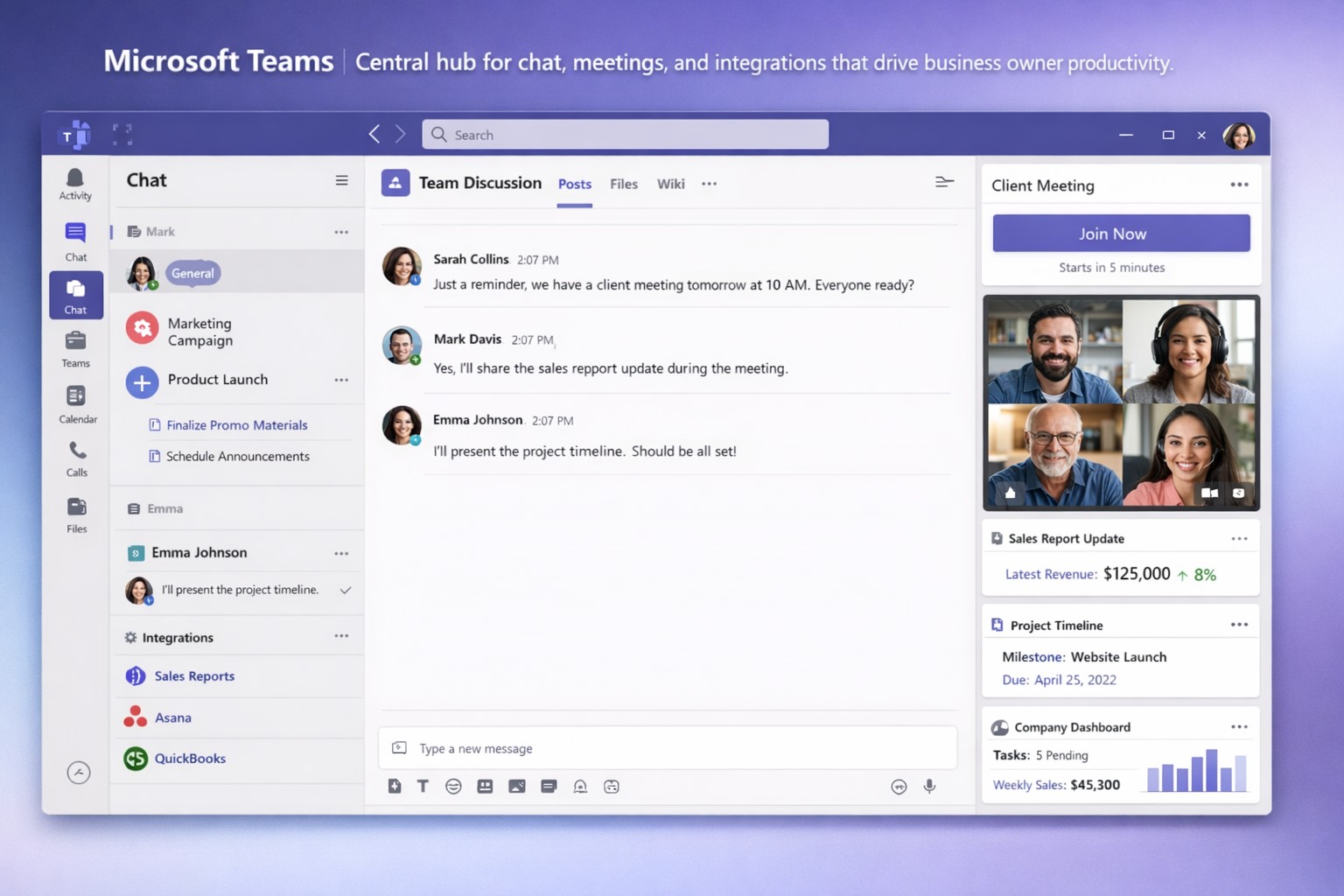
Staying connected and productive isn’t optional—it’s essential for growth. Microsoft Teams centralizes chat, video meetings, file sharing, and integrations into one platform, slashing app-switching and boosting efficiency for business owners managing remote or hybrid teams.
Key Features Driving Productivity
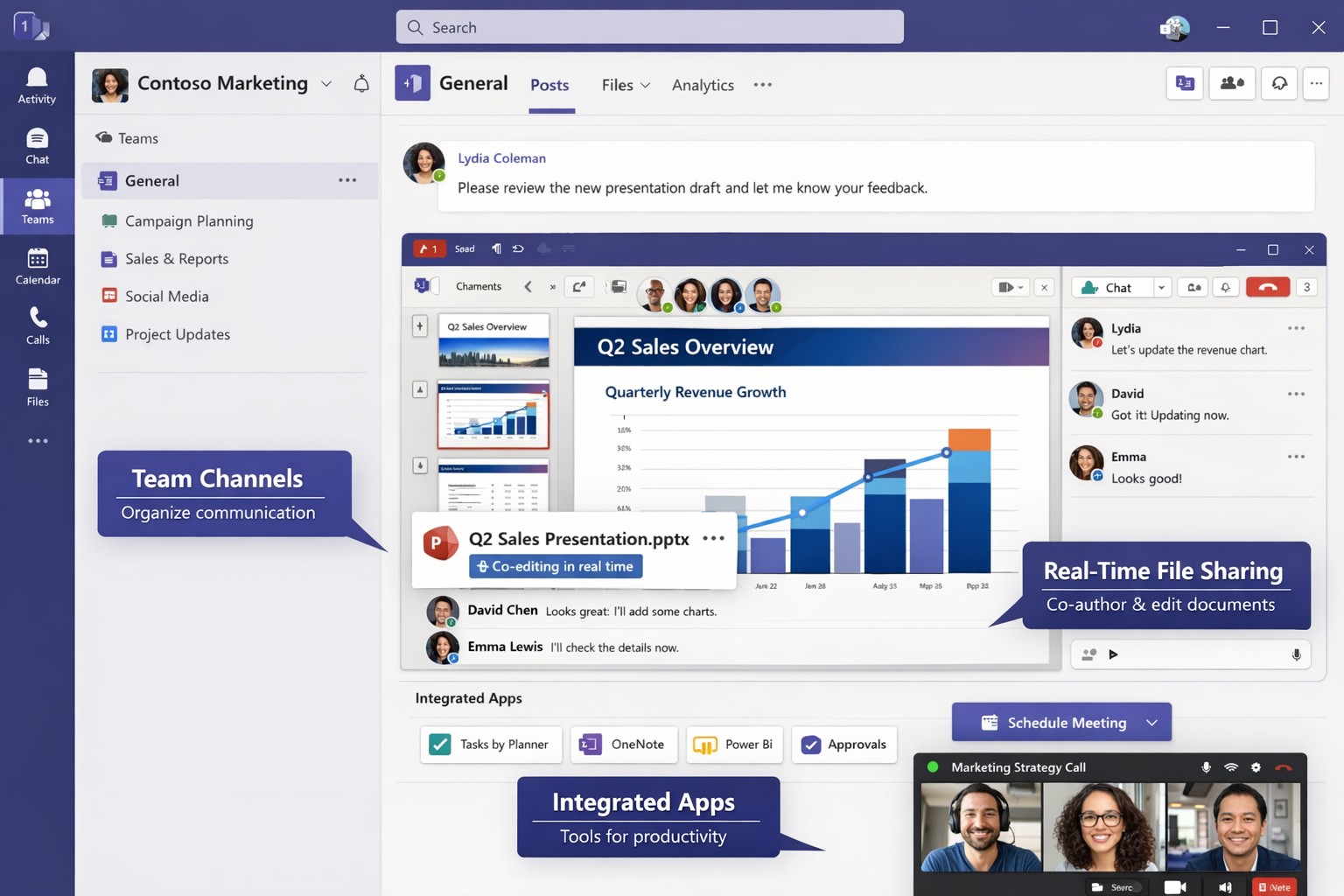
Microsoft Teams excels with features tailored for business operations. Persistent chat and channels organize conversations by project or department, while HD video meetings support up to 300 participants with screen sharing and virtual whiteboards.
AI tools like Copilot summarize files in chats, generate meeting agendas, and assign action items automatically. Integrations with 800+ apps—including Salesforce, Trello, and OneDrive—streamline workflows without leaving Teams.
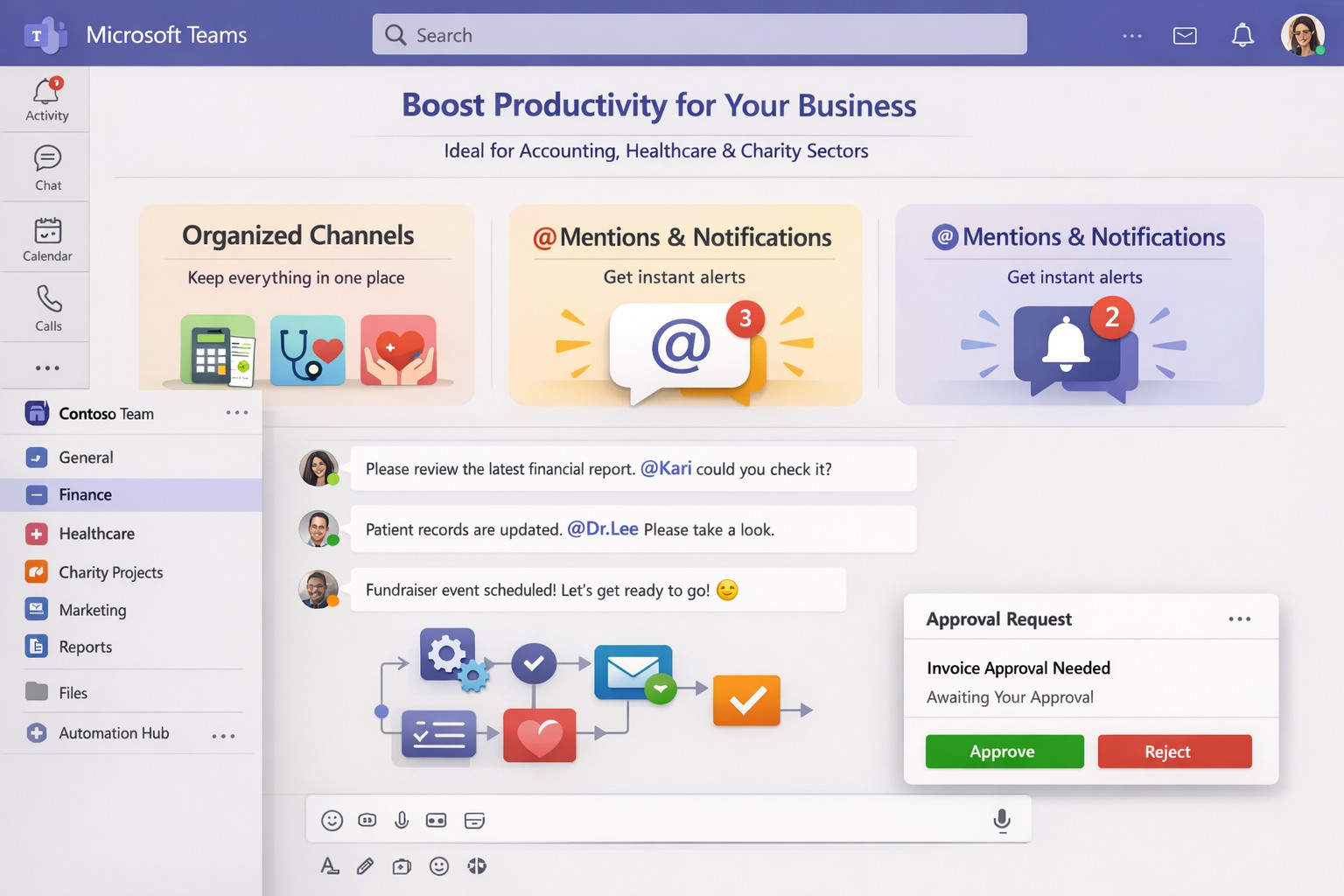
Structured channels, @mentions, and tags reduce clutter, ensuring critical updates reach the right people instantly.
Practical Action Steps for Implementation
Business owners and IT departments can deploy Teams effectively with these steps:
Assess Needs and License: Audit team size and requirements. Start with Microsoft 365 Business Basic ($6/user/month) for core features or Premium for advanced AI. IT assigns licenses via admin center.
Set Up Structure: Create teams for departments and channels for projects (e.g., “Q1 Sales Pipeline”). IT enables guest access for clients and sets naming conventions to avoid chaos.
Configure Security and Integrations: IT activates multi-factor authentication, data loss prevention, and noise suppression. Integrate Planner for tasks, Power BI for analytics, and Copilot for AI summaries.
Train and Optimize: Roll out via short sessions on channels, @tags, and meeting intelligence (transcripts, recaps). Monitor usage in admin analytics and refine with custom bots.
Test and Scale: Pilot with one department, gather feedback, then expand. Use Teams Phone for CCaaS if handling calls.
These steps typically take 1-2 weeks, yielding 20-30% productivity gains through reduced email and focused meetings.
FAQ: Client Inquiries Answered
How secure is Teams for sensitive business data? Teams uses enterprise-grade encryption, compliance with GDPR/HIPAA, and role-based access. IT controls via Microsoft Purview for auditing.
What’s the learning curve for non-tech teams? Minimal—intuitive like chat apps. AI features like live captions and summaries ease adoption; most users proficient in days.
Can Teams replace Zoom or Slack entirely? Yes, with superior Microsoft ecosystem integration. Handles 10,000+ attendees, outperforms in file collab, but pair with Outlook for scheduling.
How does Copilot justify the cost? It saves hours weekly by auto-summarizing threads/files and suggesting replies, ideal for busy owners.
What if we have hybrid workers? Perfect fit—real-time co-editing, presence indicators, and whiteboard tools bridge office/remote gaps.
How Farmhouse Networking Elevates Your Teams Setup
Farmhouse Networking specializes in Microsoft 365 optimizations for accounting, healthcare, and charity sectors. We handle full Teams deployments: custom channel strategies, AI/Copilot integrations, compliance configs, and training tailored to B2B workflows.
Our clients see 40% faster onboarding and higher client conversions via streamlined comms. We audit existing setups, migrate from legacy tools, and provide ongoing support to maximize ROI—without disrupting operations.
Optimize your workflow: Microsoft Teams channels and Power Automate save business owners hours weekly.
Endless meetings, scattered emails, and disorganized chats steal hours weekly. Microsoft Teams can reclaim that time by centralizing communication, automating workflows, and streamlining collaboration, potentially saving your team 5-10 hours per week per employee.
Key Time-Saving Features
Teams integrates chat, video, files, and tasks into one platform, reducing app-switching by up to 30%. Features like channels replace status meetings, search commands (/call, /files) launch actions instantly, and AI-driven Viva Insights schedules focus time to minimize distractions.
Business owners report faster decisions with real-time co-editing in Word/Excel via Teams and automatic transcriptions that eliminate note-taking.
Practical Action Steps
Follow these steps with your IT department to implement immediately:
Audit and Organize Channels: Create topic-specific channels (e.g., “Sales-Q1”, “HR-Onboarding”) instead of group chats. Pin key ones and hide inactive channels to cut navigation time by 50%.
Enable Strategic @Mentions and Tags: Train staff to @mention individuals for tasks, @channel sparingly, and create custom tags (e.g., @MarketingTeam). This reduces back-and-forth messaging.
Set Up Meeting Templates and Transcriptions: In Teams admin center, enable templates for recurring meetings (agenda, attendees, tasks) and auto-transcriptions. IT: Activate under Meetings > Meeting policies.
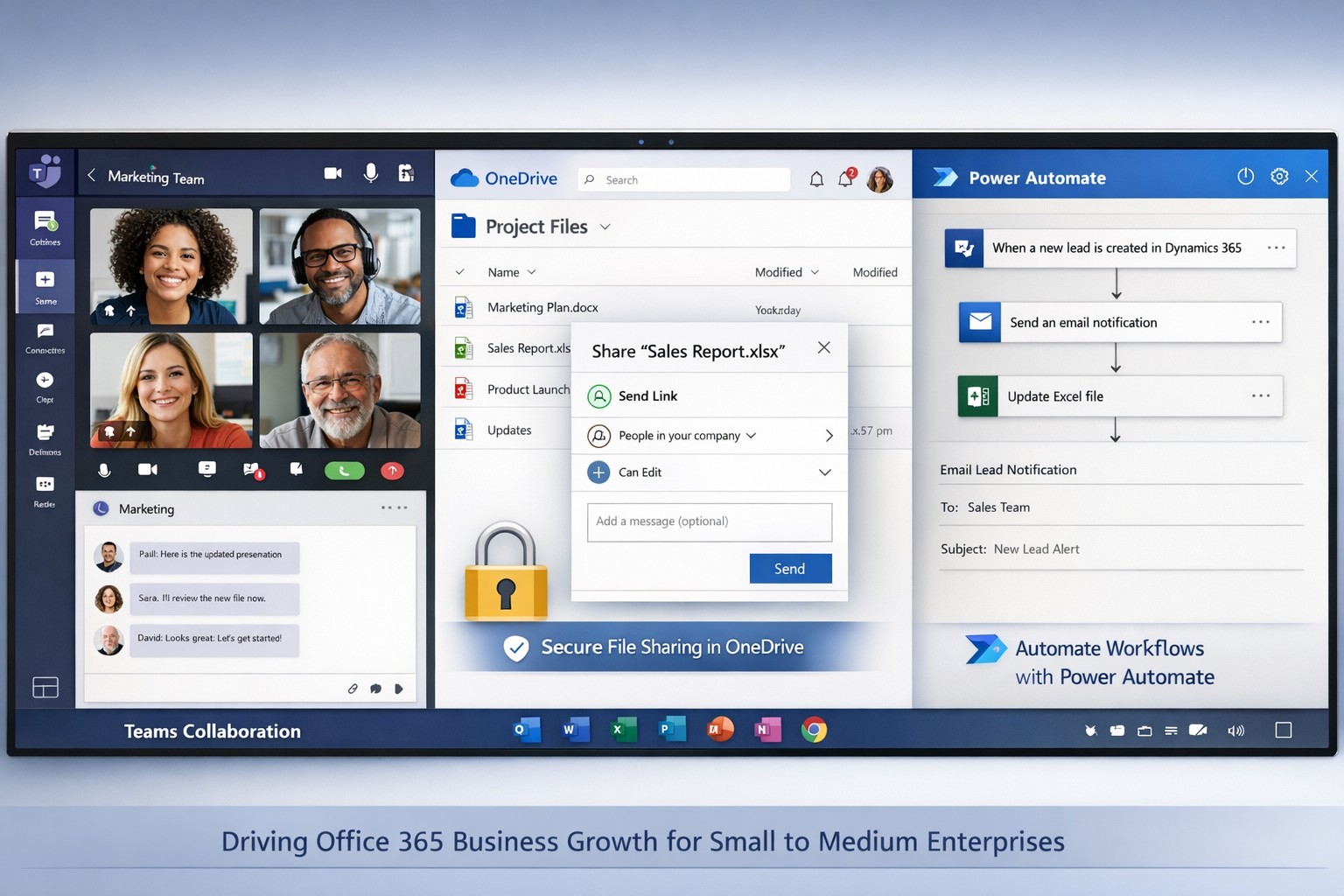
Integrate Power Automate Workflows: IT connects Outlook, SharePoint, and Planner. Automate approvals, reminders, and file routing—e.g., auto-post email attachments to channels.
Configure Notifications and Viva Insights: Customize alerts (e.g., priority only) and enable focus blocks. IT: Roll out via admin settings for company-wide adoption.
Leverage Search as Command Center: Bookmark shortcuts like /saved for quick access to files/messages. Train via pinned announcements.
Link with Microsoft 365: IT ensures seamless OneDrive/SharePoint sync for instant file access without downloads.
Implement in phases: Week 1 for setup, Week 2 for training.
Feature
Time Saved
IT Action Required
Channels over Meetings
2-4 hrs/week
Create/organize in Teams admin
Power Automate
1-3 hrs/week
Set flows in Power Automate portal
Transcriptions
1 hr/meeting
Enable in Meeting policies
Viva Focus Time
5-10 hrs/week
Deploy via Insights dashboard
FAQs for Client Inquiries
How secure is Teams for sensitive business data? Teams uses enterprise-grade encryption (at-rest and in-transit) compliant with GDPR, HIPAA. IT controls guest access and data retention policies.
What’s the ROI for small businesses? SMEs see 20-40% productivity gains; integrates free with Microsoft 365 Business plans starting at $6/user/month.
Can we customize for our industry (accounting/healthcare/charity)? Yes—add apps for QuickBooks (accounting), EHR integrations (healthcare), or donor tracking (charity). Power Automate handles compliance workflows.
How long to see time savings? Most teams report gains in 2-4 weeks post-training.
Does it work for hybrid/remote teams? Fully—real-time collaboration scales from 5 to 500 users seamlessly.
How Farmhouse Networking Helps
Farmhouse Networking specializes in Microsoft 365 optimizations for accounting, healthcare, and charity sectors. We conduct free Teams audits, implement custom workflows (e.g., HIPAA-compliant automations), and train your staff/IT for 30% faster adoption. Our SEO-driven websites and lead-gen strategies have boosted B2B conversions for similar clients by 25%. Let us handle setup so you focus on growth.
Email support@farmhousenetworking.com for a no-obligation Teams efficiency assessment and tailored strategy to save your business hours weekly. Act now—spots fill fast.
Launch secure, instant Microsoft Teams remote meetings to empower your business team’s hybrid collaboration.
Remote work demands seamless collaboration, and Microsoft Teams delivers instant meetings that keep your business agile without complex setups. As a business owner, you can empower your team to connect securely from anywhere, boosting productivity in hybrid environments.
Why Teams for Instant Meetings
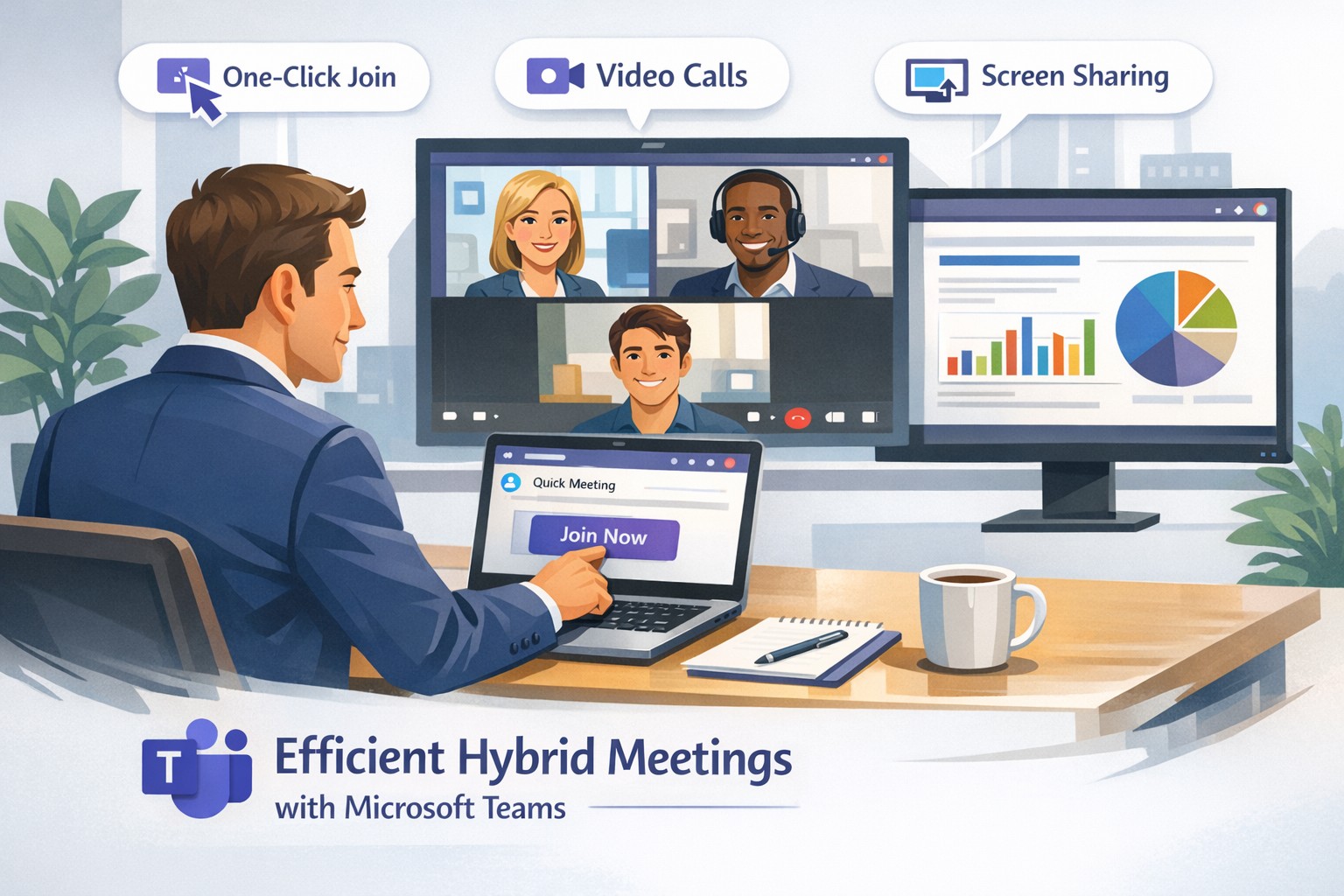
Microsoft Teams stands out for remote work with features like one-click meeting joins, HD video conferencing, screen sharing, and recording—ideal for quick client calls or team huddles. Business owners benefit from its integration with Microsoft 365, unifying chat, files, and calendars to cut app-switching time. Security features, including end-to-end encryption and guest access controls, protect sensitive discussions.
Step-by-Step Setup Actions
Follow these practical steps for your IT department and team to launch instant meetings fast.
Sign Up and License: Purchase Microsoft Teams via Microsoft 365 Business plans (Essentials or Premium). IT admins assign licenses in the Microsoft 365 admin center.
Install the App: Download Teams desktop/mobile apps or use web version. IT pushes via Intune for managed devices.
Create a Team/Channel: In Teams, select “Teams” > “Create team” for your department. Add channels for projects.
Schedule or Start Instant Meeting: Click “Calendar” > “Meet now” for ad-hoc sessions, or schedule via Outlook integration. Share the link instantly.
Configure Policies: IT sets meeting policies in Teams admin center—enable recording, live captions, and Together mode for engagement.
Test and Train: Run a pilot meeting; use breakout rooms and noise suppression. Share quick-start guides with staff.
These steps take under 30 minutes for basics, scaling securely for 1,000+ attendees.
FAQs for Business Owners
How secure are instant Teams meetings for client discussions? Teams uses AES-256 encryption and compliance with GDPR/HIPAA. External guests join via links without accounts, with role-based access.
Can non-Microsoft users join instantly? Yes—share a browser link; no app or plugin needed. Guests enter their name and join in seconds.
What if internet fails during a meeting? Dial-in audio options and network strength indicators ensure continuity. Live captions aid accessibility.
How does Teams handle large remote teams? Supports up to 10,000 in broadcasts, with features like Front Row for hybrid rooms and meeting recaps for absentees.
Does it integrate with my existing tools? Seamlessly with Outlook, OneNote, and 1,000+ third-party apps via tabs/bots.
How Farmhouse Networking Helps
Farmhouse Networking specializes in Microsoft Teams deployments for accounting, healthcare, and charity sectors, ensuring SEO-optimized setups that drive B2B leads. We handle licensing audits, custom policy configs, and training to minimize downtime—tailored for compliance-heavy industries. Our lead generation strategies integrate Teams with your site for instant demos, enhancing customer experience. Past clients saw 40% faster meeting ramps and organic traffic gains via branded content hubs.
Call to Action
Ready to streamline remote meetings and scale your business? Email support@farmhousenetworking.com for a free Teams optimization audit.
Streamline your business with Microsoft Teams—chat, video, and tasks in one secure platform.
You’re juggling remote teams, client calls, and endless emails. Microsoft Teams cuts through the chaos, combining chat, video meetings, video conferencing, file sharing, and task management into one secure platform—boosting productivity without added costs if you have Microsoft 365.
Core Features for Your Business
Microsoft Teams is Microsoft’s hub for teamwork, included in most Microsoft 365 plans. It supports unlimited group meetings up to 30 hours, 10 GB cloud storage per user, unlimited chat, and data encryption for calls and files.
Key benefits include intelligent recaps for catching up on meetings, Power Automate for task automation, and integration with Outlook, OneDrive, and frontline tools like Shifts. Small businesses gain from guest access for clients and 300-participant meetings, reducing email overload.
Practical Action Steps
Follow these steps with your IT department to deploy Teams effectively.
Assess Licensing: Check your Microsoft 365 subscriptions—Teams is often included. Upgrade to Teams Essentials ($4/user/month) for standalone use or Premium for AI features like Copilot.
IT Setup: Assign global admins in the Microsoft 365 admin center. Enable Teams via the Teams admin center, configure policies for meetings and external access, and set up single sign-on (SSO).
Team Creation: Business owner creates teams by department (e.g., Sales, Accounting). IT adds users, channels for projects, and apps like Planner for tasks.
Training Rollout: Mandate 1-2 hour sessions using built-in guides or integrated learning. Test with a pilot group for chat, calls, and file sharing.
Go Live and Monitor: Launch company-wide, track usage via analytics in Teams admin center, and enforce naming conventions for channels.
These steps take 1-2 weeks, minimizing downtime.
FAQ: Client Inquiries Answered
Q: Is Teams secure for client data? A: Yes—end-to-end encryption covers meetings, chats, and files. Guest access allows secure external sharing without full licenses.
Q: How does Teams handle hybrid work? A: Features like Teams Rooms for in-office setups, mobile access, and Together Mode make it ideal for mixed teams. Shifts schedules frontline staff.
Q: What’s the cost for small businesses? A: Free with Microsoft 365 Business Basic ($6/user/month). Essentials adds standalone options at low cost; Premium enhances with AI.
Q: Can we integrate custom apps? A: Over 250 apps available, plus Power Automate for workflows. Custom bots possible via developer tools.
Q: How to avoid adoption issues? A: Start with quick wins like chat over email. Use in-app training and engagement nudges for 80%+ usage in weeks.
How Farmhouse Networking Helps
Farmhouse Networking specializes in Microsoft deployments for accounting, healthcare, and charity sectors. We handle full Teams setup: licensing audits, custom policies for HIPAA/GDPR compliance, migration from Zoom/Slack, and branded onboarding training.
Our SEO-optimized websites integrate Teams calendars for lead-gen, plus analytics to track ROI—driving 30-50% productivity gains. We target B2B clients like yours via organic content on “Teams for accountants” or “Teams healthcare compliance.”
Call to Action
Ready to streamline your operations? Email support@farmhousenetworking.com for a free Teams assessment tailored to your business. Transform collaboration today.
Microsoft Teams unifies chat, video, and files to streamline business collaboration – ideal for accounting, healthcare, and charity teams.
Fragmented communication tools lead to lost productivity and missed opportunities. Microsoft Teams unifies chat, video, file sharing, and apps into one platform, boosting efficiency for accounting firms tracking client data, healthcare providers coordinating patient care, or charities managing donor campaigns.
Why Unify with Teams?
Teams integrates seamlessly with Microsoft 365, centralizing workflows to reduce email overload by 40-50% in typical deployments. For B2B owners, this means faster decision-making across hybrid teams—essential for industries like yours where compliance and real-time updates are critical. Real-world adopters report 20-30% gains in cross-departmental collaboration.
Practical Action Steps
Follow these steps with your IT department to implement Teams effectively.
Assess Needs: Audit current tools (email, Slack, Zoom). Survey teams on pain points like siloed files or meeting fatigue. Assign an IT lead to map requirements.
Set Up Licensing: Purchase Microsoft 365 Business Premium ($22/user/month) via the admin center. Enable Teams for all users and configure security policies like multi-factor authentication.
Create Structure: Build teams and channels by department/project (e.g., “Q1 Accounting Audits”). Pin key apps like Planner for tasks and OneDrive for files. Limit private channels for sensitive data.
Train Staff: Roll out 1-hour sessions via Teams Live Events. Cover channels, @mentions, and integrations. Use Microsoft’s free templates for quick onboarding.
Integrate and Test: Connect with Outlook, SharePoint, and industry tools (e.g., QuickBooks for accounting). Pilot with one department, monitor adoption via analytics, then scale.
Optimize Ongoing: Review usage monthly. Automate with Power Automate flows (e.g., approval workflows) and gather feedback to refine.
These steps typically take 4-6 weeks, yielding immediate ROI through reduced tool sprawl.
FAQ: Client Inquiries Answered
How secure is Teams for regulated industries like healthcare or accounting? Teams meets HIPAA, GDPR, and SOC 2 standards with end-to-end encryption and data loss prevention. Retention policies ensure compliance without custom coding.
What if my team resists change? Start small: Gamify adoption with badges for active users. 75% of employees value collaboration tools when trained properly.
Can Teams replace multiple apps? Yes—integrates 250+ apps, including CRM for charities or EHR for healthcare. Custom bots handle routine tasks, cutting manual work.
How much does it cost long-term? Starts at $6/user/month for basics; scales with add-ons. Expect 1-2 year payback via productivity gains.
Does it support hybrid/remote work? Fully—real-time co-editing, breakout rooms, and AI noise suppression keep distributed teams aligned.
How Farmhouse Networking Helps
Farmhouse Networking specializes in B2B setups for accounting, healthcare, and charities. We handle full Teams deployment: custom audits, secure configurations, staff training, and SEO-optimized intranets to drive internal efficiency. Our clients see 25% faster project closes. We integrate with your existing stack, ensuring zero downtime.
Smart technology integration helps employees collaborate effectively without digital overload.
Technology can be both a blessing and a burden. Mid-sized companies often find themselves on the front line of this tension — investing in new platforms to boost productivity, only to watch employees struggle with information overload, tool fatigue, and fragmented workflows.
As a business owner, your challenge is not choosing more technology but choosing the right technology — solutions that empower employees rather than overwhelm them. The goal is simple: create a digital ecosystem that enhances efficiency, fosters engagement, and reduces stress across your organization.
The Double Edge of Digital Transformation
Modern workforces depend on an expanding set of tools — from project management platforms and communication apps to cybersecurity systems and cloud file sharing. When managed well, these systems streamline operations, enable collaboration, and free up time for higher-value work.
However, when poorly integrated or excessively complex, they create barriers:
Tool fragmentation — Too many applications requiring logins, updates, and context switching.
Digital burnout — Employees experiencing fatigue from constant notifications and app switching.
Productivity decline — Time lost navigating systems rather than performing core job functions.
According to Gartner, 80% of employees report using more than six collaboration tools daily, and nearly half say they frequently feel fatigued by technology. The key is not just deploying technology — it’s creating enablement through thoughtful design, integration, and support.
Action Steps for Business Owners and IT Departments
To restore balance between enablement and overload, mid-sized businesses should take a deliberate, strategic approach.
Audit Your Digital Ecosystem Conduct a complete inventory of all software, platforms, and devices currently in use. Identify redundancies, unused tools, and areas where systems overlap.
Evaluate Employee Workflows Partner with department leaders to understand how employees use technology in practice. Look for pain points — such as repetitive data entry or slow cross-department coordination — and streamline accordingly.
Prioritize Integration and Automation Choose technologies that talk to each other. A well-integrated stack eliminates duplicate data entry and minimizes learning curves. Automation of routine tasks can return hours of productivity per week.
Promote Digital Literacy Invest in regular training and clear documentation. Empower employees with knowledge, ensuring they use technology effectively rather than bypassing it out of frustration.
Monitor and Adjust IT leadership should treat technology adoption as a continuous improvement process. Regularly gather feedback through quick pulse surveys or team meetings to monitor user experience and satisfaction.
Common Questions Business Owners Ask
Q: How can I tell if my employees are experiencing digital overload? A: Warning signs include rising support tickets, declining software adoption, missed communication, and increased employee fatigue or dissatisfaction. Regular engagement surveys and help desk analytics can reveal early signals.
Q: What should I look for when selecting new tools? A: Prioritize solutions that integrate seamlessly with your existing systems, have strong vendor support, and directly improve employee workflows. Avoid flashy features that add complexity without solving real problems.
Q: Is there a way to measure technology enablement? A: Yes. Metrics like time-to-completion for key tasks, help desk resolution times, adoption rates of new tools, and employee satisfaction scores can quantify how effectively your technology ecosystem supports your team.
How Farmhouse Networking Can Help
At Farmhouse Networking, we specialize in helping mid-sized businesses optimize their technology environment to drive performance while maintaining employee well-being. Our approach includes:
Comprehensive IT audits to uncover inefficiencies and redundant tools.
Custom integration planning to consolidate systems and improve cross-platform communication.
Network and cloud management that prioritizes speed, reliability, and user experience.
Ongoing IT support and training designed to reduce frustration and build digital confidence across your workforce.
By focusing on both technical and human factors, we help you achieve the right balance between digital enablement and operational simplicity — turning technology into a competitive advantage rather than a burden.
Take the Next Step
If your business is ready to enhance productivity while reducing employee technology fatigue, reach out today. Email support@farmhousenetworking.com to schedule a consultation and learn how Farmhouse Networking can help you design a smarter, more efficient digital workplace.
Microsoft 365 interface boosting productivity and scalability for business owners.
Office 365 has transformed the way businesses operate, offering a powerful suite of cloud-based tools designed to enhance productivity, collaboration, and security. For small and medium-sized enterprises, adopting Office 365 can lead to significant improvements in efficiency and scalability, allowing owners to focus on growth rather than day-to-day operational challenges. With options tailored for accounting, healthcare, and charitable organizations, Office 365 provides the flexibility needed to meet the unique demands of each industry.
Key Benefits for Business Growth
Seamless Collaboration: Tools like Microsoft Teams enable real-time communication and document sharing, reducing email clutter and speeding up project completion.
Enhanced Security: Advanced security features protect sensitive data, crucial for healthcare and financial sectors.
Scalability: Cloud-based applications allow businesses to easily adjust their software needs as they grow, without the need for costly hardware upgrades.
Automation: Integration with Power Automate streamlines repetitive tasks, freeing up time for strategic initiatives.
Practical Steps for Implementation
To fully leverage Office 365, business owners should collaborate with their IT departments to ensure a smooth transition. Here are the essential steps:
1. Assess Current Needs
Identify the specific challenges your team faces, such as inefficient communication or data management issues.
Determine which Office 365 plans best fit your requirements, focusing on features relevant to your industry.
2. Plan Migration
Develop a migration strategy that includes timelines and responsibilities.
Train staff on new tools to ensure they can utilize them effectively from day one.
3. Implement Security Measures
Set up security protocols using Microsoft’s security features, including multi-factor authentication and data loss prevention.
Regularly update passwords and security settings to maintain robust protection against cyber threats.
4. Integrate Automation
Utilize Power Automate to automate common workflows, such as expense approvals or patient data management.
Monitor automation performance to identify areas for improvement.
Frequently Asked Questions
Q: How does Office 365 improve productivity? A: Office 365 enhances productivity by providing real-time collaboration tools, automated workflows, and secure access to data from any device, which streamlines day-to-day operations.
Q: Can Office 365 scale with my business? A: Yes, Office 365 offers flexible licensing options that allow businesses to add or remove users as needed, making it easy to scale operations without significant overhead.
Q: What kind of support is available for implementation? A: Various providers offer implementation support, including training and ongoing technical assistance to ensure a smooth transition and maximize the benefits of Office 365.
How Farmhouse Networking Can Help
Farmhouse Networking specializes in helping businesses implement and optimize Office 365 solutions tailored to their specific needs. Our team provides comprehensive support, from initial assessment and migration planning to ongoing maintenance and security management. By partnering with us, business owners can ensure their Office 365 deployment is seamless and effective, allowing them to focus on growth and innovation.
For more information on how Farmhouse Networking can help improve your business operations through Office 365, contact us at support@farmhousenetworking.com. We are here to guide you every step of the way, ensuring your business thrives in today’s competitive landscape.
Understanding the six types of remote workers helps business owners create effective IT strategies for secure and productive remote teams.
Remote and hybrid work are here to stay. The challenge for business owners isn’t just keeping people connected — it’s understanding how different types of remote employees work best and what they need to succeed. Each worker type has unique technology, communication, and security requirements. Knowing these differences allows you to design a smart remote work strategy that boosts productivity, security, and morale.
The Six Types of Remote Workers and What They Need
1. The Independent Expert
These are the self-driven specialists who know their craft and value flexibility. They dislike micromanagement and prefer getting results on their own terms. How to support them: Ensure secure system access through a VPN and cloud-based tools. Automate routine updates to reduce interruptions, and provide strong endpoint protection to guard data while they work independently.
2. The Collaborative Communicator
This group thrives on constant interaction and quick collaboration. They drive team culture and creativity but can feel isolated when technology fails. How to support them: Use reliable communication tools like Slack, Microsoft Teams, or Zoom — and make sure your network bandwidth and security policies support uninterrupted real-time collaboration. Encourage scheduled check-ins to keep morale high and information flowing.
3. The Road Warrior
Always on the move, these employees rely on mobile devices and public networks. Field service reps, consultants, or remote managers often fall into this category. How to support them: Implement mobile device management (MDM) software, enforce two-factor authentication, and train employees on safe Wi-Fi practices. Cloud-based storage with encryption protects their data while ensuring accessibility from anywhere.
4. The Structured Performer
These workers thrive on order and clarity. They rely on defined rules, timelines, and expectations to perform well remotely. How to support them: Standardize communication and file-sharing tools, and document IT policies. Use dashboards and project management platforms like Trello or Asana to maintain structured workflows and consistent accountability.
5. The Emerging Remote Starter
New to remote work, these employees often need extra guidance, consistent access to IT resources, and reassurance that help is available when technology inevitably fails. How to support them: Provide onboarding sessions covering remote setup, company security protocols, and common troubleshooting steps. Make sure they have access to your IT helpdesk for instant support and schedule regular one-on-one check-ins as they get comfortable with their new environment.
6. The Hybrid Connector
They split time between office and home, juggling two environments with different setups. Seamless syncing is critical to maintain efficiency. How to support them: Standardize software, data access, and authentication across both locations. Unified communication systems and synchronized hardware (like docking stations and remote desktops) ensure their transition between workspaces is frictionless.
Practical Steps for Business Owners and IT Teams
Supporting these different worker types doesn’t require six distinct systems. Instead, focus on building a flexible IT framework that adapts to everyone’s needs:
Audit your current IT environment to identify weak spots in connectivity, access, and cybersecurity.
Segment employees by work type and align their tools accordingly.
Standardize collaboration platforms to minimize confusion and ensure security consistency.
Implement cybersecurity best practices: firewalls, MFA, regular backups, and continuous network monitoring.
Train your team on safe remote practices to reduce phishing and human errors.
Create IT response and recovery plans for downtime or breaches — prevention is cheaper than disruption.
When IT is intentional and tailored, your business operates efficiently regardless of where employees log in.
Client Questions Answered
Q: How do I keep remote employees productive without micromanaging? A: Use transparent project management tools that track results, not time. Metrics-based performance systems give employees freedom while keeping you informed.
Q: Are cloud applications like Microsoft 365 and Google Workspace safe for remote work? A: They are — when configured properly. Encryption, file permissions, multi-factor authentication, and user activity logging are essential security layers.
Q: What’s the key to balancing flexibility with network security? A: Centralized IT management. By having a managed service provider monitor devices and apply consistent policies, you maintain both freedom and control.
How Farmhouse Networking Helps
Farmhouse Networking specializes in helping small businesses master remote and hybrid work environments. Whether your challenge is cybersecurity, employee onboarding, or remote infrastructure stability, our team designs tailored IT ecosystems that match how your people actually work.
We help you:
Identify which remote worker types make up your team.
Implement secure cloud access, VPNs, and remote monitoring.
Provide proactive IT support that keeps downtime minimal.
Strengthen your cybersecurity posture with continuous network protection.
Our goal is simple — to make your remote operations secure, seamless, and scalable.
Ready to build a smarter, more resilient remote workforce? Contact Farmhouse Networking at support@farmhousenetworking.com to learn how we can optimize your remote work systems and empower your team to perform at their best — wherever they are.
Key digital skills for remote workers: AI-assisted productivity, cybersecurity basics, and data analytics to future-proof your mid-sized team.
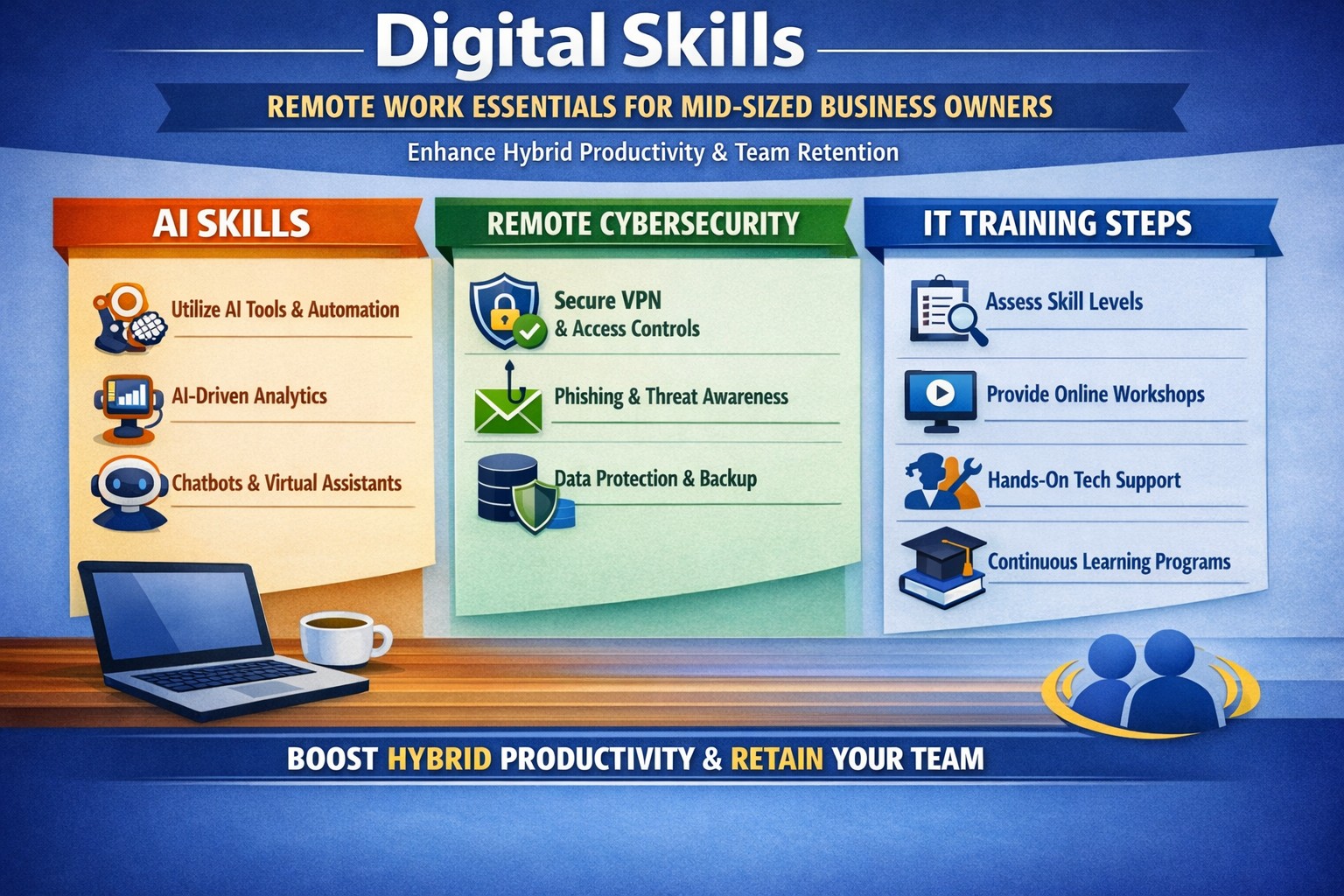
Mid-sized business owners face a pivotal choice: adapt to remote work demands or risk losing top talent to competitors. With hybrid models now standard and AI reshaping workflows, equipping your team with essential digital skills isn’t optional—it’s a competitive edge that drives productivity and retention.
Why Digital Skills Matter Now
Remote work has evolved beyond basic video calls. 92% of job postings demand digital proficiency, with mid-sized firms seeing 2.5x revenue growth from tech-savvy teams. Leaders must prioritize skills like AI-assisted productivity and cybersecurity to support distributed operations, reducing downtime and boosting outcomes over hours logged.
Key Digital Skills for Remote Success
Focus on these seven high-impact skills to future-proof your workforce:
AI-Assisted Productivity: Leverage tools for task automation and analysis—daily AI use hit 26% last year, doubling output for proficient users.
Cognitive Flexibility and Adaptability: Shift seamlessly between tools and priorities in dynamic remote setups.
Strong Digital Communication: Master Slack, Microsoft Teams, and asynchronous updates to bridge time zones.
Tech Literacy and Troubleshooting: Handle basic IT fixes independently to minimize disruptions.
Cybersecurity Basics: Implement MFA and zero-trust models to protect distributed data.
Data Analytics: Use tools like Google Analytics or Power BI for real-time insights.
Digital Project Management: Coordinate via Asana or Monday.com for virtual team alignment.
These skills address remote challenges like collaboration gaps and productivity tracking.
Practical Action Steps
Business owners and IT departments should execute these steps systematically.
Assess Current Gaps: Survey your team on proficiency in the seven skills above; use free tools like LinkedIn Learning audits (1-2 weeks).
Build a Training Roadmap: Enroll in microlearning platforms (e.g., 15-min daily sessions on Coursera or freeCodeCamp) and allocate 4-6 hours weekly per employee.
Deploy Secure Infrastructure: IT to roll out VPNs, endpoint protection, and cloud access (e.g., Splashtop for remote desktops); test with a pilot group in 30 days.
Integrate AI Tools: Pilot enterprise AI like Microsoft Copilot or Zapier for automation; track ROI via output metrics quarterly.
Foster Continuous Upskilling: Launch internal “skill shares” via Zoom and tie bonuses to certifications (e.g., Google Data Analytics).
Monitor and Iterate: Use dashboards for skill adoption KPIs; adjust based on quarterly reviews.
These steps minimize risks like breaches (up 30% in hybrid setups) while accelerating hybrid efficiency.
Q&A: Client Inquiries Addressed
Q: How long until we see ROI from upskilling? A: Firms report 3x profitability within 6-12 months via reduced IT tickets and higher output.
Q: What if our team resists new tools? A: Start with voluntary pilots and gamified training; data shows 2.3x retention in adaptive programs.
Q: How do we secure remote access without slowing workflows? A: Adopt zero-trust with MFA—cutting threats while maintaining speed.
Q: Which skills yield the highest salaries for remote hires? A: AI/ML and cybersecurity top lists, with 20-50% premiums for mid-sized firms.
Q: Can we train in-house or need external help? A: In-house works for basics, but experts accelerate deployment for complex setups.
How Farmhouse Networking Accelerates Your Remote Transition
Farmhouse Networking specializes in mid-sized businesses across accounting, healthcare, and nonprofits, delivering tailored IT strategies for seamless remote adoption. We handle infrastructure audits, deploy secure cloud ecosystems, and integrate AI tools—slashing setup time by 50% versus DIY efforts. Our upskilling workshops certify teams in cybersecurity and project management, ensuring compliance (e.g., HIPAA for healthcare) and 99.9% uptime.
Call to Action
Ready to equip your team with digital skills? Email support@farmhousenetworking.com today for a free remote readiness assessment and custom roadmap.
And God will generously provide all you need. Then you will always have everything you need and plenty left over to share with others. As the Scriptures say, “They share freely and give generously to the poor. Their good deeds will be remembered forever.” For God is the one who provides seed for the farmer and then bread to eat. In the same way, he will provide and increase your resources and then produce a great harvest of generosity in you. - 2 Corinthians 9:8-10
We use cookies to ensure that we give you the best experience on our website. If you continue to use this site we will assume that you are happy with it.