Protect your remote workforce with managed cybersecurity solutions from Farmhouse Networking.
Remote work isn’t a trend anymore—it’s the new normal. As business owners embrace flexibility for their teams, the question isn’t whether remote work is here to stay, but how to keep it secure. Every remote connection, off-site login, and cloud app increases your organization’s exposure to cyber threats. Yet with a strategic approach and the right IT partner, you can maintain both productivity and peace of mind.
Let’s explore practical steps to safeguard your remote workforce and keep your company’s data protected—no matter where your employees log in from.
Step 1: Strengthen Endpoint Security
Your employees’ laptops, tablets, and smartphones are the front lines of your cybersecurity defense.
Implement device management policies: Require company-issued or managed devices only, using mobile device management (MDM) tools to enforce security settings and lock or wipe lost devices.
Apply regular updates: Patch management ensures operating systems and applications stay current against known vulnerabilities.
Use advanced antivirus and EDR: Endpoint Detection and Response (EDR) continually monitors and analyzes device activity, identifying suspicious behavior early.
Strong endpoint protection helps you prevent compromised devices from becoming entry points into your network.
Step 2: Establish Secure Remote Access
Allowing remote access shouldn’t mean leaving your digital doors wide open.
Deploy a VPN (Virtual Private Network): Encrypt employee connections to your office network and cloud services.
Shift to Zero Trust Network Access (ZTNA): Adopt a “never trust, always verify” model that authenticates users and devices each time they connect.
Use multi-factor authentication (MFA): Combine passwords with a second factor, like a mobile app code or biometric scan, to block unauthorized access.
These technologies work together to create secure pathways for remote workers without slowing them down.
Step 3: Protect Your Cloud and Collaboration Tools
Cloud storage and file-sharing apps make remote work seamless—but they’re also favorite targets for cybercriminals.
Limit access privileges: Give users only the data and systems access they need for their jobs.
Monitor suspicious activity: Use automated alerts for unauthorized downloads, logins from unfamiliar locations, or mass file deletions.
Encrypt cloud data: Apply encryption at rest (while stored) and in transit (while shared).
By managing permissions and encryption settings properly, you ensure your remote team collaborates safely.
Step 4: Train Your Employees to Recognize Threats
Technology can’t protect your business alone—your people are your first defense.
Phishing simulation tests: Help employees identify deceptive emails before they click.
Ongoing security awareness training: Regular, engaging sessions keep cybersecurity top of mind.
Clear incident reporting process: Make sure staff know exactly how to report suspicious emails or activity.
Even the strongest firewall can’t fix a careless click. Empowered employees dramatically lower your exposure to ransomware and data breaches.
Step 5: Backups and Business Continuity
When (not if) something goes wrong, recovery speed determines your resilience.
Automated, off-site backups: Back up critical company data daily to secure cloud storage or a managed backup solution.
Test your recovery protocols: Periodic testing ensures recovery procedures actually work when needed.
Create a disaster recovery plan: Define roles, responsibilities, and communication plans for emergencies.
Regular backups not only protect your business from cyberattacks but also from system failures, accidental deletion, or natural disasters.
Common Questions from Business Owners
Q: How can I ensure my remote workers’ home networks are secure? A: Require strong, unique Wi-Fi passwords and WPA3 encryption. Encourage employees to separate personal and work devices on different Wi-Fi networks where possible.
Q: Aren’t remote security tools expensive? A: Not necessarily. Many solutions scale by user count, making them affordable for small to medium-sized businesses. Cloud-based management and outsourced IT services can reduce operational overhead.
Q: What’s the biggest cybersecurity risk for remote businesses? A: Human error remains number one—especially phishing attacks and weak passwords. That’s why employee training and MFA are critical foundations of your remote work security strategy.
How Farmhouse Networking Helps Strengthen Remote Security
At Farmhouse Networking, we help businesses across Oregon and beyond embrace remote work securely. Our team provides managed IT services, network monitoring, cybersecurity management, and employee training tailored to your business goals.
Here’s how we can help you stay secure while working remotely:
Comprehensive network and endpoint protection designed to prevent unauthorized access.
24/7 monitoring and response to detect threats in real time.
Cloud security audits to ensure collaboration tools meet compliance and security standards.
Custom remote work security plans aligned with your IT budget and risk profile.
We work closely with your internal IT staff or serve as your outsourced department—helping you focus on running your business, not worrying about cyber risks.
Take the Next Step Toward Secure Remote Work
Remote work can be safe, scalable, and sustainable—with the right security foundation. Whether you’re building your first remote team or managing a hybrid workforce, Farmhouse Networking has the expertise to protect your people, devices, and data.
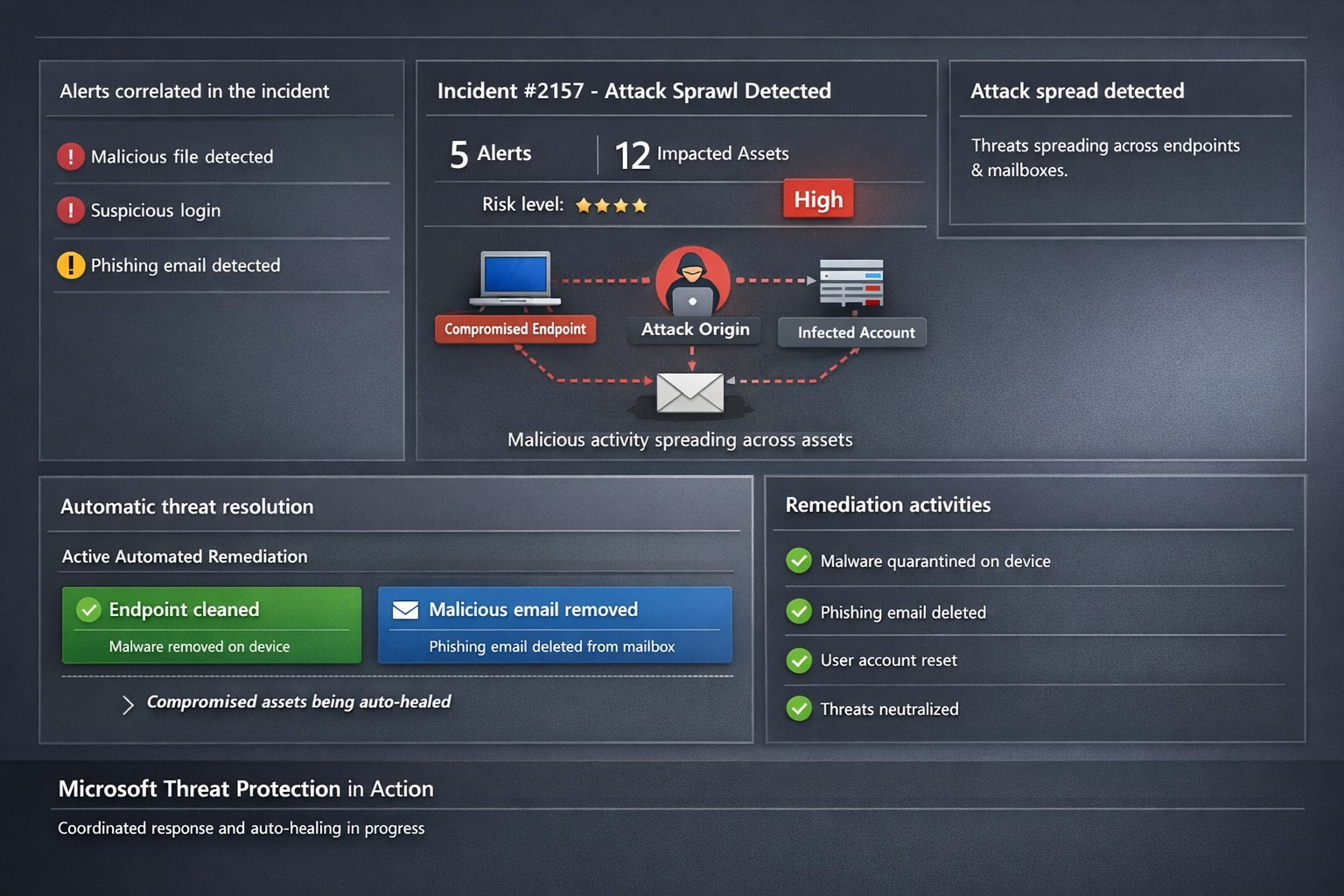
Microsoft 365 Defender auto-disrupts threats across endpoints and identities, healing assets in real-time to prevent sprawl.
One cyberattack can cripple operations, expose sensitive data, and cost millions in recovery. Microsoft Threat Protection (now evolved into Microsoft 365 Defender) integrates defenses across endpoints, email, identity, and apps to halt attack sprawl—where threats spread unchecked—and automatically heals compromised assets, minimizing downtime and risk.
What Is Attack Sprawl and Auto-Healing?
Attack sprawl happens when adversaries breach one domain, like email, then pivot to endpoints or identities via weak seams in siloed tools. Microsoft Threat Protection correlates signals across Microsoft Defender for Endpoint, Office 365 ATP, Azure ATP, and Cloud App Security to detect the full attack chain in real time.
It stops sprawl by blocking persistence mechanisms, such as malicious processes or credential abuse, and auto-heals assets—terminating threats on devices, removing harmful email rules, and flagging compromised users in Azure AD—restoring safety without manual intervention. Recent updates add automatic attack disruption for critical assets like domain controllers, disrupting threats days earlier in the kill chain.
Practical Action Steps for Implementation
Business owners and IT teams can deploy Microsoft Threat Protection systematically to fortify defenses. Follow these steps:
Assess Your Environment: Inventory endpoints, email, identities, and apps using Microsoft 365 Defender portal. Enable integration for Defender ATP, Office 365 ATP, Azure ATP, and MCAS via the unified console.
Enable Cross-Domain Correlation: Activate incident correlation in the Microsoft 365 Defender portal to prioritize high-fidelity threats. Configure conditional access policies to block risky logins automatically.
Turn On Auto-Healing and Disruption: In Defender settings, enable automated response actions like process termination and asset isolation. Test automatic attack disruption for critical assets via Security Exposure Management integration.
Conduct Proactive Hunting: Use custom queries in the portal to hunt cross-domain threats with your org-specific indicators. Review Threat Analytics reports for exposure insights and patches.
Monitor and Refine: Set up Action Center to track automated actions. Schedule monthly reviews to harden configurations based on incident data.
These steps reduce response times from hours to minutes, cutting breach costs by limiting sprawl.
FAQ: Client Inquiries Answered
How does Microsoft Threat Protection differ from standalone tools? It unifies siloed solutions into one XDR platform, correlating alerts for end-to-end visibility—unlike fragmented tools that miss cross-domain sprawl.
What assets does auto-healing cover? Endpoints (malicious processes), mailboxes (forwarding rules), identities (compromised flags), and apps. New capabilities target domain controllers and high-value servers.
Is it suitable for small businesses without a full IT team? Yes—built-in automation handles most responses. Pair with Microsoft 365 E5 licensing for seamless setup, scaling from SMBs to enterprises.
How effective is it against ransomware? It disrupts human-operated ransomware early by inoculating devices org-wide upon initial detection, reducing dwell time significantly.
What are setup costs and timelines? Licensing starts in Microsoft 365 plans; deployment takes days for integrated environments. Expect ROI via reduced incidents within weeks.
How Farmhouse Networking Boosts Your Efforts
Farmhouse Networking specializes in tailored Microsoft 365 security for accounting, healthcare, and charity sectors—industries handling sensitive data under strict compliance like HIPAA or GAAP. We handle assessment, configuration, and optimization of Threat Protection to stop attack sprawl and enable auto-healing.
Our team deploys custom integrations, trains your staff on hunting tools, and monitors via proactive managed services. We’ve helped similar clients cut threat response by 70%, ensuring business continuity. As your partner, we align SEO-driven website branding with lead-gen strategies to attract secure B2B growth.
Ready to protect your business? Email support@farmhousenetworking.com for a free Threat Protection audit and custom strategy.
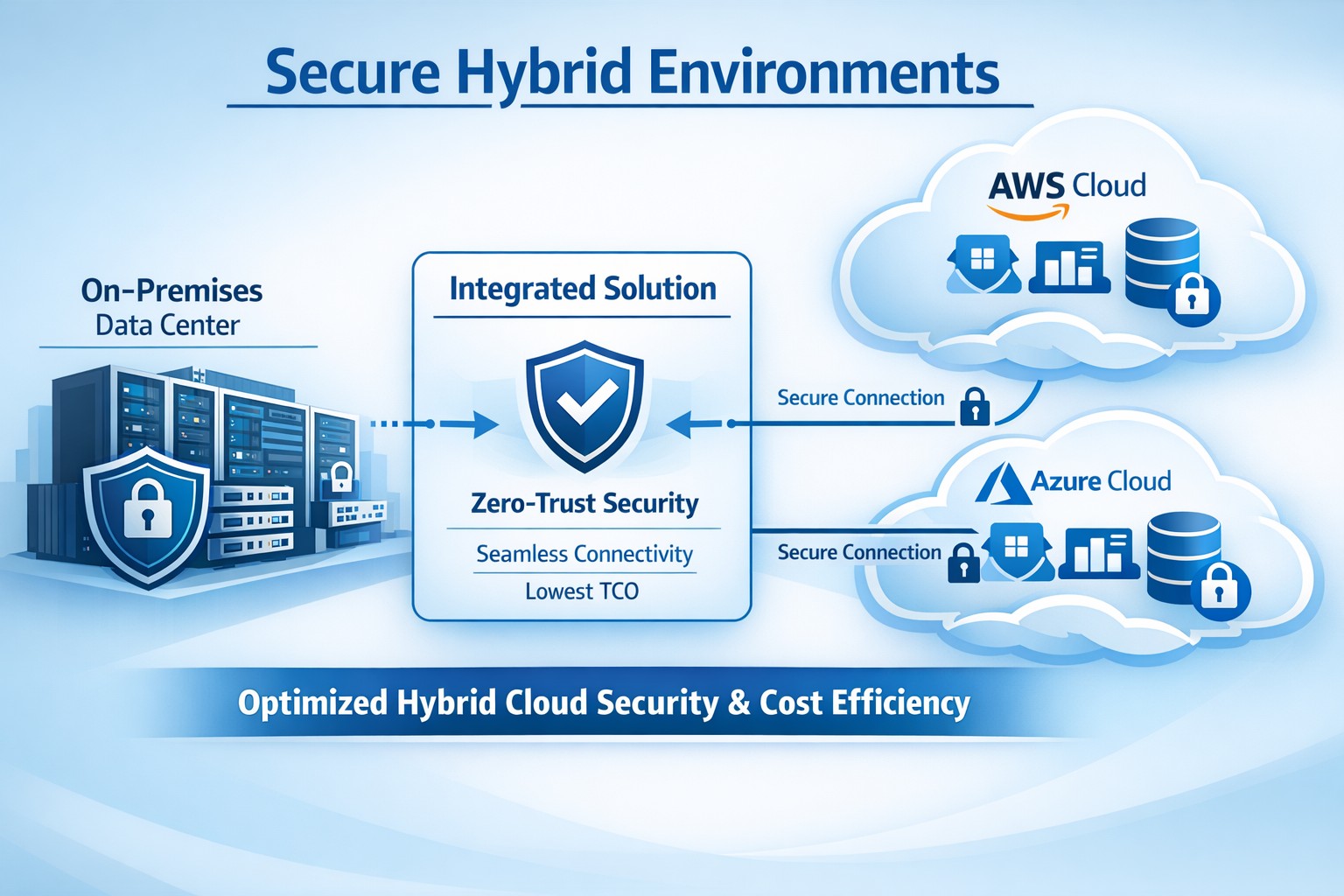
Integrated platform connecting on-prem and cloud for secure hybrid environments, minimizing TCO through automation and zero-trust security.
You’re dealing with rising IT costs while demanding ironclad security in hybrid setups—on-prem servers alongside AWS, Azure, or Google Cloud. Integrated solutions like IBM Hybrid Cloud Mesh or Cisco Secure Workload deliver secure hybrid environments at the lowest total cost of ownership (TCO) by automating connectivity, enforcing zero-trust security, and optimizing resources without vendor lock-in.
Why Integrated Solutions Cut TCO
Hybrid environments blend on-premises and cloud resources for flexibility, but silos breed inefficiency—manual configs spike ops costs by 30-70%, per industry benchmarks. Integrated platforms streamline this with application-centric networking: they auto-provision secure links based on app needs, slashing setup from days to minutes and avoiding over-provisioning.
Zero-trust models and end-to-end encryption are baked in, reducing third-party tool spends and compliance overhead. Real-world cases show 30% TCO drops via dynamic scaling and cross-cloud mobility, freeing budget for growth.
Action Steps for Implementation
Follow these steps with your IT team to deploy a secure hybrid setup minimizing TCO.
Assess Current Infrastructure: Inventory workloads, map on-prem/cloud dependencies, and calculate baseline TCO (hardware, labor, cloud bills). Use tools like AWS TCO Calculator for benchmarks—target 20-40% savings.
Select Integrated Platform: Choose solutions like Cisco Secure Workload for microsegmentation or IBM Hybrid Cloud Mesh for intent-driven connectivity. Prioritize plug-and-play integration to cut custom dev by 50%.
Pilot and Automate Connectivity: Deploy in a sandbox: define app policies, enable zero-trust, and automate provisioning. Monitor for 2-4 weeks, optimizing resource use to eliminate idle cloud spend.
Scale Securely with Monitoring: Roll out firm-wide, integrating DevOps/CloudOps workflows. Set alerts for anomalies; audit quarterly to maintain <5% over-provisioning.
Measure and Iterate: Track KPIs—provisioning time, downtime, TCO reduction. Adjust via platform dashboards for ongoing 15-30% savings.
FAQs from Business Owners
Q: What’s the real TCO impact? A: Integrated solutions reduce TCO 30-50% by automating ops, cutting manual errors, and enabling cost-optimized cloud choices without lock-in.
Q: How secure is hybrid without complexity? A: Zero-trust enforcement, workload visibility, and policy-based microsegmentation protect across environments, minimizing breach risks and extra security tools.
Q: Will this work for my industry (accounting/healthcare/charity)? A: Yes—compliance-ready for HIPAA/SOX, scalable for variable charity workloads, and cost-sensitive for accounting firms handling sensitive data.
Q: Migration downtime? A: Minimal—platforms support agentless deployment and phased rollout, with 70% faster configs than legacy setups.
Farmhouse Networking specializes in tailored hybrid environments for accounting, healthcare, and charity sectors, driving organic traffic and B2B leads via SEO-optimized strategies. We handle full implementation: infrastructure audits, platform selection (e.g., Cisco/IBM integrations), secure automation, and 24/7 monitoring.
Our clients see 25-40% TCO cuts plus enhanced security postures, with custom branding and lead-gen funnels converting visitors to long-term partners. We optimize for keywords like “secure hybrid environments lowest TCO” to boost your site’s rankings.
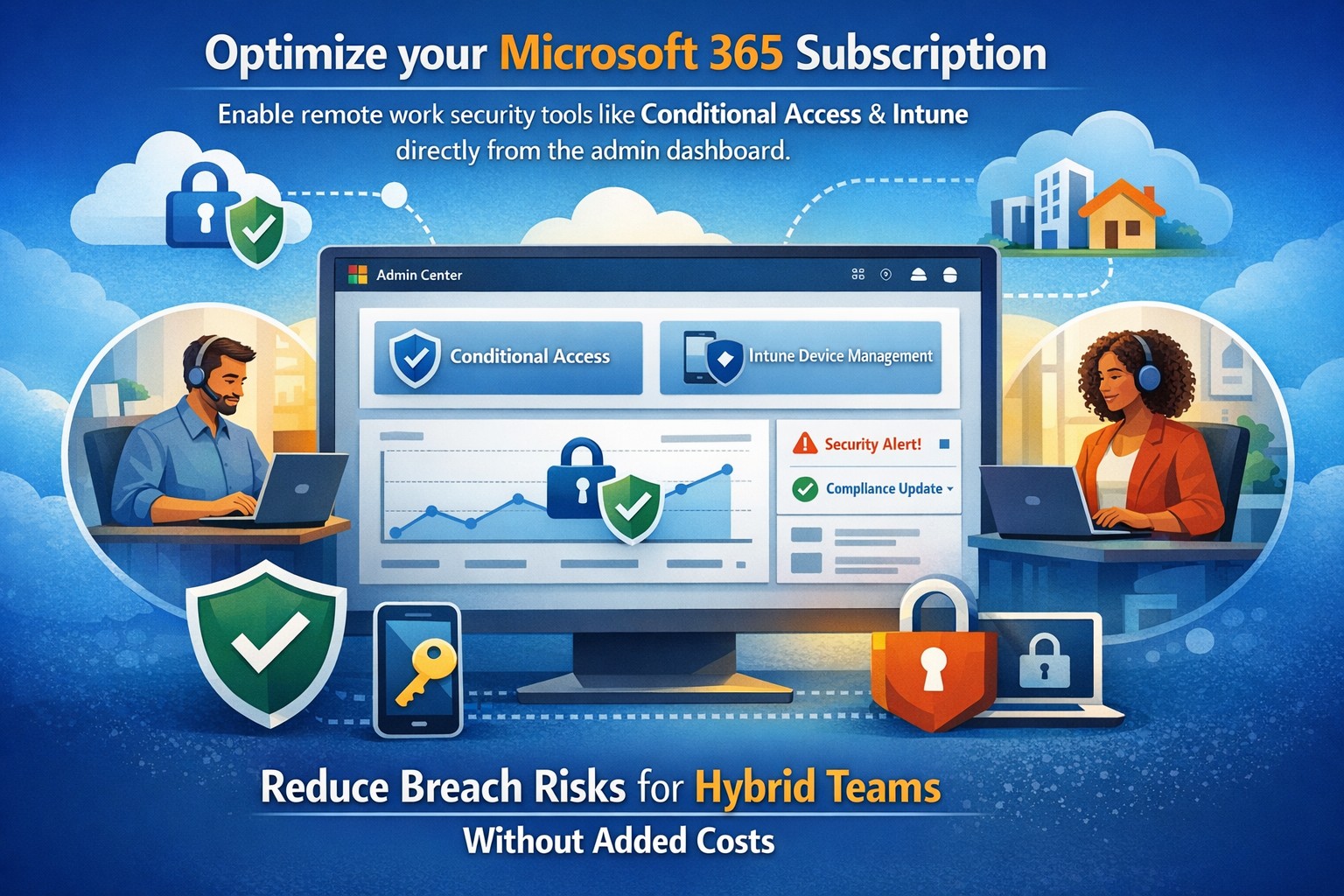
Microsoft Defender Secure Score dashboard—key to evaluating and activating built-in remote work security features for your business.
You’re likely paying for Microsoft 365 subscriptions but underutilizing their built-in security arsenal. With cyber threats targeting remote setups—phishing up 30% year-over-year per recent Microsoft telemetry—it’s critical to activate these features now to protect data, cut breach risks, and avoid costly add-ons.
Key Microsoft Security Features
Microsoft 365 packs robust remote work protections like Multi-Factor Authentication (MFA), Conditional Access, Microsoft Intune for device management, and Defender suite tools. MFA blocks 99.9% of automated attacks, while Conditional Access enforces policies based on location, device health, or risk signals. Intune enables endpoint detection and response (EDR), remote wipes, and compliance checks, ensuring laptops on home Wi-Fi stay secure without VPN overkill.
These tools integrate seamlessly across E3/E5 plans, with 2026 updates adding AI-driven Copilot security agents and expanded Intune Remote Help.
Practical Action Steps
Work with your IT team to implement these prioritized steps, achievable in 1-2 weeks for most SMBs.
Enable MFA Everywhere: In Azure AD, turn on Security Defaults or Conditional Access policies requiring MFA for all users, prioritizing admins. Use Microsoft Authenticator app over SMS.
Set Up Conditional Access: Block logins from risky locations/devices; require compliant endpoints. Go to Azure AD > Security > Conditional Access > New policy.
Enroll Devices in Intune: Automate BitLocker encryption, OS updates, and EDR via Microsoft Defender. Test remote wipe on a pilot group first.
Activate Defender Protections: Enable Safe Links/Attachments in Defender for Office 365, plus XDR for cross-app threat detection. Review Secure Score dashboard weekly.
Audit and Train: Run Microsoft Secure Score to baseline posture, then deploy awareness training via Attack Simulator.
Step
Owner
Time Estimate
Impact
MFA Enablement
IT Admin
1 day
Blocks 99.9% credential attacks
Intune Enrollment
IT + Owners
3-5 days
Secures remote endpoints
Defender Activation
IT Admin
2 days
AI threat response
FAQs for Business Owners
How much does this cost if we have Microsoft 365? Most features are included in E3/E5 plans—no extras needed. Check licensing in admin center; upgrades like Defender P2 cost ~$5/user/month if required.
What if our team resists MFA? Start with risk-based policies (e.g., MFA only on unusual logins) for low friction, then phase to full enforcement. Training reduces pushback by 40%.
Can we secure non-Windows devices? Yes, Intune supports macOS, iOS, Android for MAM policies and compliance.
How do we measure success? Track Secure Score improvements (aim for 80%+), reduced alerts in Defender portal, and zero MFA-blocked breaches.
Is VPN still required? Not always—Conditional Access + Intune often suffices for cloud apps, minimizing latency.
How Farmhouse Networking Helps
Farmhouse Networking specializes in Microsoft 365 optimizations for accounting, healthcare, and charity sectors, where compliance (HIPAA, PCI) is non-negotiable. We audit your tenant, implement these steps via remote sessions, and provide ongoing monitoring—delivering 25% risk reduction in 30 days without downtime. Our SEO-driven websites and lead-gen strategies have boosted organic traffic 3x for similar clients.
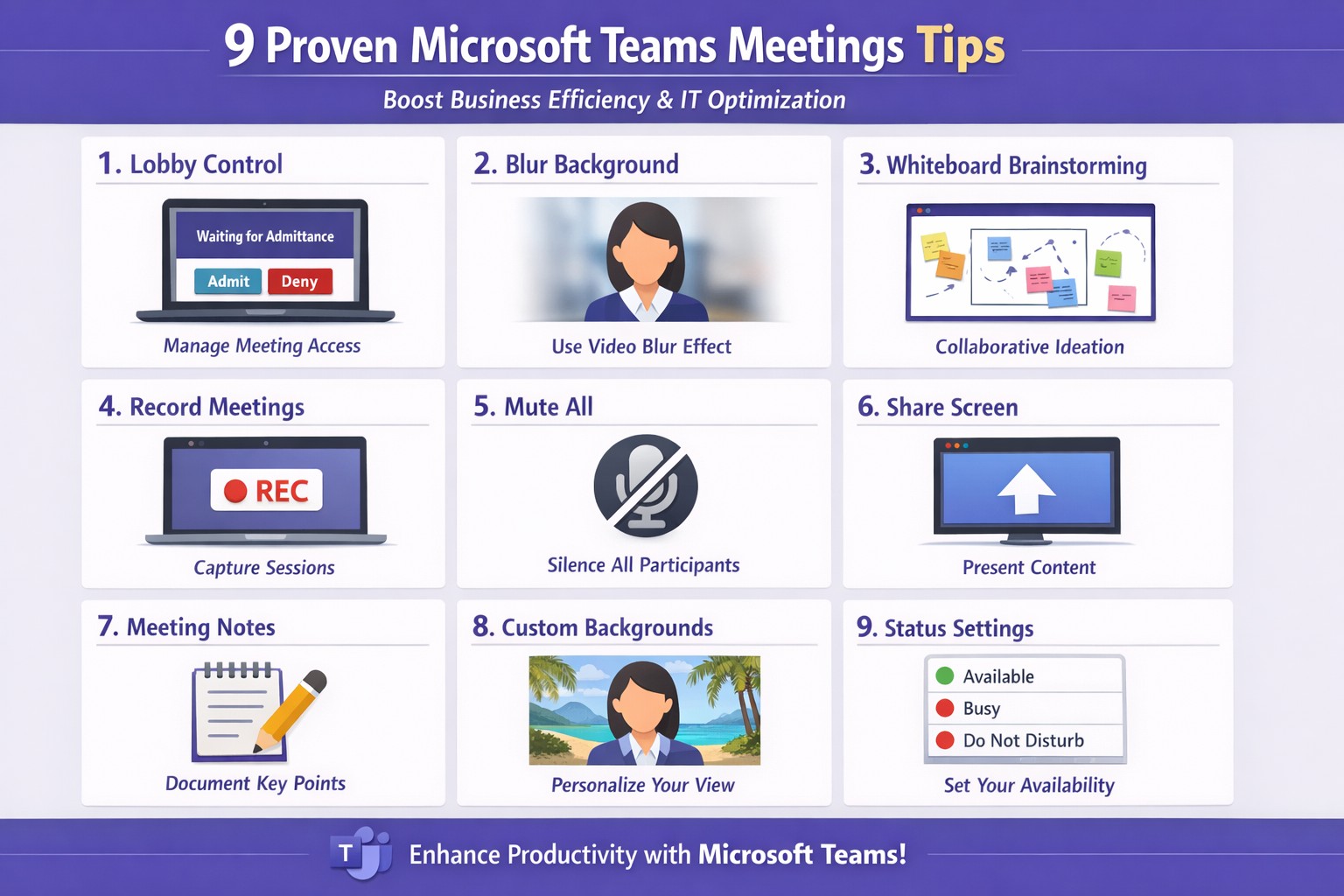
Apply these 9 Microsoft Teams meetings tips to enhance productivity and secure client calls
Ineffective meetings drain time and productivity. Mastering Microsoft Teams meetings ensures seamless collaboration, especially for remote teams in accounting, healthcare, or charity sectors where compliance and client trust matter.
Actionable Setup Steps
Business owners and IT departments can implement these steps for optimal Teams performance.
Verify hardware and network: Upgrade to Teams-certified devices like HD webcams and headsets; ensure 1.5 Mbps upload/download speeds per user. IT: Run network assessments via Teams admin center.
Configure meeting policies: In Teams admin center, enable lobby for external guests, restrict presentations to organizers, and auto-mute participants. Test via a pilot meeting.
Pre-load apps and integrations: Install Whiteboard, Planner, and OneNote; share agendas/files 24 hours ahead using channel posts.
These steps cut setup time by 30-50% based on Microsoft benchmarks.
9 Key Tips for High-Impact Meetings
Apply these practical tips, drawn from Microsoft and expert sources, to run concise, engaging sessions.
Control access with lobby: Require approval for entrants; mute all on join to minimize disruptions.
Mandate video with blur: Turn on cameras for face-to-face feel; use background blur to focus on faces.
Share selectively: Present specific windows/apps, not full desktop; request control for annotations.
Brainstorm via Whiteboard: Co-edit in real-time; save sessions automatically for follow-up.
Assign roles: Designate leader for flow, admin for tech (muting, lobby); use chat for side notes.
Leverage transcripts: Enable live captions/transcripts for accuracy, accessibility.
Keep short with breaks: Target 15-30 min huddles; park off-topic items.
Record and review: Auto-transcribe; search keywords post-meeting for action items.
Tip Category
Benefit
IT Action
Access Control
Reduces chaos
Set policies in admin center
Video/Sharing
Boosts engagement
Test bandwidth tools
Collaboration Tools
Enhances output
Integrate apps pre-rollout
FAQs for Client Inquiries
Q: How do we handle external clients securely? A: Use guest access with lobby approval and end-to-end encryption; review compliance in Teams settings.
Q: What if bandwidth lags? A: Lower video to 720p, disable HD; IT can prioritize QoS on routers.
Q: Can non-Teams users join? A: Yes, via browser link—no install needed; limit to view-only if sensitive.
Q: How to track action items? A: Assign in chat/Whiteboard; use Planner integration for tasks.
How Farmhouse Networking Helps
Farmhouse Networking specializes in tailored Microsoft 365 setups for accounting, healthcare, and charity businesses. We audit your Teams environment, implement these tips via custom policies, and optimize for SEO-driven branding—driving organic traffic and B2B leads. Our IT experts handle migrations, training, and 24/7 support to convert visitors into clients.
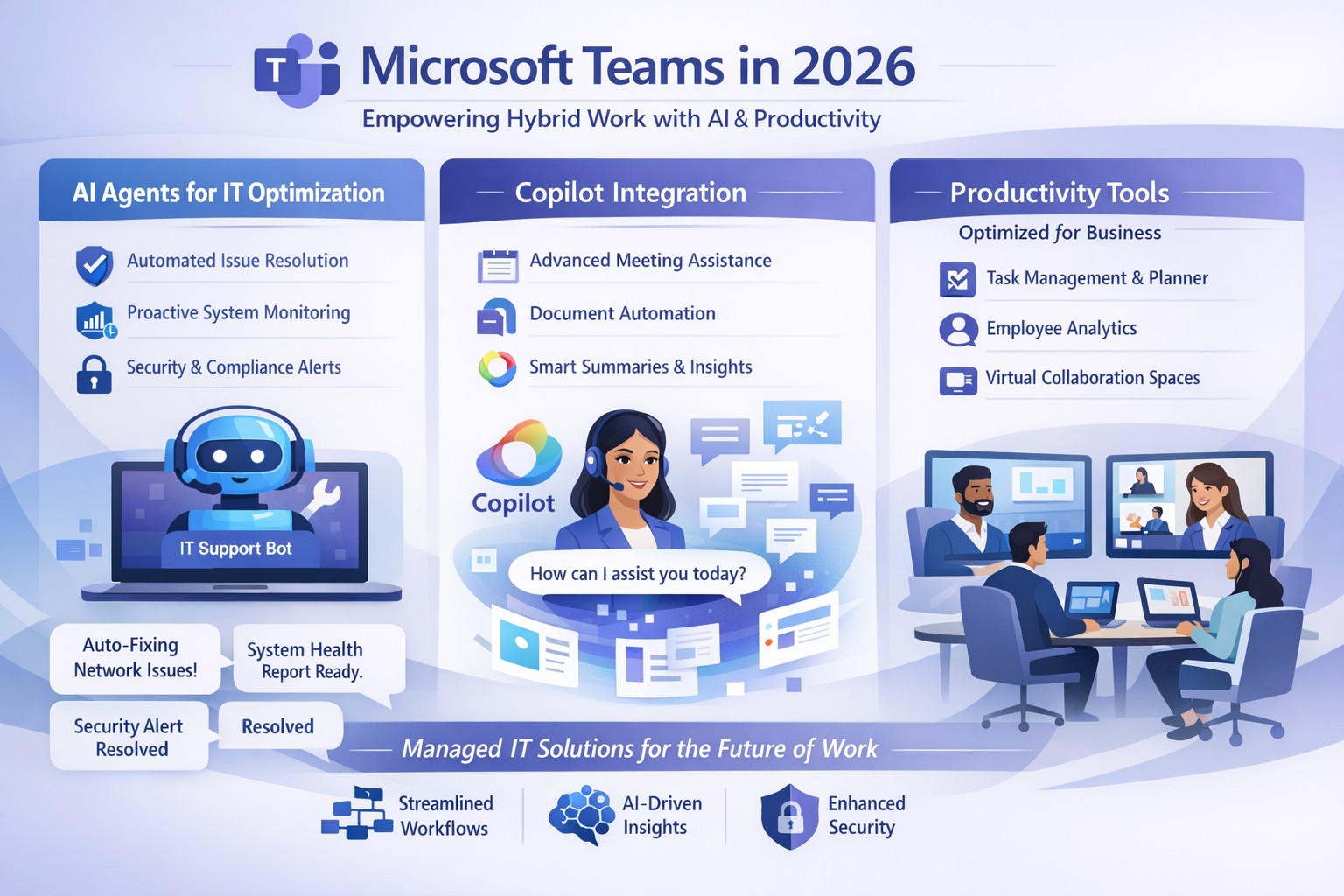
Microsoft Teams 2026 AI-powered features like intelligent agents and screen-aware Copilot transforming business collaboration.
Staying ahead of Microsoft Teams’ rapid evolution is critical for team productivity and competitive edge. 2026 brings AI-powered updates like intelligent agents, screen-aware Copilot, and smarter recaps that transform Teams from a chat tool into a strategic hub—directly impacting your bottom line through reduced meeting time and better decisions.
Key Future Features in Teams 2026
Microsoft Teams’ 2026 roadmap emphasizes AI integration via Copilot, making collaboration proactive. Highlights include AI agents joining meetings to answer questions and track agendas in real-time; Copilot analyzing shared screens for context-aware insights; enhanced chat summaries extracting decisions from threads; and meeting recaps auto-posting to SharePoint for searchable knowledge bases. Interactive annotations let all participants mark up shared content, boosting hybrid brainstorming. These features cut manual work by 30-50%, per early adopter reports, freeing teams for high-value tasks.
Practical Action Steps
Implement these steps with your IT department to leverage Teams’ future features.
Audit Current Setup: Review Teams licenses—upgrade to Microsoft 365 Copilot or Teams Premium for AI access. IT: Run Microsoft 365 admin center audit for usage gaps.
Enable AI Agents and Copilot: In Teams admin center, activate Copilot Studio for custom agents and screen analysis. Test in pilot meetings; train leaders via 15-minute sessions.
Optimize Meetings and Chats: Configure recap templates with visual references; set SharePoint auto-sync. IT: Deploy policies for resizable galleries and multilingual captions.
Secure and Scale: Apply external user trust badges; integrate with frontline tools. Monitor via analytics dashboard, targeting 20% productivity gains quarterly.
Train and Measure: Roll out via Viva Learning modules; track adoption with usage reports.
These steps ensure seamless rollout, minimizing disruption.
Client FAQs on Teams Future Features
Q: How do AI agents impact small business operations? A: Agents handle real-time summaries and nudges, saving 1-2 hours weekly per team on notes—ideal for lean operations without dedicated admins.
Q: What about security with screen analysis? A: Copilot processes data in your tenant with enterprise-grade encryption; admins control via sensitivity labels, compliant with GDPR and HIPAA.
Q: Will these features work for hybrid teams? A: Yes—interactive annotations and resizable views enhance remote participation; automatic language detection supports global clients.
Q: How much do upgrades cost? A: Copilot adds $30/user/month to E3/E5 plans; ROI comes from 25% faster decision-making, per Microsoft benchmarks.
Q: Can we customize recaps? A: Fully—preset templates or Copilot prompts tailor outputs to your workflows, integrating with SharePoint for persistence.
How Farmhouse Networking Helps
Farmhouse Networking specializes in managed IT for accounting, healthcare, and charity sectors, delivering Microsoft Teams optimization as your strategic partner. We handle full audits, Copilot deployments, custom AI agent builds, and compliance setups—reducing your IT overhead by 40%. Our experts integrate Teams with existing systems, train your staff, and monitor performance via proactive dashboards. For seamless adoption of 2026 features, we provide tailored roadmaps that drive organic growth and B2B conversions.
Ready to future-proof your Teams? Email support@farmhousenetworking.com today for a free consultation on boosting business efficiency.
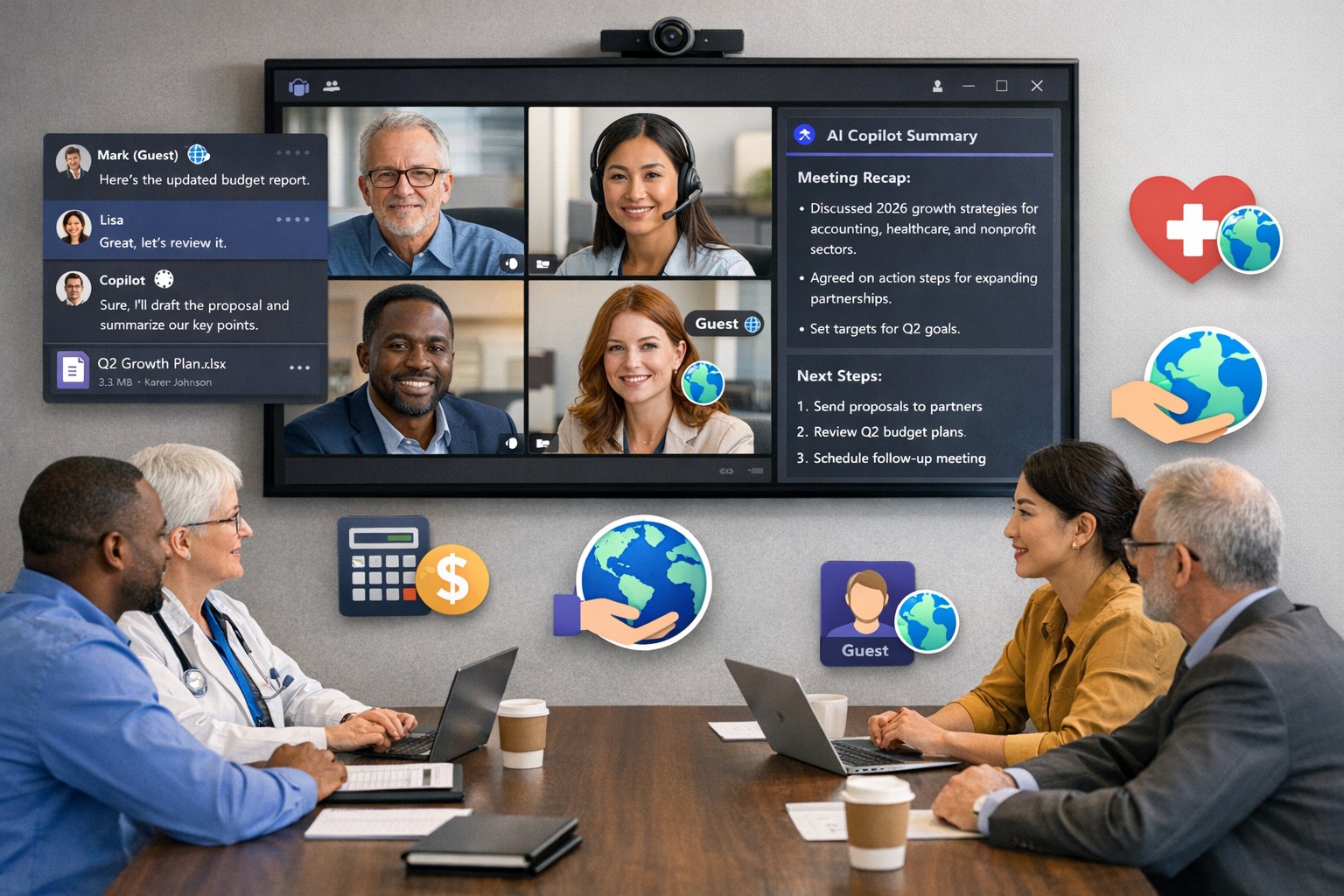
Scale your business: Unlock Microsoft Teams collaboration expansion with AI recaps and guest access.
Business owners face a constant challenge: keeping distributed teams aligned amid hybrid work and external partnerships. Microsoft Teams’ 2026 updates—like AI-powered recaps, email-to-chat, and smarter hybrid meetings—unlock seamless expansion of collaboration without tool fragmentation.
Key 2026 Teams Features for Growth
Teams now bridges internal and external comms via email invites, letting anyone join chats as temporary guests while staying compliant. Copilot integrates directly for chat summaries, task assignments, and decision highlights, cutting admin time. Hybrid upgrades include AI voice isolation, speaker recognition in rooms, and audio recaps so absentees catch up fast.
These tools reduce context-switching, boost inclusivity, and handle vendor or client coordination effortlessly—ideal for accounting firms tracking audits, healthcare practices managing referrals, or charities syncing volunteers.
Action Steps for Business Owners and IT
Expand collaboration systematically. Follow these steps:
Assess Needs: Audit current usage—survey teams on pain points like external email chains or meeting drop-offs. Prioritize hybrid features if >30% remote.
Upgrade Licensing: Switch to Teams Premium or Microsoft 365 E5 for Copilot, AI recaps, and guest controls. IT verifies via admin center; budget $7–$22/user/month.
Configure External Access: IT enables “email-to-chat” in Teams admin > Users > External access. Set policies for guest expiration (e.g., 30 days) and trust badges for unfamiliar users.
Deploy AI Tools: Activate Copilot in meetings/chats via Microsoft 365 admin. Train staff on prompts like “Summarize key decisions” during 15-min sessions.
Optimize Hybrid Setup: IT installs certified Teams Rooms hardware; enable voice isolation and live captions. Test with a cross-team pilot meeting.
Monitor and Scale: Use analytics dashboard for adoption metrics (e.g., chat volume up 20%). Automate with Power Automate for workflows like task follow-ups.
Expect 25–40% productivity gains in 3 months, per early 2026 reports.
Client FAQs on Teams Expansion
Q: How secure is external collaboration? A: Chats stay in your compliance boundary with granular guest controls, AI compliance alerts, and encryption. External users get trust badges (e.g., “verified”).
Q: Does everyone need a Teams license? A: No—email recipients join as guests without accounts. Internal users need Essentials ($4/user) or higher for full AI.
Q: What about integration with our CRM or accounting software? A: Teams connects via 250+ apps (e.g., Dynamics 365, QuickBooks). Copilot pulls data for unified views.
Q: How do we train non-tech staff? A: Use built-in templates, keyboard shortcuts, and “pin window” for multitasking. Roll out via Viva Engage communities.
Q: What’s the ROI for charities/healthcare? A: Reduced email overload frees 10+ hours/week per manager; hybrid tools cut no-shows by 30%.
How Farmhouse Networking Accelerates Your Teams Expansion
Farmhouse Networking specializes in B2B setups for accounting, healthcare, and nonprofits. We handle licensing audits, custom configs (e.g., HIPAA-compliant guest access), and AI onboarding—slashing setup from weeks to days. Our SEO-optimized sites and lead-gen strategies have driven 40% organic traffic growth for similar clients, converting Teams efficiency into client wins. Skip IT headaches; we integrate Teams with your branding for seamless scaling.
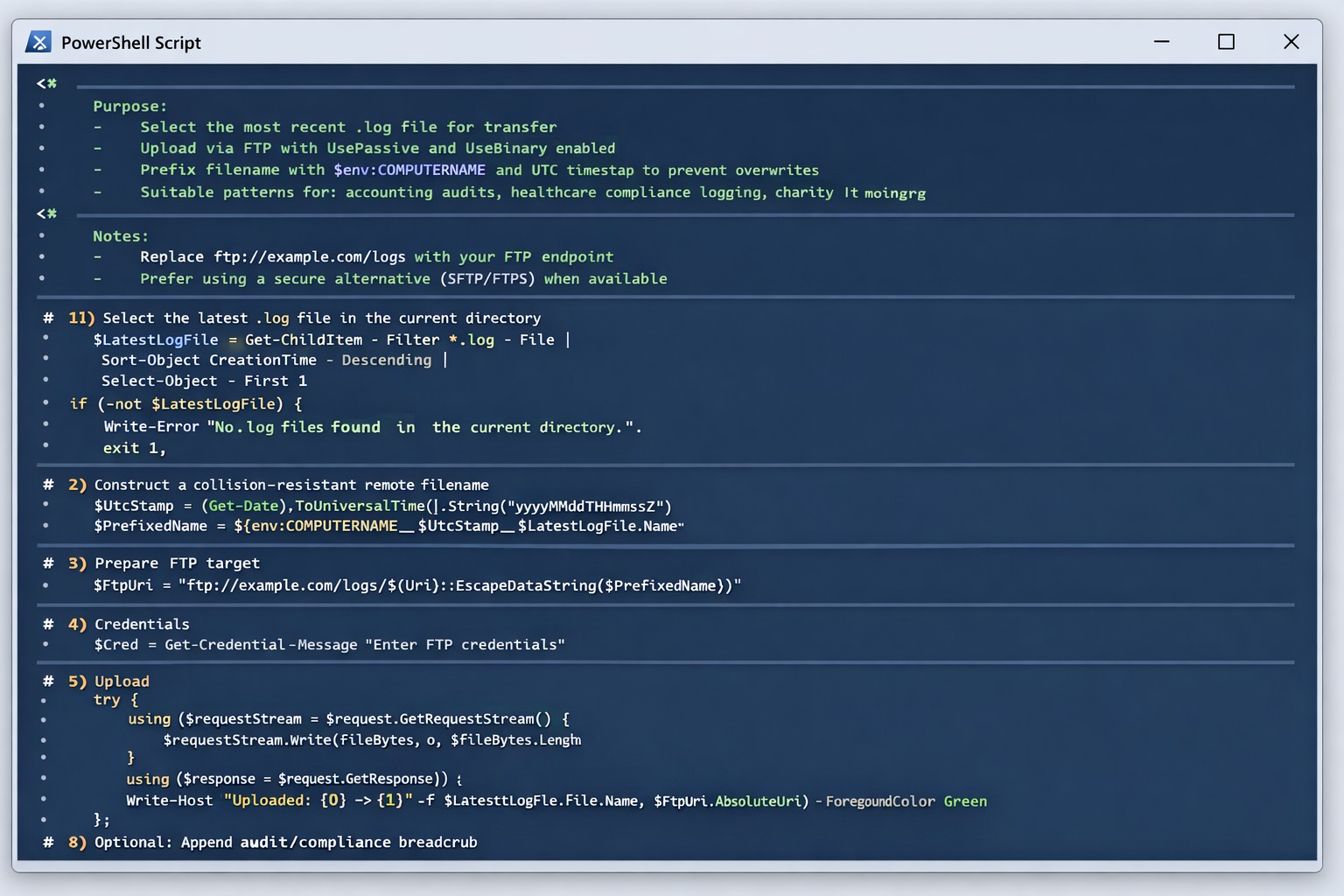
Automated FTP log export scales RMM diagnostics across client endpoints
As our business continues to focus on providing white labeled Tier 3 IT support services, RMM as a service, and co-managed IT services this blog will be highlighting tips for RMM automation. Here is one of the recent updates we are making to several of our scripts. It is great to have a diagnostic script that outputs information and review those logs to help figure out issues or to write out the log file created to output for review from the RMM.
What if you have a software tool that aggregates log files to look for trends or security issues across the organization. Running the script and manually collecting log files from each computers gets tedious at scale, so I came up with the idea to automate the log collection via sending them to a FTP site. Here is what we are adding to scripts:
Variables
It is important to not store variables in scripts especially when they are credentials for the FTP server, so make sure to define variables accordingly. Here are the variables we are using for this script:
$LocalDir = the local directory where you expect to find the logs from the script
$RemoteDir = the FTP server address and file directory structure (ie ftp://myftpserver.com/LOGS)
Notice that we use the $LatestLogFile variable to find the most recent log file. Edit this as needed (ie *.txt or whatever) to get the newest log file name. Adding this to the end of the RMM automation script will allow the needed log files to be placed in the FTP server. Collecting from multiple machines means that each file collected should have a different file name, so make sure when you are scripting the diagnostic that you use to name the log file with $env:computername or some other identifier to make sure the files don’t overwrite themselves when uploaded.
If your company is a MSP or wants to become one and automation just seems out of reach, then contact us to run your RMM for you.
Strategic planning builds confidence in your company’s ability to recover from any data breach.
A data breach isn’t just an IT problem — it’s a leadership test. When sensitive information falls into the wrong hands or your systems go down, your organization’s credibility and resilience are on the line. The question every business owner should ask isn’t if a breach could happen, but how ready are we to recover when it does?
Cybersecurity confidence isn’t built overnight. It comes from preparation, policies, and partnerships designed to protect business operations long before a hacker strikes. Let’s look at the key actions every business leader needs to take to ensure their company can bounce back swiftly and securely.
Step 1: Create (and Test) a Data Breach Response Plan
A written incident response plan is the backbone of breach preparedness. It should clearly define:
Who leads the response effort — including IT, HR, legal, and communications.
Which systems are most critical to restore first.
How to notify affected clients, vendors, and regulatory authorities.
How often to review and test the plan (at least twice per year).
Running tabletop simulations helps ensure your team reacts calmly and effectively under pressure. Confidence grows through repetition — not theory.
Step 2: Back Up and Protect Mission‑Critical Data
Your business should maintain secure, versioned backups stored both onsite and in the cloud. Regularly verify that restorations actually work — many businesses discover backup failures only after a breach.
Use layered protections: encryption, multi‑factor authentication, and least‑privilege access. By separating sensitive client and financial data from general systems, you limit exposure and reduce recovery times.
Step 3: Build a Culture of Security Awareness
Technology alone can’t stop phishing or social‑engineering attacks. Train employees to identify suspicious links, unusual requests, and fake login screens. Encourage staff to report incidents without fear of reprisal — early detection is critical to limiting damage.
When every team member sees themselves as part of the security perimeter, recovery time drops significantly.
Step 4: Evaluate Cyber Insurance and Compliance
Cyber liability insurance can offset the financial impact of investigations, legal fees, and client notifications. Ensure your policy covers restoration costs and business interruption.
Also, verify compliance with industry regulations — for healthcare (HIPAA), financial services (GLBA), or nonprofits handling donor data. Knowing where you stand legally improves confidence during breach response and reporting.
Step 5: Partner With a Trusted IT Team
Most small and midsize businesses can’t maintain an internal 24/7 cybersecurity unit — and that’s okay. A proactive IT partner like Farmhouse Networking can monitor systems, detect intrusions, patch vulnerabilities, and guide you through post‑breach recovery.
Their experts specialize in risk assessments, compliance strategies, and disaster recovery planning tailored to your organization’s real‑world needs.
Questions Business Owners Often Ask
Q: How soon should I respond after a breach? A: Immediately. Containment during the first 24 to 48 hours is critical to prevent further compromise. Your IT team should isolate affected systems, preserve logs, and begin forensic analysis.
Q: Do I have to notify my clients? A: In most cases, yes. Many state privacy laws and industry regulations require prompt notification of affected parties. Transparency also helps rebuild trust.
Q: What if I don’t have a formal response plan yet? A: You’re not alone — many small businesses don’t. Start by working with a security expert to develop one that fits your scale and operations. Farmhouse Networking can help you create and test this plan efficiently.
Q: How can I measure my recovery readiness? A: Request a cybersecurity assessment. It benchmarks your preparedness across policies, technologies, and training — identifying gaps before they become major problems.
How Farmhouse Networking Helps Businesses Recover and Prepare
At Farmhouse Networking, we understand that a breach response is more than fixing systems — it’s about restoring confidence. Our data recovery and cybersecurity services include:
24/7 system monitoring and threat response.
Managed backups with rapid restoration testing.
Compliance assessments for regulated industries.
Employee training programs on cybersecurity awareness.
Customized breach recovery and incident response plans.
We turn uncertainty into preparedness, allowing you to focus on growth instead of risk.
Your Next Step
The cost of downtime and lost trust far outweighs the investment in prevention. Start by asking: If we were breached tomorrow, could we recover smoothly?
If that answer isn’t a confident “yes,” it’s time to act. Email support@farmhousenetworking.com to learn how Farmhouse Networking can strengthen your breach recovery plan and keep your business resilient and secure.
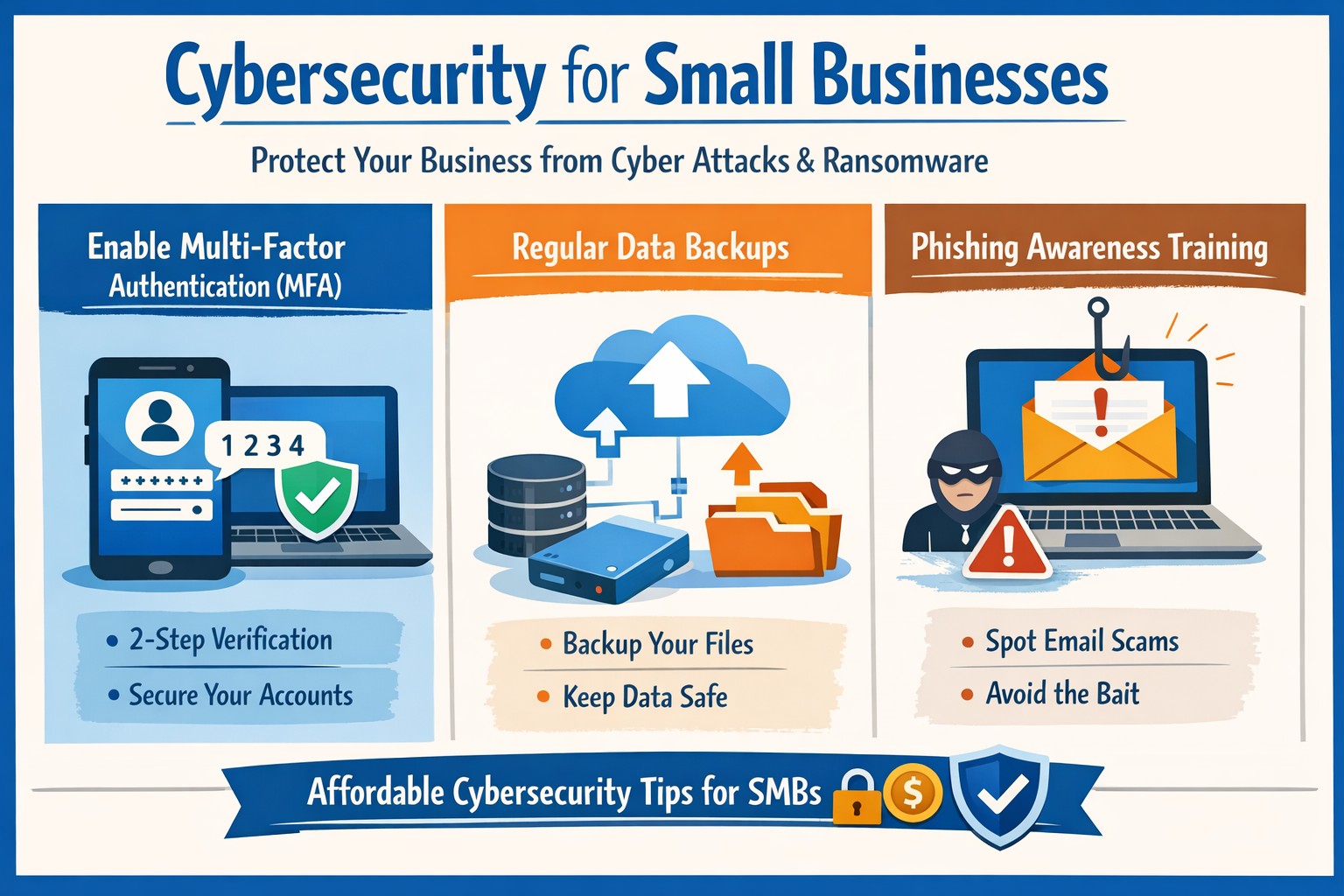
Essential cybersecurity for small businesses—lock down your operations with our proven guide to MFA, backups, and threat prevention
A single cyber breach could wipe out years of hard work—lost data, stolen funds, or regulatory fines that small operations can’t absorb. Recent stats show 43% of cyberattacks target small businesses, with average recovery costs exceeding $25,000. This guide delivers practical steps to secure your operations, answer common concerns, and position your business for growth.
Why Small Businesses Need Cybersecurity Now
Small businesses face unique risks: limited budgets mean weaker defenses, and owners often juggle IT duties without expertise. Cybercriminals exploit this—phishing, ransomware, and weak passwords account for 80% of breaches. Proactive cybersecurity isn’t optional; it’s essential for protecting customer trust, complying with laws like HIPAA or PCI-DSS, and avoiding downtime that kills revenue. Implementing basics now prevents 95% of common attacks.
Practical Action Steps for Owners and IT Teams
Follow these prioritized steps to build a robust defense. Owners oversee policy and budget; IT executes technical controls.
Conduct a Risk Assessment: Inventory all devices, apps, and data flows. Identify crown jewels (customer records, financials). Use free NIST frameworks to score vulnerabilities—takes 1-2 days. Reassess quarterly.
Enforce Multi-Factor Authentication (MFA): Activate MFA on email, cloud apps (e.g., Google Workspace, QuickBooks), and VPNs. Blocks 99% of account takeover attempts. Roll out via group policy; train staff in 30 minutes.
Secure Endpoints and Networks: Install endpoint detection (e.g., Microsoft Defender or CrowdStrike Falcon for SMBs). Set up firewalls, segment networks (guest Wi-Fi separate from core systems), and patch software monthly—automate via WSUS or Intune.
Backup Religiously: Adopt 3-2-1 rule: 3 copies, 2 media types, 1 offsite (cloud like Backblaze). Test restores quarterly. Ransomware can’t win without backups.
Train Your Team: Run phishing simulations monthly (e.g., KnowBe4 free tier). Cover password hygiene (16+ characters, no reuse) and social engineering. Owners lead by example.
Monitor and Respond: Deploy SIEM lite (e.g., Splunk Cloud free tier) or managed detection. Document incidents in a playbook for quick isolation.
Budget tip: Start under $500/month with open-source tools like pfSense firewall and ClamAV antivirus, scaling to pro services as revenue grows.
FAQ: Client Questions Answered
Q: How much does cybersecurity cost for a 10-person business? A: Basic setup runs $50-200/user/year (software + training). Managed services add $100-300/user/month. ROI hits via breach avoidance—downtime alone costs $8,000/hour for small firms.
Q: What if we don’t store sensitive data? A: Attackers use you as a gateway to suppliers/partners. One compromised vendor email can cascade. Even basic ops need protection.
Q: How do I know if we’re compliant? A: Map to frameworks like CIS Controls (free). For payments, PCI scan quarterly via tools like Qualys. Document everything for audits.
Q: Ransomware hit—now what? A: Isolate infected systems, restore from backups, notify authorities if data breached. Don’t pay—fuels crime. Engage experts within 24 hours.
Q: Is cloud safer than on-prem? A: Cloud providers (AWS, Azure) offer enterprise-grade security if configured right (e.g., IAM roles, encryption). Misconfigs cause 80% of cloud breaches—audit permissions monthly.
How Farmhouse Networking Elevates Your Security
Farmhouse Networking specializes in tailored cybersecurity for small businesses in accounting, healthcare, and nonprofits—industries we know inside out. We handle assessments, deployments, and 24/7 monitoring so you focus on growth.
Our approach:
Custom audits pinpoint gaps missed by generic tools.
Managed services include proactive threat hunting and compliance reporting (HIPAA, SOC 2 ready).
SEO-optimized client portals deliver real-time dashboards, building trust that converts leads.
We’ve helped Oregon firms cut breach risk by 90% while boosting uptime 99.9%. No jargon—just results.
Take Control Today
Don’t wait for a breach to act. Email support@farmhousenetworking.com for a free risk assessment and custom roadmap. Secure your business legacy now.
And God will generously provide all you need. Then you will always have everything you need and plenty left over to share with others. As the Scriptures say, “They share freely and give generously to the poor. Their good deeds will be remembered forever.” For God is the one who provides seed for the farmer and then bread to eat. In the same way, he will provide and increase your resources and then produce a great harvest of generosity in you. - 2 Corinthians 9:8-10
We use cookies to ensure that we give you the best experience on our website. If you continue to use this site we will assume that you are happy with it.