How to Take Back Control of Your Credentials and Phones
When an MSP controls your passwords and phone system, your entire small business can be held hostage by vendor lock‑in and security risks.
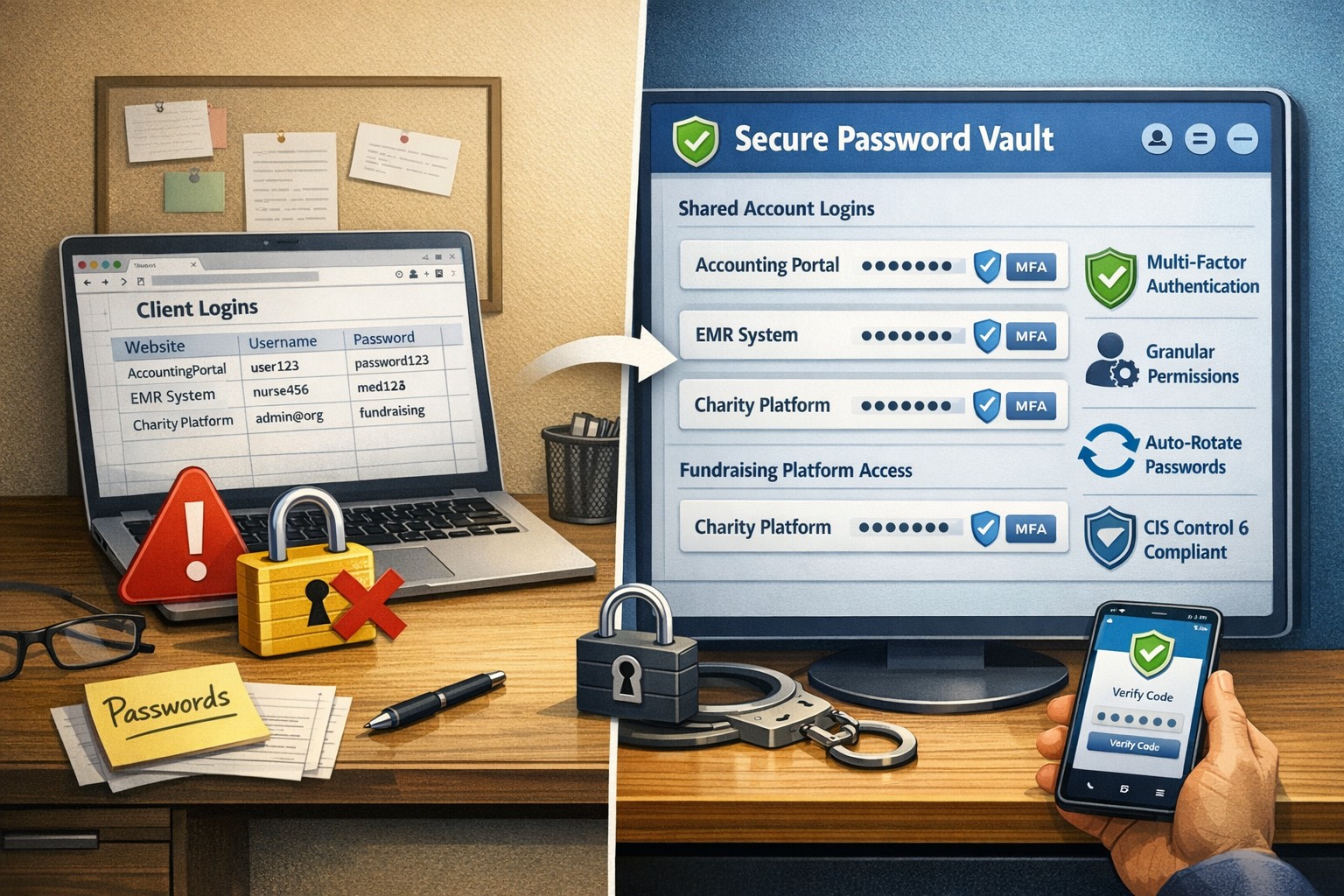
If your MSP controls all your admin passwords and has your phone service in their name, they effectively hold the keys to your entire business. In a dispute, a security incident, or even an acquisition of their company, you could find yourself locked out of critical systems that drive revenue and customer service.
The Real Dangers of MSP Lock‑In
Some providers refuse to release credentials or slow‑roll off‑boarding, forcing clients into “hostage” situations that require legal escalation or aggressive technical takeovers. At the same time, attackers increasingly target MSPs because one compromised technician account can reach many customers’ environments.
When your phone system is outdated or fully tied to that MSP, you pay more each year for less functionality, struggle with remote work, and depend on them for every change. The combination of technical dependence and credential lock‑in is a business‑continuity risk you can’t afford to ignore.
Action Steps for Owners and Their IT Teams
Reassert ownership of core assets
Ensure your company owns master accounts for email, cloud services, line‑of‑business apps, domains, DNS, and phone numbers, with internal admin rights documented.
Centralize credentials in a business‑owned vault
Use a secure password manager or encrypted repository where your business controls the master key and you grant time‑bound, role‑based access to MSP staff.
Implement strong identity and access controls
Enforce MFA everywhere, require strong unique passwords, and use least‑privilege and role‑based access so no external user has unchecked power.
Build clean exit ramps into contracts
Document how credentials, documentation, and phone services will be handed back, and set deadlines and formats for off‑boarding deliverables.
Prepare for the worst‑case scenario
Maintain independent backups, keep an internal “break‑glass” account, and have a written playbook for revoking vendor access and rotating credentials quickly.
Questions Your Customers May Ask
Q: Could your IT company access or leak my data? A: We control the master credentials and use MFA, logging, and access controls so any vendor only has tightly scoped, monitored access to what they need to support us.
Q: What happens if your IT provider is hacked? A: We follow best practices for identity security, vendor risk management, and backups so a single compromised account at an MSP cannot easily cascade into your data.
Q: Are you able to stay operational if you change IT providers? A: Yes—because we own our accounts and phone numbers and have a documented exit process, we can transition providers while keeping systems and support running.
How Farmhouse Networking Helps SMBs
Farmhouse Networking works with business owners to document every critical system, transfer licensing and phone services into the company’s control, and consolidate credentials into secure, business‑owned vaults. We then implement MFA, break glass accounts, role‑based access, and incident‑response plans so neither a single technician nor an MSP relationship becomes a single point of failure.
We can also help you renegotiate or replace MSP contracts with clear off‑boarding terms and test those processes before you ever need them in an emergency.
Email support@farmhousenetworking.com to make sure no MSP can ever hold your credentials, phones, or business hostage again.
Today we tell the story of a medical office’s journey to the cloud. This particular client was facing their server operating system reaching end of support (a HIPAA violation) in the near future. They had begun by looking at their electronic medical records software company’s online offering, which didn’t have all the functionality of their on-premises software and was very expensive (this is typical).
They next decided to look into moving their current on-premises software into the cloud and we were asked to help with the testing. We determined that it would be best to move the file portion of the server to SharePoint / OneDrive to increase their mobility and flexibility. We also determined that it would be best to move them away from on premises Active Directory into Azure Active Directory / Intune to allow authentication and security policies. Finally we began testing the on-premises software hosted on a server in Azure with a VPN connection to their office.
The SharePoint / OneDrive and Azure Active Directory portions went through with little issues. The server, however, was not as we had hoped. The Azure VPN connection was expensive due to it always being on and no way of turning it off outside of business hours. The performance of the SQL database that the on-premises software used was basically unusable. The other option would be to create virtual desktops on Azure for this purpose but the cost and functionality was not what the customer was hoping for.
This has lead them back to searching for an online EMR software that will meet all their requirements. This will be tough because most companies are good at some things, but not all things and compromises usually have to be made. Our hope is that this story is a lesson to other companies. The cloud may sound like the newest and best way to work, but the costs and functionality are often worse than expected.
If your company is going to use full disk encryption or has compliance requirements that you need consulting for, then contact us for assistance.
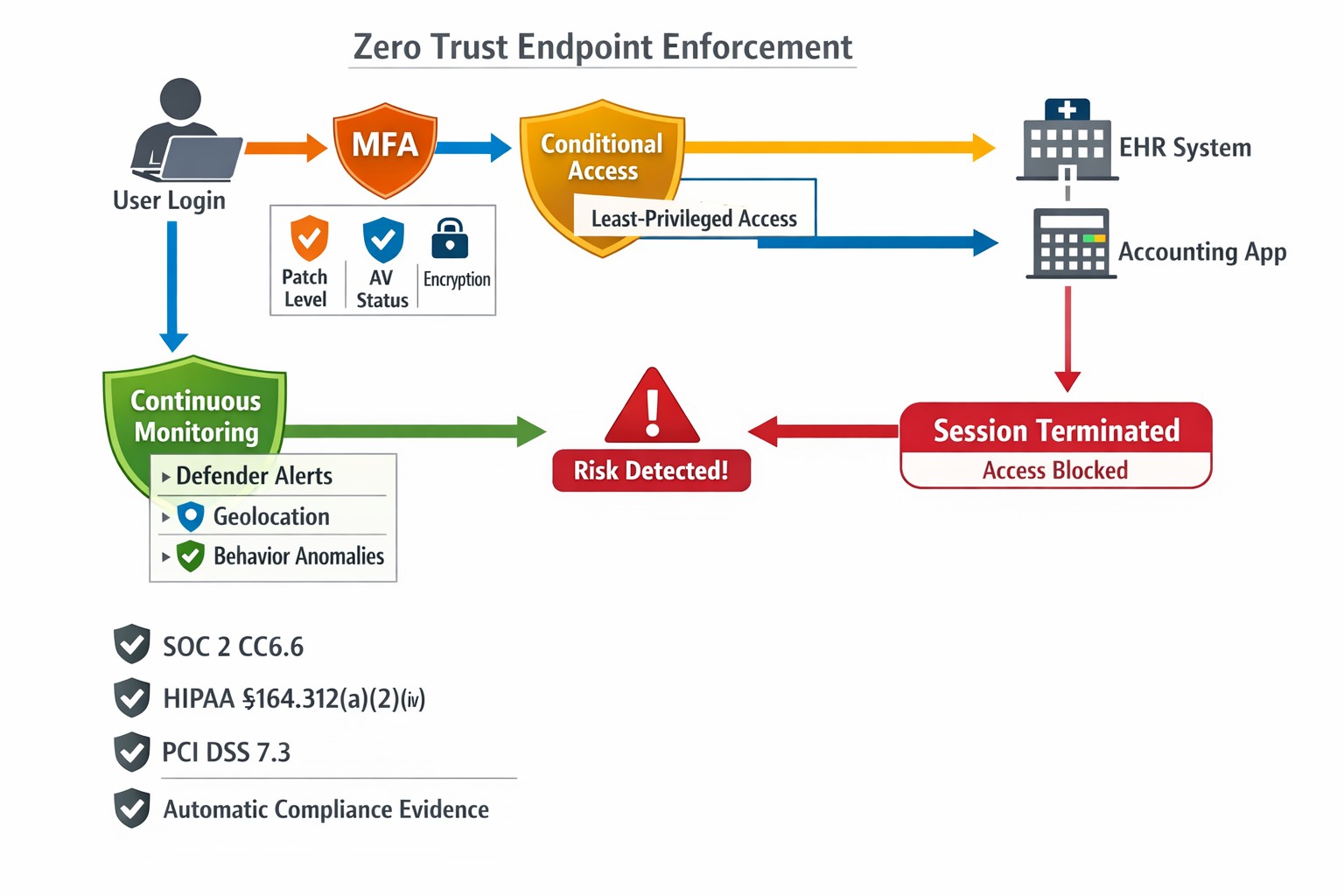
This is the eighth in a series about the concept of Zero Trust, which means in the IT sense that you trust nothing and always verify everything surrounding and connected to your network. Today’s discussion will be on Application Whitelisting.
Application Whitelisting
Application Whitelisting is a process of determining which software programs the company absolutely needs to do business, marking them as safe, and blocking any other program that tries to run on company computers. This methodology has the distinct advantage of blocking almost all forms of malware on computers. Pairing this with a good next-gen antivirus creates an impenetrable wall against malware threats. It also prevents users from accidentally or intentionally running something that should not be on company computers. Here are some questions to ask:
Do you know all software on your computers?
Do your users spend time on company computers listening to music?
Have any of your users ever downloaded software without asking?
Do you have a computer use policy? How is that enforced?
If your company is wanting to lock down what is running on company computers, then contact us for assistance.
This is the sixth in a series about the concept of Zero Trust, which means in the IT sense that you trust nothing and always verify everything surrounding and connected to your network. Today’s discussion will be on endpoint security.
Endpoint Security
Endpoint security is a fancy term used to describe how the computers on the network are protected. This used to be done by antivirus but due to the complexity of the attacks hackers are using to compromise networks these days, the definition has expanded greatly. This now includes things like Enhanced Detection & Response software, Security Operations Centers, DNS Filtering, employee train and more. Here are some questions that you should be asking yourself:
Are your endpoints protected by antivirus or enhanced detection & response?
Is website traffic being monitored? Restricted?
Are your employees being trained in cyber security?
Are computer logs being monitored for malicious activity?
Would unusual or suspicious activity on a computer be noticed? Alerted on?
Do you have security permissions set on all file shares?
Do you have least privileged access configured on those shares?
Do you keep track of what software is installed on all workstations?
Do you block access to unauthorized software?
Are files encrypted on servers and workstations?
Are your mobile devices managed? Can you wipe them remotely?
Are USB ports blocking removeable storage devices?
Are endpoints set to automatically log-out?
If your company is going to use full disk encryption or has compliance requirements that you need consulting for, then contact us for assistance.
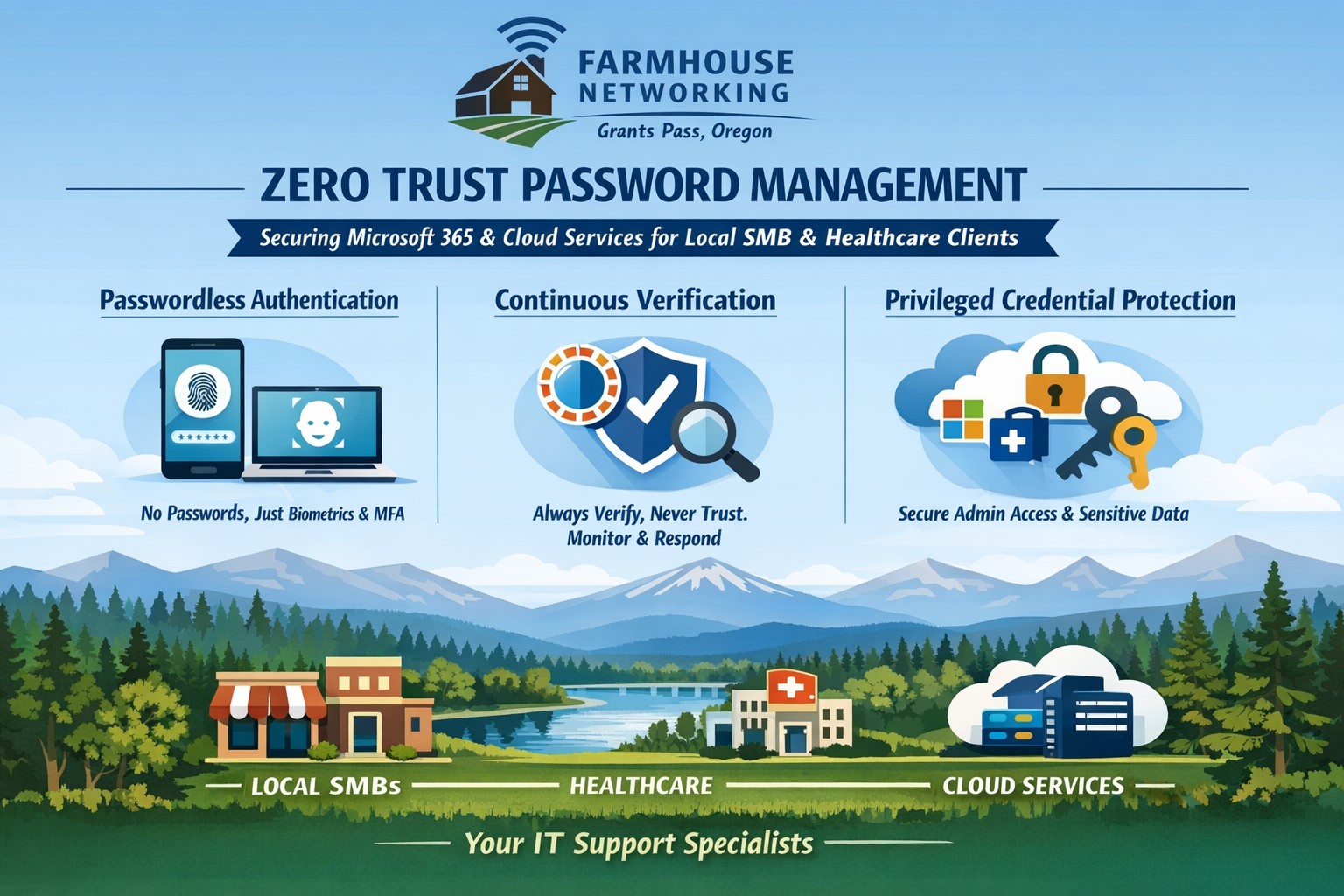
Farmhouse Networking implements zero trust password management with passwordless MFA for secure Grants Pass business cloud access.
This is the fifth in a series about the concept of Zero Trust, which means in the IT sense that you trust nothing and always verify everything surrounding and connected to your network. Today’s discussion will be on password management.
Password Management
Password management is the concept that you are not using the same password for all sites and services. So it is necessary to have a means to track and protect those passwords from others accessing or using them without consent. Here are some questions that you should be asking yourself:
How do you keep track of passwords? paper? spreadsheet? program?
Are your passwords encrypted? Are they guessable? Are they changed regularly?
Do you have a password policy?
What do you do when someone leaves the company?
Do you take advantage of 2FA or MFA?
Do you take advantage of single sign-on?
Take time to think about these questions and decide where changes can be made to better protect your passwords, or contact us to do the thinking for you.
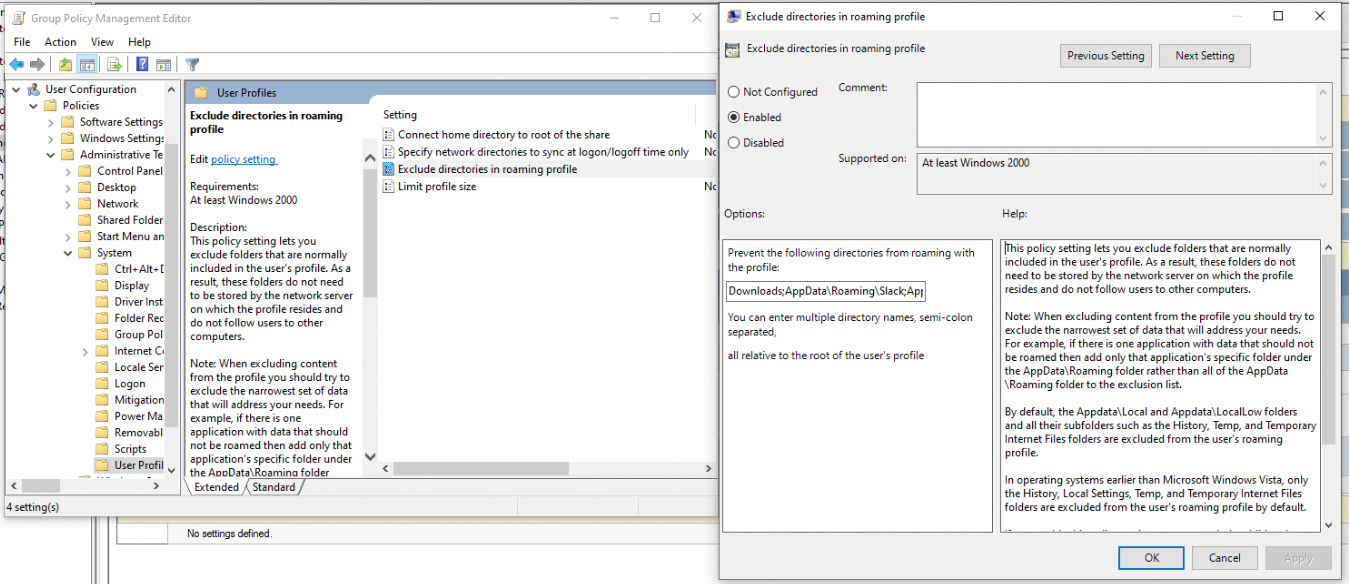
Researching issues that several clients were having with slow Windows Roaming Profile logins and found that the common denominator was profiles being too large. Looked at Event Viewer and found nothing but Event ID 6005 – “The winlogon notification subscriber is taking long time to handle the notification event (Logon).” Looked at their Group Policy settings and found the folder that profiles were being saved in. Ran WinDirStat on the user.v6 folder and found some interesting details. It looks like downloads, Slack, Teams, and Zoom were taking up 13+GB of data that was then trying to be synced over the network. Looks like it is time to update the Group Policy to exclude some folders:If your company is looking to virtualize your servers or take them to the cloud, then contact us to setup migration evaluation.
GPO – Exclude directories in Roaming Profile
GPO exclusions slash roaming profile sync time from minutes to seconds
Open Group Policy Management
Edit the Roaming Profile policy
Open User Configuration > Policies > Administrative Templates > System > User Profiles
Enable – Exclude directories in roaming profiles
Add the following directories – Downloads;AppData\Roaming\Slack;AppData\Roaming\Microsoft\Teams;AppData\Roaming\Zoom
Ok your way out
Open Windows Explorer and navigate to the user.v6 folder and delete the following folders:
Downloads
AppData\Roaming\Slack
AppData\Roaming\Microsoft\Teams
AppData\Roaming\Zoom
Wait 15 minutes for changes to propagate then reboot the effected machines and login again.
If your company is using roaming profiles to keep employees agile in the office, then contact us to setup a group policy evaluation.
Single secure vault eliminates password sprawl across business apps
Whether you are buying something from an online store, reading your email in the browser, checking your account balances, or uploading photos / videos to social media, most websites require an individual username and password when accessing their services. This raises various problems.
What’s with ALL the Passwords?
Using the same password for all the websites you access is a bad idea and horribly insecure. If we run a quick check on the “Dark Web” for your email address, it would likely show that hackers already know the one password you have been using forever. So the only other option is multiple passwords, which can easily go beyond the limits of our feeble human brains to keep track of OR people start creating a list that is typically typed up and saved on the computer – if a hacker gets into the computer then all the passwords are theirs too. So then the option is to find a secure way of storing and backing up these passwords, not to mention trying to make them easy to use.
Rangle Them Passwords!
That is the job of Password Management done by a small piece of software known as a password manager. It takes the complexity down to remembering the one password to open the software, then it tracks the rest from there. The good ones have the ability to generate passwords for you, store them in connection with the website you are visiting, auto-filling the password fields on the websites when you visit them again, and backup your passwords to the cloud – all with strong security and encryption to keep the hackers out of your business.
If your company is still typing passwords into a list, or worse have a paper list, then contact us for assistance migrating to a password manager.
Unlock strong, memorable passwords: Use 5-7 random words for SMB security—simple, effective, and Farmhouse Networking approved.
The COVID-19 scare and ensuing rush to remote access has us thinking security. What is more basic to security than passwords. In an effort to find a way to make passwords both secure and easy to remember, I have found a website that seems to fit the bill:
The concept is surprisingly simple and is said to be based on a cartoon:
I have played with the settings and found the following to generate some good password settings. Here they are for those who are interested:
The only other option would be to use random passwords stored in a password keeper. This also allows secure sharing of passwords throughout the organization.
If your company is using remote access, then contact us for assistance to make it secure.
Farmhouse Networking has had a long standing policy that we do not keep a record of client passwords (except when needed for device administration). That is about to change, but before we talk about our new password policy let’s talk password storage:
Common Password Storage
Here are some popular places where many businesses store their passwords that make them very vulnerable to being stolen.
Passwords written on paper (that are not under lock and key):
On your desk under your keyboard (or taped underneath)
Under your stapler or desk decorations
On sticky notes stuck to your monitor or desk
On a scrap of paper on your desk or in a drawer
In a notebook or address book
In a old-fashioned Rolodex file
Paper printouts or photocopies of your passwords
Anyone with access to your office could easily find and steal passwords stored like this.
Passwords stored in your computer (without using encryption):
Remembered in your web browser
A document called “Passwords” that you’ve created anywhere on your computer, perhaps using Microsoft Word or Excel
A document with any other name on your computer (including the password as the name)
Email drafts that you’ve created (but not sent) containing password information
Anyone with access to your computer could easily find and steal passwords stored like this, including both a person with physical access to it as well as a virus or hacker gaining access via the internet, or scamming you into granting them access, even once.
Passwords stored in your smartphone or tablet (without using encryption):
Electronic “Notes” containing password information
Other documents or emails similar to the ones listed in computer storage above
Anyone with access to your device could easily find and steal passwords stored like this.
Passwords sent via regular (insecure) email:
Emails that you have sent to yourself containing password information
Emails that you have sent to anyone else containing password information
Any information that you send using regular (unencrypted) email puts that information at risk of being stolen. Email is neither private nor secure. Sending an email is like mailing a postcard, and hackers and thieves can easily read the contents. You should never send passwords (or any other confidential or sensitive data) via regular email.
Secure Password Storage
Now for the discussion of Farmhouse Networking’s new password policy. We are partnering with a company to provide a storage of passwords and other client documentation with military grade encryption. This partnership also allows us to address the dangers that common password storage present by offering our clients this same encrypted password storage service. Here are some of the benefits of this service:
Unlimited users
Unlimited passwords
Each user has a personal password vault
Shared company password vault
Security groups to manage access
Auditing & reporting (Compliance)
Secure password sharing
1-Click Login Tool (for all major browsers)
Mobile Device Access
Only $15 per month (Compared to Lastpass Business at $4 per user per month)
If your company is using common password storage of any kind do yourself a security favor and contact us to upgrade to secure password storage.
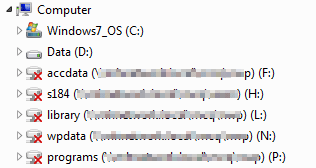
Had a client that repeatedly had troubles with network drives disconnect happening randomly. I did explain that this would happen normally if they kept their workstations logged into the server, but they did not want to change their habits. I performed the usual registry fixes on the workstations and the server, but these did not seem to work. Finally I got to look at the error and figured out the Group Policy Object that was causing the problem.
Usual Registry Fix:
The default method for this is to edit the registry as follows on both and run a command on the server to lengthen the disconnect time on the workstations and disable disconnect on the server.
Workstations:
Click Start, click Run, type regedit, and then click OK.
Locate and then click the following key in the registry:
In the right pane, click the autodisconnect value, and then on the Edit menu, click Modify. If the autodisconnect value does not exist, follow these steps:
On the Edit menu, point to New, and then click REG_DWORD.
Type autodisconnect, and then press ENTER.
On the Edit menu, click Modify.
Click Decimal.
In the Value data box, type 0, and then click OK.
Finally the following command should also be run:
net config server /autodisconnect:-1
Group Policy Object Fix:
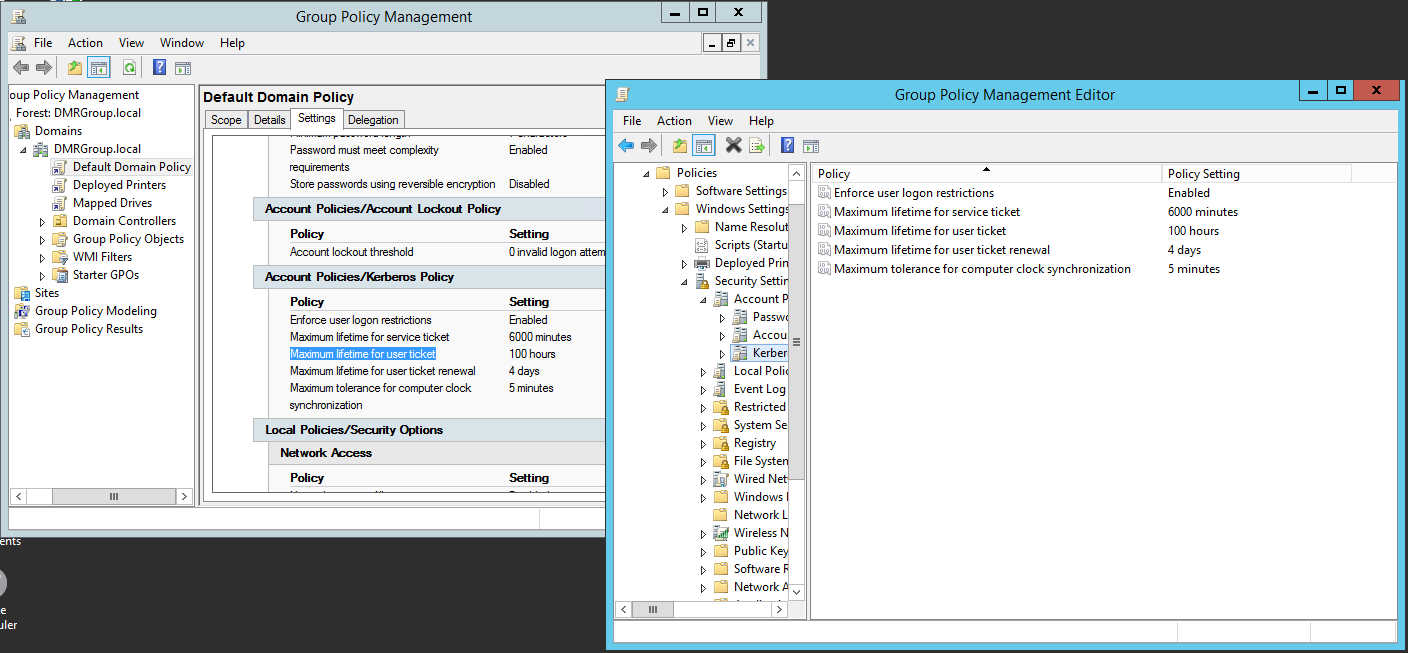
Even though I changed the systems as above, it still disconnected regularly. The clients were getting this message when disconnected -“The system has detected a possible attempt to compromise security. Please ensure that you can contact the server that authenticated you.” Some research found that Windows Small Business Server created a Group Policy Object that by default times out authentication to the server after 10 hours. Here is how I changed it:
Open Group Policy Management
Look for Default Domain Policy
Click on the Settings tab and then Show All
Under Account Policies/Kerberos Policy look for Maximum lifetime for user ticket which by default was 10 hours.
Right click on the policy and choose Edit
Dig down to Computer Configuration > Windows Settings > Security Settings > Account Policies > Kerberos Policy
Change the Maximum lifetime for user ticket to 100 hours (>4 days)
Change the Maximum lifetime for user ticket renewal to 4 days
This combination will keep the ticket lifetime timeout longer than the time for renewal which will cause the renewal to happen before the timeout. Problem solved.
If your company is having issues with Network Drive Disconnect, then contact us for assistance.
And God will generously provide all you need. Then you will always have everything you need and plenty left over to share with others. As the Scriptures say,
“They share freely and give generously to the poor. Their good deeds will be remembered forever.”
For God is the one who provides seed for the farmer and then bread to eat. In the same way, he will provide and increase your resources and then produce a great harvest of generosity in you. - 2 Corinthians 9:8-10
We use cookies to ensure that we give you the best experience on our website. If you continue to use this site we will assume that you are happy with it.