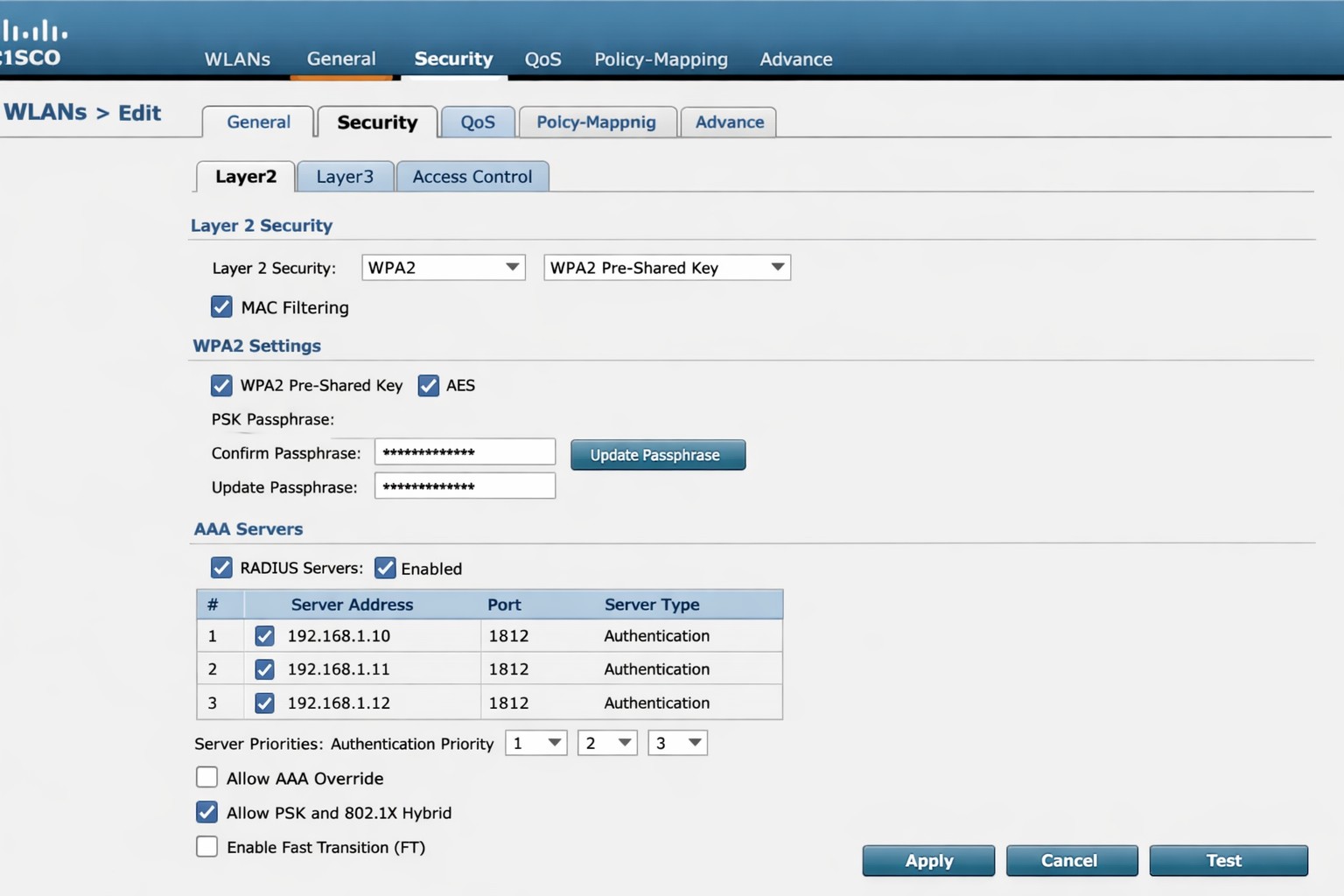
Cisco WLC WLAN configuration enabling PSK with RADIUS backend authentication.
This is the sixth in a series that document the Tier 3 / Co-Managed IT work we did to setup a wireless test bed for a Linux based scientific device. The testing environment included two different wireless network hardware types (Ubiquiti and Cisco). There was also a Synology device used for various purposes including hosting the Ubiquiti controller inside a Kubernetes container, providing certificate services, providing LDAP authentication, and providing RADIUS authentication. Each article will detail a separate piece of the project. This article shows the basic setup of Cisco Wireless Controller for PSK and RADIUS authentication from wireless devices.
Setup Cisco Wireless Network with PSK
Login to Cisco Wireless Controller
Click on WLANs tab at top
Click on GO next to Create New drop down
Create Profile Name & SSID
Click Apply
Click Enabled next to Status
Click Apply
Click on Security tab
Uncheck 802.1x
Check PSK
Enter Pre-Shared Key next to PSK format
Click Apply
Click Save Configuration at the top
Setup Cisco Wireless Network with RADIUS
Log into Cisco Wireless Controller
Click on Security tab at top
Click on Authentication under RADIUS on left hand side
Change both Acct Call Station ID Type to IP Address
Click Apply
Click on New
Add RADIUS server IP address
Add Shared Secret
Uncheck management
Click Apply
Click on WLANs tab at top
Edit WLAN 1
Click on Security tab
Click on AAA Servers tab
Change Server 1 to the one entered on RADIUS Authentication page
Click Apply
Click on Layer 2 tab
Change Authentication type to 802.11x
Click Apply
Click Save Configuration at the top
If your company has highly customized setup requirements that you need consulting for, then contact us for assistance.
This is the fifth in a series that documents the Tier 3 / Co-Managed IT work we did to setup a wireless test bed for a Linux based scientific device. The testing environment included two different wireless network hardware types (Ubiquiti and Cisco). There was also a Synology device used for various purposes including hosting the Ubiquiti controller inside a Kubernetes container, providing certificate services, providing LDAP authentication, and providing RADIUS authentication. Each article will detail a separate piece of the project. This article shows the setup Synology RADIUS server & certificates.
Setup RADIUS Server
Login to Synology
Open Package Center
Install RADIUS Server app
Open RADIUS Server package
Uncheck local users
Check LDAP users
Click Apply
Click on Clients on left hand side
Click on Add
Create Name
Create Shared Secret
Enter IP address of Cisco WLAN controller
Click on Add
Create Name
Create Shared Secret
Enter IP address of Ubiquiti Controller
Configure RADIUS Certificates
Open Control Panel
Click on External Access
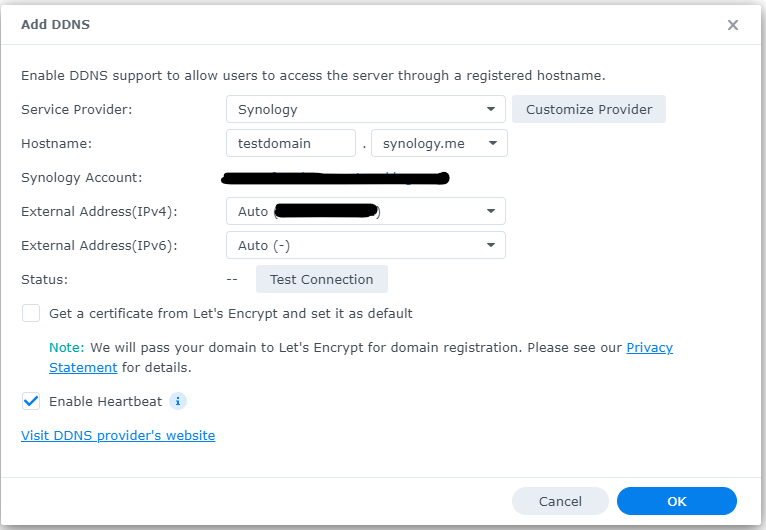
Click on DDNS tab
Click Add
Choose Synology as service provider
Add hostname
Click Test Connection
Click OK
Click on Security on left hand side
Click on the Certificate tab
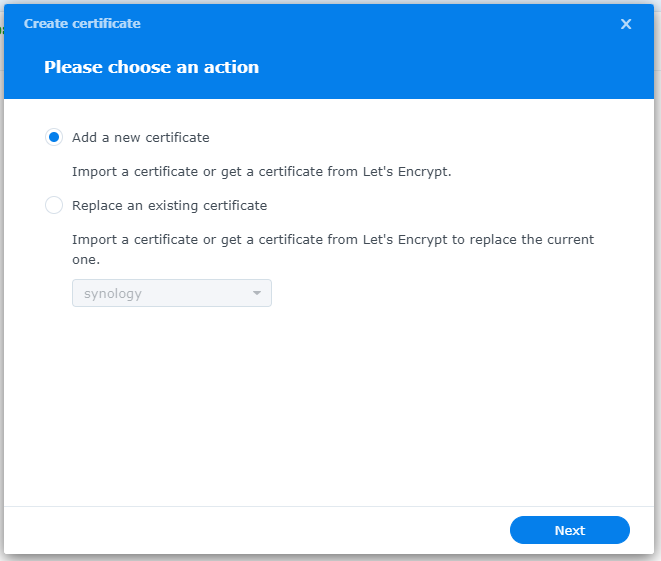
Click on Add
Add new certificate
Click Next
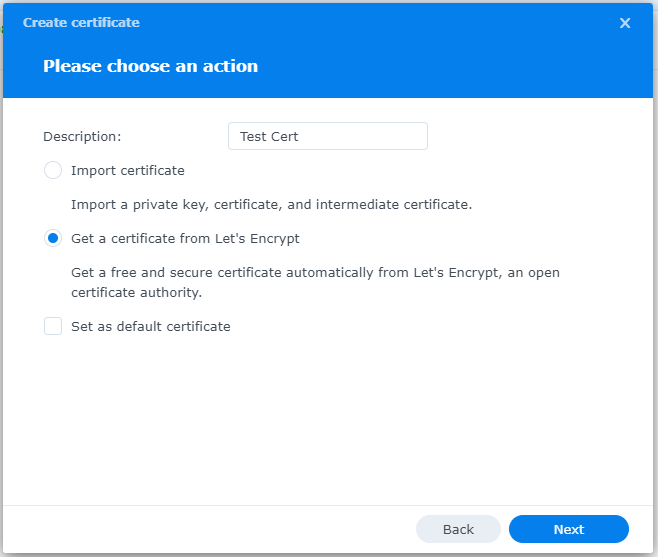
Create description
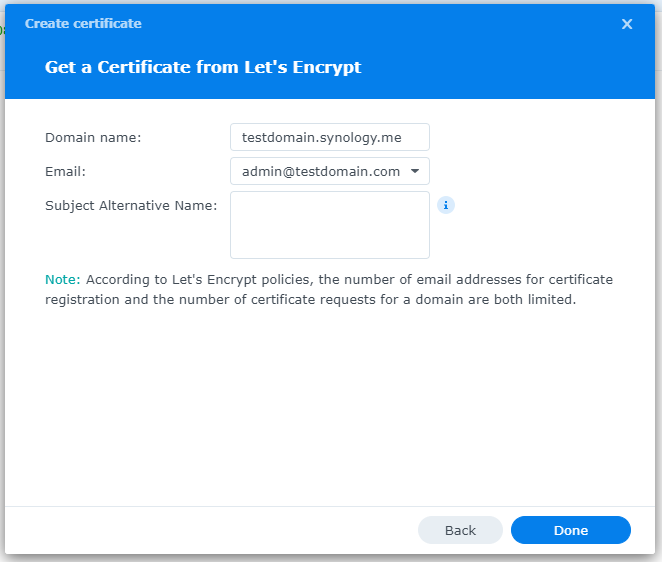
Get a certificate from Let’s Encrypt
Click Next
Add needed certificate information
Click Done
Click Settings button and choose appropriate RADIUS server certificate
If your company has highly customized setup requirements that you need consulting for, then contact us for assistance.
Cisco wireless controller setup wizard with SSID and management VLAN configuration.
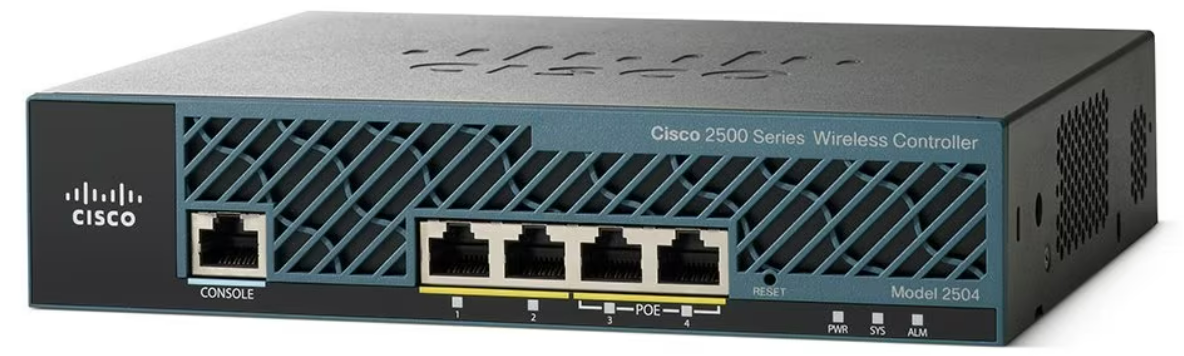
This is the first in a series that document the Tier 3 / Co-Managed IT work we did to setup a wireless test bed for a Linux based scientific device. The testing environment included two different wireless network hardware types (Ubiquiti and Cisco). There was also a Synology device used for various purposes including hosting the Ubiquiti controller inside a Kubernetes container, providing certificate services, providing LDAP authentication, and providing RADIUS authentication. Each article will detail a separate piece of the project. This article shows the basic setup of Cisco Wireless Controller.
Setup of Cisco Wireless Controller
Plug -in ethernet of Computer to port 2 on controller
Boot controller and wait for SYS light to go solid
Open web browser to http://192.168.1.1
Create admin username
Create password
Fill in the needed information:
System nameManagement IP Subnet MaskDefault Gateway
Click Next
Fill in temporary information for wireless
Network BSSIDCreate PassphraseEnter local DHCP server address
Click Next
Click Apply and wait for reboot
Click on Commands tab
Click on Set Time on the left-hand menu
Change needed values
Click Set Date and Time
Click Save Configuration at the top
If your company has highly customized setup requirements that you need consulting for, then contact us for assistance.
Reliable retail routers powering WFH for B2B professionals
This blog post is more about the use of retail routers at the office than at home, just to make that clear from the beginning. We would also recommend non-retail routers at home, but that is not feasible for everyone.
What is a retail router?
This is a phrase I am coining to describe any router that is generally available from your local retailers like Staples, Walmart, etc or delivered as part of the internet service from your local provider. They include brand names like ASUS, D-Link, Linksys, and Netgear. They range in price from $30 for the extreme low end to $450 for a gaming router. These routers are built for home and small office networks that have very few users or devices connected at any given time. They may include some features that sound “business-like” such as Virtual Private Network (VPN), Stateful Packet Inspection (SPI), VLAN, and Quality of Service (QoS) – remember though that these are also only able to support a minimum number of users and devices connected at any given time. If you try to use a retail router to run your business network then you will find that performance will be severely degraded and these features will not work as advertised.
There is also the issue of security. These routers are rarely if ever updated even when new vulnerabilities are found. This makes them ineligible for PCI or HIPAA compliance situations.
Is there a non-retail router?
So what to do about this situation? Time to call your trusted IT services provider who will be able to get you a non-retail router, but that begs the question – what is a non-retail router?
These routers are built by network professionals who design the hardware to perform under the pressures of the office environment and to handle the work from home remote workload. These routers include brands like Cisco, Juniper, Ubiquiti, and Araknis. They range in price from $150 for an office of up to 5 people to $10,000 for a high traffic company with hundreds of users. These routers handle VPN, SPI, VLAN, QoS, and many other services all at once with ease. Security is baked into these routers with the best ones having the ability to be managed from the cloud. They provide consistent access to all connected users and devices at all times. Your trusted IT services provider will work with you to “right size” the router to your business needs.
If your company is going to have full time work from home employees and is concerned about their ability to perform, then contact us for assistance.
Recently had to convert Cisco 3700 AP from Controller managed to Autonomous when I client separated from their parent company and bought out the IT equipment (that was a very costly mistake – if converting from corporate to small business invest in business grade IT equipment as it is much cheaper, by thousands of dollars). I researched online and found several posts about using the “archive sw-download” method on the AP, but those didn’t work with the TAR file that I was downloading from Cisco. I found another means of doing this by resetting the AP to factory defaults which allowed me to login via the console port and switching to manual boot.
Reset AP to Default
Remove power from the AP
Hold down the MODE button
Plug back in power
Wait 30 seconds then release the MODE button
Configure AP to Manual Boot
You should now be able to login with the “enable” command using the password Cisco
Type in the following command:
debug capwap con cli
conf t
boot manual
reload
Use TFTP to update firmware
Download / Install a TFTP server software of your choice.
Move Firmware TAR file into server directory
Once the AP finishes the manual boot process the prompt with be ap:
Type in the following commands:
set IP_ADDR <IP Address on same subnet as TFTP server>
set NETMASK <Subnet Mask on same subnet at TFTP server>
set DEFAULT_ROUTER <IP Address of default gateway>
ether_init
tftp_init
tar -xtract tftp://<IP Address of TFTP Server>/<Name of firmware TAR file> flash:
use “dir flash:” and cd to find directory name and firmware file name, then issue the last commands:
set BOOT flash:/<Directory name>/<File name>
boot
The AP will reboot with the new firmware and be ready to access a new configuration. This method works great as long as the TFTP extraction of the TAR file completes successfully.
If you need any help gaining access to your Cisco network gear or with configuring your Cisco equipment, then contact us for support.
In the past couple days there have been press release that show a large number of vulnerabilities in all Cisco Small Business routers and 79 models of the Netgear router line-up. Here are the articles:
The Cisco models are primarily used in small businesses, but the Netgear models include many that are used by home users – this could present a security risk for anyone who is still working from home. Cisco has released patches for the vulnerabilities and the Netgear vulnerabilities remained unpatched.
If your company is still using a “small business” or home based router, then contact us for assistance in checking for updates or replacing them with an business grade router with automatic updates. We also provide network security auditing for both office and home work environments.
A series of recent security bulletins from Cisco, on February 2nd, detail an issue that has been discovered in several of their devices. Here is a summation:
Cisco ASA Security Appliances
FN-64228 : ASA 5506, ASA 5506W, ASA 5506H, ASA 5508, and ASA 5516 – these models all use the same clock signal part from the same vendor which has been found to degrade over time. After 18 months of continued operation this component will fail and cause the device to stop functioning, no longer boot, and will not be recoverable.
“Customers with affected products that are under warranty or covered by any valid service contract as of November 16, 2016 should go to the Clock Signal Component Issue page and follow the instructions in order to request replacements.” These replacements will be prioritized based on time in operation.
Meraki Router & Wireless APs
Meraki Notification – MX 84 & MS350 Series – these models all use the same clock signal part from the same vendor which has been found to degrade over time. After 18 months of continued operation this component will fail and cause the device to stop functioning, no longer boot, and will not be recoverable.
” Meraki will reach out to customers via email and on the dashboard to arrange replacement and the return of affected units.”
If your company is currently using one of the affected devices and have not heard from your current IT services provider about the replacement schedule, then contact us for assistance.
Recently ran into an issue where a company wanted to use multiple types of VoIP phones that required seperate settings to download their configuration with a vendor – this is usually done in a homogeneous environment via DHCP option 66 settings. (Option 66 is part of IETF RFC 2132 which states that this option uses FQDN or IP address to point to a TFTP server.) In this particular setup only one VoIP phone vendor at a time could be specified in the option 66, so custom settings were going to be needed to make all the other vendors phones work properly. Found that this could be done via DHCP reservation on either their Windows Server 2012 R2 Standard or on their Cisco 871w router, but I am sure their are ways to do it on other vendors equipment (which is outside the scope of this article). So here is how to configure the
Windows Server DHCP Option 66 Reservation
Turn the phone on its back and record the MAC address of the device.
Start the DHCP administrative tool on the server.
Expand the tree into the IPv4 then into the Scope needing the reservation.
Right Click on Reservations and choose “New Reservation…”
Give the new reservation a name, specify IP address and MAC address previously recorded.
Right click on the new reservation and choose Configure Options.
In the Reservation options scroll down to 066 Boot Server Host Name and enter the URL or IP of the vendors configuration server.
Make sure the vendor has reset the authorization token and factory reset the phone to pull the new reservation and configuration files.
Cisco 800 Series DHCP Option 66 Reservation Setup
Something to remember is that each reservation is treated as its own DHCP pool by the router. (I recommend exporting the configuration file to a local workstation and manually editting if there are more than a couple edits to make.)
Login to router and enter configuration terminal mode:
Clear the current DHCP bindings to make sure the phone will grab the correct address:
Router#clear ip dhcp binding *
Make sure the vendor has reset the authorization token and factory reset the phone to pull the new reservation and configuration files.
That is all there is to it. Enjoy a multi-vendor VoIP environment. If you need help configuring your Windows Server or Cisco IOS based router please contact us for support.
And God will generously provide all you need. Then you will always have everything you need and plenty left over to share with others. As the Scriptures say,
“They share freely and give generously to the poor. Their good deeds will be remembered forever.”
For God is the one who provides seed for the farmer and then bread to eat. In the same way, he will provide and increase your resources and then produce a great harvest of generosity in you. - 2 Corinthians 9:8-10
We use cookies to ensure that we give you the best experience on our website. If you continue to use this site we will assume that you are happy with it.