Nobody wants to be hacked, breached, compromised, or whatever else they are calling it now. Here is a quick list of things to think about to keep your company safe:
Compromise Prevention
Keep track of your inventory, both software and hardware.
Make sure to properly dispose of these things (recycle or responsible destruction)
Scan your network for vulnerabilities
Patch or remediate everything you find
Manage your antivirus & keep it up-to-date
Keep your passwords complex & safely stored
Remove all users / accounts when no longer in use
Look at best practices to harden your computers / network to attacks
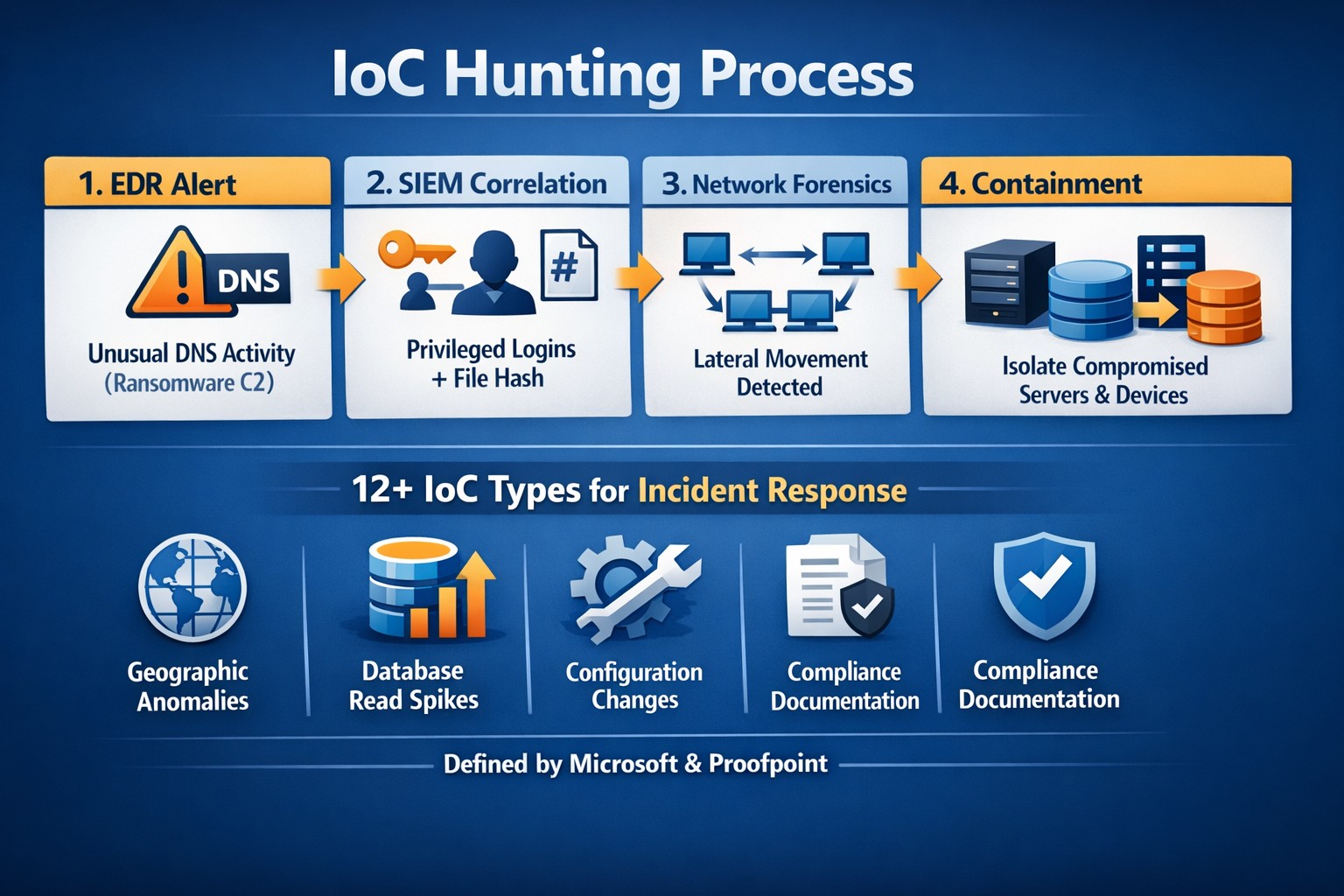
Monitor your network for strange activity (indicators of compromise)
If your company is concerned about security, then contact us to take care of it for you.
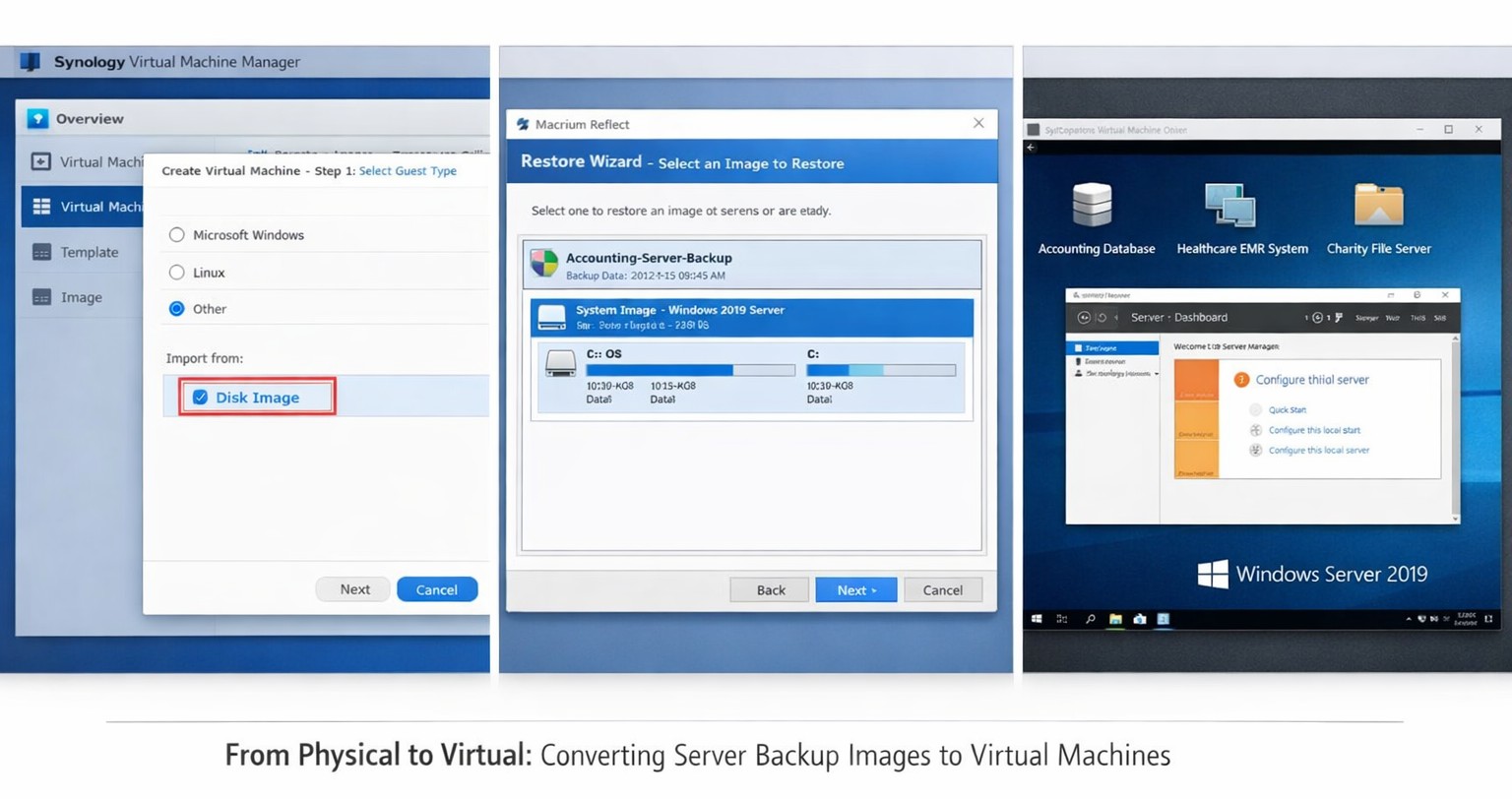
Macrium images restore seamlessly to Synology VMs for rapid virtualization
This was a strange one, but I have done it now more than once for a Tier 3 / Co-Managed IT client. They use the Macrium Reflect software to do image backups of client servers. They are looking to virtualize these servers going forward and wanted to know if it was possible to restore from Macrium Reflect to a Synology VM. Here is the process that we found to make it work:
Assumptions
We assume that you already have a Synology device setup and functioning properly.
We assume that you already installed the Virtual Machine Manager app on the Synology
We assume you already went through the initial setup wizard of the Virtual Machine Manager app
We assume that you have been backing up the server and have a valid image backup file
We assume you know the network path to these backup files
We assume you already know (and possess on the Synology) the required amount of CPU, Memory, and HDD space.
Process
Create Macrium Reflect bootable Rescue media
Open Macrium Reflect
Click on the Restore tab
Open Other Tasks on the left hand side
Choose Create bootable Rescue media
Browse to where the current backups are stored and save it there (this makes finding everything easier later)
Click Build (You may need to install some pre-requisites to make this possible, but Macrium Reflect with prompt you for it)
Create Virtual Machine
Open the Synology Virtual Machine Manager app
Click on Image
Click on the Add button
Find the Macrium Reflect Rescue media and add it to local storage
Click on Virtual Machine on the left
Click the Create button
Choose the Microsoft Windows option (if appropriate)
Select the proper storage amount
Give it a name, CPU, Memory (as needed)
Give it the needed storage amount(s)
Leave it connected to the default network
Download the Synology Guest Tools if needed.
Select Macrium Reflect Rescue media for the ISO file for bootup
Do not start the automatically
Edit the VM and change it to start from the CD ROM
Power it on
Restore from backup
Connect to the VM
Wait for Macrium Reflect Rescue media to boot (this can take awhile)
Click on the blue computer icon at the bottom
Click on the Map Network Drive icon
Type in need information and click OK
Go back to the Macrium Reflect window
Click on Browse for an image or backup file to restore
Find the appropriate file in the newly mapped network drive
Click on Restore Image
Select the target drive(s)
Click Next, Finished
Wait for restore to complete (this will take a long time)
Prepare restored image
Once completed, click on the ReDeploy restored image to new hardware
Add drivers if needed
Accept any drivers it finds
Accept the default options
Finish the wizard by closing
Power off the VM
Edit the VM Storage to make the disk a SATA controller instead
Edit the VM Others to make the BIOS UEFI
Edit the VM Network to Not Connected
Power on the VM
Login and install the Synology Guest Tools from the attached CD-ROM drive
Power off the VM
Edit the VM Network to use the default connection
Power on the VM if you are ready to deploy
If your company is looking to virtualize your servers or take them to the cloud, then contact us to setup migration evaluation.
ProTips for successful Windows Server 2012 backup restoration
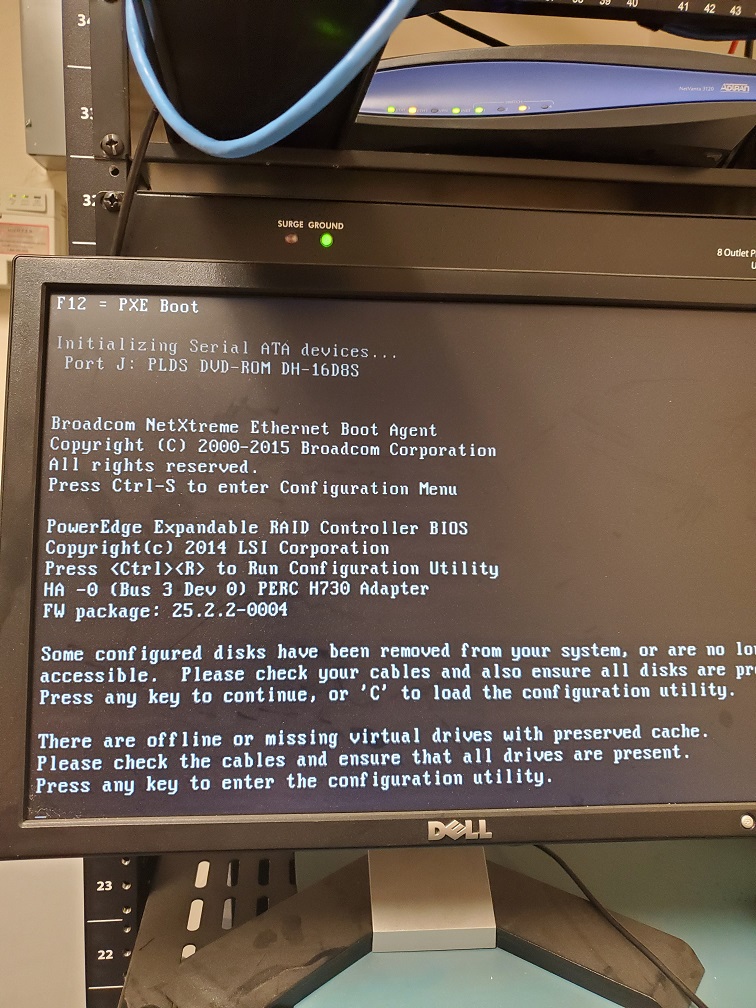
Here are some lessons learned from a recent recovery of a server with the following error:
Lesson #1 – Blinking Hard Drives
So when I got to the customer site the Dell server had blinking hard drive lights on two of the drives. Based on the support article about it the lights meant -“Identifying drive or preparing for removal.” and digging into the RAID controller I found the worst possible scenario for a RAID-5 array – two dead hard drives. I removed the two dead drives, cleared the configuration on the RAID controller, built a new RAID-5 array out of the remaining drives (4 out of 6), and did a fast initialize.
Lesson #2 – Drive letters on Windows Server Backup
Not sure if anyone else has noticed, but when Windows Server Backup is setup to use an external drive it likes to hide the drive by not assigning it a drive letter. This caused a few issues with the restore done from Windows Server 2012 R2 USB boot media as it couldn’t find the drive. I had to connect the external drive to my laptop then give it a drive letter. Plugged it back into the server and rebooted.
Lesson #3 – Patience is a virtue in Scanning for System Image Disks
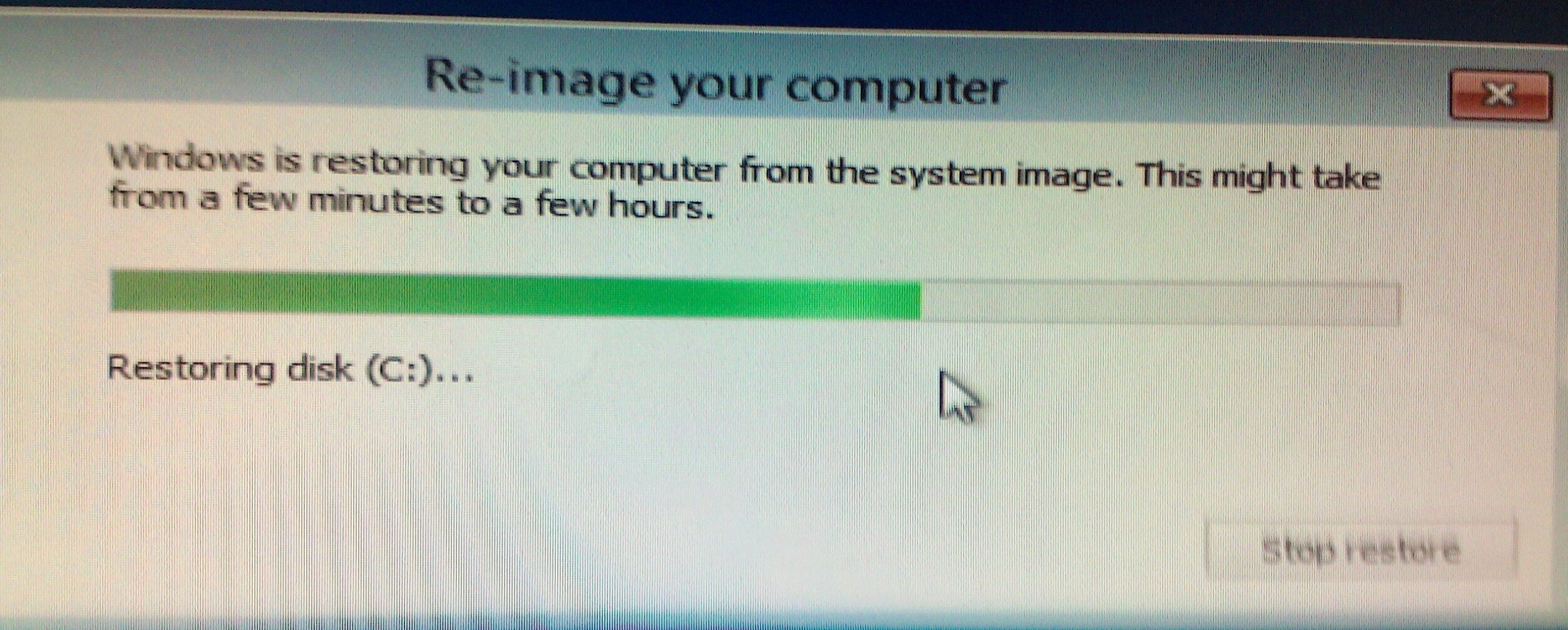
Following the basic instructions for doing a Windows Server Backup 2012 Restore via Windows Server 2012 R2 USB boot media it came to the point where it does the scanning for System Image Disks. Turns out this can take hours depending on the speed of the drive plus the size and quantity of restores you have on the external drive. Just wait for the process to complete.
Lesson #4 – UEFI or Legacy BIOS matters
So you waited all that time for the Scanning for System Image Disks to complete and now that precious moment arrives when you realize that the Windows Server 2012 R2 USB boot media that you created was UEFI instead of legacy BIOS and the restore fails telling you so. Make sure that when you create the Windows Server 2012 R2 USB boot media that you change the settings to match the system that you are trying to restore.
Hope that these lessons help a few other Windows Server admins, who are trying to do a Windows Server Backup 2012 Restore, save some time and frustration. If you are looking for a better way to do backup and restore then contact us for details.
There has been information released by a security research firm called Eclypsium that there is a vulnerability dubbed Boothole in Unified Extensible Firmware Interface (UEFI) Secure Boot that would allow an attacker to completely take over a workstation, laptop, or server and be nearly undetectable. All hardware vendors will have to send out updates in the near future to patch the UEFI code to secure it against this “BootHole” vulnerability. Due to the difficulty in designing and testing these types of updates it will be some time before they are released. We will keep you posted as to the release of these updates as they become available.
If your company is concerned about security, then contact us for assistance.
This question came to light while talking to a vendor about backups. It turns out that Microsoft does not backup any of your Office 365 data but does have aggressive redundancy in place. This is both good and bad, here is why:
Email
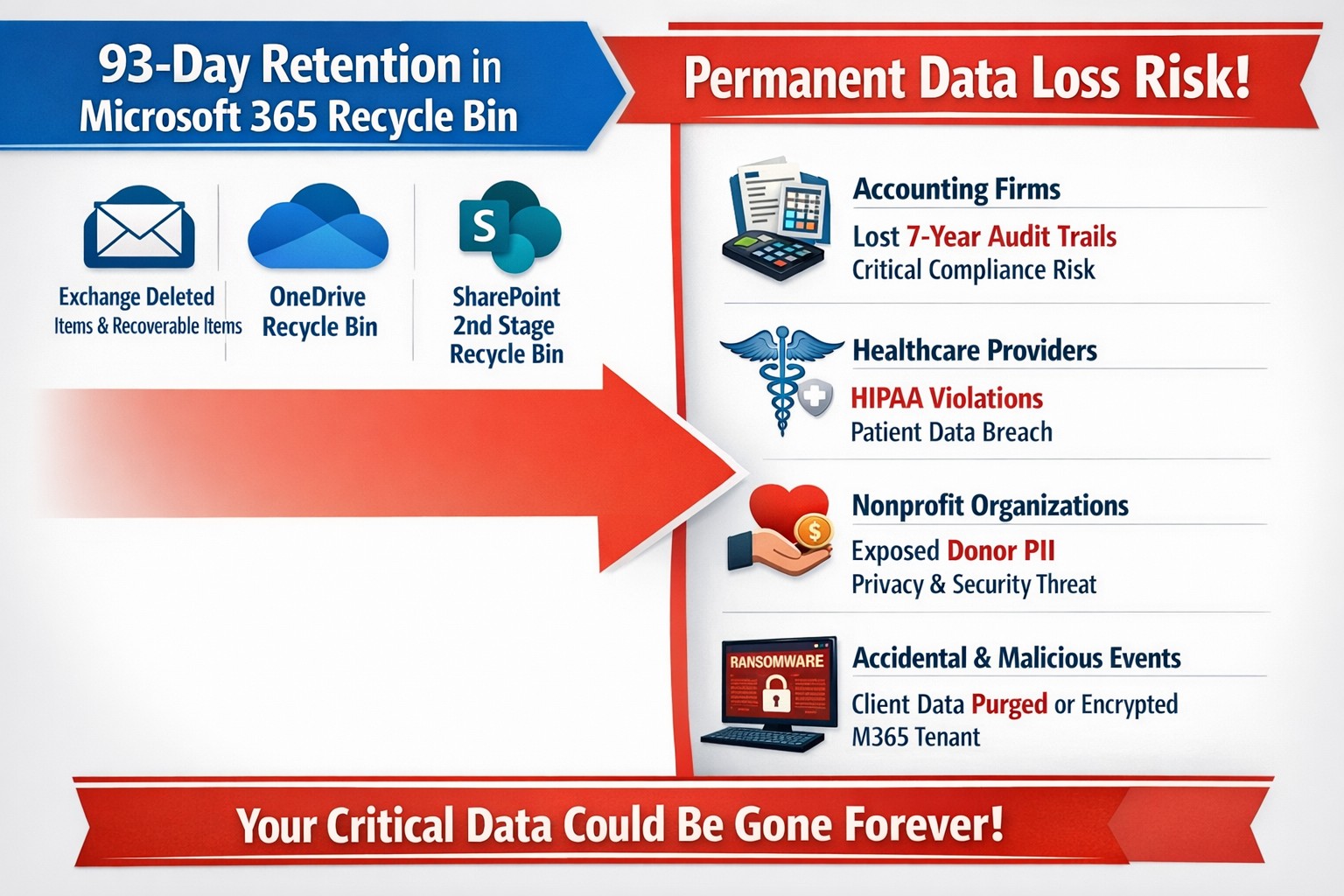
Microsoft has several levels of redundancy / resiliency / protection to keep email data from being corrupted, keep multiple copies of all email data, and scan emails for security threats. If there is ever any data issues then their systems automatically detect the problem and work to fix them or when threats are detected they are automatically remediated. There is also a recycle bin for emails and users that lasts from 30 to 90 days. Once that time is over there is no recourse for getting the data back.
Sharepoint & OneDrive
Microsoft here again has deep redundancy to protect your data from corruption, but they do nothing to check for malware or cryptoware. There is something called versioning that can help with some cryptoware, but not all. There is also a recycle bin for these services that could possibly help.
There are several apparent gaps in coverage that Microsoft does not deal with, but there are third-party services that have stepped in to do just that. If your company is looking to keep their Office 365 data safe from internal and external threats, then contact us for assistance.
Essential data security measures: encryption, backups, and training protect small businesses from cyber threats.
Business data—customer records, financials, and intellectual property—is your lifeline. A single breach can cost thousands in downtime and lost trust, with 43% of cyberattacks targeting small firms.
Why Data Protection Matters Now
Cyber threats hit small businesses hardest due to limited resources. Ransomware, phishing, and insider errors lead to average losses of $25,000 per incident. Regulations like CCPA and GDPR mandate compliance, with fines up to 4% of revenue for violations. Protecting data safeguards profits, reputation, and legal standing.
Practical Action Steps
Implement these steps with your IT team for immediate impact.
Conduct a Data Audit: Inventory all data types (customer PII, emails, backups). Classify by sensitivity and map storage/access points. Set retention policies to delete unneeded info.
Secure Backups: Automate daily cloud backups (e.g., encrypted AWS S3). Test restores quarterly. Use 3-2-1 rule: 3 copies, 2 media types, 1 offsite.
Enable Encryption and Access Controls: Encrypt devices/emails with tools like BitLocker. Enforce multi-factor authentication (MFA) and role-based access.
Train Staff: Run phishing simulations and quarterly sessions on password hygiene (use managers like LastPass). Cover GDPR/CCPA basics.
Update Systems: Patch software monthly. Install firewalls, antivirus (e.g., Malwarebytes), and SSL for websites to boost SEO trust signals.
Monitor Threats: Deploy endpoint detection (e.g., Microsoft Defender). Review logs weekly for anomalies.
These steps reduce breach risk by 80% when followed consistently.
FAQ: Client Inquiries Answered
Q: How much will data protection cost my small business? A: Start free with MFA and backups via Google Workspace ($6/user/month). Full setups range $500–$5,000/year, far less than breach recovery.
Q: Do I need to worry about GDPR/CCPA if I’m U.S.-based? A: Yes, if serving EU/California customers or hitting thresholds (e.g., 50K consumers/year under CCPA). Draft a privacy policy and get consent.
Q: What if my team lacks IT expertise? A: Outsource audits/backups initially. Tools like UpdraftPlus handle WordPress sites simply.
Q: How do I recover from a breach? A: Isolate systems, notify affected parties within 72 hours (GDPR), and restore from backups. Engage experts to trace/forensics.
Q: Does data protection improve SEO? A: Yes—HTTPS and secure sites rank higher; trust signals cut bounce rates.
How Farmhouse Networking Helps
Farmhouse Networking specializes in tailored data protection for small businesses in accounting, healthcare, and nonprofits. We conduct audits, deploy encrypted backups, and train teams remotely. Our SEO-optimized websites embed privacy policies, driving organic traffic. Clients see 40% faster compliance and zero downtime in pilots. We integrate CRM security for lead gen without leaks.
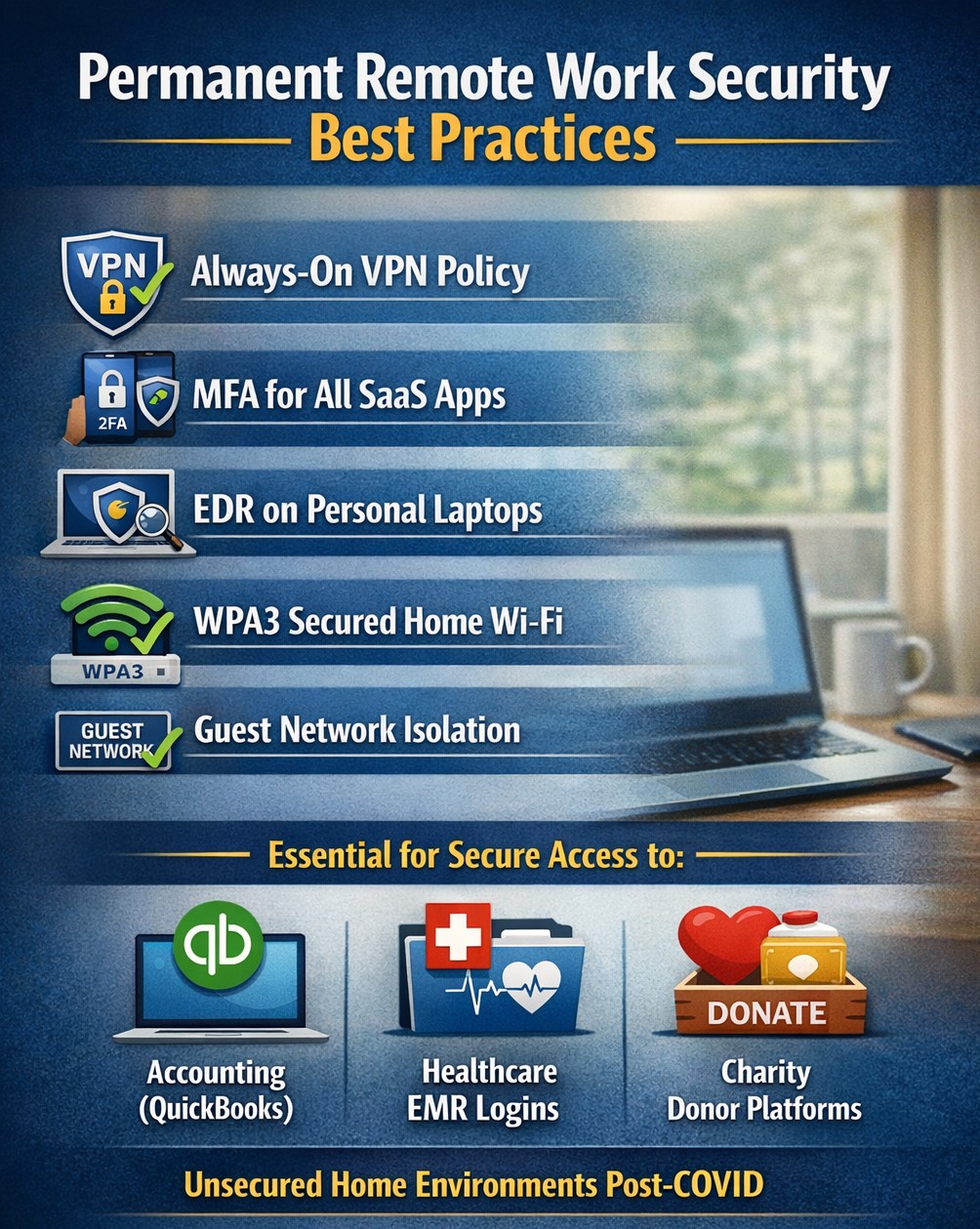
Secure WFH prevents data breaches from personal devices
According to the executive order made by Oregon State Governor, Kate Brown: “On Friday night, I frankly directed them to stay home. And now I am ordering them to stay home.”
The following guidelines are in effect for businesses:
It closes and prohibits shopping at specific categories of retail businesses, for which close personal contact is difficult to avoid, such as arcades, barber shops, hair salons, gyms and fitness studios, skating rinks, theaters, and yoga studios.
It requires businesses not closed by the order to implement social distancing policies in order to remain open, and requires workplaces to implement teleworking and work-at-home options when possible. They must also elect a representative who will be in charge of monitoring social distancing.
What FHN is doing?
FREE Remote Access – Just a re-iteration that all our monthly managed services clients will have remote access to their systems at no additional cost. If you are not a managed client then we can set you up with secure remote access to your data or network depending on need. Please call sooner rather than later as we have to take care of our managed clients first and there may be a wait at this point.
On-site support continues – At this time there is no restrictions on service industries who perform on-site visits to complete work, so Farmhouse Networking will continue to do so for the foreseeable future. We will be taking precautions such as protective masks, gloves, or perhaps more extreme measures (hazmat suit) to insure the safety of our staff and clients. We ask that clients keep these visits to emergency needs and planned projects until these social distancing rules are lifted.
Stocking up on essentials – We have been closely monitoring our distribution channels and several of them have been stating that non-essential items would take up to one month to receive. As a courtesy to our clients and to better service them in times of emergency IT needs, we will be stocking up on computer and network parts that are most often needed.
What should clients do?
Remote workers – Send unneeded on-site staff home to work remotely. With remote access capabilities, video conferencing, and VoIP phones – there is no reason to keep them in harms way. We are experts in these technologies and can get you up and running on them quickly.
Maintain infrastructure – For remote workers to be able to get access to their computers there needs to be a solid foundation at the business location.
Workstations, servers, and network equipment should be on battery backups to keep them from going offline unnecessarily due to power fluctuations – triggering a need to go into the office.
Is part of your network over 6 years old? Now may be the time to replace the network equipment to avoid downtime and unneeded office visits in the future.
Now more than ever backups are needed in case anything should go wrong. Recovery times are bound to be increased as the lock down on businesses increases.
Don’t forget to leave the A/C on especially if you have a server closet, they work better in cooler temperatures.
Planning – With a possible slowdown in business now is the time to take stock of your company, to get used to this new normal, and make plans for the long term implications of this craziness on our businesses.
If your company needs any help weathering the COVID-19 storm, then contact us for assistance.
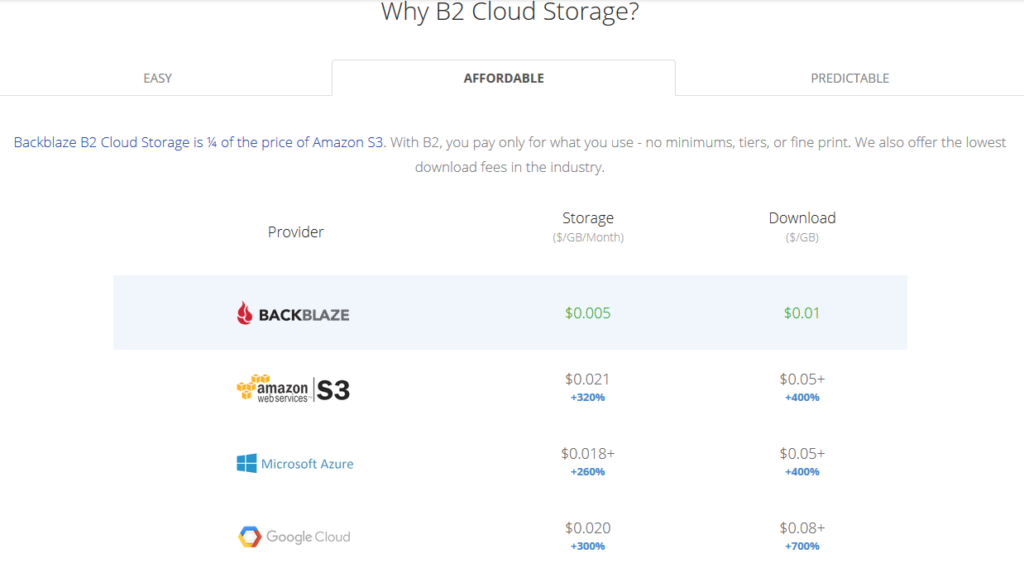
All someone has to do is look at the pricing model above to see why Backblaze is a no brainer for long term storage (not to mention the first 10GB of storage is free. With its recent inclusion as a destination for web server’s WHM backup, Farmhouse Networking has been recommending our hosting provider customers to make the switch from AWS Glacier. Here is the steps to make the switch:
Setup Backblaze Buckets
Login to Backblaze account
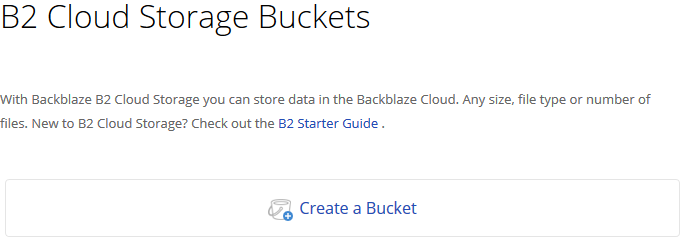
Click on the Create Bucket button in the B2 Cloud Storage Buckets section
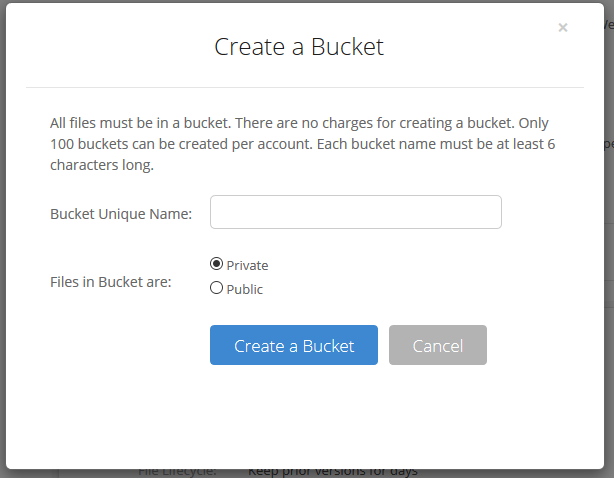
3. Give the Bucket a name and keep the bucket private for the backups. Click on the Create a Bucket button.
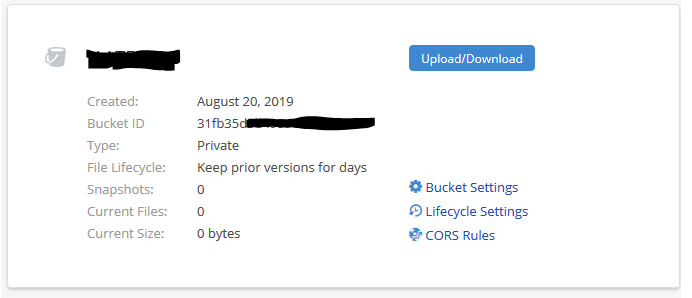
4. Copy down your Backblaze Bucket name and Backblaze Bucket ID
Setup Backblaze Application Key
Click on the App Keys section
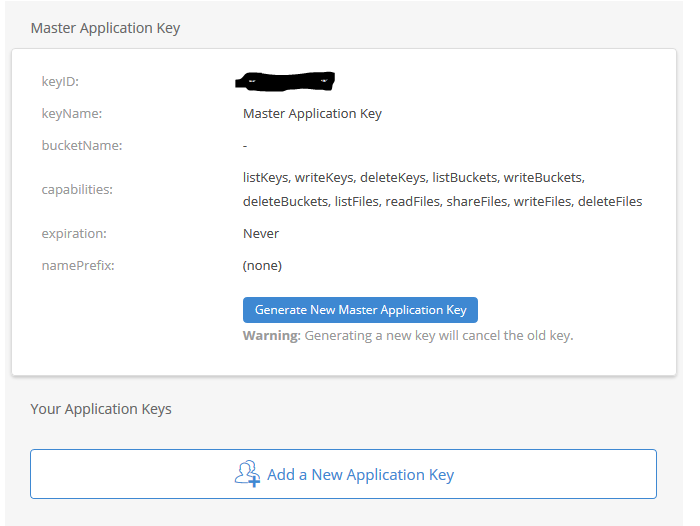
Click on Add a New Application Key
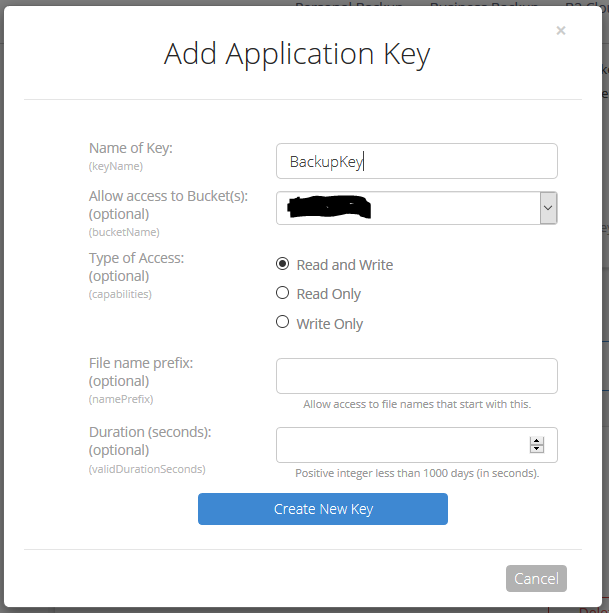
3. Give the Backblaze Application Key a name, chose the newly created bucket from the list and make sure to leave the Type of Access as “Read and Write”. Click the Create Key button.
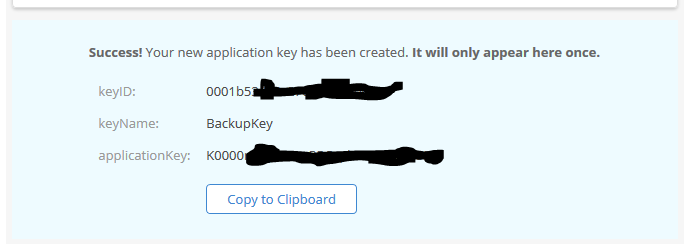
4. Make sure to copy down the Backblaze Application keyID and Backblaze Application applicationKey. This will be the only time they are both shown. If you lose the Backblaze Application applicationKey then you will have to delete the current one and create a new one.
Setup WHM Backup to Backblaze
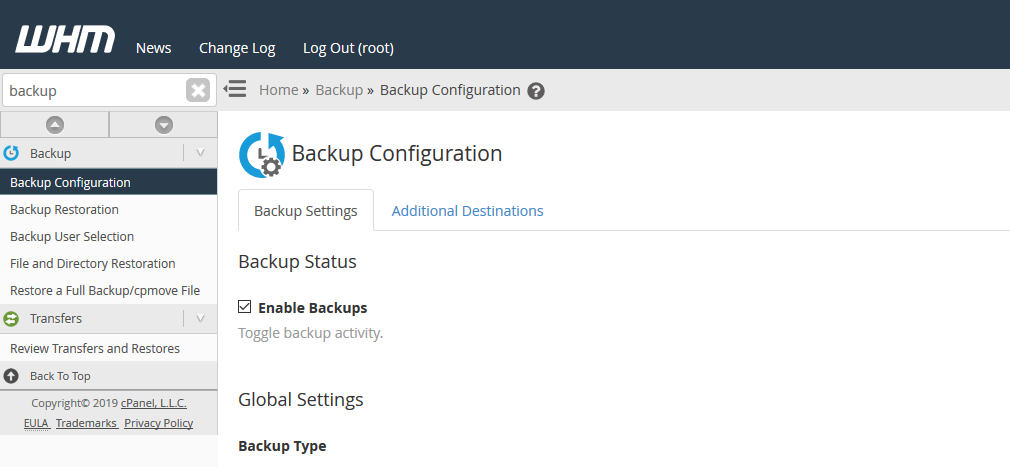
Connect to WHM as root user and choose Backup Configuration from the menu. The specific WHM backup settings are not discussed here, but feel free to contact us for advise on how to do so.
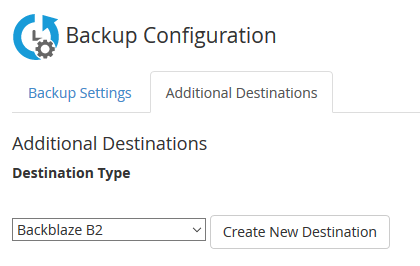
2. Click on Additional Destinations. Chose Backblaze B2 from the Destination Type and click on the Create New Destination button.
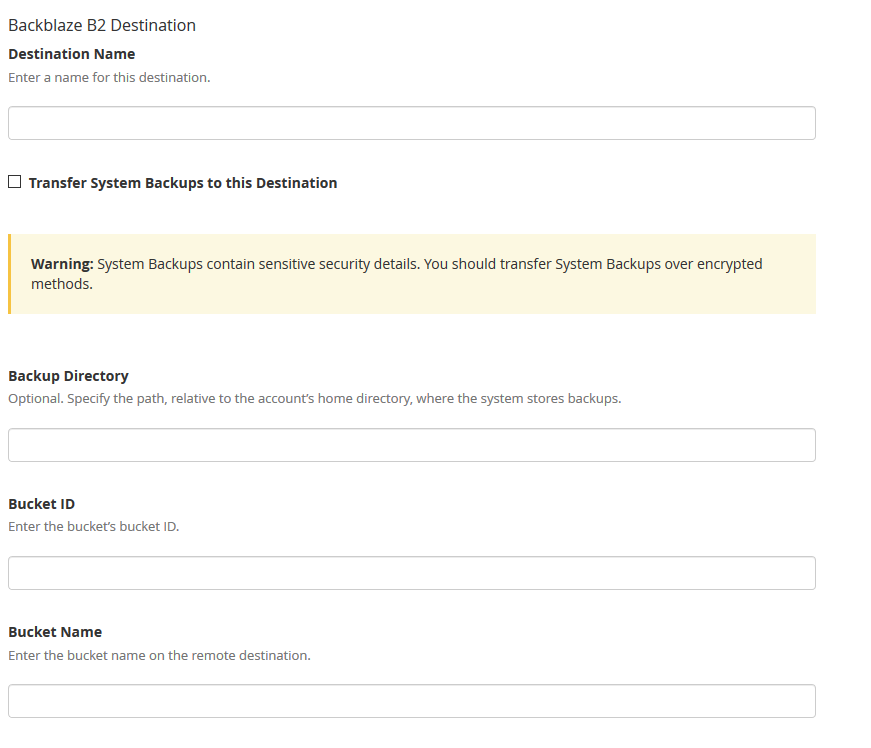
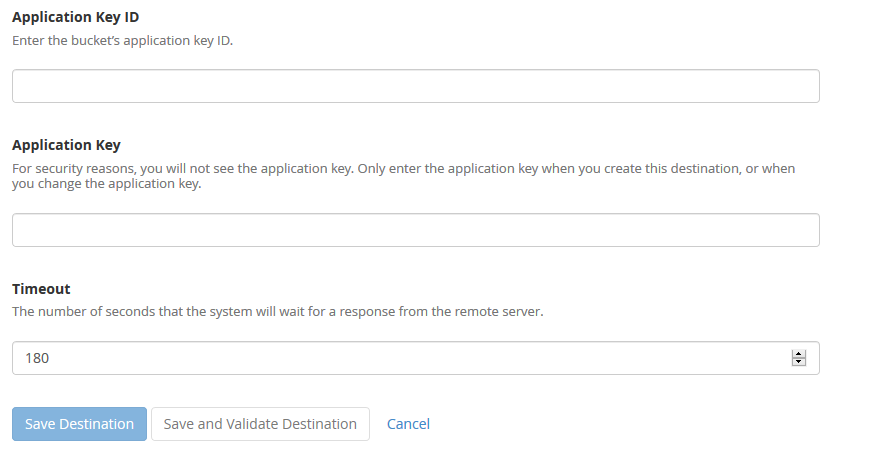
3. Enter in a backup name. Click on the “System Backups” if that is desired. Leave the Backup Directory blank. Enter in the Backblaze Bucket ID and Backblaze Bucket Name copied down earlier. Enter in the Backblaze Application Key ID and Backblaze Application Key. Click on the Save and Validate Destination button.
Make sure to disable your old AWS Glacier backup destination. All backups on Glacier should be set to auto delete according to a lifecycle, but if not then wait 120 days from creation to remove them to avoid any penalties. Speaking of lifecycles, it is a good idea to change the lifecycle settings on the Backblaze bucket to auto delete after a determined number of days since they do charge for total storage utilized.
If your company is would like to discuss the layers of security you have in place, then contact us for assistance.
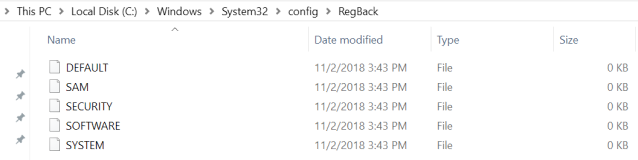
In a new Windows 10 Support article, dated June 28th, Microsoft comes clean that they will no longer be backing up the registry file with its built in backup feature. “This change is by design, and is intended to help reduce the overall disk footprint size of Windows.” They instead recommend that System Restore be enabled and used to recover in case of registry corruption (which by the way uses disk space too).
Ending Registry Backup
The Windows Registry is a hierarchical database that stores low-level settings for Windows 10 and installed applications that rely on it. The kernel, device drivers, services, Security Accounts Manager, and user interface configuration are all in the registry. If the registry is lost then system settings, drivers, user interface tweaks, and many programs will all need to be fixed or re-installed from scratch.
If your company is using the built in Windows Backup feature, then contact us for assistance moving to a system that provides complete backup of your systems.
Owner death doesn’t have to kill your business operations
We are currently facing the mountain of paperwork and responsibilities associated with the death of a loved one who did not properly prepare for their passing. While thinking through this stuff the thought of disaster preparedness came to mind and what would be the way to properly prepare for the sudden passing of myself or a business partner so that those who remained could continue on. Here are my thoughts:
Death Preparedness
Partnership / Corporate Agreement: Most states will immediately dissolve / liquidate a business partnership agreement unless the agreement has a continue after death clause that allows the estate to be paid off for their share of the current worth of the business. These payouts can also be paid by an insurance policy. Have an attorney look at the current agreement and amend as needed.
Personal Data: Business partners will need access to a copy of information like social security number, date of birth, birth / marriage / death certificates, and location of all agreements / wills. Having this information easily available saves tons of time for those left behind and make filling out the needed paperwork much easier. This information is best stored in one location like a safe deposit box.
Financial Data: Business partners will need access to insurance information, bank accounts, investment accounts, tax returns, current debts, title / registration of property, and any safe deposit keys that are connected to the business. Knowing this information will help create an estimate of the worth of the business to give the estate their fair share of the current worth. Plus if the partner that passed was in charge of these things it will make it easier for the responsibility to be handed to someone else.
Business Data: Businesses should have a master list of usernames and passwords for all local software, servers, online accounts, key safes, etc. This list needs to be updated regularly and a copy would be best kept in the same safe deposit box that the vital records are kept.
Advanced Directives: Just like for family members, the business partner will need to be able to act on behalf of the business in case the other partner is incapacitated in some way. Having these documents in order before this happens is crucial. Make sure to have a lawyer look over the document to make sure it is complete based on state laws where business is being conducted.
“Key Man” Insurance: If any of the business partners or employees are “indispensable” then key man insurance can be purchased by the business. This insurance policy pays off on death to help the company stay afloat until a replacement can be found. It is also important at this point to think about training and disbursement of business information. No one person in the company should have so much knowledge that they would sink the business even if they just left the organization one day.
Take the time to prepare for the worse to make life for those left behind easier to manage after your passing, and contact us for any assistance you need in this process.
And God will generously provide all you need. Then you will always have everything you need and plenty left over to share with others. As the Scriptures say,
“They share freely and give generously to the poor. Their good deeds will be remembered forever.”
For God is the one who provides seed for the farmer and then bread to eat. In the same way, he will provide and increase your resources and then produce a great harvest of generosity in you. - 2 Corinthians 9:8-10
We use cookies to ensure that we give you the best experience on our website. If you continue to use this site we will assume that you are happy with it.