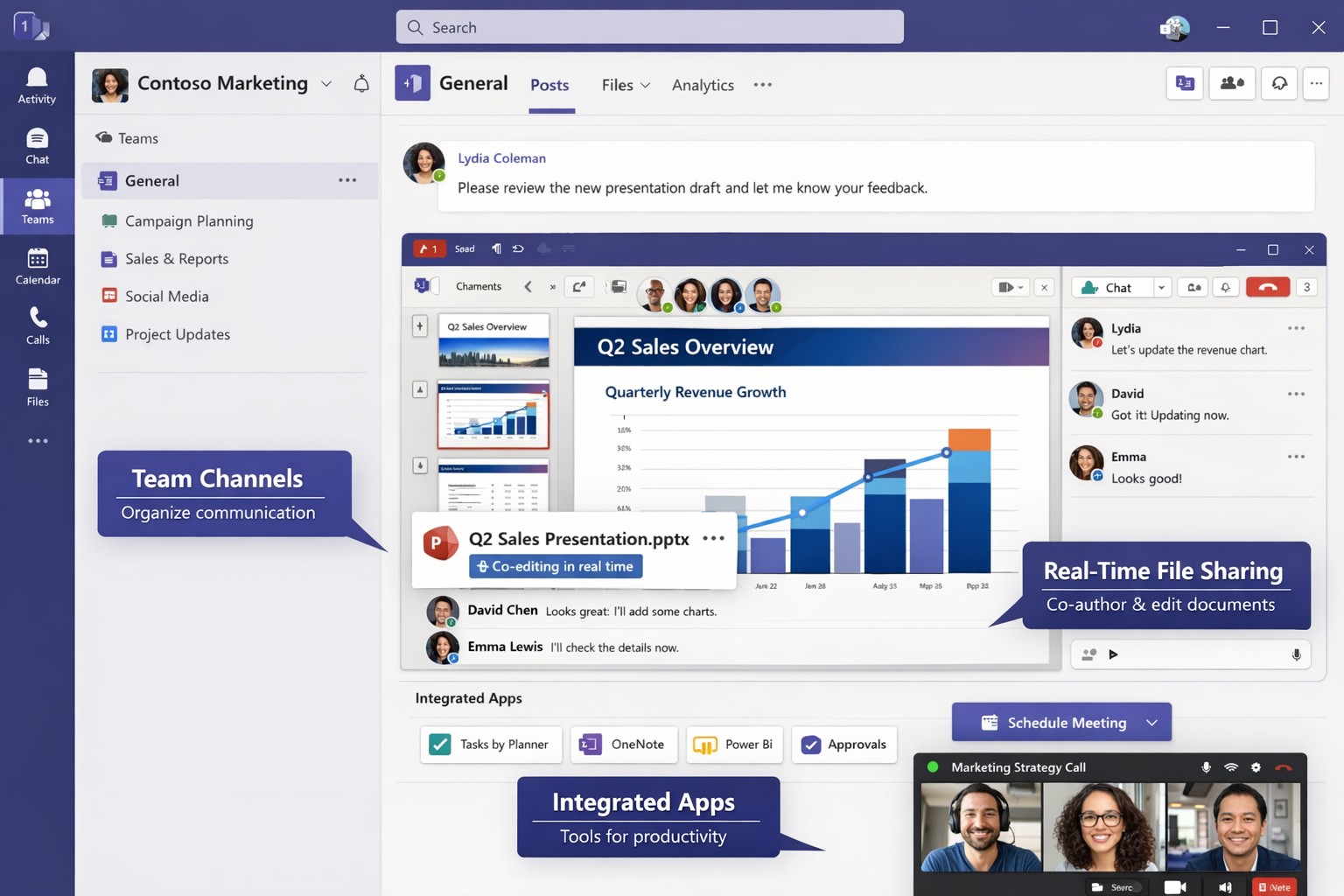
Microsoft Teams unifies chat, video, and files to streamline business collaboration – ideal for accounting, healthcare, and charity teams.
Fragmented communication tools lead to lost productivity and missed opportunities. Microsoft Teams unifies chat, video, file sharing, and apps into one platform, boosting efficiency for accounting firms tracking client data, healthcare providers coordinating patient care, or charities managing donor campaigns.
Why Unify with Teams?
Teams integrates seamlessly with Microsoft 365, centralizing workflows to reduce email overload by 40-50% in typical deployments. For B2B owners, this means faster decision-making across hybrid teams—essential for industries like yours where compliance and real-time updates are critical. Real-world adopters report 20-30% gains in cross-departmental collaboration.
Practical Action Steps
Follow these steps with your IT department to implement Teams effectively.
Assess Needs: Audit current tools (email, Slack, Zoom). Survey teams on pain points like siloed files or meeting fatigue. Assign an IT lead to map requirements.
Set Up Licensing: Purchase Microsoft 365 Business Premium ($22/user/month) via the admin center. Enable Teams for all users and configure security policies like multi-factor authentication.
Create Structure: Build teams and channels by department/project (e.g., “Q1 Accounting Audits”). Pin key apps like Planner for tasks and OneDrive for files. Limit private channels for sensitive data.
Train Staff: Roll out 1-hour sessions via Teams Live Events. Cover channels, @mentions, and integrations. Use Microsoft’s free templates for quick onboarding.
Integrate and Test: Connect with Outlook, SharePoint, and industry tools (e.g., QuickBooks for accounting). Pilot with one department, monitor adoption via analytics, then scale.
Optimize Ongoing: Review usage monthly. Automate with Power Automate flows (e.g., approval workflows) and gather feedback to refine.
These steps typically take 4-6 weeks, yielding immediate ROI through reduced tool sprawl.
FAQ: Client Inquiries Answered
How secure is Teams for regulated industries like healthcare or accounting? Teams meets HIPAA, GDPR, and SOC 2 standards with end-to-end encryption and data loss prevention. Retention policies ensure compliance without custom coding.
What if my team resists change? Start small: Gamify adoption with badges for active users. 75% of employees value collaboration tools when trained properly.
Can Teams replace multiple apps? Yes—integrates 250+ apps, including CRM for charities or EHR for healthcare. Custom bots handle routine tasks, cutting manual work.
How much does it cost long-term? Starts at $6/user/month for basics; scales with add-ons. Expect 1-2 year payback via productivity gains.
Does it support hybrid/remote work? Fully—real-time co-editing, breakout rooms, and AI noise suppression keep distributed teams aligned.
How Farmhouse Networking Helps
Farmhouse Networking specializes in B2B setups for accounting, healthcare, and charities. We handle full Teams deployment: custom audits, secure configurations, staff training, and SEO-optimized intranets to drive internal efficiency. Our clients see 25% faster project closes. We integrate with your existing stack, ensuring zero downtime.
Teams enables Imperial College’s complete COVID-19 remote learning ecosystem
A world top ten university, with an international reputation for excellence in teaching and research, Imperial College London now uses Microsoft Teams to teach and connect in a time of COVID-19. In this video, see how the college is now relying on Teams for the delivery of its lectures and its remote labs, as well as a “virtual common room” where students and faculty can interact. Staff now have the fluid integration of shared files, scheduled events, and the students’ use of the virtual learning environment, providing opportunities to respond to students in a way never done before.
The Federal Trade Commission (FTC) has agreed with Zoom to settle their allegations that it “engaged in a series of deceptive and unfair practices that undermined the security of its users.”
Settlement Conditions
The conditions put forth by the settlement The FTC complaint said that:
Since at least 2016, the company misled users by touting that it offered “end-to-end, 256-bit encryption” to secure users’ communications, when in fact it provided a lower level of security, i.e., it encrypted communications but stored the encryption keys on its servers
The company misled users by saying that recorded meetings that were stored on the company’s cloud storage were encrypted immediately after the meeting ended, which was untrue in some cases
In July 2018, the company compromised the security of some users when it secretly installed a hidden web server on Macs that helped with frictionless installation of the Zoom application
The settlement does not oblige Zoom to admit fault or pay a fine, but obligates it to:
Refrain from misrepresenting privacy and security practices, including about how it collects, uses, maintains, or discloses personal information; its security features; and the extent to which users can control the privacy or security of their personal information
Implement a comprehensive information security program and obtain biennial assessments of its security program by an independent third party and notify the FTC if it experiences a data breach
Implement a vulnerability management program
Assess and document on an annual basis any potential internal and external security risks and develop ways to safeguard against such risks Deploy safeguards such as MFA to protect against unauthorized access to its network; institute data deletion controls; and take steps to prevent the use of known compromised user credentials
Review any software updates for security flaws and ensure the updates will not hamper third-party security features
Quoted from https://www.helpnetsecurity.com/2020/11/10/ftc-zoom/
If your company is going to use video conferencing to assist with work from home or to remotely connect with clients, then contact us for assistance.
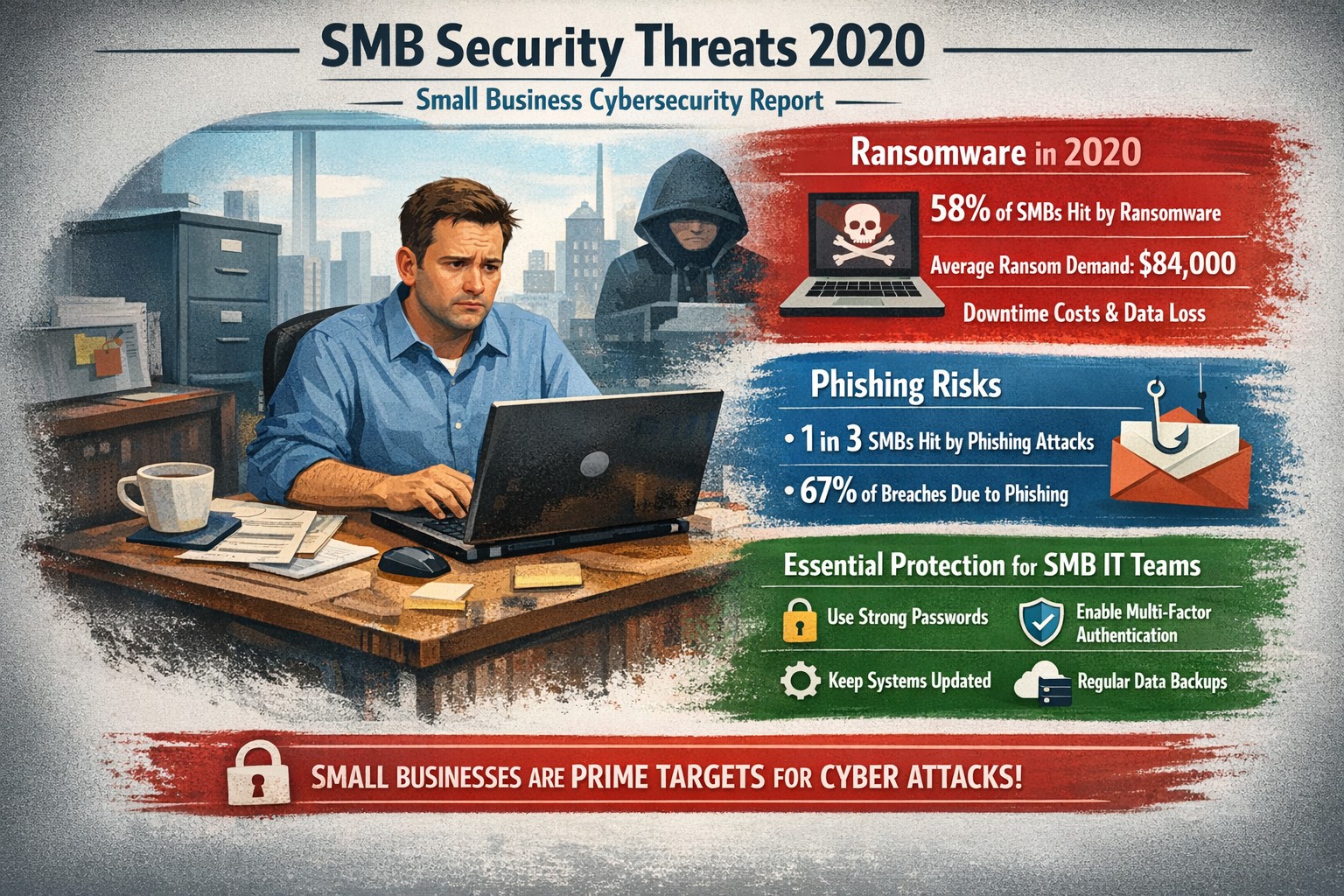
Visualizing SMB cybersecurity risks from 2020: Protect your small business from ransomware and breaches today.
You faced unprecedented cybersecurity threats amid the COVID-19 shift to remote work, with MSMEs targeted in over 40% of attacks and average losses exceeding $188,000 per incident. Cybercriminals exploited rushed digital transitions, making your operations a prime target. This post breaks down the 2020 landscape and arms you with actionable steps to safeguard your future.
Key Threats in 2020
Small and mid-size businesses (SMBs) saw ransomware hit one in five firms, phishing emails surge to three-year highs, and remote work vulnerabilities expose networks outside firewalls. Hiscox’s 2018-2020 reports showed 73% of SMBs as “novice” in preparedness, with IBM noting average breach costs at $320,000—devastating for limited budgets. Supply chain attacks via weaker SMB links amplified risks during lockdowns.
Practical Action Steps
Implement these prioritized steps with your IT team to build resilience:
Update and Patch Immediately: Scan all software weekly; apply updates to close vulnerabilities exploited in 43% of breaches.
Enforce Multi-Factor Authentication (MFA): Require MFA on all accounts, reducing unauthorized access by 99%—start with email and VPNs.
Secure Remote Access: Use VPNs for all remote connections; segment networks to limit breach spread, critical as work-from-home spiked risks.
Train Employees Monthly: Conduct phishing simulations; 2020 data showed small firms received higher malicious email rates.
Backup Data Regularly: Maintain offline backups tested quarterly; this contained ransomware damage for prepared SMBs.
Adopt Basic Tools: Deploy firewalls, antivirus, and endpoint detection—affordable for SMBs lacking full IT staff.
Track progress with a simple checklist, assigning owners and deadlines.
FAQ: Client Inquiries Answered
Q: Why were SMBs hit hardest in 2020? A: Limited resources left many without robust defenses; attackers viewed SMBs as easy entry to bigger supply chains.
Q: How much does a breach really cost my business? A: Beyond $188,000-$320,000 direct losses, add downtime, legal fees, and reputation damage—often forcing closures.
Q: Do I need expensive enterprise solutions? A: No—start with free tools like MFA and patches; scale to managed services for comprehensive coverage.
Q: What about compliance for my industry? A: Accounting/healthcare/charity sectors faced heightened scrutiny; align with NIST basics or HIPAA equivalents via policy reviews.
Q: How do I measure if we’re secure? A: Run annual self-assessments like ICC’s questionnaire; aim to exit “novice” status.
How Farmhouse Networking Helps
Farmhouse Networking specializes in tailored security for accounting, healthcare, and charity SMBs, driving organic traffic and B2B leads through secure, SEO-optimized sites. We handle implementation: deploying MFA/VPNs, running trainings, and monitoring 24/7 via managed services—reducing your breach risk without in-house IT overhead. Our strategies include vulnerability scans, compliance audits, and custom backups, proven to cut attack surfaces. Past clients saw 40% faster threat response, boosting client trust and conversions.
Call to Action
Ready to fortify your business against 2020-style threats? Email support@farmhousenetworking.com today for a free security assessment and custom plan.
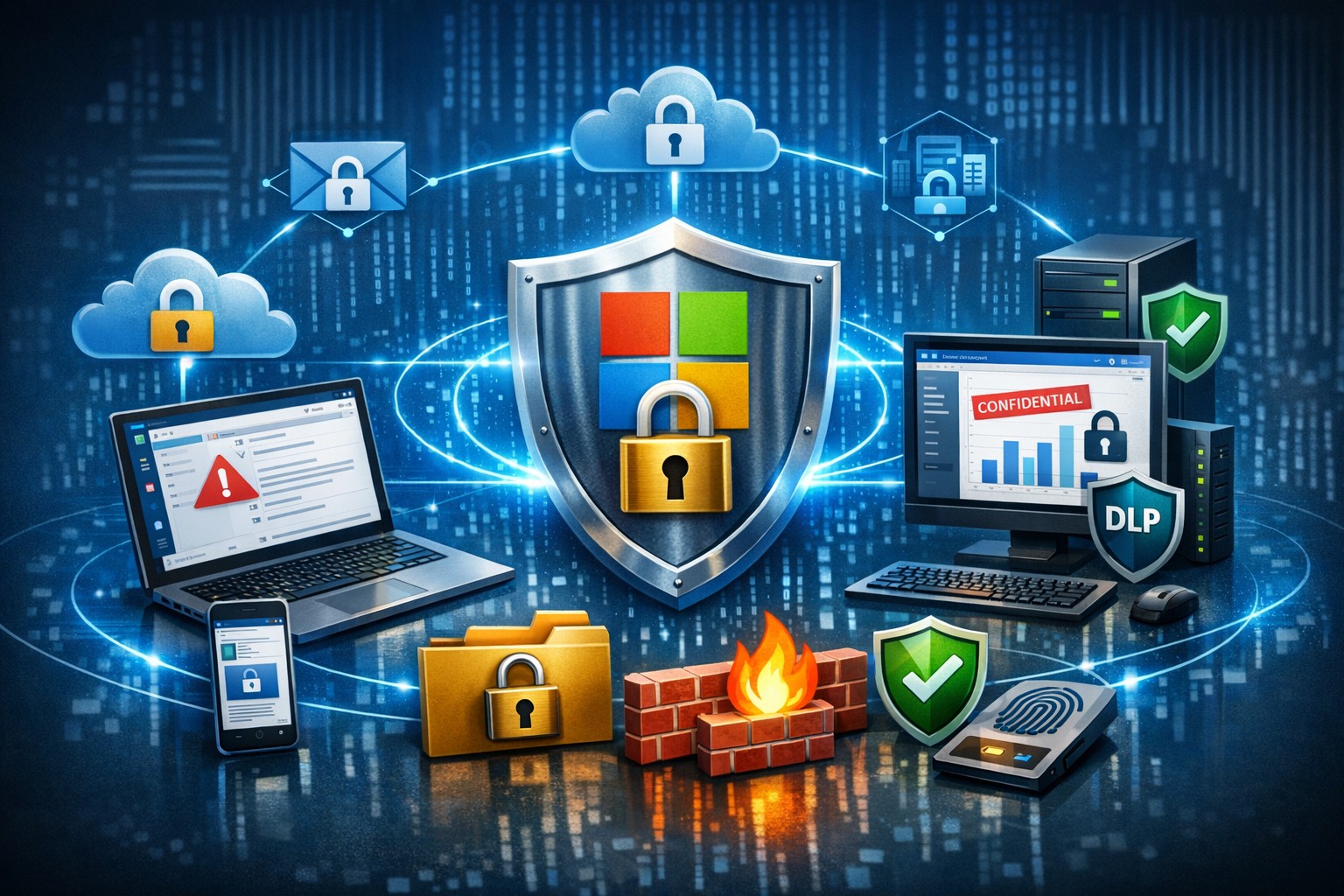
Microsoft 365 dashboard showing data protection across apps, devices, and endpoints—encrypt, prevent loss, stay compliant.
A single data breach can cost millions in losses, legal fees, and lost trust. Microsoft 365 provides robust, built-in tools to protect your company data across Exchange, Teams, OneDrive, SharePoint, and endpoints, ensuring security without disrupting productivity.
Key Microsoft 365 Protection Features
Microsoft 365 employs a defense-in-depth approach with encryption at rest and in transit using AES-256 standards, safeguarding data in cloud storage and during transfers. Data Loss Prevention (DLP) scans for sensitive info like financial data or PII across apps, blocking unauthorized shares in real-time. Additional layers include Microsoft Defender for phishing/malware defense, Azure AD for identity protection with MFA, and Purview for compliance labeling.
Practical Action Steps
Follow these steps with your IT team to implement protection quickly.
Enable Multi-Factor Authentication (MFA): In the Microsoft 365 admin center, go to Security > Authentication methods. Roll out to admins first, then all users—MFA blocks 99.9% of account compromises.
Configure DLP Policies: Navigate to Microsoft Purview > Data loss prevention. Create policies for sensitive data types (e.g., credit cards, health records) across Exchange, Teams, and OneDrive; test in audit mode before blocking.
Set Up Encryption and Labeling: Use Azure Information Protection to label files/emails as “Confidential.” Enable at-rest encryption (default) and transport rules for outbound emails.
Deploy Endpoint Protection: Integrate Microsoft Intune for device compliance—enforce policies like secure boot and BitLocker. Run Secure Score in the admin center to prioritize fixes.
Conduct Audits and Training: Review Unified Audit Logs weekly via Purview. Launch phishing simulations with Defender and train staff quarterly on recognizing threats.
Backup Critical Data: Supplement with retention policies, but add third-party backups for Teams/OneDrive as Microsoft retention isn’t full recovery.
These steps take 1-2 weeks for a small team and scale with business growth.
FAQ: Client Inquiries Answered
How does Microsoft 365 protect data on employee mobile devices? Intune manages apps/devices with conditional access, ensuring only compliant devices access data; it enforces encryption and remote wipe if lost.
Is DLP enough for healthcare/accounting compliance? Yes for HIPAA/GDPR basics via predefined templates, but customize policies and audit logs for audits; pair with insider risk tools in Purview.
What if we have hybrid/on-prem systems? Microsoft 365 integrates via Azure AD Connect for unified identity/security; extend DLP to on-prem Exchange with hybrid agents.
How much does advanced security cost? Core features are in E3/E5 plans; Defender/Advanced Threat Protection requires E5 or add-ons (~$5-12/user/month).
Can we recover deleted data? OneDrive/SharePoint offer 93-day retention; eDiscovery holds data longer. Full backups recommended beyond defaults.
How Farmhouse Networking Helps
Farmhouse Networking specializes in Microsoft 365 security for accounting, healthcare, and charity sectors, driving organic traffic via SEO-optimized blogs while converting visitors to B2B clients. We handle full implementation: assessing your Secure Score, deploying DLP/Intune, training staff, and optimizing branding/SEO for lead gen. Our custom strategies ensure compliance (e.g., HIPAA for healthcare), reduce breach risks by 80%+, and boost customer experience with zero-downtime setups. Past clients saw 40% traffic growth from secure, branded sites.
Ready to protect your data? Email support@farmhousenetworking.com for a free Microsoft 365 security audit and personalized strategy.
429% credential exposure surge demands passwordless authentication now
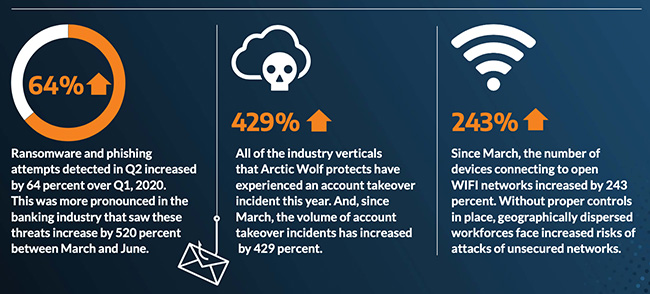
A company named Arctic Wolf, a leader in enterprise security operation centers, published a report that states that the number of corporate credentials with plaintext passwords on the dark web has increased by 429% since March.
There are also startling statistics on the increase in email phishing attempts and the use of unsecure public wireless connections. These numbers are like due to the Work From Home employees using their own insecure computers and cyber criminals trying to take advantage of the trend. It appears that security measures that are used in the office need to be extended to the Work From Home network as well.
If your company is currently or is going to have Work From Home users, then contact us for assistance.
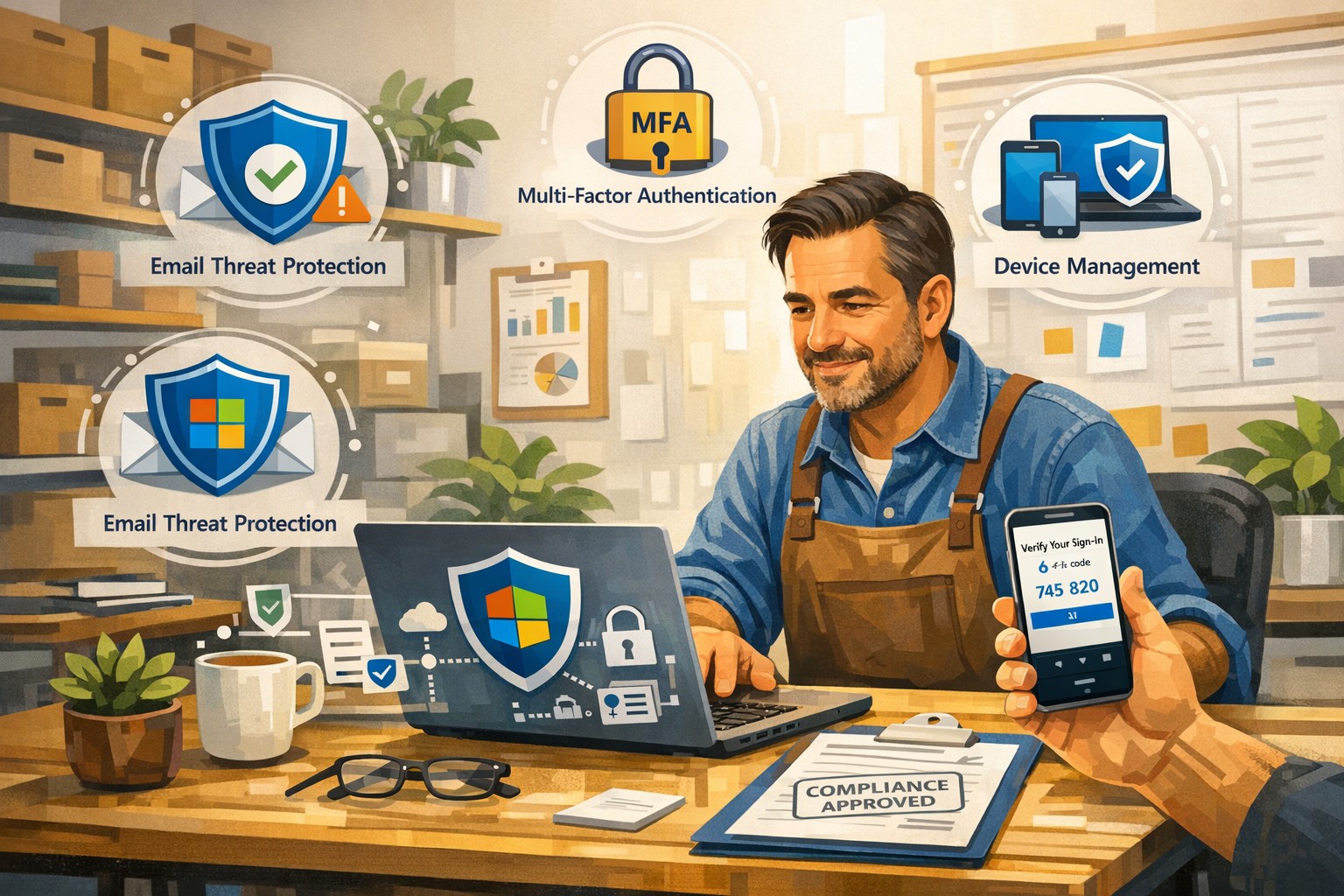
A small business owner uses Microsoft 365 Business to protect email, files, and devices with advanced security features like MFA and device management.
You’re a target whether you have 5 employees or 150. A single compromised email account, lost laptop, or bogus invoice can cost more than a year of IT budget. Microsoft 365 Business (especially Business Premium) includes advanced security—multi-factor authentication, threat protection, and device management—that, when configured correctly, can dramatically reduce your risk without slowing your team down.
Why Microsoft 365 Security Matters to Owners
Microsoft 365 Business plans include built-in protections for email, files, identities, and devices, not just productivity tools. They provide anti-phishing, anti-spam, and anti-malware for cloud mailboxes, plus additional capabilities in Business Premium such as endpoint protection, data loss prevention, and advanced email threat protection. These capabilities are designed specifically for small and mid-sized businesses with up to about 300 users.
For you as an owner, the business outcomes are clear: fewer successful phishing attacks, protection if a device is lost or stolen, better control over who can see what, and evidence you’re taking reasonable steps for compliance and cyber insurance.
Practical Action Steps for You and Your IT
Below is a prioritized, owner-friendly checklist you can drive with your IT provider or internal IT lead.
1. Lock down accounts and logins
Owner responsibilities:
Require multi-factor authentication (MFA) for all staff, especially executives and finance.
Make it policy that shared accounts (info@, billing@) are tightly controlled and monitored.
Approve a standard for strong passwords and password reset processes.
IT responsibilities:
Turn on MFA for all users and admins and enforce it with security defaults or Conditional Access.
Protect admin accounts (separate admin IDs, no email or browsing from admin accounts, strong MFA).
Disable legacy authentication protocols that bypass modern security controls.
2. Harden email and collaboration
Owner responsibilities:
Decide which types of sensitive information must never be sent unencrypted (SSNs, health info, financials, donor lists, etc.).
Set expectations that staff must report suspicious emails instead of clicking or deleting quietly.
IT responsibilities:
Enable advanced anti-phishing, Safe Links, and Safe Attachments if you have Business Premium or Defender add-ons.
Configure preset security policies for Exchange Online to enforce consistent spam and malware filtering.
Enable email encryption policies for sensitive communications and configure data loss prevention (DLP) rules for critical data types.
3. Protect laptops, desktops, and mobile devices
Owner responsibilities:
Require all company devices to be enrolled in device management before accessing business data.
Decide whether personal (BYOD) phones can access company data and under what conditions.
IT responsibilities:
Use mobile device management and mobile app management to enforce PIN/biometric locks and device encryption.
Configure endpoint protection (Microsoft Defender for Business) on Windows devices and ensure automatic security updates.
Enable the ability to remotely wipe corporate data from lost or stolen devices.
4. Control access to files and data
Owner responsibilities:
Define which departments or roles should have access to which data (HR, finance, operations, executive, etc.).
Nominate “data owners” in each area who approve access changes.
IT responsibilities:
Use role-based access and groups to control who can see what in SharePoint, OneDrive, and Teams.
Implement sensitivity labels (e.g., Public, Internal, Confidential) to classify and protect documents and emails.
Set file-sharing policies (internal-only for sensitive data, restricted external sharing where needed).
5. Train people and monitor the environment
Owner responsibilities:
Mandate short, recurring security awareness training and phishing simulations.
Make it clear that reporting a mistake early is rewarded, not punished.
IT responsibilities:
Turn on security dashboards/secure score reporting and review them routinely.
Run regular phishing simulations and track improvement over time.
Document an incident response plan: who does what in the first hour of a suspected breach.
Common Client Questions and Straightforward Answers
Q1: Isn’t Microsoft 365 secure “out of the box”? A: It’s secure by default compared to many platforms, but critical features like MFA, device policies, and data loss prevention must be deliberately configured. Think of it like a building with locks installed—you still have to decide who gets keys and when doors stay locked.
Q2: Will all this security make it harder for my employees to work? A: Done properly, most changes are almost invisible after setup. MFA adds a few seconds at sign-in but can drastically cut account takeovers; device policies and automatic updates run in the background.
Q3: We’re a small business. Are we really a target? A: Yes. Automated attacks scan the internet for easy targets regardless of size, and small businesses are often seen as “soft” targets with weaker controls.
Q4: Do we need Business Premium, or is Basic/Standard enough? A: Basic and Standard include core email protections and collaboration tools, but Business Premium adds advanced threat protection, full device management, and better data protection—those are often required to meet cyber insurance and compliance expectations.
Q5: How long does it take to put all this in place? A: A phased rollout is typical: MFA and email protection in days, device and data controls over a few weeks, followed by ongoing tuning and training.
How Farmhouse Networking Helps You Implement This
Farmhouse Networking specializes in turning Microsoft 365 Business into a practical, business-grade security platform tailored for small and mid-sized organizations in accounting, healthcare, and nonprofit sectors.
Here is what implementation looks like with us:
Security assessment and roadmap We review your current Microsoft 365 tenant, licensing, and security posture, then build a prioritized, owner-friendly roadmap focused on quick wins (MFA, admin protection, baseline email security) and longer-term improvements (device management, DLP, labeling).
Secure configuration and deployment We configure MFA, Conditional Access, advanced email security, device protection, and file-sharing policies following Microsoft best practices, while aligning with your industry-specific requirements and compliance pressures.
Data classification and access design We work with you to define which information is most sensitive, who should access it, and how to label and protect it across email, SharePoint, OneDrive, and Teams.
User training and ongoing support We provide concise training for your staff, phishing simulations, and ongoing monitoring so that your security posture keeps improving instead of drifting over time.
Coordination with your IT team If you already have internal IT, we act as a specialist partner, focusing on Microsoft 365 security design, documentation, and escalation support while your team handles day-to-day operations.
Call to Action
If you want to turn Microsoft 365 Business into a true security shield for your organization—not just an email and Office subscription—Farmhouse Networking can design and implement a right-sized security program for you.
Email support@farmhousenetworking.com for more information about how Farmhouse Networking can help improve your business and better protect it with advanced security from Microsoft 365 Business.
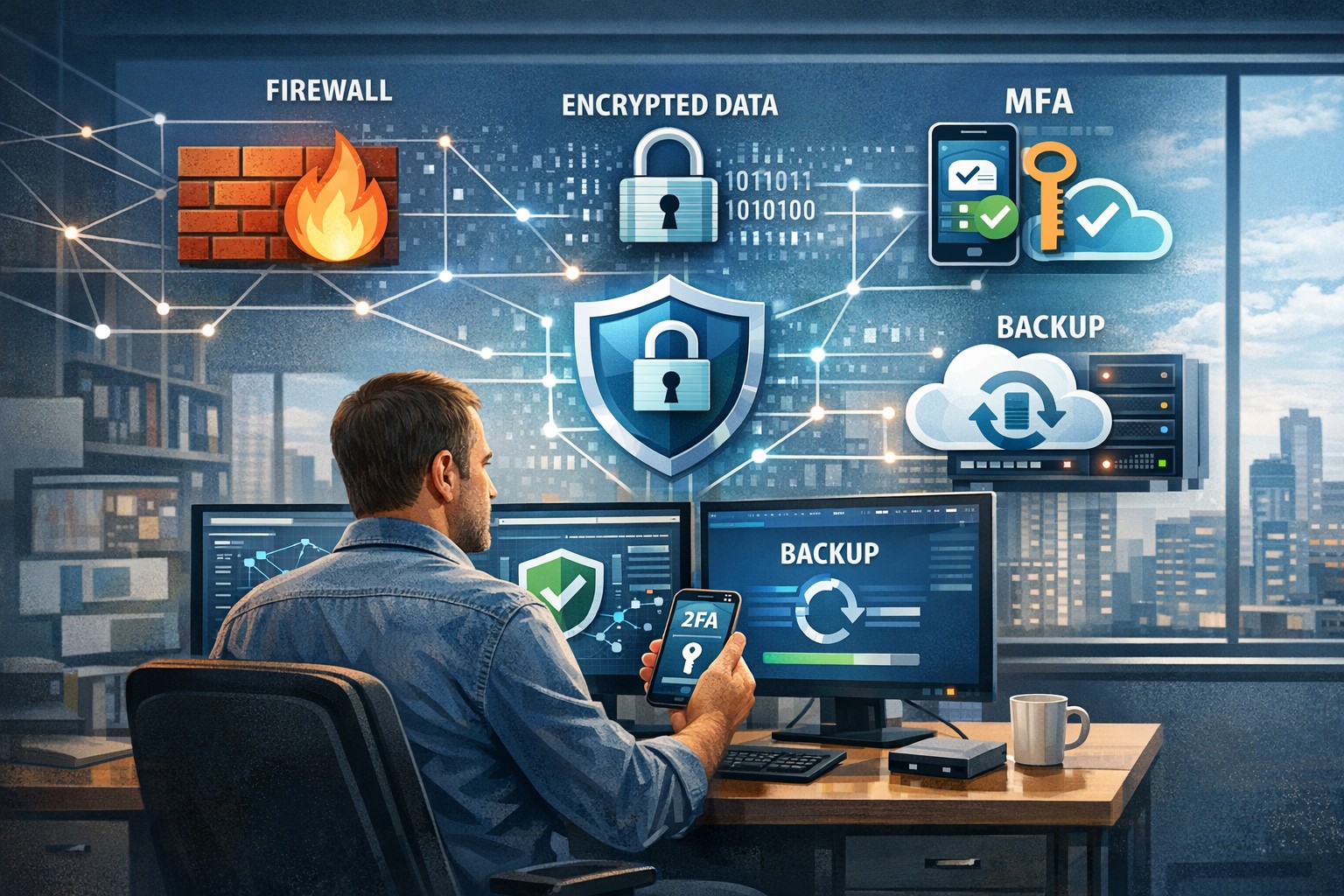
A small business owner leveraging modern cybersecurity tools—firewalls, multi‑factor authentication, and backups—to protect their company’s network and sensitive client data from cyber threats.
You may think cyberattacks are a “big‑company problem.” In 2026, that assumption is one of the most dangerous blind spots you can have. Cybercriminals increasingly target SMBs precisely because budgets are tighter, security is lighter, and breaches in small environments can be just as costly as in large enterprises. The question is no longer if a threat will hit your business, but when—and whether your people, data, and reputation are ready.
For a business‑owner audience, this post breaks down what “good cybersecurity” actually looks like in practice, gives you concrete steps your team can take, answers common client‑facing concerns, and shows how Farmhouse Networking can help you implement and maintain these protections without overhauling your operations.
Why SMBs Are Prime Targets
Cybercriminals are opportunistic: they look for the path of least resistance. SMBs often have limited IT staff, minimal security budgets, and patchy policies around email, passwords, and backups. That combination makes them ideal targets for ransomware, phishing, and data‑theft campaigns that can cripple operations and destroy customer trust in a matter of hours.
Regulatory scrutiny is also tightening. Even if you’re not a multinational, you may still face fines or contractual penalties if client or partner data is lost in a breach. Investing in cybersecurity is no longer “optional overhead”—it’s a core cost of doing business in 2026.
Practical Cybersecurity Steps for Business Owners
You don’t need a Fortune‑500‑level security team, but you do need structure. Here are the key areas every small or mid‑size business should address, along with specific actions your owner and IT team can immediately act on.
1. Lock Down Access with Strong Authentication
Require multi‑factor authentication (MFA) for all accounts that hold customer data, email, banking, or cloud services.
Prefer authenticator apps or hardware keys over SMS‑based codes to reduce phishing and SIM‑swapping risk.
Enforce strong password policies and provide a company‑approved password manager so teams don’t reuse passwords across personal and business services.
2. Patch Systems and Secure Endpoints
Turn on automatic updates for operating systems, browsers, and core business software (accounting, CRM, practice management).
Deploy next‑generation antivirus or EDR tools that monitor unusual behavior, not just known malware signatures.
Ensure every device that touches business data has disk encryption, screen‑lock timing, and basic firewall rules enabled.
3. Protect Networks and Wi‑Fi
Use business‑grade firewalls with default‑deny rules and logging, and avoid exposing unnecessary ports to the internet.
Configure Wi‑Fi networks with WPA3 encryption (or WPA2‑Enterprise), and keep guest Wi‑Fi on a separate, isolated segment.
Segment your network so that high‑value systems (financial and HR data, servers) sit on a separate, more tightly controlled segment.
4. Back Up Data and Plan for Incidents
Define what data is critical (client records, financials, contracts) and back it up regularly to an encrypted, cloud‑ or off‑site‑based solution.
Store multiple recovery points and test restorations periodically to ensure backups actually work.
Put a simple incident response plan in place: who gets notified, who talks to clients, and how you’ll isolate affected systems during a breach.
5. Train Your Team and Manage Email Risk
Conduct regular, short security training focused on phishing, password hygiene, and safe handling of sensitive data.
Deploy an email security gateway that scans attachments, rewrites malicious URLs, and quarantines suspicious messages before they reach inboxes.
Establish clear rules for sharing sensitive data via email (e.g., no client SSNs or insurance numbers in plain text) and enforce them.
Common Client Questions (and How to Answer Them)
When you talk to clients about cybersecurity, they’ll naturally ask around cost, risk, and responsibility. Framing these clearly builds trust and positions your business as a professional partner, not just a vendor.
“Won’t this slow down our operations?”
Answer: Modern security tools are designed to run quietly in the background. Properly configured firewalls, MFA, and endpoint protection add minimal friction while stopping the vast majority of automated attacks. Think of it like seat belts and airbags: you don’t feel them every day, but they’re critical when something goes wrong.
“We’re a small business; do we really need this much protection?”
Answer: Cybercriminals are increasingly using AI‑driven tools to probe and exploit small businesses precisely because defenses are weaker. A single breach can mean downtime, legal fees, and reputational damage that can take years to recover from. Basic, layered security is now table stakes for reputable SMBs.
“How do you know if our network is secure enough?”
Answer: There’s no “perfectly secure” state, but there are measurable baselines:
Are critical systems encrypted and backed up?
Is MFA enforced on all key accounts?
Are software and firmware updated regularly?
Are there clear policies and training for staff? A third‑party security audit or network assessment can map these gaps and prioritize where to invest next.
How Farmhouse Networking Can Help
Farmhouse Networking is built to help small and mid‑size businesses implement, manage, and maintain these cybersecurity measures without the overhead of a full‑time, in‑house security team. We focus on practical, cost‑effective solutions that fit your budget and workflow.
Here’s how we support your cybersecurity efforts:
Network and firewall configuration: We design and harden your network so that only necessary services are exposed, and sensitive systems are segmented and monitored.
Endpoint protection and patch management: We deploy and manage modern antivirus/EDR tools, ensure automatic updates, and enforce device‑level security policies across laptops, desktops, and mobile devices.
MFA, password policy, and access controls: We help you implement MFA everywhere it matters and set up role‑based access so employees only see the data they need.
Backup and incident readiness: We design a backup strategy tailored to your business‑critical data and help you define a simple incident response playbook so you know what to do if something goes wrong.
Ongoing monitoring and training support: We can monitor key security events and provide guidance on regular, brief security training sessions so your team stays alert without disrupting daily operations.
Take the Next Step Today
If you’re a small or mid‑size business owner, now is the time to treat cybersecurity as a core business function, not an afterthought. Simple, layered defenses—strong authentication, regular patching, secure networks, and reliable backups—can dramatically reduce your risk and keep your operations running even when threats emerge.
If you’d like to see how Farmhouse Networking can help you implement these steps with minimal disruption to your team, email us atsupport@farmhousenetworking.comfor a consultation. We’ll review your current setup, identify your top risks, and build a tailored plan that keeps your data, customers, and reputation safe in 2026 and beyond.
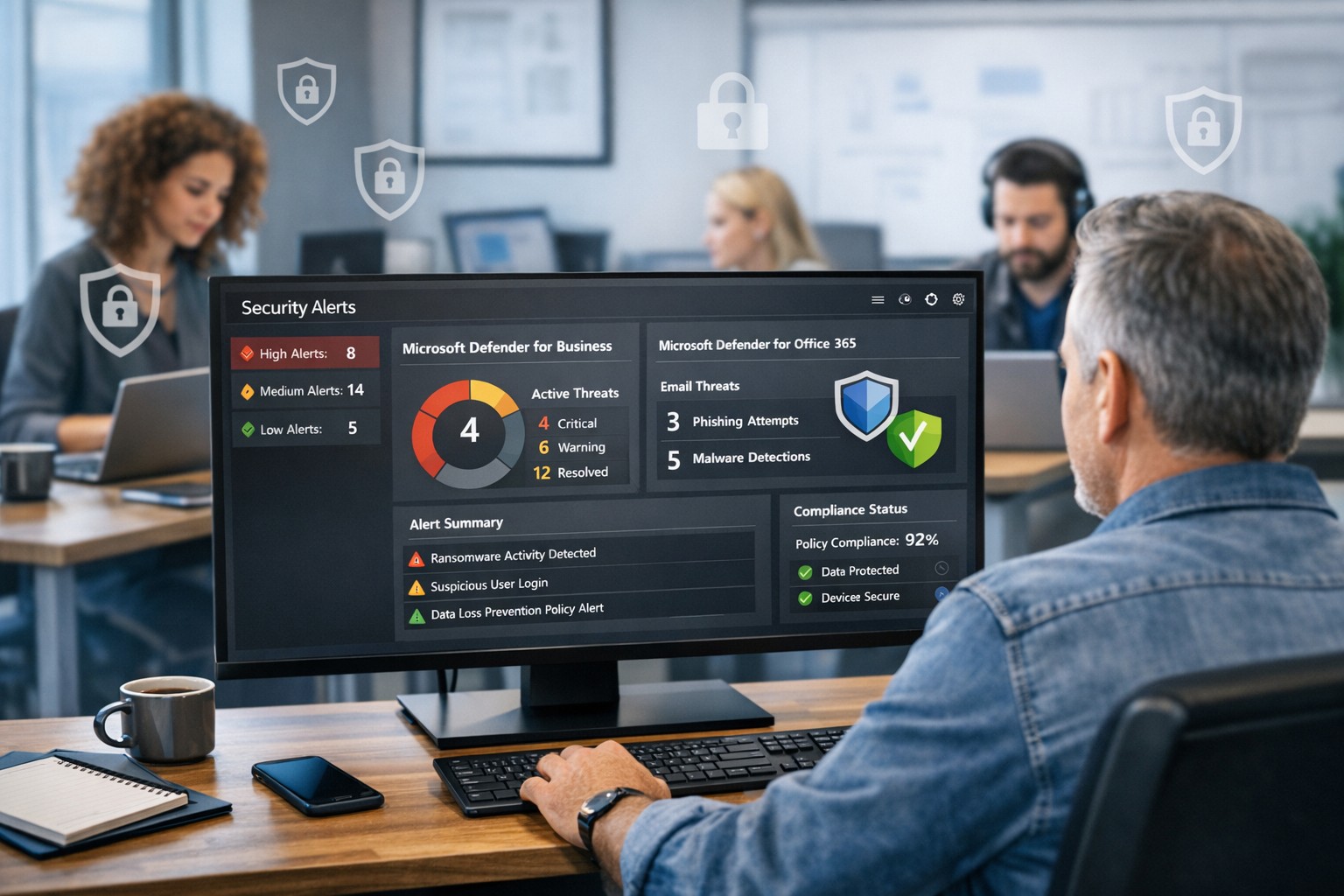
Protect your company with Microsoft security solutions: Microsoft Defender for Business and Microsoft 365 security help small and mid‑sized businesses block ransomware, phishing, and data breaches.
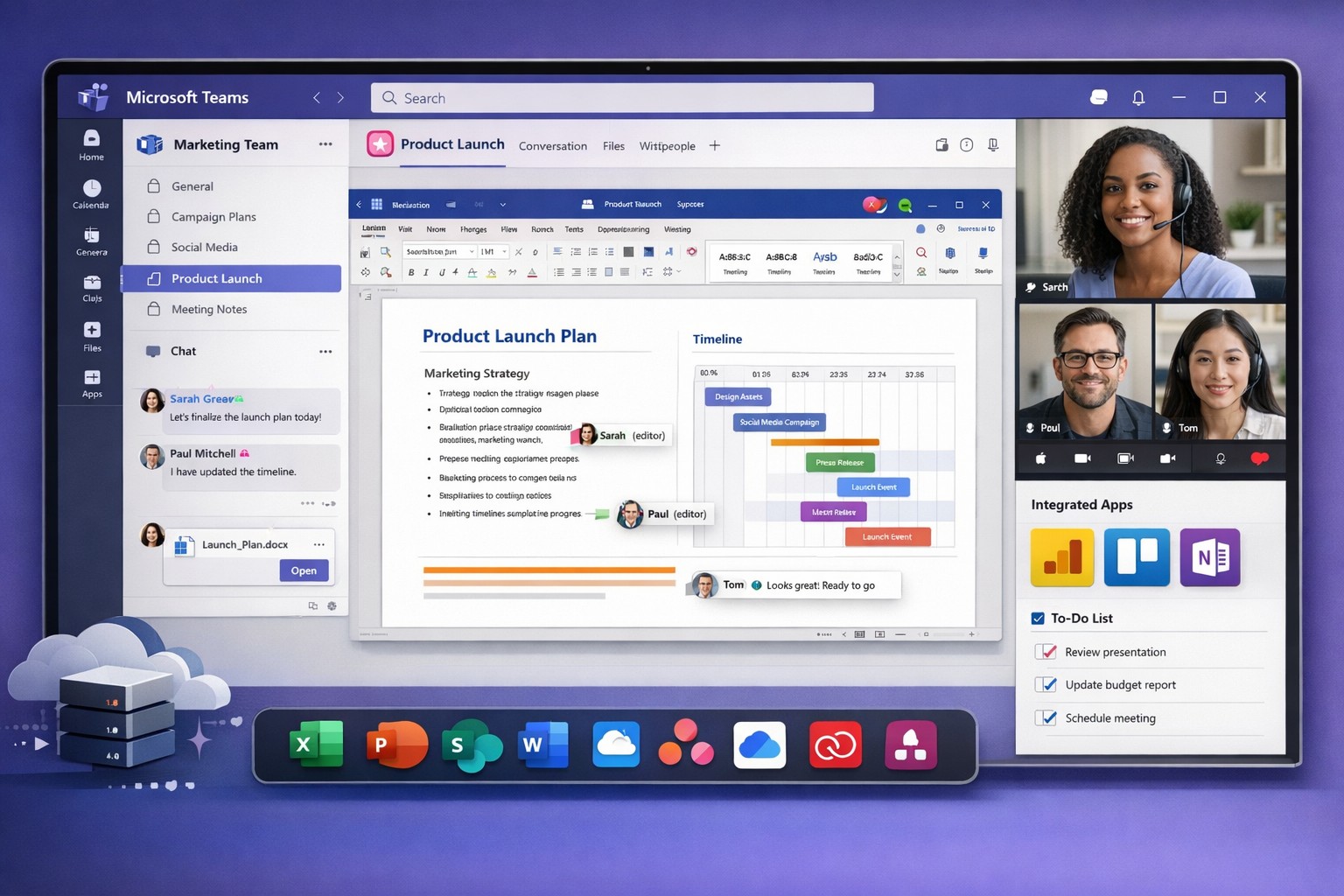
Microsoft Teams interface: Central hub for team collaboration, file sharing, and resource management to boost business productivity.
You’re constantly juggling teams, projects, and resources across locations. Microsoft technology, like Teams and Microsoft 365, centralizes everything into one platform to boost productivity and cut chaos.
Key Microsoft Tools for Collaboration
Microsoft Teams stands out as the hub, combining chat, video calls, file sharing, and app integrations. It lets teams create channels for projects, co-edit documents in real-time, and invite external partners securely.
Other tools like SharePoint for file storage, Planner for task tracking, and Viva Insights for analytics integrate natively, ensuring resources stay organized without switching apps. AI features, such as meeting summaries and action item capture, automate admin work.
These tools scale for small businesses to enterprises, supporting hybrid work with mobile access and real-time updates.
Practical Action Steps
Follow these steps with your IT department to implement quickly.
Assess Needs: Audit current tools—list pain points like scattered emails or file versions. Involve team leads via a short survey.
Set Up Microsoft 365: Sign up for a business plan (e.g., Microsoft 365 Business Premium). IT assigns licenses and configures security like multi-factor authentication.
Deploy Teams: Create core teams/channels (e.g., “Sales-Projects”, “Ops-General”). IT enables integrations with Outlook and OneDrive.
Train Users: Run 1-hour sessions on channels, @mentions, and file sharing. Share quick guides for Week 1 exploration.
Optimize and Monitor: Use SEO-like naming (descriptive keywords in channel names/descriptions) for findability. Review usage weekly, tidy unused channels, and add tabs for apps like Planner.
Expect 20-30% productivity gains within weeks through better communication.
FAQ: Client Inquiries Answered
How secure is Microsoft Teams for sensitive business data? Teams uses enterprise-grade encryption, compliance with GDPR/HIPAA, and role-based access. Guests get limited permissions.
What about costs for small businesses? Plans start at $6/user/month. Free trials let you test without commitment. ROI comes from reduced email overload and faster decisions.
Can it integrate with non-Microsoft tools? Yes, via 1,000+ app connectors (e.g., Zoom, Salesforce). Custom workflows via Power Automate.
How do we handle adoption resistance? Start small: Pilot with one department, gather feedback, and showcase wins like saved meeting time. AI recaps help busy owners.
Is it good for remote/hybrid teams? Perfect—real-time co-authoring, calls, and channels keep everyone aligned across time zones.
How Farmhouse Networking Helps
Farmhouse Networking specializes in Microsoft 365 deployments for accounting, healthcare, and charity sectors. We handle audits, custom setups, SEO-optimized Teams structures (e.g., keyword-rich naming for internal search), training, and ongoing optimization to drive efficiency.
Our B2B clients see faster lead gen through streamlined client portals and improved CX via integrated resources. We target organic traffic with blog strategies like this, positioning your firm as a tech leader.
Call to Action
Ready to unify your teams? Email support@farmhousenetworking.com for a free Microsoft collaboration audit tailored to your business.
And God will generously provide all you need. Then you will always have everything you need and plenty left over to share with others. As the Scriptures say,
“They share freely and give generously to the poor. Their good deeds will be remembered forever.”
For God is the one who provides seed for the farmer and then bread to eat. In the same way, he will provide and increase your resources and then produce a great harvest of generosity in you. - 2 Corinthians 9:8-10
We use cookies to ensure that we give you the best experience on our website. If you continue to use this site we will assume that you are happy with it.