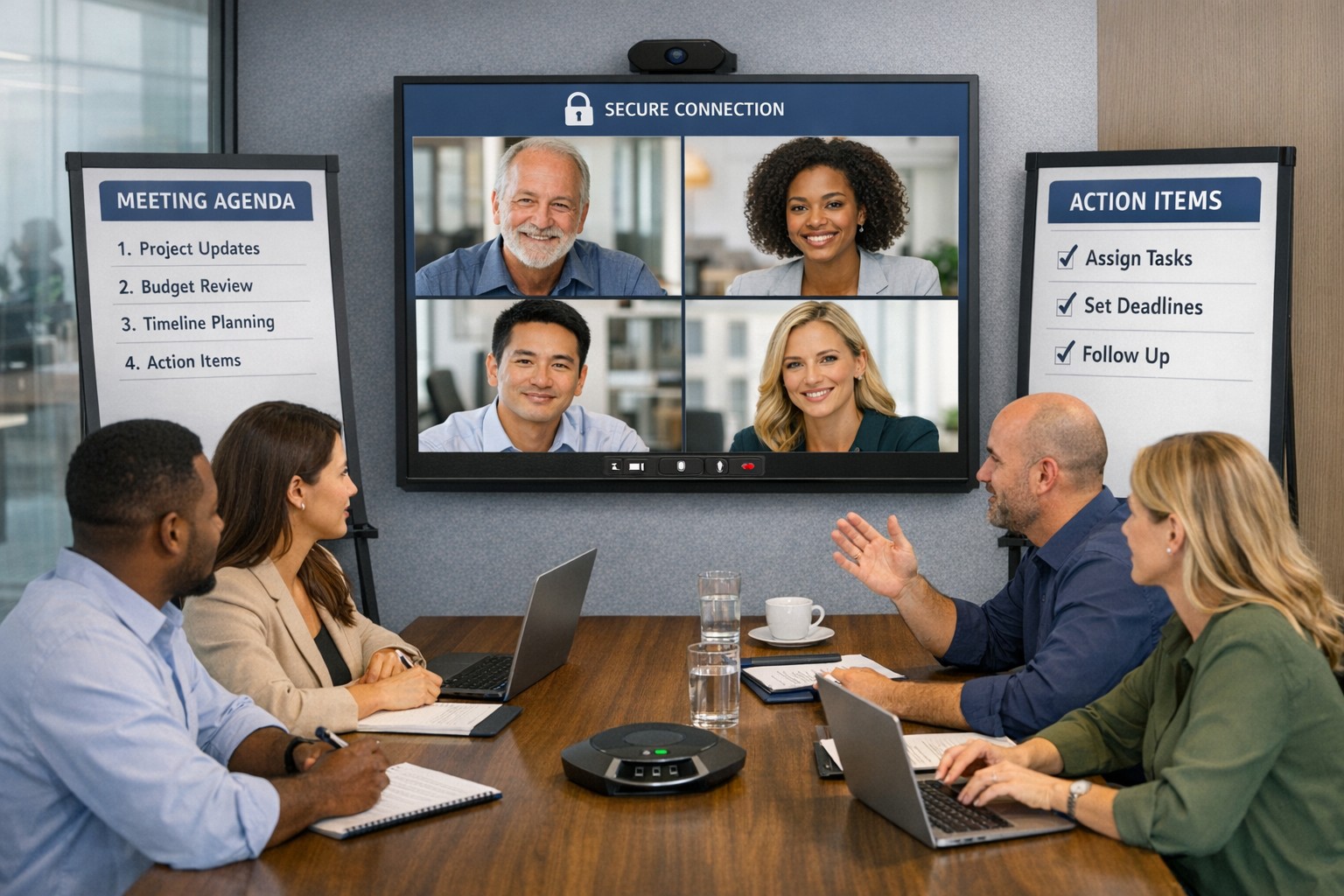
Using the right collaboration tools and strategies helps teams communicate faster, reduce silos, and get more done together.
Up to 80% of employees’ time is spent on collaborative activities—emails, meetings, and informal coordination. Yet many businesses still struggle with communication breakdowns, duplicated effort, and siloed teams. For a business owner, this isn’t just a “people problem”; it’s a productivity and profitability problem. The good news is that a few well‑chosen tools and strategies can unblock collaboration and give your organization a clear competitive edge.
Below are five practical tool categories and strategies tailored to business owners, plus specific actions your leadership and IT teams can take to implement them.
1. Centralize Communication with a Unified Platform
Many teams juggle email, texts, Slack‑like apps, and project tools, which fragments information and creates confusion. A unified communication platform (for example, Microsoft 365 with Teams–style capabilities) keeps chats, calls, files, and tasks in one place. This reduces missed messages, speeds up decisions, and makes onboarding new staff easier.
Action steps for you and your IT team:
Audit current tools; identify redundant channels and sunset ones that are underused.
Choose one primary communication suite aligned with your existing infrastructure.
Configure clear norms: which channel is for urgent issues, which is for project updates, and which is for casual conversation.
Train staff with short, role‑specific sessions (e.g., “how to create a team channel” vs. “how to share a secure file”).
2. Use Project Management and Task‑Tracking Tools
Without visibility into who is doing what, teams waste time chasing status updates and reworking tasks. Project management tools such as Asana‑style platforms or similar task‑tracking systems help teams align on goals, deadlines, and deliverables. They also surface bottlenecks before they become major delays.
Action steps:
Define 2–3 core workflows (e.g., client onboarding, internal reporting, campaign launches) that will live in the tool.
Assign an “owner” for each workflow and task to ensure accountability.
Integrate the tool with your central communication platform so updates appear automatically (e.g., “Task completed” posts to a project channel).
Review dashboards weekly in leadership meetings to spot recurring delays or capacity issues.
3. Standardize Document Collaboration and Access
Version confusion—multiple copies of the same file circulating by email—wastes hours and creates compliance risks. Cloud‑based document collaboration (e.g., shared workspaces with real‑time editing and audit trails) keeps everyone on the same version and improves governance.
Action steps:
Migrate all operational documents into a single secure collaboration platform.
Set consistent folder structures and naming conventions (e.g., “ClientName_ProjectName_YYYYMMDD”).
Define permission levels: who can edit, who can comment, and who can only view.
Automate versioning and retention rules so older drafts are archived, not deleted.
4. Train Teams on Collaboration Norms (Not Just Tools)
Tools only work if people understand how to use them effectively. Studies show that poor training and unclear norms are major blockers to digital collaboration. Investing in short, ongoing training and clear collaboration guidelines pays back in faster decision‑making and less friction.
Action steps:
Roll out a “Collaboration Playbook” with simple rules: response‑time expectations, meeting‑free blocks, and escalation paths.
Host quarterly micro‑training sessions (15–20 minutes) focused on one tool or behavior, such as giving feedback in shared documents.
Encourage managers to model the behavior they want—using the right channels, documenting decisions, and tagging tasks clearly.
Survey staff every six months to identify new pain points and refine norms.
5. Measure and Iterate on Collaboration Performance
Leadership often assumes collaboration is “working,” but without metrics, issues remain hidden. Tracking collaboration effectiveness—such as cycle times for key workflows, meeting‑to‑decision ratios, and employee feedback—lets you spot what is and isn’t working.
Action steps:
Define 3–5 key collaboration KPIs (e.g., average time to close a client request, number of “urgent” emails vs. structured tickets, employee survey scores on “feeling heard”).
Set up simple dashboards in your project or collaboration tools so you can review them monthly.
Host quarterly “collaboration health checks” where leadership and team leads discuss what to start, stop, or change.
Adjust tools, training, and processes based on the data, not just opinions.
Frequently Asked Questions (For Your Clients)
Q: How do we choose the right collaboration tools without over‑complicating everything? A: Start with your existing ecosystem (e.g., Microsoft 365, Google Workspace) and extend it; avoid introducing too many new brands. Pilot one tool for a single department, measure impact, then scale if it improves speed and clarity.
Q: Won’t collaboration tools just create more noise and notifications? A: Only if there are no clear rules. Define communication norms, mute non‑essential channels, and train teams on “signal vs. noise” to keep collaboration productive, not chaotic.
Q: How do we get remote or hybrid teams to collaborate effectively? A: Treat remote and in‑office staff the same: use the same tools, agendas, and documentation. Default to “everything is recorded or written” so no one is left out of the loop.
Q: What’s the role of IT versus leadership in this process? A: IT owns setup, security, and integration; leadership owns behavior, expectations, and culture. Both need to align on goals and metrics.
How Farmhouse Networking Can Help
Farmhouse Networking specializes in helping business owners remove the friction from workplace collaboration by aligning technology with real‑world workflows. We can help you:
Audit your current tools and collaboration pain points.
Design and deploy a secure, unified communication and collaboration stack tailored to your industry and team size.
Integrate project management, file sharing, and communication tools into a single, intuitive experience.
Provide staff training and ongoing support so your investment translates into measurable productivity gains.
Ready to Unblock Your Team’s Collaboration?
If you’re a business owner who is tired of endless email threads, missed deadlines, and siloed information, it’s time to rethink how your team collaborates.
Email us at support@farmhousenetworking.com for more information about how Farmhouse Networking can help improve your business—from tool selection and deployment to training and ongoing optimization.
Implement these hybrid meeting best practices to reclaim hours weekly.
Tired of meetings that drain time and productivity? As a business owner, mastering meetings can reclaim hours weekly, sharpen decisions, and drive growth. This guide delivers actionable steps tailored for you and your IT team.
Why Meetings Matter
Effective meetings align teams, solve problems, and spark innovation—yet poor ones waste 20-30% of work hours. Business owners who optimize them see faster execution and higher morale. Focus on purpose-driven gatherings to transform your operations.
Practical Action Steps
Follow these steps with your team and IT department for immediate impact.
Assess Meeting Necessity: Before scheduling, ask: “Does email or async update suffice?” Cancel 30% of meetings by testing this weekly.
Craft Clear Agendas: Draft agendas 48 hours ahead with goals, topics as questions, time allocations (e.g., 10 mins per item), and attendees. Share via shared doc.
Set Tech Foundations: IT audits tools—ensure Zoom/Teams licenses, stable Wi-Fi (100Mbps+), backups like Google Meet. Test hybrid setups: cameras, microphones, screen sharing.
Run Structured Sessions: Start on time with purpose recap. Use timer for topics. Assign action items with owners/deadlines. End early if done.
Follow Up: IT logs recordings securely; send minutes within 24 hours with tasks tracked in tools like Asana or Trello.
Review and Iterate: Post-meeting, survey: “What worked? Improve?” Trim recurring meetings under 15 mins for huddles.
These cut meeting time by half while boosting outcomes.
FAQ: Client Inquiries Answered
Address common questions from accounting, healthcare, or charity clients.
How do we handle hybrid meetings? Prioritize equal participation: IT enables “raise hand” features, shared notes. Use noise-canceling mics and 4K cameras for remote clarity.
What if meetings overrun? Enforce time boxes; have a timekeeper. Shift overflow to async channels like Slack threads.
How to engage quiet team members? Start with round-robin input. Pose questions early. For virtual, use polls/reactions.
Best tools for secure meetings? Enterprise-grade like Microsoft Teams (HIPAA-compliant for healthcare) with end-to-end encryption. IT verifies compliance yearly.
How often for different meetings? Daily huddles (15 mins), weekly managers (30 mins), quarterly strategy (2 hours).
How Farmhouse Networking Helps
Farmhouse Networking specializes in IT solutions for accounting, healthcare, and charity sectors. We audit your meeting tech stack, deploy secure video platforms, optimize networks for lag-free hybrid calls, and train teams on best practices. Our SEO-driven blogs and custom strategies have helped clients cut meeting waste by 40%, freeing time for client wins. From branding your site to lead-gen automation, we handle it all.
Call to Action
Ready to make every meeting count? Email support@farmhousenetworking.com for a free meeting efficiency audit tailored to your business.
According to the Microsoft Office 365 development roadmap, an exciting new feature is coming to Microsoft Teams:
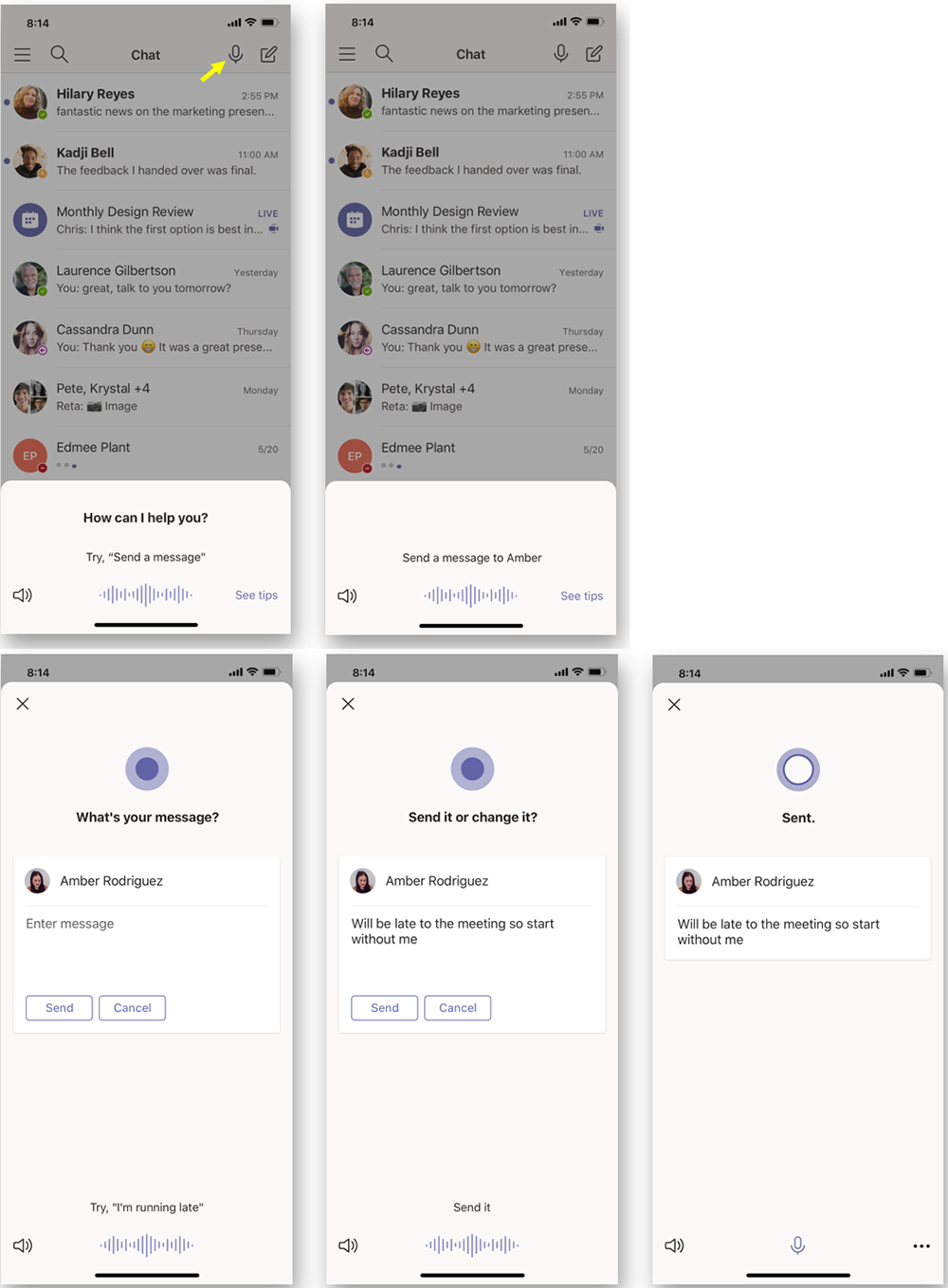
“Cortana is coming to the Teams mobile app, using AI and the Microsoft Graph to provide voice assistance in Teams. To stay connected to your team even when you have your hands full, click the microphone button on the top right and ask Cortana to make a call, join a meeting, send chat messages, share files, and more. These voice assistance experiences are delivered using Cortana enterprise-grade services that meet Microsoft 365 privacy, security and compliance commitments. Cortana will be available in the Teams mobile app on iOS and Android in the coming weeks for Microsoft 365 Enterprise users in the U.S. in English.”
Voice profiles transform generic transcripts into actionable intelligence
If your company is looking to collaborate with your office effectively, then contact us for assistance.
This question came to light while talking to a vendor about backups. It turns out that Microsoft does not backup any of your Office 365 data but does have aggressive redundancy in place. This is both good and bad, here is why:
Email
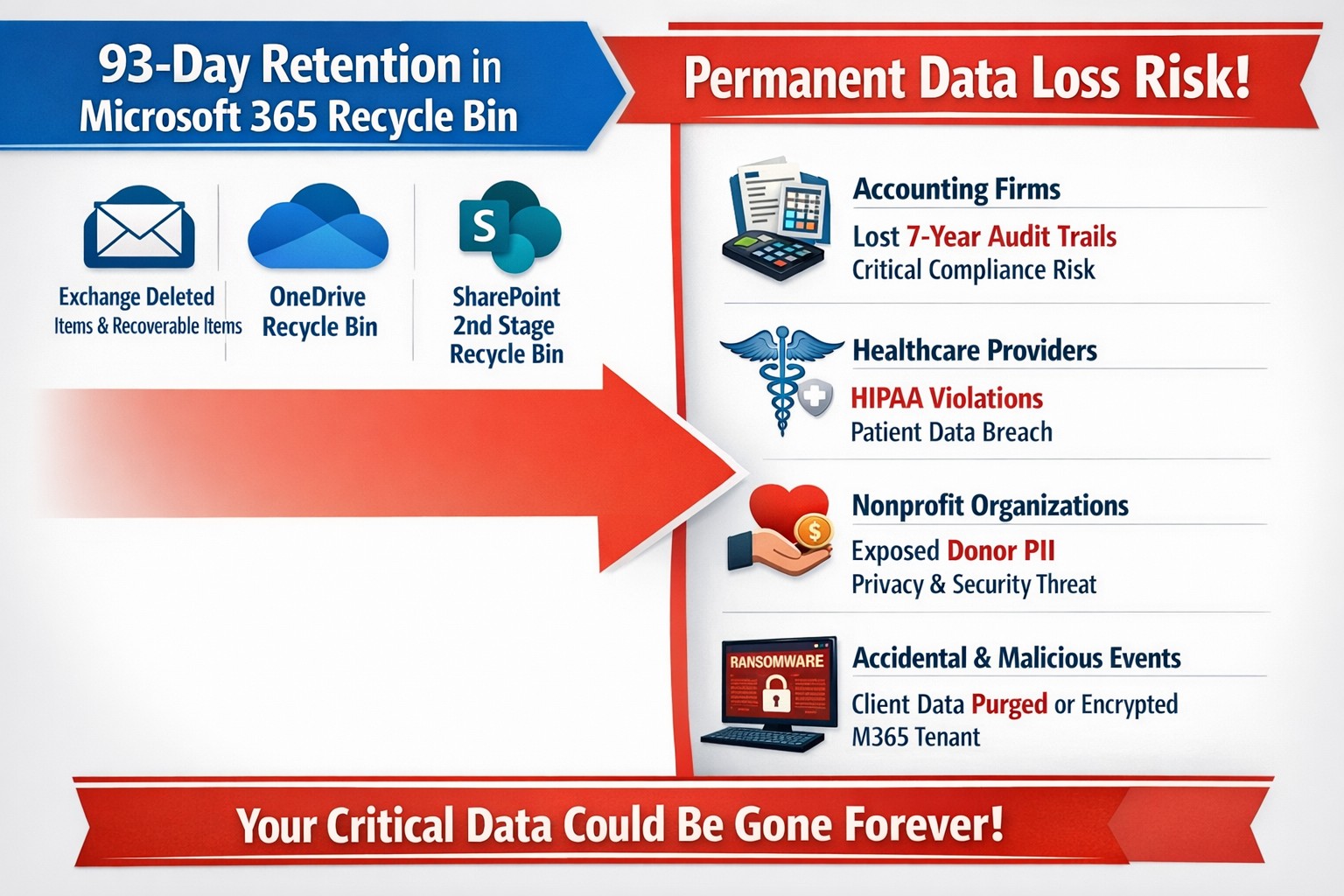
Microsoft has several levels of redundancy / resiliency / protection to keep email data from being corrupted, keep multiple copies of all email data, and scan emails for security threats. If there is ever any data issues then their systems automatically detect the problem and work to fix them or when threats are detected they are automatically remediated. There is also a recycle bin for emails and users that lasts from 30 to 90 days. Once that time is over there is no recourse for getting the data back.
Sharepoint & OneDrive
Microsoft here again has deep redundancy to protect your data from corruption, but they do nothing to check for malware or cryptoware. There is something called versioning that can help with some cryptoware, but not all. There is also a recycle bin for these services that could possibly help.
There are several apparent gaps in coverage that Microsoft does not deal with, but there are third-party services that have stepped in to do just that. If your company is looking to keep their Office 365 data safe from internal and external threats, then contact us for assistance.
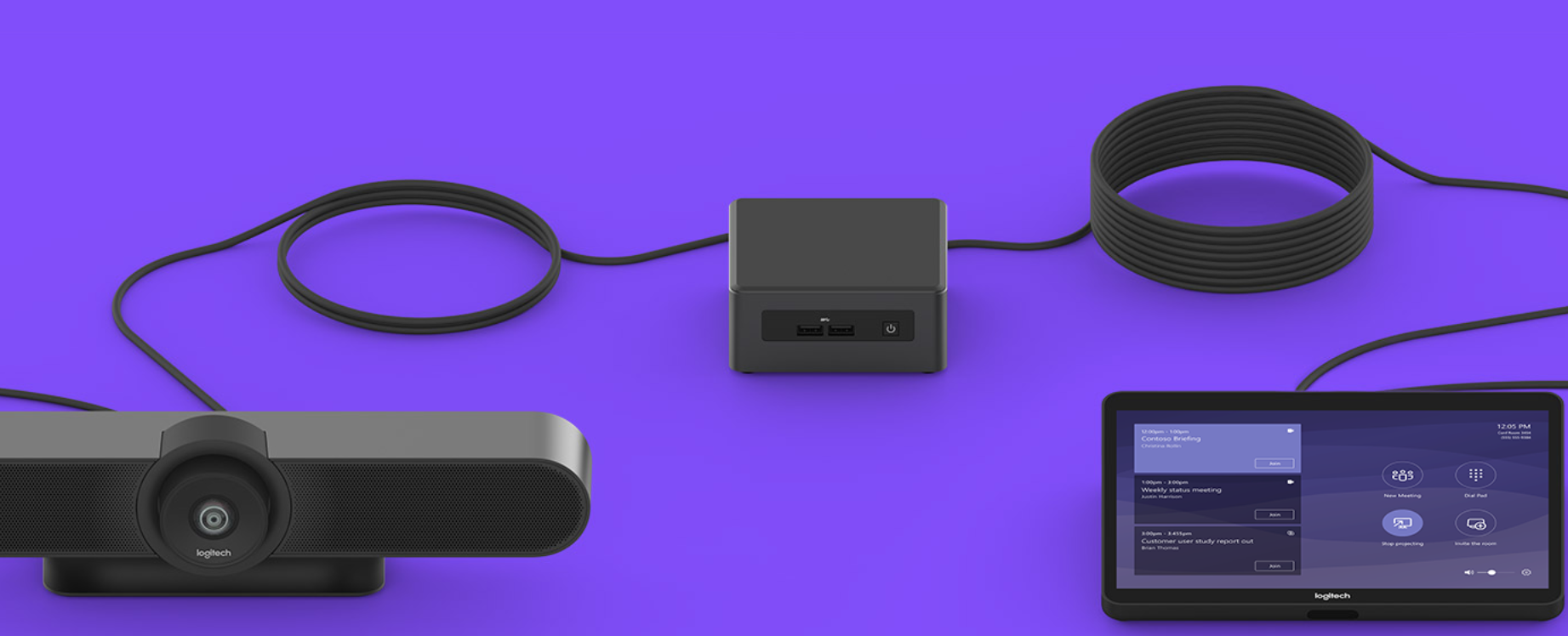
Had the pleasure of helping a local company, that has expanded out to several nearby counties, keep in touch with everyone through video conferencing. They had been working from a laptop connected to a big screen TV for months, but were not able to get everyone in their new conference room into the frame. Farmhouse Networking recommended the Logitech Tap conference room system for them because they are using Microsoft Teams for their video conferencing as it is included with their Office 365 subscription.
What is Tap?
Tap is Logitech’s solution bundle to create an easy to use video conference room experience. It comes with
A large Logitech Meet-Up conference camera that has integrated speakers / microphone, ability to pan and zoom around the room automatically to whomever is speaking, and remote control for manual adjustments.
An Intel NUC (Next Unit of Computing) mini PC that is specifically programmed to function as the host for the meetings.
A Logitech Tap touch controller that makes creating and managing meetings a breeze. Meetings are setup, screens are shared, and conferences are controlled with just a touch.
All the mounting and cables that are needed to get the system connected.
If your company is looking to upgrade your conference room experience, then contact us for assistance.
And God will generously provide all you need. Then you will always have everything you need and plenty left over to share with others. As the Scriptures say,
“They share freely and give generously to the poor. Their good deeds will be remembered forever.”
For God is the one who provides seed for the farmer and then bread to eat. In the same way, he will provide and increase your resources and then produce a great harvest of generosity in you. - 2 Corinthians 9:8-10
We use cookies to ensure that we give you the best experience on our website. If you continue to use this site we will assume that you are happy with it.