Key network monitoring tools every small business needs for optimal performance
As a business owner, you know reputation and customer trust are everything. But cybercriminals don’t discriminate by size—small and midsize businesses (SMBs) are increasingly the targets of ransomware and data theft. CIS Critical Security Control 13 gives you a practical way to stay ahead of attackers and protect your company’s future.
Practical Action Steps for SMBs:
Enable real-time network monitoring: Know immediately if your systems are under attack.
Centralize your logs: Aggregate data to detect issues before they escalate.
Set threshold-based alerts: Don’t wait until damage is visible to respond.
Review reports regularly: Make monitoring part of monthly executive/IT reviews.
Q&A for SMBs:
“Aren’t we too small for hackers to notice?” No—SMBs are now among the most targeted because criminals assume defenses are weak.
“Do I need an in-house IT team for this?” Not necessarily—outsourced experts can cost-effectively handle monitoring for you.
How Farmhouse Networking Helps: Farmhouse Networking provides SMBs with managed network monitoring, advanced alerts, and proactive defense strategies. We scale solutions to fit your size, budget, and growth goals.
Don’t leave your business exposed. Email Farmhouse Networking today and start building stronger defenses for lasting success.
Small and medium-sized businesses (SMBs) are increasingly adopting cloud technologies to streamline operations, improve scalability, and reduce costs. However, with this shift comes a growing risk of cyberattacks targeting cloud environments. For SMBs, which often lack extensive IT resources, these threats can be devastating. Enter Security Information and Event Management (SIEM) solutions—a powerful tool that can help SMBs safeguard their cloud infrastructure.
Why SMBs Are Vulnerable to Cloud Attacks
SMBs face unique challenges when it comes to cybersecurity:
Limited IT Resources: Many SMBs lack dedicated security teams or the expertise to monitor and respond to threats.
Budget Constraints: Investing in enterprise-grade security tools can be prohibitively expensive.
Sophisticated Threats: Cybercriminals are increasingly targeting SMBs, knowing they may have weaker defenses compared to larger enterprises.
Cloud environments add another layer of complexity, as they introduce new vulnerabilities such as misconfigured settings, unauthorized access, and data breaches. Without proper monitoring and response mechanisms in place, these risks can spiral out of control.
How a SIEM Solution Protects Your Cloud Environment
A SIEM solution offers a centralized platform for monitoring, detecting, and responding to cybersecurity threats in real time. Here’s how it specifically benefits SMBs:
Centralized Threat Monitoring: SIEM consolidates security data from various sources—cloud applications, firewalls, endpoint devices, and more—into a single dashboard. This holistic view allows SMBs to monitor their entire cloud environment efficiently.
Early Detection of Threats: By analyzing data in real time and applying advanced correlation rules, a SIEM detects suspicious activities such as unauthorized logins or unusual data transfers. Early detection helps SMBs act swiftly before an attack escalates.
Automated Incident Response: Many SIEM solutions offer automated responses to mitigate threats immediately. For example, they can isolate compromised systems or block malicious IP addresses without human intervention. This is particularly valuable for SMBs with lean IT teams.
Simplified Compliance: Meeting regulatory requirements like GDPR or HIPAA can be daunting for SMBs. A SIEM simplifies this by automating compliance reporting and maintaining detailed audit logs. This not only ensures legal compliance but also builds customer trust.
Cost-Effective Security: Cloud-based SIEM solutions are particularly well-suited for SMBs because they reduce the need for expensive on-premises infrastructure. Subscription-based models make enterprise-level security accessible without breaking the bank.
Scalability: As your business grows, so do your cybersecurity needs. Modern SIEM solutions are highly scalable, allowing SMBs to adapt their security posture without overhauling their existing systems.
Choosing the Right SIEM Solution for Your Business
When selecting a SIEM solution for your SMB, consider the following:
Ease of Use: Opt for a user-friendly interface that doesn’t require extensive training.
Cloud Compatibility: Ensure the solution integrates seamlessly with your existing cloud infrastructure.
Automation Features: Look for automated threat detection and response capabilities.
Cost Transparency: Choose a provider with predictable pricing models to avoid unexpected costs.
Cybersecurity is no longer optional—it’s essential for protecting your business’s reputation and bottom line. A robust SIEM solution is your first line of defense against attacks on your cloud environment.
Don’t wait until it’s too late! Contact us today to learn how our tailored SIEM solutions can safeguard your business from evolving cyber threats. Let’s secure your future together!
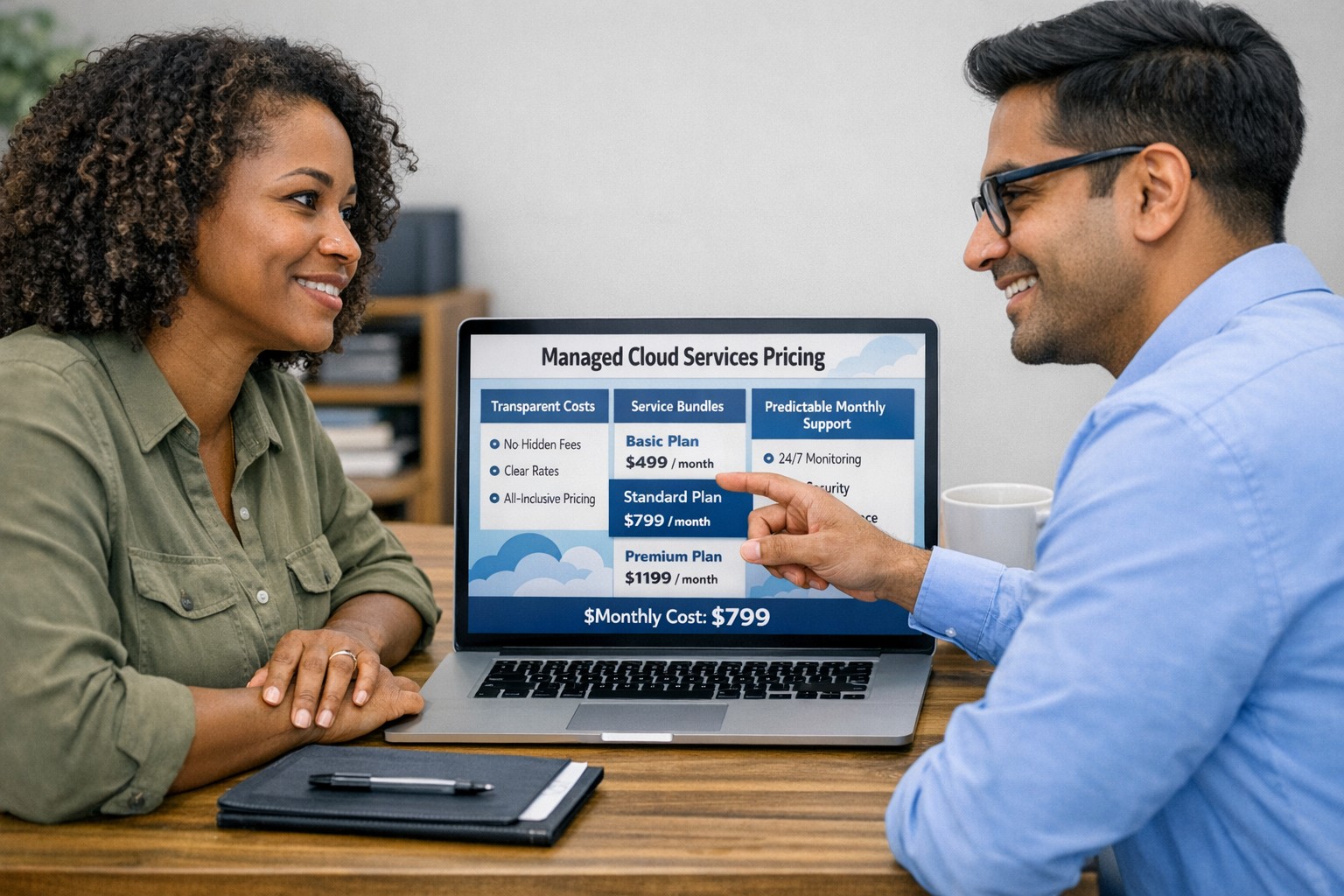
Managed cloud services pricing helps small businesses control IT costs with transparent, predictable monthly cloud support.
We have received numerous inquiries from potential customers regarding our pricing structure. Specifically, they want to know if we offer monthly contracts or if we charge an hourly rate. The answer is Yes.
Hourly Rate
For customers who require a one-time fix or need a project completed, we offer a service based on an hourly rate. Our rate for remote or on-site work that is not covered under a contract is $150 per hour. We bill in 15-minute increments and take pride in our efficiency. For clients with more than 2 service requests per month, we highly recommend signing up for a contract to save money and benefit from our expert oversight.
Monthly Contracts
There are three types of monthly contracts:
Remote Maintenance Contract
This is the package that most of our clients choose. It includes automated maintenance, cyber security protections, and unlimited remote support. Since most problems and questions can be handled remotely, this package offers real value.
Full Service Maintenance Contract
This package is for clients who want complete peace of mind. It includes all services, whether remote or at their offices. Additionally, it provides some additional benefits, such as top priority in our support queue.
Co-Managed IT Contract
This special package is designed for companies that already have a full-time IT employee or IT service companies in need of extra help. It provides them with the necessary automations and tools to make their jobs easier, allowing them to focus on what matters. This package also includes a discount on our remote and on-site services.
All contracts are based on a per-device model, taking into account the number of workstations, printers, servers, switches, etc. on the client’s network. We use this model because the other popular model, per user, is too vague and can easily hide excessive profit margins. Contracts can be month-to-month or a yearly commitment. The difference is that with a yearly commitment, you are protected from price increases for the entire year. We also offer many optional add-ons for our clients, such as Office 365, Employee Security Training, Penetration/Vulnerability Scanning, Mobile Device Management, Compliance, Secure Remote Access, and Security Operations Center.
Are you looking for reliable IT support that suits your business’s unique requirements? Look no further! Our flexible pricing options cater to businesses of all sizes. Whether you require one-time assistance or ongoing support, we have the right plan for you. Ready to take your business IT support to the next level? Contact us today to discuss your needs and find the perfect plan for your business.
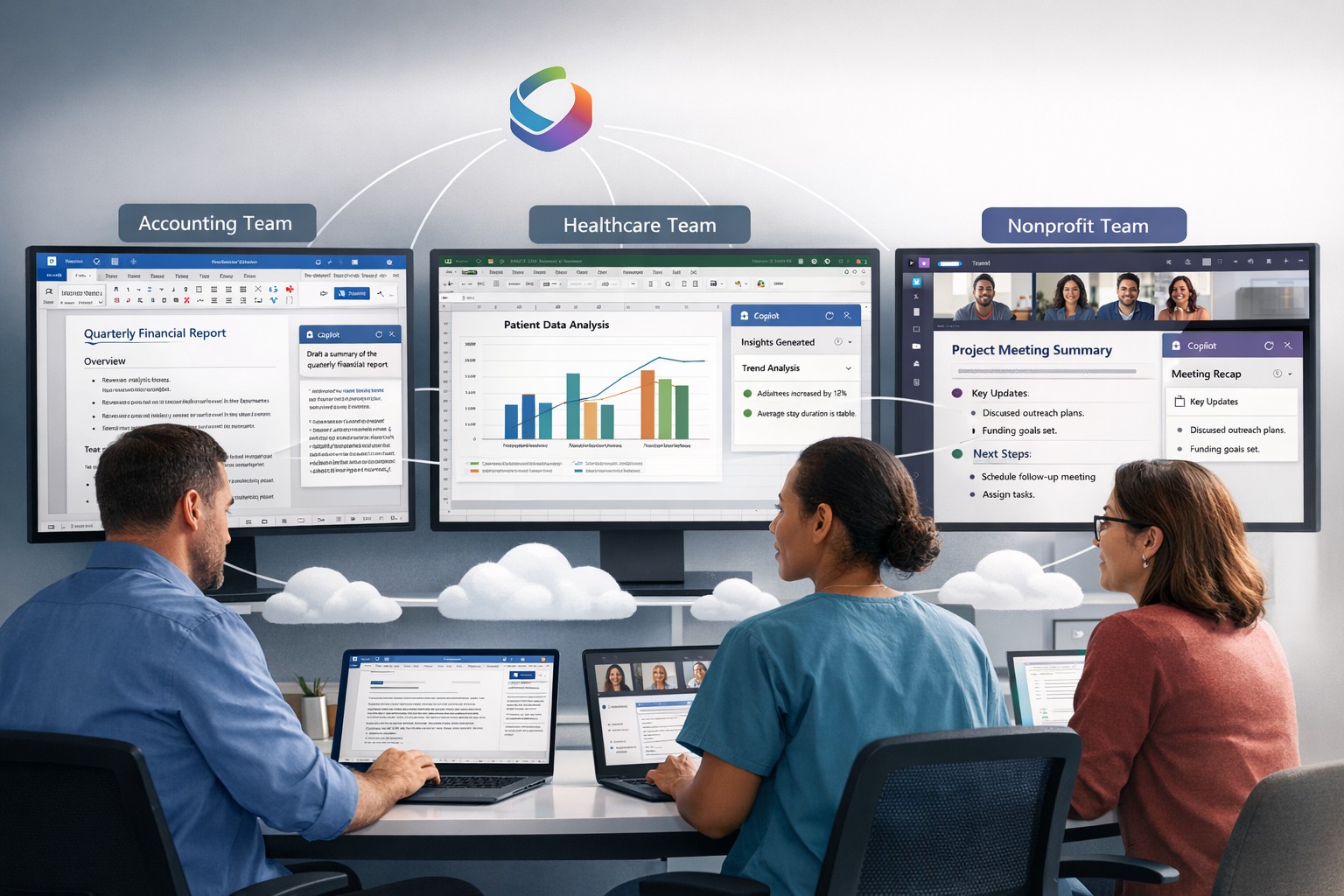
Microsoft 365 Copilot delivers AI-powered productivity across Word, Excel, Teams, and Outlook for small business efficiency.
Microsoft has recently unveiled a groundbreaking addition to its suite of Microsoft 365 apps and services – the AI-powered Copilot. This innovative tool is designed to assist users in generating documents, emails, presentations, and more, revolutionizing the way people work and interact with technology.
The Evolution of Copilot
Copilot, powered by GPT-4 from OpenAI, functions as an AI assistant embedded within Microsoft 365 apps such as Word, Excel, PowerPoint, Outlook, and Teams. It takes on the role of a chatbot, appearing in the sidebar, and can be summoned by users to perform a wide range of tasks. Whether it’s generating text in documents, creating presentations based on Word files, or providing assistance with Excel features like PivotTables, Copilot is there to lend a helping hand.
Streamlining Workflows
One of the key advantages of Copilot is its ability to enhance productivity and streamline workflows. For instance, users can leverage Copilot’s capabilities to prepare for meetings by providing information on related projects, organizational changes, and updates on co-workers who may have returned from vacation. In Word, Copilot can draft documents based on other files, allowing users to freely edit and adapt the AI-generated text. Similarly, Copilot can instantly create SWOT analyses or PivotTables in Excel based on data, making complex tasks easier and more efficient. In Microsoft Teams, Copilot can even transcribe meetings and summarize action items, ensuring that no important information is missed.
The Power of Copilot in Outlook
Copilot also extends its functionality to Outlook, helping users save time and improve email management. It can summarize email threads, create draft responses, and even adapt the tone and length of an email based on user preferences. By automating these tasks, Copilot allows users to focus on more strategic and meaningful work, increasing overall productivity.
The Role of AI Ethics
While Copilot offers significant benefits, Microsoft acknowledges that it may not always be perfect. Jared Spataro, head of Microsoft 365, emphasizes that Copilot might occasionally provide suggestions that are not entirely accurate. However, he also highlights the value of these imperfect suggestions, as they can still provide users with a head start and spark creative ideas.
To address concerns around the accuracy and ethical implications of AI, Microsoft emphasizes transparency and user control. They make it clear how the system makes decisions, provide links to sources, and prompt users to review and fact-check content based on their subject-matter expertise. Microsoft is committed to learning and improving Copilot based on user feedback and scaling the AI tool responsibly.
Copilot’s Integration and Pricing
Microsoft announced yesterday that it would be allowing all customers to purchase Copilot integration for Office 365 as long as you have one of the compatible licenses. The cost is $360 per user per year which equates to $30 per month – highly competitive with other AI services that will not directly integrate with Office 365 apps.
Considerations for Enterprises
While the potential value of Copilot in saving time and improving productivity is significant, organizations must also address potential risks. One concern is the potential for Copilot to provide inaccurate information, leading to what is known as “hallucinations.” Users should exercise caution and verify outputs from Copilot, supplementing its suggestions with human review and fact-checking.
Another critical consideration is data protection. Copilot’s ability to access a wide range of corporate data raises concerns about information oversharing and exposure of sensitive files. Organizations must ensure that proper data governance is in place, including robust permissions and access controls. Securing unstructured data and addressing potential data leaks are essential steps in mitigating risks associated with the deployment of Copilot.
Deployment and Adoption
While Copilot holds great promise, the deployment and adoption process for businesses will likely be gradual and cautious. Microsoft acknowledges the typical enterprise cycle times for adoption and ramp-up. The company expects a gradual growth in the adoption of Copilot, with around one-third of Microsoft 365 customers in the US expected to invest in Copilot within the first year. Businesses that choose to deploy Copilot are estimated to provide licenses to around 40% of their employees during this period.
Real-World Use Cases
During the early access program, several businesses, including Chevron, Goodyear, and General Motors, participated in trials of Copilot. These companies have already started reaping the benefits of the AI tool. Dentsu, a marketing firm, reported that the most common use case for Copilot was information summarization, particularly for Teams calls. Employees found value in Copilot’s ability to quickly pull information from various sources, saving time and improving efficiency.
The feedback from businesses involved in the early access program has been overwhelmingly positive, with employees experiencing increased productivity and more time for higher-level tasks. Different roles within organizations have found value in Copilot for various tasks, such as analysis in Excel or document drafting in Word. The versatility of Copilot makes it a valuable tool for a wide range of job functions and industries.
Microsoft’s AI-powered Copilot is set to revolutionize the way users interact with Microsoft 365 apps, providing enhanced productivity and streamlining workflows. As a trusted Microsoft Partner, Farmhouse Networking, can guide your company into adopting this game changing technology.
Today we tell the story of a medical office’s journey to the cloud. This particular client was facing their server operating system reaching end of support (a HIPAA violation) in the near future. They had begun by looking at their electronic medical records software company’s online offering, which didn’t have all the functionality of their on-premises software and was very expensive (this is typical).
They next decided to look into moving their current on-premises software into the cloud and we were asked to help with the testing. We determined that it would be best to move the file portion of the server to SharePoint / OneDrive to increase their mobility and flexibility. We also determined that it would be best to move them away from on premises Active Directory into Azure Active Directory / Intune to allow authentication and security policies. Finally we began testing the on-premises software hosted on a server in Azure with a VPN connection to their office.
The SharePoint / OneDrive and Azure Active Directory portions went through with little issues. The server, however, was not as we had hoped. The Azure VPN connection was expensive due to it always being on and no way of turning it off outside of business hours. The performance of the SQL database that the on-premises software used was basically unusable. The other option would be to create virtual desktops on Azure for this purpose but the cost and functionality was not what the customer was hoping for.
This has lead them back to searching for an online EMR software that will meet all their requirements. This will be tough because most companies are good at some things, but not all things and compromises usually have to be made. Our hope is that this story is a lesson to other companies. The cloud may sound like the newest and best way to work, but the costs and functionality are often worse than expected.
If your company is going to use full disk encryption or has compliance requirements that you need consulting for, then contact us for assistance.
Had a local medial office want to move their current server into the cloud and because they are already an Office 365 customer, I chose to use Azure for their Virtual Machine. I helped them setup Azure to Araknis IPSec VPN to connect their headquarters to the hosted server. This tutorial will go into detail about the creation of this tunnel starting with the Microsoft Azure side first using Resource Manager. It will be using the following parameters:
VNet Name: TestNetwork
Address Space: 10.10.0.0/16
Subnets:
Primary: 10.10.10.0/24
GatewaySubnet: 10.10.0.0/24
Resource Group: TestResourceGroup
Location: West US
DNS Server: Azure Default
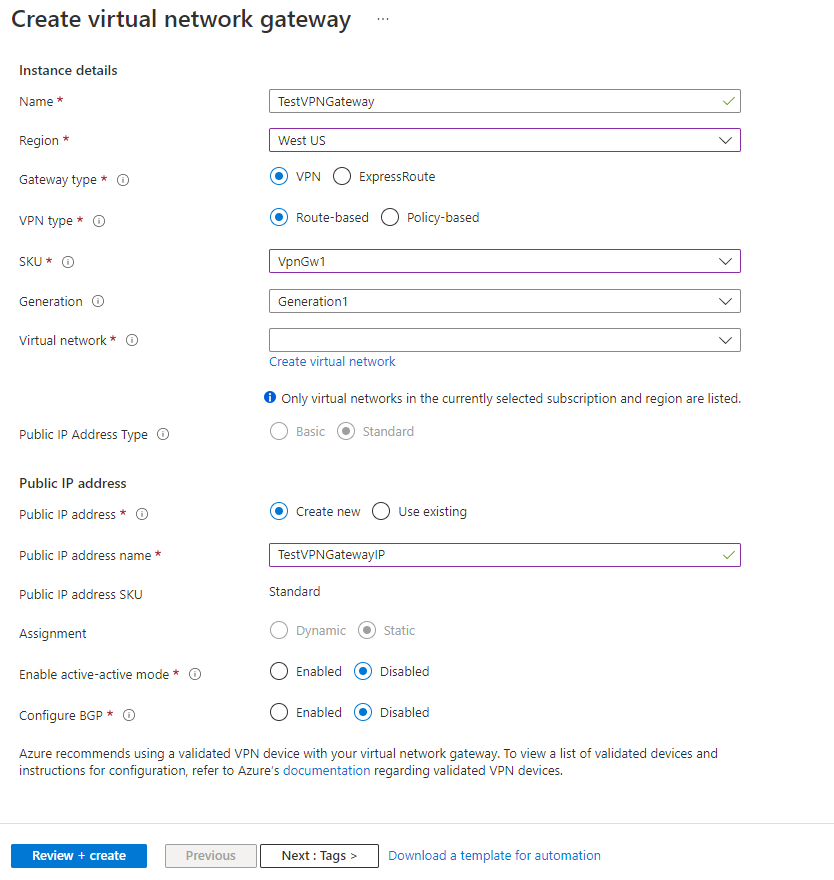
Gateway Name: TestVPNGateway
Public IP: TestVPNGatewayIP
VPN Type: Route-based
Connection Type: Site-to-site (IPsec)
Gateway Type: VPN
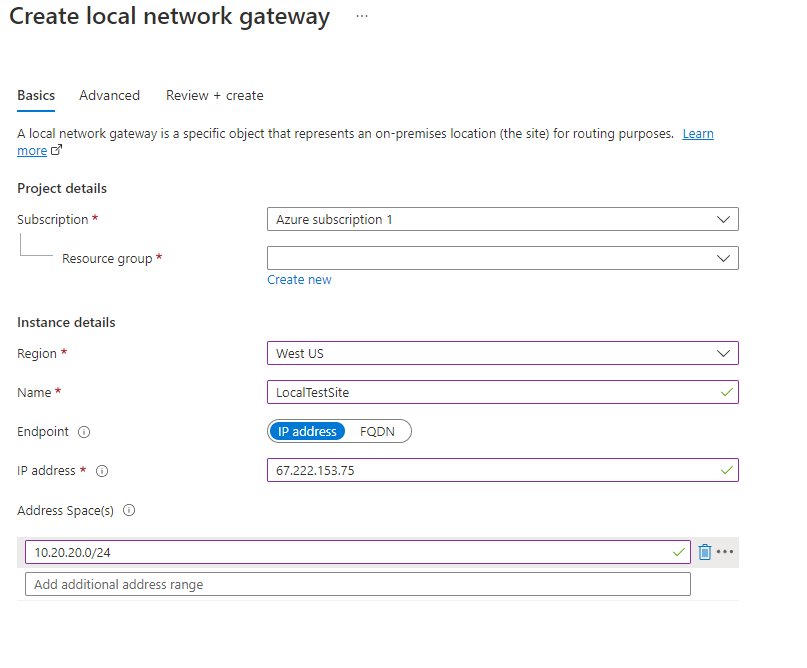
Local Network Gateway Name: TestSite
Local Subnet: 10.20.20.0/24
Connection Name: VPNtoTestSite
Configure an Azure VPN gateway
This part takes the longest, so it should be done first:
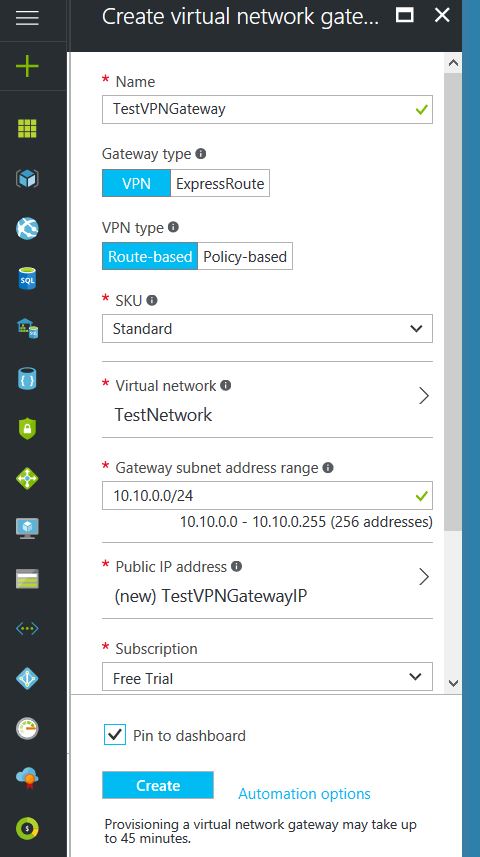
Click on the “+” icon at the top left hand side of the Resource Manager, then search for “Virtual Network Gateway” and click on the “Create” button.
Give the Virtual Network Gateway a name
Select matching Region to where Azure resources are located
Leave Gateway & VPN type the defaults
Choose a SKU <- These have changed since the article was created, so my “standard” now is WpnGw1 with Active / Active turned off (this is a good balance of performance and cost)
Choose or create a local network (not covered here, but must contain Gateway Subnet) that matches internal resources
Choose or create a Public IP Address
Leave the remaining values as their defaults and then click the “Create” button. (Please note the reminder that this takes 45 minutes to create!)
Configure an Azure Local Network Gateway
This is a reference to your on-premise network so that subnets can pass traffic:
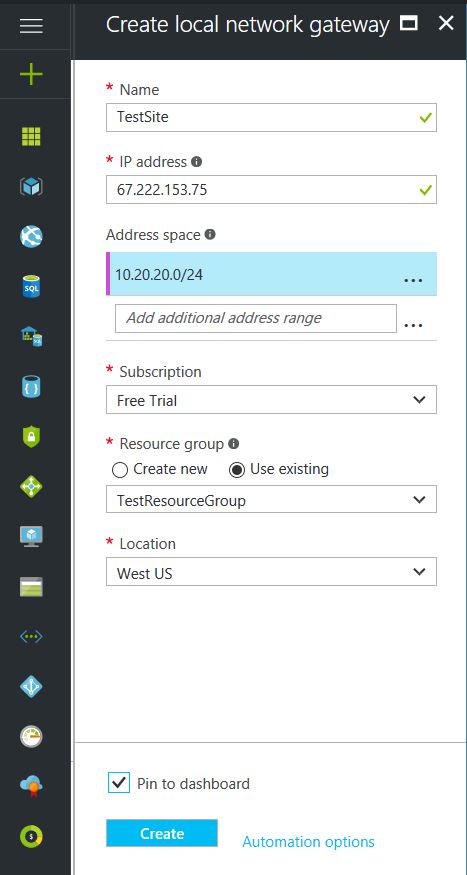
Click on the “+” icon at the top left hand side of the Resource Manager, then search for “Local Network Gateway” and click on the “Create” button.
Give the Local Network Gateway a name
Select matching Region to where Azure resources are located
Specify the external IP address of the local on-premise site
Specify the on-premise address space (subnet)
Leave the remaining values as their defaults and then click the “Create” button.
Configure an Azure VPN Connection
This will create the tunnel from Azure to the on-premise site:
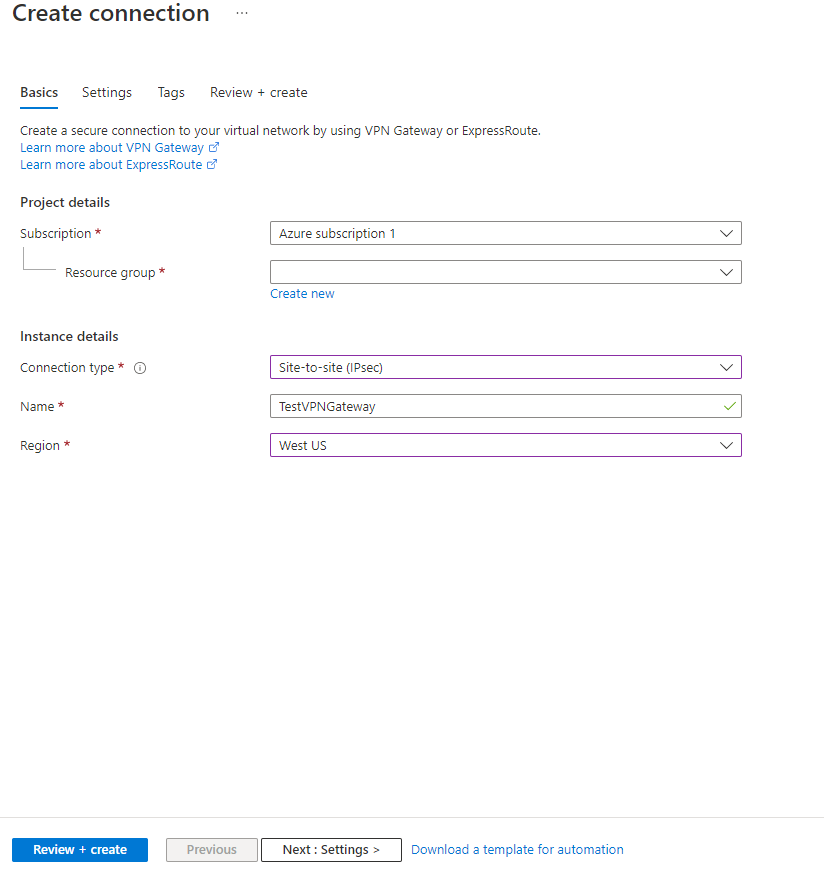
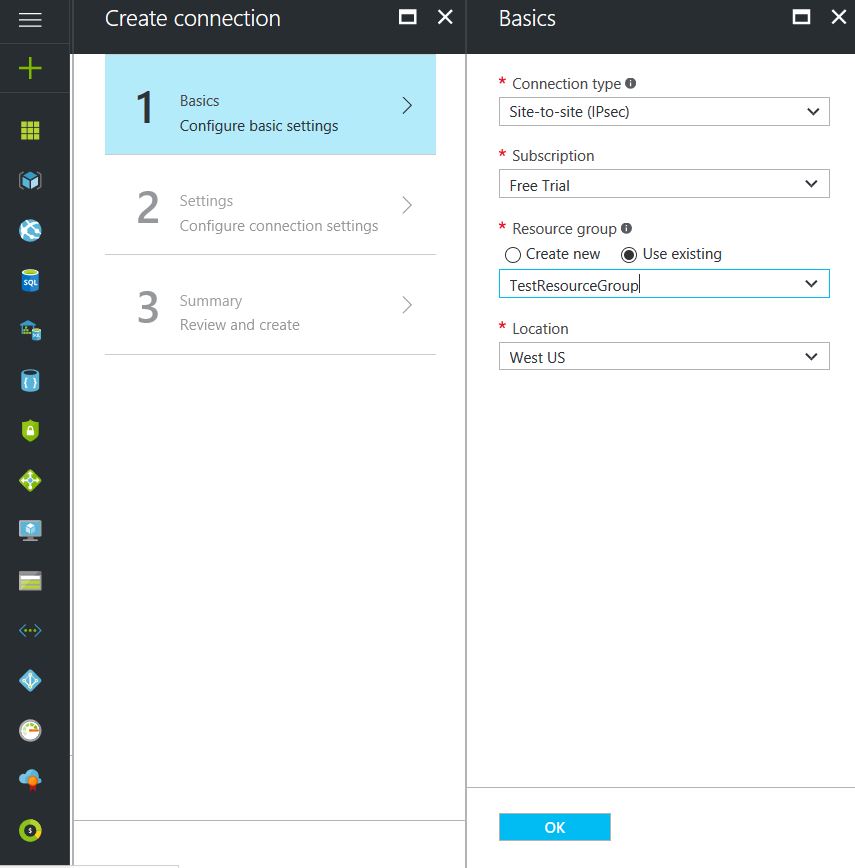
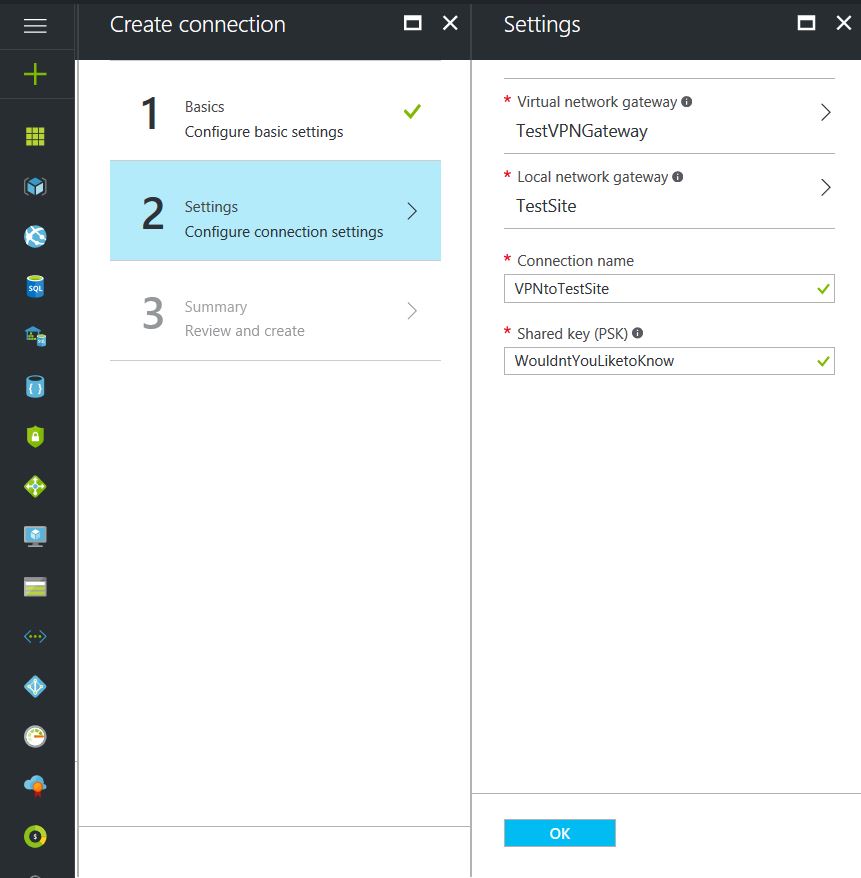
Click on the “+” icon at the top left hand side of the Resource Manager, then search for “Connection” and click on the “Create” button.
Choose “Site-to-site (IPSec)” as the connection type
Give the Connection a name
Select matching Region to where Azure resources are located
Leave the remaining values as their defaults and then click the “OK” button. On the summary screen click on the “OK” button to create the connection.
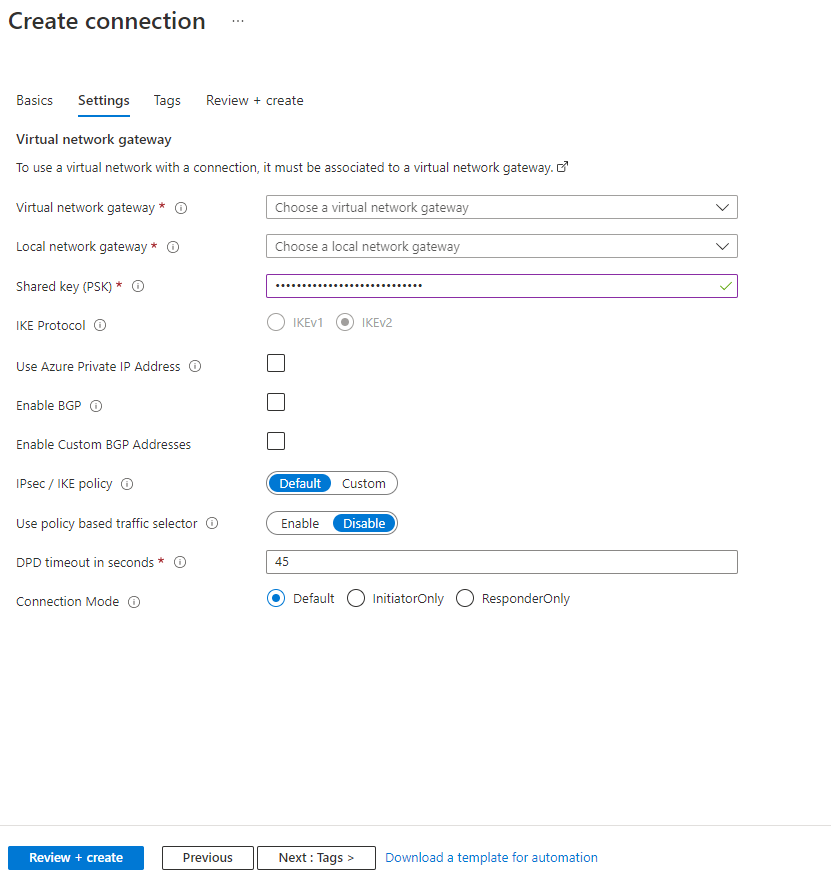
Choose the newly created Virtual Network Gateway
Choose the newly created Local Network Gateway
Specify a shared key
Leave the remaining values as their defaults and click the “Create” button.
This completes the setup of the Azure side of the VPN tunnel. Now to work on the Ubiquiti USG side.
Configuring an Araknis IPSec VPN Network
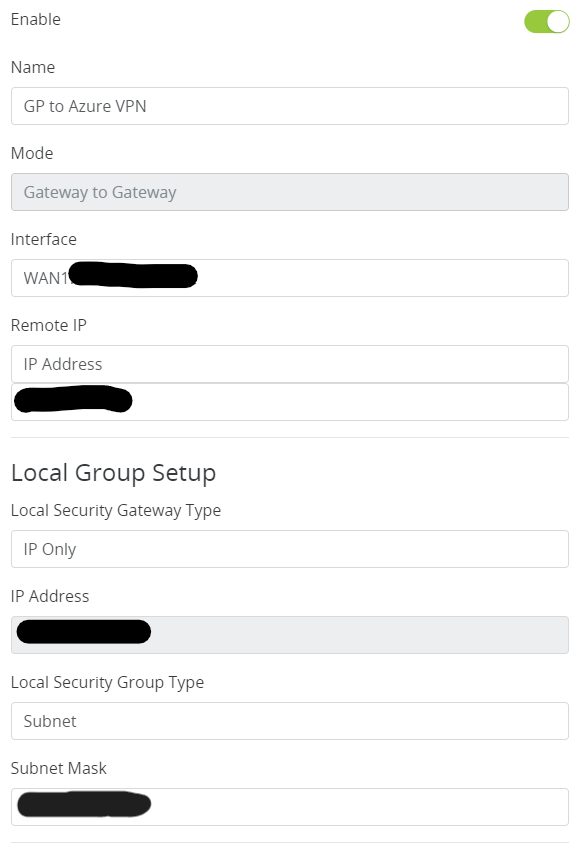
Connect to Araknis router (need at least a 310 for this to work)
Click on Advanced > VPN
Scroll down to IPSec and click add new tunnel
Fill in the Remote IP address of the Azure VPN Gateway
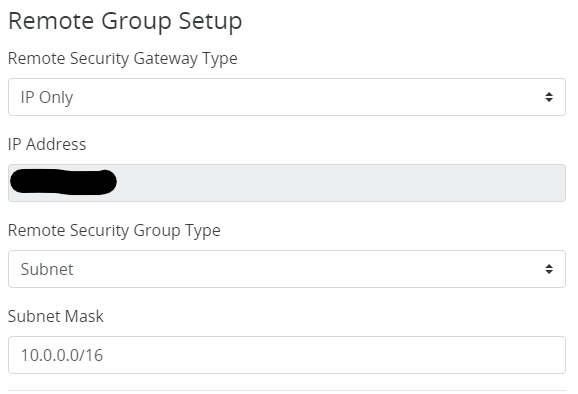
Fill in the Remote Subnet Mask
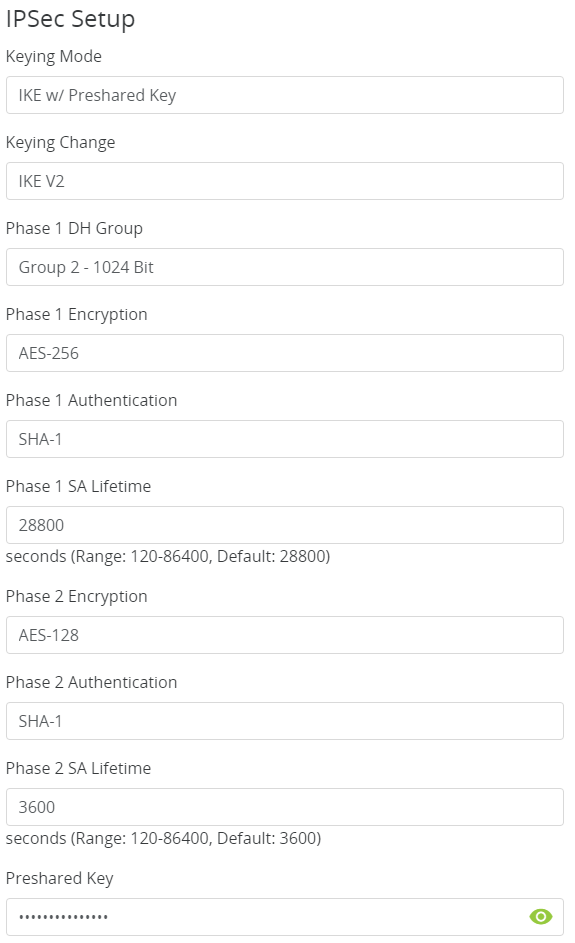
Make the following changes to IPSec Setup
That is all there is to it. If your company is currently using either Microsoft Azure or Araknis routers and would like a VPN created, then contact us for assistance.
As our business continues to focus on providing white labeled Tier 3 IT support services, RMM as a service, and co-managed IT services this blog will be highlighting tips for using Powershell to create Office 365 User and add them to groups. We have several clients with high employee turn-over which makes it necessary to often create Office 365 user. We will detail how to find all the needed data to create the proper script for each client (yes it will take a different script for each client due to different group names for each client).
Research
You need to get two pieces of information – the license type used by the organization to create users and the names of the groups to add users to
To find out the license types used use this commands:
Connect-MsolService
Get-MsolAccountSku
To find out all the groups in the organization use this commands:
Connect-ExchangeOnline
Get-UnifiedGroup | Format-Table Alias
Variables
$displayName = Full user name – usually First name & Last Name $userPrincipleName = Email address for user $adminuser = Email address for admin of Office 365 Tenant $adminpass = Password for admin of Office 365 Tenant $licenseType = Office 365 license type found in research above
There is also the need for variables for each group you will be adding users to (found in research above). For this example I will be using:
$CompanyShared = Company Shared Contacts $CompanyTimeOff = Company Time Off Calendar $BillingPayroll = Billing & Payroll Group Email
Script Snippet
###Use this command to be allowed to use DotNet assemblies
Add-Type -AssemblyName System.web

$displayName = "UserFirst UserLast"
$userPrincipleName = “User@Company.com”
$adminuser = "admin@Company.com"
$adminpass = '@dm1nP4ssw0rd'

$CompanyShared = "yes"
$CompanyTimeOff = "yes"
$BillingPayroll = "no"

###converts admin credentials to useable format for connections to Office 365
$adminpassword = ConvertTo-SecureString -string $adminpass -AsPlainText -Force
$admincred = new-object -typename System.Management.Automation.PSCredential -argumentlist $adminuser, $adminpassword

Connect-AzureAD -Credential $admincred
Connect-MsolService -Credential $admincred

$mailNickname = $userPrincipleName.Split("@")[0]

###To find User License Types use Get-MsolAccountSku
$licenseType = "companytenantID:SPB"

###Generates a random password length
$minPassLength = 8 ## characters
$maxPassLength = 15 ## characters
$passlength = Get-Random -Minimum $minPassLength -Maximum $maxPassLength

###Generates a random number of non-alpha characters in the password
$minNonAlphaChars = 1 ## characters
$maxNonAlphaChars = 5 ## characters
$nonAlphaChars = Get-Random -Minimum $minNonAlphaChars -Maximum $maxNonAlphaChars

###Creates the password, makes it useable by Azure, sets it up to not require password change, and creates account
$password = [System.Web.Security.Membership]::GeneratePassword($passlength, $nonAlphaChars)
$PasswordProfile = New-Object -TypeName Microsoft.Open.AzureAD.Model.PasswordProfile
$PasswordProfile.Password = "$password"
$PasswordProfile.ForceChangePasswordNextLogin = $false
Write-Host "Password is set to $password for $displayName"
$user = New-AzureADUSer -DisplayName $displayName -PasswordProfile $PasswordProfile -UserPrincipalName $userPrincipleName -mailNickname $mailNickname -AccountEnabled $true

###Waits 5 minutes for the user creation process in Office 365
Start-Sleep -Seconds 300

###Sets additional parameters for account that are needed like location, license type, and sets password to never expire
Get-MsolUser -UserPrincipalName $userPrincipleName | Set-MsolUser -UsageLocation US
Get-MsolUser -UserPrincipalName $userPrincipleName | Set-MsolUserLicense -AddLicenses $licenseType
Get-MsolUser –UserPrincipalName $userPrincipleName | Set-MsolUser –PasswordNeverExpires $True

###Adds new user to groups
if ($CompanyShared -eq "yes")
{ Add-MailboxPermission -Identity companyshared@premieror.com -User $userPrincipleName -AccessRights FullAccess -InheritanceType All}

if ($CompanyTimeOff -eq "yes")
{ Add-MailboxPermission -Identity companytimeoff@premieror.com -User $userPrincipleName -AccessRights FullAccess -InheritanceType All}

if ($BillingPayroll -eq "yes")
{ Add-MailboxPermission -Identity billing_payroll@premieror.com -User $userPrincipleName -AccessRights FullAccess -InheritanceType All}
This script requires that the admin account you use to setup the user have multifactor authentication turned off (I know not secure), so use a really long complex password. The script creates a random password for the new user and write it to output. The script will take several minutes to run due to the waiting for the account to finish setup before adding additional parameters and adding them to groups.
If your company is a MSP or wants to become one and automation just seems out of reach, then contact usto run your RMM for you.
83% of employees continue accessing old employer’s accounts
Farmhouse Networking Grants Pass implements robust employee offboarding to revoke access and secure networks for Oregon businesses.
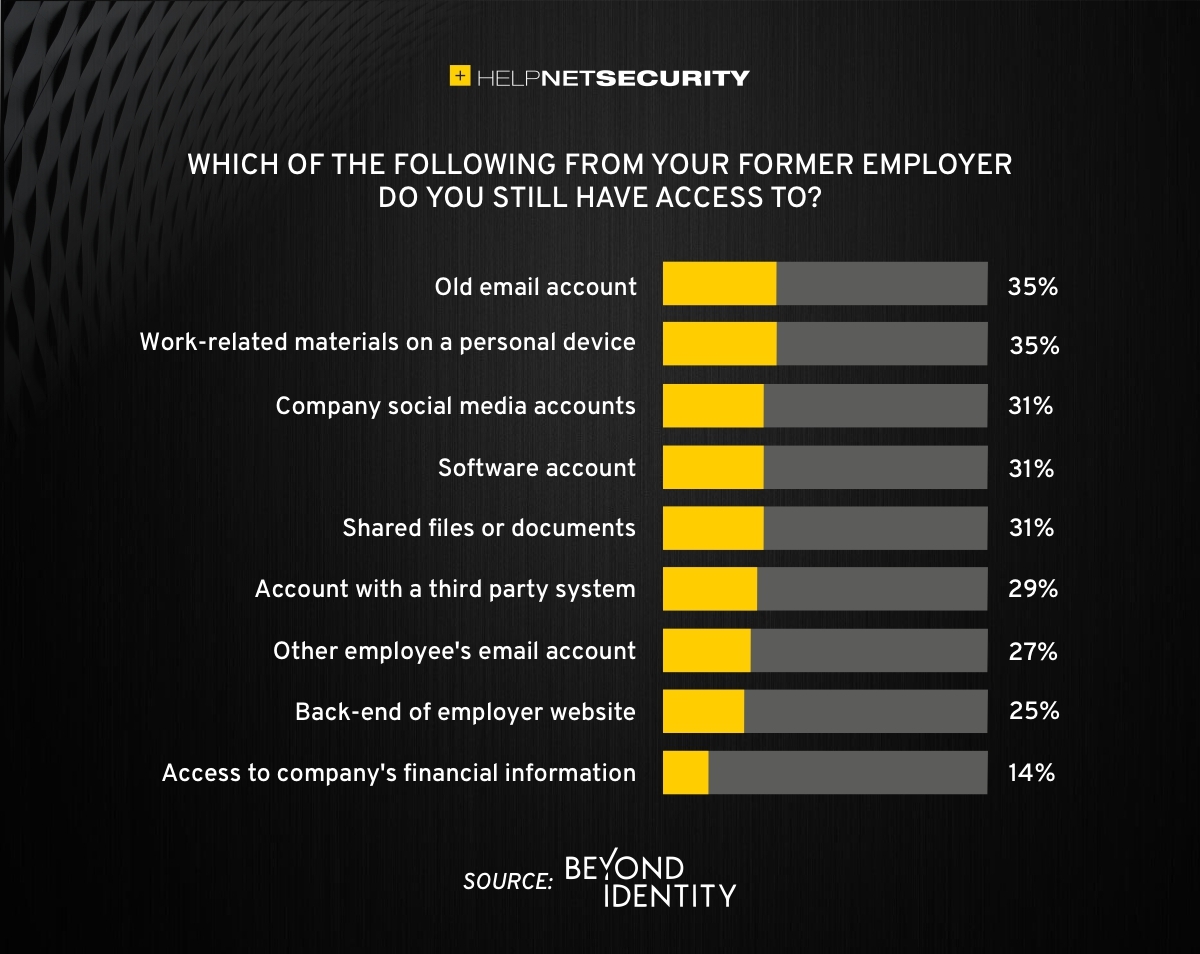
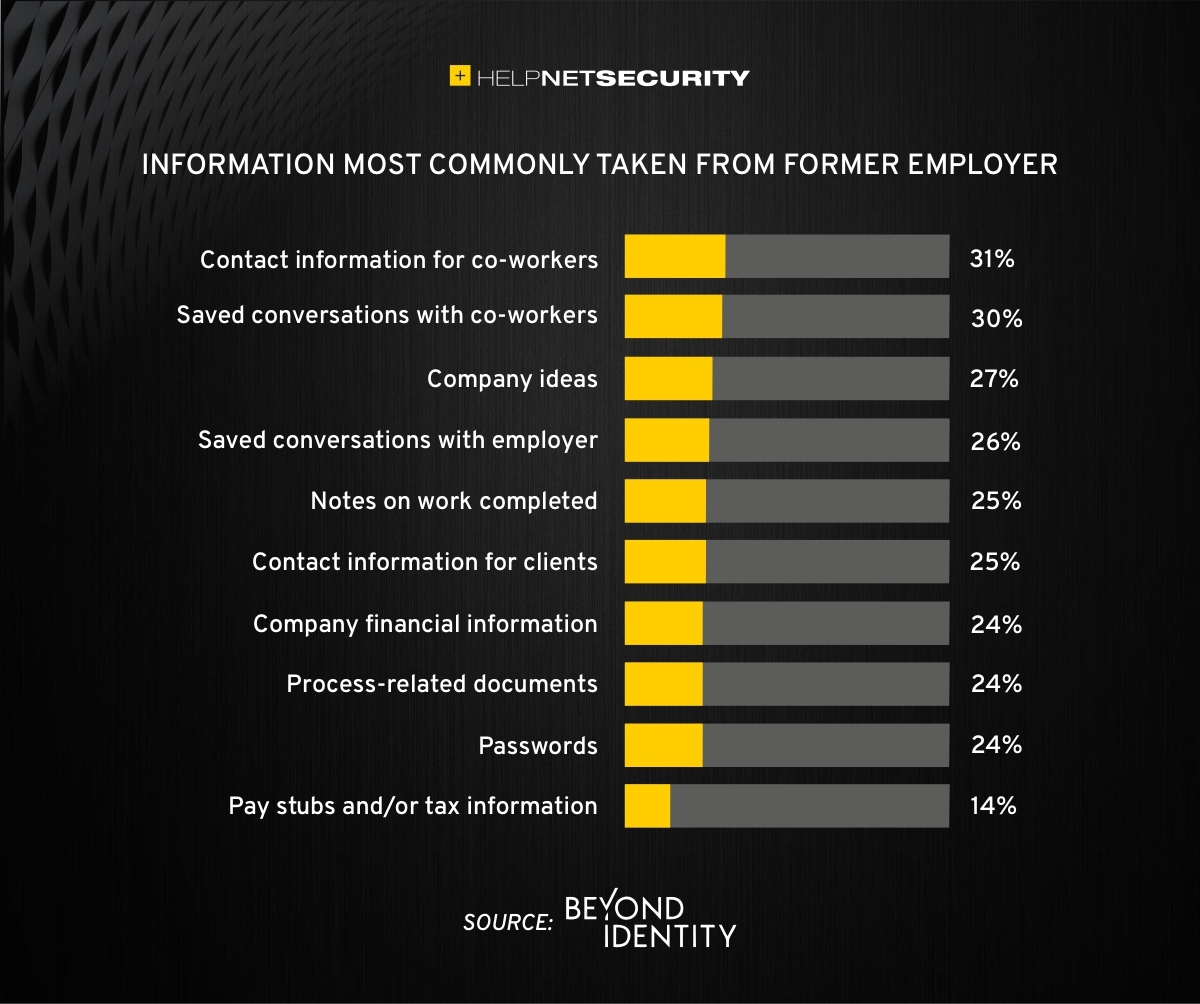
A study was performed by Beyond Identity throughout the US, UK, and Ireland which found that 83% of employees admitted to maintaining continued access to accounts from a previous employer. Also a shocking 56% admitted to using this access to harm their former employer.
The study also states that a professional and details offboarding process can prevent unauthorized access by former employees by eliminating their passwords and other insecure authentication methods. Strangely enough this also creates a sense of goodwill in the company that helps to lessen the motivation for employees to attempt this kind of malicious access. This kind of process is vital considering the current employment market and high turn over rates at almost all companies.
If your company does not have a detailed and documented offboarding process, thencontact usfor assistance.
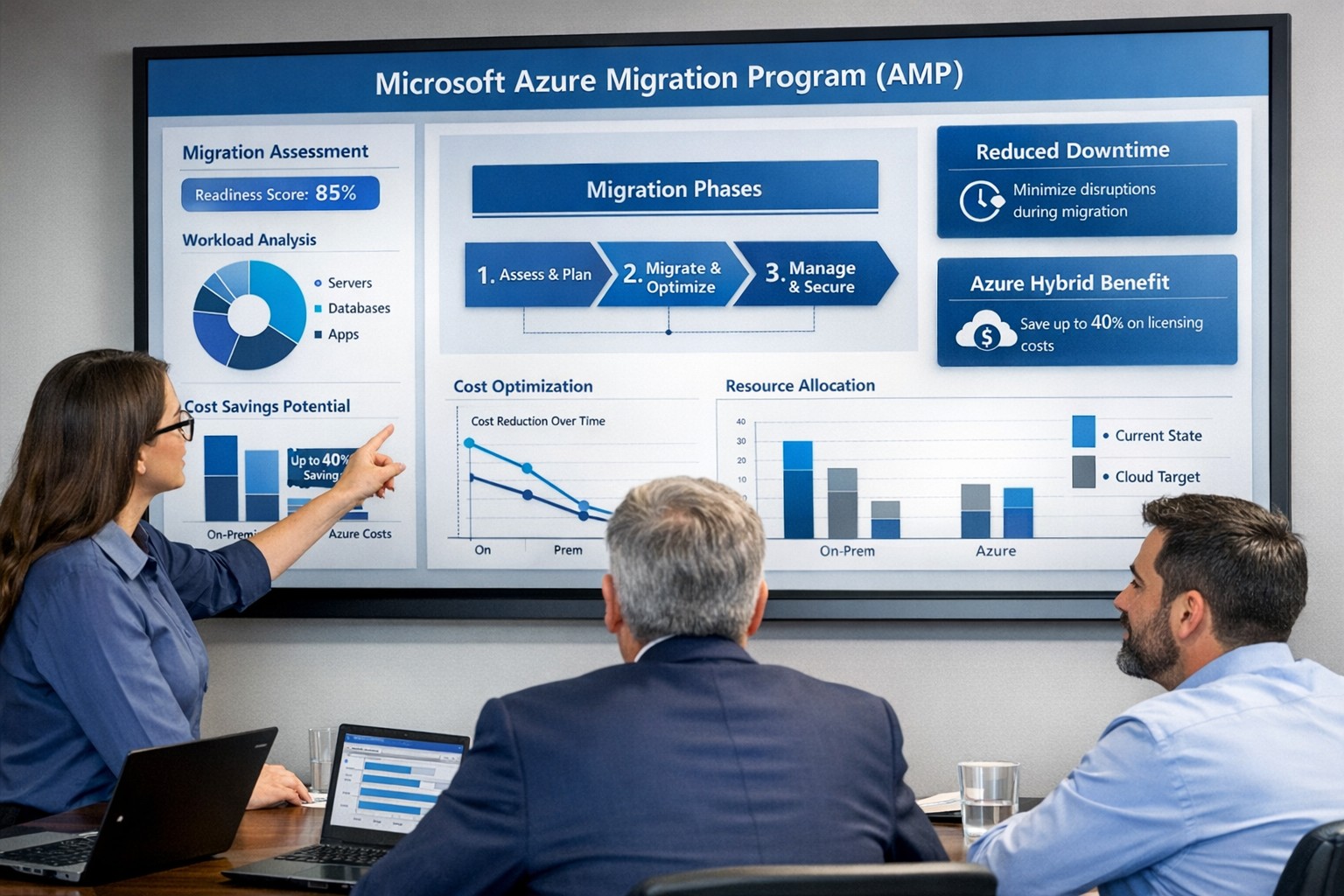
Visualize your Azure migration success with the Microsoft Azure Migration Program (AMP)—structured steps, cost savings, and expert guidance for seamless cloud adoption.
If you are considering moving servers, line‑of‑business apps, or databases into Microsoft Azure, the Azure Migration Program (often called AMP) is designed to reduce risk, speed up the project, and lower your total cost of migration. For a business owner, AMP means structured guidance from Microsoft and certified partners, funded assessments, and proven tools instead of “figure it out as we go.”
What Is the Azure Migration Program (AMP)?
Microsoft’s Azure Migration Program provides a guided, end‑to‑end approach to moving workloads into Azure, based on the Cloud Adoption Framework. It combines technical guidance, training, migration tools, and cost‑saving offers so your team is not reinventing the wheel.
Key elements include:
Curated, step‑by‑step guidance from Microsoft experts and specialized migration partners.
Free Azure migration tools such as Azure Migrate, Azure Site Recovery, and Database Migration Service.
Cost‑reduction offers like Azure Hybrid Benefit and extended security updates for legacy Windows Server and SQL Server.
Training and skill building for your IT staff so they can operate confidently in Azure after the move.
Practical Action Steps for You and Your IT Team
As the owner, your role is to set business priorities and ensure the migration stays aligned with revenue, risk, and customer impact, while IT handles the technical execution.
Step 1: Define business outcomes and constraints
Identify which systems are most critical (ERP, EMR, accounting, CRM) and what can tolerate downtime.
Set financial guardrails: target monthly cloud budget and acceptable payback period on the migration.
Step 2: Assess your current environment Your IT team, often with an AMP‑qualified partner, should:
Inventory servers, applications, databases, and dependencies (who talks to what, and when).
Use Azure Migrate to scan workloads and estimate right‑sized Azure resources and costs.
Group applications into logical waves (low‑risk first, mission‑critical later).
Decide per workload: rehost (“lift and shift”), refactor, or modernize.
Agree on success metrics: performance, availability, RPO/RTO, and cost per workload.
Step 4: Secure funding and enroll in AMP
Confirm AMP eligibility and available funding for assessments and implementation with a certified partner.
Use funded assessments to validate architecture, security, and migration approach before committing to a full rollout.
Step 5: Execute, optimize, then expand
Start with a pilot migration to prove performance, security, and cost assumptions.
Monitor usage with Azure Cost Management and tune sizing, auto‑scaling, and reserved instances.
Apply lessons from the pilot to subsequent waves to reduce timelines and surprises.
Common Client Questions (and Clear Answers)
Q1: Is Azure really more cost‑effective than keeping my servers on‑premises? A: For most organizations, especially those facing hardware refresh, licensing renewals, or colo costs, Azure can be more cost‑effective when workloads are right‑sized and governed. AMP helps you estimate costs with real data and use cost‑optimization tools like Azure Hybrid Benefit and Azure Cost Management from day one.
Q2: How will this impact uptime and my customers? A: The program is designed to minimize disruption using tools such as Azure Site Recovery and structured migration waves. With proper planning, most critical workload cutovers are scheduled during low‑usage windows and can be rolled back if required.
Q3: What about security and compliance? A: Azure includes built‑in security controls, encryption, identity management, and compliance certifications that often exceed what small and mid‑sized businesses maintain on‑premises. AMP engagements incorporate security and governance reviews so your new environment aligns with industry and regulatory requirements.
Q4: My internal IT team is stretched. Do they have to do everything? A: No—AMP is explicitly structured around collaboration between your team, Microsoft engineers, and certified partners. Your staff focuses on business knowledge and application nuances while the partner handles the heavy lifting and trains your team on new cloud operations.
Q5: We tried “cloud” before and it was painful. Why will this be different? A: Most failed migrations lacked a standardized framework, proper assessment, or cost governance. AMP enforces a proven methodology, tooling, and checkpoints, reducing the likelihood of budget overruns, downtime, or security gaps.
How Farmhouse Networking Helps You Succeed with AMP
Farmhouse Networking aligns your Azure migration with your business strategy, not just your server list. We help you translate goals like “reduce downtime,” “improve security posture,” or “support remote work” into a concrete cloud roadmap.
Here is how we typically engage:
Eligibility and strategy session – We review your environment, validate AMP eligibility, and map out a phased migration aligned with risk and cash‑flow tolerance.
AMP‑style assessment and planning – We perform an in‑depth inventory, dependency analysis, and sizing estimate using Azure’s migration tools, then deliver a prioritized migration plan and business‑level impact summary.
Hands‑on migration and modernization – We handle the technical execution: configuring Azure landing zones, security and networking, moving servers and databases, and modernizing apps where it makes financial sense.
Training and ongoing optimization – We coach your IT staff on Azure operations and put cost, security, and performance monitoring in place so you continue to see value after the cutover.
Take the Next Step
If you are ready to explore whether the Azure Migration Program is the right path for your business—and want a partner who understands both the technical and financial side of migration—Farmhouse Networking is ready to help. Email support@farmhousenetworking.com for more information about how Farmhouse Networking can help improve your business with a structured, low‑risk move to Azure.
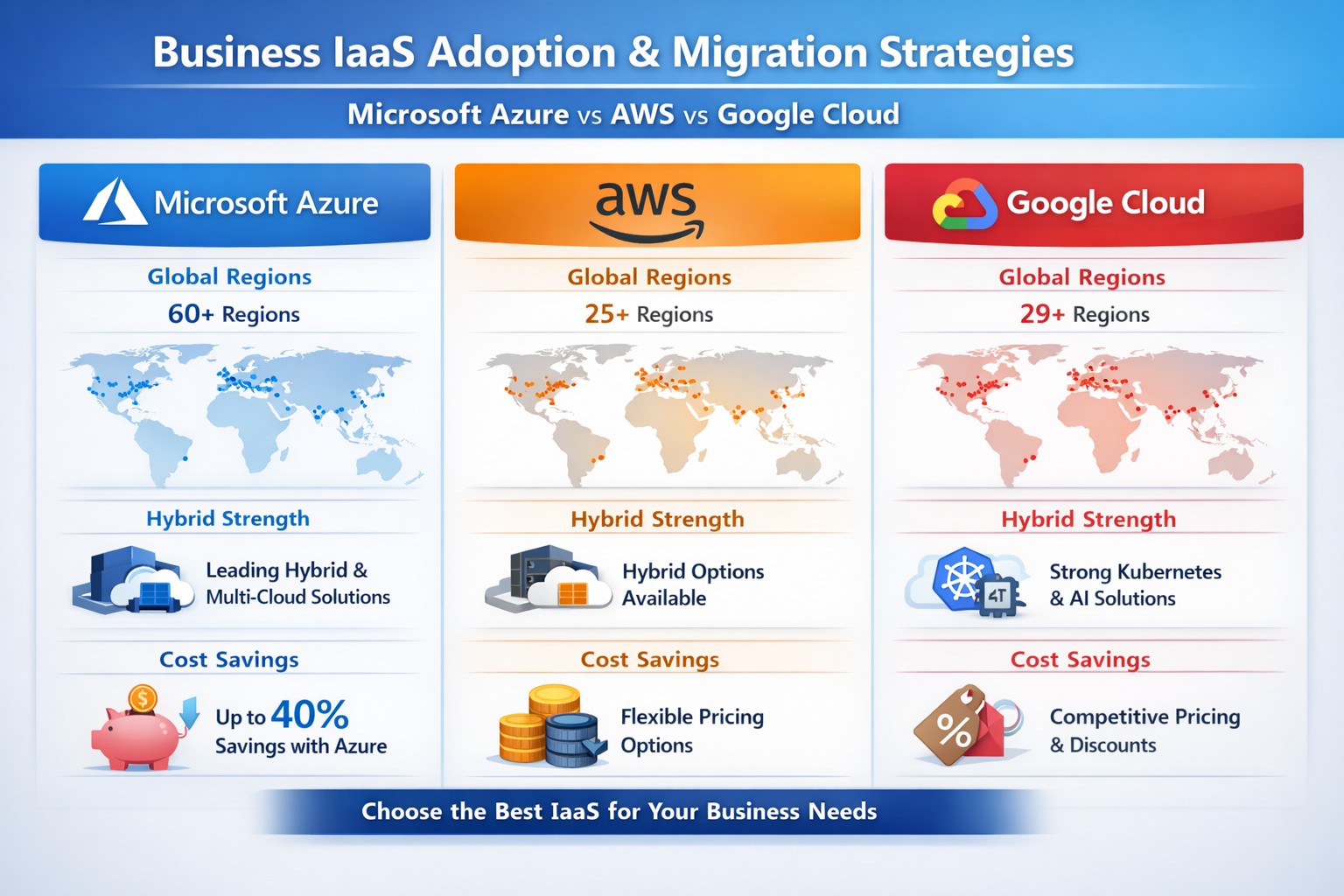
Azure IaaS leads with 60+ regions and hybrid tools, delivering superior ROI for business owners vs AWS EC2 and Google Compute.
Business owners seeking scalable, cost-effective infrastructure need proof before committing to cloud providers. Microsoft Azure IaaS delivers with superior hybrid integration, global reach exceeding 60 regions, and proven uptime SLAs up to 99.9%, outperforming AWS and Google Cloud in Microsoft-centric environments.
Azure IaaS vs. Competitors: Key Data Points
Azure leads in hybrid cloud capabilities, essential for businesses retaining on-premises systems. With Azure Arc and Azure Stack, manage multi-cloud and local resources seamlessly—unlike AWS’s less integrated hybrid tools or GCP’s limited options.
Metric
Azure IaaS
AWS EC2
Google Cloud Compute
Regions
60+
33
40+
Data Centers
300+
200+ est.
100+ est.
Hybrid Strength
Best (Azure Arc)
Moderate
Limited
Microsoft Integration
Native (Windows/SQL)
Limited
Minimal
Pricing Savings
Up to 72% reservations; Hybrid Benefit
Complex PAYG
Sustained discounts
Azure’s 20% market share trails AWS but dominates government, education, and enterprises using Microsoft tools, reducing migration friction and costs.
Practical Action Steps for Implementation
Assess Current Infrastructure: Inventory servers, apps, and data. Use Azure Migrate (free tool) to scan on-premises for compatibility—takes 1-2 days with IT team.
Pilot Migration: Provision Azure Virtual Machines in your nearest region. Start with non-critical workloads; leverage Azure Hybrid Benefit to apply existing licenses, cutting costs 40-72%.
Secure and Scale: Enable Microsoft Entra ID for IAM and Azure Sentinel for AI threat detection. Set auto-scaling policies to match demand, ensuring 99.9% SLA.
Monitor ROI: Track via Azure Cost Management. Expect 30-50% savings vs. on-premises within 6 months, per industry benchmarks.
Go Live: Phase full migration over 3-6 months, testing failover with Azure Site Recovery.
These steps minimize downtime, typically under 4 hours per phase.
FAQs: Client Inquiries Answered
Q: Is Azure IaaS cheaper than AWS for my business? A: Often yes for Microsoft users—transparent PAYG plus Hybrid Benefit yields up to 72% savings on VMs. AWS pricing is more complex; GCP suits AI but lacks hybrid depth.
Q: How does Azure handle data sovereignty? A: 60+ regions ensure compliance (GDPR, HIPAA). Store data locally, unlike GCP’s fewer options.
Q: What if we use non-Microsoft apps? A: Azure supports Linux workloads via Azure Kubernetes Service, matching AWS EKS but with better Windows synergy.
How Farmhouse Networking Accelerates Your Azure Success
Farmhouse Networking specializes in IaaS migrations for accounting, healthcare, and charity sectors. We conduct free Azure assessments, handle pilot setups, and optimize SEO-driven sites to attract B2B leads post-migration. Our team integrates Azure with your CRM/ERP, ensuring HIPAA-compliant security and 99.99% uptime. Clients see 40% faster deployments and 25% lower TCO.
Ready to leverage Azure’s data-backed advantages? Email support@farmhousenetworking.com for a no-obligation consultation to transform your infrastructure.
And God will generously provide all you need. Then you will always have everything you need and plenty left over to share with others. As the Scriptures say,
“They share freely and give generously to the poor. Their good deeds will be remembered forever.”
For God is the one who provides seed for the farmer and then bread to eat. In the same way, he will provide and increase your resources and then produce a great harvest of generosity in you. - 2 Corinthians 9:8-10
We use cookies to ensure that we give you the best experience on our website. If you continue to use this site we will assume that you are happy with it.