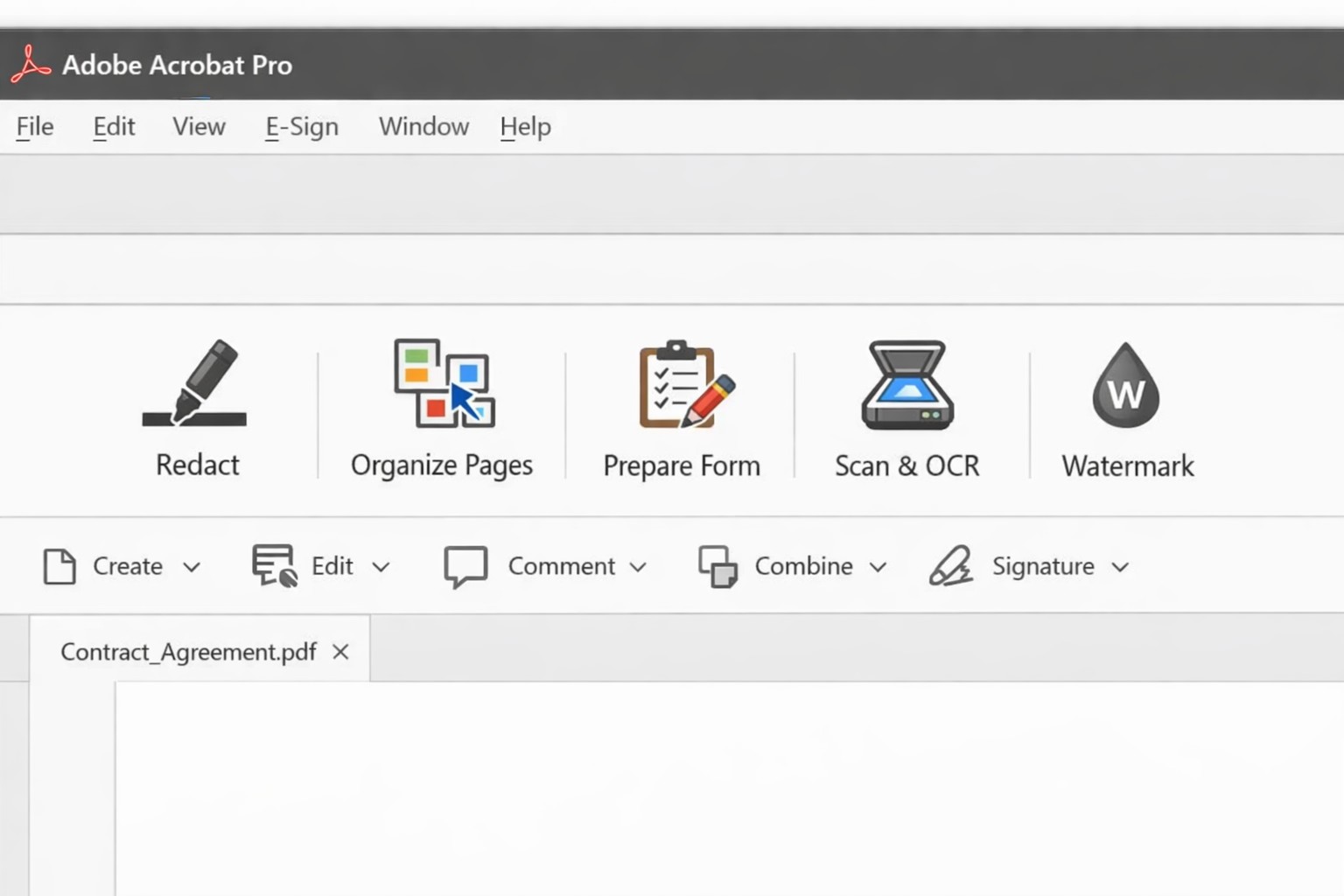
Acrobat Pro tools panel: redact combine edit OCR workflow actions.
Businesses are increasingly reliant on digital documents. From contracts to invoices, these important files need to be easily shared and accessible across different platforms and devices. This is where Adobe Acrobat comes in. Adobe Acrobat is a powerful tool that allows you to create, edit, and secure PDFs effectively. To help you make the most of this software, we have compiled a list of useful tips:
Create Interactive Forms
One of the key features of Adobe Acrobat is its ability to create interactive forms. Rather than wasting paper on printing out forms and having people fill them out manually, you can create digital forms that can be filled out electronically. This not only saves time and the planet but also reduces errors and allows you to collect data more efficiently.
Edit PDFs on the Go
With the Adobe Acrobat app, you can edit PDFs directly on your mobile device. This is incredibly useful for business owners who are constantly on the go and need to make quick edits to their documents. Whether it’s adding text, resizing images, or rearranging pages, you can do it all from the convenience of your phone or tablet.
Combine Multiple Files into a Single PDF
If you have multiple files that you want to combine into a single PDF, Adobe Acrobat makes it easy. You can simply drag and drop the files into Acrobat, rearrange them, and save them as a single PDF. This feature is ideal for business owners who often need to merge multiple documents into one proposal, contract, or report.
Protect your PDFs with Encryption
Security needs to be a top priority for businesses, especially when it comes to sensitive documents. Adobe Acrobat allows you to protect your PDFs by adding encryption. You can set passwords and permissions to ensure that only authorized individuals can access, print, or modify your files. This level of security is crucial for protecting confidential business and customer information.
Optimize PDFs for Web Viewing
PDFs can easily become large files, which can slow down loading times when viewing them online. Adobe Acrobat offers a feature called “Optimize for Web” that reduces the file size while preserving the document’s quality. This is particularly useful when sharing PDFs on your website or via email. When customers have to wait for things to load they are more likely to go somewhere else for what they are looking for.
Collaborate and Review Documents
Adobe Acrobat has collaboration features that allow multiple users to work on the same PDF simultaneously. You can easily share documents with colleagues, clients, or partners and track changes made by each. This streamlines the review and approval process, reducing the need for endless email threads and ensuring everyone is on the same page.
Automate Workflows with Adobe Sign
Adobe Sign, a component of Adobe Acrobat, enables you to send, sign, and track important documents online. It eliminates the need for paper-based signatures and accelerates the approval process. With Adobe Sign, you can automate workflows, whether it’s obtaining client signatures, approving contracts, or completing employee onboarding documents. This tool can streamline your business processes and save you a significant amount of time.
By familiarizing yourself with Adobe Acrobat, you can harness the full potential of this software and enhance your business’s productivity and efficiency. As an Adobe partner, Farmhouse Networking can help your company get the most out of its PDFs.
Had a school that bought the cloud licensing for Adobe Acrobat DC and wanted help deploying Adobe Acrobat to the workstations on their network. Began the process by creating an MSI based package with the Adobe Cloud Packager for deployment via group policy, but the deployment failed. Found that this is a known issue with Adobe Acrobat DC and can only be solved by running a script instead:
Creating Script for Deploying Adobe Acrobat DC Cloud Edition
Open an administrative command prompt
Change directory to – [Package Location]\Exceptions\APRO15.0en_US\Adobe Acrobat\
Run the following – Setup.exe /sALL /extUI /sl “en_US” /msi INSTALLDIR=”” EULA_ACCEPT=”NO” SUITEMODE=1 OWNERSHIP_STATE=1 LANG_LIST=”en_US” INSTALLLEVEL=101 AS_DISABLE_LEGACY_COLOR=1 IGNOREAAM=1
Open the application then Sign In to Adobe Cloud
Paste Product Key into the prompt that opens
This was found after some deep research into the Adobe Support site. Once you have tested these line of code then a batch file can be created for deploying Adobe Acrobat DC via Group Policy.
If your company is using Adobe Acrobat DC and needs help deploying Adobe Acrobat DC to network workstations, then contact us for assistance.
And God will generously provide all you need. Then you will always have everything you need and plenty left over to share with others. As the Scriptures say,
“They share freely and give generously to the poor. Their good deeds will be remembered forever.”
For God is the one who provides seed for the farmer and then bread to eat. In the same way, he will provide and increase your resources and then produce a great harvest of generosity in you. - 2 Corinthians 9:8-10
We use cookies to ensure that we give you the best experience on our website. If you continue to use this site we will assume that you are happy with it.