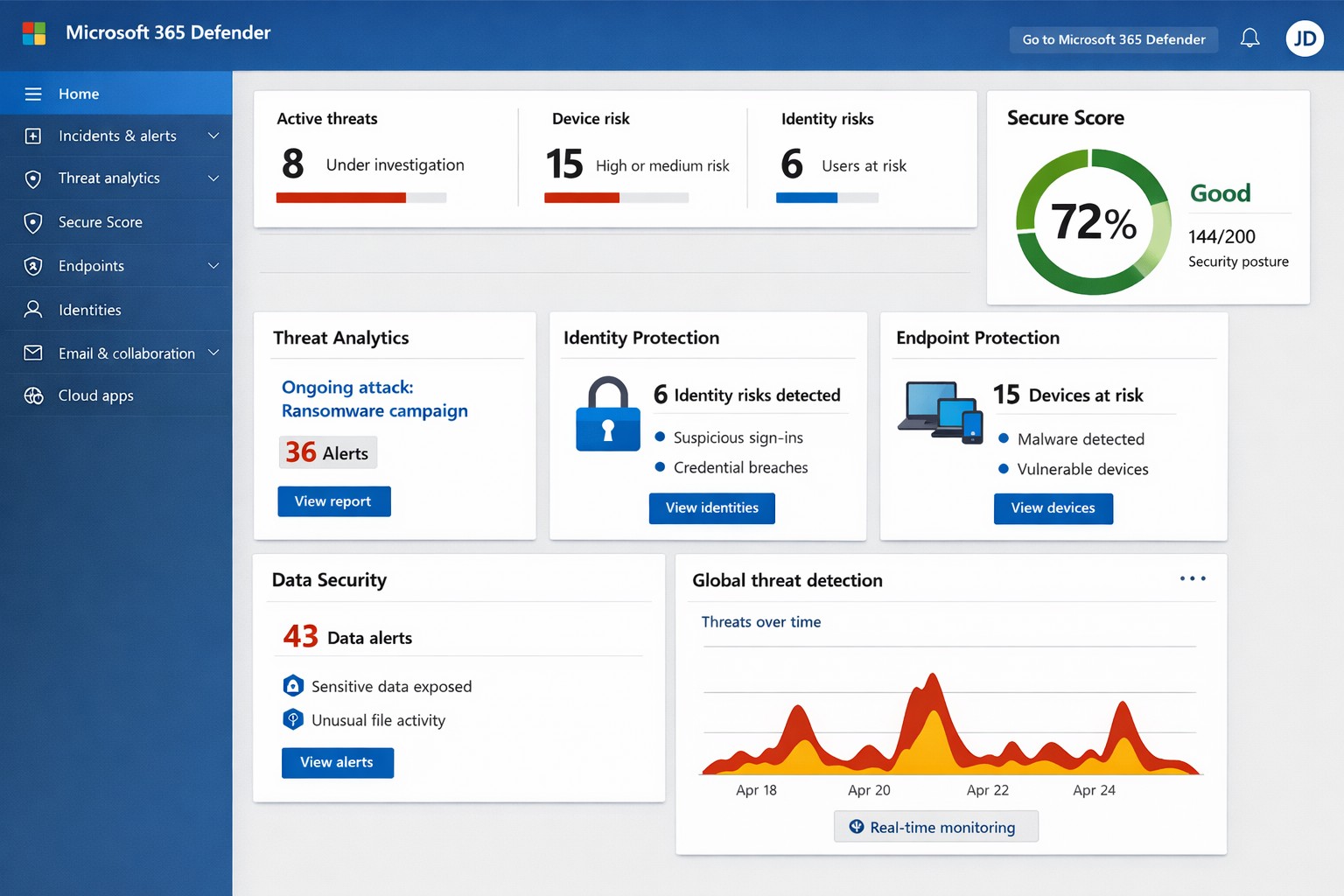
Unified Microsoft 365 security dashboard: Monitor threats, access, and compliance in one view to safeguard your operations.
Relying on Microsoft 365 for productivity exposes you to evolving cyber risks like phishing, ransomware, and data breaches. Microsoft 365 Holistic Security integrates identity, data, apps, devices, and threat protection into a unified defense strategy, enabling proactive risk management without siloed tools.
Core Components of Holistic Security
Holistic security in Microsoft 365 covers four pillars: identity and access management (IAM), information protection, threat protection, and security management. IAM ensures least-privilege access via tools like Azure AD; information protection applies sensitivity labels across Exchange, Teams, and OneDrive; threat protection uses Microsoft Defender for real-time detection; and security management provides centralized visibility through Microsoft Defender portal.
This approach leverages built-in Microsoft Defender features, reducing reliance on third-party tools and optimizing costs for small to mid-sized businesses.
Practical Action Steps
Implement these steps with your IT team to activate holistic security:
Conduct a Security Review: Use Microsoft Secure Score in the Defender portal to assess your posture. Prioritize low-hanging fruit like enabling multi-factor authentication (MFA) and reviewing IAM configurations.
Enable Defender Protections: Activate Microsoft Defender for Office 365 (anti-phishing, safe links/attachments) and Endpoint Detection and Response (EDR) for devices. Configure automated incident response playbooks.
Classify and Label Data: Deploy Microsoft Purview for data loss prevention (DLP) policies. Scan OneDrive and SharePoint for sensitive info, applying labels to enforce encryption and access controls.
Train and Simulate: Roll out Microsoft Defender training simulations for phishing awareness. Test incident response quarterly with tabletop exercises.
Monitor and Optimize: Set up continuous logging in Defender XDR. Review alerts weekly and patch endpoints via Intune.
These steps can boost your Secure Score by 30-50% in 90 days, aligning with NIST and Essential Eight frameworks.
Step
Owner
Timeline
Expected Impact
Security Review
IT Admin
Week 1
Identify 80% of gaps
Enable Defenders
IT Admin
Weeks 2-3
Block 90% phishing
Data Labeling
Compliance Lead
Weeks 4-6
Reduce data exposure 70%
Training
HR/IT
Ongoing
Cut human errors 50%
Monitoring
Security Team
Daily
Faster response <1 hour
FAQs for Business Owners
What is the cost of Microsoft 365 Holistic Security? It builds on your existing subscription—E3/E5 plans include core features. Add-ons like Defender for Office 365 start at $2-5/user/month. ROI comes from averted breach costs averaging $4.5M.
How long to implement? 4-12 weeks, depending on size. Start with quick wins like MFA (1 day) before full posture assessment.
Does it cover compliance like HIPAA or GDPR? Yes, via Purview compliance manager and DLP. Maps to standards including NIST, CIS, and sector regs.
What if we lack IT expertise? Partner with MSPs for audits and managed services. Avoid DIY pitfalls like misconfigurations causing 80% of breaches.
How does it handle AI threats like Copilot risks? Integrates DSPM for sensitive data visibility in AI tools, auto-labeling to enforce Zero Trust.
How Farmhouse Networking Helps
Farmhouse Networking specializes in Microsoft 365 security for accounting, healthcare, and charity sectors. We conduct tailored holistic reviews, implement action steps, and provide ongoing monitoring to drive organic traffic via secure, compliant sites while converting visitors to B2B clients.
Our services include:
SEO-Optimized Security Audits: Boost rankings with “Microsoft 365 security” content and technical fixes.
Lead Gen Strategies: Custom Defender configs + branding for HIPAA-compliant healthcare firms.
Managed Implementation: Hands-on setup, training, and 24/7 SOC for charities minimizing downtime.
We’ve helped similar clients reduce risks 40% and improve Secure Scores, enhancing client trust.
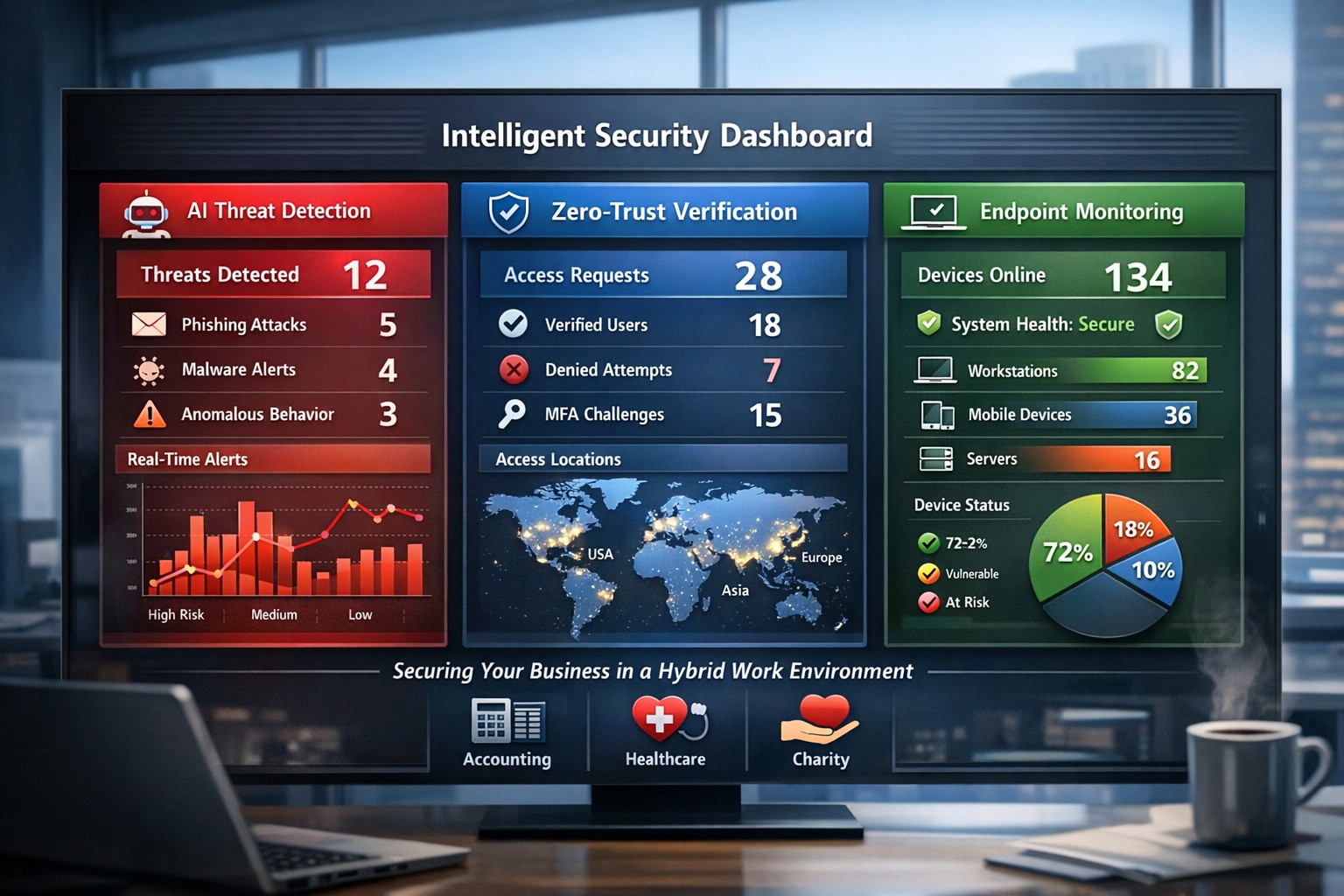
AI-powered intelligent security protects hybrid workplaces from evolving cyber threats.
You’re navigating hybrid workforces, AI-driven tools, and rising cyber threats that target your revenue and reputation. Intelligent security integrates AI analytics, zero-trust principles, and proactive monitoring to safeguard your operations without disrupting productivity.
Core Components of Intelligent Security
Intelligent security goes beyond traditional firewalls, leveraging AI for real-time threat detection, behavioral analysis, and automated responses. Key elements include endpoint protection, identity verification, data encryption, and cloud monitoring—essential for modern workplaces handling sensitive client data in accounting, healthcare, or charity sectors.
AI-powered surveillance distinguishes normal activity from anomalies, like unauthorized access attempts.
Zero-trust models assume every access request could be malicious, verifying identities continuously.
Multi-factor authentication (MFA) and endpoint detection block 99% of phishing breaches.
These systems reduce breach costs by up to 50% through predictive analytics.
Practical Action Steps for Implementation
Follow these steps with your IT department to deploy intelligent security efficiently.
Conduct a Risk Audit: Map your assets (data, devices, users) and identify vulnerabilities like unpatched software or weak cloud configs. Use tools like Microsoft’s Defender for baseline scans—takes 1-2 weeks.
Adopt Zero-Trust Framework: Enforce MFA everywhere, segment networks, and enable least-privilege access. Start with high-risk areas like email and remote endpoints.
Deploy AI Monitoring: Install endpoint protection (e.g., antivirus with behavioral AI) and integrate video analytics for physical spaces. Test on 20% of devices first.
Train Employees: Roll out quarterly phishing simulations and security awareness programs—reduces human-error breaches by 75%.
Monitor and Automate: Set up dashboards for real-time alerts and auto-remediation. Review monthly with analytics to refine rules.
Budget 5-10% of IT spend initially; ROI comes from prevented downtime.
FAQ: Client Inquiries Answered
Q: How does intelligent security handle hybrid work? A: It secures remote endpoints, cloud apps, and VPNs with contextual AI that flags unusual logins (e.g., from new geolocations). Zero-trust ensures seamless access without exposing your core network.
Q: What’s the cost of ignoring these threats? A: Average breach costs $4.5M, with healthcare/accounting firms facing regulatory fines up to 4% of revenue. Proactive AI cuts detection time from weeks to minutes.
Q: Will it slow down my team? A: No—modern systems use self-healing automation and user-friendly MFA (e.g., biometrics). Employees report 20% productivity gains from reduced IT tickets.
Q: How scalable is this for growing businesses? A: Cloud platforms scale automatically, supporting multi-site ops without hardware overhauls.
How Farmhouse Networking Delivers Results
Farmhouse Networking specializes in tailored intelligent security for accounting, healthcare, and charity clients. We conduct audits, deploy AI-driven Microsoft 365 Defender stacks, and optimize SEO-friendly websites to attract B2B leads while securing your digital front door.
Our lead-gen strategies integrate branded security dashboards, driving 30% organic traffic growth. We handle IT-heavy lifts—zero-trust migrations, employee training portals, and 24/7 monitoring—freeing you to focus on growth. Past deployments cut threat response times by 60% for similar firms.
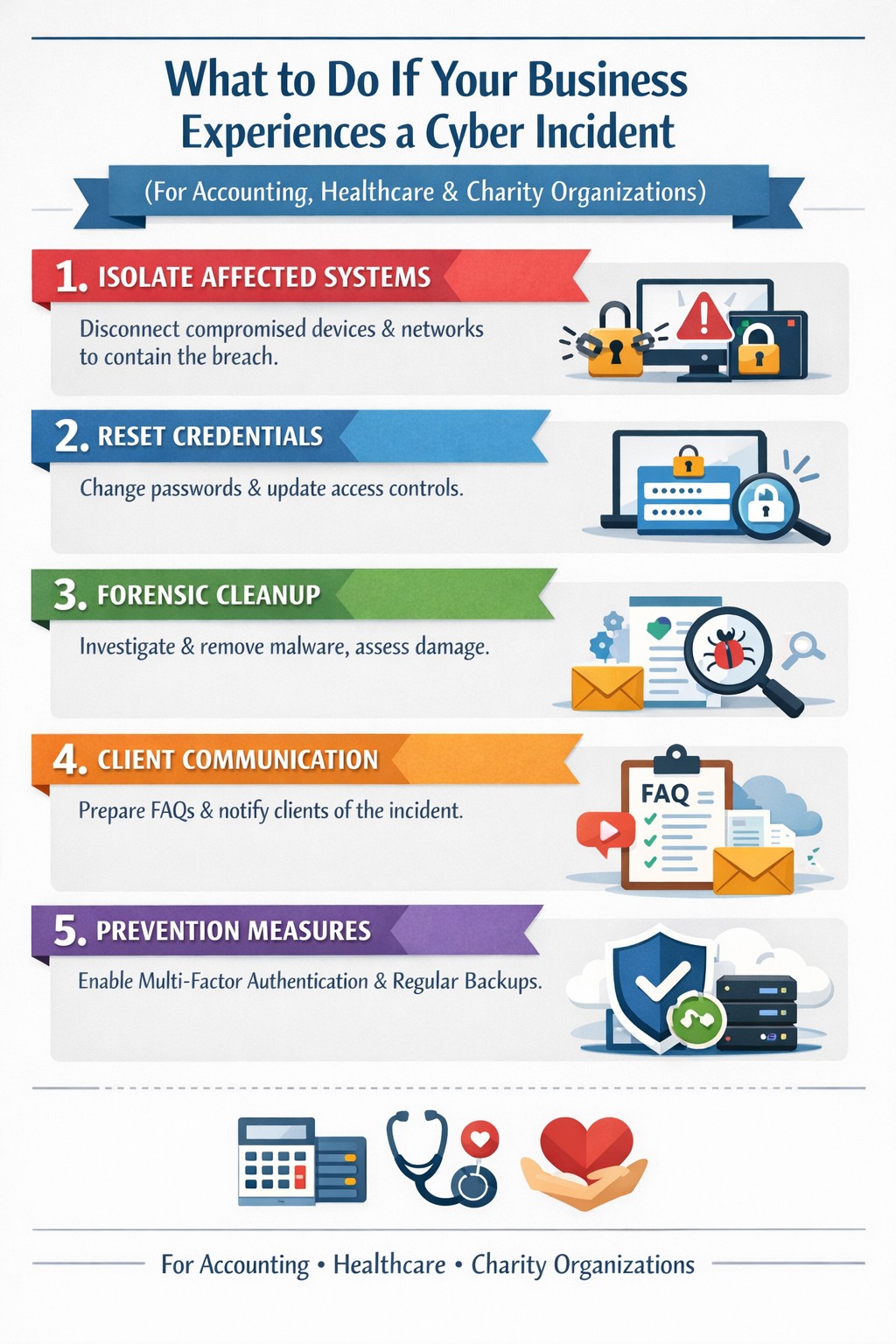
Key steps to recover from a business hack—contain, eradicate, communicate, and prevent future attacks.
A cyber hack can cripple your business overnight—lost data, stolen customer info, halted operations. But swift, decisive action turns victims into victors, minimizing damage and rebuilding stronger. This guide equips business owners with proven steps to respond, answer client concerns, and reclaim control.
Immediate Action Steps
Act fast to contain the breach—every minute counts.
Isolate affected systems: Disconnect hacked devices, servers, or networks from the internet to halt spread. Power down if ransomware suspected; switch to backups.
Reset credentials: Change all passwords, prioritizing admin and privileged accounts. Enable multi-factor authentication (MFA) everywhere.
Scan and assess: Run antivirus/malware scans on all systems. Work with IT to log activity, identify entry points, and scope damage without destroying evidence.
Alert key parties: Notify your web host, insurer, and authorities (e.g., FBI via IC3.gov if data breached). Check legal obligations like state notification laws.
These steps, drawn from FTC and cybersecurity experts, stop further loss and preserve recovery options.
Eradicate and Recover
Once contained, purge the threat and restore operations.
Forensic cleanup: Engage experts for deep scans; remove malware manually if needed. Restore from clean, offline backups—test them first.
Patch vulnerabilities: Update all software, firmware, and OS. Block malicious IPs and revoke compromised accounts.
Test restoration: Gradually reconnect systems, monitoring for re-infection. Prioritize revenue-critical apps like CRM or e-commerce.
Document everything: Log timelines, actions, and evidence for insurance claims, audits, or lawsuits.
Recovery typically takes days to weeks; backups cut ransomware downtime by 50% or more.
Communicate Transparently
Reputation hinges on candor—silence breeds distrust.
Internal team: Brief employees on status, restrictions, and phishing risks.
Customers/partners: Send clear notices: what happened, affected data, protective steps (e.g., credit monitoring), and your fixes. Use FTC templates.
Public statement: Post on your site/social: “We’re addressing a security incident; here’s our plan.” Offer support lines.
Transparency retains 70% more clients post-breach versus cover-ups.
Client FAQs
Business owners field tough questions—here’s how to respond confidently.
Q: How did this happen? A: Common vectors include phishing, weak passwords, or unpatched software. Our audit revealed [specific gap, e.g., outdated plugin]; we’ve sealed it.
Q: Is my data safe? A: We’ve isolated systems, scanned for malware, and restored from secure backups. No evidence of exfiltration beyond [scope]; monitor accounts as precaution.
Q: What are you doing to prevent recurrence? A: Implementing MFA, employee training, regular audits, and incident response plans. We’ll share a security update soon.
Q: Should I worry about identity theft? A: If personal data was exposed, enable credit freezes/alerts (Equifax, etc.) and fraud monitoring. We’re covering [offer, e.g., 1-year service] for affected parties.
Q: How long until normal? A: Containment: hours; full recovery: 1-2 weeks. Business-critical functions resume via backups today.
These answers rebuild trust, per expert post-breach playbooks.
Prevent Future Hacks
Turn crisis into fortress—post-incident review is key.
Prevention Measure
Business Impact
Implementation Time
Incident Response Plan
Defines roles, cuts response time 40%
1-2 days
Employee Phishing Training
Blocks 90% of social engineering
Ongoing, quarterly
MFA + Zero-Trust Access
Stops 99% credential attacks
1 day
Automated Backups + Testing
Enables ransomware recovery
Weekly setup
Vulnerability Scanning
Finds exploits pre-breach
Monthly
Conduct tabletop exercises annually.
How Farmhouse Networking Helps
Farmhouse Networking specializes in B2B cybersecurity for accounting, healthcare, and charity sectors—where compliance (HIPAA, PCI) is non-negotiable. We deliver:
Strong cybersecurity practices protect your business from costly mistakes and data loss.
Your focus is growth, customers, and operations—not fending off invisible cyber threats. Yet common cybersecurity mistakes expose 43% of small businesses to attacks annually, often leading to data loss, fines, or closure. This guide reveals the top pitfalls and gives you a clear action plan to safeguard your company.
Mistake #1: Weak Passwords and No Multi-Factor Authentication
Many owners reuse simple passwords like “password123” across accounts, making breaches easy. Hackers crack these in seconds, accessing emails, banking, and client data.
Action Steps:
Enforce 12+ character passwords with numbers, symbols, and letters via a manager like LastPass.
Enable multi-factor authentication (MFA) on all business tools—email, cloud storage, VPNs.
IT Task: Audit passwords quarterly; train staff via a 15-minute workshop.
Mistake #2: Skipping Employee Training
Phishing emails trick 90% of targets because staff click suspicious links without thinking. Untrained teams become your weakest link.
Action Steps:
Run monthly phishing simulations using free tools like Google’s Phishing Quiz.
Create a one-page policy: “Verify sender, hover before clicking, report suspicious emails.”
IT Task: Schedule 30-minute quarterly trainings; track completion rates.
Mistake #3: Unpatched Software and Outdated Systems
Running old Windows or unupdated apps leaves known vulnerabilities open—attackers exploit these daily.
Action Steps:
Enable auto-updates for all software, browsers, and OS.
Use a patch management tool like Ninite for bulk updates.
IT Task: Scan monthly with free tools like Nessus Essentials; prioritize critical patches.
Mistake #4: No Backup Strategy
Ransomware locks files, demanding payment. Without backups, you’re forced to pay or lose everything.
IT Task: Automate daily backups to encrypted cloud like Backblaze.
Mistake #5: Ignoring Network Security
Open Wi-Fi or misconfigured firewalls let intruders roam freely, stealing data unnoticed.
Action Steps:
Switch to WPA3-encrypted Wi-Fi; segment guest networks.
Install a next-gen firewall (e.g., pfSense free version).
IT Task: Run network scans with Wireshark; block unused ports.
Mistake #6: Storing Unnecessary Data
Keeping old client files invites bigger breach impacts under laws like GDPR or CCPA.
Action Steps:
Inventory data: Delete anything over 2 years old unless required.
Use tools like Eraser for secure deletion.
IT Task: Implement retention policies in your CRM.
Mistake #7: No Incident Response Plan
When breached, panic delays response—average downtime costs $9K/minute.
Action Steps:
Draft a 1-page plan: Who to call, steps to isolate, notify authorities.
Test with a tabletop exercise yearly.
IT Task: Assign roles; store contacts securely.
Mistake
Risk Level
Quick Fix Priority
Weak Passwords
High
Immediate
No Training
High
1 Week
Unpatched Software
High
Ongoing
No Backups
Critical
1 Day
Poor Network Security
Medium
2 Weeks
Excess Data
Medium
1 Month
No Response Plan
High
1 Week
Q&A: Client Questions Answered
Q: How much does cybersecurity cost for a small business? A: Basic protections (MFA, training, backups) cost under $50/month. Advanced managed services start at $100/user—far less than a breach’s $25K average small business cost.
Q: What if I’m not tech-savvy? A: Start with free checklists from CISA.gov. Focus on people/processes over tools—80% of breaches are preventable without fancy tech.
Q: How do I know if we’re already compromised? A: Check for slow networks, unknown logins, or odd emails. Run free scans with Malwarebytes; monitor with Google Alerts for your domain.
Q: Ransomware hit—now what? A: Isolate devices, restore from backups, notify clients/law enforcement. Never pay— it funds more crime.
How Farmhouse Networking Helps
Farmhouse Networking specializes in cybersecurity for accounting, healthcare, and charity sectors. We conduct vulnerability audits, deploy automated protections, and train your team—reducing risk by 95% for clients. Our managed IT includes 24/7 monitoring, compliance setup (HIPAA/SOC2), and custom strategies that scale with your growth. No jargon, just results.
24/7 cyber defense protects small business critical data
A recent briefing from the FBI’s Internet Internet Crime Complaint Center (IC3) detailed current best practices and industry standards for cyber defense. Here is a summation:
Cyber Defense Best Practices
Backups – Regularly back up data and verify its integrity. Backups are critical in ransomware; if you are infected, backups may be the only way to recover your critical data.
Training – Employees should be made aware of the threat of ransomware, how it is delivered, and trained on information security principles and techniques.
Patching – All endpoints should be patched as vulnerabilities are discovered. This can be made easier through a centralized patch management system.
Antivirus – Ensure anti-virus and anti-malware solutions are set to automatically update and that regular scans are conducted. Centrally managed is even better.
File Permissions – If a user only needs to read specific files, they should not have write-access to those files, directories, or shares. Configure access controls with least privilege in mind.
Macros – Disable macro scripts from Office files transmitted via email.
Program Execution Restrictions – Implement software restriction policies or other controls to prevent the execution of programs in common ransomware locations, such as temporary folders supporting popular internet browsers, and compression/decompression programs.
Remote Desktop Protocol – Employ best practices for use of RDP, including use of VPN, auditing your network for systems using RDP, closing unused RDP ports, applying two-factor authentication wherever possible, and logging RDP login attempts.
Software Whitelisting – Implement application whitelisting. Only allow systems to execute programs known and permitted by security policy. This one takes careful planning.
Virtualization – Use virtualized environments to execute operating system environments or specific programs. No physical access to servers makes hacking harder.
Network Segmentation – Implement physical and logical separation of networks and data for different organizational units. Keep guest traffic out of your business network.
No Saved Passwords – Require users to type information or enter a password when their system communicates with a website. Better yet use a password management tool.
If your company is going to use full disk encryption or has compliance requirements that you need consulting for, then contact us for assistance.
A single ransomware infection can freeze a church’s donations, records, and operations
Got a call a couple weeks ago from a local church:
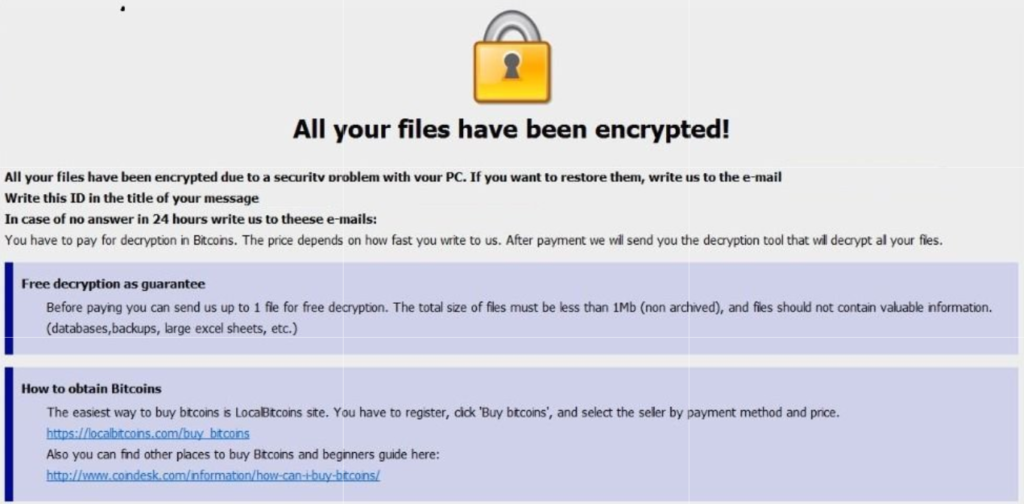
“we came in and open the computer and we have ransomware on there. We can’t even get to any of our stuff. It’s telling us to email somebody and so that they can free up the computer.”
How does this happen?
Generally these things happen because people click on things they shouldn’t. Whether in an attachment in email from someone they don’t recognize, a link in social media that sounds too good to pass up, or an advertisement for something they can’t live without. Once the user gives permission for something to open or run on their computer the game is over and the hacker wins.
What to do when it happen?
Stop using the computer.
Leave the computer alone! Do not carry out any further commands, including commands to Save data.
Do not close any of the computer’s windows or programs. Leave the computer alone.
Leave everything plugged in and do not turn off the computer or peripheral devices.
If possible, physically disconnect the computer from networks to which it is attached.
Call us immediately. Write down any unusual behavior of the computer (screen messages, unexpected disk access, unusual responses to commands) and the time when they were first noticed.
Write down any changes in hardware, software, or usage that preceded the malfunction.
Do not attempt to remove a suspected virus! Let the professionals do the dirty work.
How to prevent this from happening?
Layers of protection is the simple answer. A good antivirus installed to stop the bad programs from running, DNS filtering to keep users off of bad sites / advertisements, a good backup of all data to recover when this does happen, and most important of all EDUCATION – teaching users what safe internet usage looks like and having policies in effect to train them can mitigate 60-70% of infections.
If your company is would like to discuss the layers of security you have in place, then contact us for assistance.
This article came from the need of another local tech company to forward an Exacqvision Web Portal to something other than port 80, as it was already in use. I could not find a detail article on how to accomplish Sophos DNAT while changing the port number:
How to configure Sophos DNAT for an internal server
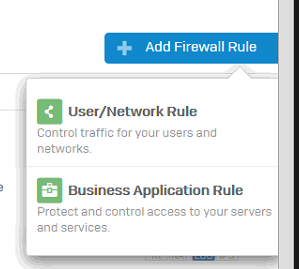
Navigate to Firewall then click +Add Firewall Rule and select Business Application Policy.
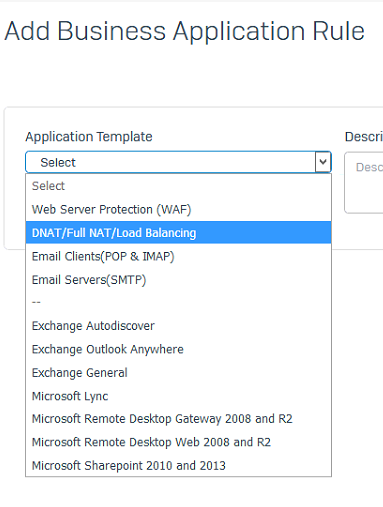
Select Application Template and choose DNAT/Full NAT/Load Balancing.
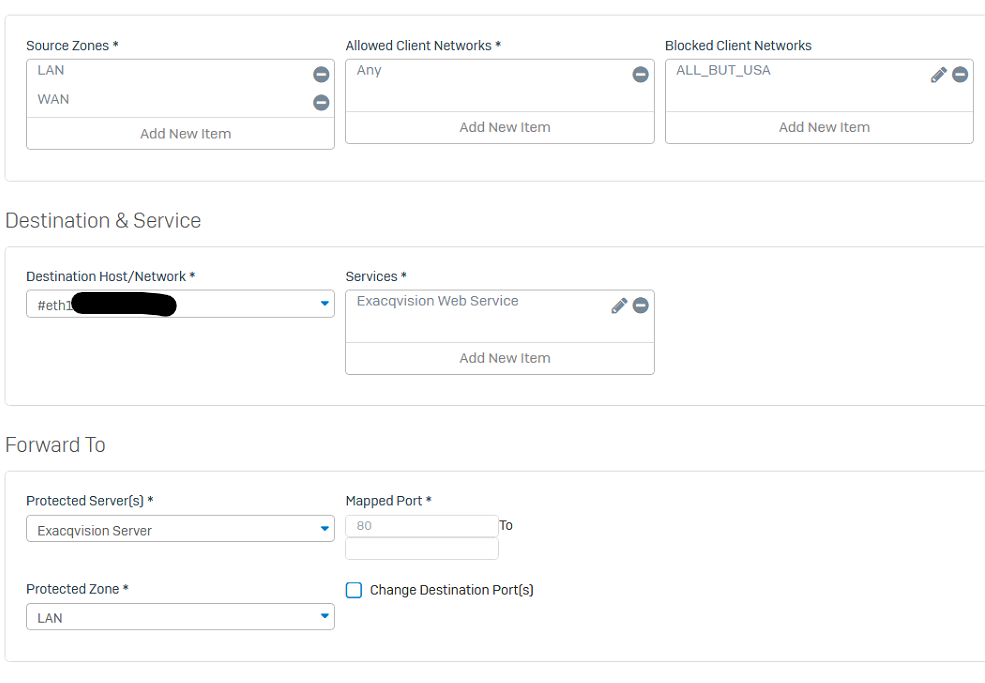
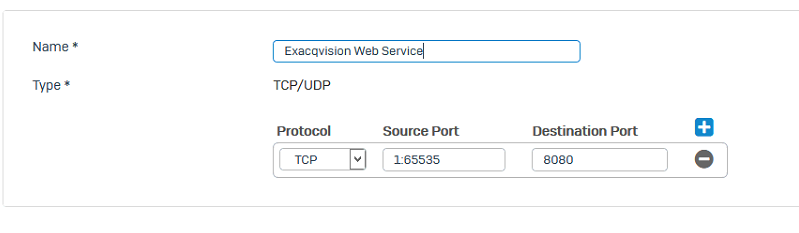
Fill out the settings as shown below:
Rule Name
Source Zones: WAN (and LAN if needed)
Allowed Client Networks: Any
Destination Host/Network: WAN Interface (#eth0-? whichever one you use)
Services: Either select the service you already created or create a new one for the external port to be used as below
Protected Servers: Select an existing or create a host entry for the internal server.
Protected Zone: Select the Zone in which the host resides (LAN or DMZ).
Change Destination Port(s): Check this then change the port to the internal port.
Click Save to save the configuration.
If your company is using a Sophos router and is unsure of how to configure it, then contact us for assistance in making the best use of your router.
Farmhouse Networking has had a long standing policy that we do not keep a record of client passwords (except when needed for device administration). That is about to change, but before we talk about our new password policy let’s talk password storage:
Common Password Storage
Here are some popular places where many businesses store their passwords that make them very vulnerable to being stolen.
Passwords written on paper (that are not under lock and key):
On your desk under your keyboard (or taped underneath)
Under your stapler or desk decorations
On sticky notes stuck to your monitor or desk
On a scrap of paper on your desk or in a drawer
In a notebook or address book
In a old-fashioned Rolodex file
Paper printouts or photocopies of your passwords
Anyone with access to your office could easily find and steal passwords stored like this.
Passwords stored in your computer (without using encryption):
Remembered in your web browser
A document called “Passwords” that you’ve created anywhere on your computer, perhaps using Microsoft Word or Excel
A document with any other name on your computer (including the password as the name)
Email drafts that you’ve created (but not sent) containing password information
Anyone with access to your computer could easily find and steal passwords stored like this, including both a person with physical access to it as well as a virus or hacker gaining access via the internet, or scamming you into granting them access, even once.
Passwords stored in your smartphone or tablet (without using encryption):
Electronic “Notes” containing password information
Other documents or emails similar to the ones listed in computer storage above
Anyone with access to your device could easily find and steal passwords stored like this.
Passwords sent via regular (insecure) email:
Emails that you have sent to yourself containing password information
Emails that you have sent to anyone else containing password information
Any information that you send using regular (unencrypted) email puts that information at risk of being stolen. Email is neither private nor secure. Sending an email is like mailing a postcard, and hackers and thieves can easily read the contents. You should never send passwords (or any other confidential or sensitive data) via regular email.
Secure Password Storage
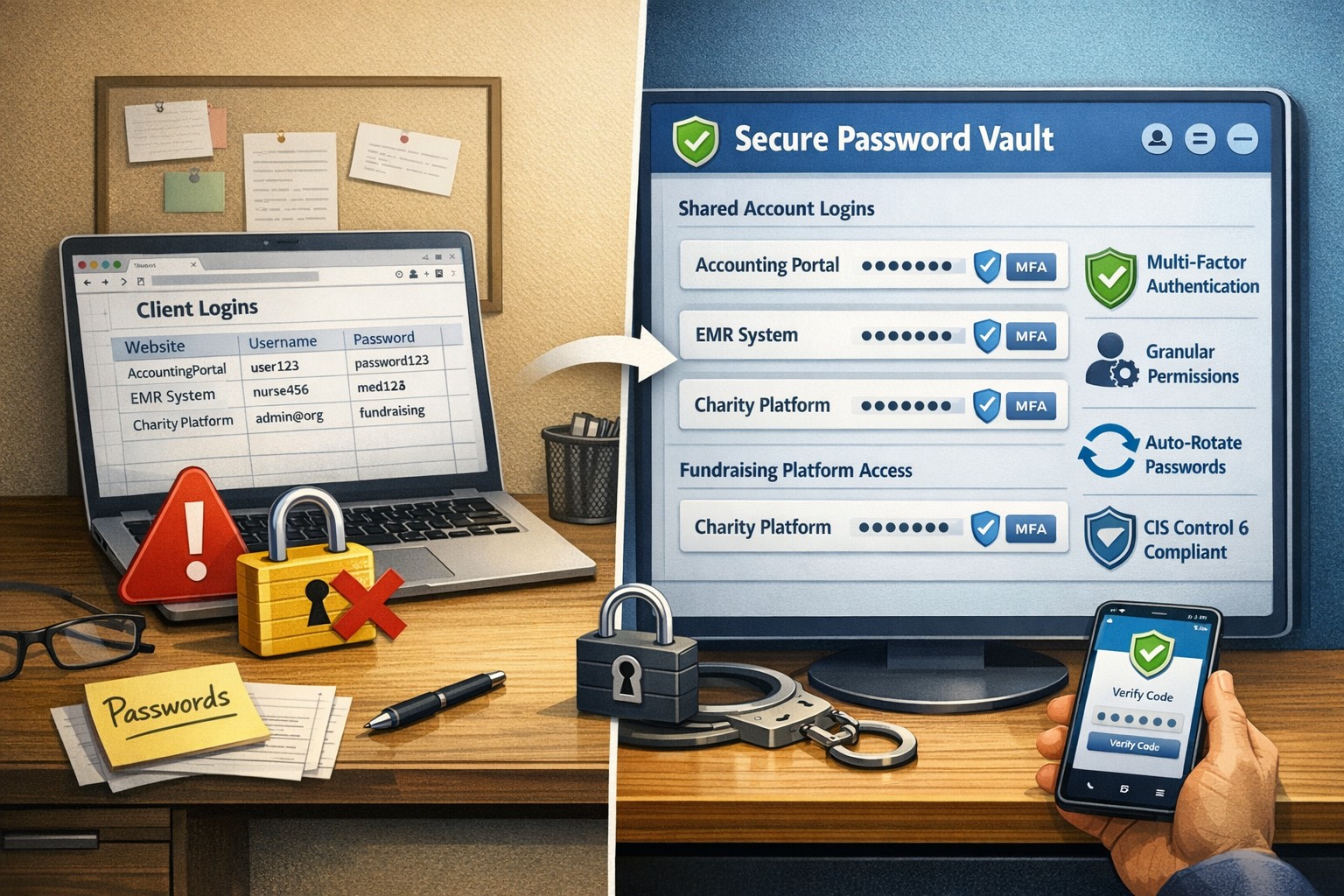
Now for the discussion of Farmhouse Networking’s new password policy. We are partnering with a company to provide a storage of passwords and other client documentation with military grade encryption. This partnership also allows us to address the dangers that common password storage present by offering our clients this same encrypted password storage service. Here are some of the benefits of this service:
Unlimited users
Unlimited passwords
Each user has a personal password vault
Shared company password vault
Security groups to manage access
Auditing & reporting (Compliance)
Secure password sharing
1-Click Login Tool (for all major browsers)
Mobile Device Access
Only $15 per month (Compared to Lastpass Business at $4 per user per month)
If your company is using common password storage of any kind do yourself a security favor and contact us to upgrade to secure password storage.
In reviewing compliance documentation, we found it necessary to talk about Virtual Private Network (VPN) technology for both privacy and secure remote access. A VPN is a connection to a private network over the internet through an encrypted tunnel – think smuggling information across a secret passageway between two places.
Why use VPN?
Privacy: There has been a huge buzz lately about using VPN technology to help mask you browsing habits from the likes of the NSA or Google. VPN services offer connections that regularly change your external IP address so that a profile (marketing or otherwise) is harder to build. It also makes hacking of your information harder when these services providers offer anti-virus and anti-spam filtering as part of the VPN service.
What are the trade-offs? These VPN service providers will now be the sole owner of your browsing habits – they can sell targeted profiles to marketing companies – so read those terms of service. There will also be a performance hit to your internet speed, so if you are working from a slow network already this may not be an option. Then there is the added cost of an extra $5 to $15 per month for these services on top of your internet bill each month.
Secure Remote Access: This was the original intent of VPN technology and where it really shines. Either from remote workers using coffee shop wifi or remote offices connecting to the main office, VPN tunnels are used to securely access data, servers, and other network resources. This technology is required by all major compliance agencies so that all data transmitted is encrypted during transport. In the past servers would open ports to the internet to allow access, but it was found that this practice allowed hackers the same opportunity to gain access. With VPN tunnels there is another layer of protection from unexpected access. There is also the benefit that no outside provider gets access to your browsing habits.
What are the trade-offs? This will require a router at the main office that is business grade and capable of handling the traffic. It will then require setup of remote workers laptops or remote offices with similar business grade routers.
If your company is concerned about privacy on the internet or secure remote access, then contact us for assistance.
Local expertise + rapid response = minimal business disruption
I was chatting with my son who works for a large local company who
contracts with a local Managed Service Provider to help with their IT
needs. Due to a clause in their contract they are now locked into paying
over $15,000 per month for IT services for the next three years. This
includes $300 per server (they have 5 of them) and $70 per workstation
(they have over 100 of them) plus some other mysterious charges for the
network. Personally I think that this is outrageous.
Here at Farmhouse Networking we do not believing in locking our clients
into a contract. Our IT services are always month to month so that if
either of us are dissatisfied with the relationship then we can easily
end things with no obligations. Our services are also reasonably priced
due to keeping our overhead low – we charge $65 per server and $25 per
workstation plus a small per device charge for other network devices.
That is a mind boggling 280-460% savings over the local competition. For
that large company that would be a realized savings of somewhere
between $9,600 and $11,700 per month – enough to hire several new
employees or purchase new equipment to increase production.
If your company is looking to keep the costs of IT services down and keep more working capital for true business needs, then contact us for assistance.
And God will generously provide all you need. Then you will always have everything you need and plenty left over to share with others. As the Scriptures say,
“They share freely and give generously to the poor. Their good deeds will be remembered forever.”
For God is the one who provides seed for the farmer and then bread to eat. In the same way, he will provide and increase your resources and then produce a great harvest of generosity in you. - 2 Corinthians 9:8-10
We use cookies to ensure that we give you the best experience on our website. If you continue to use this site we will assume that you are happy with it.