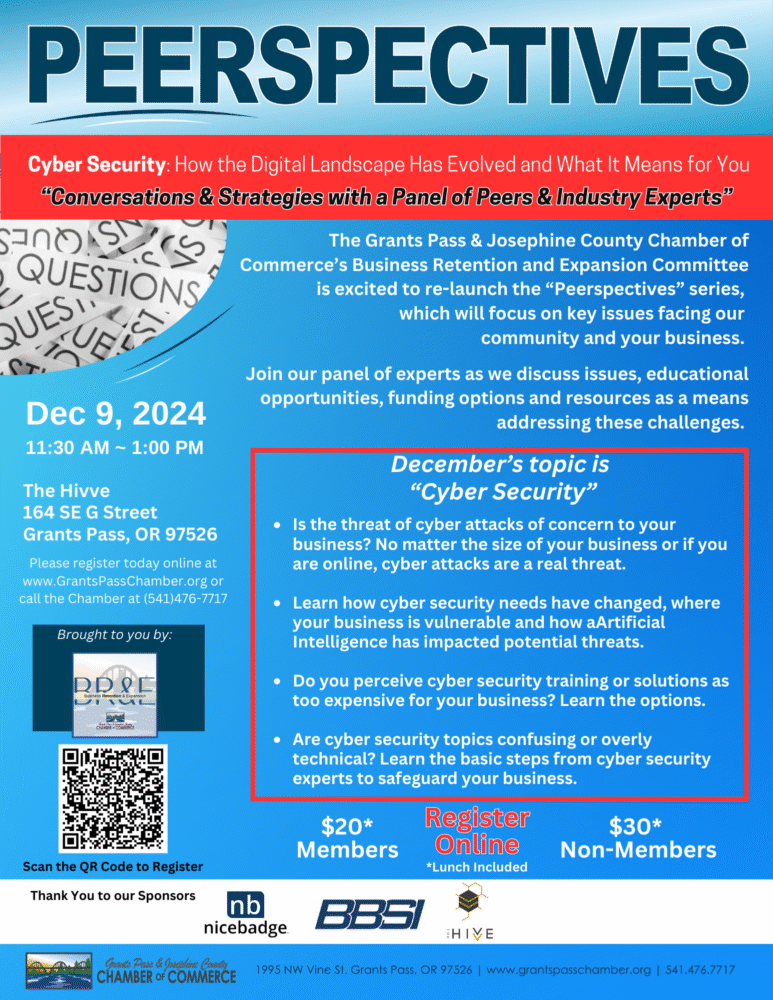
For those that missed us this week, our CEO Scott Carr was one of the guest speaking panel and the event pictured above. During our discussion, the question was asked – “What is the one thing business owners can do to protect themselves from ransomware?” Scott’s answer was – “If you do nothing else, at the very least have a backup of your data. If anything goes wrong you will be able to go back to your previous data and skip paying the ransom.”
Why Backup?
Ransomware attacks have become an increasingly prevalent threat to businesses of all sizes. As cybercriminals continue to evolve their tactics, it’s crucial for organizations to implement robust defense strategies. One of the most effective ways to protect your business from the devastating effects of ransomware is through a comprehensive backup strategy.
The Rising Threat of Ransomware
Ransomware attacks have surged dramatically in recent years, with 2024 seeing unprecedented levels of both frequency and sophistication. In the first half of 2024 alone, the average extortion demand per ransomware attack exceeded $5.2 million, with a record-breaking payment of $75 million in March. These staggering figures underscore the critical need for businesses to fortify their defenses against such attacks.
The Role of Backups in Ransomware Protection
Data backups serve as a crucial line of defense against ransomware threats. They provide a safety net that can help your company prevent irreparable damage in the event of an attack. Here’s why backups are so important:
Added Data Security: By maintaining backups of your critical data, you remove one of the primary vectors for ransomware attacks. If you can still access your data from a backup, hackers lose their leverage in demanding a ransom
Recovery Options: Reliable and well-tested backups give ransomware victims more options. Without backups, organizations have limited choices for recovery. However, with confidence in their ability to restore from backups, businesses can make more nuanced decisions during ransomware recovery and negotiations.
Best Practices for Ransomware-Resilient Backups
To ensure your backups provide effective protection against ransomware, consider implementing these best practices:
Implement the 3-2-1 Backup Strategy: This strategy involves maintaining at least three copies of your data on two different storage types, with one copy kept offsite. This approach significantly reduces the risk of losing all your data in a single attack
Use Immutable Storage: Immutable backups cannot be modified, altered, or deleted for a specified period. This ensures that your backup data remains intact and tamper-proof, protecting against both accidental and malicious changes
Maintain Offline Backups: Keep a secondary offline backup copy that ransomware cannot reach. Network attached storage devices can be an effective method for this purpose.
Increase Backup Frequency: Consider backing up mission-critical data at least once per hour. This reduces the amount of data that could potentially be lost in a ransomware attack.
Employ Endpoint Protection: Use modern endpoint protection platforms that can detect ransomware processes as they begin, even if the type of ransomware is new and unknown.
The Business Impact of Ransomware
The consequences of a ransomware attack extend far beyond the immediate financial loss. Businesses may experience:
Extensive downtime, leading to significant revenue loss
Damaged reputation among customers and partners
Delayed project timelines
Potential loss of sensitive customer data
These impacts underscore the importance of a robust backup strategy as part of your overall cybersecurity plan.
Don’t wait until it’s too late to protect your business from the devastating effects of ransomware. Contact Farmhouse Networking today to develop a comprehensive backup and cybersecurity strategy tailored to your organization’s needs. Our expert team can help you implement robust protection measures, ensuring your business remains resilient in the face of evolving cyber threats. Secure your data, protect your reputation, and safeguard your bottom line—reach out to Farmhouse Networking now.
As our business continues to grow our focus is on providing white labeled Tier 3 IT support services, RMM as a service, and co-managed IT services. This blog will be highlighting tips for using PowerShell to deploy Synology Active Backup for Business.
Research
Found a support page from Synology that details how to edit the MSI file and deploy it via a Group Policy Object. We are using a similar method to edit the MSI package and deploy it from a local share to all computers via the RMM. You will need to configure a Synology Active Backup for Business template for PCs and download the MSI installer. We use a software called InstEd to edit the MSI installer as follows:
Click Property in the Tables list on the left. Enter the values for the following properties3:
USERNAME: Enter the username for accessing the Synology NAS.
NO_SHORTCUT: Enter “1” if you want to hide the Active Backup for Business Agent’s icon from the main menu of the end user’s device.
ADDRESS: Enter the IP address of the Synology NAS.
PASSWORD: Enter the password for accessing the Synology NAS.
ALLOW_UNTRUST: Enter “1” if you want to connect to the Synology NAS using an IP address instead of a domain or DDNS.
PROXY_ADDR, PROXY_PORT, PROXY_USERNAME, PROXY_PASSWORD: Enter these values only when users have to access your Synology NAS via proxy.
Click File > Save
Once done, upload to the local network share and take note of the share path – i.e. \\192.168.20.10\Support
Variables
$MSIArguments = This will include full file name of the Synology Active Backup for Business MSI installer – i.e. ‘Synology Active Backup for Business Agent-2.7.0-3221-x64.msi’
Script Snippet
Push-Location -Path '\\192.168.20.10\Support' -StackName 'Backup'
Set-Location -StackName 'Backup'

$MSIArguments = "/i Synology Active Backup for Business Agent-2.7.0-3221-x64.msi"

Start-Process "msiexec.exe" -ArgumentList $MSIArguments -Wait -NoNewWindow
The script will take several seconds to minutes to run based on the speed of the computer. The computers will start populating on their own into the Synology Active Backup for Business app.
If your company is a MSP or wants to become one and automation just seems out of reach, then contact usto run your RMM for you.
Neglected IT infrastructure quickly turns into costly downtime and data loss, but proactive managed IT services help businesses stay online and protected.
Has your business ever experienced a technology crisis that could have been easily prevented? Learn from the cautionary tale of a non-managed client who recently faced a major setback due to neglected IT infrastructure. This compelling story underscores the importance of proactive IT management and the need for robust backup solutions.
The Story: A Cautionary Tale
Neglected IT Infrastructure: After 5 years of radio silence, a panicked non-managed client reached out to us when their aging computer, hosting their crucial order processing system, malfunctioned.
DIY Mishap: Attempting to fix the issue themselves, the client inadvertently worsened the situation by installing the wrong part, leading to a cascade of problems.
Costly Consequences: The subsequent visit to a local repair shop and improper part replacement led to the corruption of critical files, including the Windows Operating System and the database containing vital client data.
Backup Oversight: The client’s failure to maintain updated database backups exacerbated the crisis, with the only available backup being approximately 5 years old.
The Solution: Managed IT Services
Proactive Maintenance: With managed IT services, critical components like the aged computer would have been promptly replaced before catastrophic failure, averting the entire crisis.
Remote Support: Swift remote intervention by a managed IT provider would have prevented the corruption of the operating system and database, substantially reducing the overall cost of the incident.
Comprehensive Backup Strategy: Every business should prioritize regular, imaged-based backups to safeguard their crucial data, ensuring seamless restoration in the event of a disaster.
Expert Guidance: Embracing managed IT services equips businesses with expert recommendations and proactive measures to avoid potentially devastating technology pitfalls.
Take the Right Step for Your Business!
Don’t let your business fall victim to preventable IT disasters. Embrace the proactive protection and expert guidance offered by a managed IT service provider to ensure uninterrupted business operations.
Make sure Hyper-V Host has CPUs than the combined total of CPUs for all servers being restored as these static until after the VMs are completely restored. If there is not enough CPU resources then the VMs will not boot.
Make sure Hyper-V Host has more than the combined total of RAM for all servers being restored as these settings are static until after the VMs are completely restored. If there is not enough memory then the VMs will not boot.
Create a SET NIC Team on the server (if you have multiple NICs)
Open Powershell as administrator
User the New-VMSwitch command to setup an external virtual switch to connect to for live connections
The AllowManagementOS is needed if you are using the same NIC team to access the VM host
Setup secondary Internal vSwitch to allow for testing before deploying
Setup Synology LUN targets for each VM to be restored. Make sure that they are big enough to hold all the full uncompressed size of the entire thick provisioned hard drives for the entire server.
Connect each LUN to the iSCSI Initiator on the VM Host. Make sure to bring them online, initialize them, and give them a drive letter. Synology needs this because it uses the SMB protocol to transfer the files during restore.
Make sure to allow the File and Printer Sharing app through the Windows firewall and open port 5986 to allow HTTP traffic for WinRM to allow Synology to query the Hyper-V settings.
Add the Hyper-V Host to the Active Backup for Business app.
Synology Active Backup Restore to Hyper-V
Open the Active Backup for Business app
Click on the Physical Server tab on the left
Select the server and click the Restore button
Select the point in time to restore from
Choose Restore to Microsoft Hyper-V
Choose Full Virtual Machine Restore
Change the Restore Name
Select a folder on the Hyper-V Host to place the configuration files
Select a folder on the Hyper-V Host to place each of the restore VHD files
Select a Virtual Switch on the Hyper-V Host to connect the VM to
Confirm the settings by clicking on the Done button.
After:
The VMs will boot with a single NIC and no network settings. Keep them offline and add additional NICs as needed to match the original setup. Then configure the NICs as before upon reboot. Make sure to connect to Internal Test Switch for initial steps.
Check hardware configuration of CPUs and RAM to determine if adjustments can be made. In particular, the RAM settings can be changed to startup, minimum, and maximum to allow for distribution of resources to VMs that have heavier workloads.
Boot VM to make sure it is functioning correctly. (first bootup can take upwards of 15 minutes)
Convert the VM from Gen1 to Gen2
Download Windows 10 ISO – https://www.microsoft.com/en-us/software-download/windows10
And God will generously provide all you need. Then you will always have everything you need and plenty left over to share with others. As the Scriptures say,
“They share freely and give generously to the poor. Their good deeds will be remembered forever.”
For God is the one who provides seed for the farmer and then bread to eat. In the same way, he will provide and increase your resources and then produce a great harvest of generosity in you. - 2 Corinthians 9:8-10
We use cookies to ensure that we give you the best experience on our website. If you continue to use this site we will assume that you are happy with it.