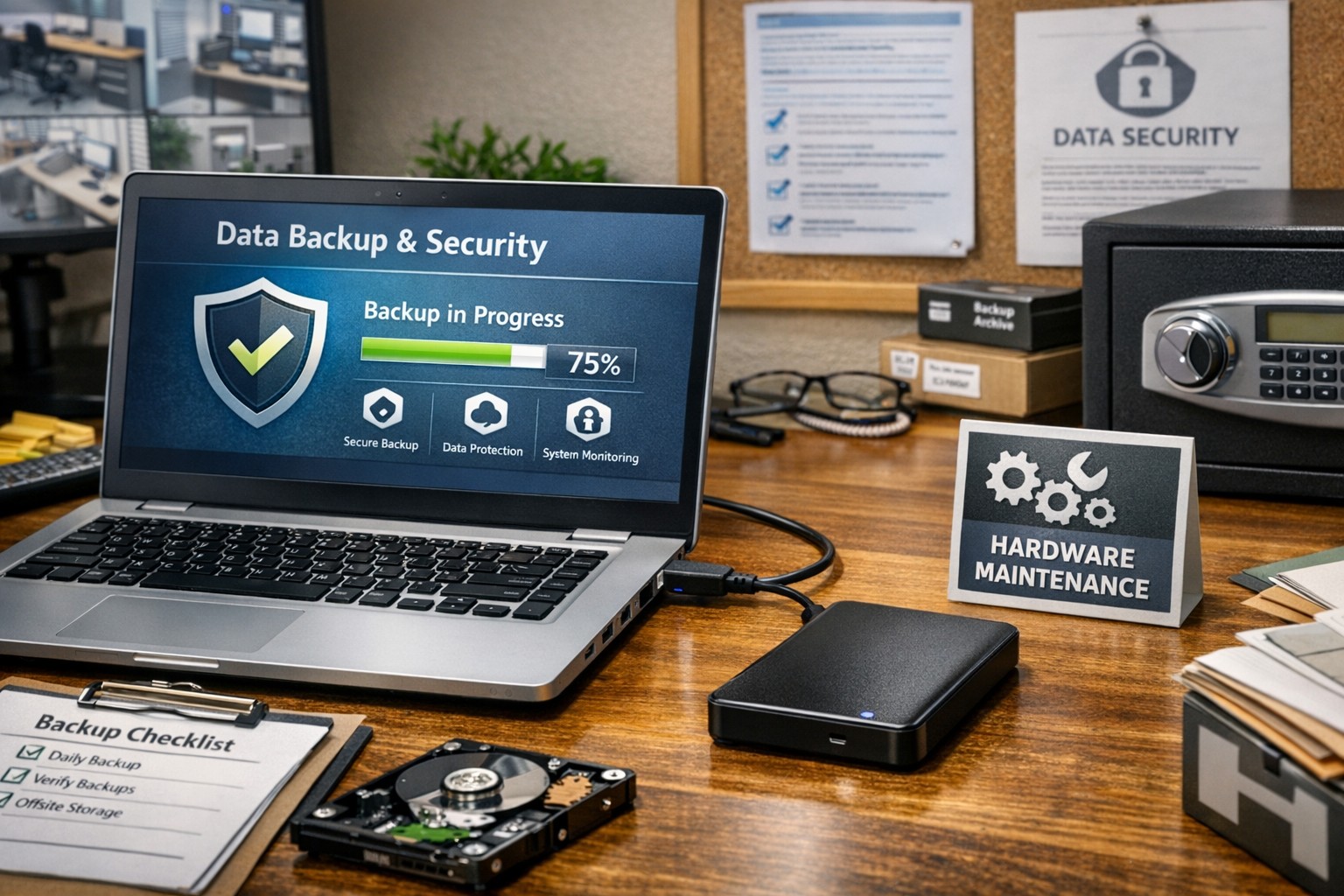
Proper care and maintenance of external hard drives keeps small business data secure and ensures reliable backup performance.
Your external hard drives are more than just storage devices—they’re the backbone of your backup and disaster recovery strategy. Whether you’re safeguarding financial records, client data, or project files, keeping these drives in top condition is crucial to prevent data loss and ensure smooth operations. Yet, many small- to medium-sized businesses (SMBs) neglect proper external hard drive care until it’s too late.
This guide outlines practical steps your business and IT team can take to maintain your external drives, answers common questions, and explains how Farmhouse Networking can help you protect your data investment.
Step-by-Step External Hard Drive Care for Businesses
1. Store Drives Safely and Strategically Keep your external hard drives in a cool, dry environment away from heat sources, direct sunlight, and moisture. Avoid stacking them or placing them near magnets or heavy equipment. A temperature-controlled office with minimal dust exposure reduces the risk of drive failure.
2. Use Regular Backup and Testing Routines Set up scheduled backups (daily, weekly, or monthly) depending on how often your business data changes. Test your backups regularly by restoring sample files to confirm they’re not corrupted. This extra step ensures your data will be recoverable when it truly counts.
3. Avoid Unplugging During Use Never disconnect an external hard drive while it’s transferring data. Doing so can interrupt write processes, causing data corruption or even physical disk damage. Always use the “Safely Remove Hardware” option before unplugging.
4. Protect Against Electrical Surges Use surge protectors or uninterruptible power supplies (UPS) to prevent sudden voltage spikes or power failures from damaging your drives. Power fluctuations are one of the leading causes of hardware failure.
5. Label and Track Your Drives For businesses using multiple backups or rotating drives, label each device clearly with its backup date, purpose, and drive ID. Maintain a simple log so your IT team can easily identify which drive holds which data.
6. Encrypt and Password-Protect Sensitive Data Even if your drives are physically safe, data security remains a top priority. Enable encryption and use strong passwords to protect sensitive company and client information, especially for industries handling confidential data or regulated information.
7. Monitor Drive Health Use disk-monitoring software to check drive health indicators like temperature, bad sectors, or read/write errors. Common tools include CrystalDiskInfo or SMART monitoring utilities—many of which can integrate directly into business IT systems for proactive alerts.
Common Questions About External Hard Drive Maintenance
Q: How often should my business replace external drives? Generally, replace drives every 3–5 years, depending on usage and storage environment. Drives used for daily backups may wear faster than those used occasionally for archiving.
Q: What’s the best file system for business backups? For Windows users, NTFS offers stability and large file support. Cross-platform users (macOS and Windows) may prefer exFAT. The choice depends on your backup software and workflow.
Q: How can I tell if my external hard drive is failing? Warning signs include slower performance, clicking or grinding noises, frequent disconnections, or error messages. At the first sign of trouble, stop using the drive immediately and back up data elsewhere to prevent further damage.
Q: Are SSD external drives better than HDDs? Solid-state drives (SSDs) are faster and more durable (no moving parts), but typically more expensive per gigabyte. SMBs focused on speed and portability often find them worth the investment.
How Farmhouse Networking Can Help
At Farmhouse Networking, we partner with small- and medium-sized businesses to create comprehensive data protection plans that go beyond just devices. Our team offers:
Automated backup solutions that reduce the risk of human error.
Drive health monitoring systems to detect early signs of failure.
Data encryption and security compliance consulting to safeguard sensitive information.
Disaster recovery services that ensure your business can bounce back quickly from any data loss event.
We understand how critical reliable storage is to your operations. Our IT experts can assess your current backup process, recommend appropriate external drives, secure your devices, and set up reliable offsite backups or cloud redundancy.
Keep Your Data Safe — Start Today
External hard drives are a dependable and affordable part of any SMB’s data management strategy, but they require proper care to remain effective. By following the steps above and partnering with a trusted IT service provider like Farmhouse Networking, you can extend the life of your drives, reduce risk, and maintain business continuity.
Ready to strengthen your backup strategy or troubleshoot your current storage setup? Email support@farmhousenetworking.com today to learn how Farmhouse Networking can help protect your business from data loss.
The SANS Institute has been putting out the OUCH! newsletter for some time now in a project called Securing the Human. In the most recent Issue, they discuss some best practices and practical advice for traveling. Here are some highlights:
Minimize Possible Losses
Here are a few tips to protect information from the hazards of traveling and possible theft:
Remove any data that is not needed on the device
Use full disk encryption & strong passwords
Perform a complete backup before leaving
Install tracking software on the device
Update OSes and Antivirus
Lost/Stolen Devices
Although crime is more of a factor in some third world nations or those in active conflict, the human element of losing the device is 100x more likely. Keep inventory of your devices before, during and after transporting from one location to another. Do not leave your device in the hotel room, have the hotel front desk put it in their safe or locked administrative offices.
Public WiFi
If you have to connect to the internet in public spaces and/or cannot afford mobile data on your trip, then make sure to do the following:
Never use public computers for sensitive information, especially banking sites
When on public wifi, only surf to sites with HTTPS:// secure connections
Consider connecting to a VPN service to further encrypt communications
If your company is requires traveling or you are planning to remotely work while on vacation, then contact us for assistance. We would be happy to walk you through the full disk encryption process, update / secure your devices and configure a company VPN service to connect to on the go.
During a recent briefing from the FBI’s Oregon Cyber Task Force in Medford, OR they detailed best practices and industry standards for cyber attack mitigation. FBI special agents started with information and statistics about the most recent threats giving specifics of how the attacks were executed. Security Architect from the State of Oregon then outlined the specifics of how to mitigate these threats properly. Here is a summation:
Current Threat Landscape
Business Email Compromise (CEO Fraud): Involves cyber criminals posing as business executives at companies that regularly perform wire transfers. After compromising the executive’s email, the criminal requests employees to perform wire transfers to the criminal’s bank account. FBI Internet Crime Complaint Center (IC3) has reported over $3 billion of losses worldwide due to this threat.
Ransomware: Ransomware is a form of malware that targets weaknesses in networks to deny the availability of critical data by encrypting it and demanding a ransom for the encryption keys to decrypt the data. Ransomware is frequently delivered through spear phishing emails to end users.
Point of Sale (PoS) Malware: Cyber criminal steals payment card data by remotely infecting PoS systems with malware without the need to physically access the cards or the devices used to process them. This allows criminals to compromise PoS systems on a large scale with larger victim base.
Insider Threat: An insider is a current or former employee who has access to an organization’s network and intentionally misuses that access to negatively affect the company. IC3 has recorded business losses from insider threat to be between $5,000 to $3 million.
Internet Extortion: Victims are threatened by cyber criminal with Distributed Denial of Service (DDoS) attack that will make access to their e-commerce site severely degraded or impossible if they victim does not pay to appease them. These can be real or fake with price tags in the neighborhood of 50 bitcoin or about $30,000.
Cyber Attack Mitigation
Here is a list of items that will need to be addressed to comprise a complete mitigation plan:
Create company policy in regards to how wire transfers are handled that require verbal or in-person authorization from multiple company executives
Create company policy restricting details that can be shared about job duties and company hierarchy on social media
Review National Institute of Standards and Technology (NIST) Cybersecurity Framework and adopt risk management processes
Create, implement and keep up-to-date an incident response plan
Create company policy and implement lawful network monitoring
Have proactive relationships with law enforcement agencies – silence is letting cyber criminals win
Practical Security Best Practices
Network Segmentation – keep the guest wireless separate from the local network, keep payment processing in its own network and keep web servers in the Demilitarized Zone (DMZ) of the network.
Use firewall access rules, Active Directory Group Policy and physical security measures to limit unsecure access to every segment of your network.
Restrict usage of administrator level access by creating alternative accounts for these purposes that are not used for local login. Keep these accounts monitored.
Implement automated patching and managed virus scanning on all systems. Remove any unsupported / non-updateable software or sytems on the network.
Restrict remote access to the network to specific users and use only secure protocols like RDP through VPN
Conduct periodic testing of all security measures to identify weakness or failing procedures and adjust systems accordingly
Advanced Mitigation Processes
Use multi-factor authentication wherever possible
Establish baseline of applications used then implement application whitelisting
Standardize encryption for data both at-rest and in-transit
Conduct perimeter filtering via Intrusion Detection System (IDS)
Regularly backup system logs in a segregated portion of the network to prevent tampering
If your company is going to use full disk encryption or has compliance requirements that you need consulting for, then contact us for assistance.
Reading through a whitepaper from an industry leader in structured cable certification and realized the importance and cost savings that comes from the certification process. Here is a summation of their findings:
Cable Certification Less Expensive Than Downtime
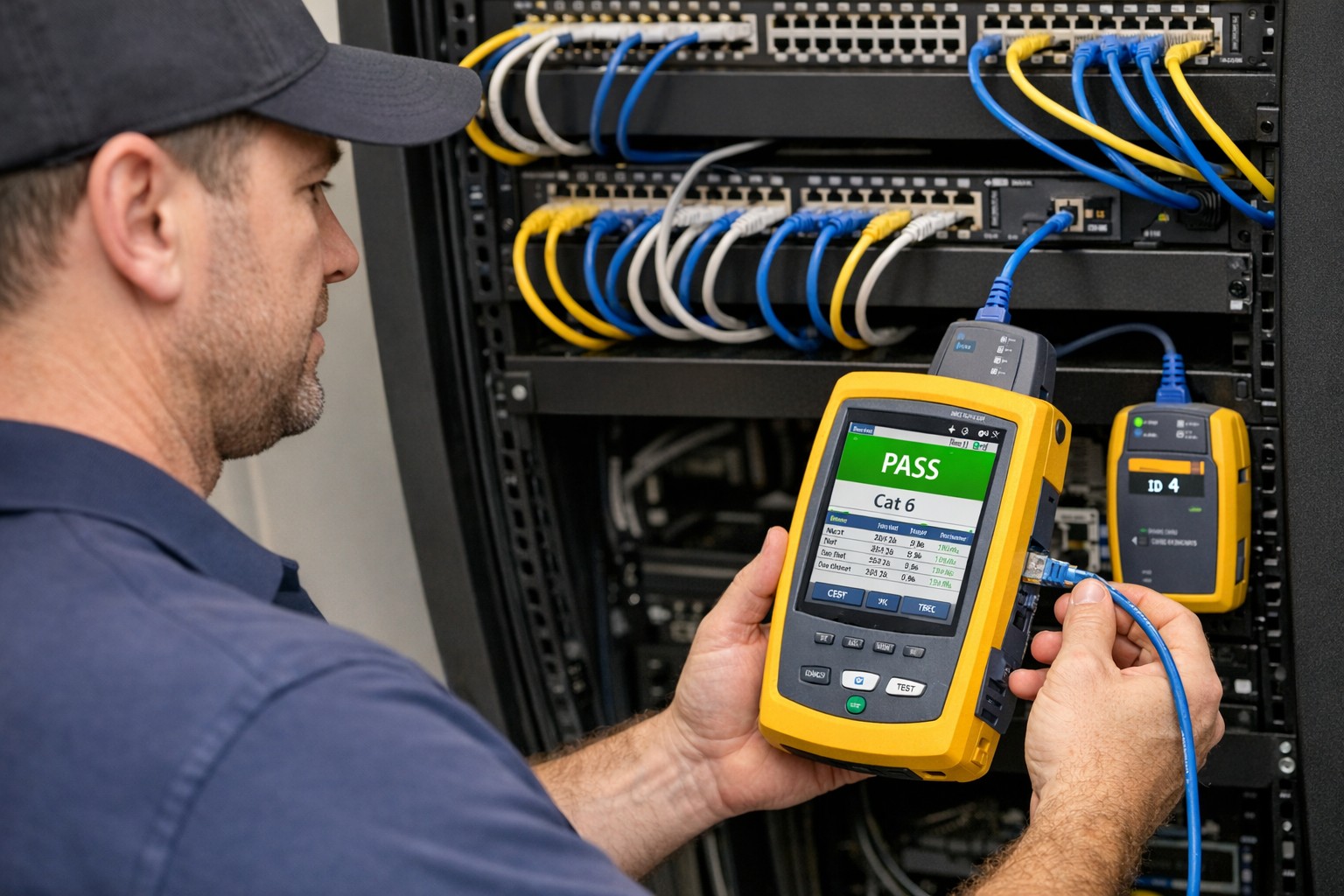
Running the numbers against enterprise sized environments showed that for an average cost of $750 worth of cable certification and repair the business was able to insure themselves against $67,000 of downtime. Consider how much each hour of downtime is worth to your organization then think about how much even 8 hours of downtime per year will cost you – that is the difference between 99.9% and 99.99% uptime.
Product Warranties Don’t Cover Workmanship
Even if you have product warranties from the manufactures of your network equipment and cable there is no guarantee as to the quality of the installation without cable certification.
Certification & Re-certification
The idea here is to future proof your business by making sure that cabling exceeds the current standards. This often can lead to extended return on investment (ROI) when newer technology standards are introduced and the current cabling can go through cable certification again to prove that it meets those standards. For example many Cat6 installations that originally were thought to be running at 1Gbps have been proven to run at 10Gbps over short distances thereby saving the company money and expanding their network bandwidth.
Cable Certification Saves Money
Landlords are mentioned here as a direct beneficiary of the cost savings inherent in cable certification. The costs of certifying a building full of cable prior to new tenants moving in is minimal in comparison with the cost of running all new wires – often only 5-10% of the cost.
Reducing Waste
Instead of demolishing current cable infrastructure to comply with National Electric Code standards of removing abandoned cabling, why not have the cable certification done to mark it for future use? It saves money and the environment
Unscrupulous Installers
No-name copper vendors are putting out so-called Cat5 or Cat6 cables that are manufacture outside the country with inferior goods and facilities. This is then used by unscrupulous installers to lower their overall costs whether or not they pass that savings on to the client. To avoid the use of these inferior cables make sure to only use vendors that supply cable certification for their work.
If your company is unsure about their current structured cable infrastructure or is looking to have new network cabling done, then contact us for assistance.
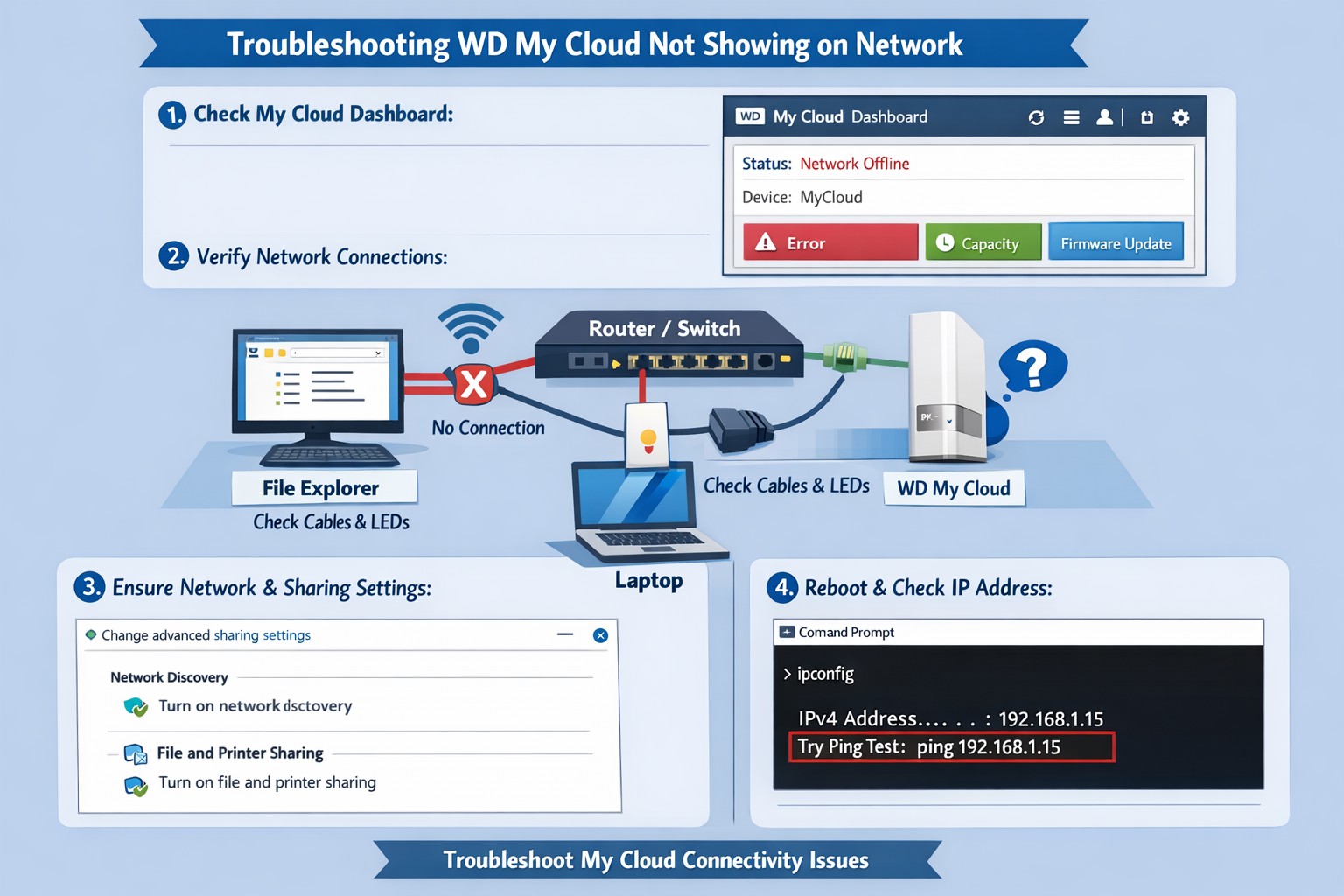
Recently took over an account from another tech and was informed by the client that their Western Digital MyCloud drive was unreachable and they had not been able to access their files shared their with the computers in the office for some time. Since the MyCloud is just a simplified Network Attached Storage (NAS) device for the home / SMB market, I decided to go onsite and find out what was causing the issue.
How to find a missing MyCloud
I first investigated the shortcuts that were sitting on the desktop to figure out what was going wrong with the drive or if there were some bread crumbs as to where it was previously. Found one called Dashboard which pointed to an IP address on their current subnet that went nowhere – this was likely the former IP address of the device. Found a shortcut to the “Public” folder which pointed to an IP address that was on another subnet than theirs – this was likely from a setup before another network change and had not been removed since then. Found another shortcut to the “Public” folder which pointed to the same IP address on their current network as the Dashboard shortcut, so this confirmed that this was the last known IP address.
Ran a network scan using my personal favorite, SoftPerfect Network Scanner, to discover what was on the current subnet and if the MyCloud was still functional at another IP address. Found that the IP address for the device had changed to another similar address, so figured that it was getting its IP address from DHCP and when the old address lease ran out it just grabbed another one from the router. Checked the router and found that indeed the DHCP table contained the IP address for the device, so added a DHCP reservation to the router for that devices MAC address mapping it to the old IP address to make the broken shortcuts work again. Tested opening the dashboard and “Public” folders successfully which thankfully still had all of their information intact.
The final thing to do was to correctly set permissions within the device for each of the users and corresponding user folders within the device to allow them to connect and “backup” their documents to the device like they were used to. Although I would not recommend using this type of device to any of my clients, it was good to get this company backup up and running successfully. If your company is using Western Digital MyCloud drive for shared file access or are considering adding file shares to your network, then contact us for assistance.
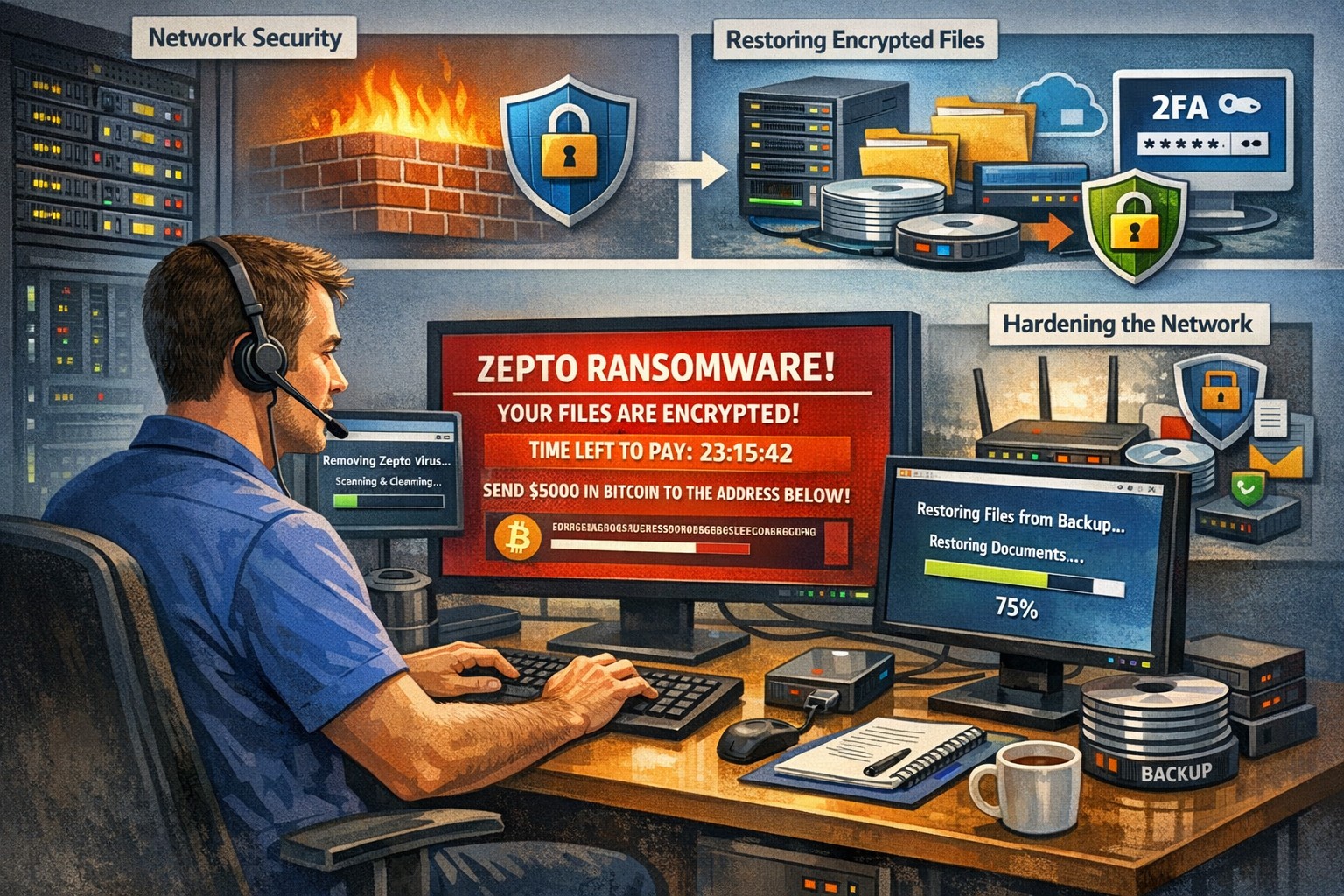
Recently had a client get infected by the Zepto variant of crypto malware without even knowing it. The call originated when they could not find some of the shortcuts they were used to seeing on the desktop. I began to search for the shortcuts and found some files with the .ZEPTO extension on them. A quick Google search found that this was indeed an infection of crypto malware but something was different about this one – there was no ransom note or instructions on where to send the money for the decryption key. After investigating the problem it seems that the user got an image file that they could not open and forgot about. They noticed some slow down of the computer the day that these files indicated that they were created but nothing else presented itself that day, so they dismissed it.
So here is breakdown of what actually happened. They were protected by Norton Antivirus and when the infection began to spread across the network (only a couple files were affected there) it removed the infection and left the damage done by Zepto encryption of some of the files in place with no notice to the user about what was done. The customer had a partial backup from a poorly designed backup scheme that was able to recover some of the files, which left them in a state of not knowing what was missing from their local file directories. Needless to say that I will be recommending a different antivirus and backup / recovery plan for them going forward.
If your company is not sure about whether your antivirus software is capable of handling this type of situation properly or are not sure about the status of your backup / recovery procedures, then contact us for assistance.
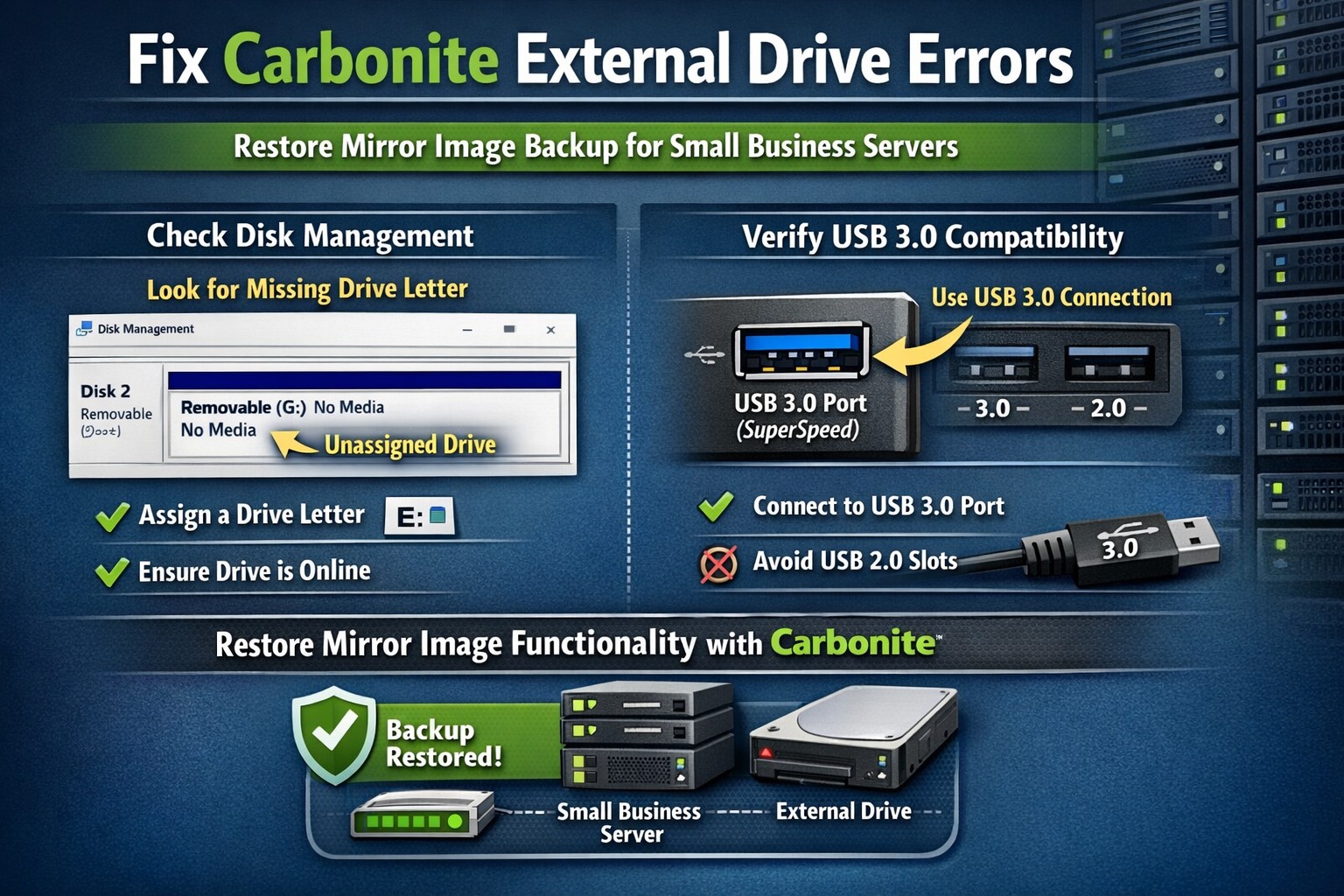
While performing a network evaluation for a perspective client, it came time to gather specification information from the server. Immediately noticing that Carbonite had not successfully completed a Mirror Image backup and needed to be updated, I headed to the Carbonite InfoCenter to find out what could be done. After installing the required update, I noticed that the USB 3.0 external drive was not recognized by the software. This was solved by going into Computer Management and adding a drive letter to that drive. Once recognized by Carbonite, selected that drive to be used for the Mirror Image backup but began to receive Carbonite Backup external drive errors – “Mirror Image was unable to use the selected target drive.” Took a bit of research to find out the two parts that comprised the issue.
Identifying Cause of Carbonite Backup External Drive Errors
Found a Carbonite support article that details requirements for the Mirror Image Drive to be used. Included in the list – “RAID configuration is not supported – Carbonite currently doesn’t support creating snapshots from drives configured in a RAID array.” Since this server was configured with RAID 5 for a mix of performance and redundancy, it was not able to use the Mirror Image function of the software at all.
Found that the clients Windows Server 2012 R2 Essentials server had the Carbonite Personal Plus software installed on it. As per the Carbonite Website – “Personal Plans are not designed to support Windows Server OS.” Immediately recommended the client upgrade to the Carbonite Server Backup plan.
If your company is using Carbonite for your backup and need support or you are looking for an affordable backup solution, then contact us for assistance as we are a trusted Carbonite Partner.
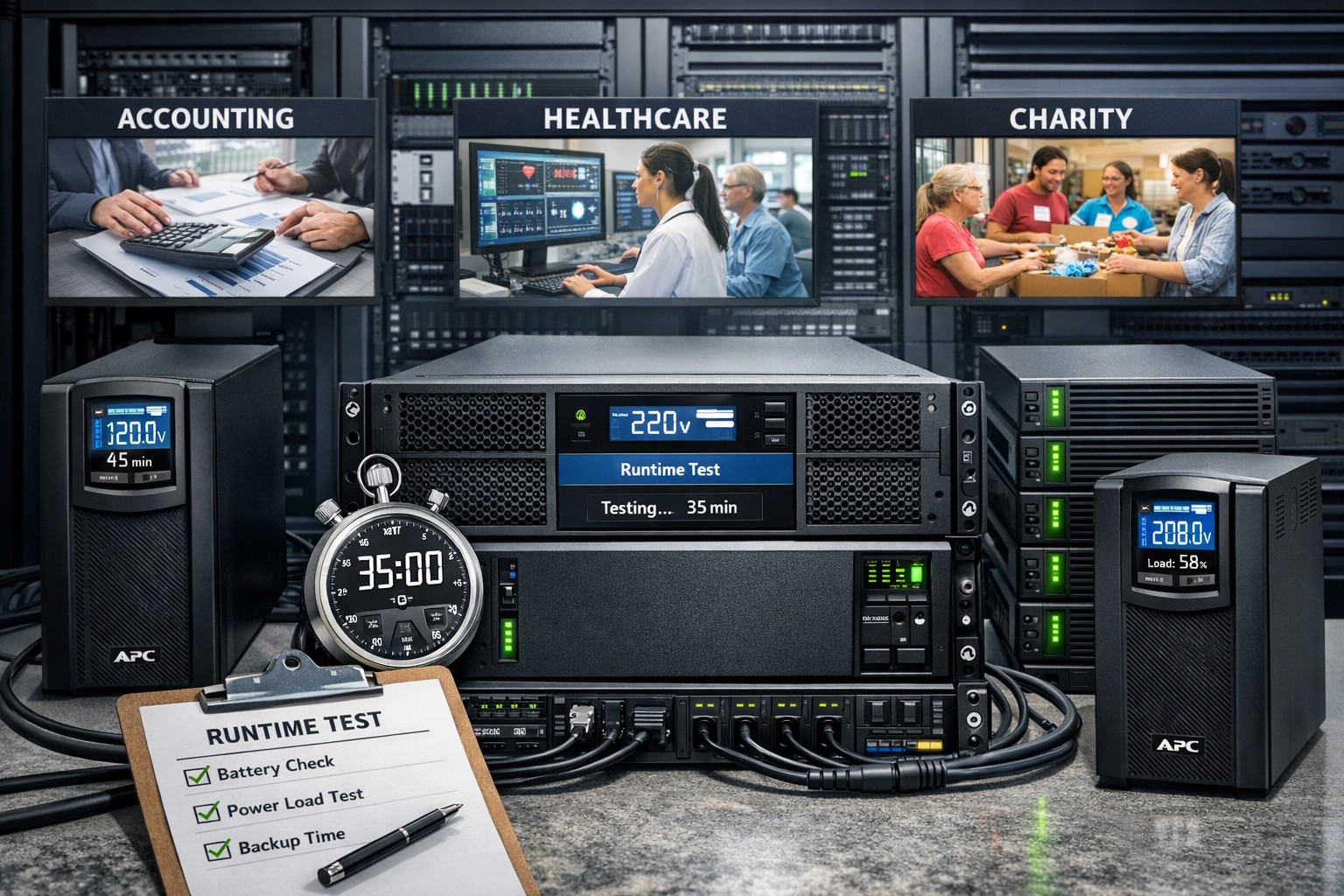
It is astounding to think that many servers in small businesses are plugged directly into the wall for power without any protection from outages or dirty electric current. It is easy to mitigate up to 44% of data loss incidents that are due to hardware failure by providing clean and consistent power to servers on the network. Installing a server battery backup is quite easy to do and the possible return on investment will never be seen due to the possible issues being taken care of. Here is a basic list of best practices for purchasing and setting up the monitoring software that comes with the unit:
Server Battery Backup Purchasing:
Budget to purchase new battery backup devices every 5-6 years
Replace internal battery on unit at the 3 year mark
Based on maximum load (think power supply total watts) select an Uninterupted Power Supply (UPS) that will not be loaded over 80% which protects the unit from undue wear and allows for some growth
Consider redundant UPS configuration for larger servers with multiple power supplies
In high production environments, consider adding an UPS for each workstation to allow for file saves before file server shutdown occurs.
Server Battery Backup Setup:
Make sure buildings elecrical breakers are rated to handle the 80-100% load of the UPS
If single UPS used in multiple power supply server scenario then put one plug into the wall and the other into the UPS, but please consider redundant power supplies.
Plug in serial, usb or network management and install the management software that comes with it
Configure the management software to gracefully shutdown the Operating System (OS) of all connected servers
If using sequential shutdown of servers then shutdown database servers first, file servers second and domain controllers last.
Configure either SNMP alerting or email alerting to get status updates from the device
Configure regular self-test of the battery to make sure there is no failure of the internal battery before the replacement period
Taking the time to do this right the first time will save headaches later when things go wrong. Call or email us to do an evaluation of your power infrastructure.
In my opinion this feature is simply a must for all servers and stand alone workstations – ShadowCopy otherwise known as previous versions. As per Microsoft:
Previous versions are automatically saved as part of a restore point. If system protection is turned on, Windows automatically creates previous versions of files and folders that have been modified since the last restore point was made. Typically, restore points are made once a day. If your disk is partitioned or if you have more than one hard disk on your computer, you need to turn on system protection for the other partitions or disks.
To enable and configure ShadowCopy of Shared Folders:
1. Go to Administrative Tools and then click Computer Management .
2. In the console tree, right-click Shared Folders, click All Tasks, and then click Configure Shadow Copies.
3. In Select a volume, click the volume that you want to enable Shadow Copies of Shared Folders for, and then click Enable.
4. You will see an alert that Windows will create a shadow copy now with the current settings and that the settings might not be appropriate for servers with high I/O loads. Click Yes if you want to continue or No if you want to select a different volume or settings.
5. To make changes to the default schedule and storage area, click Settings.
If your company has important files shared on a network and would like to prepare in advance of a disaster to protect them, then contact us for assistance.
Migrated a client to a new domain for reasons that are beyond the scope of this blog post. After the migration and proper setup of Folder Redirection to the file server, several clients were reporting that their files were not the latest version. Researched the issue and found that their was no trace of the latest versions of these files on the workstation or server via Windows Search, but did find shortcuts that pointed to a server that has not been in production for over a year. Powering on that server found none of the latest files and there was nothing at the old IP of that server that was housing them currently. Then it hits me on the way to church – Offline Files on the workstation. It turns out that during the era of the previous domain controller the Folder Redirection was not done properly and when there was a migration to a new File Server these few clients had kept a pointer to the old file server with Offline Files. All file changes and new files were stored in the local Offline Files cache up to the size limit of that cache. I had to do the following to gain access to the cache to copy all data to the newer file server:
Recovering Offline Files Cache Due to Bad Folder Redirection Link
Go through a long process of changing folder ownership one sub-folder at a time to drill down to the user’s data in a path similar to the one below. There will be several subdirectories to look through before finding the files needed. Please refer to this Microsoft TechNet Article for details on how.
%windir%\CSC\
Once access is gained into the folder, copied the contents to an alternate location.
Opened a Command Prompt and drilled down into that new folder.
Typed in the following command:
*.* /T /G username@domain.local:F
then confirming the change to apply Full Permissions to all files and folders that were copied there.
Copied the newly changed files into the appropriate place on the new file server and verified with user that their files were there as expected.
This won’t save everything but is the last option for this particular peculiar issue on the clients server.
If your company is using Folder Redirection or Offline files, then contact us for assistance.
And God will generously provide all you need. Then you will always have everything you need and plenty left over to share with others. As the Scriptures say,
“They share freely and give generously to the poor. Their good deeds will be remembered forever.”
For God is the one who provides seed for the farmer and then bread to eat. In the same way, he will provide and increase your resources and then produce a great harvest of generosity in you. - 2 Corinthians 9:8-10
We use cookies to ensure that we give you the best experience on our website. If you continue to use this site we will assume that you are happy with it.