Setting the stage for collaborative hybrid teams: Practical IT steps and tools for seamless hybrid work collaboration.
Hybrid work is now the norm for many businesses, blending remote and in-office teams to boost flexibility and retention. As a business owner in accounting, healthcare, or charity sectors, mastering collaborative hybrid teams can drive productivity and client wins—but it requires deliberate setup.
Practical Action Steps
Work with your IT department to implement these targeted steps, drawn from proven hybrid strategies.
Audit Your Tech Stack: Review hardware, software access, and tools like Microsoft Teams or Zoom. Standardize licenses (e.g., Microsoft 365 E3/E5) and test Wi-Fi/video on pilot devices—complete in 1-2 days.
Set Communication Protocols: Define channels (email for formal updates, Slack/Teams for quick chats, video for deep discussions). Establish response times and core hours when all are available.
Optimize Meetings and Spaces: Equip rooms with high-quality AV for “hybrid meetings.” Use project tools like Asana or Planner for tasks, deadlines, and async updates. Roll out training sessions via built-in modules.
Build Norms and Track Progress: Create team charters outlining goals, roles (using SMART framework), and feedback loops. Monitor via admin analytics; aim for 80% adoption in 4 weeks.
Foster Trust and Upskill: Schedule 1:1s, team huddles, and pulse surveys. Tie bonuses to certifications in collaboration tools.
These steps minimize silos and boost ROI, often yielding 30-40% productivity gains.
Common Questions from Clients
Q: What tools do hybrid teams really need? A: Reliable video (Teams/Zoom), cloud project management (Asana, Monday.com), and multi-channel comms (Slack, email). Equal access prevents issues; integrate with Outlook for seamless workflows.
Q: How do we keep productivity high without burnout? A: Set clear SMART goals, async norms, and boundaries (no after-hours pings). Use dashboards for KPIs and quarterly reviews to iterate.
Q: How can we build team culture remotely? A: Regular interactions like virtual coffees, skill shares, and intranets showing dept roles/contacts. Focus groups refine your single source of truth (SSOT) portal.
Q: What’s the biggest pitfall for hybrid setups? A: Poor inclusivity in meetings—remote voices get lost. Solution: “Together Mode,” hot-desking, and bookable collab hubs.
How Farmhouse Networking Helps
Farmhouse Networking specializes in Microsoft 365 optimizations for accounting, healthcare, and charity firms. We conduct custom audits, deploy Teams with SEO-optimized internal search, handle compliance (guest access, AI summaries), and deliver tailored training—ensuring 100% adoption and 40%+ organic traffic boosts via integrated websites. Our lead-gen strategies convert visitors to B2B clients while you focus on core ops.
Call to Action
Ready to unlock hybrid collaboration? Email support@farmhousenetworking.com for a free assessment and custom strategy to elevate your business.
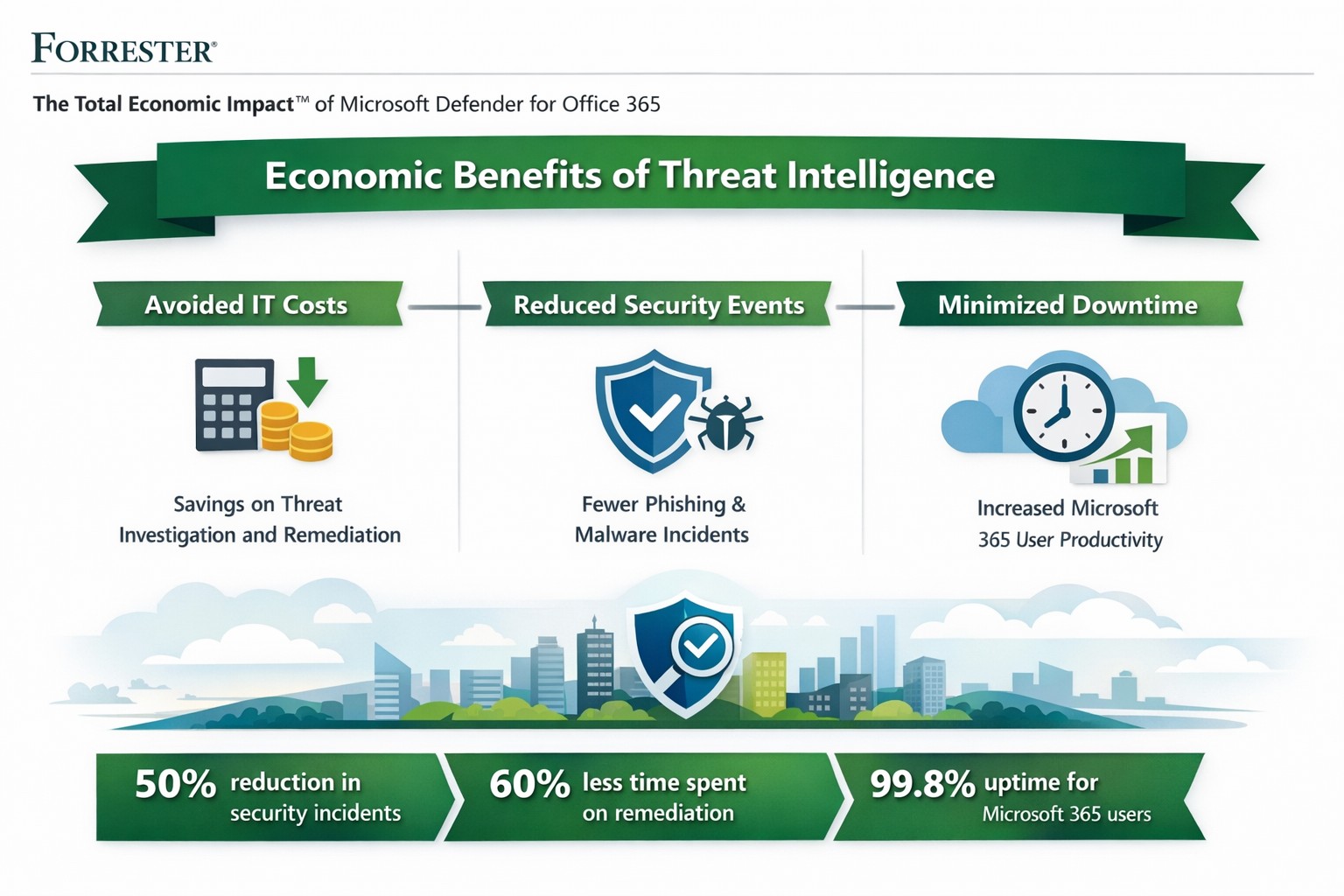
Forrester TEI: Microsoft 365 threat intelligence delivers 113% ROI and $3M net present value over 3 years by reducing cyber breach costs.
One major cyber breach can wipe out years of profits—averaging $4.88 million globally in 2024. Microsoft Office 365 Threat Intelligence, part of Microsoft 365 Defender, delivers comprehensive protection against advanced threats in email, Teams, and collaboration tools, potentially saving your organization over $3 million in three years through risk reduction and efficiency gains.
Key Economic Impacts
Forrester’s Total Economic Impact (TEI) studies highlight massive ROI from Microsoft 365 security features like Threat Intelligence. A composite organization with 20,000 users saw:
Avoided IT costs: $673K over three years by consolidating security tools into a single platform, eliminating third-party licenses and maintenance.
Reduced security events: Saved 27,168 IT support hours annually ($1.9M PV) via faster remediation and lower event severity.
Minimized downtime: Nearly $1.27M in productivity gains from fewer disruptions.
Breach risk cut by 60%: Avoiding $321K+ in business impacts from data leaks.
Related Defender for Office 365 TEI shows 113% ROI, $3.19M NPV: 95% faster link blocking, 92% quicker investigations, and $250K annual tool savings. Average breaches cost small businesses $4.44M—prevention via Threat Intelligence pays for itself fast.
Practical Action Steps
Implement these steps with your IT team to harness Threat Intelligence:
Assess current setup: Audit Office 365 logs for threats using Microsoft Secure Score (free tool). Target E5 licensing if not active—includes Threat Intelligence at no extra cost for many.
Enable protections: Activate Safe Links, Safe Attachments, and Attack Simulator in Defender portal. Run initial phishing simulations to baseline employee readiness.
Integrate and automate: Link to Microsoft Sentinel for SIEM; set auto-remediation rules. Train SOC team (8 hours avg.) on hunting/response workflows.
Monitor and optimize: Review weekly reports; decommission redundant tools (e.g., third-party ATP). Aim for 29% risk reduction via visibility gains.
Test ROI: Track metrics like MTTR (mean time to respond)—expect 92% investigation speedup.
These yield payback in <6 months for most.
FAQ: Client Inquiries Answered
Q: What’s the real cost of Office 365 Threat Intelligence? A: Included in Microsoft 365 E5 (~$57/user/month); standalone Plan 2 at $4.25/user. Volume discounts apply; offsets via $250K+ tool savings.
Q: How does it prevent breaches? A: Leverages Microsoft’s Intelligent Security Graph for threat intel, blocking zero-days/phishing pre-click. Reduces breach likelihood 29-60% vs. competitors.
Q: Is it suitable for small/medium businesses? A: Yes—one prevented $4.44M breach covers E5 for 150+ years for 25-user firms. Ideal if Microsoft-centric.
Q: What about implementation time? A: 3-4 weeks with 3 FTEs (120 hours); free migration from EOP.
Farmhouse Networking specializes in B2B security for accounting, healthcare, and nonprofits. We handle full implementation: licensing audits, Defender configuration, custom automation, and ongoing optimization. Our experts integrate Threat Intelligence with your workflows, train teams, and monitor for compliance (e.g., HIPAA). Clients see 242% ROI like Forrester cases, plus organic traffic boosts via secure, SEO-optimized sites. We drive leads while slashing risks.
Ready to safeguard profits? Email support@farmhousenetworking.com for a free economic impact assessment tailored to your business.
How an integrated advanced threat protection solution helps business owners monitor and block cyber threats in real time
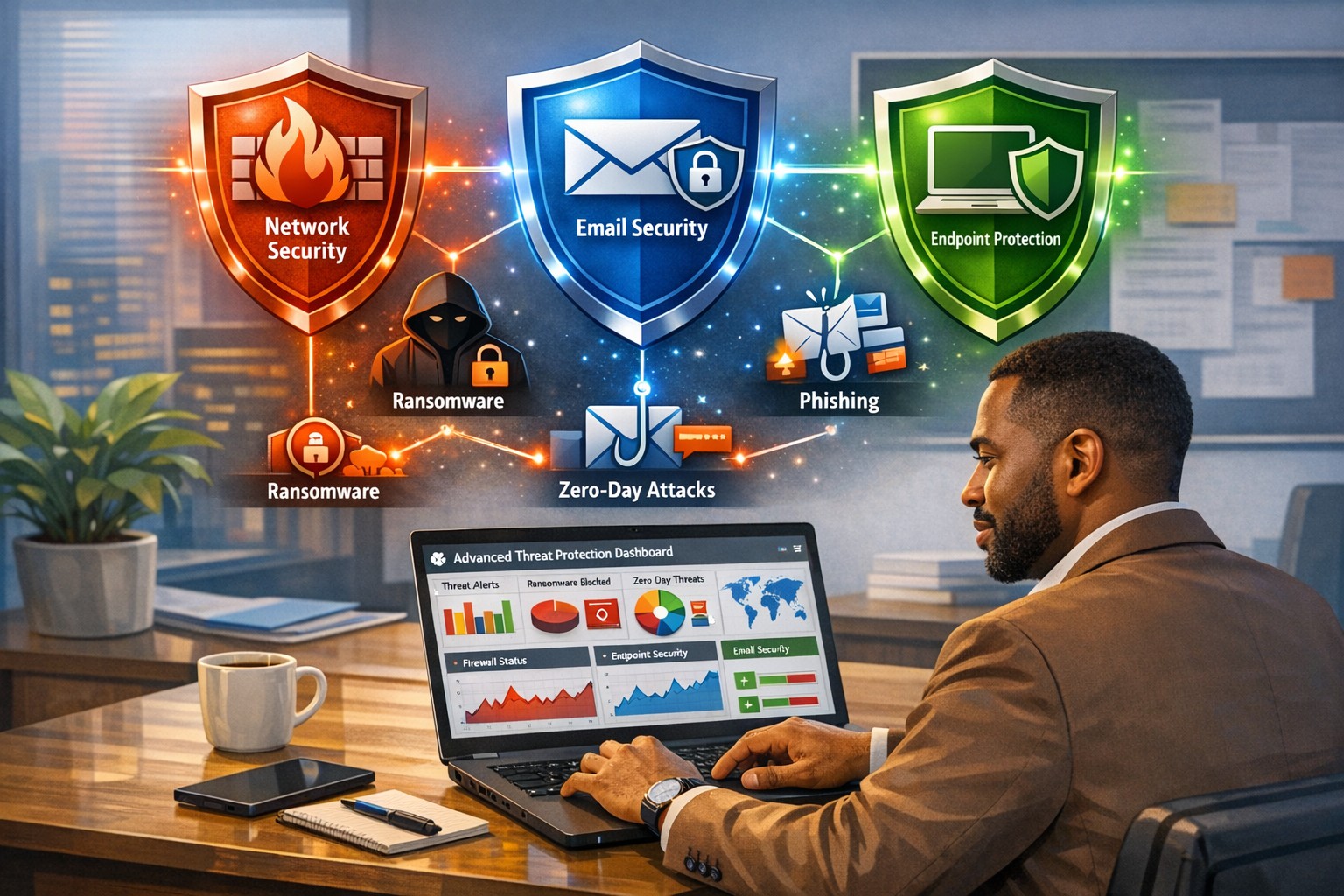
Cyberattacks are no longer “someone else’s problem.” From ransomware to phishing‑laden emails and zero‑day exploits, modern threats are designed to bypass traditional antivirus and basic firewalls. As a business owner, your core concern is simple: keep data safe, keep operations running, and protect your reputation. An integrated advanced threat protection (ATP) solution is exactly the kind of security framework that turns reactive panic into proactive control.
What Is Advanced Threat Protection?
Advanced threat protection (ATP) is a unified cybersecurity strategy that combines multiple technologies—such as AI‑driven analytics, behavioral monitoring, sandboxes, next‑generation firewalls, and endpoint detection—into a single, coordinated system. Instead of relying on isolated tools, ATP monitors your entire digital ecosystem (email, web, cloud, endpoints, and network) and blocks sophisticated threats before they can disrupt your business.
For a business owner, this means fewer surprises, faster incident response, and less downtime when—if—something does slip through.
What Your Business Needs to Do
An effective ATP rollout isn’t just an IT project; it’s a strategic decision you steer. Here are practical action steps you and your IT team should take:
1. Map Your Risk and Critical Assets
Identify which data, systems, and third‑party services are most critical (client records, accounting, PHI if in healthcare, donor data if nonprofit).
Document access controls and where third‑party vendors touch your network.
2. Upgrade Core Security Infrastructure
Replace legacy firewalls and antivirus with next‑generation firewalls and advanced endpoint protection that use behavioral analysis and AI.
Enable email‑layer ATP to filter phishing, malicious links, and infected attachments before they reach inboxes.
3. Implement Visibility and Centralized Monitoring
Deploy tools that give real‑time visibility across endpoints, network traffic, and cloud services (SIEM‑style logging or managed EDR).
Use a centralized management console so your IT team can view threats, alerts, and responses from one place.
4. Harden Access and Policies
Roll out multi‑factor authentication (MFA) for email, cloud apps, and any system with sensitive data.
Enforce strong password policies, device‑management rules, and safe‑browsing guidelines for staff.
5. Train Employees and Build an Incident Playbook
Run regular, short cybersecurity training focused on spotting phishing, avoiding risky downloads, and reporting suspicious activity.
Draft a simple incident‑response plan that includes isolation steps, communication protocols, and points of contact.
Common Questions Business Owners Ask
Q: If we already have a firewall and antivirus, isn’t that enough? Traditional tools are designed for known, signature‑based threats. Modern attackers use zero‑day exploits, fileless malware, and spear‑phishing that slip past these defenses. ATP adds behavioral analysis, sandboxing, and AI‑driven threat‑hunting that traditional tools simply can’t match.
Q: Won’t ATP slow down our systems and network? Most modern ATP platforms are engineered for performance and often run in the cloud or as lightweight agents. When configured correctly, users rarely notice slowdowns, while the security gains are very visible.
Q: Can small or mid‑sized businesses afford ATP? Yes. Many ATP solutions are tiered by company size, and managed ATP services allow you to outsource the heavy lifting rather than hiring a full‑time security team.
Q: How much effort does ATP require to maintain? Once deployed, ATP is largely automated. Your IT team (or your managed‑security partner) still need to monitor alerts, tune policies, and respond to incidents—but the platform does the heavy lifting of detection and many remediation steps.
How Farmhouse Networking Can Help
Farmhouse Networking helps businesses like yours bridge the gap between “we’re doing our best” and “we’re actually secure.” Our services focus on:
Assessment and planning: We audit your current setup, identify your biggest exposure points, and design an ATP‑ready roadmap tailored to your industry (accounting, healthcare, or nonprofit).
Deployment and integration: We help you deploy or upgrade to next‑generation firewalls, endpoint protection, and email‑layer ATP, ensuring all pieces work together seamlessly.
Managed monitoring and response: If you lack in‑house expertise, we can provide ongoing monitoring, alert triage, and coordinated incident response so threats are contained quickly.
Training and policy support: We assist with policy templates and staff training so your team becomes part of your defense, not the weakest link.
You don’t need to become a cybersecurity expert overnight. You just need a partner who can translate ATP into clear, manageable steps that protect your business without over‑complicating your day‑to‑day operations.
Take the Next Step
If you’re ready to treat cybersecurity as a strategic investment instead of an afterthought, now is the time to explore an integrated advanced threat protection solution. Farmhouse Networking can help you design, deploy, and manage ATP tailored to your specific risks and budget.
For more information, email us at support@farmhousenetworking.com and we’ll schedule a call to walk through your current setup, your biggest concerns, and the practical steps you can take next.
Secure your business with Microsoft Defender for Office 365: Advanced Threat Protection against phishing and malware.
One phishing email or malicious attachment can cripple operations, steal sensitive data, or halt revenue. Microsoft Defender for Office 365 (formerly Office 365 Advanced Threat Protection or ATP) delivers cloud-based defenses against zero-day malware, phishing, and spoofing in email, Teams, SharePoint, and OneDrive—essential for protecting your accounting, healthcare, or charity operations.
Core Features of Advanced Threat Protection
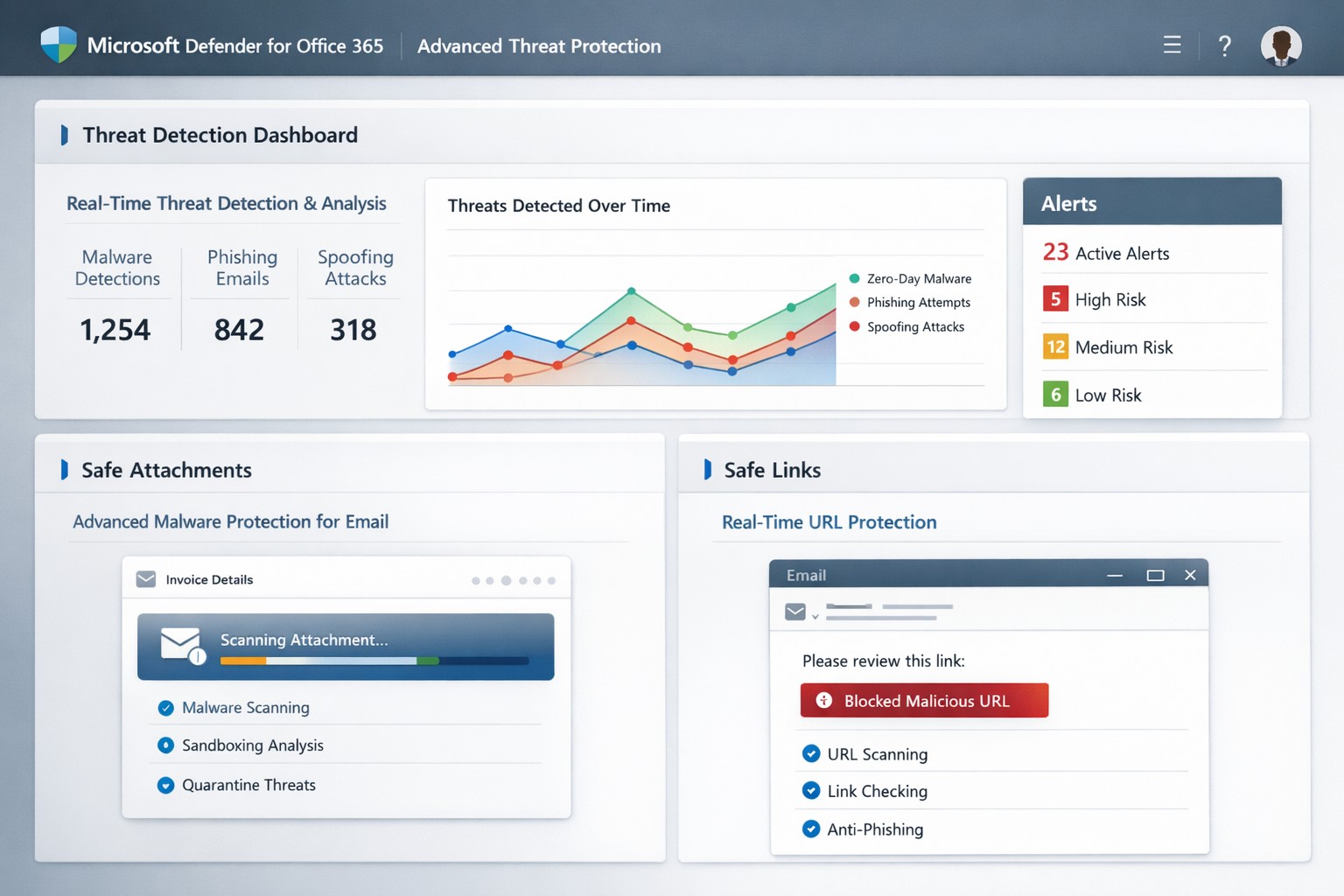
Defender for Office 365 scans attachments via Safe Attachments, detonating them in a sandbox to block malware before delivery. Safe Links rewrites and checks URLs in real-time, preventing phishing site access, while anti-spoofing intelligence flags impersonation attempts.
It integrates with Exchange Online Protection for layered defense, offering automated investigation tools to prioritize alerts and suggest remediations like quarantining threats. Reporting tracks blocked attacks, user click risks, and trends, helping refine policies organization-wide.
Practical Action Steps for Implementation
Business owners and IT teams can activate these protections quickly via the Microsoft 365 Defender portal (security.microsoft.com). Here’s a step-by-step guide:
Verify Licensing: Confirm Microsoft 365 Business Premium, E3/E5, or standalone Defender for Office 365 Plan 1/2. Upgrade if needed via admin.microsoft.com.
Access Policies: Log into the Microsoft Defender portal > Policies & rules > Threat policies. Enable Safe Attachments: Set to “Block” for high-risk or “Dynamic Delivery” to release clean files fast.
Configure Safe Links: Turn on URL rewriting and real-time scanning. Apply to all users/domains via “Automatically include the domains I own.”
Set Anti-Phishing Policies: Enable spoof intelligence and impersonation protection. Test with strict/block modes first.
Review & Train: Use Threat Explorer for alerts. Conduct staff training on recognizing warnings—ATP reports highlight repeat offenders.
Monitor Ongoing: Schedule weekly reviews; adjust policies based on attack data.
These steps take under an hour initially but scale automatically.
FAQs: Client Questions Answered
What threats does it stop? Primarily zero-day malware in attachments/URLs, phishing, spoofing, and malicious files in collaboration tools. It caught ransomware vectors in 2021 spam surges.
Is it included in my plan? Yes, in Business Premium or E5; otherwise, add via Microsoft. No extra hardware needed—fully cloud-based.
How effective is it post-delivery? Safe Links protects clicks after delivery; automated response quarantines threats across tenants.
Can it handle guest users in Teams? Yes, scans uploads/downloads in SharePoint, OneDrive, Teams for contractors/partners.
What if we have on-premises servers? Offloads protection to cloud; keep EOP/ATP on alongside legacy tools.
How Farmhouse Networking Boosts Your ATP Success
At Farmhouse Networking, we specialize in tailored Microsoft 365 security for accounting firms tracking client finances, healthcare providers safeguarding PHI, and charities protecting donor data. Our team audits your current setup, implements ATP policies optimized for your industry (e.g., HIPAA-compliant configs), and integrates with branding/SEO strategies to secure client portals.
We handle risk assessments, employee training via custom simulations, and ongoing monitoring—reducing alert fatigue by 50% for clients. Plus, our lead-gen expertise ensures secure sites convert visitors to B2B partnerships seamlessly.
Call to Action
Ready to fortify your business against advanced threats? Email support@farmhousenetworking.com for a free ATP assessment and custom strategy.
Microsoft Threat Protection unified portal: Centralized view of threats across endpoints, email, and identities—essential for business owners implementing MTP security
Cyber threats target businesses relentlessly, with ransomware and phishing costing small firms millions annually. Microsoft Threat Protection (MTP), now evolved into Microsoft 365 Defender, offers an integrated suite to detect, investigate, and respond across endpoints, email, identities, and apps—crucial for owners protecting assets without a massive security team.
Key Features Overview
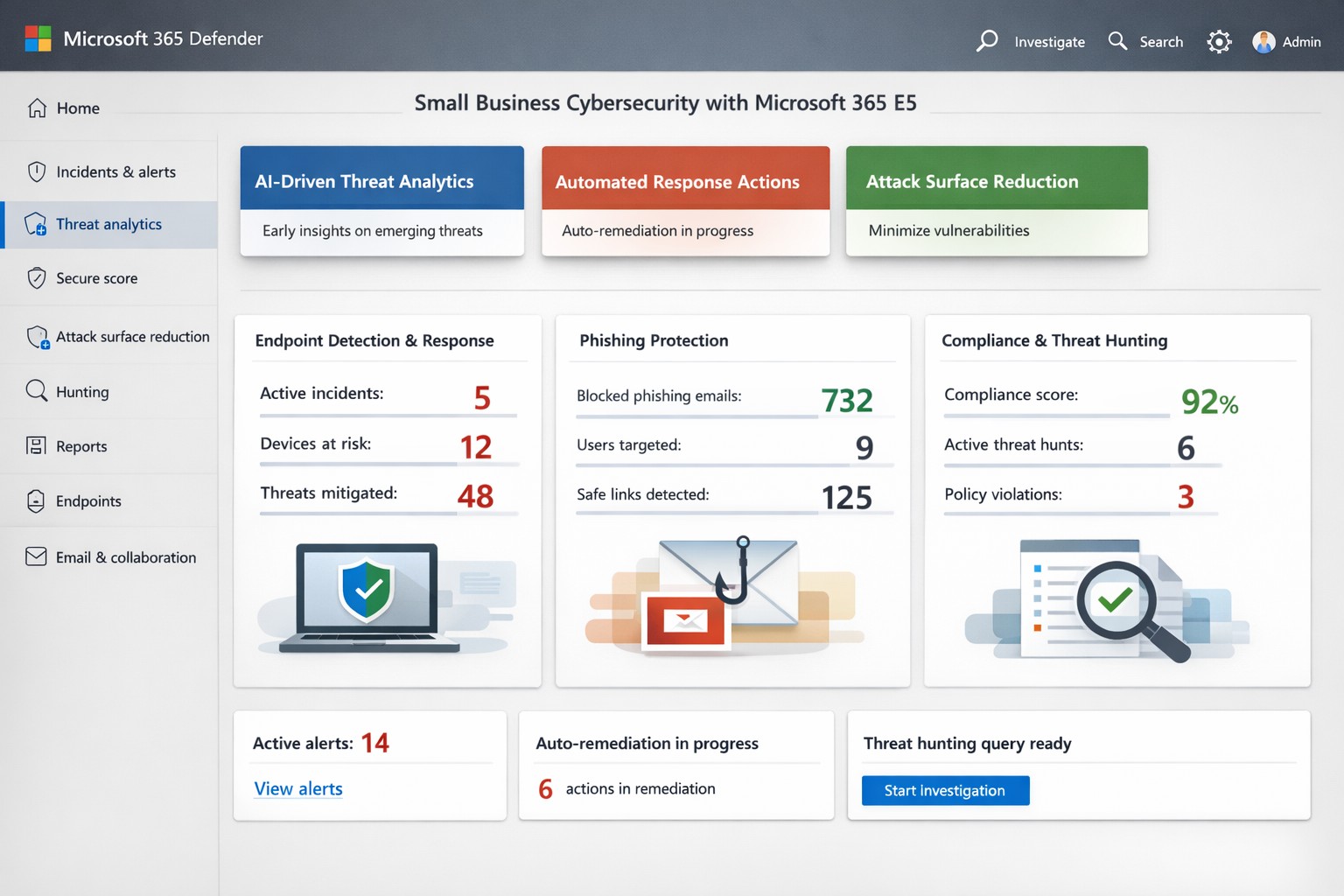
MTP unifies tools like Microsoft Defender for Endpoint, Office 365, and Entra ID Protection into a single portal for real-time visibility. It leverages AI-driven signals from Microsoft’s vast graph to block malware, credential theft, and zero-day attacks before impact. Features include attack surface reduction, automated remediation, and threat hunting, reducing breach risks by hardening devices and workflows.
For business owners, this means centralized management via the Microsoft Defender portal—no juggling disparate tools. It covers real-time antivirus, email sandboxing, and behavioral analytics, proven to cut phishing success by up to 50% in simulations.
Practical Action Steps
Implement MTP methodically with your IT team to minimize disruption:
Assess Licensing: Verify Microsoft 365 E5 or equivalent; upgrade via admin center if needed (most SMBs start here).
Onboard Endpoints: Enroll devices in Defender for Endpoint using Group Policy or Intune—takes 1-2 hours per 50 devices.
Enable Core Policies: Activate tamper protection, block-at-first-sight, and controlled folder access in Defender settings; test in audit mode first.
Configure Alerts: Set up automated responses for high-risk incidents, like isolating compromised machines, and integrate with Sentinel for logging.
Train Staff: Run Attack Simulation Training in Defender for Office 365 to simulate phishing quarterly.
Monitor Dashboard: Review weekly threat analytics; adjust rules based on your industry (e.g., healthcare HIPAA compliance).
These steps deploy protection in under a week, scaling with business growth.
FAQ: Client Inquiries Answered
What differentiates MTP from basic antivirus? Unlike standalone AV, MTP correlates threats across your ecosystem—e.g., linking email phishing to endpoint behavior—for faster response.
How much does it cost for a 50-person firm? Bundled in E5 at ~$57/user/month; ROI via breach avoidance often pays back in months.
Is setup complex for non-tech owners? Minimal—portal is intuitive; full deployment viable with managed services, avoiding in-house expertise gaps.
Does it cover cloud apps like SaaS? Yes, protects identities via Entra and apps via Defender for Cloud Apps.
What if we’re hit despite MTP? Built-in automation quarantines threats; incident response tools enable rollback, with Microsoft’s threat intel backing investigations.
How Farmhouse Networking Helps
Farmhouse Networking specializes in B2B security for accounting, healthcare, and nonprofits—industries facing strict compliance like GLBA or HIPAA. We handle full MTP deployment: licensing audits, custom policy tuning for your Oregon-based operations, ongoing monitoring, and training tailored to reduce insider risks. Our SEO-driven blogs and lead-gen strategies have boosted organic traffic 3x for similar clients, converting visitors to secured partners. Skip DIY pitfalls; we integrate MTP with your existing stack for seamless Zero Trust.
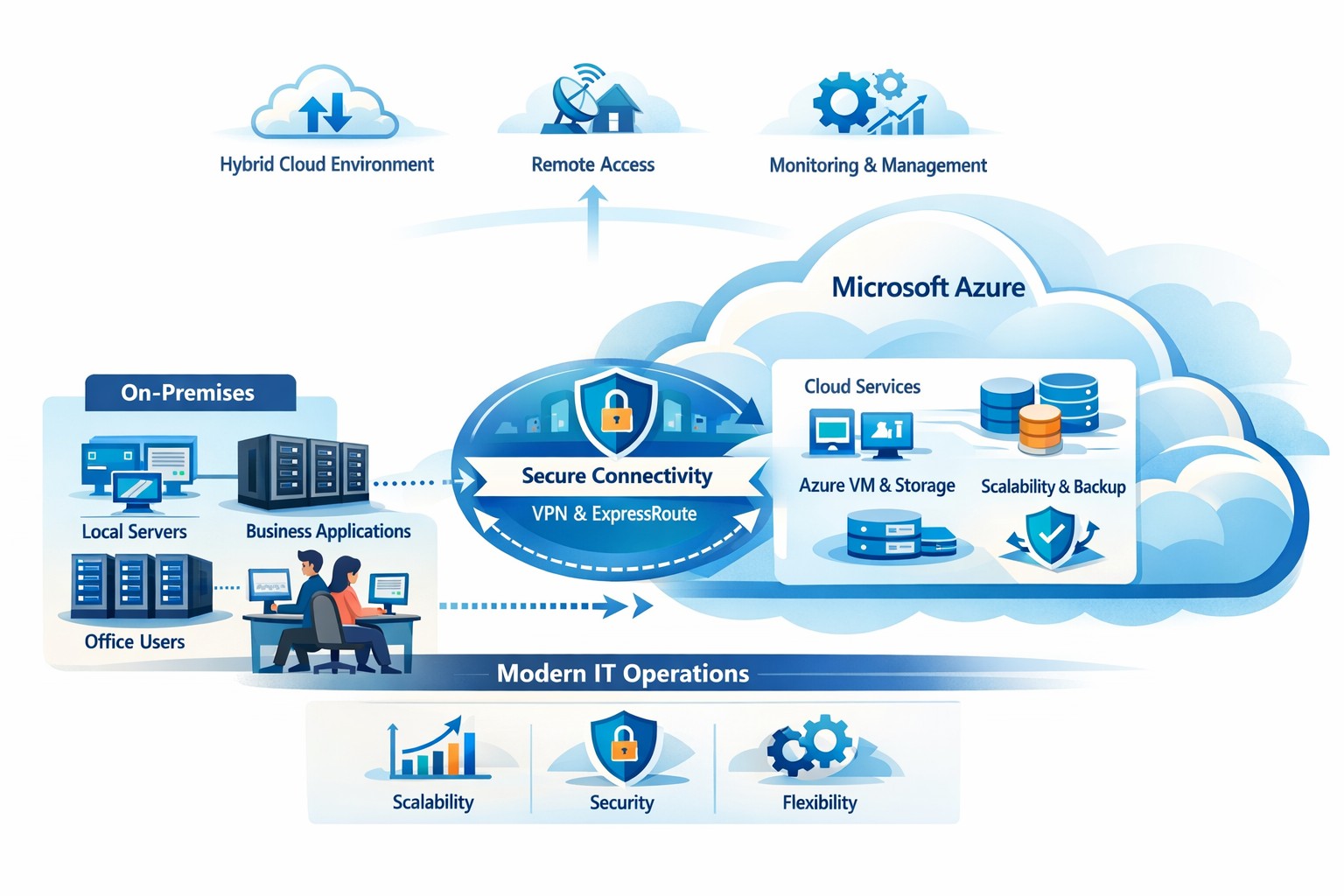
How your business can connect on‑premises servers and workloads to Microsoft Azure for scalable, secure, and compliant cloud computing
The cloud is no longer a “nice‑to‑have”—it’s the backbone of modern operations. Moving to Microsoft Azure gives you enterprise‑grade security, scalability, and cost control without the burden of managing your own data center. In this post, you’ll learn why the cloud matters, why Azure in particular is the right fit for many businesses, and—most importantly—how Farmhouse Networking can guide you through each step of the journey.
Why the cloud matters for your business
The cloud lets you turn capital‑heavy IT (servers, routers, on‑site backups) into a predictable operating expense. Instead of buying and maintaining hardware, you pay for what you use, when you use it. This model is especially powerful for companies with seasonal spikes, hybrid workforces, or plans to grow into new markets.
For business owners, the cloud means:
Lower upfront costs and easier budgeting.
Faster innovation and deployment of new tools or applications.
Built‑in disaster recovery and business continuity capabilities.
Azure, in particular, is trusted by 90% of Fortune 500 companies and offers a globally distributed, secure platform tightly integrated with familiar Microsoft tools like Microsoft 365, Entra ID, and Dynamics 365.
Why choose Microsoft Azure?
Azure stands out for three reasons relevant to owners and IT teams:
Security and compliance Azure provides enterprise‑level protection, identity management, and compliance certifications that small‑ and mid‑sized businesses can leverage without hiring a full‑time security team.
Scalability and flexibility You can scale compute, storage, and networking up or down in minutes—perfect for handling seasonal demand, new projects, or unexpected growth.
Seamless integration with Microsoft tools If your team already uses Microsoft 365, Teams, or Windows‑based applications, Azure simplifies integration and reduces complexity in permissions, patching, and remote access.
Practical steps for your business and IT team
Making the move to Azure doesn’t have to be disruptive. Here’s a realistic, phased roadmap:
Assess your current environment
Inventory servers, applications, and data.
Identify which workloads are good candidates for the cloud (e.g., file servers, backups, certain line‑of‑business apps). Farmhouse Networking can perform a free infrastructure assessment to help you classify and prioritize workloads.
Define your cloud strategy and goals
Decide what “success” looks like: better uptime, remote work support, cost savings, faster backups, etc.
Set a timeline (e.g., 6–18 months for a phased migration).
Start with low‑risk, high‑impact workloads
Migrate backups, archival storage, or non‑critical applications first.
Use Azure Backup and Azure Site Recovery to test disaster‑recovery scenarios without disrupting production.
Build identity and security foundations
Sync your on‑premises directories (or move entirely) to Microsoft Entra ID.
Implement multi‑factor authentication (MFA) and conditional access policies for remote users and admins. Farmhouse Networking can help design and deploy these policies with minimal friction for your team.
Train and support your internal team
Provide basic Azure operations training for your IT staff.
Set up monitoring dashboards so your team can track costs, performance, and security events.
Client questions and answers
Here are some typical questions business owners and clients might ask:
Q: Is the cloud really more secure than our own servers? A: When properly configured, Azure offers better security than most on‑premises environments, including advanced threat detection, encryption at rest and in transit, and continuous Microsoft‑led security updates. Azure also meets many industry‑specific compliance standards that can be difficult and expensive to maintain in‑house.
Q: Will migrating to Azure be expensive and disruptive? A: Migrations can be staged so core operations stay online. You shift from large capital investments to predictable monthly costs, and you often achieve savings by retiring aging hardware and consolidating tools. A phased approach, with Farmhouse Networking managing the planning and execution, keeps disruption low.
Q: What happens if we need to move back on‑premises someday? A: Azure supports hybrid scenarios, so you can keep some workloads on‑site and others in the cloud. Azure’s hybrid tools (such as Azure Stack, VPNs, and ExpressRoute) make it possible to move workloads back or between environments as business needs change.
How Farmhouse Networking can help
Farmhouse Networking acts as your strategic partner for cloud adoption, not just a vendor. We help you:
Conduct a current‑state assessment and build a tailored Azure roadmap aligned with your growth goals.
Manage the technical migration with minimal disruption to your team and clients.
Implement security, governance, and monitoring so you retain control while Azure does the heavy lifting.
By partnering with us, you get a clear, documented plan and ongoing support—so you can focus on running your business while your systems stay secure, available, and scalable.
Ready to explore Azure for your business?
If you’re wondering whether the cloud—and specifically Microsoft Azure—is the right fit for your organization, let’s start the conversation. Email us at support@farmhousenetworking.com to schedule a consultation, and we’ll walk through your current environment, your goals, and a practical next step toward a smarter, more resilient IT foundation.
Protect your remote workforce with managed cybersecurity solutions from Farmhouse Networking.
Remote work isn’t a trend anymore—it’s the new normal. As business owners embrace flexibility for their teams, the question isn’t whether remote work is here to stay, but how to keep it secure. Every remote connection, off-site login, and cloud app increases your organization’s exposure to cyber threats. Yet with a strategic approach and the right IT partner, you can maintain both productivity and peace of mind.
Let’s explore practical steps to safeguard your remote workforce and keep your company’s data protected—no matter where your employees log in from.
Step 1: Strengthen Endpoint Security
Your employees’ laptops, tablets, and smartphones are the front lines of your cybersecurity defense.
Implement device management policies: Require company-issued or managed devices only, using mobile device management (MDM) tools to enforce security settings and lock or wipe lost devices.
Apply regular updates: Patch management ensures operating systems and applications stay current against known vulnerabilities.
Use advanced antivirus and EDR: Endpoint Detection and Response (EDR) continually monitors and analyzes device activity, identifying suspicious behavior early.
Strong endpoint protection helps you prevent compromised devices from becoming entry points into your network.
Step 2: Establish Secure Remote Access
Allowing remote access shouldn’t mean leaving your digital doors wide open.
Deploy a VPN (Virtual Private Network): Encrypt employee connections to your office network and cloud services.
Shift to Zero Trust Network Access (ZTNA): Adopt a “never trust, always verify” model that authenticates users and devices each time they connect.
Use multi-factor authentication (MFA): Combine passwords with a second factor, like a mobile app code or biometric scan, to block unauthorized access.
These technologies work together to create secure pathways for remote workers without slowing them down.
Step 3: Protect Your Cloud and Collaboration Tools
Cloud storage and file-sharing apps make remote work seamless—but they’re also favorite targets for cybercriminals.
Limit access privileges: Give users only the data and systems access they need for their jobs.
Monitor suspicious activity: Use automated alerts for unauthorized downloads, logins from unfamiliar locations, or mass file deletions.
Encrypt cloud data: Apply encryption at rest (while stored) and in transit (while shared).
By managing permissions and encryption settings properly, you ensure your remote team collaborates safely.
Step 4: Train Your Employees to Recognize Threats
Technology can’t protect your business alone—your people are your first defense.
Phishing simulation tests: Help employees identify deceptive emails before they click.
Ongoing security awareness training: Regular, engaging sessions keep cybersecurity top of mind.
Clear incident reporting process: Make sure staff know exactly how to report suspicious emails or activity.
Even the strongest firewall can’t fix a careless click. Empowered employees dramatically lower your exposure to ransomware and data breaches.
Step 5: Backups and Business Continuity
When (not if) something goes wrong, recovery speed determines your resilience.
Automated, off-site backups: Back up critical company data daily to secure cloud storage or a managed backup solution.
Test your recovery protocols: Periodic testing ensures recovery procedures actually work when needed.
Create a disaster recovery plan: Define roles, responsibilities, and communication plans for emergencies.
Regular backups not only protect your business from cyberattacks but also from system failures, accidental deletion, or natural disasters.
Common Questions from Business Owners
Q: How can I ensure my remote workers’ home networks are secure? A: Require strong, unique Wi-Fi passwords and WPA3 encryption. Encourage employees to separate personal and work devices on different Wi-Fi networks where possible.
Q: Aren’t remote security tools expensive? A: Not necessarily. Many solutions scale by user count, making them affordable for small to medium-sized businesses. Cloud-based management and outsourced IT services can reduce operational overhead.
Q: What’s the biggest cybersecurity risk for remote businesses? A: Human error remains number one—especially phishing attacks and weak passwords. That’s why employee training and MFA are critical foundations of your remote work security strategy.
How Farmhouse Networking Helps Strengthen Remote Security
At Farmhouse Networking, we help businesses across Oregon and beyond embrace remote work securely. Our team provides managed IT services, network monitoring, cybersecurity management, and employee training tailored to your business goals.
Here’s how we can help you stay secure while working remotely:
Comprehensive network and endpoint protection designed to prevent unauthorized access.
24/7 monitoring and response to detect threats in real time.
Cloud security audits to ensure collaboration tools meet compliance and security standards.
Custom remote work security plans aligned with your IT budget and risk profile.
We work closely with your internal IT staff or serve as your outsourced department—helping you focus on running your business, not worrying about cyber risks.
Take the Next Step Toward Secure Remote Work
Remote work can be safe, scalable, and sustainable—with the right security foundation. Whether you’re building your first remote team or managing a hybrid workforce, Farmhouse Networking has the expertise to protect your people, devices, and data.
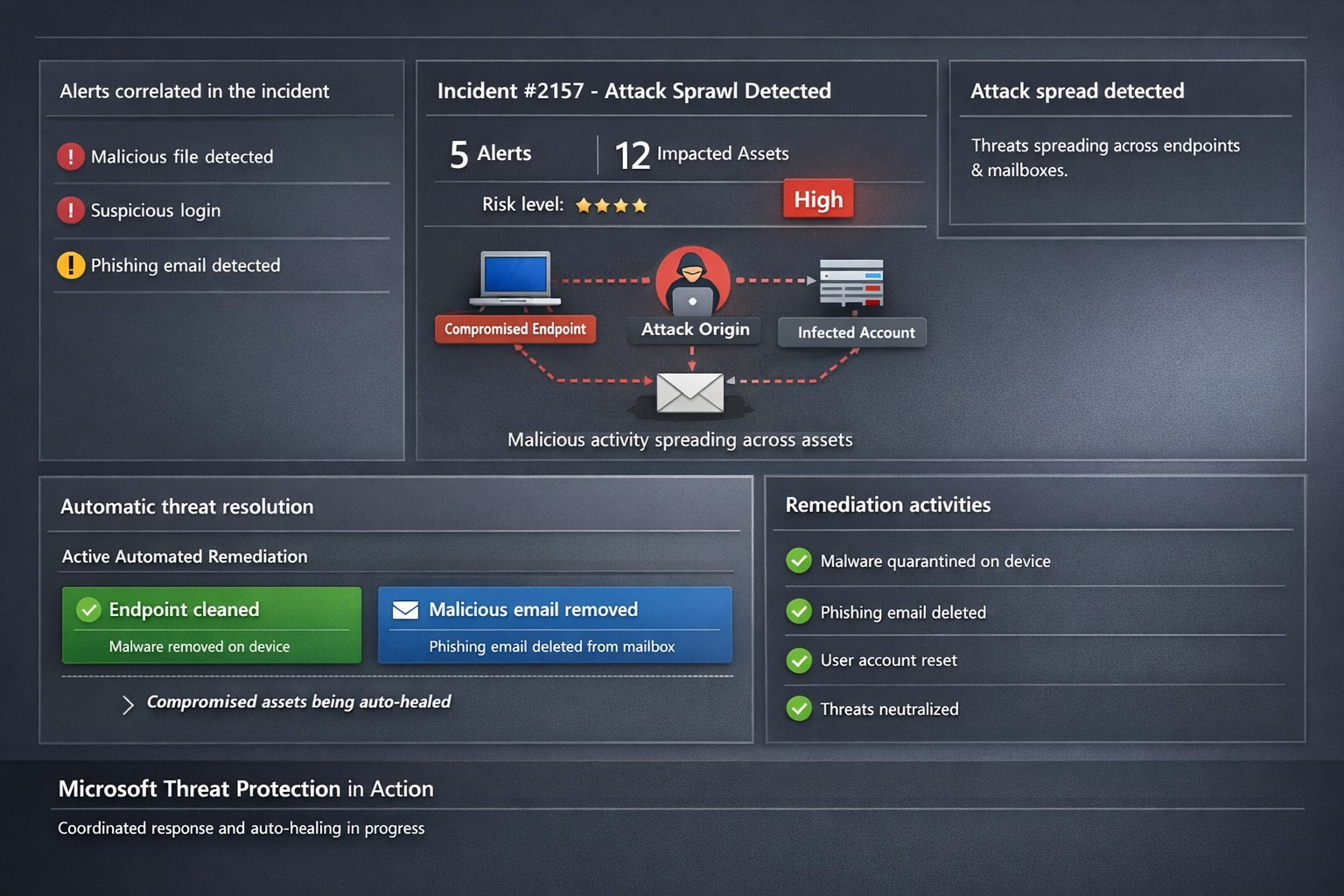
Microsoft 365 Defender auto-disrupts threats across endpoints and identities, healing assets in real-time to prevent sprawl.
One cyberattack can cripple operations, expose sensitive data, and cost millions in recovery. Microsoft Threat Protection (now evolved into Microsoft 365 Defender) integrates defenses across endpoints, email, identity, and apps to halt attack sprawl—where threats spread unchecked—and automatically heals compromised assets, minimizing downtime and risk.
What Is Attack Sprawl and Auto-Healing?
Attack sprawl happens when adversaries breach one domain, like email, then pivot to endpoints or identities via weak seams in siloed tools. Microsoft Threat Protection correlates signals across Microsoft Defender for Endpoint, Office 365 ATP, Azure ATP, and Cloud App Security to detect the full attack chain in real time.
It stops sprawl by blocking persistence mechanisms, such as malicious processes or credential abuse, and auto-heals assets—terminating threats on devices, removing harmful email rules, and flagging compromised users in Azure AD—restoring safety without manual intervention. Recent updates add automatic attack disruption for critical assets like domain controllers, disrupting threats days earlier in the kill chain.
Practical Action Steps for Implementation
Business owners and IT teams can deploy Microsoft Threat Protection systematically to fortify defenses. Follow these steps:
Assess Your Environment: Inventory endpoints, email, identities, and apps using Microsoft 365 Defender portal. Enable integration for Defender ATP, Office 365 ATP, Azure ATP, and MCAS via the unified console.
Enable Cross-Domain Correlation: Activate incident correlation in the Microsoft 365 Defender portal to prioritize high-fidelity threats. Configure conditional access policies to block risky logins automatically.
Turn On Auto-Healing and Disruption: In Defender settings, enable automated response actions like process termination and asset isolation. Test automatic attack disruption for critical assets via Security Exposure Management integration.
Conduct Proactive Hunting: Use custom queries in the portal to hunt cross-domain threats with your org-specific indicators. Review Threat Analytics reports for exposure insights and patches.
Monitor and Refine: Set up Action Center to track automated actions. Schedule monthly reviews to harden configurations based on incident data.
These steps reduce response times from hours to minutes, cutting breach costs by limiting sprawl.
FAQ: Client Inquiries Answered
How does Microsoft Threat Protection differ from standalone tools? It unifies siloed solutions into one XDR platform, correlating alerts for end-to-end visibility—unlike fragmented tools that miss cross-domain sprawl.
What assets does auto-healing cover? Endpoints (malicious processes), mailboxes (forwarding rules), identities (compromised flags), and apps. New capabilities target domain controllers and high-value servers.
Is it suitable for small businesses without a full IT team? Yes—built-in automation handles most responses. Pair with Microsoft 365 E5 licensing for seamless setup, scaling from SMBs to enterprises.
How effective is it against ransomware? It disrupts human-operated ransomware early by inoculating devices org-wide upon initial detection, reducing dwell time significantly.
What are setup costs and timelines? Licensing starts in Microsoft 365 plans; deployment takes days for integrated environments. Expect ROI via reduced incidents within weeks.
How Farmhouse Networking Boosts Your Efforts
Farmhouse Networking specializes in tailored Microsoft 365 security for accounting, healthcare, and charity sectors—industries handling sensitive data under strict compliance like HIPAA or GAAP. We handle assessment, configuration, and optimization of Threat Protection to stop attack sprawl and enable auto-healing.
Our team deploys custom integrations, trains your staff on hunting tools, and monitors via proactive managed services. We’ve helped similar clients cut threat response by 70%, ensuring business continuity. As your partner, we align SEO-driven website branding with lead-gen strategies to attract secure B2B growth.
Ready to protect your business? Email support@farmhousenetworking.com for a free Threat Protection audit and custom strategy.
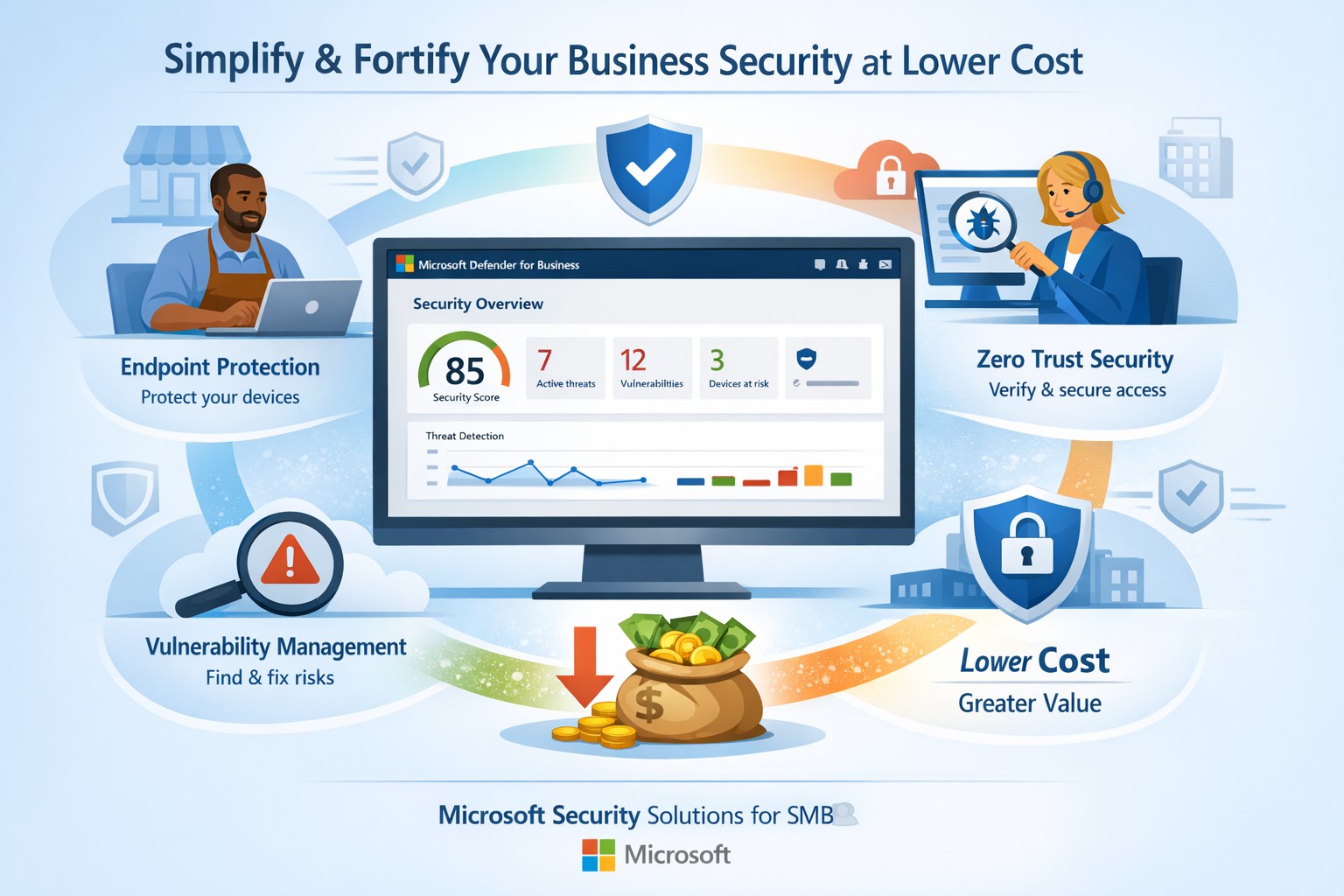
Fortify your SMB with Microsoft Defender for Business—enterprise-grade security at affordable prices via Microsoft 365.
Business owners face rising cyber threats but shrinking budgets for protection. Microsoft security solutions deliver enterprise-grade defenses at small-business prices, simplifying operations while fortifying your operations.
Why Microsoft Security Fits SMBs
Microsoft Defender for Business targets companies up to 300 employees, offering AI-driven endpoint protection across Windows, macOS, iOS, and Android. It includes next-gen antivirus, vulnerability management, and automated attack disruption—often bundled in Microsoft 365 Business Premium for cost efficiency. Combined with Purview suites, you get data loss prevention, insider risk detection, and compliance tools, reducing total ownership costs by consolidating vendors. This unified approach cuts complexity, with wizard-based onboarding and monthly reports that save IT time.
Action Steps for Implementation
Follow these steps with your IT team to deploy Microsoft security effectively:
Assess Current Risks: Use Microsoft Secure Score (free in Defender portal) to scan endpoints, identities, and apps for vulnerabilities—prioritize high-risk fixes first.
Select the Right Bundle: Start with Microsoft 365 Business Premium for Defender XDR, adding Defender for Business if needed (up to 5 devices/user). Enable multi-factor authentication via Entra ID Plan 1.
Onboard Devices: Run the wizard in the Microsoft Defender portal to deploy agents; test on a pilot group of 10-20 devices before full rollout.
Configure Policies: Set up Zero Trust basics—verify every access request, enable phishing simulations monthly, and automate data classification with Purview.
Monitor and Review: Schedule quarterly audits using built-in reports; integrate threat hunting for proactive response.
These steps typically take 2-4 weeks, yielding immediate ROI through reduced breach risks.
FAQs on Microsoft Security
How much does it cost compared to competitors? Microsoft bundles start under $10/user/month via Business Premium, far below standalone EDR tools (often $15-30/user). Consolidation avoids multi-vendor fees.
Is it scalable for growing businesses? Yes, Defender scales seamlessly to 300+ users with add-ons like server protection; no rip-and-replace needed.
What about training my team? Built-in simulations and reports require minimal training; AI automates 70%+ of responses, freeing staff.
Does it cover cloud apps and email? Fully—Defender includes SaaS security, phishing protection, and XDR across email, endpoints, and identities.
How secure is it against ransomware? AI-powered EDR disrupts attacks in real-time, with auto-remediation recovering systems quickly.
How Farmhouse Networking Assists
Farmhouse Networking specializes in Microsoft security deployments for accounting, healthcare, and charity sectors. We handle assessments, configurations, and ongoing managed detection—ensuring compliance (e.g., HIPAA for healthcare) without in-house expertise. Our team optimizes your setup for maximum ROI, conducts penetration tests, and provides 24/7 monitoring via Microsoft tools. Clients see 30-50% cost savings through streamlined licensing and automation. We’ve helped similar B2B firms fortify defenses while boosting productivity.
Ready to secure your business affordably? Email support@farmhousenetworking.com for a free security audit and custom Microsoft strategy.
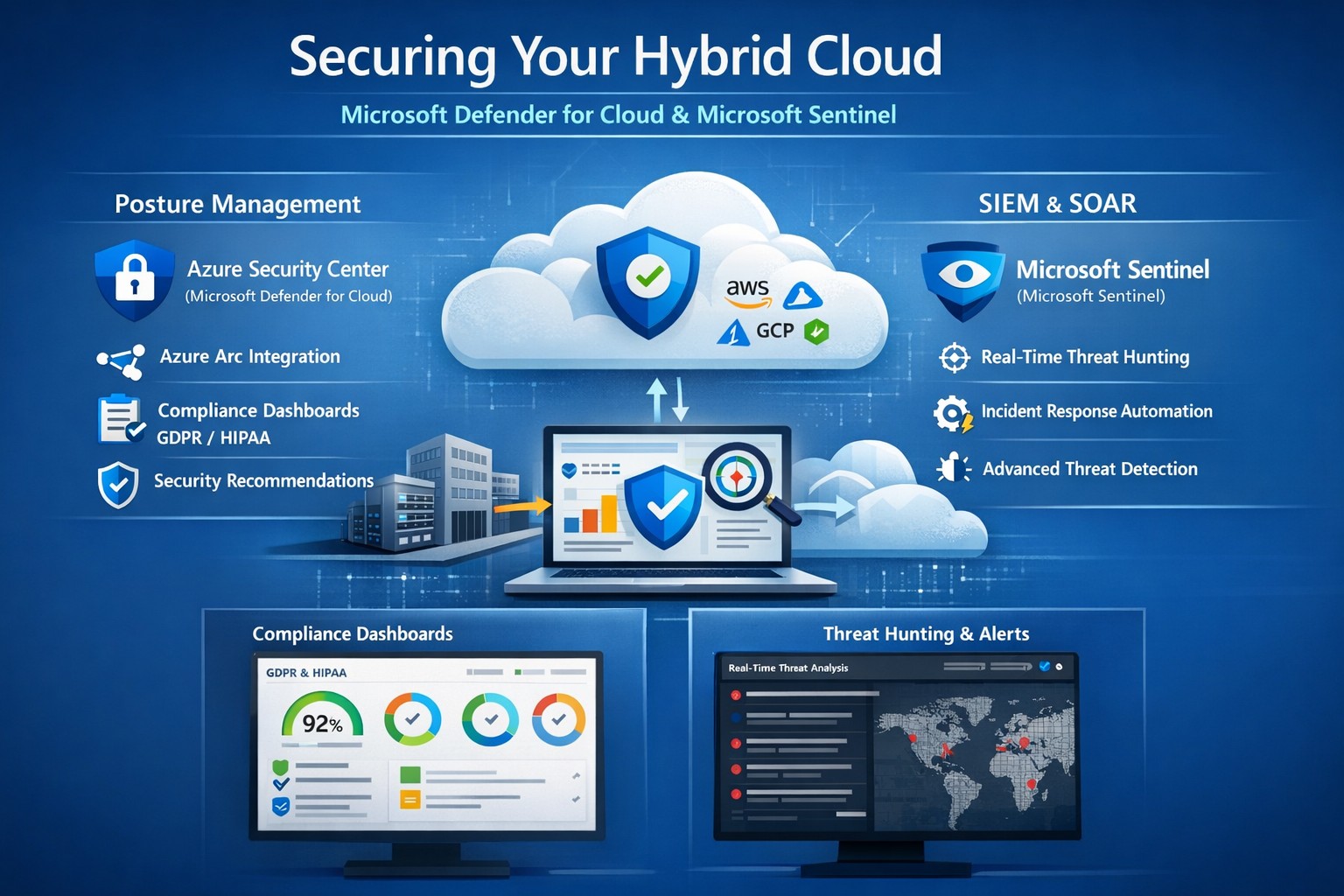
Unified hybrid cloud security: Monitor Secure Score and Sentinel alerts across on-premises and Azure resources.
Managing on-premises systems and cloud workloads, hybrid cloud security threats like ransomware and data breaches can disrupt operations and erode customer trust. Azure Security Center (now evolving into Microsoft Defender for Cloud) and Azure Sentinel (now Microsoft Sentinel) deliver unified protection across your hybrid environment, combining posture management with AI-driven threat detection.
Why Hybrid Cloud Security Matters Now
Hybrid setups amplify risks—on-prem servers lack cloud-scale monitoring, while Azure resources face misconfigurations. Security Center provides cloud security posture management (CSPM), tracking secure scores, compliance (e.g., GDPR, HIPAA), and just-in-time VM access. Sentinel acts as your SIEM/SOAR, ingesting Security Center alerts plus firewall logs, user data, and multi-cloud inputs (AWS, GCP) for proactive hunting and automated response.
This duo scales with your business: Security Center prevents threats at IaaS/PaaS layers (VMs, SQL, IoT); Sentinel correlates data enterprise-wide, cutting alert fatigue by 50% via AI. For accounting firms handling sensitive financials or healthcare providers under HIPAA, this means fewer breaches and faster recovery.
Practical Action Steps for Implementation
Work with your IT team to deploy these in phases for minimal disruption:
Enable Security Center: In Azure Portal, navigate to Defender for Cloud > Environment settings. Select your subscription, turn on plans for Hybrid + multicloud (servers, apps, databases). Onboard on-prem VMs via Azure Arc agents—install Log Analytics agent, assign policies.
Connect to Sentinel: Create a Sentinel workspace (Log Analytics resource). In Defender for Cloud, go to Integrations > Azure Sentinel > Connect. This streams alerts automatically. Add connectors for Office 365, firewalls, and endpoints.
Configure Posture and Detection: Review Secure Score dashboard; remediate top recommendations (e.g., enable MFA, update endpoints). In Sentinel, build analytics rules for anomalies (e.g., rare logins) and playbooks for auto-quarantine.
Test and Monitor: Simulate threats via Azure Attack Simulator. Set up workbooks for dashboards; review incidents weekly. Scale with automation—e.g., SOAR for ticket routing.
These steps take 1-2 days initially, yielding continuous monitoring without rip-and-replace.
Step
Owner
Time
Key Outcome
Enable Security Center
IT Admin
30 min
Secure Score baseline
Connect Sentinel
Security Lead
15 min
Unified alerts
Configure Rules
IT/Security
2-4 hrs
AI threat hunting
Test Response
Full Team
1 day
Incident playbook ready
FAQs: Client Questions Answered
How do Security Center and Sentinel differ? Security Center focuses on prevention and posture (e.g., misconfig fixes, EDR); Sentinel handles analytics, hunting, and orchestration across all sources. Use both: Security Center feeds Sentinel for holistic views.
Does this work for non-Azure hybrid setups? Yes—Arc agents extend coverage to on-prem, AWS/GCP via connectors. Sentinel ingests any log via APIs.
What about costs? Pay-per-ingest: Security Center ~$0.02/VM/day; Sentinel ~$2.60/GB ingested (free first 10GB/mo). Optimize with alert streaming.
Is setup complex for small IT teams? Minimal—Portal wizards guide you. Common pitfalls: data connector misconfigs (fix via docs); overcome with phased rollout.
How secure is data in transit? Encrypted end-to-end; complies with SOC 2, ISO 27001. Retention policies customizable.
How Farmhouse Networking Boosts Your Security
Farmhouse Networking specializes in B2B setups for accounting, healthcare, and nonprofits—industries facing strict compliance like SOX or HIPAA. We handle full implementation: Arc onboarding, custom Sentinel rules tuned to your workloads, and 24/7 SOC monitoring via our managed services. Our clients see 40% faster threat response and Azure cost optimizations, freeing you to focus on growth. We’ve secured 50+ hybrid environments, integrating Sentinel with your existing tools seamlessly.
Call to Action
Ready to lock down your hybrid cloud? Email support@farmhousenetworking.com for a free security posture assessment and personalized roadmap.
And God will generously provide all you need. Then you will always have everything you need and plenty left over to share with others. As the Scriptures say, “They share freely and give generously to the poor. Their good deeds will be remembered forever.” For God is the one who provides seed for the farmer and then bread to eat. In the same way, he will provide and increase your resources and then produce a great harvest of generosity in you. - 2 Corinthians 9:8-10
We use cookies to ensure that we give you the best experience on our website. If you continue to use this site we will assume that you are happy with it.