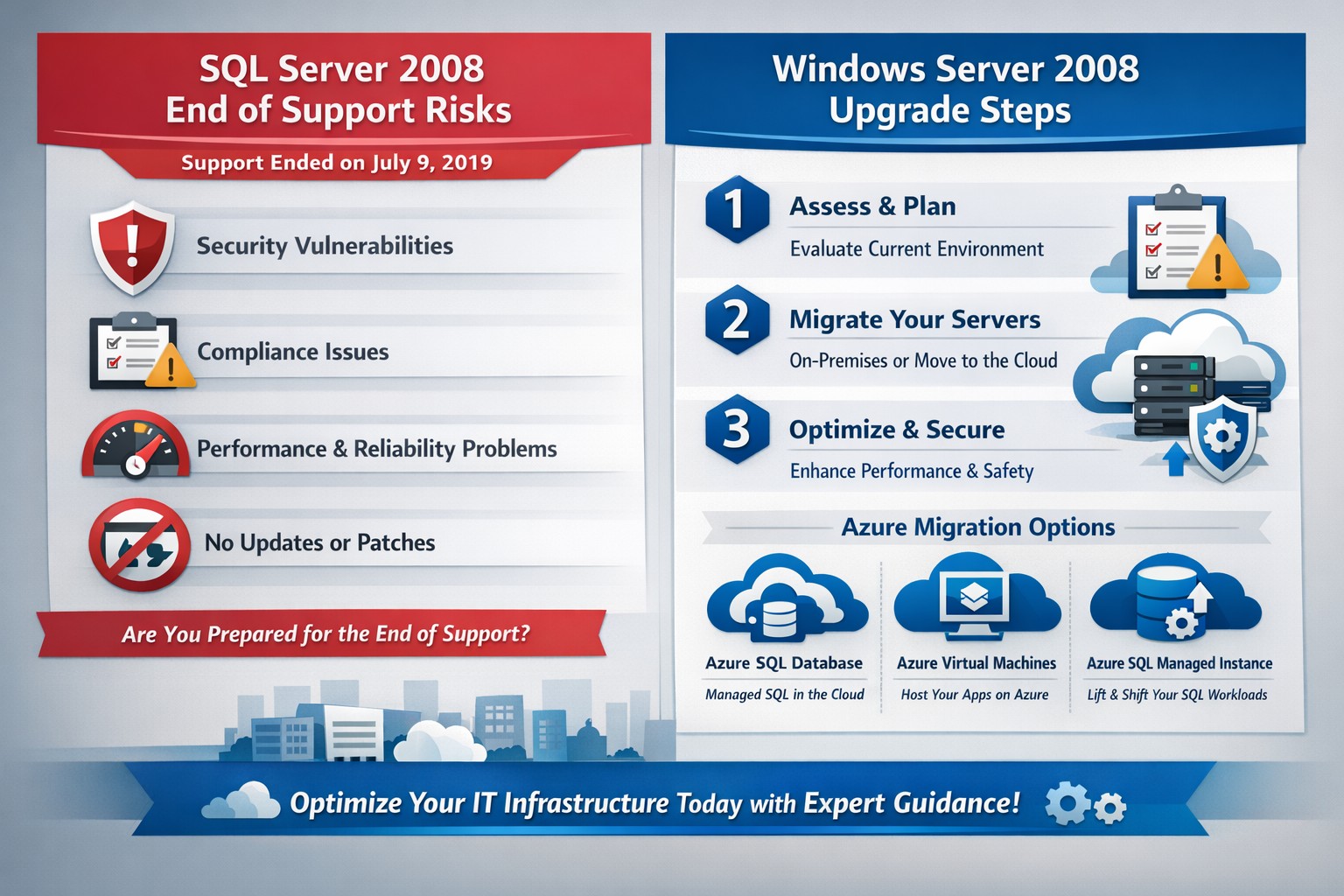
Visual timeline: SQL Server 2008 end of support (2019) and Windows Server 2008 EOS (2020)—start your secure migration now.
Relying on SQL Server 2008 or Windows Server 2008 exposes your operations to severe security risks since both reached end of support years ago—SQL Server on July 9, 2019, and Windows Server on January 14, 2020. Without Microsoft’s security patches, your databases and servers are vulnerable to exploits, data breaches, and compliance failures that could cost millions in fines, downtime, and lost trust.
Critical Risks for Your Business
Unpatched systems like these attract cyberattacks targeting outdated databases and servers, often holding sensitive customer data in accounting, healthcare, or charity sectors. Regulatory mandates (e.g., HIPAA, PCI-DSS) demand supported software, risking penalties if breached. Performance lags and incompatibility with modern apps further erode efficiency, directly hitting your bottom line.
Action Steps for You and Your IT Team
Follow these prioritized steps to migrate securely and minimize disruption.
Inventory Assets: Use tools like Microsoft Assessment and Planning Toolkit (MAP) to scan for SQL Server 2008/R2 and Windows Server 2008 instances across on-premises, VMs, and apps.
Assess Compatibility: Run SQL Server Upgrade Advisor to identify migration blockers; test apps on newer versions like SQL Server 2022 or Azure SQL.
Choose Path: Upgrade in-place to supported versions, lift-and-shift to Azure, or modernize with containers—avoid Extended Security Updates (ESU) as they’re costly and temporary (up to 3 years extra, post-2023).
Plan Migration: Phase workloads by risk; start with dev/test environments. Budget 3-6 months for complex setups.
Test and Go Live: Validate post-migration with backups, failover tests, and monitoring; cut over during low-traffic windows.
Secure and Monitor: Enable Azure Defender, multi-factor auth, and ongoing patching on new platforms.
Option
Pros
Cons
Cost Estimate
On-Prem Upgrade
Familiar setup
Hardware refresh needed
High upfront
Azure Migration
Scalable, pay-as-you-go
Learning curve
Lower TCO long-term
ESU (Temporary)
Quick fix
Expensive, no new features
$30K+ per core/year
FAQs: Client Questions Answered
Q: What if we can’t migrate immediately? A: Purchase ESU for critical security patches, but it’s a stopgap—plan full migration to avoid doubled costs later.
Q: Will our apps break on upgrade? A: Most do fine; use upgrade advisors early. Legacy apps may need refactoring, but Azure compatibility is high for 2008 workloads.
Q: How much downtime? A: Near-zero with Azure Site Recovery or Database Migration Service; test to confirm.
Q: What’s the breach risk? A: High—unpatched flaws enable ransomware/data theft. Post-EOS, no auto-updates mean manual fixes only if Microsoft deems critical.
Q: Cloud or on-prem? A: Cloud cuts costs 30-50% via scaling; ideal for variable workloads in your industries.
How Farmhouse Networking Helps
Farmhouse Networking specializes in B2B migrations for accounting, healthcare, and charity clients, driving organic traffic via SEO-optimized sites while securing infrastructure. We conduct free EOS assessments, execute inventory/scans, and handle end-to-end migrations to Azure/SQL Managed Instance—reducing risk and boosting performance. Our branding/SEO strategies ensure your site ranks for terms like “SQL Server 2008 migration,” converting visitors to leads. Past projects cut downtime 90% and compliance risks to zero.
Protect your remote workforce with managed cybersecurity solutions from Farmhouse Networking.
Remote work isn’t a trend anymore—it’s the new normal. As business owners embrace flexibility for their teams, the question isn’t whether remote work is here to stay, but how to keep it secure. Every remote connection, off-site login, and cloud app increases your organization’s exposure to cyber threats. Yet with a strategic approach and the right IT partner, you can maintain both productivity and peace of mind.
Let’s explore practical steps to safeguard your remote workforce and keep your company’s data protected—no matter where your employees log in from.
Step 1: Strengthen Endpoint Security
Your employees’ laptops, tablets, and smartphones are the front lines of your cybersecurity defense.
Implement device management policies: Require company-issued or managed devices only, using mobile device management (MDM) tools to enforce security settings and lock or wipe lost devices.
Apply regular updates: Patch management ensures operating systems and applications stay current against known vulnerabilities.
Use advanced antivirus and EDR: Endpoint Detection and Response (EDR) continually monitors and analyzes device activity, identifying suspicious behavior early.
Strong endpoint protection helps you prevent compromised devices from becoming entry points into your network.
Step 2: Establish Secure Remote Access
Allowing remote access shouldn’t mean leaving your digital doors wide open.
Deploy a VPN (Virtual Private Network): Encrypt employee connections to your office network and cloud services.
Shift to Zero Trust Network Access (ZTNA): Adopt a “never trust, always verify” model that authenticates users and devices each time they connect.
Use multi-factor authentication (MFA): Combine passwords with a second factor, like a mobile app code or biometric scan, to block unauthorized access.
These technologies work together to create secure pathways for remote workers without slowing them down.
Step 3: Protect Your Cloud and Collaboration Tools
Cloud storage and file-sharing apps make remote work seamless—but they’re also favorite targets for cybercriminals.
Limit access privileges: Give users only the data and systems access they need for their jobs.
Monitor suspicious activity: Use automated alerts for unauthorized downloads, logins from unfamiliar locations, or mass file deletions.
Encrypt cloud data: Apply encryption at rest (while stored) and in transit (while shared).
By managing permissions and encryption settings properly, you ensure your remote team collaborates safely.
Step 4: Train Your Employees to Recognize Threats
Technology can’t protect your business alone—your people are your first defense.
Phishing simulation tests: Help employees identify deceptive emails before they click.
Ongoing security awareness training: Regular, engaging sessions keep cybersecurity top of mind.
Clear incident reporting process: Make sure staff know exactly how to report suspicious emails or activity.
Even the strongest firewall can’t fix a careless click. Empowered employees dramatically lower your exposure to ransomware and data breaches.
Step 5: Backups and Business Continuity
When (not if) something goes wrong, recovery speed determines your resilience.
Automated, off-site backups: Back up critical company data daily to secure cloud storage or a managed backup solution.
Test your recovery protocols: Periodic testing ensures recovery procedures actually work when needed.
Create a disaster recovery plan: Define roles, responsibilities, and communication plans for emergencies.
Regular backups not only protect your business from cyberattacks but also from system failures, accidental deletion, or natural disasters.
Common Questions from Business Owners
Q: How can I ensure my remote workers’ home networks are secure? A: Require strong, unique Wi-Fi passwords and WPA3 encryption. Encourage employees to separate personal and work devices on different Wi-Fi networks where possible.
Q: Aren’t remote security tools expensive? A: Not necessarily. Many solutions scale by user count, making them affordable for small to medium-sized businesses. Cloud-based management and outsourced IT services can reduce operational overhead.
Q: What’s the biggest cybersecurity risk for remote businesses? A: Human error remains number one—especially phishing attacks and weak passwords. That’s why employee training and MFA are critical foundations of your remote work security strategy.
How Farmhouse Networking Helps Strengthen Remote Security
At Farmhouse Networking, we help businesses across Oregon and beyond embrace remote work securely. Our team provides managed IT services, network monitoring, cybersecurity management, and employee training tailored to your business goals.
Here’s how we can help you stay secure while working remotely:
Comprehensive network and endpoint protection designed to prevent unauthorized access.
24/7 monitoring and response to detect threats in real time.
Cloud security audits to ensure collaboration tools meet compliance and security standards.
Custom remote work security plans aligned with your IT budget and risk profile.
We work closely with your internal IT staff or serve as your outsourced department—helping you focus on running your business, not worrying about cyber risks.
Take the Next Step Toward Secure Remote Work
Remote work can be safe, scalable, and sustainable—with the right security foundation. Whether you’re building your first remote team or managing a hybrid workforce, Farmhouse Networking has the expertise to protect your people, devices, and data.
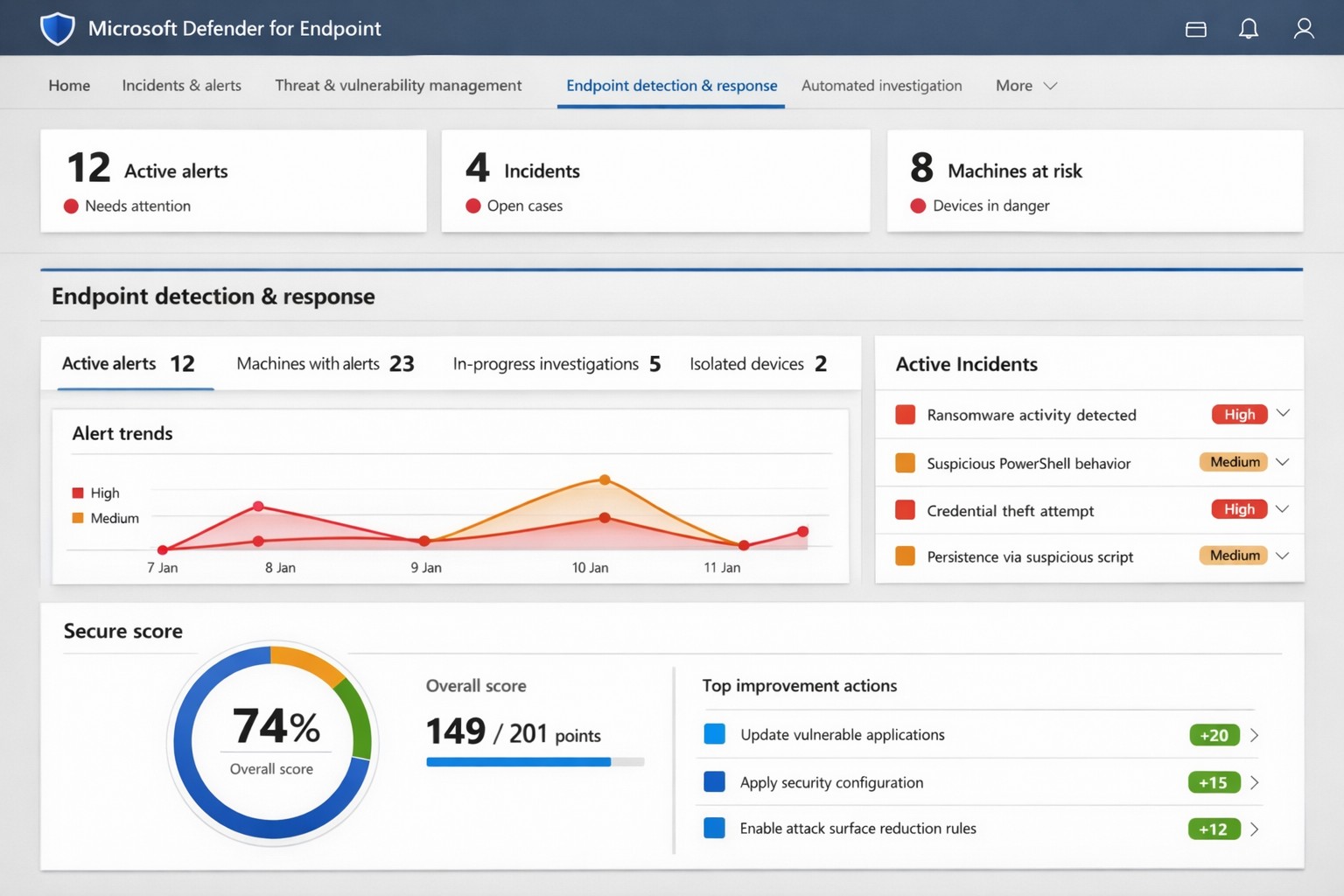
Microsoft Defender for Endpoint (ATP) portal: Monitor advanced threats, EDR alerts, and secure score to safeguard your business devices.
Cyber threats like ransomware and data breaches can cripple operations, costing millions in downtime and recovery. Microsoft Defender for Endpoint—previously known as Microsoft Defender Advanced Threat Protection (ATP)—delivers enterprise-grade endpoint security to detect, investigate, and stop these attacks before they escalate.
What is Microsoft Defender for Endpoint?
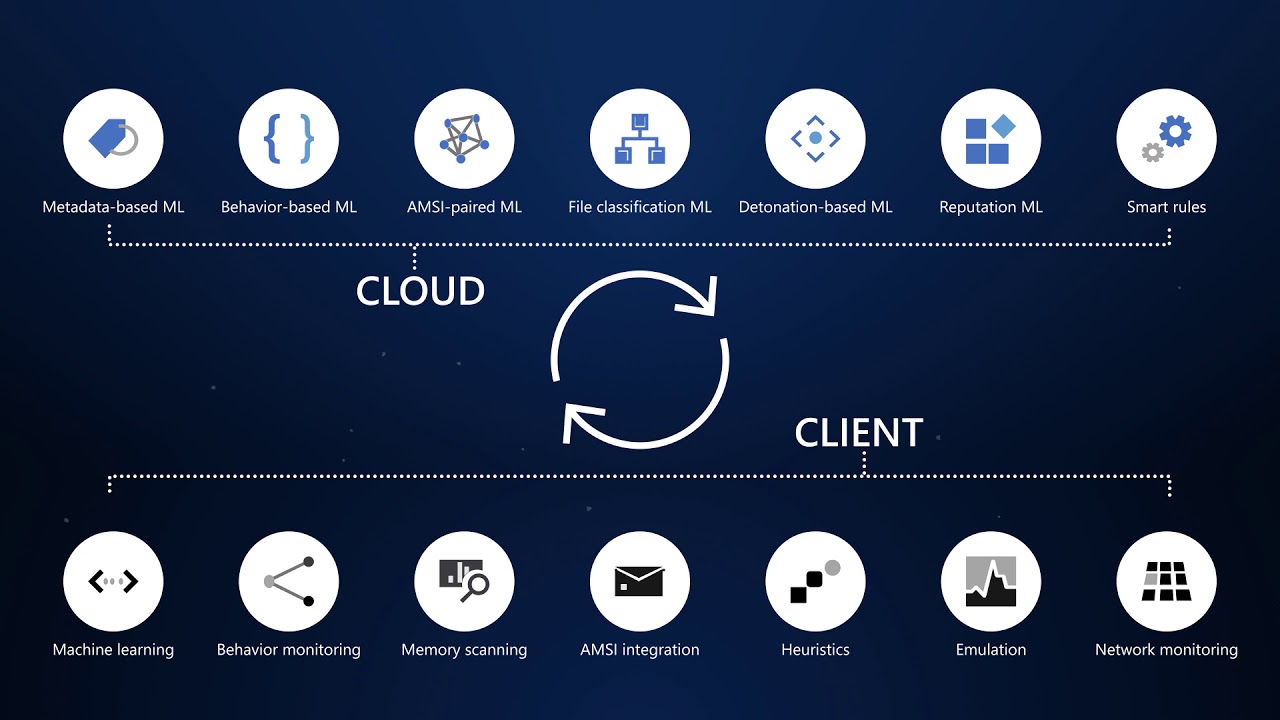
This cloud-native platform safeguards devices like laptops, servers, and mobiles from advanced threats using AI-driven analytics, behavioral monitoring, and automated response. Key capabilities include next-generation antivirus, endpoint detection and response (EDR), threat and vulnerability management, attack surface reduction, and automated investigations that group alerts into incidents for faster triage.
It integrates seamlessly with Microsoft 365, offering Plan 1 (basic protection, network controls) and Plan 2 (full EDR, vulnerability management, sandboxing). Businesses gain a “secure score” to benchmark and improve security posture.
Practical Action Steps for Implementation
Follow these steps with your IT team to deploy effectively:
Assess Eligibility and License: Confirm Microsoft 365 E3/E5 or standalone Defender licensing via the Microsoft 365 admin center. Start a 30-day trial if needed.
Onboard Devices: Use Microsoft Endpoint Manager or Group Policy to enable onboarding scripts for Windows, macOS, Linux, iOS, and Android. Prioritize high-value assets like executive laptops.
Configure Policies: Set attack surface reduction rules, enable cloud-delivered protection, and deploy controlled folder access to block ransomware. Test in audit mode first.
Monitor and Respond: Review the Defender portal daily for incidents. Use automated remediation to isolate devices and run live response commands like file quarantine.
Train Staff and Review Secure Score: Conduct phishing simulations and user training. Aim for a secure score above 80% by addressing recommendations.
Expect initial setup in 1-2 weeks for 50 devices, with ongoing management under 1 hour daily post-configuration.
FAQ: Client Inquiries Answered
How does Defender differ from basic antivirus? Unlike traditional AV, it provides EDR for post-breach hunting, cloud analytics for zero-day threats, and cross-device incident correlation—reducing detection time from 200+ days to hours.
What about performance impact? Minimal; sensors use hardware acceleration and run lightweight scans. Enterprises report <1% CPU overhead.
Is it suitable for small businesses without IT staff? Yes, Defender for Business offers simplified P1/P2 features with guided setup. It scales from 5 to 50,000 endpoints.
How secure is data in Defender? Microsoft isolates customer data by tenant, with no use for training AI. Compliance includes GDPR, HIPAA.
What if we use non-Windows devices? Full support for macOS, Linux, mobile; unified console prevents silos.
How Farmhouse Networking Can Help
Farmhouse Networking specializes in B2B cybersecurity for accounting, healthcare, and nonprofits—industries handling sensitive data under strict compliance like HIPAA and PCI-DSS. We conduct cloud security assessments to baseline your posture, implement Defender onboarding, customize policies for your endpoints, and integrate with existing Microsoft stacks for automated threat hunting.
Our team handles vulnerability prioritization, staff training, and 24/7 monitoring, freeing you to focus on growth. Clients see 40% faster threat response and improved secure scores within months.
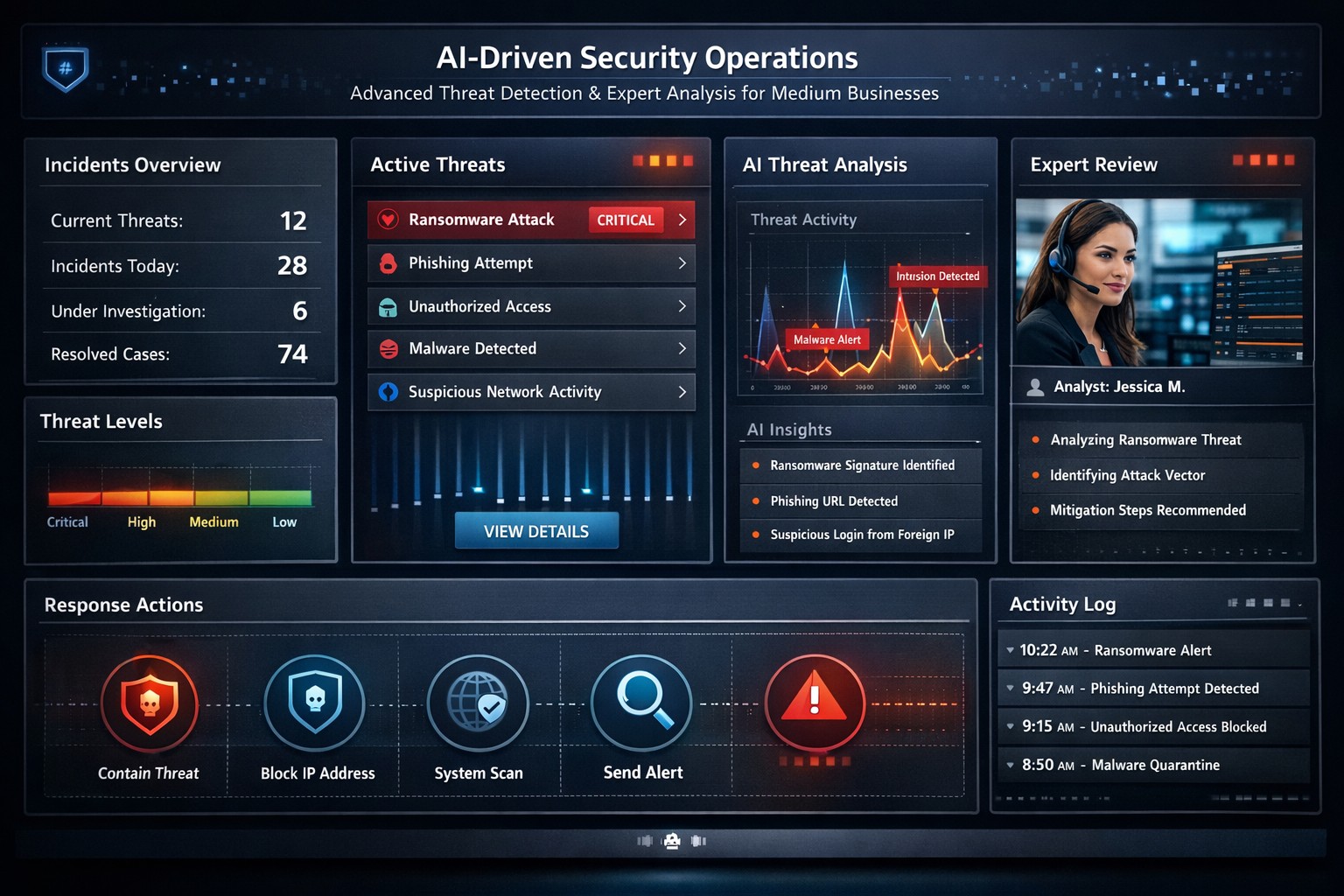
Visualizing faster threat detection: Data-driven cybersecurity with human oversight protects medium business systems from attacks.
You’re juggling growth, operations, and rising cyber threats that could halt everything overnight. A data-driven, human-guided security approach empowers you to detect and respond to attacks quicker and more accurately – reducing downtime and protecting your bottom line.
Why This Approach Wins for Medium Businesses
Traditional cybersecurity relies on static rules, often missing sophisticated threats amid complex networks from remote work and cloud tools. Data-driven strategies analyze real-time logs, user behavior, and threat intelligence with AI, spotting anomalies humans might overlook. Human oversight ensures context-aware decisions, blending machine speed with expert judgment for precision. This hybrid model cuts response times from days to minutes, vital for medium businesses lacking massive security teams.
Practical Action Steps
Implement these steps with your IT department to build this defense:
Audit Data Sources: Identify critical logs from networks, endpoints, and apps; prioritize user behavior and external threat feeds for comprehensive visibility.
Deploy Analytics Tools: Integrate AI platforms like SIEM systems with machine learning for anomaly detection; start with open-source options or scalable SaaS for cost efficiency.
Enable Automated Alerts: Set up real-time monitoring with automated responses for low-risk issues, reserving human review for high-severity events.
Train Your Team: Conduct quarterly simulations blending data insights with human decision-making; focus on root-cause analysis from past incidents.
Test and Iterate: Run monthly penetration tests, using data to rank risks and measure improvements in detection accuracy.
These steps scale affordably, leveraging existing infrastructure without overhauling your setup.
Common Questions Answered
How does this differ from basic antivirus? Antivirus scans for known signatures; data-driven security uses behavioral analytics to catch zero-day threats, with humans validating alerts for accuracy.
What’s the ROI for a medium business? Expect 50-70% faster incident response, slashing breach costs (average $4.5M per IBM data) and boosting compliance, freeing IT for growth initiatives.
How much does implementation cost? Initial setup ranges $50K-$150K for mid-tier tools and training, with ROI in 6-12 months via prevented losses; cloud options minimize upfront spend.
Can we handle this in-house? Yes for basics, but partnering accelerates expertise; human-guided layers prevent AI false positives that overwhelm small teams.
What about regulatory compliance? Automated reporting from data tools simplifies GDPR, HIPAA, or CCPA audits, proving proactive measures with auditable logs.
How Farmhouse Networking Supports You
At Farmhouse Networking, we specialize in tailored strategies for accounting, healthcare, and charity sectors—industries facing strict compliance and high-stakes data risks. Our team deploys data-driven platforms integrated with human-guided SOC services, handling audits, tool setup, and 24/7 monitoring. We’ve helped similar medium businesses cut threat response by 60%, enhancing SEO-friendly client trust signals like security badges. From branding secure websites to lead-gen funnels that highlight your defenses, we drive organic traffic and B2B conversions.
Ready to fortify your systems? Email support@farmhousenetworking.com for a free risk assessment and custom roadmap. Act now—secure your edge
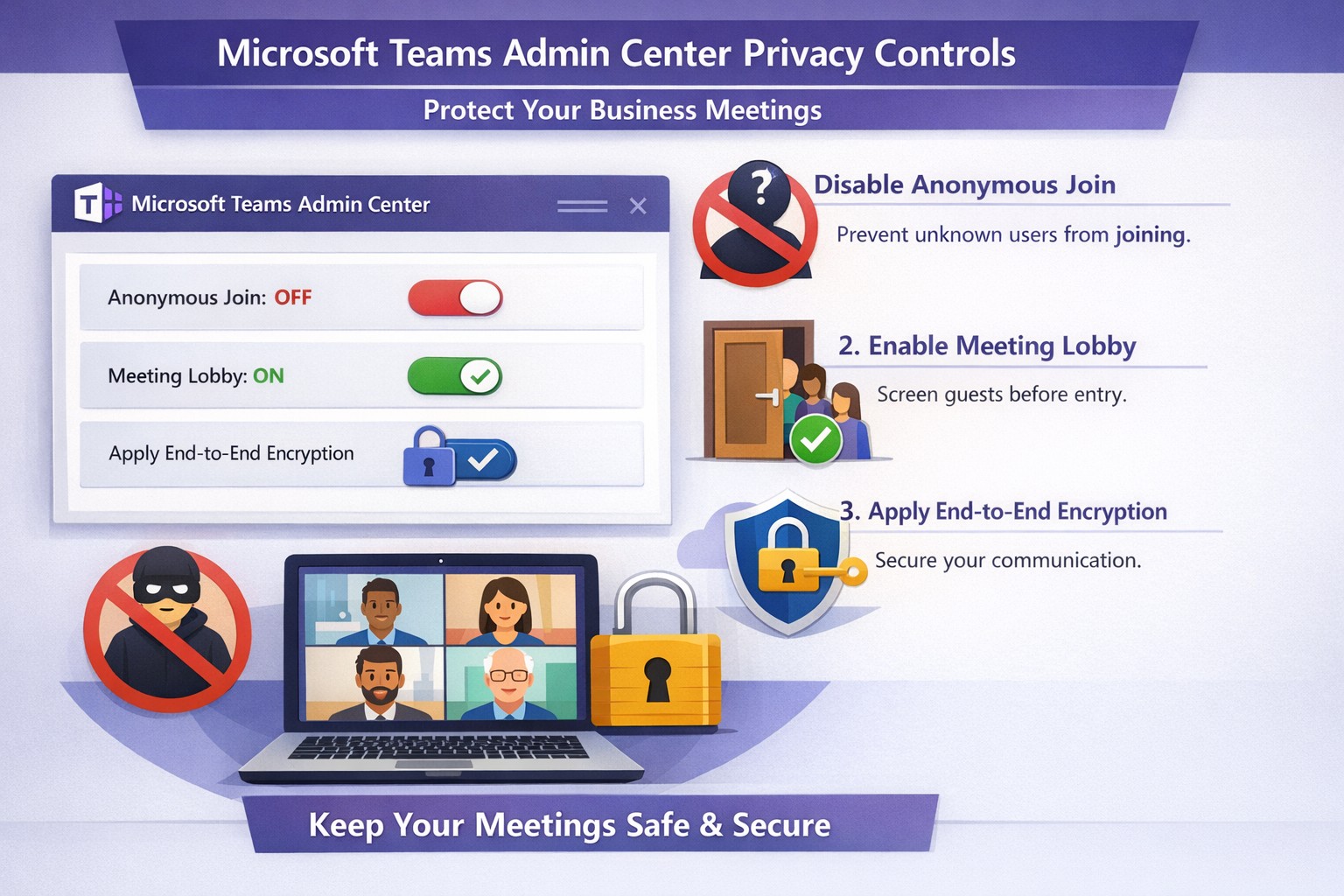
Configure Teams meeting privacy: Turn off anonymous access and activate lobby to protect business discussions.
Microsoft Teams meetings often involve sensitive discussions on finances, strategies, and client data—yet unauthorized access risks data leaks and disruptions. Implementing targeted privacy controls ensures secure collaboration without stifling productivity.
Key Privacy Risks in Teams Meetings
Teams meetings face threats like “zoombombing,” where anonymous users join via public links, and data exposure through screen shares or recordings. Microsoft reports that disabling anonymous join reduces unauthorized entries significantly. External bots and unverified guests compound these issues, especially in hybrid work setups common for accounting, healthcare, and charity sectors.
Practical Action Steps
Follow these steps with your IT department to lock down Teams privacy. Prioritize admin center changes for organization-wide impact.
Disable Anonymous Joins: In the Teams admin center (admin.teams.microsoft.com), navigate to Meetings > Meeting policies. Set “Anonymous users can join” to Off. This blocks uninvited participants and recording bots.
Enable Meeting Lobby: Require all external participants to wait in the lobby. Under Meeting settings > Participants, toggle “Who can bypass the lobby?” to organizers and presenters only. Manually approve entrants to verify identities.
Activate CAPTCHA Verification: For remaining external access, enable CAPTCHA for anonymous users. This adds a human-check layer without fully restricting guests.
Use End-to-End Encryption (E2EE): For confidential calls, enable E2EE in meeting options (requires Teams Premium). Only participants decrypt audio/video; Microsoft cannot access it.
Apply Watermarking and Sensitivity Labels: With Teams Premium, turn on watermarks displaying participant emails over shared screens/videos. Create sensitivity labels enforcing lobby waits, auto-recording, and chat restrictions.
Control Recordings and Transcripts: Disable auto-recording for non-sensitive meetings. Inform participants and store files securely in OneDrive with 60-day retention.
Educate Users: Train staff to check participant lists, avoid public screen shares, and deny unknowns. Use quiet, private spaces for calls.
Implement via admin center first, then test in a pilot meeting. These steps balance security with usability.
FAQ: Client Inquiries Answered
Q: Can external clients still join securely? A: Yes—lobby approval and CAPTCHA allow vetted guests while blocking randos. Federated domains enable seamless access for partners.
Q: What’s needed for advanced features like E2EE? A: Teams Premium (or E5 for labels). Basic encryption is always on for transit/rest, but Premium adds layers.
Q: How do I prevent screenshot leaks? A: Watermarks overlay user IDs on shared content, deterring unauthorized captures. Combine with “Do not forward” calendar labels.
Q: Are recordings private? A: Stored in organizer’s OneDrive; participants notified. Get explicit consent for sensitive sessions, especially in healthcare/charities.
Q: What about one-on-one vs. group calls? A: One-on-one calls offer full E2EE by default; groups need Premium for equivalent protection.
How Farmhouse Networking Helps
Farmhouse Networking specializes in B2B IT for accounting, healthcare, and charity firms. We audit your Teams setup, deploy these privacy configs, and integrate with compliance needs like HIPAA or nonprofit data rules. Our SEO-optimized websites and lead-gen strategies turn secure Teams into a client magnet—showcasing reliability drives conversions. Skip the hassle; we handle migrations, training, and 24/7 monitoring.
Call to Action
Ready to safeguard your Teams meetings and boost client trust? Email support@farmhousenetworking.com for a free privacy audit and custom strategy.
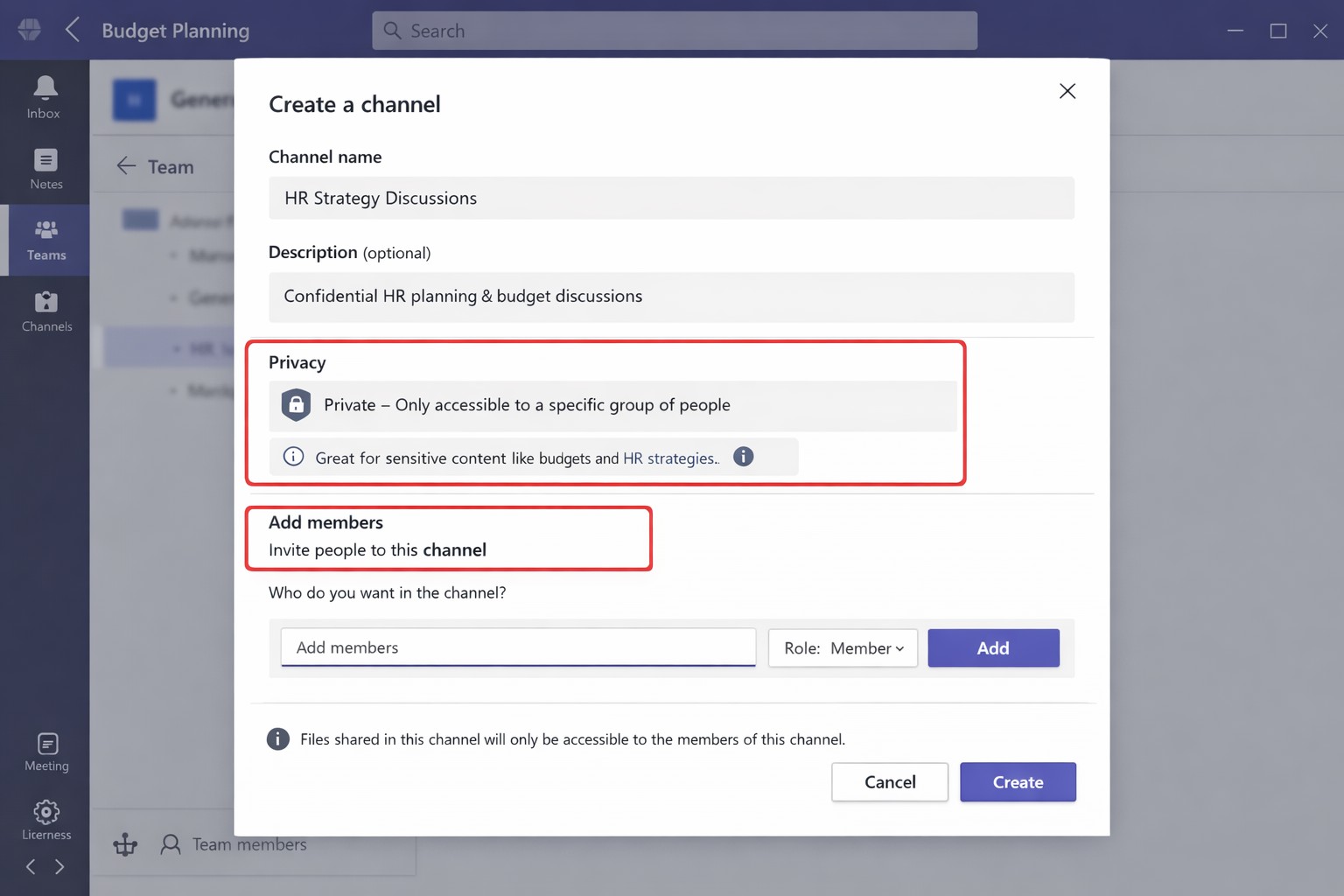
Secure your business discussions: Step-by-step private channels in Microsoft Teams.
Protecting sensitive discussions—like HR strategies, client deals, or financial plans—is critical in Microsoft Teams. Private channels let you segment conversations within a team, ensuring only invited members access chats, files, and tabs, boosting security without creating separate teams.
Step-by-Step Setup Guide
Follow these practical actions to create and manage private channels. Team owners or permitted members handle creation; involve your IT department for policy checks and permissions.
Open Microsoft Teams and navigate to the target team.
Click the three dots (…) next to the team name, then select Manage team > Channels tab.
Click Add channel, enter a name (e.g., “Q1-Budget-Confidential”) and optional description.
Under Privacy, choose Private—this restricts access to added members only.
Click Add members to invite up to 250 people; set roles (owner/member) via Manage channel > Members tab.
Post-setup, use the channel for posts, file shares, and apps. Limit: 30 private channels per team lifetime; admins can restrict via Teams policies.
To delete or edit: Go to Manage channel > Settings for permissions, or remove via Members tab. IT should verify SharePoint site creation (auto-generated per channel) for compliance.
FAQs for Client Inquiries
Q: Who can create private channels? A: Team owners/members by default (guests cannot); admins control via policies in Teams admin center.
Q: What’s the difference from standard channels? A: Standard channels are visible to all team members; private ones require explicit invites, isolating content and files.
Q: Can I add external users? A: No, private channels are internal-only; use shared channels for guests/external collaborators.
Q: Do private channels impact storage or costs? A: Each gets a dedicated SharePoint site, counting toward limits; no extra licensing needed for core features.
Q: How do I audit access? A: Review Members tab; use Microsoft Purview for activity logs if enabled.
How Farmhouse Networking Helps
Farmhouse Networking specializes in tailored Microsoft 365 setups for accounting, healthcare, and charity sectors. We audit your Teams environment, implement governance policies (e.g., naming conventions, approval workflows), and train your team/IT on private channels to ensure HIPAA/GDPR compliance and seamless adoption.
Our SEO-optimized websites and lead-gen strategies drive organic traffic, converting visitors into B2B clients. We handle branding, custom integrations, and ongoing support to maximize ROI.
Ready to secure your Teams? Email support@farmhousenetworking.com for a free consultation on private channels and business growth.
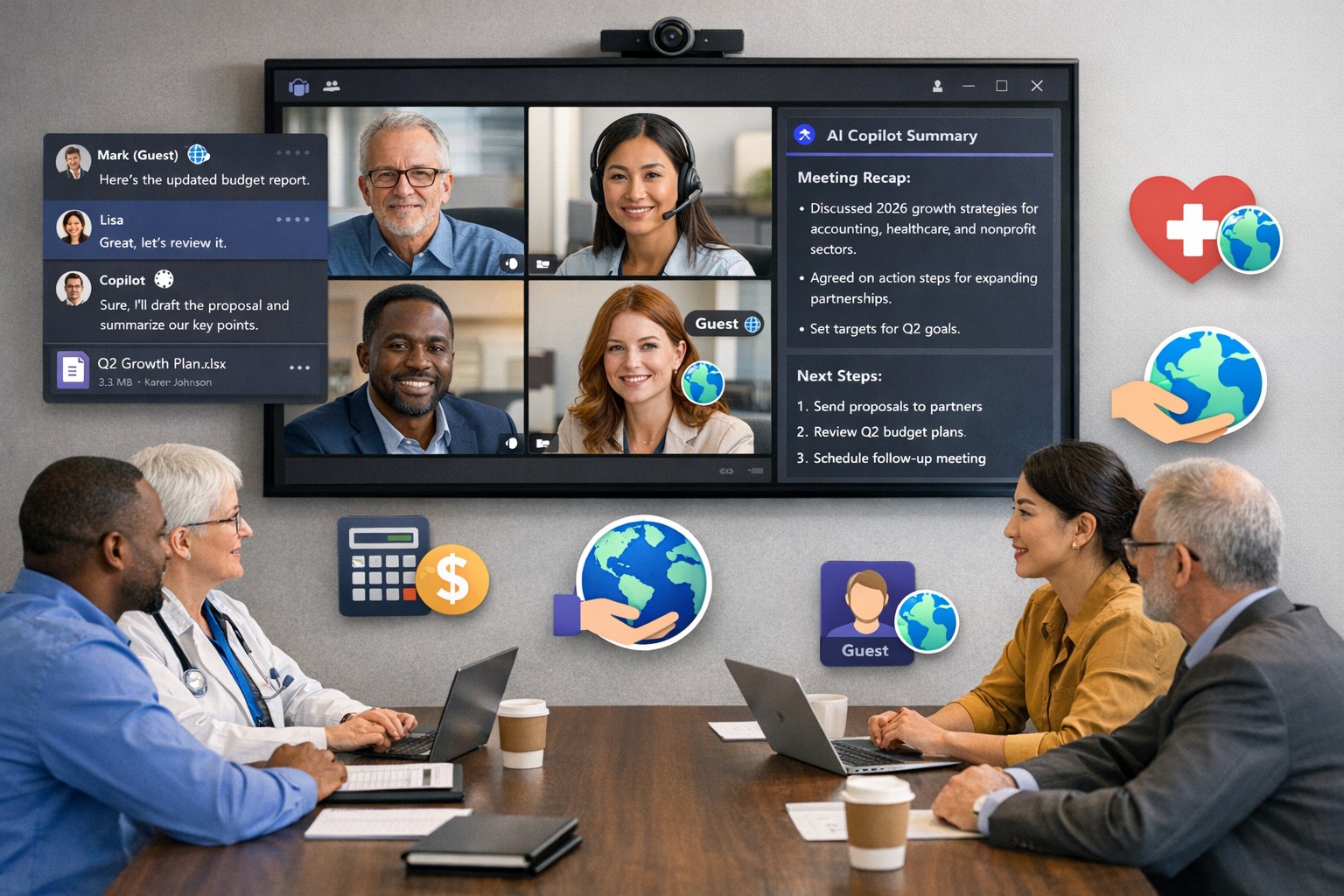
Scale your business: Unlock Microsoft Teams collaboration expansion with AI recaps and guest access.
Business owners face a constant challenge: keeping distributed teams aligned amid hybrid work and external partnerships. Microsoft Teams’ 2026 updates—like AI-powered recaps, email-to-chat, and smarter hybrid meetings—unlock seamless expansion of collaboration without tool fragmentation.
Key 2026 Teams Features for Growth
Teams now bridges internal and external comms via email invites, letting anyone join chats as temporary guests while staying compliant. Copilot integrates directly for chat summaries, task assignments, and decision highlights, cutting admin time. Hybrid upgrades include AI voice isolation, speaker recognition in rooms, and audio recaps so absentees catch up fast.
These tools reduce context-switching, boost inclusivity, and handle vendor or client coordination effortlessly—ideal for accounting firms tracking audits, healthcare practices managing referrals, or charities syncing volunteers.
Action Steps for Business Owners and IT
Expand collaboration systematically. Follow these steps:
Assess Needs: Audit current usage—survey teams on pain points like external email chains or meeting drop-offs. Prioritize hybrid features if >30% remote.
Upgrade Licensing: Switch to Teams Premium or Microsoft 365 E5 for Copilot, AI recaps, and guest controls. IT verifies via admin center; budget $7–$22/user/month.
Configure External Access: IT enables “email-to-chat” in Teams admin > Users > External access. Set policies for guest expiration (e.g., 30 days) and trust badges for unfamiliar users.
Deploy AI Tools: Activate Copilot in meetings/chats via Microsoft 365 admin. Train staff on prompts like “Summarize key decisions” during 15-min sessions.
Optimize Hybrid Setup: IT installs certified Teams Rooms hardware; enable voice isolation and live captions. Test with a cross-team pilot meeting.
Monitor and Scale: Use analytics dashboard for adoption metrics (e.g., chat volume up 20%). Automate with Power Automate for workflows like task follow-ups.
Expect 25–40% productivity gains in 3 months, per early 2026 reports.
Client FAQs on Teams Expansion
Q: How secure is external collaboration? A: Chats stay in your compliance boundary with granular guest controls, AI compliance alerts, and encryption. External users get trust badges (e.g., “verified”).
Q: Does everyone need a Teams license? A: No—email recipients join as guests without accounts. Internal users need Essentials ($4/user) or higher for full AI.
Q: What about integration with our CRM or accounting software? A: Teams connects via 250+ apps (e.g., Dynamics 365, QuickBooks). Copilot pulls data for unified views.
Q: How do we train non-tech staff? A: Use built-in templates, keyboard shortcuts, and “pin window” for multitasking. Roll out via Viva Engage communities.
Q: What’s the ROI for charities/healthcare? A: Reduced email overload frees 10+ hours/week per manager; hybrid tools cut no-shows by 30%.
How Farmhouse Networking Accelerates Your Teams Expansion
Farmhouse Networking specializes in B2B setups for accounting, healthcare, and nonprofits. We handle licensing audits, custom configs (e.g., HIPAA-compliant guest access), and AI onboarding—slashing setup from weeks to days. Our SEO-optimized sites and lead-gen strategies have driven 40% organic traffic growth for similar clients, converting Teams efficiency into client wins. Skip IT headaches; we integrate Teams with your branding for seamless scaling.
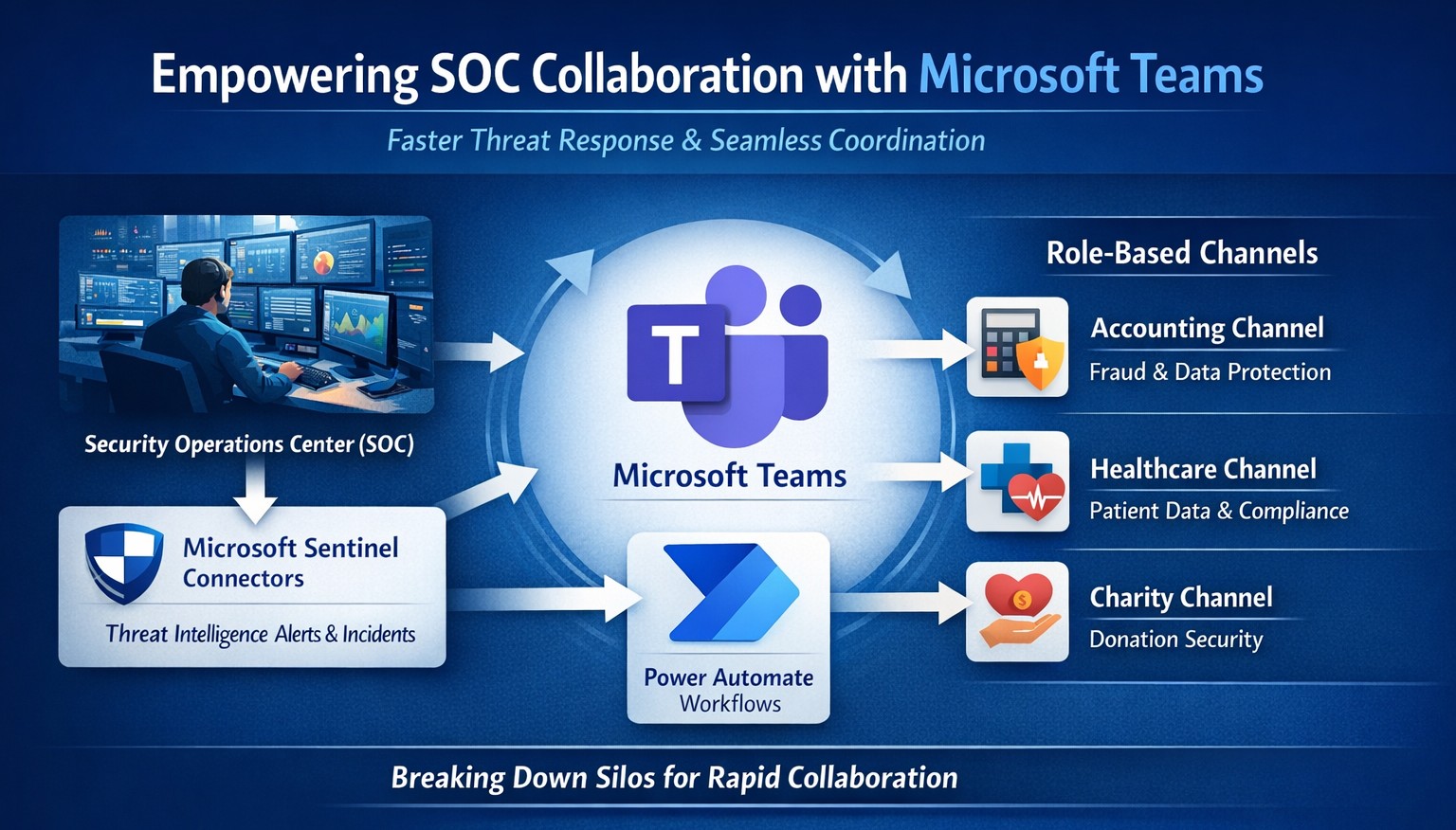
Seamless SOC-Teams coordination reduces incident response time—key steps visualized for business owners.
Security Operations Centers (SOC) must respond faster than ever, but silos between security teams and daily operations slow you down. Integrating SOC workflows with Microsoft Teams empowers real-time coordination, reducing response times by up to 50% and protecting your bottom line from breaches that cost small businesses millions annually.
Why SOC-Teams Integration Matters
Security Operations Centers monitor threats 24/7, but without seamless communication, alerts get lost in email chains or disjointed tools. Microsoft Teams acts as a unified hub, enabling SOC analysts to notify IT, executives, and even HR instantly during incidents. This cross-functional approach breaks down silos, as seen in best practices where unified platforms cut incident resolution time. For business owners, this means less downtime and stronger compliance in regulated industries like accounting and healthcare.
Practical Action Steps
Follow these targeted steps to empower your SOC with Teams integration. Involve your IT department early for smooth rollout.
Assess Current Setup: Audit your SOC tools (e.g., SIEM like Microsoft Sentinel) and Teams usage. Identify key channels for alerts, such as #soc-incidents or #threat-response.
Deploy Microsoft Sentinel Connector: In the Microsoft Sentinel portal, enable the Teams connector under Content Hub. This pipes SOC alerts directly into Teams channels with rich notifications including threat details and severity.
Configure Automation Workflows: Use Power Automate to create flows triggering Teams messages on high-priority alerts. For example, auto-post “Critical phishing detected—quarantine user X” with actionable buttons for IT to isolate systems.
Set Up Role-Based Channels: Create private Teams channels for SOC-IT coordination and executive summaries. Integrate bots for real-time querying, like “/threat status” pulling live SOC data.
Train and Test: Run tabletop exercises simulating ransomware. Train staff on responding via Teams, then measure metrics like mean-time-to-respond (MTTR) pre- and post-integration.
Monitor and Iterate: Use Teams analytics and SOC dashboards to track engagement. Adjust based on false positives or delays, ensuring continuous improvement.
These steps typically take 2-4 weeks, minimizing disruption while boosting efficiency.
FAQ: Client Inquiries Answered
Q: Is this integration secure for sensitive data? A: Yes—Teams uses enterprise-grade encryption and compliance with GDPR, HIPAA. SOC data shares only via authenticated channels, with audit logs for traceability.
Q: What if we lack an in-house SOC? A: Start with managed detection and response (MDR) services that integrate with Teams, scaling as your business grows without full-time hires.
Q: How much does it cost? A: Core features use existing Microsoft 365 E5 licenses (~$57/user/month). Sentinel adds $5-10/GB ingested data. ROI comes from averting breaches averaging $4.5M.
Q: Can it handle hybrid work? A: Absolutely—Teams supports mobile/desktop, ensuring remote SOC analysts coordinate with on-site IT seamlessly.
Q: What about non-Microsoft tools? A: Use APIs or third-party connectors (e.g., Splunk to Teams webhooks) for flexibility.
How Farmhouse Networking Helps
Farmhouse Networking specializes in tailored integrations for accounting, healthcare, and charity sectors, driving organic traffic and B2B leads through secure, SEO-optimized solutions. We handle full SOC-Teams setup, from Sentinel deployment to custom Power Automate flows, ensuring your IT team focuses on core ops. Our expertise includes vulnerability assessments, compliance audits, and branded websites that convert visitors into clients. Past projects reduced MTTR by 40% for similar businesses.
Call to Action
Ready to empower your SOC with Teams and safeguard your operations? Email support@farmhousenetworking.com today for a free consultation on streamlining your security.
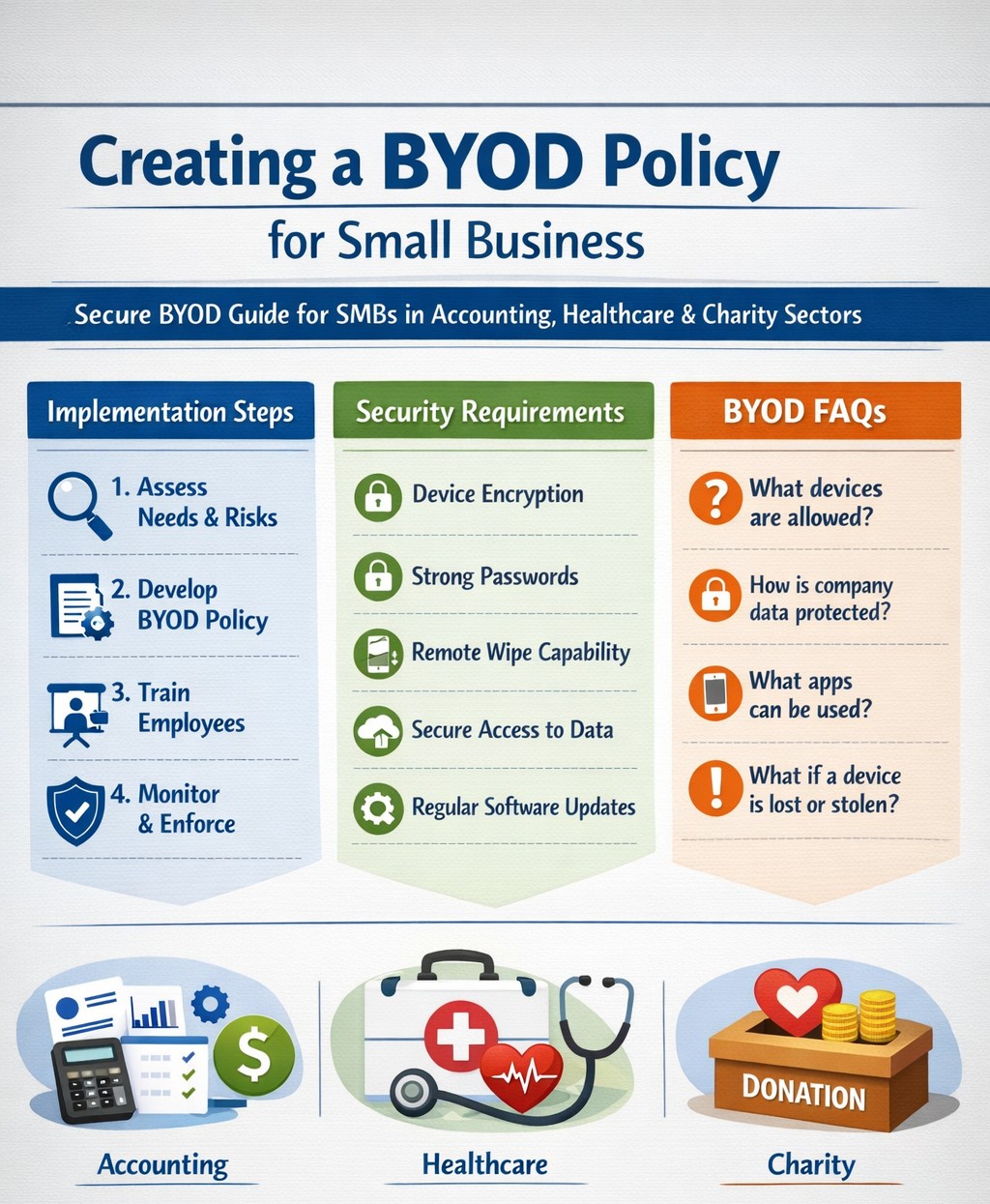
Step-by-step BYOD policy checklist for small businesses – protect data and cut costs with our proven guide.
Allowing employees to use personal devices for work—known as Bring Your Own Device (BYOD)—can cut hardware costs by up to 50% and boost productivity, but it exposes your data to risks like breaches if unmanaged. This guide provides actionable steps to craft a secure BYOD policy tailored for your operations.
Why BYOD Matters for Your Business
BYOD lets employees work flexibly on familiar devices, ideal for small teams in accounting, healthcare, or nonprofits where agility drives growth. Without a policy, however, you risk data leaks, compliance violations (e.g., HIPAA for healthcare), and lost productivity from IT issues. A strong policy balances these by defining rules upfront.
Key Components of Your BYOD Policy
Include these essentials to protect your business:
Data Separation: Use Mobile Device Management (MDM) to isolate work apps from personal data.
Acceptable Use: Limit work access to business hours unless approved; ban risky sites or app syncing.
Onboarding/Offboarding: Detail enrollment (e.g., MDM install) and exit processes (remote wipe of company data only).
Privacy and Liability: Clarify monitoring rights, employee data protection, and who covers repairs.
Step-by-Step Implementation Guide
Follow these practical actions with your IT team or provider:
Assess Needs: Audit current devices and risks; define goals like cost savings or remote access. Involve legal for compliance.
Draft Policy: Write in plain language (1-2 pages); include templates for consent forms. Get employee/legal buy-in.
Choose Tools: Select MDM like Microsoft Intune or Jamf (under $10/user/month for small biz); enable remote wipe and app controls.
Train Staff: Host 30-minute sessions on setup, phishing, and policy rules; provide FAQs and setup guides.
Pilot Test: Roll out to 5-10 users for 2 weeks; gather feedback on issues like battery drain.
Launch and Monitor: Enforce via automated alerts; review quarterly for updates (e.g., new OS threats).
Offboard Securely: Automate access revocation on employee exit; test wipes.
Step
Owner
Timeline
Tools Needed
Assess Needs
Business Owner
1 week
Risk checklist
Draft Policy
IT/Owner
1-2 weeks
Word template
Pilot Test
IT Team
2 weeks
MDM trial
Review
All
Quarterly
Audit logs
FAQs: Client Questions Answered
Q: Does BYOD work for regulated industries like accounting or healthcare? A: Yes, with MDM for data isolation and compliance features (e.g., audit logs for HIPAA/SOX). Avoid full wipes; use containerization.
Q: What if an employee loses their device? A: Policy requires immediate IT report; MDM enables remote lock/wipe of company data only, preserving personal files.
Q: How much does MDM cost for 10 users? A: $5-15/user/month; free tiers exist for basics, scaling with features like geofencing.
Q: Can I monitor personal apps? A: No—focus on company data only to respect privacy laws; disclose monitoring in policy.
Q: What about support for personal devices? A: Limit to work apps; charge for hardware fixes or outsource to MSPs.
How Farmhouse Networking Helps
Farmhouse Networking specializes in BYOD setups for accounting, healthcare, and charity sectors, handling policy drafting, MDM deployment, and training to drive secure organic growth. We integrate SEO-optimized client portals and lead-gen tools, ensuring compliance while converting visitors to B2B clients. Our custom strategies cut implementation time by 40% via automated audits.
Call to Action
Ready to secure your BYOD policy and scale efficiently? Email support@farmhousenetworking.com today for a free policy audit and personalized strategy.
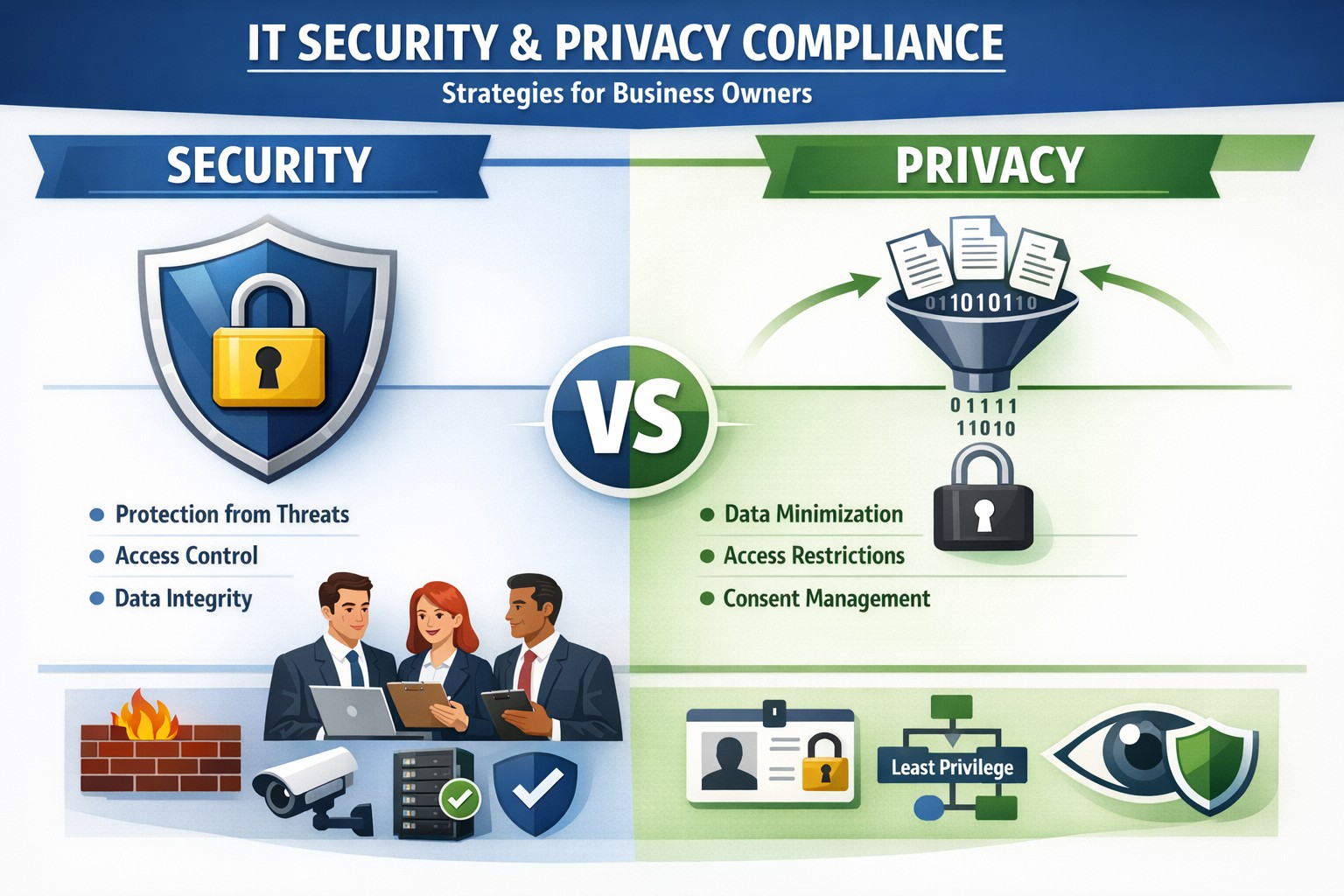
Security locks down access; privacy controls usage—both essential for business data protection.
Many business owners assume that if their data is secure, it’s also private. Unfortunately, that assumption is both costly and dangerous. Security is not privacy—and understanding the difference could mean the survival of your business in an age of relentless breaches, compliance audits, and customer scrutiny.
Security vs. Privacy: What’s the Difference?
Let’s break this down in plain terms:
Security is about protecting data from unauthorized access, theft, or damage. It involves firewalls, encryption, antivirus systems, and strict access control.
Privacy, on the other hand, is about controlling how data is used, shared, or sold—even if it’s technically “secure.” It defines who can see what and why.
Think of it this way: building a lock on your front door is security. Deciding who gets a key—and what they can do inside—is privacy. You need both to protect your business reputation, client trust, and compliance with laws like HIPAA, GDPR, or the CCPA.
Why Businesses Can’t Afford to Confuse Security and Privacy
Failing to distinguish between the two often leads to:
Compliance penalties. Many regulations now focus on privacy controls, not just security infrastructure.
Reputation damage. Customers care deeply about how you handle their data—not just whether it’s encrypted.
Internal risk. Employees with overly broad access can accidentally or intentionally misuse private client data.
For example, a healthcare provider may have state-of-the-art cybersecurity tools, but if patient data is shared without explicit consent, that’s a privacy breach—and legally actionable.
Practical Steps to Protect Both Security and Privacy
Here are key actions every business owner and IT department should take:
Map your data flows. Identify what sensitive data you collect, where it’s stored, and who has access. This forms the foundation of an effective privacy program.
Establish data-use policies. Create clear internal rules for how customer and employee data can be accessed, shared, and retained.
Implement least-privilege access controls. Limit system access to only those who need it for their role. Review permissions regularly.
Train your team. Human error remains the leading cause of breaches. Conduct ongoing security and privacy awareness training tailored to your staff.
Perform audits. Conduct periodic compliance and security audits to catch and correct gaps before regulators or hackers do.
Partner with experts. Small to mid-sized businesses often lack internal resources to manage both privacy governance and IT security at scale. That’s where a managed IT partner like Farmhouse Networking comes in.
Common Questions Business Owners Ask
Q: Isn’t data encryption enough to protect customer privacy? A: No. Encryption protects data from unauthorized access (security), but privacy requires policies that dictate who is authorized in the first place, why they can view data, and how it is used.
Q: Do small businesses really need privacy policies? A: Absolutely. Privacy isn’t just a corporate concern anymore. Even small firms now collect sensitive client information—emails, payment data, medical details, or demographics. If that data is mishandled, it can lead to fines or lawsuits.
Q: What’s the best first step if I’ve never had a privacy audit? A: Start by reviewing your data-handling processes. Determine where personal data lives, how it’s shared, and whether your systems meet relevant regulations. A technology partner like Farmhouse Networking can assist with this process, ensuring both technical and legal compliance.
How Farmhouse Networking Helps You Protect Both Fronts
At Farmhouse Networking, we specialize in helping business owners close the gap between IT security and privacy compliance.
Our tailored solutions include:
Privacy and data protection assessments.
Secure network configuration and monitoring.
Identity and access management (IAM) controls.
Staff training for both cybersecurity and privacy best practices.
Ongoing compliance reporting and audit preparation.
By combining practical security tools with thoughtful privacy governance, we help you create a data environment that safeguards both your business and your customers’ trust.
Take Action Today
Don’t wait for a breach or audit to learn the difference between privacy and security. Protect your data, your customers, and your company’s reputation today.
➡ Email support@farmhousenetworking.com to schedule a consultation and discover how our experts can help you implement privacy-focused security strategies that fit your organization’s needs.
And God will generously provide all you need. Then you will always have everything you need and plenty left over to share with others. As the Scriptures say,
“They share freely and give generously to the poor. Their good deeds will be remembered forever.”
For God is the one who provides seed for the farmer and then bread to eat. In the same way, he will provide and increase your resources and then produce a great harvest of generosity in you. - 2 Corinthians 9:8-10
We use cookies to ensure that we give you the best experience on our website. If you continue to use this site we will assume that you are happy with it.