A small business owner and IT partner align on 2026 CFO technology priorities using AI‑powered finance dashboards and automation tools.
Across industries, CFOs are entering 2026 with rising confidence and a clear message: technology — especially AI and automation — is now central to financial performance, not a side project. Half list digital finance transformation as their top priority, and nearly 9 in 10 expect AI to be critical to their operations. For small and mid-sized businesses, this is both a threat and an opportunity.
What this shift means for SMBs
Digital transformation of finance now outranks many traditional priorities.
87% of CFOs expect AI to be extremely or very important to their finance departments in 2026, and over half plan to integrate AI agents.
Finance leaders are using tech to improve cash management, forecasting, and efficiency, while interest in deals and expansion is rising.
Businesses that modernize will outpace competitors on speed, insight, and resilience when conditions change.
Action steps for owners and IT
Take inventory of your finance tech stack
List all tools used for invoicing, payments, payroll, accounting, reporting, and analytics, plus the spreadsheets in between.
Identify duplicated effort, manual rekeying, and systems that do not integrate.
Automate the “finance plumbing”
Implement automation for AR/AP workflows, bank feeds, reconciliations, and basic reporting to reduce errors and labor.
Use role-based dashboards to give leadership real-time visibility into cash, pipeline, and profitability.
Pilot AI in contained, high-impact areas
Start with anomaly detection on transactions, cash flow forecasting support, and draft commentary for financial reports.
Ensure humans remain accountable for approvals and final decisions, with clear audit trails.
Invest in data quality and governance
Standardize your chart of accounts, customer/vendor master data, and product/service coding for consistent reporting.
Define who owns which data, and document how it flows across systems.
Upgrade security and resilience
Move to secure, managed cloud infrastructure with strong access control, encryption, backup, and continuous monitoring.
Regularly test incident response and recovery so a cyber event or outage does not cripple your finance function.
Questions owners often ask
Q: Is this level of tech really necessary for an SMB? A: Yes. Research shows most finance functions will use AI-enabled tools by 2026, and those that do not will struggle with costs, speed, and insight relative to competitors and larger buyers.
Q: How do we avoid wasting money on tools we never use? A: Start with clear business goals (e.g., reduce DSO by X days, shorten monthly close by Y hours, cut errors by Z%), then choose the minimal tech that supports those goals and measure outcomes.
Q: Do we need to hire data scientists? A: Not typically. Many modern tools embed AI and analytics; what you need most are clean data, good processes, and a partner who understands both finance and IT.
How Farmhouse Networking helps SMBs
Farmhouse Networking helps small and mid-sized businesses translate big-company CFO tech strategies into practical roadmaps. Services include:
Assessing current systems, data quality, and security to identify gaps and opportunities.
Designing and implementing integrated, automated finance and operations platforms, with appropriate AI where it delivers value.
Providing ongoing management, monitoring, and support so your internal team can focus on growth and customers.
With Farmhouse Networking, your business gains the infrastructure and expertise needed to compete in a world where technology is central to financial performance.
Farmhouse Networking cloud automation eliminates manual IT tasks for Oregon SMBs using Power Automate and PowerShell workflows.
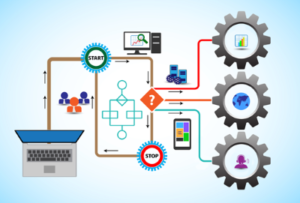
Worked with a client lately to help them Automate a workflow, but you may be wondering what does that even mean. Let me explain. We all have tasks in our workday that are repetitive and consume little bite size pieces of our time. Depending on the steps needed to accomplish these tasks, they can be “delegated” to a computer process via scripting aka we automate them. In the case of the client we helped, they received emails from an eFax service which included attachments. These attachments had to be manually saved into a shared folder for the rest of the staff to access as needed. This process probably took about 30 to 60 seconds each, but multiply this by the 30+ faxes they received each day you have 15 to 30 minutes of wasted time each day (65-130 hours per year). This does not take into account the time taken to stop doing one thing, accomplish this task, and restart the original thing they were doing.
Automate to Freedom
What if we could automate this little task and keep them employee free to do other more important things? We did. They customer uses Office 365 which includes a service called Power Automate. We scripted this tool to look at incoming messages, find ones from the eFax vendor, strip out the attachment, and save it to a SharePoint folder. This can then be shared with other employees and even synced via OneDrive to their Desktops for viewing, etc. That is just the tip of the iceberg as there is so much more that can be done with this technology.
If your company wasting little bite size pieces of time in repetitive taks, then contact us for assistance.
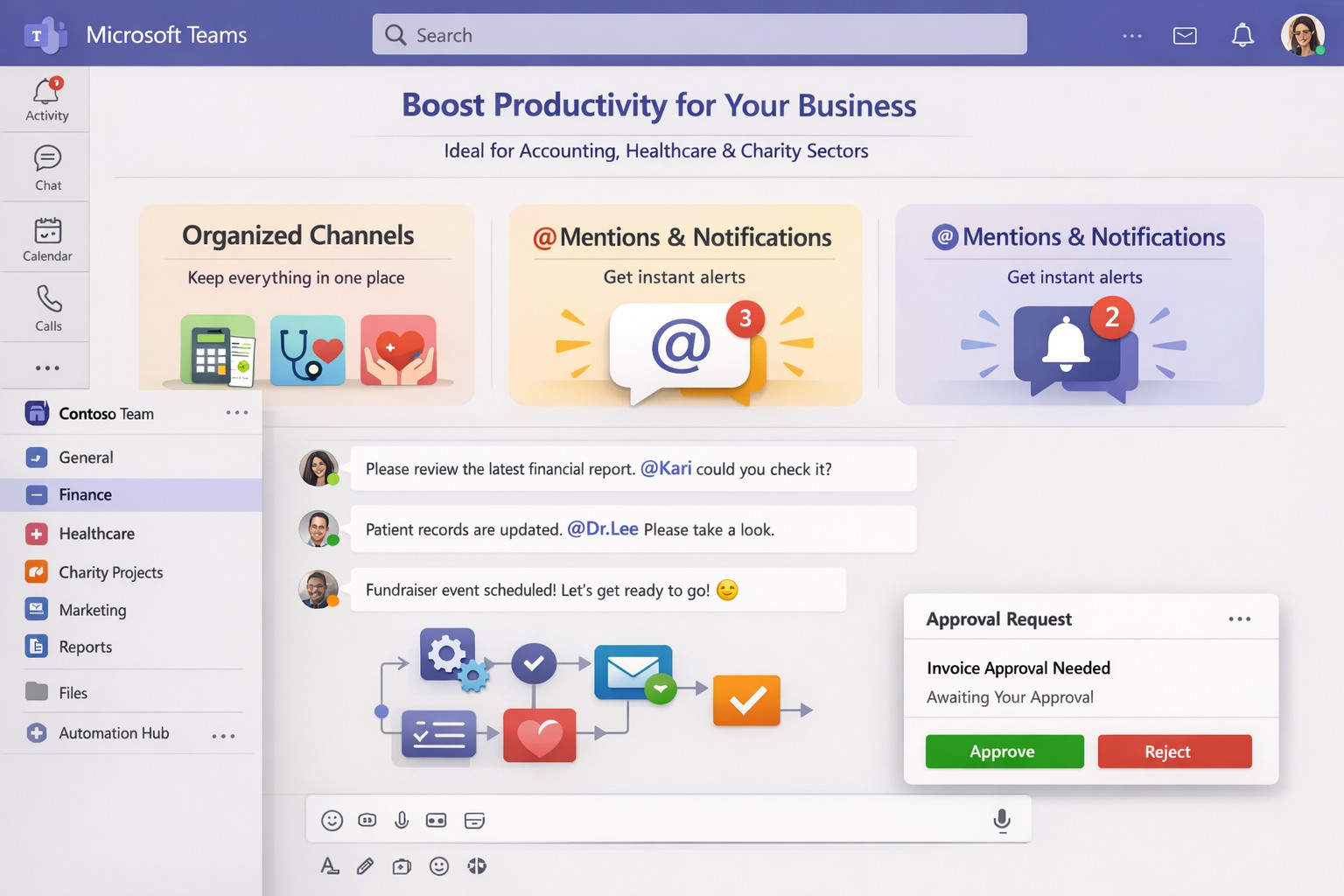
Optimize your workflow: Microsoft Teams channels and Power Automate save business owners hours weekly.
Endless meetings, scattered emails, and disorganized chats steal hours weekly. Microsoft Teams can reclaim that time by centralizing communication, automating workflows, and streamlining collaboration, potentially saving your team 5-10 hours per week per employee.
Key Time-Saving Features
Teams integrates chat, video, files, and tasks into one platform, reducing app-switching by up to 30%. Features like channels replace status meetings, search commands (/call, /files) launch actions instantly, and AI-driven Viva Insights schedules focus time to minimize distractions.
Business owners report faster decisions with real-time co-editing in Word/Excel via Teams and automatic transcriptions that eliminate note-taking.
Practical Action Steps
Follow these steps with your IT department to implement immediately:
Audit and Organize Channels: Create topic-specific channels (e.g., “Sales-Q1”, “HR-Onboarding”) instead of group chats. Pin key ones and hide inactive channels to cut navigation time by 50%.
Enable Strategic @Mentions and Tags: Train staff to @mention individuals for tasks, @channel sparingly, and create custom tags (e.g., @MarketingTeam). This reduces back-and-forth messaging.
Set Up Meeting Templates and Transcriptions: In Teams admin center, enable templates for recurring meetings (agenda, attendees, tasks) and auto-transcriptions. IT: Activate under Meetings > Meeting policies.
Integrate Power Automate Workflows: IT connects Outlook, SharePoint, and Planner. Automate approvals, reminders, and file routing—e.g., auto-post email attachments to channels.
Configure Notifications and Viva Insights: Customize alerts (e.g., priority only) and enable focus blocks. IT: Roll out via admin settings for company-wide adoption.
Leverage Search as Command Center: Bookmark shortcuts like /saved for quick access to files/messages. Train via pinned announcements.
Link with Microsoft 365: IT ensures seamless OneDrive/SharePoint sync for instant file access without downloads.
Implement in phases: Week 1 for setup, Week 2 for training.
Feature
Time Saved
IT Action Required
Channels over Meetings
2-4 hrs/week
Create/organize in Teams admin
Power Automate
1-3 hrs/week
Set flows in Power Automate portal
Transcriptions
1 hr/meeting
Enable in Meeting policies
Viva Focus Time
5-10 hrs/week
Deploy via Insights dashboard
FAQs for Client Inquiries
How secure is Teams for sensitive business data? Teams uses enterprise-grade encryption (at-rest and in-transit) compliant with GDPR, HIPAA. IT controls guest access and data retention policies.
What’s the ROI for small businesses? SMEs see 20-40% productivity gains; integrates free with Microsoft 365 Business plans starting at $6/user/month.
Can we customize for our industry (accounting/healthcare/charity)? Yes—add apps for QuickBooks (accounting), EHR integrations (healthcare), or donor tracking (charity). Power Automate handles compliance workflows.
How long to see time savings? Most teams report gains in 2-4 weeks post-training.
Does it work for hybrid/remote teams? Fully—real-time collaboration scales from 5 to 500 users seamlessly.
How Farmhouse Networking Helps
Farmhouse Networking specializes in Microsoft 365 optimizations for accounting, healthcare, and charity sectors. We conduct free Teams audits, implement custom workflows (e.g., HIPAA-compliant automations), and train your staff/IT for 30% faster adoption. Our SEO-driven websites and lead-gen strategies have boosted B2B conversions for similar clients by 25%. Let us handle setup so you focus on growth.
Email support@farmhousenetworking.com for a no-obligation Teams efficiency assessment and tailored strategy to save your business hours weekly. Act now—spots fill fast.
How a small business owner can improve productivity with Windows and Microsoft 365 using Outlook, Excel, Teams, and OneDrive for streamlined workflows and collaboration.
You don’t need to become a power user, but you do need to set expectations and sponsor the rollout. Hand these action items to your operations lead or IT department and ask for a 30‑, 60‑, and 90‑day plan.
1. Standardize on Microsoft 365, not just Office
Migrate from legacy Office installs to Microsoft 365 (Business Standard or equivalent) so everyone has access to cloud storage, Teams, and shared calendars.
Ensure all users have work email accounts tied to the Microsoft 365 tenant; this simplifies sharing, licensing, and auditing access later.
2. Lock down storage with OneDrive and SharePoint
Move department‑specific files (contracts, templates, policies) into SharePoint so they live in version‑controlled libraries instead of scattered email attachments and local folders.
Require staff to save active project files to OneDrive or SharePoint, not just the desktop or C‑drive, so documents are backed up, searchable, and recoverable.
3. Streamline communication with Outlook and Teams
Design a clear “rules of engagement”:
Emails for formal correspondence and external clients.
Teams for internal discussions, approvals, and quick questions.
Train managers to enable Focused Inbox and use Outlook rules to route high‑priority clients or vendors to a dedicated folder or notification channel.
4. Automate repetitive tasks with Power Automate
Identify 2–3 recurring manual tasks (e.g., invoice creation, timesheet approvals, status reports) and design Power Automate flows that move data between Excel, Forms, SharePoint, or Outlook.
Have IT build a “template library” of reusable flows so new departments can adopt them without re‑engineering from scratch.
5. Optimize workstations for Windows and Office
Ensure all employee machines run a supported Windows 10/11 version with automatic updates enabled; this reduces vulnerabilities and compatibility issues with Office apps.
Standardize core Office toolbars and shortcuts (for example, “Quick Access Toolbar” and frequently used Ribbon commands) so staff spend less time hunting for features.
6. Train users, not just deploy licenses
Schedule short, role‑specific workshops (e.g., “Excel for managers,” “Teams for remote staff”) instead of one‑size‑fits‑all training.
Provide cheat sheets or quick‑reference guides for common features: co‑authoring, Track Changes, Outlook rules, and Teams meeting best practices.
Anticipated client questions (FAQ)
Q: Isn’t Microsoft 365 just more license cost? A: If you’re only using it as “Word and Excel on each desktop,” yes. But when you leverage collaboration, automation, and cloud storage consistently across your team, you reduce errors, rework, and the time staff spend hunting for files—making the subscription cost a productivity multiplier.
Q: How much downtime will this rollout cause? A: With proper planning, user‑facing disruption is minimal. Most changes are configuration and training, not rip‑and‑replace. A phased rollout—starting with a pilot group, then expanding—keeps productivity steady.
Q: Can we keep using our old file servers and local folders? A: You can, but you trade visibility, backup, and real‑time collaboration for that control. A hybrid approach—key current projects in SharePoint, legacy archives on local servers—often works well during the transition.
Q: Is this secure enough for our data and clients? A: Microsoft 365 offers enterprise‑grade security, including conditional access, multi‑factor authentication, and audit logs. The bigger risk is misconfigured accounts (e.g., shared passwords, no MFA) that your IT provider should harden.
How Farmhouse Networking can help
At Farmhouse Networking, we help business owners like you turn Windows and Microsoft 365 from a “box of tools” into a repeatable productivity engine:
Assessment and planning: We audit your current Windows and Office use, map out critical workflows, and propose a 90‑day plan tailored to your industry and team size.
Deployment and hardening:
Configure Microsoft 365 tenants, enforce password policies and MFA, and set up OneDrive/SharePoint structures that match your org chart.
Optimize Windows workstations (updates, security, and Office settings) so end‑users get reliability instead of reboots.
Automation and training:
Build Power Automate workflows for your most tedious tasks (reports, approvals, reminders).
Deliver concise, role‑based training sessions so your team actually uses the features you’re paying for.
Ongoing support:
Provide help‑desk coverage so employees don’t fall back on “printing it and emailing it again” when they hit a snag.
Call to action
If you’re ready to stop wasting time on email chains, file‑version chaos, and ad‑hoc workarounds, Farmhouse Networking can help you implement a coherent Windows and Microsoft 365 strategy that scales with your business.
Email us at support@farmhousenetworking.com to request a free 30‑minute consultation on how we can improve productivity with Windows and Office in your specific environment.
And God will generously provide all you need. Then you will always have everything you need and plenty left over to share with others. As the Scriptures say,
“They share freely and give generously to the poor. Their good deeds will be remembered forever.”
For God is the one who provides seed for the farmer and then bread to eat. In the same way, he will provide and increase your resources and then produce a great harvest of generosity in you. - 2 Corinthians 9:8-10
We use cookies to ensure that we give you the best experience on our website. If you continue to use this site we will assume that you are happy with it.