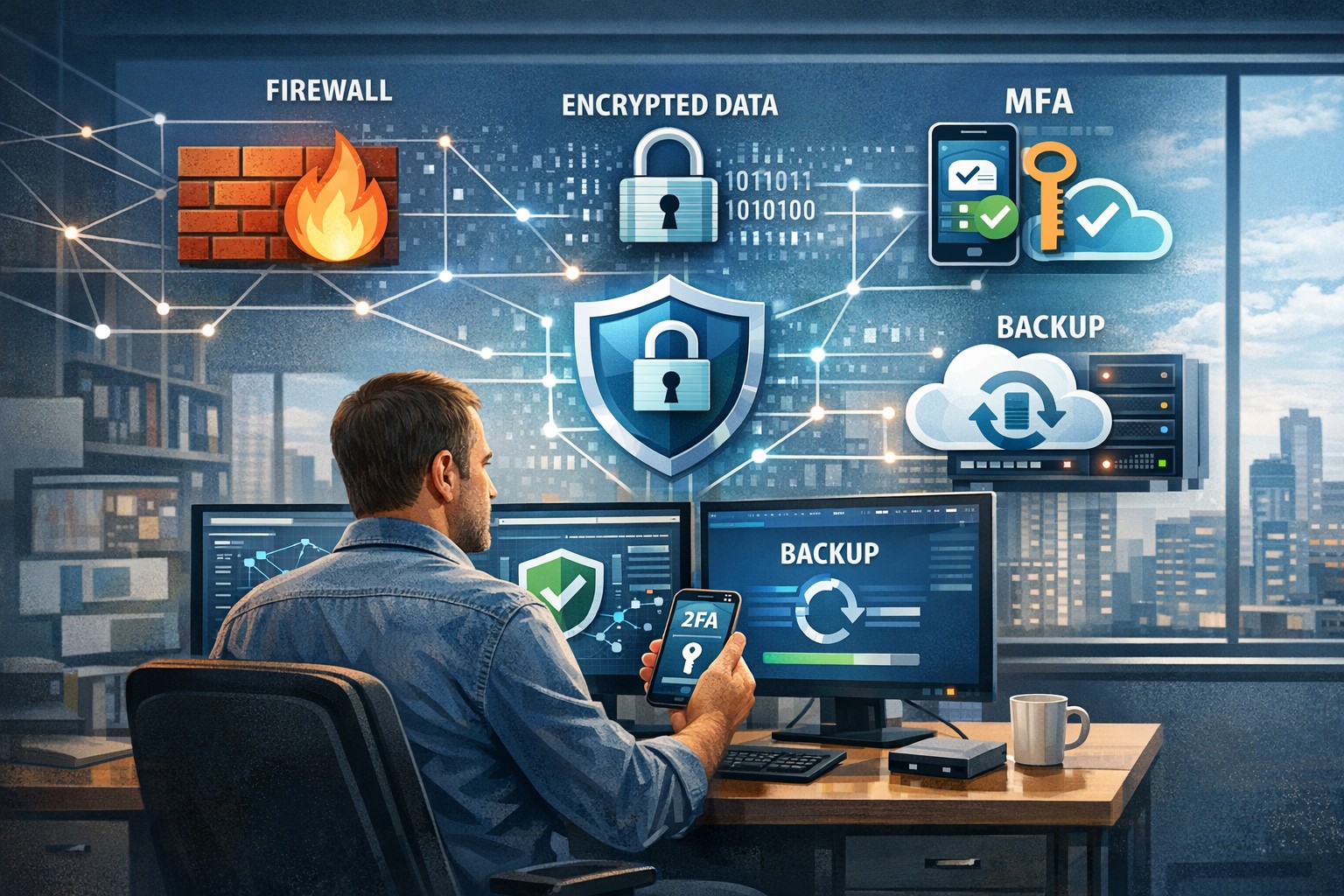
A small business owner leveraging modern cybersecurity tools—firewalls, multi‑factor authentication, and backups—to protect their company’s network and sensitive client data from cyber threats.
You may think cyberattacks are a “big‑company problem.” In 2026, that assumption is one of the most dangerous blind spots you can have. Cybercriminals increasingly target SMBs precisely because budgets are tighter, security is lighter, and breaches in small environments can be just as costly as in large enterprises. The question is no longer if a threat will hit your business, but when—and whether your people, data, and reputation are ready.
For a business‑owner audience, this post breaks down what “good cybersecurity” actually looks like in practice, gives you concrete steps your team can take, answers common client‑facing concerns, and shows how Farmhouse Networking can help you implement and maintain these protections without overhauling your operations.
Why SMBs Are Prime Targets
Cybercriminals are opportunistic: they look for the path of least resistance. SMBs often have limited IT staff, minimal security budgets, and patchy policies around email, passwords, and backups. That combination makes them ideal targets for ransomware, phishing, and data‑theft campaigns that can cripple operations and destroy customer trust in a matter of hours.
Regulatory scrutiny is also tightening. Even if you’re not a multinational, you may still face fines or contractual penalties if client or partner data is lost in a breach. Investing in cybersecurity is no longer “optional overhead”—it’s a core cost of doing business in 2026.
Practical Cybersecurity Steps for Business Owners
You don’t need a Fortune‑500‑level security team, but you do need structure. Here are the key areas every small or mid‑size business should address, along with specific actions your owner and IT team can immediately act on.
1. Lock Down Access with Strong Authentication
Require multi‑factor authentication (MFA) for all accounts that hold customer data, email, banking, or cloud services.
Prefer authenticator apps or hardware keys over SMS‑based codes to reduce phishing and SIM‑swapping risk.
Enforce strong password policies and provide a company‑approved password manager so teams don’t reuse passwords across personal and business services.
2. Patch Systems and Secure Endpoints
Turn on automatic updates for operating systems, browsers, and core business software (accounting, CRM, practice management).
Deploy next‑generation antivirus or EDR tools that monitor unusual behavior, not just known malware signatures.
Ensure every device that touches business data has disk encryption, screen‑lock timing, and basic firewall rules enabled.
3. Protect Networks and Wi‑Fi
Use business‑grade firewalls with default‑deny rules and logging, and avoid exposing unnecessary ports to the internet.
Configure Wi‑Fi networks with WPA3 encryption (or WPA2‑Enterprise), and keep guest Wi‑Fi on a separate, isolated segment.
Segment your network so that high‑value systems (financial and HR data, servers) sit on a separate, more tightly controlled segment.
4. Back Up Data and Plan for Incidents
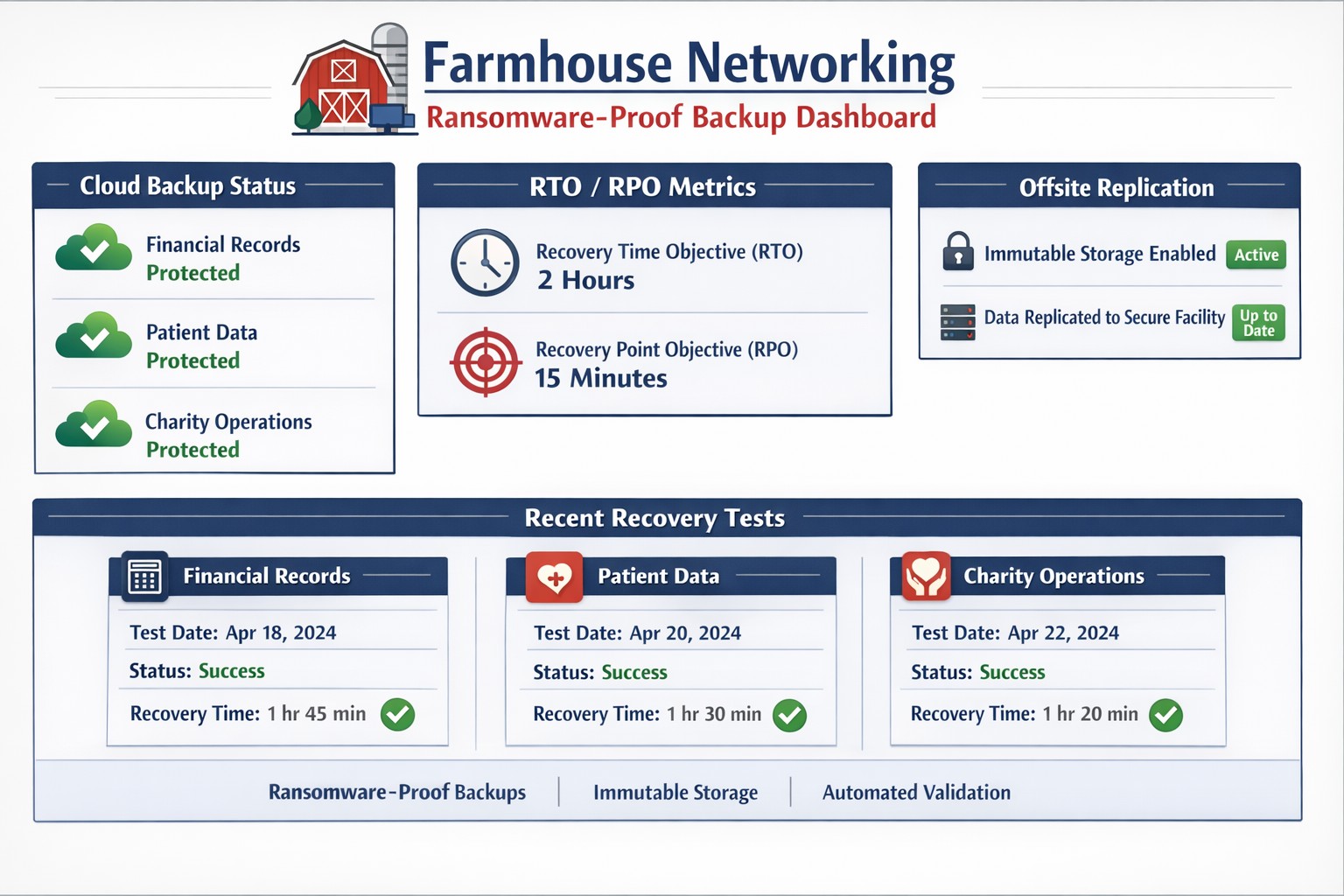
Define what data is critical (client records, financials, contracts) and back it up regularly to an encrypted, cloud‑ or off‑site‑based solution.
Store multiple recovery points and test restorations periodically to ensure backups actually work.
Put a simple incident response plan in place: who gets notified, who talks to clients, and how you’ll isolate affected systems during a breach.
5. Train Your Team and Manage Email Risk
Conduct regular, short security training focused on phishing, password hygiene, and safe handling of sensitive data.
Deploy an email security gateway that scans attachments, rewrites malicious URLs, and quarantines suspicious messages before they reach inboxes.
Establish clear rules for sharing sensitive data via email (e.g., no client SSNs or insurance numbers in plain text) and enforce them.
Common Client Questions (and How to Answer Them)
When you talk to clients about cybersecurity, they’ll naturally ask around cost, risk, and responsibility. Framing these clearly builds trust and positions your business as a professional partner, not just a vendor.
“Won’t this slow down our operations?”
Answer: Modern security tools are designed to run quietly in the background. Properly configured firewalls, MFA, and endpoint protection add minimal friction while stopping the vast majority of automated attacks. Think of it like seat belts and airbags: you don’t feel them every day, but they’re critical when something goes wrong.
“We’re a small business; do we really need this much protection?”
Answer: Cybercriminals are increasingly using AI‑driven tools to probe and exploit small businesses precisely because defenses are weaker. A single breach can mean downtime, legal fees, and reputational damage that can take years to recover from. Basic, layered security is now table stakes for reputable SMBs.
“How do you know if our network is secure enough?”
Answer: There’s no “perfectly secure” state, but there are measurable baselines:
Are critical systems encrypted and backed up?
Is MFA enforced on all key accounts?
Are software and firmware updated regularly?
Are there clear policies and training for staff? A third‑party security audit or network assessment can map these gaps and prioritize where to invest next.
How Farmhouse Networking Can Help
Farmhouse Networking is built to help small and mid‑size businesses implement, manage, and maintain these cybersecurity measures without the overhead of a full‑time, in‑house security team. We focus on practical, cost‑effective solutions that fit your budget and workflow.
Here’s how we support your cybersecurity efforts:
Network and firewall configuration: We design and harden your network so that only necessary services are exposed, and sensitive systems are segmented and monitored.
Endpoint protection and patch management: We deploy and manage modern antivirus/EDR tools, ensure automatic updates, and enforce device‑level security policies across laptops, desktops, and mobile devices.
MFA, password policy, and access controls: We help you implement MFA everywhere it matters and set up role‑based access so employees only see the data they need.
Backup and incident readiness: We design a backup strategy tailored to your business‑critical data and help you define a simple incident response playbook so you know what to do if something goes wrong.
Ongoing monitoring and training support: We can monitor key security events and provide guidance on regular, brief security training sessions so your team stays alert without disrupting daily operations.
Take the Next Step Today
If you’re a small or mid‑size business owner, now is the time to treat cybersecurity as a core business function, not an afterthought. Simple, layered defenses—strong authentication, regular patching, secure networks, and reliable backups—can dramatically reduce your risk and keep your operations running even when threats emerge.
If you’d like to see how Farmhouse Networking can help you implement these steps with minimal disruption to your team, email us atsupport@farmhousenetworking.comfor a consultation. We’ll review your current setup, identify your top risks, and build a tailored plan that keeps your data, customers, and reputation safe in 2026 and beyond.
This question came to light while talking to a vendor about backups. It turns out that Microsoft does not backup any of your Office 365 data but does have aggressive redundancy in place. This is both good and bad, here is why:
Email
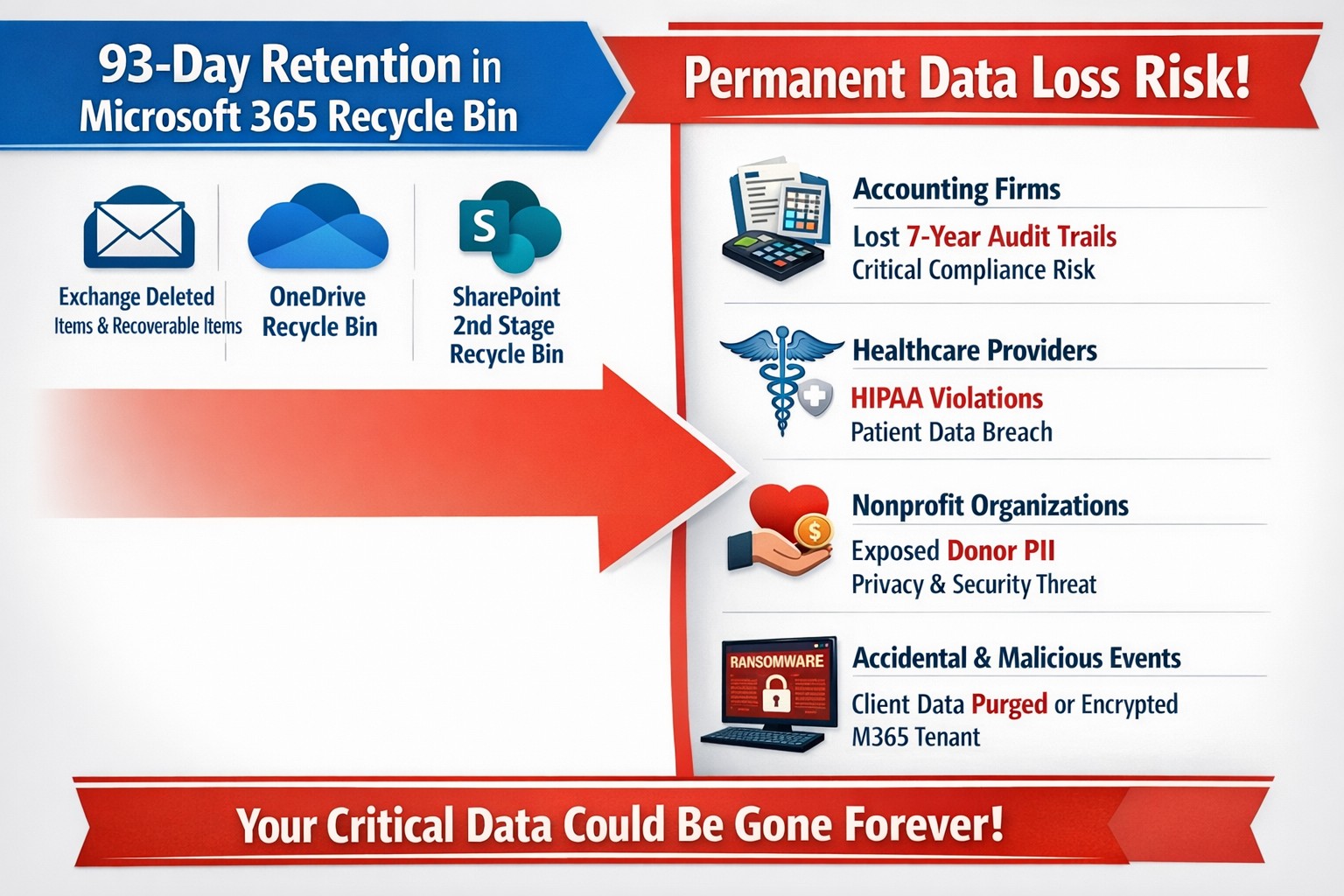
Microsoft has several levels of redundancy / resiliency / protection to keep email data from being corrupted, keep multiple copies of all email data, and scan emails for security threats. If there is ever any data issues then their systems automatically detect the problem and work to fix them or when threats are detected they are automatically remediated. There is also a recycle bin for emails and users that lasts from 30 to 90 days. Once that time is over there is no recourse for getting the data back.
Sharepoint & OneDrive
Microsoft here again has deep redundancy to protect your data from corruption, but they do nothing to check for malware or cryptoware. There is something called versioning that can help with some cryptoware, but not all. There is also a recycle bin for these services that could possibly help.
There are several apparent gaps in coverage that Microsoft does not deal with, but there are third-party services that have stepped in to do just that. If your company is looking to keep their Office 365 data safe from internal and external threats, then contact us for assistance.
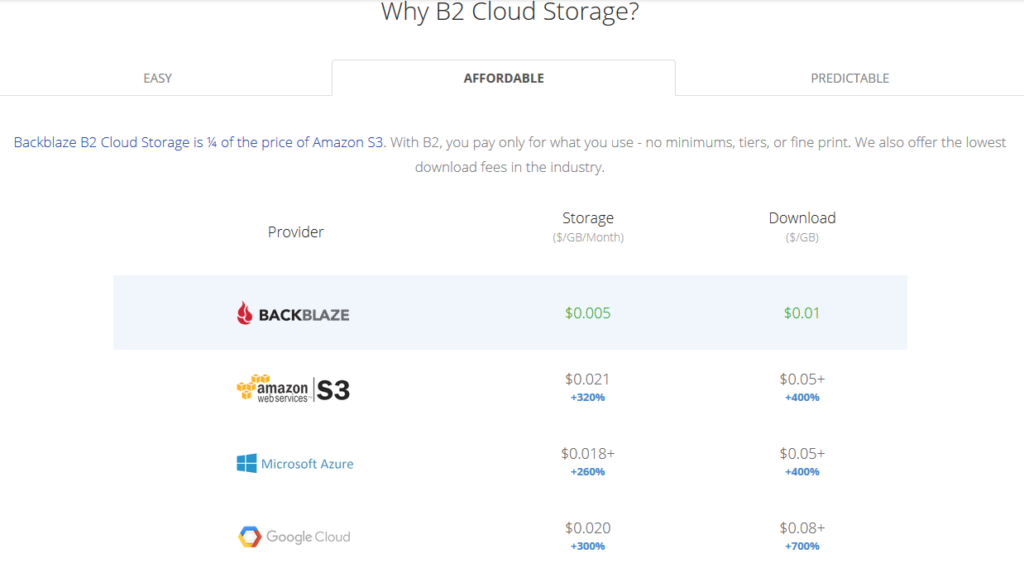
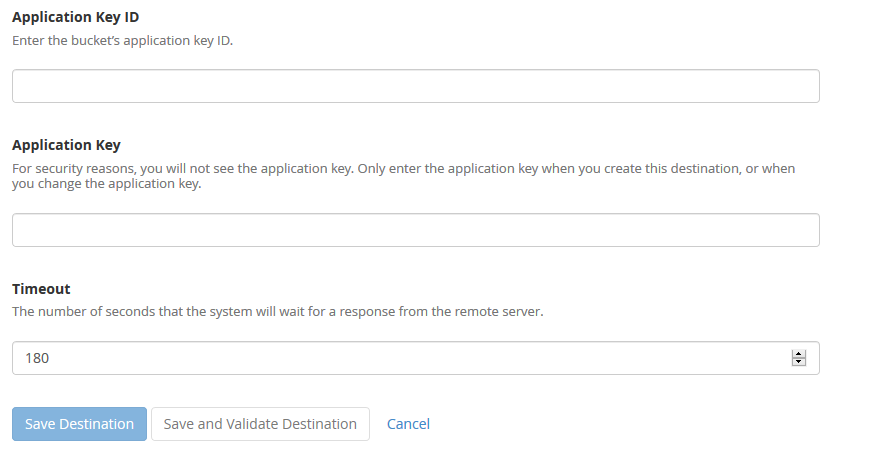
All someone has to do is look at the pricing model above to see why Backblaze is a no brainer for long term storage (not to mention the first 10GB of storage is free. With its recent inclusion as a destination for web server’s WHM backup, Farmhouse Networking has been recommending our hosting provider customers to make the switch from AWS Glacier. Here is the steps to make the switch:
Setup Backblaze Buckets
Login to Backblaze account
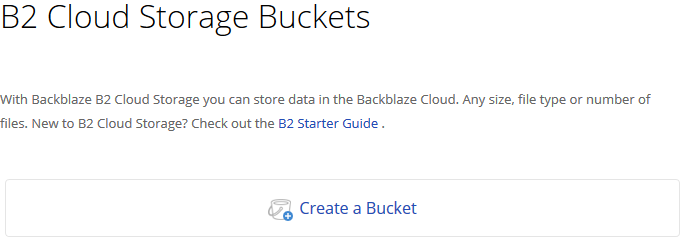
Click on the Create Bucket button in the B2 Cloud Storage Buckets section
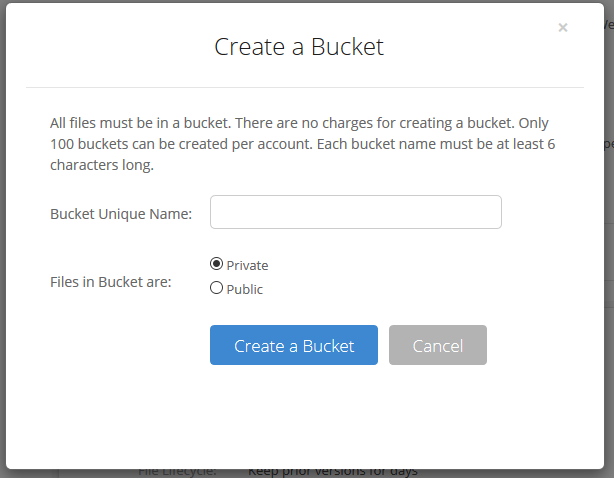
3. Give the Bucket a name and keep the bucket private for the backups. Click on the Create a Bucket button.
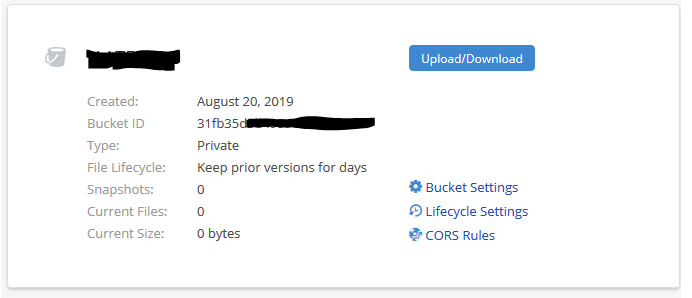
4. Copy down your Backblaze Bucket name and Backblaze Bucket ID
Setup Backblaze Application Key
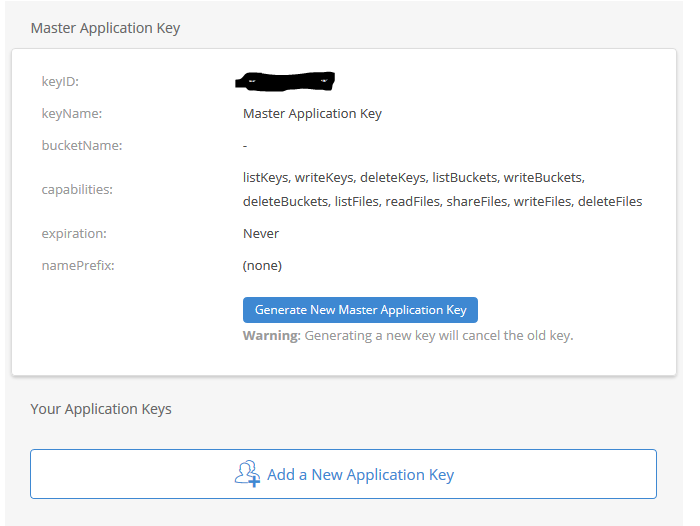
Click on the App Keys section
Click on Add a New Application Key
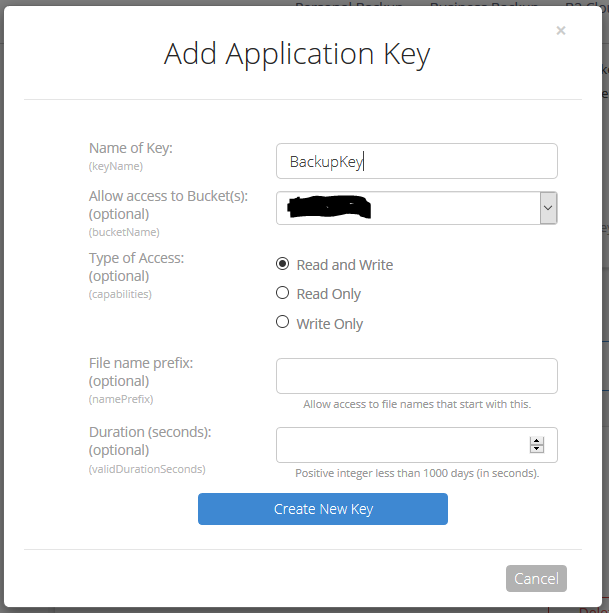
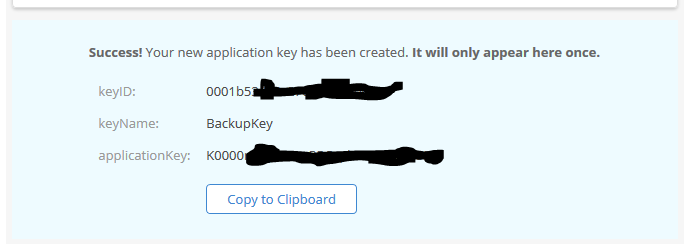
3. Give the Backblaze Application Key a name, chose the newly created bucket from the list and make sure to leave the Type of Access as “Read and Write”. Click the Create Key button.
4. Make sure to copy down the Backblaze Application keyID and Backblaze Application applicationKey. This will be the only time they are both shown. If you lose the Backblaze Application applicationKey then you will have to delete the current one and create a new one.
Setup WHM Backup to Backblaze
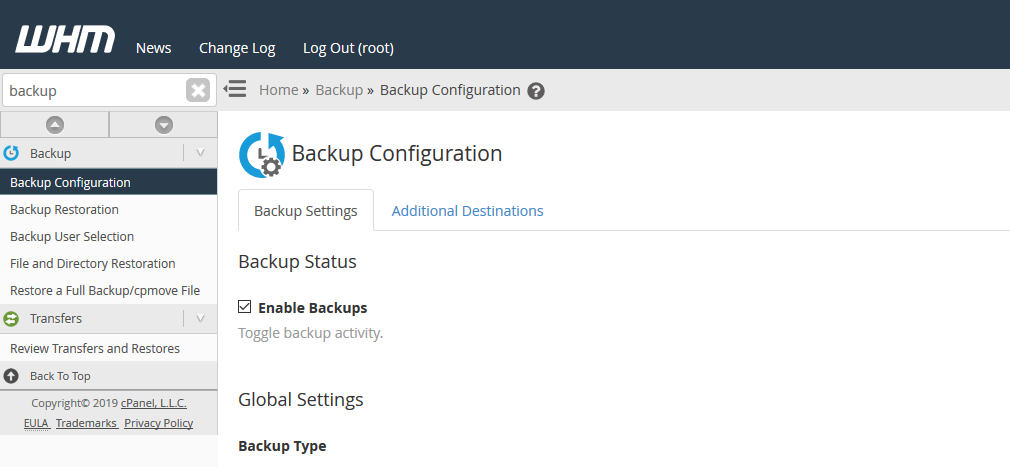
Connect to WHM as root user and choose Backup Configuration from the menu. The specific WHM backup settings are not discussed here, but feel free to contact us for advise on how to do so.
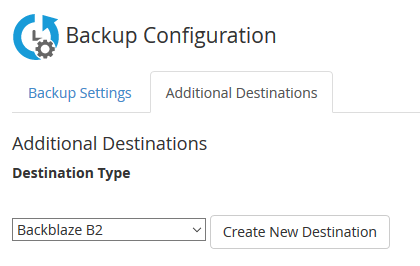
2. Click on Additional Destinations. Chose Backblaze B2 from the Destination Type and click on the Create New Destination button.
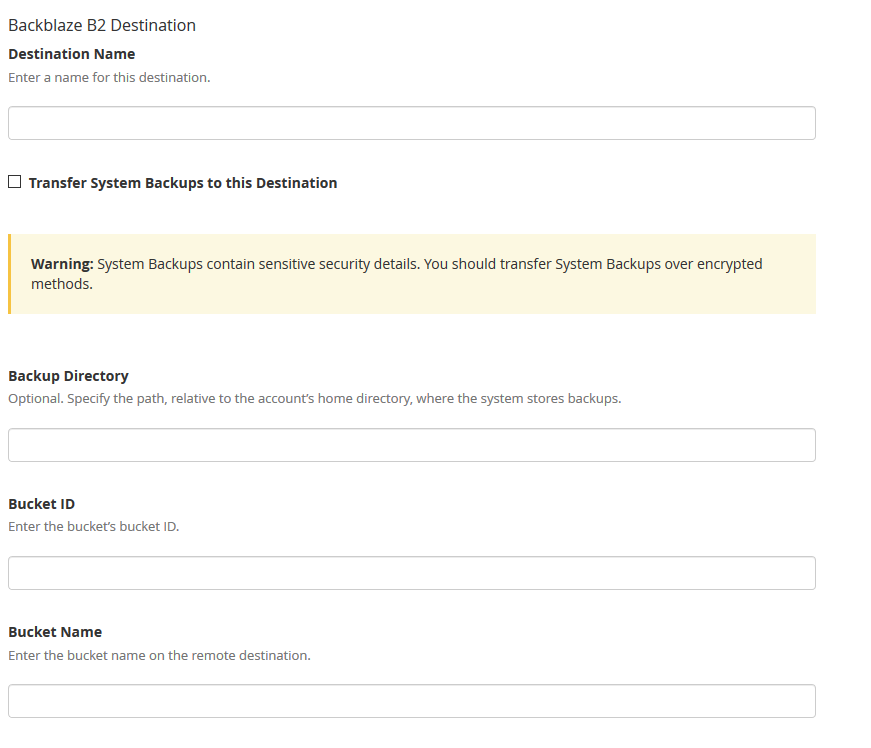
3. Enter in a backup name. Click on the “System Backups” if that is desired. Leave the Backup Directory blank. Enter in the Backblaze Bucket ID and Backblaze Bucket Name copied down earlier. Enter in the Backblaze Application Key ID and Backblaze Application Key. Click on the Save and Validate Destination button.
Make sure to disable your old AWS Glacier backup destination. All backups on Glacier should be set to auto delete according to a lifecycle, but if not then wait 120 days from creation to remove them to avoid any penalties. Speaking of lifecycles, it is a good idea to change the lifecycle settings on the Backblaze bucket to auto delete after a determined number of days since they do charge for total storage utilized.
If your company is would like to discuss the layers of security you have in place, then contact us for assistance.
Automated cloud backups with tested recovery ensure business survives disasters
When it comes to security threats, it’s not “if” disaster will strike, it’s “when.” So, how will your organization respond? Do you have the proper infrastructure in place to thwart a potential data disaster and if disaster does strike, is your organization poised to recover quickly?
While 100% prevention of a data disaster is impossible, there are several ways you can position your organization to get your systems back up and running with as little disruptions to day-to-day operations as possible:
File Level Backup: A good file sync and share tool is more than just a way for your team to collaborate on the go, it’s a vital component to your organization’s security strategy. With file level backup, you can ensure that even in the event of a site wide disaster, your team can maintain anytime access to their critical files.
Backup and Disaster Recovery: Your last line of defense in a site wide disaster, backup and disaster recovery solutions allow you to recover at the systems level. An absolutely necessary piece of your organizational infrastructure, backup and disaster recovery delivers peace of mind that your systems will always be recoverable, even when disaster strikes.
Cloud-to-Cloud Backup: Cloud-to-cloud backup fills in the gaps left by some of the most commonly used SaaS applications, such as Office 365. Many of these cloud applications fall short in the way of cloud-retention and a good cloud-to-cloud backup solution can help you protect critical business data while providing enhanced features to maximize your user experience and more importantly, security.
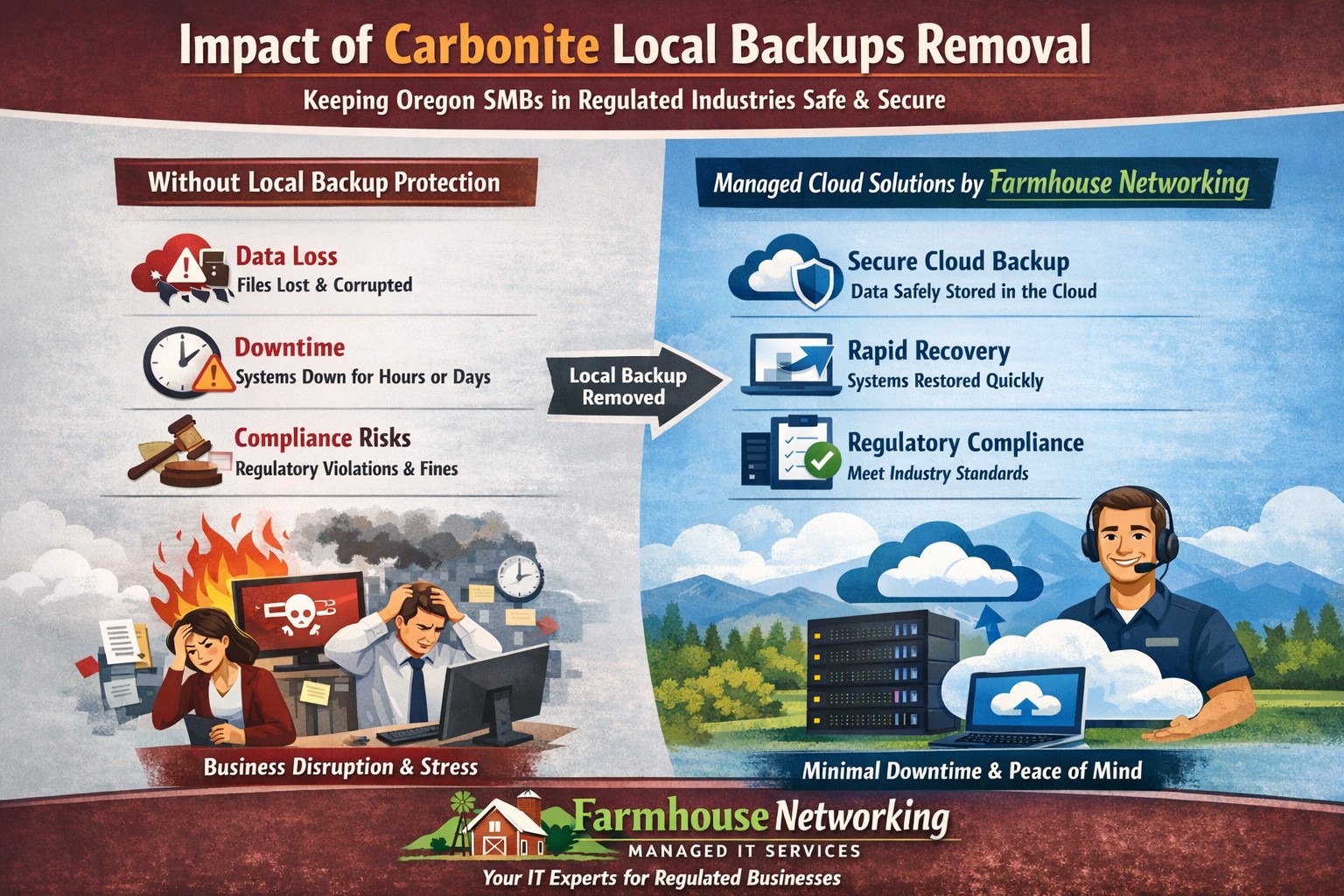
“Carbonite is ending support for the Mirror Image feature on October 15, 2018. Starting October 16, 2017, Carbonite will remove the Mirror Image feature from Plus and Prime accounts on a rolling basis, upon renewal. Mirror Image will be removed from all remaining accounts on the end-of-support date of October 15, 2018. ”
Local Backups
This revelation from Carbonite and the recent one from CrashPlan have left me worried about the future of backup for small business and home users. To have all files stored only in the cloud to me is just foolish. If I have tons of family photos and videos or store a bunch of music on my computer that I am relying on online only backups to keep safe – my recovery time will be weeks instead of hours. This is just not acceptable to me and I have a feeling it would not be to other people either.
If you are using either Carbonite or CrashPlan for backup of your computer and the possibility of massive recovery times is unacceptable to you, then contact us for assistance.
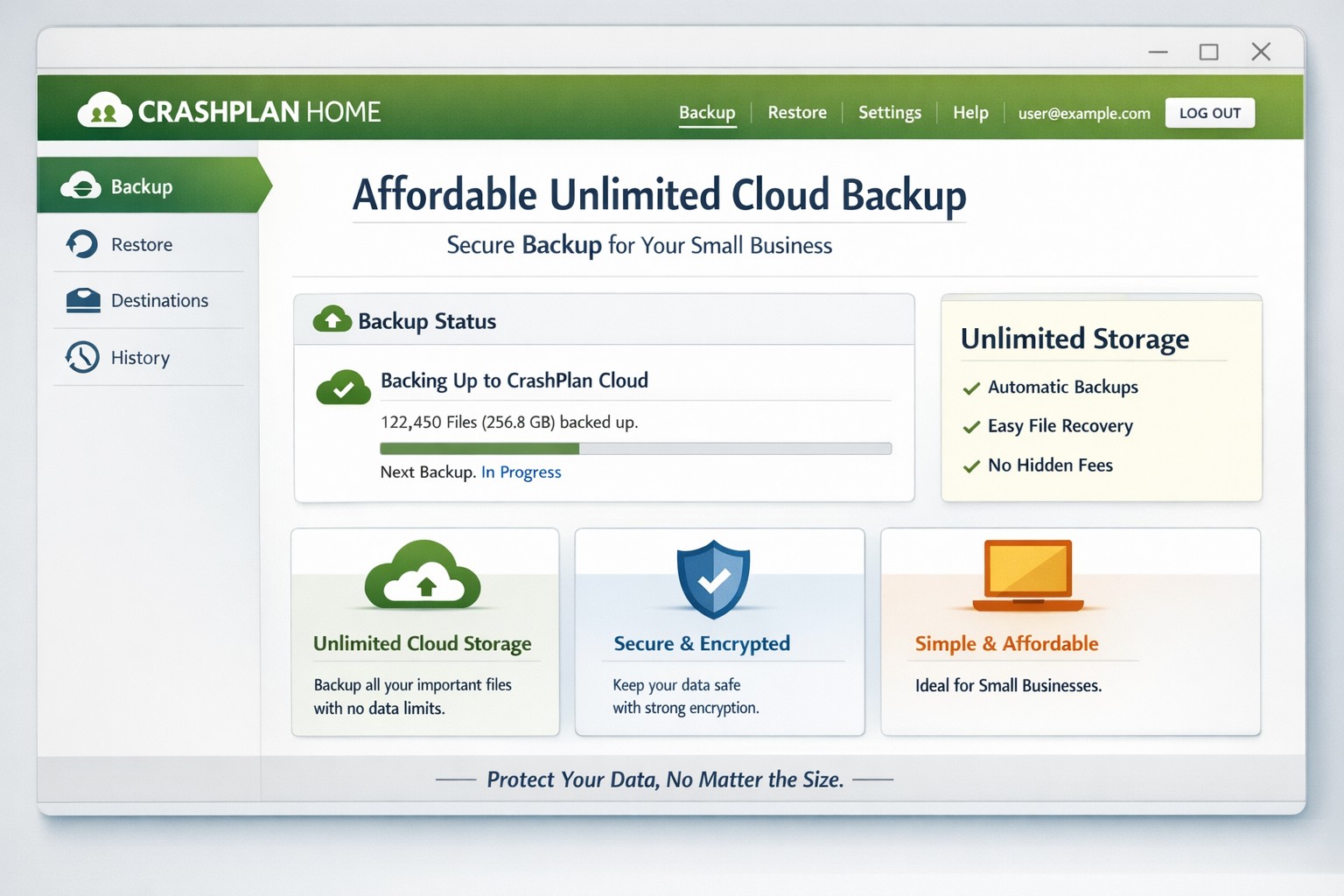
Effective August 22, 2017, Code42 will no longer offer new – or renew – CrashPlan for Home subscriptions, and we will begin to sunset the product over several months. CrashPlan for Home will no longer be available for use starting October 23, 2018.
What alternatives exist?
CrashPlan itself is suggesting that customers move to Carbonite for their personal computer backups. In order to get the same great combination of onsite & offsite backup that CrashPlan users are used to, Farmhouse Networking recommends using Plus package that includes the backup to an external drive. This package is on sale for $25 off the normal yearly cost. Small businesses with only one computer will also find this package to be the most secure way of backing up their important files for the least out-of-pocket costs.
If your business has more than one computer or a server, Farmhouse Networking recommends upgrading to a full business class Backup & Disaster Recovery (BDR) solution with Synology. This provides both the speed of on-site recovery with the resilience of off-site recovery via the cloud. On-site recovery is much simpler with this BDR solution as the device becomes a copy of the main computer or server in the case of failure. This takes recovery time down to minutes instead of days.
If your company is using CrashPlan for backups and are not ready for the move, then contact us for assistance.
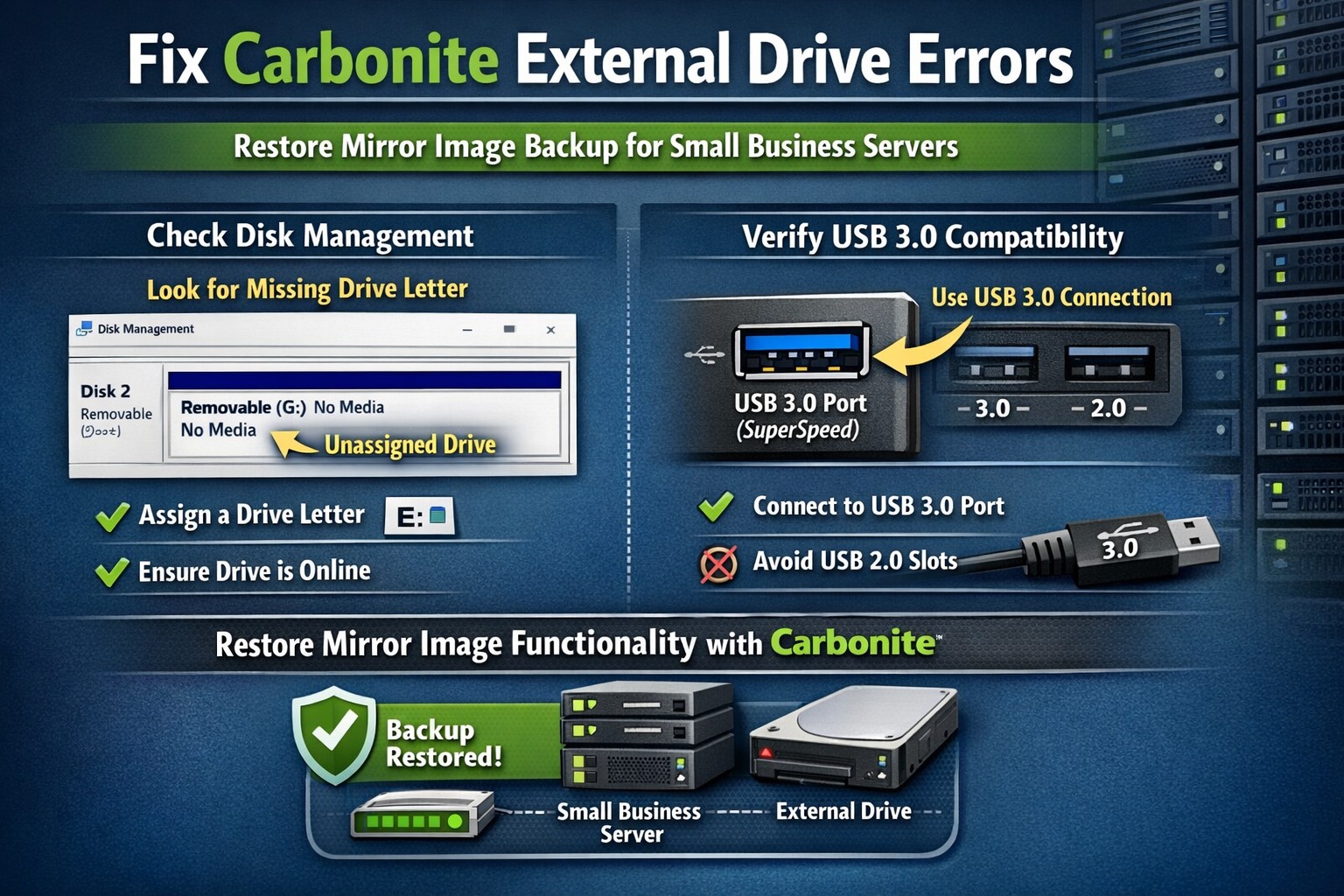
While performing a network evaluation for a perspective client, it came time to gather specification information from the server. Immediately noticing that Carbonite had not successfully completed a Mirror Image backup and needed to be updated, I headed to the Carbonite InfoCenter to find out what could be done. After installing the required update, I noticed that the USB 3.0 external drive was not recognized by the software. This was solved by going into Computer Management and adding a drive letter to that drive. Once recognized by Carbonite, selected that drive to be used for the Mirror Image backup but began to receive Carbonite Backup external drive errors – “Mirror Image was unable to use the selected target drive.” Took a bit of research to find out the two parts that comprised the issue.
Identifying Cause of Carbonite Backup External Drive Errors
Found a Carbonite support article that details requirements for the Mirror Image Drive to be used. Included in the list – “RAID configuration is not supported – Carbonite currently doesn’t support creating snapshots from drives configured in a RAID array.” Since this server was configured with RAID 5 for a mix of performance and redundancy, it was not able to use the Mirror Image function of the software at all.
Found that the clients Windows Server 2012 R2 Essentials server had the Carbonite Personal Plus software installed on it. As per the Carbonite Website – “Personal Plans are not designed to support Windows Server OS.” Immediately recommended the client upgrade to the Carbonite Server Backup plan.
If your company is using Carbonite for your backup and need support or you are looking for an affordable backup solution, then contact us for assistance as we are a trusted Carbonite Partner.
And God will generously provide all you need. Then you will always have everything you need and plenty left over to share with others. As the Scriptures say,
“They share freely and give generously to the poor. Their good deeds will be remembered forever.”
For God is the one who provides seed for the farmer and then bread to eat. In the same way, he will provide and increase your resources and then produce a great harvest of generosity in you. - 2 Corinthians 9:8-10
We use cookies to ensure that we give you the best experience on our website. If you continue to use this site we will assume that you are happy with it.