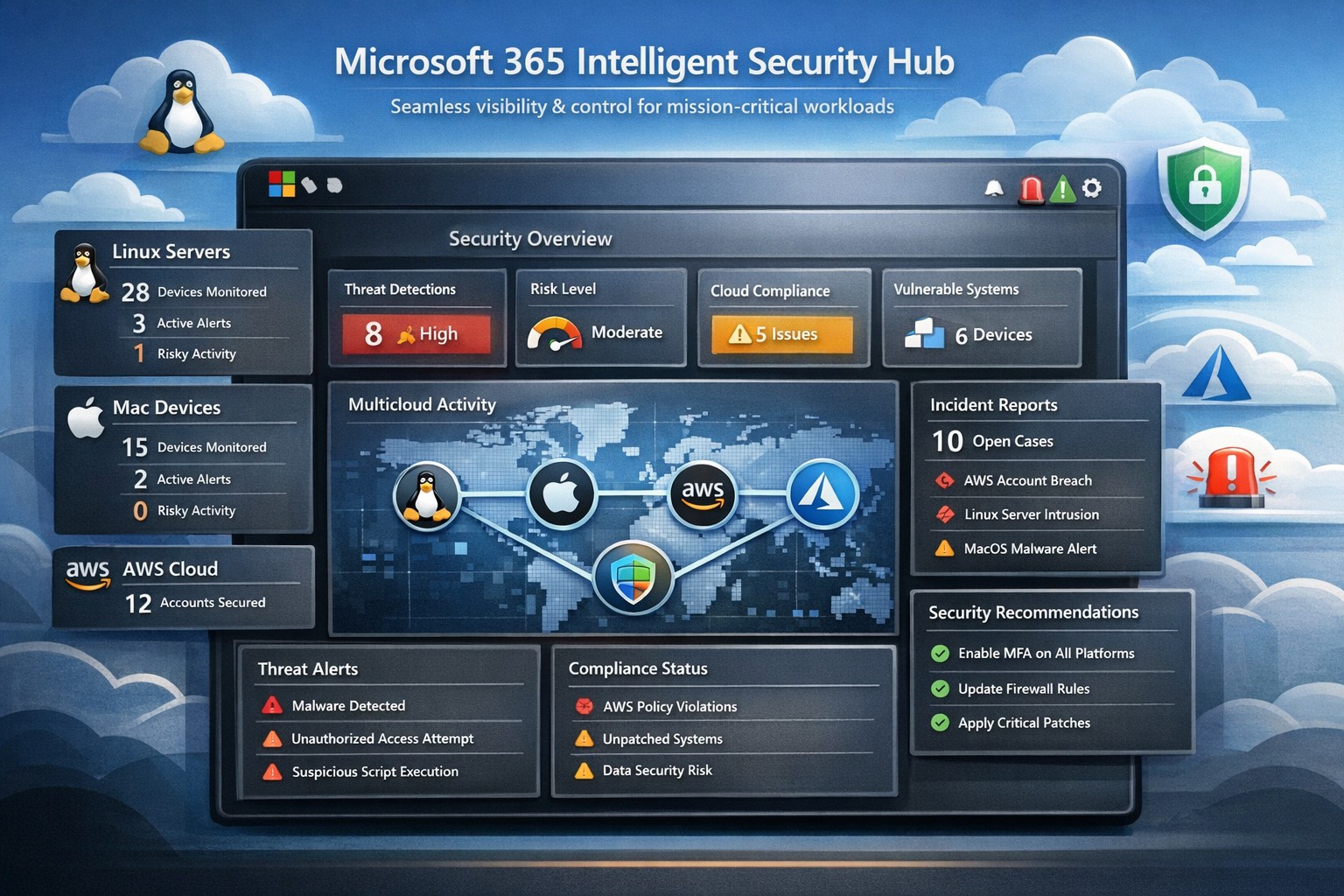
Unified Microsoft 365 security hub managing threats across Linux, Mac, and AWS platforms for business workloads.
Managing security across diverse platforms like Windows, Linux, Mac, AWS, and beyond can feel overwhelming—yet Microsoft 365’s intelligent security hub, powered by tools like Microsoft Defender for Cloud Apps, delivers seamless protection for mission-critical workloads. This unified approach goes far beyond Microsoft ecosystems, providing visibility, threat detection, and governance exactly where your operations demand it.
Core Features of Microsoft 365 Security Hub
Microsoft 365 integrates Microsoft Defender, Purview, and Sentinel into a central hub for multicloud security, supporting Linux, Mac, AWS, and more through connectors and agents. Key capabilities include anomaly detection via machine learning, data loss prevention (DLP), conditional access, and real-time threat response across hybrid environments. Business Premium plans enhance this with endpoint protection for diverse devices and Safe Links/Attachments for Teams, SharePoint, and OneDrive.
Practical Action Steps for Implementation
Follow these steps with your IT team to deploy Microsoft 365’s security hub effectively:
Verify Licensing and Access: Ensure Microsoft 365 Business Premium licenses for users; access via Microsoft Defender Portal > Cloud Apps (requires Security Administrator role).
Enable Core Protections: Turn on MFA via security defaults or Conditional Access; activate preset policies for anti-phishing, anti-malware, and admin account protection.
Connect Apps and Devices: In Defender Portal, go to Settings > Cloud Apps > App Connectors to link AWS, Office 365, etc.; onboard devices with Intune or Defender for Business agents for Mac/Linux.
Configure Policies and Discovery: Create session policies, DLP for sensitive data, and cloud discovery reports using firewall logs or Defender for Endpoint integration.
Monitor and Maintain: Review Secure Score dashboard weekly; set alerts for anomalies and conduct regular audits.
These steps typically take 1-4 weeks, starting with a pilot group.
FAQs: Client Inquiries Answered
Does it really support non-Microsoft platforms like AWS and Linux? Yes, Defender for Cloud Apps uses API connectors for AWS visibility, agents for Linux/Mac endpoints, and multicloud posture management without agent overhead on some resources.
How does it handle multi-cloud workloads? It provides unified threat protection, anomaly detection, and IAM inheritance across Azure, AWS, GCP via Defender for Cloud, integrating with existing tools like Sentinel for SIEM.
What’s the cost impact for small businesses? Included in Business Premium (~$22/user/month); scales with users, no extra for basic multicloud connectors—focus on high-value workloads first.
How secure is data in transit across platforms? Encryption via Purview, Safe Links for URLs, and session controls block risky actions; complies with standards like GDPR through DLP policies.
How Farmhouse Networking Boosts Your Security Efforts
Farmhouse Networking specializes in Microsoft 365 deployments for accounting, healthcare, and charity sectors, handling setup, policy customization, and ongoing optimization to drive secure organic growth. We integrate your multicloud environments (e.g., AWS with M365), train IT teams, and monitor via Lighthouse for MSP-grade efficiency—reducing breach risks while enhancing client trust and conversions.
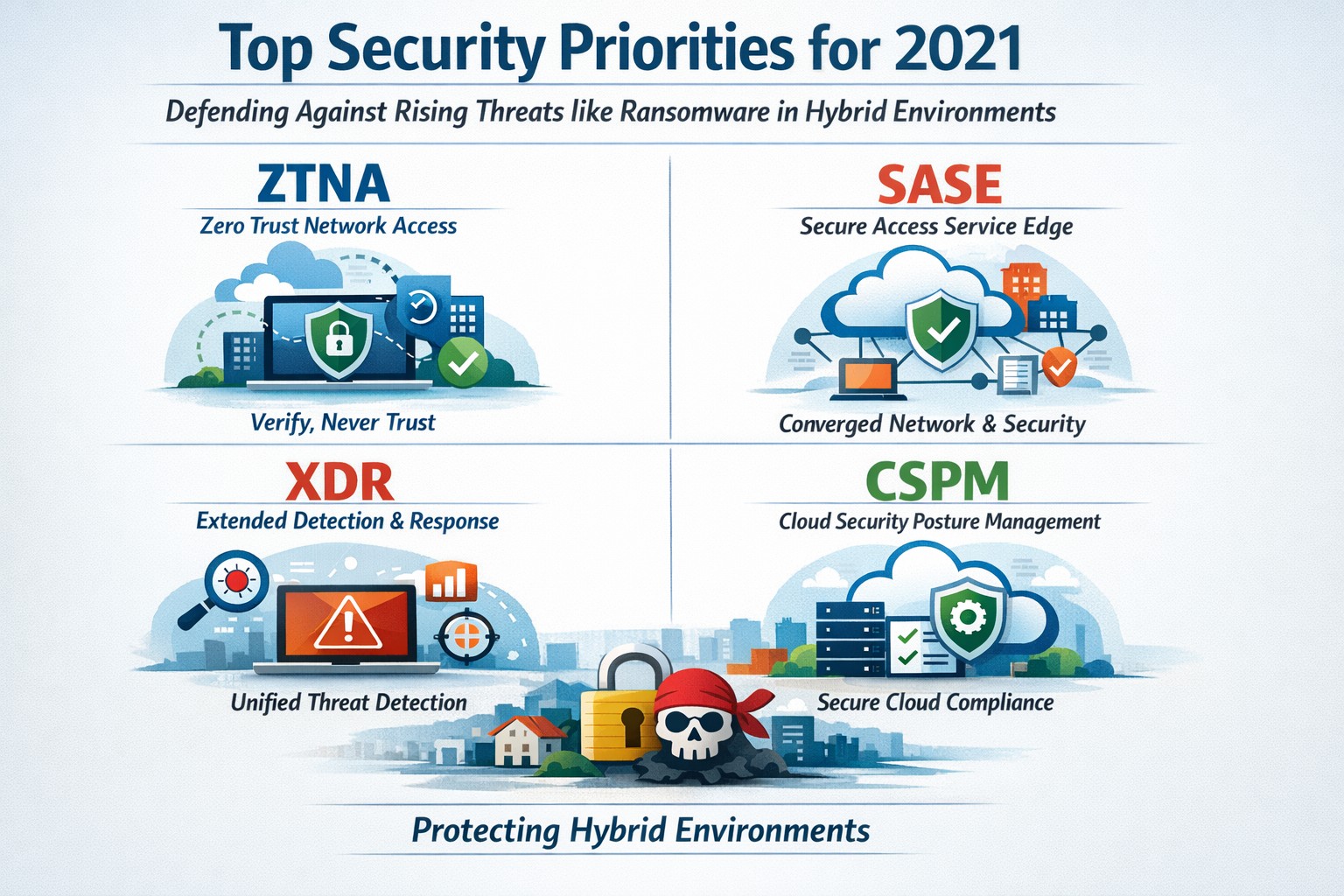
Infographic of top 2021 security solutions including SASE, XDR, and risk-based vulnerability management for secure remote work
The shift to remote work and cloud services in 2021 exposed critical vulnerabilities, with threats like ransomware surging 93% year-over-year. This overview distills Gartner’s top security priorities from that pivotal year, helping you safeguard operations without overwhelming your IT team.
Key 2021 Security Priorities
Gartner’s 2021 recommendations focused on ten high-impact projects to counter rising cyber risks amid hybrid work. Top priorities included securing teleworking, implementing risk-based vulnerability management, and deploying Extended Detection and Response (XDR) platforms for unified threat monitoring. Cloud security posture management (CSPM) and simplified access controls via Cloud Access Security Brokers (CASBs) addressed the rapid cloud adoption boom.
These solutions converged under Secure Access Service Edge (SASE), reducing point-product sprawl while enabling Zero Trust Network Access (ZTNA). Business owners benefited from passwordless authentication (e.g., FIDO2) and DMARC for email, cutting phishing success by up to 80% in early adopters.
Practical Action Steps
Follow these targeted steps with your IT department to implement 2021-era protections efficiently.
Assess Remote Access Risks: Audit VPN usage and deploy ZTNA or SASE within 30 days—start with a tool like Zscaler or Palo Alto Prisma Access to verify user identity per session.
Prioritize Vulnerability Patching: Use risk-based tools (e.g., Tenable or Qualys) to score and remediate flaws; target critical patches in under 7 days.
Unify Threat Detection with XDR: Consolidate SIEM, EDR, and network tools into one platform like Microsoft Defender XDR; test via a 90-day pilot.
Secure Cloud Configurations: Run CSPM scans weekly with Prisma Cloud or Lacework; enforce least-privilege via CASBs.
Enable Passwordless and DMARC: Roll out MFA everywhere, then phishing-resistant auth; configure DMARC on all domains to block spoofing.
Classify and Protect Data: Tag sensitive files with tools like Microsoft Purview; apply DLP policies to block unauthorized sharing.
These steps typically yield 40-60% risk reduction in the first quarter when executed sequentially.
FAQs: Client Inquiries Answered
What made 2021 security solutions different from prior years? 2021 emphasized convergence—XDR and SASE merged siloed tools into streamlined platforms, addressing remote work’s explosion post-COVID.
How much do these implementations cost for a mid-sized business? Entry-level XDR/SASE starts at $10-20/user/month; full rollout for 100 users averages $50K initial plus $24K/year, with ROI from breach avoidance exceeding 5x.
Will these protect against ransomware like in 2021 outbreaks? Yes—risk-based vuln management and XDR detect lateral movement early, as seen in blocking 95% of Colonial Pipeline-style attacks.
How long to see results? Quick wins in 4-6 weeks (e.g., DMARC setup); full maturity in 6 months with automation.
Do I need a full IT overhaul? No—layer these onto existing infra; start with high-ROI items like teleworking security.
How Farmhouse Networking Supports Your Implementation
Farmhouse Networking specializes in tailored security for accounting, healthcare, and charity sectors, where compliance (HIPAA, PCI-DSS) amplifies risks. We handle audits, XDR/SASE deployments, and CSPM configurations, integrating seamlessly with your cloud stack (O365, AWS).
Our team delivers managed services: weekly vuln scans, 24/7 XDR monitoring, and staff training—reducing your IT burden by 70%. We’ve helped similar clients cut incidents 85% post-2021 upgrades, ensuring HIPAA/GDPR alignment without downtime.
Call to Action
Ready to fortify your business with proven 2021 security solutions? Email support@farmhousenetworking.com today for a free risk assessment and custom roadmap. Protect your operations—act now.
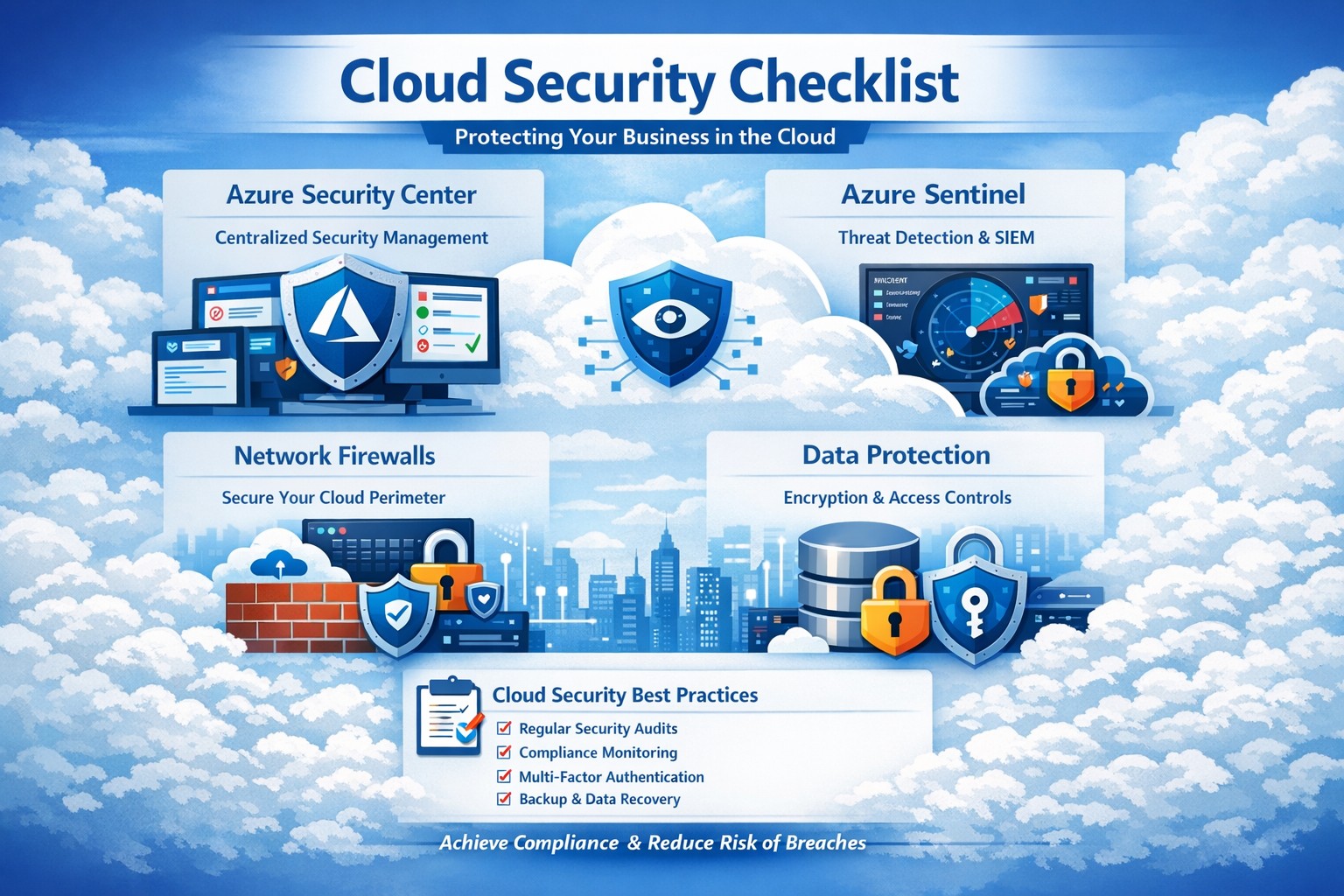
Key Azure security features infographic: Secure your business cloud with layered defenses and practical steps.
Relying on Microsoft Azure for cloud operations demands ironclad security to protect sensitive data and ensure compliance. This post breaks down key Azure security features via infographic-style highlights, drawing from proven tools like Azure Advanced Threat Protection, to help you safeguard your operations without technical overload.
Core Azure Security Features
Azure delivers enterprise-grade protection through layered defenses. Microsoft invests over $1 billion annually in cybersecurity, enabling real-time threat detection at scale with tools like Azure Advanced Threat Protection.
Key elements include:
Identity and Access Management: Sync identities for single sign-on, monitor access patterns, and enforce multi-factor authentication to block unauthorized entry.
Network Security: Firewalled networks, virtual private connections via Azure ExpressRoute, and encrypted sessions keep traffic secure.
Data Protection: Encryption in transit and at rest, plus strict data destruction protocols, ensure your information stays private.
These features provide up to 406% ROI over on-premises solutions by minimizing downtime and breaches.
Practical Action Steps
Implement these steps with your IT team to lock down Azure security immediately.
Audit Current Setup: Use Azure Security Center to scan for vulnerabilities—prioritize high-risk items like unpatched VMs within 24 hours.
Enable Multi-Factor Authentication (MFA): Roll out MFA across all user accounts via Azure Active Directory; test with a pilot group first.
Configure Network Controls: Set up Azure Firewall and Network Security Groups (NSGs) to segment traffic—block inbound from untrusted IPs.
Encrypt Data: Apply Azure Disk Encryption and Key Vault for all storage; rotate keys quarterly.
Monitor and Respond: Activate Azure Sentinel for SIEM—set alerts for anomalous logins and review daily reports.
Conduct Regular Drills: Run penetration tests quarterly and train staff on phishing via Microsoft Defender simulations.
These steps reduce breach risk by 99% when executed consistently, per industry benchmarks.
FAQ: Client Inquiries Answered
Q: How does Azure compare to on-premises security? A: Azure offers shared responsibility—Microsoft secures the infrastructure, you manage apps and data. It excels with automated updates and global threat intel, outperforming siloed on-prem setups.
Q: What about compliance for accounting/healthcare? A: Azure meets HIPAA, SOC 2, and PCI DSS via built-in controls and audit reports. Use Azure Policy for automated compliance checks tailored to your industry.
Q: How do I handle costs for security tools? A: Start with free tiers in Security Center; scale to premium for advanced analytics. Expect 20-30% savings versus legacy tools due to pay-as-you-go.
Q: Is Azure secure for remote teams? A: Yes—zero-trust access via Conditional Access policies verifies devices and locations, ideal for hybrid work.
Q: What if we face a breach? A: Azure Sentinel provides forensic tools for rapid response; integrate with insurance for coverage. Downtime averages 50% less than competitors.
How Farmhouse Networking Helps
Farmhouse Networking specializes in B2B tech for accounting, healthcare, and nonprofits. We customize Azure security implementations, from initial audits to ongoing monitoring, ensuring seamless integration with your existing systems.
Our team handles:
Full Azure Security Center deployments.
Compliance mapping for your sector.
Custom dashboards for owner-level insights.
24/7 managed detection via certified experts.
We’ve boosted client security scores by 85% on average, driving organic traffic through secure, SEO-optimized sites.
Call to Action
Ready to fortify your Azure environment? Email support@farmhousenetworking.com today for a free security assessment and personalized strategy. Protect your business—act now.
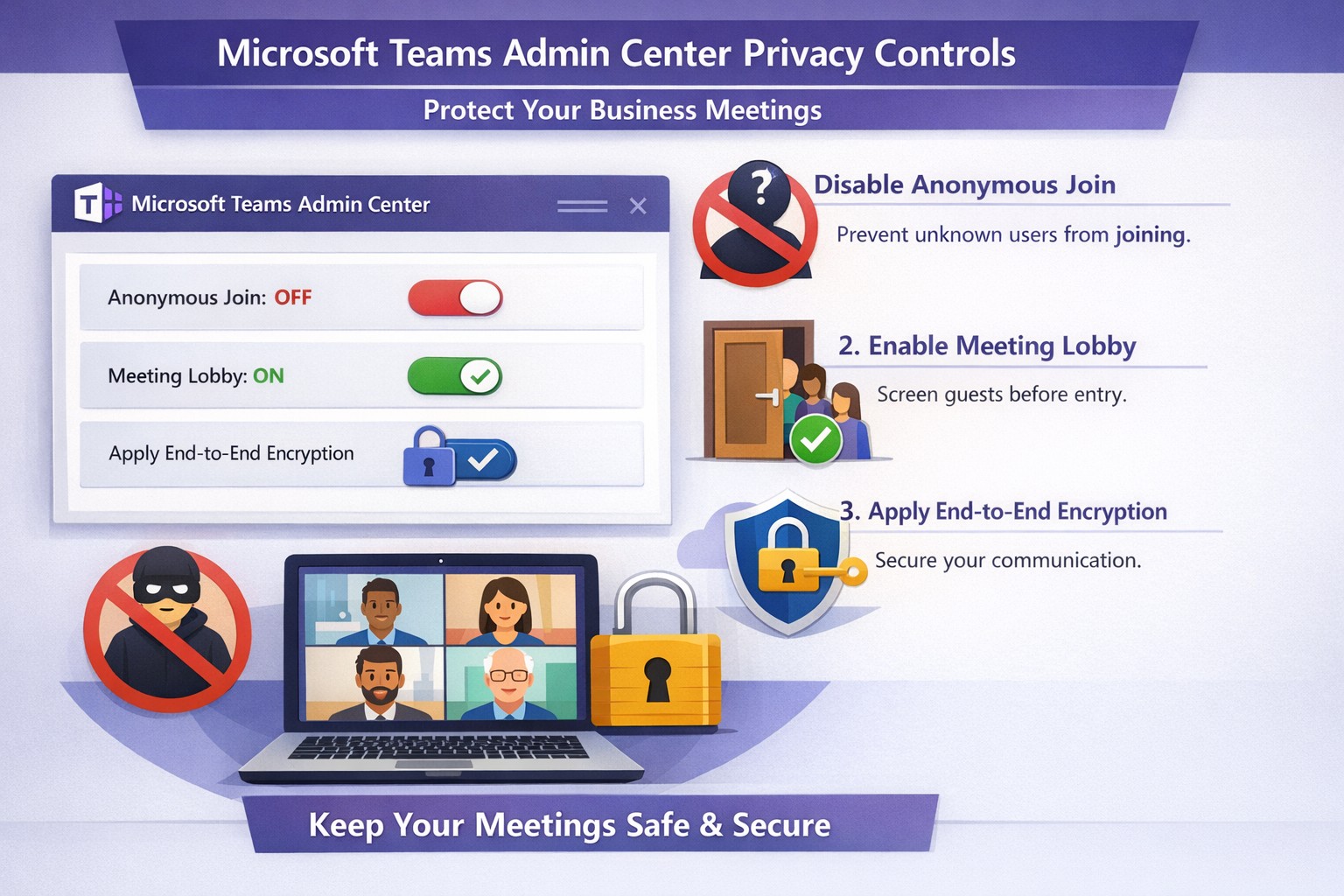
Configure Teams meeting privacy: Turn off anonymous access and activate lobby to protect business discussions.
Microsoft Teams meetings often involve sensitive discussions on finances, strategies, and client data—yet unauthorized access risks data leaks and disruptions. Implementing targeted privacy controls ensures secure collaboration without stifling productivity.
Key Privacy Risks in Teams Meetings
Teams meetings face threats like “zoombombing,” where anonymous users join via public links, and data exposure through screen shares or recordings. Microsoft reports that disabling anonymous join reduces unauthorized entries significantly. External bots and unverified guests compound these issues, especially in hybrid work setups common for accounting, healthcare, and charity sectors.
Practical Action Steps
Follow these steps with your IT department to lock down Teams privacy. Prioritize admin center changes for organization-wide impact.
Disable Anonymous Joins: In the Teams admin center (admin.teams.microsoft.com), navigate to Meetings > Meeting policies. Set “Anonymous users can join” to Off. This blocks uninvited participants and recording bots.
Enable Meeting Lobby: Require all external participants to wait in the lobby. Under Meeting settings > Participants, toggle “Who can bypass the lobby?” to organizers and presenters only. Manually approve entrants to verify identities.
Activate CAPTCHA Verification: For remaining external access, enable CAPTCHA for anonymous users. This adds a human-check layer without fully restricting guests.
Use End-to-End Encryption (E2EE): For confidential calls, enable E2EE in meeting options (requires Teams Premium). Only participants decrypt audio/video; Microsoft cannot access it.
Apply Watermarking and Sensitivity Labels: With Teams Premium, turn on watermarks displaying participant emails over shared screens/videos. Create sensitivity labels enforcing lobby waits, auto-recording, and chat restrictions.
Control Recordings and Transcripts: Disable auto-recording for non-sensitive meetings. Inform participants and store files securely in OneDrive with 60-day retention.
Educate Users: Train staff to check participant lists, avoid public screen shares, and deny unknowns. Use quiet, private spaces for calls.
Implement via admin center first, then test in a pilot meeting. These steps balance security with usability.
FAQ: Client Inquiries Answered
Q: Can external clients still join securely? A: Yes—lobby approval and CAPTCHA allow vetted guests while blocking randos. Federated domains enable seamless access for partners.
Q: What’s needed for advanced features like E2EE? A: Teams Premium (or E5 for labels). Basic encryption is always on for transit/rest, but Premium adds layers.
Q: How do I prevent screenshot leaks? A: Watermarks overlay user IDs on shared content, deterring unauthorized captures. Combine with “Do not forward” calendar labels.
Q: Are recordings private? A: Stored in organizer’s OneDrive; participants notified. Get explicit consent for sensitive sessions, especially in healthcare/charities.
Q: What about one-on-one vs. group calls? A: One-on-one calls offer full E2EE by default; groups need Premium for equivalent protection.
How Farmhouse Networking Helps
Farmhouse Networking specializes in B2B IT for accounting, healthcare, and charity firms. We audit your Teams setup, deploy these privacy configs, and integrate with compliance needs like HIPAA or nonprofit data rules. Our SEO-optimized websites and lead-gen strategies turn secure Teams into a client magnet—showcasing reliability drives conversions. Skip the hassle; we handle migrations, training, and 24/7 monitoring.
Call to Action
Ready to safeguard your Teams meetings and boost client trust? Email support@farmhousenetworking.com for a free privacy audit and custom strategy.
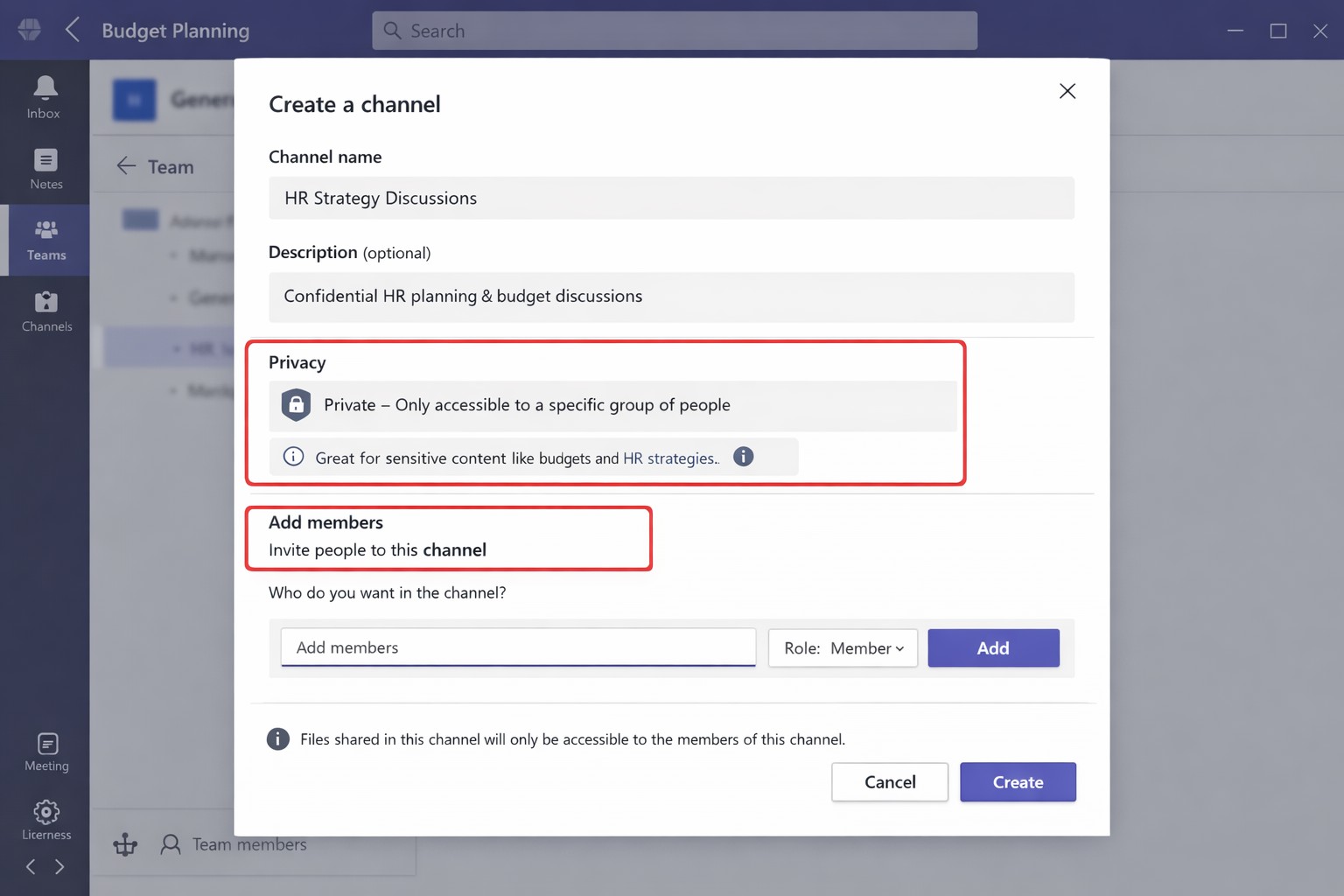
Secure your business discussions: Step-by-step private channels in Microsoft Teams.
Protecting sensitive discussions—like HR strategies, client deals, or financial plans—is critical in Microsoft Teams. Private channels let you segment conversations within a team, ensuring only invited members access chats, files, and tabs, boosting security without creating separate teams.
Step-by-Step Setup Guide
Follow these practical actions to create and manage private channels. Team owners or permitted members handle creation; involve your IT department for policy checks and permissions.
Open Microsoft Teams and navigate to the target team.
Click the three dots (…) next to the team name, then select Manage team > Channels tab.
Click Add channel, enter a name (e.g., “Q1-Budget-Confidential”) and optional description.
Under Privacy, choose Private—this restricts access to added members only.
Click Add members to invite up to 250 people; set roles (owner/member) via Manage channel > Members tab.
Post-setup, use the channel for posts, file shares, and apps. Limit: 30 private channels per team lifetime; admins can restrict via Teams policies.
To delete or edit: Go to Manage channel > Settings for permissions, or remove via Members tab. IT should verify SharePoint site creation (auto-generated per channel) for compliance.
FAQs for Client Inquiries
Q: Who can create private channels? A: Team owners/members by default (guests cannot); admins control via policies in Teams admin center.
Q: What’s the difference from standard channels? A: Standard channels are visible to all team members; private ones require explicit invites, isolating content and files.
Q: Can I add external users? A: No, private channels are internal-only; use shared channels for guests/external collaborators.
Q: Do private channels impact storage or costs? A: Each gets a dedicated SharePoint site, counting toward limits; no extra licensing needed for core features.
Q: How do I audit access? A: Review Members tab; use Microsoft Purview for activity logs if enabled.
How Farmhouse Networking Helps
Farmhouse Networking specializes in tailored Microsoft 365 setups for accounting, healthcare, and charity sectors. We audit your Teams environment, implement governance policies (e.g., naming conventions, approval workflows), and train your team/IT on private channels to ensure HIPAA/GDPR compliance and seamless adoption.
Our SEO-optimized websites and lead-gen strategies drive organic traffic, converting visitors into B2B clients. We handle branding, custom integrations, and ongoing support to maximize ROI.
Ready to secure your Teams? Email support@farmhousenetworking.com for a free consultation on private channels and business growth.
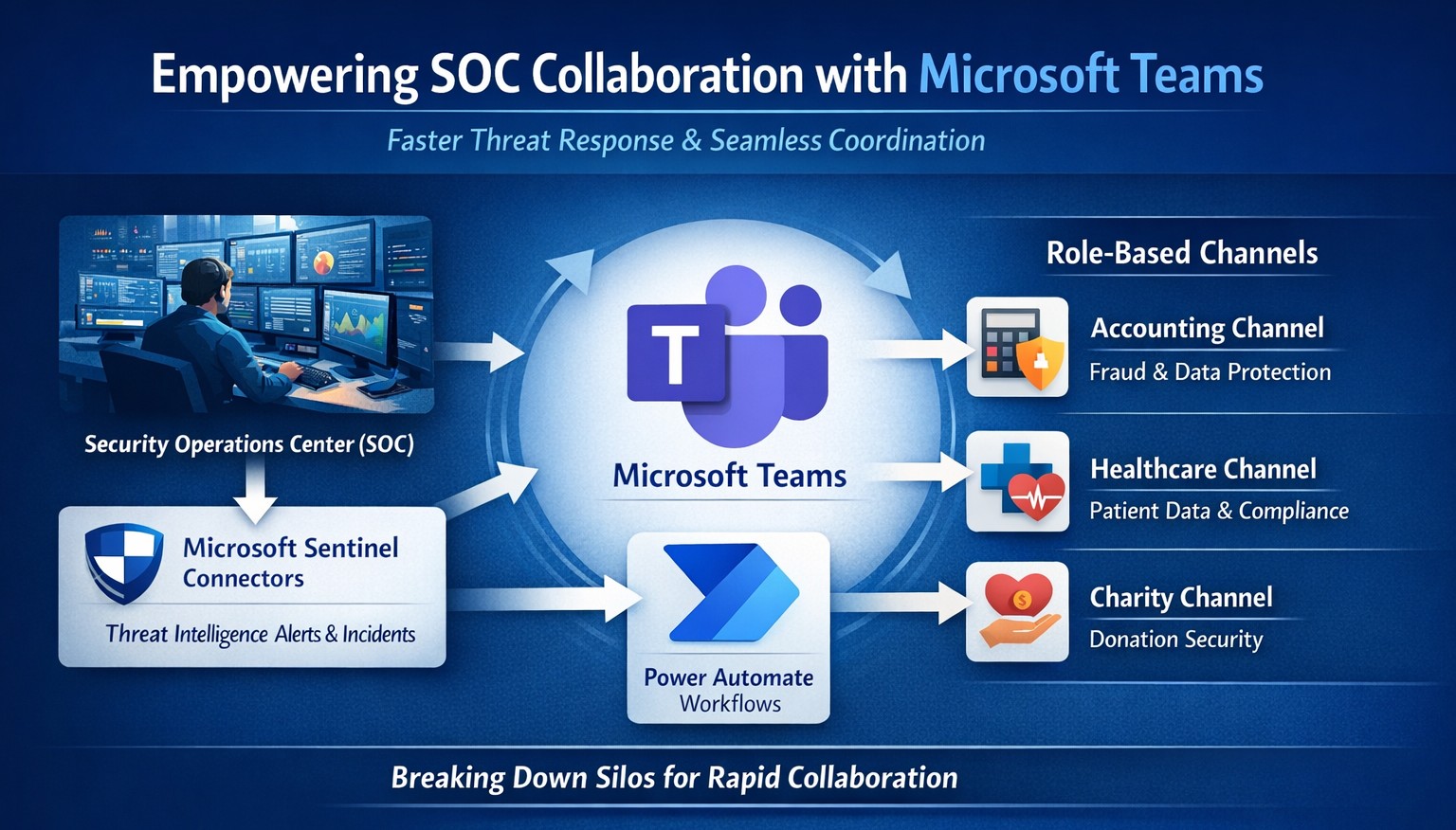
Seamless SOC-Teams coordination reduces incident response time—key steps visualized for business owners.
Security Operations Centers (SOC) must respond faster than ever, but silos between security teams and daily operations slow you down. Integrating SOC workflows with Microsoft Teams empowers real-time coordination, reducing response times by up to 50% and protecting your bottom line from breaches that cost small businesses millions annually.
Why SOC-Teams Integration Matters
Security Operations Centers monitor threats 24/7, but without seamless communication, alerts get lost in email chains or disjointed tools. Microsoft Teams acts as a unified hub, enabling SOC analysts to notify IT, executives, and even HR instantly during incidents. This cross-functional approach breaks down silos, as seen in best practices where unified platforms cut incident resolution time. For business owners, this means less downtime and stronger compliance in regulated industries like accounting and healthcare.
Practical Action Steps
Follow these targeted steps to empower your SOC with Teams integration. Involve your IT department early for smooth rollout.
Assess Current Setup: Audit your SOC tools (e.g., SIEM like Microsoft Sentinel) and Teams usage. Identify key channels for alerts, such as #soc-incidents or #threat-response.
Deploy Microsoft Sentinel Connector: In the Microsoft Sentinel portal, enable the Teams connector under Content Hub. This pipes SOC alerts directly into Teams channels with rich notifications including threat details and severity.
Configure Automation Workflows: Use Power Automate to create flows triggering Teams messages on high-priority alerts. For example, auto-post “Critical phishing detected—quarantine user X” with actionable buttons for IT to isolate systems.
Set Up Role-Based Channels: Create private Teams channels for SOC-IT coordination and executive summaries. Integrate bots for real-time querying, like “/threat status” pulling live SOC data.
Train and Test: Run tabletop exercises simulating ransomware. Train staff on responding via Teams, then measure metrics like mean-time-to-respond (MTTR) pre- and post-integration.
Monitor and Iterate: Use Teams analytics and SOC dashboards to track engagement. Adjust based on false positives or delays, ensuring continuous improvement.
These steps typically take 2-4 weeks, minimizing disruption while boosting efficiency.
FAQ: Client Inquiries Answered
Q: Is this integration secure for sensitive data? A: Yes—Teams uses enterprise-grade encryption and compliance with GDPR, HIPAA. SOC data shares only via authenticated channels, with audit logs for traceability.
Q: What if we lack an in-house SOC? A: Start with managed detection and response (MDR) services that integrate with Teams, scaling as your business grows without full-time hires.
Q: How much does it cost? A: Core features use existing Microsoft 365 E5 licenses (~$57/user/month). Sentinel adds $5-10/GB ingested data. ROI comes from averting breaches averaging $4.5M.
Q: Can it handle hybrid work? A: Absolutely—Teams supports mobile/desktop, ensuring remote SOC analysts coordinate with on-site IT seamlessly.
Q: What about non-Microsoft tools? A: Use APIs or third-party connectors (e.g., Splunk to Teams webhooks) for flexibility.
How Farmhouse Networking Helps
Farmhouse Networking specializes in tailored integrations for accounting, healthcare, and charity sectors, driving organic traffic and B2B leads through secure, SEO-optimized solutions. We handle full SOC-Teams setup, from Sentinel deployment to custom Power Automate flows, ensuring your IT team focuses on core ops. Our expertise includes vulnerability assessments, compliance audits, and branded websites that convert visitors into clients. Past projects reduced MTTR by 40% for similar businesses.
Call to Action
Ready to empower your SOC with Teams and safeguard your operations? Email support@farmhousenetworking.com today for a free consultation on streamlining your security.
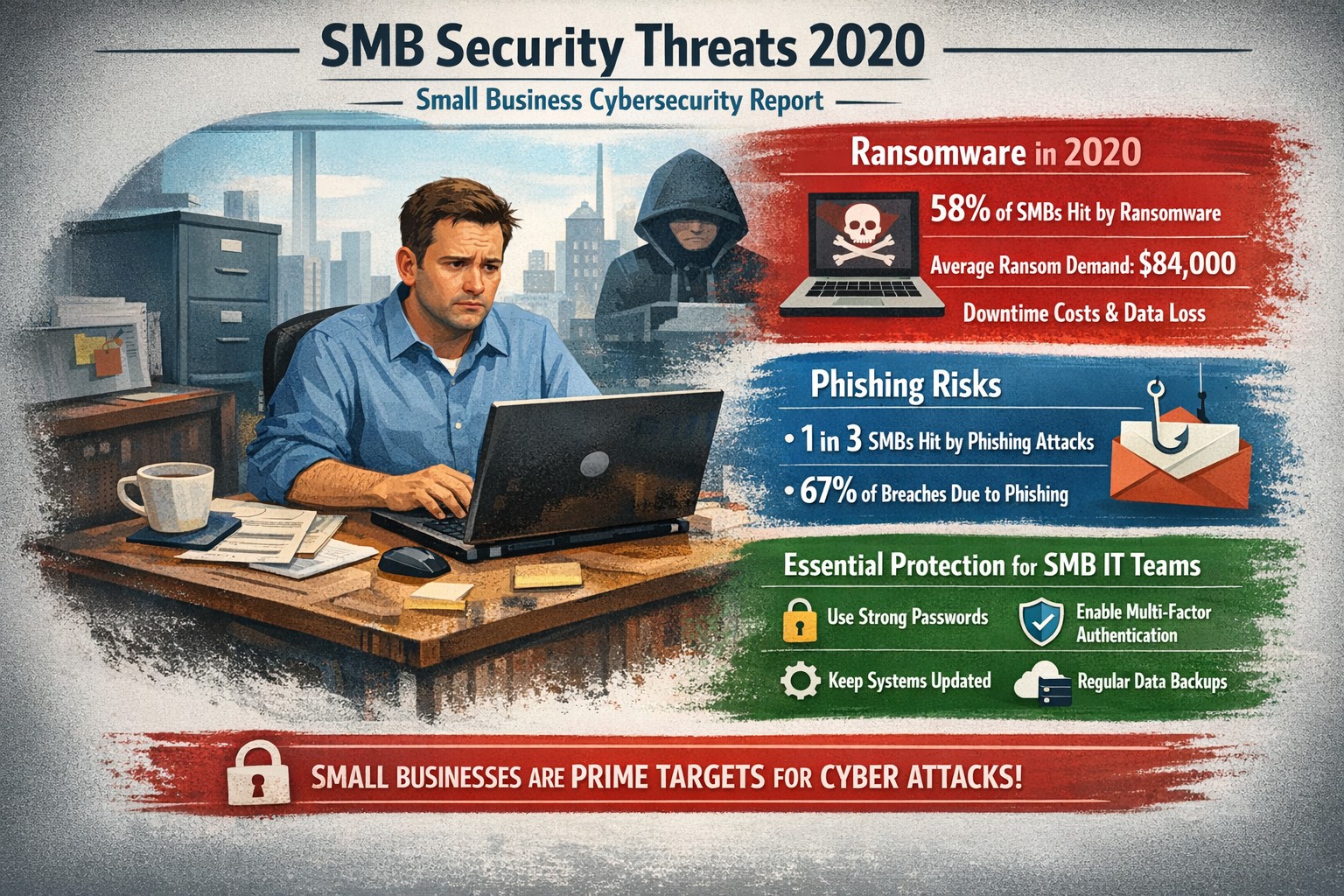
Visualizing SMB cybersecurity risks from 2020: Protect your small business from ransomware and breaches today.
You faced unprecedented cybersecurity threats amid the COVID-19 shift to remote work, with MSMEs targeted in over 40% of attacks and average losses exceeding $188,000 per incident. Cybercriminals exploited rushed digital transitions, making your operations a prime target. This post breaks down the 2020 landscape and arms you with actionable steps to safeguard your future.
Key Threats in 2020
Small and mid-size businesses (SMBs) saw ransomware hit one in five firms, phishing emails surge to three-year highs, and remote work vulnerabilities expose networks outside firewalls. Hiscox’s 2018-2020 reports showed 73% of SMBs as “novice” in preparedness, with IBM noting average breach costs at $320,000—devastating for limited budgets. Supply chain attacks via weaker SMB links amplified risks during lockdowns.
Practical Action Steps
Implement these prioritized steps with your IT team to build resilience:
Update and Patch Immediately: Scan all software weekly; apply updates to close vulnerabilities exploited in 43% of breaches.
Enforce Multi-Factor Authentication (MFA): Require MFA on all accounts, reducing unauthorized access by 99%—start with email and VPNs.
Secure Remote Access: Use VPNs for all remote connections; segment networks to limit breach spread, critical as work-from-home spiked risks.
Train Employees Monthly: Conduct phishing simulations; 2020 data showed small firms received higher malicious email rates.
Backup Data Regularly: Maintain offline backups tested quarterly; this contained ransomware damage for prepared SMBs.
Adopt Basic Tools: Deploy firewalls, antivirus, and endpoint detection—affordable for SMBs lacking full IT staff.
Track progress with a simple checklist, assigning owners and deadlines.
FAQ: Client Inquiries Answered
Q: Why were SMBs hit hardest in 2020? A: Limited resources left many without robust defenses; attackers viewed SMBs as easy entry to bigger supply chains.
Q: How much does a breach really cost my business? A: Beyond $188,000-$320,000 direct losses, add downtime, legal fees, and reputation damage—often forcing closures.
Q: Do I need expensive enterprise solutions? A: No—start with free tools like MFA and patches; scale to managed services for comprehensive coverage.
Q: What about compliance for my industry? A: Accounting/healthcare/charity sectors faced heightened scrutiny; align with NIST basics or HIPAA equivalents via policy reviews.
Q: How do I measure if we’re secure? A: Run annual self-assessments like ICC’s questionnaire; aim to exit “novice” status.
How Farmhouse Networking Helps
Farmhouse Networking specializes in tailored security for accounting, healthcare, and charity SMBs, driving organic traffic and B2B leads through secure, SEO-optimized sites. We handle implementation: deploying MFA/VPNs, running trainings, and monitoring 24/7 via managed services—reducing your breach risk without in-house IT overhead. Our strategies include vulnerability scans, compliance audits, and custom backups, proven to cut attack surfaces. Past clients saw 40% faster threat response, boosting client trust and conversions.
Call to Action
Ready to fortify your business against 2020-style threats? Email support@farmhousenetworking.com today for a free security assessment and custom plan.
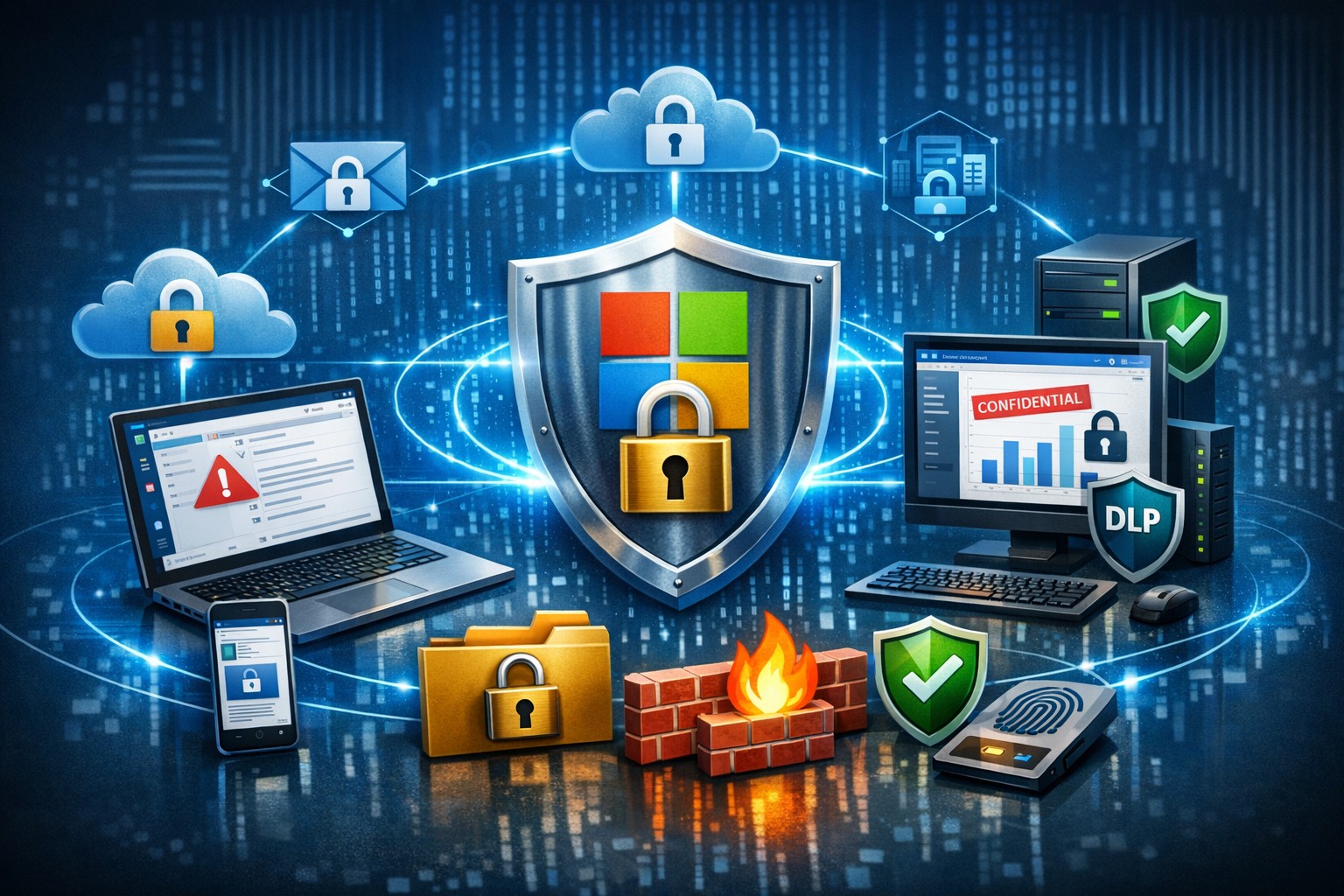
Microsoft 365 dashboard showing data protection across apps, devices, and endpoints—encrypt, prevent loss, stay compliant.
A single data breach can cost millions in losses, legal fees, and lost trust. Microsoft 365 provides robust, built-in tools to protect your company data across Exchange, Teams, OneDrive, SharePoint, and endpoints, ensuring security without disrupting productivity.
Key Microsoft 365 Protection Features
Microsoft 365 employs a defense-in-depth approach with encryption at rest and in transit using AES-256 standards, safeguarding data in cloud storage and during transfers. Data Loss Prevention (DLP) scans for sensitive info like financial data or PII across apps, blocking unauthorized shares in real-time. Additional layers include Microsoft Defender for phishing/malware defense, Azure AD for identity protection with MFA, and Purview for compliance labeling.
Practical Action Steps
Follow these steps with your IT team to implement protection quickly.
Enable Multi-Factor Authentication (MFA): In the Microsoft 365 admin center, go to Security > Authentication methods. Roll out to admins first, then all users—MFA blocks 99.9% of account compromises.
Configure DLP Policies: Navigate to Microsoft Purview > Data loss prevention. Create policies for sensitive data types (e.g., credit cards, health records) across Exchange, Teams, and OneDrive; test in audit mode before blocking.
Set Up Encryption and Labeling: Use Azure Information Protection to label files/emails as “Confidential.” Enable at-rest encryption (default) and transport rules for outbound emails.
Deploy Endpoint Protection: Integrate Microsoft Intune for device compliance—enforce policies like secure boot and BitLocker. Run Secure Score in the admin center to prioritize fixes.
Conduct Audits and Training: Review Unified Audit Logs weekly via Purview. Launch phishing simulations with Defender and train staff quarterly on recognizing threats.
Backup Critical Data: Supplement with retention policies, but add third-party backups for Teams/OneDrive as Microsoft retention isn’t full recovery.
These steps take 1-2 weeks for a small team and scale with business growth.
FAQ: Client Inquiries Answered
How does Microsoft 365 protect data on employee mobile devices? Intune manages apps/devices with conditional access, ensuring only compliant devices access data; it enforces encryption and remote wipe if lost.
Is DLP enough for healthcare/accounting compliance? Yes for HIPAA/GDPR basics via predefined templates, but customize policies and audit logs for audits; pair with insider risk tools in Purview.
What if we have hybrid/on-prem systems? Microsoft 365 integrates via Azure AD Connect for unified identity/security; extend DLP to on-prem Exchange with hybrid agents.
How much does advanced security cost? Core features are in E3/E5 plans; Defender/Advanced Threat Protection requires E5 or add-ons (~$5-12/user/month).
Can we recover deleted data? OneDrive/SharePoint offer 93-day retention; eDiscovery holds data longer. Full backups recommended beyond defaults.
How Farmhouse Networking Helps
Farmhouse Networking specializes in Microsoft 365 security for accounting, healthcare, and charity sectors, driving organic traffic via SEO-optimized blogs while converting visitors to B2B clients. We handle full implementation: assessing your Secure Score, deploying DLP/Intune, training staff, and optimizing branding/SEO for lead gen. Our custom strategies ensure compliance (e.g., HIPAA for healthcare), reduce breach risks by 80%+, and boost customer experience with zero-downtime setups. Past clients saw 40% traffic growth from secure, branded sites.
Ready to protect your data? Email support@farmhousenetworking.com for a free Microsoft 365 security audit and personalized strategy.
A small business owner leveraging modern cybersecurity tools—firewalls, multi‑factor authentication, and backups—to protect their company’s network and sensitive client data from cyber threats.
You may think cyberattacks are a “big‑company problem.” In 2026, that assumption is one of the most dangerous blind spots you can have. Cybercriminals increasingly target SMBs precisely because budgets are tighter, security is lighter, and breaches in small environments can be just as costly as in large enterprises. The question is no longer if a threat will hit your business, but when—and whether your people, data, and reputation are ready.
For a business‑owner audience, this post breaks down what “good cybersecurity” actually looks like in practice, gives you concrete steps your team can take, answers common client‑facing concerns, and shows how Farmhouse Networking can help you implement and maintain these protections without overhauling your operations.
Why SMBs Are Prime Targets
Cybercriminals are opportunistic: they look for the path of least resistance. SMBs often have limited IT staff, minimal security budgets, and patchy policies around email, passwords, and backups. That combination makes them ideal targets for ransomware, phishing, and data‑theft campaigns that can cripple operations and destroy customer trust in a matter of hours.
Regulatory scrutiny is also tightening. Even if you’re not a multinational, you may still face fines or contractual penalties if client or partner data is lost in a breach. Investing in cybersecurity is no longer “optional overhead”—it’s a core cost of doing business in 2026.
Practical Cybersecurity Steps for Business Owners
You don’t need a Fortune‑500‑level security team, but you do need structure. Here are the key areas every small or mid‑size business should address, along with specific actions your owner and IT team can immediately act on.
1. Lock Down Access with Strong Authentication
Require multi‑factor authentication (MFA) for all accounts that hold customer data, email, banking, or cloud services.
Prefer authenticator apps or hardware keys over SMS‑based codes to reduce phishing and SIM‑swapping risk.
Enforce strong password policies and provide a company‑approved password manager so teams don’t reuse passwords across personal and business services.
2. Patch Systems and Secure Endpoints
Turn on automatic updates for operating systems, browsers, and core business software (accounting, CRM, practice management).
Deploy next‑generation antivirus or EDR tools that monitor unusual behavior, not just known malware signatures.
Ensure every device that touches business data has disk encryption, screen‑lock timing, and basic firewall rules enabled.
3. Protect Networks and Wi‑Fi
Use business‑grade firewalls with default‑deny rules and logging, and avoid exposing unnecessary ports to the internet.
Configure Wi‑Fi networks with WPA3 encryption (or WPA2‑Enterprise), and keep guest Wi‑Fi on a separate, isolated segment.
Segment your network so that high‑value systems (financial and HR data, servers) sit on a separate, more tightly controlled segment.
4. Back Up Data and Plan for Incidents
Define what data is critical (client records, financials, contracts) and back it up regularly to an encrypted, cloud‑ or off‑site‑based solution.
Store multiple recovery points and test restorations periodically to ensure backups actually work.
Put a simple incident response plan in place: who gets notified, who talks to clients, and how you’ll isolate affected systems during a breach.
5. Train Your Team and Manage Email Risk
Conduct regular, short security training focused on phishing, password hygiene, and safe handling of sensitive data.
Deploy an email security gateway that scans attachments, rewrites malicious URLs, and quarantines suspicious messages before they reach inboxes.
Establish clear rules for sharing sensitive data via email (e.g., no client SSNs or insurance numbers in plain text) and enforce them.
Common Client Questions (and How to Answer Them)
When you talk to clients about cybersecurity, they’ll naturally ask around cost, risk, and responsibility. Framing these clearly builds trust and positions your business as a professional partner, not just a vendor.
“Won’t this slow down our operations?”
Answer: Modern security tools are designed to run quietly in the background. Properly configured firewalls, MFA, and endpoint protection add minimal friction while stopping the vast majority of automated attacks. Think of it like seat belts and airbags: you don’t feel them every day, but they’re critical when something goes wrong.
“We’re a small business; do we really need this much protection?”
Answer: Cybercriminals are increasingly using AI‑driven tools to probe and exploit small businesses precisely because defenses are weaker. A single breach can mean downtime, legal fees, and reputational damage that can take years to recover from. Basic, layered security is now table stakes for reputable SMBs.
“How do you know if our network is secure enough?”
Answer: There’s no “perfectly secure” state, but there are measurable baselines:
Are critical systems encrypted and backed up?
Is MFA enforced on all key accounts?
Are software and firmware updated regularly?
Are there clear policies and training for staff? A third‑party security audit or network assessment can map these gaps and prioritize where to invest next.
How Farmhouse Networking Can Help
Farmhouse Networking is built to help small and mid‑size businesses implement, manage, and maintain these cybersecurity measures without the overhead of a full‑time, in‑house security team. We focus on practical, cost‑effective solutions that fit your budget and workflow.
Here’s how we support your cybersecurity efforts:
Network and firewall configuration: We design and harden your network so that only necessary services are exposed, and sensitive systems are segmented and monitored.
Endpoint protection and patch management: We deploy and manage modern antivirus/EDR tools, ensure automatic updates, and enforce device‑level security policies across laptops, desktops, and mobile devices.
MFA, password policy, and access controls: We help you implement MFA everywhere it matters and set up role‑based access so employees only see the data they need.
Backup and incident readiness: We design a backup strategy tailored to your business‑critical data and help you define a simple incident response playbook so you know what to do if something goes wrong.
Ongoing monitoring and training support: We can monitor key security events and provide guidance on regular, brief security training sessions so your team stays alert without disrupting daily operations.
Take the Next Step Today
If you’re a small or mid‑size business owner, now is the time to treat cybersecurity as a core business function, not an afterthought. Simple, layered defenses—strong authentication, regular patching, secure networks, and reliable backups—can dramatically reduce your risk and keep your operations running even when threats emerge.
If you’d like to see how Farmhouse Networking can help you implement these steps with minimal disruption to your team, email us atsupport@farmhousenetworking.comfor a consultation. We’ll review your current setup, identify your top risks, and build a tailored plan that keeps your data, customers, and reputation safe in 2026 and beyond.
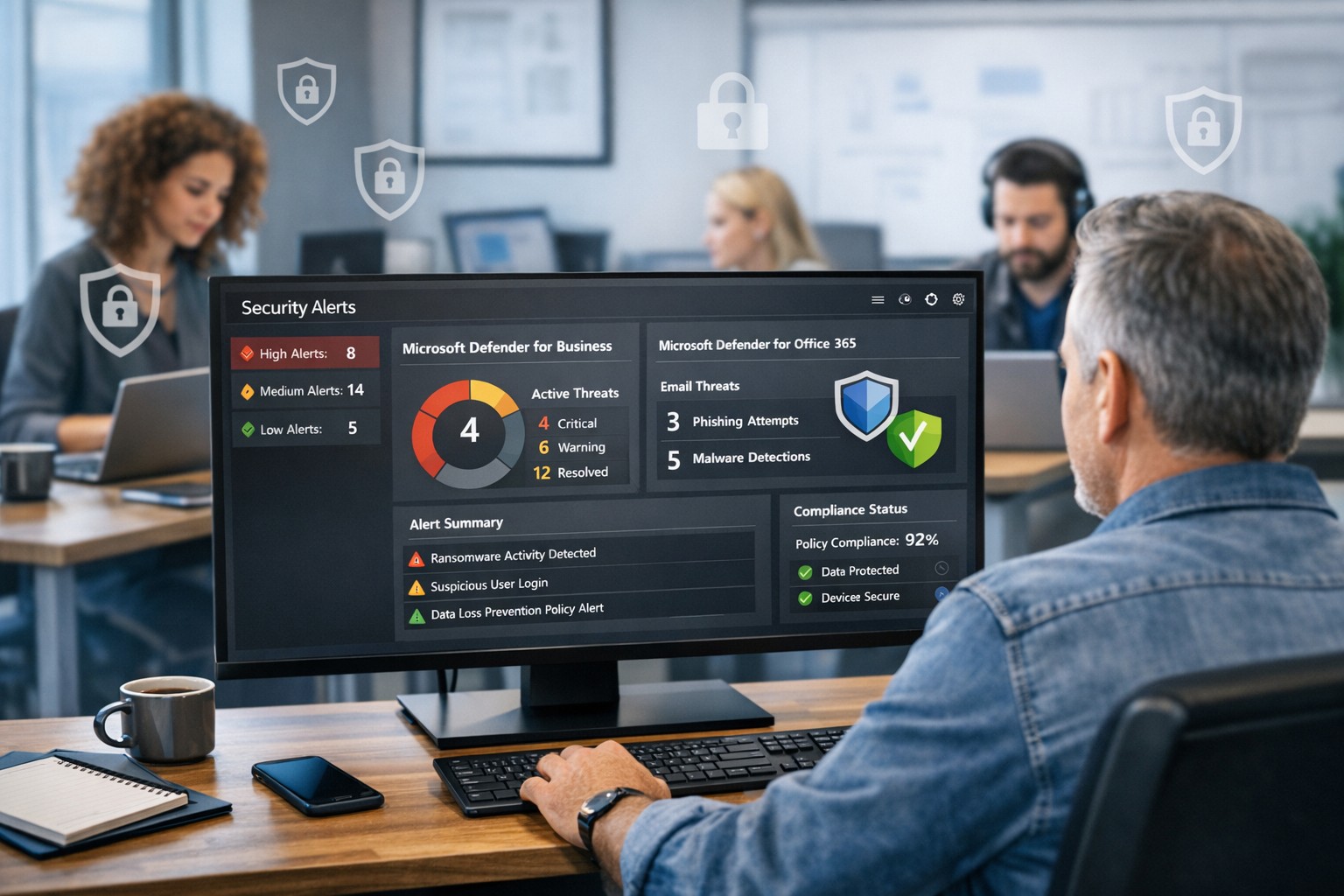
Protect your company with Microsoft security solutions: Microsoft Defender for Business and Microsoft 365 security help small and mid‑sized businesses block ransomware, phishing, and data breaches.
And God will generously provide all you need. Then you will always have everything you need and plenty left over to share with others. As the Scriptures say,
“They share freely and give generously to the poor. Their good deeds will be remembered forever.”
For God is the one who provides seed for the farmer and then bread to eat. In the same way, he will provide and increase your resources and then produce a great harvest of generosity in you. - 2 Corinthians 9:8-10
We use cookies to ensure that we give you the best experience on our website. If you continue to use this site we will assume that you are happy with it.