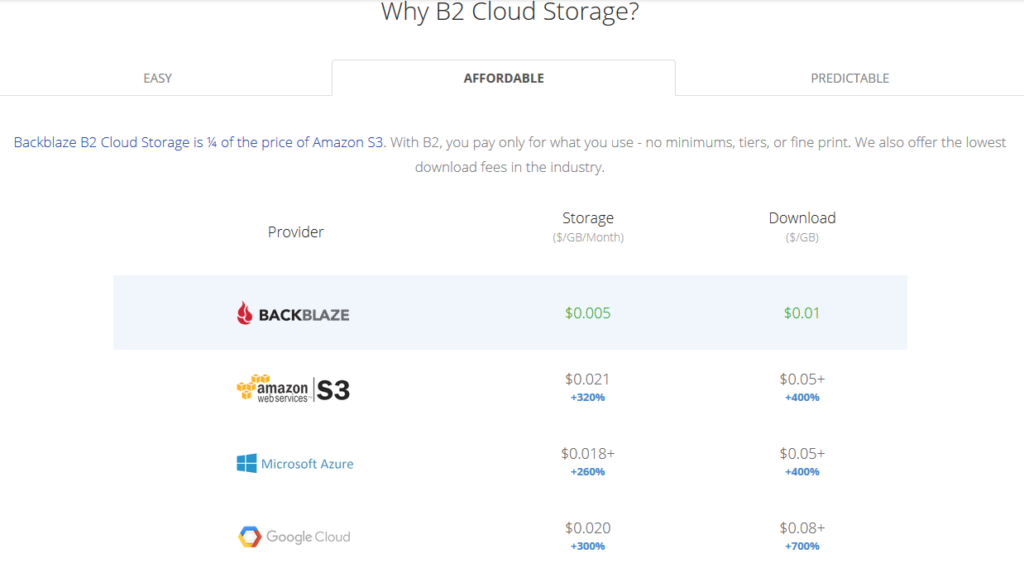
All someone has to do is look at the pricing model above to see why Backblaze is a no brainer for long term storage (not to mention the first 10GB of storage is free. With its recent inclusion as a destination for web server’s WHM backup, Farmhouse Networking has been recommending our hosting provider customers to make the switch from AWS Glacier. Here is the steps to make the switch:
Setup Backblaze Buckets
Login to Backblaze account
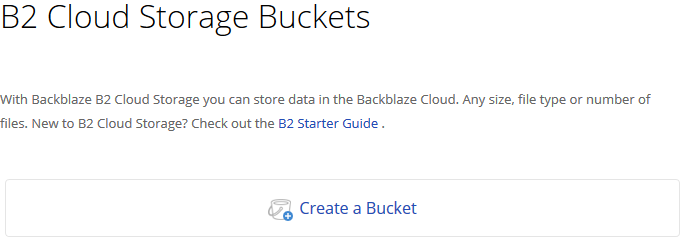
Click on the Create Bucket button in the B2 Cloud Storage Buckets section
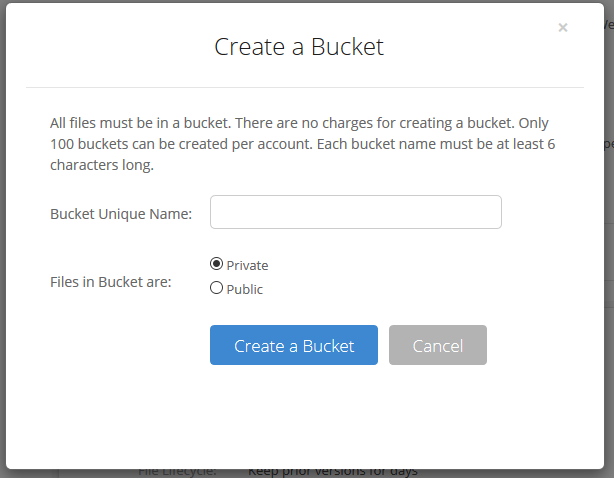
3. Give the Bucket a name and keep the bucket private for the backups. Click on the Create a Bucket button.
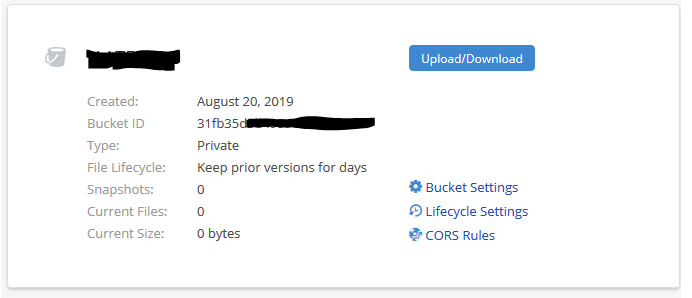
4. Copy down your Backblaze Bucket name and Backblaze Bucket ID
Setup Backblaze Application Key
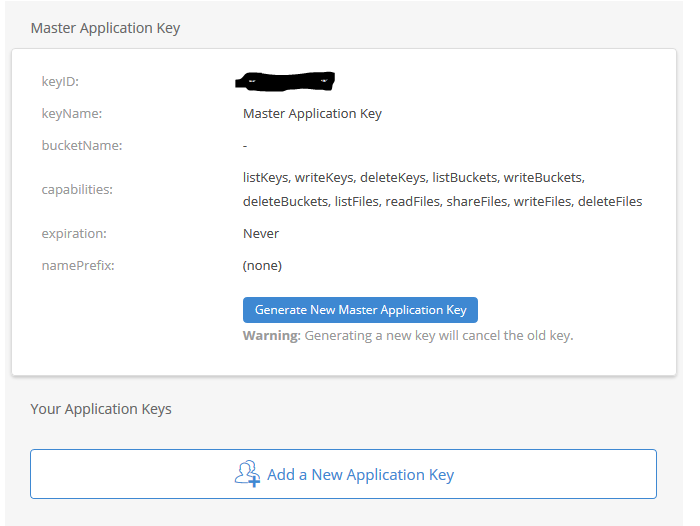
Click on the App Keys section
Click on Add a New Application Key
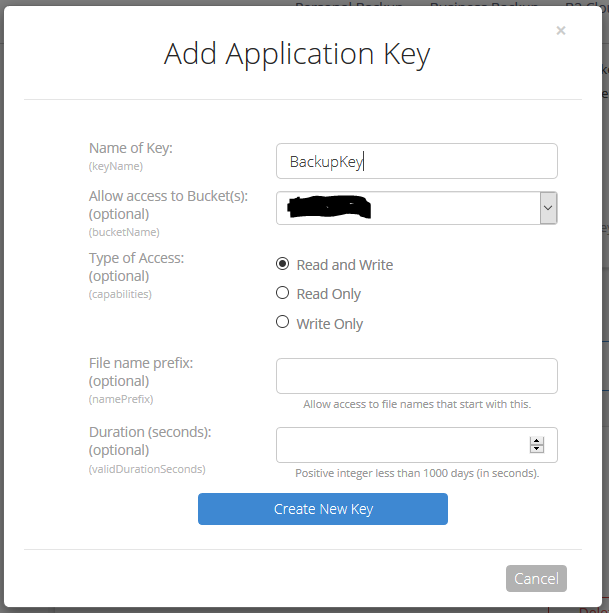
3. Give the Backblaze Application Key a name, chose the newly created bucket from the list and make sure to leave the Type of Access as “Read and Write”. Click the Create Key button.
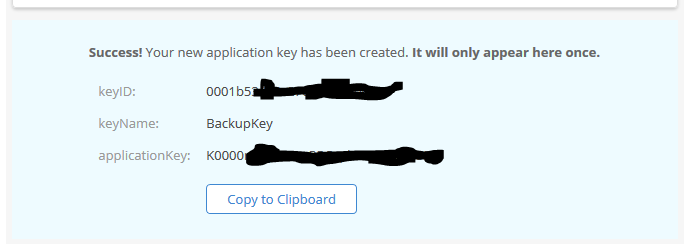
4. Make sure to copy down the Backblaze Application keyID and Backblaze Application applicationKey. This will be the only time they are both shown. If you lose the Backblaze Application applicationKey then you will have to delete the current one and create a new one.
Setup WHM Backup to Backblaze
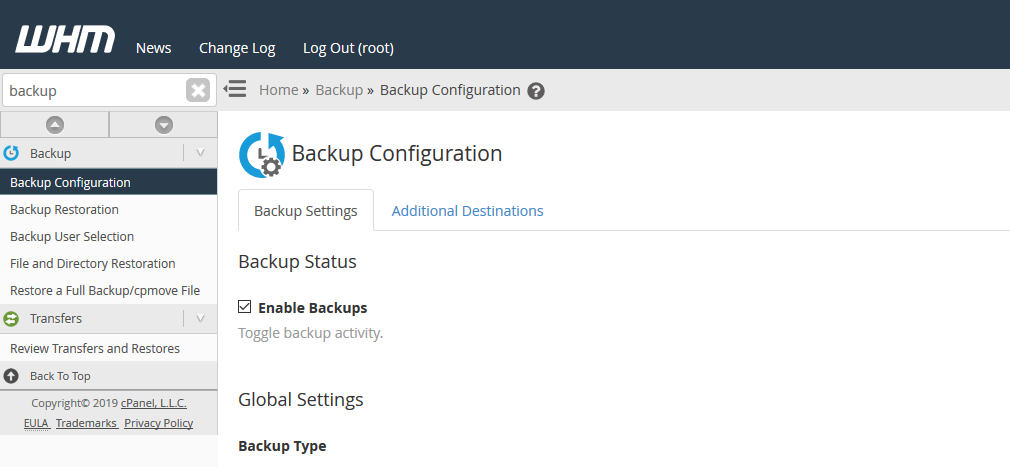
Connect to WHM as root user and choose Backup Configuration from the menu. The specific WHM backup settings are not discussed here, but feel free to contact us for advise on how to do so.
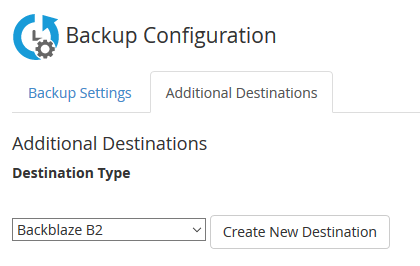
2. Click on Additional Destinations. Chose Backblaze B2 from the Destination Type and click on the Create New Destination button.
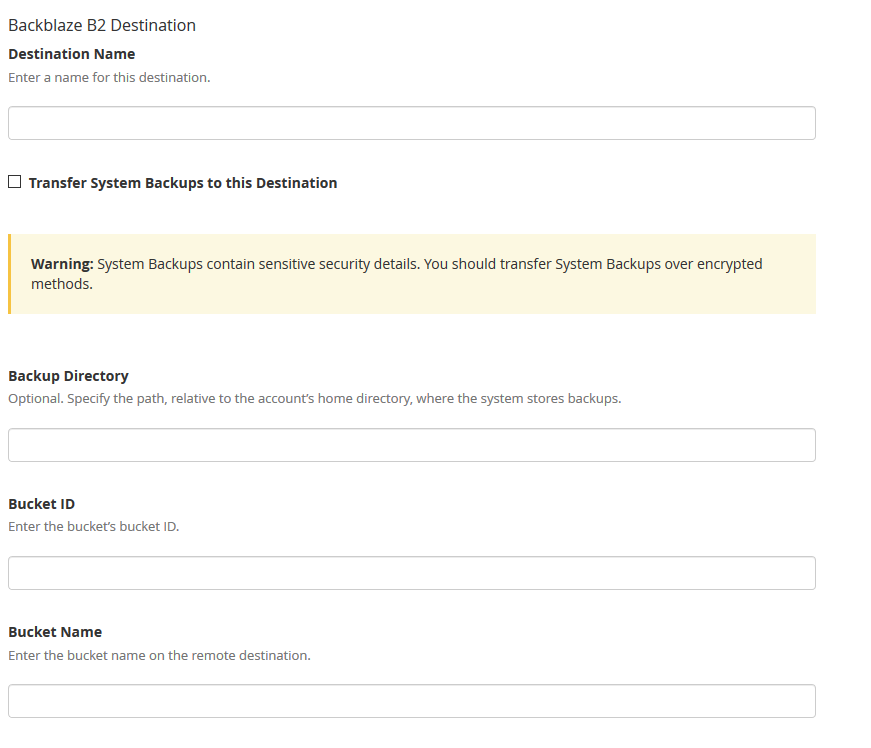
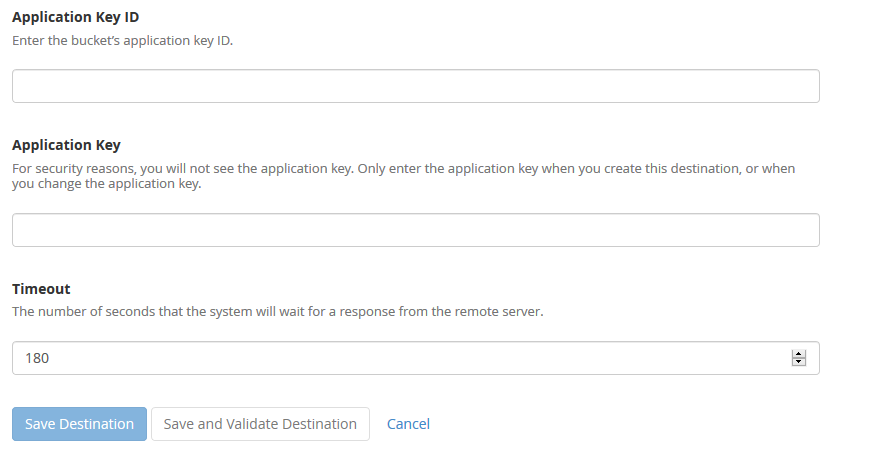
3. Enter in a backup name. Click on the “System Backups” if that is desired. Leave the Backup Directory blank. Enter in the Backblaze Bucket ID and Backblaze Bucket Name copied down earlier. Enter in the Backblaze Application Key ID and Backblaze Application Key. Click on the Save and Validate Destination button.
Make sure to disable your old AWS Glacier backup destination. All backups on Glacier should be set to auto delete according to a lifecycle, but if not then wait 120 days from creation to remove them to avoid any penalties. Speaking of lifecycles, it is a good idea to change the lifecycle settings on the Backblaze bucket to auto delete after a determined number of days since they do charge for total storage utilized.
If your company is would like to discuss the layers of security you have in place, then contact us for assistance.
Amazon AWS S3 Storage to the rescue again with native support in WebHost Manager (WHM) to backup directly to S3. WHM AWS S3 Glacier backup is easy to setup and works like a charm. Included in this post are the standard settings that I use for all WHM backups.
WHM AWS S3 Glacier Backup Setup
Login to WHM and run a quick search for backup at the top left of the navigation pane
Click on “Backup Configuration” to begin setup
Under “Backup Status” choose “Enabled”, under “Backup Type” choose “Compressed” to save on bandwidth and leave the timeouts at their defaults
Under “Scheduling and Retention” choose to do a backup each day of the week and keep them for 30 days
Under “Files” choose to disable “Backup Suspended Accounts”, choose to enable “Backup Access Logs”, choose to enable “Backup Bandwidth Data”, choose to disable “Use Local DNS” and put a check next to “Backup System Files” to allow for full restores if needed
Under “Databases” choose both “Per Account and Entire MySQL Directory”, under “Default Backup Directory” type in:
/backup
Leave the “Retain backups in default directory” unchecked and disable “Mount Backup Drive as Needed”
Under “Additional Destinations” choose Amazon S3 from the drop down list and click on the “Create new destination button”
Assuming there is already a bucket and user created in AWS for this purpose – give the destination a name, check the box next to “Transfer System Backups to Destination”, type in the name of a folder in the bucket under “Folder” that will be created and used, type in the name of the “Bucket”, type in the “Access Key ID” and “Secret Access Key” then change the timeout to 60 seconds
Click on the “Save and Validate Destination” button to make sure all settings are correct
Finally click on the “Save Configuration” at the bottom to complete the WHM AWS S3 Glacier Backup setup.
Your WHM AWS S3 Glacier Backup has now been setup and with proper setup of S3 Storage there will be automatic archival too. If your company is using Amazon Web Services or S3 Storage for backup and need help getting it setup properly, then contact us for assistance.
I am growing to love Amazon Web Services (AWS) S3 Storage. The AWS S3 Bucket Lifecycle feature is great for those using S3 buckets for backups. The lifecycle can be applied to the whole bucket or individual folders based on rules then set for auto archival or deletion based on those same rules. This post assumes that the bucket to be used for backups has already been created. For help setting up a new bucket read the AWS Documentation for a walk through of this simple process.
Configuring AWS S3 Bucket Lifecycle Archiving
Log into the AWS console and click into the S3 console
Click on the magnifying glass next to the S3 bucket being used for backup
On the right side of the screen, scroll down the list of properties to the Lifecycle item and expand it
Click on the “Add Rule” next to the green plus symbol
For backups, it is best to choose the whole bucket option in the “Apply this Rule to:” section of the wizard then click “Configure Rule” button
For the “Actions on Object” section choose the “Archive to the Glacier Storage Class” option with the “Days after object’s creation date” set to 7 days to automatically archive to S3 Glacier after a week. Choose the “Permanently Delete” option with the “Days after object’s creation date” set to 120 days to automatically delete from S3 Glacier after 4 months. Click on the “Review” button to continue.
Give the rule a name and click on the “Create and Activate Rule” button to finish the rule creation process
Make sure to click on the “Save” button to have the newly created rules saved.
Your AWS S3 Bucket Lifecycle has now been setup for automatic archival. If your company is using Amazon Web Services or S3 Storage for backup and need help getting it setup properly, then contact us for assistance. Look for the next post that will show how to setup WHM for backup to S3 Storage.
Working with Amazon Web Service (AWS) S3 Storage requires a user account, so it is natural to create a specific AWS S3 Glacier backup user account when connecting an outside service or device for backup purposes. This post will detail how to create a user that has full rights to a specific bucket on S3 and Glacier Storage so that backup files can be created or edited from an outside source.
Now it is time to connect the backup service or device using the AWS S3 Glacier Backup user with the “Access Key ID” and “Secret Access Key” recorded earlier. If your company is using Amazon Web Services or S3 Storage for backup and need help getting it setup properly, then contact us for assistance. Look for the next couple posts that will show how to setup a S3 bucket for automatic archival and how to setup WHM for backup to S3 Storage.
The most basic task needed to get started with AWS is to have a user account, so it is natural to create a specific user account when accessing AWS Command Line Interface (CLI) for a specific purpose. This post will detail how to create a user that has read-only rights to S3 and Glacier Storage so that bucket content size can be determined. The details of how to install the AWS Command Line Interface can be found here and details of the setup are in linked documents from there.
Type in the username desired and leave the checkbox “Generate an access key for each user” checked then click the “Create” button at the bottom.
On this screen make sure to record the “Access Key ID” and “Secret Access Key” that will be needed when setting up AWS CLI software.
Click on the “close” link twice to exit.
Click on the username of the user just created, then click on the “Attach Policy” button to give the user proper rights.
Select “AmazonS3ReadOnlyAccess” and “AmazonGlacierReadOnlyAccess” from the list, then click on the “Attach Policy” button.
Once connected to the AWS Command Line Interface software commands can be run to check bucket content size which will be covered in an alternate post. If your company is using Amazon Web Services or S3 Storage and need help getting it setup properly, then contact us for assistance.
And God will generously provide all you need. Then you will always have everything you need and plenty left over to share with others. As the Scriptures say,
“They share freely and give generously to the poor. Their good deeds will be remembered forever.”
For God is the one who provides seed for the farmer and then bread to eat. In the same way, he will provide and increase your resources and then produce a great harvest of generosity in you. - 2 Corinthians 9:8-10
We use cookies to ensure that we give you the best experience on our website. If you continue to use this site we will assume that you are happy with it.