MDM centralizes BYOD security, remote wipe, and app control for enterprise protection.
Mobile devices, like smart phones and tablets, have become integral to business operations. However, with the convenience of mobility comes the challenge of securing sensitive corporate data. This is where Mobile Device Management (MDM) steps in as a crucial strategy for businesses of all sizes.
Understanding Mobile Device Management
Mobile Device Management refers to the administration and oversight of mobile devices like smartphones, tablets, and laptops that connect to your company’s network. The primary goal is to enable employees to conduct business from convenient devices while maintaining robust data security.
Key Strategies for Secure Mobile Device Management
Implement Comprehensive Policies: Developing clear and enforceable mobile device policies is the foundation of effective MDM. These policies should cover:
Acceptable use guidelines
Password requirements
App installation restrictions
Data access protocols
Utilize Encryption: Encryption is a powerful tool in your MDM arsenal. By encrypting data both in transit and at rest, you significantly reduce the risk of unauthorized access if a device is lost or stolen.
Enable Remote Wiping Capabilities: In the event of device loss or theft, the ability to remotely wipe corporate data is invaluable. This feature ensures that sensitive information doesn’t fall into the wrong hands.
Implement App Management: Control which apps can be installed on devices and manage app updates centrally. This helps prevent security vulnerabilities and ensures all devices have the latest, most secure versions of approved apps.
Regular Security Updates: Ensure all devices receive timely security updates and patches. This helps protect against newly discovered vulnerabilities and threats.
The Role of a Managed IT Services Provider
Implementing and maintaining an effective MDM strategy can be complex and time-consuming. This is where a Managed IT Services Provider (MSP) can be invaluable. An MSP can:
Assess your specific MDM needs
Implement the right MDM solution for your business
Manage device enrollment and configuration
Monitor devices for security threats
Provide ongoing support and maintenance
By partnering with an MSP, you can ensure your MDM strategy is robust, up-to-date, and aligned with your business needs.
Benefits of Effective Mobile Device Management
When implemented correctly, MDM offers numerous benefits:
Enhanced data security
Improved employee productivity
Reduced IT administration overhead
Better compliance with data protection regulations
Simplified device lifecycle management
Mobile Device Management is no longer a luxury—it’s a necessity for businesses operating in our mobile-first world. By implementing strong MDM strategies and partnering with a trusted Managed IT Services Provider, you can harness the power of mobile technology while keeping your business data secure.
Ready to take control of your mobile device security? Contact Farmhouse Networking today to get started with a comprehensive Mobile Device Management solution tailored to your business needs. Don’t wait for a security breach to happen—secure your mobile future now.
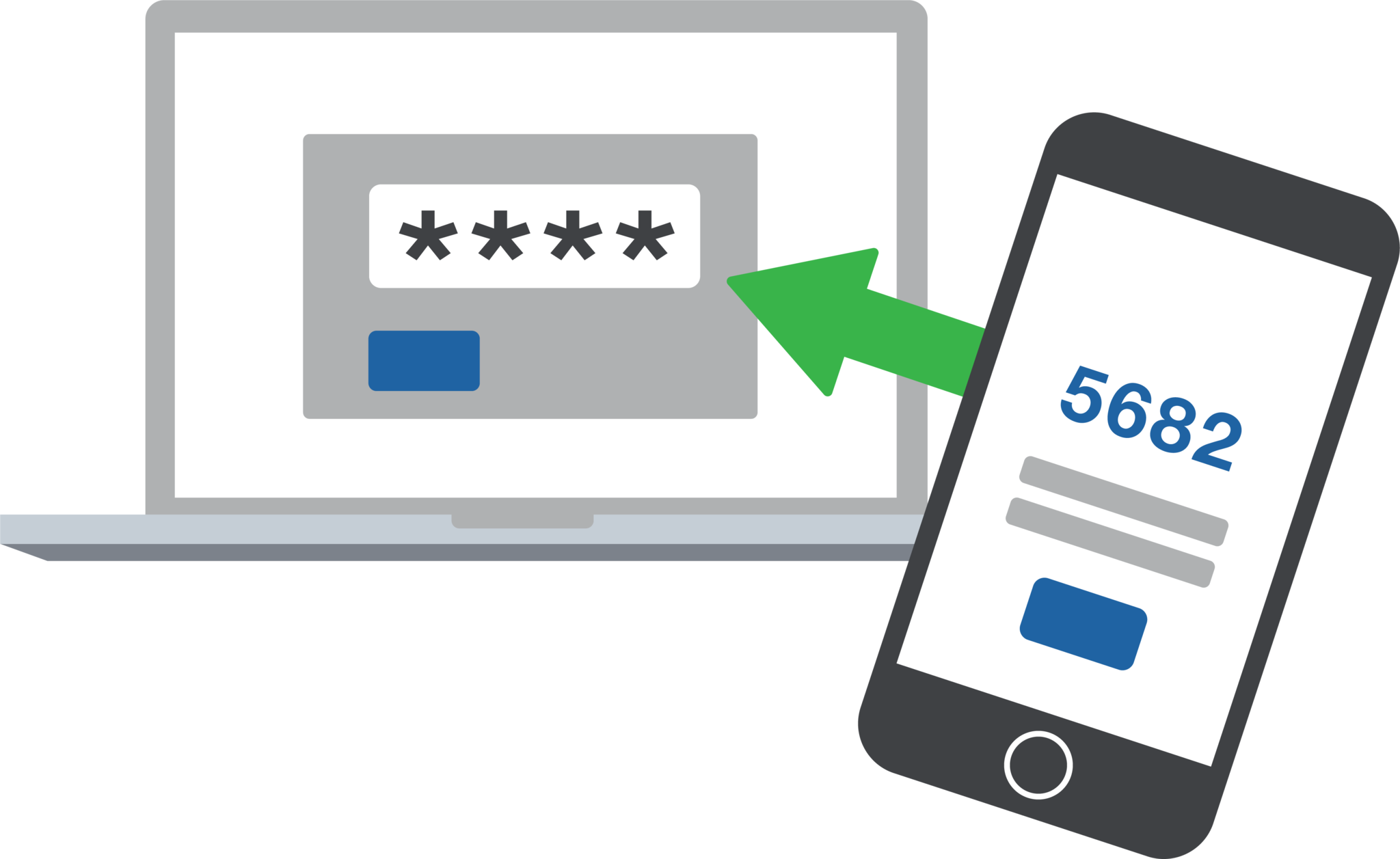
2FA dashboard displaying account protection compliance metrics and phishing defenses.
Businesses are face an increasing number of cyber threats. To protect sensitive data and prevent hackers from gaining access, implementing stronger security measures is crucial. One such measure is 2-factor authentication (2FA). Let’s look at the importance and security benefits of 2FA for businesses.
Enhanced Account Security:
2FA adds an extra layer of security to the traditional username and password login process. By requiring users to provide a second form of authentication, such as a unique code sent to their mobile device, it significantly reduces the risk of hackers from gaining access. Even if a hacker manages to obtain a user’s password, they would still need the second factor to gain access.
Mitigation of Password-related Risks:
Passwords are often the weakest link in security systems. Many users tend to reuse passwords across multiple accounts or choose weak and easily guessable ones or re-use the same password while incrementally changing a digit or two. With 2FA, even if a password is compromised, the additional authentication factor acts as a safeguard, making it significantly harder for attackers to gain access.
Protection Against Phishing Attacks:
Phishing attacks, where attackers trick users into revealing their login credentials, are a common threat to businesses. 2FA provides an additional layer of defense against such attacks. Even if a user unknowingly falls victim to a phishing attempt and enters their credentials on a fake website, the second authentication factor would prevent the attacker from accessing the account.
Compliance with Industry Regulations:
Many industries, such as finance, healthcare, government contractors, and e-commerce, are subject to strict data protection regulations. Implementing 2FA helps businesses meet compliance requirements and avoid potential penalties. It demonstrates a commitment to safeguarding sensitive customer information and builds trust with clients.
Cost-Effective Security Measure:
Implementing 2FA does not require significant financial investment. Many 2FA solutions are readily available and can be easily integrated into existing systems. Considering the potential financial and brand reputation damage caused by a security breach, the cost of implementing 2FA is minimal compared to the benefits it provides.
In an era where cyber threats are constantly evolving, businesses must prioritize security measures to protect their valuable data. 2-factor authentication offers a simple yet effective way to do so.
If your company is interested in implementing 2FA across the entire organization, then contact us for assistance.
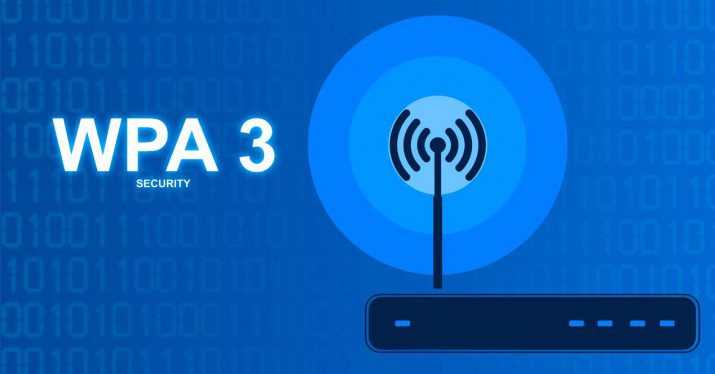
Strange to think that the current wireless security protocol has been in use for over a decade, but with the release of WPA3 certification today the Wi-Fi Alliance has made some serious strides towards a more secure wireless security standard.
Security Improvements
Offline Password Guessing – Attackers will now only get one guess per offline packet instead of unlimited. This will force them to interact with the wireless device directly which will make their attacks easier to detect and easier to shut them out.
Forward Secrecy – Even if the attacker is able to record a data stream and crack the current password, they will not be able to read the recorded data – only new data flowing over the network.
192-bit Encryption: – Enterprise users and tech savvy small businesses will be able to take advantage of deeper encryption for more secure connections
Wi-Fi Easy Connect – Simple to use, secure way for home users to connect their devices by scanning a QR code instead of entering a complex password.
This new security protocol mixed with the latest 802.11ax (that could bring 10 Gigabit speeds to wireless) will make 2019 a banner year for wireless technology.
If your company is interested better wireless security or faster wireless speeds, then contact us for assistance.
Mobile devices enable Americans to get online wherever they are. Although mobile devices — from smart watches to phones and tables — can be extremely useful and convenient, there are also potential threats users may face with such technology. It’s important to understand how to protect yourself when connecting on the go.
DID YOU KNOW?
• 56 percent of American adults own a smartphone.
• More than half of mobile application (app) users have uninstalled or decided not to install an app due to concerns about their personal information.
SIMPLE TIPS
1. Use strong passwords.
Change any default passwords on your mobile device to ones that would be difficult for someone to guess. Use different passwords for different programs and devices. Do not choose options that allow your device to remember your passwords. (We recommend LastPass Mobile App to keep track of password, encryption of the phone and fingerprint scanning for unlocking your device.)
2. Keep software up to date.
Install updates for apps and your device’s operating system as soon as they are available. Keeping the software on your mobile device up to date will prevent attackers from being able to take advantage of known vulnerabilities. (Unfortunately the carrier that you choose is in charge of the OS updates on the phones, but allow auto updates on all other apps.)
3. Disable remote connectivity.
Some mobile devices are equipped with wireless technologies, such as Bluetooth, that can connect to other devices. Disable these features when they are not in use. (Look out for NFC also as this will allow access based on how close someone gets to your phone – think crowded elevator.)
4. Be careful what you post and when.
Wait to post pictures from trips and events so that people do not know where to find you. Posting where you are also reminds others that your house is empty.
5. Guard your mobile device.
In order to prevent theft and unauthorized access, never leave your mobile device unattended in a public place and lock your device when it is not in use.
6. Know your apps.
Be sure to review and understand the details of an app before downloading and installing it. Be aware that apps may request access to your location and personal information. Delete any apps that you do not use regularly to increase your security. (Also do not root your phone or install apps from any place platforms app store.)
While investigating ambient music service for a business through Pandora for business, found this incredible new way for businesses to socially connect with the users of their free WiFi service. With Social Wifi using the Mood WiFi router setup properly users will be taken to a portal page upon connecting to the free WiFi system. This portal page asks for them to login via Facebook, Twitter, Instagram account or email address then for those who connect with social media are asked to like the business they are connecting at to gain access to the internet. This system brilliantly allows business to track who is using their internet service and deeply connect with them via social media. I could easily see this as a huge benefit for any small retail store or restaurant wanting to expand their advertising dollar with a very small budget ($35 per month).
Recently had some issues where another tech company was unable to properly setup MDM for their clients, so reviewed the documentation and their current efforts then came to the conclusion that they had skipped a couple steps in the initial setup that were causing the issue. Here is the proper initial setup steps:
Activate Mobile Device Management in Office 365
1. Sign in to Office 365 as an administrative user
2. Click on the Admin pane
3. Click on Mobile Management on the list to the left hand side
4. Click on the “Get Started” button
5. Wait awhile (5 minutes to 2 hours) for the setup to complete
Configure Initial Domain DNS Settings
1. Back in the Mobile Management section, look for the red x circle and click on “Manage settings”
2. First to configure custom DNS needed for automatic configuration, click on the “Set up” next to “Configure domains for MDM”
3. Click on the primary domain used for Autodiscover, etc. then click on “Domain settings”
4. Under “Domain purpose” click on “Change domain purpose”
5. Put a check next to “Mobile Device Management for Office 365” then click on “Next”
6. Take note of the following cname records:
7. Enter these into the customers custom DNS records along with any others that are listed on that page which weren't entered previously.
8. Return to this page to confirm that the DNS settings have changed properly.
Configure Apple Push Notification (APN) Certificate
1. Back in the Mobile Management section, look for the red x circle and click on “Manage settings”
2. Click on “Set up” next to “Configure an APNs Certificate for iOS devices” to request the needed certificate to manage Apple devices.
3. Click on “Download your CSR file” to save the file locally then click “Next”
4. Click on “Apple APNS Portal” to open the Apple Push Certificates Portal
5. Sign in with a valid (hopefully domain associated) Apple ID
6. Click on the “Create a Certificate” button
7. Agree to the Terms of Use
8. Upload the Certificate Signing Request (CSR) that was save locally earlier
9. Download the new Mobile Device Management certifcate and save it locally
10. Go back to the “Install Apple Push Notification Certificate” page and click “Next”
11. Upload the new Mobile Device Management certifcate tjat was saved locally from Apple
Configure Basic Mobile Device Management Policy
1. Create a Security Group in Active directory that will be used to apply the MDM policy and run DirSync manually.
2. Back in the Mobile Management section, click on “Manage device security policies and access rules”
3. Click on the + to add a new policy
4. Give the policy a name and click “Next”
5. On the pop-up page leave the defaults and check next to “Require managing email profile (required for selective wipe on iOS)”
6. Also select “Block access and report violation” to keep users off the network until they comply with the new policy then click “Next”
7. On the following page there are additional option that give additional security but are not required, when done click “Next”
8. Change selection to “Yes” and chose the Security Group in Active Directory that will be used for MDM enforcement then click “Next”
9. Click on “Finish” to begin enforcing this new policy
The next time any user opens an associated Office App on their supported devices it will ask them to start the enrollment process which goes through a compliance check which usually requires them to delete their current Exchange Active Sync profile to continue.
Special thanks to the guys at ExchangeServerPro.com for their blog entry with the basics. Also a thanks to the Microsoft Office Blog Team for their detailed look at MDM policy setup.
If your company is using Office 365 or has a Bring Your Own Device (BYOD) policy which need mobile device management, then contact us for assistance.
And God will generously provide all you need. Then you will always have everything you need and plenty left over to share with others. As the Scriptures say,
“They share freely and give generously to the poor. Their good deeds will be remembered forever.”
For God is the one who provides seed for the farmer and then bread to eat. In the same way, he will provide and increase your resources and then produce a great harvest of generosity in you. - 2 Corinthians 9:8-10
We use cookies to ensure that we give you the best experience on our website. If you continue to use this site we will assume that you are happy with it.