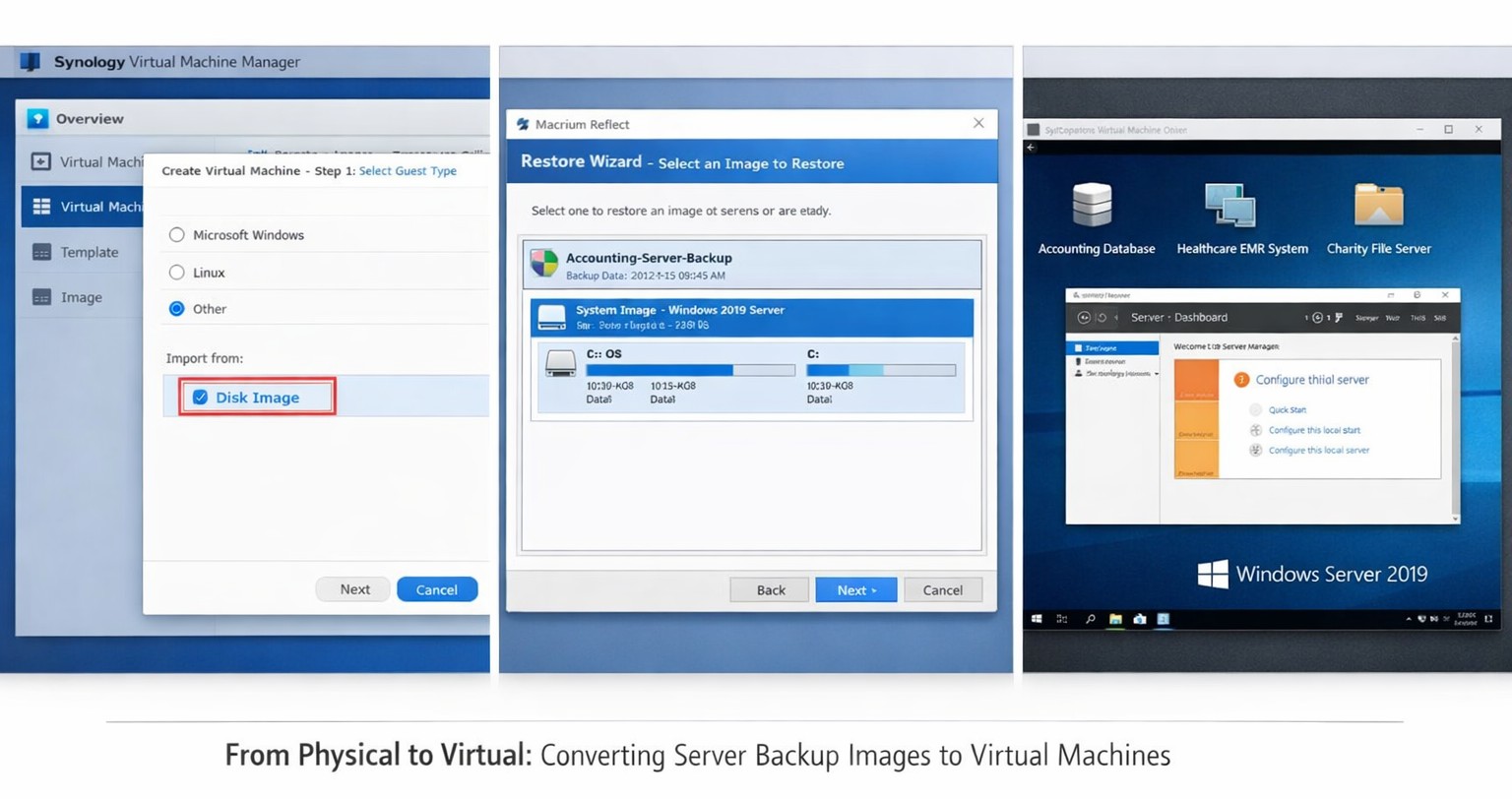
Macrium images restore seamlessly to Synology VMs for rapid virtualization
This was a strange one, but I have done it now more than once for a Tier 3 / Co-Managed IT client. They use the Macrium Reflect software to do image backups of client servers. They are looking to virtualize these servers going forward and wanted to know if it was possible to restore from Macrium Reflect to a Synology VM. Here is the process that we found to make it work:
Assumptions
We assume that you already have a Synology device setup and functioning properly.
We assume that you already installed the Virtual Machine Manager app on the Synology
We assume you already went through the initial setup wizard of the Virtual Machine Manager app
We assume that you have been backing up the server and have a valid image backup file
We assume you know the network path to these backup files
We assume you already know (and possess on the Synology) the required amount of CPU, Memory, and HDD space.
Process
Create Macrium Reflect bootable Rescue media
Open Macrium Reflect
Click on the Restore tab
Open Other Tasks on the left hand side
Choose Create bootable Rescue media
Browse to where the current backups are stored and save it there (this makes finding everything easier later)
Click Build (You may need to install some pre-requisites to make this possible, but Macrium Reflect with prompt you for it)
Create Virtual Machine
Open the Synology Virtual Machine Manager app
Click on Image
Click on the Add button
Find the Macrium Reflect Rescue media and add it to local storage
Click on Virtual Machine on the left
Click the Create button
Choose the Microsoft Windows option (if appropriate)
Select the proper storage amount
Give it a name, CPU, Memory (as needed)
Give it the needed storage amount(s)
Leave it connected to the default network
Download the Synology Guest Tools if needed.
Select Macrium Reflect Rescue media for the ISO file for bootup
Do not start the automatically
Edit the VM and change it to start from the CD ROM
Power it on
Restore from backup
Connect to the VM
Wait for Macrium Reflect Rescue media to boot (this can take awhile)
Click on the blue computer icon at the bottom
Click on the Map Network Drive icon
Type in need information and click OK
Go back to the Macrium Reflect window
Click on Browse for an image or backup file to restore
Find the appropriate file in the newly mapped network drive
Click on Restore Image
Select the target drive(s)
Click Next, Finished
Wait for restore to complete (this will take a long time)
Prepare restored image
Once completed, click on the ReDeploy restored image to new hardware
Add drivers if needed
Accept any drivers it finds
Accept the default options
Finish the wizard by closing
Power off the VM
Edit the VM Storage to make the disk a SATA controller instead
Edit the VM Others to make the BIOS UEFI
Edit the VM Network to Not Connected
Power on the VM
Login and install the Synology Guest Tools from the attached CD-ROM drive
Power off the VM
Edit the VM Network to use the default connection
Power on the VM if you are ready to deploy
If your company is looking to virtualize your servers or take them to the cloud, then contact us to setup migration evaluation.
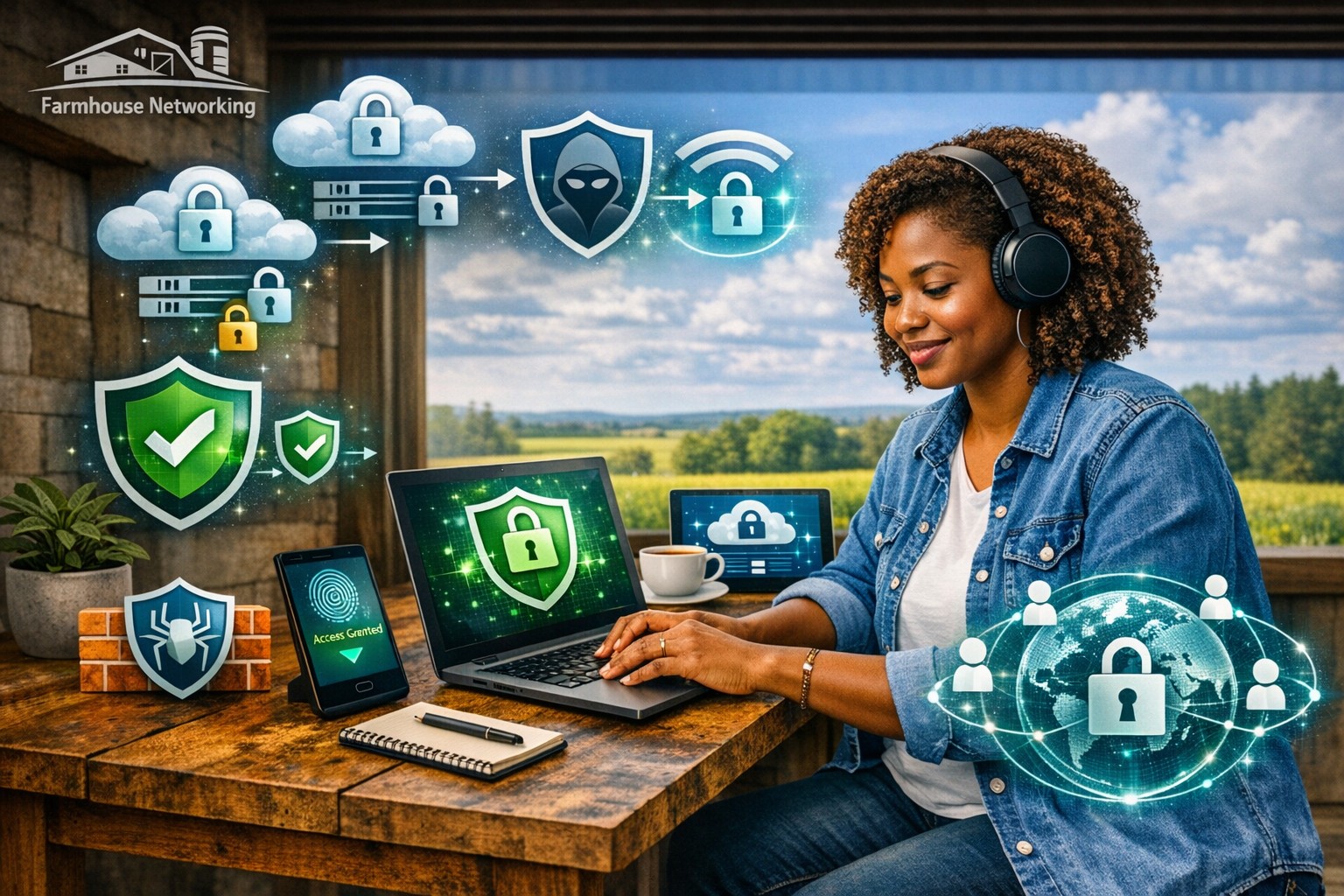
Protect your remote workforce with managed cybersecurity solutions from Farmhouse Networking.
Remote work isn’t a trend anymore—it’s the new normal. As business owners embrace flexibility for their teams, the question isn’t whether remote work is here to stay, but how to keep it secure. Every remote connection, off-site login, and cloud app increases your organization’s exposure to cyber threats. Yet with a strategic approach and the right IT partner, you can maintain both productivity and peace of mind.
Let’s explore practical steps to safeguard your remote workforce and keep your company’s data protected—no matter where your employees log in from.
Step 1: Strengthen Endpoint Security
Your employees’ laptops, tablets, and smartphones are the front lines of your cybersecurity defense.
Implement device management policies: Require company-issued or managed devices only, using mobile device management (MDM) tools to enforce security settings and lock or wipe lost devices.
Apply regular updates: Patch management ensures operating systems and applications stay current against known vulnerabilities.
Use advanced antivirus and EDR: Endpoint Detection and Response (EDR) continually monitors and analyzes device activity, identifying suspicious behavior early.
Strong endpoint protection helps you prevent compromised devices from becoming entry points into your network.
Step 2: Establish Secure Remote Access
Allowing remote access shouldn’t mean leaving your digital doors wide open.
Deploy a VPN (Virtual Private Network): Encrypt employee connections to your office network and cloud services.
Shift to Zero Trust Network Access (ZTNA): Adopt a “never trust, always verify” model that authenticates users and devices each time they connect.
Use multi-factor authentication (MFA): Combine passwords with a second factor, like a mobile app code or biometric scan, to block unauthorized access.
These technologies work together to create secure pathways for remote workers without slowing them down.
Step 3: Protect Your Cloud and Collaboration Tools
Cloud storage and file-sharing apps make remote work seamless—but they’re also favorite targets for cybercriminals.
Limit access privileges: Give users only the data and systems access they need for their jobs.
Monitor suspicious activity: Use automated alerts for unauthorized downloads, logins from unfamiliar locations, or mass file deletions.
Encrypt cloud data: Apply encryption at rest (while stored) and in transit (while shared).
By managing permissions and encryption settings properly, you ensure your remote team collaborates safely.
Step 4: Train Your Employees to Recognize Threats
Technology can’t protect your business alone—your people are your first defense.
Phishing simulation tests: Help employees identify deceptive emails before they click.
Ongoing security awareness training: Regular, engaging sessions keep cybersecurity top of mind.
Clear incident reporting process: Make sure staff know exactly how to report suspicious emails or activity.
Even the strongest firewall can’t fix a careless click. Empowered employees dramatically lower your exposure to ransomware and data breaches.
Step 5: Backups and Business Continuity
When (not if) something goes wrong, recovery speed determines your resilience.
Automated, off-site backups: Back up critical company data daily to secure cloud storage or a managed backup solution.
Test your recovery protocols: Periodic testing ensures recovery procedures actually work when needed.
Create a disaster recovery plan: Define roles, responsibilities, and communication plans for emergencies.
Regular backups not only protect your business from cyberattacks but also from system failures, accidental deletion, or natural disasters.
Common Questions from Business Owners
Q: How can I ensure my remote workers’ home networks are secure? A: Require strong, unique Wi-Fi passwords and WPA3 encryption. Encourage employees to separate personal and work devices on different Wi-Fi networks where possible.
Q: Aren’t remote security tools expensive? A: Not necessarily. Many solutions scale by user count, making them affordable for small to medium-sized businesses. Cloud-based management and outsourced IT services can reduce operational overhead.
Q: What’s the biggest cybersecurity risk for remote businesses? A: Human error remains number one—especially phishing attacks and weak passwords. That’s why employee training and MFA are critical foundations of your remote work security strategy.
How Farmhouse Networking Helps Strengthen Remote Security
At Farmhouse Networking, we help businesses across Oregon and beyond embrace remote work securely. Our team provides managed IT services, network monitoring, cybersecurity management, and employee training tailored to your business goals.
Here’s how we can help you stay secure while working remotely:
Comprehensive network and endpoint protection designed to prevent unauthorized access.
24/7 monitoring and response to detect threats in real time.
Cloud security audits to ensure collaboration tools meet compliance and security standards.
Custom remote work security plans aligned with your IT budget and risk profile.
We work closely with your internal IT staff or serve as your outsourced department—helping you focus on running your business, not worrying about cyber risks.
Take the Next Step Toward Secure Remote Work
Remote work can be safe, scalable, and sustainable—with the right security foundation. Whether you’re building your first remote team or managing a hybrid workforce, Farmhouse Networking has the expertise to protect your people, devices, and data.
And God will generously provide all you need. Then you will always have everything you need and plenty left over to share with others. As the Scriptures say,
“They share freely and give generously to the poor. Their good deeds will be remembered forever.”
For God is the one who provides seed for the farmer and then bread to eat. In the same way, he will provide and increase your resources and then produce a great harvest of generosity in you. - 2 Corinthians 9:8-10
We use cookies to ensure that we give you the best experience on our website. If you continue to use this site we will assume that you are happy with it.