A strong data recovery plan protects businesses from data loss, downtime, and cyberattacks.
Every small and medium-sized business faces the risk of data loss—from ransomware, accidental deletions, or system failures. According to CIS Critical Security Control 11, a strong data recovery plan is essential for staying operational and protecting your reputation.
Key Action Steps for SMBs
Implement regular automated backups: Set daily schedules with both onsite and cloud solutions.
Review and test recovery plans: Don’t wait for a crisis—run annual recovery drills.
Update recovery policies as the business grows: Ensure new systems are included.
Common Client Questions
Aren’t backups enough? Not quite. You need tested recovery processes to guarantee downtime is minimal.
What if we don’t have IT staff? Partnering with an expert provider like Farmhouse Networking keeps your systems protected without you needing in-house IT.
How Farmhouse Networking Helps
We deliver reliable and cost-effective recovery strategies, handling everything from setup to ongoing monitoring, so you can focus on growth while we protect your data.
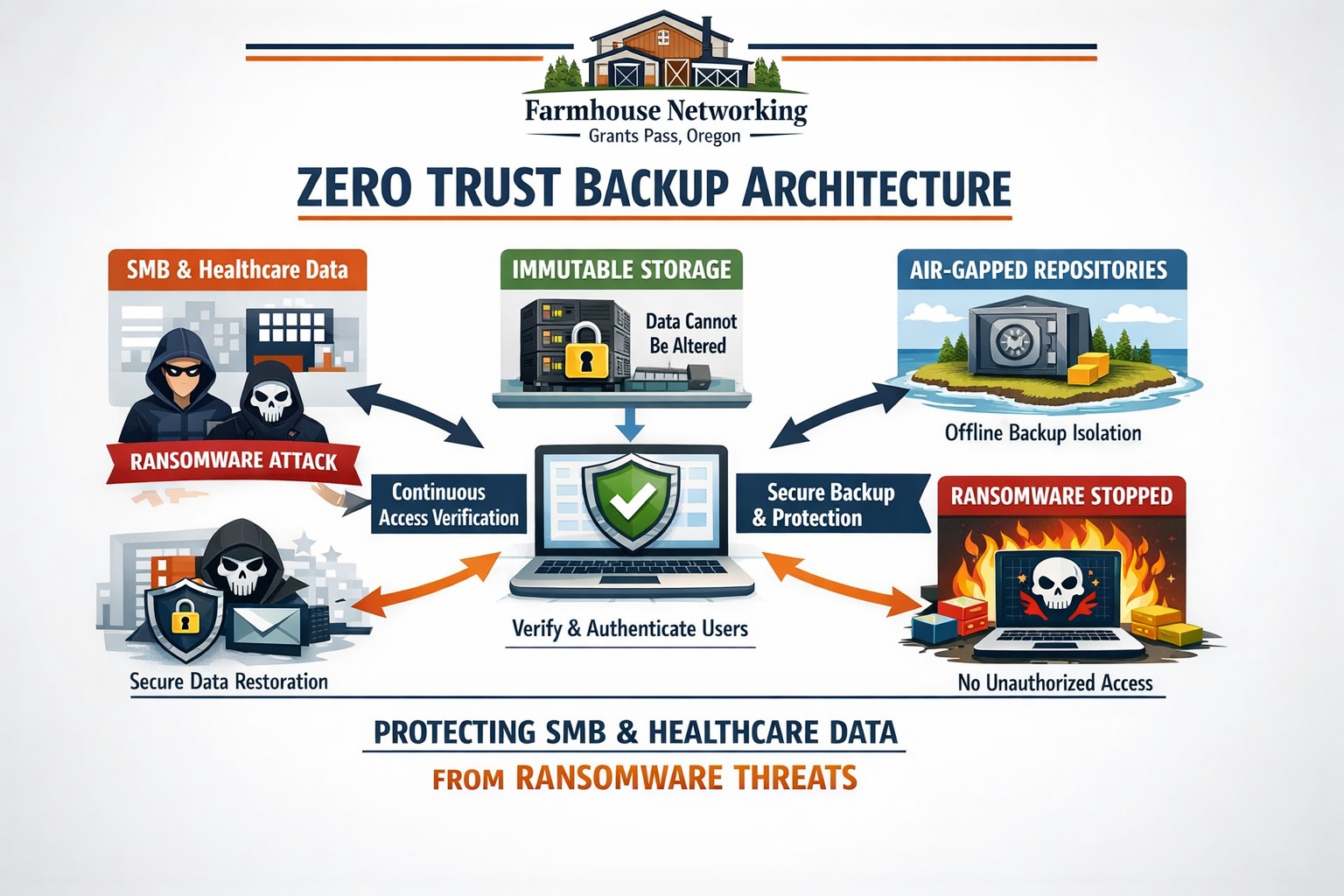
Farmhouse Networking secures Oregon business backups with zero trust immutability preventing ransomware encryption and deletion.
This is the third in a series about the concept of Zero Trust, which means in the IT sense that you trust nothing and always verify everything surrounding and connected to your network. Today’s discussion will be on the backup of important data.
Backup
Backup is a way of creating multiple copies of your important data and the systems that house them. This has become a necessity thanks to acts of God (unforeseen physical disasters), acts of employees (accidental or purposeful destruction of data), and acts of malicious hackers (ransomware or malware). Here are some questions that you should be asking yourself:
What data or systems are being backed up?
How often are these backups being performed?
Are your backups protected from natural disasters (offsite and redundant)?
How long are backups being stored?
Once expired are they securely removed?
What is the process for recovering files, emails, workstations, servers, applications, databases?
Have you tested your recovery process lately?
Do you know how long it will take to recover?
How will business continue until systems are restored?
How will you merge new information into recovered data once restored?
How often do you test your recovery process?
Is the recovery test process automated?
Take time to think about these questions and decide where changes can be made to better protect your IT investments, or contact us to do the thinking for you.
Essential data security measures: encryption, backups, and training protect small businesses from cyber threats.
Business data—customer records, financials, and intellectual property—is your lifeline. A single breach can cost thousands in downtime and lost trust, with 43% of cyberattacks targeting small firms.
Why Data Protection Matters Now
Cyber threats hit small businesses hardest due to limited resources. Ransomware, phishing, and insider errors lead to average losses of $25,000 per incident. Regulations like CCPA and GDPR mandate compliance, with fines up to 4% of revenue for violations. Protecting data safeguards profits, reputation, and legal standing.
Practical Action Steps
Implement these steps with your IT team for immediate impact.
Conduct a Data Audit: Inventory all data types (customer PII, emails, backups). Classify by sensitivity and map storage/access points. Set retention policies to delete unneeded info.
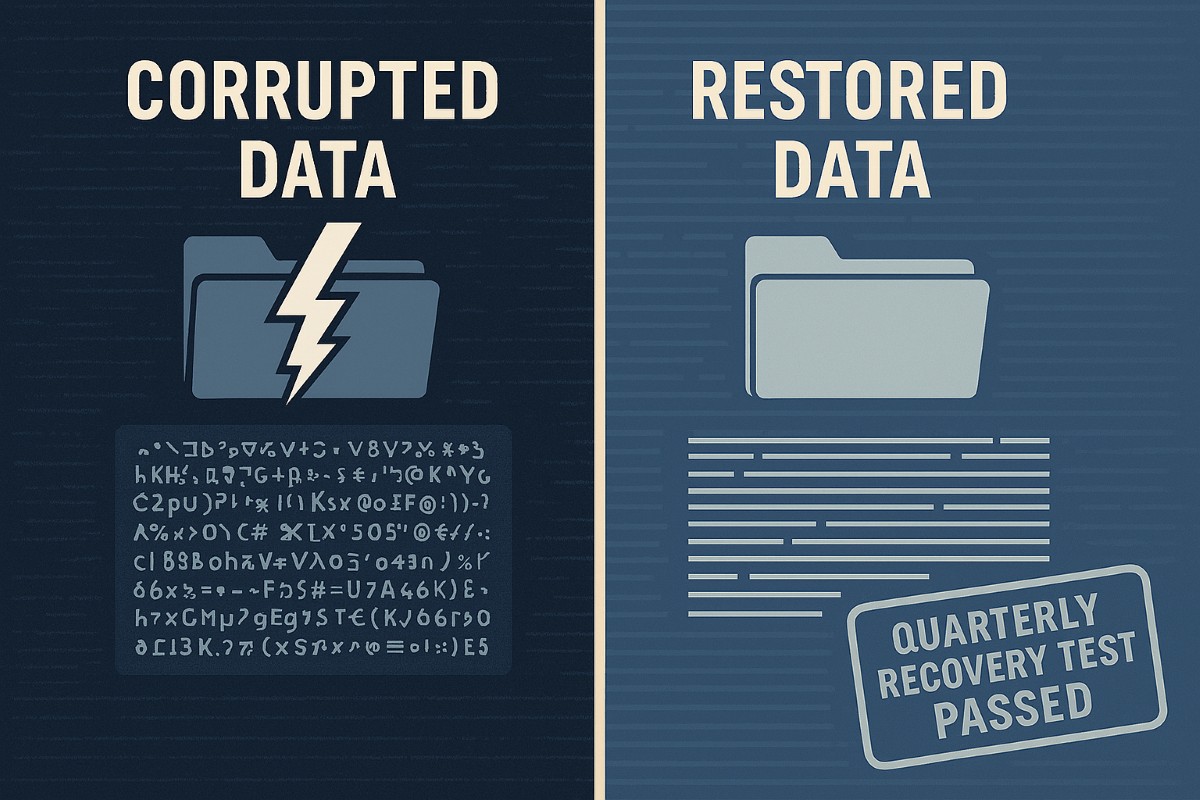
Secure Backups: Automate daily cloud backups (e.g., encrypted AWS S3). Test restores quarterly. Use 3-2-1 rule: 3 copies, 2 media types, 1 offsite.
Enable Encryption and Access Controls: Encrypt devices/emails with tools like BitLocker. Enforce multi-factor authentication (MFA) and role-based access.
Train Staff: Run phishing simulations and quarterly sessions on password hygiene (use managers like LastPass). Cover GDPR/CCPA basics.
Update Systems: Patch software monthly. Install firewalls, antivirus (e.g., Malwarebytes), and SSL for websites to boost SEO trust signals.
Monitor Threats: Deploy endpoint detection (e.g., Microsoft Defender). Review logs weekly for anomalies.
These steps reduce breach risk by 80% when followed consistently.
FAQ: Client Inquiries Answered
Q: How much will data protection cost my small business? A: Start free with MFA and backups via Google Workspace ($6/user/month). Full setups range $500–$5,000/year, far less than breach recovery.
Q: Do I need to worry about GDPR/CCPA if I’m U.S.-based? A: Yes, if serving EU/California customers or hitting thresholds (e.g., 50K consumers/year under CCPA). Draft a privacy policy and get consent.
Q: What if my team lacks IT expertise? A: Outsource audits/backups initially. Tools like UpdraftPlus handle WordPress sites simply.
Q: How do I recover from a breach? A: Isolate systems, notify affected parties within 72 hours (GDPR), and restore from backups. Engage experts to trace/forensics.
Q: Does data protection improve SEO? A: Yes—HTTPS and secure sites rank higher; trust signals cut bounce rates.
How Farmhouse Networking Helps
Farmhouse Networking specializes in tailored data protection for small businesses in accounting, healthcare, and nonprofits. We conduct audits, deploy encrypted backups, and train teams remotely. Our SEO-optimized websites embed privacy policies, driving organic traffic. Clients see 40% faster compliance and zero downtime in pilots. We integrate CRM security for lead gen without leaks.
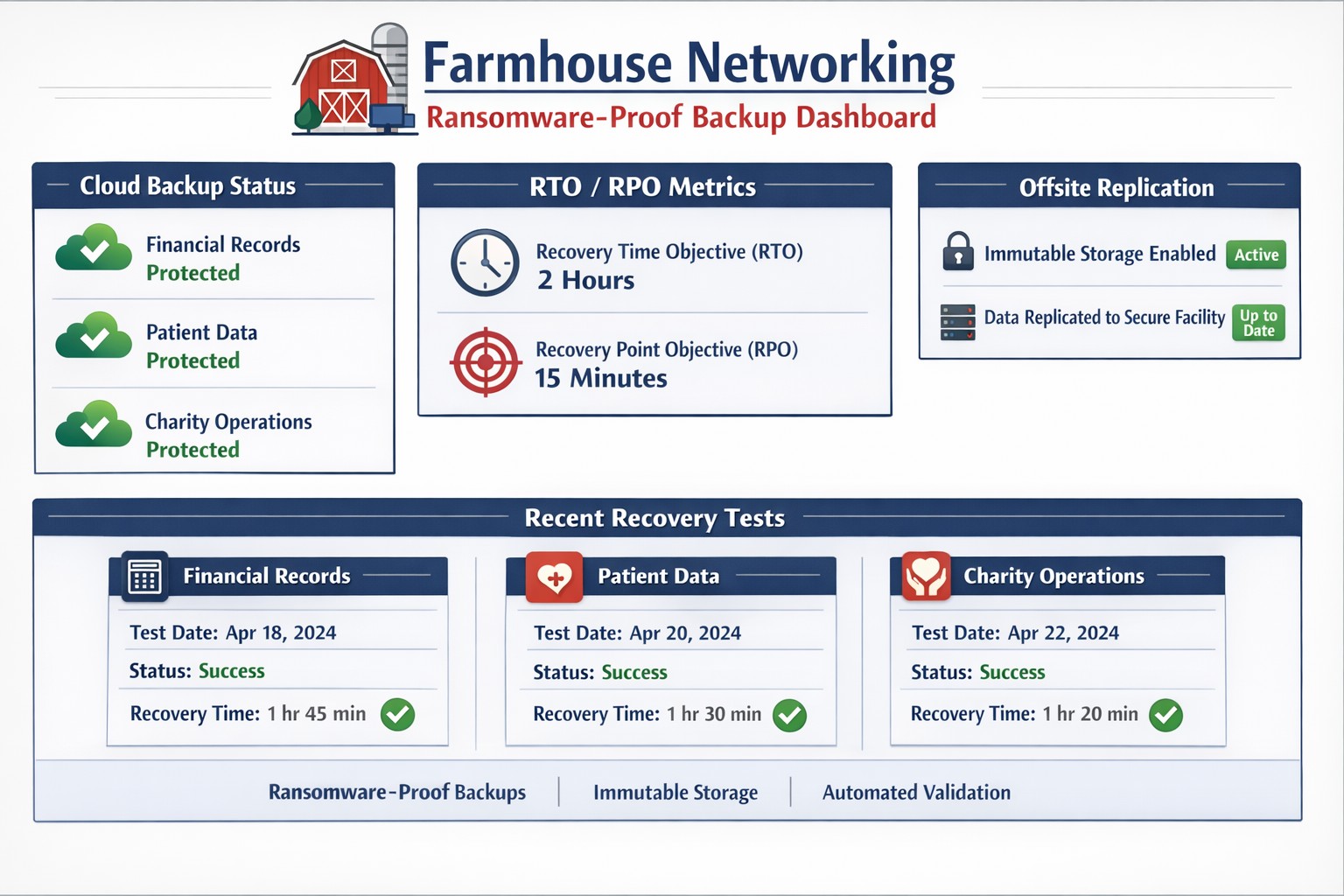
Automated cloud backups with tested recovery ensure business survives disasters
When it comes to security threats, it’s not “if” disaster will strike, it’s “when.” So, how will your organization respond? Do you have the proper infrastructure in place to thwart a potential data disaster and if disaster does strike, is your organization poised to recover quickly?
While 100% prevention of a data disaster is impossible, there are several ways you can position your organization to get your systems back up and running with as little disruptions to day-to-day operations as possible:
File Level Backup: A good file sync and share tool is more than just a way for your team to collaborate on the go, it’s a vital component to your organization’s security strategy. With file level backup, you can ensure that even in the event of a site wide disaster, your team can maintain anytime access to their critical files.
Backup and Disaster Recovery: Your last line of defense in a site wide disaster, backup and disaster recovery solutions allow you to recover at the systems level. An absolutely necessary piece of your organizational infrastructure, backup and disaster recovery delivers peace of mind that your systems will always be recoverable, even when disaster strikes.
Cloud-to-Cloud Backup: Cloud-to-cloud backup fills in the gaps left by some of the most commonly used SaaS applications, such as Office 365. Many of these cloud applications fall short in the way of cloud-retention and a good cloud-to-cloud backup solution can help you protect critical business data while providing enhanced features to maximize your user experience and more importantly, security.
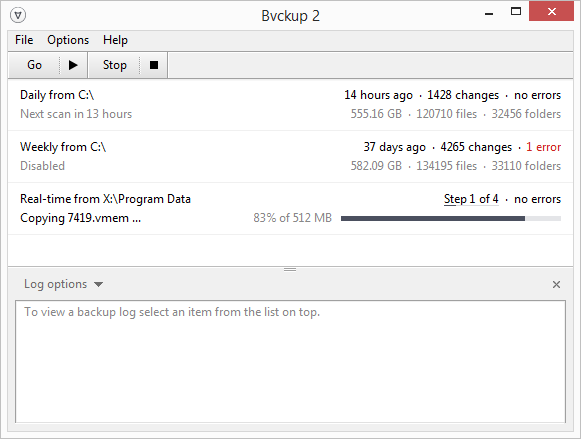
Not sure if you have seen the same but it seems that techs who do server replacement work are using Distributed File System (DFS) to sync the file shares between two servers. This is overkill in my opinion and I recently found a simple lightweight file sync tool called Backvp2 from Switzerland. Now I setup similar shares on the new server then run this software from the new server. Configuring the target and destination are super easy and the syncing happens flawlessly. If there are issues with sync it has handy error codes that made troubleshooting file permission issues simple in a recent migration. I highly recommend it for all techs.
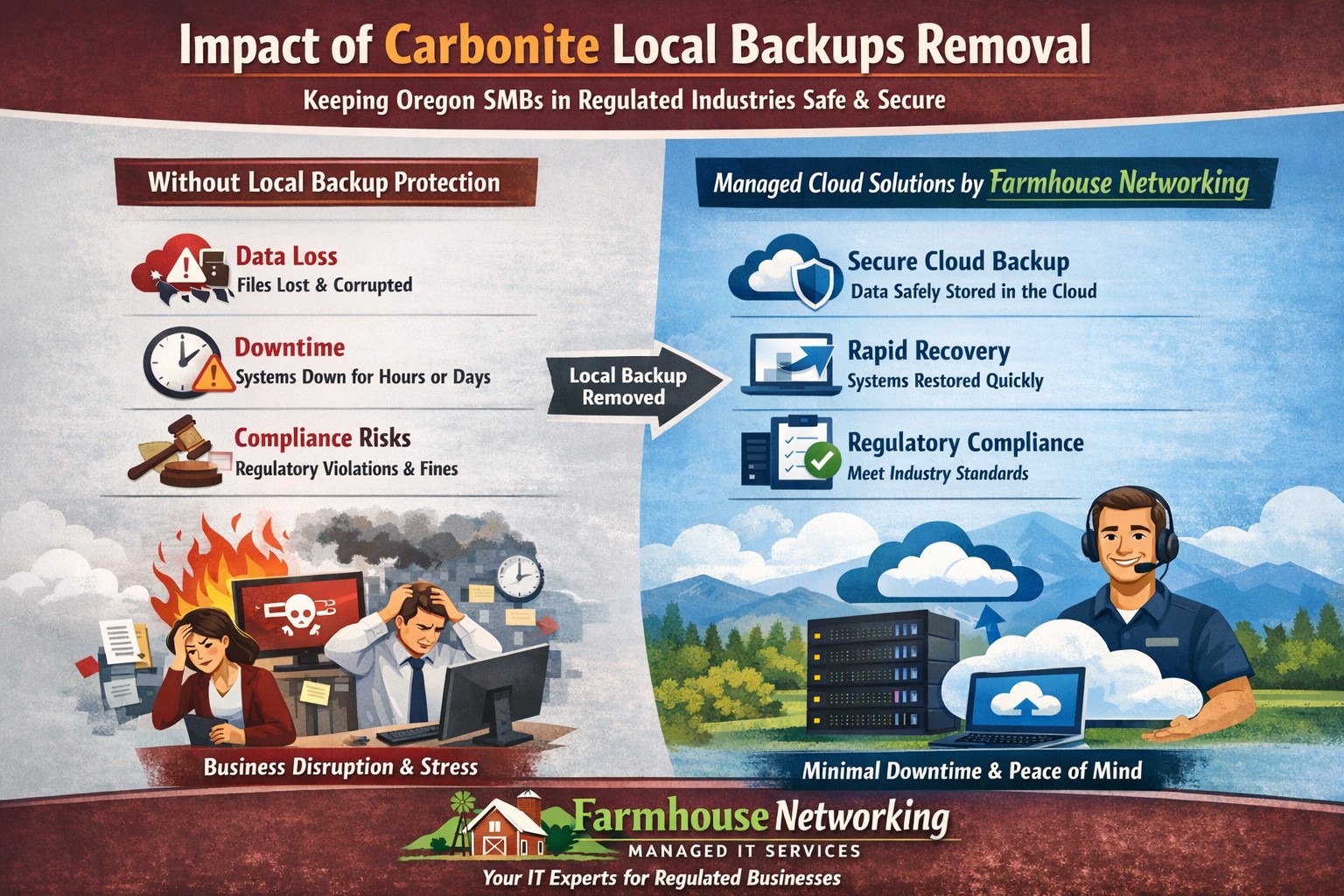
“Carbonite is ending support for the Mirror Image feature on October 15, 2018. Starting October 16, 2017, Carbonite will remove the Mirror Image feature from Plus and Prime accounts on a rolling basis, upon renewal. Mirror Image will be removed from all remaining accounts on the end-of-support date of October 15, 2018. ”
Local Backups
This revelation from Carbonite and the recent one from CrashPlan have left me worried about the future of backup for small business and home users. To have all files stored only in the cloud to me is just foolish. If I have tons of family photos and videos or store a bunch of music on my computer that I am relying on online only backups to keep safe – my recovery time will be weeks instead of hours. This is just not acceptable to me and I have a feeling it would not be to other people either.
If you are using either Carbonite or CrashPlan for backup of your computer and the possibility of massive recovery times is unacceptable to you, then contact us for assistance.
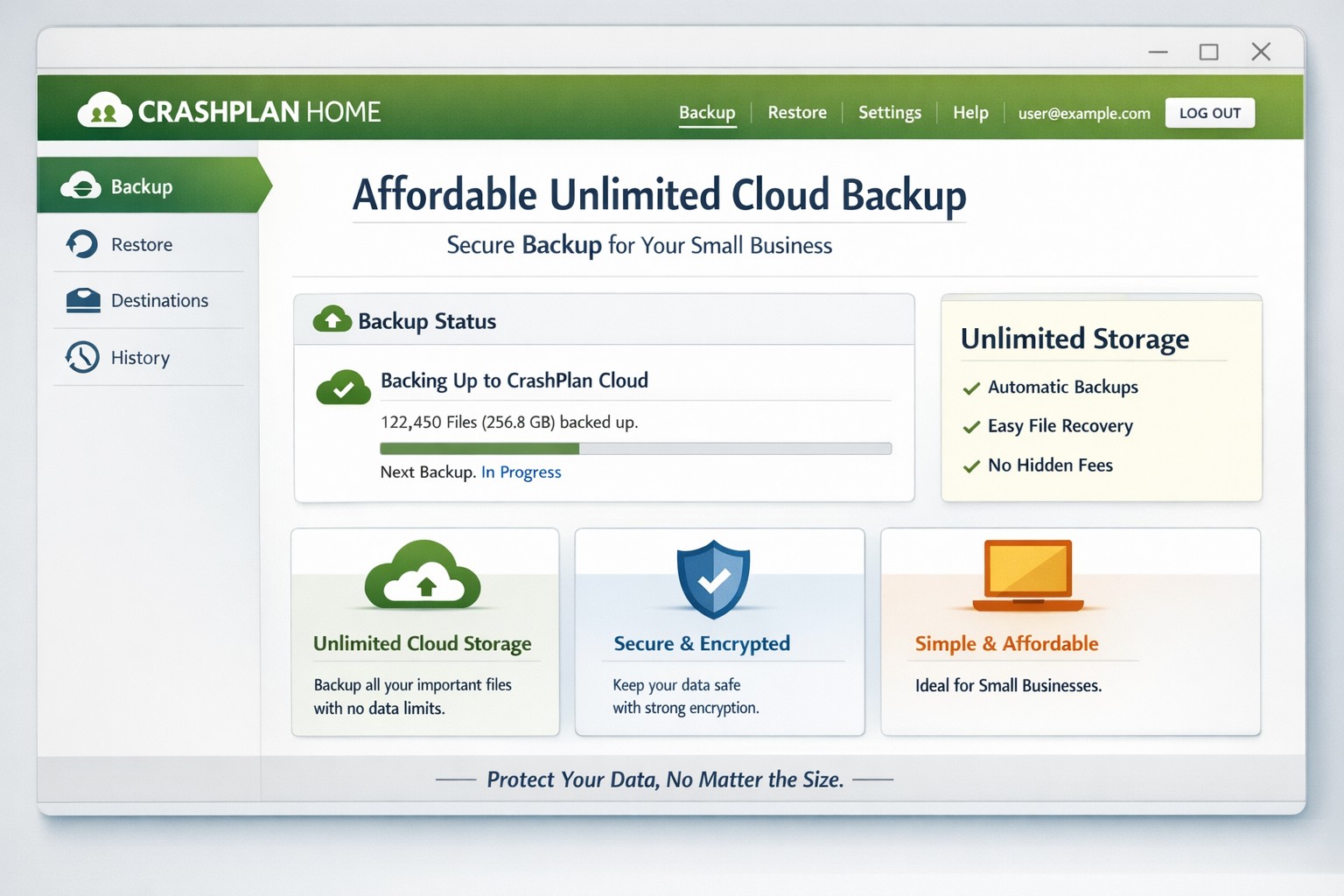
Effective August 22, 2017, Code42 will no longer offer new – or renew – CrashPlan for Home subscriptions, and we will begin to sunset the product over several months. CrashPlan for Home will no longer be available for use starting October 23, 2018.
What alternatives exist?
CrashPlan itself is suggesting that customers move to Carbonite for their personal computer backups. In order to get the same great combination of onsite & offsite backup that CrashPlan users are used to, Farmhouse Networking recommends using Plus package that includes the backup to an external drive. This package is on sale for $25 off the normal yearly cost. Small businesses with only one computer will also find this package to be the most secure way of backing up their important files for the least out-of-pocket costs.
If your business has more than one computer or a server, Farmhouse Networking recommends upgrading to a full business class Backup & Disaster Recovery (BDR) solution with Synology. This provides both the speed of on-site recovery with the resilience of off-site recovery via the cloud. On-site recovery is much simpler with this BDR solution as the device becomes a copy of the main computer or server in the case of failure. This takes recovery time down to minutes instead of days.
If your company is using CrashPlan for backups and are not ready for the move, then contact us for assistance.
Proper care and maintenance of external hard drives keeps small business data secure and ensures reliable backup performance.
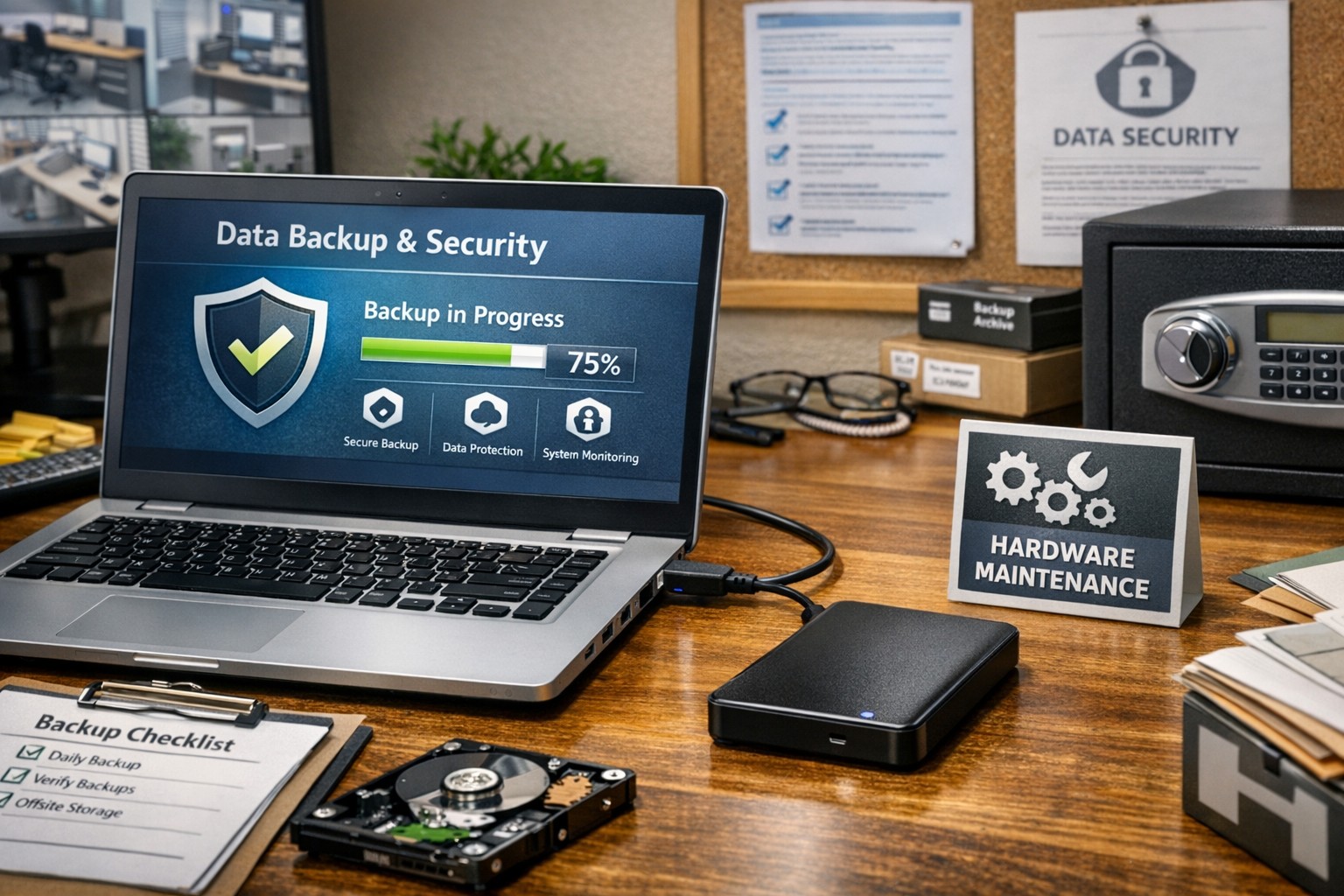
Your external hard drives are more than just storage devices—they’re the backbone of your backup and disaster recovery strategy. Whether you’re safeguarding financial records, client data, or project files, keeping these drives in top condition is crucial to prevent data loss and ensure smooth operations. Yet, many small- to medium-sized businesses (SMBs) neglect proper external hard drive care until it’s too late.
This guide outlines practical steps your business and IT team can take to maintain your external drives, answers common questions, and explains how Farmhouse Networking can help you protect your data investment.
Step-by-Step External Hard Drive Care for Businesses
1. Store Drives Safely and Strategically Keep your external hard drives in a cool, dry environment away from heat sources, direct sunlight, and moisture. Avoid stacking them or placing them near magnets or heavy equipment. A temperature-controlled office with minimal dust exposure reduces the risk of drive failure.
2. Use Regular Backup and Testing Routines Set up scheduled backups (daily, weekly, or monthly) depending on how often your business data changes. Test your backups regularly by restoring sample files to confirm they’re not corrupted. This extra step ensures your data will be recoverable when it truly counts.
3. Avoid Unplugging During Use Never disconnect an external hard drive while it’s transferring data. Doing so can interrupt write processes, causing data corruption or even physical disk damage. Always use the “Safely Remove Hardware” option before unplugging.
4. Protect Against Electrical Surges Use surge protectors or uninterruptible power supplies (UPS) to prevent sudden voltage spikes or power failures from damaging your drives. Power fluctuations are one of the leading causes of hardware failure.
5. Label and Track Your Drives For businesses using multiple backups or rotating drives, label each device clearly with its backup date, purpose, and drive ID. Maintain a simple log so your IT team can easily identify which drive holds which data.
6. Encrypt and Password-Protect Sensitive Data Even if your drives are physically safe, data security remains a top priority. Enable encryption and use strong passwords to protect sensitive company and client information, especially for industries handling confidential data or regulated information.
7. Monitor Drive Health Use disk-monitoring software to check drive health indicators like temperature, bad sectors, or read/write errors. Common tools include CrystalDiskInfo or SMART monitoring utilities—many of which can integrate directly into business IT systems for proactive alerts.
Common Questions About External Hard Drive Maintenance
Q: How often should my business replace external drives? Generally, replace drives every 3–5 years, depending on usage and storage environment. Drives used for daily backups may wear faster than those used occasionally for archiving.
Q: What’s the best file system for business backups? For Windows users, NTFS offers stability and large file support. Cross-platform users (macOS and Windows) may prefer exFAT. The choice depends on your backup software and workflow.
Q: How can I tell if my external hard drive is failing? Warning signs include slower performance, clicking or grinding noises, frequent disconnections, or error messages. At the first sign of trouble, stop using the drive immediately and back up data elsewhere to prevent further damage.
Q: Are SSD external drives better than HDDs? Solid-state drives (SSDs) are faster and more durable (no moving parts), but typically more expensive per gigabyte. SMBs focused on speed and portability often find them worth the investment.
How Farmhouse Networking Can Help
At Farmhouse Networking, we partner with small- and medium-sized businesses to create comprehensive data protection plans that go beyond just devices. Our team offers:
Automated backup solutions that reduce the risk of human error.
Drive health monitoring systems to detect early signs of failure.
Data encryption and security compliance consulting to safeguard sensitive information.
Disaster recovery services that ensure your business can bounce back quickly from any data loss event.
We understand how critical reliable storage is to your operations. Our IT experts can assess your current backup process, recommend appropriate external drives, secure your devices, and set up reliable offsite backups or cloud redundancy.
Keep Your Data Safe — Start Today
External hard drives are a dependable and affordable part of any SMB’s data management strategy, but they require proper care to remain effective. By following the steps above and partnering with a trusted IT service provider like Farmhouse Networking, you can extend the life of your drives, reduce risk, and maintain business continuity.
Ready to strengthen your backup strategy or troubleshoot your current storage setup? Email support@farmhousenetworking.com today to learn how Farmhouse Networking can help protect your business from data loss.
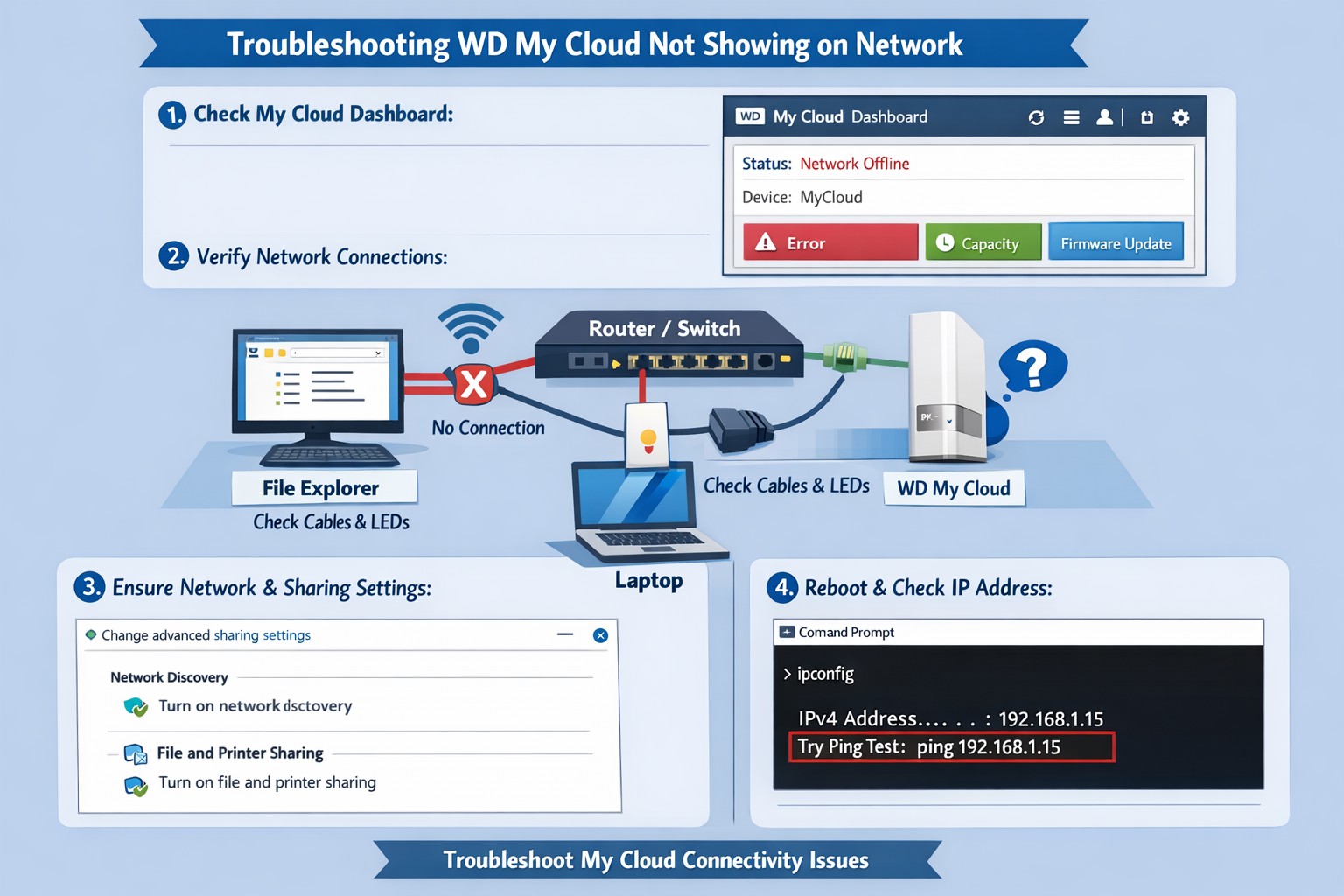
Recently took over an account from another tech and was informed by the client that their Western Digital MyCloud drive was unreachable and they had not been able to access their files shared their with the computers in the office for some time. Since the MyCloud is just a simplified Network Attached Storage (NAS) device for the home / SMB market, I decided to go onsite and find out what was causing the issue.
How to find a missing MyCloud
I first investigated the shortcuts that were sitting on the desktop to figure out what was going wrong with the drive or if there were some bread crumbs as to where it was previously. Found one called Dashboard which pointed to an IP address on their current subnet that went nowhere – this was likely the former IP address of the device. Found a shortcut to the “Public” folder which pointed to an IP address that was on another subnet than theirs – this was likely from a setup before another network change and had not been removed since then. Found another shortcut to the “Public” folder which pointed to the same IP address on their current network as the Dashboard shortcut, so this confirmed that this was the last known IP address.
Ran a network scan using my personal favorite, SoftPerfect Network Scanner, to discover what was on the current subnet and if the MyCloud was still functional at another IP address. Found that the IP address for the device had changed to another similar address, so figured that it was getting its IP address from DHCP and when the old address lease ran out it just grabbed another one from the router. Checked the router and found that indeed the DHCP table contained the IP address for the device, so added a DHCP reservation to the router for that devices MAC address mapping it to the old IP address to make the broken shortcuts work again. Tested opening the dashboard and “Public” folders successfully which thankfully still had all of their information intact.
The final thing to do was to correctly set permissions within the device for each of the users and corresponding user folders within the device to allow them to connect and “backup” their documents to the device like they were used to. Although I would not recommend using this type of device to any of my clients, it was good to get this company backup up and running successfully. If your company is using Western Digital MyCloud drive for shared file access or are considering adding file shares to your network, then contact us for assistance.
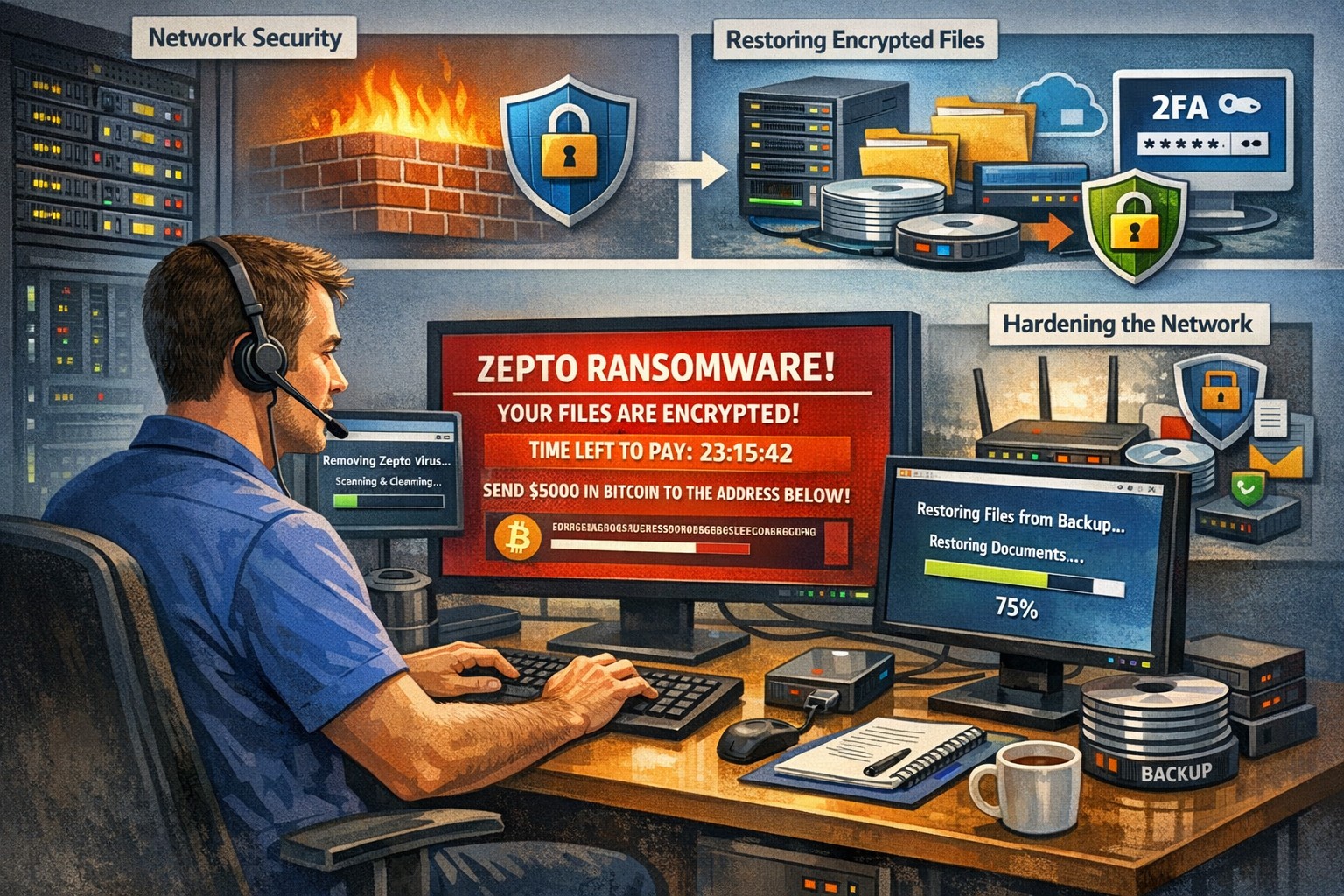
Recently had a client get infected by the Zepto variant of crypto malware without even knowing it. The call originated when they could not find some of the shortcuts they were used to seeing on the desktop. I began to search for the shortcuts and found some files with the .ZEPTO extension on them. A quick Google search found that this was indeed an infection of crypto malware but something was different about this one – there was no ransom note or instructions on where to send the money for the decryption key. After investigating the problem it seems that the user got an image file that they could not open and forgot about. They noticed some slow down of the computer the day that these files indicated that they were created but nothing else presented itself that day, so they dismissed it.
So here is breakdown of what actually happened. They were protected by Norton Antivirus and when the infection began to spread across the network (only a couple files were affected there) it removed the infection and left the damage done by Zepto encryption of some of the files in place with no notice to the user about what was done. The customer had a partial backup from a poorly designed backup scheme that was able to recover some of the files, which left them in a state of not knowing what was missing from their local file directories. Needless to say that I will be recommending a different antivirus and backup / recovery plan for them going forward.
If your company is not sure about whether your antivirus software is capable of handling this type of situation properly or are not sure about the status of your backup / recovery procedures, then contact us for assistance.
And God will generously provide all you need. Then you will always have everything you need and plenty left over to share with others. As the Scriptures say,
“They share freely and give generously to the poor. Their good deeds will be remembered forever.”
For God is the one who provides seed for the farmer and then bread to eat. In the same way, he will provide and increase your resources and then produce a great harvest of generosity in you. - 2 Corinthians 9:8-10
We use cookies to ensure that we give you the best experience on our website. If you continue to use this site we will assume that you are happy with it.