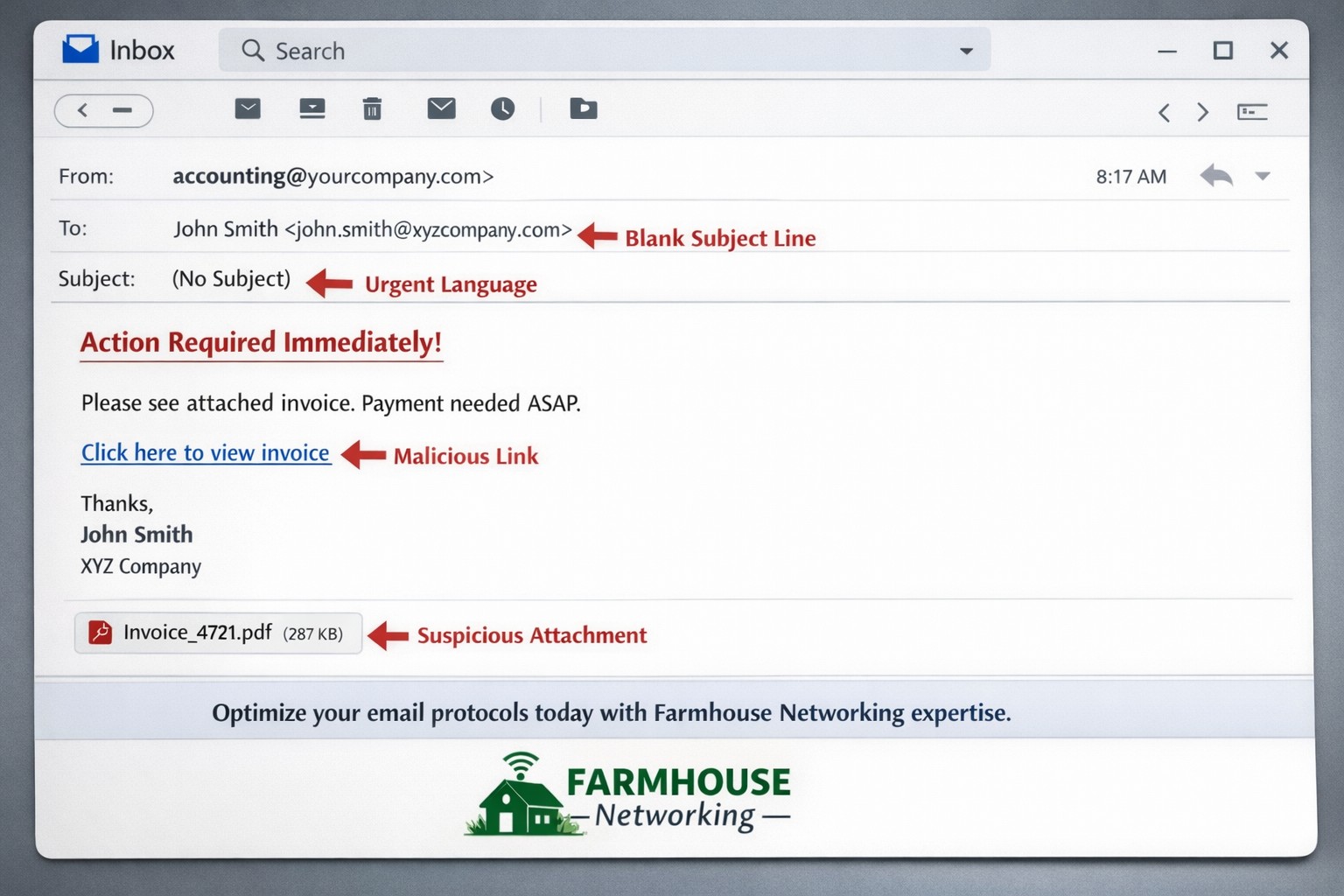
Here is a recent email that I received from a “hacker” that was threatening to expose some secrets. It was an obvious fake email, but I wanted to take the time to educate on how to know a fake when you receive one:
Hacker Email Exposed
Strange Email Address: This email comes from “auf@cesco.com.br” which is an address unknown to me and the domain itself ends in BR which stands for Brazil which again I don’t do business in Brazil so why would someone from there be emailing me.
Poor English: It starts out with the over-friendly greeting and continues with “I hack your computer” then just doesn’t stop. This was likely something typed into Google Translate then pasted into an email.
They Have Everything: Unless you really have something to hide, then this should not scare you. You need to assume that anything that you post online is public information anyways – there are no secrets on Facebook.
Invalid Help: They offer to help with acquiring Bitcoin to pay them in then offer a site to find local ATMs that have this feature. They have no understanding of the area or what local banking services are available. If they know everything about me then they know where I live and could easily look up the local economic structure.
Internet Extortion: They are using extortion tactics to try and scare me into action. They are trying to “sell” me information security for $120, but if I gave into their demands then my email address would become an even more valuable asset as they would have someone they could regularly extort for funds.
What To Do
Unless you have something to hide, ignore the threats. If you do have something to hide then I suggest you quit so that no one can have anything against you.
Forward these emails to me. Include the “header” information by copying it from the File > Properties menu in Outlook as this will help to track down where they are from.
Farmhouse Networking will alert the proper authorities about the malicious activity to help shut these scammers down.
If your company is receiving tons of SPAM or hacker email, then contact us for assistance.
Ransomware attacks continue to spread around the world this weekend, after the initial damage inflicted on healthcare organizations in Europe on Friday.
The criminals responsible for exploiting the Eternal Blue flaw haven’t yet been identified, but up to 100 countries have hit with WannaCry ransomware, with Russia, Ukraine and Taiwan among the top targets.
The ransomware first appeared in March, and is using the NSA 0-day Eternal Blue and Double Pulsar exploits first made available earlier this year by a group called the Shadow Brokers. The initial spread of the malware was through email, including fake invoices, job offers and other lures with a .zip file that initiates the WannaCry infection. The worm-like Eternal Blue can exploit a flaw in the Server Message Block (SMB) in Microsoft Windows, which can allow remote code execution. This flaw was patched in Microsoft’s March 2017 update cycle, but many organizations had not run the patch or were using unsupported legacy technology like XP.
What’s New
Today, Microsoft has released emergency security patches to defend against the malware for unsupported versions of Windows, including XP and Server 2003.
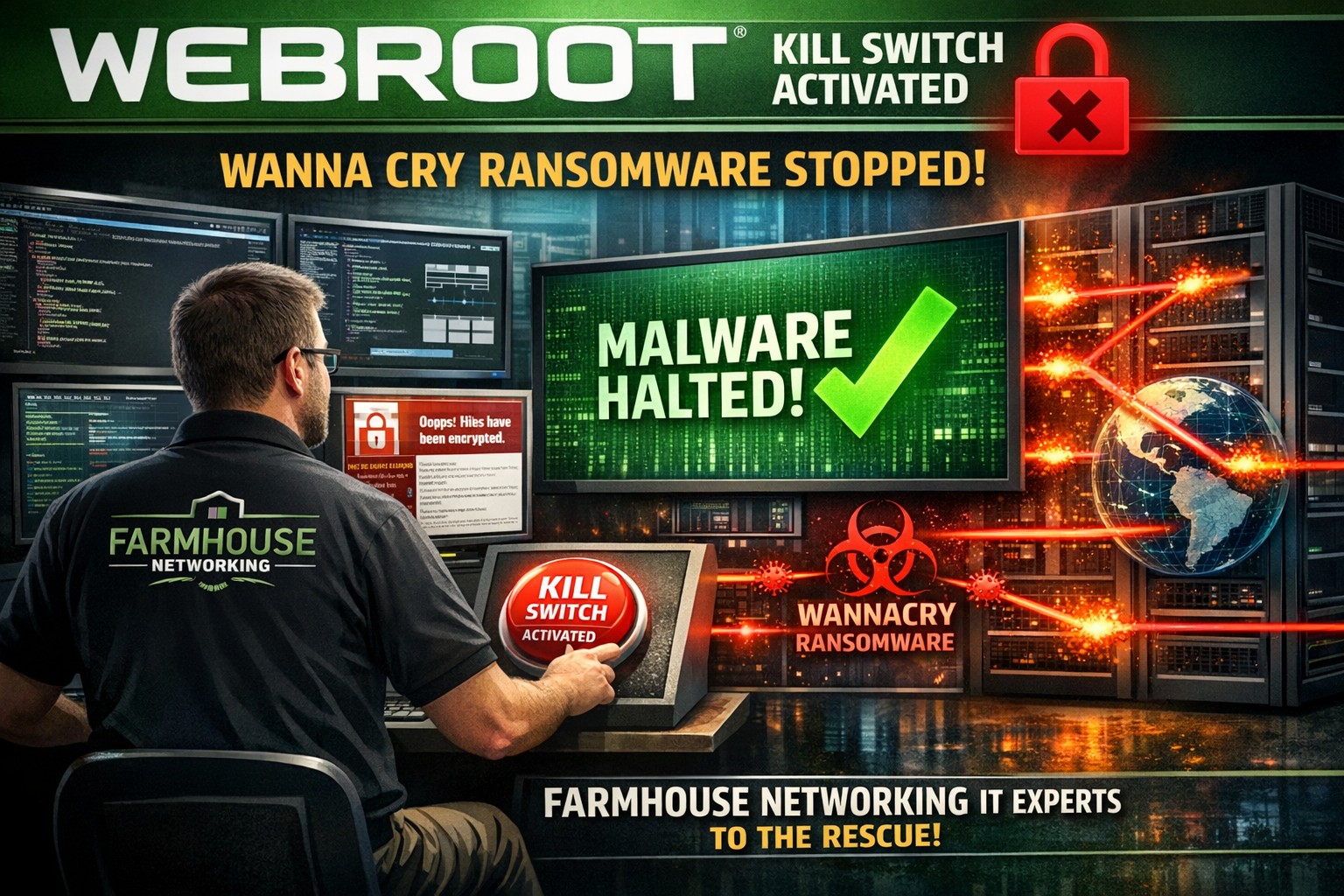
Overnight and today, it has become clear that a kill switch was included in the code. When it detects a specific web domain exists—created earlier today—it halts the spread of malware. You can learn more at The Register.
As a Webroot customer, are you protected? YES.
Webroot SecureAnywhere does currently protect you from WannaCry ransomware.
In simple terms, although this ransomware is currently causing havoc across the globe, the ransomware itself is similar to what we have seen before. It’s the advanced delivery mechanism that has unfortunately caught many organizations off guard.
In addition to deploying Webroot SecureAnywhere as part of a strong endpoint control strategy, it is essential you continue to keep your systems up-to-date on the latest software versions and invest in user education on the dangers of phishing, ransomware, social engineering and other common attack vectors.
If you have any questions about your Webroot deployment, reach out to our Support Team now.
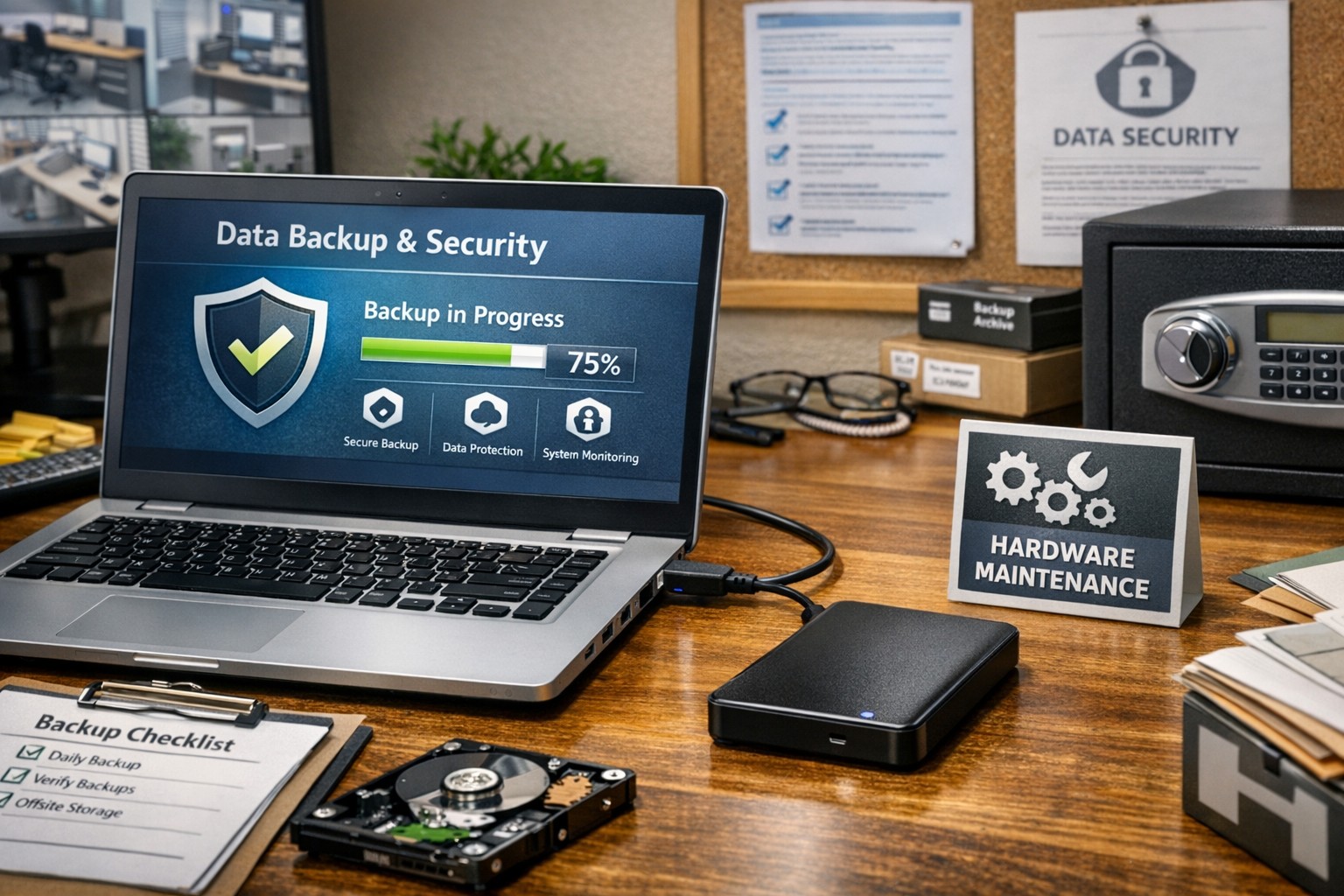
Proper care and maintenance of external hard drives keeps small business data secure and ensures reliable backup performance.
Your external hard drives are more than just storage devices—they’re the backbone of your backup and disaster recovery strategy. Whether you’re safeguarding financial records, client data, or project files, keeping these drives in top condition is crucial to prevent data loss and ensure smooth operations. Yet, many small- to medium-sized businesses (SMBs) neglect proper external hard drive care until it’s too late.
This guide outlines practical steps your business and IT team can take to maintain your external drives, answers common questions, and explains how Farmhouse Networking can help you protect your data investment.
Step-by-Step External Hard Drive Care for Businesses
1. Store Drives Safely and Strategically Keep your external hard drives in a cool, dry environment away from heat sources, direct sunlight, and moisture. Avoid stacking them or placing them near magnets or heavy equipment. A temperature-controlled office with minimal dust exposure reduces the risk of drive failure.
2. Use Regular Backup and Testing Routines Set up scheduled backups (daily, weekly, or monthly) depending on how often your business data changes. Test your backups regularly by restoring sample files to confirm they’re not corrupted. This extra step ensures your data will be recoverable when it truly counts.
3. Avoid Unplugging During Use Never disconnect an external hard drive while it’s transferring data. Doing so can interrupt write processes, causing data corruption or even physical disk damage. Always use the “Safely Remove Hardware” option before unplugging.
4. Protect Against Electrical Surges Use surge protectors or uninterruptible power supplies (UPS) to prevent sudden voltage spikes or power failures from damaging your drives. Power fluctuations are one of the leading causes of hardware failure.
5. Label and Track Your Drives For businesses using multiple backups or rotating drives, label each device clearly with its backup date, purpose, and drive ID. Maintain a simple log so your IT team can easily identify which drive holds which data.
6. Encrypt and Password-Protect Sensitive Data Even if your drives are physically safe, data security remains a top priority. Enable encryption and use strong passwords to protect sensitive company and client information, especially for industries handling confidential data or regulated information.
7. Monitor Drive Health Use disk-monitoring software to check drive health indicators like temperature, bad sectors, or read/write errors. Common tools include CrystalDiskInfo or SMART monitoring utilities—many of which can integrate directly into business IT systems for proactive alerts.
Common Questions About External Hard Drive Maintenance
Q: How often should my business replace external drives? Generally, replace drives every 3–5 years, depending on usage and storage environment. Drives used for daily backups may wear faster than those used occasionally for archiving.
Q: What’s the best file system for business backups? For Windows users, NTFS offers stability and large file support. Cross-platform users (macOS and Windows) may prefer exFAT. The choice depends on your backup software and workflow.
Q: How can I tell if my external hard drive is failing? Warning signs include slower performance, clicking or grinding noises, frequent disconnections, or error messages. At the first sign of trouble, stop using the drive immediately and back up data elsewhere to prevent further damage.
Q: Are SSD external drives better than HDDs? Solid-state drives (SSDs) are faster and more durable (no moving parts), but typically more expensive per gigabyte. SMBs focused on speed and portability often find them worth the investment.
How Farmhouse Networking Can Help
At Farmhouse Networking, we partner with small- and medium-sized businesses to create comprehensive data protection plans that go beyond just devices. Our team offers:
Automated backup solutions that reduce the risk of human error.
Drive health monitoring systems to detect early signs of failure.
Data encryption and security compliance consulting to safeguard sensitive information.
Disaster recovery services that ensure your business can bounce back quickly from any data loss event.
We understand how critical reliable storage is to your operations. Our IT experts can assess your current backup process, recommend appropriate external drives, secure your devices, and set up reliable offsite backups or cloud redundancy.
Keep Your Data Safe — Start Today
External hard drives are a dependable and affordable part of any SMB’s data management strategy, but they require proper care to remain effective. By following the steps above and partnering with a trusted IT service provider like Farmhouse Networking, you can extend the life of your drives, reduce risk, and maintain business continuity.
Ready to strengthen your backup strategy or troubleshoot your current storage setup? Email support@farmhousenetworking.com today to learn how Farmhouse Networking can help protect your business from data loss.
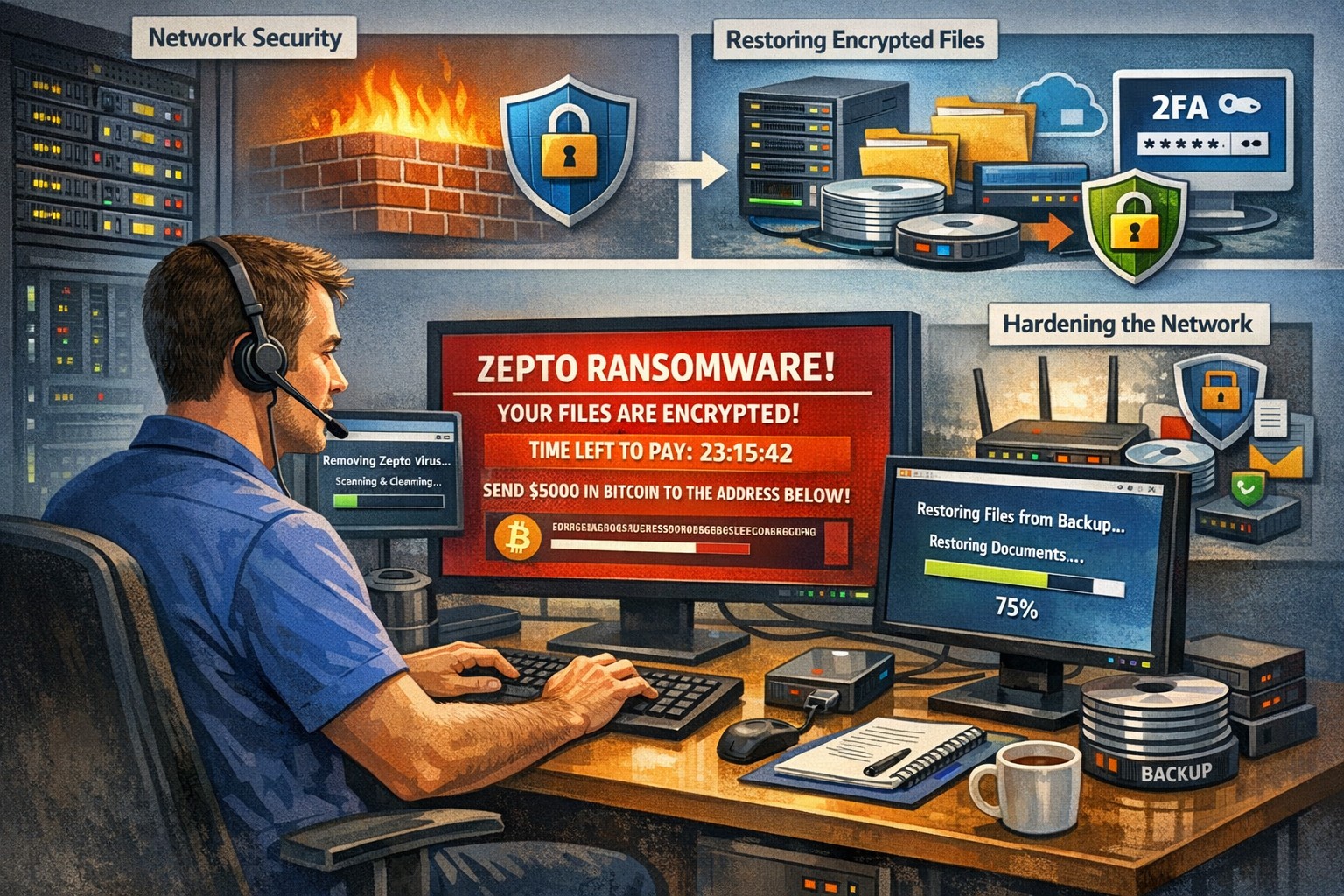
Recently had a client get infected by the Zepto variant of crypto malware without even knowing it. The call originated when they could not find some of the shortcuts they were used to seeing on the desktop. I began to search for the shortcuts and found some files with the .ZEPTO extension on them. A quick Google search found that this was indeed an infection of crypto malware but something was different about this one – there was no ransom note or instructions on where to send the money for the decryption key. After investigating the problem it seems that the user got an image file that they could not open and forgot about. They noticed some slow down of the computer the day that these files indicated that they were created but nothing else presented itself that day, so they dismissed it.
So here is breakdown of what actually happened. They were protected by Norton Antivirus and when the infection began to spread across the network (only a couple files were affected there) it removed the infection and left the damage done by Zepto encryption of some of the files in place with no notice to the user about what was done. The customer had a partial backup from a poorly designed backup scheme that was able to recover some of the files, which left them in a state of not knowing what was missing from their local file directories. Needless to say that I will be recommending a different antivirus and backup / recovery plan for them going forward.
If your company is not sure about whether your antivirus software is capable of handling this type of situation properly or are not sure about the status of your backup / recovery procedures, then contact us for assistance.
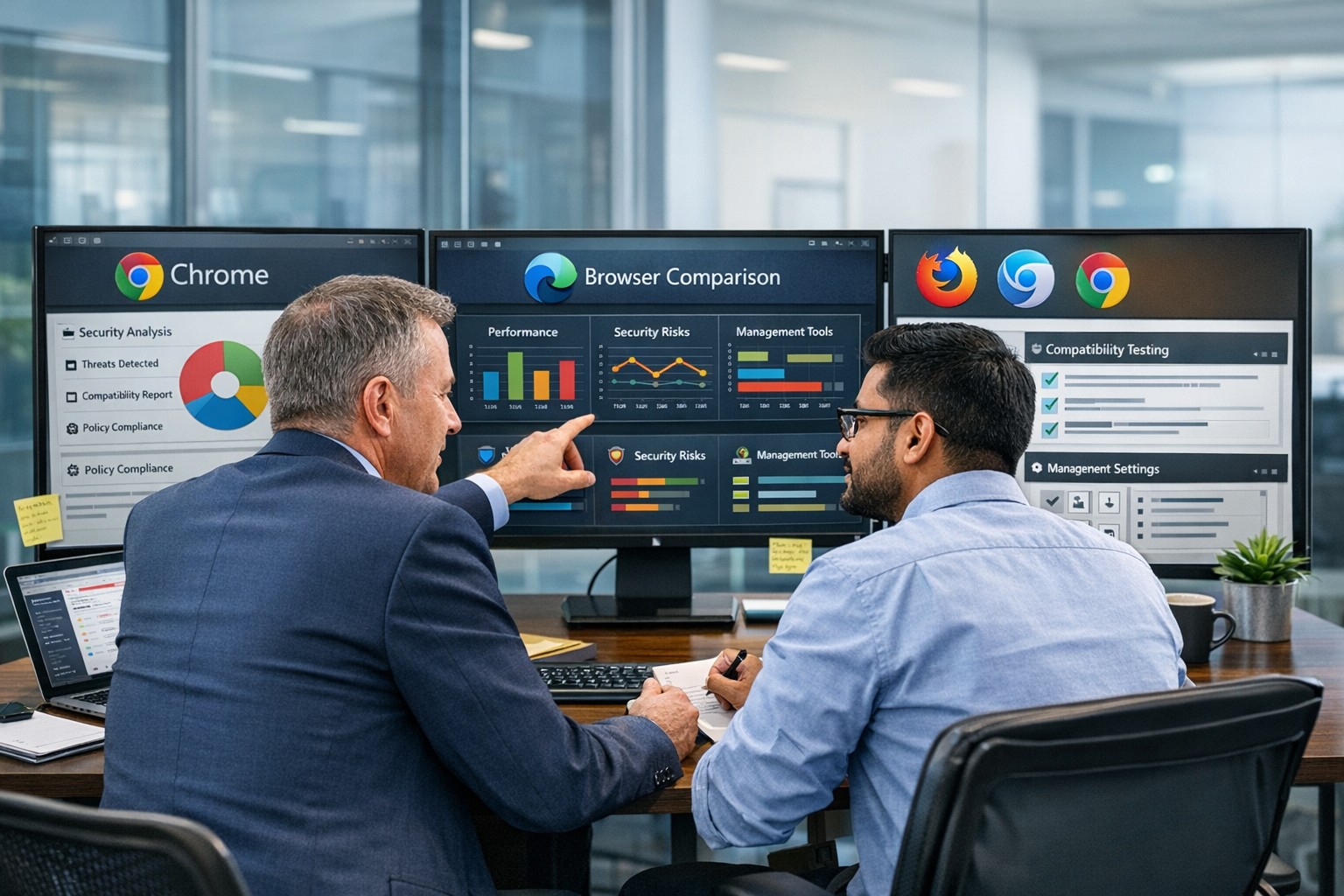
“What’s the best browser?” sounds like a simple IT question, but it’s really a strategic decision about security, productivity, and supportability. The right answer is not one perfect browser for everyone, but a deliberate choice based on your tools, risk profile, and how your team actually works.
Why “Best Browser” Is the Wrong Question
Instead of asking “Which browser is best?”, it’s more useful to ask “Which browser is best for our stack and our security model?” Key factors include:
Existing ecosystem:
Microsoft 365 / Windows-centric shops often gain the most from Microsoft Edge because of tight integration and management tooling.
Google Workspace organizations often benefit from Chrome’s deep integration and extension ecosystem.
Security and compliance:
Enterprise features like centralized policy management, password monitoring, tracking protection, and secure profiles are now standard expectations, not bonuses.
Hardware and performance:
Older workstations may perform better with leaner browsers like Firefox or optimized Chromium-based builds.
In practice, most modern businesses standardize on one primary browser, with one backup for special use cases (e.g., legacy apps).
Practical Action Steps for Owners and IT
Here’s a concrete, owner-level plan you can hand to your IT team.
Define your browser strategy in plain language
Decide: “We will standardize on Browser X, with Browser Y as backup for legacy/edge cases.”
Align that choice with your core platform (Microsoft 365 vs Google Workspace vs mixed).
Inventory your current reality
Ask IT to audit:
Which browsers are currently installed
Which line-of-business apps require specific browsers (including any that still need “Internet Explorer mode”)
Add-ons and extensions in use, especially anything touching passwords or sensitive data.
Evaluate security and management capabilities
Have IT compare your candidate browsers on:
Preconfigured favorites/portals for key business apps
Profile separation (e.g., work profile vs personal) where supported
Remove or deprecate unused/unsupported browsers to reduce attack surface.
Optimize for productivity
Have IT:
Pre-load extensions that actually improve work (password managers, SSO helpers, approved collaboration tools).
Configure PDF handling, “new tab” layouts, and default search engines to match how your team works.
Train your staff
Short, focused training on:
Which browser to use for what
How to spot dangerous extensions and phishing warnings
How to use profiles or sign-in correctly for business accounts
Review annually
At least once a year, have IT re-check: security features, management capabilities, and compatibility with your evolving app stack.
Common Client Questions (with Owner-Friendly Answers)
Q1: Why can’t staff just use whatever browser they like?
A: Uncontrolled browser choice complicates security, support, and compliance. Standardizing gives IT one set of policies, one update path, and a predictable user experience to support.
Q2: Is Chrome always the safest choice because it’s popular?
A: Chrome is powerful and widely used, but popularity doesn’t automatically mean “safest.” Enterprise security depends more on how the browser is managed, what ecosystem you’re in, and which controls are enforced.
Q3: We’re a Microsoft 365 shop. Should we switch to Edge?
A: Edge often makes sense in a Microsoft-first environment because it integrates tightly with Windows, Microsoft 365, and endpoint management tools, and even supports Internet Explorer mode for legacy apps.
Q4: We use Google Workspace. Do we have to use Chrome?
A: You don’t have to, but Chrome typically delivers the smoothest experience and strongest management story in a Google-centric stack. Other browsers can work, but may lack some admin or integration capabilities.
Q5: Is it okay to run multiple browsers?
A: Yes—but with intent. Many businesses standardize on one browser for daily work and keep a second, controlled browser for specialized or legacy applications, with clear rules about when to use each.
How Farmhouse Networking Can Help
Farmhouse Networking can guide you from “random browser chaos” to a secure, documented browser strategy that matches your infrastructure and risk profile.
Here’s how we support owners and their IT teams:
Browser strategy & selection
Analyze your environment (Windows vs macOS, Microsoft 365 vs Google Workspace, on-prem vs cloud apps) and recommend a primary and secondary browser strategy.
Hardened configuration & deployment
Design and implement secure, centrally managed browser configurations: policies, extensions, update channels, and integration with your identity and endpoint management tools.
Legacy and line-of-business app support
Identify applications that require specific engines or “IE mode” and ensure they are handled cleanly without weakening the overall security posture.
Staff training and documentation
Create simple, branded “Which browser do I use?” guides and short trainings so your team knows exactly what to do, reducing tickets and confusion.
Ongoing monitoring and review
Periodic checkups to adjust policies as browsers evolve, new threats emerge, or your stack changes.
If you’re ready to turn browser choice from an ad-hoc habit into a secure, productive standard for your business, Farmhouse Networking can lead the process and support your IT team end to end. Email support@farmhousenetworking.com for more information about how Farmhouse Networking can help improve your business.
And God will generously provide all you need. Then you will always have everything you need and plenty left over to share with others. As the Scriptures say,
“They share freely and give generously to the poor. Their good deeds will be remembered forever.”
For God is the one who provides seed for the farmer and then bread to eat. In the same way, he will provide and increase your resources and then produce a great harvest of generosity in you. - 2 Corinthians 9:8-10
We use cookies to ensure that we give you the best experience on our website. If you continue to use this site we will assume that you are happy with it.