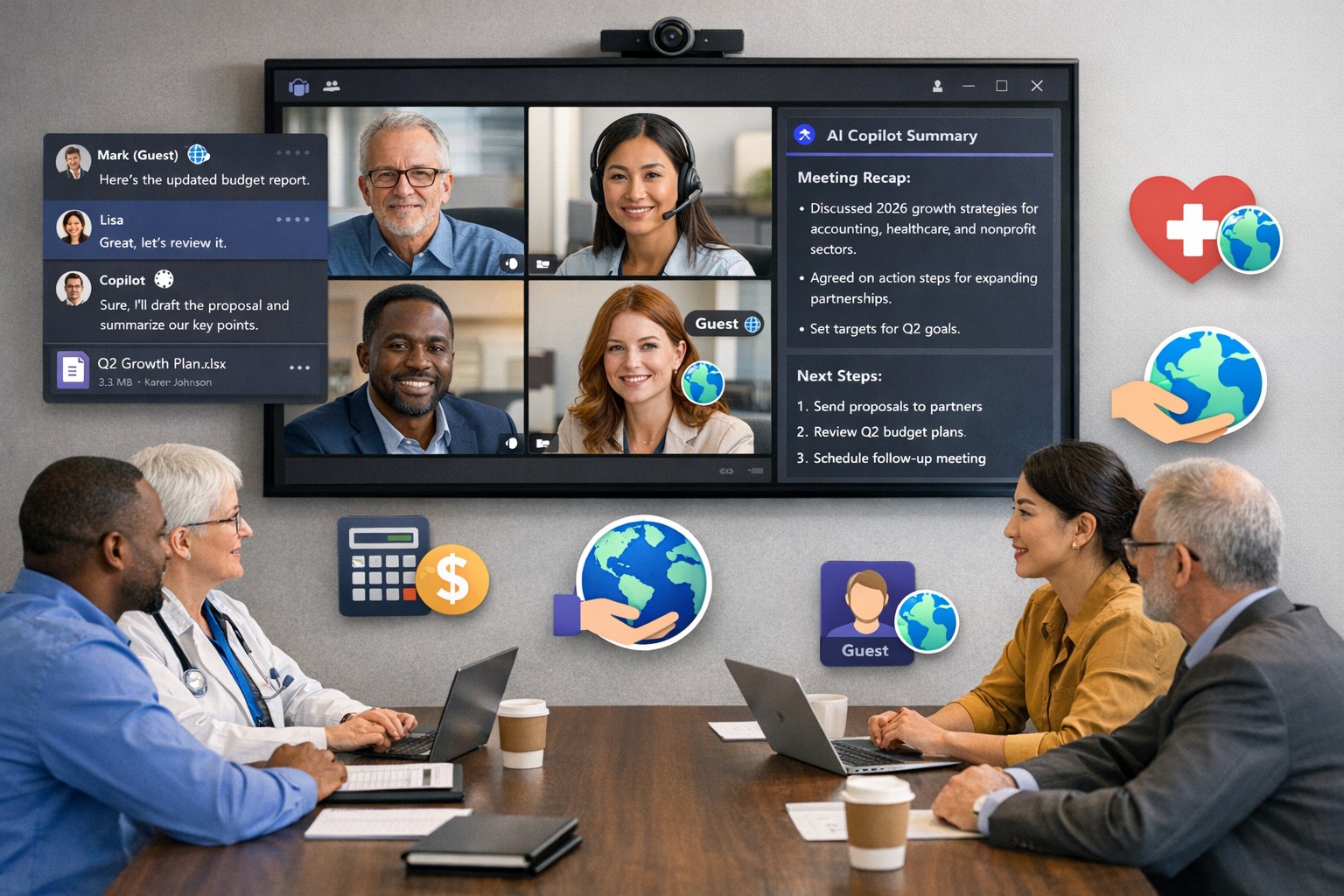
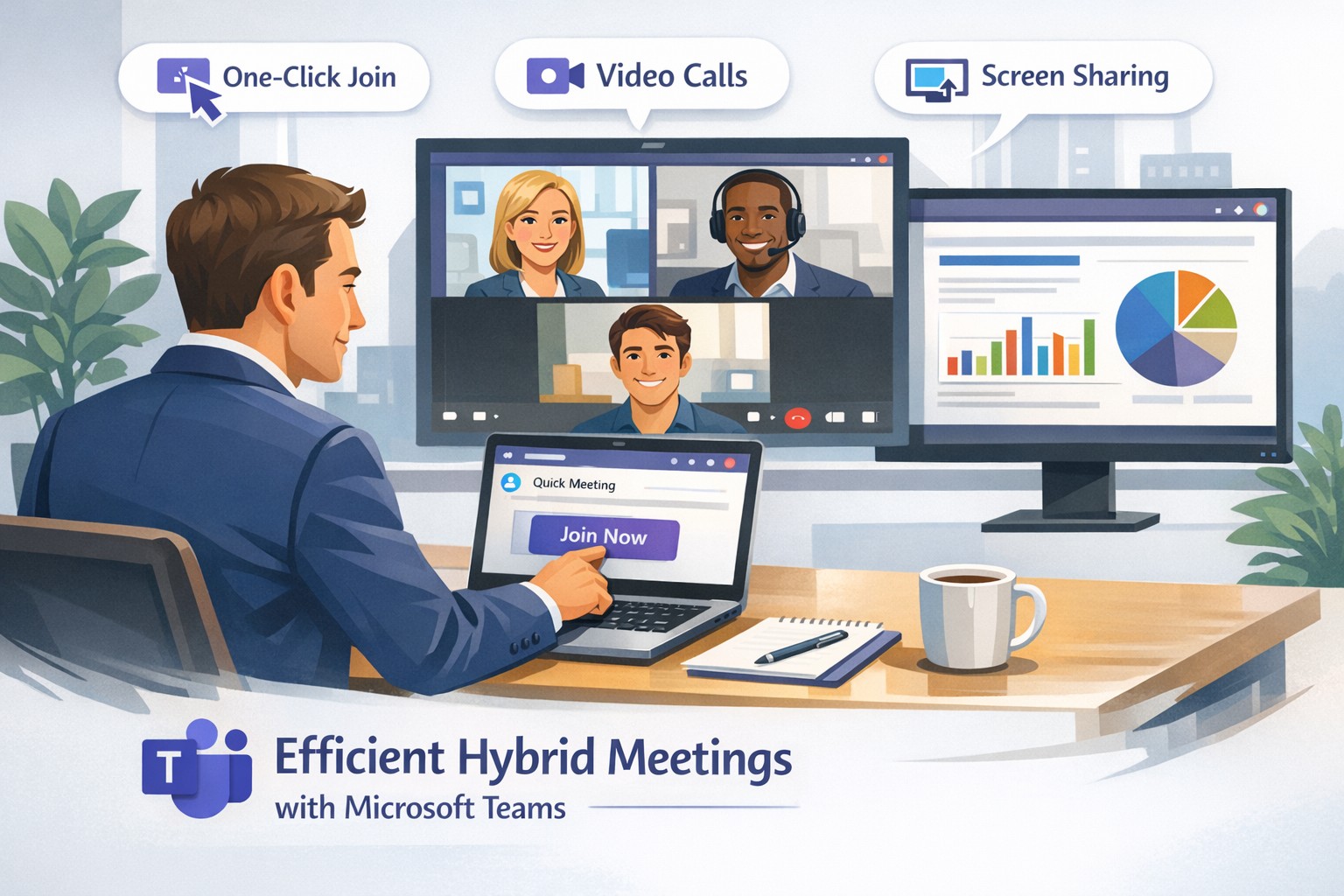
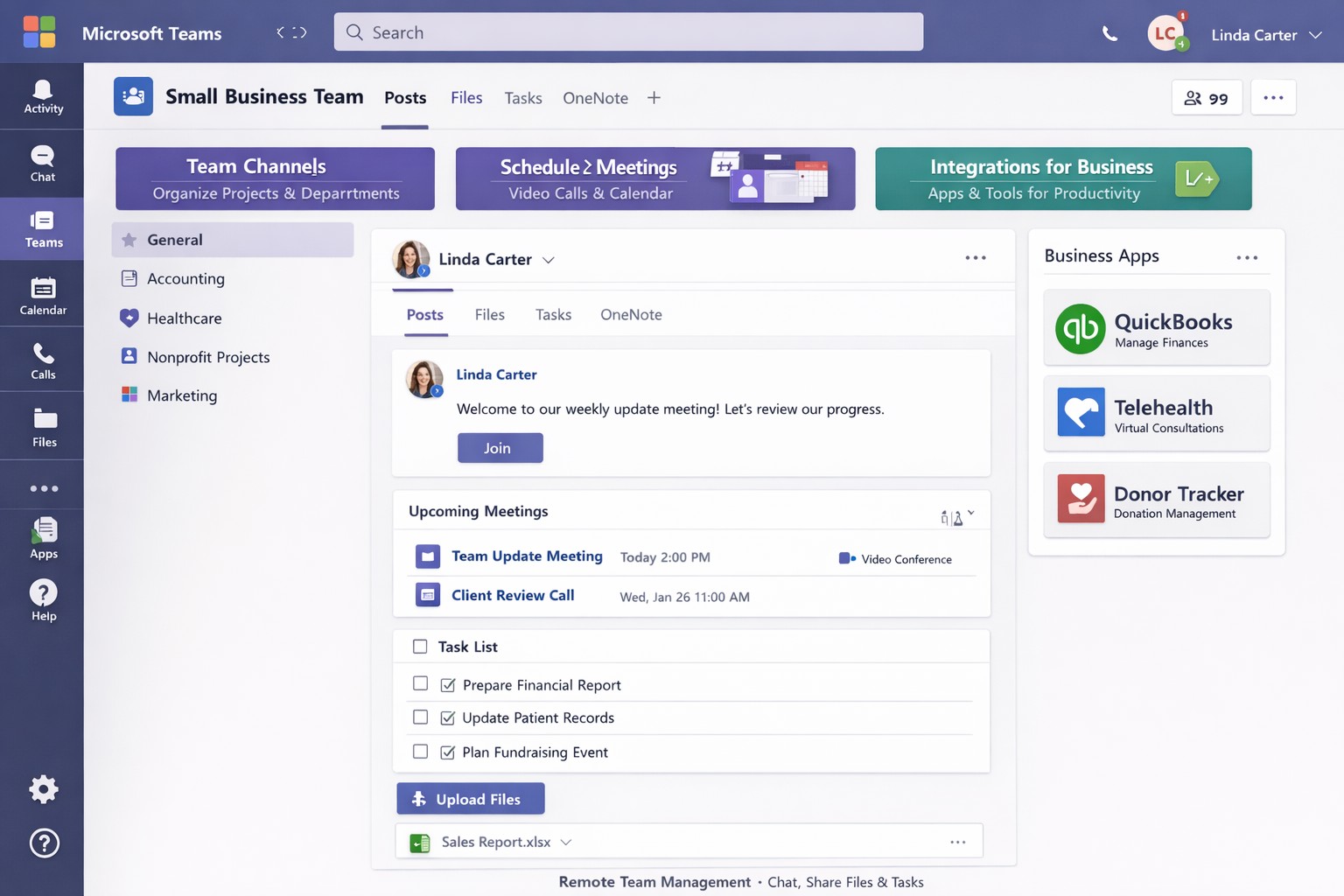
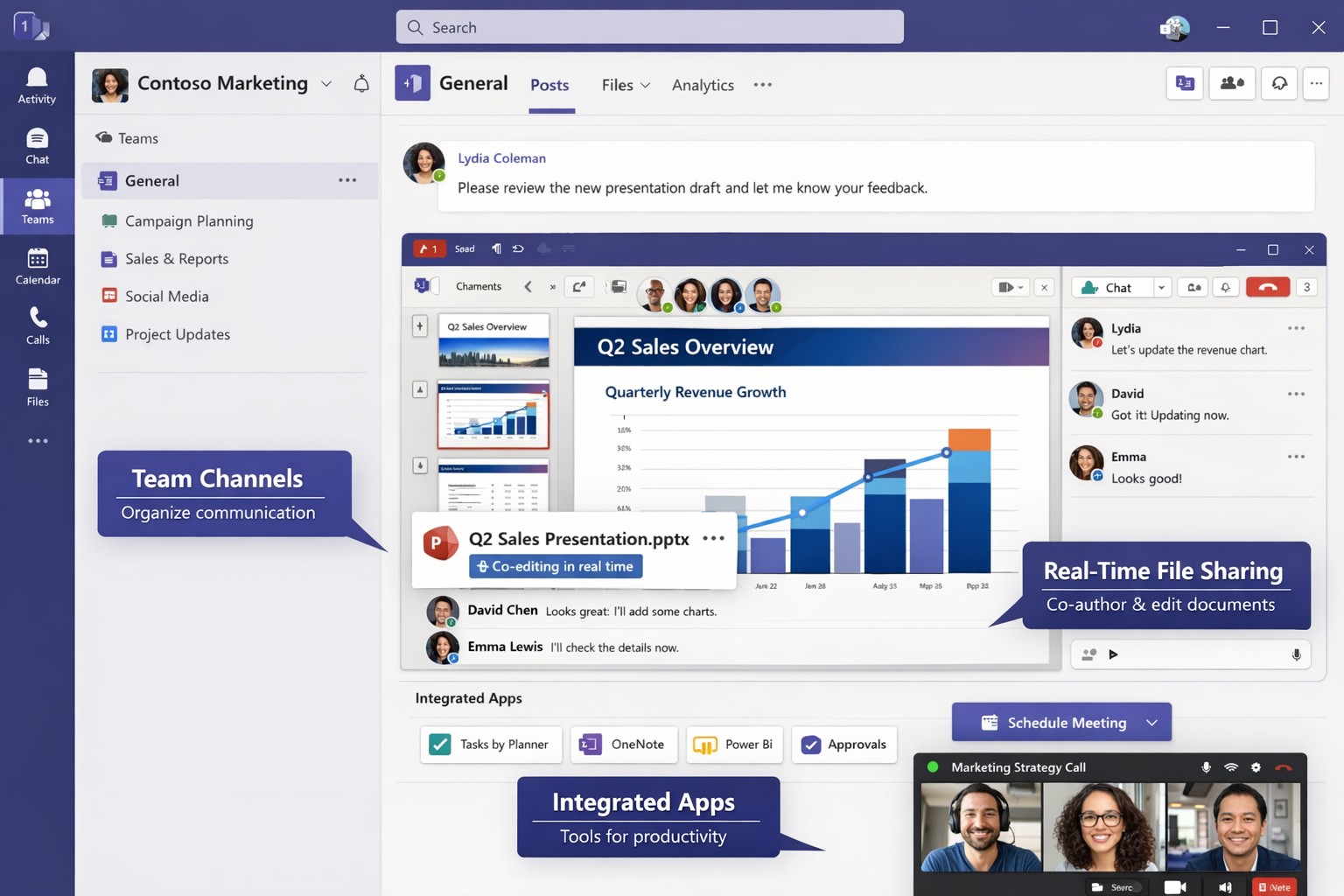
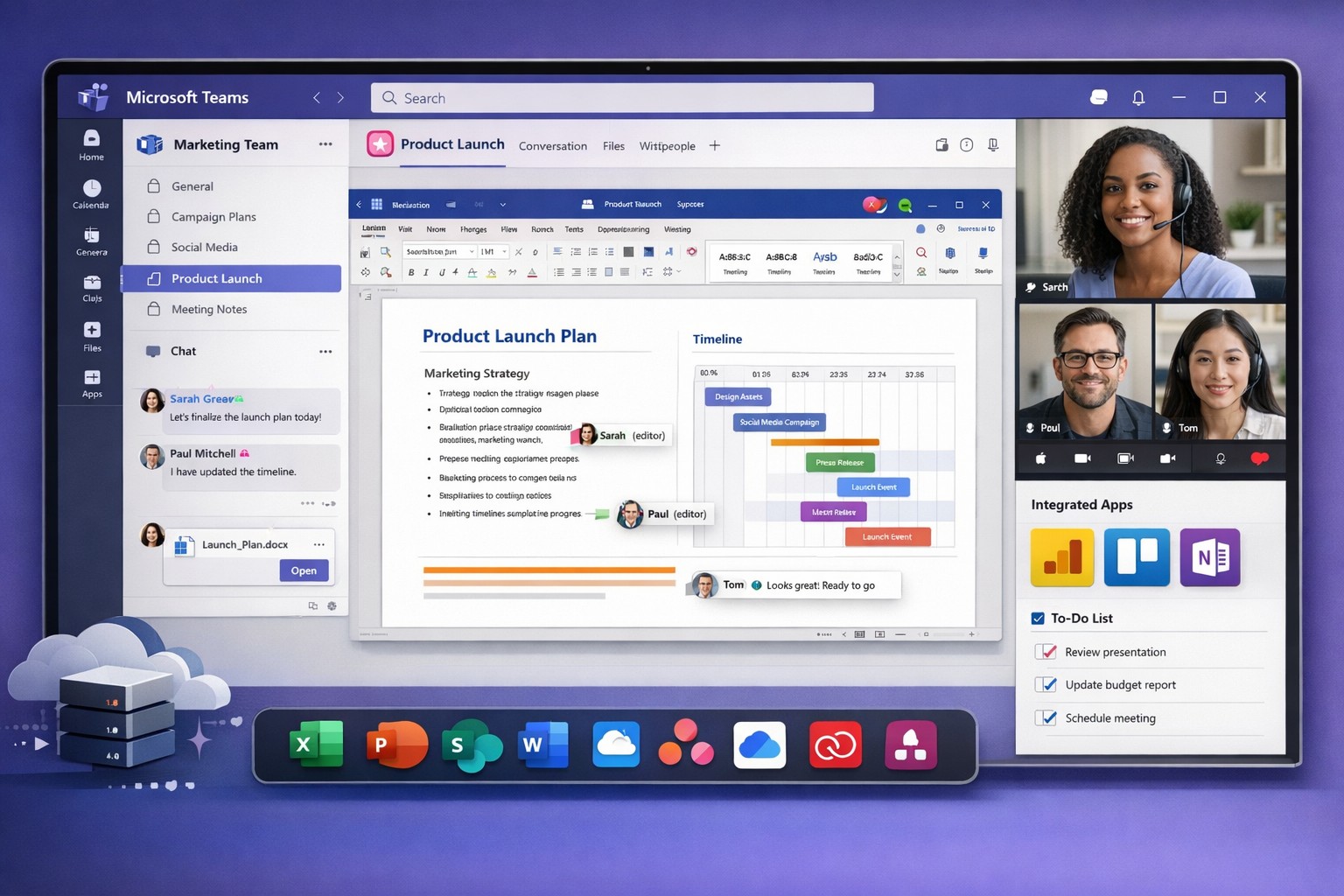
Scale your business: Unlock Microsoft Teams collaboration expansion with AI recaps and guest access.
Business owners face a constant challenge: keeping distributed teams aligned amid hybrid work and external partnerships. Microsoft Teams’ 2026 updates—like AI-powered recaps, email-to-chat, and smarter hybrid meetings—unlock seamless expansion of collaboration without tool fragmentation.
Key 2026 Teams Features for Growth
Teams now bridges internal and external comms via email invites, letting anyone join chats as temporary guests while staying compliant. Copilot integrates directly for chat summaries, task assignments, and decision highlights, cutting admin time. Hybrid upgrades include AI voice isolation, speaker recognition in rooms, and audio recaps so absentees catch up fast.
These tools reduce context-switching, boost inclusivity, and handle vendor or client coordination effortlessly—ideal for accounting firms tracking audits, healthcare practices managing referrals, or charities syncing volunteers.
Action Steps for Business Owners and IT
Expand collaboration systematically. Follow these steps:
Assess Needs: Audit current usage—survey teams on pain points like external email chains or meeting drop-offs. Prioritize hybrid features if >30% remote.
Upgrade Licensing: Switch to Teams Premium or Microsoft 365 E5 for Copilot, AI recaps, and guest controls. IT verifies via admin center; budget $7–$22/user/month.
Configure External Access: IT enables “email-to-chat” in Teams admin > Users > External access. Set policies for guest expiration (e.g., 30 days) and trust badges for unfamiliar users.
Deploy AI Tools: Activate Copilot in meetings/chats via Microsoft 365 admin. Train staff on prompts like “Summarize key decisions” during 15-min sessions.
Optimize Hybrid Setup: IT installs certified Teams Rooms hardware; enable voice isolation and live captions. Test with a cross-team pilot meeting.
Monitor and Scale: Use analytics dashboard for adoption metrics (e.g., chat volume up 20%). Automate with Power Automate for workflows like task follow-ups.
Expect 25–40% productivity gains in 3 months, per early 2026 reports.
Client FAQs on Teams Expansion
Q: How secure is external collaboration? A: Chats stay in your compliance boundary with granular guest controls, AI compliance alerts, and encryption. External users get trust badges (e.g., “verified”).
Q: Does everyone need a Teams license? A: No—email recipients join as guests without accounts. Internal users need Essentials ($4/user) or higher for full AI.
Q: What about integration with our CRM or accounting software? A: Teams connects via 250+ apps (e.g., Dynamics 365, QuickBooks). Copilot pulls data for unified views.
Q: How do we train non-tech staff? A: Use built-in templates, keyboard shortcuts, and “pin window” for multitasking. Roll out via Viva Engage communities.
Q: What’s the ROI for charities/healthcare? A: Reduced email overload frees 10+ hours/week per manager; hybrid tools cut no-shows by 30%.
How Farmhouse Networking Accelerates Your Teams Expansion
Farmhouse Networking specializes in B2B setups for accounting, healthcare, and nonprofits. We handle licensing audits, custom configs (e.g., HIPAA-compliant guest access), and AI onboarding—slashing setup from weeks to days. Our SEO-optimized sites and lead-gen strategies have driven 40% organic traffic growth for similar clients, converting Teams efficiency into client wins. Skip IT headaches; we integrate Teams with your branding for seamless scaling.
Microsoft Teams Productivity Features for Business
Staying connected and productive isn’t optional—it’s essential for growth. Microsoft Teams centralizes chat, video meetings, file sharing, and integrations into one platform, slashing app-switching and boosting efficiency for business owners managing remote or hybrid teams.
Key Features Driving Productivity
Microsoft Teams excels with features tailored for business operations. Persistent chat and channels organize conversations by project or department, while HD video meetings support up to 300 participants with screen sharing and virtual whiteboards.
AI tools like Copilot summarize files in chats, generate meeting agendas, and assign action items automatically. Integrations with 800+ apps—including Salesforce, Trello, and OneDrive—streamline workflows without leaving Teams.
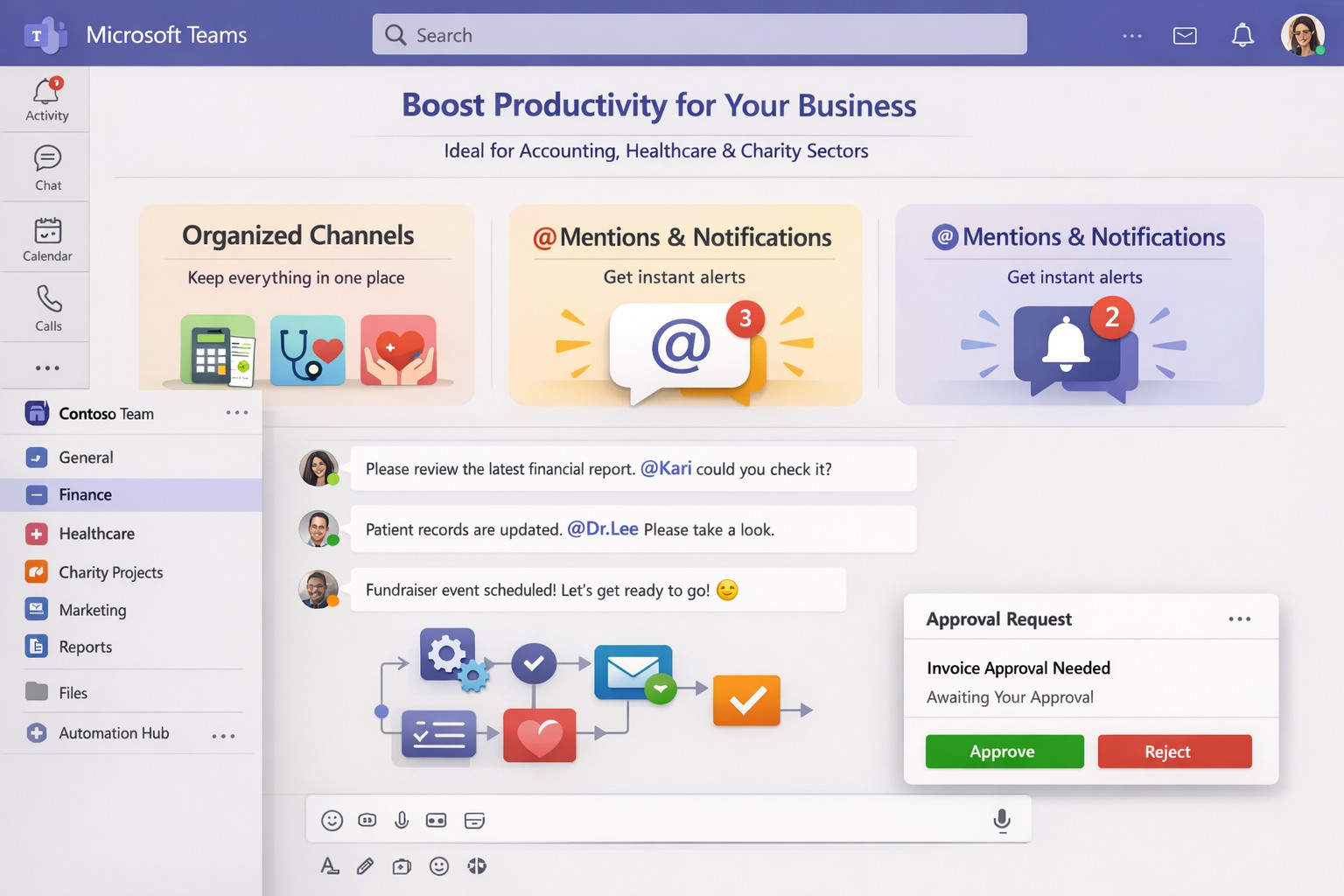
Structured channels, @mentions, and tags reduce clutter, ensuring critical updates reach the right people instantly.
Practical Action Steps for Implementation
Business owners and IT departments can deploy Teams effectively with these steps:
Assess Needs and License: Audit team size and requirements. Start with Microsoft 365 Business Basic ($6/user/month) for core features or Premium for advanced AI. IT assigns licenses via admin center.
Set Up Structure: Create teams for departments and channels for projects (e.g., “Q1 Sales Pipeline”). IT enables guest access for clients and sets naming conventions to avoid chaos.
Configure Security and Integrations: IT activates multi-factor authentication, data loss prevention, and noise suppression. Integrate Planner for tasks, Power BI for analytics, and Copilot for AI summaries.
Train and Optimize: Roll out via short sessions on channels, @tags, and meeting intelligence (transcripts, recaps). Monitor usage in admin analytics and refine with custom bots.
Test and Scale: Pilot with one department, gather feedback, then expand. Use Teams Phone for CCaaS if handling calls.
These steps typically take 1-2 weeks, yielding 20-30% productivity gains through reduced email and focused meetings.
FAQ: Client Inquiries Answered
How secure is Teams for sensitive business data? Teams uses enterprise-grade encryption, compliance with GDPR/HIPAA, and role-based access. IT controls via Microsoft Purview for auditing.
What’s the learning curve for non-tech teams? Minimal—intuitive like chat apps. AI features like live captions and summaries ease adoption; most users proficient in days.
Can Teams replace Zoom or Slack entirely? Yes, with superior Microsoft ecosystem integration. Handles 10,000+ attendees, outperforms in file collab, but pair with Outlook for scheduling.
How does Copilot justify the cost? It saves hours weekly by auto-summarizing threads/files and suggesting replies, ideal for busy owners.
What if we have hybrid workers? Perfect fit—real-time co-editing, presence indicators, and whiteboard tools bridge office/remote gaps.
How Farmhouse Networking Elevates Your Teams Setup
Farmhouse Networking specializes in Microsoft 365 optimizations for accounting, healthcare, and charity sectors. We handle full Teams deployments: custom channel strategies, AI/Copilot integrations, compliance configs, and training tailored to B2B workflows.
Our clients see 40% faster onboarding and higher client conversions via streamlined comms. We audit existing setups, migrate from legacy tools, and provide ongoing support to maximize ROI—without disrupting operations.
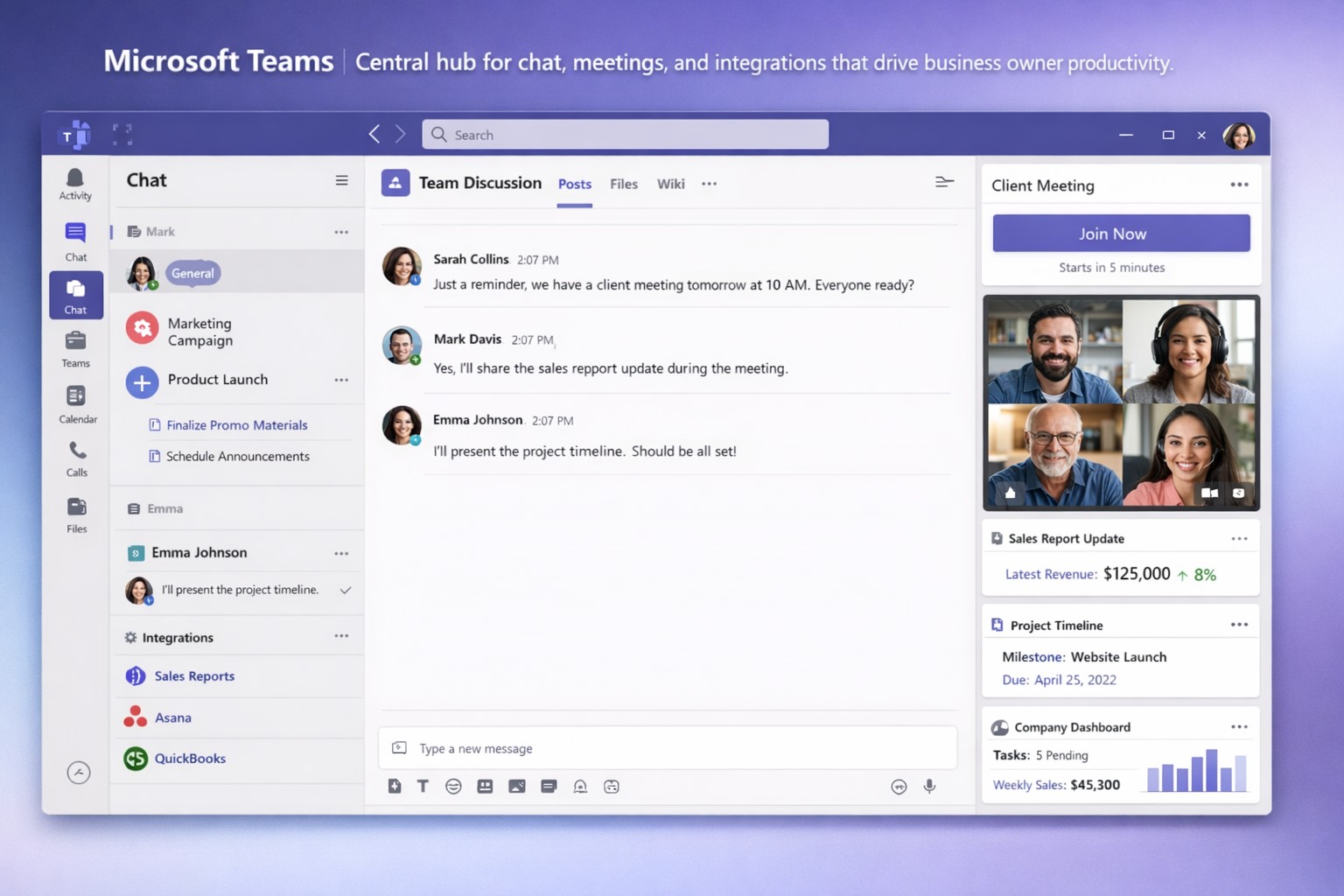
Optimize your workflow: Microsoft Teams channels and Power Automate save business owners hours weekly.
Endless meetings, scattered emails, and disorganized chats steal hours weekly. Microsoft Teams can reclaim that time by centralizing communication, automating workflows, and streamlining collaboration, potentially saving your team 5-10 hours per week per employee.
Key Time-Saving Features
Teams integrates chat, video, files, and tasks into one platform, reducing app-switching by up to 30%. Features like channels replace status meetings, search commands (/call, /files) launch actions instantly, and AI-driven Viva Insights schedules focus time to minimize distractions.
Business owners report faster decisions with real-time co-editing in Word/Excel via Teams and automatic transcriptions that eliminate note-taking.
Practical Action Steps
Follow these steps with your IT department to implement immediately:
Audit and Organize Channels: Create topic-specific channels (e.g., “Sales-Q1”, “HR-Onboarding”) instead of group chats. Pin key ones and hide inactive channels to cut navigation time by 50%.
Enable Strategic @Mentions and Tags: Train staff to @mention individuals for tasks, @channel sparingly, and create custom tags (e.g., @MarketingTeam). This reduces back-and-forth messaging.
Set Up Meeting Templates and Transcriptions: In Teams admin center, enable templates for recurring meetings (agenda, attendees, tasks) and auto-transcriptions. IT: Activate under Meetings > Meeting policies.
Integrate Power Automate Workflows: IT connects Outlook, SharePoint, and Planner. Automate approvals, reminders, and file routing—e.g., auto-post email attachments to channels.
Configure Notifications and Viva Insights: Customize alerts (e.g., priority only) and enable focus blocks. IT: Roll out via admin settings for company-wide adoption.
Leverage Search as Command Center: Bookmark shortcuts like /saved for quick access to files/messages. Train via pinned announcements.
Link with Microsoft 365: IT ensures seamless OneDrive/SharePoint sync for instant file access without downloads.
Implement in phases: Week 1 for setup, Week 2 for training.
Feature
Time Saved
IT Action Required
Channels over Meetings
2-4 hrs/week
Create/organize in Teams admin
Power Automate
1-3 hrs/week
Set flows in Power Automate portal
Transcriptions
1 hr/meeting
Enable in Meeting policies
Viva Focus Time
5-10 hrs/week
Deploy via Insights dashboard
FAQs for Client Inquiries
How secure is Teams for sensitive business data? Teams uses enterprise-grade encryption (at-rest and in-transit) compliant with GDPR, HIPAA. IT controls guest access and data retention policies.
What’s the ROI for small businesses? SMEs see 20-40% productivity gains; integrates free with Microsoft 365 Business plans starting at $6/user/month.
Can we customize for our industry (accounting/healthcare/charity)? Yes—add apps for QuickBooks (accounting), EHR integrations (healthcare), or donor tracking (charity). Power Automate handles compliance workflows.
How long to see time savings? Most teams report gains in 2-4 weeks post-training.
Does it work for hybrid/remote teams? Fully—real-time collaboration scales from 5 to 500 users seamlessly.
How Farmhouse Networking Helps
Farmhouse Networking specializes in Microsoft 365 optimizations for accounting, healthcare, and charity sectors. We conduct free Teams audits, implement custom workflows (e.g., HIPAA-compliant automations), and train your staff/IT for 30% faster adoption. Our SEO-driven websites and lead-gen strategies have boosted B2B conversions for similar clients by 25%. Let us handle setup so you focus on growth.
Email support@farmhousenetworking.com for a no-obligation Teams efficiency assessment and tailored strategy to save your business hours weekly. Act now—spots fill fast.
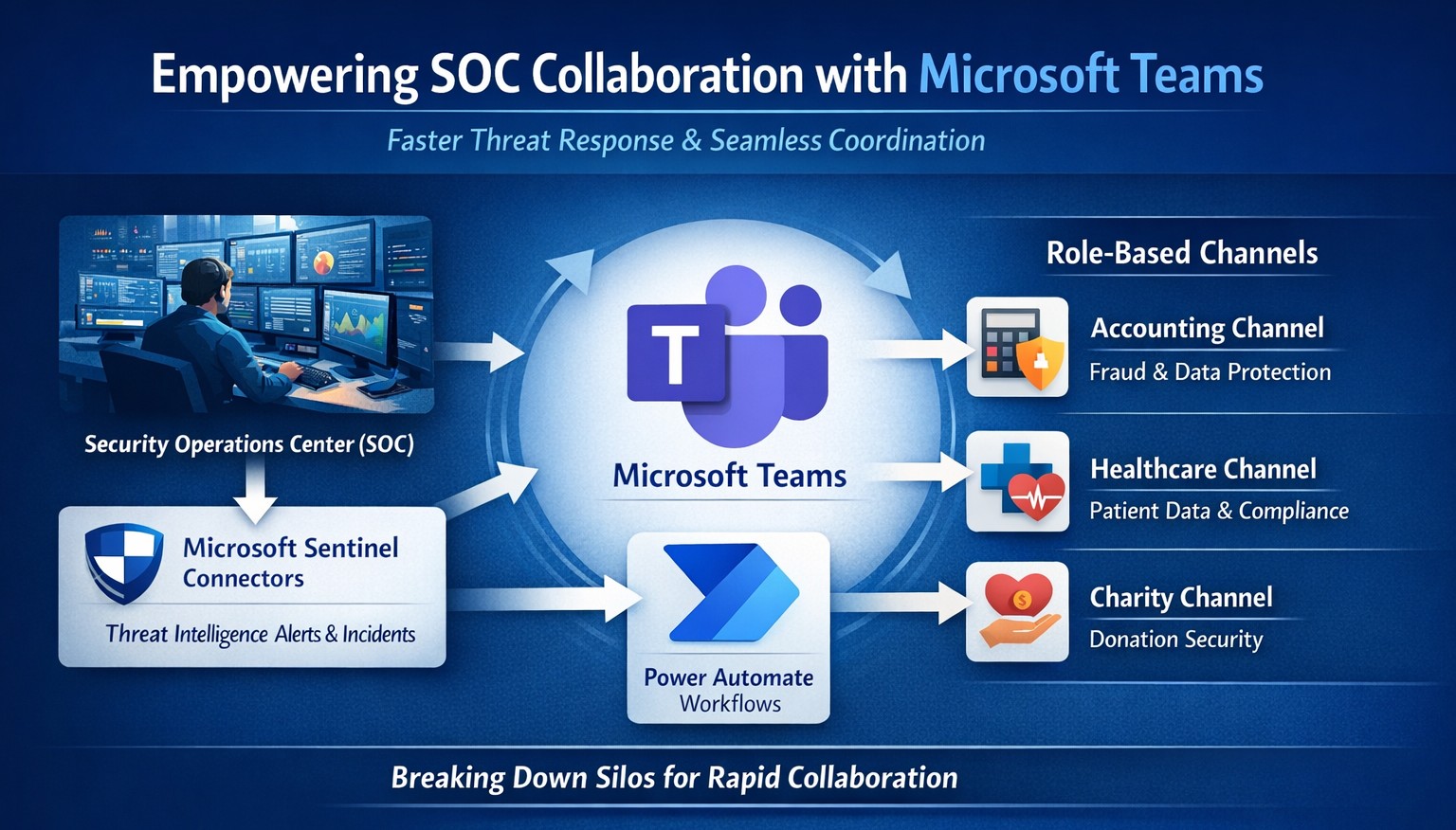
Seamless SOC-Teams coordination reduces incident response time—key steps visualized for business owners.
Security Operations Centers (SOC) must respond faster than ever, but silos between security teams and daily operations slow you down. Integrating SOC workflows with Microsoft Teams empowers real-time coordination, reducing response times by up to 50% and protecting your bottom line from breaches that cost small businesses millions annually.
Why SOC-Teams Integration Matters
Security Operations Centers monitor threats 24/7, but without seamless communication, alerts get lost in email chains or disjointed tools. Microsoft Teams acts as a unified hub, enabling SOC analysts to notify IT, executives, and even HR instantly during incidents. This cross-functional approach breaks down silos, as seen in best practices where unified platforms cut incident resolution time. For business owners, this means less downtime and stronger compliance in regulated industries like accounting and healthcare.
Practical Action Steps
Follow these targeted steps to empower your SOC with Teams integration. Involve your IT department early for smooth rollout.
Assess Current Setup: Audit your SOC tools (e.g., SIEM like Microsoft Sentinel) and Teams usage. Identify key channels for alerts, such as #soc-incidents or #threat-response.
Deploy Microsoft Sentinel Connector: In the Microsoft Sentinel portal, enable the Teams connector under Content Hub. This pipes SOC alerts directly into Teams channels with rich notifications including threat details and severity.
Configure Automation Workflows: Use Power Automate to create flows triggering Teams messages on high-priority alerts. For example, auto-post “Critical phishing detected—quarantine user X” with actionable buttons for IT to isolate systems.
Set Up Role-Based Channels: Create private Teams channels for SOC-IT coordination and executive summaries. Integrate bots for real-time querying, like “/threat status” pulling live SOC data.
Train and Test: Run tabletop exercises simulating ransomware. Train staff on responding via Teams, then measure metrics like mean-time-to-respond (MTTR) pre- and post-integration.
Monitor and Iterate: Use Teams analytics and SOC dashboards to track engagement. Adjust based on false positives or delays, ensuring continuous improvement.
These steps typically take 2-4 weeks, minimizing disruption while boosting efficiency.
FAQ: Client Inquiries Answered
Q: Is this integration secure for sensitive data? A: Yes—Teams uses enterprise-grade encryption and compliance with GDPR, HIPAA. SOC data shares only via authenticated channels, with audit logs for traceability.
Q: What if we lack an in-house SOC? A: Start with managed detection and response (MDR) services that integrate with Teams, scaling as your business grows without full-time hires.
Q: How much does it cost? A: Core features use existing Microsoft 365 E5 licenses (~$57/user/month). Sentinel adds $5-10/GB ingested data. ROI comes from averting breaches averaging $4.5M.
Q: Can it handle hybrid work? A: Absolutely—Teams supports mobile/desktop, ensuring remote SOC analysts coordinate with on-site IT seamlessly.
Q: What about non-Microsoft tools? A: Use APIs or third-party connectors (e.g., Splunk to Teams webhooks) for flexibility.
How Farmhouse Networking Helps
Farmhouse Networking specializes in tailored integrations for accounting, healthcare, and charity sectors, driving organic traffic and B2B leads through secure, SEO-optimized solutions. We handle full SOC-Teams setup, from Sentinel deployment to custom Power Automate flows, ensuring your IT team focuses on core ops. Our expertise includes vulnerability assessments, compliance audits, and branded websites that convert visitors into clients. Past projects reduced MTTR by 40% for similar businesses.
Call to Action
Ready to empower your SOC with Teams and safeguard your operations? Email support@farmhousenetworking.com today for a free consultation on streamlining your security.
Launch secure, instant Microsoft Teams remote meetings to empower your business team’s hybrid collaboration.
Remote work demands seamless collaboration, and Microsoft Teams delivers instant meetings that keep your business agile without complex setups. As a business owner, you can empower your team to connect securely from anywhere, boosting productivity in hybrid environments.
Why Teams for Instant Meetings
Microsoft Teams stands out for remote work with features like one-click meeting joins, HD video conferencing, screen sharing, and recording—ideal for quick client calls or team huddles. Business owners benefit from its integration with Microsoft 365, unifying chat, files, and calendars to cut app-switching time. Security features, including end-to-end encryption and guest access controls, protect sensitive discussions.
Step-by-Step Setup Actions
Follow these practical steps for your IT department and team to launch instant meetings fast.
Sign Up and License: Purchase Microsoft Teams via Microsoft 365 Business plans (Essentials or Premium). IT admins assign licenses in the Microsoft 365 admin center.
Install the App: Download Teams desktop/mobile apps or use web version. IT pushes via Intune for managed devices.
Create a Team/Channel: In Teams, select “Teams” > “Create team” for your department. Add channels for projects.
Schedule or Start Instant Meeting: Click “Calendar” > “Meet now” for ad-hoc sessions, or schedule via Outlook integration. Share the link instantly.
Configure Policies: IT sets meeting policies in Teams admin center—enable recording, live captions, and Together mode for engagement.
Test and Train: Run a pilot meeting; use breakout rooms and noise suppression. Share quick-start guides with staff.
These steps take under 30 minutes for basics, scaling securely for 1,000+ attendees.
FAQs for Business Owners
How secure are instant Teams meetings for client discussions? Teams uses AES-256 encryption and compliance with GDPR/HIPAA. External guests join via links without accounts, with role-based access.
Can non-Microsoft users join instantly? Yes—share a browser link; no app or plugin needed. Guests enter their name and join in seconds.
What if internet fails during a meeting? Dial-in audio options and network strength indicators ensure continuity. Live captions aid accessibility.
How does Teams handle large remote teams? Supports up to 10,000 in broadcasts, with features like Front Row for hybrid rooms and meeting recaps for absentees.
Does it integrate with my existing tools? Seamlessly with Outlook, OneNote, and 1,000+ third-party apps via tabs/bots.
How Farmhouse Networking Helps
Farmhouse Networking specializes in Microsoft Teams deployments for accounting, healthcare, and charity sectors, ensuring SEO-optimized setups that drive B2B leads. We handle licensing audits, custom policy configs, and training to minimize downtime—tailored for compliance-heavy industries. Our lead generation strategies integrate Teams with your site for instant demos, enhancing customer experience. Past clients saw 40% faster meeting ramps and organic traffic gains via branded content hubs.
Call to Action
Ready to streamline remote meetings and scale your business? Email support@farmhousenetworking.com for a free Teams optimization audit.
Streamline your business with Microsoft Teams—chat, video, and tasks in one secure platform.
You’re juggling remote teams, client calls, and endless emails. Microsoft Teams cuts through the chaos, combining chat, video meetings, video conferencing, file sharing, and task management into one secure platform—boosting productivity without added costs if you have Microsoft 365.
Core Features for Your Business
Microsoft Teams is Microsoft’s hub for teamwork, included in most Microsoft 365 plans. It supports unlimited group meetings up to 30 hours, 10 GB cloud storage per user, unlimited chat, and data encryption for calls and files.
Key benefits include intelligent recaps for catching up on meetings, Power Automate for task automation, and integration with Outlook, OneDrive, and frontline tools like Shifts. Small businesses gain from guest access for clients and 300-participant meetings, reducing email overload.
Practical Action Steps
Follow these steps with your IT department to deploy Teams effectively.
Assess Licensing: Check your Microsoft 365 subscriptions—Teams is often included. Upgrade to Teams Essentials ($4/user/month) for standalone use or Premium for AI features like Copilot.
IT Setup: Assign global admins in the Microsoft 365 admin center. Enable Teams via the Teams admin center, configure policies for meetings and external access, and set up single sign-on (SSO).
Team Creation: Business owner creates teams by department (e.g., Sales, Accounting). IT adds users, channels for projects, and apps like Planner for tasks.
Training Rollout: Mandate 1-2 hour sessions using built-in guides or integrated learning. Test with a pilot group for chat, calls, and file sharing.
Go Live and Monitor: Launch company-wide, track usage via analytics in Teams admin center, and enforce naming conventions for channels.
These steps take 1-2 weeks, minimizing downtime.
FAQ: Client Inquiries Answered
Q: Is Teams secure for client data? A: Yes—end-to-end encryption covers meetings, chats, and files. Guest access allows secure external sharing without full licenses.
Q: How does Teams handle hybrid work? A: Features like Teams Rooms for in-office setups, mobile access, and Together Mode make it ideal for mixed teams. Shifts schedules frontline staff.
Q: What’s the cost for small businesses? A: Free with Microsoft 365 Business Basic ($6/user/month). Essentials adds standalone options at low cost; Premium enhances with AI.
Q: Can we integrate custom apps? A: Over 250 apps available, plus Power Automate for workflows. Custom bots possible via developer tools.
Q: How to avoid adoption issues? A: Start with quick wins like chat over email. Use in-app training and engagement nudges for 80%+ usage in weeks.
How Farmhouse Networking Helps
Farmhouse Networking specializes in Microsoft deployments for accounting, healthcare, and charity sectors. We handle full Teams setup: licensing audits, custom policies for HIPAA/GDPR compliance, migration from Zoom/Slack, and branded onboarding training.
Our SEO-optimized websites integrate Teams calendars for lead-gen, plus analytics to track ROI—driving 30-50% productivity gains. We target B2B clients like yours via organic content on “Teams for accountants” or “Teams healthcare compliance.”
Call to Action
Ready to streamline your operations? Email support@farmhousenetworking.com for a free Teams assessment tailored to your business. Transform collaboration today.
Microsoft Teams unifies chat, video, and files to streamline business collaboration – ideal for accounting, healthcare, and charity teams.
Fragmented communication tools lead to lost productivity and missed opportunities. Microsoft Teams unifies chat, video, file sharing, and apps into one platform, boosting efficiency for accounting firms tracking client data, healthcare providers coordinating patient care, or charities managing donor campaigns.
Why Unify with Teams?
Teams integrates seamlessly with Microsoft 365, centralizing workflows to reduce email overload by 40-50% in typical deployments. For B2B owners, this means faster decision-making across hybrid teams—essential for industries like yours where compliance and real-time updates are critical. Real-world adopters report 20-30% gains in cross-departmental collaboration.
Practical Action Steps
Follow these steps with your IT department to implement Teams effectively.
Assess Needs: Audit current tools (email, Slack, Zoom). Survey teams on pain points like siloed files or meeting fatigue. Assign an IT lead to map requirements.
Set Up Licensing: Purchase Microsoft 365 Business Premium ($22/user/month) via the admin center. Enable Teams for all users and configure security policies like multi-factor authentication.
Create Structure: Build teams and channels by department/project (e.g., “Q1 Accounting Audits”). Pin key apps like Planner for tasks and OneDrive for files. Limit private channels for sensitive data.
Train Staff: Roll out 1-hour sessions via Teams Live Events. Cover channels, @mentions, and integrations. Use Microsoft’s free templates for quick onboarding.
Integrate and Test: Connect with Outlook, SharePoint, and industry tools (e.g., QuickBooks for accounting). Pilot with one department, monitor adoption via analytics, then scale.
Optimize Ongoing: Review usage monthly. Automate with Power Automate flows (e.g., approval workflows) and gather feedback to refine.
These steps typically take 4-6 weeks, yielding immediate ROI through reduced tool sprawl.
FAQ: Client Inquiries Answered
How secure is Teams for regulated industries like healthcare or accounting? Teams meets HIPAA, GDPR, and SOC 2 standards with end-to-end encryption and data loss prevention. Retention policies ensure compliance without custom coding.
What if my team resists change? Start small: Gamify adoption with badges for active users. 75% of employees value collaboration tools when trained properly.
Can Teams replace multiple apps? Yes—integrates 250+ apps, including CRM for charities or EHR for healthcare. Custom bots handle routine tasks, cutting manual work.
How much does it cost long-term? Starts at $6/user/month for basics; scales with add-ons. Expect 1-2 year payback via productivity gains.
Does it support hybrid/remote work? Fully—real-time co-editing, breakout rooms, and AI noise suppression keep distributed teams aligned.
How Farmhouse Networking Helps
Farmhouse Networking specializes in B2B setups for accounting, healthcare, and charities. We handle full Teams deployment: custom audits, secure configurations, staff training, and SEO-optimized intranets to drive internal efficiency. Our clients see 25% faster project closes. We integrate with your existing stack, ensuring zero downtime.
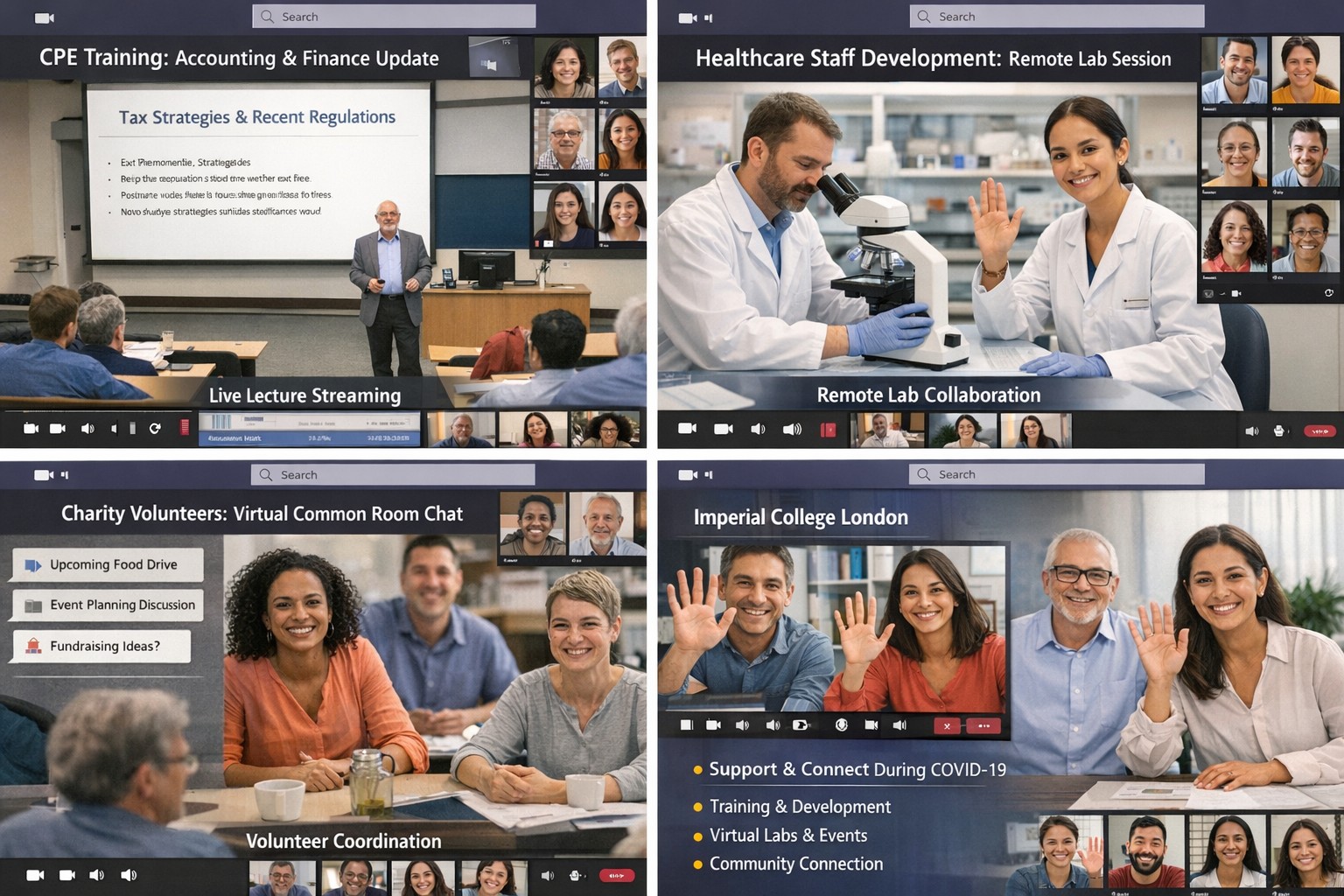
Teams enables Imperial College’s complete COVID-19 remote learning ecosystem
A world top ten university, with an international reputation for excellence in teaching and research, Imperial College London now uses Microsoft Teams to teach and connect in a time of COVID-19. In this video, see how the college is now relying on Teams for the delivery of its lectures and its remote labs, as well as a “virtual common room” where students and faculty can interact. Staff now have the fluid integration of shared files, scheduled events, and the students’ use of the virtual learning environment, providing opportunities to respond to students in a way never done before.
Microsoft Teams interface: Central hub for team collaboration, file sharing, and resource management to boost business productivity.
You’re constantly juggling teams, projects, and resources across locations. Microsoft technology, like Teams and Microsoft 365, centralizes everything into one platform to boost productivity and cut chaos.
Key Microsoft Tools for Collaboration
Microsoft Teams stands out as the hub, combining chat, video calls, file sharing, and app integrations. It lets teams create channels for projects, co-edit documents in real-time, and invite external partners securely.
Other tools like SharePoint for file storage, Planner for task tracking, and Viva Insights for analytics integrate natively, ensuring resources stay organized without switching apps. AI features, such as meeting summaries and action item capture, automate admin work.
These tools scale for small businesses to enterprises, supporting hybrid work with mobile access and real-time updates.
Practical Action Steps
Follow these steps with your IT department to implement quickly.
Assess Needs: Audit current tools—list pain points like scattered emails or file versions. Involve team leads via a short survey.
Set Up Microsoft 365: Sign up for a business plan (e.g., Microsoft 365 Business Premium). IT assigns licenses and configures security like multi-factor authentication.
Deploy Teams: Create core teams/channels (e.g., “Sales-Projects”, “Ops-General”). IT enables integrations with Outlook and OneDrive.
Train Users: Run 1-hour sessions on channels, @mentions, and file sharing. Share quick guides for Week 1 exploration.
Optimize and Monitor: Use SEO-like naming (descriptive keywords in channel names/descriptions) for findability. Review usage weekly, tidy unused channels, and add tabs for apps like Planner.
Expect 20-30% productivity gains within weeks through better communication.
FAQ: Client Inquiries Answered
How secure is Microsoft Teams for sensitive business data? Teams uses enterprise-grade encryption, compliance with GDPR/HIPAA, and role-based access. Guests get limited permissions.
What about costs for small businesses? Plans start at $6/user/month. Free trials let you test without commitment. ROI comes from reduced email overload and faster decisions.
Can it integrate with non-Microsoft tools? Yes, via 1,000+ app connectors (e.g., Zoom, Salesforce). Custom workflows via Power Automate.
How do we handle adoption resistance? Start small: Pilot with one department, gather feedback, and showcase wins like saved meeting time. AI recaps help busy owners.
Is it good for remote/hybrid teams? Perfect—real-time co-authoring, calls, and channels keep everyone aligned across time zones.
How Farmhouse Networking Helps
Farmhouse Networking specializes in Microsoft 365 deployments for accounting, healthcare, and charity sectors. We handle audits, custom setups, SEO-optimized Teams structures (e.g., keyword-rich naming for internal search), training, and ongoing optimization to drive efficiency.
Our B2B clients see faster lead gen through streamlined client portals and improved CX via integrated resources. We target organic traffic with blog strategies like this, positioning your firm as a tech leader.
Call to Action
Ready to unify your teams? Email support@farmhousenetworking.com for a free Microsoft collaboration audit tailored to your business.
Using the right collaboration tools and strategies helps teams communicate faster, reduce silos, and get more done together.
Up to 80% of employees’ time is spent on collaborative activities—emails, meetings, and informal coordination. Yet many businesses still struggle with communication breakdowns, duplicated effort, and siloed teams. For a business owner, this isn’t just a “people problem”; it’s a productivity and profitability problem. The good news is that a few well‑chosen tools and strategies can unblock collaboration and give your organization a clear competitive edge.
Below are five practical tool categories and strategies tailored to business owners, plus specific actions your leadership and IT teams can take to implement them.
1. Centralize Communication with a Unified Platform
Many teams juggle email, texts, Slack‑like apps, and project tools, which fragments information and creates confusion. A unified communication platform (for example, Microsoft 365 with Teams–style capabilities) keeps chats, calls, files, and tasks in one place. This reduces missed messages, speeds up decisions, and makes onboarding new staff easier.
Action steps for you and your IT team:
Audit current tools; identify redundant channels and sunset ones that are underused.
Choose one primary communication suite aligned with your existing infrastructure.
Configure clear norms: which channel is for urgent issues, which is for project updates, and which is for casual conversation.
Train staff with short, role‑specific sessions (e.g., “how to create a team channel” vs. “how to share a secure file”).
2. Use Project Management and Task‑Tracking Tools
Without visibility into who is doing what, teams waste time chasing status updates and reworking tasks. Project management tools such as Asana‑style platforms or similar task‑tracking systems help teams align on goals, deadlines, and deliverables. They also surface bottlenecks before they become major delays.
Action steps:
Define 2–3 core workflows (e.g., client onboarding, internal reporting, campaign launches) that will live in the tool.
Assign an “owner” for each workflow and task to ensure accountability.
Integrate the tool with your central communication platform so updates appear automatically (e.g., “Task completed” posts to a project channel).
Review dashboards weekly in leadership meetings to spot recurring delays or capacity issues.
3. Standardize Document Collaboration and Access
Version confusion—multiple copies of the same file circulating by email—wastes hours and creates compliance risks. Cloud‑based document collaboration (e.g., shared workspaces with real‑time editing and audit trails) keeps everyone on the same version and improves governance.
Action steps:
Migrate all operational documents into a single secure collaboration platform.
Set consistent folder structures and naming conventions (e.g., “ClientName_ProjectName_YYYYMMDD”).
Define permission levels: who can edit, who can comment, and who can only view.
Automate versioning and retention rules so older drafts are archived, not deleted.
4. Train Teams on Collaboration Norms (Not Just Tools)
Tools only work if people understand how to use them effectively. Studies show that poor training and unclear norms are major blockers to digital collaboration. Investing in short, ongoing training and clear collaboration guidelines pays back in faster decision‑making and less friction.
Action steps:
Roll out a “Collaboration Playbook” with simple rules: response‑time expectations, meeting‑free blocks, and escalation paths.
Host quarterly micro‑training sessions (15–20 minutes) focused on one tool or behavior, such as giving feedback in shared documents.
Encourage managers to model the behavior they want—using the right channels, documenting decisions, and tagging tasks clearly.
Survey staff every six months to identify new pain points and refine norms.
5. Measure and Iterate on Collaboration Performance
Leadership often assumes collaboration is “working,” but without metrics, issues remain hidden. Tracking collaboration effectiveness—such as cycle times for key workflows, meeting‑to‑decision ratios, and employee feedback—lets you spot what is and isn’t working.
Action steps:
Define 3–5 key collaboration KPIs (e.g., average time to close a client request, number of “urgent” emails vs. structured tickets, employee survey scores on “feeling heard”).
Set up simple dashboards in your project or collaboration tools so you can review them monthly.
Host quarterly “collaboration health checks” where leadership and team leads discuss what to start, stop, or change.
Adjust tools, training, and processes based on the data, not just opinions.
Frequently Asked Questions (For Your Clients)
Q: How do we choose the right collaboration tools without over‑complicating everything? A: Start with your existing ecosystem (e.g., Microsoft 365, Google Workspace) and extend it; avoid introducing too many new brands. Pilot one tool for a single department, measure impact, then scale if it improves speed and clarity.
Q: Won’t collaboration tools just create more noise and notifications? A: Only if there are no clear rules. Define communication norms, mute non‑essential channels, and train teams on “signal vs. noise” to keep collaboration productive, not chaotic.
Q: How do we get remote or hybrid teams to collaborate effectively? A: Treat remote and in‑office staff the same: use the same tools, agendas, and documentation. Default to “everything is recorded or written” so no one is left out of the loop.
Q: What’s the role of IT versus leadership in this process? A: IT owns setup, security, and integration; leadership owns behavior, expectations, and culture. Both need to align on goals and metrics.
How Farmhouse Networking Can Help
Farmhouse Networking specializes in helping business owners remove the friction from workplace collaboration by aligning technology with real‑world workflows. We can help you:
Audit your current tools and collaboration pain points.
Design and deploy a secure, unified communication and collaboration stack tailored to your industry and team size.
Integrate project management, file sharing, and communication tools into a single, intuitive experience.
Provide staff training and ongoing support so your investment translates into measurable productivity gains.
Ready to Unblock Your Team’s Collaboration?
If you’re a business owner who is tired of endless email threads, missed deadlines, and siloed information, it’s time to rethink how your team collaborates.
Email us at support@farmhousenetworking.com for more information about how Farmhouse Networking can help improve your business—from tool selection and deployment to training and ongoing optimization.
And God will generously provide all you need. Then you will always have everything you need and plenty left over to share with others. As the Scriptures say,
“They share freely and give generously to the poor. Their good deeds will be remembered forever.”
For God is the one who provides seed for the farmer and then bread to eat. In the same way, he will provide and increase your resources and then produce a great harvest of generosity in you. - 2 Corinthians 9:8-10
We use cookies to ensure that we give you the best experience on our website. If you continue to use this site we will assume that you are happy with it.