Create and use private channels in Microsoft Teams
Secure your business discussions: Step-by-step private channels in Microsoft Teams.
Protecting sensitive discussions—like HR strategies, client deals, or financial plans—is critical in Microsoft Teams. Private channels let you segment conversations within a team, ensuring only invited members access chats, files, and tabs, boosting security without creating separate teams.
Step-by-Step Setup Guide
Follow these practical actions to create and manage private channels. Team owners or permitted members handle creation; involve your IT department for policy checks and permissions.
Open Microsoft Teams and navigate to the target team.
Click the three dots (…) next to the team name, then select Manage team > Channels tab.
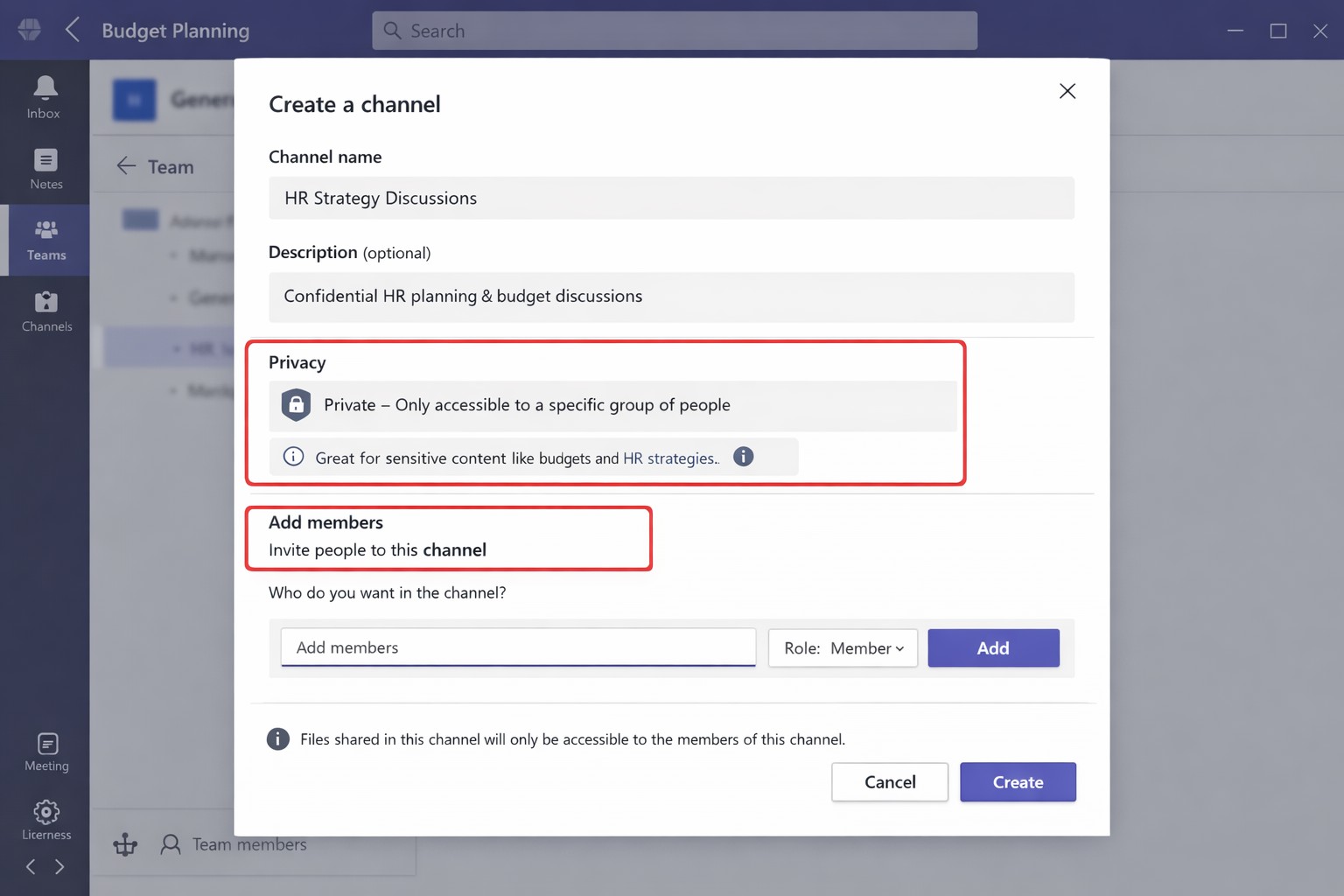
Click Add channel, enter a name (e.g., “Q1-Budget-Confidential”) and optional description.
Under Privacy, choose Private—this restricts access to added members only.
Click Add members to invite up to 250 people; set roles (owner/member) via Manage channel > Members tab.
Post-setup, use the channel for posts, file shares, and apps. Limit: 30 private channels per team lifetime; admins can restrict via Teams policies.
To delete or edit: Go to Manage channel > Settings for permissions, or remove via Members tab. IT should verify SharePoint site creation (auto-generated per channel) for compliance.
FAQs for Client Inquiries
Q: Who can create private channels? A: Team owners/members by default (guests cannot); admins control via policies in Teams admin center.
Q: What’s the difference from standard channels? A: Standard channels are visible to all team members; private ones require explicit invites, isolating content and files.
Q: Can I add external users? A: No, private channels are internal-only; use shared channels for guests/external collaborators.
Q: Do private channels impact storage or costs? A: Each gets a dedicated SharePoint site, counting toward limits; no extra licensing needed for core features.
Q: How do I audit access? A: Review Members tab; use Microsoft Purview for activity logs if enabled.
How Farmhouse Networking Helps
Farmhouse Networking specializes in tailored Microsoft 365 setups for accounting, healthcare, and charity sectors. We audit your Teams environment, implement governance policies (e.g., naming conventions, approval workflows), and train your team/IT on private channels to ensure HIPAA/GDPR compliance and seamless adoption.
Our SEO-optimized websites and lead-gen strategies drive organic traffic, converting visitors into B2B clients. We handle branding, custom integrations, and ongoing support to maximize ROI.
Ready to secure your Teams? Email support@farmhousenetworking.com for a free consultation on private channels and business growth. (Word count: 548)
And God will generously provide all you need. Then you will always have everything you need and plenty left over to share with others. As the Scriptures say,
“They share freely and give generously to the poor. Their good deeds will be remembered forever.”
For God is the one who provides seed for the farmer and then bread to eat. In the same way, he will provide and increase your resources and then produce a great harvest of generosity in you. - 2 Corinthians 9:8-10
We use cookies to ensure that we give you the best experience on our website. If you continue to use this site we will assume that you are happy with it.